tcpdump आणि Linux Network Troubleshooting: Packets capture करा आणि Connection problems step by step सोडवा
कधी कधी प्रत्येक tool 'ठीक' म्हणतो पण users ना errors दिसतात. तेव्हा खरे packets बघावे लागतात. tcpdump interface वरचा traffic capture करतो म्हणजे request पोहोचली का, reply गेली का, आणि काय चुकलं ते सिद्ध करता येतं. हा chapter tcpdump step by step (interfaces, filters, files मधे save, TCP flags वाचणं) आणि मग ip, ss, dig, curl, nc आणि firewall checks सोबत पूर्ण network troubleshooting पद्धत शिकवतो.
या chapter मध्ये तुम्ही काय शिकाल
- tcpdump ने safely packets capture
- host, port आणि protocol ने filters
- pcap files save आणि read
- TCP flags वाचा: SYN, ACK, RST, FIN
- Firewalls तपासा: firewalld, iptables, nftables
- पूर्ण troubleshooting पद्धत
1. रोजचं उदाहरण: दुकानाच्या दारावरचा CCTV
हे का लागतं?
Customer म्हणतो 'मी दुकानात आलो आणि कोणी serve केलं नाही'. Staff म्हणतो 'कोणी आलंच नाही'. तुम्ही दारावरचा CCTV बघता: customer आत आला का? Staff त्याच्याकडे गेला का? तो रागावून गेला का? Video ने निकाल लागतो.
हे काय आहे?
दार = network interface. CCTV = tcpdump. Customer आत = SYN. Staff चं स्वागत = SYN-ACK. Shutter खाली = RST. Owner ला दाखवायचं recording = .pcap file.
कसं करायचं (step by step)
2. tcpdump basics: -i, -n, -c
हे का लागतं?
चुकीच्या interface वर, किंवा name lookups चालू ठेवून capture केल्यास output नाही किंवा slow.
हे काय आहे?
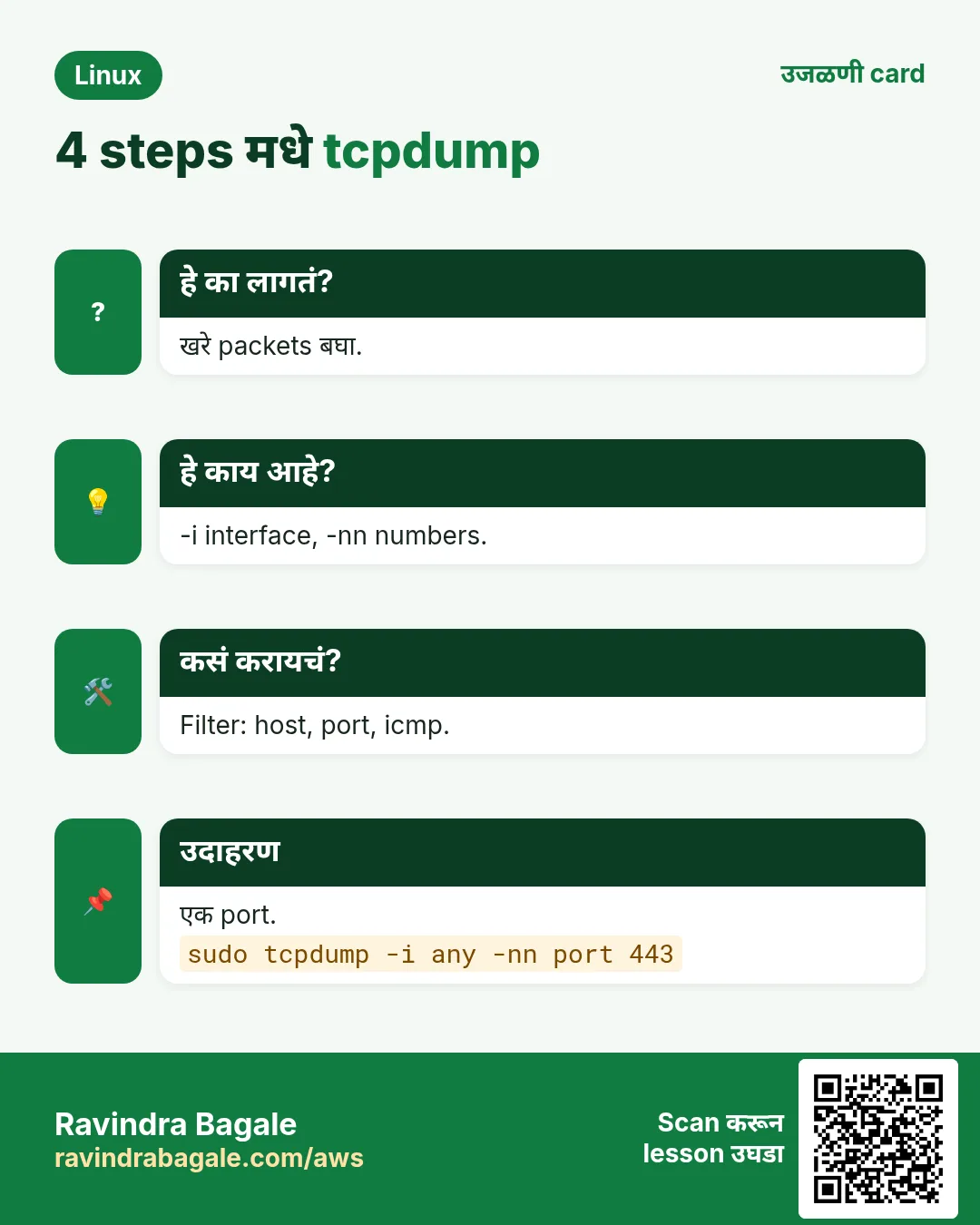
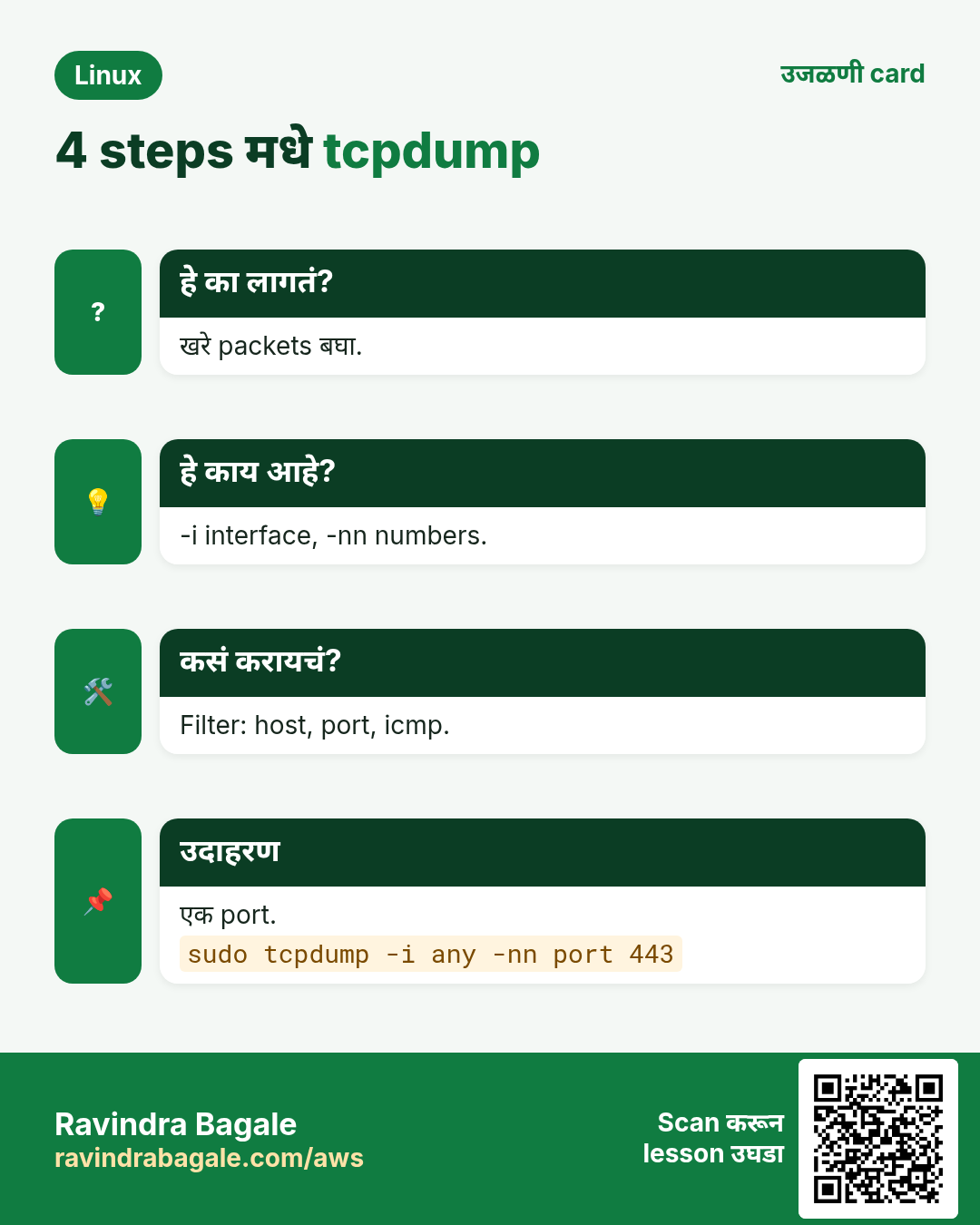
Root लागतो. -D interfaces list, -i IFACE एक निवडा (any = सगळे), -n DNS नाही (-nn port names पण नाही), -c N N packets नंतर थांबा, -v/-vv जास्त detail. Busy servers वर नेहमी filter.
कसं करायचं (step by step)
- Interfaces.
sudo tcpdump -DOutput:
1.eth0 [Up, Running]
2.any (Pseudo-device that captures on all interfaces)
3.lo [Up, Running, Loopback]
याचा अर्थ: eth0 किंवा any.
- दहा packets.
sudo tcpdump -i eth0 -nn -c 10Output:
10:01:02.1 IP 10.0.1.25.22 > 203.0.113.9.51514: Flags [P.], length 108
10 packets captured
याचा अर्थ: बहुतेक तुमचं SSH.
- सापडलं नाही.
tcpdump -i eth0Output:
tcpdump: eth0: You don't have permission to capture on that deviceयाचा अर्थ: sudo वापरा.
3. Filters: host, net, port, protocol
हे का लागतं?
Busy server second ला हजारो packets पाठवतो. Filters फक्त महत्त्वाचं दाखवतात.
हे काय आहे?
BPF filters शेवटी: host IP, src host / dst host, net 10.0.3.0/24, port 443, portrange 8000-8100, tcp/udp/icmp. and, or, not, आणि quotes मधे brackets ने जोडा. स्वतःला capture करू नका म्हणून 'not port 22'.
| Filter | अर्थ |
|---|---|
| host 10.0.3.40 | या IP कडे किंवा कडून |
| src host X | फक्त X कडून |
| port 5432 | दोन्ही बाजूचा हा port |
| tcp / udp / icmp | Protocol |
| not port 22 | SSH लपवा |
| net 10.0.3.0/24 | एक subnet |
कसं करायचं (step by step)
- Database traffic.
sudo tcpdump -i eth0 -nn host 10.0.3.40 and port 5432Output:
IP 10.0.1.25.40110 > 10.0.3.40.5432: Flags [S]
IP 10.0.3.40.5432 > 10.0.1.25.40110: Flags [S.]
याचा अर्थ: Handshake ठीक.
- फक्त pings.
sudo tcpdump -i any -nn icmpOutput:
IP 10.0.1.25 > 8.8.8.8: ICMP echo request
IP 8.8.8.8 > 10.0.1.25: ICMP echo reply
याचा अर्थ: Request आणि reply.
- DNS queries.
sudo tcpdump -i any -nn udp port 53Output:
IP 10.0.1.25.38211 > 10.0.0.2.53: 4411+ A? shop.example.com.
IP 10.0.0.2.53 > 10.0.1.25.38211: 4411 1/0/0 A 93.184.216.34
याचा अर्थ: प्रश्न आणि उत्तर.
- जोडा.
sudo tcpdump -i eth0 -nn 'tcp and (port 80 or port 443) and not host 10.0.1.5'Output:
(packets)याचा अर्थ: Brackets भोवती quotes.
4. tcpdump output मधे TCP flags वाचा
हे का लागतं?
Flags नेमकं connection का fail होतं ते सांगतात: dropped, refused किंवा reset.
हे काय आहे?
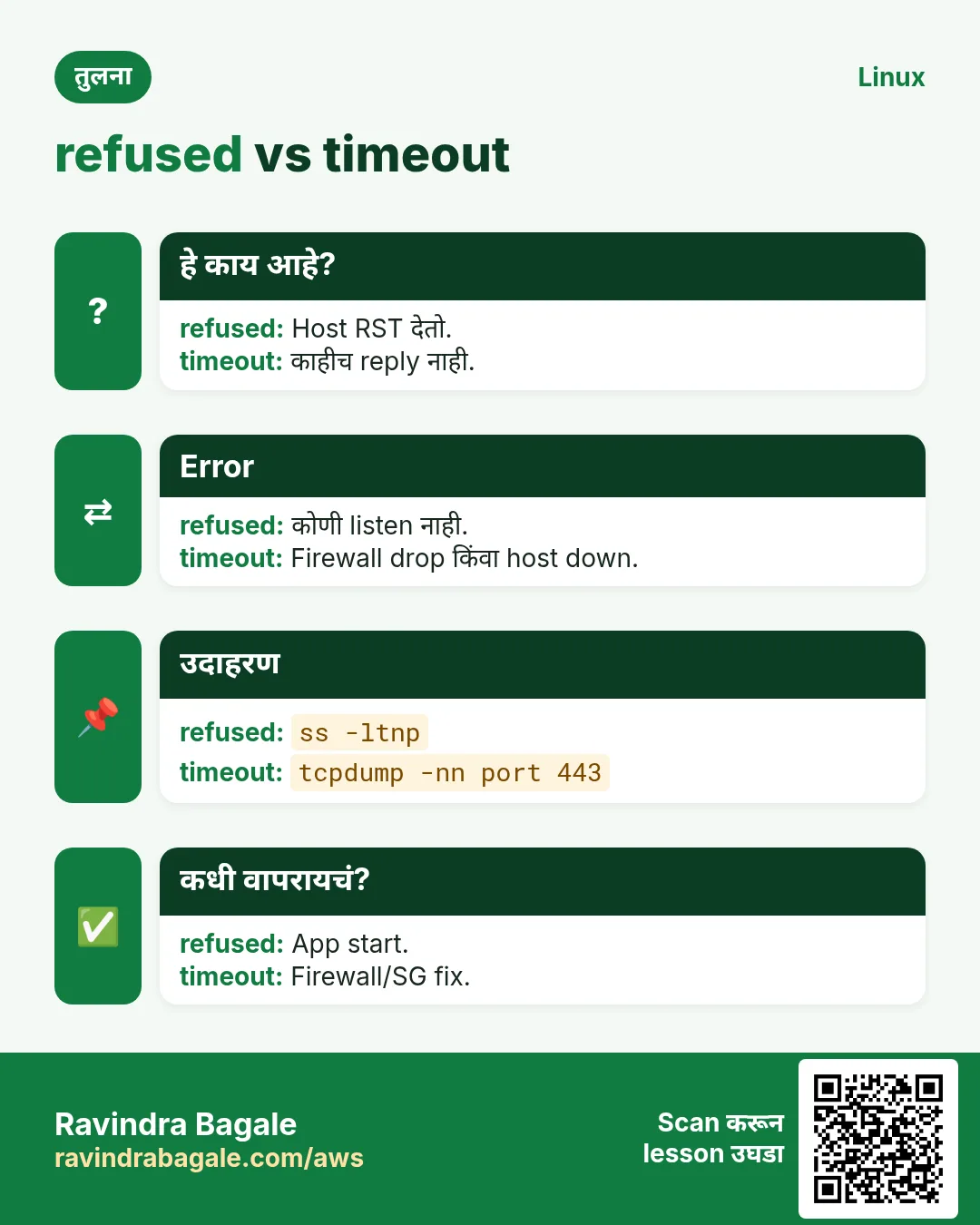
[S] SYN, [S.] SYN-ACK, [.] ACK, [P.] data, [F.] FIN, [R] किंवा [R.] reset. परत परत [S] आणि काही परत नाही = firewall drop किंवा route नाही. [S] मग [R.] = port closed. Data मग [R] = app ने abort. फक्त SYNs filter: 'tcp[tcpflags] & tcp-syn != 0'.
| Flag | नाव | अर्थ |
|---|---|---|
| [S] | SYN | सुरुवात |
| [S.] | SYN-ACK | Server तयार |
| [P.] | PUSH-ACK | Data |
| [F.] | FIN | नम्र बंद |
| [R.] | RST | नकार/abort |
कसं करायचं (step by step)
- Firewall ने drop.
sudo tcpdump -i eth0 -nn port 6379Output:
IP 10.0.1.25.5001 > 10.0.3.41.6379: Flags [S]
IP 10.0.1.25.5001 > 10.0.3.41.6379: Flags [S]
IP 10.0.1.25.5001 > 10.0.3.41.6379: Flags [S]
याचा अर्थ: Retries, उत्तर नाही: timeout.
- Refused.
sudo tcpdump -i eth0 -nn port 6380Output:
IP 10.0.1.25.5002 > 10.0.3.41.6380: Flags [S]
IP 10.0.3.41.6380 > 10.0.1.25.5002: Flags [R.]
याचा अर्थ: Host up, listener नाही.
- फक्त नवे connections.
sudo tcpdump -i eth0 -nn 'tcp[tcpflags] & tcp-syn != 0 and tcp[tcpflags] & tcp-ack == 0'Output:
Flags [S] lines onlyयाचा अर्थ: Connection attempts मोजा.
5. -w आणि -r: pcap files save आणि read
हे का लागतं?
Incident वेळी capture करून नंतर analyse, किंवा network team किंवा Wireshark ला पाठवायला.
हे काय आहे?
-w file.pcap raw packets लिहितो (screen output नाही). -r file.pcap वाचतो, वाचताना filters जोडता येतात. -C 100 -W 5 पाच 100 MB files rotate. -s 0 full packets (आजचा default). -A ASCII payload, -X hex+ASCII.
कसं करायचं (step by step)
- File मधे capture.
sudo tcpdump -i eth0 -nn -c 2000 -w /tmp/api.pcap port 443Output:
tcpdump: listening on eth0
2000 packets captured
याचा अर्थ: Save झालं.
- Read आणि filter.
tcpdump -nn -r /tmp/api.pcap 'tcp[tcpflags] & tcp-rst != 0' | head -3Output:
IP 10.0.1.25.443 > 198.51.100.7.60211: Flags [R.]याचा अर्थ: Resets शोधा.
- Ring buffer.
sudo tcpdump -i eth0 -nn -C 100 -W 5 -w /var/tmp/ring.pcap port 5432Output:
(runs until stopped)याचा अर्थ: Disk कधी भरत नाही.
- HTTP text.
sudo tcpdump -i lo -nn -A -c 20 port 8000Output:
GET /health HTTP/1.1
Host: 127.0.0.1:8000
याचा अर्थ: फक्त plain HTTP; HTTPS encrypted.
6. Firewalls: firewalld
हे का लागतं?
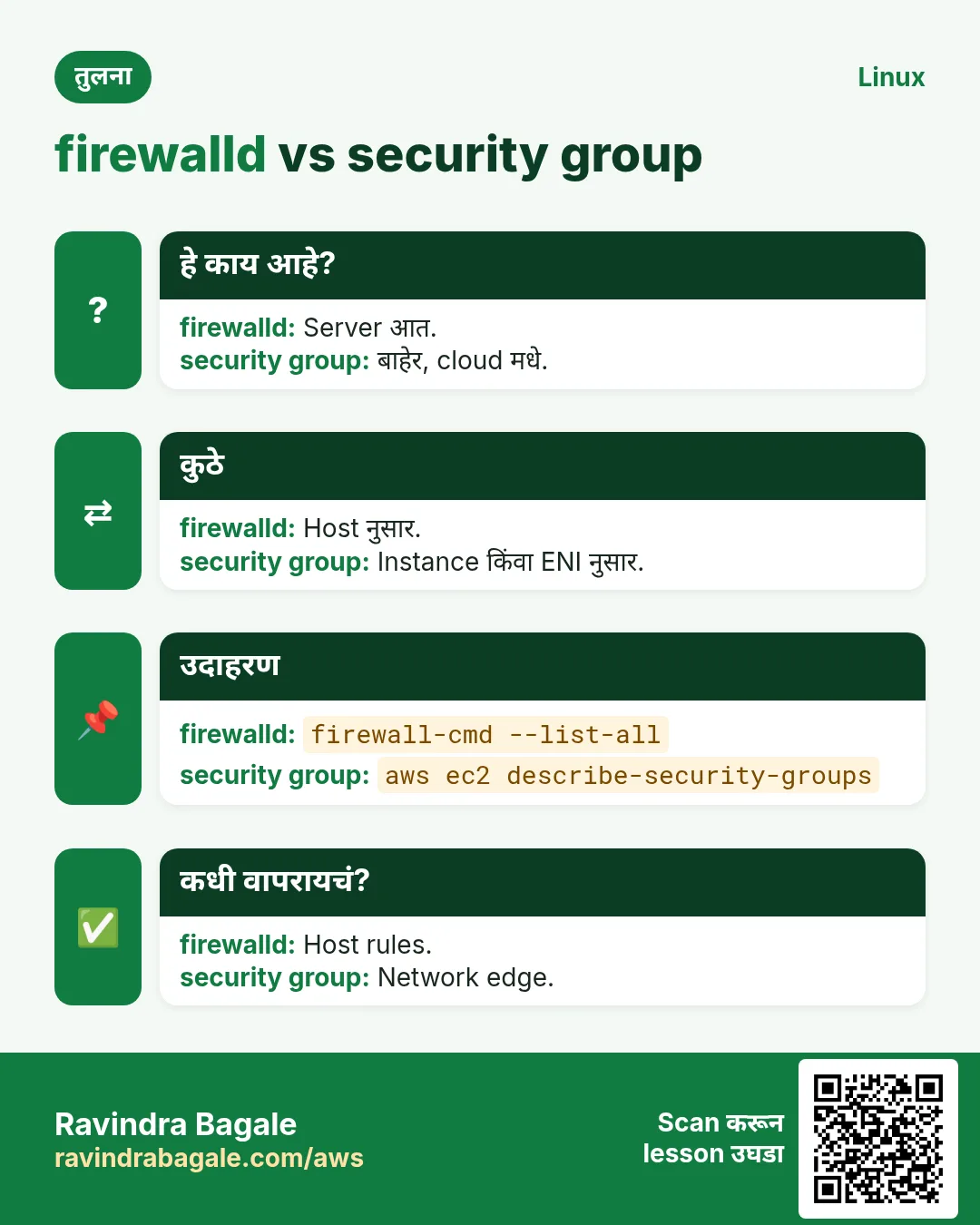
Port listening आणि host आत reachable असू शकतो, तरी host firewall ने blocked.
हे काय आहे?
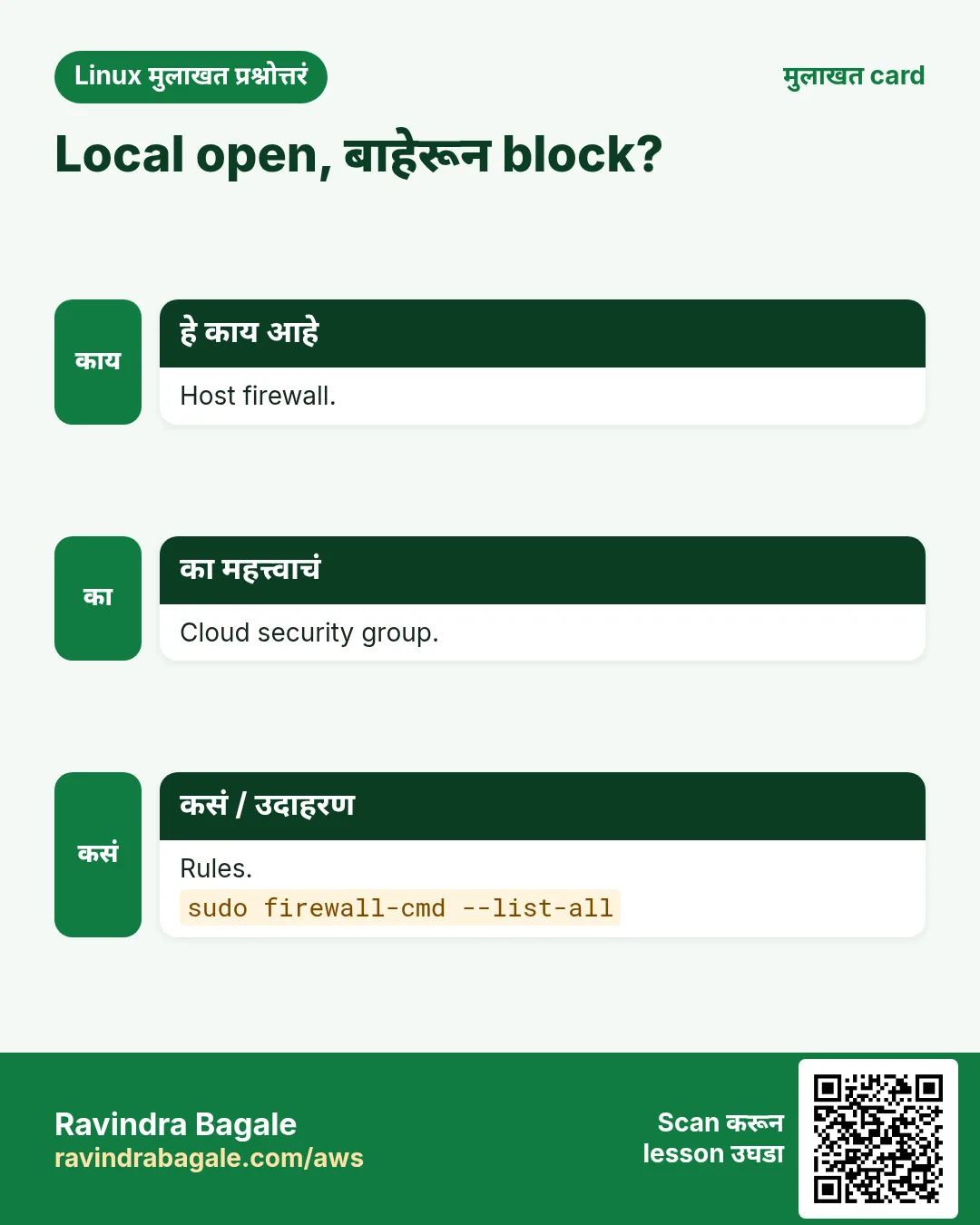
firewall-cmd --state, --list-all zone, services आणि ports. --add-port=8080/tcp --permanent मग --reload टिकवतो. --add-service=http नावं वापरतो. Ubuntu बहुतेक ufw (ufw status, ufw allow 8080/tcp).
कसं करायचं (step by step)
- काय open?
sudo firewall-cmd --list-allOutput:
public (active)
  services: dhcpv6-client ssh
  ports:
याचा अर्थ: फक्त SSH.
- 8080 open.
sudo firewall-cmd --add-port=8080/tcp --permanent && sudo firewall-cmd --reloadOutput:
success
success
याचा अर्थ: आता allowed.
- ufw.
sudo ufw allow 8080/tcp && sudo ufw statusOutput:
8080/tcp ALLOW Anywhereयाचा अर्थ: Ubuntu पद्धत.
7. Firewalls: iptables आणि nftables
हे का लागतं?
Docker, Kubernetes आणि जुने servers raw iptables/nft rules जोडतात. वाचता यायला हवं.
हे काय आहे?
iptables -L -n -v --line-numbers counters सह rules; test करताना DROP rule चा counter वाढताना बघा. नव्या systems वर nft list ruleset सगळं. वाढणारे counters rule match झाल्याचं सिद्ध करतात.
कसं करायचं (step by step)
- Counters सह.
sudo iptables -L INPUT -n -v --line-numbersOutput:
num pkts bytes target prot source destination
1   9123 1.1M ACCEPT tcp  0.0.0.0/0 0.0.0.0/0 tcp dpt:22
2   41   2.4K DROP   tcp  0.0.0.0/0 0.0.0.0/0 tcp dpt:6379
याचा अर्थ: 6379 वर 41 packets drop.
- nftables.
sudo nft list ruleset | head -8Output:
table inet filter {
  chain input {
    tcp dport 22 accept
याचा अर्थ: नवीन format.
8. Cloud layers: security groups आणि NACLs
हे का लागतं?
Cloud मधे packets server ला पोहोचण्याआधीच block होऊ शकतात. मग server वर tcpdump काहीच दाखवत नाही.
हे काय आहे?
नियम: target वर tcpdump ला SYN दिसला नाही तर block host च्या आधी (security group, NACL, route table, on-prem firewall). SYN दिसतो आणि SYN-ACK जातो पण client ला मिळत नाही तर return path. VPC flow logs ACCEPT/REJECT.
कसं करायचं (step by step)
- काही पोहोचत नाही.
sudo tcpdump -i eth0 -nn port 5432 and host 10.0.1.25Output:
(no packets while client retries)याचा अर्थ: Security group fix.
- AWS CLI ने.
aws ec2 describe-security-groups --group-ids sg-0abc --query 'SecurityGroups[0].IpPermissions[].FromPort'Output:
[22, 443]याचा अर्थ: 5432 allowed नाही.
9. पूर्ण troubleshooting पद्धत
हे का लागतं?
लिहिलेली पद्धत शांत ठेवते आणि इतर teams ना स्पष्ट पुरावा देते.
हे काय आहे?
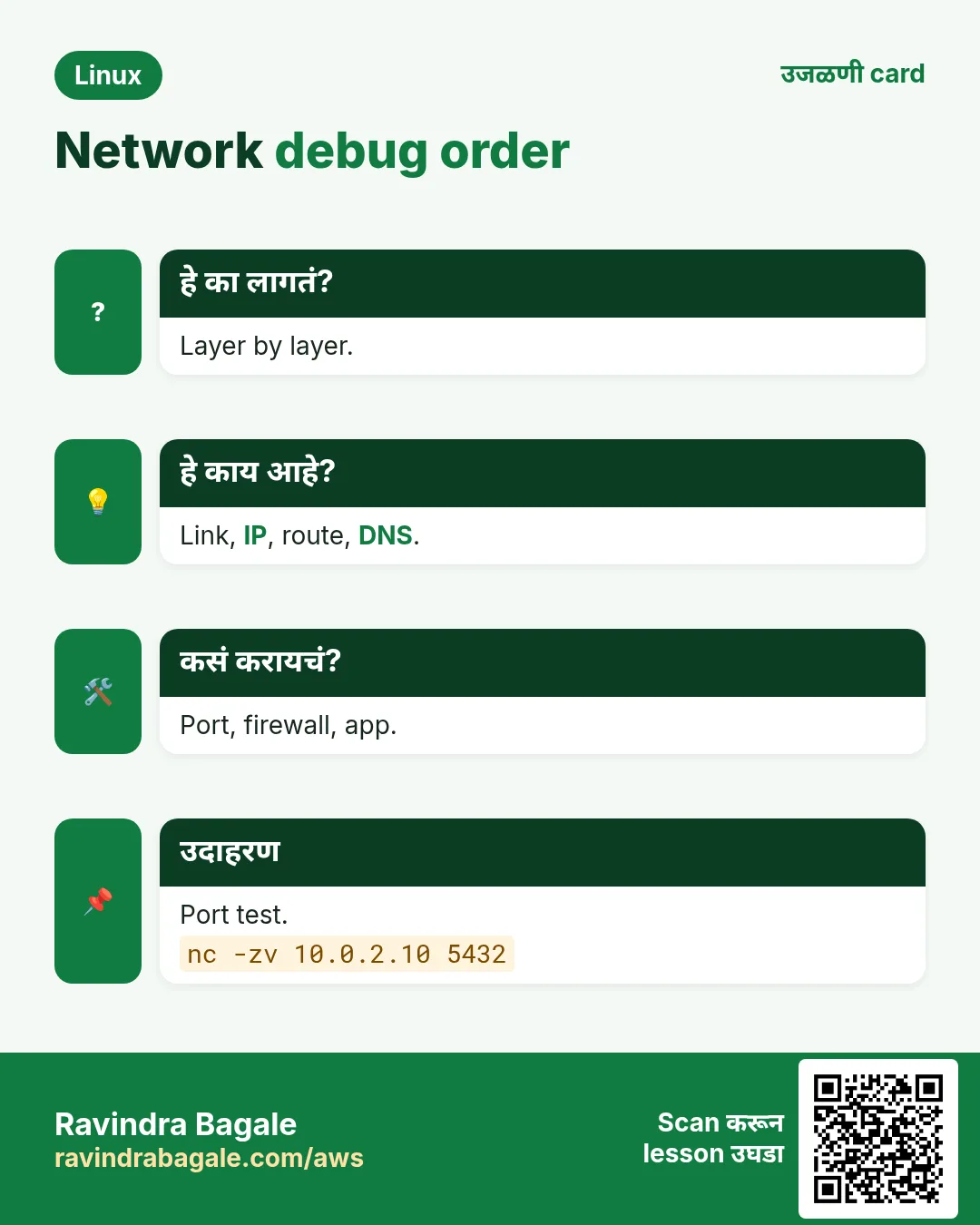
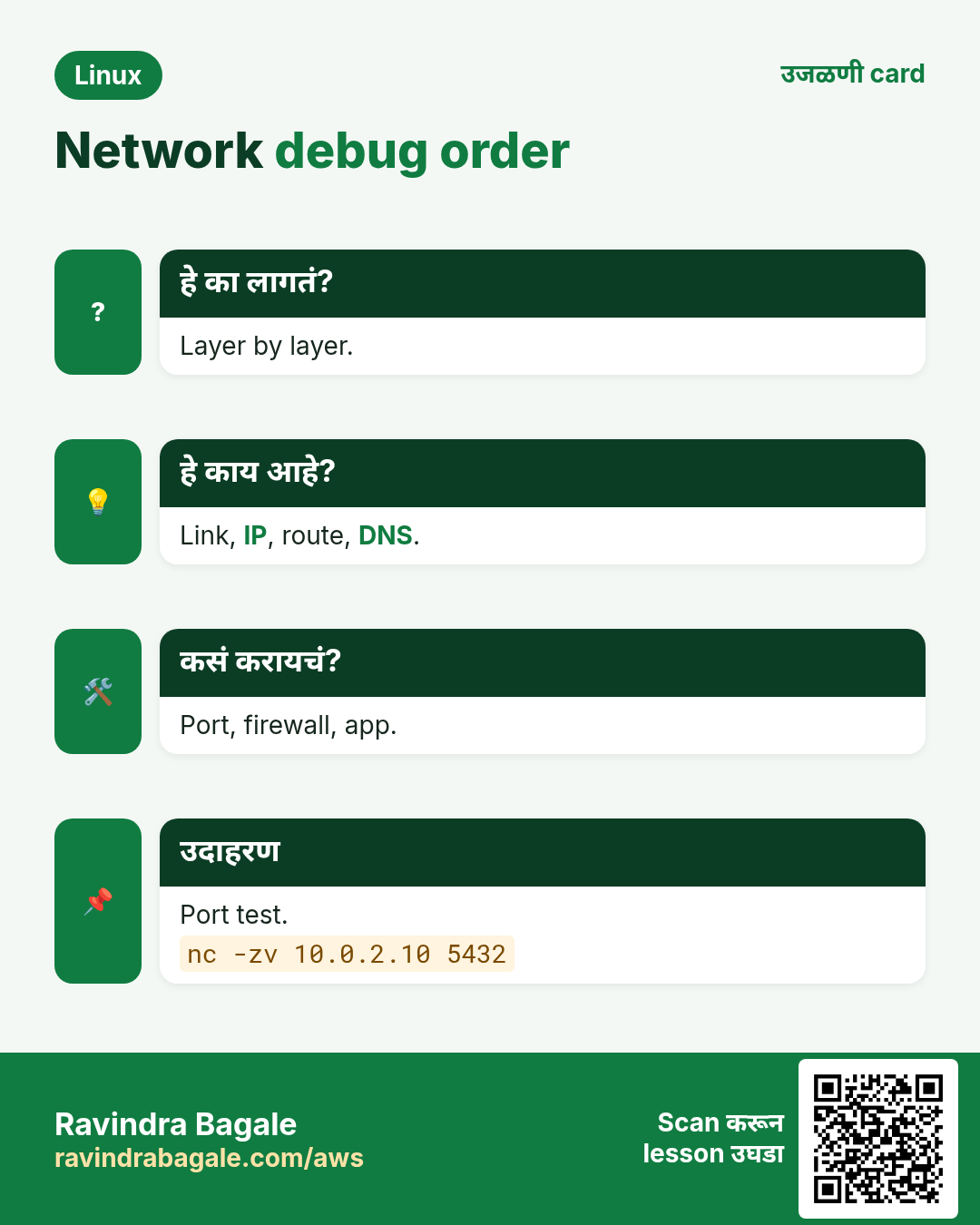
1 Define: कोण काय पोहोचू शकत नाही, कधीपासून. 2 Client: IP, route, DNS (getent, dig). 3 Path: mtr. 4 Port: nc -zv. 5 Server: ss -tulpn, app logs. 6 Firewall: host आणि cloud. 7 Packets: दोन्ही टोकांना एकाच वेळी tcpdump. 8 Fix, मग retest आणि लिहून ठेवा.
कसं करायचं (step by step)
- Client बाजू summary.
getent hosts db.internal; nc -zv -w 3 db.internal 5432Output:
10.0.3.40 db.internal
Ncat: TIMEOUT.
याचा अर्थ: नाव ठीक, port timeout.
- Server बाजू.
sudo ss -ltnp | grep 5432; sudo tcpdump -i eth0 -nn -c 5 port 5432Output:
LISTEN 0.0.0.0:5432
(no packets)
याचा अर्थ: Listening, पण काही येत नाही: cloud firewall.
- Fix नंतर.
nc -zv -w 3 db.internal 5432Output:
Ncat: Connected to 10.0.3.40:5432.याचा अर्थ: सिद्ध.
10. MTU आणि slow-पण-चालतं problems
हे का लागतं?
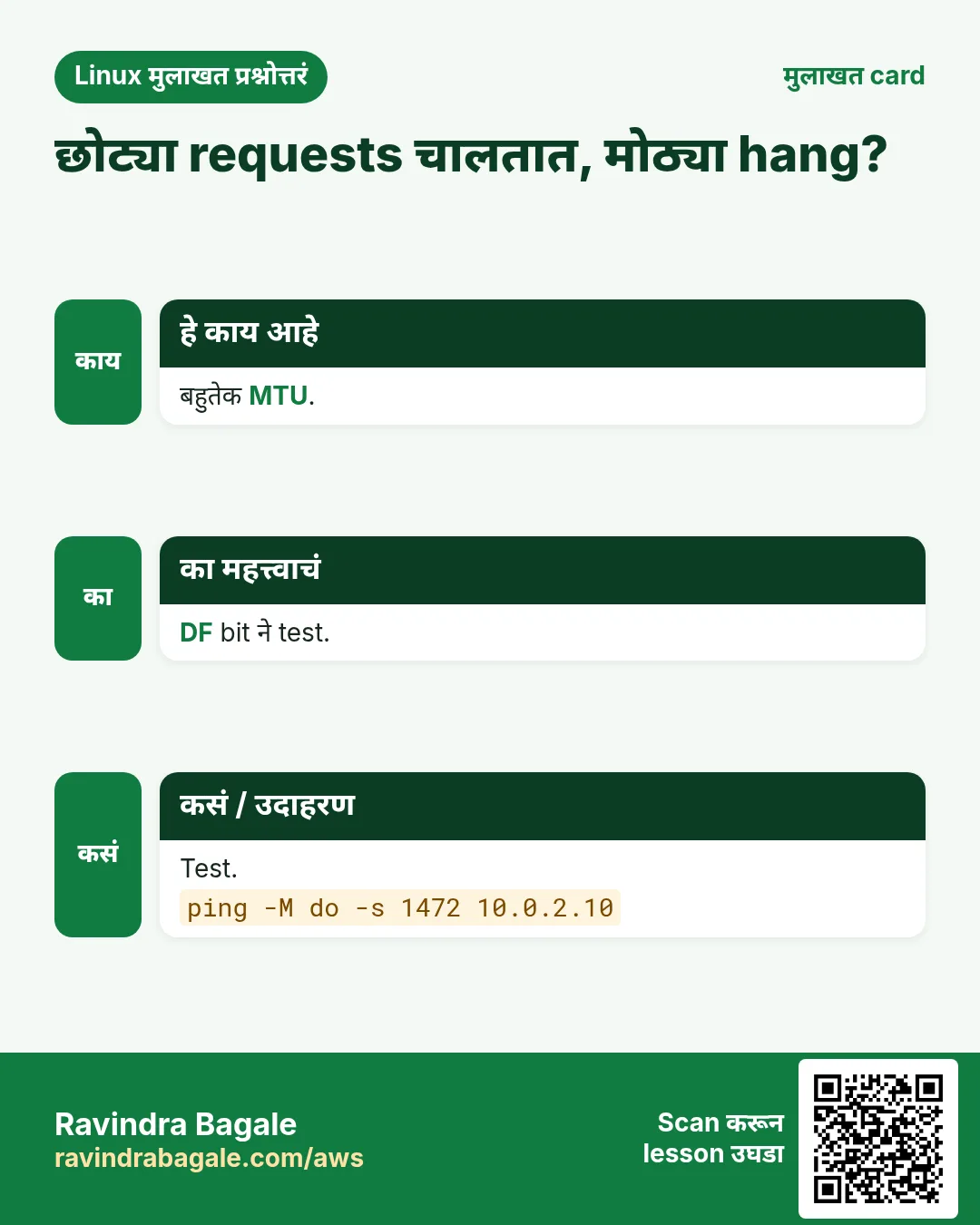
छोट्या requests चालतात, मोठे uploads अडकतात. VPNs किंवा tunnels वर बहुतेक MTU problem.
हे काय आहे?
ping -M do -s 1472 HOST fragment न होणारा 1500-byte packet. तो fail पण -s 1372 चालतो तर path MTU कमी. Interface MTU कमी करा (ip link set eth0 mtu 1400) किंवा router वर MSS clamping.
कसं करायचं (step by step)
- पूर्ण size fail.
ping -c2 -M do -s 1472 10.8.0.20Output:
ping: local error: message too long, mtu=1400याचा अर्थ: Path MTU 1400.
- छोटा चालतो.
ping -c2 -M do -s 1372 10.8.0.20Output:
2 receivedयाचा अर्थ: Confirmed.
- MTU कमी.
sudo ip link set eth0 mtu 1400Output:
(no output)याचा अर्थ: तात्पुरतं; network config मधे permanent.
11. Network issues वेळी logs वाचा
हे का लागतं?
Kernel आणि services drops, resets आणि timeouts log करतात जे कारणाकडे नेतात.
हे काय आहे?
journalctl -k kernel messages (link down, conntrack table full). App बाजूसाठी journalctl -u nginx --since '10 min ago'. Driver issues साठी dmesg -T | grep -i eth. Retransmits साठी nstat किंवा ss -s.
कसं करायचं (step by step)
- conntrack full.
journalctl -k --since '1 hour ago' | grep -i conntrackOutput:
nf_conntrack: table full, dropping packetयाचा अर्थ: nf_conntrack_max वाढवा.
- Link flapping.
dmesg -T | grep -i 'link is'Output:
eth0: Link is Down
eth0: Link is Up
याचा अर्थ: Cable किंवा NIC issue.
- Retransmits.
nstat -az TcpRetransSegsOutput:
TcpRetransSegs 18822याचा अर्थ: पटकन वाढतं = packet loss.
12. अनेक industries मधली खरी उदाहरणं
हे का लागतं?
तेच Linux skill प्रत्येक प्रकारच्या company मध्ये लागतं. वेगवेगळ्या ठिकाणी पाहिलं की लक्षात राहतं.
हे काय आहे?
प्रत्येक row म्हणजे एक काल्पनिक team. कोण हे वापरतं आणि कसं ते दाखवते.
कसं करायचं (step by step)
| Team आणि शहर | ते कसं वापरतात | Command |
|---|---|---|
| Shruti, payments, Pune | Incidents वेळी दोन्ही टोकांना capture | sudo tcpdump -i eth0 -nn -w /tmp/pay.pcap port 443 |
| Tom, SaaS, Dublin | API servers वर ring buffers | tcpdump -C 100 -W 5 -w ring.pcap |
| Mei, e-sports, Shanghai | VPN links वर MTU issues | ping -M do -s 1472 HOST |
| Joseph, NGO, Kampala | iptables counters | iptables -L -n -v |
| Ana, airline, Madrid | conntrack messages | journalctl -k | grep conntrack |
| Rahul, college lab, Aurangabad | tcpdump ने TCP flags शिकवतो | tcpdump -nn port 8000 |
13. नेहमीच्या errors आणि त्यांचे fixes
हे का लागतं?
हे errors सगळ्यांना येतात. कारण माहीत असलं की तास वाचतात.
हे काय आहे?
आधी नेमका message वाचा. मग खालच्या row शी जुळवा.
कसं करायचं (step by step)
| दिसणारा error | का होतं | Fix कसा करायचा |
|---|---|---|
tcpdump: permission denied | Root नाही | sudo.sudo tcpdump -D |
tcpdump: eth0: No such device exists | चुकीचं interface नाव | Interfaces list.sudo tcpdump -D |
0 packets captured | चुकीचा interface/filter, किंवा आधीच blocked | -i any आणि मोठा filter.sudo tcpdump -i any -nn host IP |
syntax error in filter expression | Brackets quoted नाहीत किंवा typo | पूर्ण filter quote.sudo tcpdump -nn 'port 80 or port 443' |
Flags [S] repeated, no reply | Firewall ने drop किंवा route नाही | Firewall layers.sudo firewall-cmd --list-all |
Flags [R.] after SYN | Port closed | Service start किंवा port fix.sudo ss -ltnp |
nf_conntrack: table full, dropping packet | खूप tracked connections | Limit वाढवा आणि कारण शोधा.sudo sysctl net.netfilter.nf_conntrack_max |
ping: local error: message too long | DF सह MTU पेक्षा मोठा packet | Path MTU शोधा.tracepath HOST |
No space left on device (pcap) | Capture ने disk भरली | -c किंवा -C/-W ring buffer.sudo tcpdump -C 100 -W 5 -w ring.pcap |
FirewallD is not running | firewalld बंद (कदाचित iptables/nft) | कोणता firewall active.sudo nft list ruleset | head |
14. Troubleshooting step by step
हे का लागतं?
दोन्ही टोकांना packets ने सिद्ध करा.
हे काय आहे?
वरून खाली जा. ज्या step ला problem दिसतो तिथे थांबा.
कसं करायचं (step by step)
- Client port test.
nc -zv -w 3 HOST PORT- Server listening?
sudo ss -ltnp- SYN पोहोचतो?
sudo tcpdump -i eth0 -nn -c 5 port PORT- Host firewall.
sudo firewall-cmd --list-all- Kernel drops.
journalctl -k -n 50- MTU.
ping -M do -s 1472 HOST15. Lab 1: Handshake आणि refusal बघा
हे का लागतं?
Open आणि closed port ला connect करताना lo वर capture.
हे काय आहे?
पूर्ण hands-on lab. प्रत्येक step test Linux machine वर करा (EC2 instance, VM किंवा WSL).
कसं करायचं (step by step)
- Server सुरू.
python3 -m http.server 8000 --bind 127.0.0.1 &Output:
Serving HTTP- Capture सुरू.
sudo tcpdump -i lo -nn 'port 8000 or port 8009'Output:
listening on lo- Open port.
curl -s -o /dev/null http://127.0.0.1:8000/Output:
Flags [S], [S.], [.], [P.] ...- Closed port.
curl http://127.0.0.1:8009/Output:
Flags [S] then [R.]- थांबवा.
Ctrl+COutput:
N packets captured16. Lab 2: Capture save, read आणि filter
हे का लागतं?
DNS traffic save करून फक्त answers वाचा.
हे काय आहे?
पूर्ण hands-on lab. प्रत्येक step test Linux machine वर करा (EC2 instance, VM किंवा WSL).
कसं करायचं (step by step)
- Background capture.
sudo tcpdump -i any -nn -c 20 -w /tmp/dns.pcap udp port 53 &Output:
listening- Queries.
for n in example.com github.com; do dig +short $n; doneOutput:
93.184.216.34 ...- Read.
tcpdump -nn -r /tmp/dns.pcapOutput:
A? example.com. ... A 93.184.216.34- फक्त replies.
tcpdump -nn -r /tmp/dns.pcap 'src port 53'Output:
... 1/0/0 A ...- साफ.
sudo rm /tmp/dns.pcapOutput:
(no output)Ravindra Bagale's Tip
Run tcpdump on both the client and the server at the same time. If the client sends SYN and the server never sees it, the problem is in between (firewall, security group, route). If the server sees it and answers, look at the return path. This one test ends most blame games.
Ravindra Bagale's Tip – मराठी
Client आणि server दोन्हीवर एकाच वेळी tcpdump चालवा. Client SYN पाठवतो आणि server ला कधी दिसत नाही तर problem मधे (firewall, security group, route). Server ला दिसतो आणि उत्तर देतो तर return path बघा. हा एक test बहुतेक blame games संपवतो.
Ravindra Bagale's Tip – हिंदी
Client और server दोनों पर एक साथ tcpdump चलाइए. Client SYN भेजे और server को न दिखे तो problem बीच में है (firewall, security group, route). Server को दिखे और जवाब दे तो return path देखिए. यह एक test ज़्यादातर blame games ख़त्म कर देता है.
17. नेहमी विचारले जाणारे प्रश्न
प्र. Production वर tcpdump safe?
Filters, -c किंवा ring buffers सह हो; सगळं capture टाळा.
प्र. HTTPS content दिसेल?
नाही, encrypted; IPs, ports, sizes आणि TLS handshake दिसतात.
प्र. tcpdump vs Wireshark?
tcpdump servers वर capture; GUI साठी pcap Wireshark मधे.
प्र. -nn म्हणजे?
Host आणि port name lookups नाहीत.
प्र. -i any का?
कोणत्या interface वर traffic ते माहीत नसताना.
प्र. Captures मधे secrets?
असू शकतात (plain HTTP मधे tokens). pcaps सांभाळा आणि delete.
प्र. कोणता firewall?
firewalld state, ufw status, किंवा nft list ruleset.
प्र. RST vs timeout?
RST म्हणजे active 'नाही'; timeout म्हणजे शांतता (drop).
18. मुलाखत प्रश्न आणि उत्तरं
Beginner level
प्र. eth0 वर 10 packets?
sudo tcpdump -i eth0 -c 10.
प्र. Port 443 filter?
tcpdump port 443.
प्र. File मधे save?
tcpdump -w file.pcap.
प्र. Firewall open ports?
firewall-cmd --list-all.
Mid level level
प्र. SYN ला reply नाही म्हणजे?
Packets drop: firewall किंवा route.
प्र. pcap मधून फक्त resets?
tcpdump -r f.pcap 'tcp[tcpflags] & tcp-rst != 0'.
प्र. firewalld मधे 8080 permanent?
--add-port=8080/tcp --permanent मग --reload.
प्र. Captures ने disk भरू नये?
-C आणि -W ring buffer.
Senior level
प्र. API ला कधी कधी timeouts: plan?
mtr reports, दोन्ही टोकांना tcpdump ring buffer, retransmit counters, conntrack, वेळा correlate.
प्र. VPN वर मोठे uploads अडकतात?
MTU/MSS issue; ping -M do ने test करून MTU fix किंवा MSS clamp.
प्र. Server SYN बघतो, SYN-ACK पाठवतो, client timeout?
Return path: asymmetric routing, NACL egress, किंवा reverse firewall.
प्र. Capture safely share?
गरजेचा traffic filter, trim, secrets तपासा, secure transfer.
घरी करून बघा
- तुमचा ping आणि curl traffic capture करा, save करा, आणि दिसणारा प्रत्येक flag समजवा.
- प्रत्येक step ला एक command असलेली तुमची 8-step troubleshooting checklist लिहा.
सराव Tasks
Amravati Agro Market हा अमरावती मधला शेती व्यवसाय आहे. Anjali Thakre त्यांचं IT व cloud काम पाहतात. त्यांचे पैसे INR मध्ये मोजले जातात आणि AWS resources ap-south-1 Region मध्ये चालतात. खालच्या tasks मध्ये तुम्ही या lesson मध्ये शिकलेलं वापरून त्यांची खरी कामं करता. सगळी नावं, account IDs, IP addresses व numbers सरावासाठी काल्पनिक आहेत.
0 / 17
सोपं Interfaces list
का: Network incident मधे packets हा पुरावा.
काय करायचं: tcpdump capture करू शकतो ते interfaces.
- हे काम करणारा Linux command शोधा.
- Task ला लागणारे options (उदा. -r, -h) जोडा.
- File नावं, folders किंवा users योग्य क्रमाने लिहा.
- System files/users बदलत असाल तर sudo वापरा. Check answer दाबा.
सोपं पाच packets
का: Network incident मधे packets हा पुरावा.
काय करायचं: ens5 वर name lookups शिवाय 5 packets.
- हे काम करणारा Linux command शोधा.
- Task ला लागणारे options (उदा. -r, -h) जोडा.
- File नावं, folders किंवा users योग्य क्रमाने लिहा.
- System files/users बदलत असाल तर sudo वापरा. Check answer दाबा.
सोपं एक port
का: Network incident मधे packets हा पुरावा.
काय करायचं: ens5 वर port 3306 traffic, numeric.
- हे काम करणारा Linux command शोधा.
- Task ला लागणारे options (उदा. -r, -h) जोडा.
- File नावं, folders किंवा users योग्य क्रमाने लिहा.
- System files/users बदलत असाल तर sudo वापरा. Check answer दाबा.
सोपं फक्त ICMP
का: Network incident मधे packets हा पुरावा.
काय करायचं: ens5 वर फक्त ICMP, numeric.
- हे काम करणारा Linux command शोधा.
- Task ला लागणारे options (उदा. -r, -h) जोडा.
- File नावं, folders किंवा users योग्य क्रमाने लिहा.
- System files/users बदलत असाल तर sudo वापरा. Check answer दाबा.
सोपं Capture read
का: Network incident मधे packets हा पुरावा.
काय करायचं: Name lookups शिवाय /tmp/tls.pcap वाचा.
- हे काम करणारा Linux command शोधा.
- Task ला लागणारे options (उदा. -r, -h) जोडा.
- File नावं, folders किंवा users योग्य क्रमाने लिहा.
- System files/users बदलत असाल तर sudo वापरा. Check answer दाबा.
सोपं Firewall rules
का: Network incident मधे packets हा पुरावा.
काय करायचं: public zone च्या सगळ्या firewalld settings.
- हे काम करणारा Linux command शोधा.
- Task ला लागणारे options (उदा. -r, -h) जोडा.
- File नावं, folders किंवा users योग्य क्रमाने लिहा.
- System files/users बदलत असाल तर sudo वापरा. Check answer दाबा.
सोपं Firewall reload
का: Network incident मधे packets हा पुरावा.
काय करायचं: State सह firewalld पूर्ण reload.
- हे काम करणारा Linux command शोधा.
- Task ला लागणारे options (उदा. -r, -h) जोडा.
- File नावं, folders किंवा users योग्य क्रमाने लिहा.
- System files/users बदलत असाल तर sudo वापरा. Check answer दाबा.
सोपं nftables rules
का: Network incident मधे packets हा पुरावा.
काय करायचं: inet family ची फक्त filter table.
- हे काम करणारा Linux command शोधा.
- Task ला लागणारे options (उदा. -r, -h) जोडा.
- File नावं, folders किंवा users योग्य क्रमाने लिहा.
- System files/users बदलत असाल तर sudo वापरा. Check answer दाबा.
मध्यम एक host
का: Network incident मधे packets हा पुरावा.
काय करायचं: कोणत्याही interface वर 10.0.7.21 कडे किंवा कडून traffic, numeric.
- हे काम करणारा Linux command शोधा.
- Task ला लागणारे options (उदा. -r, -h) जोडा.
- File नावं, folders किंवा users योग्य क्रमाने लिहा.
- System files/users बदलत असाल तर sudo वापरा. Check answer दाबा.
मध्यम SSH लपवा
का: Network incident मधे packets हा पुरावा.
काय करायचं: ens5 वर, numeric, port 22 सोडून सगळं.
- हे काम करणारा Linux command शोधा.
- Task ला लागणारे options (उदा. -r, -h) जोडा.
- File नावं, folders किंवा users योग्य क्रमाने लिहा.
- System files/users बदलत असाल तर sudo वापरा. Check answer दाबा.
मध्यम फक्त host कडून
का: Network incident मधे packets हा पुरावा.
काय करायचं: फक्त 10.0.7.21 कडून येणारे packets, ens5 वर, numeric.
- हे काम करणारा Linux command शोधा.
- Task ला लागणारे options (उदा. -r, -h) जोडा.
- File नावं, folders किंवा users योग्य क्रमाने लिहा.
- System files/users बदलत असाल तर sudo वापरा. Check answer दाबा.
मध्यम Capture save
का: Network incident मधे packets हा पुरावा.
काय करायचं: ens5 वर port 8443 /tmp/tls.pcap मधे.
- हे काम करणारा Linux command शोधा.
- Task ला लागणारे options (उदा. -r, -h) जोडा.
- File नावं, folders किंवा users योग्य क्रमाने लिहा.
- System files/users बदलत असाल तर sudo वापरा. Check answer दाबा.
मध्यम ASCII payload
का: Network incident मधे packets हा पुरावा.
काय करायचं: lo port 9000 वर ASCII payload सह 15 packets, numeric.
- हे काम करणारा Linux command शोधा.
- Task ला लागणारे options (उदा. -r, -h) जोडा.
- File नावं, folders किंवा users योग्य क्रमाने लिहा.
- System files/users बदलत असाल तर sudo वापरा. Check answer दाबा.
मध्यम Port open
का: Network incident मधे packets हा पुरावा.
काय करायचं: firewalld मधे TCP 9443 permanent open.
- हे काम करणारा Linux command शोधा.
- Task ला लागणारे options (उदा. -r, -h) जोडा.
- File नावं, folders किंवा users योग्य क्रमाने लिहा.
- System files/users बदलत असाल तर sudo वापरा. Check answer दाबा.
मध्यम iptables counters
का: Network incident मधे packets हा पुरावा.
काय करायचं: INPUT rules numeric counters आणि rule numbers सह.
- हे काम करणारा Linux command शोधा.
- Task ला लागणारे options (उदा. -r, -h) जोडा.
- File नावं, folders किंवा users योग्य क्रमाने लिहा.
- System files/users बदलत असाल तर sudo वापरा. Check answer दाबा.
अवघड Ring buffer
का: Network incident मधे packets हा पुरावा.
काय करायचं: ens5 वर port 443 /var/tmp/r.pcap ला प्रत्येकी 50 MB च्या 3 files.
- हे काम करणारा Linux command शोधा.
- Task ला लागणारे options (उदा. -r, -h) जोडा.
- File नावं, folders किंवा users योग्य क्रमाने लिहा.
- System files/users बदलत असाल तर sudo वापरा. Check answer दाबा.
अवघड MTU test
का: Network incident मधे packets हा पुरावा.
काय करायचं: 10.9.0.4 ला दोनदा 1400-byte payload आणि fragmentation शिवाय ping.
- हे काम करणारा Linux command शोधा.
- Task ला लागणारे options (उदा. -r, -h) जोडा.
- File नावं, folders किंवा users योग्य क्रमाने लिहा.
- System files/users बदलत असाल तर sudo वापरा. Check answer दाबा.
19. संबंधित chapters
- DevOps साठी Linux Ops Refresh
- Automation साठी Bash Scripting
- Linux grep आणि find Commands Examples सह
- Linux Servers मध्ये Passwordless SSH
थोडक्यात सांगायचं तर
- Filter सह tcpdump -i, -nn, -c.
- Filters: host, port, net, protocol, and/or/not.
- Flags: S, S., ., P., F., R.
- -w save, -r read, -C/-W rotate.
- Host आणि cloud firewalls.
- Packets कुठे थांबतात ते शोधायला दोन्ही टोकांना capture.
उजळणी, तुलना आणि मुलाखत cards
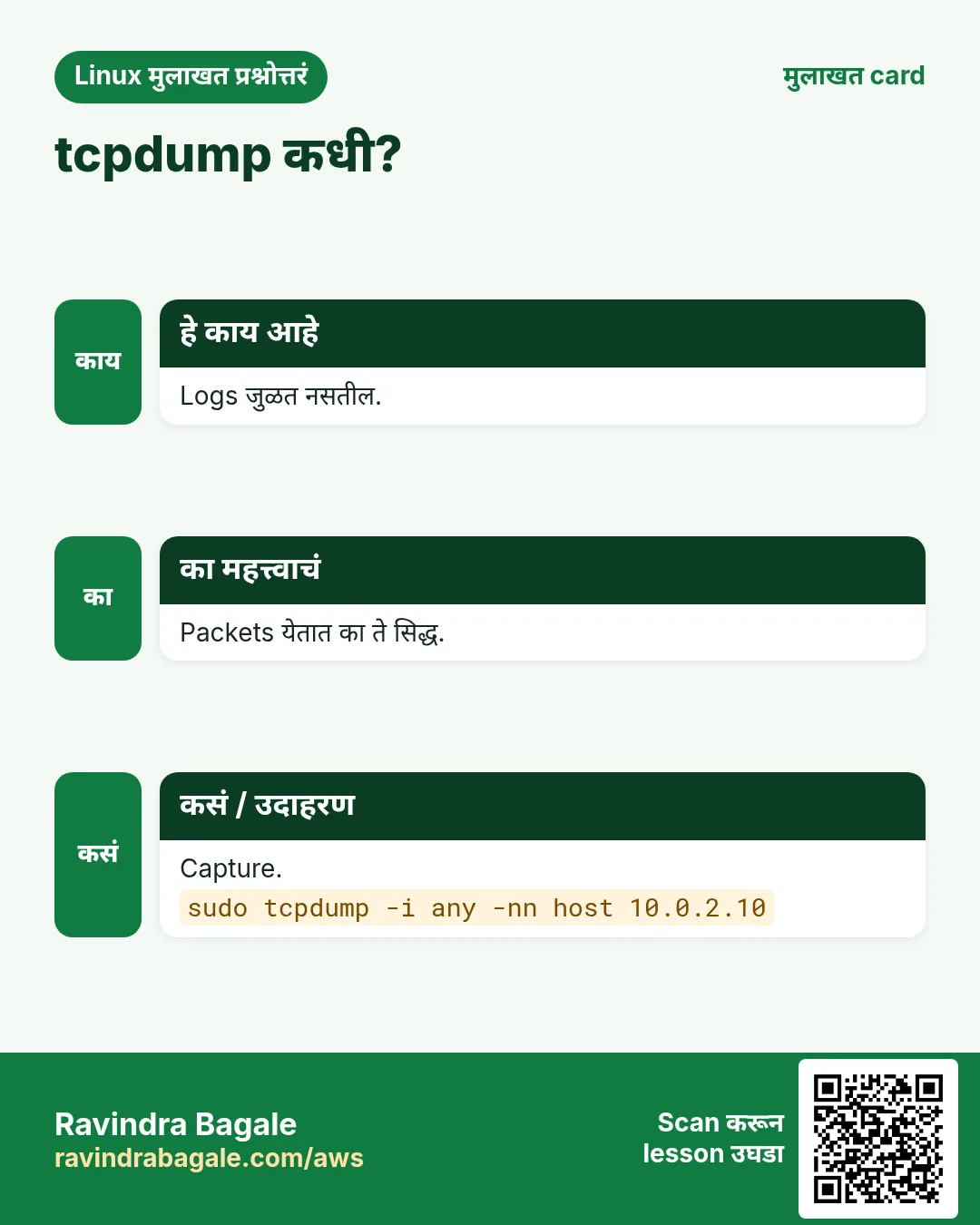
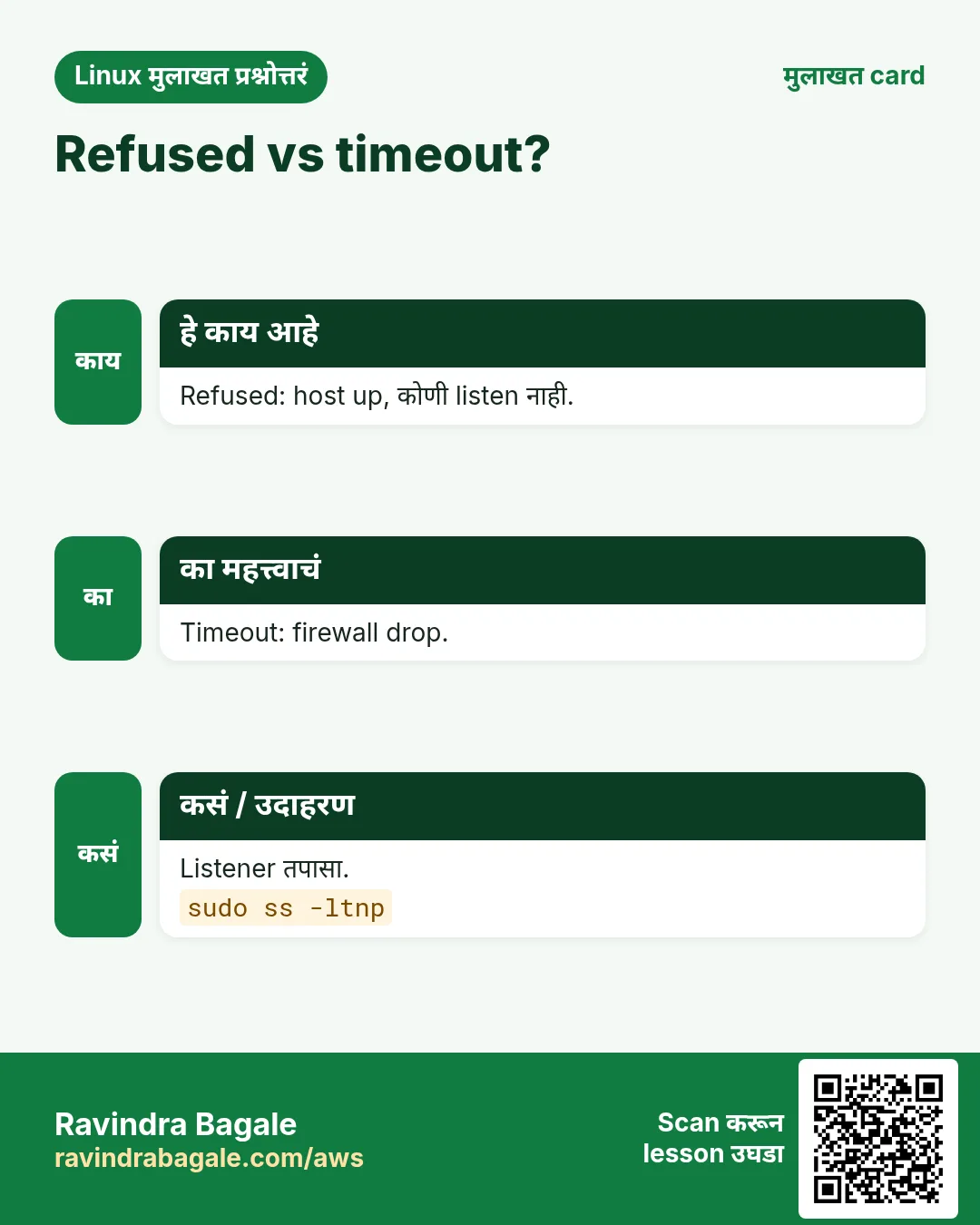
हा lesson काही मिनिटांत revise करा. Cards phone वर save करा किंवा PNG download करा. प्रत्येक card वरचा QR हा lesson उघडतो.
अजून cards: Ravi Sir's Cards.