tmux आणि screen Tutorial: Linux Sessions चालू ठेवा, Panes आणि Windows split करा
SSH वर 2 तासांचं database migration सुरू केलं, Wi-Fi गेलं, आणि session सोबत job मेला. tmux आणि GNU screen हे होऊ देत नाहीत. ते तुमचा terminal server वर चालू ठेवतात, म्हणजे detach करा, laptop बंद करा, आणि नंतर परत attach. tmux एका screen चे अनेक windows आणि panes पण करतो. प्रत्येक command आणि प्रत्येक key एक-एक करून शिकू.
या chapter मध्ये तुम्ही काय शिकाल
- tmux sessions start, name, list आणि attach
- Sessions safely detach आणि kill
- Windows आणि split panes वापरा
- Copy mode ने scroll आणि copy
- .tmux.conf आणि send-keys ने tmux configure
- GNU screen basics वापरा
1. रोजचं उदाहरण: gas वरचा pressure cooker
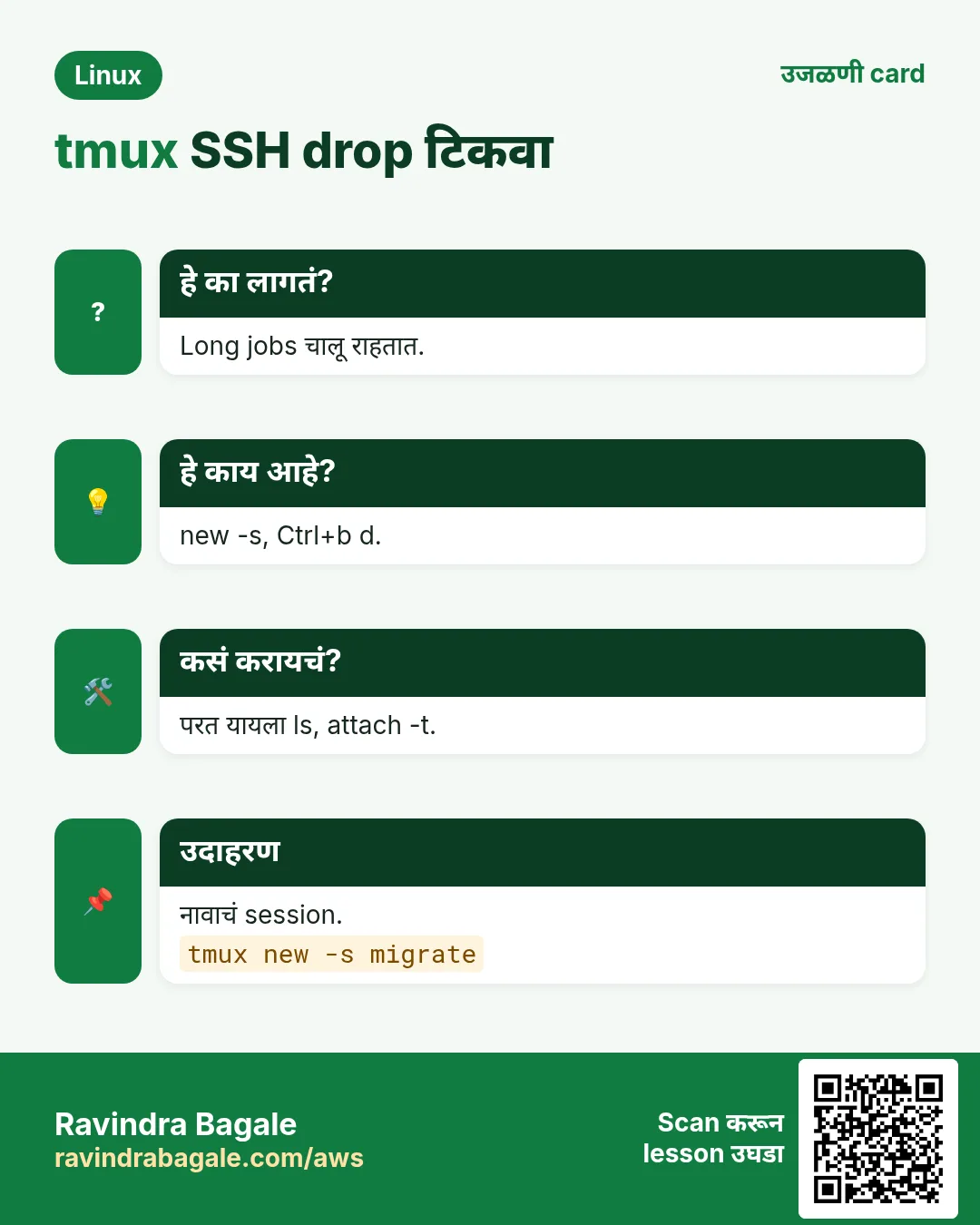
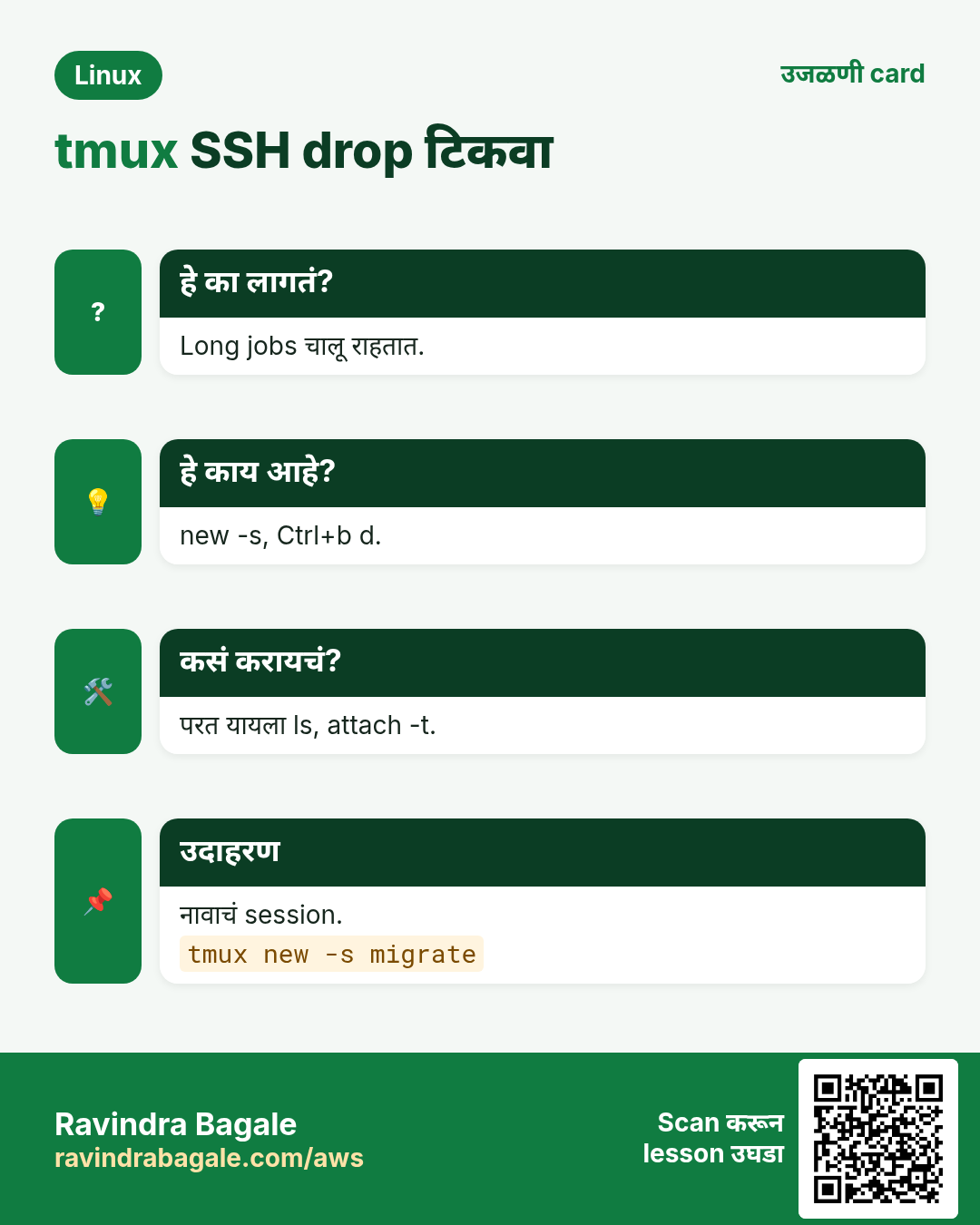
हे का लागतं?
तुम्ही cooker मधे डाळ लावून दार उघडायला जाता. तुम्ही नसताना cooker शिजवत राहतो. परत येता, शिट्ट्या बघता, आणि पुढे चालू. पूर्ण वेळ cooker हातात धरावा लागला असता तर कोणताही व्यत्यय डाळ बिघडवला असता.
हे काय आहे?
Gas वरचा cooker = server वरचं tmux session. निघून जाणं = detach (Ctrl+b d). परत येणं = tmux attach. हातात धरणं = network गेलं की मरणारं साधं SSH session.
कसं करायचं (step by step)
2. tmux install आणि prefix key
हे का लागतं?
प्रत्येक tmux shortcut prefix ने सुरू, म्हणजे तुमच्या programs शी clash नाही.
हे काय आहे?
Install: sudo dnf install tmux किंवा sudo apt install tmux. Prefix Ctrl+b: Ctrl आणि b एकत्र दाबा, सोडा, मग पुढची key. या chapter मधे 'Ctrl+b d' म्हणजे prefix मग d. Ctrl+b ? सगळ्या keys list.
कसं करायचं (step by step)
- Install.
sudo dnf install -y tmux && tmux -VOutput:
tmux 3.2aयाचा अर्थ: Version 3.x common.
- सगळ्या key bindings.
tmux list-keys | head -3Output:
bind-key    -T copy-mode    C-Space    send-keys -X begin-selection
bind-key    -T prefix       d          detach-client
bind-key    -T prefix       c          new-window
याचा अर्थ: prefix d = detach.
3. tmux new -s: नावाचं session सुरू
हे का लागतं?
'migrate' किंवा 'deploy' सारखी नावं नंतर परत आल्यावर प्रत्येक session कशासाठी ते सांगतात.
हे काय आहे?
tmux new -s NAME (new-session -s सारखं). नुसतं tmux number नाव (0, 1...). -d detached सुरू. चालवायचा command देऊ शकता: tmux new -d -s NAME 'command'. खालची हिरवी status bar म्हणजे तुम्ही tmux मधे.
कसं करायचं (step by step)
- Migration साठी session.
tmux new -s migrateOutput:
[migrate] 0:bash* "web1" 14:30 25-Oct-26याचा अर्थ: Status bar: session, window, host, time.
- Background मधे एक.
tmux new -d -s backup 'sudo /usr/local/bin/backup.sh'Output:
(no output)याचा अर्थ: तुम्ही attach नसताना चालतो.
- मी tmux मधे आहे का?
echo "${TMUX:-not in tmux}"Output:
/tmp/tmux-1000/default,4120,0याचा अर्थ: आत TMUX set.
4. Detach: Ctrl+b d
हे का लागतं?
Detach केल्याने logout, प्रवास किंवा machine बदलताना सगळं चालू राहतं.
हे काय आहे?
Ctrl+b d detach. Command line वरून tmux detach तेच. SSH window बंद करणं किंवा network जाणं याचा तोच परिणाम: session चालू राहतं.
कसं करायचं (step by step)
- tmux मधे job सुरू.
./migrate.sh --allOutput:
Migrating table 1/240 ...याचा अर्थ: वेळ लागेल.
- Ctrl+b मग d दाबा.
Ctrl+b dOutput:
[detached (from session migrate)]याचा अर्थ: तुम्ही परत normal shell मधे.
- Safely logout.
exitOutput:
logout
Connection to 15.0.0.10 closed.
याचा अर्थ: migrate.sh चालू राहतो.
5. tmux ls आणि attach -t
हे का लागतं?
Reconnect नंतर कोणती sessions आहेत ते बघून योग्य session मधे परत जायचं.
हे काय आहे?
tmux ls (list-sessions) sessions, windows count आणि attached आहे का. tmux attach -t NAME (किंवा tmux a -t NAME) जोडतो. नुसतं tmux attach शेवटचं. -d attached असलेले इतर clients detach.
कसं करायचं (step by step)
- List.
tmux lsOutput:
backup: 1 windows (created Sun Oct 25 14:31:02 2026)
migrate: 1 windows (created Sun Oct 25 14:30:10 2026)
याचा अर्थ: दोन्ही अजून जिवंत.
- Attach.
tmux attach -t migrateOutput:
Migrating table 187/240 ...याचा अर्थ: होतं तिथेच.
- अजून server नाही.
tmux lsOutput:
no server running on /tmp/tmux-1000/defaultयाचा अर्थ: Sessions नाहीत.
6. kill-session, kill-server आणि rename
हे का लागतं?
जुनी sessions memory वाया घालवतात आणि लोकांना गोंधळवतात. काम झालं की साफ करा.
हे काय आहे?
tmux kill-session -t NAME एक संपवतो (आतले programs पण). tmux kill-server सगळे. शेवटच्या pane मधे exit पण session संपवतो. tmux rename-session -t old new, किंवा Ctrl+b $, rename.
कसं करायचं (step by step)
- Rename.
tmux rename-session -t backup nightly && tmux ls | head -1Output:
migrate: 1 windows (created Sun Oct 25 14:30:10 2026)याचा अर्थ: नावाने sorted.
- एक kill.
tmux kill-session -t nightly && tmux lsOutput:
migrate: 1 windows (created Sun Oct 25 14:30:10 2026)याचा अर्थ: फक्त migrate.
- सगळे kill.
tmux kill-server; tmux lsOutput:
no server running on /tmp/tmux-1000/defaultयाचा अर्थ: सगळं बंद. आधी खात्री करा.
7. Windows: Ctrl+b c, n, p, number, ,
हे का लागतं?
एका session मधे अनेक full-screen windows: एकात logs, दुसऱ्यात editor, तिसऱ्यात shell.
हे काय आहे?
Ctrl+b c window बनवतो. Ctrl+b n पुढचा, Ctrl+b p मागचा, Ctrl+b 0..9 jump. Ctrl+b , rename. Ctrl+b w chooser. Ctrl+b & window बंद (विचारतो). Status bar वर current ला *.
कसं करायचं (step by step)
- Windows बनवा आणि नाव.
Ctrl+b c then Ctrl+b , type: logsOutput:
[ops] 0:bash- 1:logs*याचा अर्थ: आता दोन windows.
- Jump.
Ctrl+b 0Output:
[ops] 0:bash* 1:logs-याचा अर्थ: परत window 0.
- Command line वरून तेच.
tmux new-window -t ops -n editorOutput:
[ops] 0:bash 1:logs 2:editor*याचा अर्थ: Scripts साठी छान.
8. Panes: Ctrl+b % आणि ", arrows, z, x
हे का लागतं?
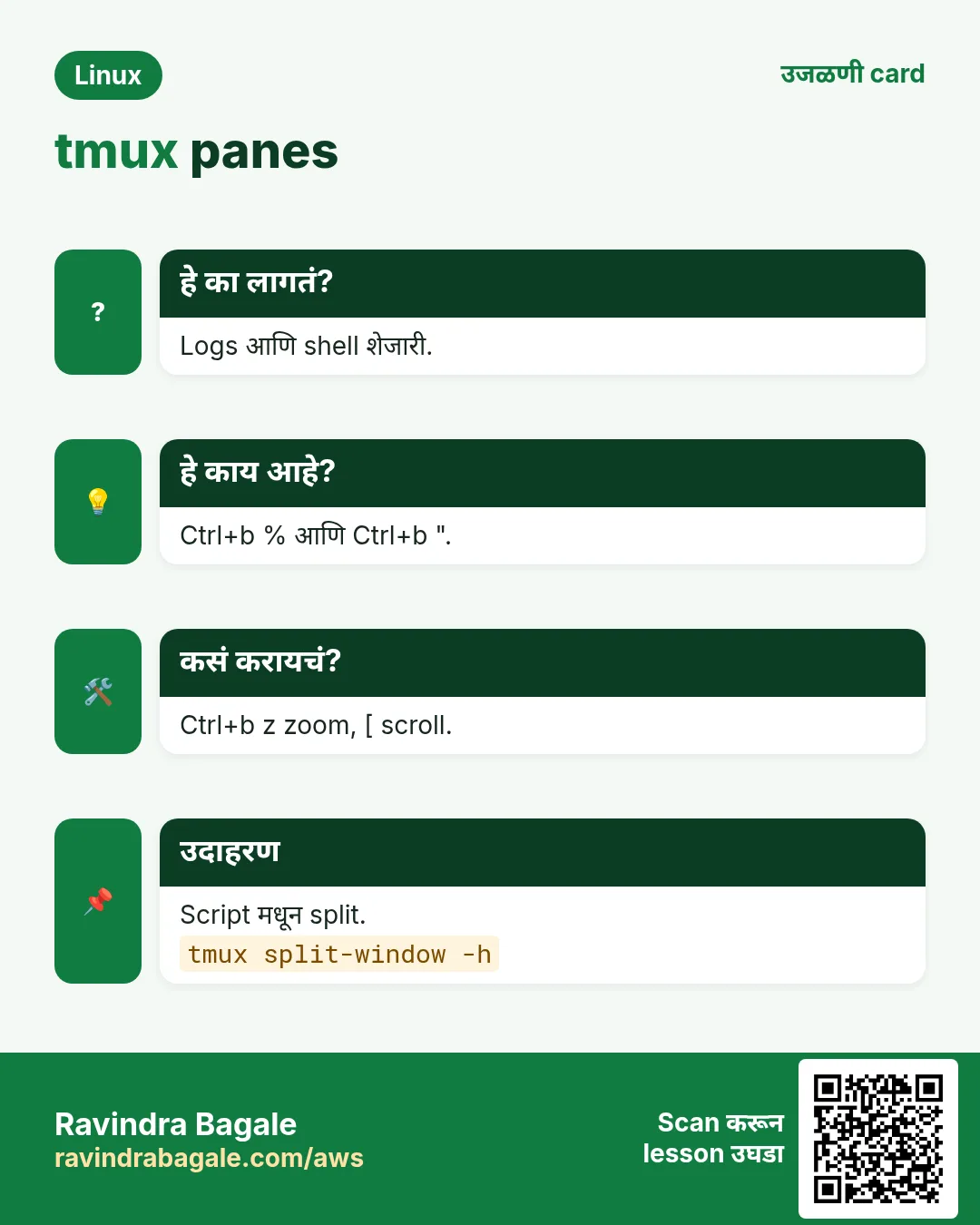
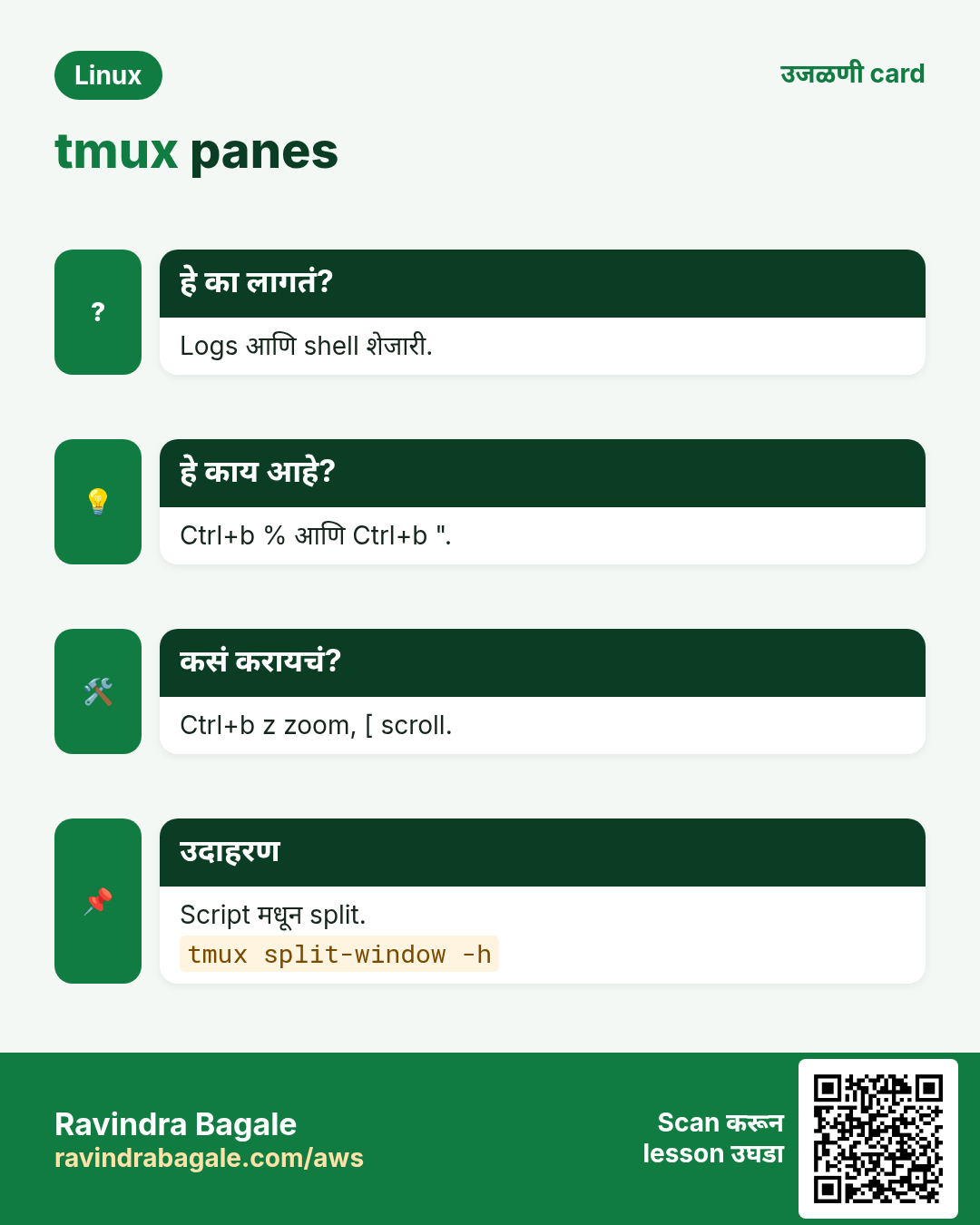
काही fix करताना logs आणि shell शेजारी-शेजारी बघा.
हे काय आहे?
Ctrl+b % डावी/उजवी split. Ctrl+b " वर/खाली split. Ctrl+b arrow panes मधे हलतो. Ctrl+b z एक pane full screen आणि परत. Ctrl+b x pane बंद. Ctrl+b Ctrl+arrow resize. Ctrl+b space layouts. Ctrl+b q numbers.
| Keys | Action |
|---|---|
| Ctrl+b % | डावी/उजवी split |
| Ctrl+b " | वर/खाली split |
| Ctrl+b arrow | Pane कडे |
| Ctrl+b z | Zoom toggle |
| Ctrl+b x | Pane बंद |
| Ctrl+b space | पुढचा layout |
कसं करायचं (step by step)
- Split करून logs follow.
Ctrl+b % then in the right pane: journalctl -fu shop-apiOutput:
(left: shell, right: live logs)याचा अर्थ: डावीकडे fix, उजवीकडे बघा.
- वाचायला zoom.
Ctrl+b zOutput:
(right pane fills the screen; Z in the status bar)याचा अर्थ: परत दाबा unzoom.
- Script मधून.
tmux split-window -h -t ops 'htop'Output:
(new pane with htop)याचा अर्थ: -h = शेजारी.
9. Copy mode: scroll आणि copy (Ctrl+b [)
हे का लागतं?
Default ने mouse wheel tmux scroll करत नाही. जुना output वाचायचा आणि error lines copy करायच्या.
हे काय आहे?
Ctrl+b [ copy mode. Arrows, PgUp/PgDn; search ला / किंवा ?. Space selection सुरू, Enter copy (default emacs keys) किंवा vi mode मधे v/y. Ctrl+b ] paste. q बाहेर. history-limit किती lines ठेवायच्या.
कसं करायचं (step by step)
- वर scroll.
Ctrl+b [ then PgUpOutput:
[0/1532] shown at top rightयाचा अर्थ: History च्या 1532 lines.
- Error शोधा.
Ctrl+b [ then ? type ERROR EnterOutput:
(cursor jumps to the last ERROR)याचा अर्थ: पुढच्या match ला n.
- Copy आणि paste.
Space ... move ... Enter, then Ctrl+b ]Output:
(selected text pasted at the prompt)याचा अर्थ: Mouse शिवाय copy.
10. ~/.tmux.conf: tmux तुमचा बनवा
हे का लागतं?
काही settings tmux खूप सोपा करतात: mouse, मोठी history, सोपे splits, 1 पासून windows.
हे काय आहे?
~/.tmux.conf मधे lines. set -g mouse on scroll, click आणि resize. set -g history-limit 50000. set -g base-index 1. bind | split-window -h. Reload: tmux source-file ~/.tmux.conf.
कसं करायचं (step by step)
- चांगली starter config.
cat > ~/.tmux.conf <<'X'
set -g mouse on
set -g history-limit 50000
set -g base-index 1
setw -g pane-base-index 1
bind | split-window -h -c '#{pane_current_path}'
bind - split-window -v -c '#{pane_current_path}'
bind r source-file ~/.tmux.conf \; display 'reloaded'
X
Output:
(no output)याचा अर्थ: लक्षात राहणारे splits.
- Reload.
tmux source-file ~/.tmux.confOutput:
(status shows nothing or 'reloaded' with Ctrl+b r)याचा अर्थ: Restart लागत नाही.
- Value तपासा.
tmux show -g history-limitOutput:
history-limit 50000याचा अर्थ: लागू.
11. send-keys आणि scripted layouts
हे का लागतं?
रोज सकाळी तेच 4 panes उघडता. Script एका second मधे बनवते.
हे काय आहे?
tmux send-keys -t SESSION:WINDOW.PANE 'command' Enter pane मधे type करतो. new -d, split-window, select-layout tiled आणि attach एकत्र workspace. has-session -t NAME आहे का test.
कसं करायचं (step by step)
- One-shot ops workspace.
tmux has-session -t ops 2>/dev/null || {
 tmux new -d -s ops -n main
 tmux split-window -h -t ops
 tmux send-keys -t ops:main.1 'journalctl -fu nginx' Enter
 tmux split-window -v -t ops:main.1
 tmux send-keys -t ops:main.2 'htop' Enter
}
tmux attach -t ops
Output:
(three panes: shell, nginx logs, htop)याचा अर्थ: रोज तोच layout.
- चालू session ला पाठवा.
tmux send-keys -t migrate 'echo still here' EnterOutput:
(the text runs inside migrate)याचा अर्थ: Attach न करता.
12. Pair work साठी session share
हे का लागतं?
Screen sharing software शिवाय senior junior ला त्याच terminal वर live बघून मदत करू शकतो.
हे काय आहे?
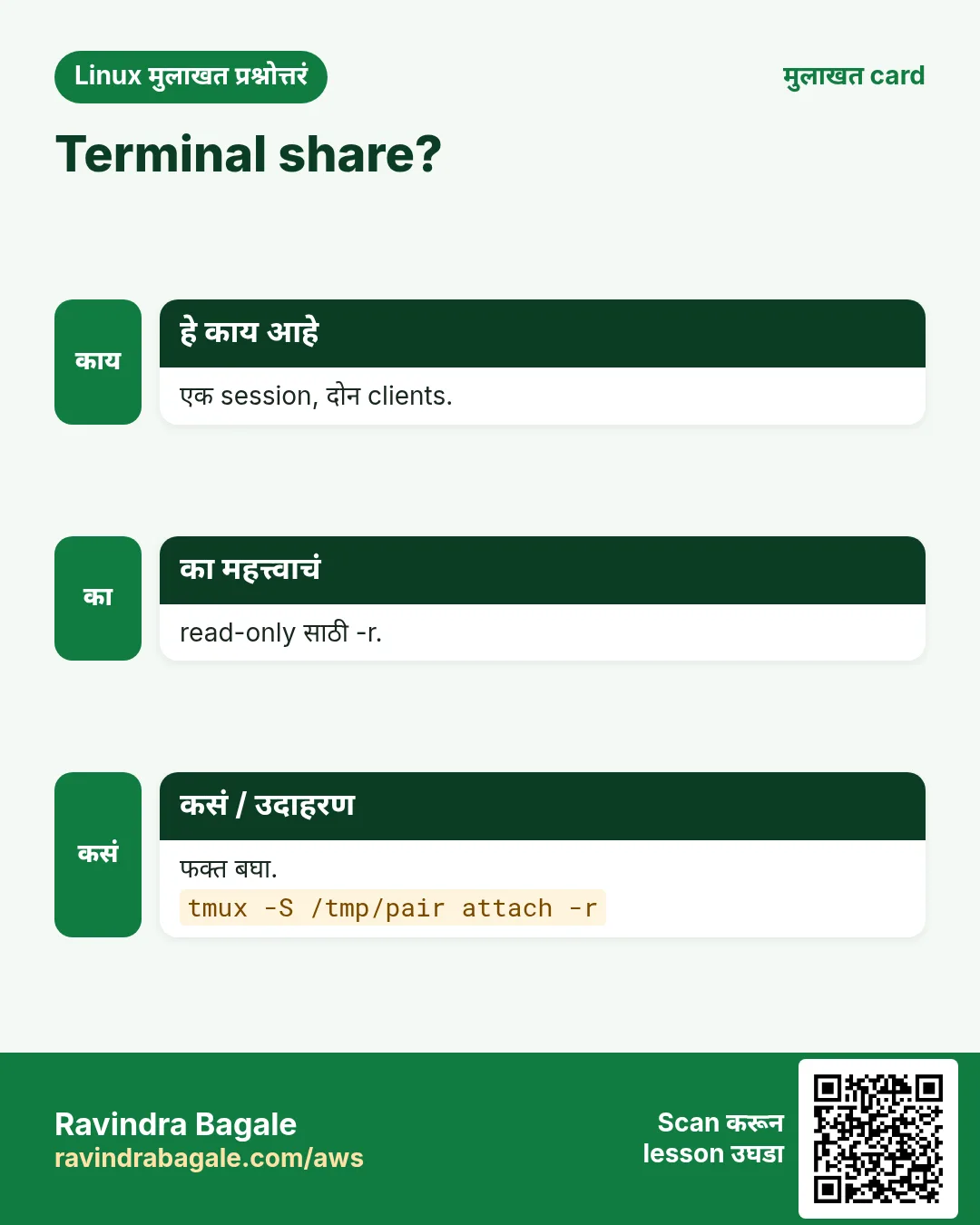
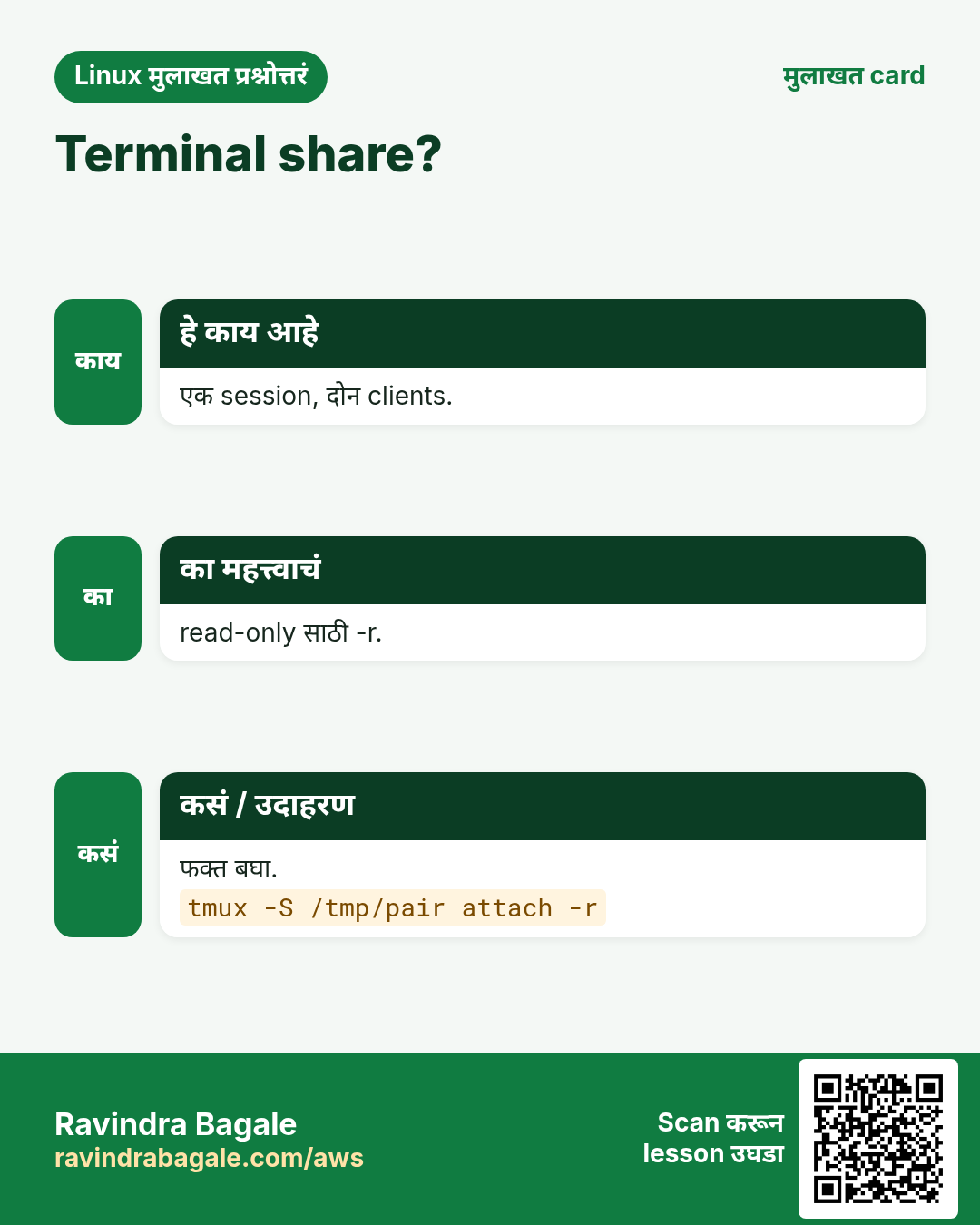
एकाच user म्हणून login केलेले दोघे tmux attach -t NAME करून एकच बघतात. वेगळ्या users साठी shared socket: tmux -S /tmp/pair new -s pair, common group chgrp, chmod 770, आणि दुसरा tmux -S /tmp/pair attach. attach -r read-only.
कसं करायचं (step by step)
- Shared socket सुरू.
tmux -S /tmp/pair new -d -s pair && chgrp devops /tmp/pair && chmod 770 /tmp/pairOutput:
(no output)याचा अर्थ: फक्त devops group join.
- Teammate read-only बघतो.
tmux -S /tmp/pair attach -r -t pairOutput:
(same screen, cannot type)याचा अर्थ: Training साठी safe.
13. GNU screen basics
हे का लागतं?
जुन्या servers आणि काही appliances वर screen आहे पण tmux नाही. विचार तेच.
हे काय आहे?
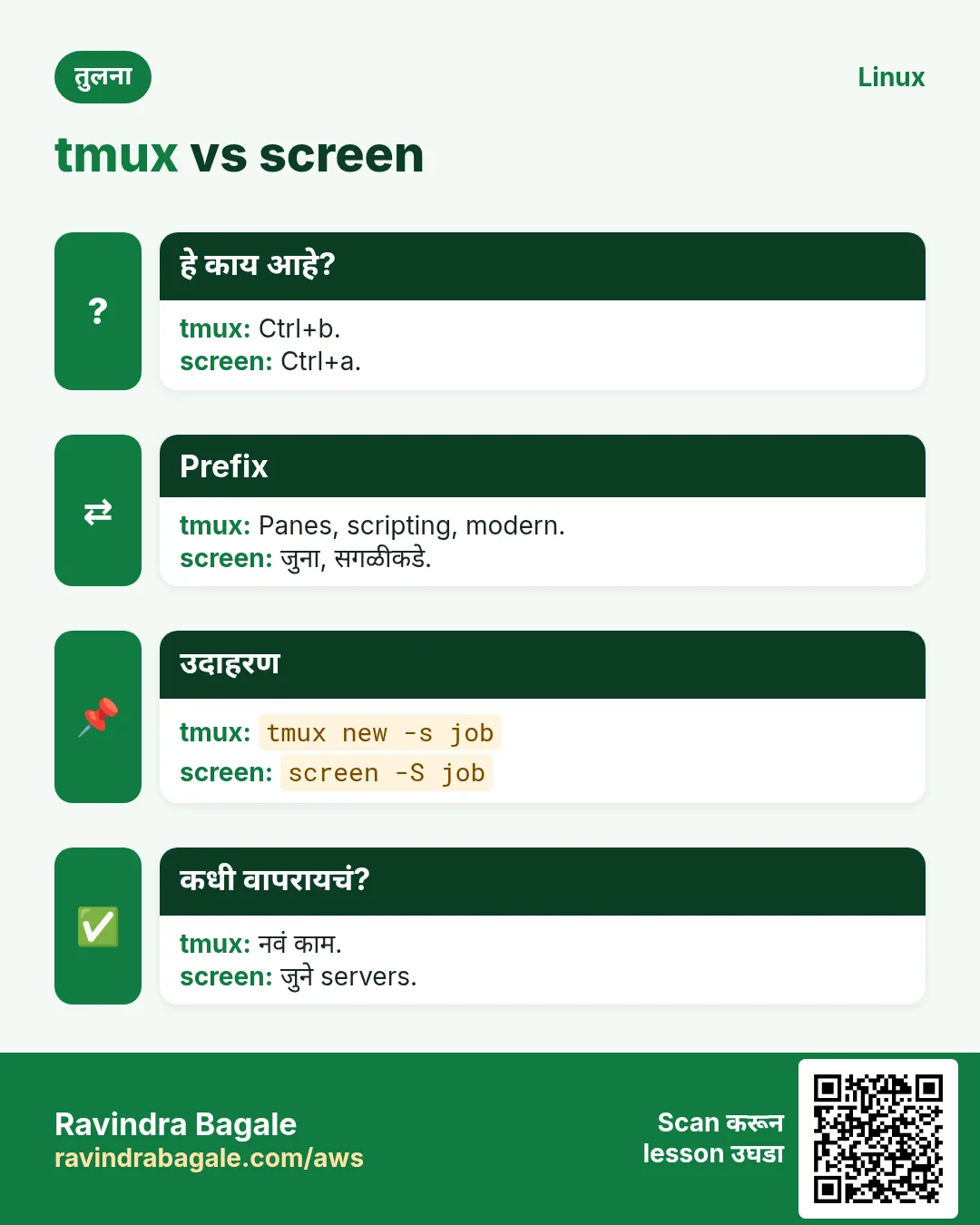
Prefix Ctrl+a. screen -S NAME सुरू. Ctrl+a d detach. screen -ls list. screen -r NAME reattach (घ्यायला -d -r). Ctrl+a c नवा window, Ctrl+a n/p पुढचा/मागचा, Ctrl+a " list, Ctrl+a S split, Ctrl+a Tab हलणं, Ctrl+a [ copy mode, Ctrl+a k kill. screen -L output screenlog.0 मधे log.
| काम | tmux | screen |
|---|---|---|
| New named | tmux new -s x | screen -S x |
| Detach | Ctrl+b d | Ctrl+a d |
| List | tmux ls | screen -ls |
| Attach | tmux attach -t x | screen -r x |
| New window | Ctrl+b c | Ctrl+a c |
कसं करायचं (step by step)
- सुरू आणि detach.
screen -S upload then Ctrl+a dOutput:
[detached from 5120.upload]याचा अर्थ: tmux सारखाच विचार.
- List.
screen -lsOutput:
There is a screen on:
	5120.upload	(Detached)
1 Socket in /run/screen/S-ravi.
याचा अर्थ: Detached आणि जिवंत.
- Reattach.
screen -r uploadOutput:
(back inside)याचा अर्थ: Attached म्हणत असेल तर -d -r.
- सगळं file मधे log.
screen -L -S job ./long.shOutput:
(output also in screenlog.0)याचा अर्थ: काय झालं याचा पुरावा.
14. अनेक industries मधली खरी उदाहरणं
हे का लागतं?
तेच Linux skill प्रत्येक प्रकारच्या company मध्ये लागतं. वेगवेगळ्या ठिकाणी पाहिलं की लक्षात राहतं.
हे काय आहे?
प्रत्येक row म्हणजे एक काल्पनिक team. कोण हे वापरतं आणि कसं ते दाखवते.
कसं करायचं (step by step)
| Team आणि शहर | ते कसं वापरतात | Command |
|---|---|---|
| Siddharth, bank DBA, Pune | Long migrations tmux मधे | tmux new -s migrate |
| Grace, SRE, Seattle | Scripted 4-pane on-call workspace | tmux send-keys -t ops 'htop' Enter |
| Ahmed, telecom NOC, Cairo | जुन्या network boxes वर screen | screen -r console |
| Sofia, ML lab, Milan | GPU training रात्रभर चालू | tmux new -d -s train 'python train.py' |
| Hiro, game ops, Tokyo | Trainees साठी read-only shared session | tmux -S /tmp/pair attach -r |
| Meera, college, Satara | Logs आणि shell एकत्र शिकवायला panes split | Ctrl+b % |
15. नेहमीच्या errors आणि त्यांचे fixes
हे का लागतं?
हे errors सगळ्यांना येतात. कारण माहीत असलं की तास वाचतात.
हे काय आहे?
आधी नेमका message वाचा. मग खालच्या row शी जुळवा.
कसं करायचं (step by step)
| दिसणारा error | का होतं | Fix कसा करायचा |
|---|---|---|
no server running on /tmp/tmux-1000/default | Sessions नाहीत (किंवा reboot ने मारली) | नवं सुरू करा.tmux new -s work |
can't find session: migrate | चुकीचं नाव, किंवा संपलं | नावं list करा.tmux ls |
sessions should be nested with care, unset $TMUX to force | tmux च्या आत tmux | Ctrl+b s ने switch किंवा आधी detach.tmux switch-client -t migrate |
duplicate session: migrate | त्या नावाचं session आहे | त्याला attach किंवा दुसरं नाव.tmux attach -t migrate |
open terminal failed: missing or unsuitable terminal: xterm-kitty | Server ला तुमचा TERM माहीत नाही | Common TERM वापरा.TERM=xterm-256color tmux |
Mouse wheel scrolls the shell history, not the output | Mouse mode बंद | चालू करा किंवा copy mode.tmux set -g mouse on |
There is a screen on: ... (Attached) / screen -r fails | Session दुसरीकडे attached | दुसरं detach करून attach.screen -d -r upload |
Job died after closing the laptop | tmux/screen मधे नव्हतं | Long jobs नेहमी tmux मधे.tmux new -s job |
Colours look wrong in tmux | tmux मधे TERM 256-colour नाही | default-terminal set.set -g default-terminal 'tmux-256color' |
error connecting to /tmp/pair (Permission denied) | Shared socket permissions | Socket chgrp आणि chmod 770.chmod 770 /tmp/pair |
16. Troubleshooting step by step
हे का लागतं?
कामाकडे परत जाता येत नसेल तर tmux server, मग session, मग pane शोधा.
हे काय आहे?
वरून खाली जा. ज्या step ला problem दिसतो तिथे थांबा.
कसं करायचं (step by step)
- tmux अजून चालू?
pgrep -a tmux- Sessions list.
tmux ls- Custom socket तपासा.
ls -l /tmp/tmux-$(id -u)/ /tmp/pair 2>/dev/null- Server reboot झाला का?
uptime -s- इतरांना detach करून attach.
tmux attach -d -t migrate- screen साठी.
screen -ls; screen -d -r NAME17. Lab 1: Disconnect टिकवा
हे का लागतं?
tmux मधे long job सुरू, detach, logout, परत login आणि reattach करून चालू आहे ते बघा.
हे काय आहे?
पूर्ण hands-on lab. प्रत्येक step test Linux machine वर करा (EC2 instance, VM किंवा WSL).
कसं करायचं (step by step)
- Session सुरू.
tmux new -s labOutput:
[lab] 0:bash*- Long counter.
for i in $(seq 1 600); do echo tick $i; sleep 1; doneOutput:
tick 1
tick 2- Detach आणि SSH exit.
Ctrl+b d ; exitOutput:
[detached (from session lab)]- Reconnect आणि list.
ssh ec2-user@SERVER; tmux lsOutput:
lab: 1 windows (created Sun Oct 25 15:00:00 2026)- Reattach आणि साफ.
tmux attach -t lab (watch ticks) then Ctrl+c; exitOutput:
tick 14318. Lab 2: Panes, copy mode, config आणि screen
हे का लागतं?
Config set करा, panes split, scrollback मधून error copy, मग screen ने detach/attach परत.
हे काय आहे?
पूर्ण hands-on lab. प्रत्येक step test Linux machine वर करा (EC2 instance, VM किंवा WSL).
कसं करायचं (step by step)
- Config.
printf 'set -g mouse on\nset -g history-limit 20000\nbind | split-window -h\n' > ~/.tmux.confOutput:
(no output)- नवं session आणि split.
tmux new -s p2 then Ctrl+b |Output:
(two panes side by side)- Error बनवा आणि शोधा.
ls /nope then Ctrl+b [ ?nope Enter Space ... Enter Ctrl+b ]Output:
ls: cannot access '/nope': No such file or directory- screen round trip.
screen -S s1 then Ctrl+a d ; screen -ls ; screen -r s1Output:
5120.s1 (Detached)- साफ.
exit ; tmux kill-session -t p2Output:
(no output)Ravindra Bagale's Tip
Make it a habit: anything that takes more than five minutes on a server runs inside tmux. Name the session after the job (tmux new -s migrate), so when you come back after a network drop you just type tmux attach -t migrate.
Ravindra Bagale's Tip – मराठी
सवय लावा: server वर पाच minutes पेक्षा जास्त लागणारं काहीही tmux मधे. Session ला job चं नाव द्या (tmux new -s migrate), म्हणजे network गेल्यानंतर परत आल्यावर फक्त tmux attach -t migrate.
Ravindra Bagale's Tip – हिंदी
आदत बनाएं: server पर पाँच minutes से ज़्यादा लगने वाला कोई भी काम tmux में चलाएं. Session को job का नाम दें (tmux new -s migrate), ताकि network जाने के बाद लौटें तो बस tmux attach -t migrate type करें.
19. नेहमी विचारले जाणारे प्रश्न
प्र. tmux की screen?
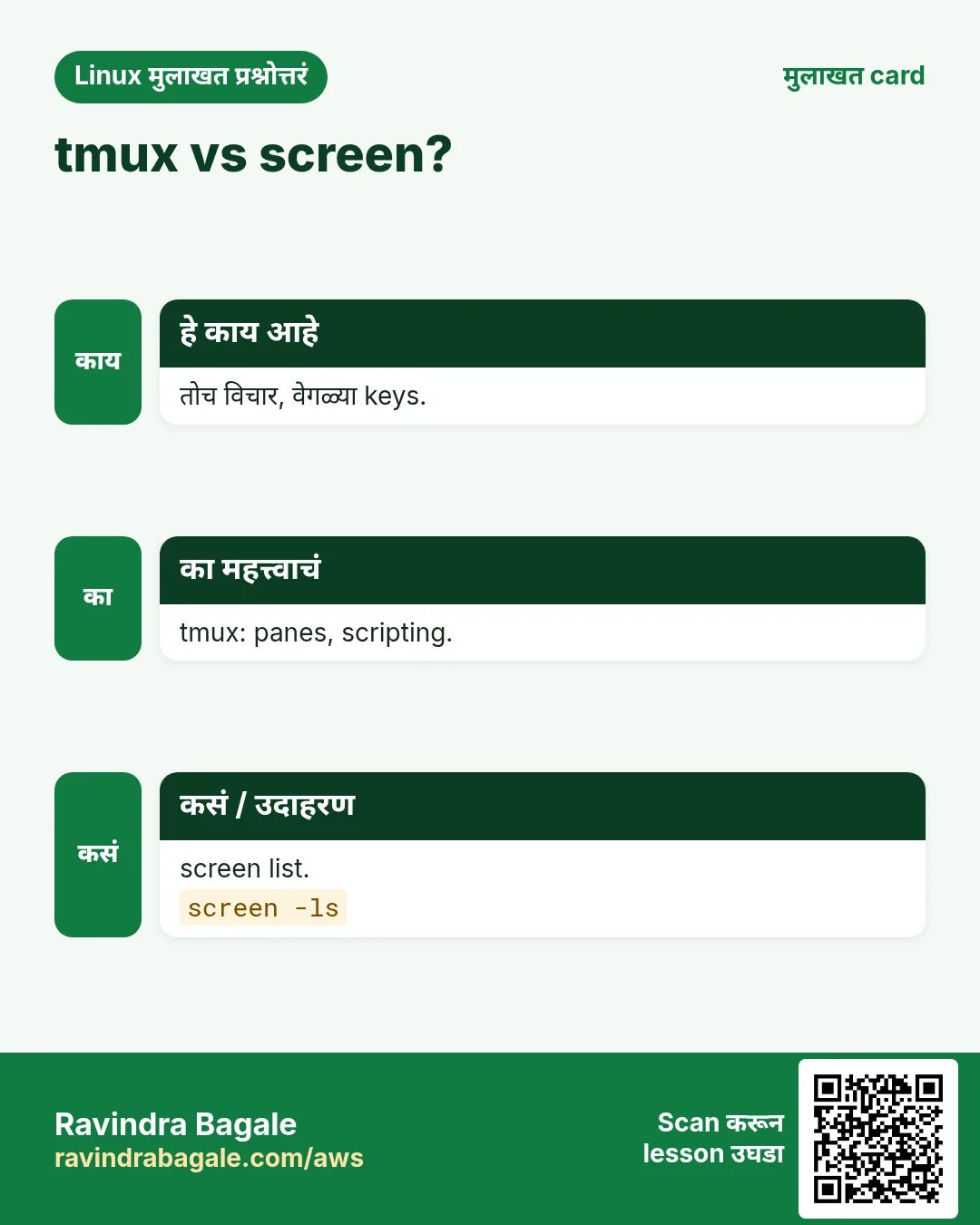
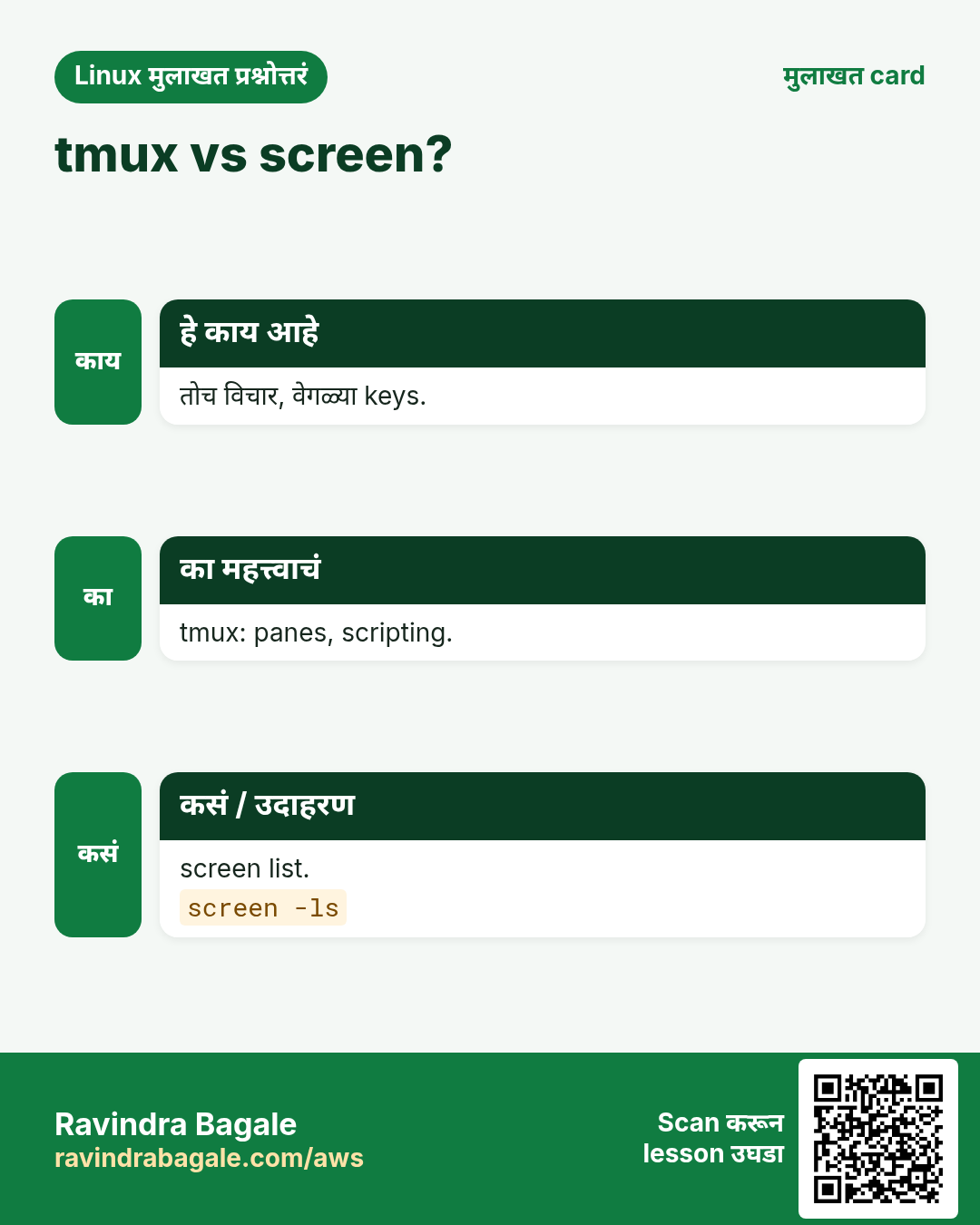
नव्या कामासाठी tmux (panes, scripting, active development). फक्त तोच पर्याय असेल तिथे screen ठीक.
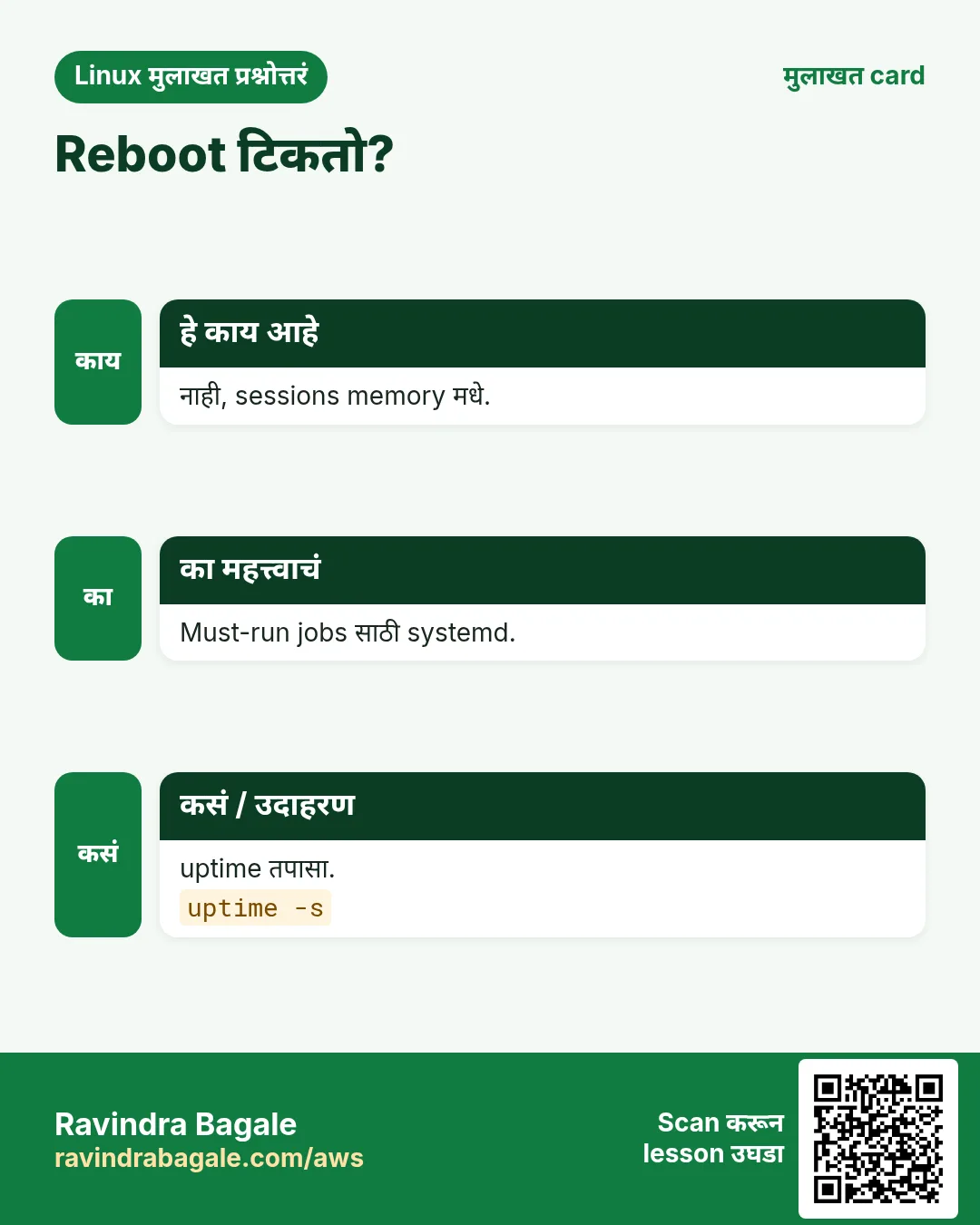
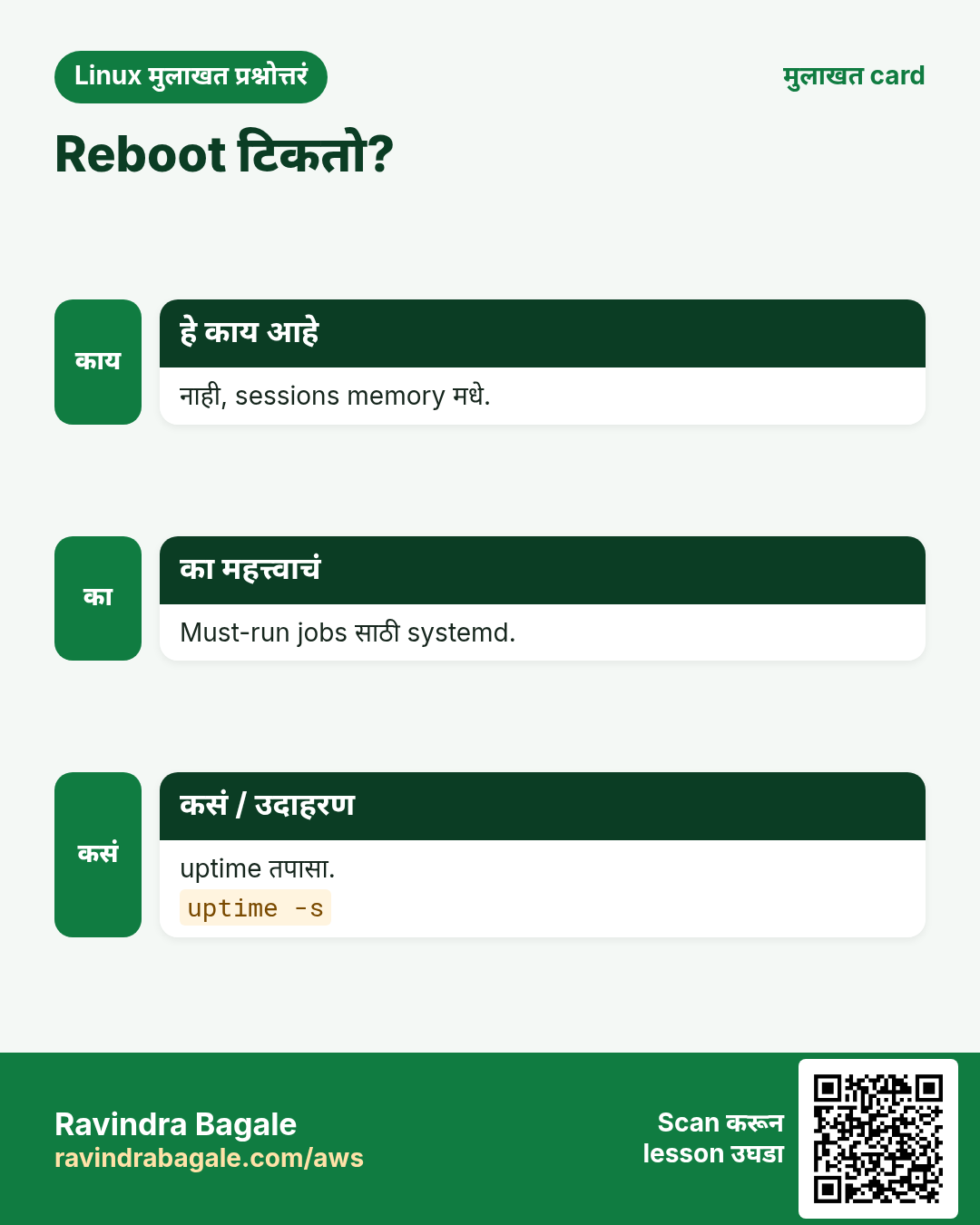
प्र. tmux server reboot टिकतो?
नाही. Sessions memory मधे. tmux-resurrect सारखे plugins layouts restore करतात.
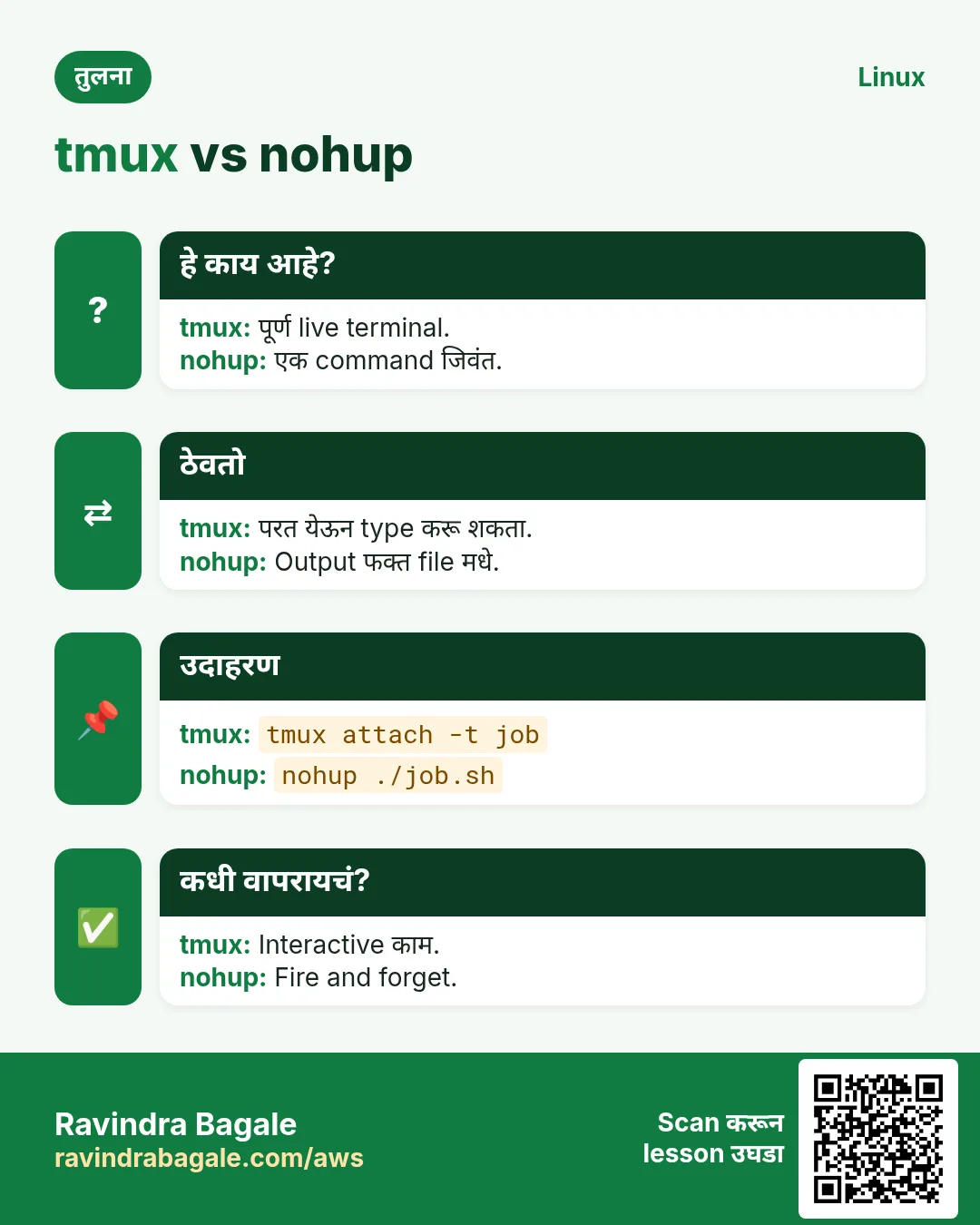
प्र. tmux vs nohup?
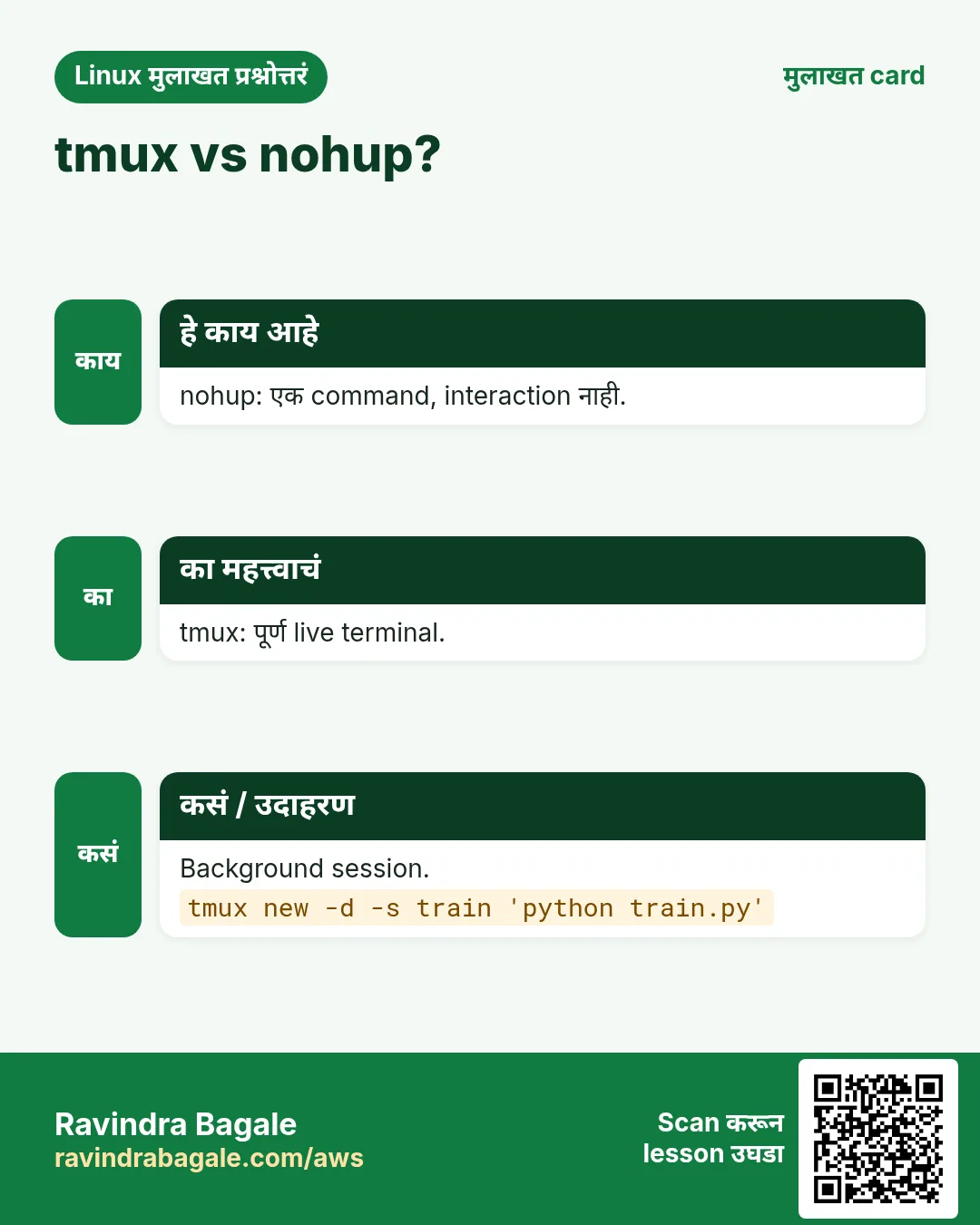
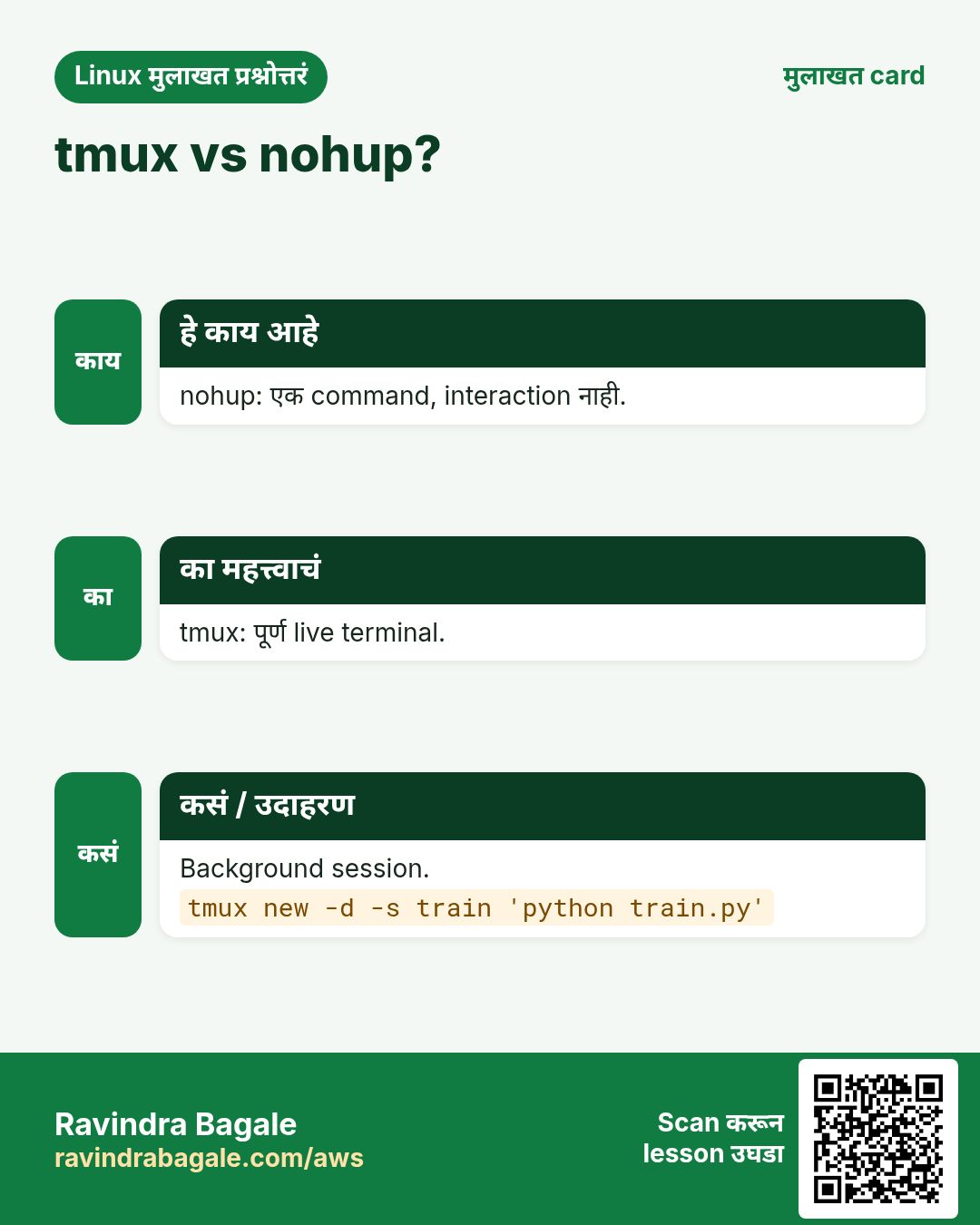
nohup एक command जिवंत ठेवतो पण interact करता येत नाही; tmux पूर्ण interactive terminal.
प्र. Scroll कसं?
Ctrl+b [ मग PgUp, किंवा set -g mouse on.
प्र. Prefix Ctrl+a करता येईल?
हो: set -g prefix C-a; unbind C-b; bind C-a send-prefix.
प्र. tmux laptop वर की server वर?
Server वर, म्हणजे SSH तुटलं तरी काम टिकतं.
प्र. सगळं कसं बंद?
प्रत्येक pane मधे exit, किंवा tmux kill-server.
प्र. दोघे एक session वापरू शकतात?
हो, त्याच session ला attach; read-only साठी -r.
20. मुलाखत प्रश्न आणि उत्तरं
Beginner level
प्र. tmux का?
Disconnect नंतर sessions जिवंत ठेवणं आणि terminal split.
प्र. नावाचं session?
tmux new -s NAME.
प्र. Detach?
Ctrl+b d.
प्र. Reattach?
tmux attach -t NAME.
Mid level level
प्र. Panes split?
Ctrl+b % डावी/उजवी, Ctrl+b " वर/खाली.
प्र. tmux मधे scroll back?
Copy mode Ctrl+b [ किंवा mouse on.
प्र. Detached session मधे job?
tmux new -d -s NAME 'cmd'.
प्र. screen equivalents?
screen -S, Ctrl+a d, screen -ls, screen -r.
Senior level
प्र. Long job साठी tmux की systemd service?
Interactive किंवा one-off: tmux. Restart, reboot टिकणं किंवा monitoring हवं: systemd.
प्र. Contractor शी terminal securely share कसा?
Group perms सह वेगळा socket, read-only attach, आणि audit; नंतर socket काढा.
प्र. Dev workspace automate?
has-session, new -d, split-window, send-keys, select-layout सह script, किंवा tmuxinator.
प्र. Nested tmux problem का?
Prefix conflicts आणि गोंधळ; आतल्यासाठी वेगळा prefix किंवा switch-client.
घरी करून बघा
- 'dev' tmux session तीन panes सह बनवणारी script लिहा: shell, top, आणि log चा tail -f. दोनदा चालवा आणि duplicate बनत नाही याची खात्री करा.
- Practice: session सुरू, detach, terminal बंद, नवीन उघडून reattach. screen ने परत करा.
सराव Tasks
Nairobi Ride हा नैरोबी मधला वाहतूक व्यवसाय आहे. Wanjiru Kamau त्यांचं IT व cloud काम पाहतात. त्यांचे पैसे KES मध्ये मोजले जातात आणि AWS resources af-south-1 Region मध्ये चालतात. खालच्या tasks मध्ये तुम्ही या lesson मध्ये शिकलेलं वापरून त्यांची खरी कामं करता. सगळी नावं, account IDs, IP addresses व numbers सरावासाठी काल्पनिक आहेत.
0 / 17
सोपं नवं नावाचं session
का: Long jobs disconnect टिकायला हवेत.
काय करायचं: migrate नावाचं tmux session.
- हे काम करणारा Linux command शोधा.
- Task ला लागणारे options (उदा. -r, -h) जोडा.
- File नावं, folders किंवा users योग्य क्रमाने लिहा.
- System files/users बदलत असाल तर sudo वापरा. Check answer दाबा.
सोपं Sessions list
का: Long jobs disconnect टिकायला हवेत.
काय करायचं: tmux sessions list.
- हे काम करणारा Linux command शोधा.
- Task ला लागणारे options (उदा. -r, -h) जोडा.
- File नावं, folders किंवा users योग्य क्रमाने लिहा.
- System files/users बदलत असाल तर sudo वापरा. Check answer दाबा.
सोपं Reattach
का: Long jobs disconnect टिकायला हवेत.
काय करायचं: migrate session ला attach.
- हे काम करणारा Linux command शोधा.
- Task ला लागणारे options (उदा. -r, -h) जोडा.
- File नावं, folders किंवा users योग्य क्रमाने लिहा.
- System files/users बदलत असाल तर sudo वापरा. Check answer दाबा.
सोपं CLI ने detach
का: Long jobs disconnect टिकायला हवेत.
काय करायचं: Command line ने current client detach.
- हे काम करणारा Linux command शोधा.
- Task ला लागणारे options (उदा. -r, -h) जोडा.
- File नावं, folders किंवा users योग्य क्रमाने लिहा.
- System files/users बदलत असाल तर sudo वापरा. Check answer दाबा.
सोपं screen session
का: Long jobs disconnect टिकायला हवेत.
काय करायचं: upload नावाचं screen session.
- हे काम करणारा Linux command शोधा.
- Task ला लागणारे options (उदा. -r, -h) जोडा.
- File नावं, folders किंवा users योग्य क्रमाने लिहा.
- System files/users बदलत असाल तर sudo वापरा. Check answer दाबा.
सोपं screens list
का: Long jobs disconnect टिकायला हवेत.
काय करायचं: screen sessions list.
- हे काम करणारा Linux command शोधा.
- Task ला लागणारे options (उदा. -r, -h) जोडा.
- File नावं, folders किंवा users योग्य क्रमाने लिहा.
- System files/users बदलत असाल तर sudo वापरा. Check answer दाबा.
मध्यम Background session
का: Long jobs disconnect टिकायला हवेत.
काय करायचं: "python train.py" चालवणारं detached session train.
- हे काम करणारा Linux command शोधा.
- Task ला लागणारे options (उदा. -r, -h) जोडा.
- File नावं, folders किंवा users योग्य क्रमाने लिहा.
- System files/users बदलत असाल तर sudo वापरा. Check answer दाबा.
मध्यम एक session kill
का: Long jobs disconnect टिकायला हवेत.
काय करायचं: backup session संपवा.
- हे काम करणारा Linux command शोधा.
- Task ला लागणारे options (उदा. -r, -h) जोडा.
- File नावं, folders किंवा users योग्य क्रमाने लिहा.
- System files/users बदलत असाल तर sudo वापरा. Check answer दाबा.
मध्यम Session rename
का: Long jobs disconnect टिकायला हवेत.
काय करायचं: Session 0 चं work.
- हे काम करणारा Linux command शोधा.
- Task ला लागणारे options (उदा. -r, -h) जोडा.
- File नावं, folders किंवा users योग्य क्रमाने लिहा.
- System files/users बदलत असाल तर sudo वापरा. Check answer दाबा.
मध्यम नवा window
का: Long jobs disconnect टिकायला हवेत.
काय करायचं: ops session मधे logs नावाचा window.
- हे काम करणारा Linux command शोधा.
- Task ला लागणारे options (उदा. -r, -h) जोडा.
- File नावं, folders किंवा users योग्य क्रमाने लिहा.
- System files/users बदलत असाल तर sudo वापरा. Check answer दाबा.
मध्यम शेजारी split
का: Long jobs disconnect टिकायला हवेत.
काय करायचं: Current pane शेजारी-शेजारी split.
- हे काम करणारा Linux command शोधा.
- Task ला लागणारे options (उदा. -r, -h) जोडा.
- File नावं, folders किंवा users योग्य क्रमाने लिहा.
- System files/users बदलत असाल तर sudo वापरा. Check answer दाबा.
मध्यम Mouse on
का: Long jobs disconnect टिकायला हवेत.
काय करायचं: Mouse mode globally चालू.
- हे काम करणारा Linux command शोधा.
- Task ला लागणारे options (उदा. -r, -h) जोडा.
- File नावं, folders किंवा users योग्य क्रमाने लिहा.
- System files/users बदलत असाल तर sudo वापरा. Check answer दाबा.
मध्यम Config reload
का: Long jobs disconnect टिकायला हवेत.
काय करायचं: ~/.tmux.conf reload.
- हे काम करणारा Linux command शोधा.
- Task ला लागणारे options (उदा. -r, -h) जोडा.
- File नावं, folders किंवा users योग्य क्रमाने लिहा.
- System files/users बदलत असाल तर sudo वापरा. Check answer दाबा.
मध्यम screen reattach
का: Long jobs disconnect टिकायला हवेत.
काय करायचं: screen upload reattach, आधी दुसरीकडून detach.
- हे काम करणारा Linux command शोधा.
- Task ला लागणारे options (उदा. -r, -h) जोडा.
- File नावं, folders किंवा users योग्य क्रमाने लिहा.
- System files/users बदलत असाल तर sudo वापरा. Check answer दाबा.
अवघड सगळं kill
का: Long jobs disconnect टिकायला हवेत.
काय करायचं: सगळी tmux sessions संपवा.
- हे काम करणारा Linux command शोधा.
- Task ला लागणारे options (उदा. -r, -h) जोडा.
- File नावं, folders किंवा users योग्य क्रमाने लिहा.
- System files/users बदलत असाल तर sudo वापरा. Check answer दाबा.
अवघड Pane मधे type
का: Long jobs disconnect टिकायला हवेत.
काय करायचं: ops session ला "uptime" आणि Enter.
- हे काम करणारा Linux command शोधा.
- Task ला लागणारे options (उदा. -r, -h) जोडा.
- File नावं, folders किंवा users योग्य क्रमाने लिहा.
- System files/users बदलत असाल तर sudo वापरा. Check answer दाबा.
अवघड आहे का?
का: Long jobs disconnect टिकायला हवेत.
काय करायचं: ops session आहे का test.
- हे काम करणारा Linux command शोधा.
- Task ला लागणारे options (उदा. -r, -h) जोडा.
- File नावं, folders किंवा users योग्य क्रमाने लिहा.
- System files/users बदलत असाल तर sudo वापरा. Check answer दाबा.
21. संबंधित chapters
- DevOps साठी Linux Ops Refresh
- Automation साठी Bash Scripting
- Linux grep आणि find Commands Examples सह
- Linux Servers मध्ये Passwordless SSH
थोडक्यात सांगायचं तर
- tmux new -s, ls, attach -t, Ctrl+b d.
- kill-session आणि kill-server साफ करतात.
- Windows: c, n, p, number. Panes: %, ", arrows, z, x.
- Scroll, search आणि copy साठी copy mode Ctrl+b [.
- .tmux.conf आणि send-keys तो तुमचा बनवतात.
- screen: -S, Ctrl+a d, -ls, -r.
उजळणी, तुलना आणि मुलाखत cards
हा lesson काही मिनिटांत revise करा. Cards phone वर save करा किंवा PNG download करा. प्रत्येक card वरचा QR हा lesson उघडतो.
अजून cards: Ravi Sir's Cards.