Ravindra BagaleCourses & study guides मराठी Track your progress
Ravi Sir (Ravindra Bagale) cartoon

Excel Revision Cards (Ravi Sir's Cards): Formulas, Lookups, PivotTables and Shortcuts

Contents

Start here: Excel Formulas Interview Questions, Part 1

6 cards · links: Formulas and Functions, Lookup Functions
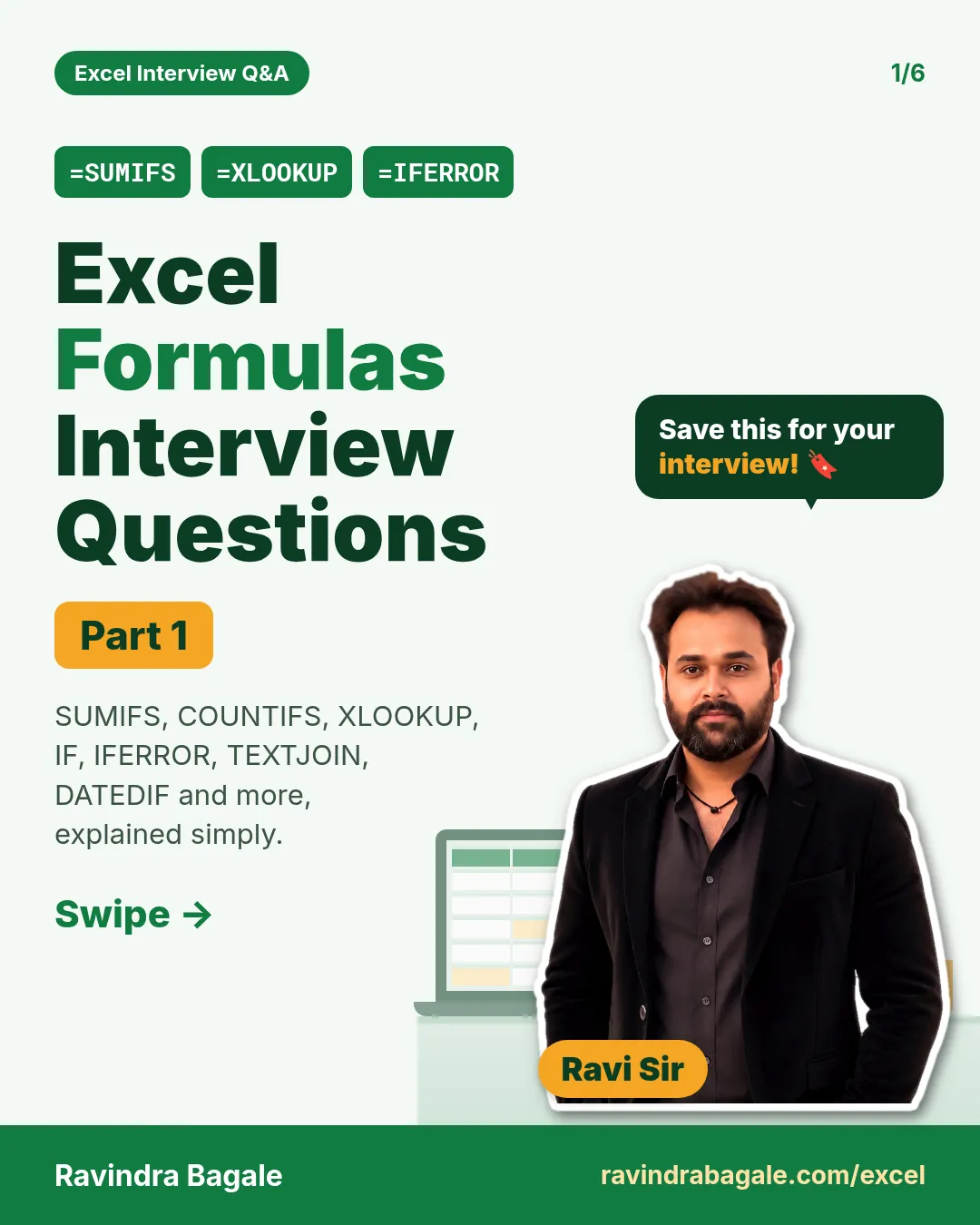
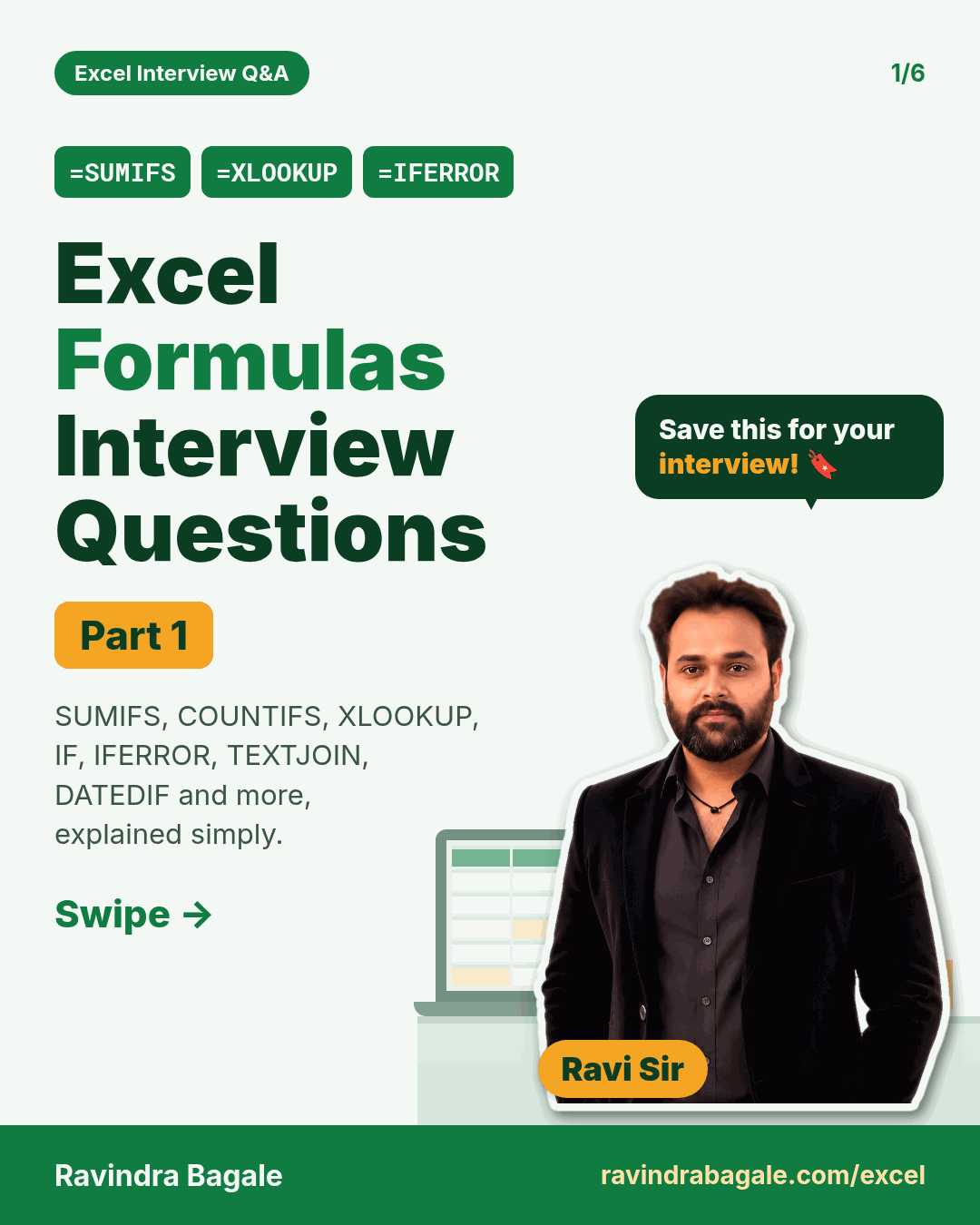
Cover card: Excel Formulas Interview Questions, Part 1, covering SUMIFS, COUNTIFS, XLOOKUP, IF, IFERROR, TEXTJOIN and DATEDIF.
Card 1 of 6: Excel Formulas Interview Questions: Part 1 · Download PNG · Open card page
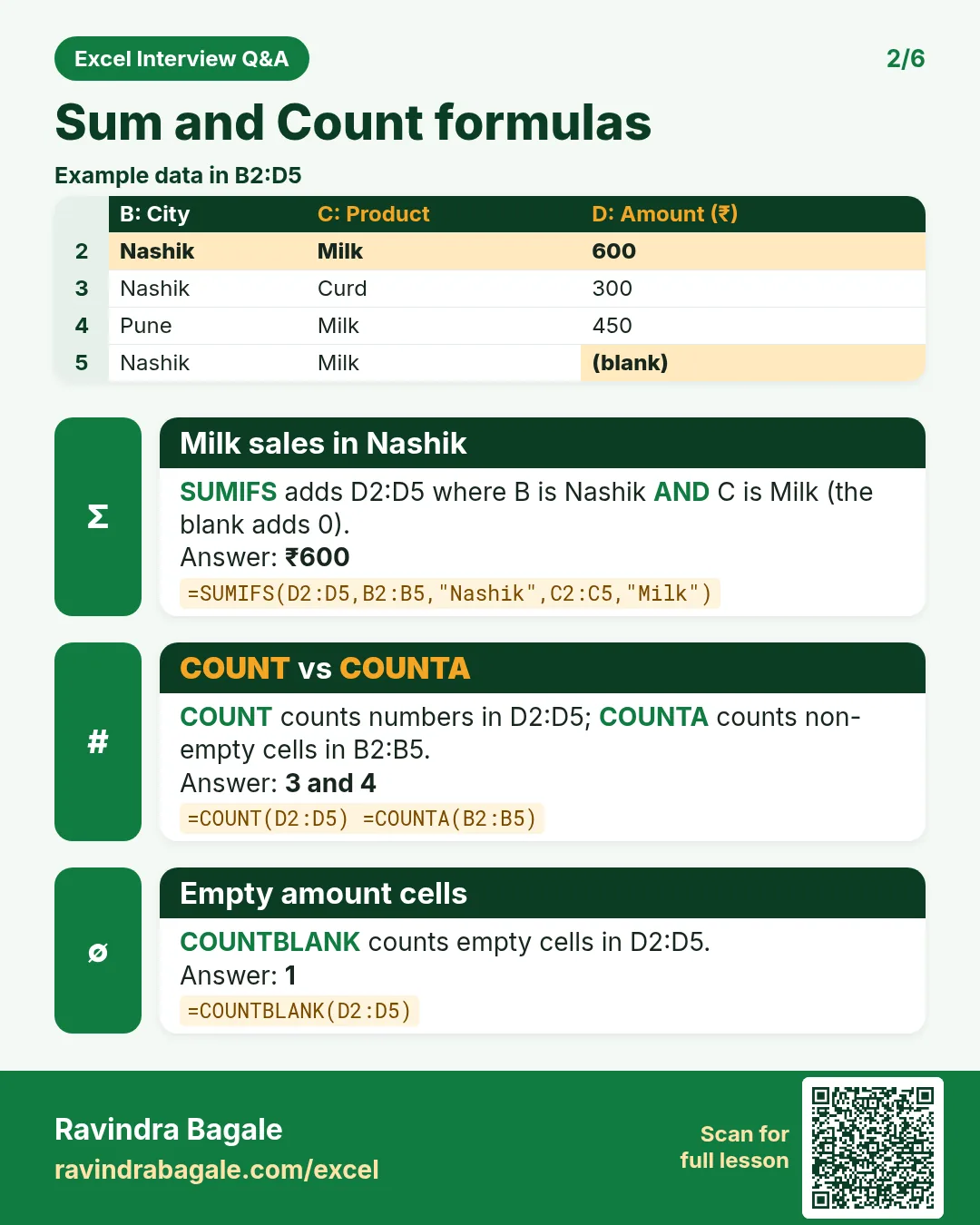
Revision card: Sum and Count formulas. Example data table with Milk sales in Nashik: ₹600; COUNT vs COUNTA: 3 and 4; Empty amount cells: 1.
Card 2 of 6: Sum and Count formulas · Download PNG · Open card page
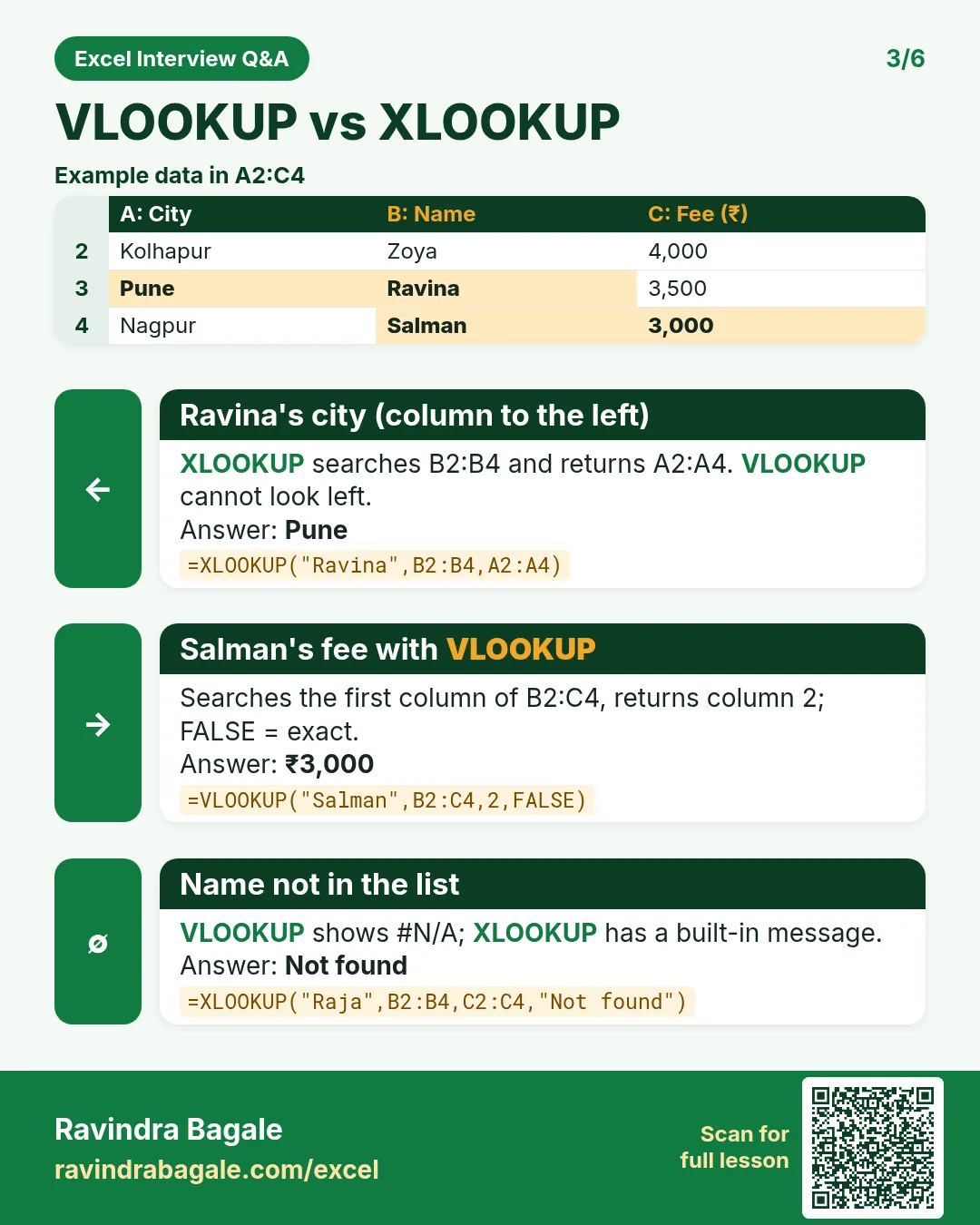
Revision card: VLOOKUP vs XLOOKUP. Example data table with Ravina's city (column to the left): Pune; Salman's fee with VLOOKUP: ₹3,000; Name not in the list: Not found.
Card 3 of 6: VLOOKUP vs XLOOKUP · Download PNG · Open card page
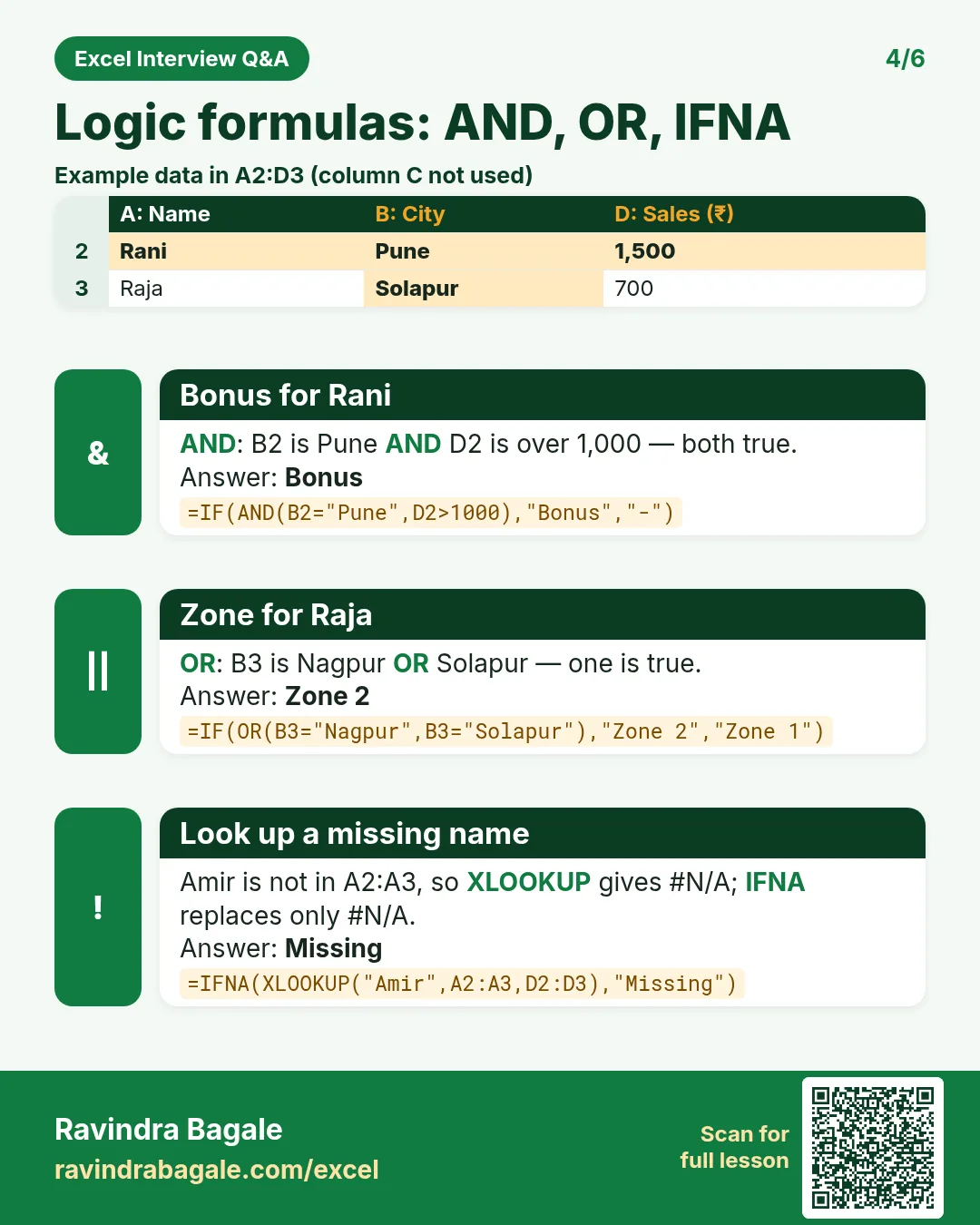
Revision card: Logic formulas: AND, OR, IFNA. Example data table with Bonus for Rani: Bonus; Zone for Raja: Zone 2; Look up a missing name: Missing.
Card 4 of 6: Logic formulas: AND, OR, IFNA · Download PNG · Open card page
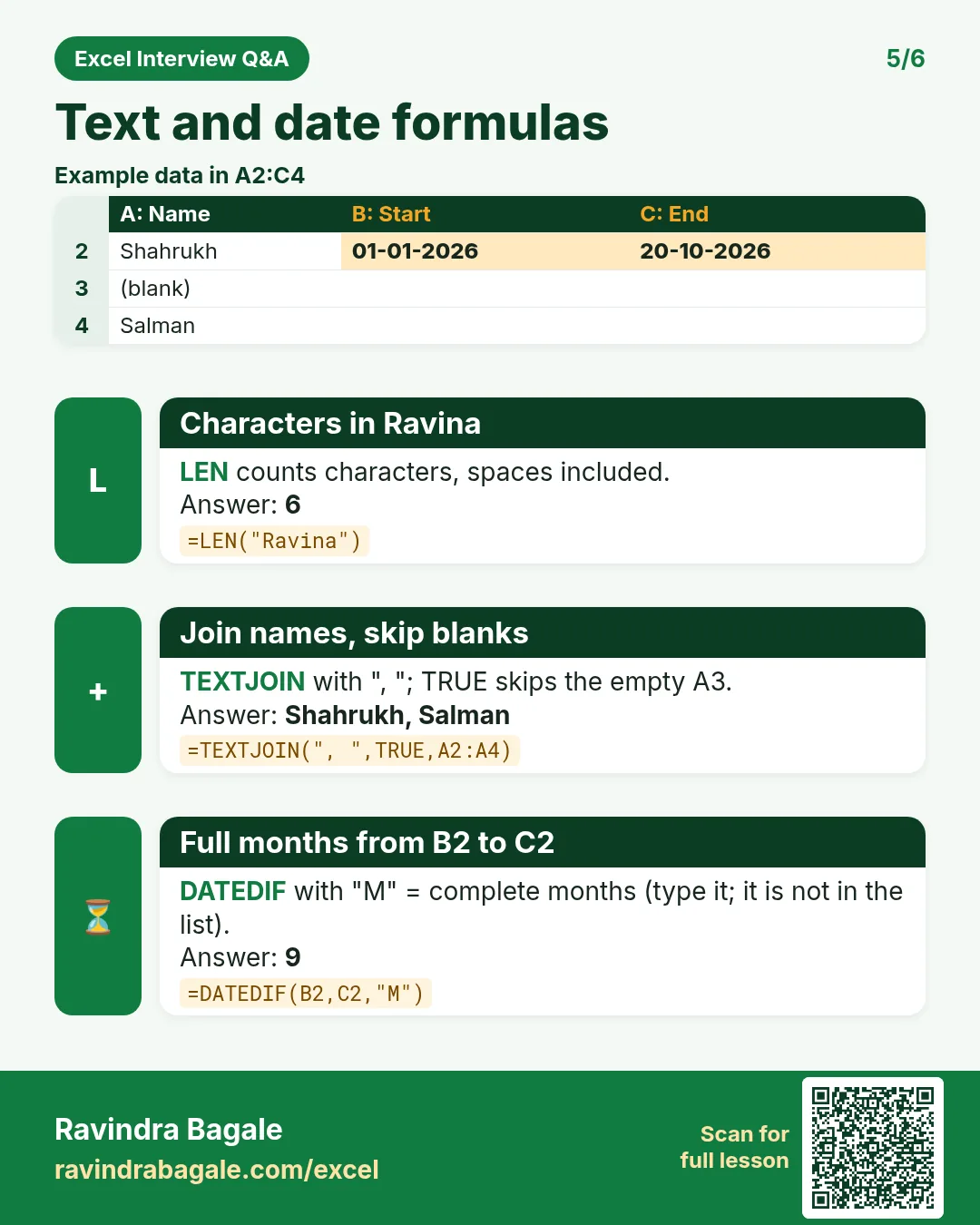
Revision card: Text and date formulas. Example data table with Characters in Ravina: 6; Join names, skip blanks: Shahrukh, Salman; Full months from B2 to C2: 9.
Card 5 of 6: Text and date formulas · Download PNG · Open card page
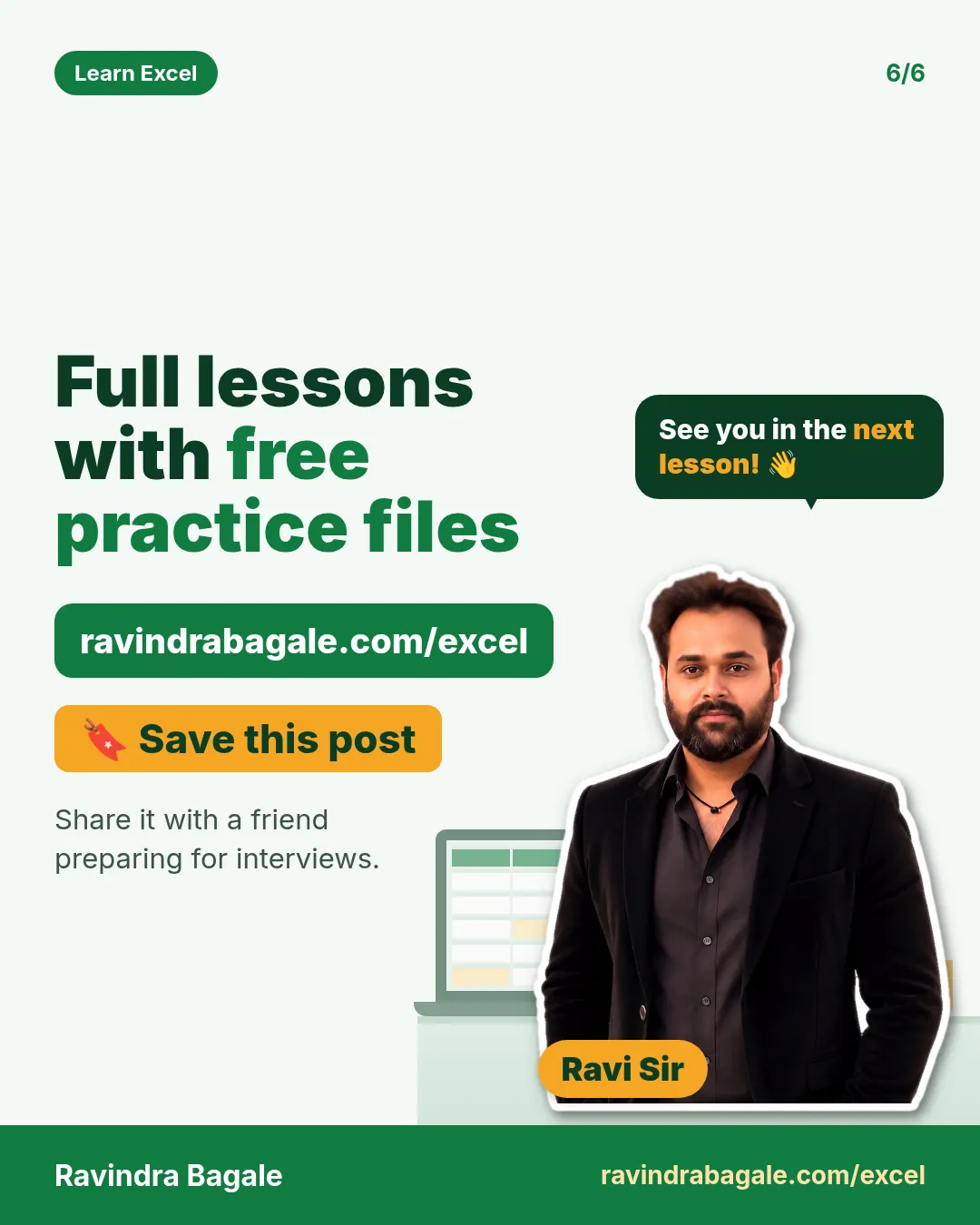
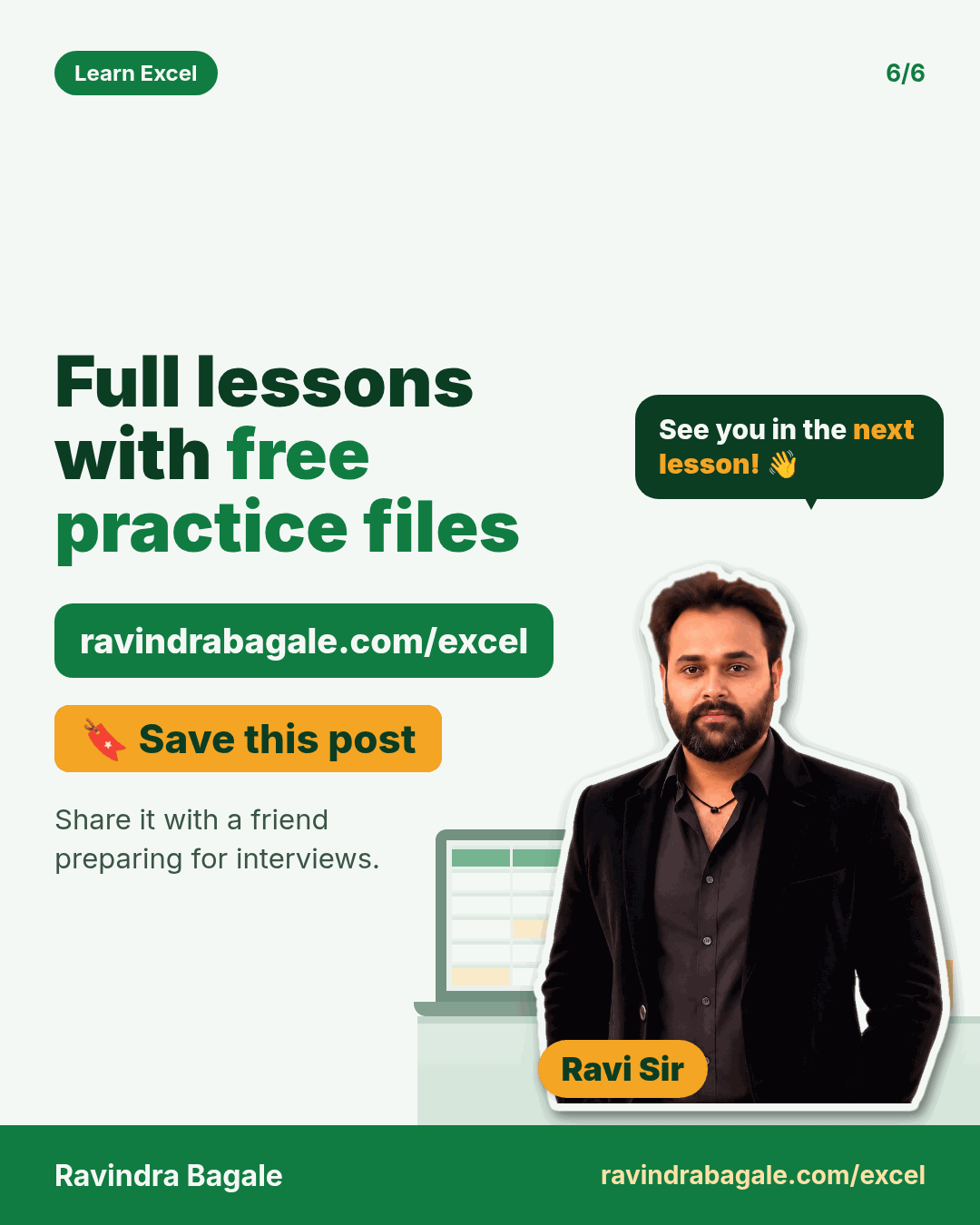
Closing card: full lessons with free practice files at ravindrabagale.com/excel. Save this post.
Card 6 of 6: Full lessons with free practice files · Download PNG · Open card page

Basics and data entry

What Is Data Analytics? The 5 Steps Explained with Instagram and Flipkart Examples

Classroom · Data Analytics · 2 cards · Open the chapter
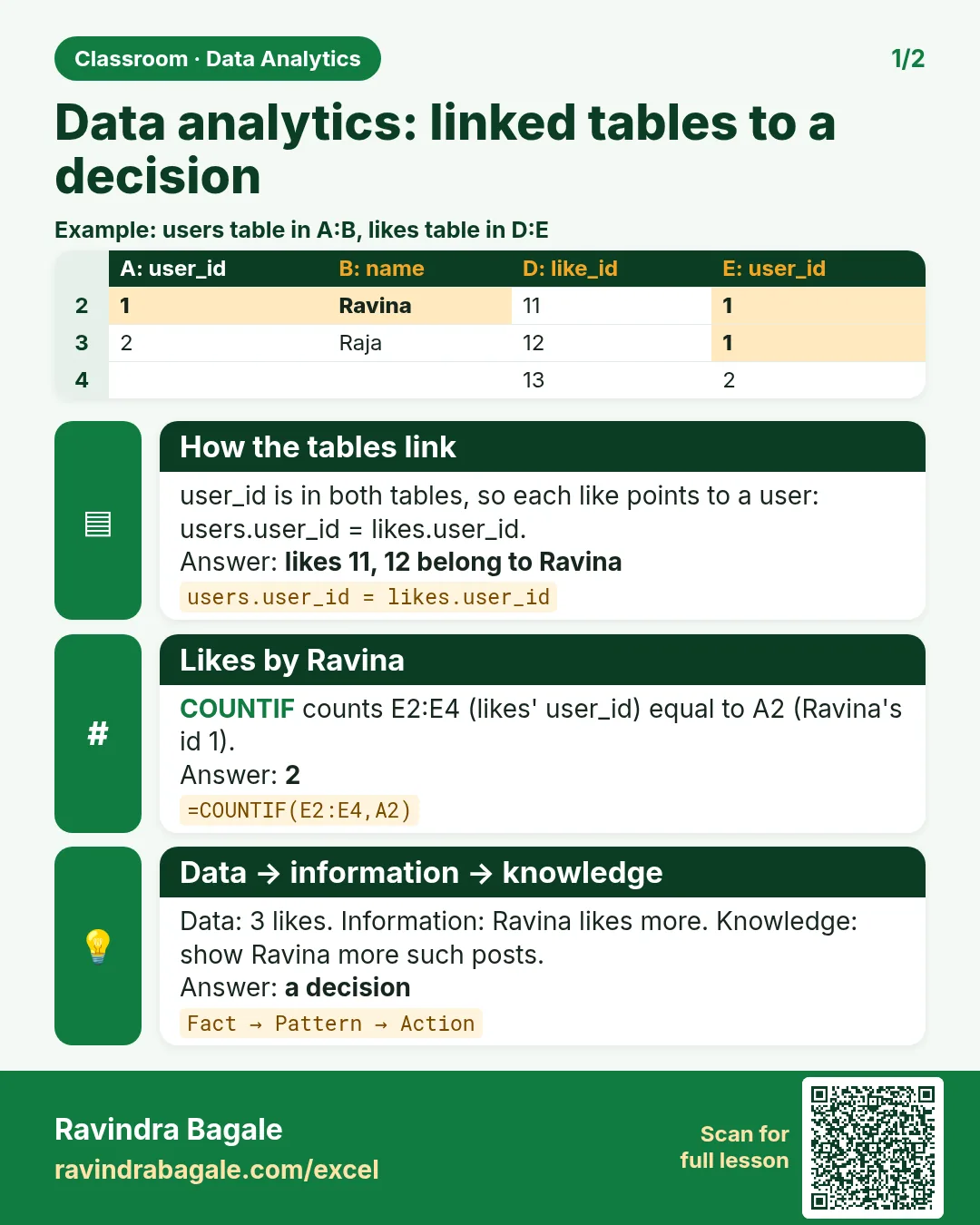
Revision card: Data analytics: linked tables to a decision. Example data table with How the tables link: likes 11, 12 belong to Ravina; Likes by Ravina: 2; Data → information → knowledge: a decision.
Card 1 of 2: Data analytics: linked tables to a decision · Download PNG · Open card page
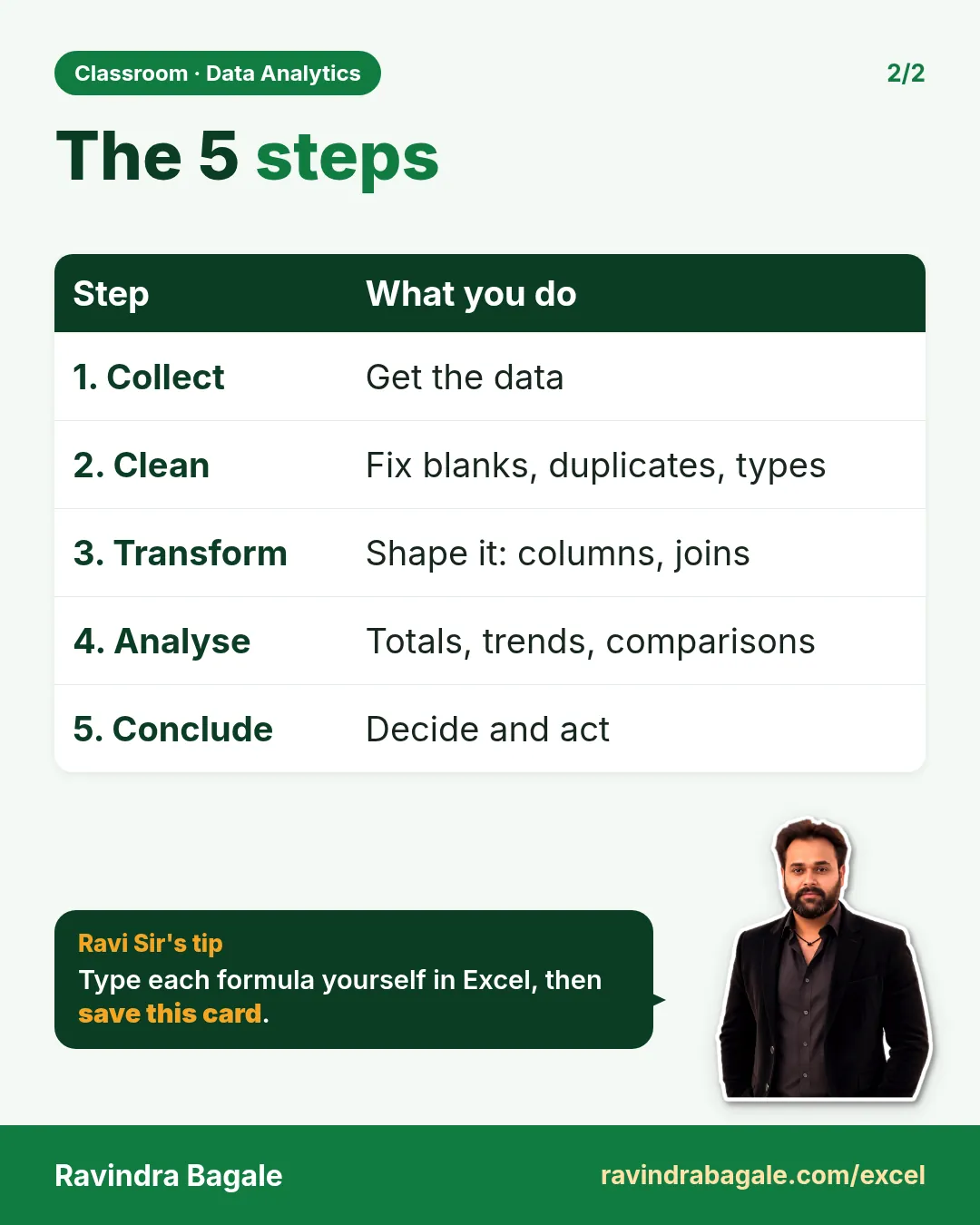
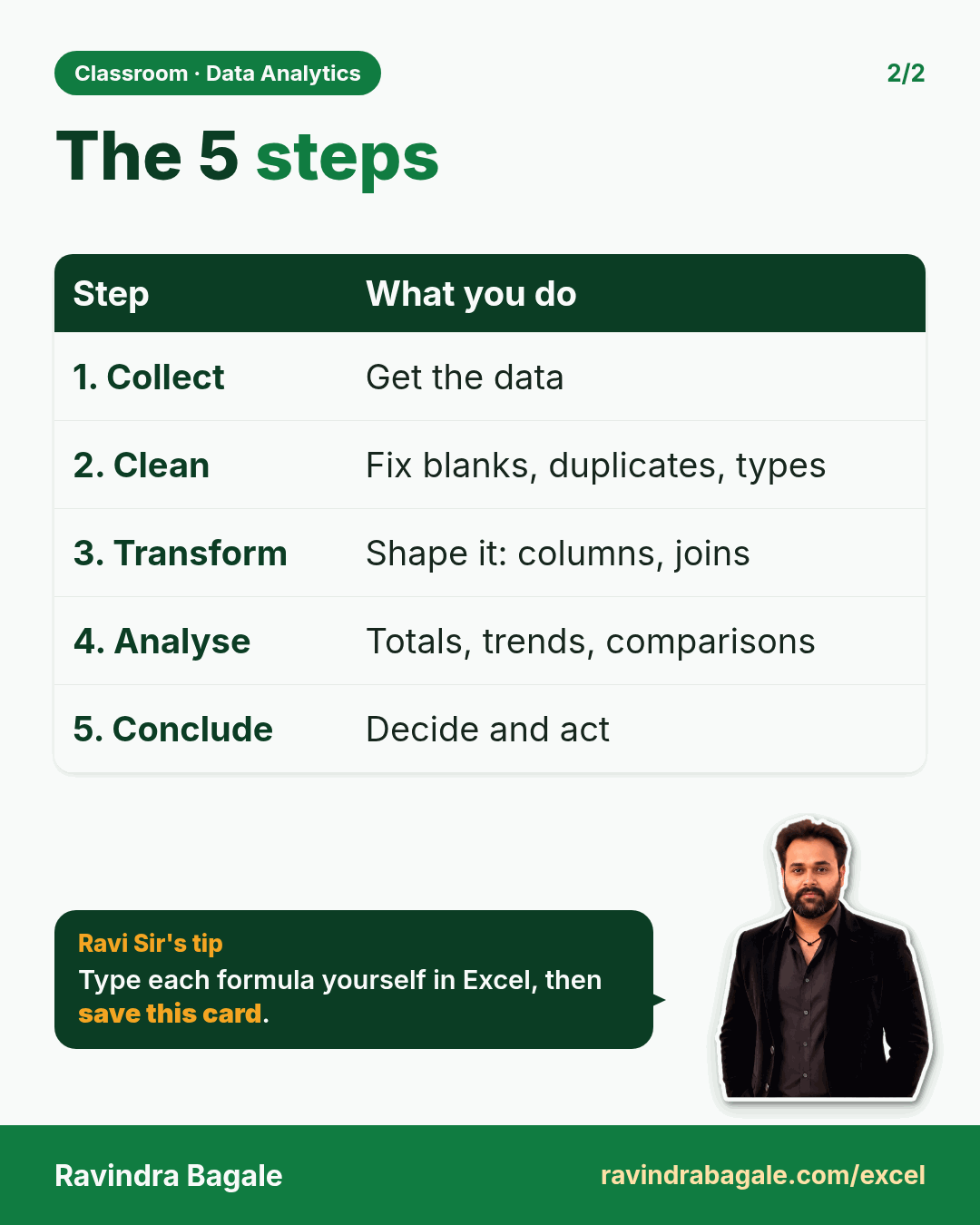
Revision card: The 5 steps. Covers 1. Collect; 2. Clean; 3. Transform; 4. Analyse; 5. Conclude. With a photo of Ravindra Bagale and a short tip.
Card 2 of 2: The 5 steps · Download PNG · Open card page

Excel Basics for Beginners: Workbook, Sheets, Cells, AutoFill and Date Series

Classroom · Excel Basics · 2 cards · Open the chapter
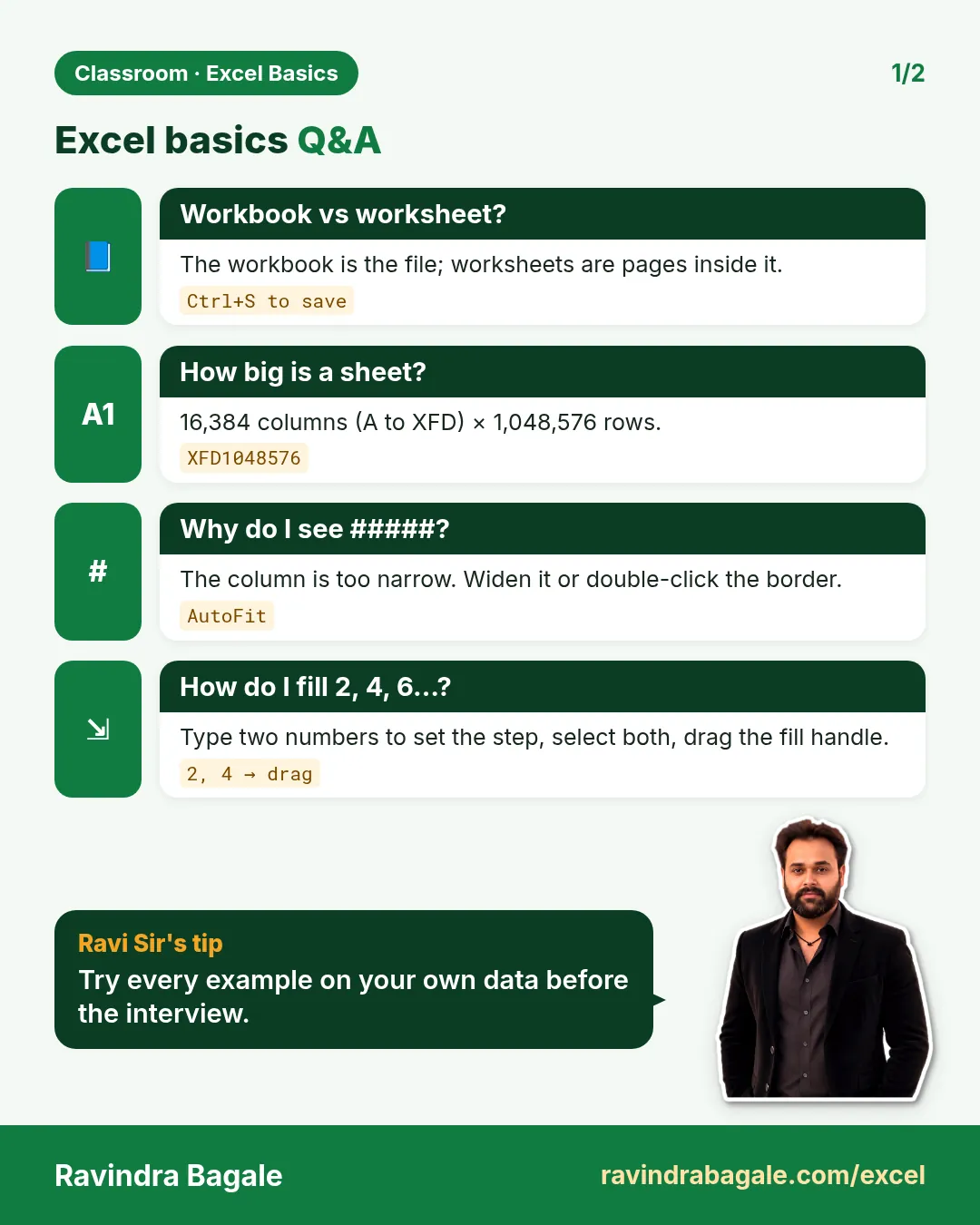
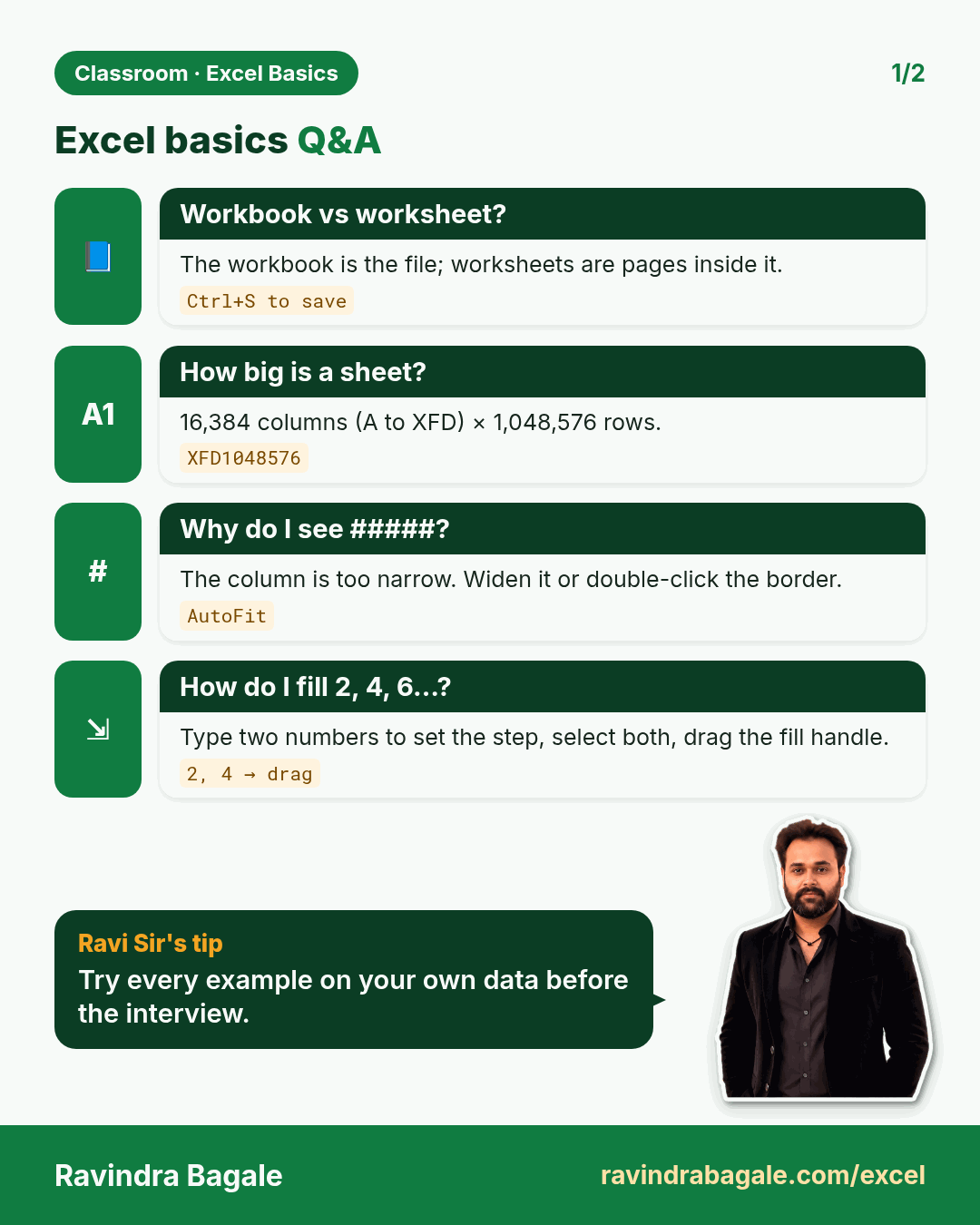
Revision card: Excel basics Q&A. Covers Workbook vs worksheet?; How big is a sheet?; Why do I see #####?; How do I fill 2, 4, 6…?. With a photo of Ravindra Bagale and a short tip.
Card 1 of 2: Excel basics Q&A · Download PNG · Open card page
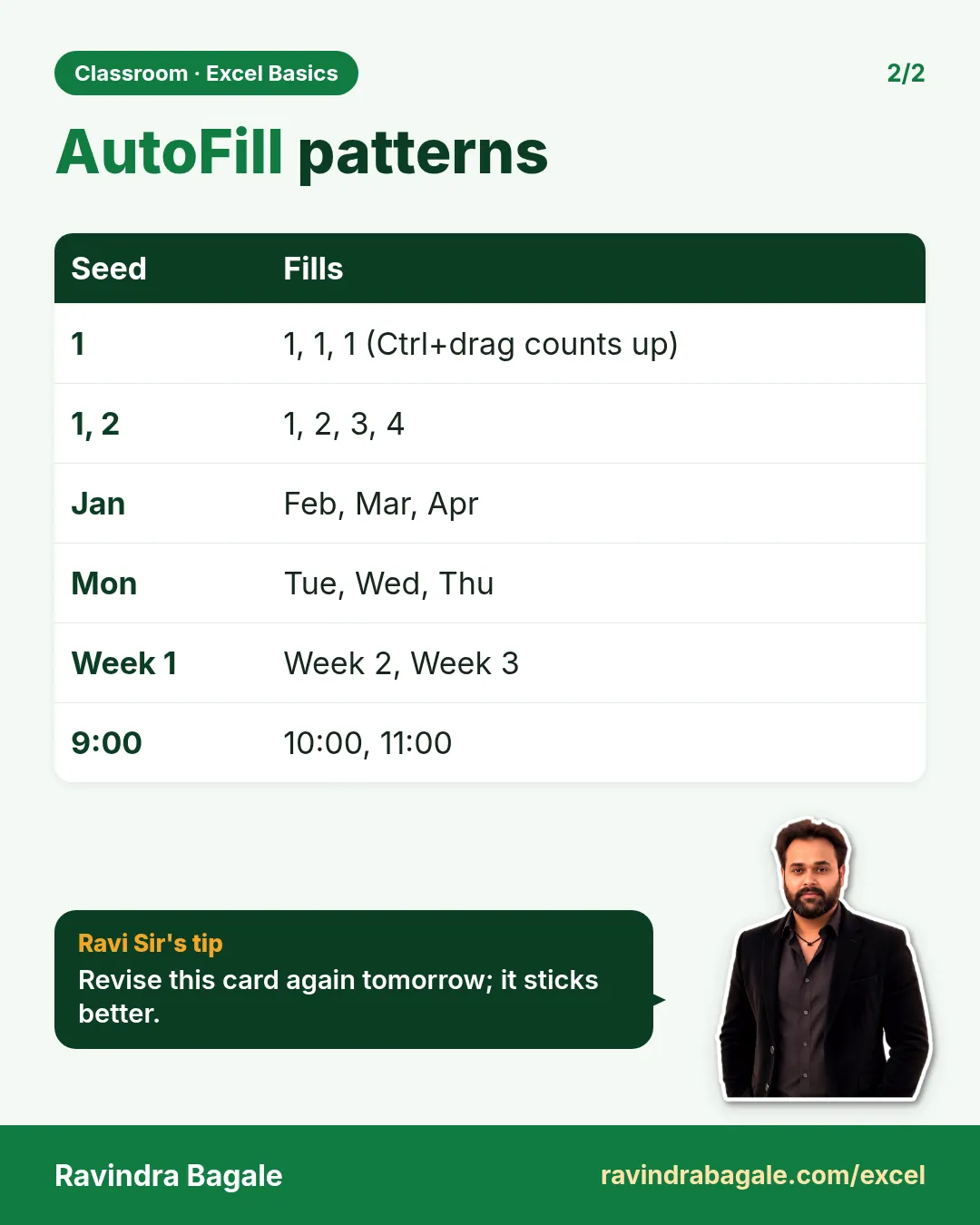
Revision card: AutoFill patterns. Covers 1; 1, 2; Jan; Mon; Week 1; 9:00. With a photo of Ravindra Bagale and a short tip.
Card 2 of 2: AutoFill patterns · Download PNG · Open card page

1. Excel Basics

Ch 1 · Excel Basics · 2 cards · Open the chapter
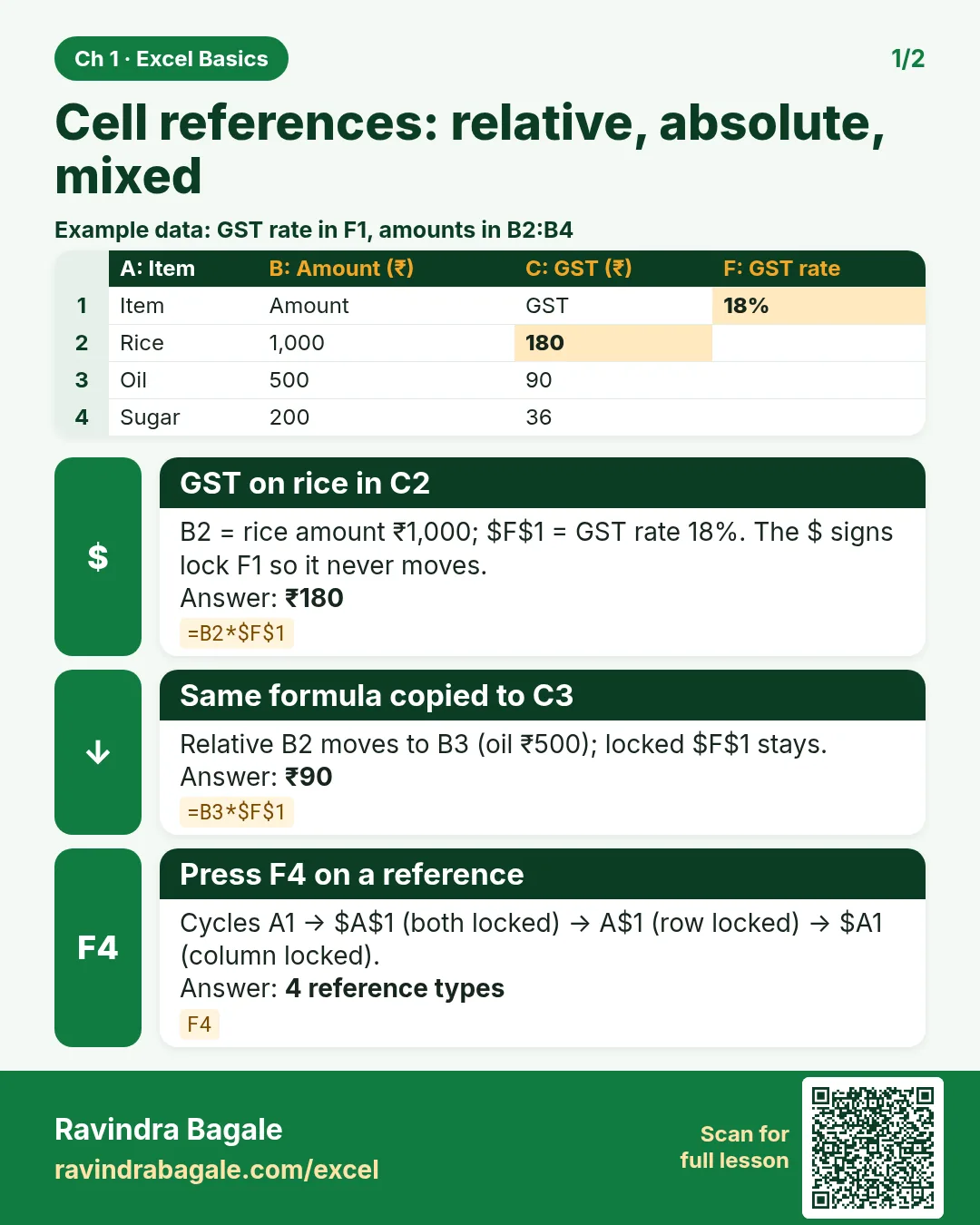
Revision card: Cell references: relative, absolute, mixed. Example data table with GST on rice in C2: ₹180; Same formula copied to C3: ₹90; Press F4 on a reference: 4 reference types.
Card 1 of 2: Cell references: relative, absolute, mixed · Download PNG · Open card page
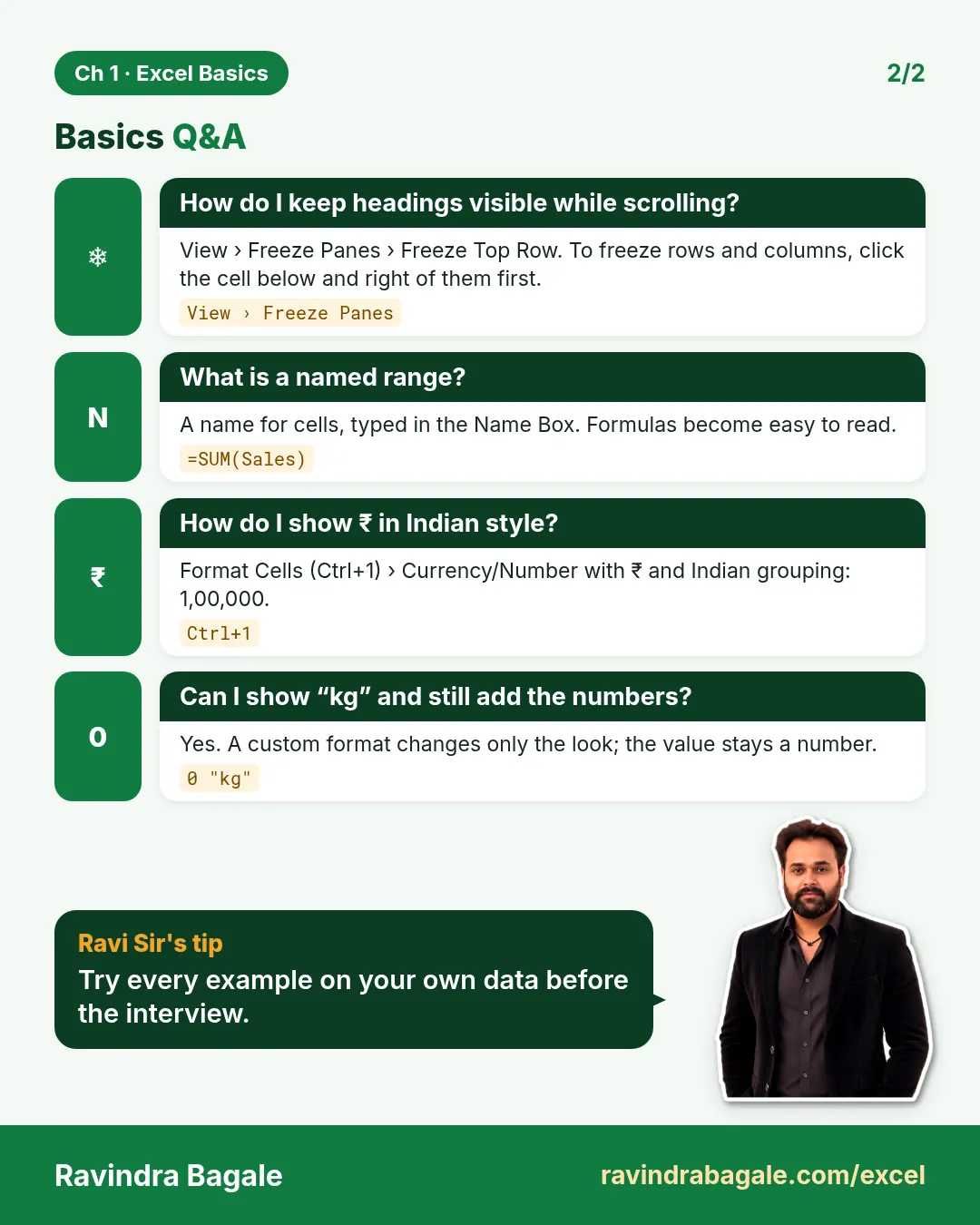
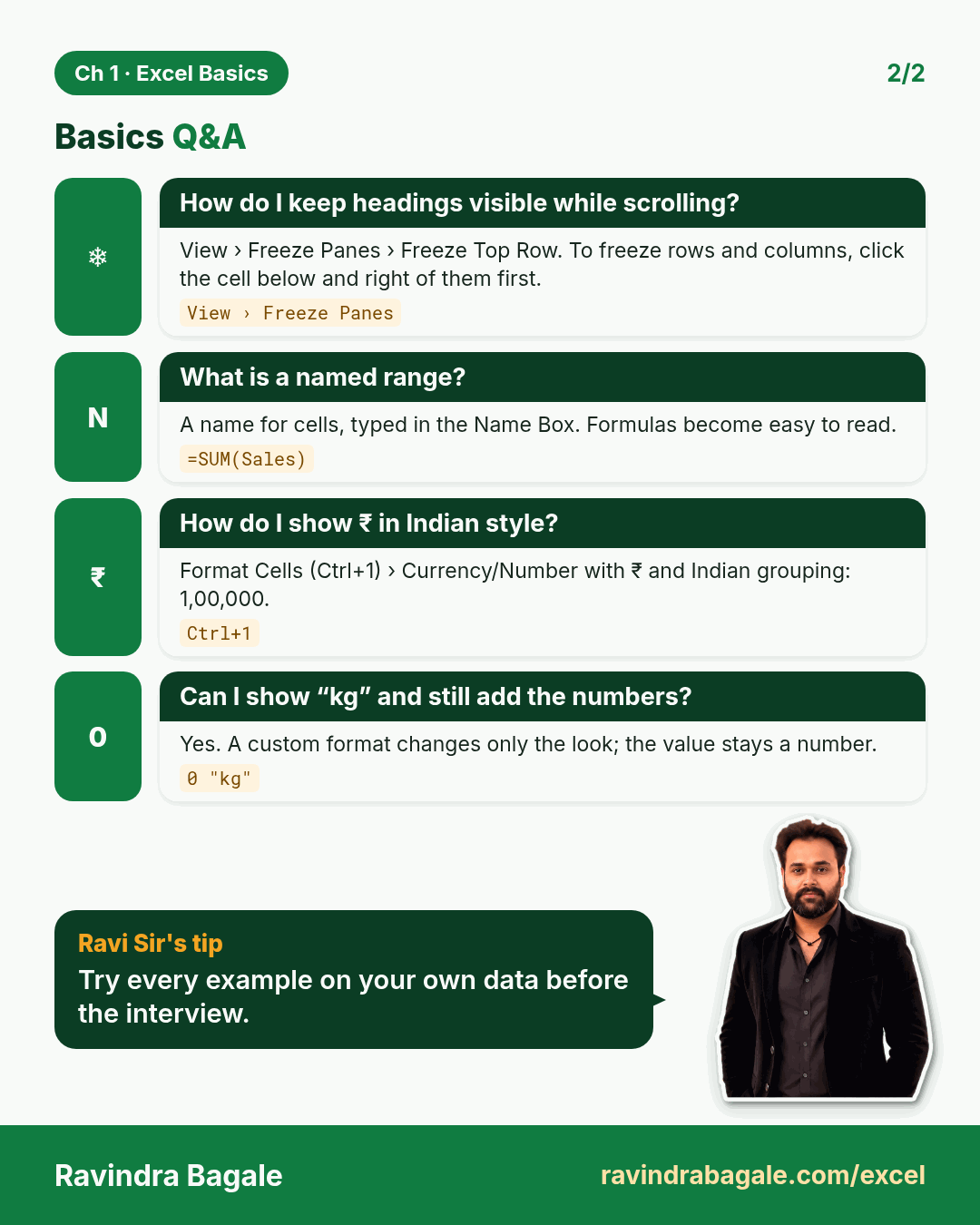
Revision card: Basics Q&A. Covers How do I keep headings visible while scrolling?; What is a named range?; How do I show ₹ in Indian style?; Can I show “kg” and still add the numbers?. With a photo of Ravindra Bagale and a short tip.
Card 2 of 2: Basics Q&A · Download PNG · Open card page

Excel Date Formats Explained: DD-MM vs MM-DD, Locale, Format Cells (Ctrl+1) and Custom Lists

Classroom · Date Formats · 2 cards · Open the chapter

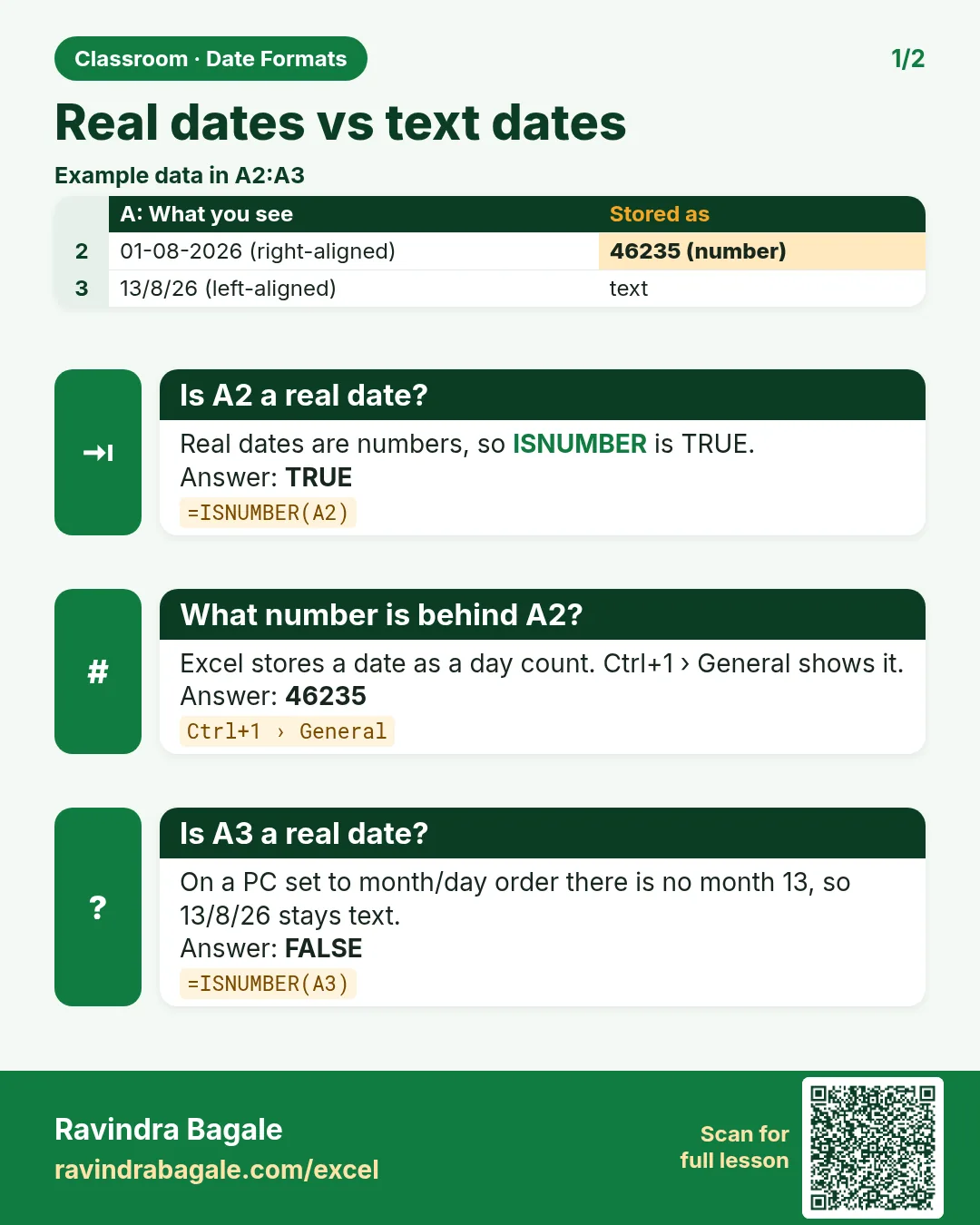
Revision card: Real dates vs text dates. Example data table with Is A2 a real date?: TRUE; What number is behind A2?: 46235; Is A3 a real date?: FALSE.
Card 1 of 2: Real dates vs text dates · Download PNG · Open card page
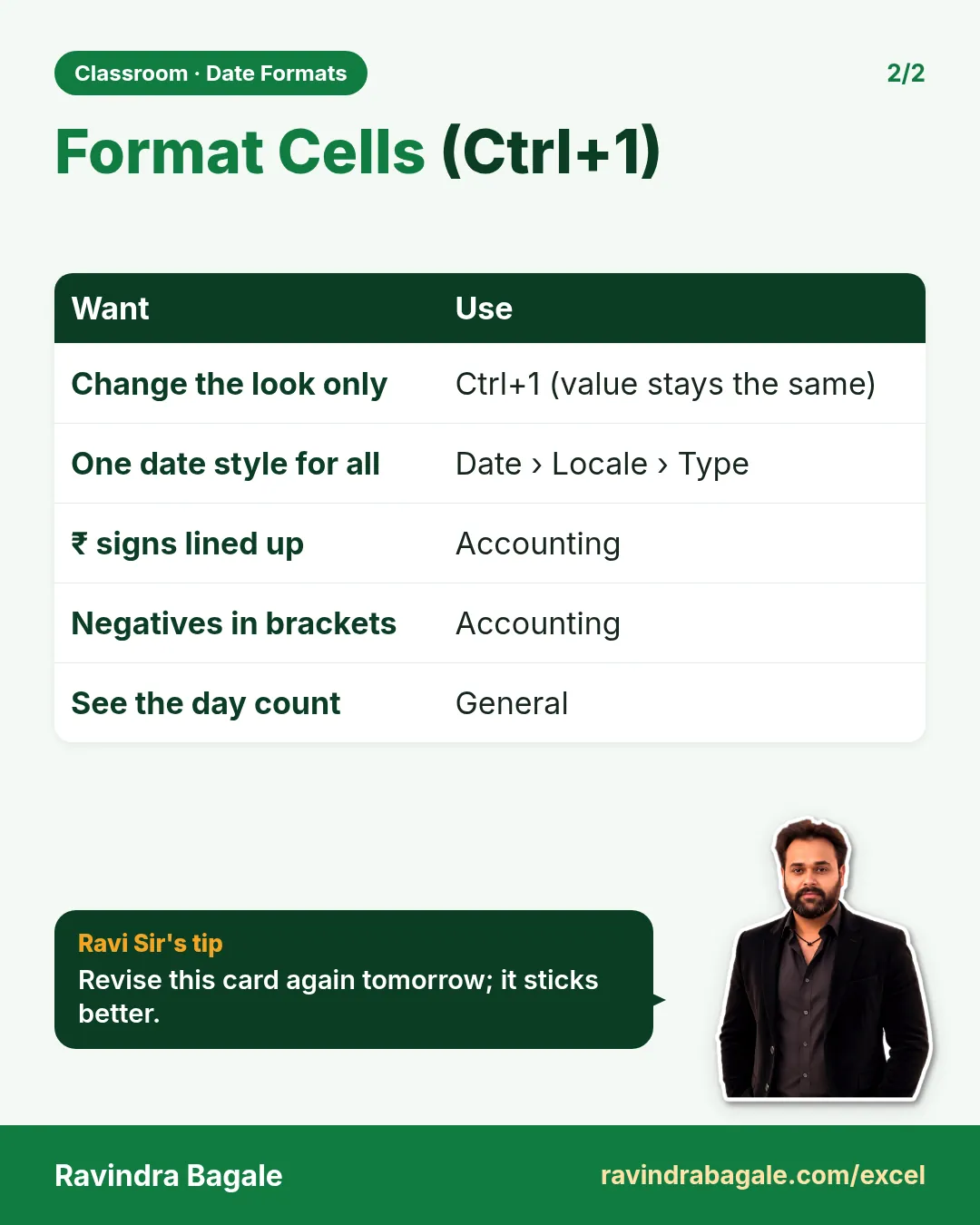
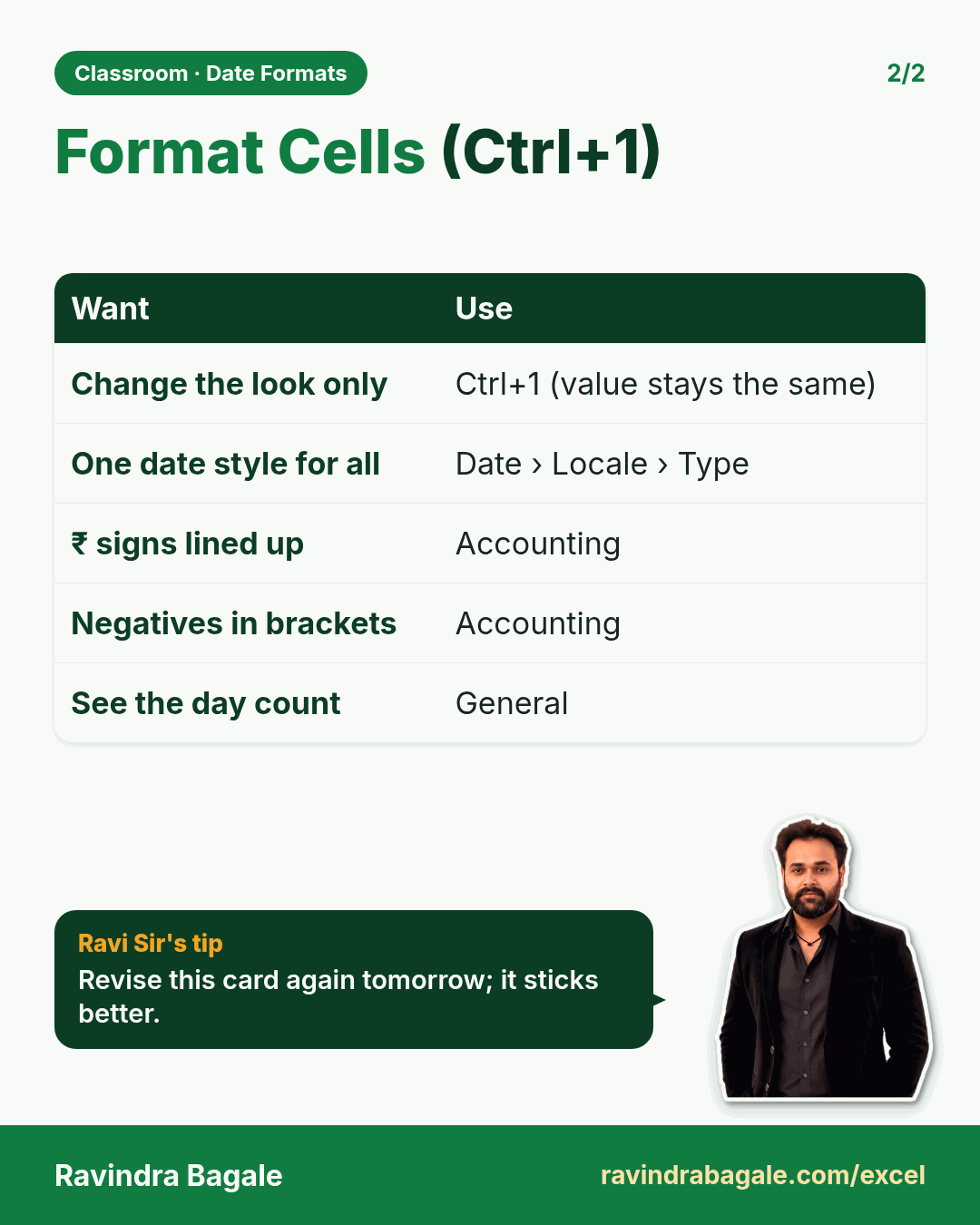
Revision card: Format Cells (Ctrl+1). Covers Change the look only; One date style for all; ₹ signs lined up; Negatives in brackets; See the day count. With a photo of Ravindra Bagale and a short tip.
Card 2 of 2: Format Cells (Ctrl+1) · Download PNG · Open card page

Excel Custom Number Format: Add kg, gram, ₹ and Rs to Numbers, Thousands Separator and Red Negative Numbers

Classroom · Number Formats · 2 cards · Open the chapter

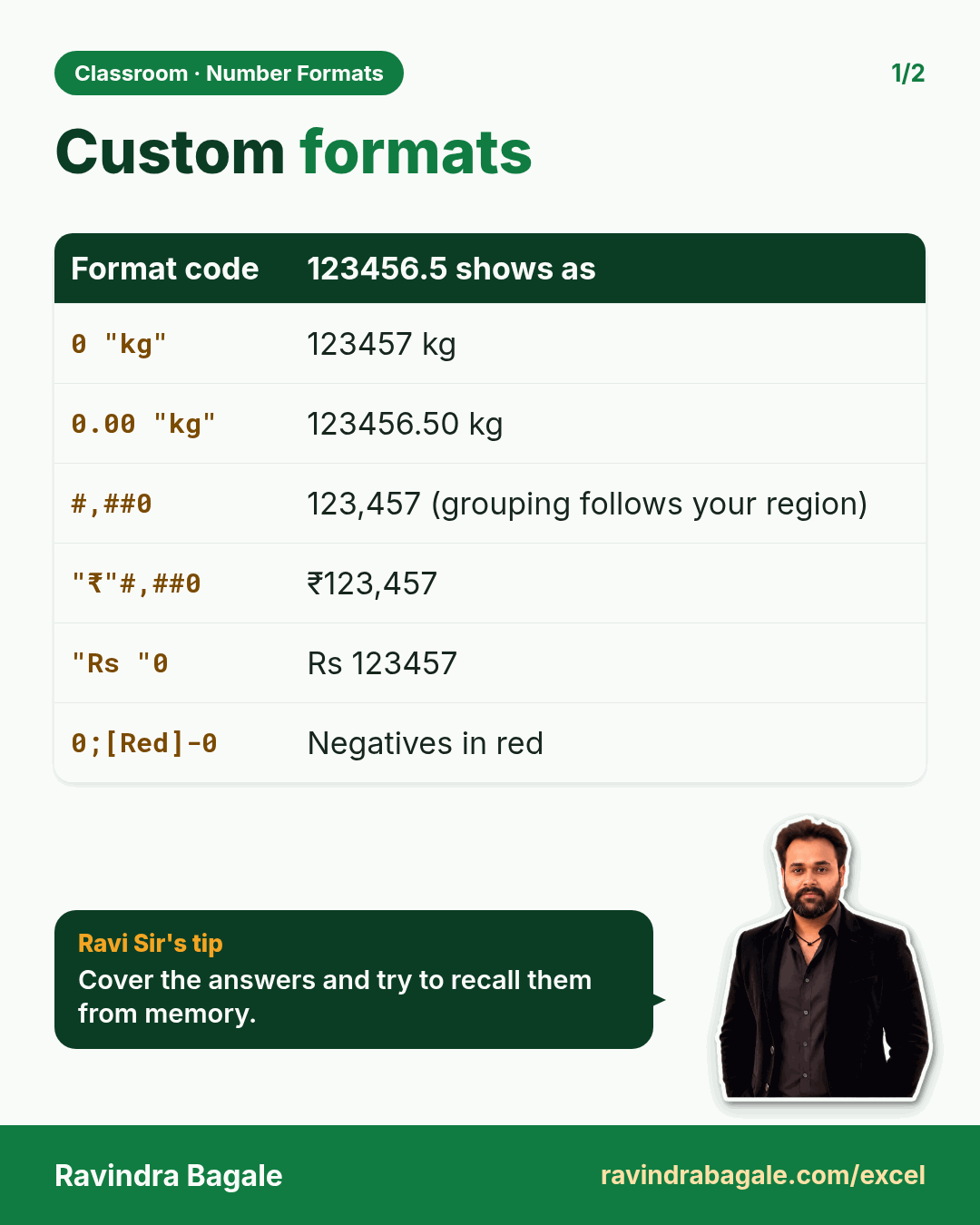
Revision card: Custom formats. Covers 0 "kg"; 0.00 "kg"; #,##0; "₹"#,##0; "Rs "0; 0;[Red]-0. With a photo of Ravindra Bagale and a short tip.
Card 1 of 2: Custom formats · Download PNG · Open card page
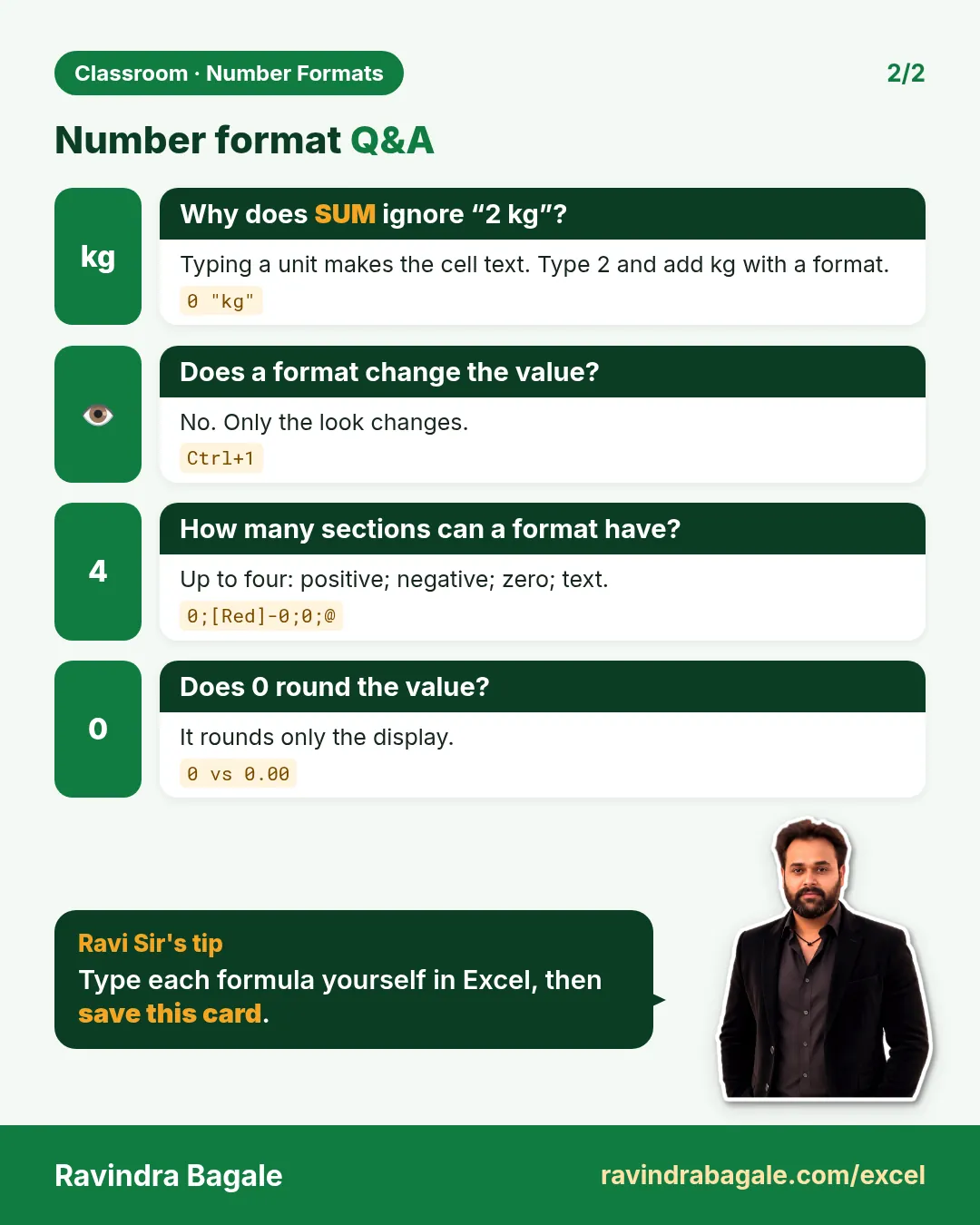
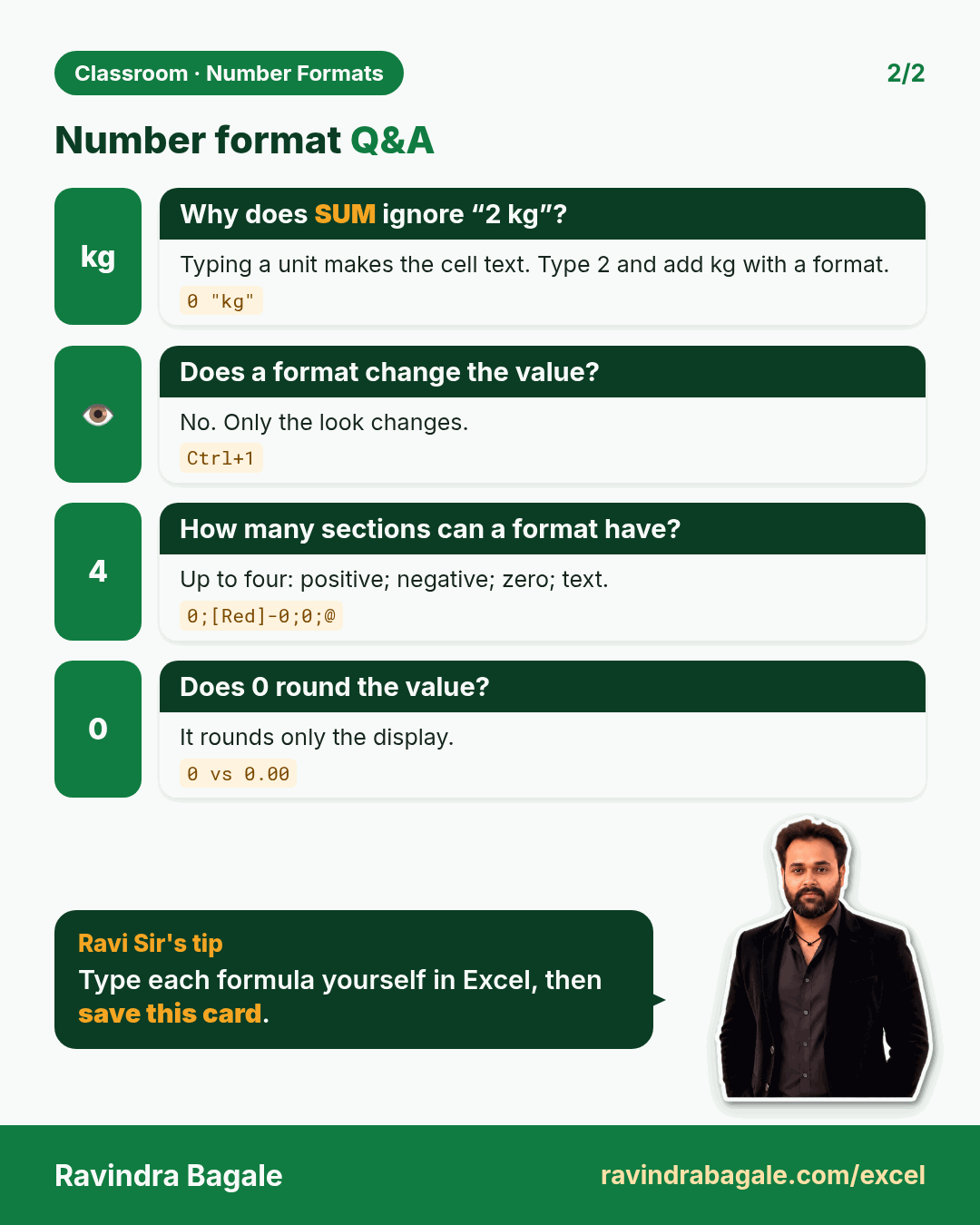
Revision card: Number format Q&A. Covers Why does SUM ignore “2 kg”?; Does a format change the value?; How many sections can a format have?; Does 0 round the value?. With a photo of Ravindra Bagale and a short tip.
Card 2 of 2: Number format Q&A · Download PNG · Open card page

Relative vs Absolute vs Mixed Cell Reference in Excel (F4 Key) with GST Example

Classroom · Cell References · 2 cards · Open the chapter

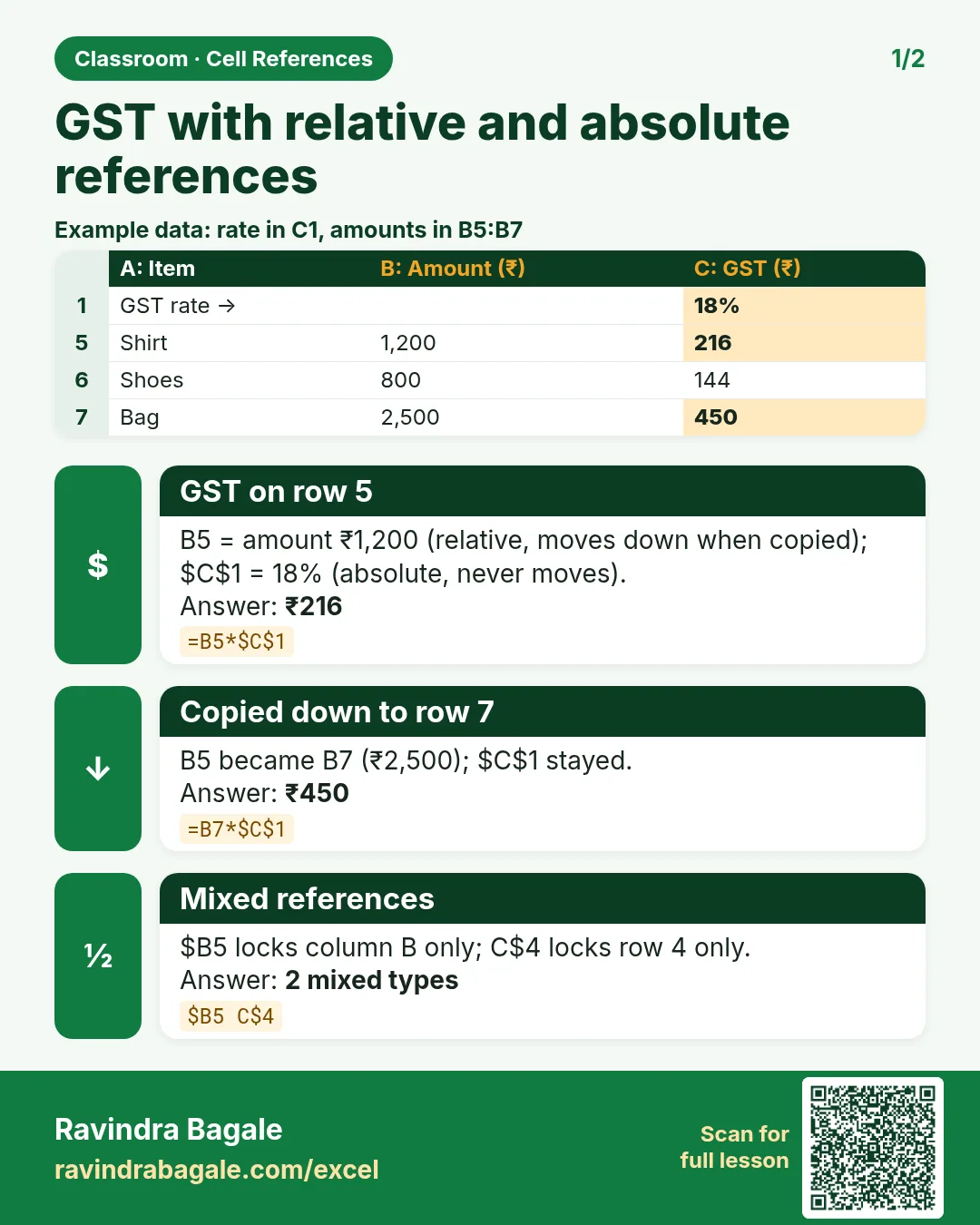
Revision card: GST with relative and absolute references. Example data table with GST on row 5: ₹216; Copied down to row 7: ₹450; Mixed references: 2 mixed types.
Card 1 of 2: GST with relative and absolute references · Download PNG · Open card page
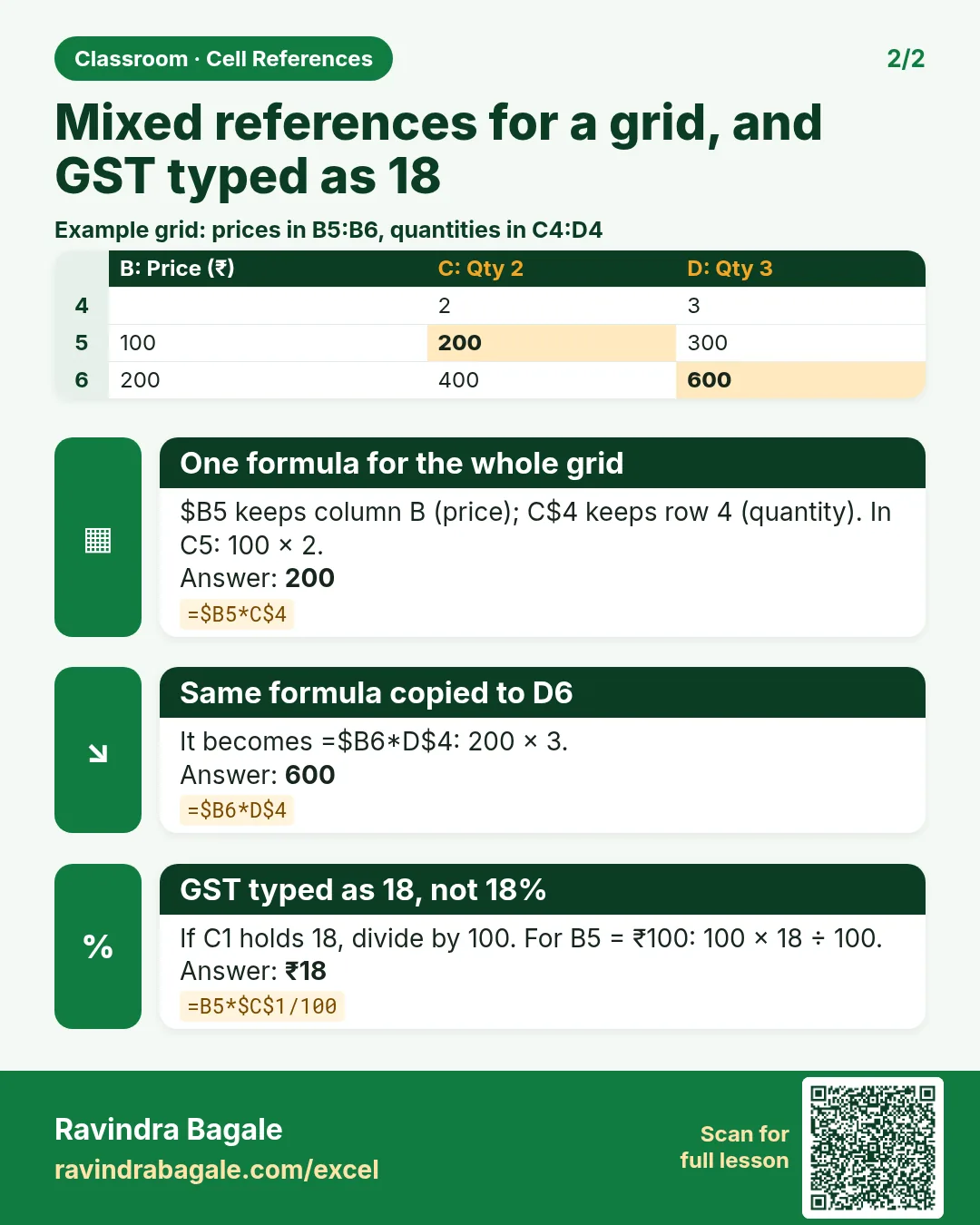
Revision card: Mixed references for a grid, and GST typed as 18. Example data table with One formula for the whole grid: 200; Same formula copied to D6: 600; GST typed as 18, not 18%: ₹18.
Card 2 of 2: Mixed references for a grid, and GST typed as 18 · Download PNG · Open card page

2. Data Entry Tools

Ch 2 · Data Entry Tools · 2 cards · Open the chapter

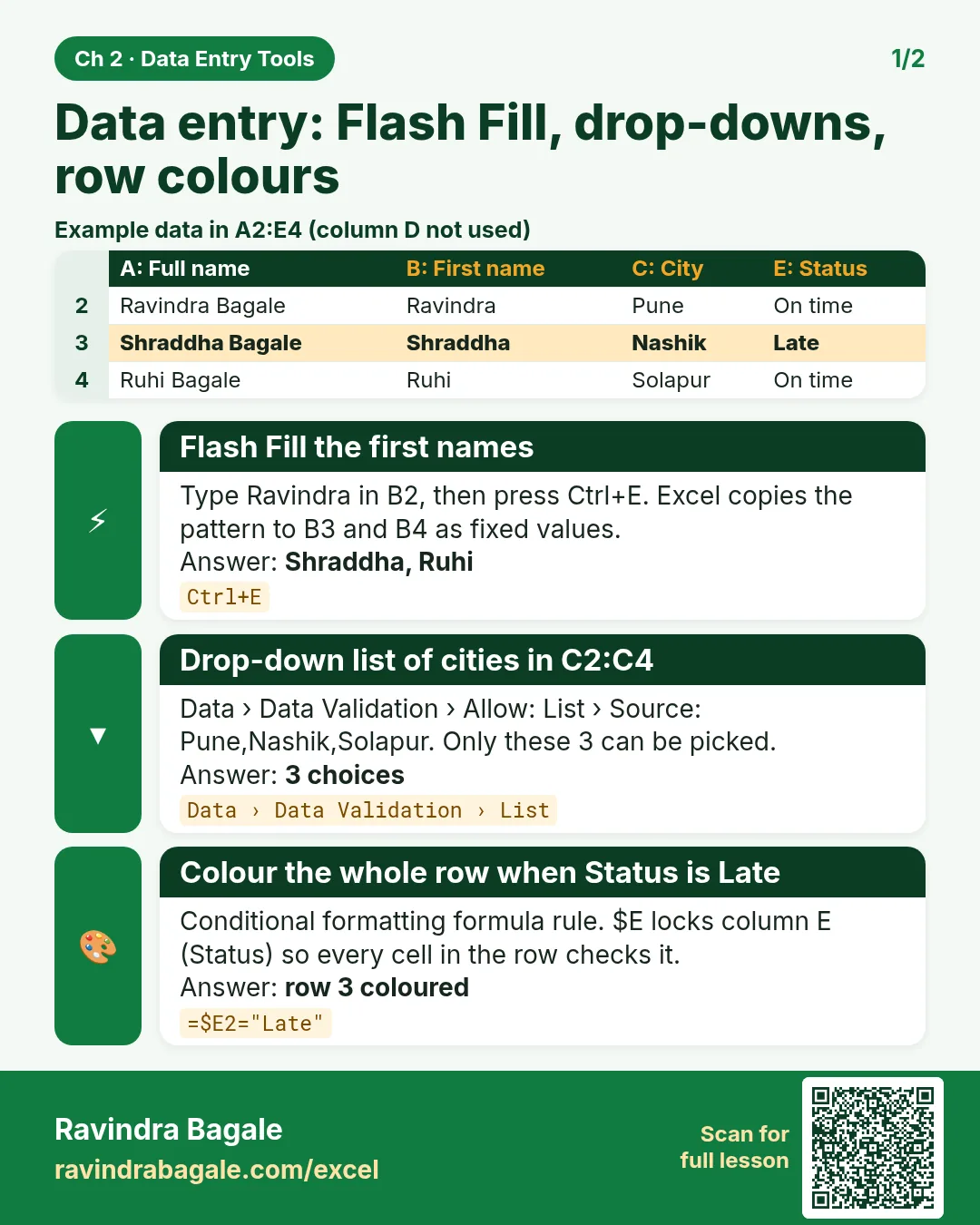
Revision card: Data entry: Flash Fill, drop-downs, row colours. Example data table with Flash Fill the first names: Shraddha, Ruhi; Drop-down list of cities in C2:C4: 3 choices; Colour the whole row when Status is Late: row 3 coloured.
Card 1 of 2: Data entry: Flash Fill, drop-downs, row colours · Download PNG · Open card page
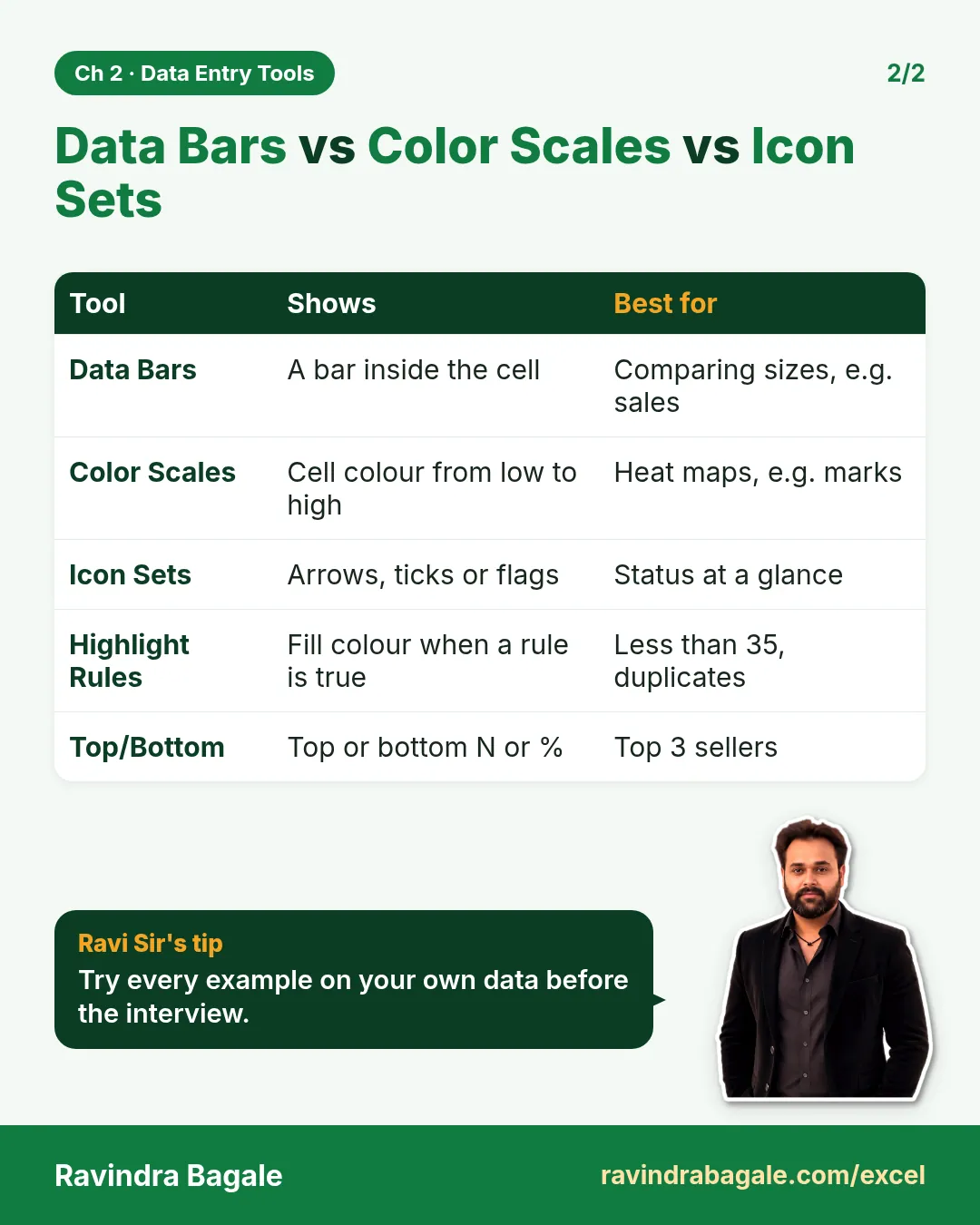
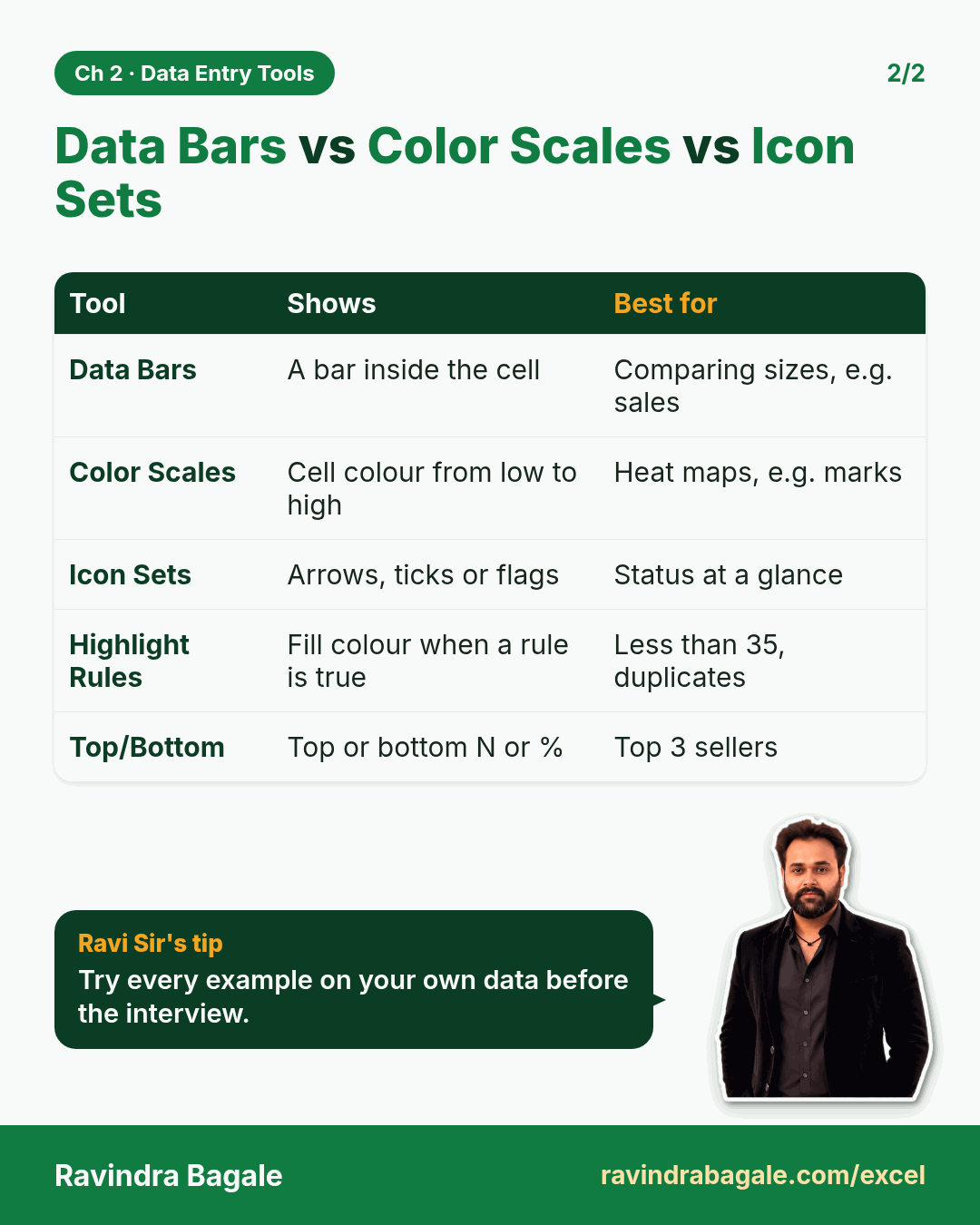
Revision card: Data Bars vs Color Scales vs Icon Sets. Covers Data Bars; Color Scales; Icon Sets; Highlight Rules; Top/Bottom. With a photo of Ravindra Bagale and a short tip.
Card 2 of 2: Data Bars vs Color Scales vs Icon Sets · Download PNG · Open card page

Excel Flash Fill (Ctrl+E) with Real Examples: Names, Emails, Phone Numbers and Masking

Classroom · Flash Fill · 2 cards · Open the chapter

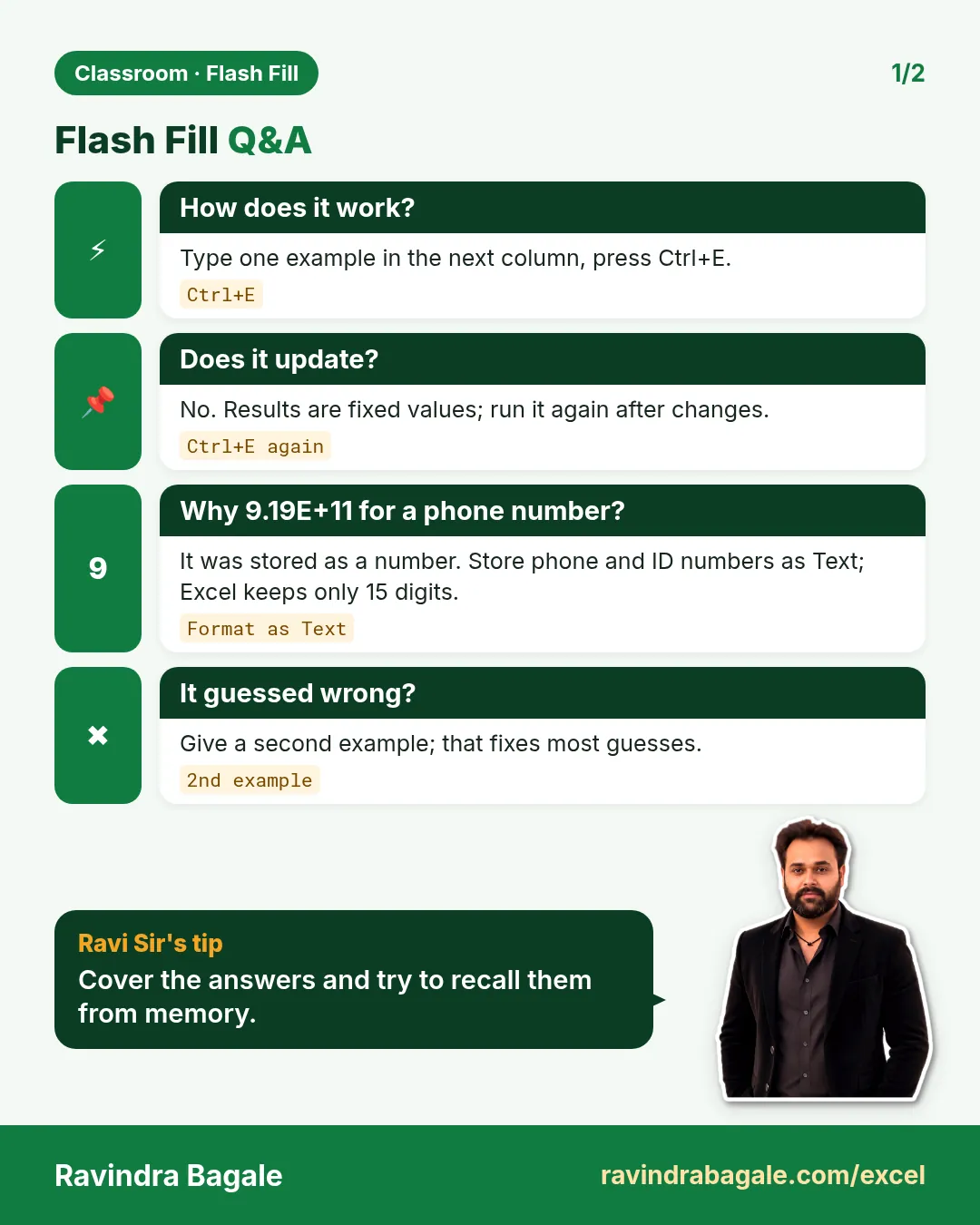
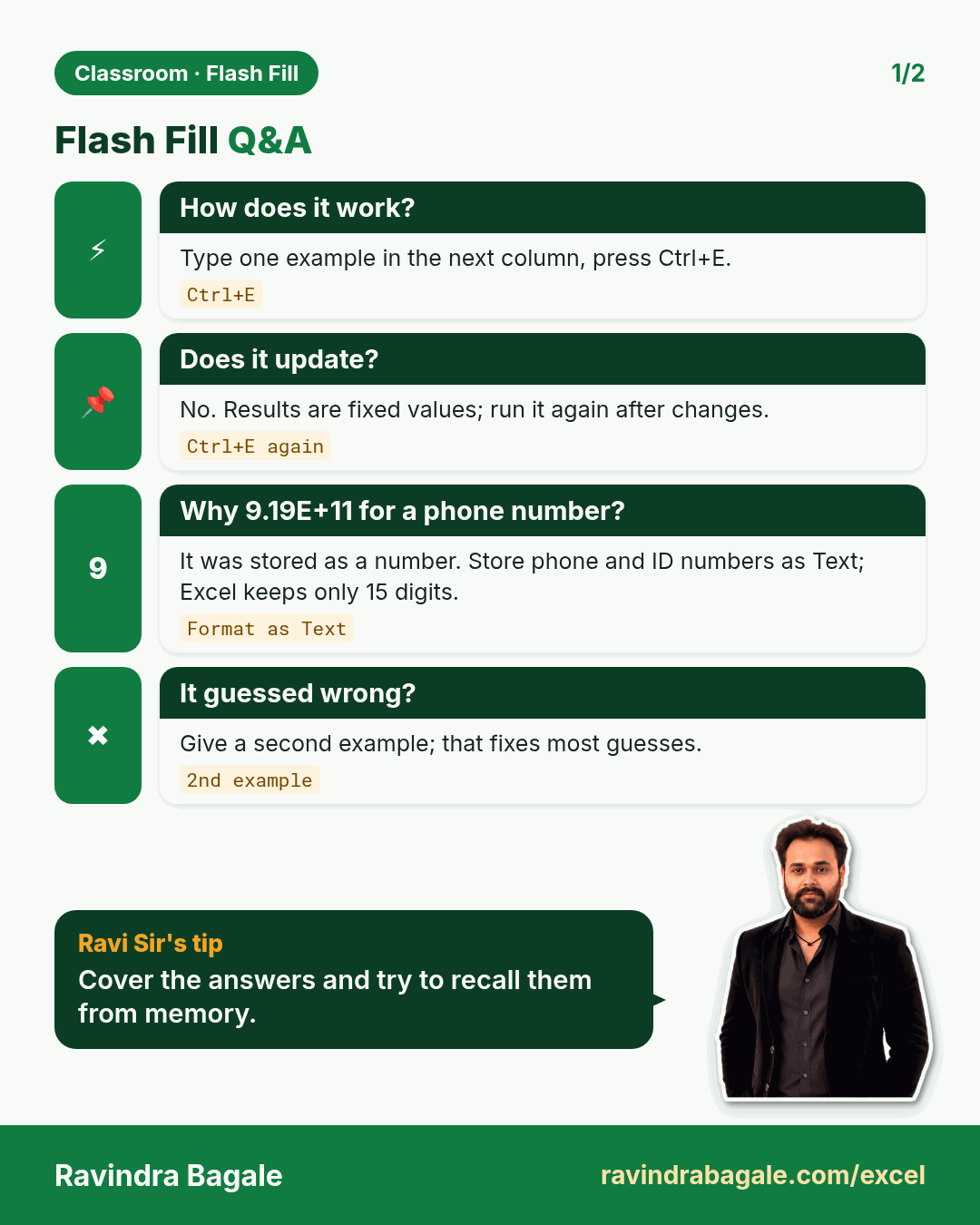
Revision card: Flash Fill Q&A. Covers How does it work?; Does it update?; Why 9.19E+11 for a phone number?; It guessed wrong?. With a photo of Ravindra Bagale and a short tip.
Card 1 of 2: Flash Fill Q&A · Download PNG · Open card page
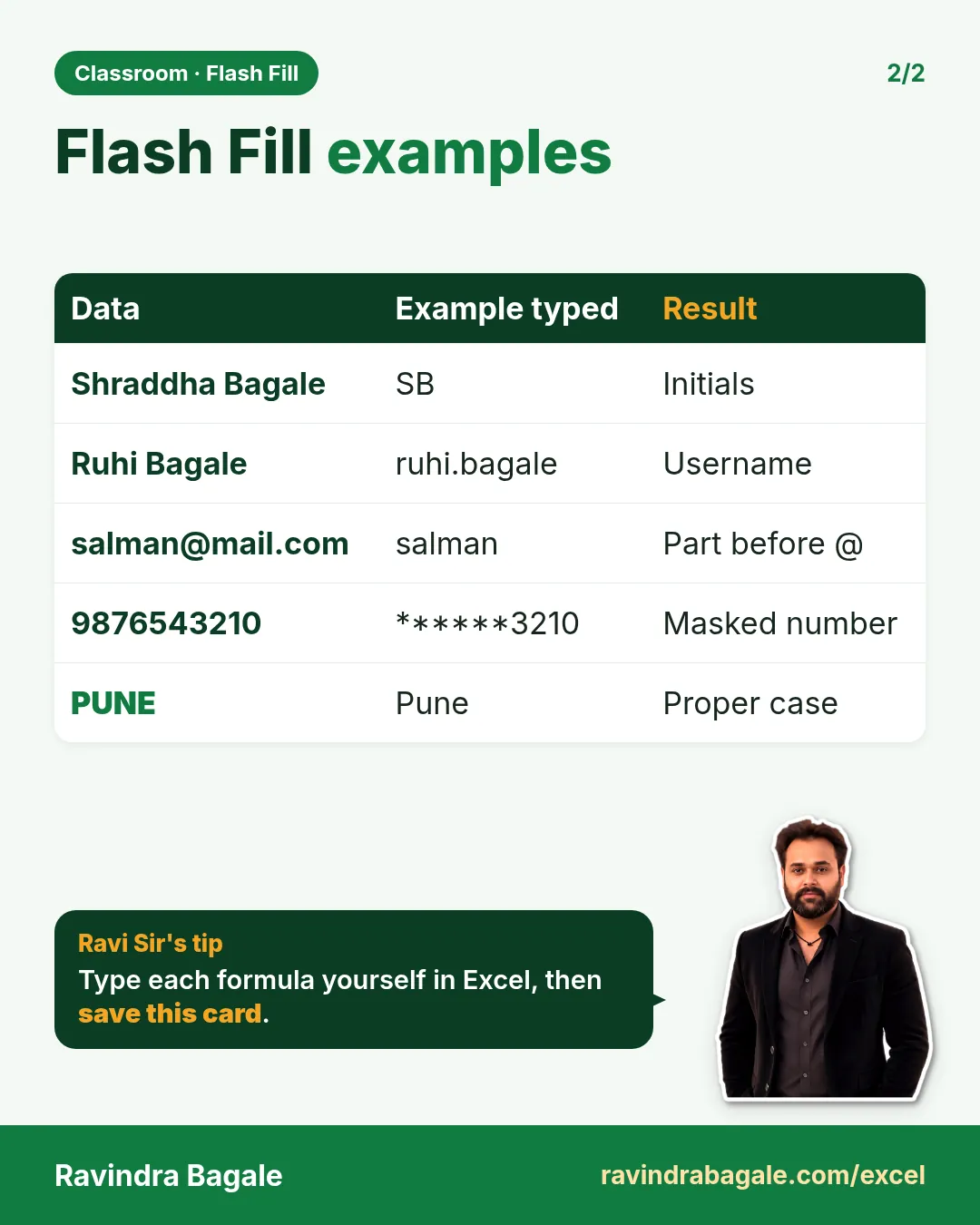
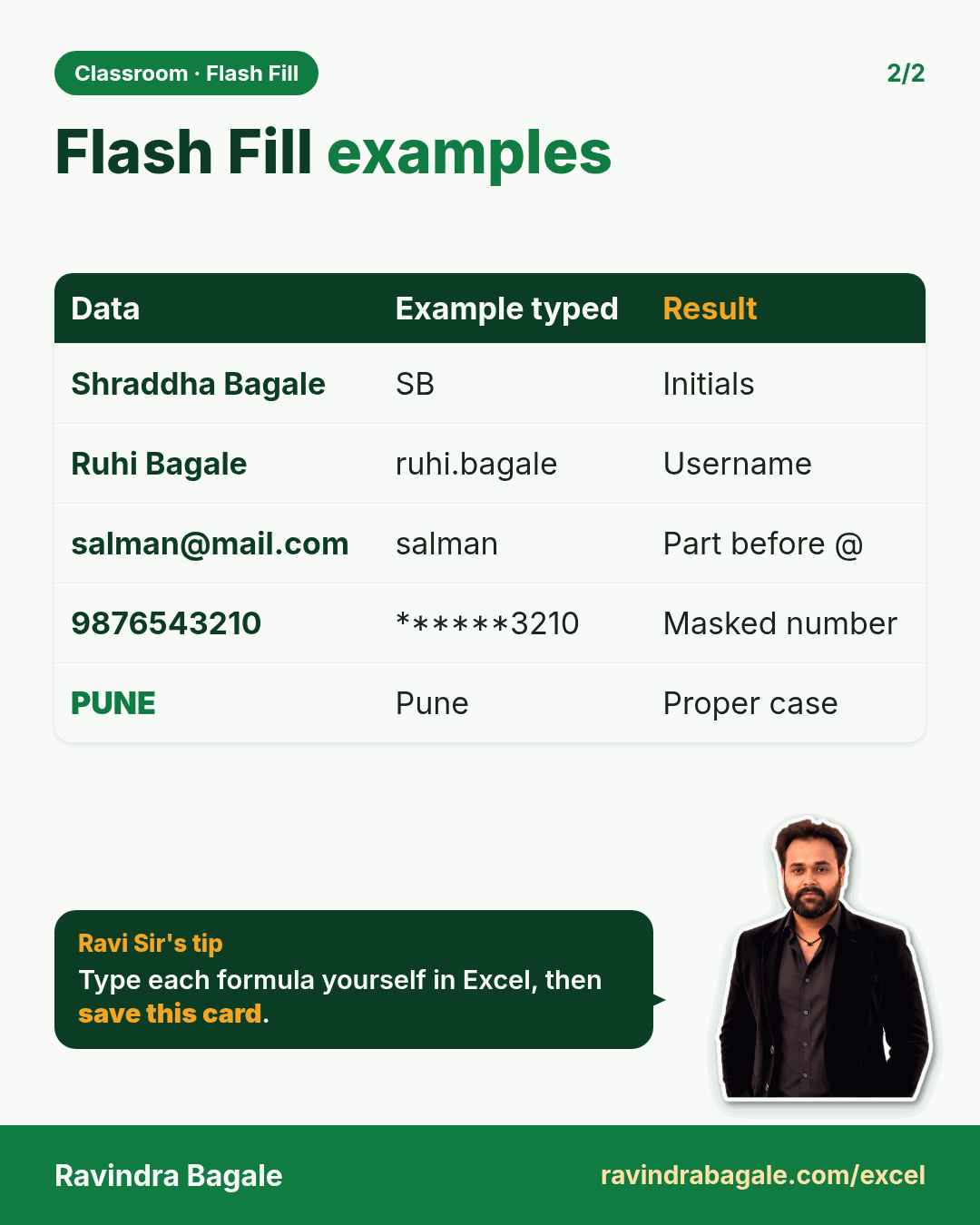
Revision card: Flash Fill examples. Covers Shraddha Bagale; Ruhi Bagale; salman@mail.com; 9876543210; PUNE. With a photo of Ravindra Bagale and a short tip.
Card 2 of 2: Flash Fill examples · Download PNG · Open card page

Excel Data Validation Tutorial: Allow Only Numbers, Dates and Text Length with Input Message and Error Alert

Classroom · Data Validation · 2 cards · Open the chapter

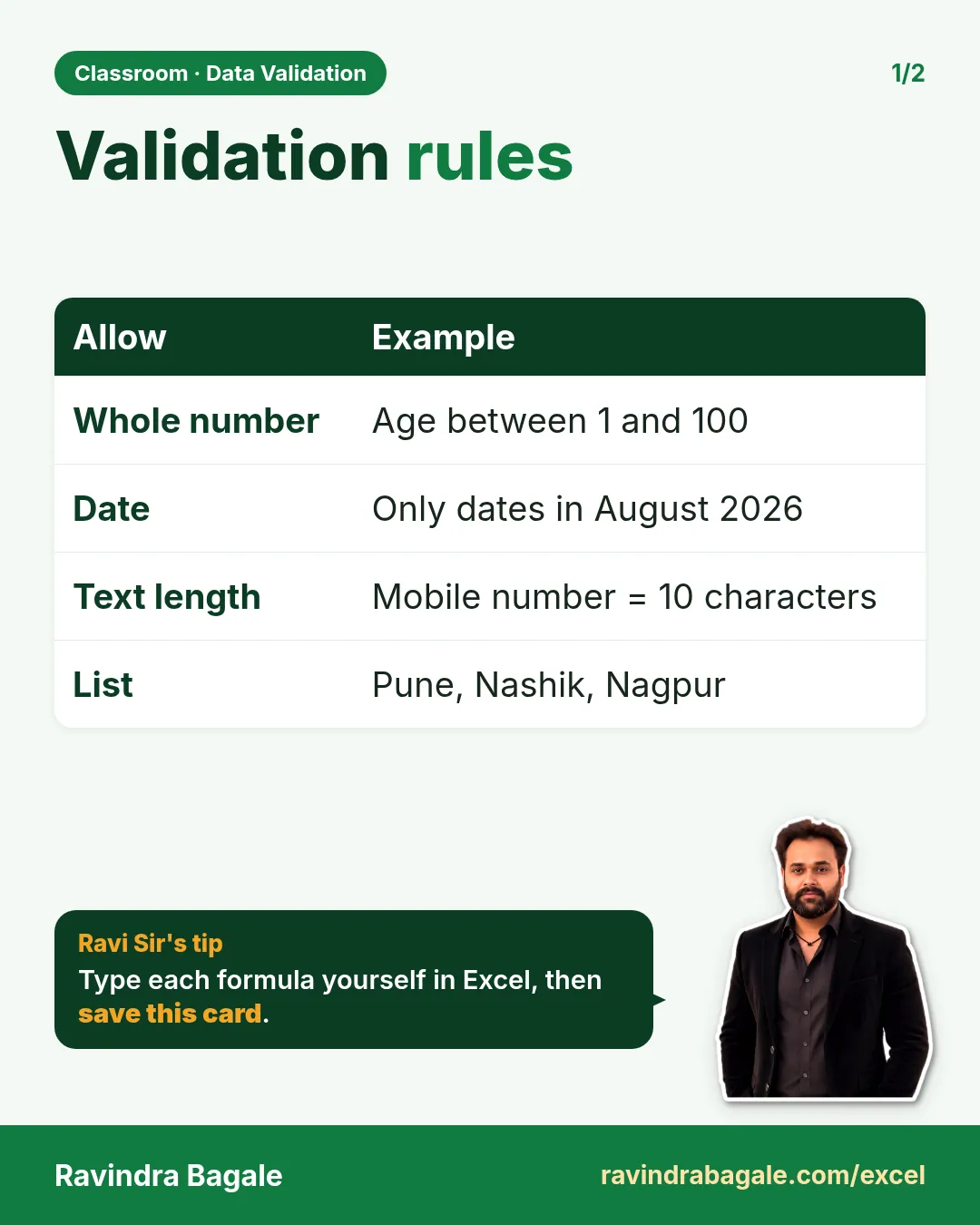
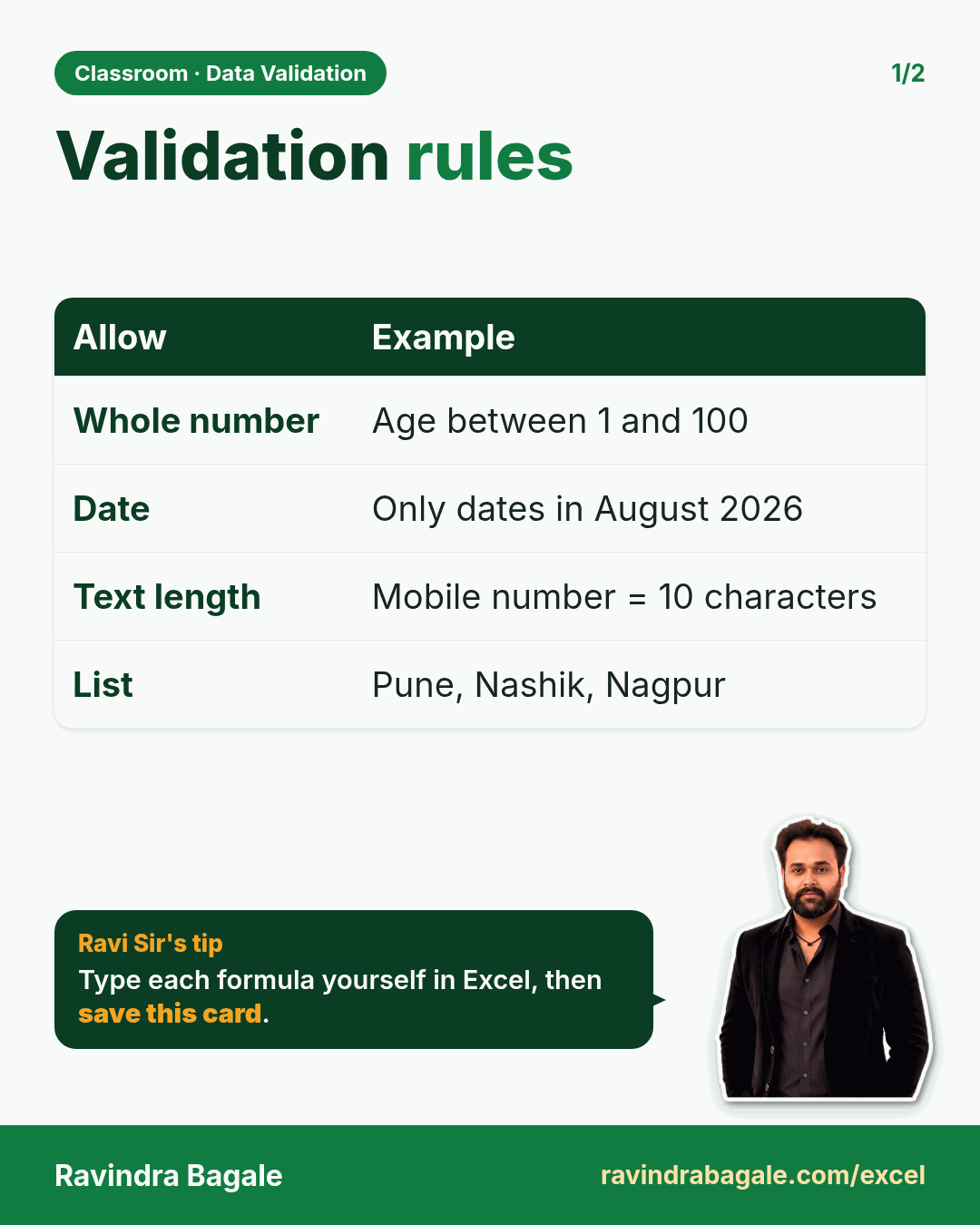
Revision card: Validation rules. Covers Whole number; Date; Text length; List. With a photo of Ravindra Bagale and a short tip.
Card 1 of 2: Validation rules · Download PNG · Open card page
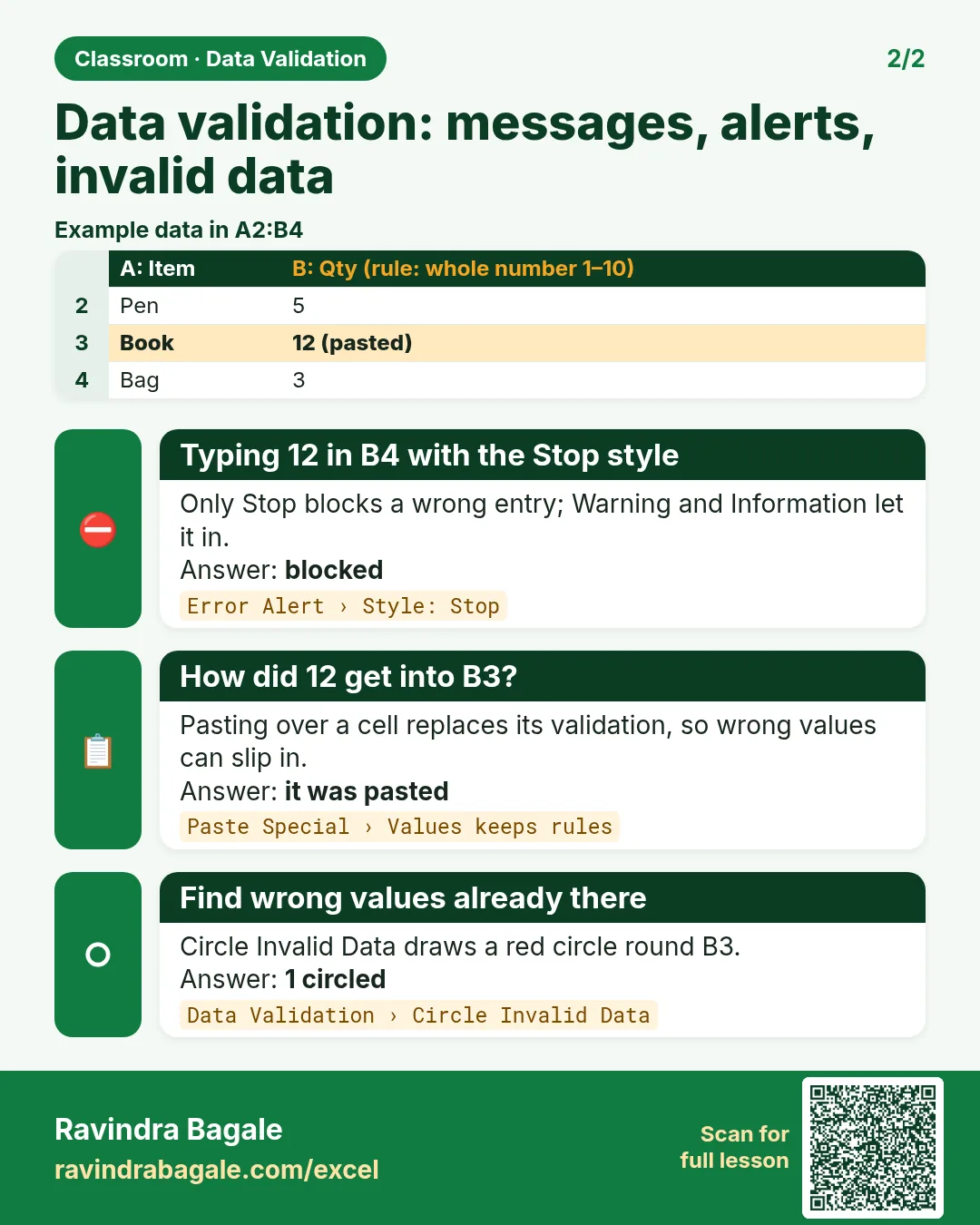
Revision card: Data validation: messages, alerts, invalid data. Example data table with Typing 12 in B4 with the Stop style: blocked; How did 12 get into B3?: it was pasted; Find wrong values already there: 1 circled.
Card 2 of 2: Data validation: messages, alerts, invalid data · Download PNG · Open card page

Excel Conditional Formatting Tutorial: Highlight Cells, Top 3, Duplicates, Data Bars, Color Scales and Icon Sets

Classroom · Conditional Formatting · 2 cards · Open the chapter

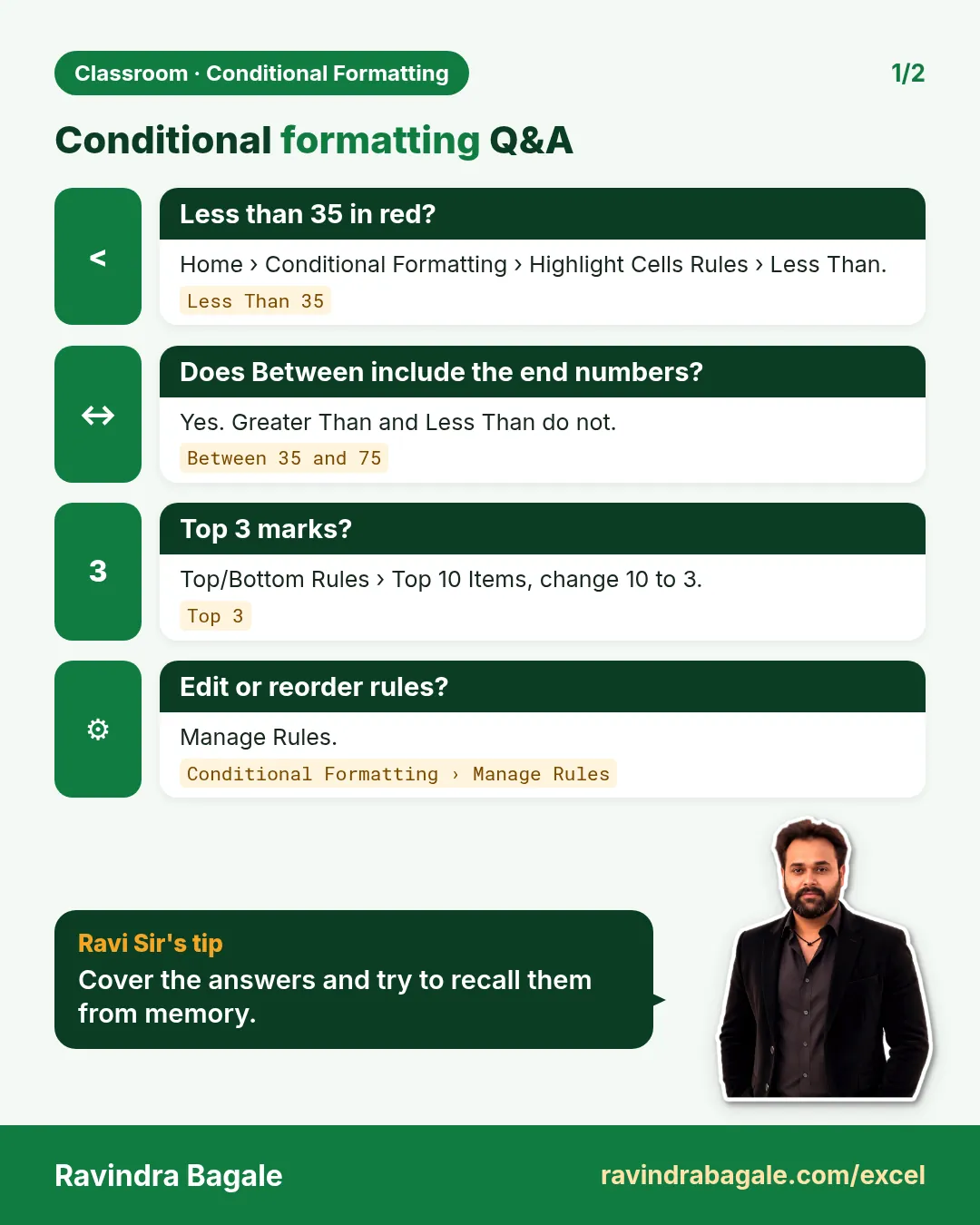
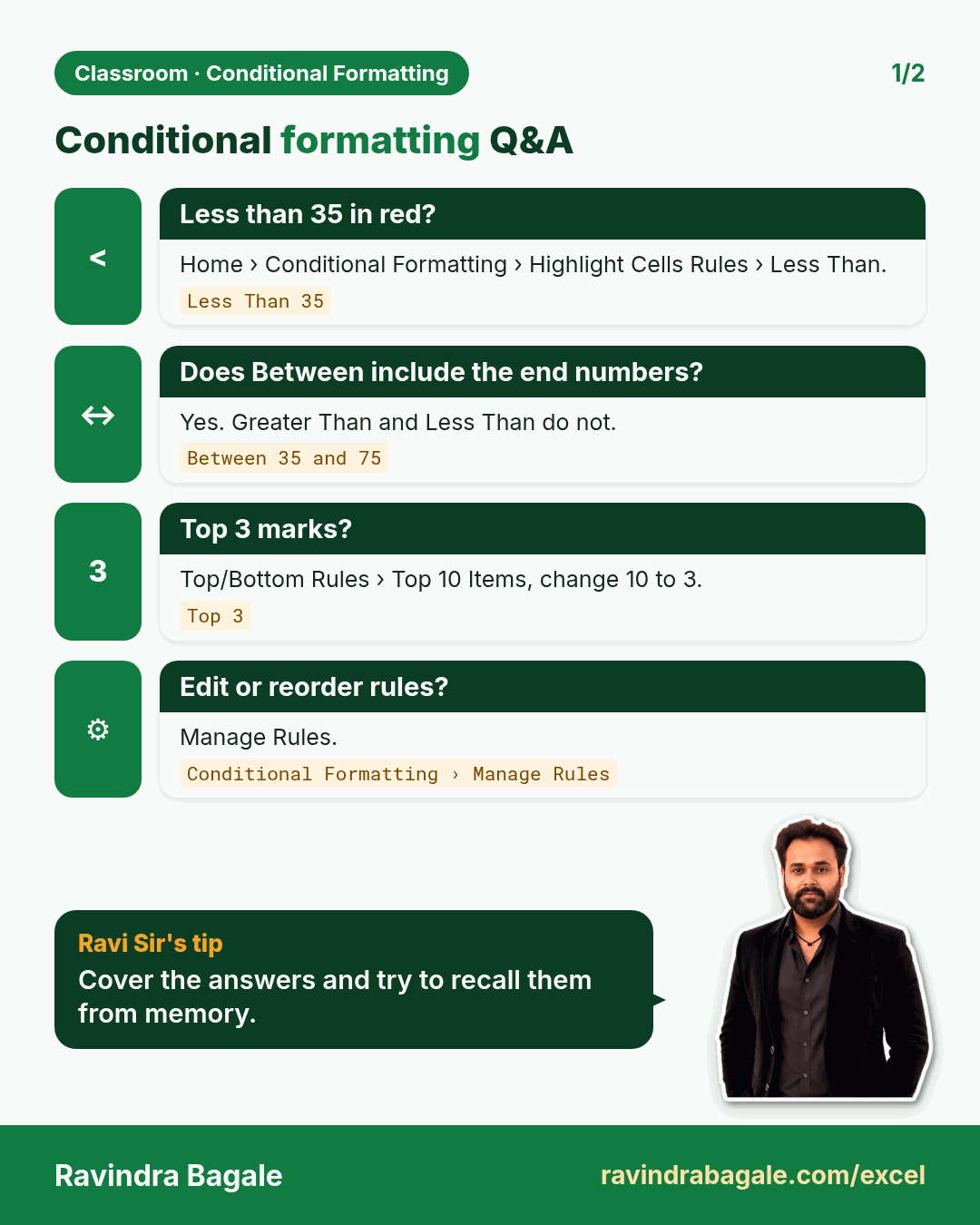
Revision card: Conditional formatting Q&A. Covers Less than 35 in red?; Does Between include the end numbers?; Top 3 marks?; Edit or reorder rules?. With a photo of Ravindra Bagale and a short tip.
Card 1 of 2: Conditional formatting Q&A · Download PNG · Open card page
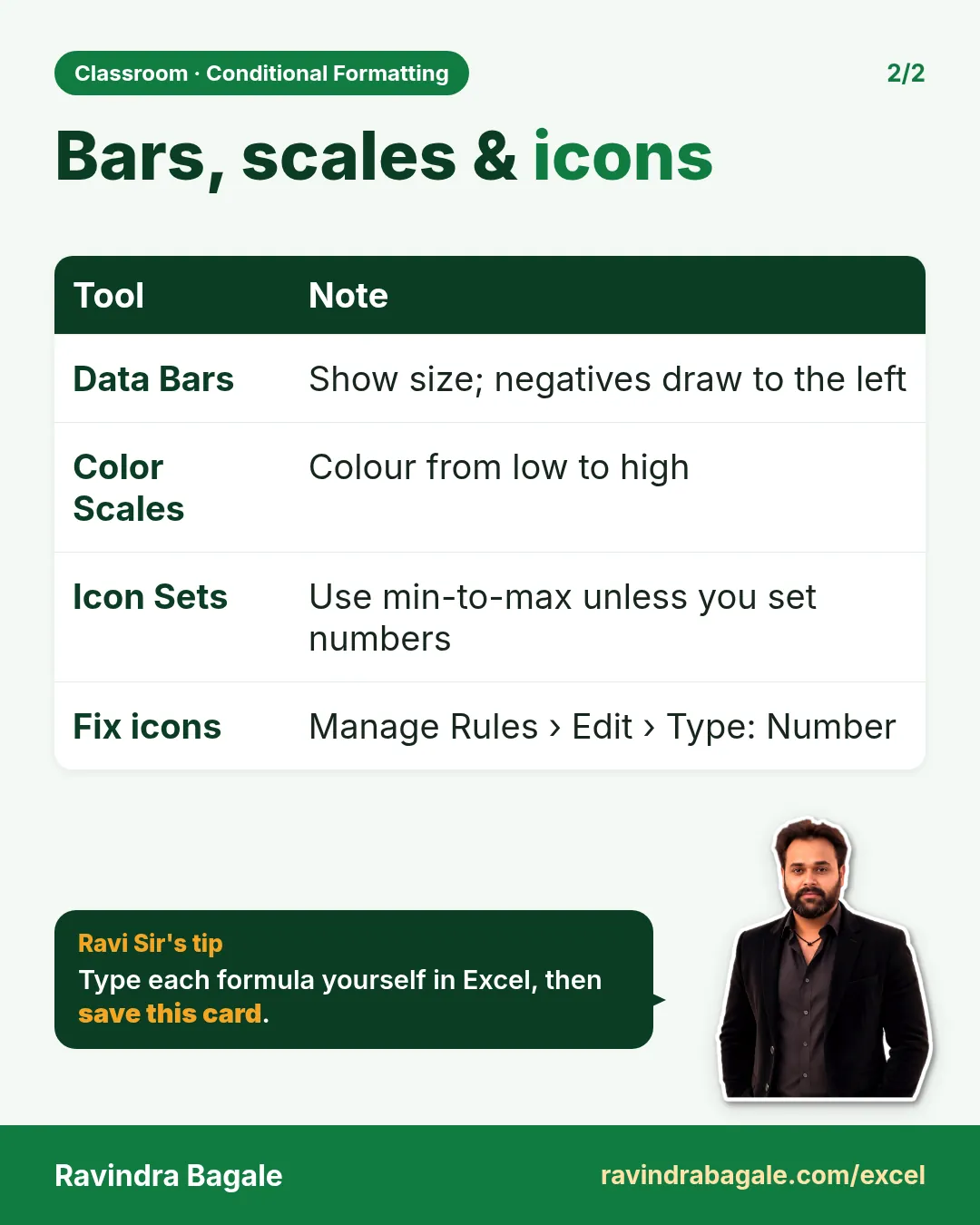
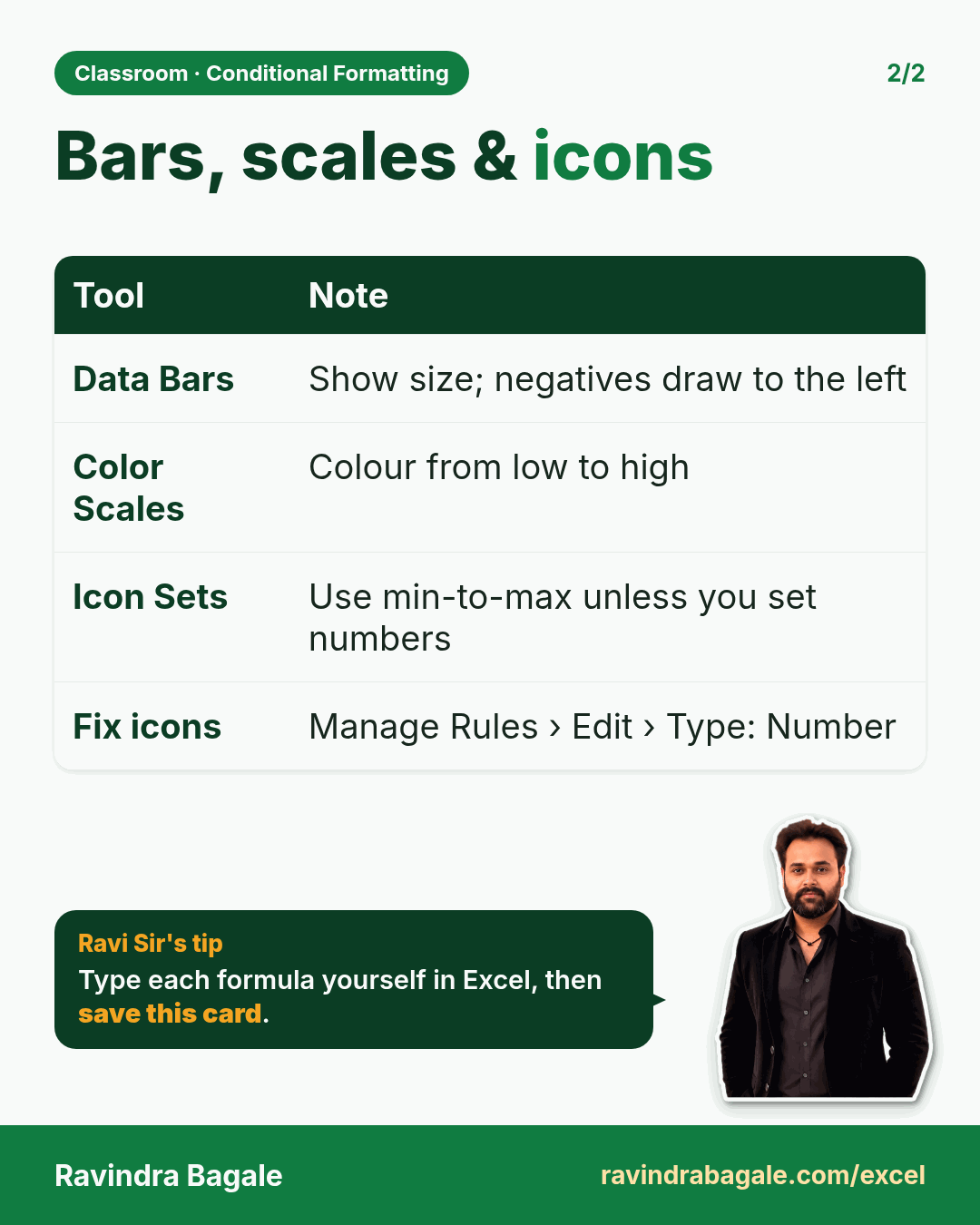
Revision card: Bars, scales & icons. Covers Data Bars; Color Scales; Icon Sets; Fix icons. With a photo of Ravindra Bagale and a short tip.
Card 2 of 2: Bars, scales & icons · Download PNG · Open card page

How to Highlight an Entire Row in Excel with Conditional Formatting (Formula Rule)

Classroom · Highlight Row · 2 cards · Open the chapter

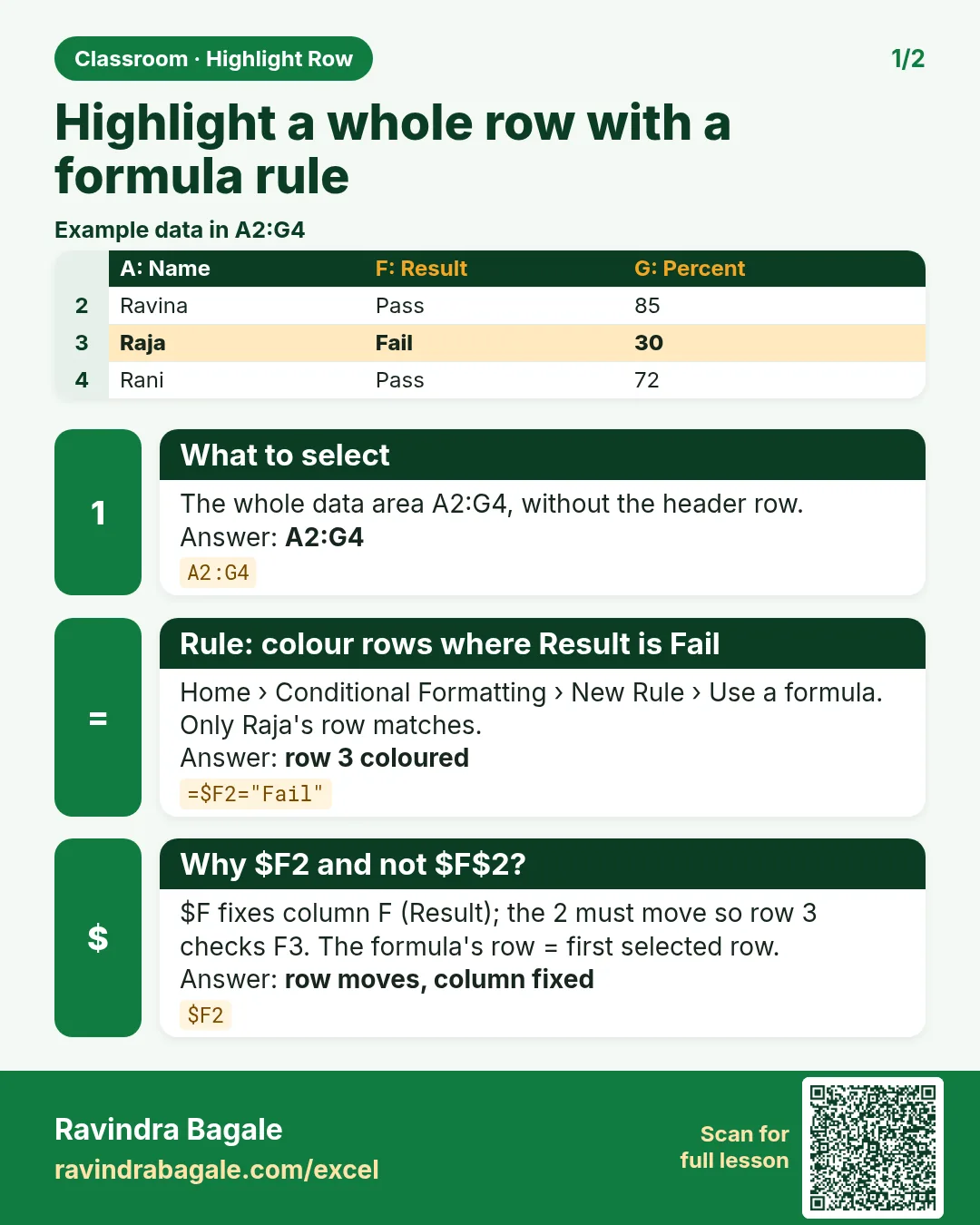
Revision card: Highlight a whole row with a formula rule. Example data table with What to select: A2:G4; Rule: colour rows where Result is Fail: row 3 coloured; Why $F2 and not $F$2?: row moves, column fixed.
Card 1 of 2: Highlight a whole row with a formula rule · Download PNG · Open card page
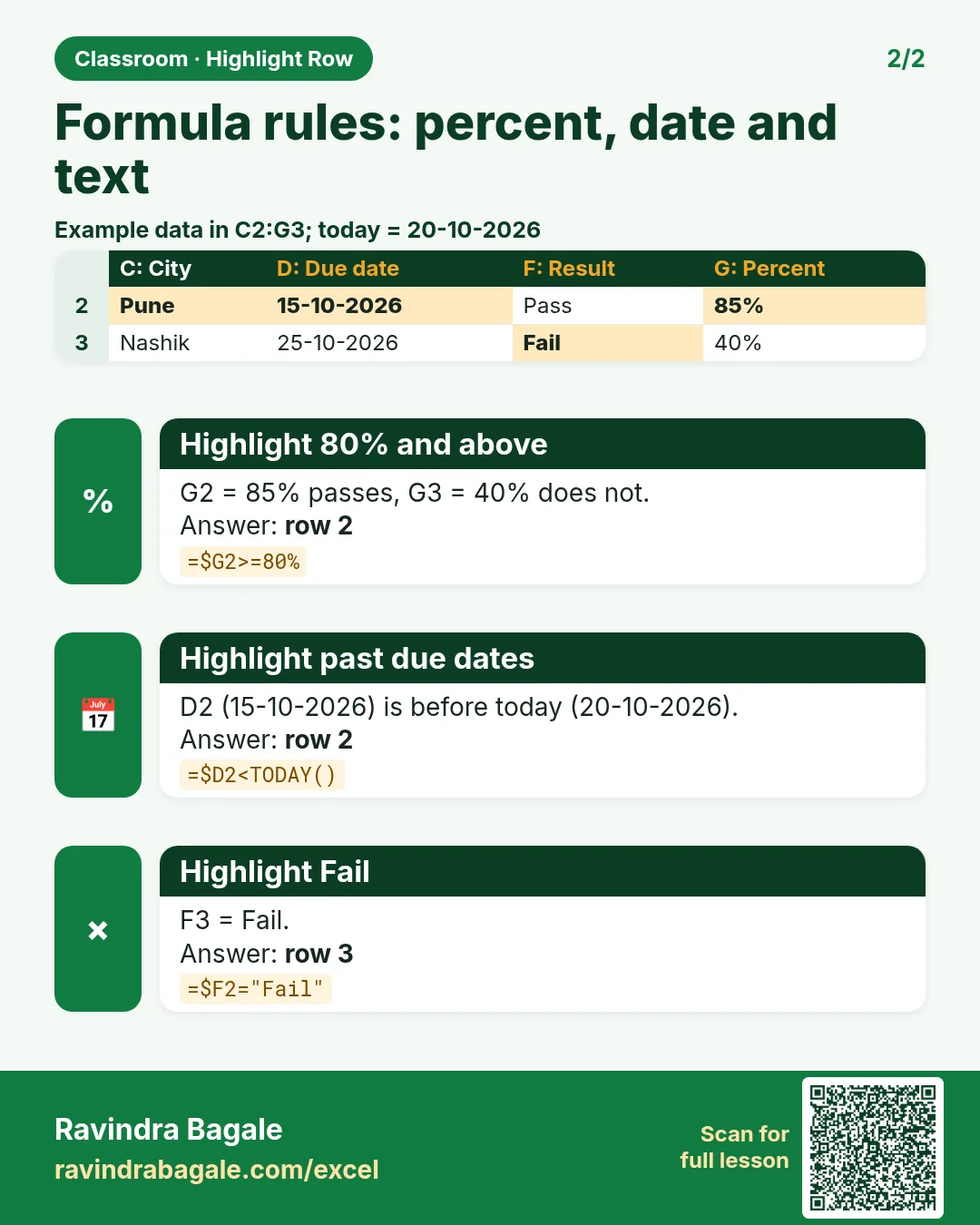
Revision card: Formula rules: percent, date and text. Example data table with Highlight 80% and above: row 2; Highlight past due dates: row 2; Highlight Fail: row 3.
Card 2 of 2: Formula rules: percent, date and text · Download PNG · Open card page

How to Create an Employee Attendance Sheet in Excel with Tick and Cross Icons (Present Days with COUNTIF)

Classroom · Attendance · 2 cards · Open the chapter

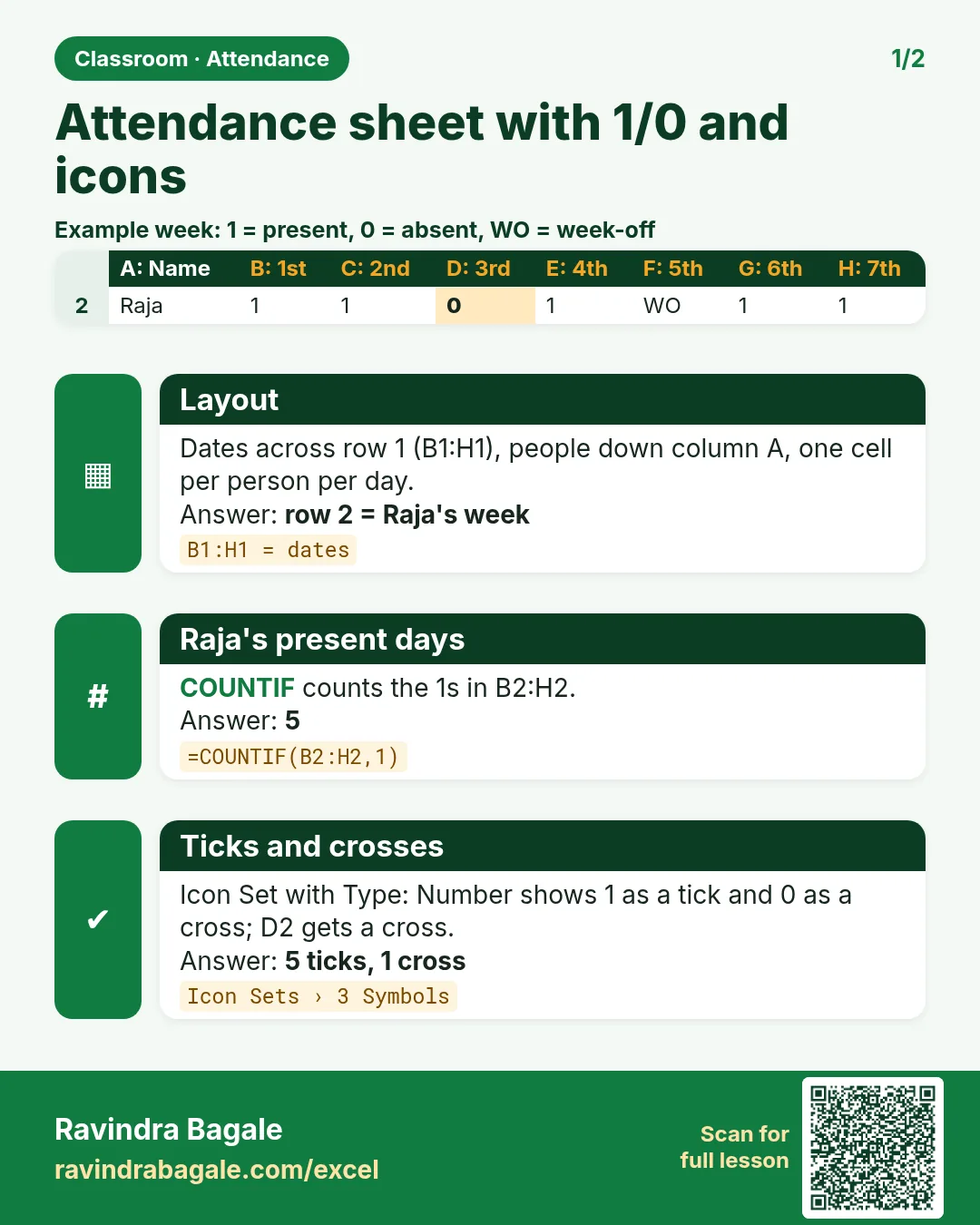
Revision card: Attendance sheet with 1/0 and icons. Example data table with Layout: row 2 = Raja's week; Raja's present days: 5; Ticks and crosses: 5 ticks, 1 cross.
Card 1 of 2: Attendance sheet with 1/0 and icons · Download PNG · Open card page
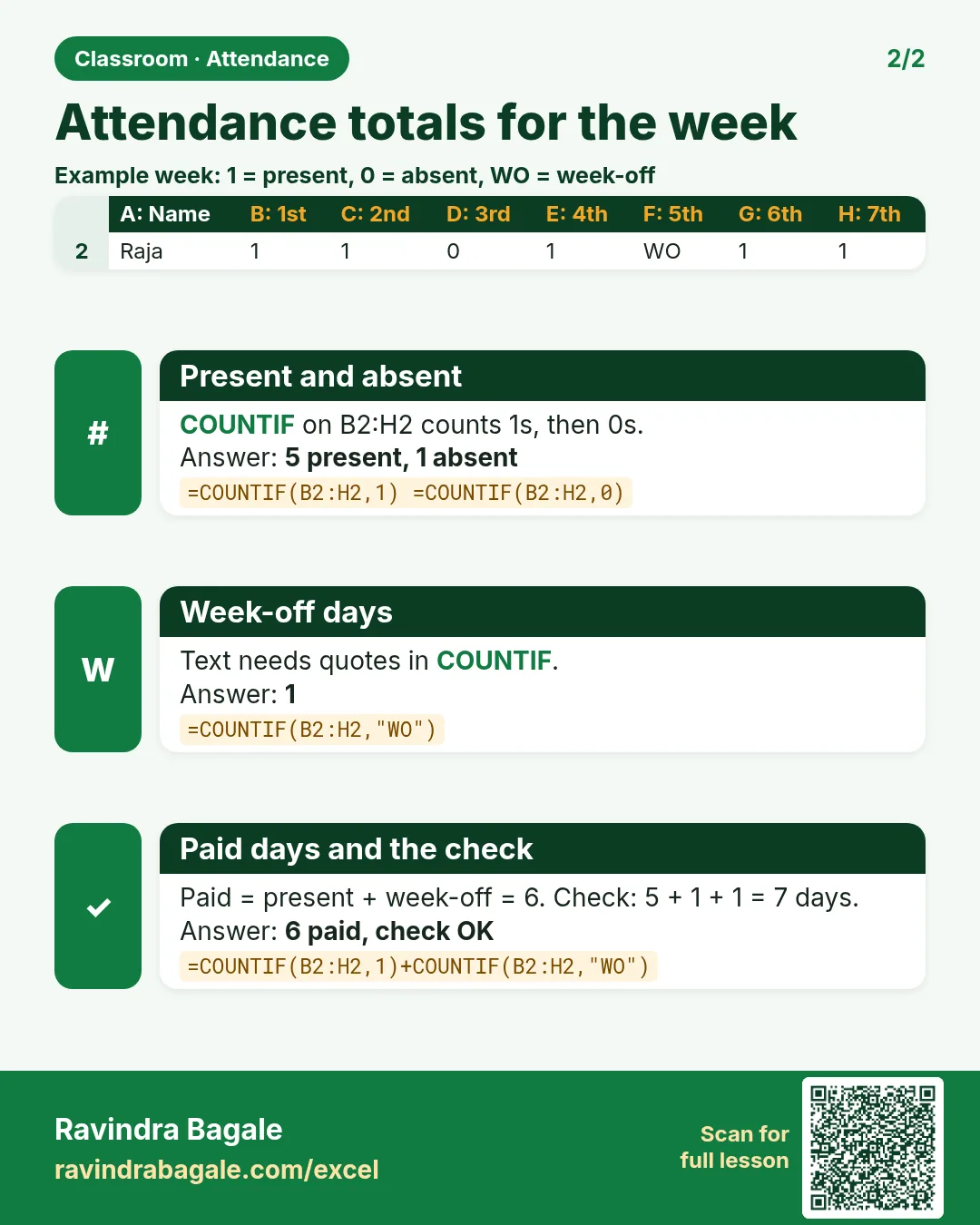
Revision card: Attendance totals for the week. Example data table with Present and absent: 5 present, 1 absent; Week-off days: 1; Paid days and the check: 6 paid, check OK.
Card 2 of 2: Attendance totals for the week · Download PNG · Open card page

Formulas and logic

3. Formulas and Functions

Ch 3 · Formulas · 3 cards · Open the chapter

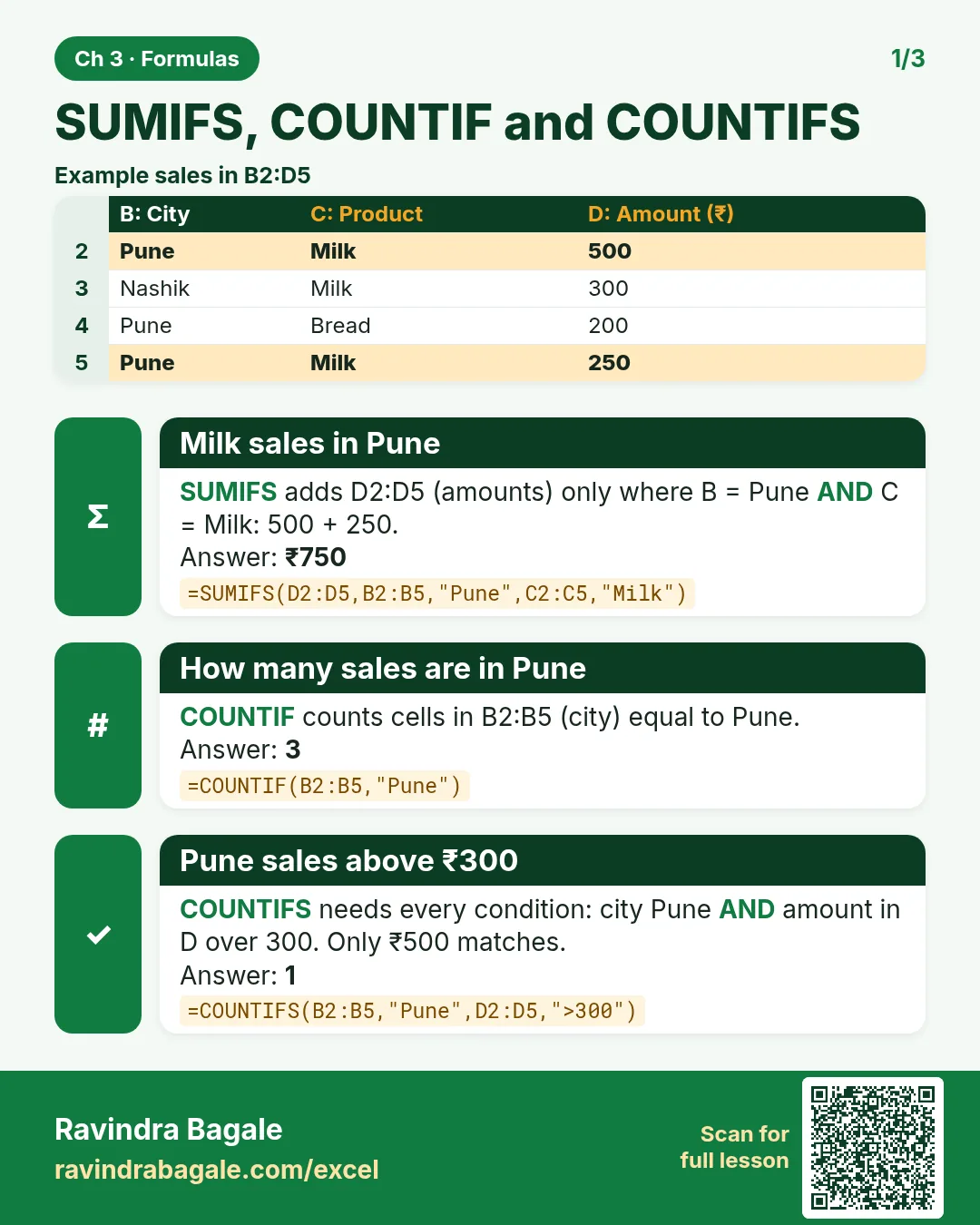
Revision card: SUMIFS, COUNTIF and COUNTIFS. Example data table with Milk sales in Pune: ₹750; How many sales are in Pune: 3; Pune sales above ₹300: 1.
Card 1 of 3: SUMIFS, COUNTIF and COUNTIFS · Download PNG · Open card page
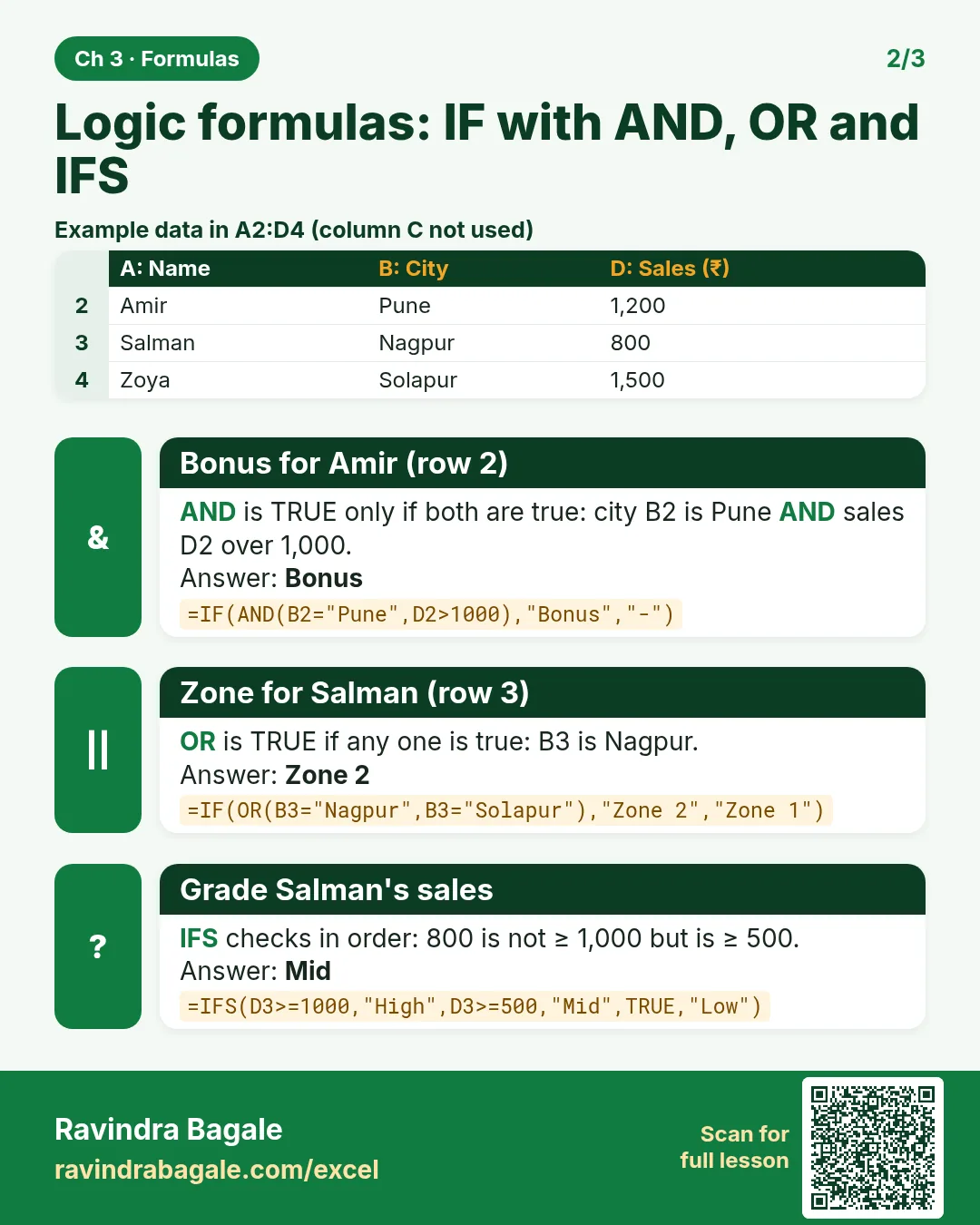
Revision card: Logic formulas: IF with AND, OR and IFS. Example data table with Bonus for Amir (row 2): Bonus; Zone for Salman (row 3): Zone 2; Grade Salman's sales: Mid.
Card 2 of 3: Logic formulas: IF with AND, OR and IFS · Download PNG · Open card page
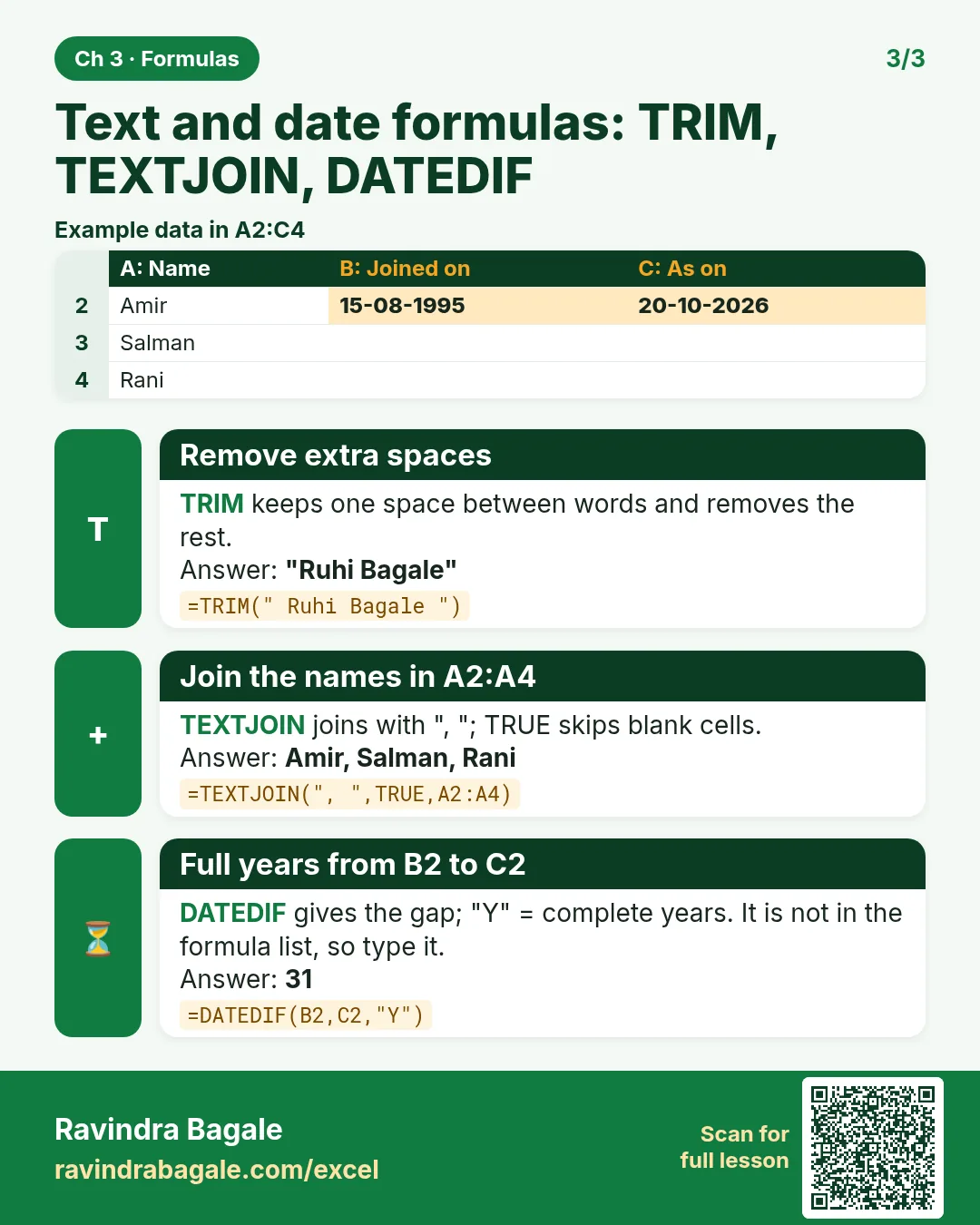
Revision card: Text and date formulas: TRIM, TEXTJOIN, DATEDIF. Example data table with Remove extra spaces: "Ruhi Bagale"; Join the names in A2:A4: Amir, Salman, Rani; Full years from B2 to C2: 31.
Card 3 of 3: Text and date formulas: TRIM, TEXTJOIN, DATEDIF · Download PNG · Open card page

Excel COUNT, COUNTA, COUNTBLANK and COUNTIF: Total Students, Absentees and Pass Percentage (with MAX and MIN)

Classroom · COUNT · 2 cards · Open the chapter

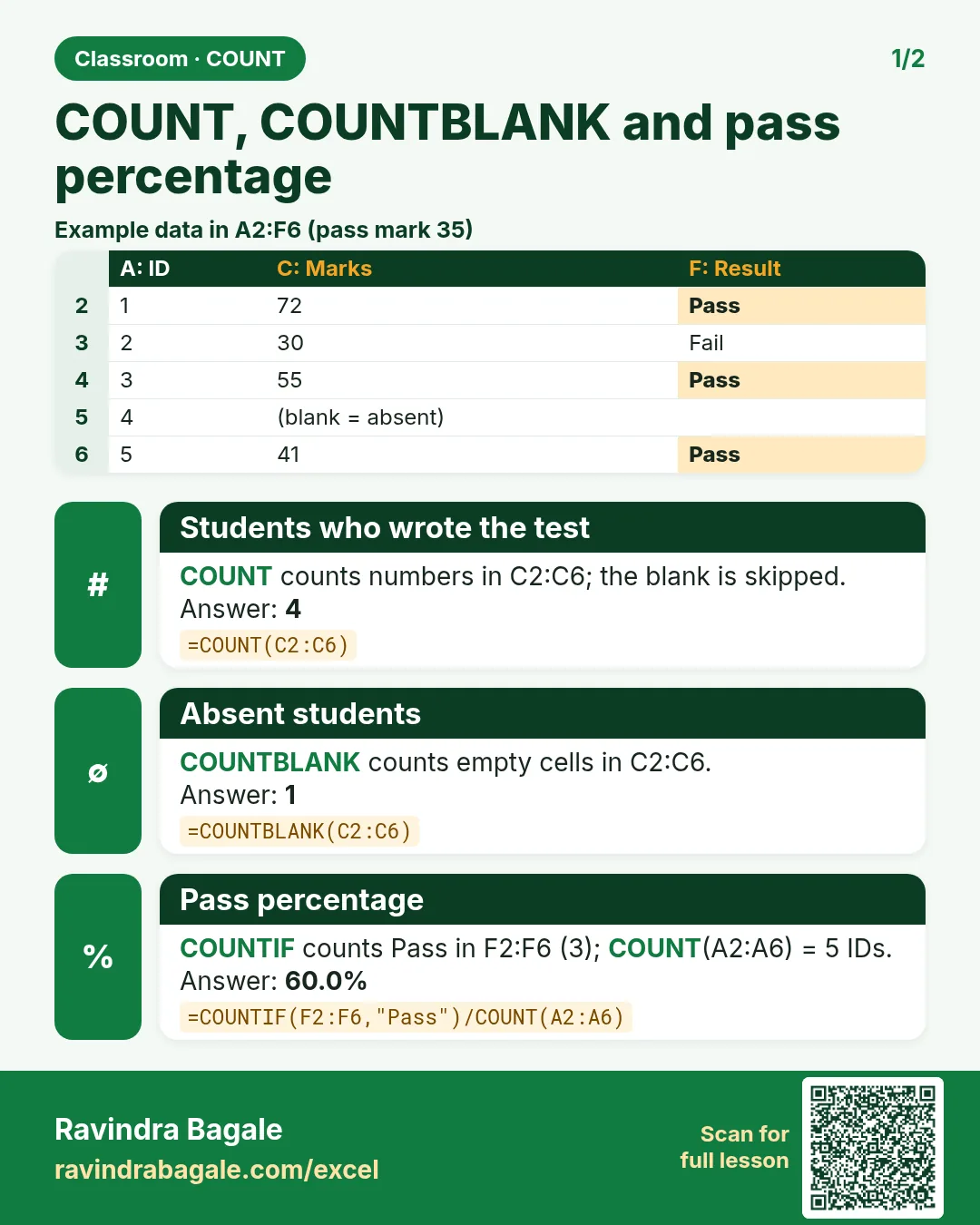
Revision card: COUNT, COUNTBLANK and pass percentage. Example data table with Students who wrote the test: 4; Absent students: 1; Pass percentage: 60.0%.
Card 1 of 2: COUNT, COUNTBLANK and pass percentage · Download PNG · Open card page
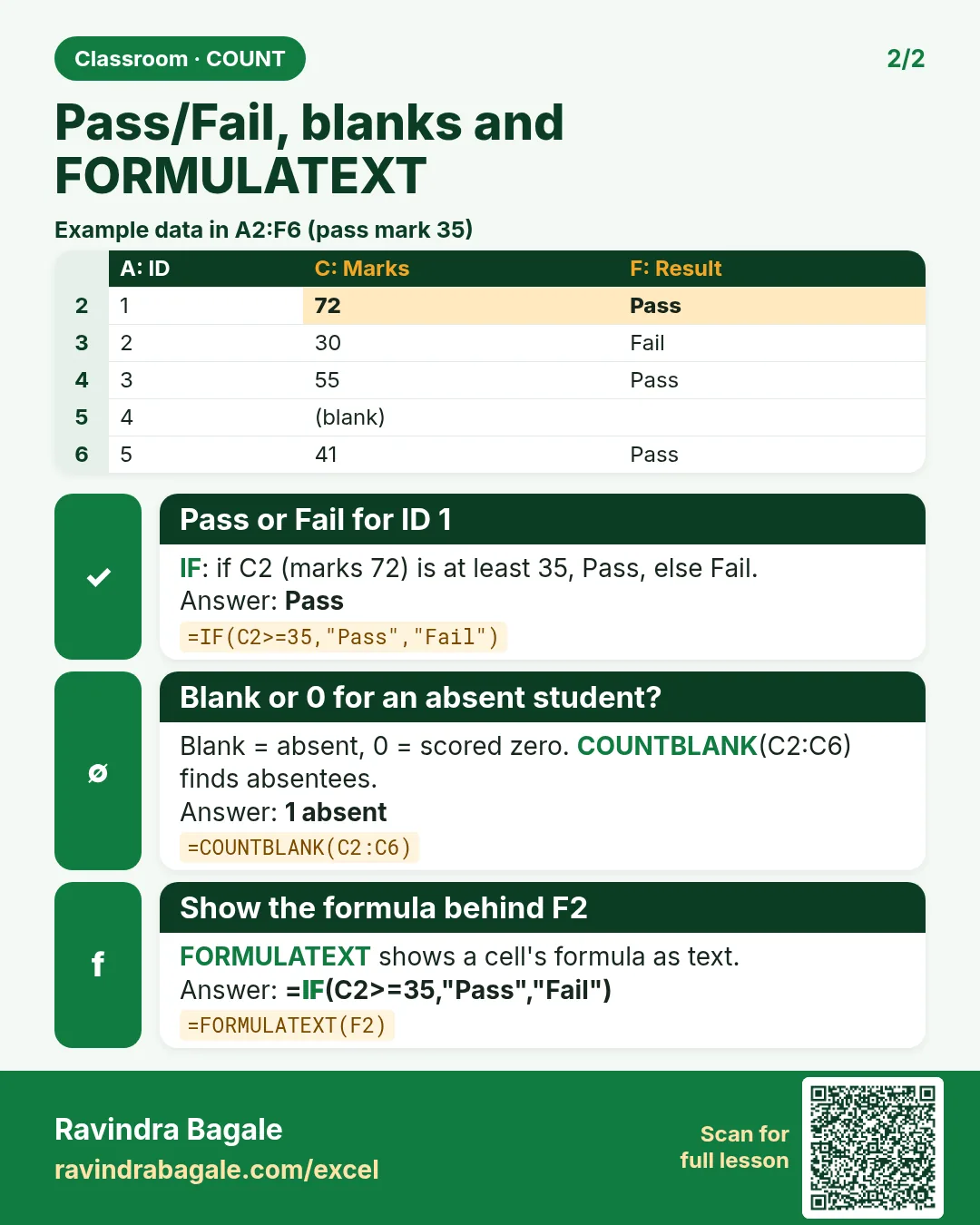
Revision card: Pass/Fail, blanks and FORMULATEXT. Example data table with Pass or Fail for ID 1: Pass; Blank or 0 for an absent student?: 1 absent; Show the formula behind F2: =IF(C2>=35,"Pass","Fail").
Card 2 of 2: Pass/Fail, blanks and FORMULATEXT · Download PNG · Open card page

Excel SUMIF, SUMIFS, COUNTIFS, AVERAGEIF(S) and MAXIFS: Profit Analysis of Delivered Orders

Classroom · SUMIFS · 2 cards · Open the chapter

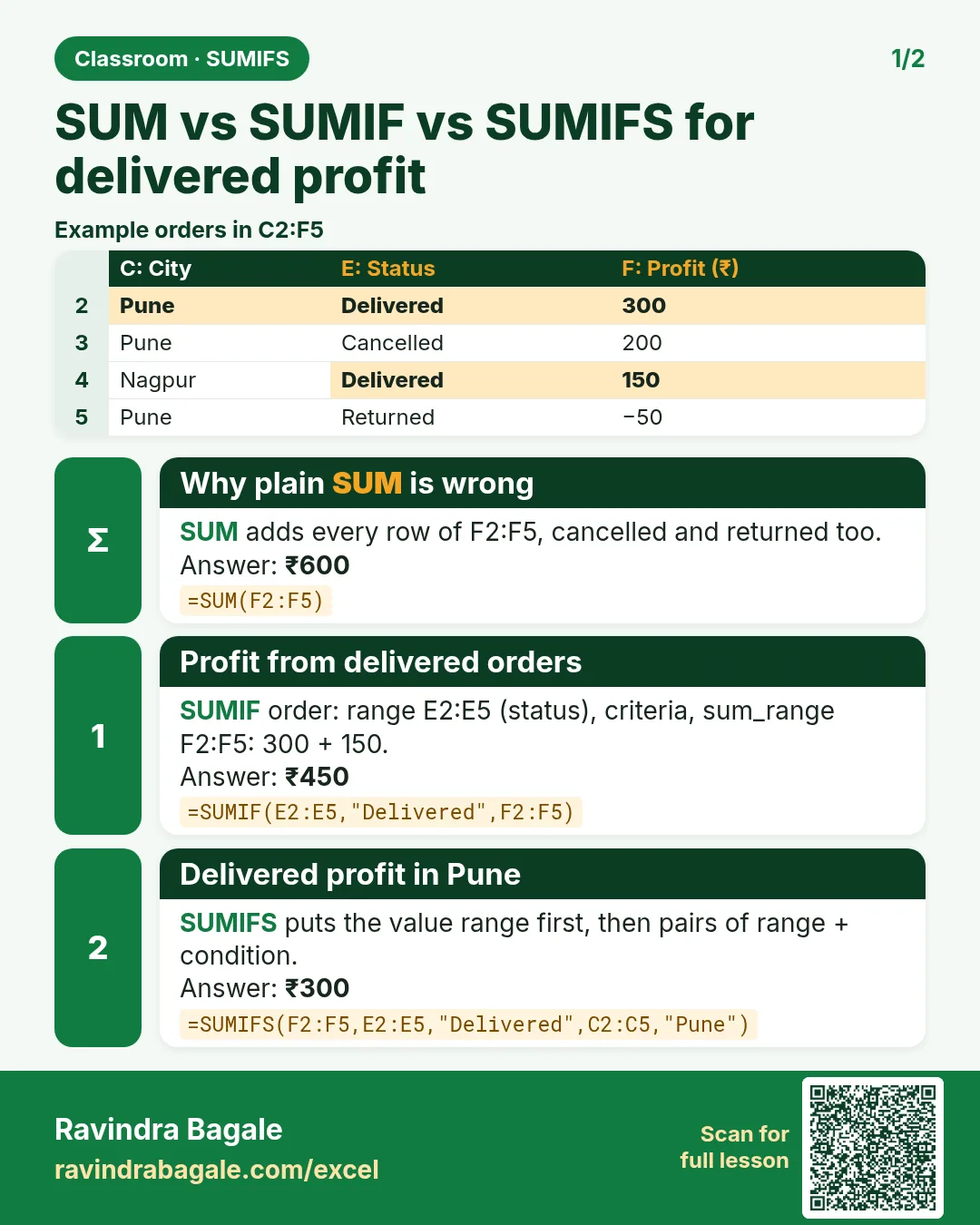
Revision card: SUM vs SUMIF vs SUMIFS for delivered profit. Example data table with Why plain SUM is wrong: ₹600; Profit from delivered orders: ₹450; Delivered profit in Pune: ₹300.
Card 1 of 2: SUM vs SUMIF vs SUMIFS for delivered profit · Download PNG · Open card page
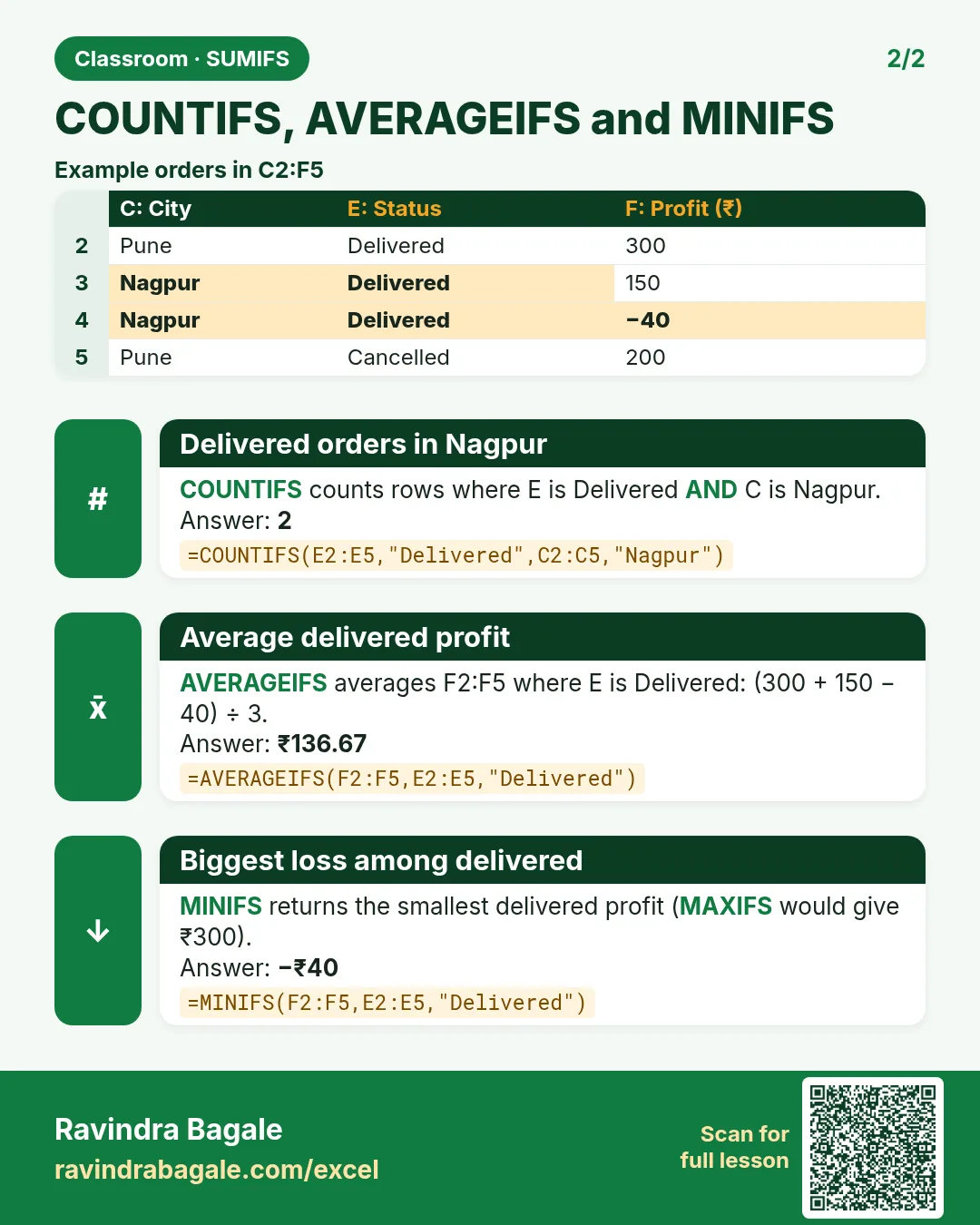
Revision card: COUNTIFS, AVERAGEIFS and MINIFS. Example data table with Delivered orders in Nagpur: 2; Average delivered profit: ₹136.67; Biggest loss among delivered: −₹40.
Card 2 of 2: COUNTIFS, AVERAGEIFS and MINIFS · Download PNG · Open card page

Excel IF, Nested IF and AND Function: Pass or Fail in All Subjects

Classroom · IF & AND · 2 cards · Open the chapter

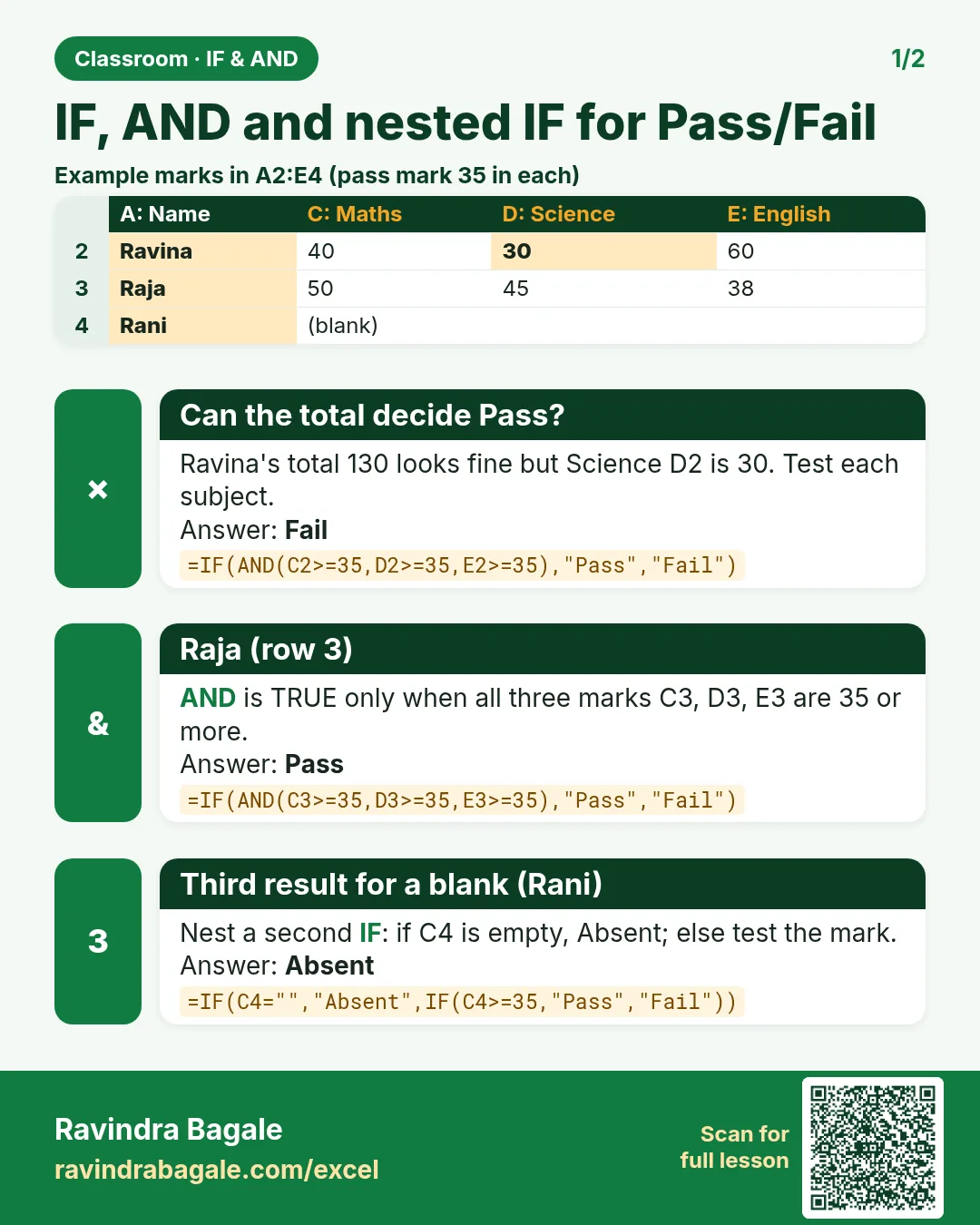
Revision card: IF, AND and nested IF for Pass/Fail. Example data table with Can the total decide Pass?: Fail; Raja (row 3): Pass; Third result for a blank (Rani): Absent.
Card 1 of 2: IF, AND and nested IF for Pass/Fail · Download PNG · Open card page
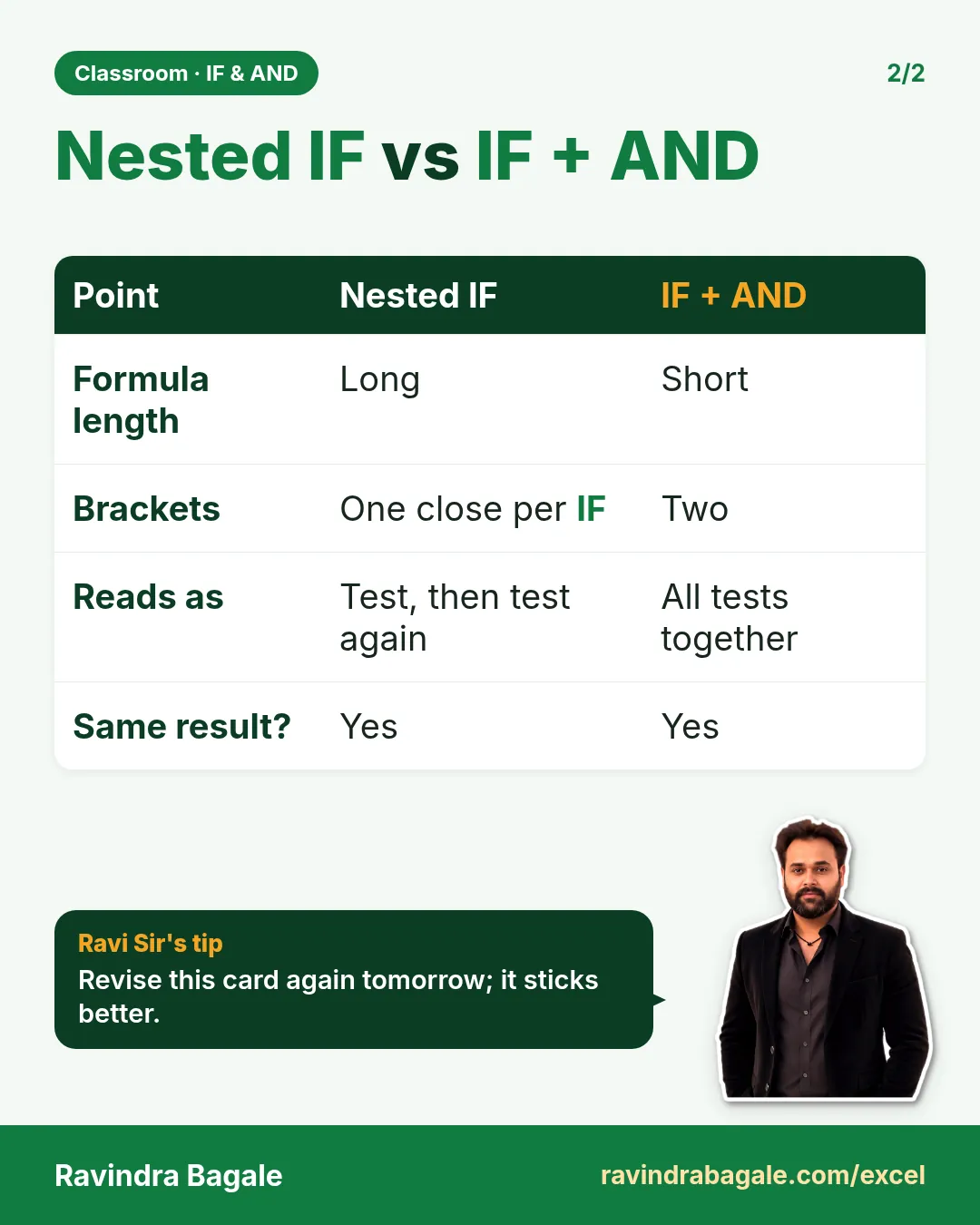
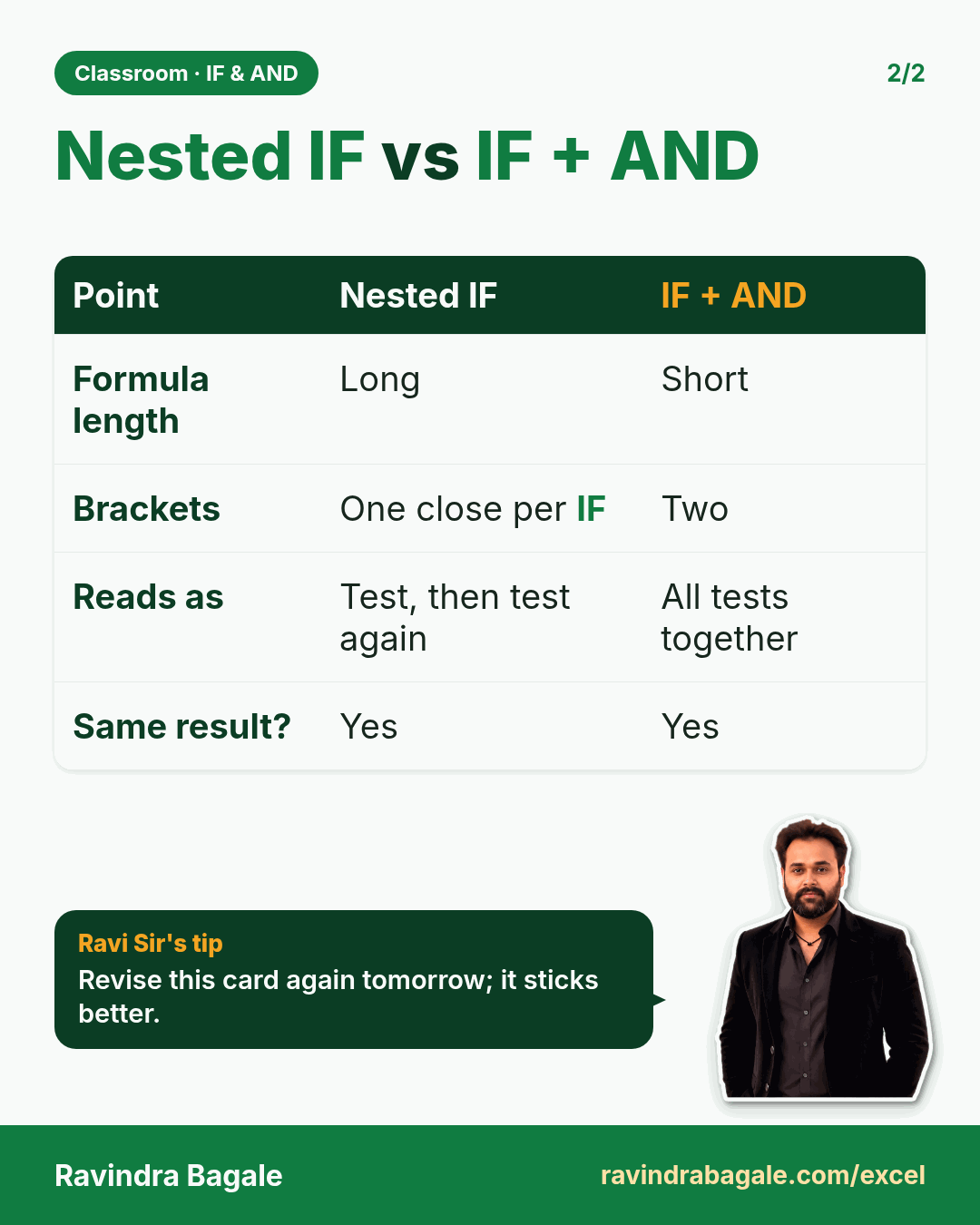
Revision card: Nested IF vs IF + AND. Covers Formula length; Brackets; Reads as; Same result?. With a photo of Ravindra Bagale and a short tip.
Card 2 of 2: Nested IF vs IF + AND · Download PNG · Open card page

Excel IFS Function: Student Grades A+, A, B, C with Total and Percentage (IFS vs Nested IF)

Classroom · IFS · 2 cards · Open the chapter

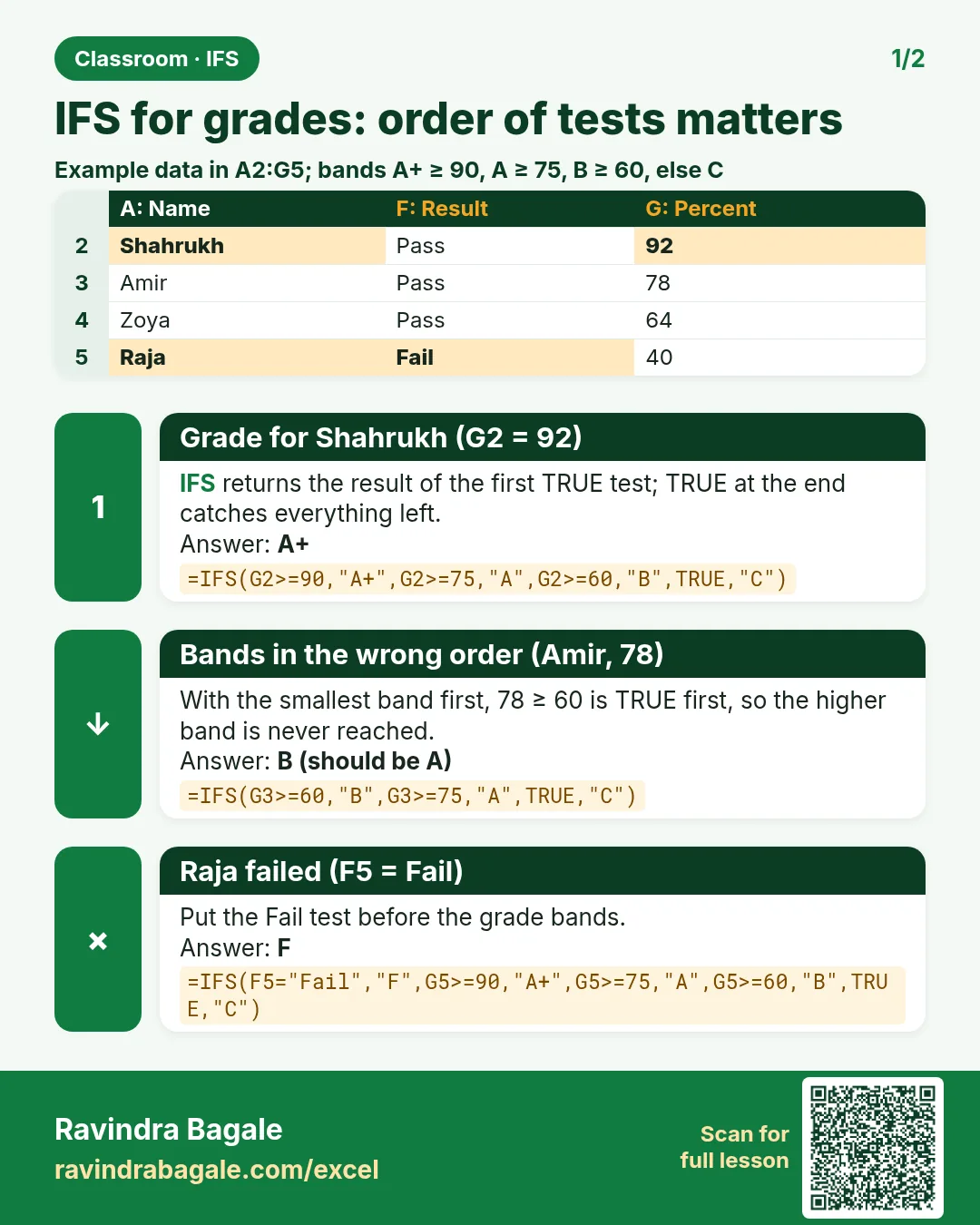
Revision card: IFS for grades: order of tests matters. Example data table with Grade for Shahrukh (G2 = 92): A+; Bands in the wrong order (Amir, 78): B (should be A); Raja failed (F5 = Fail): F.
Card 1 of 2: IFS for grades: order of tests matters · Download PNG · Open card page
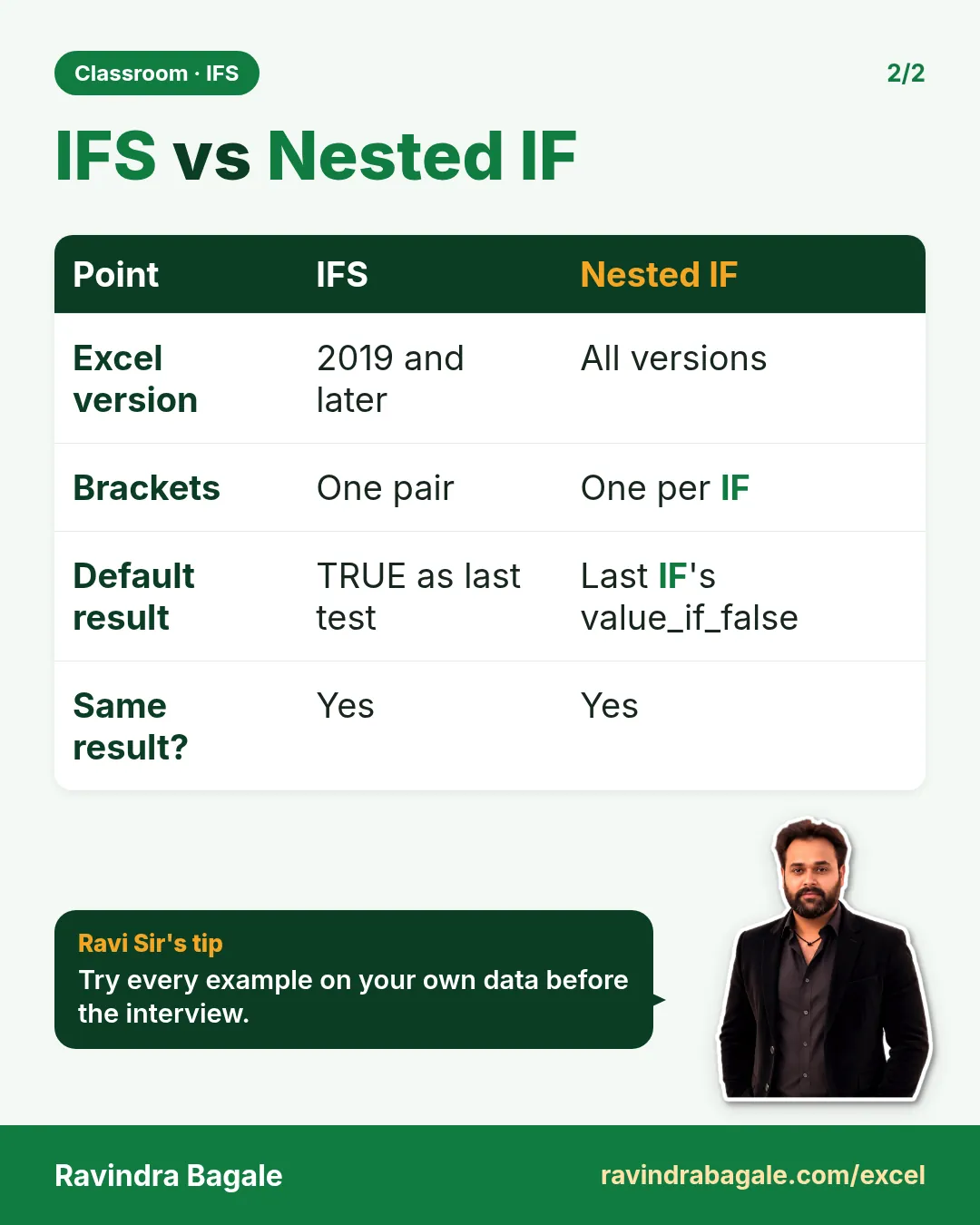
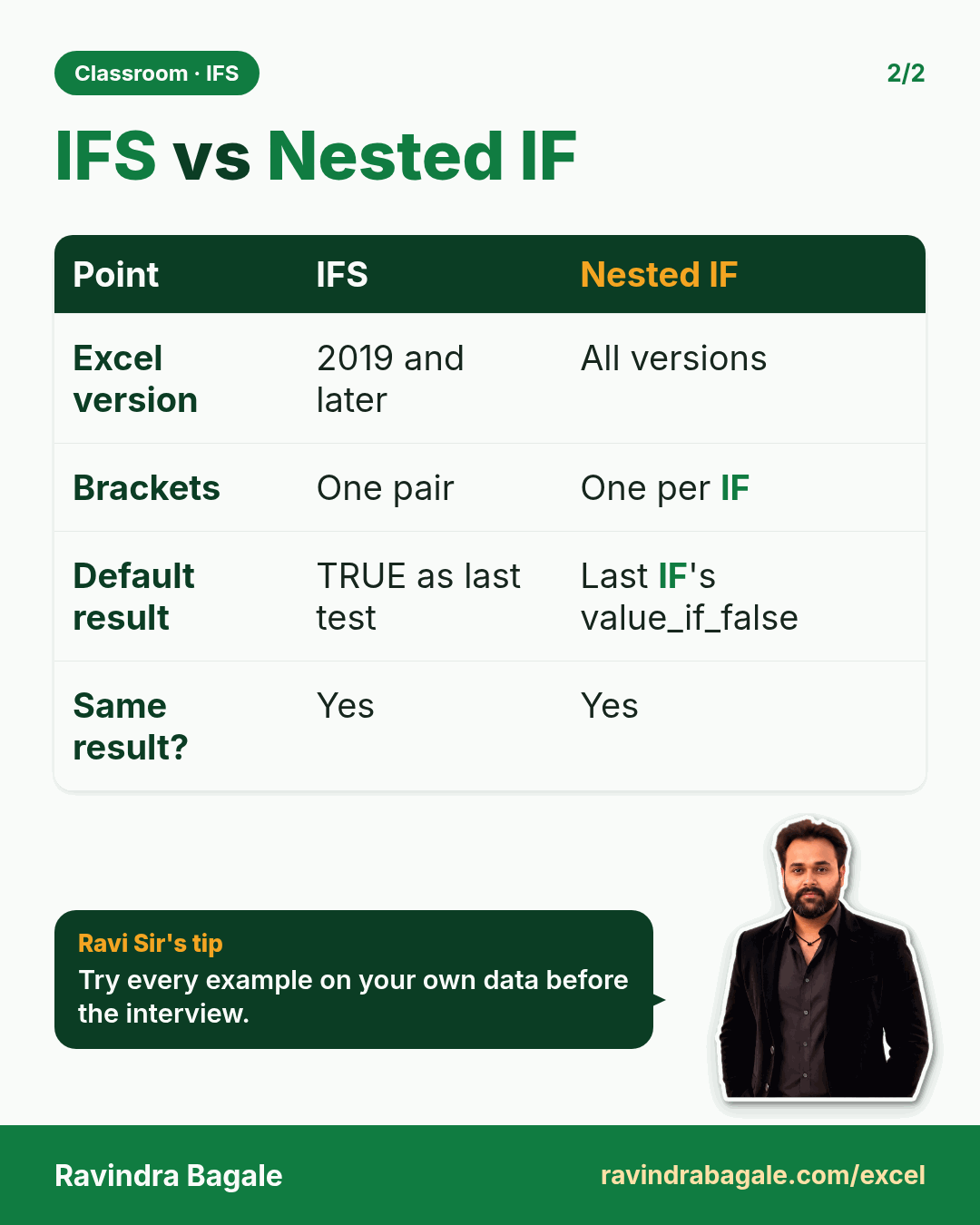
Revision card: IFS vs Nested IF. Covers Excel version; Brackets; Default result; Same result?. With a photo of Ravindra Bagale and a short tip.
Card 2 of 2: IFS vs Nested IF · Download PNG · Open card page

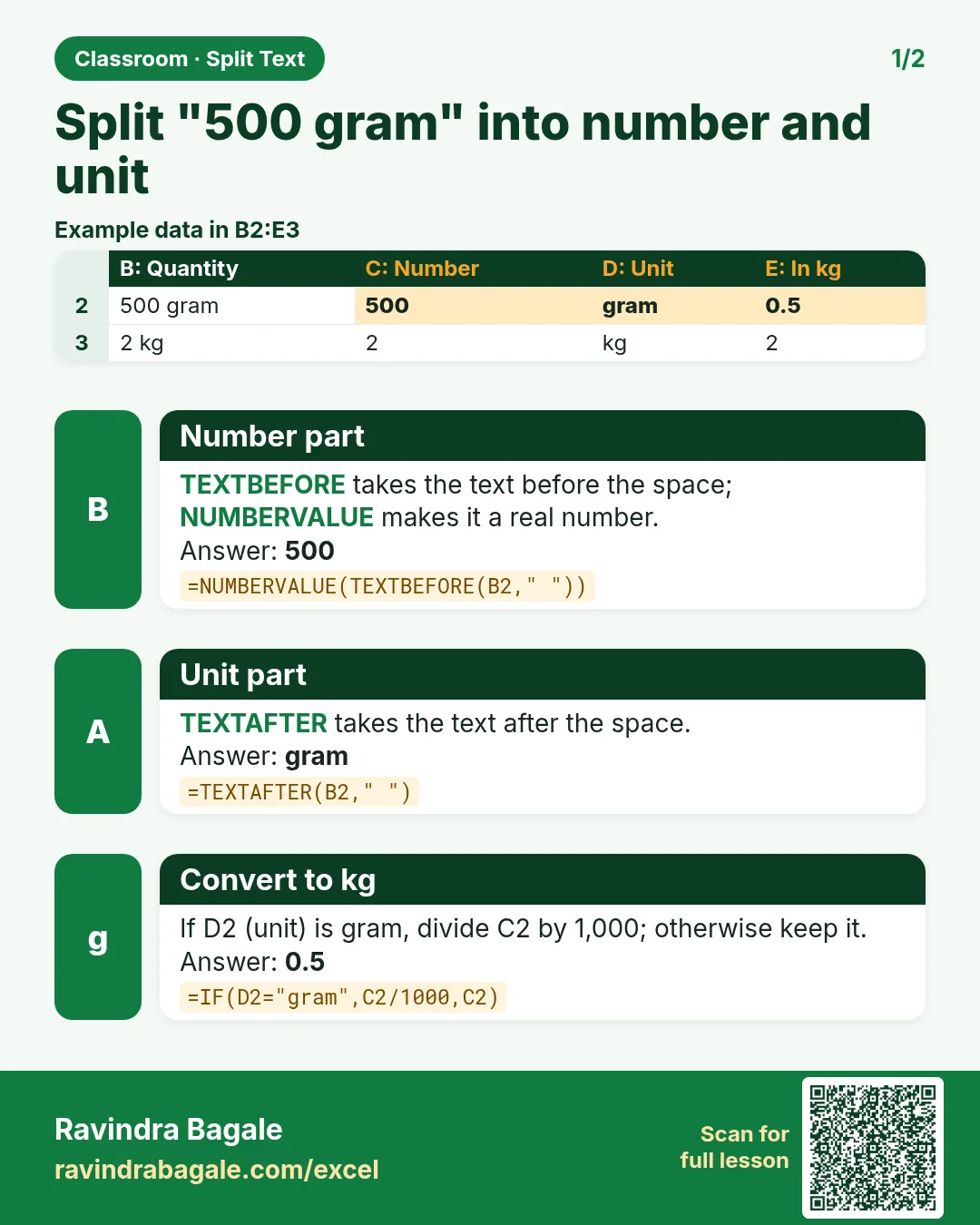
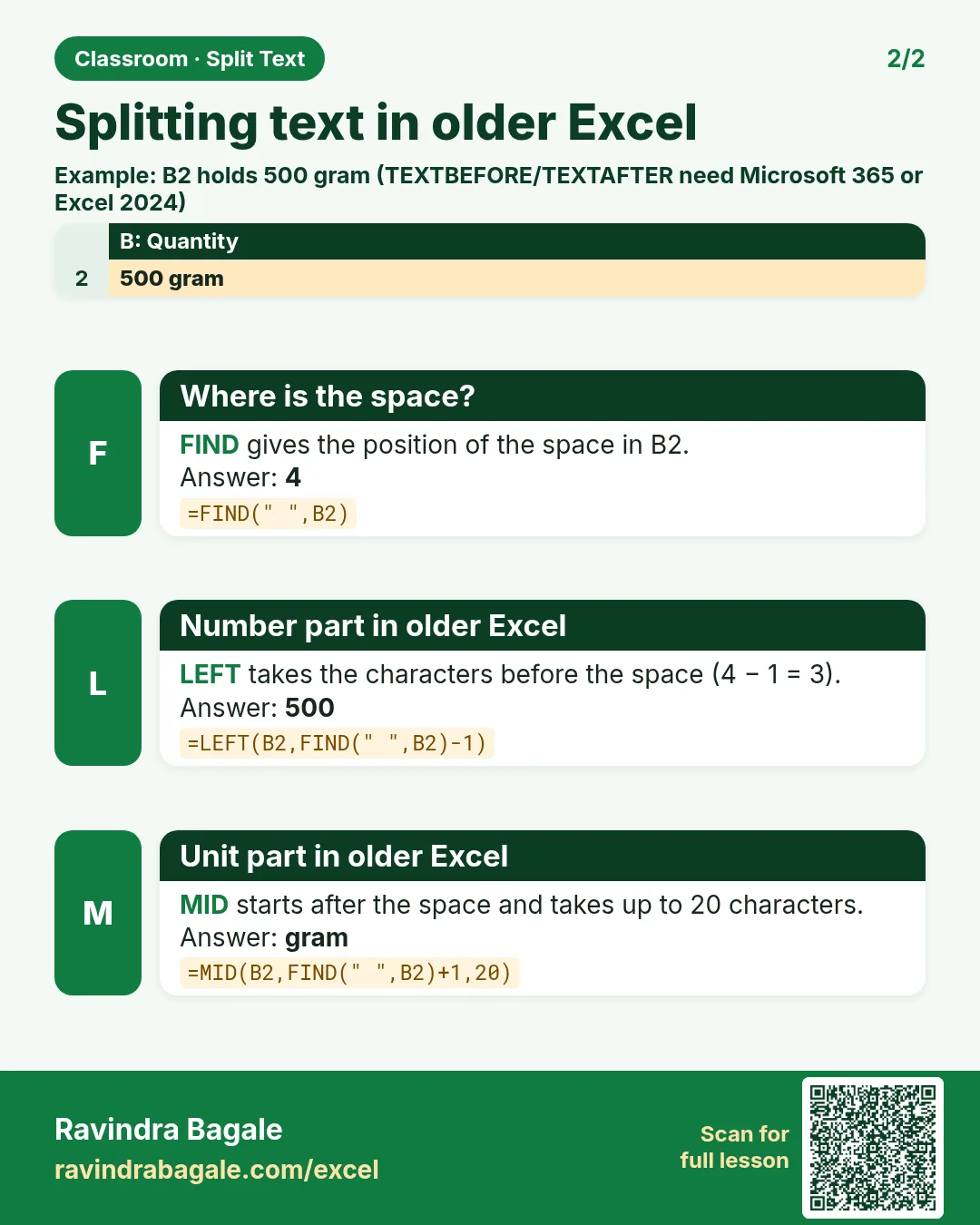
Split Quantity and Unit in Excel (2 kg, 500 gram) with TEXTBEFORE, TEXTAFTER and NUMBERVALUE: Convert Grams to Kg

Classroom · Split Text · 2 cards · Open the chapter

Revision card: Split "500 gram" into number and unit. Example data table with Number part: 500; Unit part: gram; Convert to kg: 0.5.
Card 1 of 2: Split "500 gram" into number and unit · Download PNG · Open card page
Revision card: Splitting text in older Excel. Example data table with Where is the space?: 4; Number part in older Excel: 500; Unit part in older Excel: gram.
Card 2 of 2: Splitting text in older Excel · Download PNG · Open card page

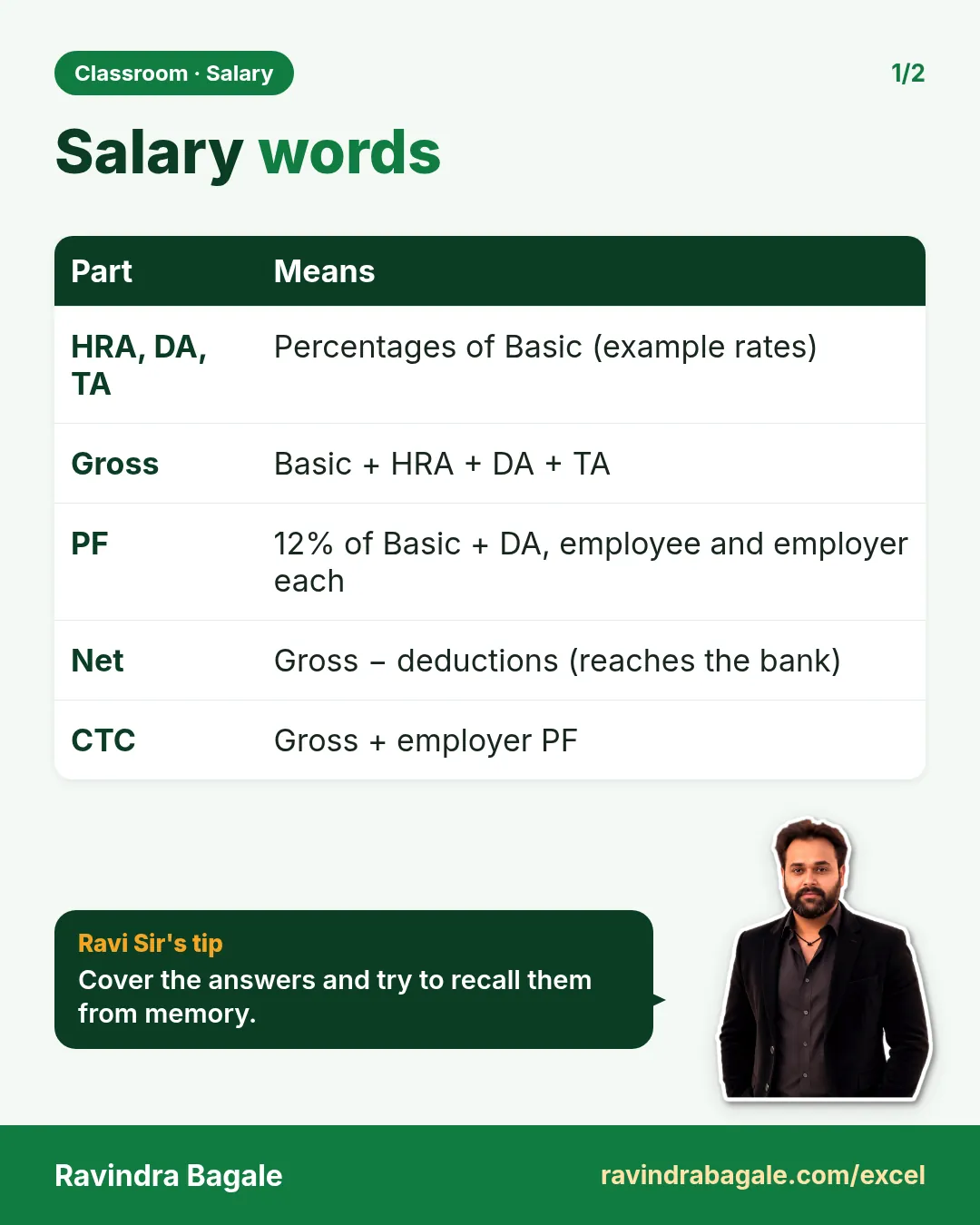
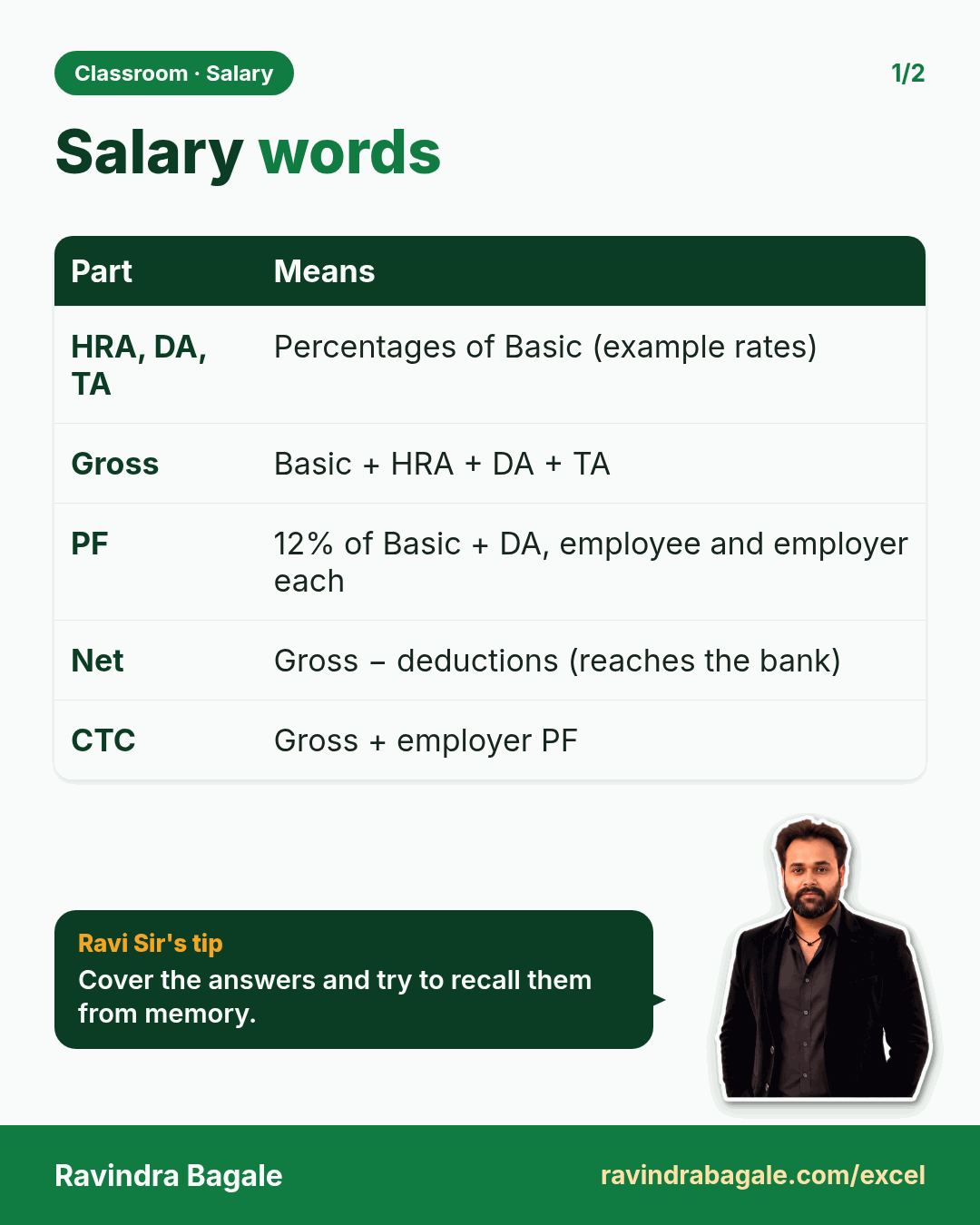
Employee Salary Calculation in Excel: Basic, HRA, DA, TA, Gross, PF, Net Salary and CTC

Classroom · Salary · 2 cards · Open the chapter

Revision card: Salary words. Covers HRA, DA, TA; Gross; PF; Net; CTC. With a photo of Ravindra Bagale and a short tip.
Card 1 of 2: Salary words · Download PNG · Open card page
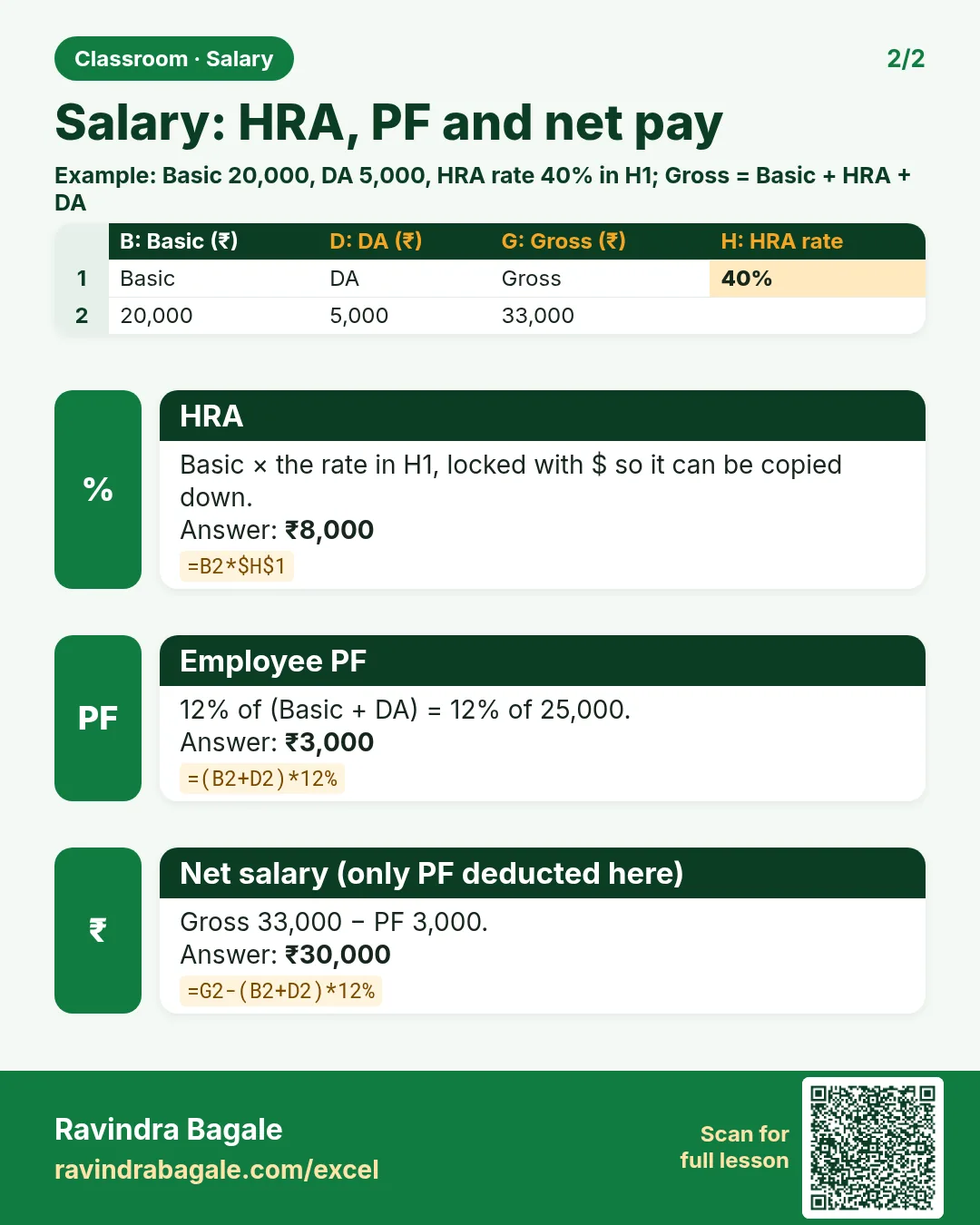
Revision card: Salary: HRA, PF and net pay. Example data table with HRA: ₹8,000; Employee PF: ₹3,000; Net salary (only PF deducted here): ₹30,000.
Card 2 of 2: Salary: HRA, PF and net pay · Download PNG · Open card page

23. Formulas Across Sheets and Workbooks

Ch 23 · Across Sheets · 2 cards · Open the chapter

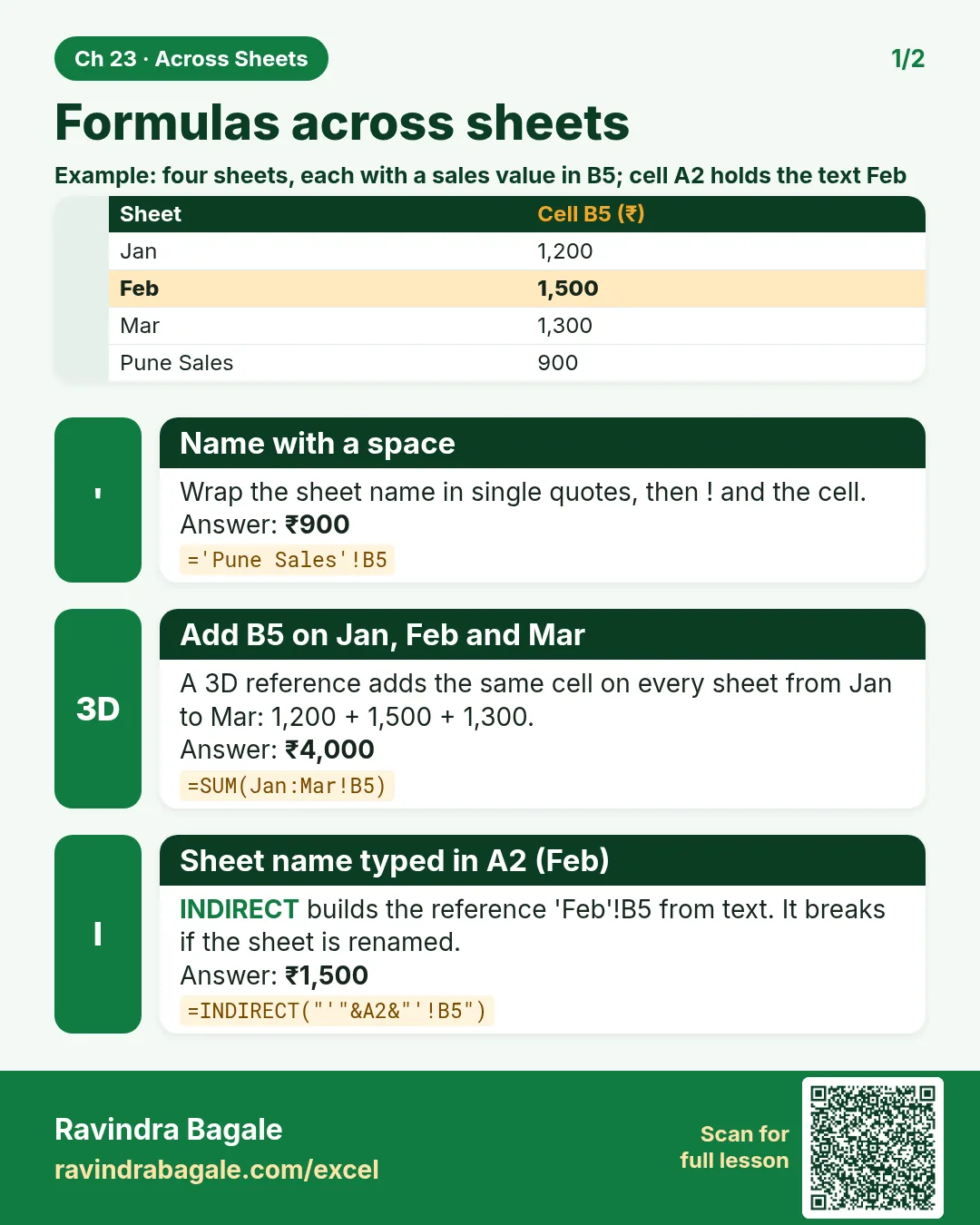
Revision card: Formulas across sheets. Example data table with Name with a space: ₹900; Add B5 on Jan, Feb and Mar: ₹4,000; Sheet name typed in A2 (Feb): ₹1,500.
Card 1 of 2: Formulas across sheets · Download PNG · Open card page
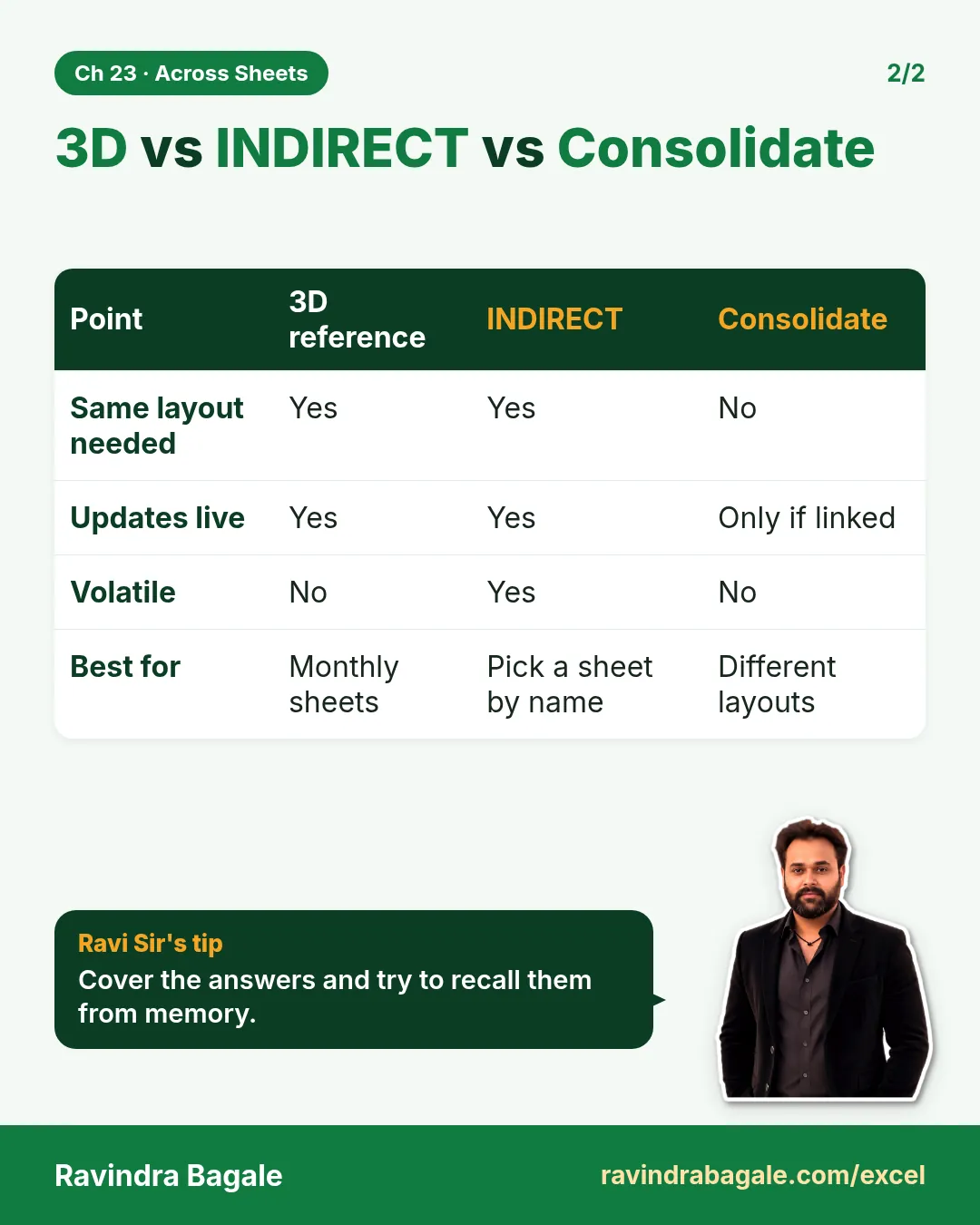
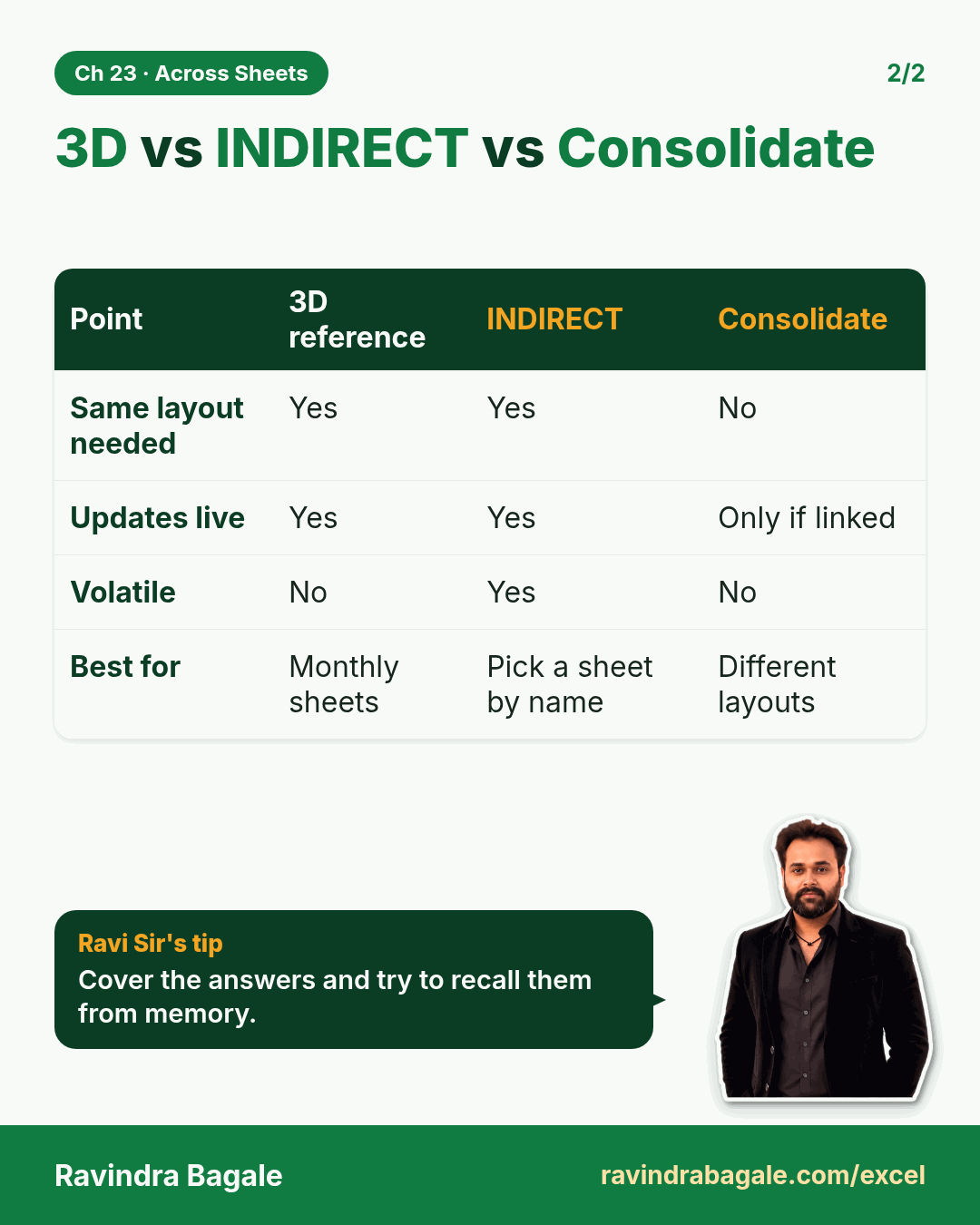
Revision card: 3D vs INDIRECT vs Consolidate. Covers Same layout needed; Updates live; Volatile; Best for. With a photo of Ravindra Bagale and a short tip.
Card 2 of 2: 3D vs INDIRECT vs Consolidate · Download PNG · Open card page

Lookups and dynamic arrays

4. Lookup Functions

Ch 4 · Lookups · 2 cards · Open the chapter

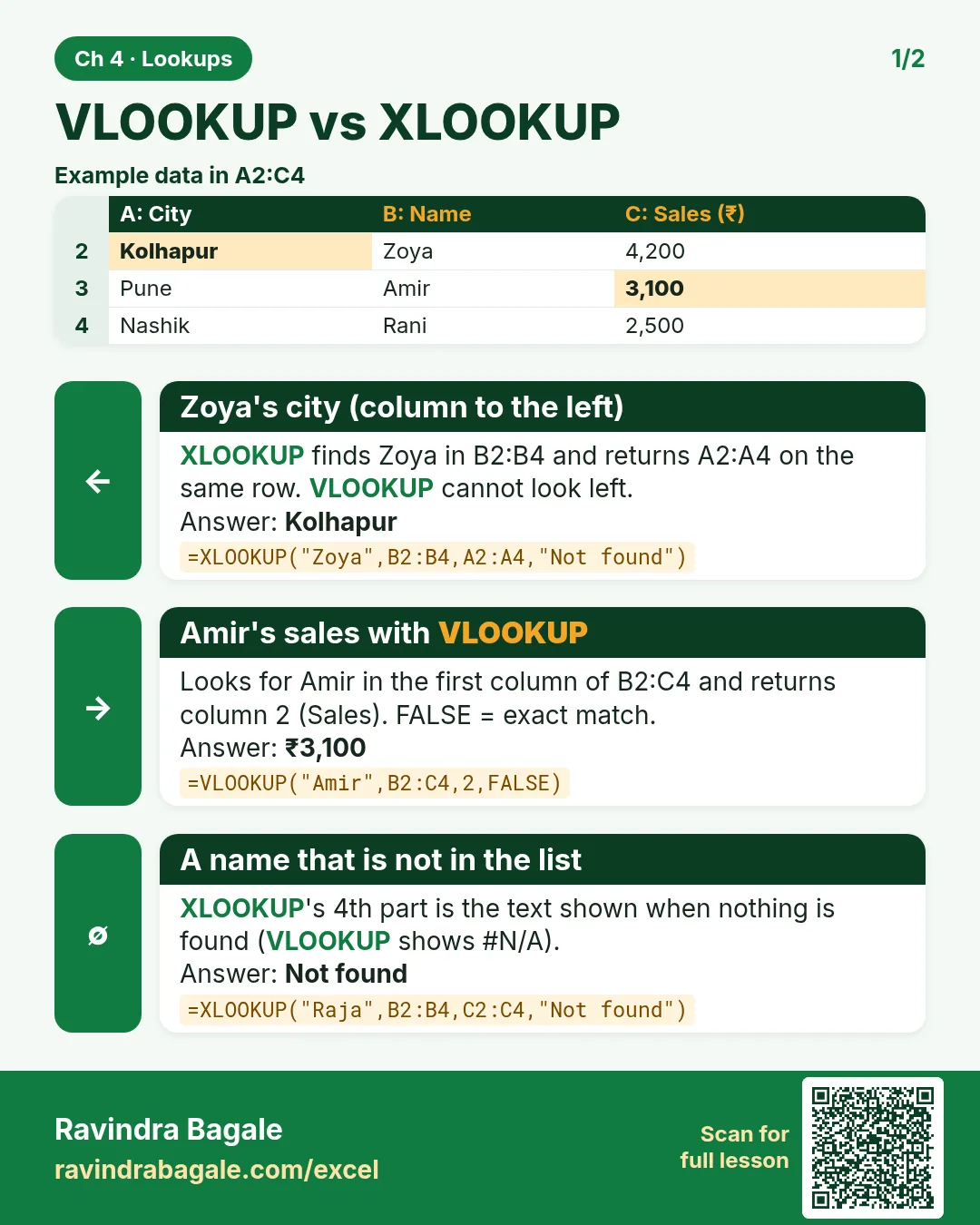
Revision card: VLOOKUP vs XLOOKUP. Example data table with Zoya's city (column to the left): Kolhapur; Amir's sales with VLOOKUP: ₹3,100; A name that is not in the list: Not found.
Card 1 of 2: VLOOKUP vs XLOOKUP · Download PNG · Open card page
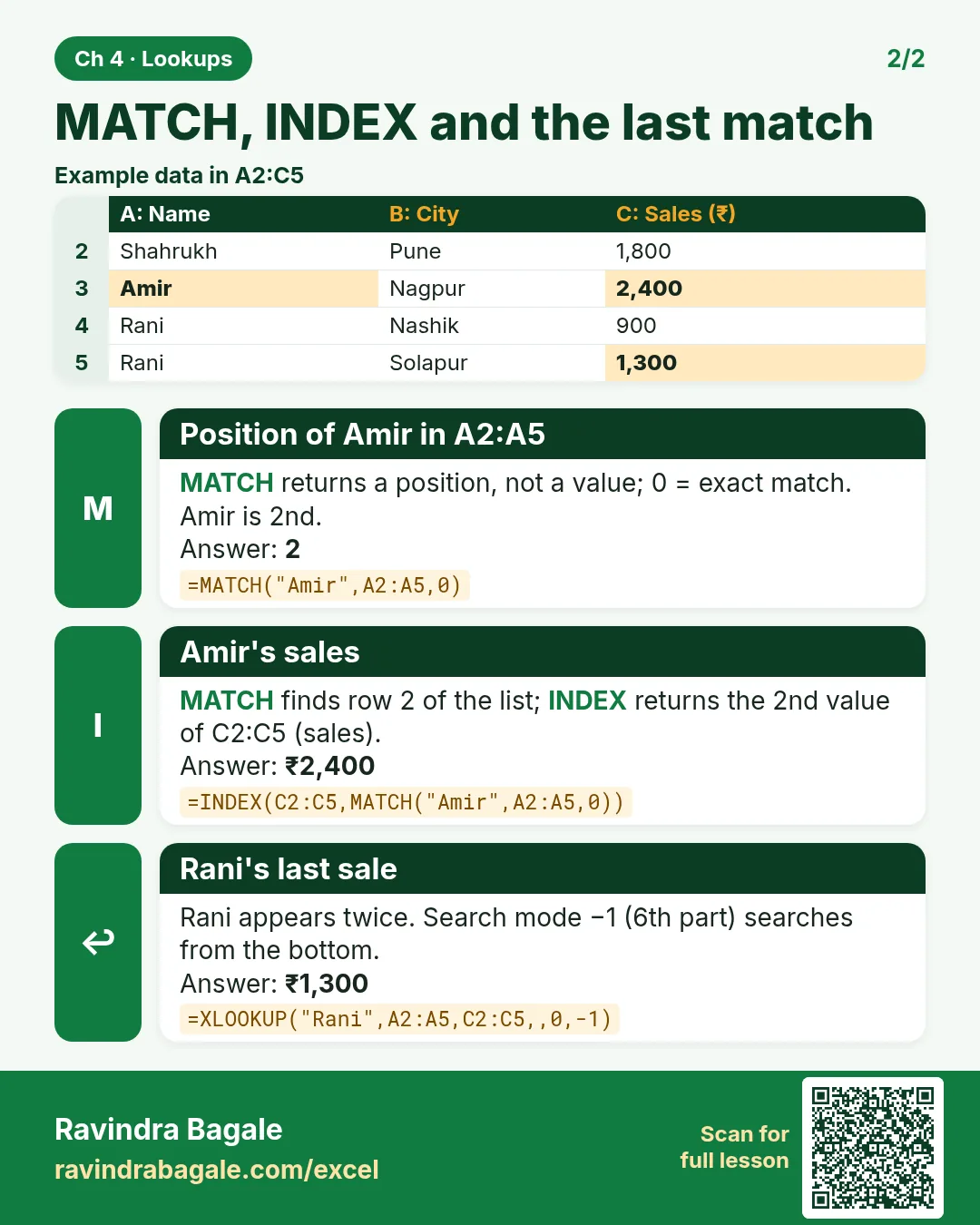
Revision card: MATCH, INDEX and the last match. Example data table with Position of Amir in A2:A5: 2; Amir's sales: ₹2,400; Rani's last sale: ₹1,300.
Card 2 of 2: MATCH, INDEX and the last match · Download PNG · Open card page

Excel VLOOKUP Explained: Exact Match, Column Number, Duplicates and #N/A (with HLOOKUP and TRANSPOSE)

Classroom · VLOOKUP · 2 cards · Open the chapter

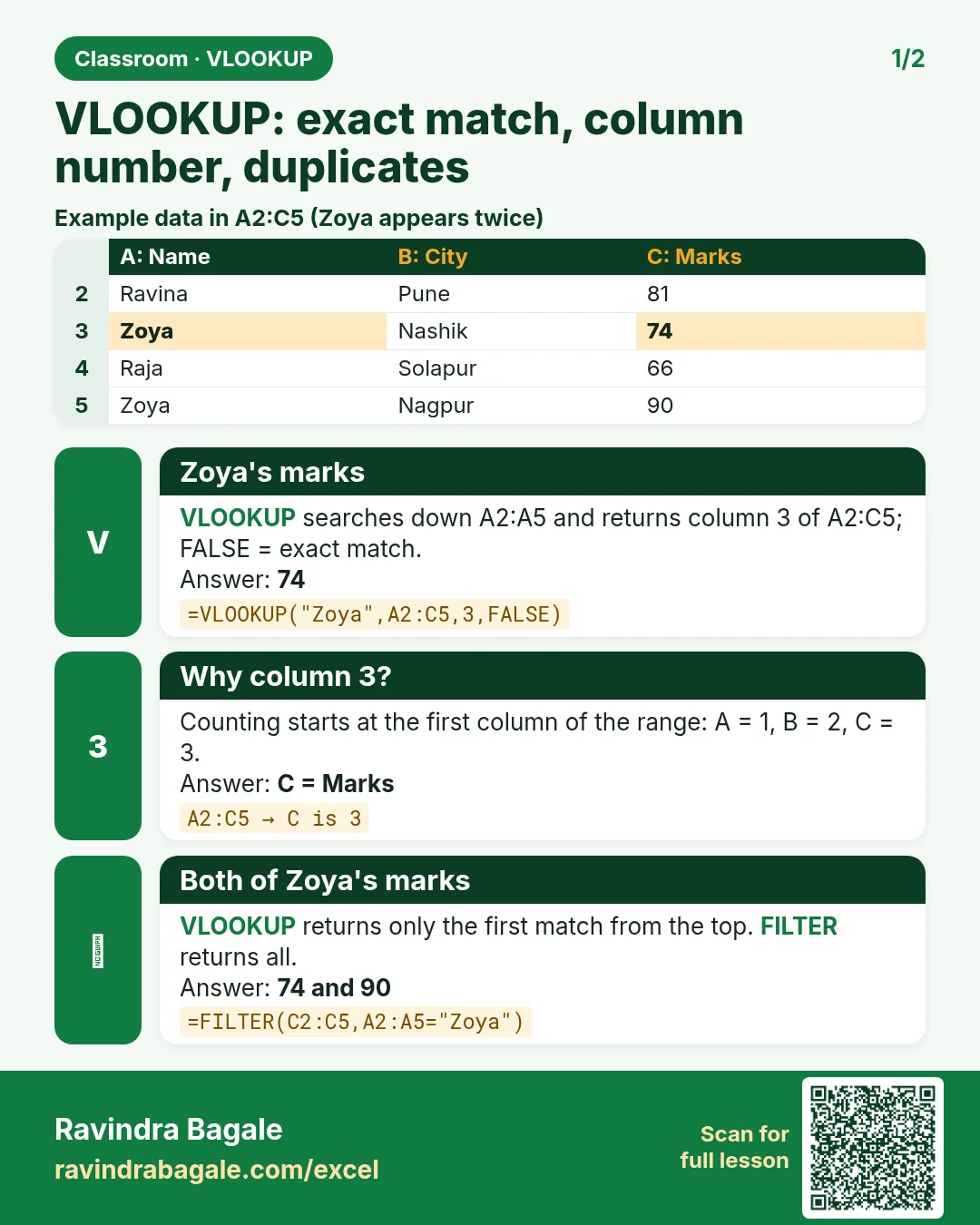
Revision card: VLOOKUP: exact match, column number, duplicates. Example data table with Zoya's marks: 74; Why column 3?: C = Marks; Both of Zoya's marks: 74 and 90.
Card 1 of 2: VLOOKUP: exact match, column number, duplicates · Download PNG · Open card page
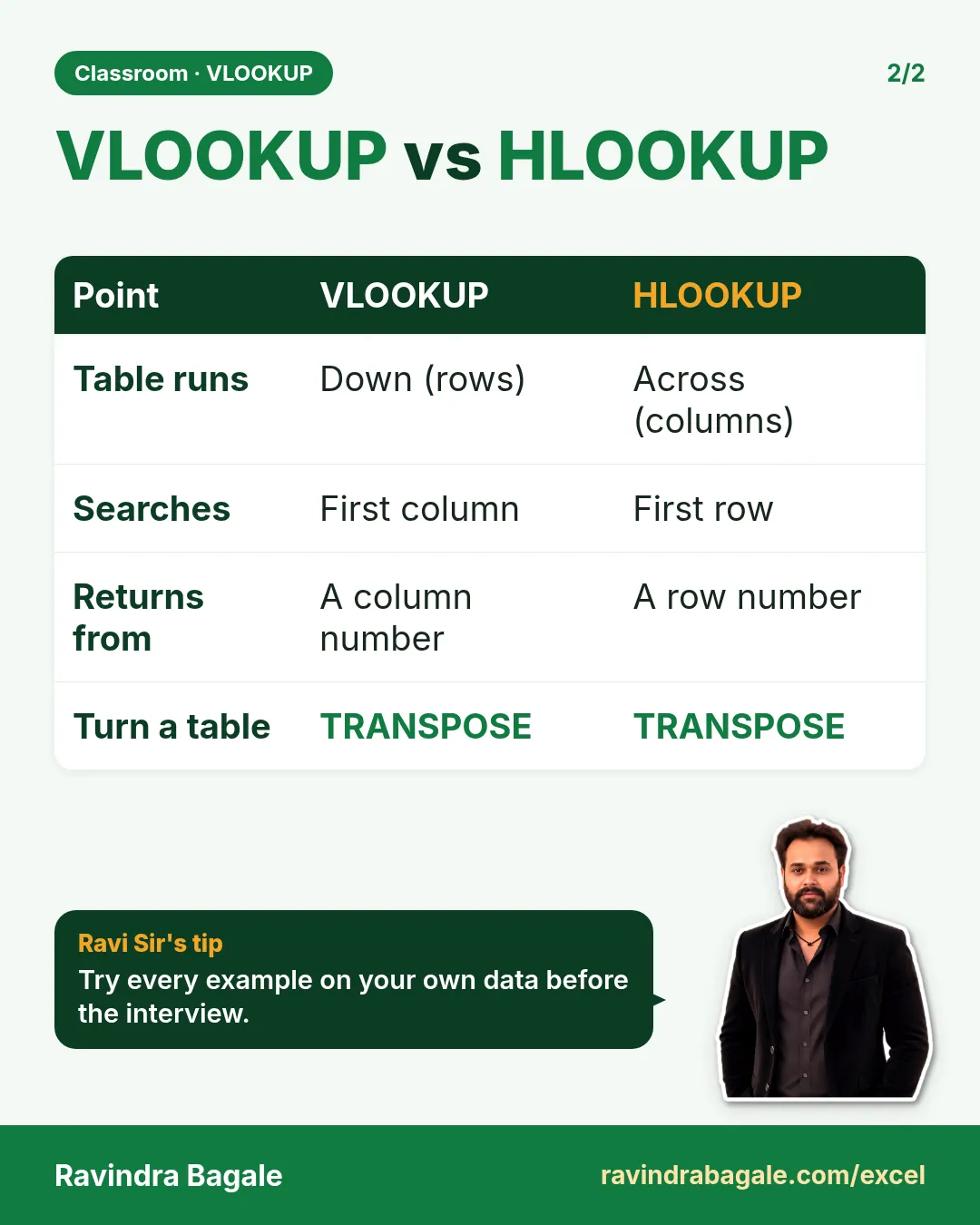
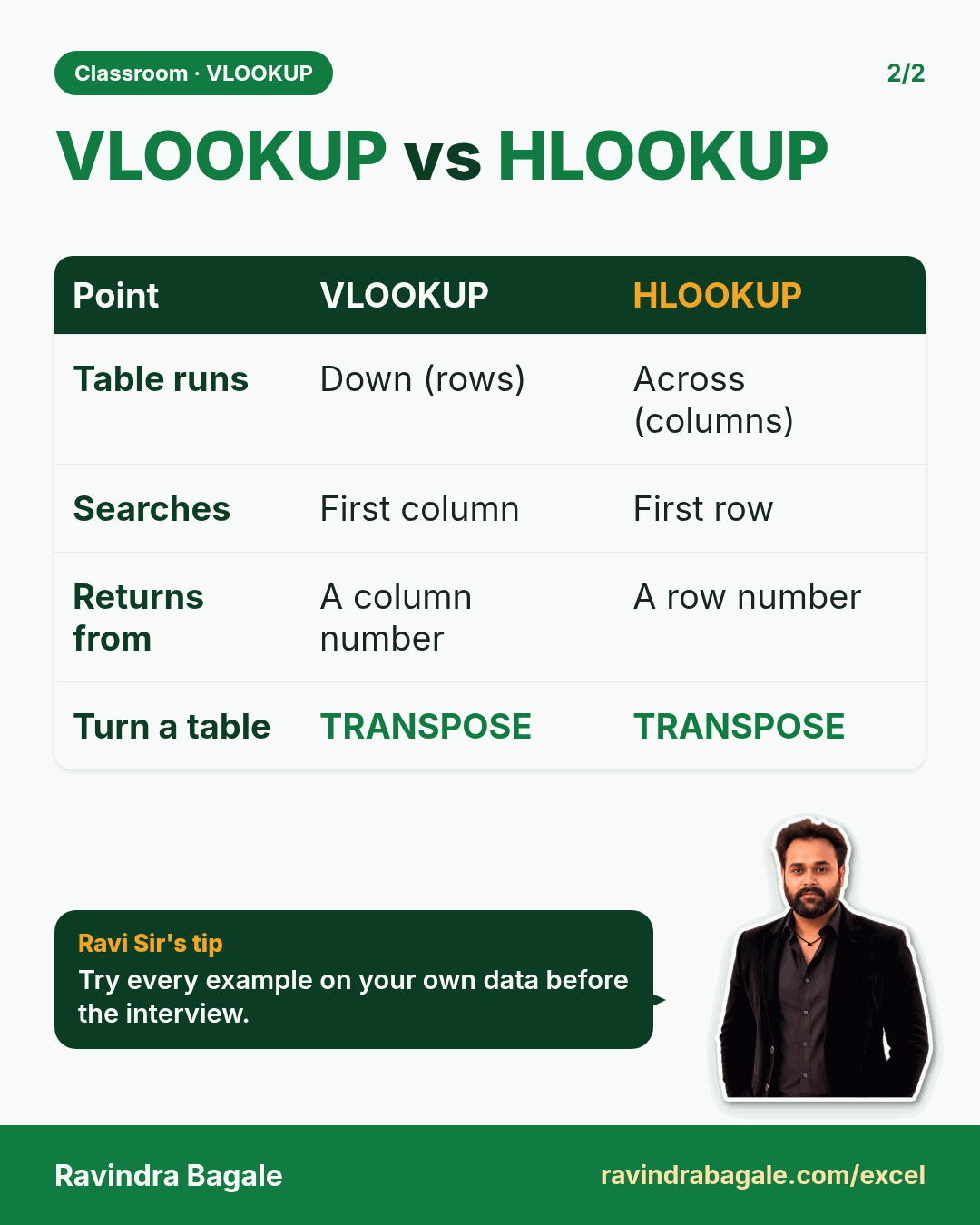
Revision card: VLOOKUP vs HLOOKUP. Covers Table runs; Searches; Returns from; Turn a table. With a photo of Ravindra Bagale and a short tip.
Card 2 of 2: VLOOKUP vs HLOOKUP · Download PNG · Open card page

Excel XLOOKUP Tutorial: Search Right to Left, Last Match, Not Found Message and Drop-Down List

Classroom · XLOOKUP · 2 cards · Open the chapter

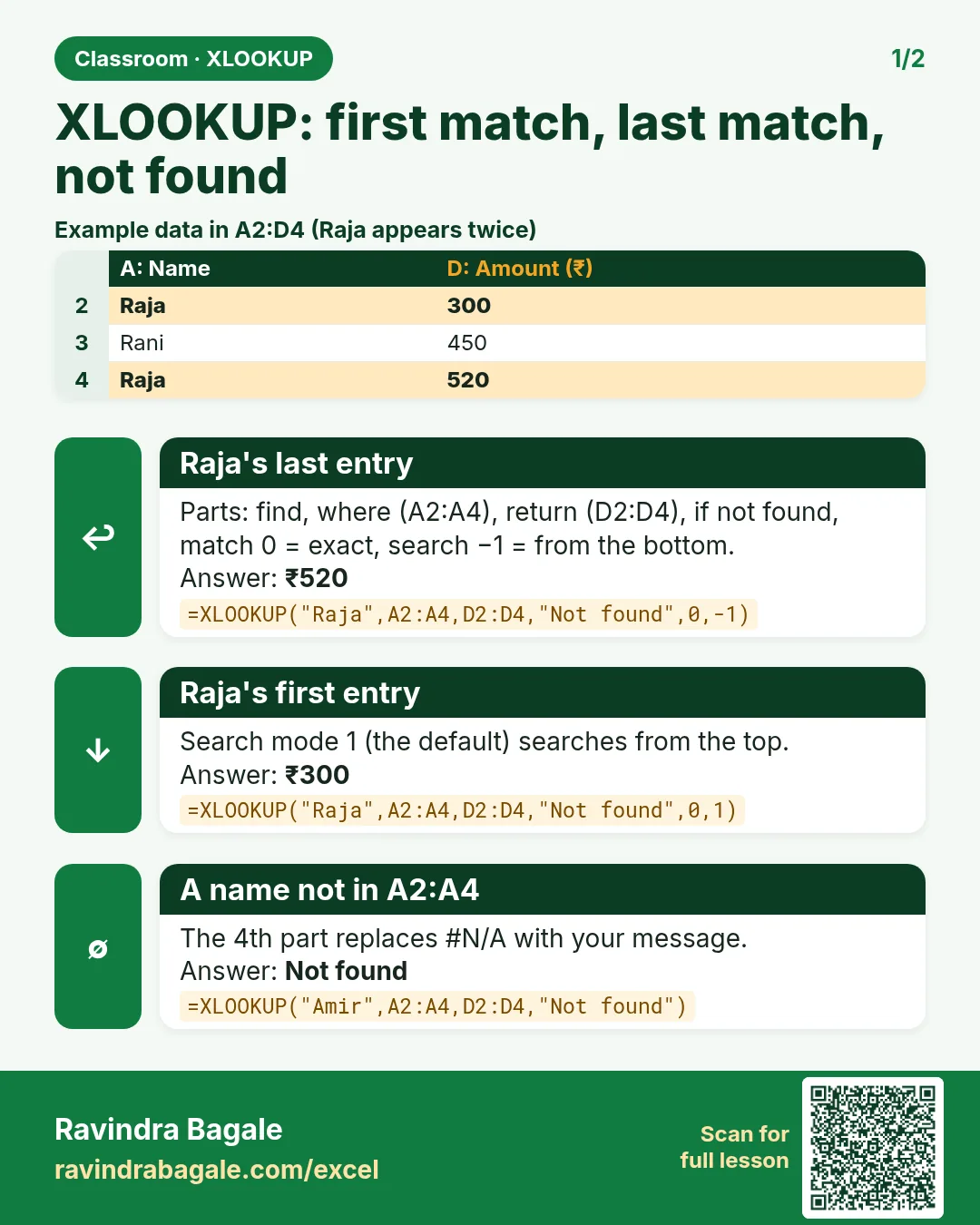
Revision card: XLOOKUP: first match, last match, not found. Example data table with Raja's last entry: ₹520; Raja's first entry: ₹300; A name not in A2:A4: Not found.
Card 1 of 2: XLOOKUP: first match, last match, not found · Download PNG · Open card page
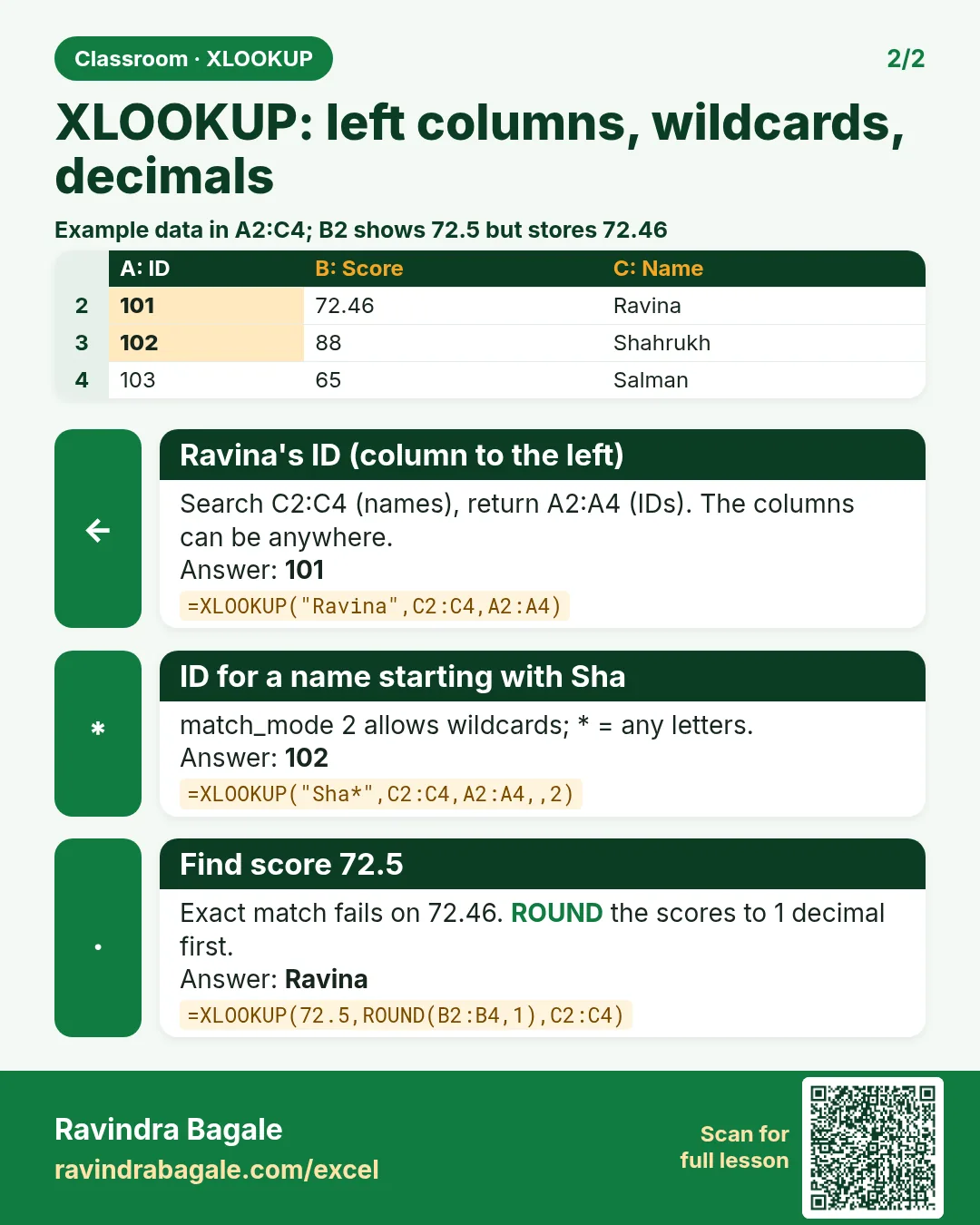
Revision card: XLOOKUP: left columns, wildcards, decimals. Example data table with Ravina's ID (column to the left): 101; ID for a name starting with Sha: 102; Find score 72.5: Ravina.
Card 2 of 2: XLOOKUP: left columns, wildcards, decimals · Download PNG · Open card page

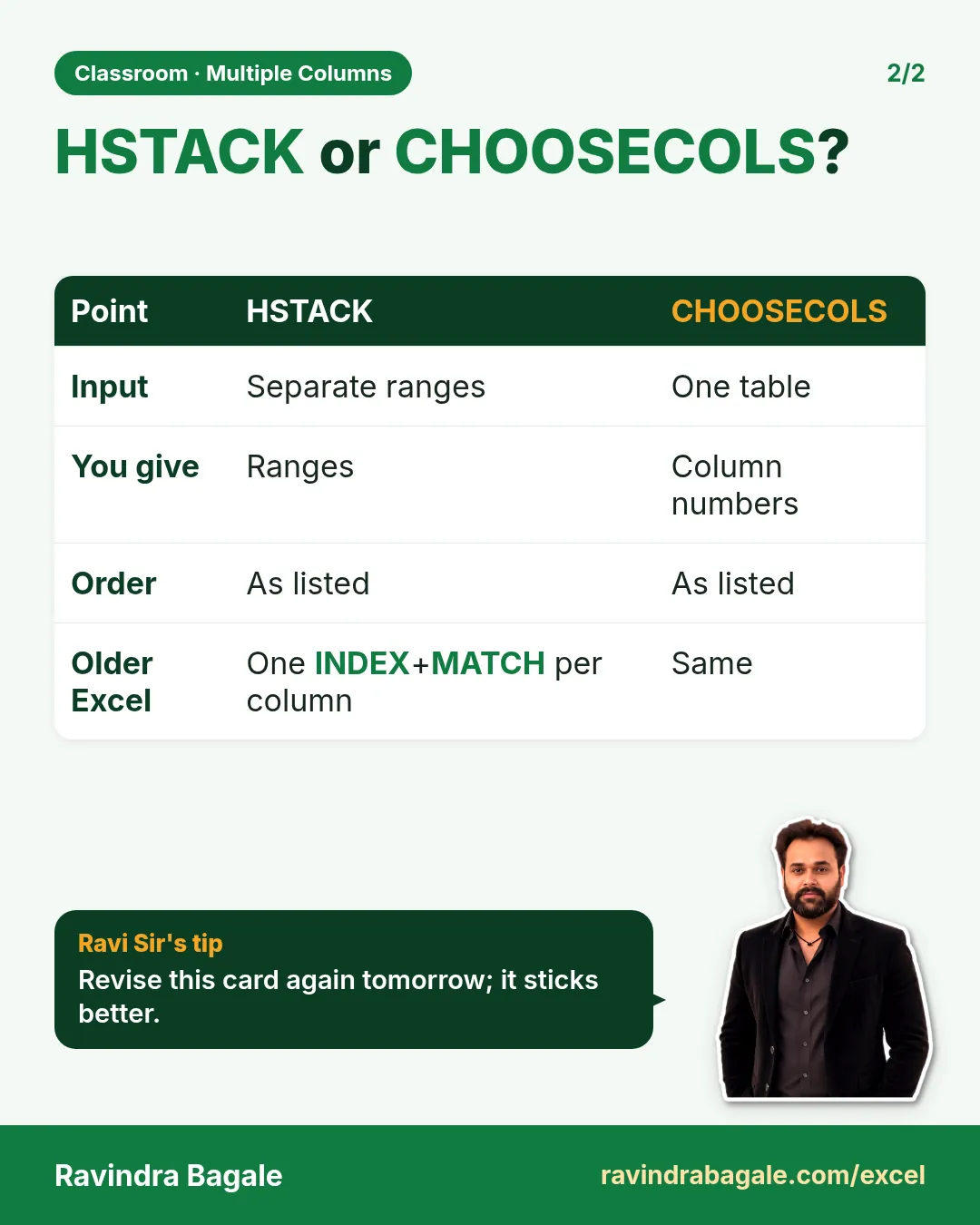
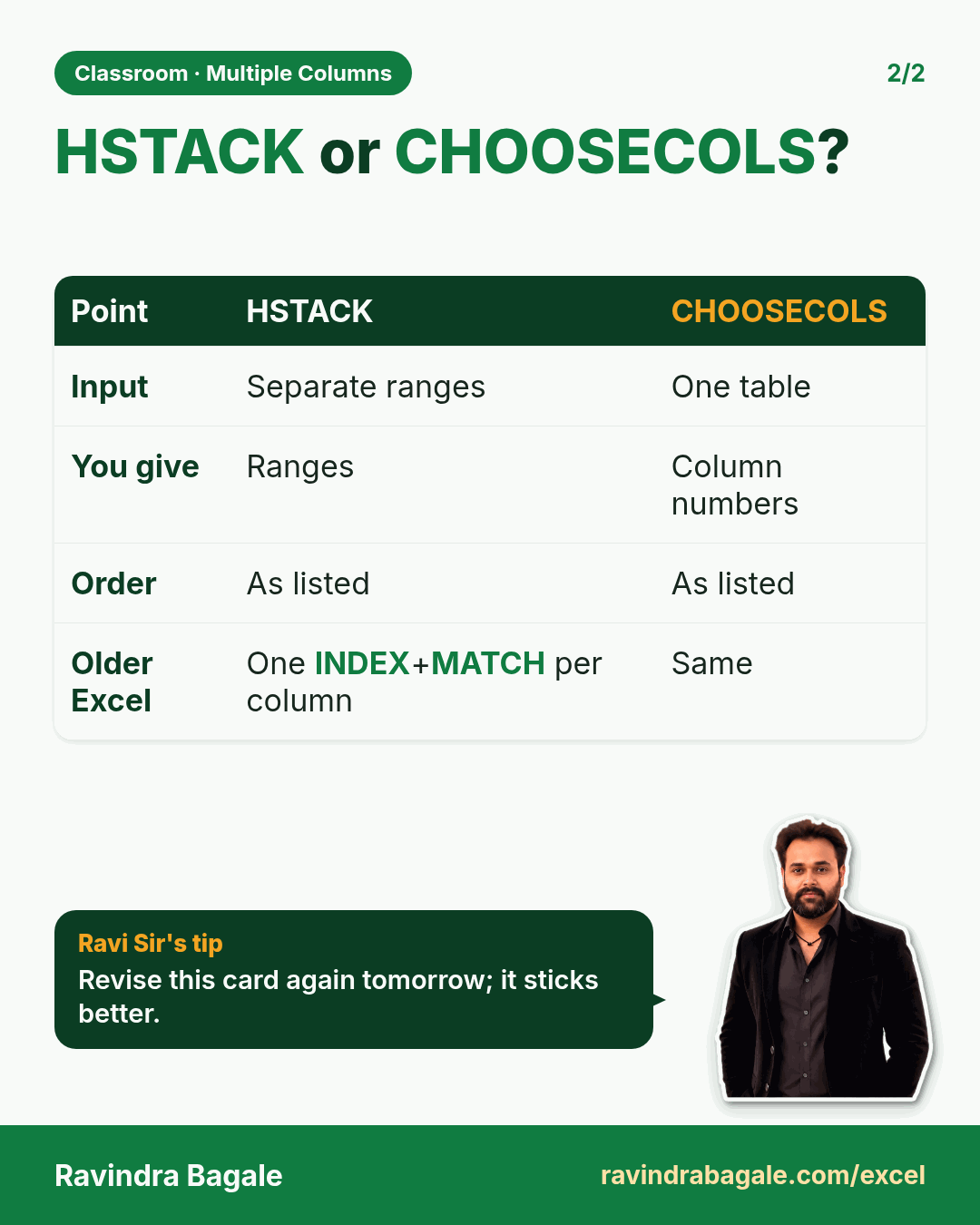
Return Multiple Columns with XLOOKUP, HSTACK and CHOOSECOLS in Excel

Classroom · Multiple Columns · 2 cards · Open the chapter

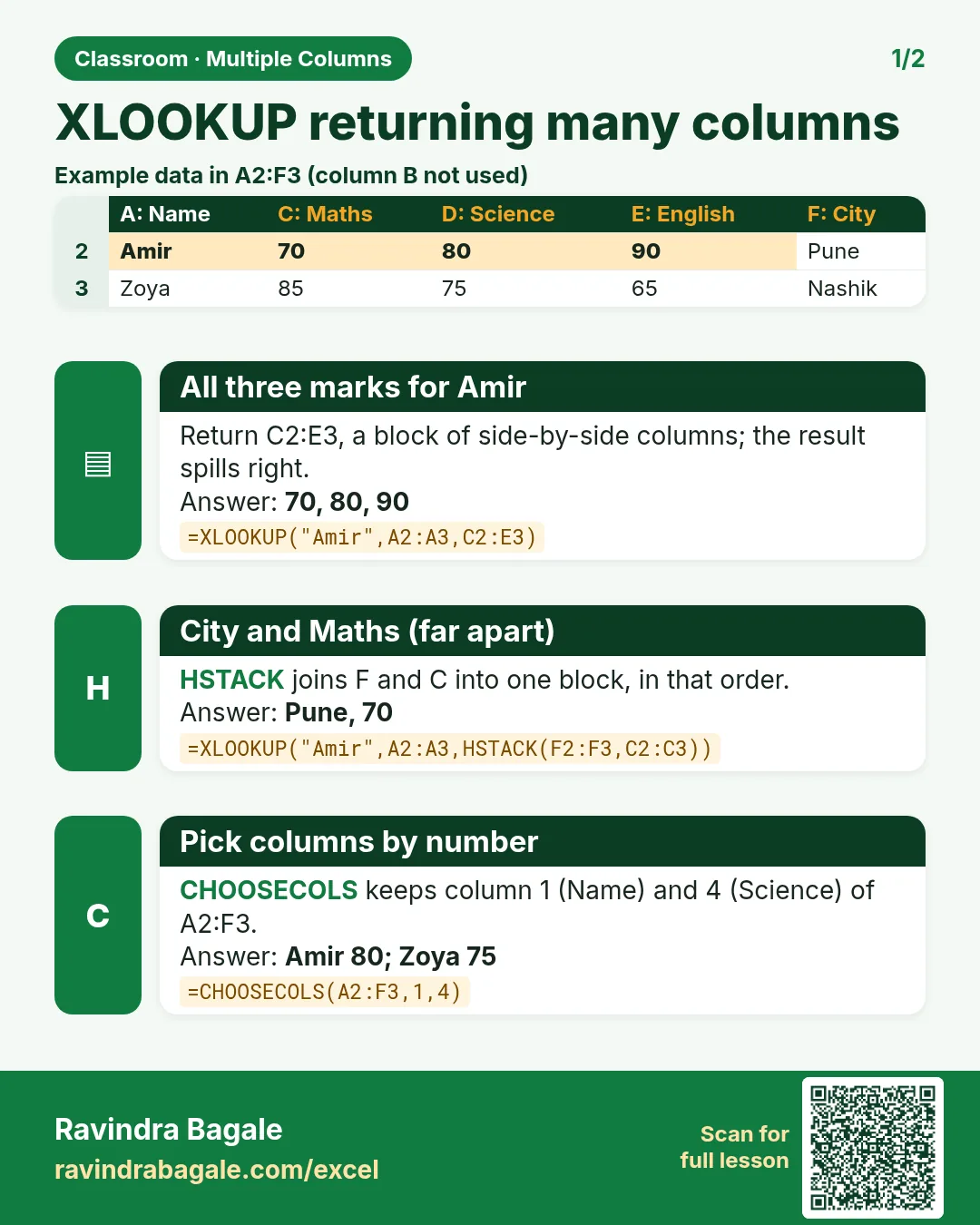
Revision card: XLOOKUP returning many columns. Example data table with All three marks for Amir: 70, 80, 90; City and Maths (far apart): Pune, 70; Pick columns by number: Amir 80; Zoya 75.
Card 1 of 2: XLOOKUP returning many columns · Download PNG · Open card page
Revision card: HSTACK or CHOOSECOLS?. Covers Input; You give; Order; Older Excel. With a photo of Ravindra Bagale and a short tip.
Card 2 of 2: HSTACK or CHOOSECOLS? · Download PNG · Open card page

Excel Revision Cards (Ravi Sir's Cards): Formulas, Lookups, PivotTables and Shortcuts

Classroom · INDEX MATCH · 2 cards · Open the chapter

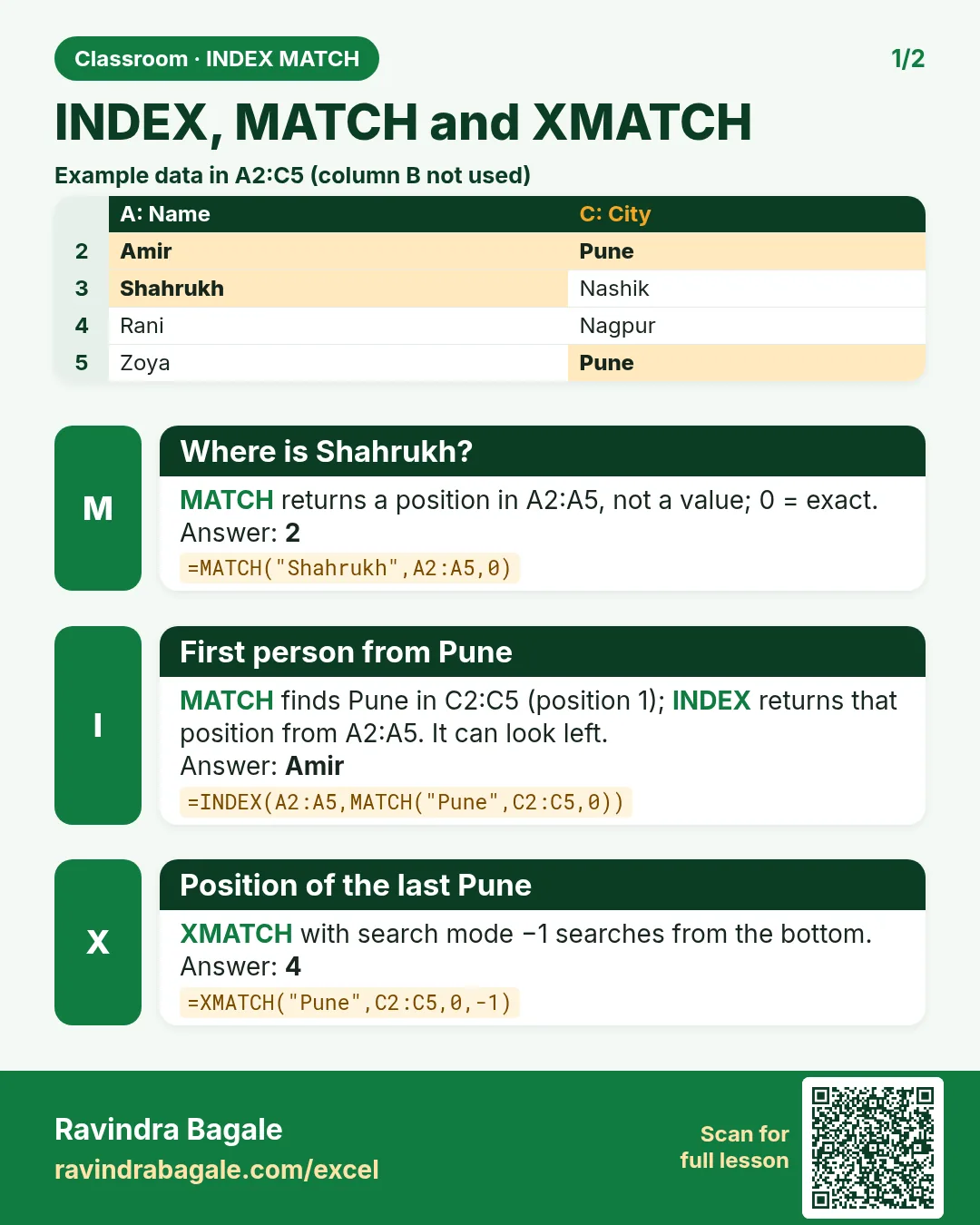
Revision card: INDEX, MATCH and XMATCH. Example data table with Where is Shahrukh?: 2; First person from Pune: Amir; Position of the last Pune: 4.
Card 1 of 2: INDEX, MATCH and XMATCH · Download PNG · Open card page
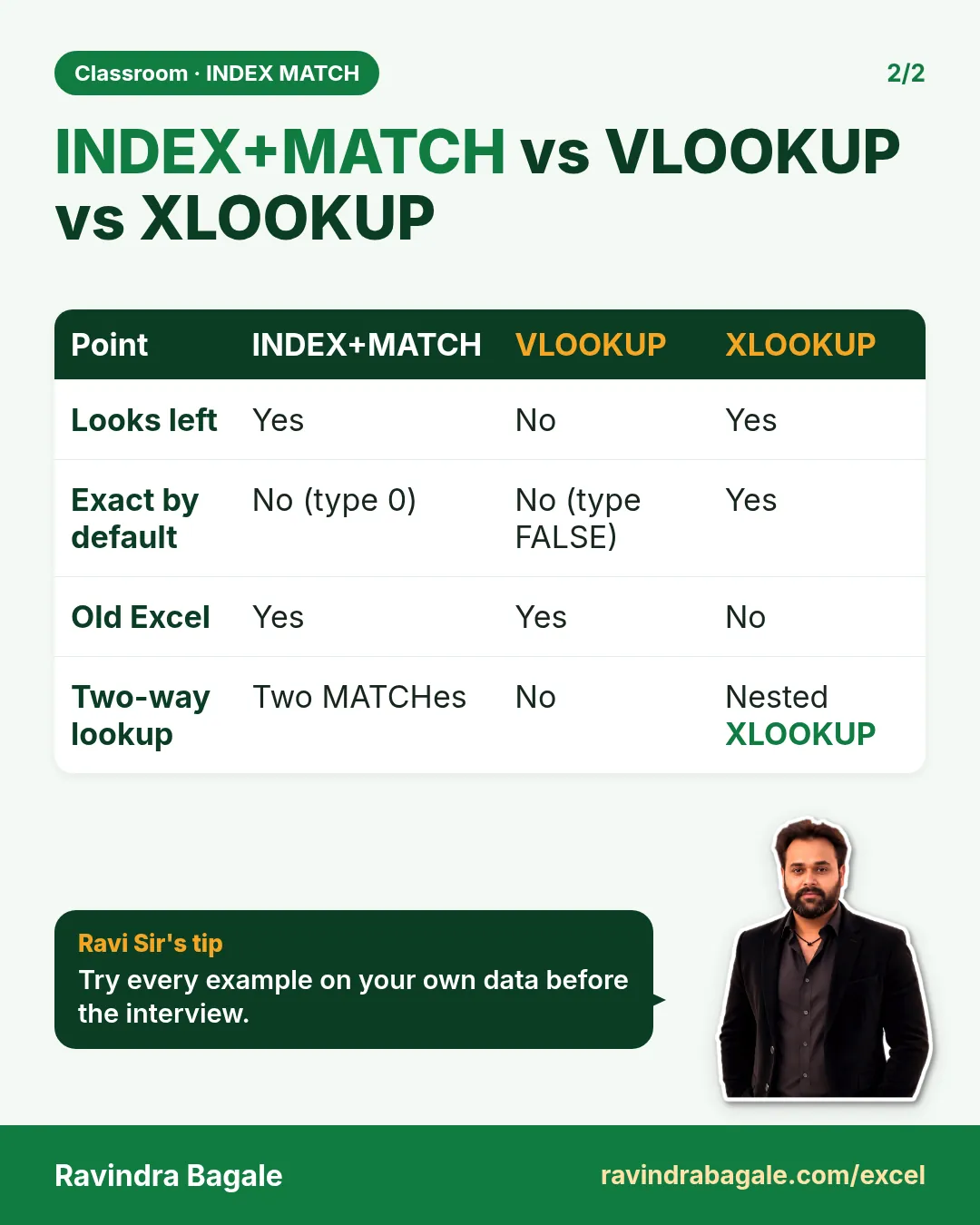
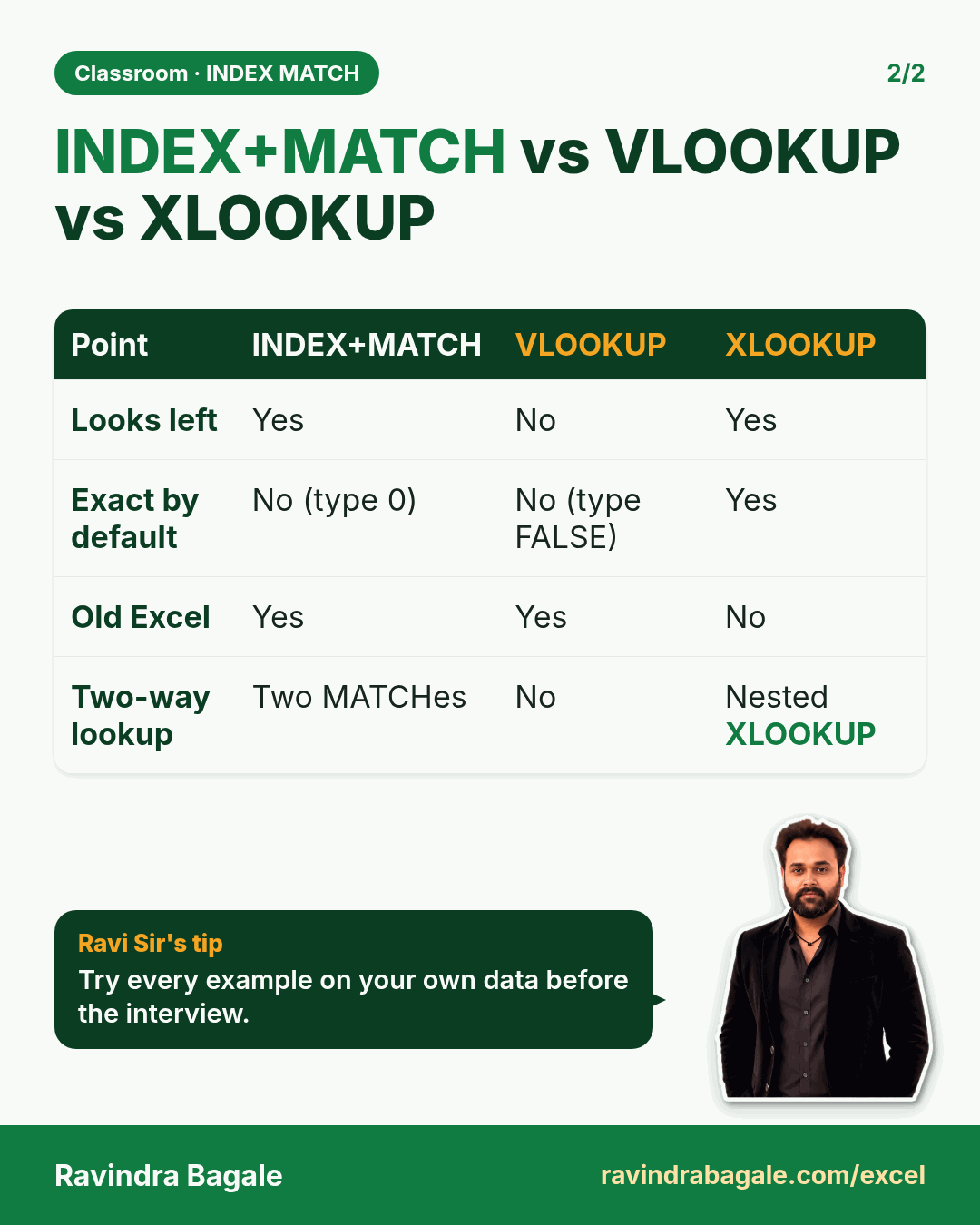
Revision card: INDEX+MATCH vs VLOOKUP vs XLOOKUP. Covers Looks left; Exact by default; Old Excel; Two-way lookup. With a photo of Ravindra Bagale and a short tip.
Card 2 of 2: INDEX+MATCH vs VLOOKUP vs XLOOKUP · Download PNG · Open card page

9. Dynamic Arrays

Ch 9 · Dynamic Arrays · 2 cards · Open the chapter

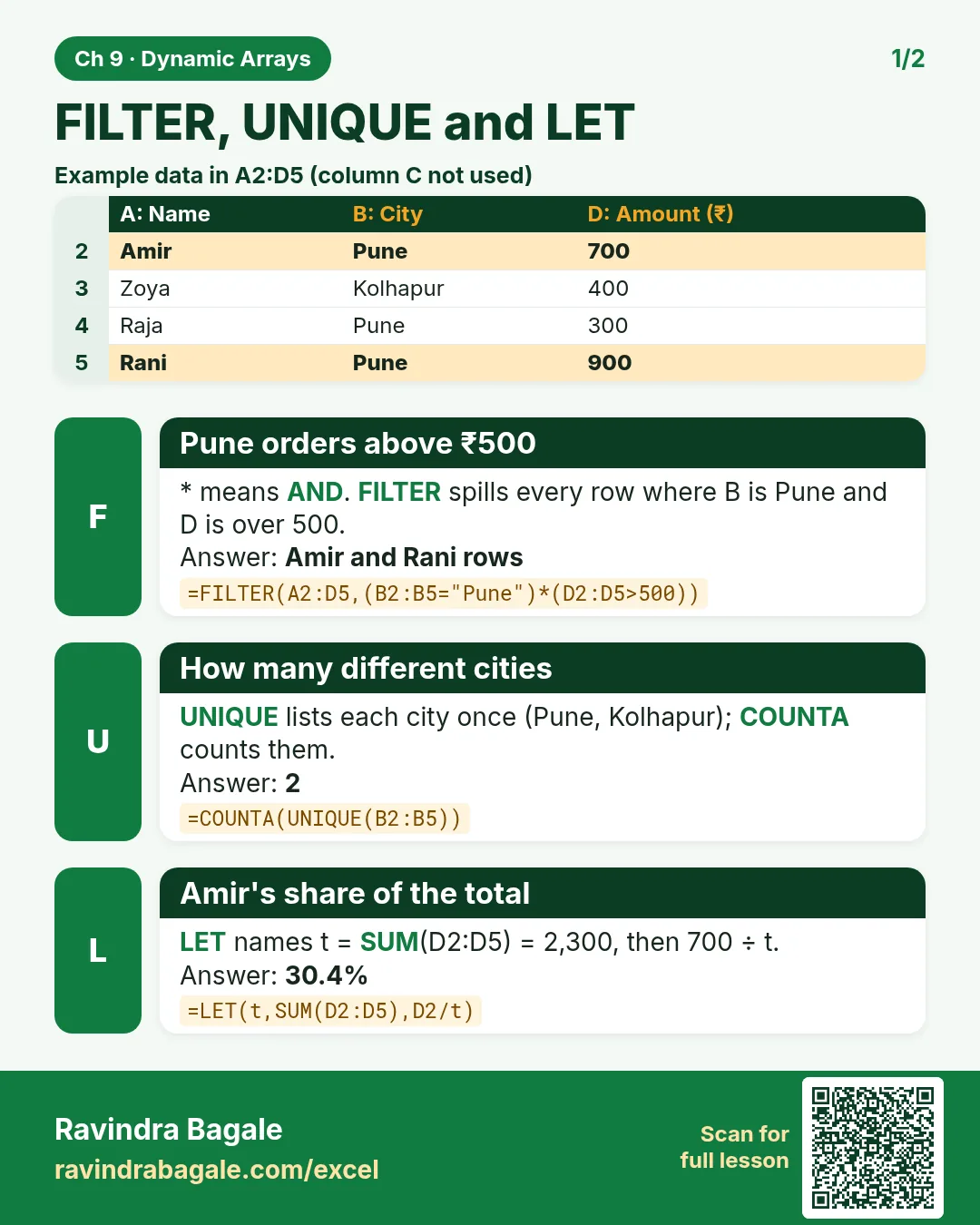
Revision card: FILTER, UNIQUE and LET. Example data table with Pune orders above ₹500: Amir and Rani rows; How many different cities: 2; Amir's share of the total: 30.4%.
Card 1 of 2: FILTER, UNIQUE and LET · Download PNG · Open card page
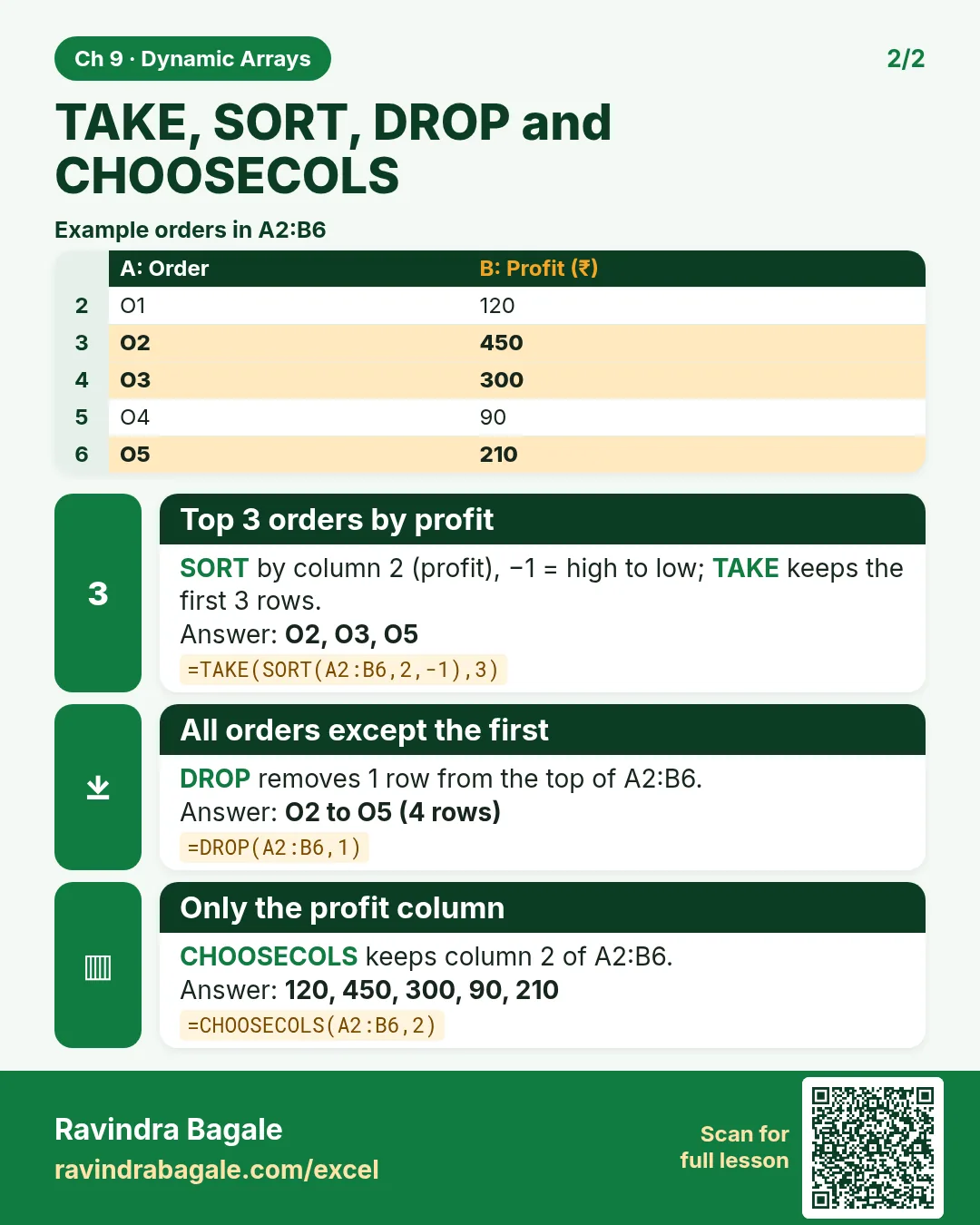
Revision card: TAKE, SORT, DROP and CHOOSECOLS. Example data table with Top 3 orders by profit: O2, O3, O5; All orders except the first: O2 to O5 (4 rows); Only the profit column: 120, 450, 300, 90, 210.
Card 2 of 2: TAKE, SORT, DROP and CHOOSECOLS · Download PNG · Open card page

Excel FILTER Function: Return All Matching Rows, Multiple Conditions, Starts With and #SPILL! Error

Classroom · FILTER · 2 cards · Open the chapter

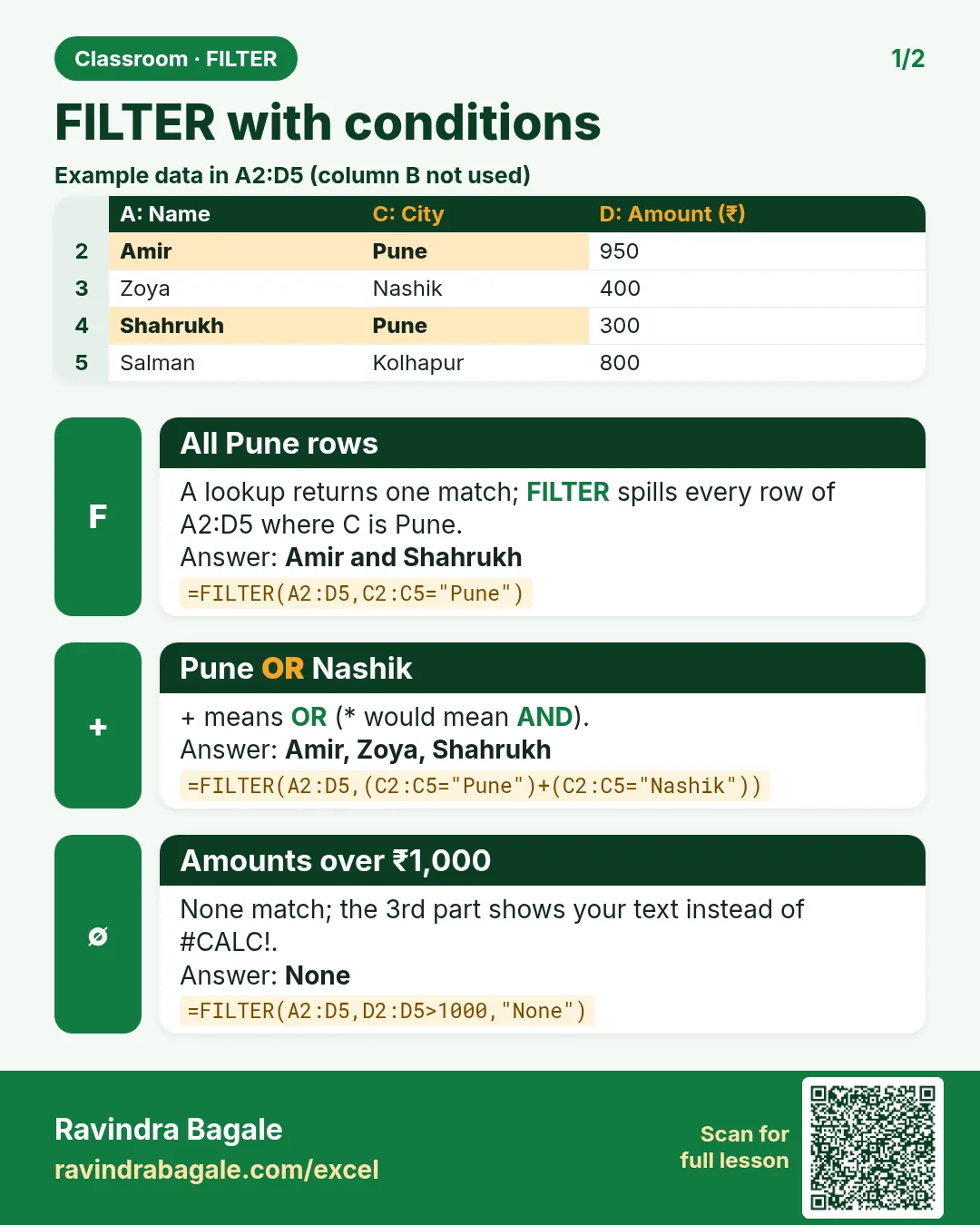
Revision card: FILTER with conditions. Example data table with All Pune rows: Amir and Shahrukh; Pune OR Nashik: Amir, Zoya, Shahrukh; Amounts over ₹1,000: None.
Card 1 of 2: FILTER with conditions · Download PNG · Open card page
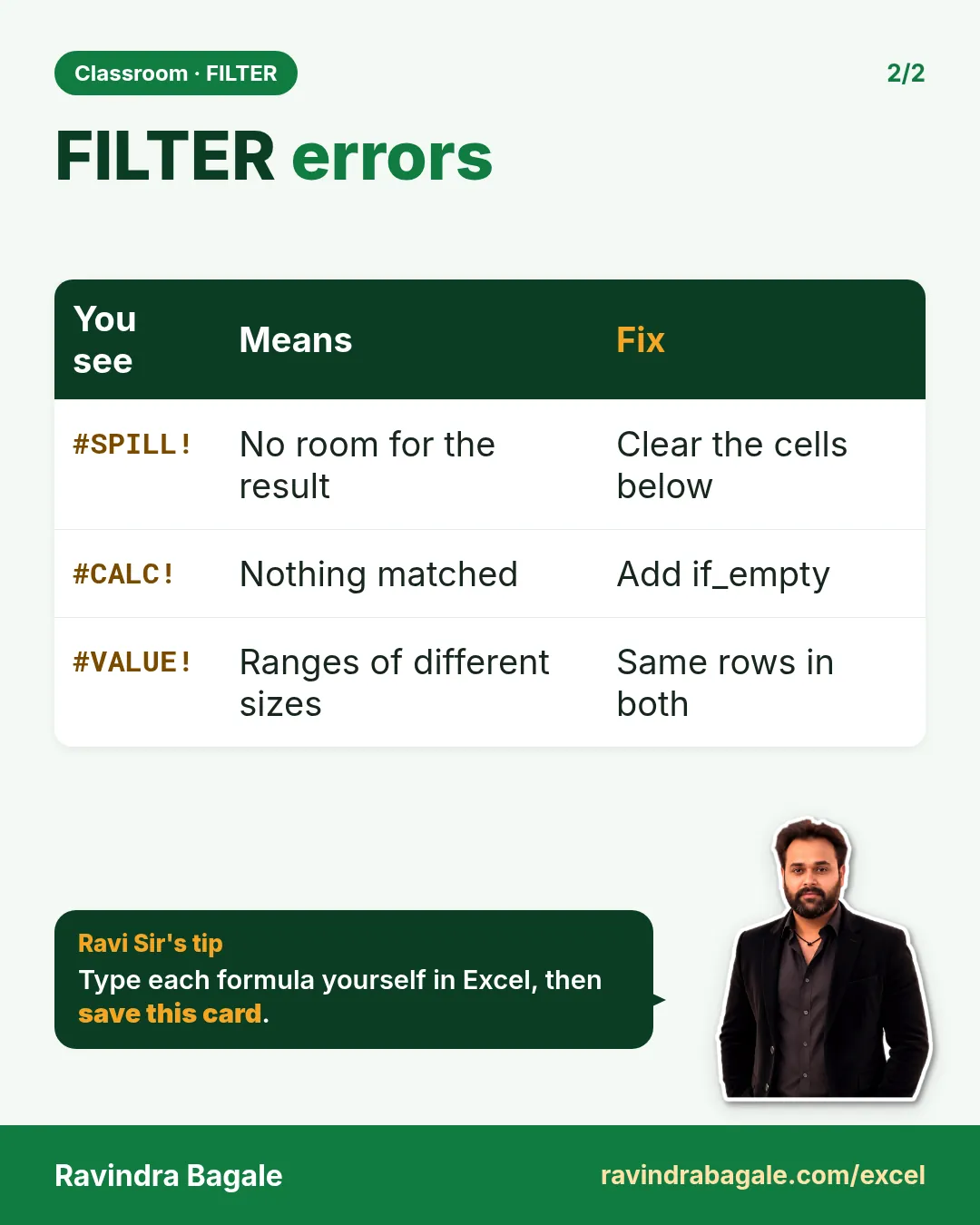
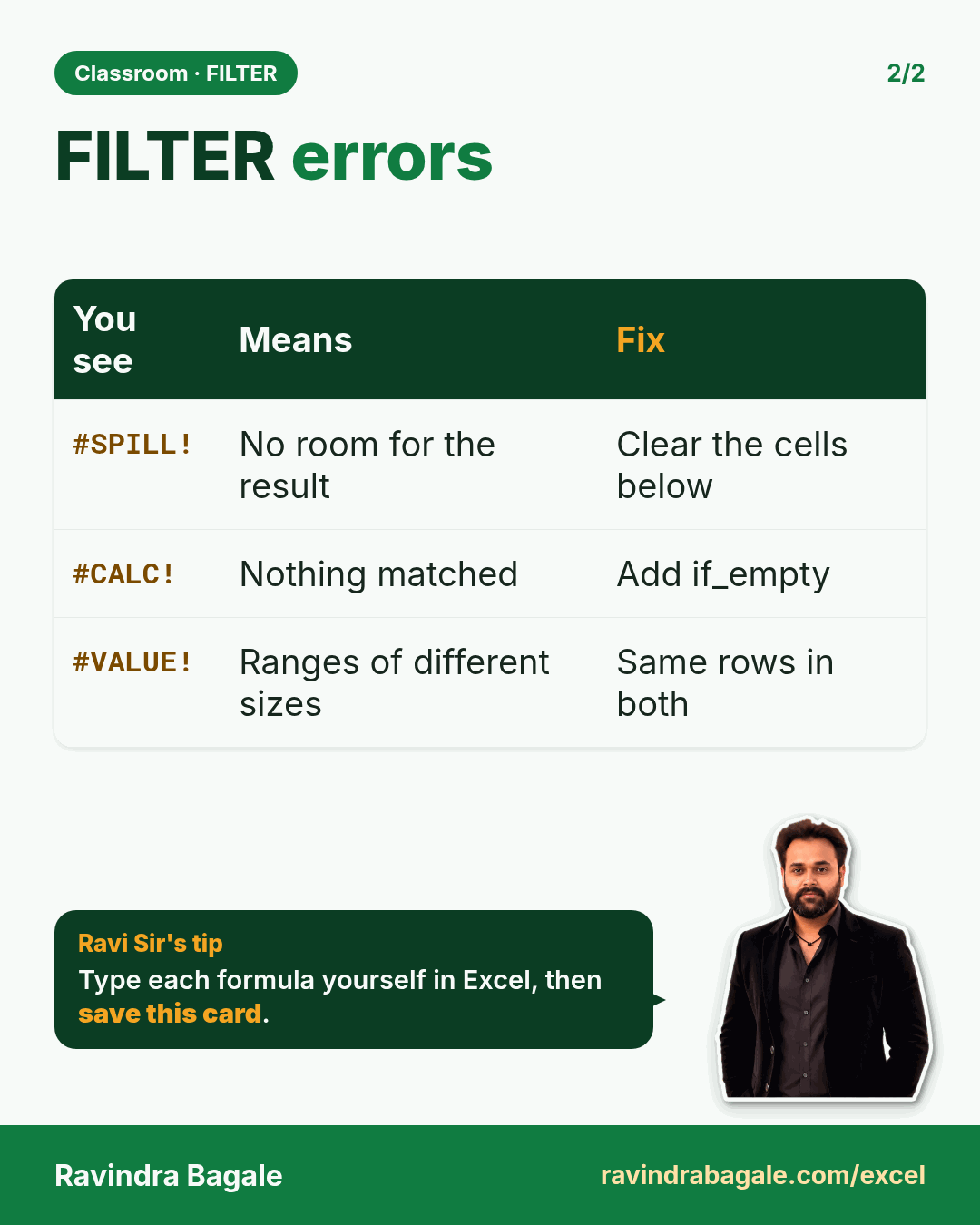
Revision card: FILTER errors. Covers #SPILL!; #CALC!; #VALUE!. With a photo of Ravindra Bagale and a short tip.
Card 2 of 2: FILTER errors · Download PNG · Open card page

Excel SORT, FILTER and TAKE Together: Top 3 Profit Orders and Biggest Losses by City

Classroom · SORT & TAKE · 2 cards · Open the chapter

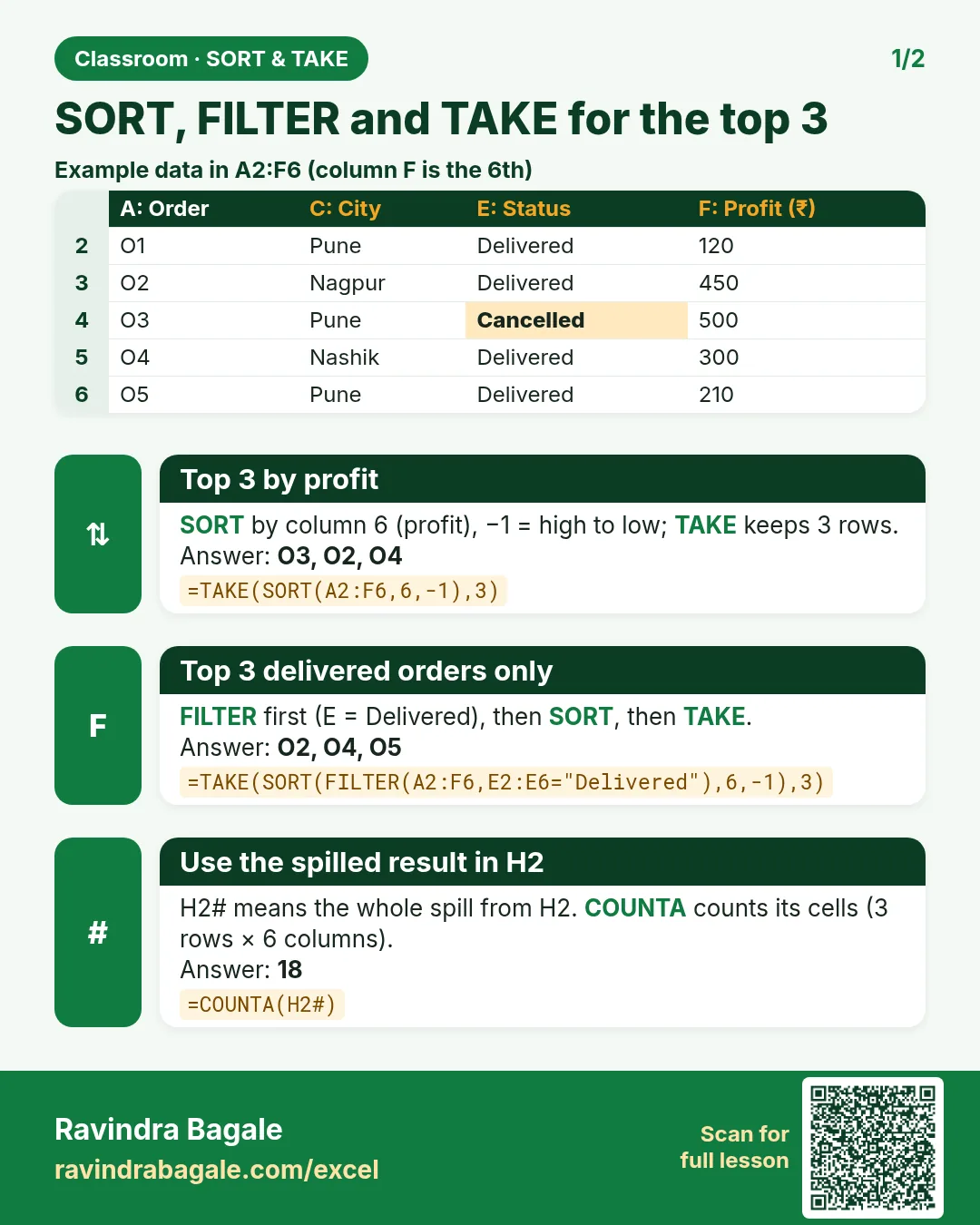
Revision card: SORT, FILTER and TAKE for the top 3. Example data table with Top 3 by profit: O3, O2, O4; Top 3 delivered orders only: O2, O4, O5; Use the spilled result in H2: 18.
Card 1 of 2: SORT, FILTER and TAKE for the top 3 · Download PNG · Open card page
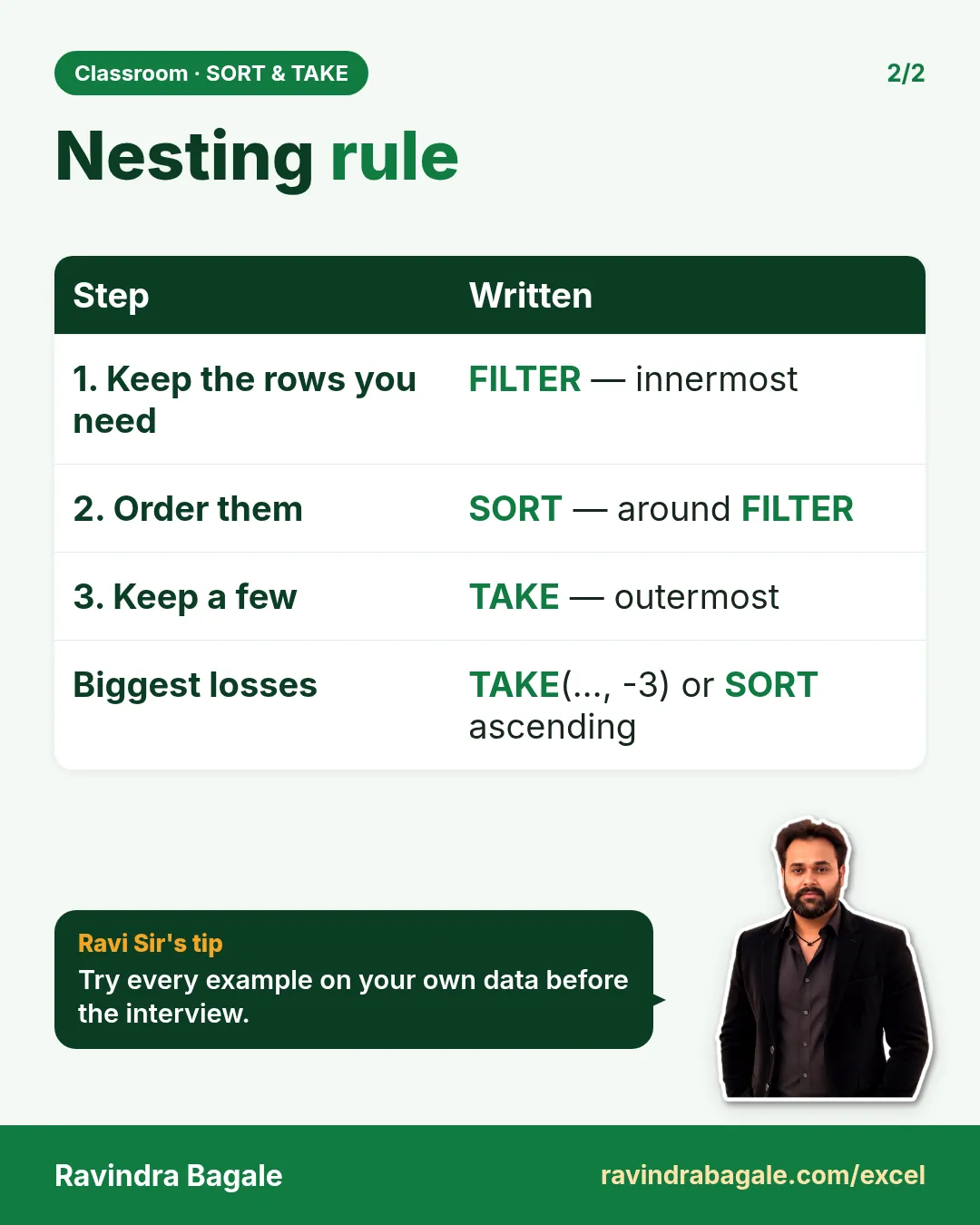
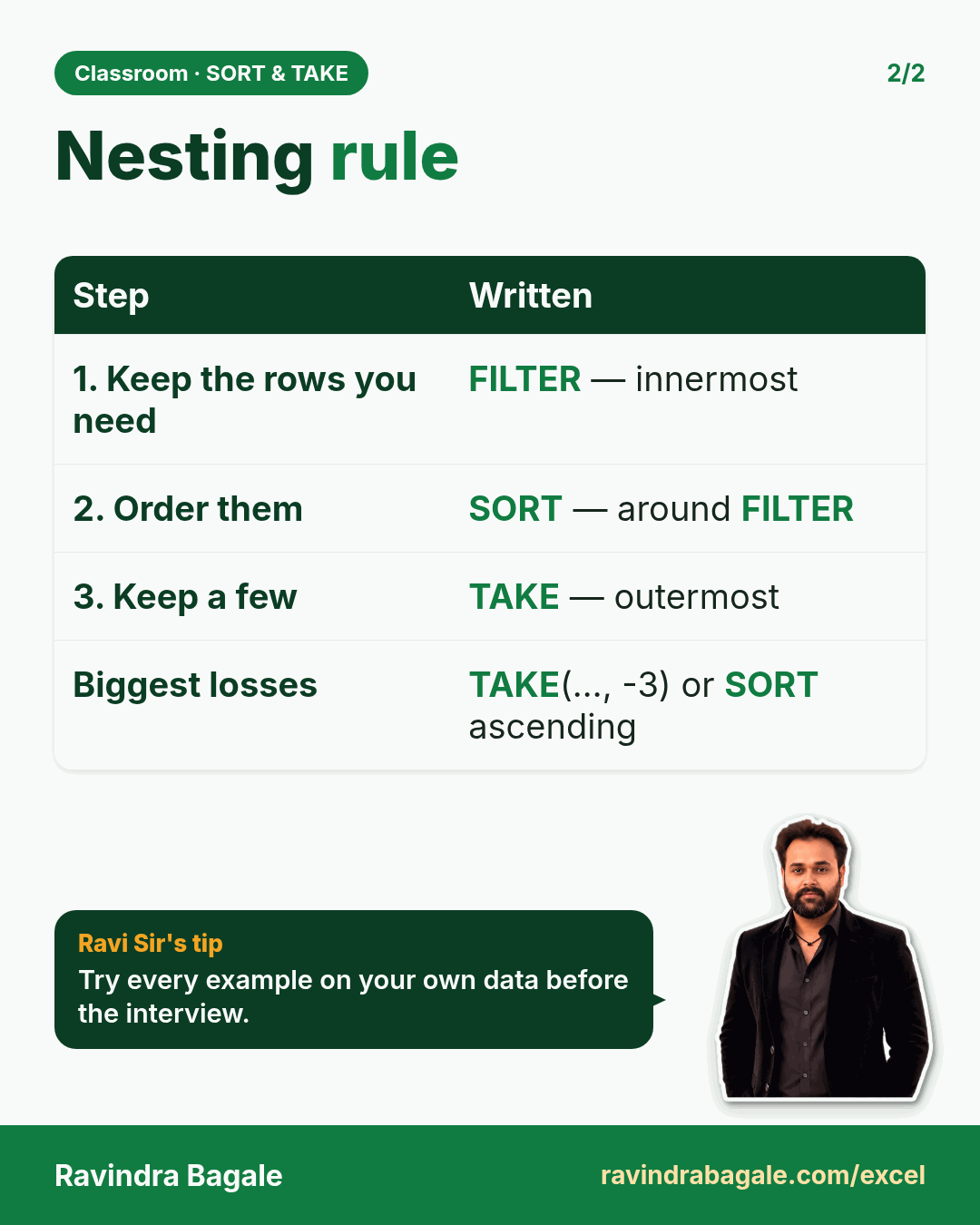
Revision card: Nesting rule. Covers 1. Keep the rows you need; 2. Order them; 3. Keep a few; Biggest losses. With a photo of Ravindra Bagale and a short tip.
Card 2 of 2: Nesting rule · Download PNG · Open card page

Data cleaning and Power Query

How to Understand a Dataset Before Analysis: Blinkit Quick Commerce Example (Business Questions)

Classroom · Understand Data · 2 cards · Open the chapter

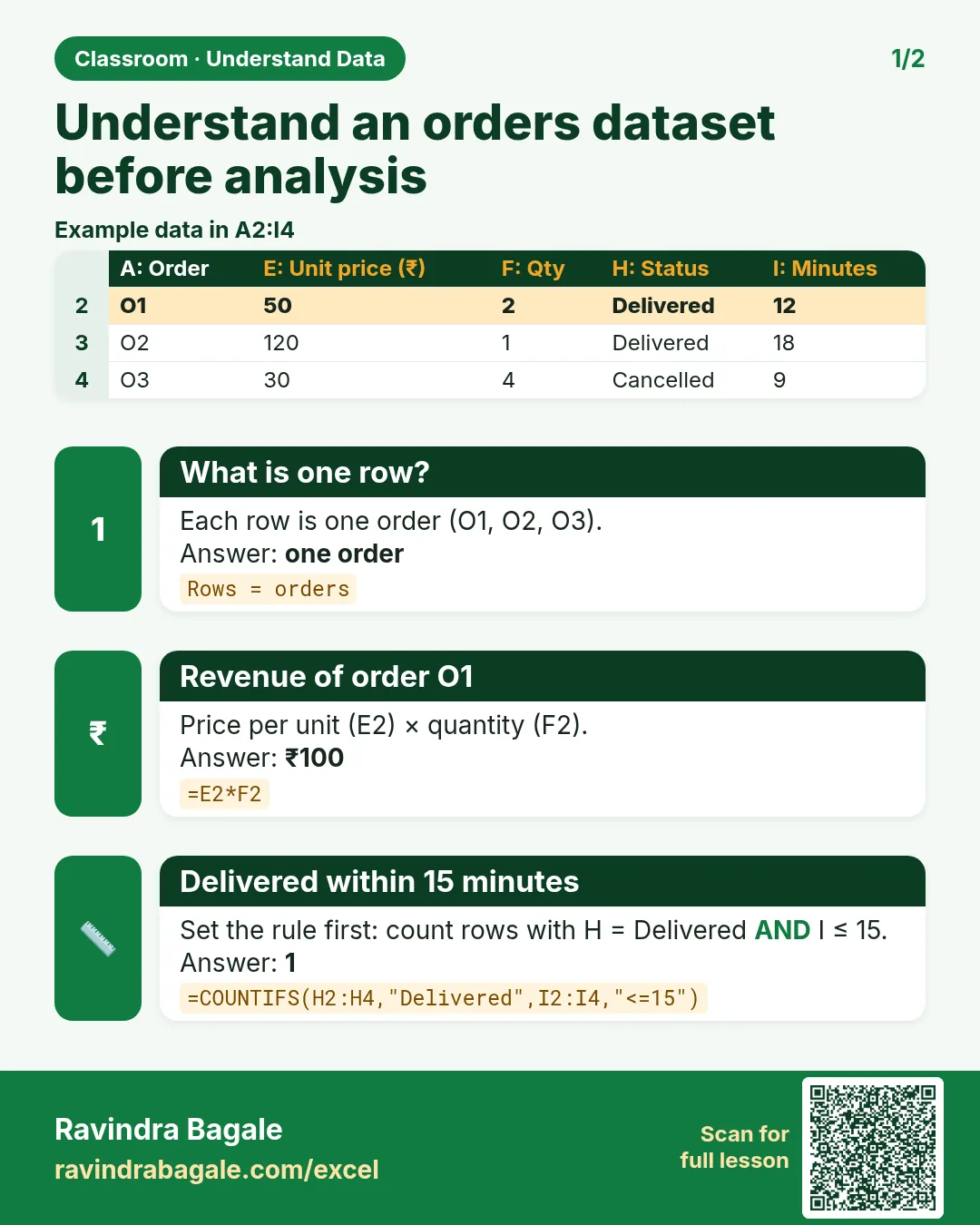
Revision card: Understand an orders dataset before analysis. Example data table with What is one row?: one order; Revenue of order O1: ₹100; Delivered within 15 minutes: 1.
Card 1 of 2: Understand an orders dataset before analysis · Download PNG · Open card page
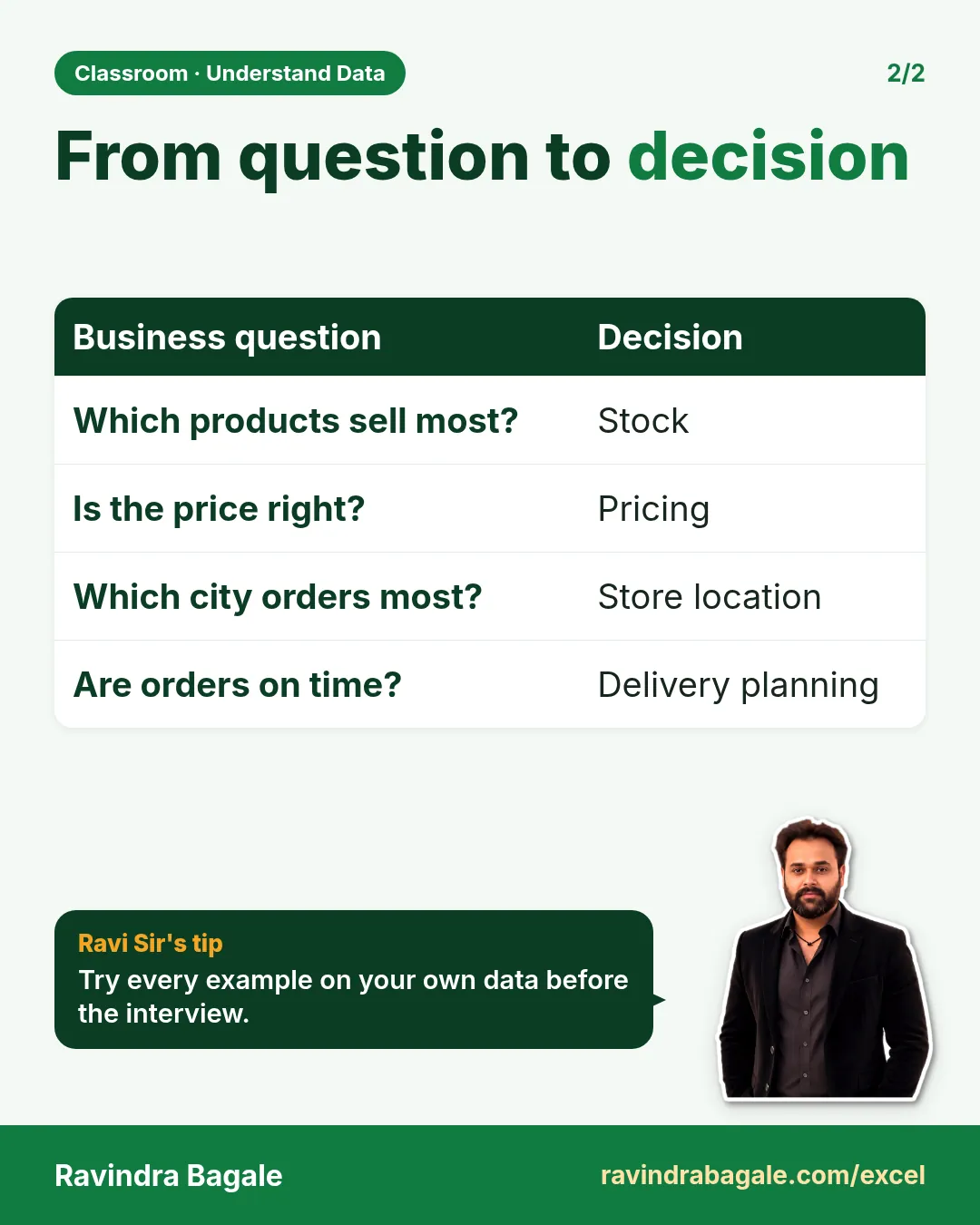
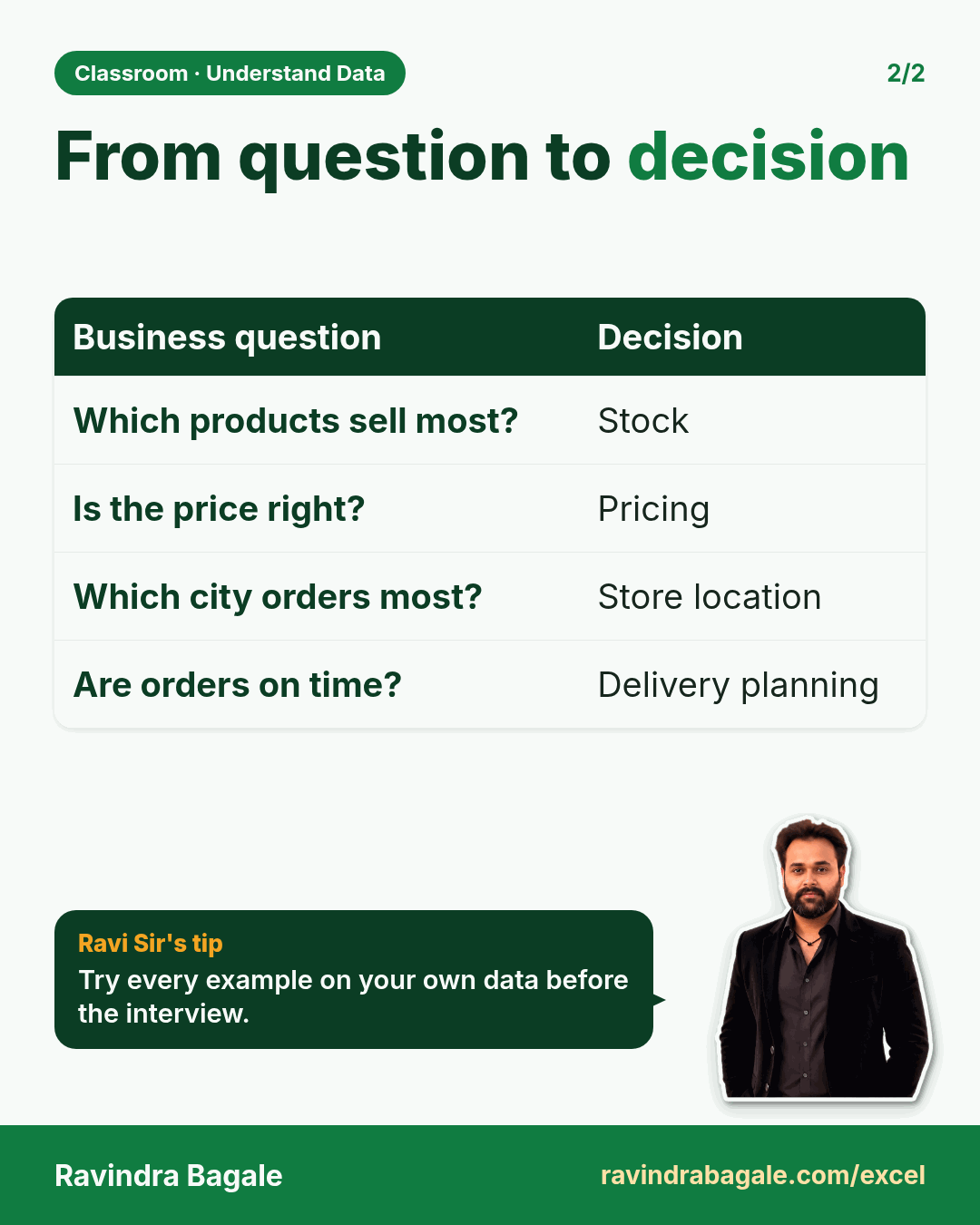
Revision card: From question to decision. Covers Which products sell most?; Is the price right?; Which city orders most?; Are orders on time?. With a photo of Ravindra Bagale and a short tip.
Card 2 of 2: From question to decision · Download PNG · Open card page

5. Data Cleaning A–Z

Ch 5 · Data Cleaning · 2 cards · Open the chapter

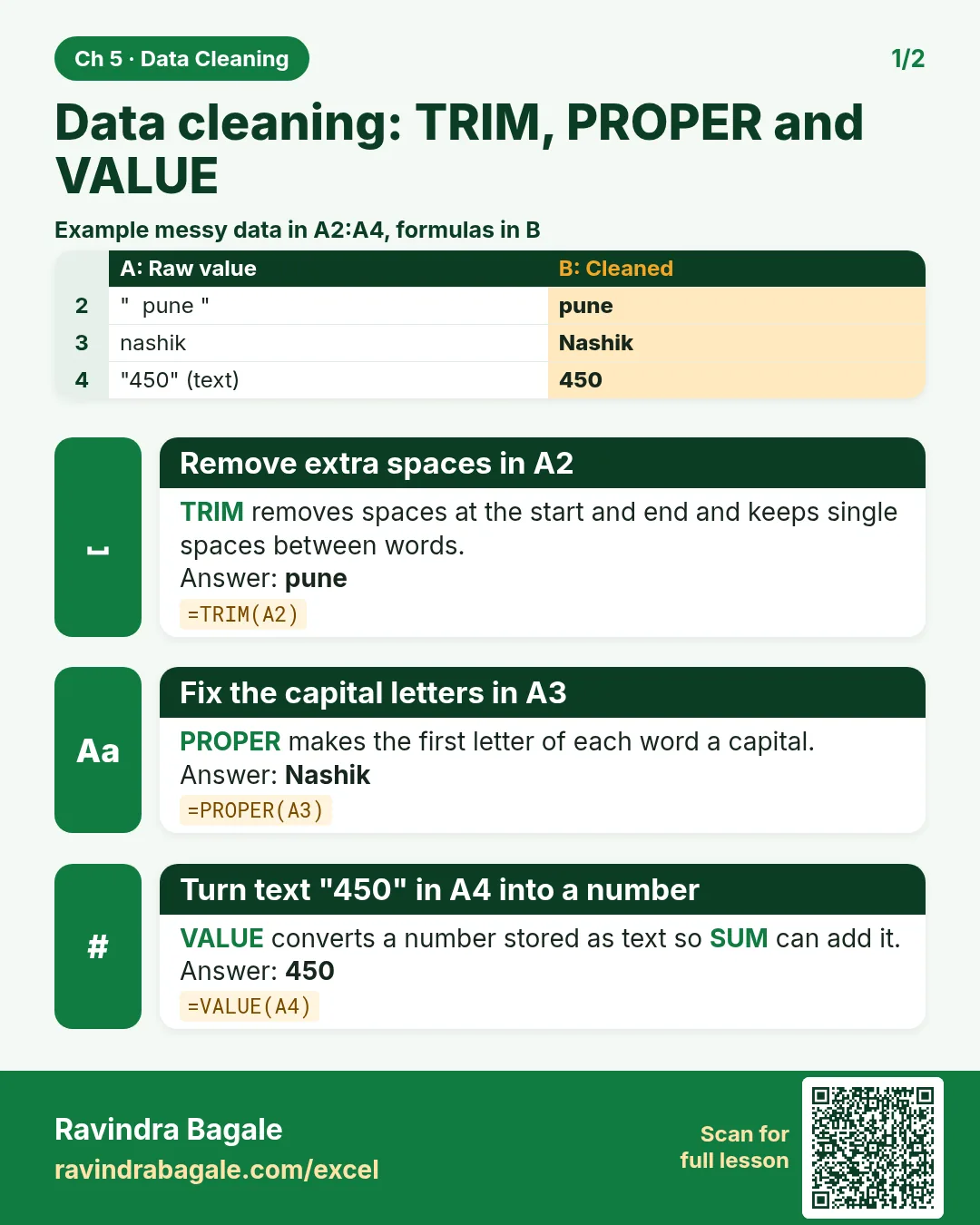
Revision card: Data cleaning: TRIM, PROPER and VALUE. Example data table with Remove extra spaces in A2: pune; Fix the capital letters in A3: Nashik; Turn text "450" in A4 into a number: 450.
Card 1 of 2: Data cleaning: TRIM, PROPER and VALUE · Download PNG · Open card page
Revision card: Cleaning: leading zeros, hidden spaces, text dates. Example data table with Code 007 typed as 7: 007; TRIM leaves a space after Salman in B2: Salman; Is C3 a real date?: FALSE.
Card 2 of 2: Cleaning: leading zeros, hidden spaces, text dates · Download PNG · Open card page

10. Power Query in Excel

Ch 10 · Power Query · 2 cards · Open the chapter

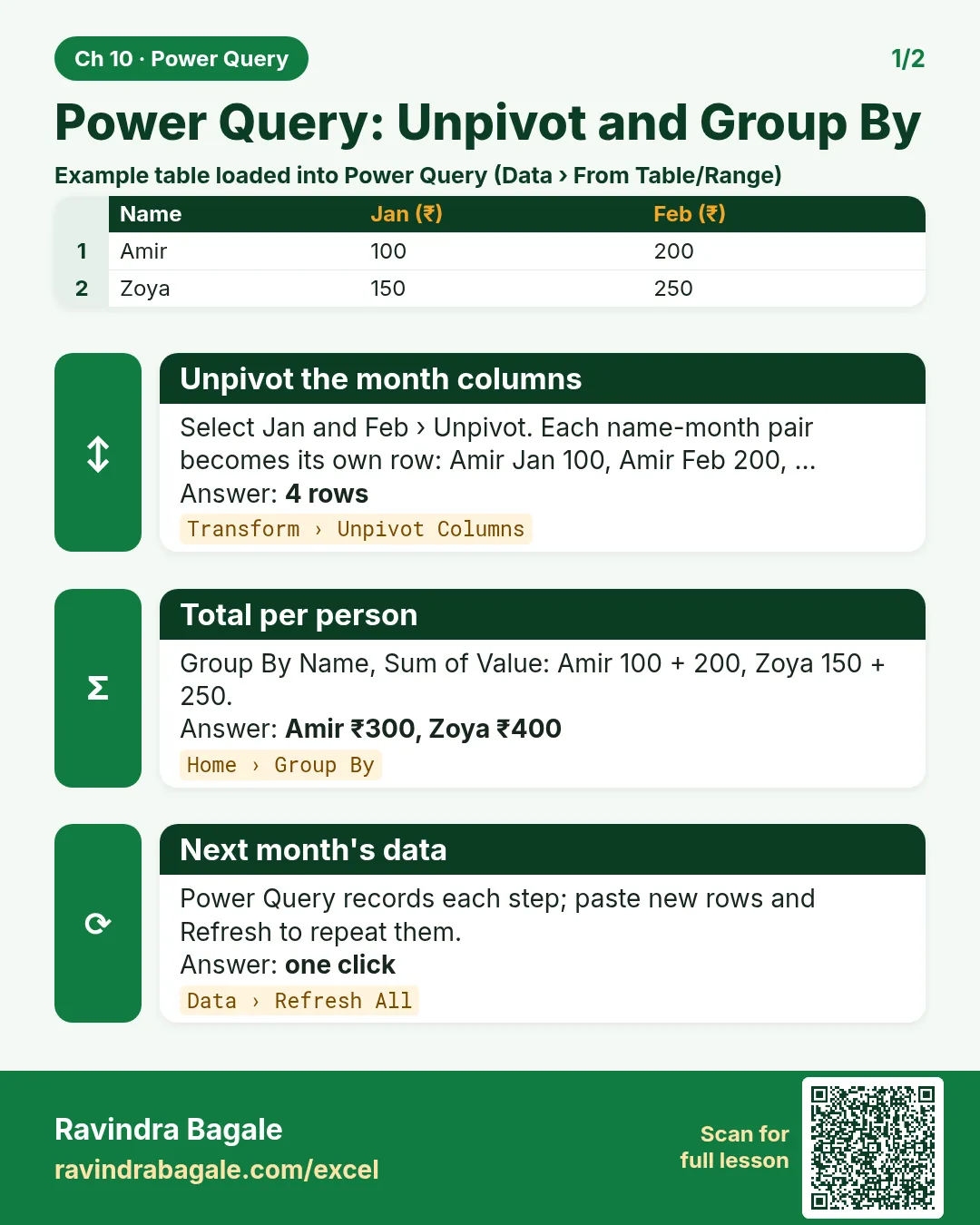
Revision card: Power Query: Unpivot and Group By. Example data table with Unpivot the month columns: 4 rows; Total per person: Amir ₹300, Zoya ₹400; Next month's data: one click.
Card 1 of 2: Power Query: Unpivot and Group By · Download PNG · Open card page
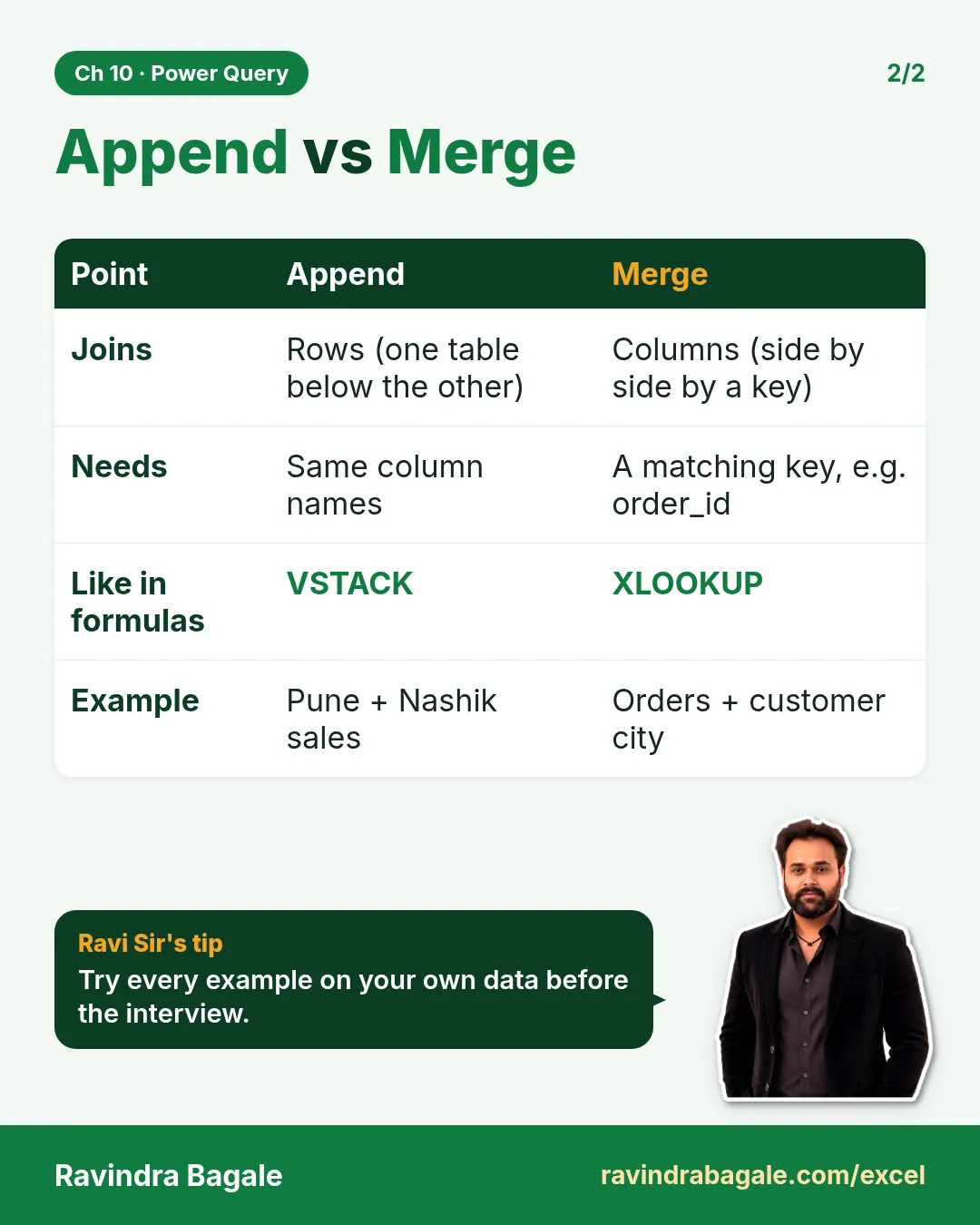
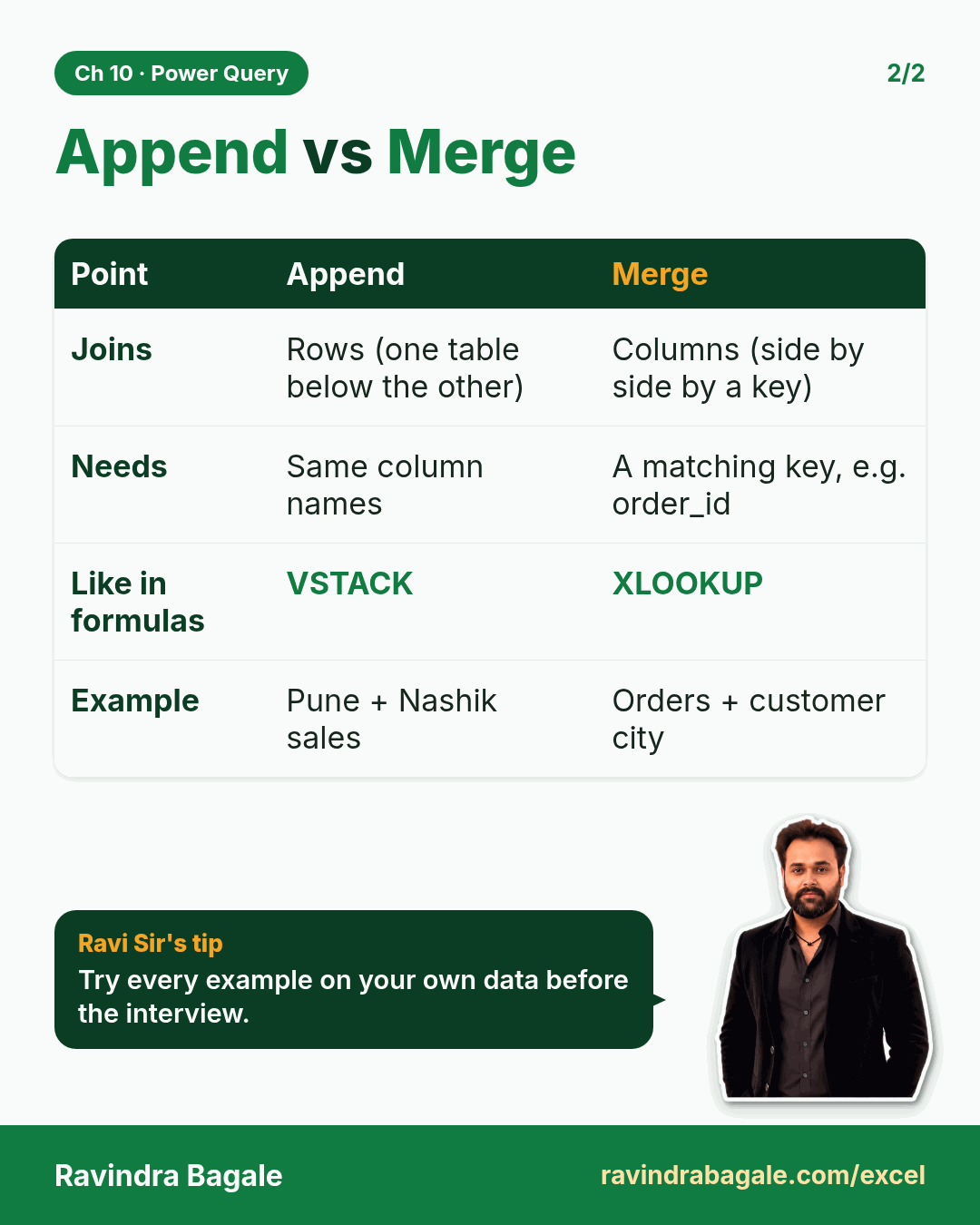
Revision card: Append vs Merge. Covers Joins; Needs; Like in formulas; Example. With a photo of Ravindra Bagale and a short tip.
Card 2 of 2: Append vs Merge · Download PNG · Open card page

Power Query in Excel for Beginners: Import a CSV, Remove Top Rows, Remove Duplicates, Column Quality and Date Locale

Classroom · Power Query Import · 2 cards · Open the chapter

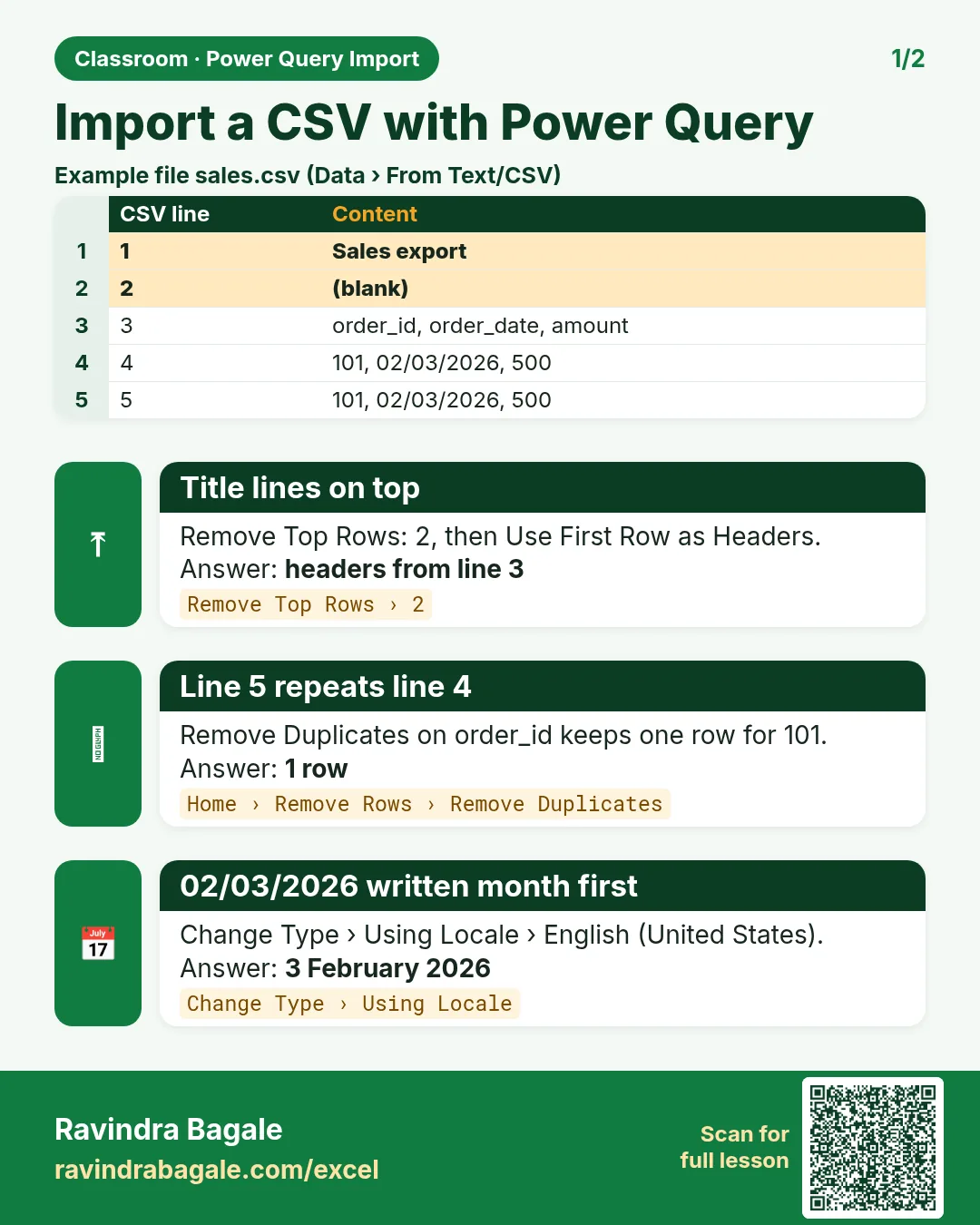
Revision card: Import a CSV with Power Query. Example data table with Title lines on top: headers from line 3; Line 5 repeats line 4: 1 row; 02/03/2026 written month first: 3 February 2026.
Card 1 of 2: Import a CSV with Power Query · Download PNG · Open card page
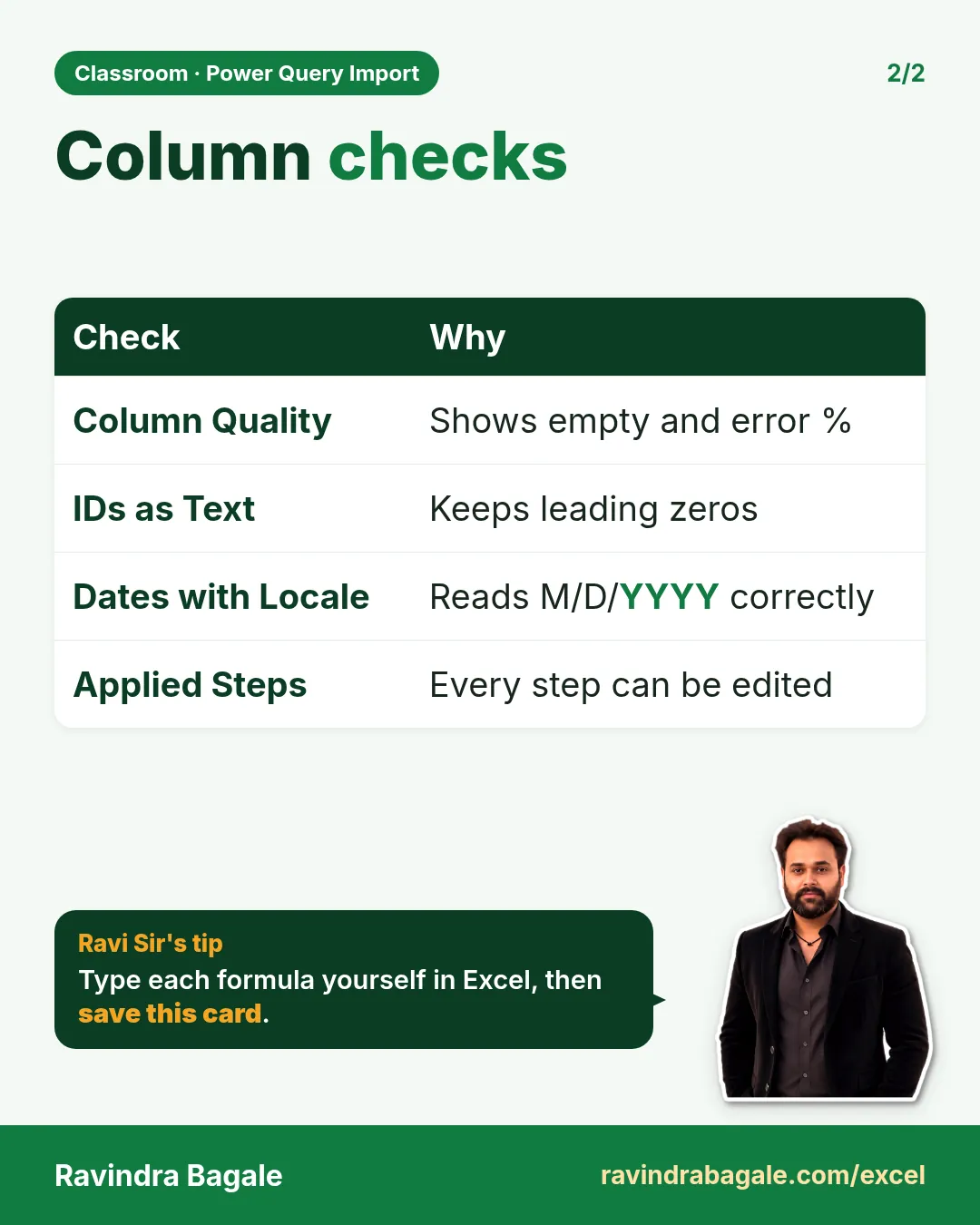
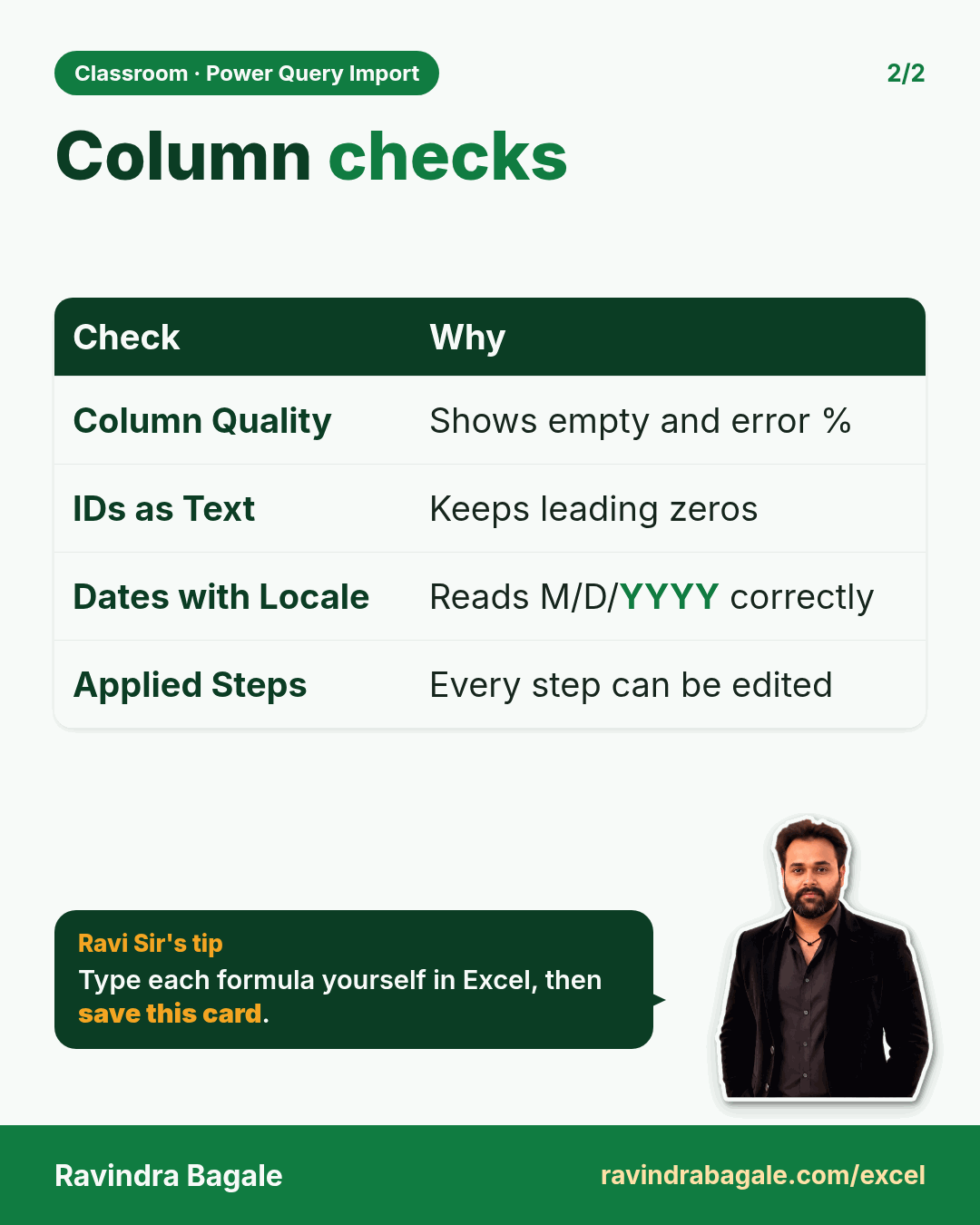
Revision card: Column checks. Covers Column Quality; IDs as Text; Dates with Locale; Applied Steps. With a photo of Ravindra Bagale and a short tip.
Card 2 of 2: Column checks · Download PNG · Open card page

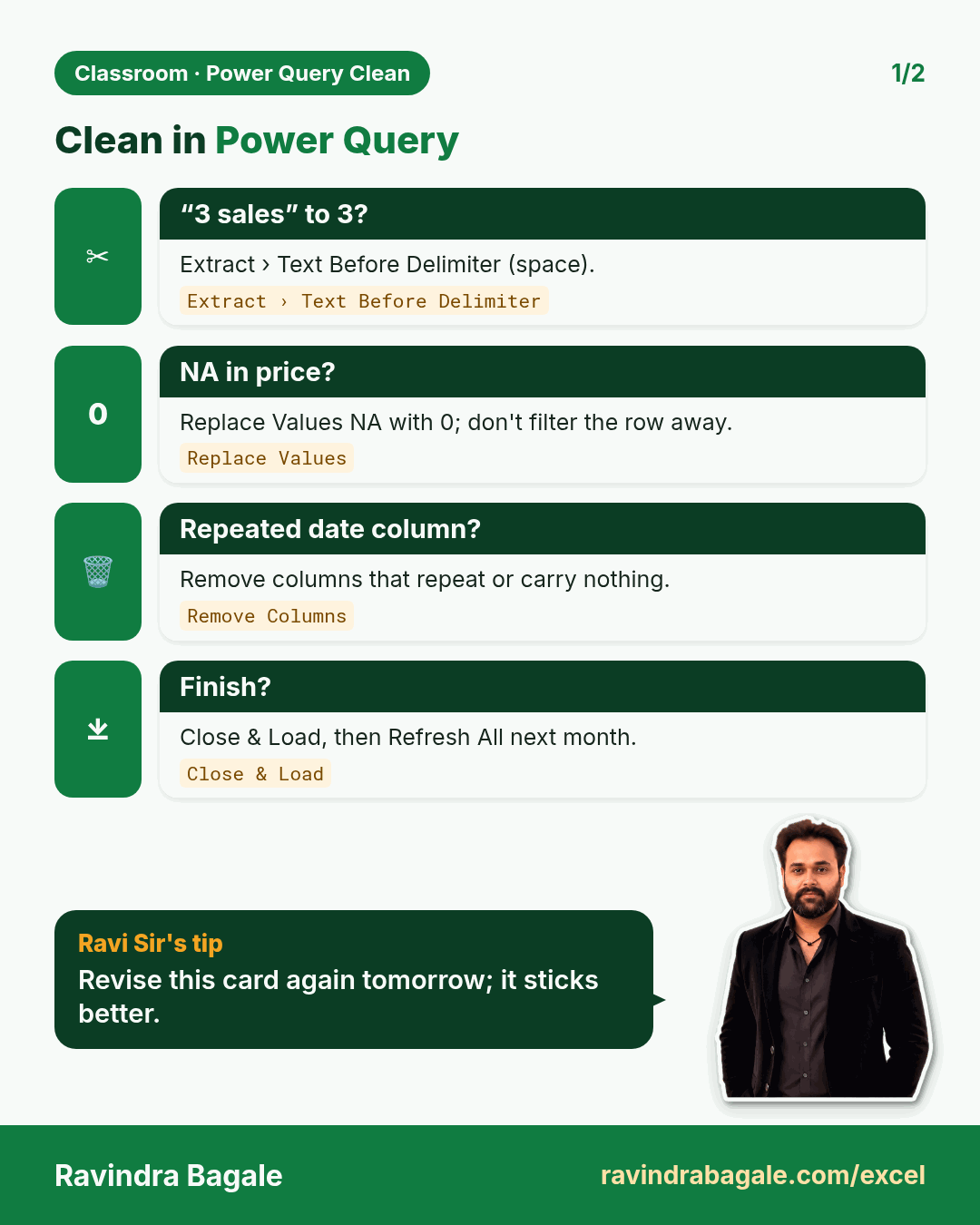
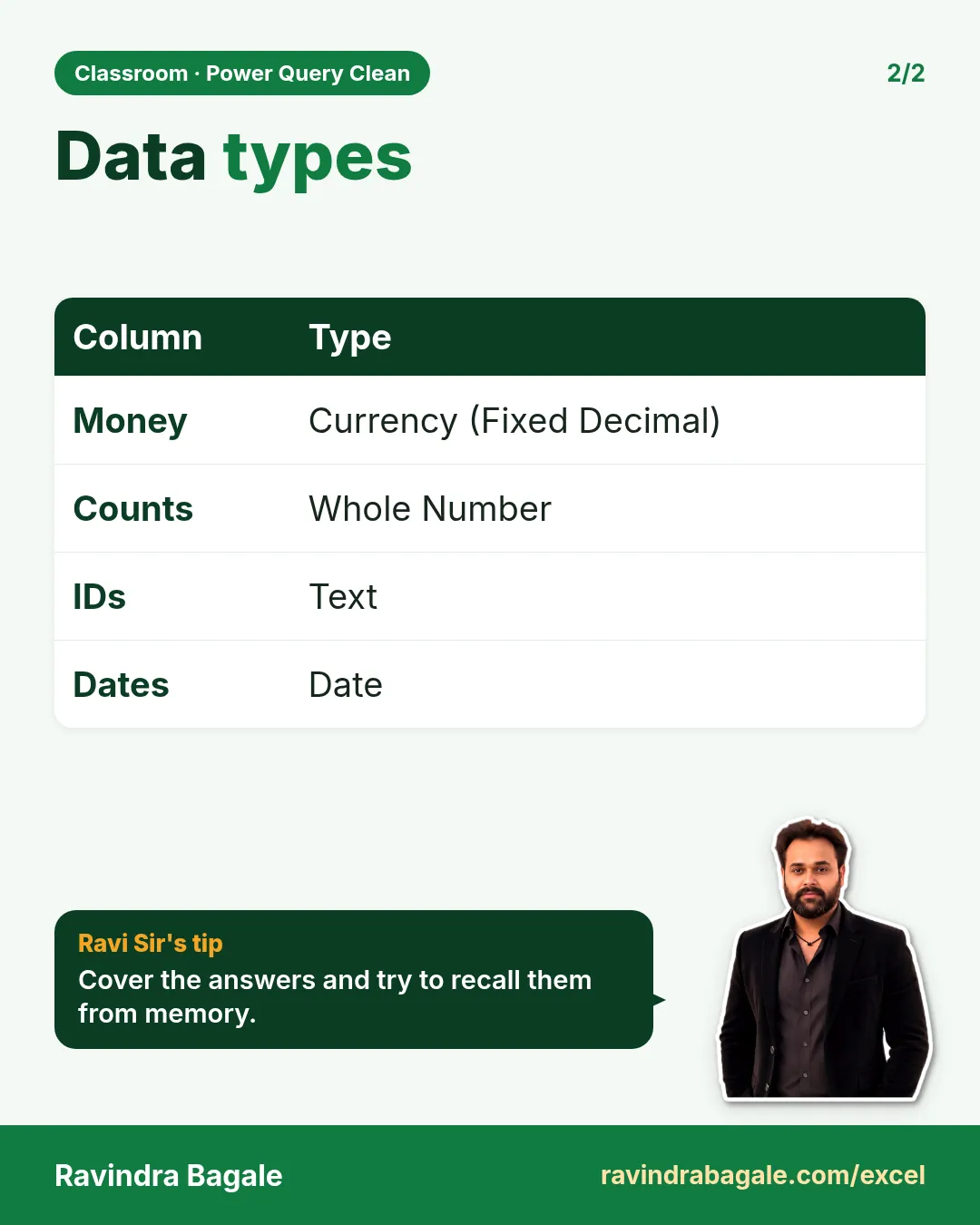
Clean Data in Excel Power Query: Extract Text Before Delimiter, Replace NA with 0, Data Types, Remove Columns and Close & Load

Classroom · Power Query Clean · 2 cards · Open the chapter

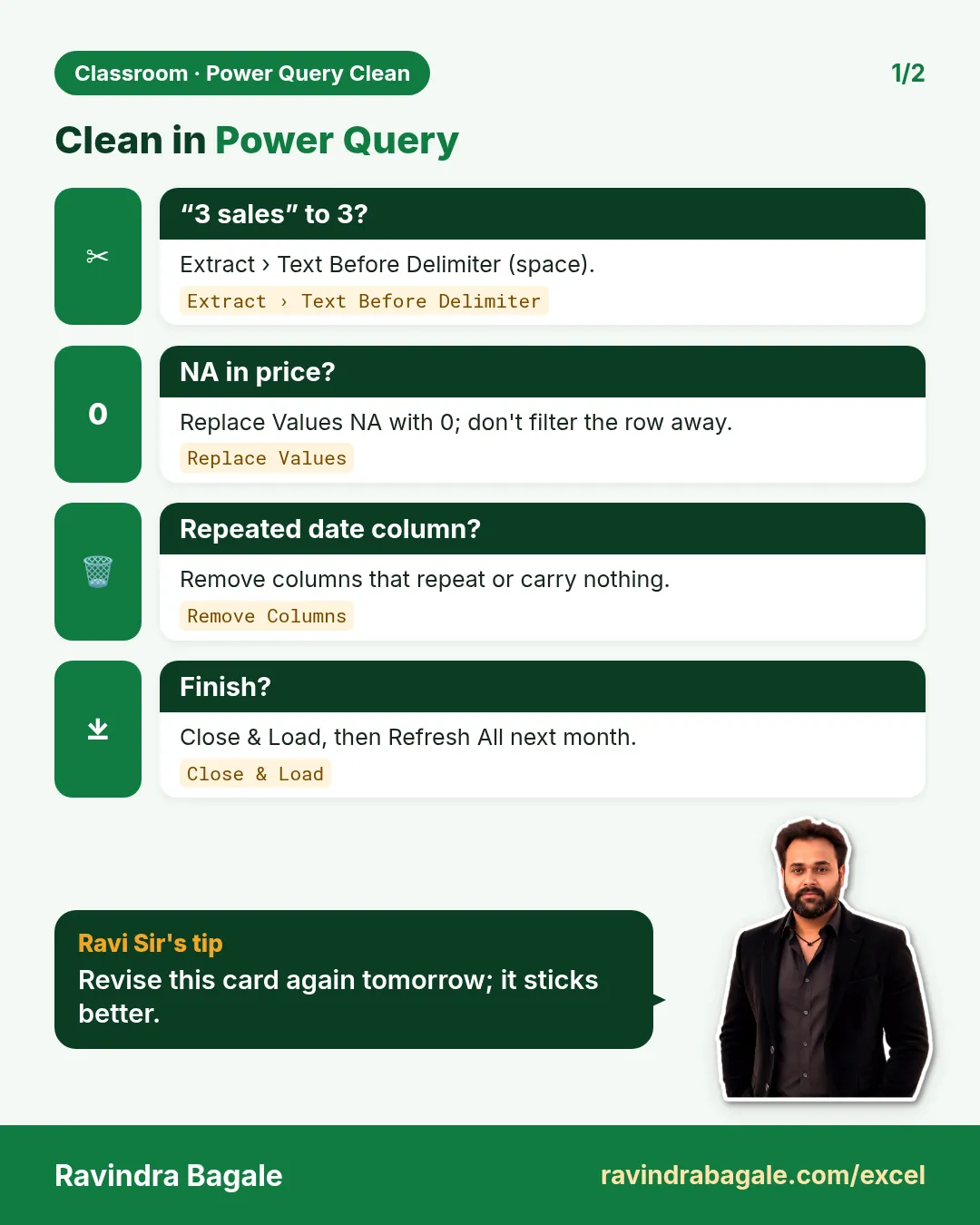
Revision card: Clean in Power Query. Covers “3 sales” to 3?; NA in price?; Repeated date column?; Finish?. With a photo of Ravindra Bagale and a short tip.
Card 1 of 2: Clean in Power Query · Download PNG · Open card page
Revision card: Data types. Covers Money; Counts; IDs; Dates. With a photo of Ravindra Bagale and a short tip.
Card 2 of 2: Data types · Download PNG · Open card page

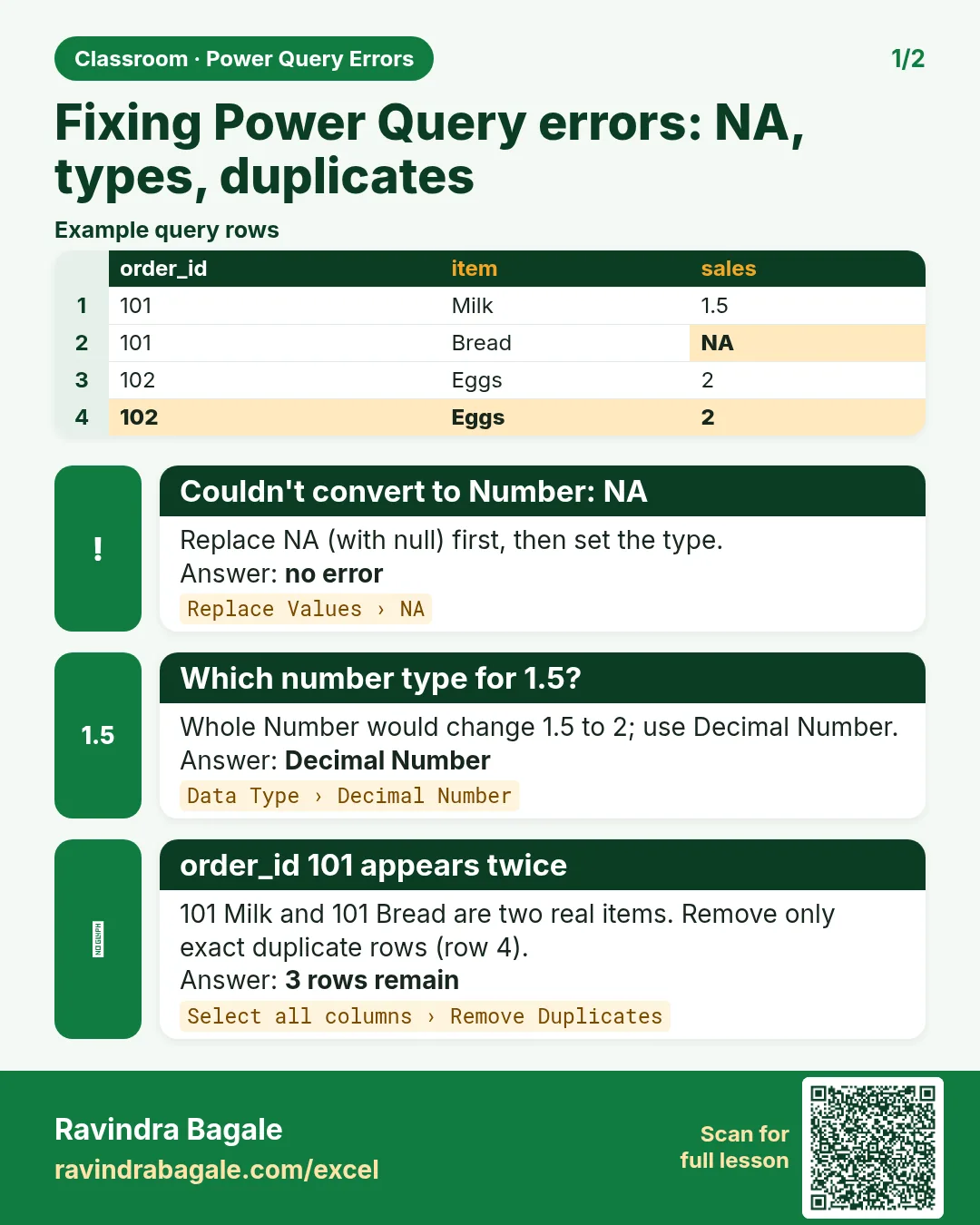
Power Query: Fix DataFormat.Error with NA, US Dates (M/D/YYYY) with Locale, Decimal Sales and Duplicate Rows vs Keys

Classroom · Power Query Errors · 2 cards · Open the chapter

Revision card: Fixing Power Query errors: NA, types, duplicates. Example data table with Couldn't convert to Number: NA: no error; Which number type for 1.5?: Decimal Number; order_id 101 appears twice: 3 rows remain.
Card 1 of 2: Fixing Power Query errors: NA, types, duplicates · Download PNG · Open card page
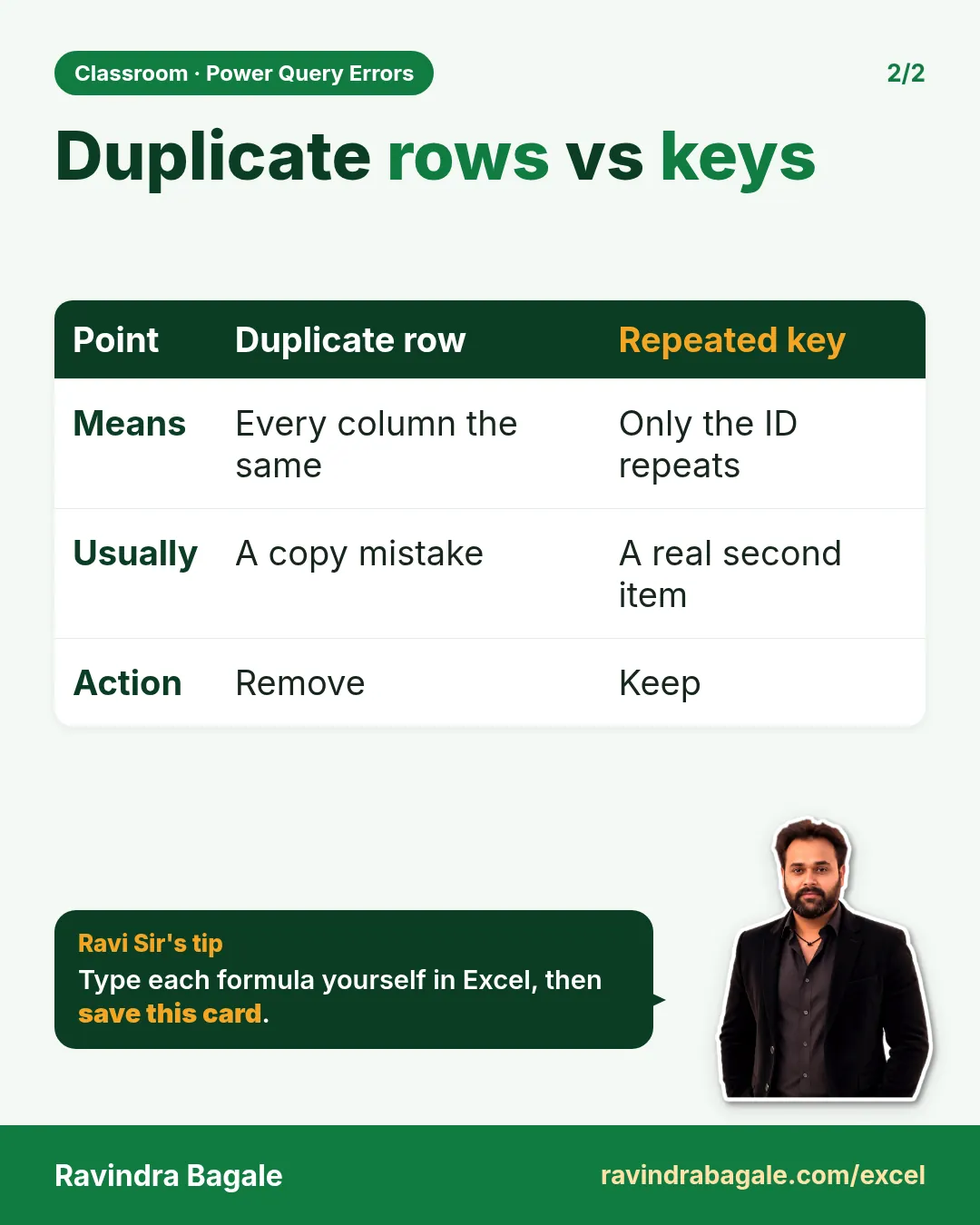
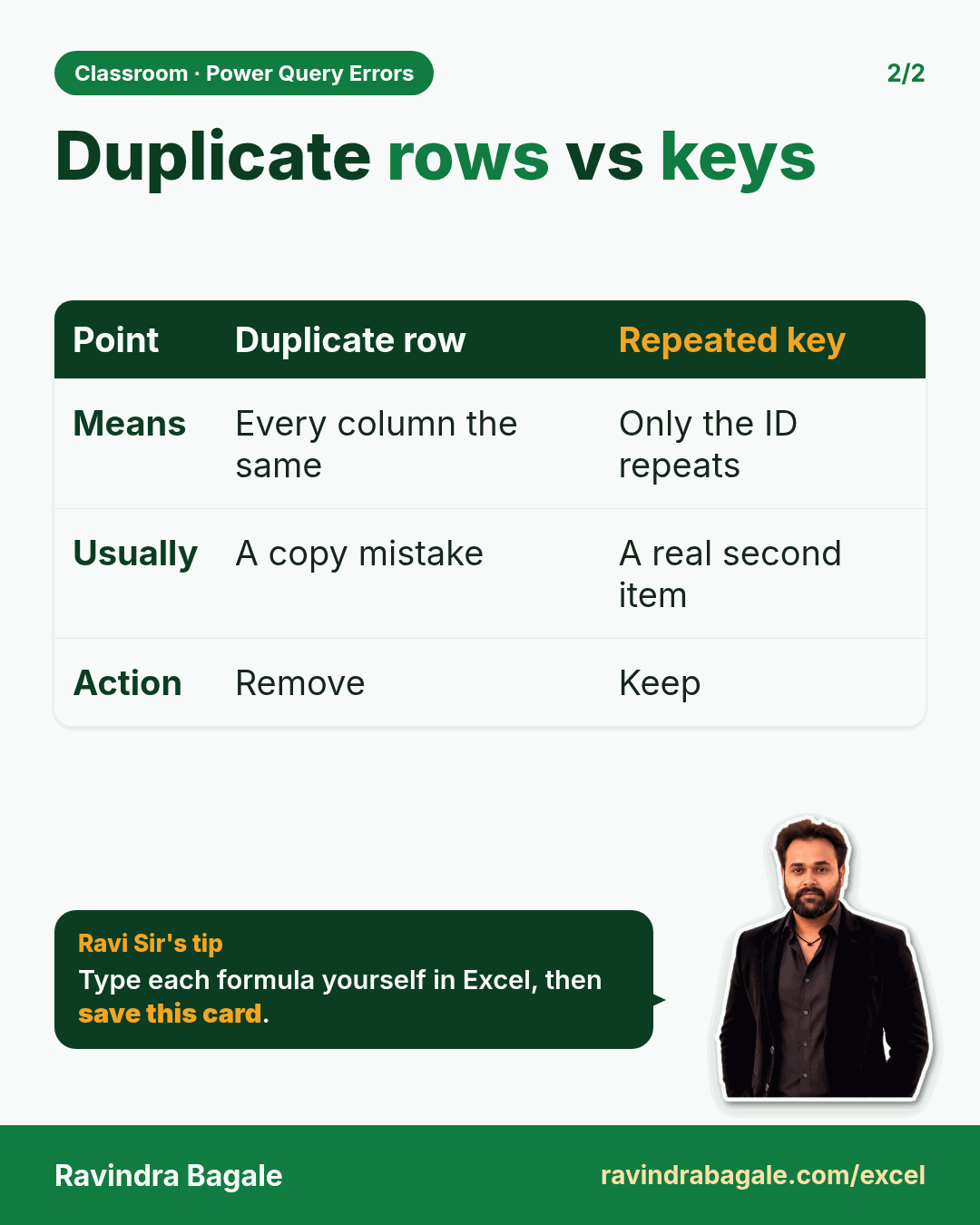
Revision card: Duplicate rows vs keys. Covers Means; Usually; Action. With a photo of Ravindra Bagale and a short tip.
Card 2 of 2: Duplicate rows vs keys · Download PNG · Open card page

Tables and PivotTables

6. Tables, Sorting and Filtering

Ch 6 · Tables · 2 cards · Open the chapter

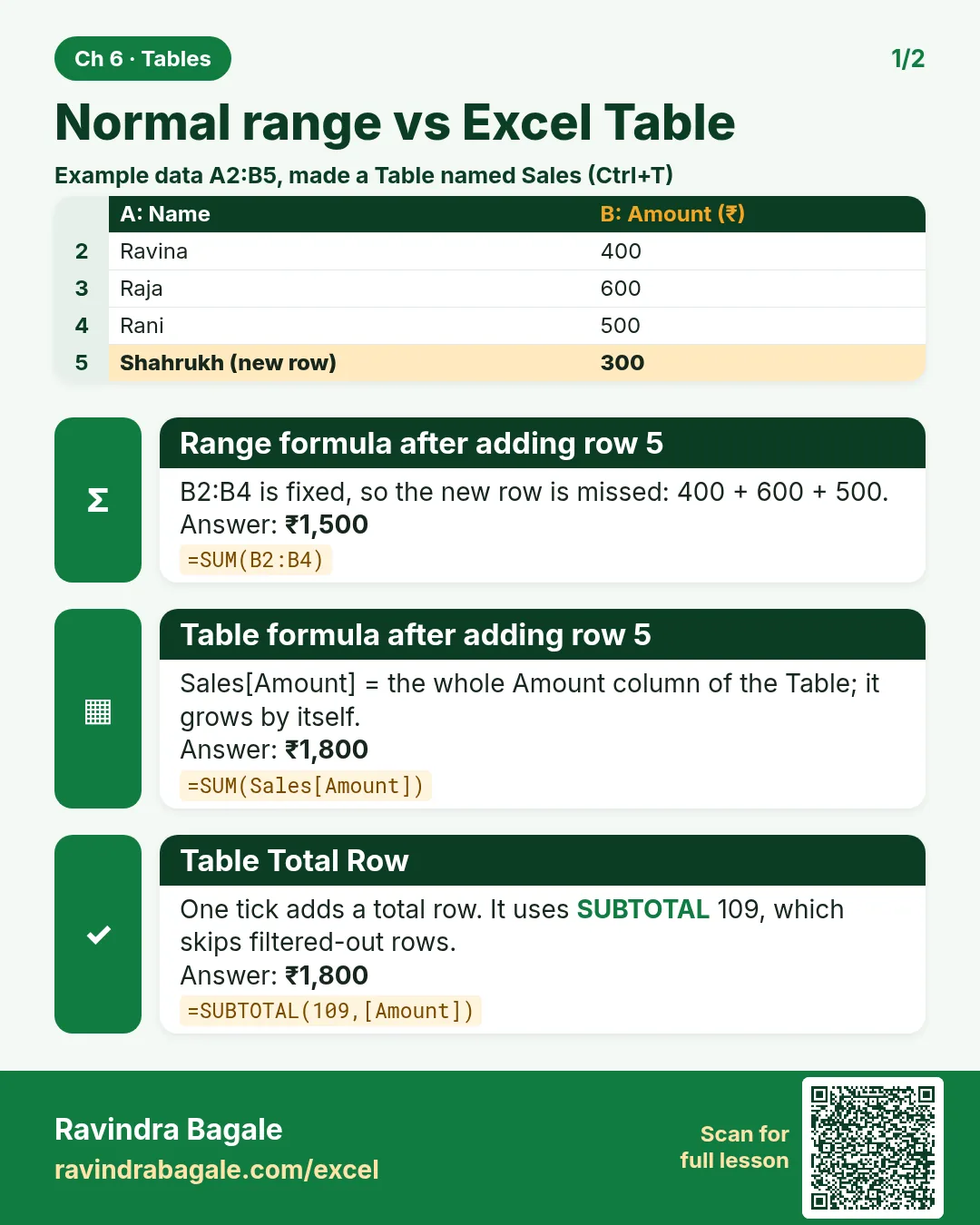
Revision card: Normal range vs Excel Table. Example data table with Range formula after adding row 5: ₹1,500; Table formula after adding row 5: ₹1,800; Table Total Row: ₹1,800.
Card 1 of 2: Normal range vs Excel Table · Download PNG · Open card page
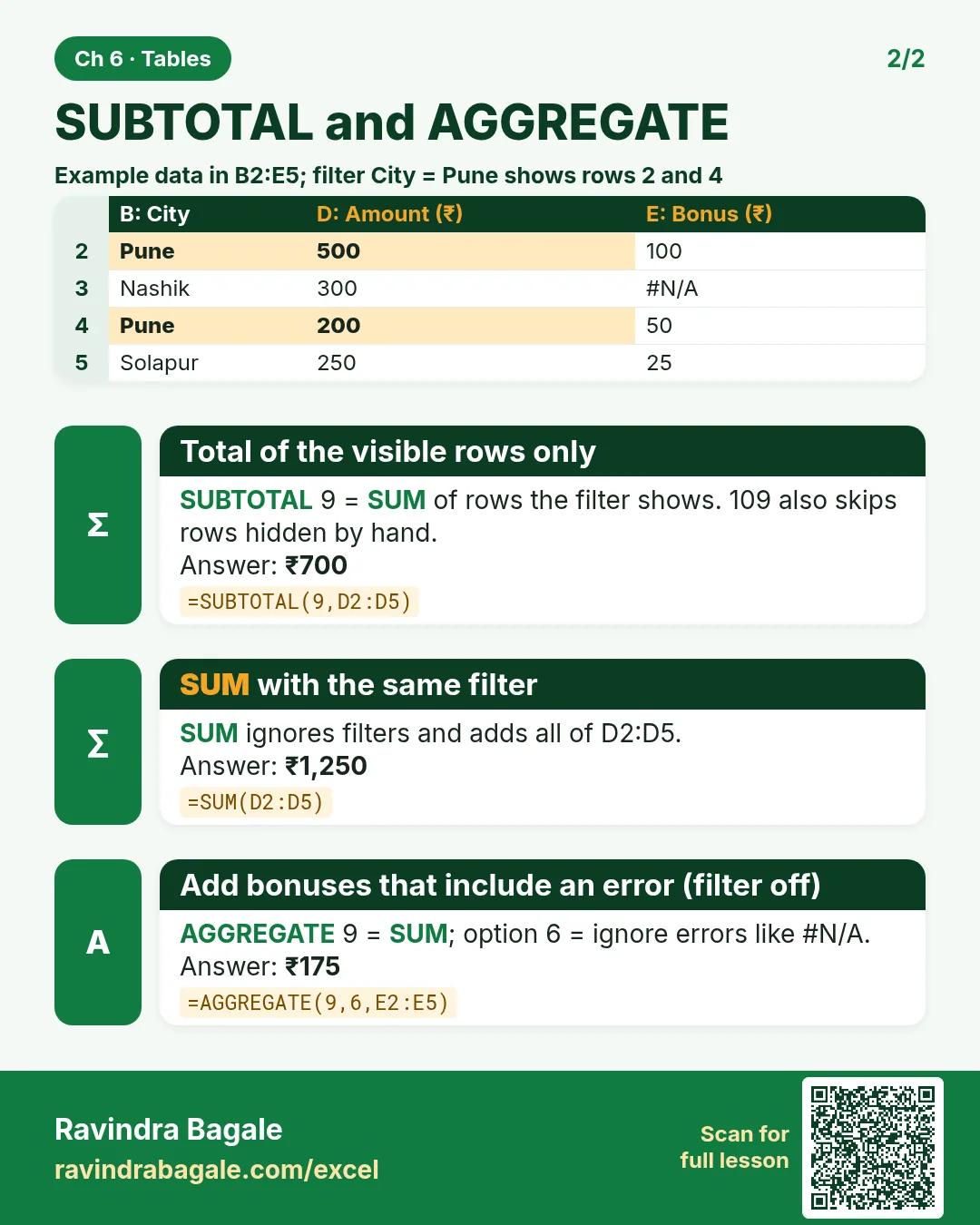
Revision card: SUBTOTAL and AGGREGATE. Example data table with Total of the visible rows only: ₹700; SUM with the same filter: ₹1,250; Add bonuses that include an error (filter off): ₹175.
Card 2 of 2: SUBTOTAL and AGGREGATE · Download PNG · Open card page

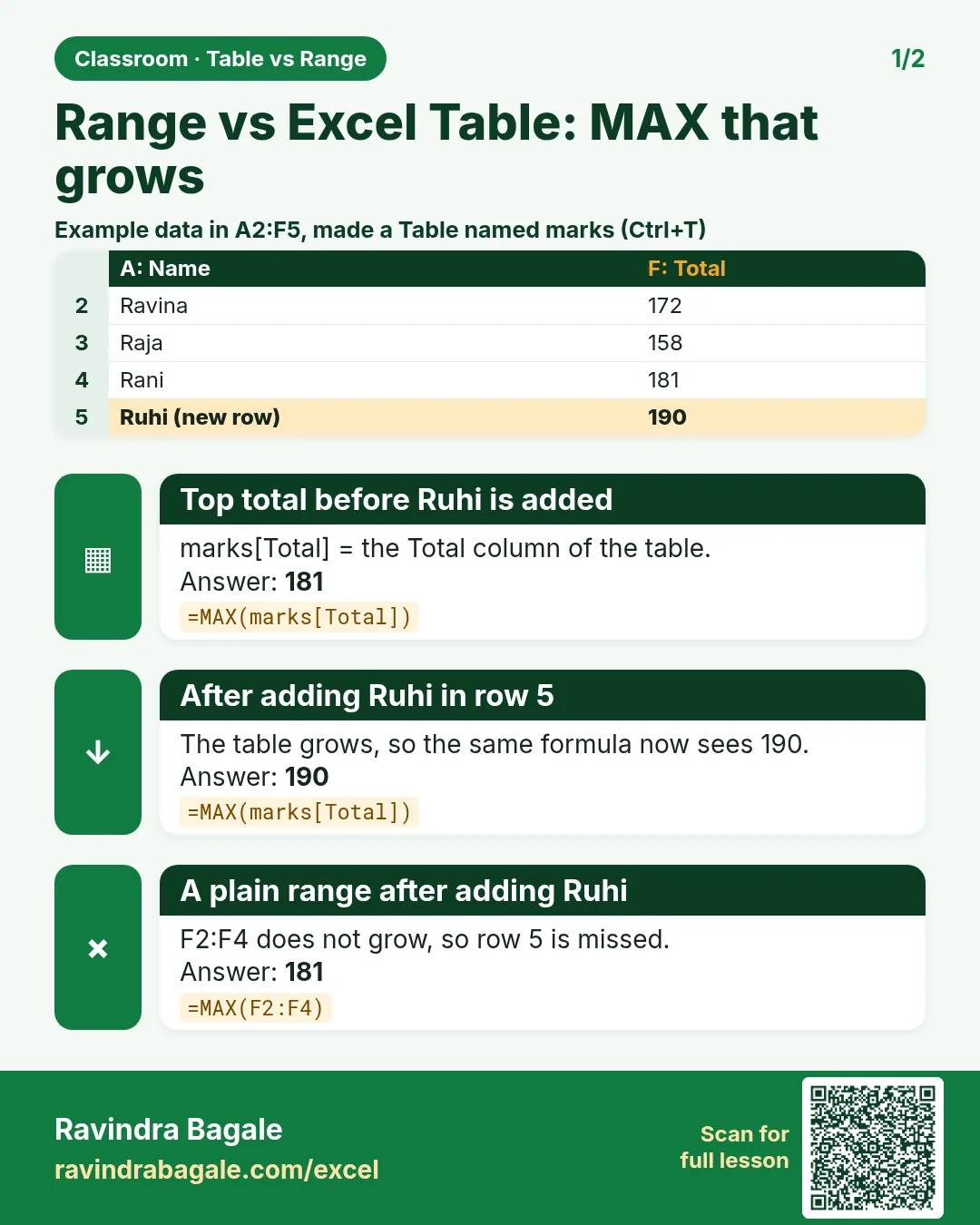
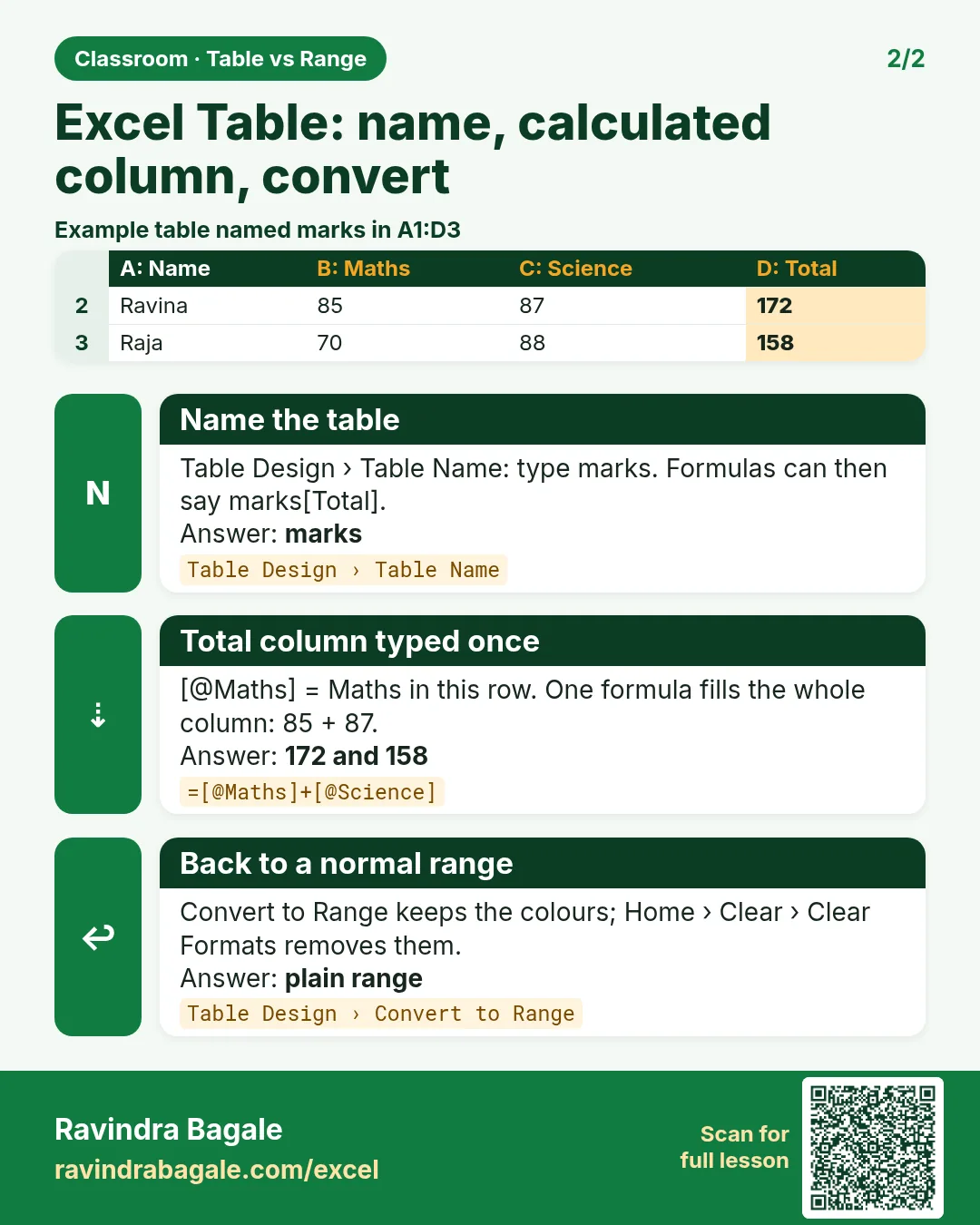
Excel Table vs Range: Ctrl+T, Sort, Filter, Table Name and Structured References like =MAX(marks[Total])

Classroom · Table vs Range · 2 cards · Open the chapter

Revision card: Range vs Excel Table: MAX that grows. Example data table with Top total before Ruhi is added: 181; After adding Ruhi in row 5: 190; A plain range after adding Ruhi: 181.
Card 1 of 2: Range vs Excel Table: MAX that grows · Download PNG · Open card page
Revision card: Excel Table: name, calculated column, convert. Example data table with Name the table: marks; Total column typed once: 172 and 158; Back to a normal range: plain range.
Card 2 of 2: Excel Table: name, calculated column, convert · Download PNG · Open card page

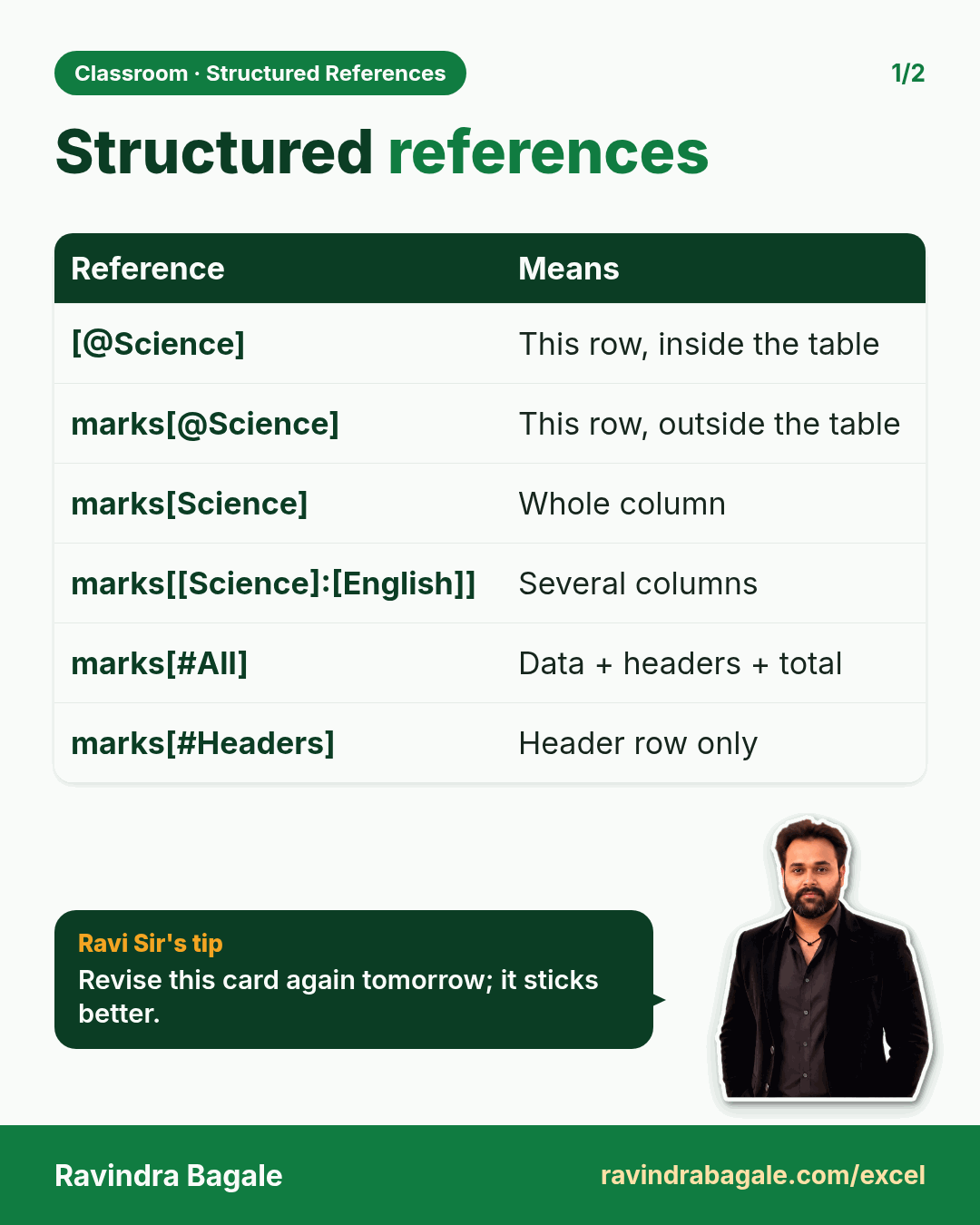
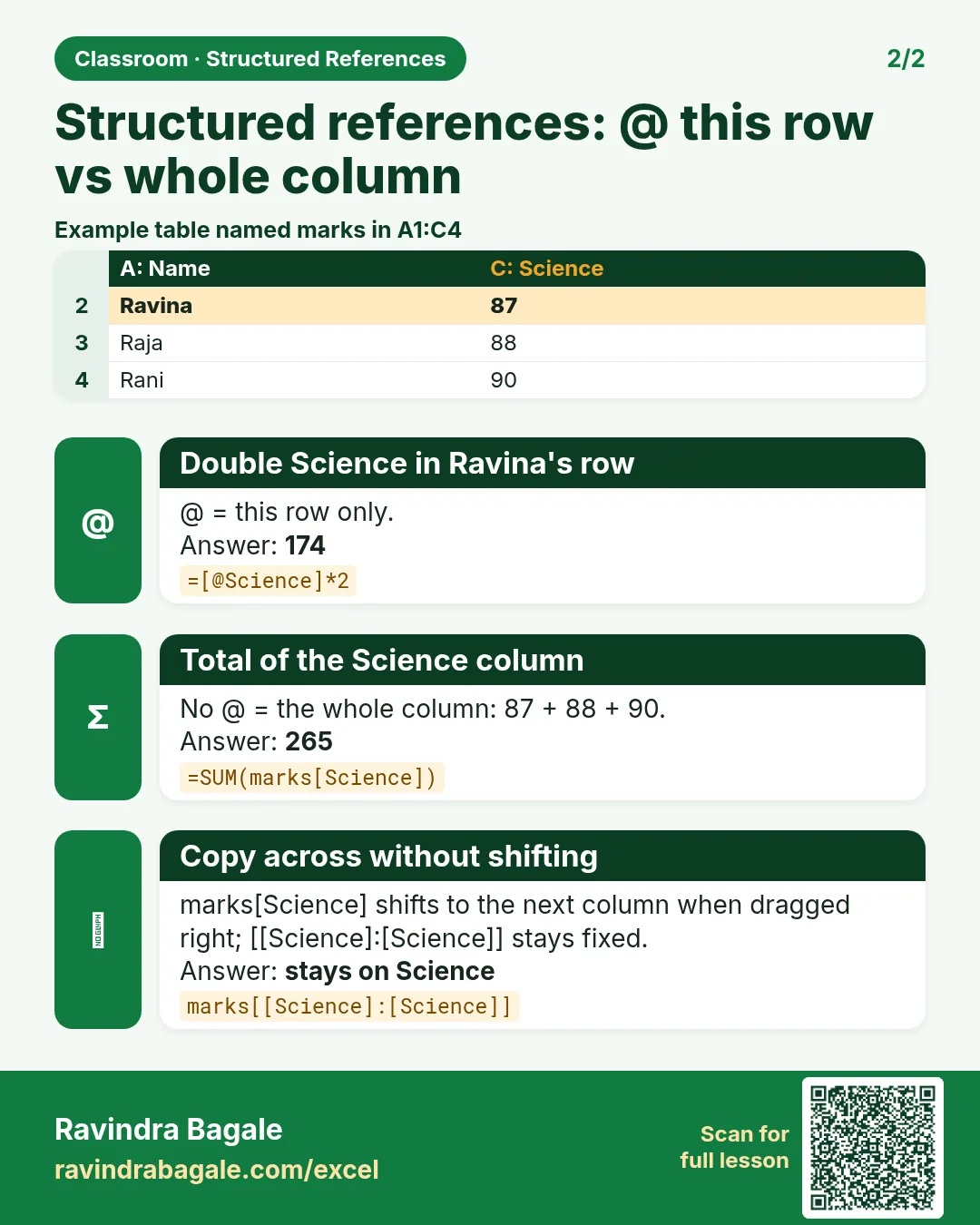
Excel Structured References Explained: [@Column] This Row, Calculated Columns and Table Name Inside vs Outside the Table

Classroom · Structured References · 2 cards · Open the chapter

Revision card: Structured references. Covers [@Science]; marks[@Science]; marks[Science]; marks[[Science]:[English]]; marks[#All]; marks[#Headers]. With a photo of Ravindra Bagale and a short tip.
Card 1 of 2: Structured references · Download PNG · Open card page
Revision card: Structured references: @ this row vs whole column. Example data table with Double Science in Ravina's row: 174; Total of the Science column: 265; Copy across without shifting: stays on Science.
Card 2 of 2: Structured references: @ this row vs whole column · Download PNG · Open card page

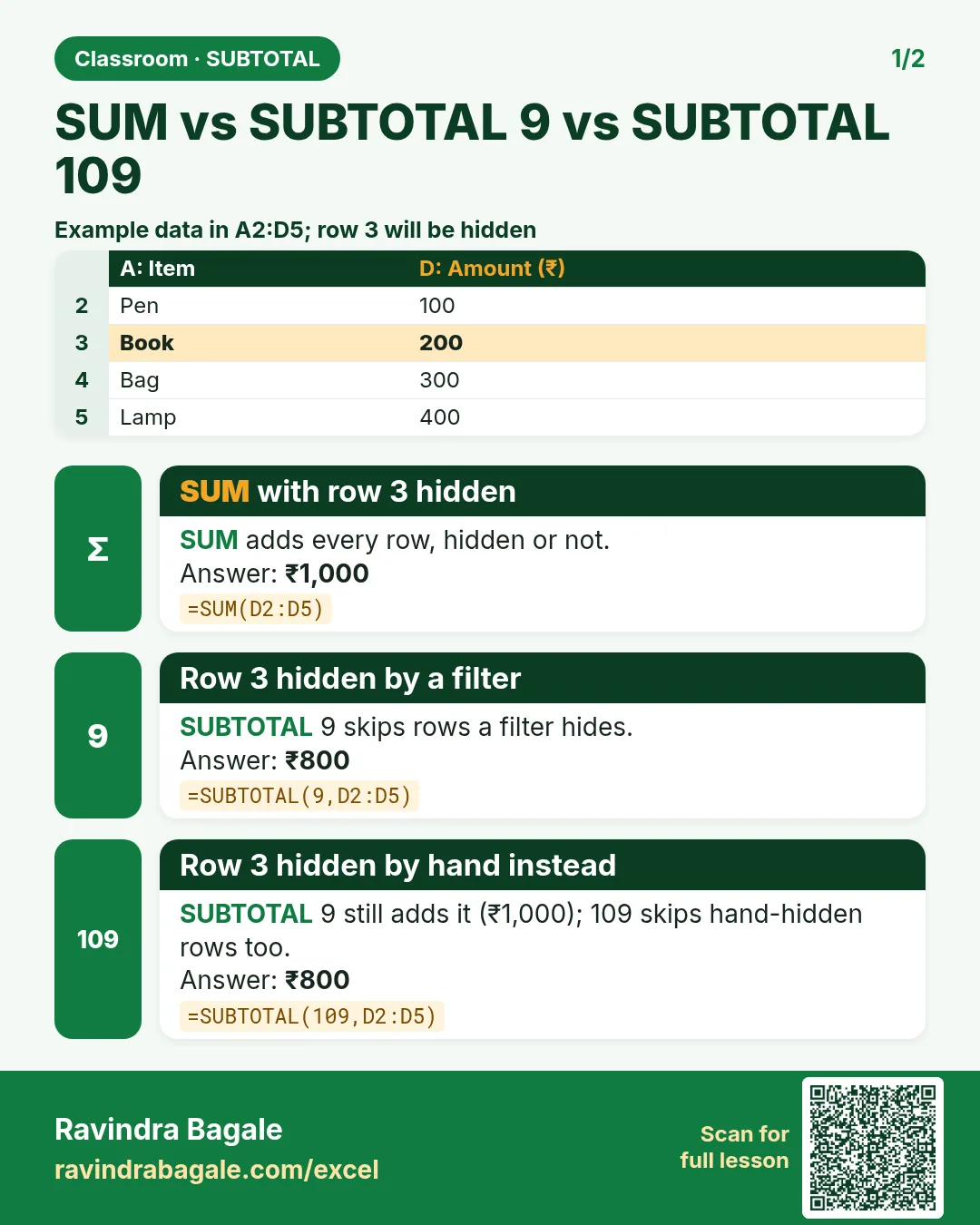
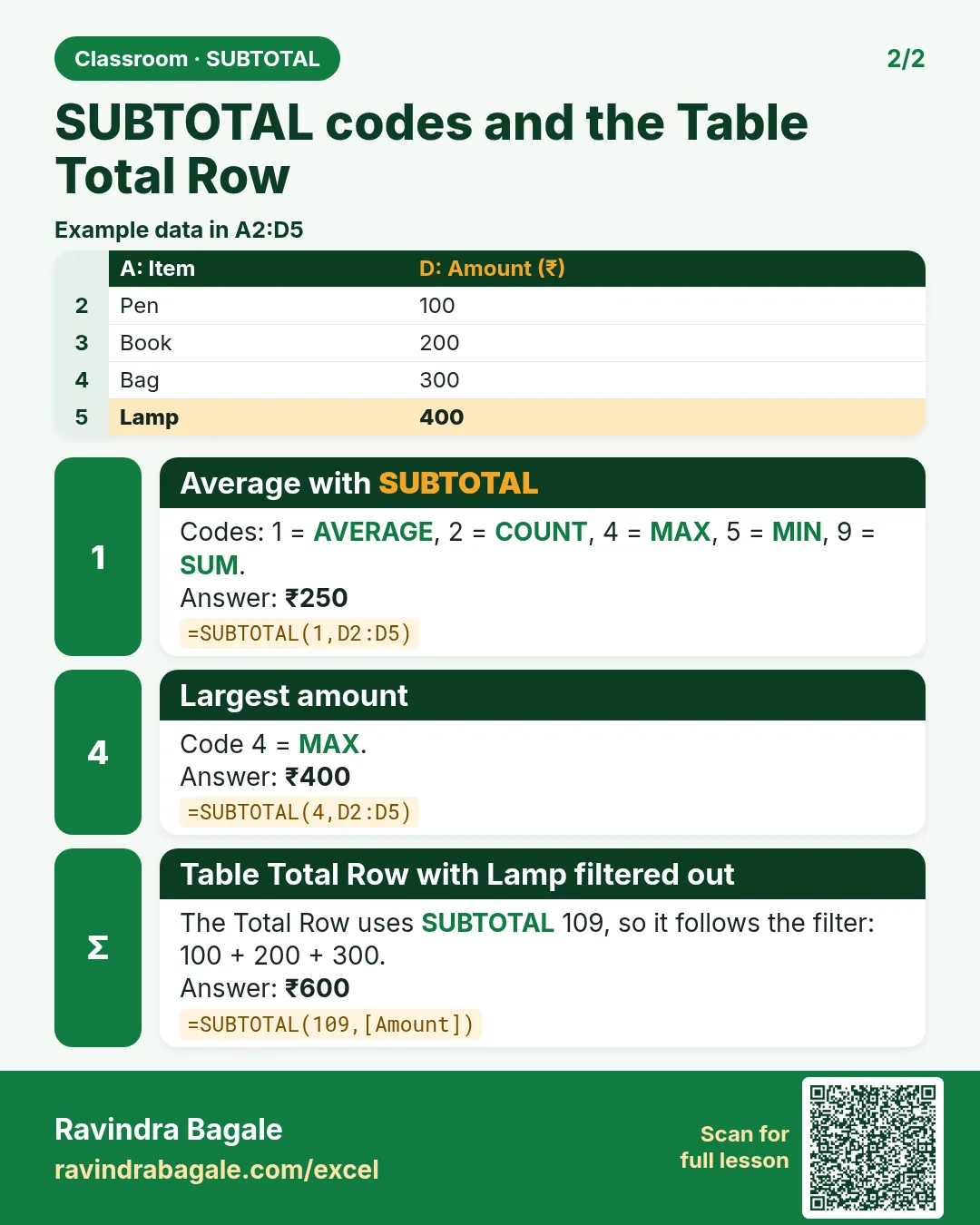
SUBTOTAL vs SUM in Excel: Ignore Hidden and Filtered Rows (Function Codes 9 vs 109) and the Table Total Row

Classroom · SUBTOTAL · 2 cards · Open the chapter

Revision card: SUM vs SUBTOTAL 9 vs SUBTOTAL 109. Example data table with SUM with row 3 hidden: ₹1,000; Row 3 hidden by a filter: ₹800; Row 3 hidden by hand instead: ₹800.
Card 1 of 2: SUM vs SUBTOTAL 9 vs SUBTOTAL 109 · Download PNG · Open card page
Revision card: SUBTOTAL codes and the Table Total Row. Example data table with Average with SUBTOTAL: ₹250; Largest amount: ₹400; Table Total Row with Lamp filtered out: ₹600.
Card 2 of 2: SUBTOTAL codes and the Table Total Row · Download PNG · Open card page

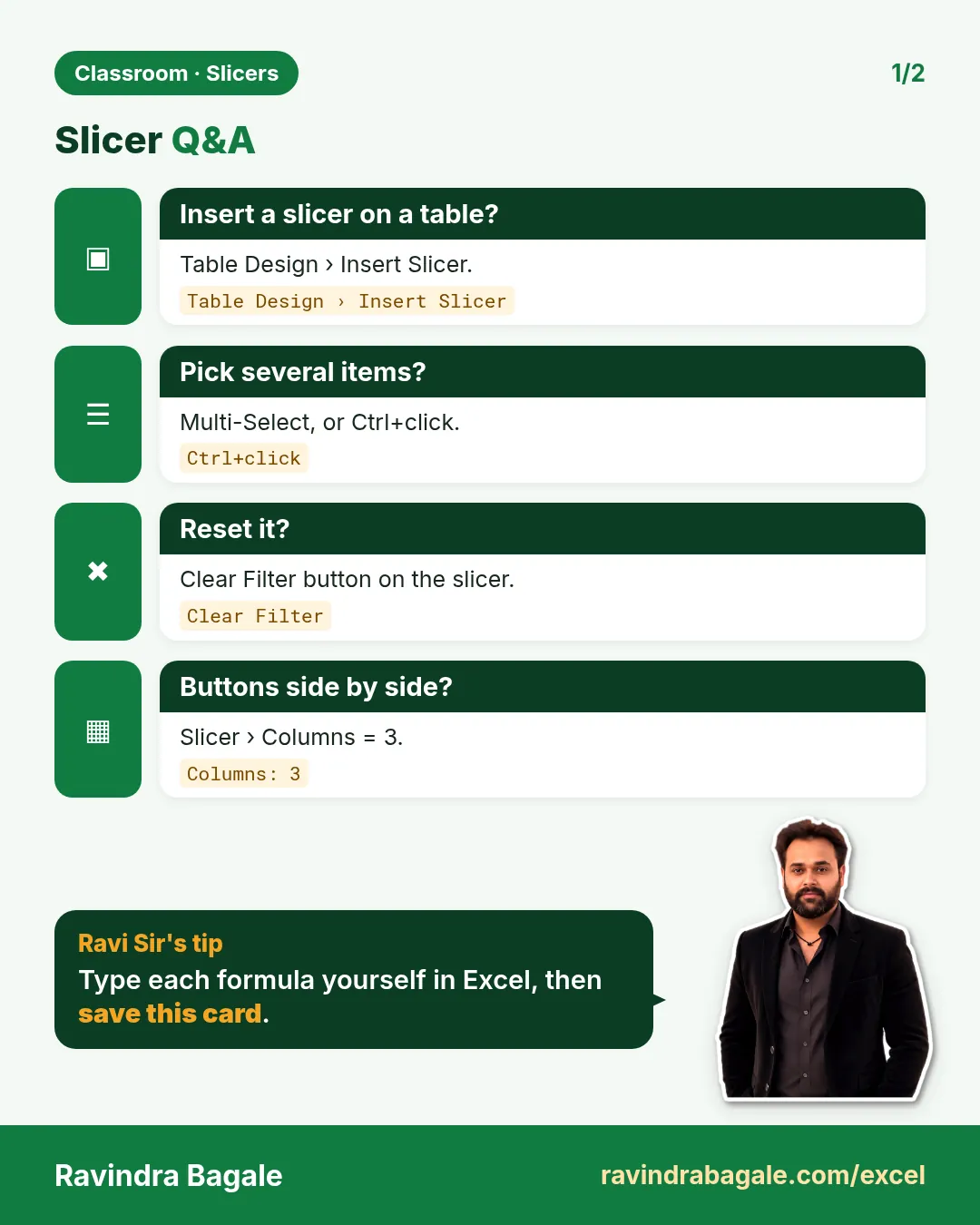
How to Use Slicers in Excel Tables: Insert, Multi-Select, Clear Filter and Arrange Buttons in Columns (with UNIQUE and COUNTIFS)

Classroom · Slicers · 2 cards · Open the chapter

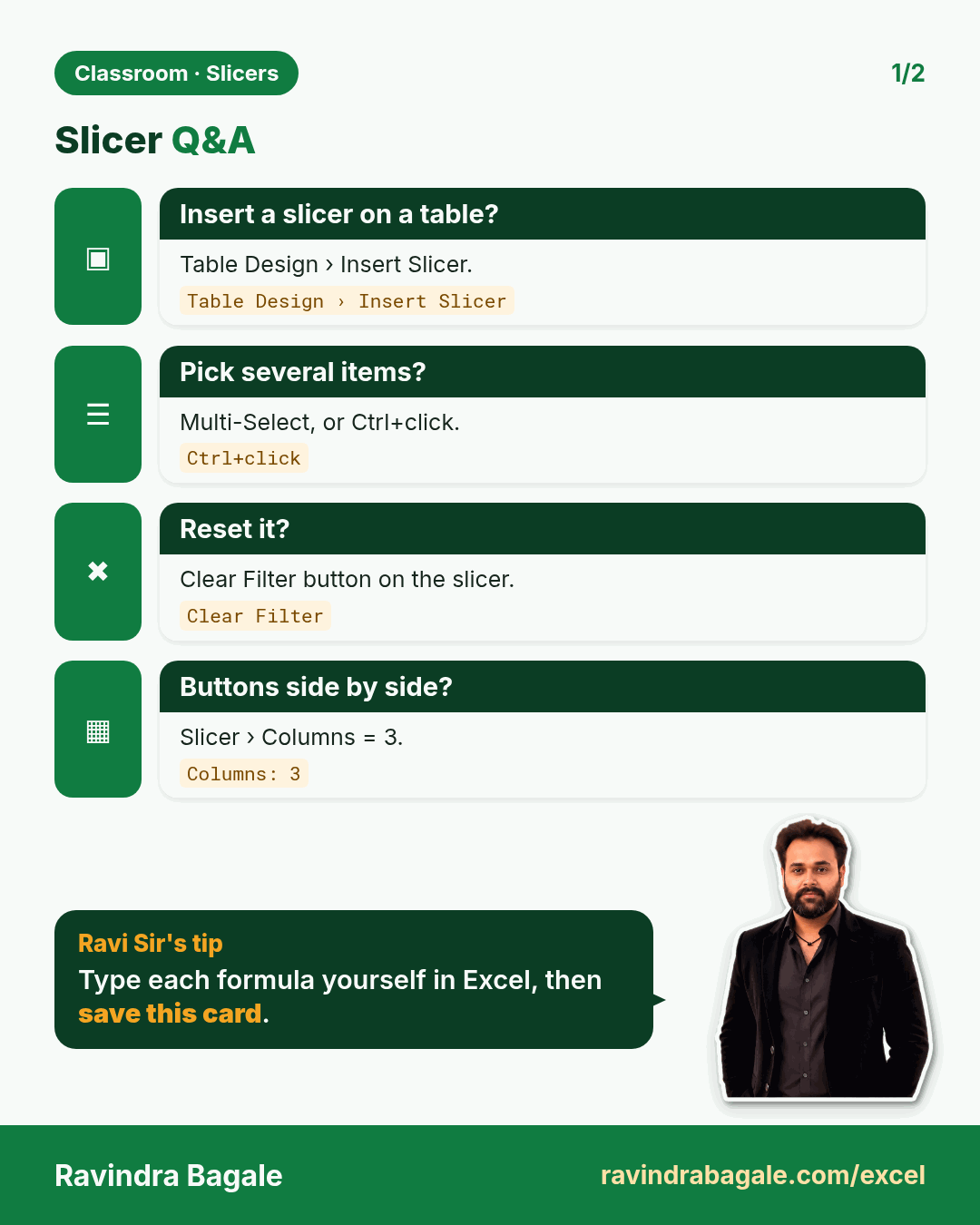
Revision card: Slicer Q&A. Covers Insert a slicer on a table?; Pick several items?; Reset it?; Buttons side by side?. With a photo of Ravindra Bagale and a short tip.
Card 1 of 2: Slicer Q&A · Download PNG · Open card page
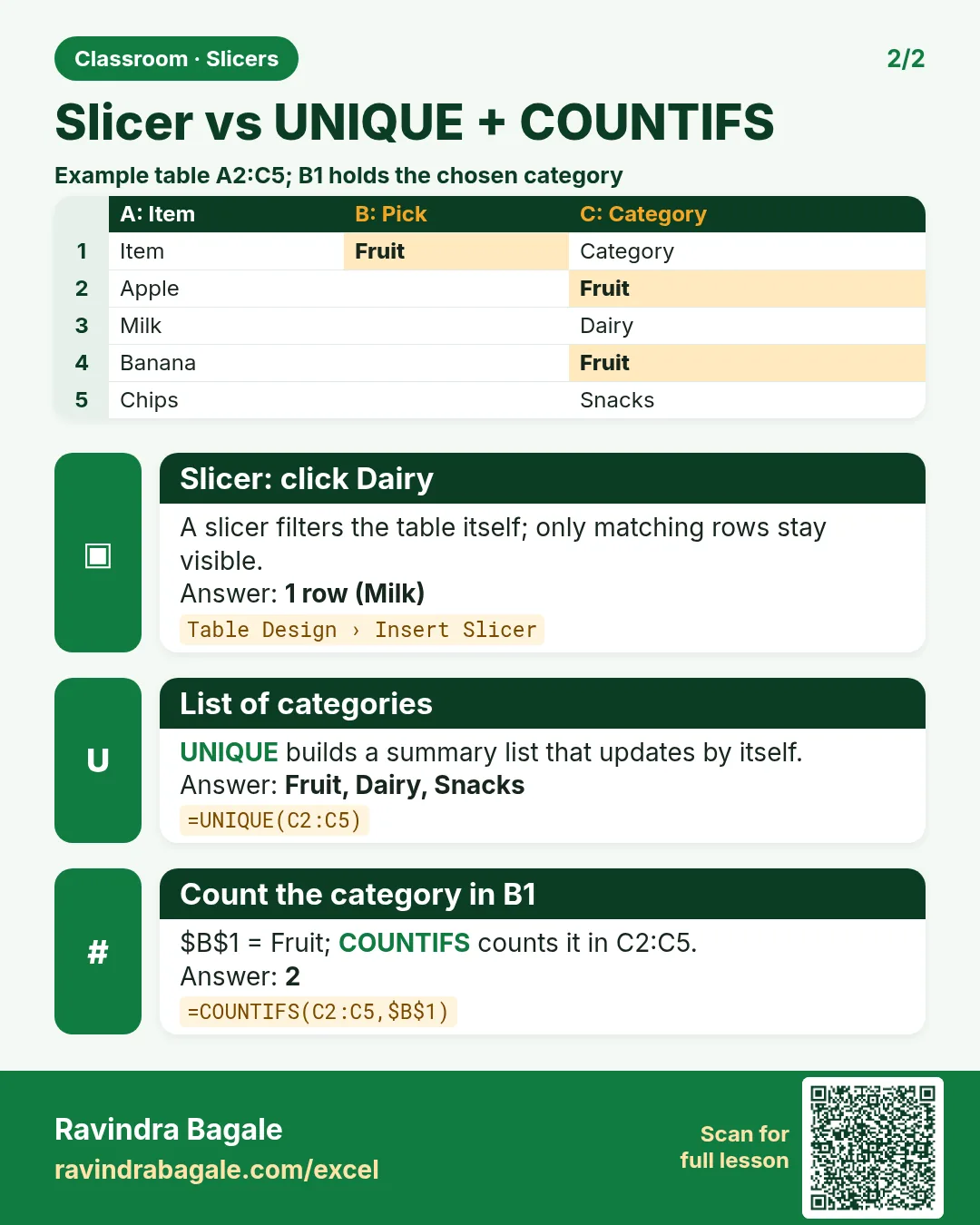
Revision card: Slicer vs UNIQUE + COUNTIFS. Example data table with Slicer: click Dairy: 1 row (Milk); List of categories: Fruit, Dairy, Snacks; Count the category in B1: 2.
Card 2 of 2: Slicer vs UNIQUE + COUNTIFS · Download PNG · Open card page

Analyse Blinkit Orders in Excel: Total Orders, Cities, Products and Payment Mode with COUNTA, UNIQUE and COUNTIF

Classroom · Analyse Orders · 2 cards · Open the chapter

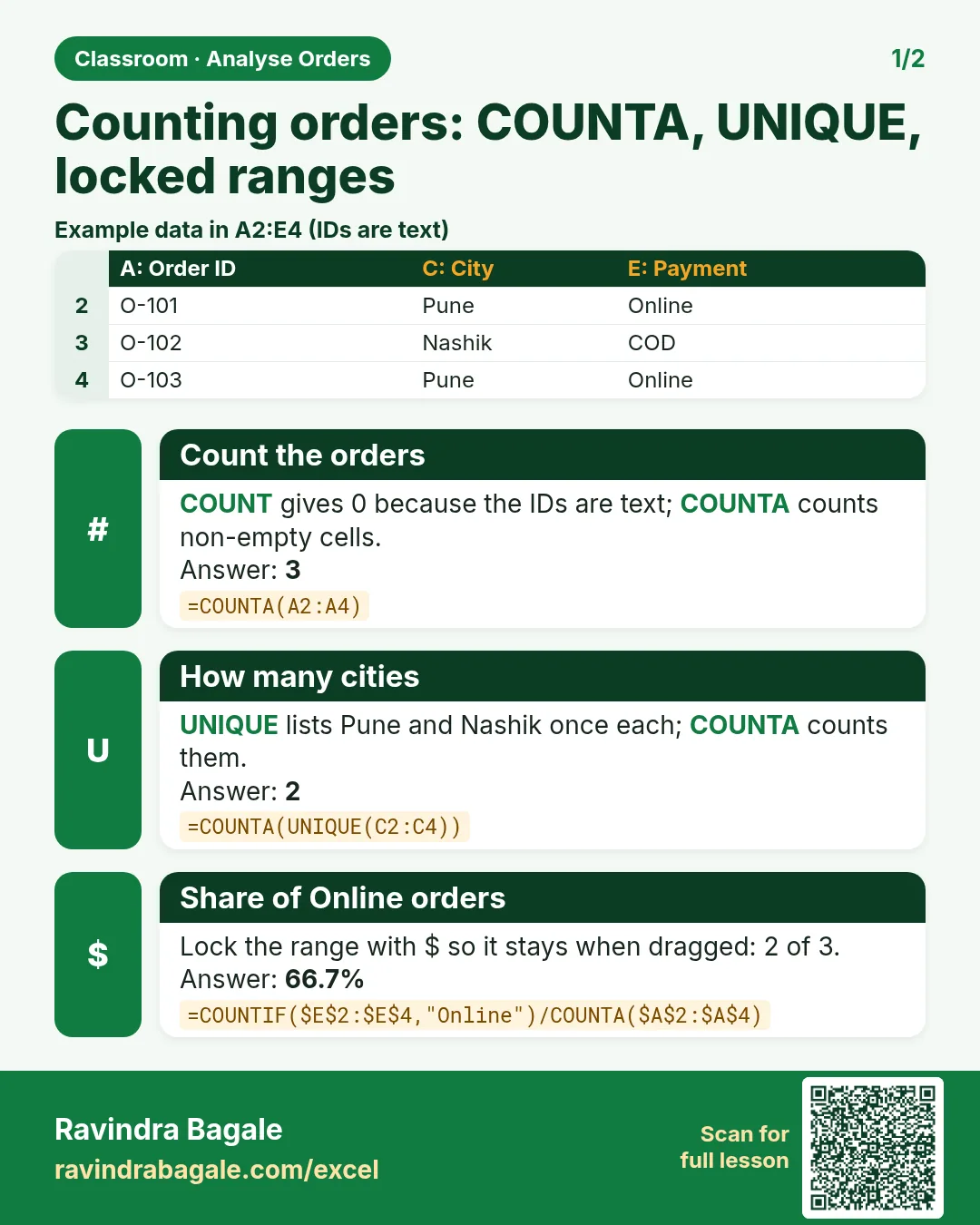
Revision card: Counting orders: COUNTA, UNIQUE, locked ranges. Example data table with Count the orders: 3; How many cities: 2; Share of Online orders: 66.7%.
Card 1 of 2: Counting orders: COUNTA, UNIQUE, locked ranges · Download PNG · Open card page
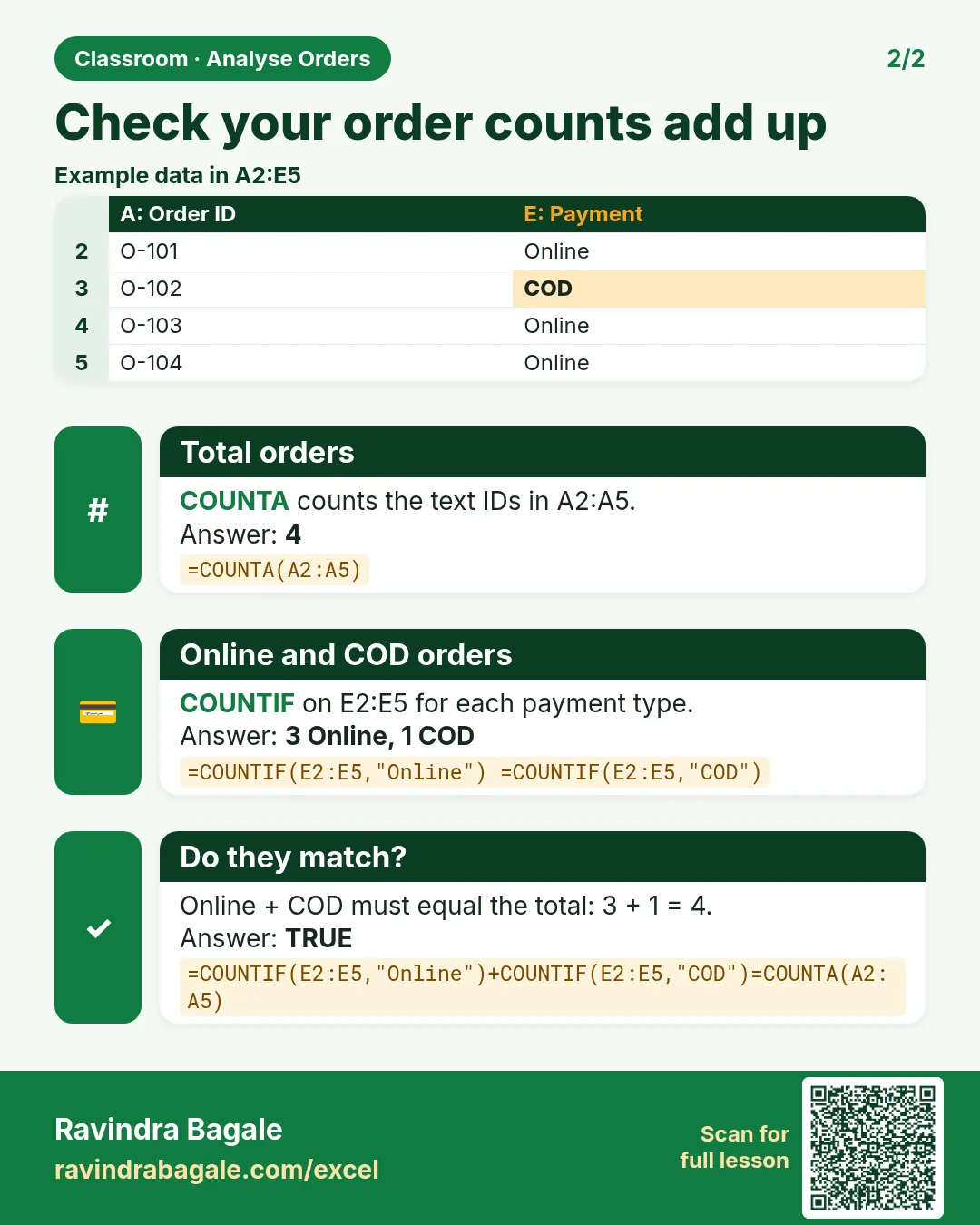
Revision card: Check your order counts add up. Example data table with Total orders: 4; Online and COD orders: 3 Online, 1 COD; Do they match?: TRUE.
Card 2 of 2: Check your order counts add up · Download PNG · Open card page

7. PivotTables and PivotCharts

Ch 7 · PivotTables · 2 cards · Open the chapter

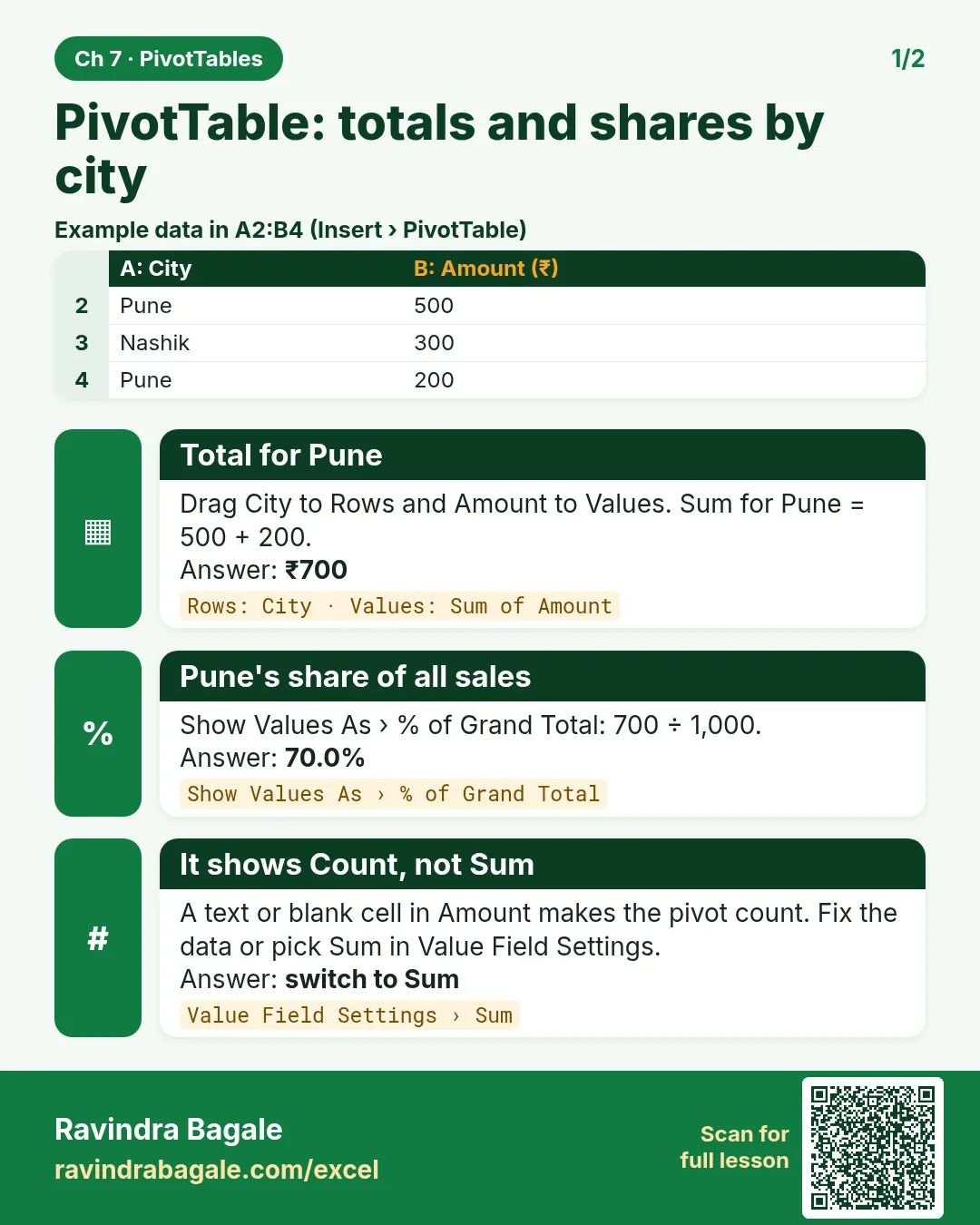
Revision card: PivotTable: totals and shares by city. Example data table with Total for Pune: ₹700; Pune's share of all sales: 70.0%; It shows Count, not Sum: switch to Sum.
Card 1 of 2: PivotTable: totals and shares by city · Download PNG · Open card page
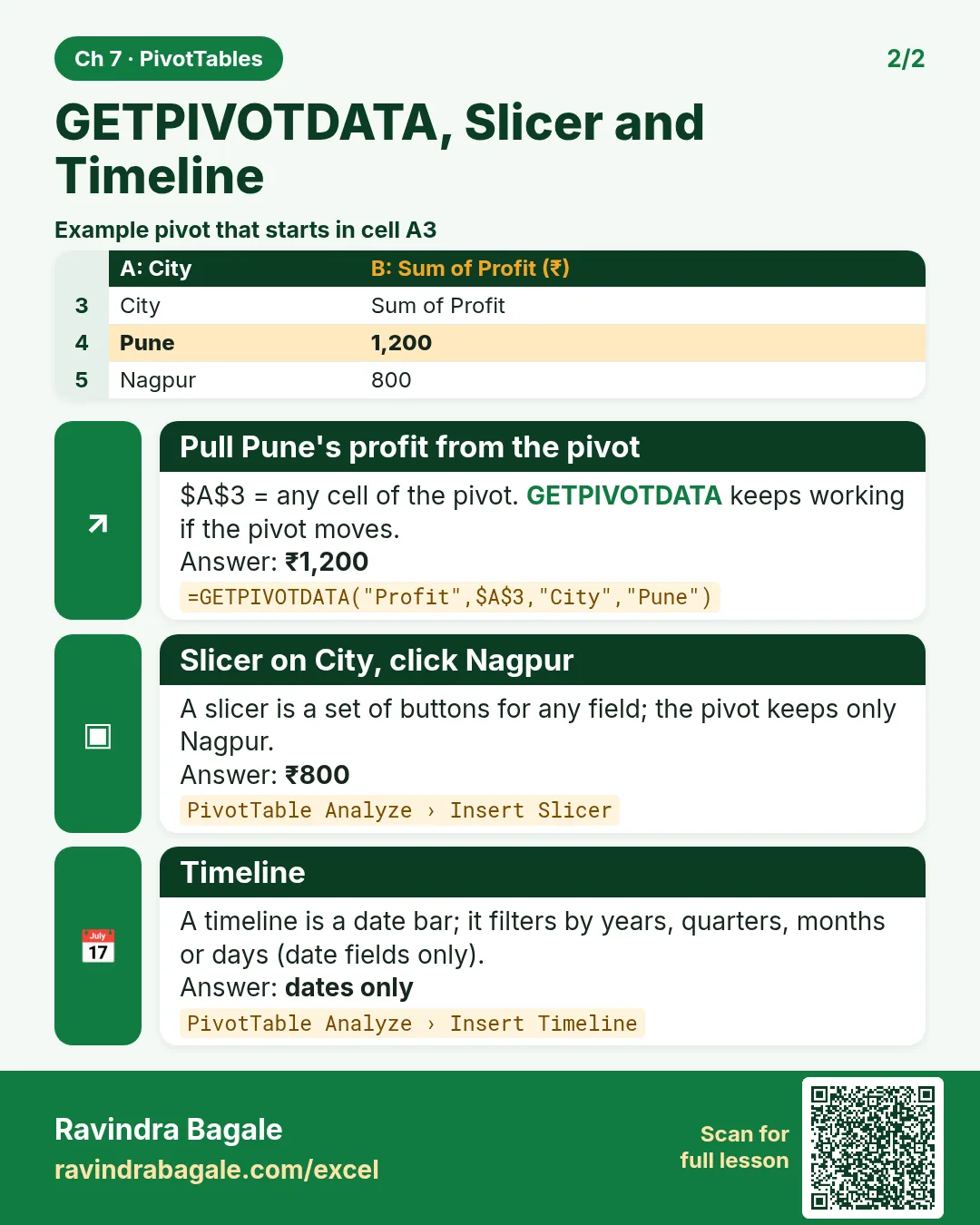
Revision card: GETPIVOTDATA, Slicer and Timeline. Example data table with Pull Pune's profit from the pivot: ₹1,200; Slicer on City, click Nagpur: ₹800; Timeline: dates only.
Card 2 of 2: GETPIVOTDATA, Slicer and Timeline · Download PNG · Open card page

How to Create a PivotTable in Excel for Beginners: Rows, Values, Count vs Sum and Report Filter (Blinkit Orders Example)

Classroom · PivotTable Basics · 2 cards · Open the chapter
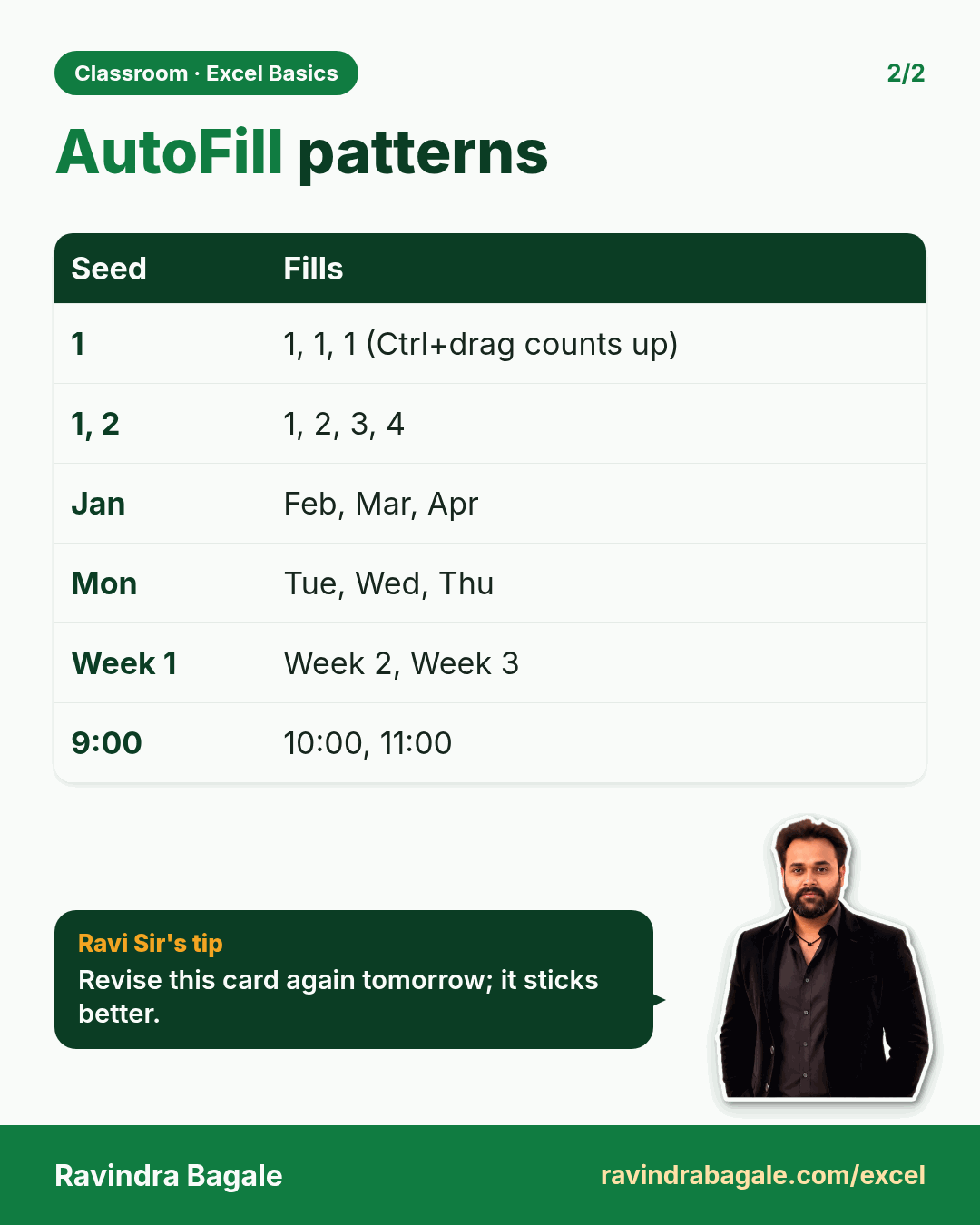
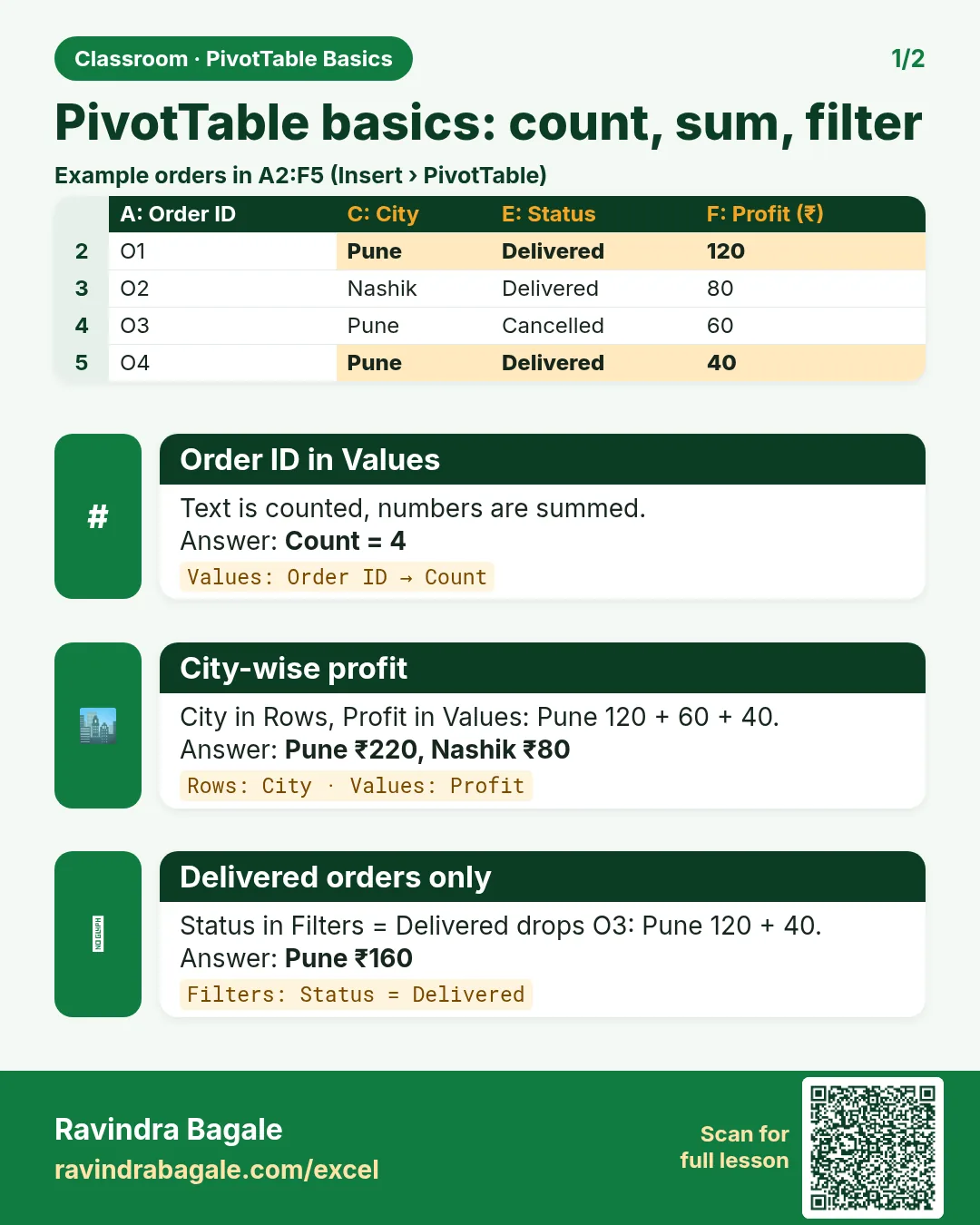
Revision card: PivotTable basics: count, sum, filter. Example data table with Order ID in Values: Count = 4; City-wise profit: Pune ₹220, Nashik ₹80; Delivered orders only: Pune ₹160.
Card 1 of 2: PivotTable basics: count, sum, filter · Download PNG · Open card page
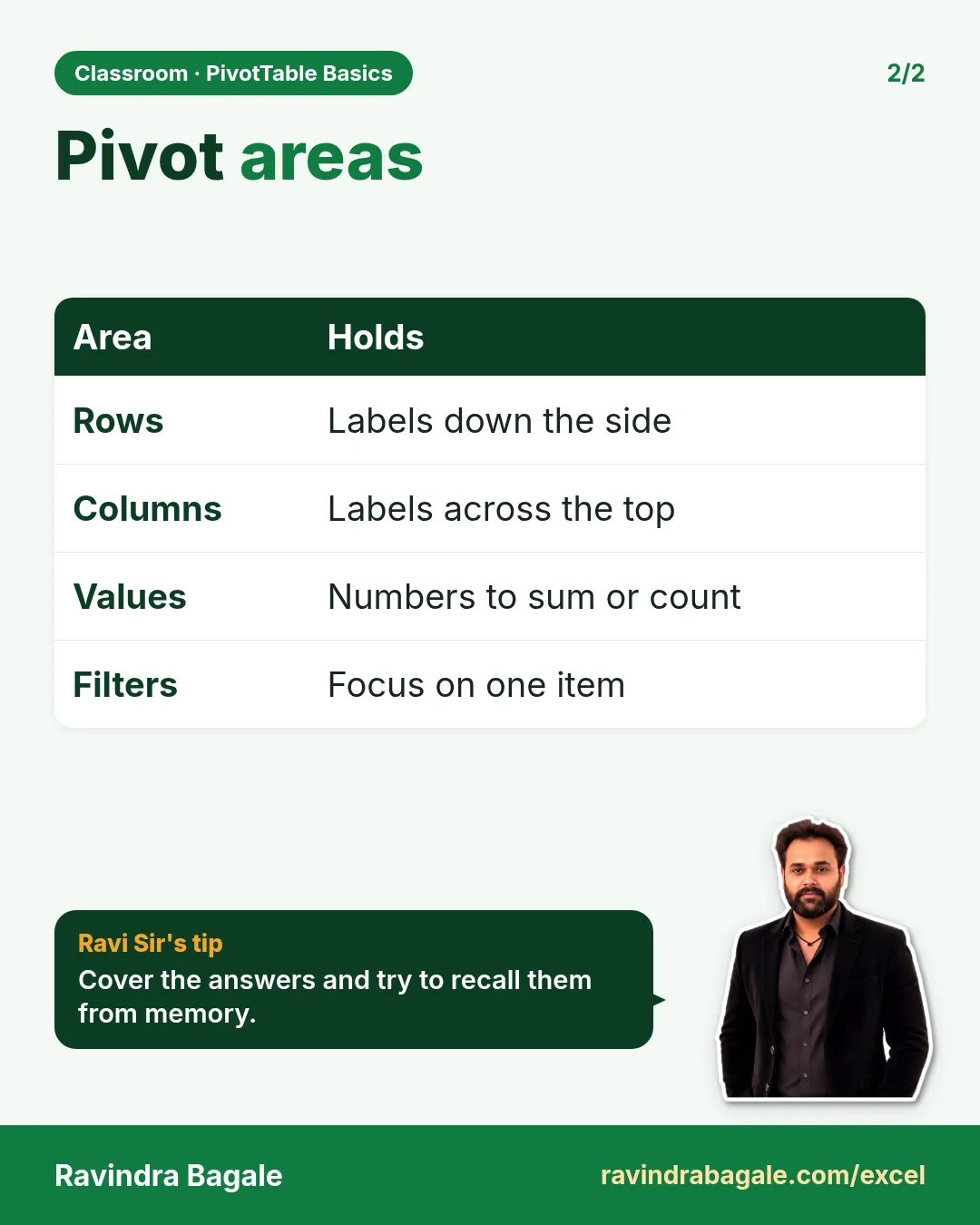
Revision card: Pivot areas. Covers Rows; Columns; Values; Filters. With a photo of Ravindra Bagale and a short tip.
Card 2 of 2: Pivot areas · Download PNG · Open card page

Excel PivotTable with Multiple Values, Nested Rows and Columns: Count and Sum Side by Side, City by Payment Mode

Classroom · Pivot Layouts · 2 cards · Open the chapter
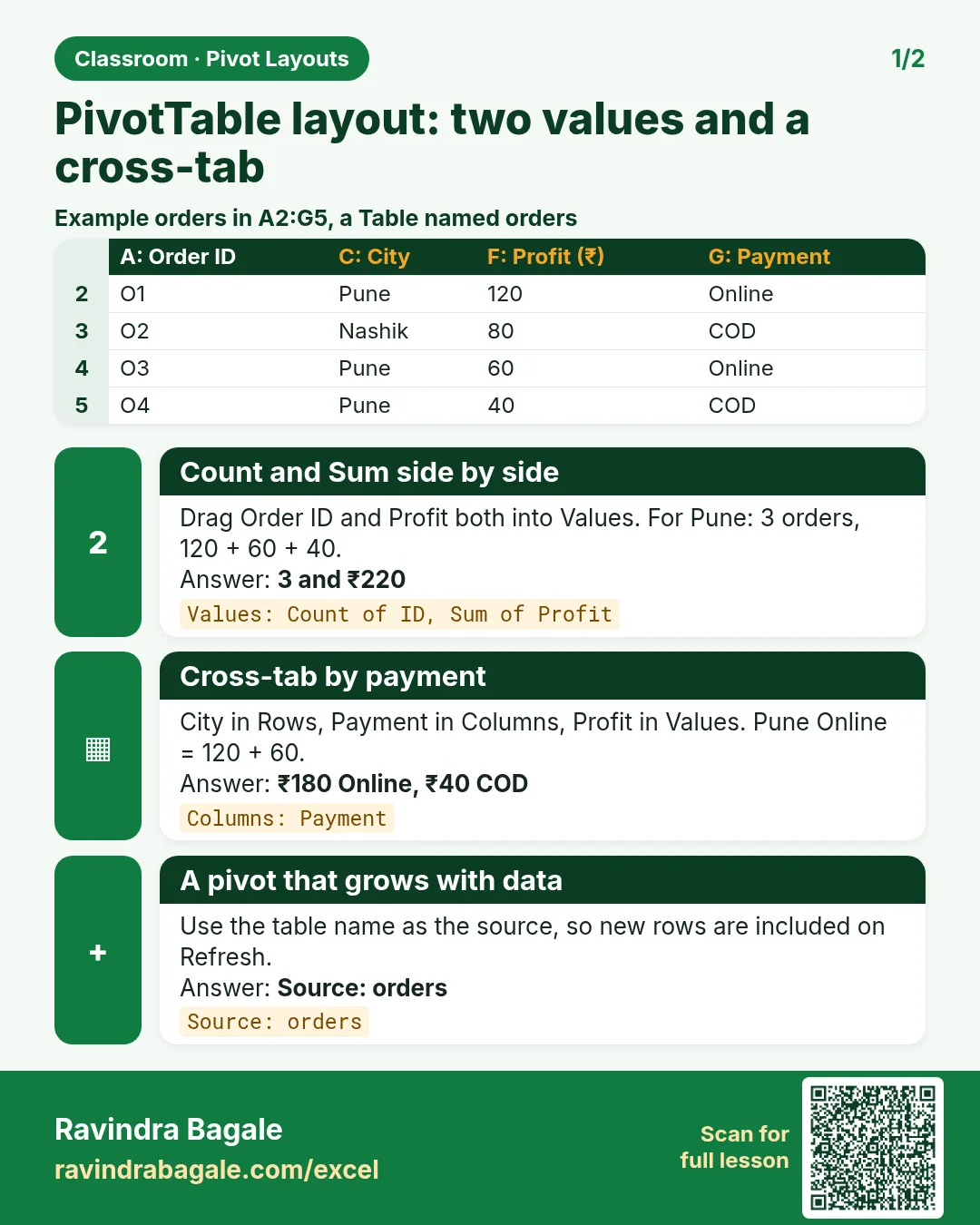
Revision card: PivotTable layout: two values and a cross-tab. Example data table with Count and Sum side by side: 3 and ₹220; Cross-tab by payment: ₹180 Online, ₹40 COD; A pivot that grows with data: Source: orders.
Card 1 of 2: PivotTable layout: two values and a cross-tab · Download PNG · Open card page
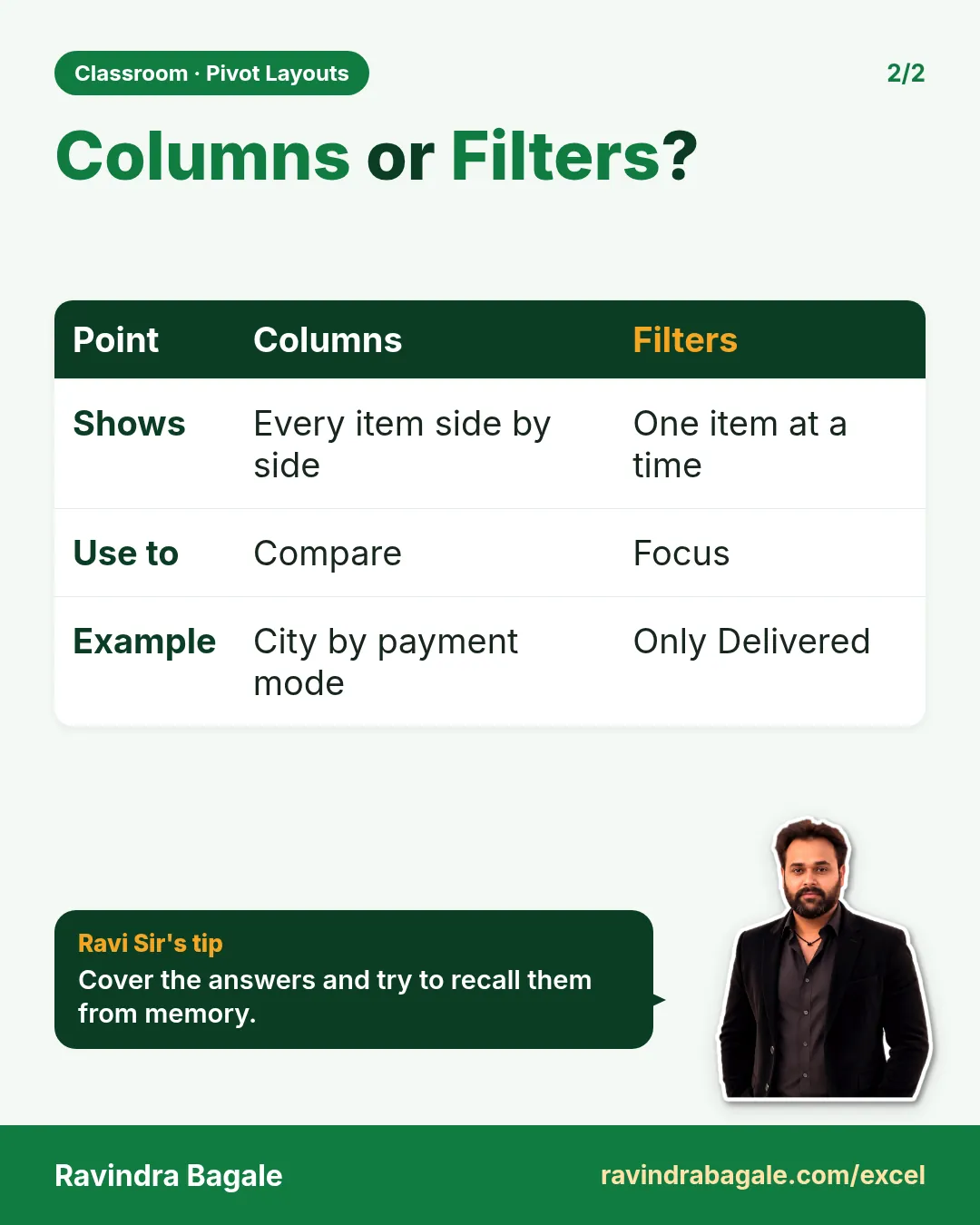
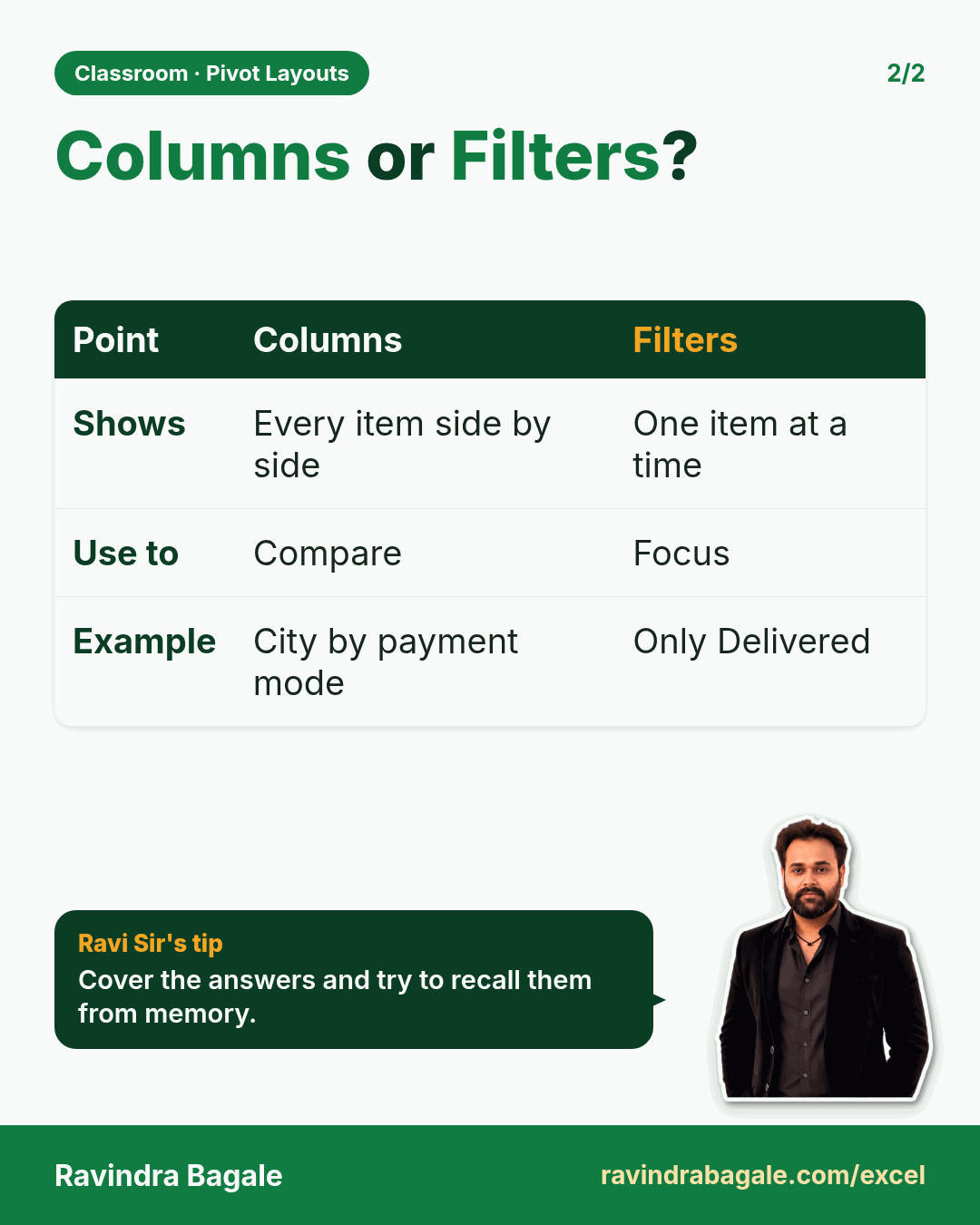
Revision card: Columns or Filters?. Covers Shows; Use to; Example. With a photo of Ravindra Bagale and a short tip.
Card 2 of 2: Columns or Filters? · Download PNG · Open card page

How to Sort a PivotTable in Excel: Largest to Smallest, Move Items Manually, Expand/Collapse and Show Details (Drill Down)

Classroom · Pivot Sorting · 2 cards · Open the chapter
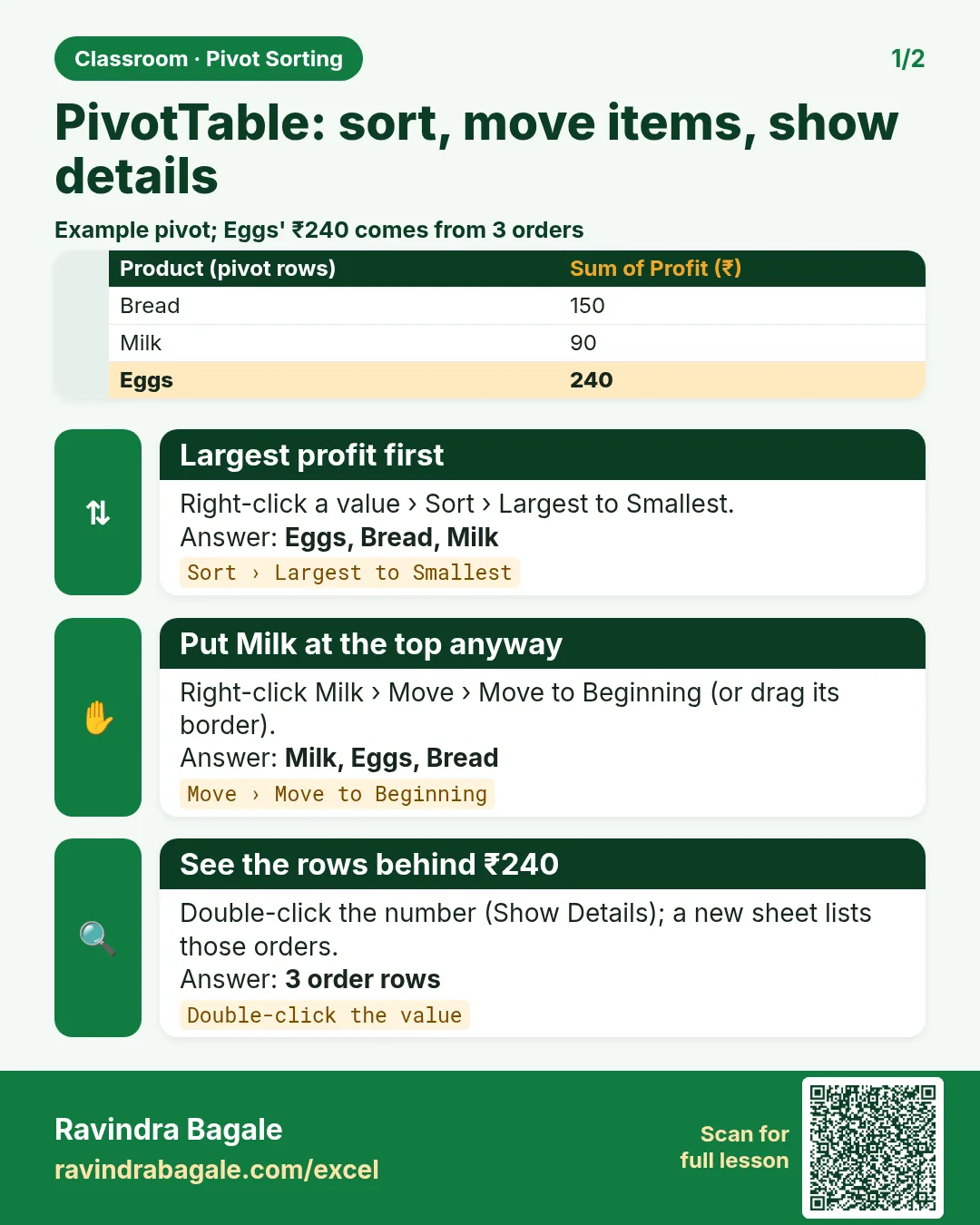
Revision card: PivotTable: sort, move items, show details. Example data table with Largest profit first: Eggs, Bread, Milk; Put Milk at the top anyway: Milk, Eggs, Bread; See the rows behind ₹240: 3 order rows.
Card 1 of 2: PivotTable: sort, move items, show details · Download PNG · Open card page
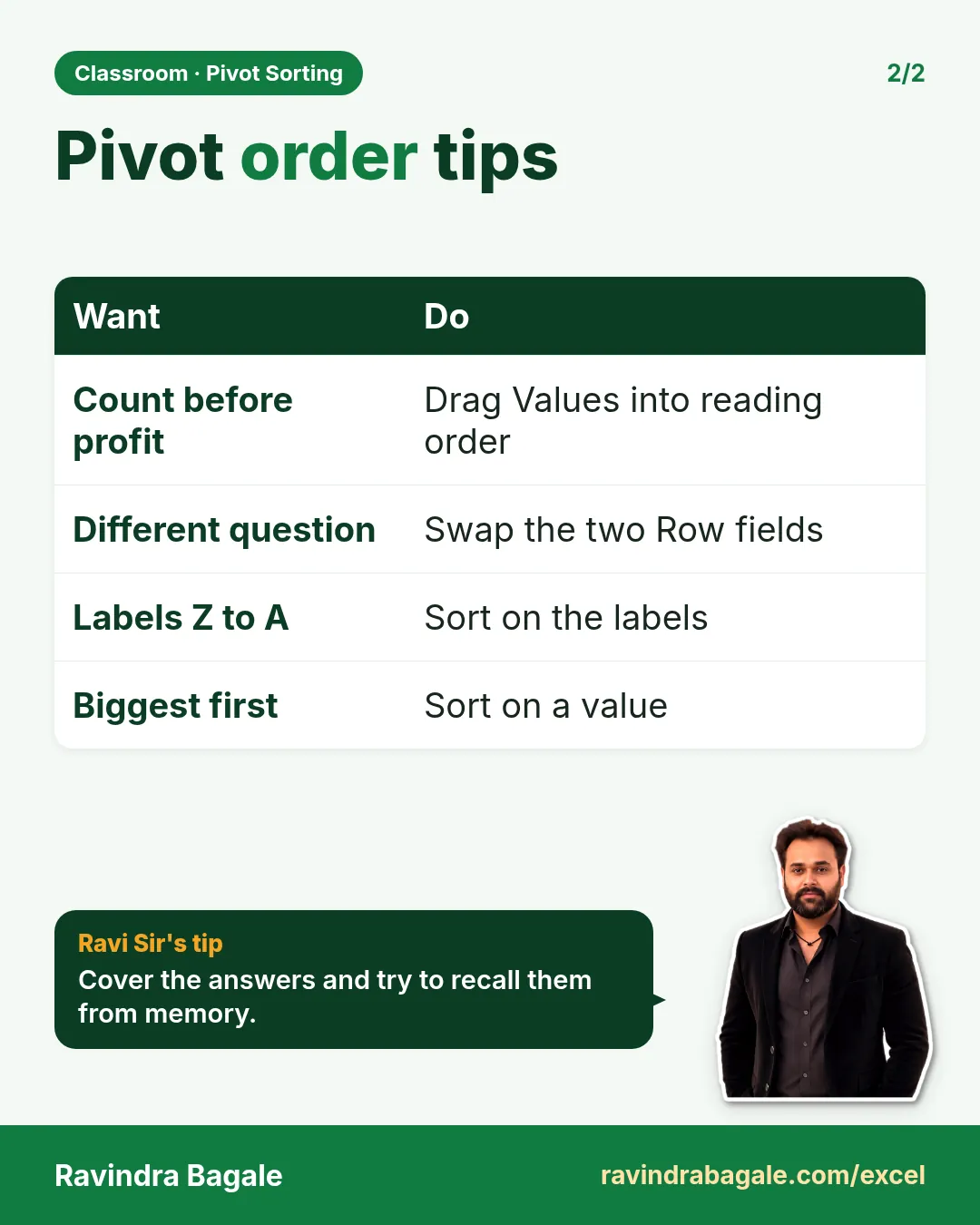
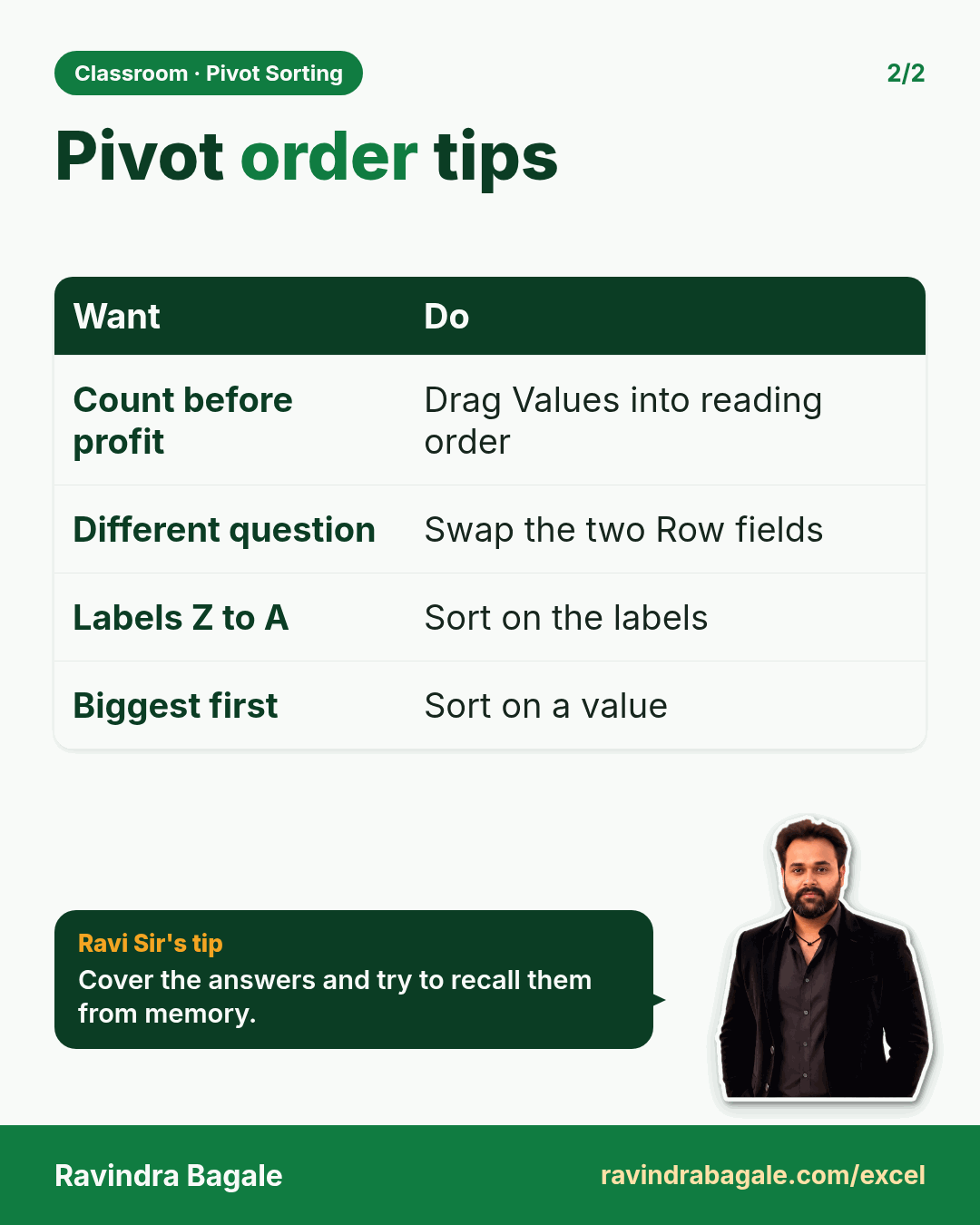
Revision card: Pivot order tips. Covers Count before profit; Different question; Labels Z to A; Biggest first. With a photo of Ravindra Bagale and a short tip.
Card 2 of 2: Pivot order tips · Download PNG · Open card page

Change Sum to Average in an Excel PivotTable and Create a Pivot Chart (Clustered Column) for a Dashboard

Classroom · Pivot Chart · 2 cards · Open the chapter
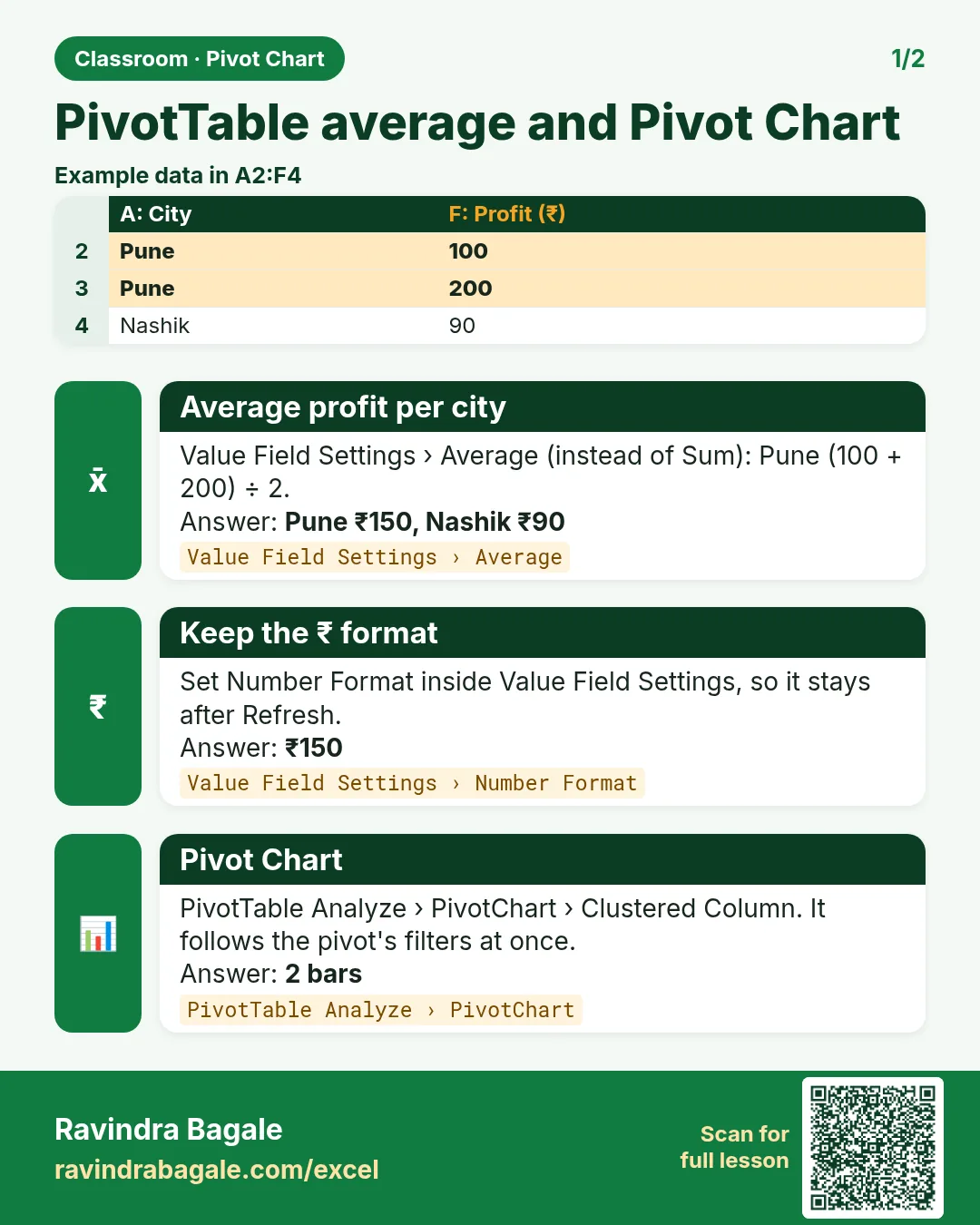
Revision card: PivotTable average and Pivot Chart. Example data table with Average profit per city: Pune ₹150, Nashik ₹90; Keep the ₹ format: ₹150; Pivot Chart: 2 bars.
Card 1 of 2: PivotTable average and Pivot Chart · Download PNG · Open card page
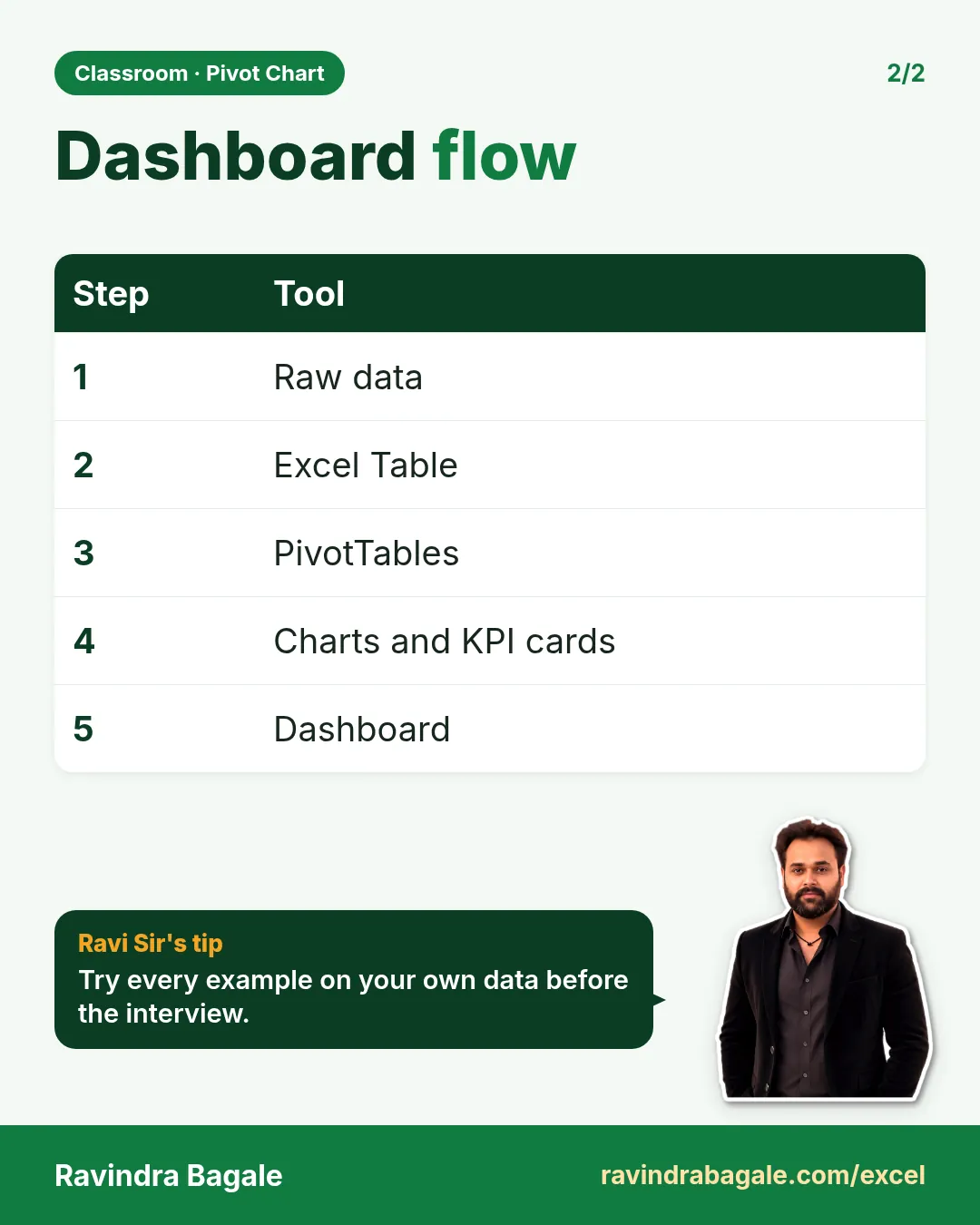
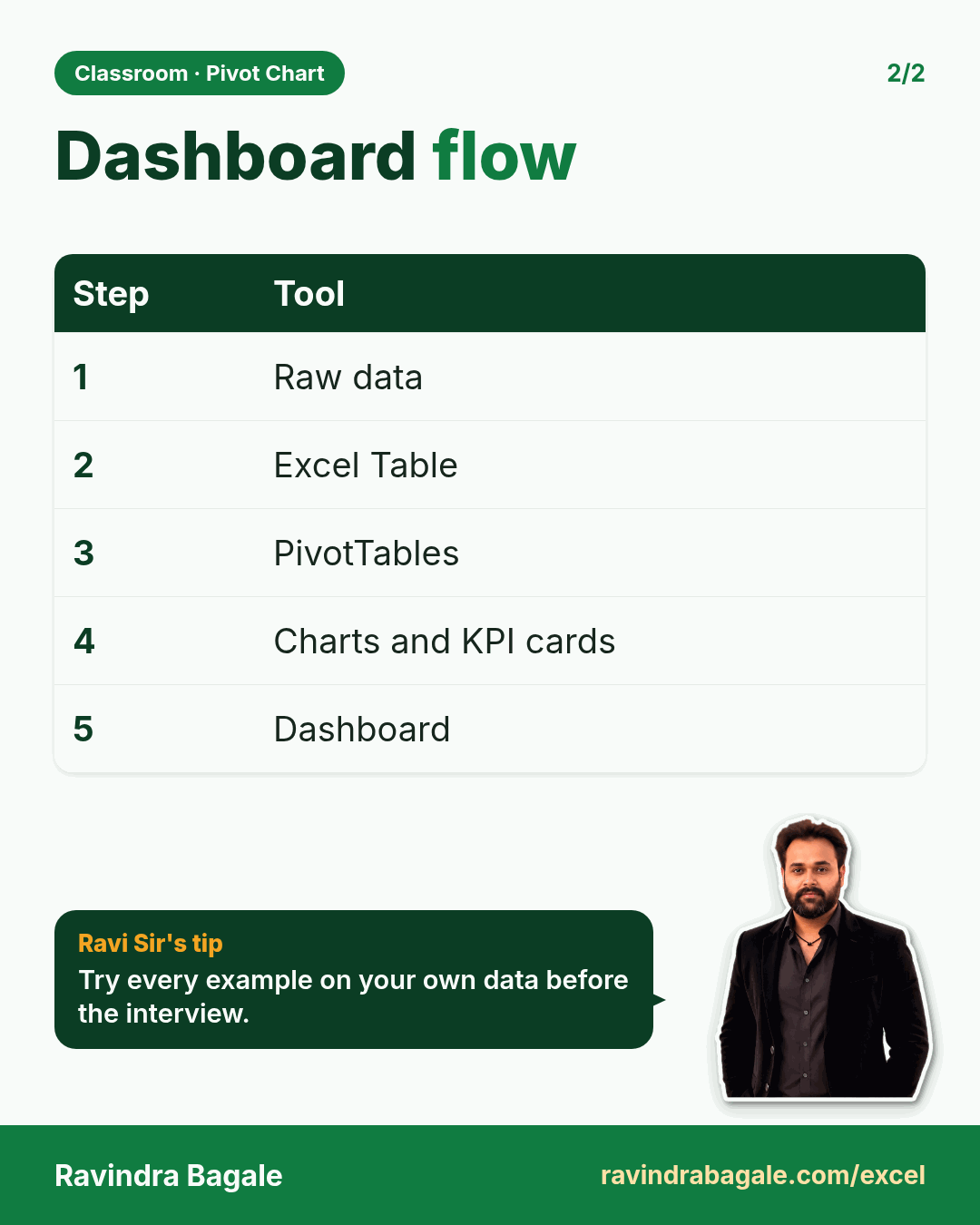
Revision card: Dashboard flow. Covers 1; 2; 3; 4; 5. With a photo of Ravindra Bagale and a short tip.
Card 2 of 2: Dashboard flow · Download PNG · Open card page

How to Group Dates by Month in an Excel PivotTable and Make a Monthly Revenue Pivot Chart

Classroom · Group Dates · 2 cards · Open the chapter
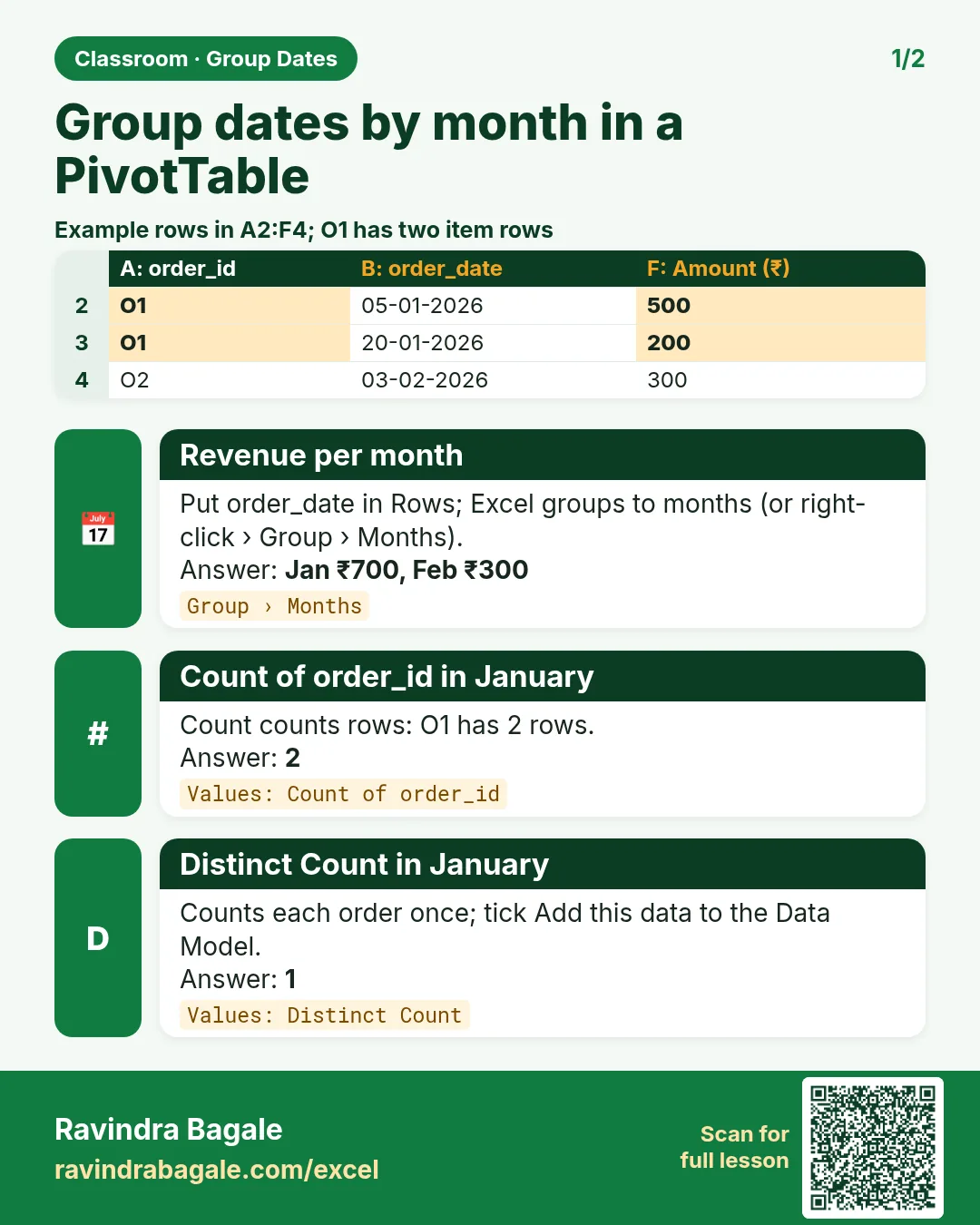
Revision card: Group dates by month in a PivotTable. Example data table with Revenue per month: Jan ₹700, Feb ₹300; Count of order_id in January: 2; Distinct Count in January: 1.
Card 1 of 2: Group dates by month in a PivotTable · Download PNG · Open card page
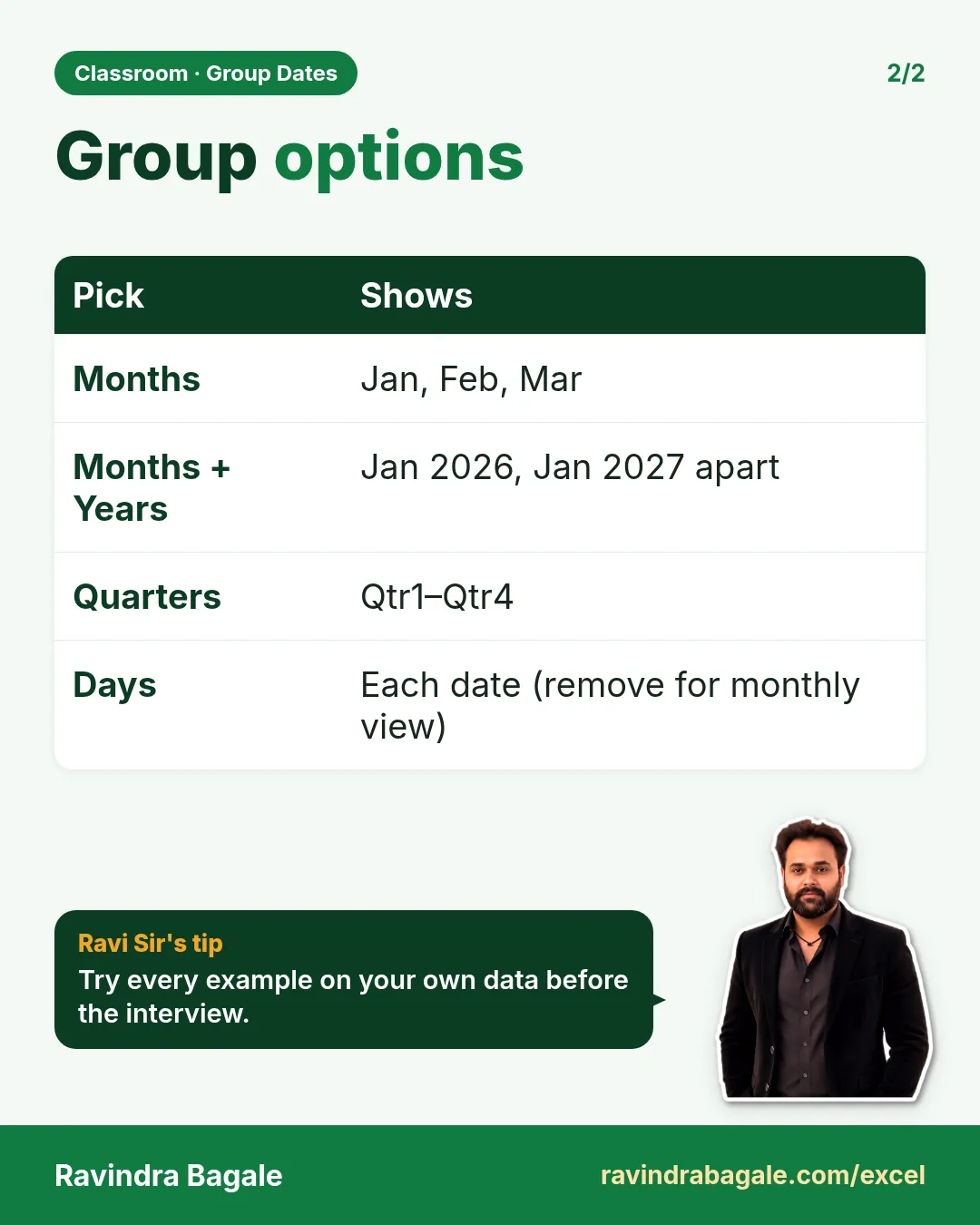
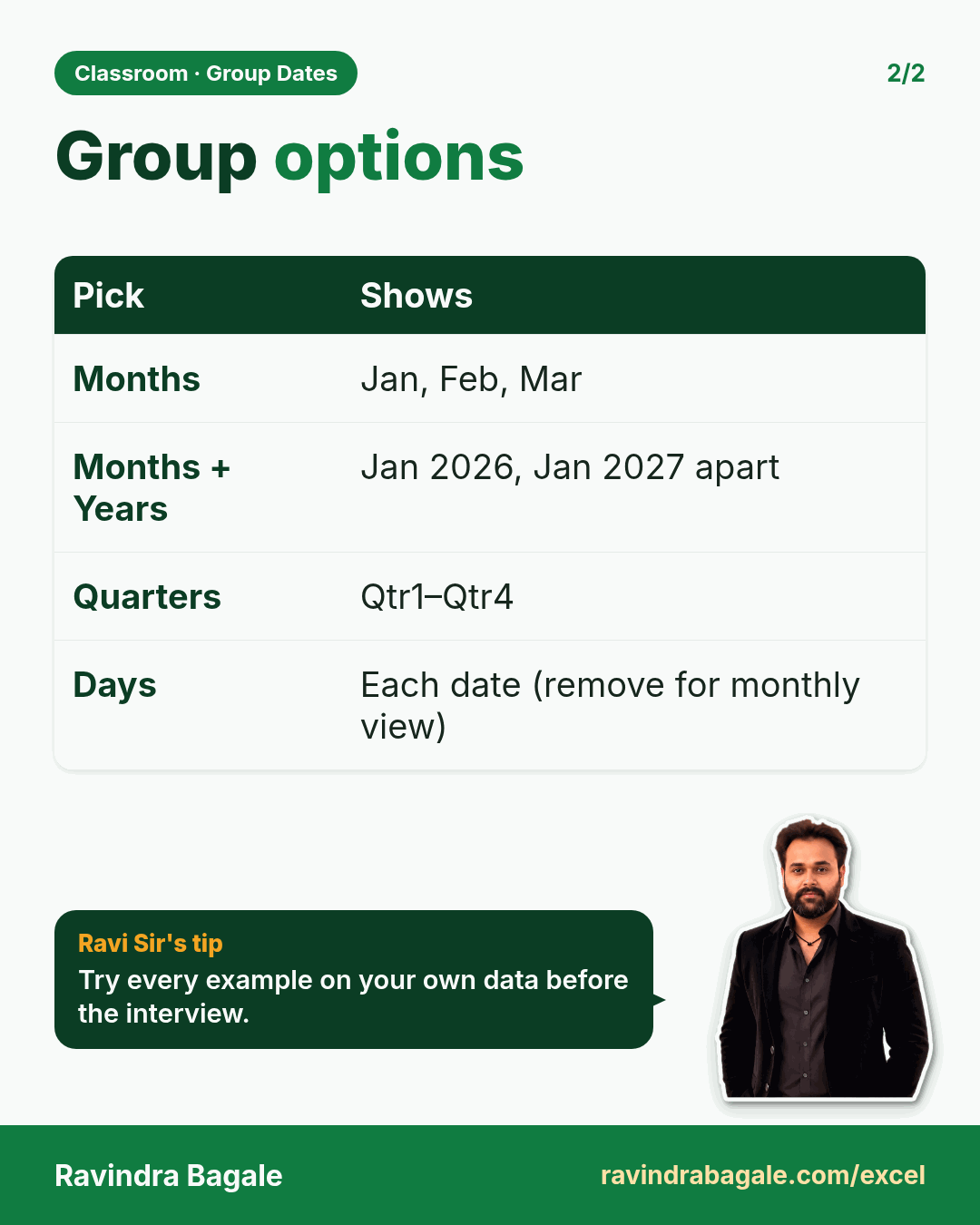
Revision card: Group options. Covers Months; Months + Years; Quarters; Days. With a photo of Ravindra Bagale and a short tip.
Card 2 of 2: Group options · Download PNG · Open card page

24. Power Pivot and the Data Model

Ch 24 · Power Pivot · 2 cards · Open the chapter
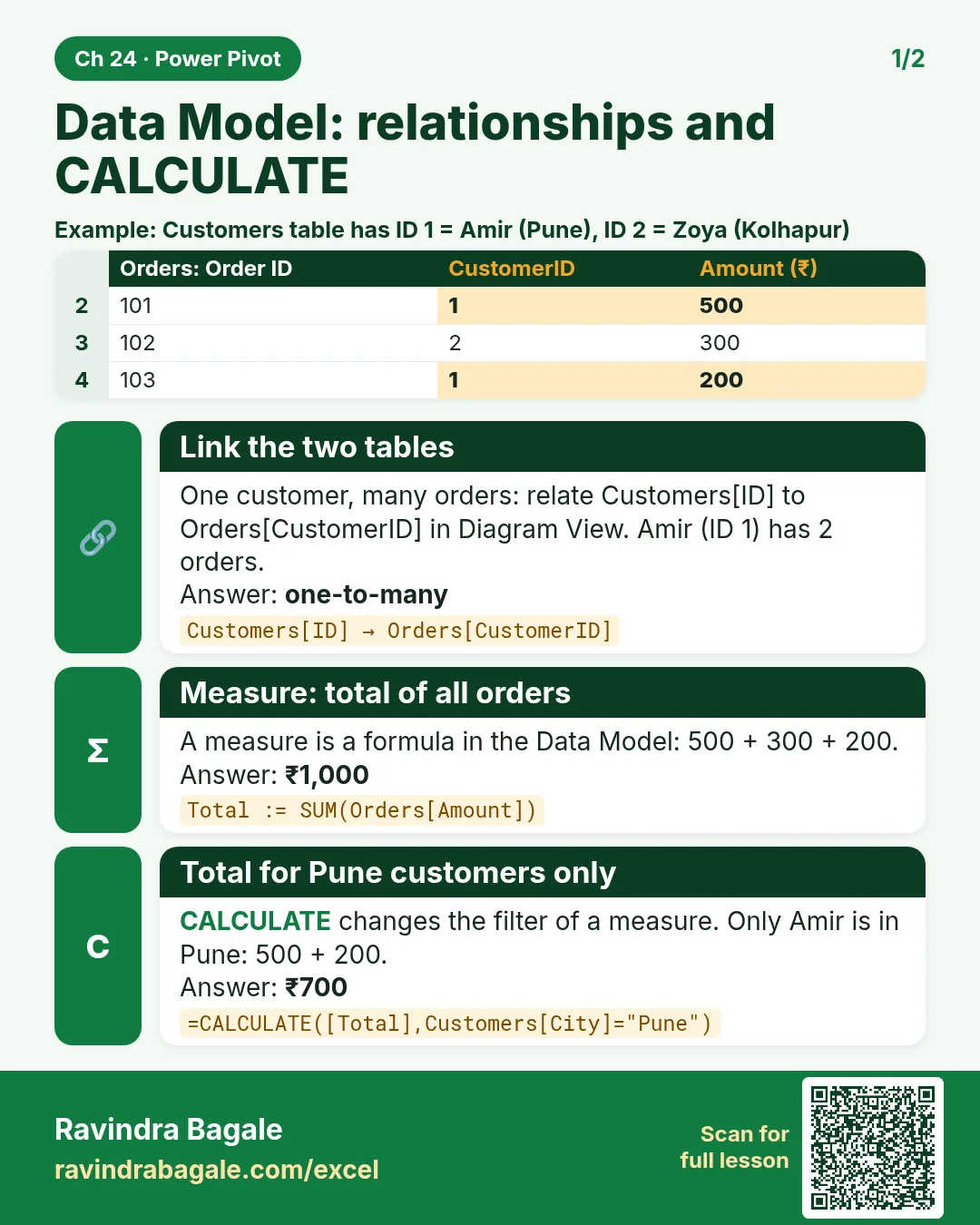
Revision card: Data Model: relationships and CALCULATE. Example data table with Link the two tables: one-to-many; Measure: total of all orders: ₹1,000; Total for Pune customers only: ₹700.
Card 1 of 2: Data Model: relationships and CALCULATE · Download PNG · Open card page
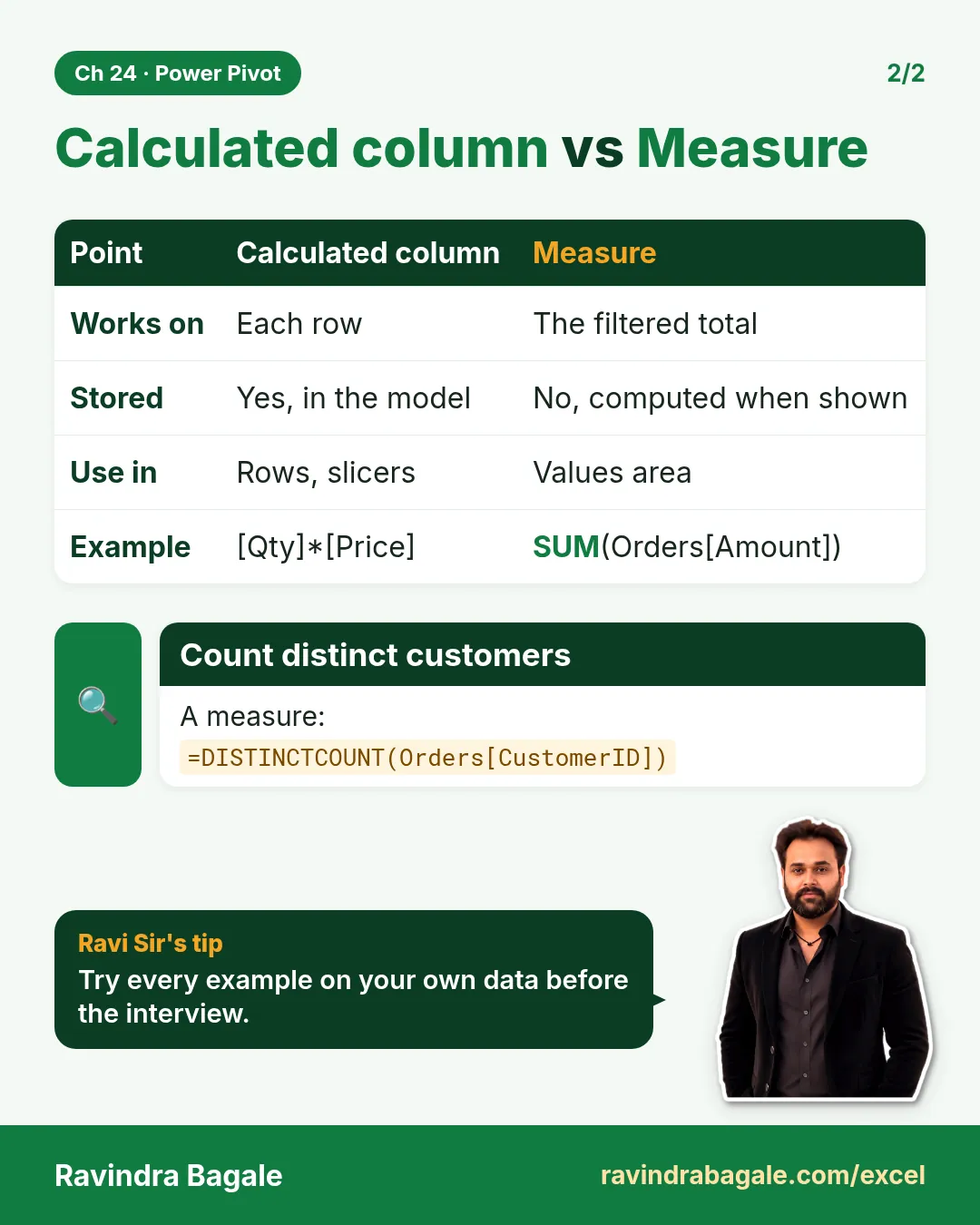
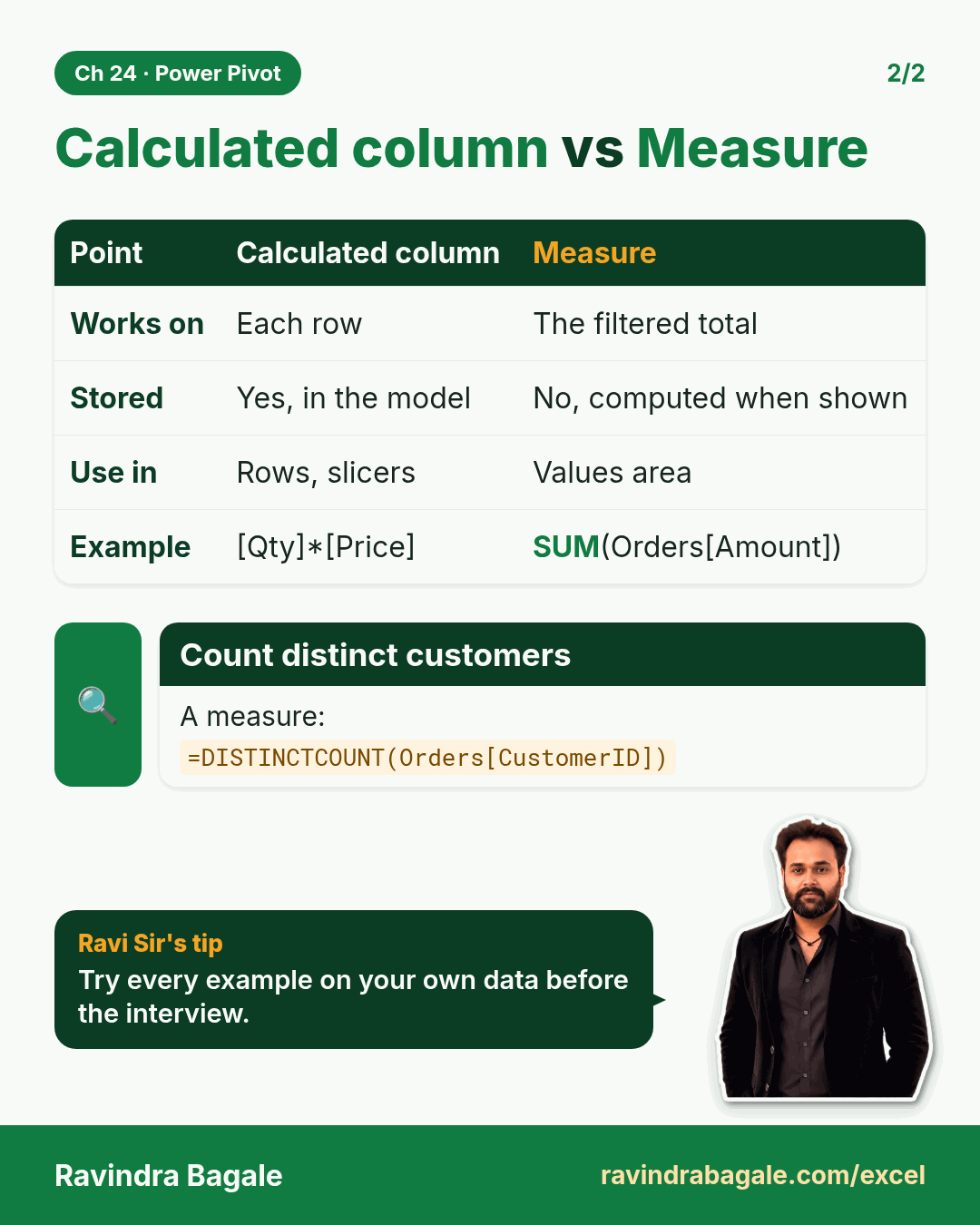
Revision card: Calculated column vs Measure. Covers Works on; Stored; Use in; Example. With a photo of Ravindra Bagale and a short tip.
Card 2 of 2: Calculated column vs Measure · Download PNG · Open card page

Charts, dashboards and KPIs

8. Charts

Ch 8 · Charts · 2 cards · Open the chapter
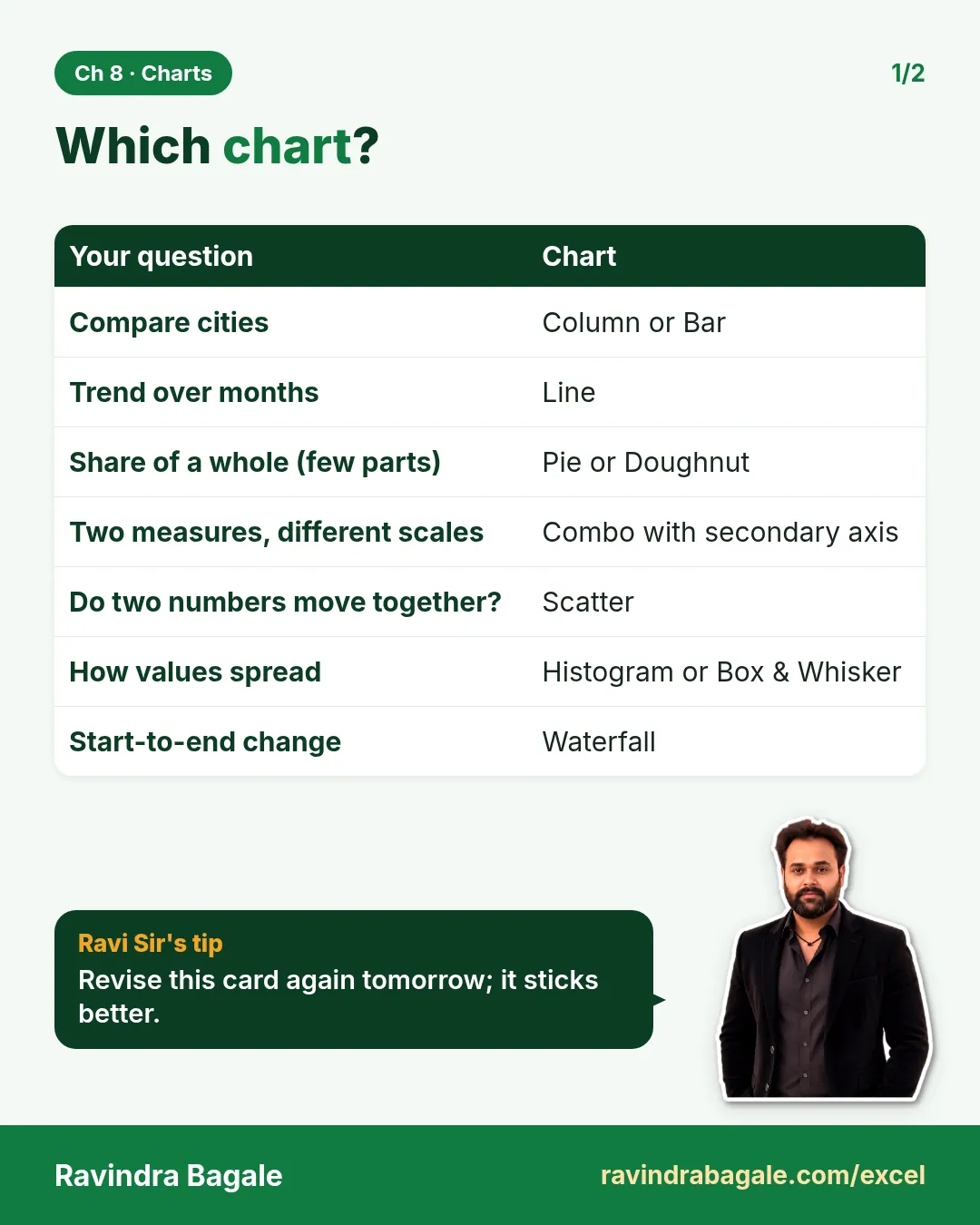
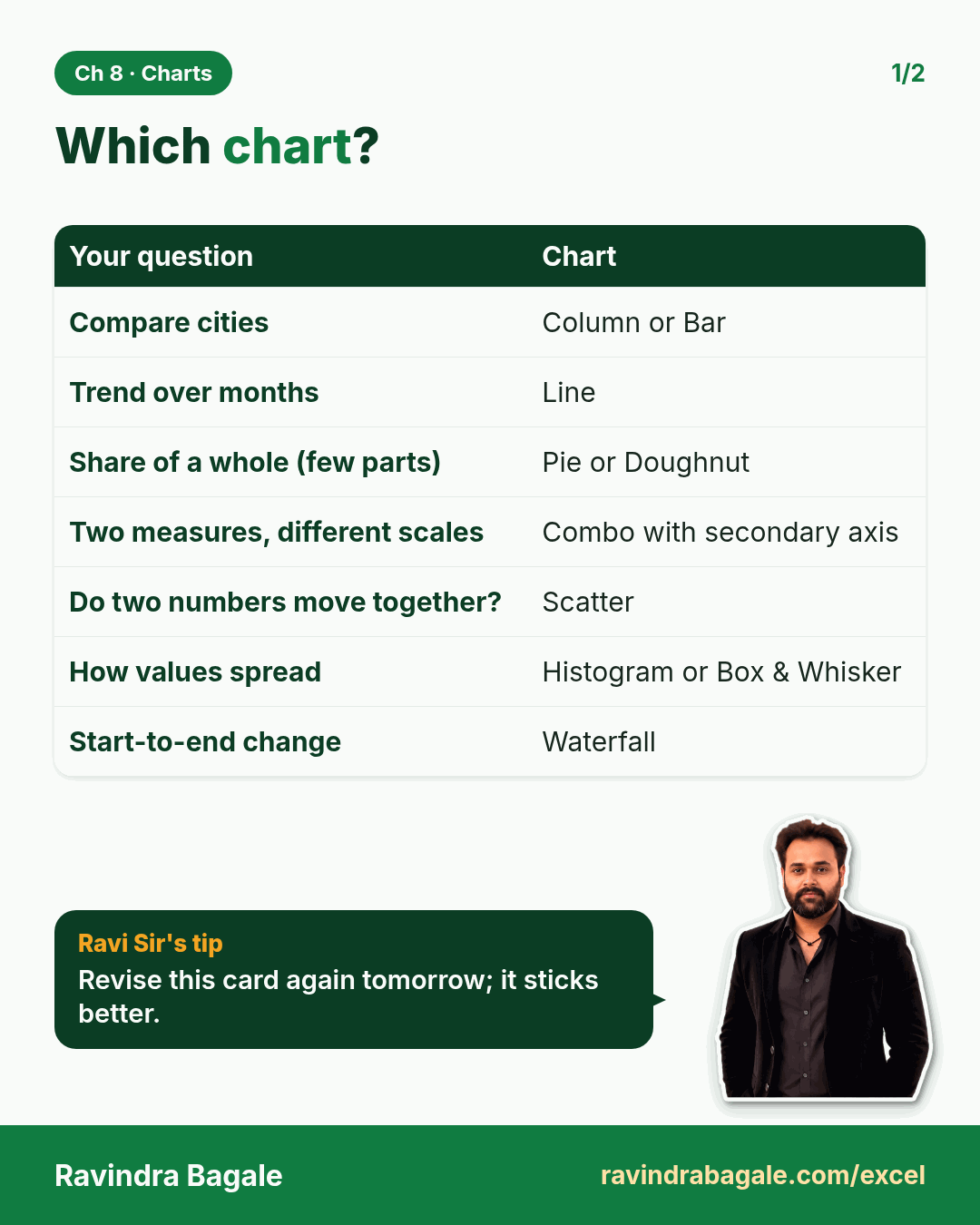
Revision card: Which chart?. Covers Compare cities; Trend over months; Share of a whole (few parts); Two measures, different scales; Do two numbers move together?; How values spread; Start-to-end change. With a photo of Ravindra Bagale and a short tip.
Card 1 of 2: Which chart? · Download PNG · Open card page
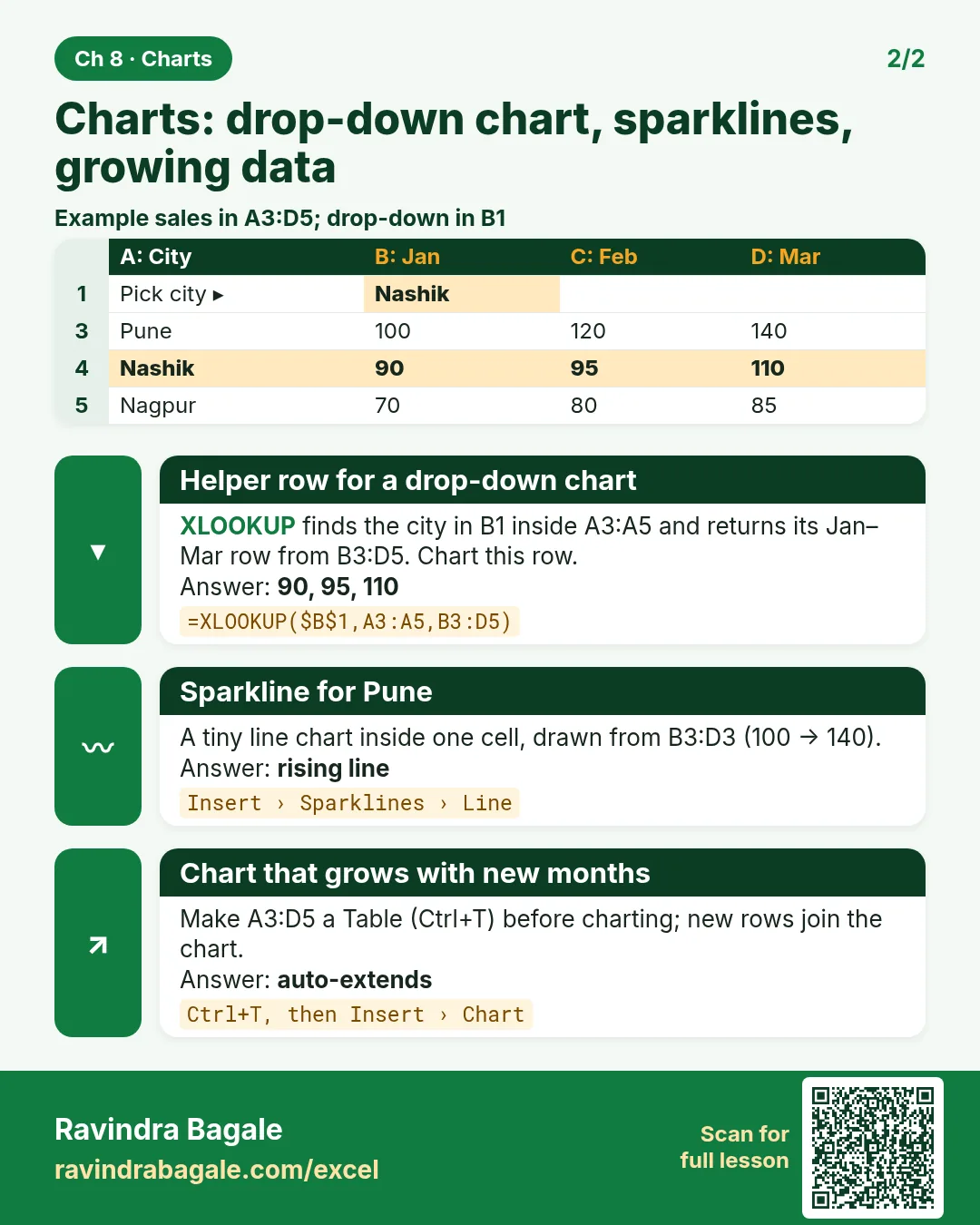
Revision card: Charts: drop-down chart, sparklines, growing data. Example data table with Helper row for a drop-down chart: 90, 95, 110; Sparkline for Pune: rising line; Chart that grows with new months: auto-extends.
Card 2 of 2: Charts: drop-down chart, sparklines, growing data · Download PNG · Open card page

13. Excel Dashboards

Ch 13 · Dashboards · 2 cards · Open the chapter
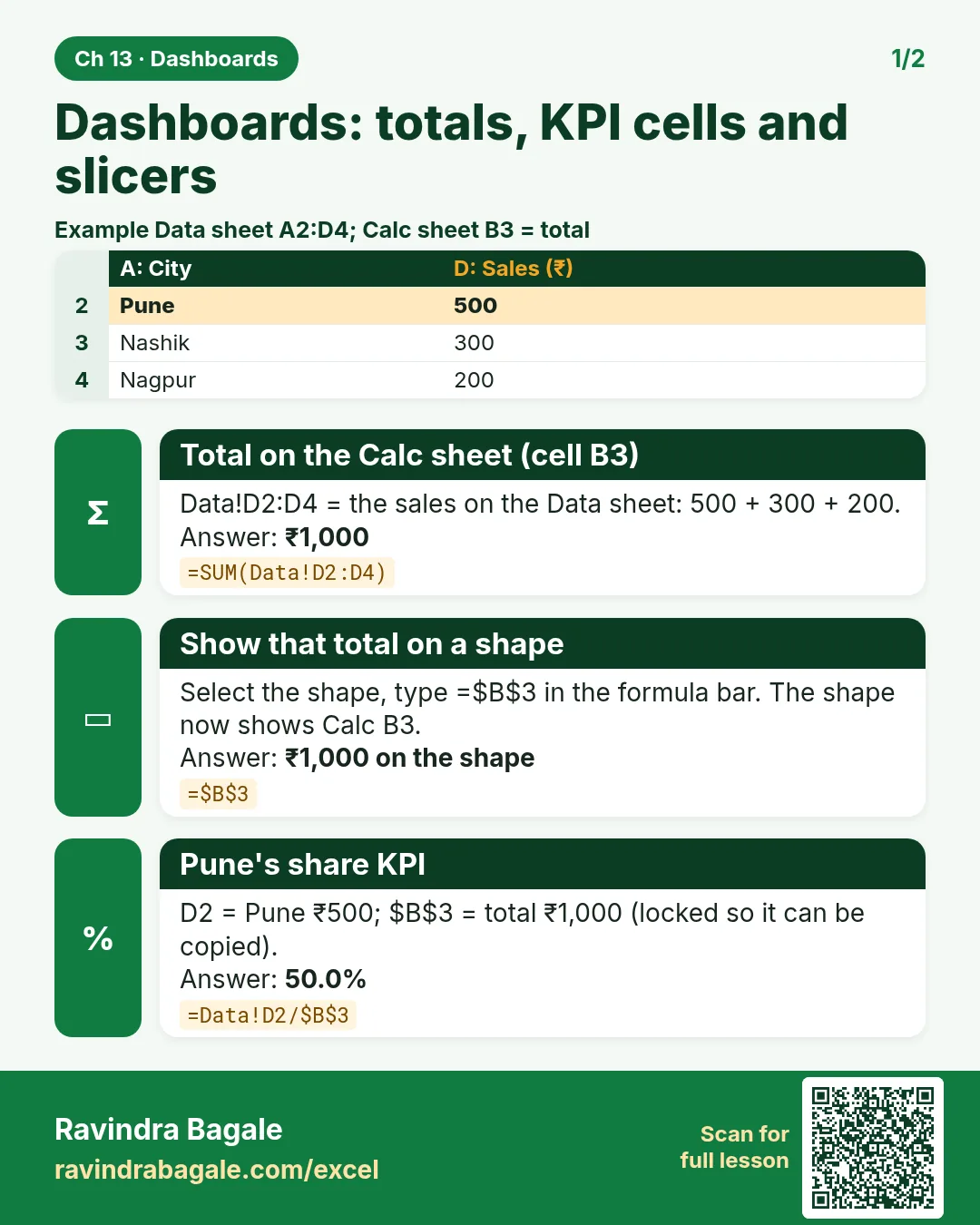
Revision card: Dashboards: totals, KPI cells and slicers. Example data table with Total on the Calc sheet (cell B3): ₹1,000; Show that total on a shape: ₹1,000 on the shape; Pune's share KPI: 50.0%.
Card 1 of 2: Dashboards: totals, KPI cells and slicers · Download PNG · Open card page
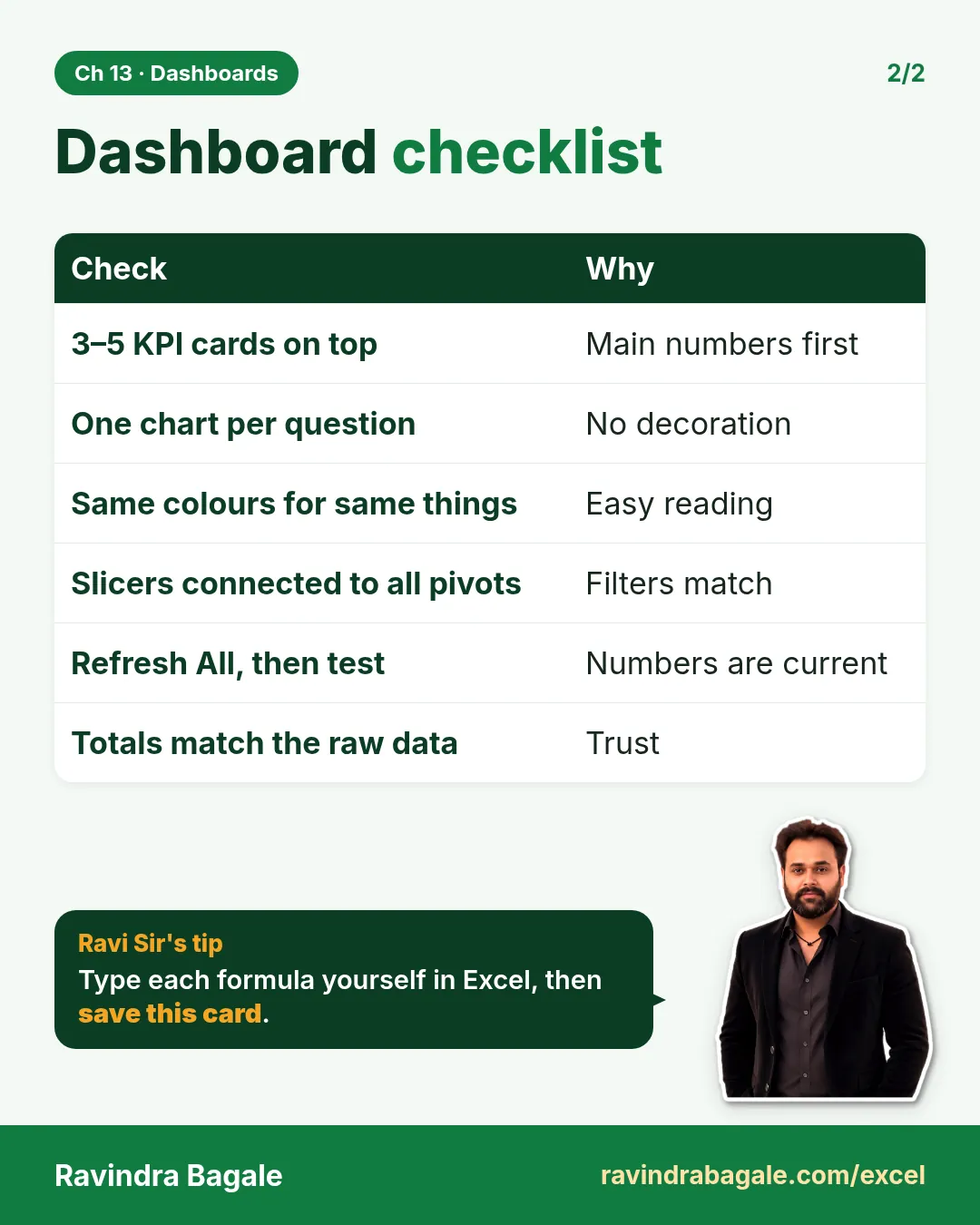
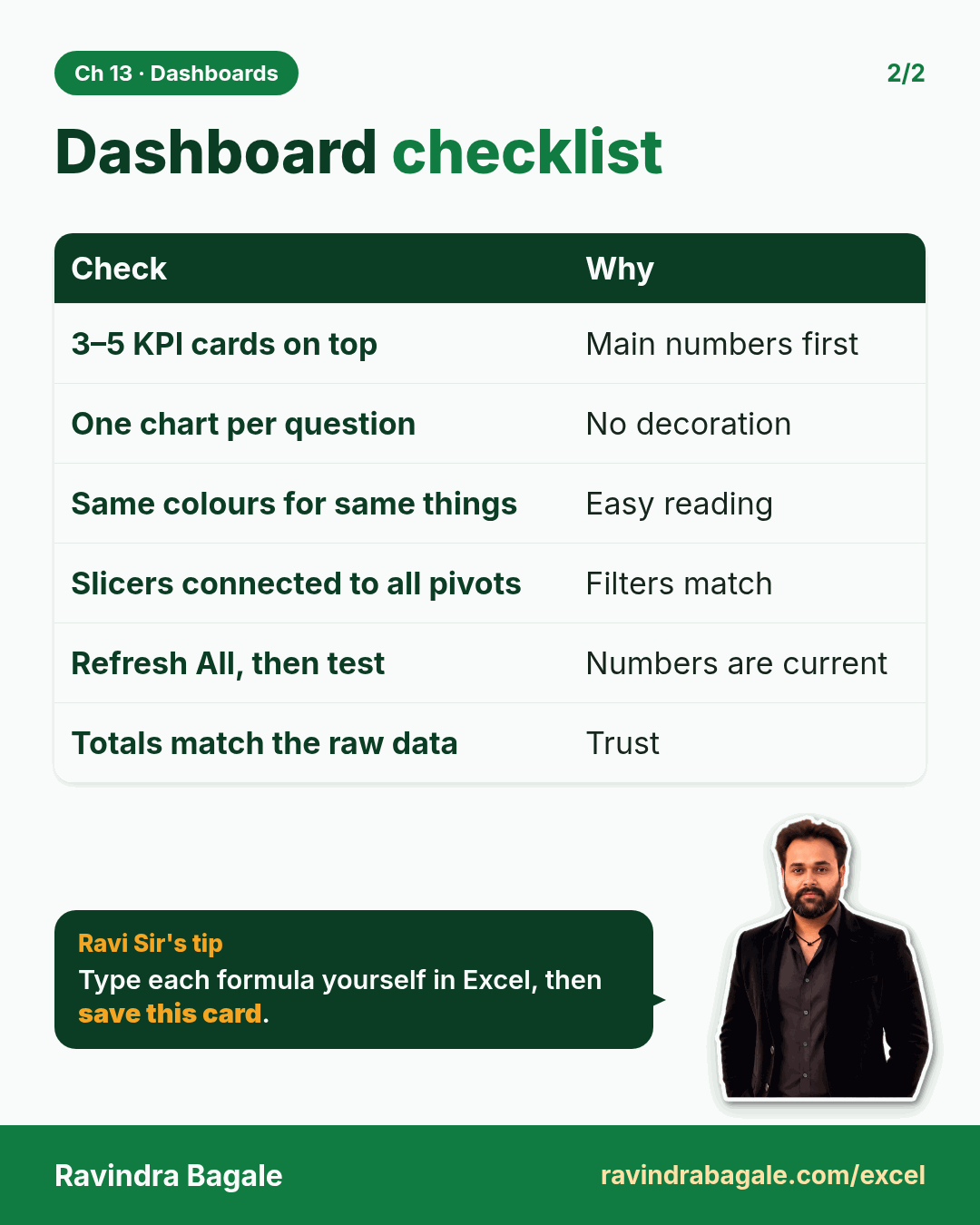
Revision card: Dashboard checklist. Covers 3–5 KPI cards on top; One chart per question; Same colours for same things; Slicers connected to all pivots; Refresh All, then test; Totals match the raw data. With a photo of Ravindra Bagale and a short tip.
Card 2 of 2: Dashboard checklist · Download PNG · Open card page

Classroom · KPI Card · 2 cards · Open the chapter
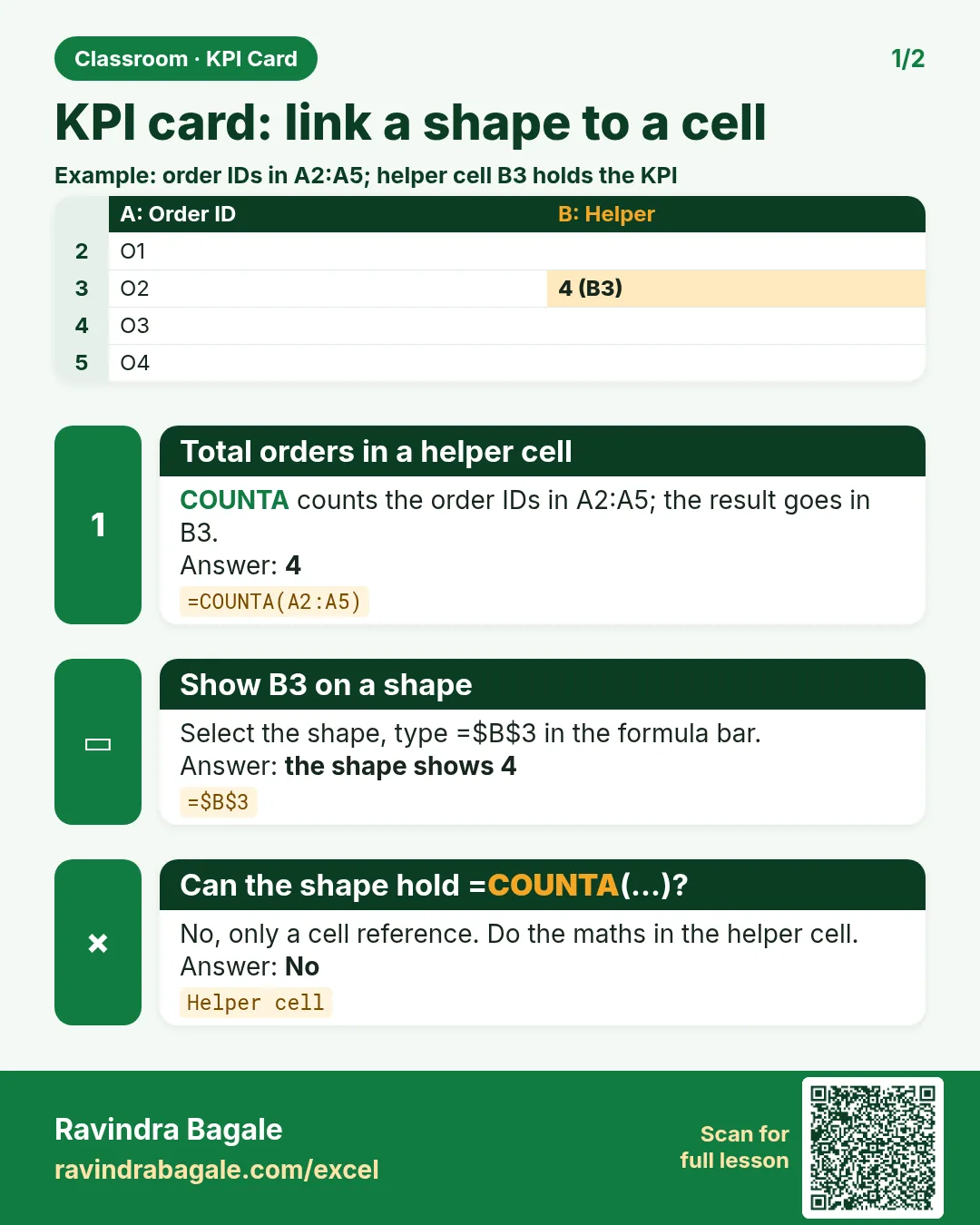
Revision card: KPI card: link a shape to a cell. Example data table with Total orders in a helper cell: 4; Show B3 on a shape: the shape shows 4; Can the shape hold =COUNTA(...)?: No.
Card 1 of 2: KPI card: link a shape to a cell · Download PNG · Open card page
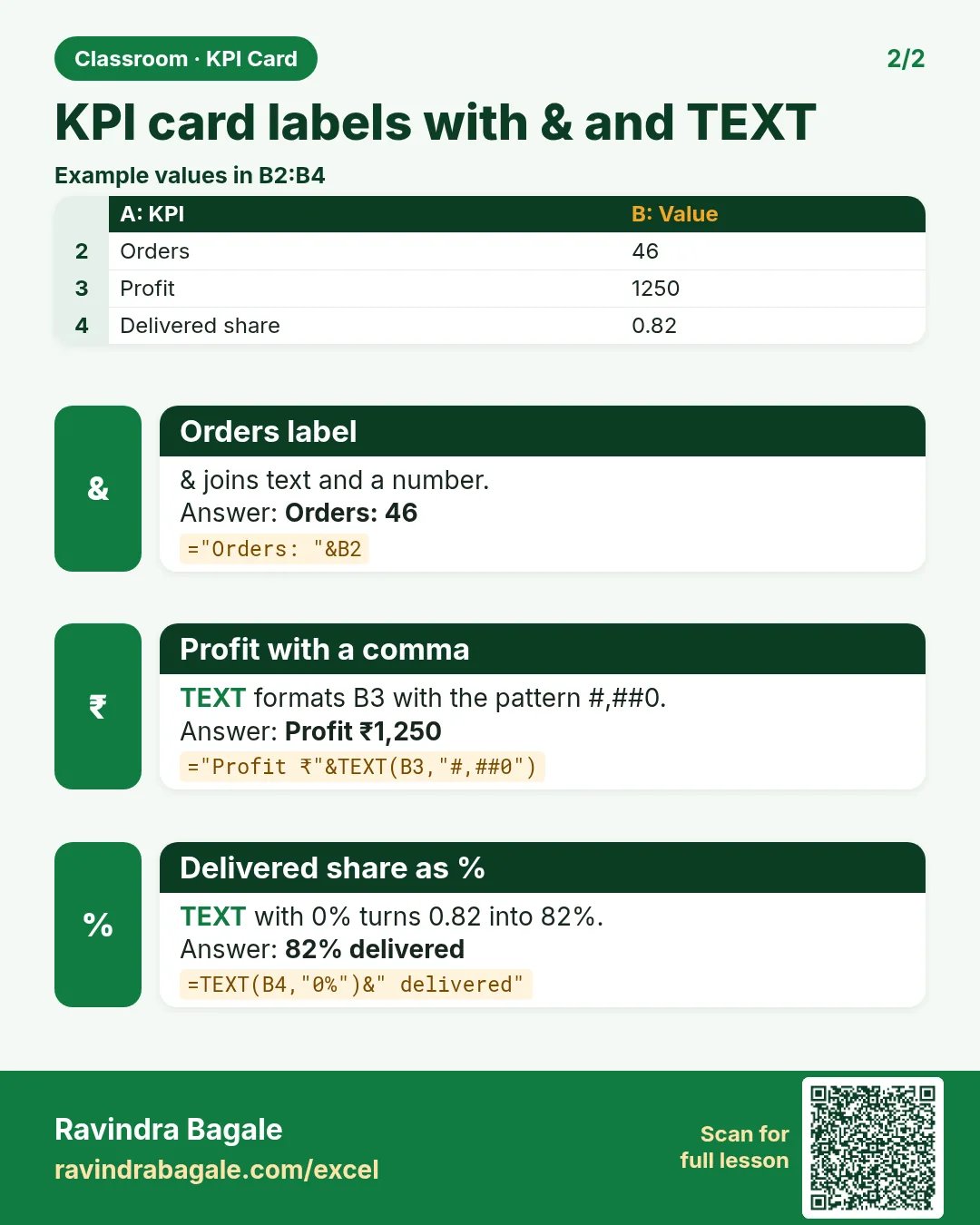
Revision card: KPI card labels with & and TEXT. Example data table with Orders label: Orders: 46; Profit with a comma: Profit ₹1,250; Delivered share as %: 82% delivered.
Card 2 of 2: KPI card labels with & and TEXT · Download PNG · Open card page

22. KPI in All Industries

Ch 22 · KPIs · 2 cards · Open the chapter
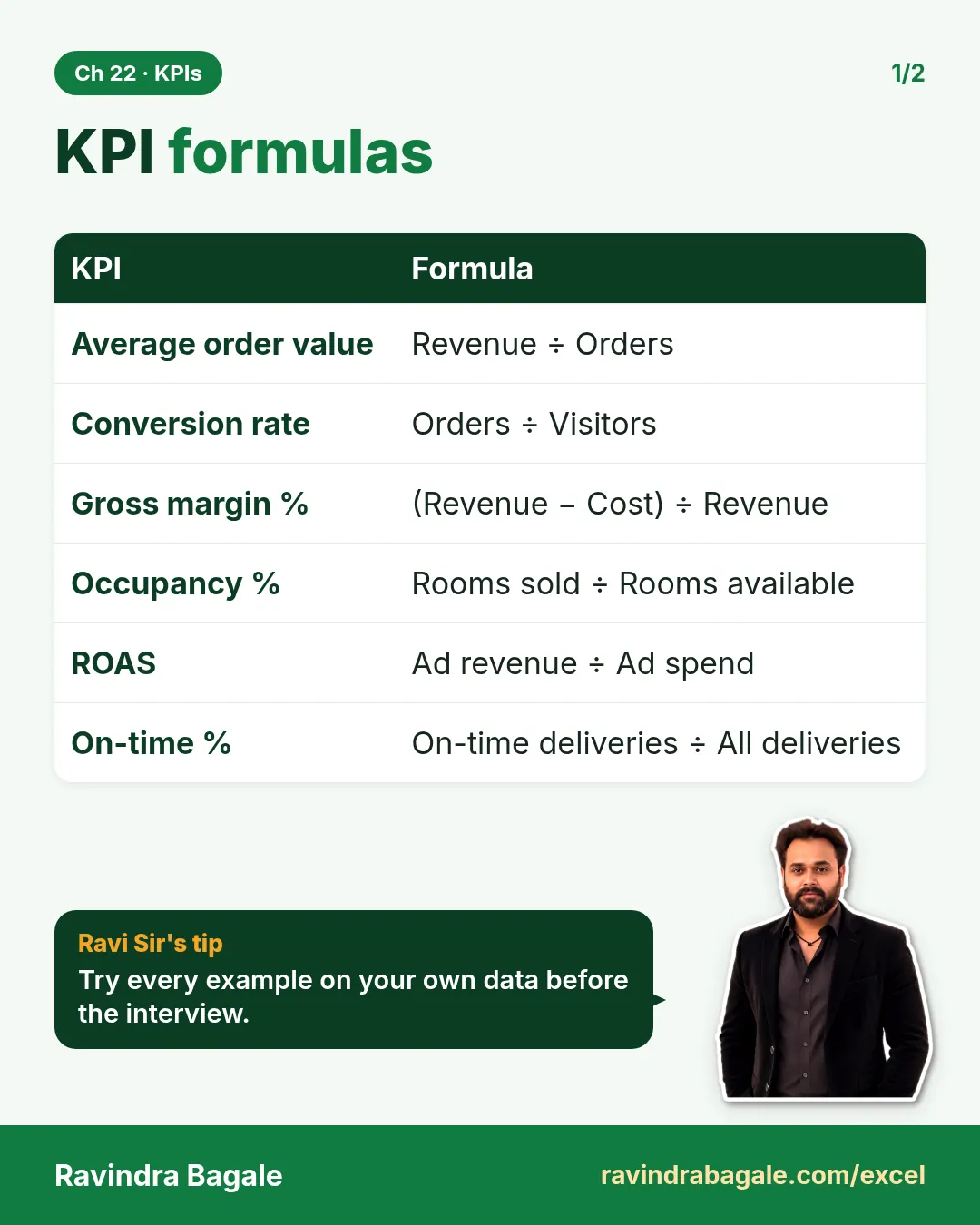
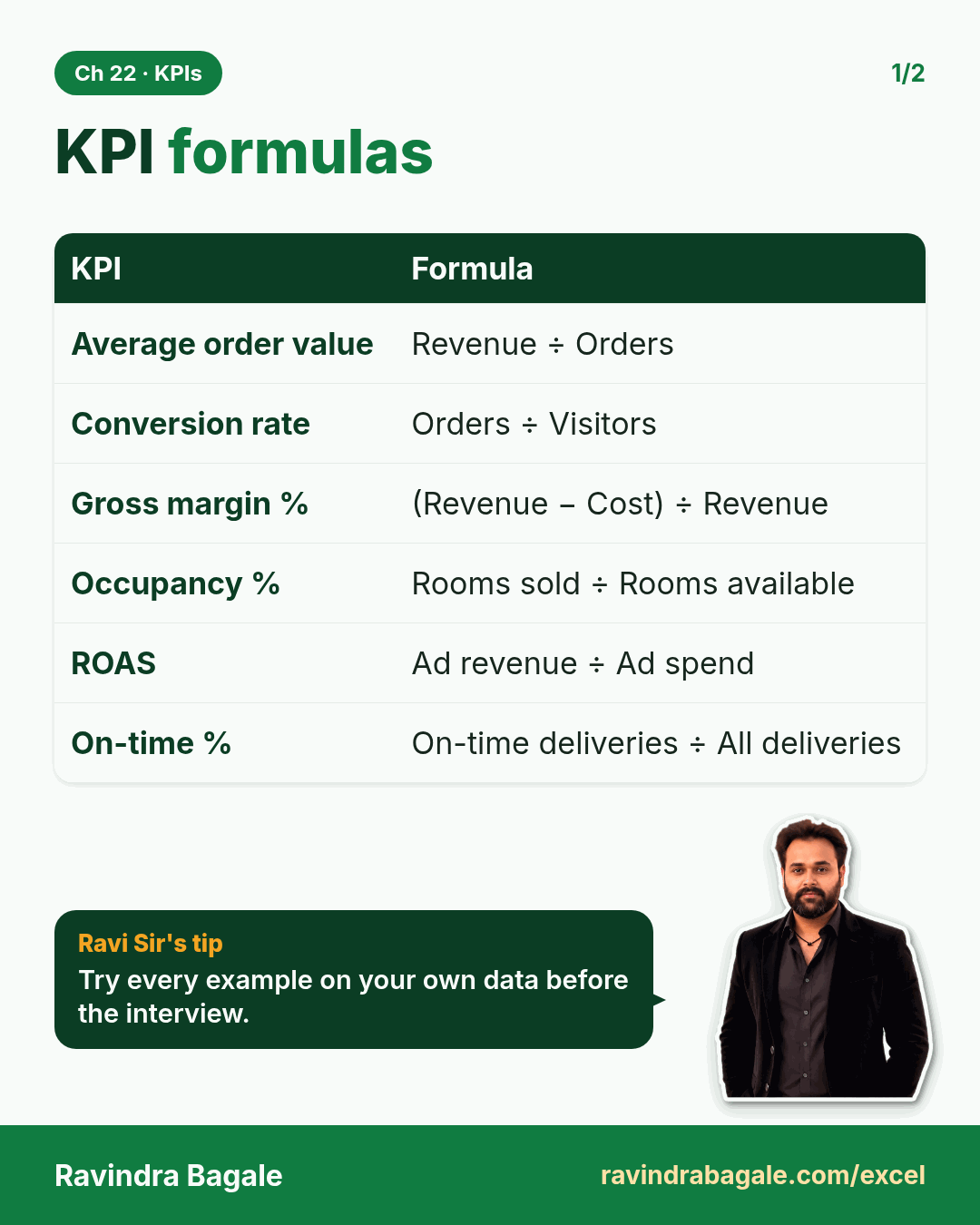
Revision card: KPI formulas. Covers Average order value; Conversion rate; Gross margin %; Occupancy %; ROAS; On-time %. With a photo of Ravindra Bagale and a short tip.
Card 1 of 2: KPI formulas · Download PNG · Open card page
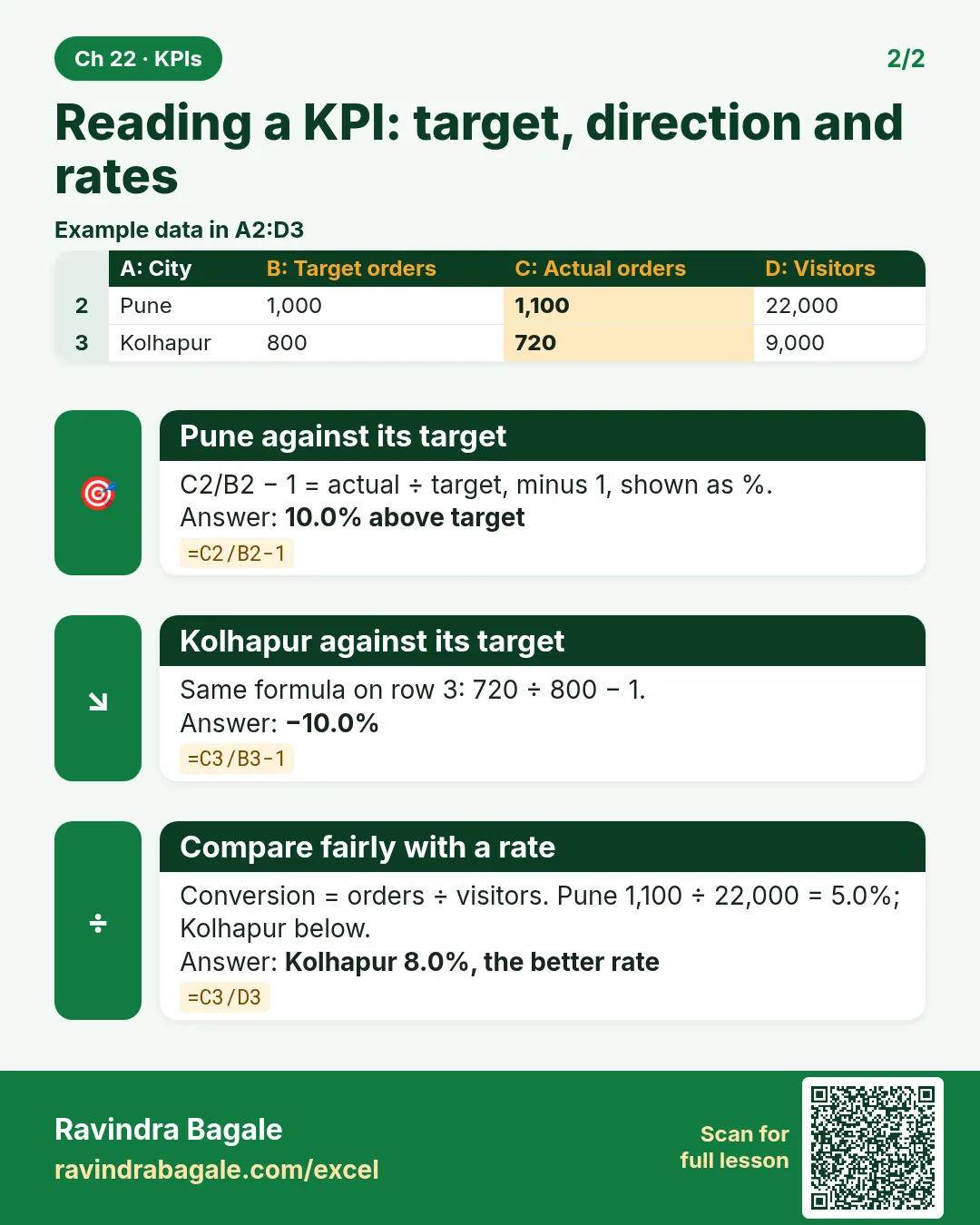
Revision card: Reading a KPI: target, direction and rates. Example data table with Pune against its target: 10.0% above target; Kolhapur against its target: −10.0%; Compare fairly with a rate: Kolhapur 8.0%, the better rate.
Card 2 of 2: Reading a KPI: target, direction and rates · Download PNG · Open card page

What-if, statistics and forecasting

11. What-If Analysis

Ch 11 · What-If · 2 cards · Open the chapter
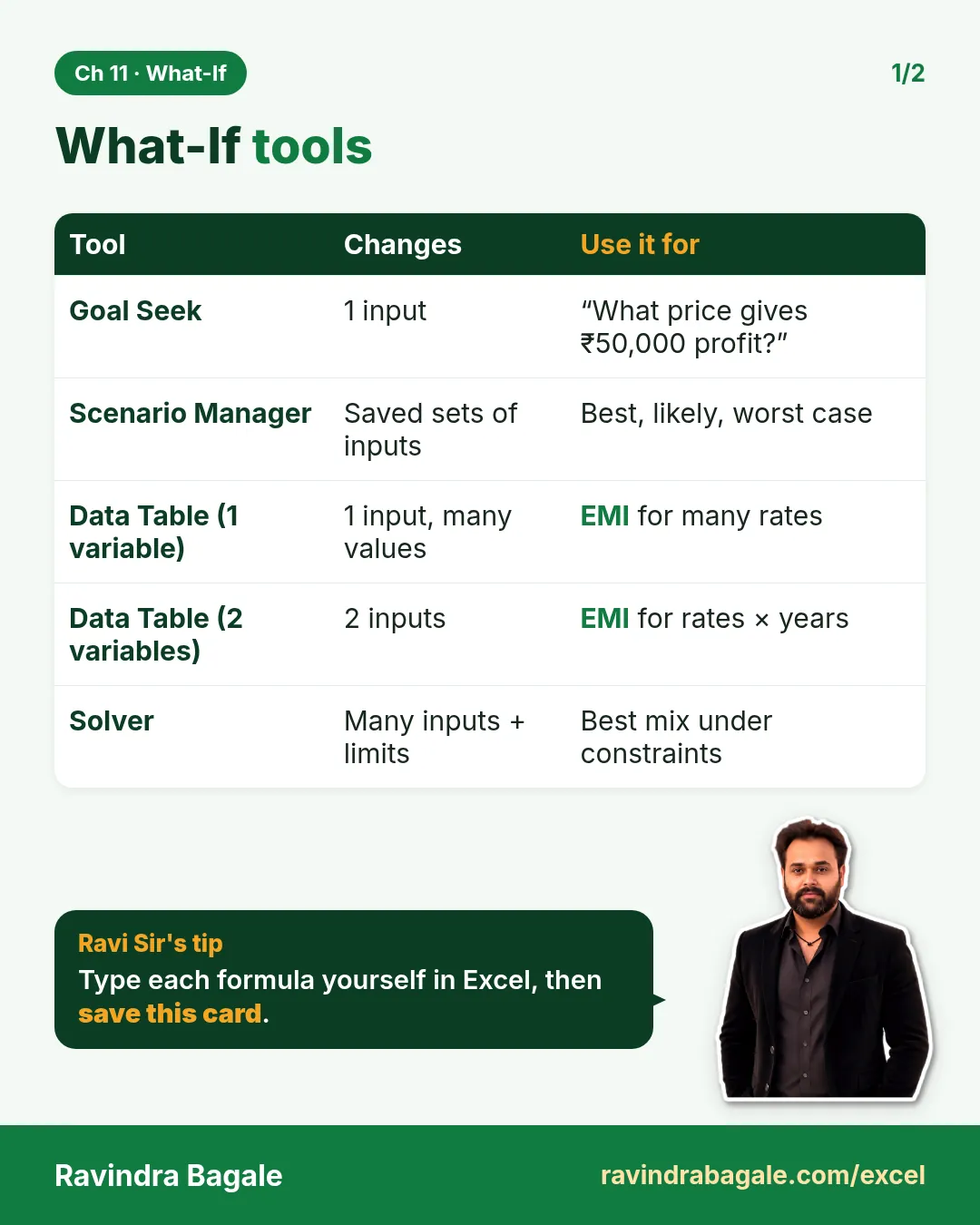
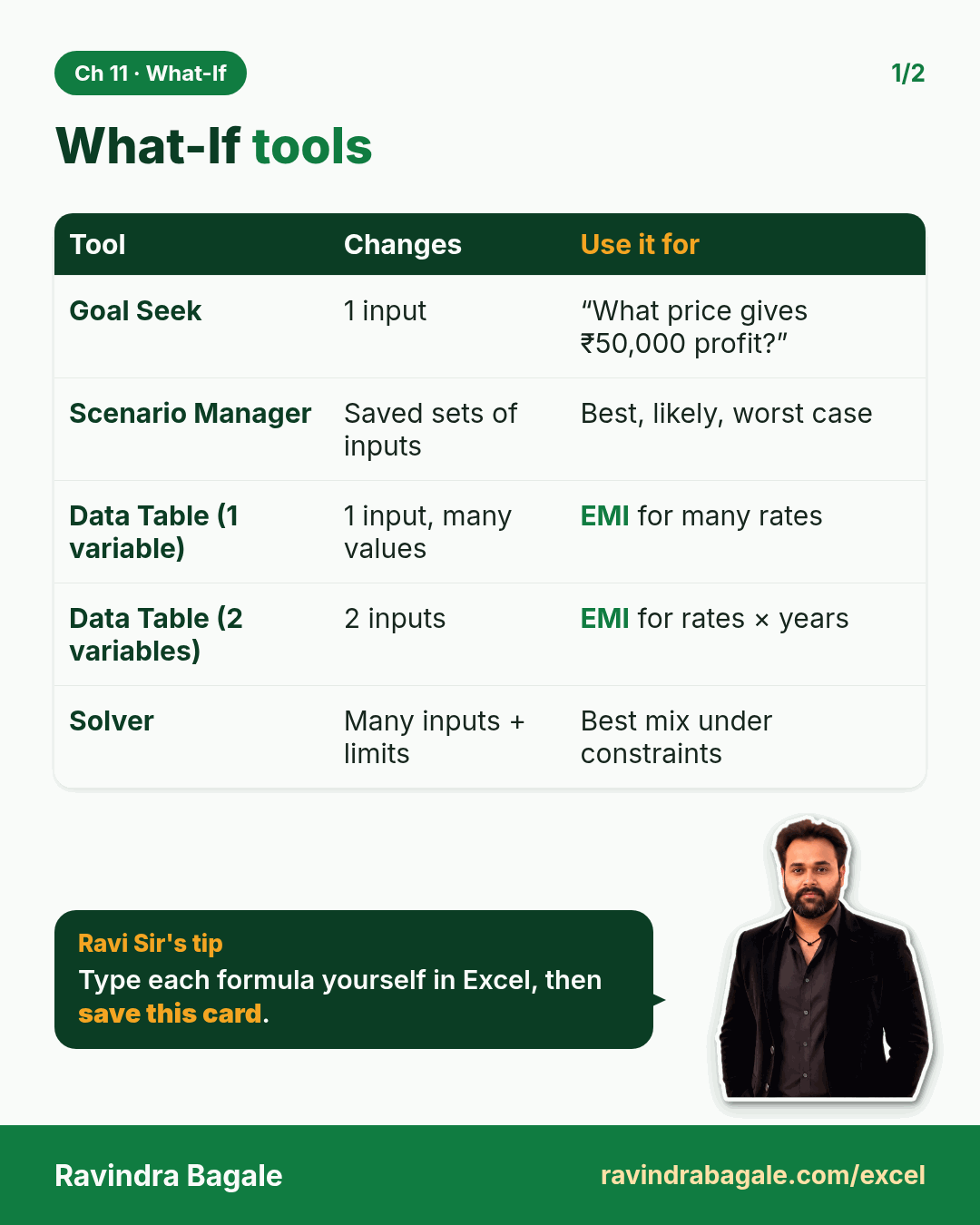
Revision card: What-If tools. Covers Goal Seek; Scenario Manager; Data Table (1 variable); Data Table (2 variables); Solver. With a photo of Ravindra Bagale and a short tip.
Card 1 of 2: What-If tools · Download PNG · Open card page
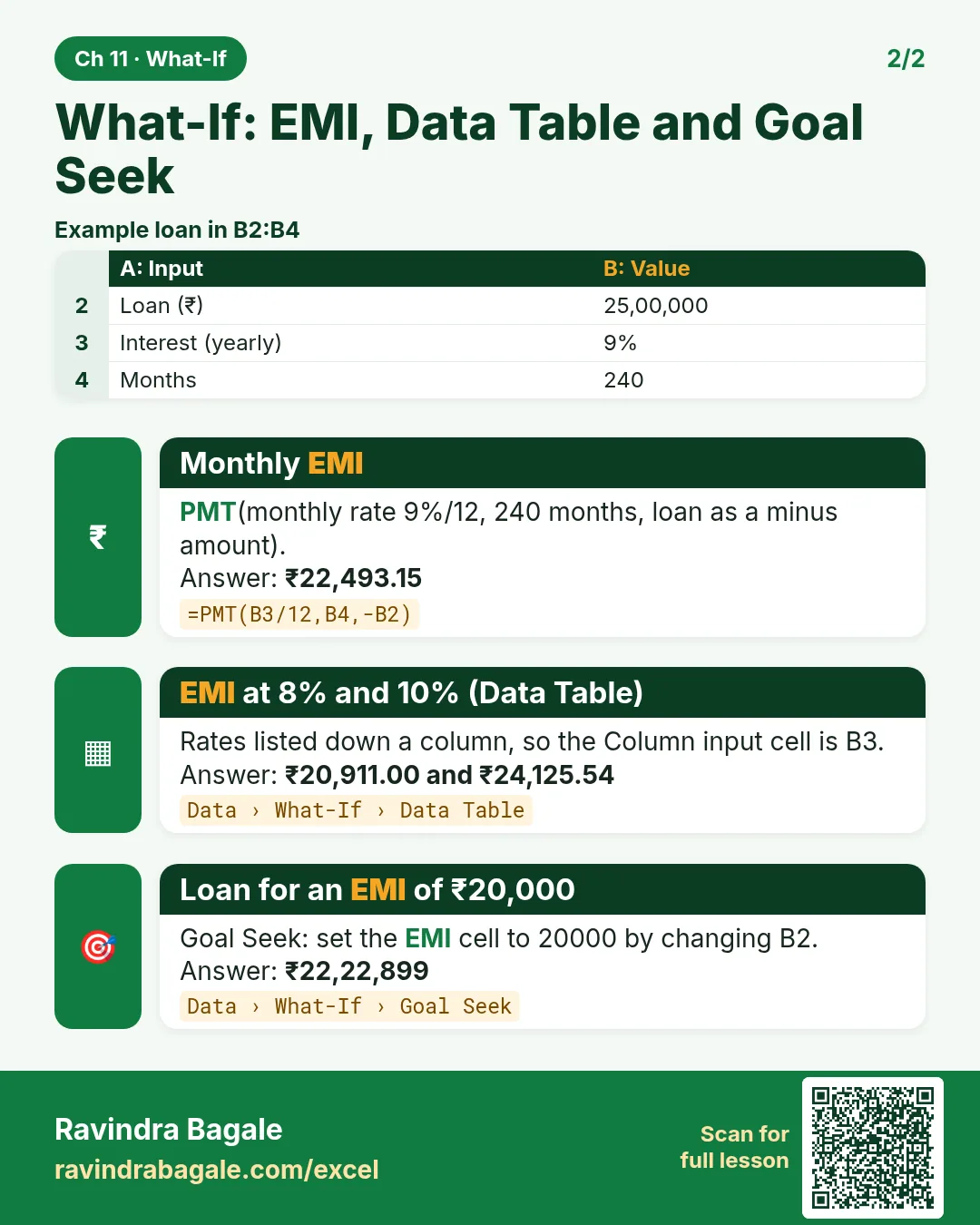
Revision card: What-If: EMI, Data Table and Goal Seek. Example data table with Monthly EMI: ₹22,493.15; EMI at 8% and 10% (Data Table): ₹20,911.00 and ₹24,125.54; Loan for an EMI of ₹20,000: ₹22,22,899.
Card 2 of 2: What-If: EMI, Data Table and Goal Seek · Download PNG · Open card page

30. Statistics for Analysts

Ch 30 · Statistics · 2 cards · Open the chapter
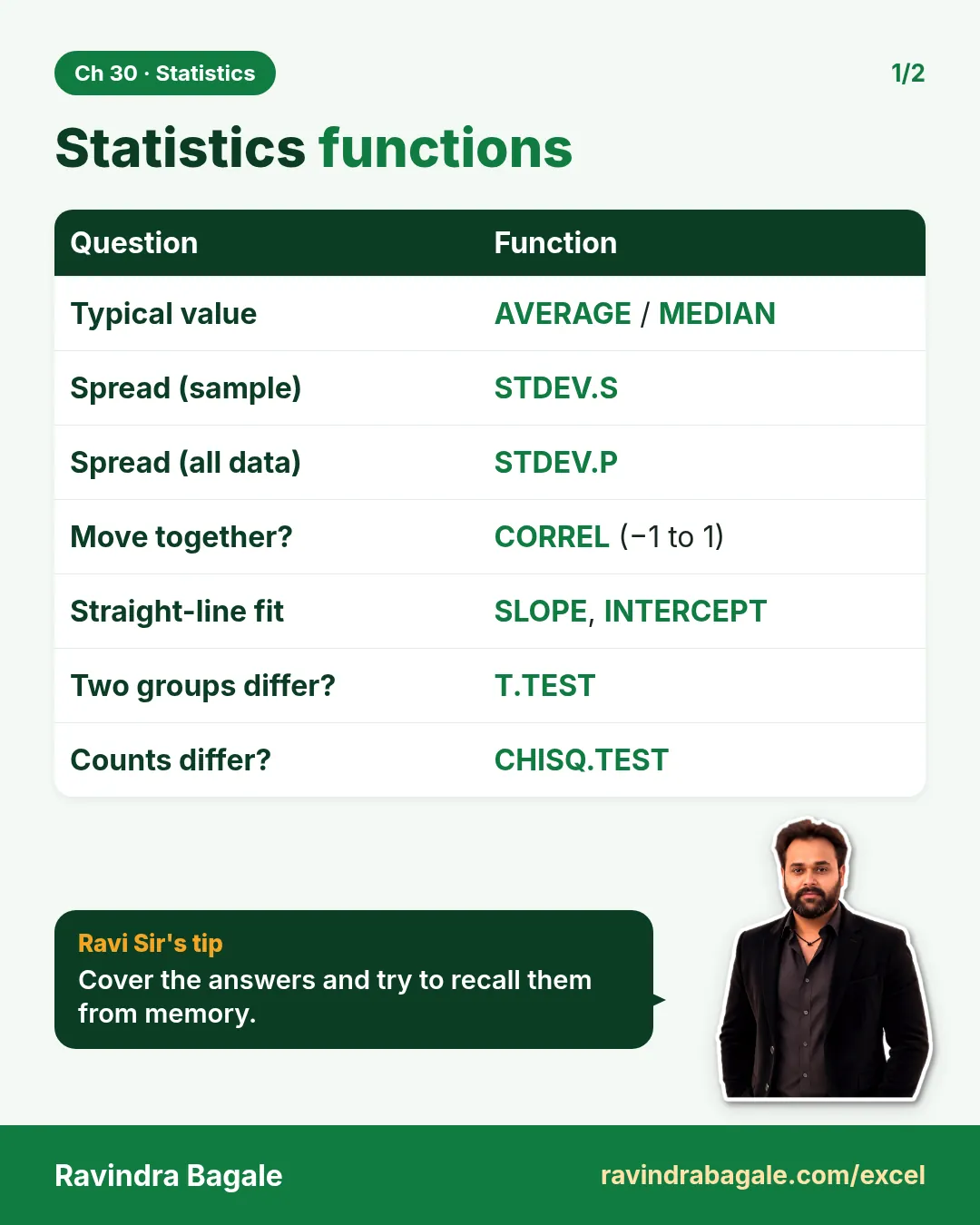
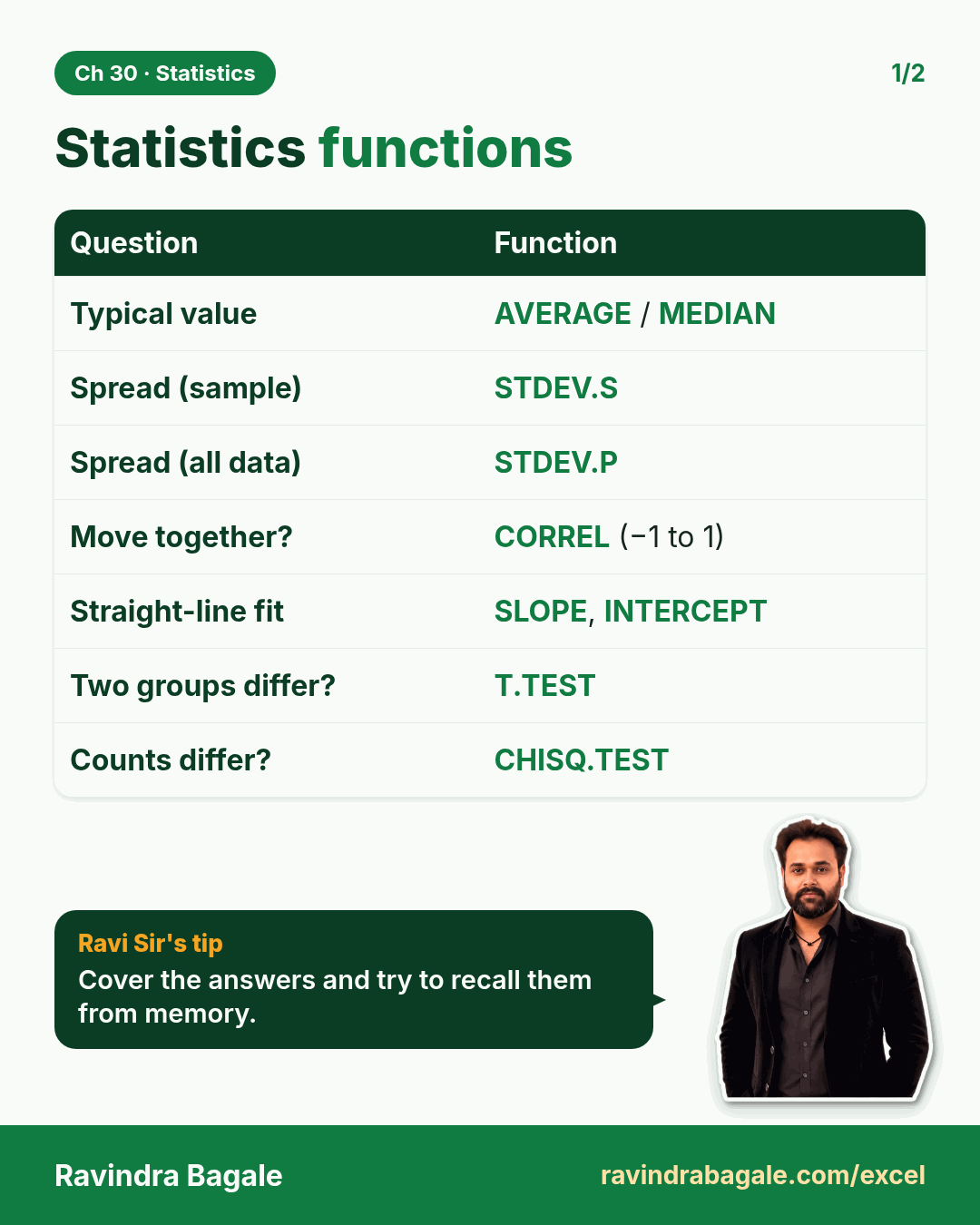
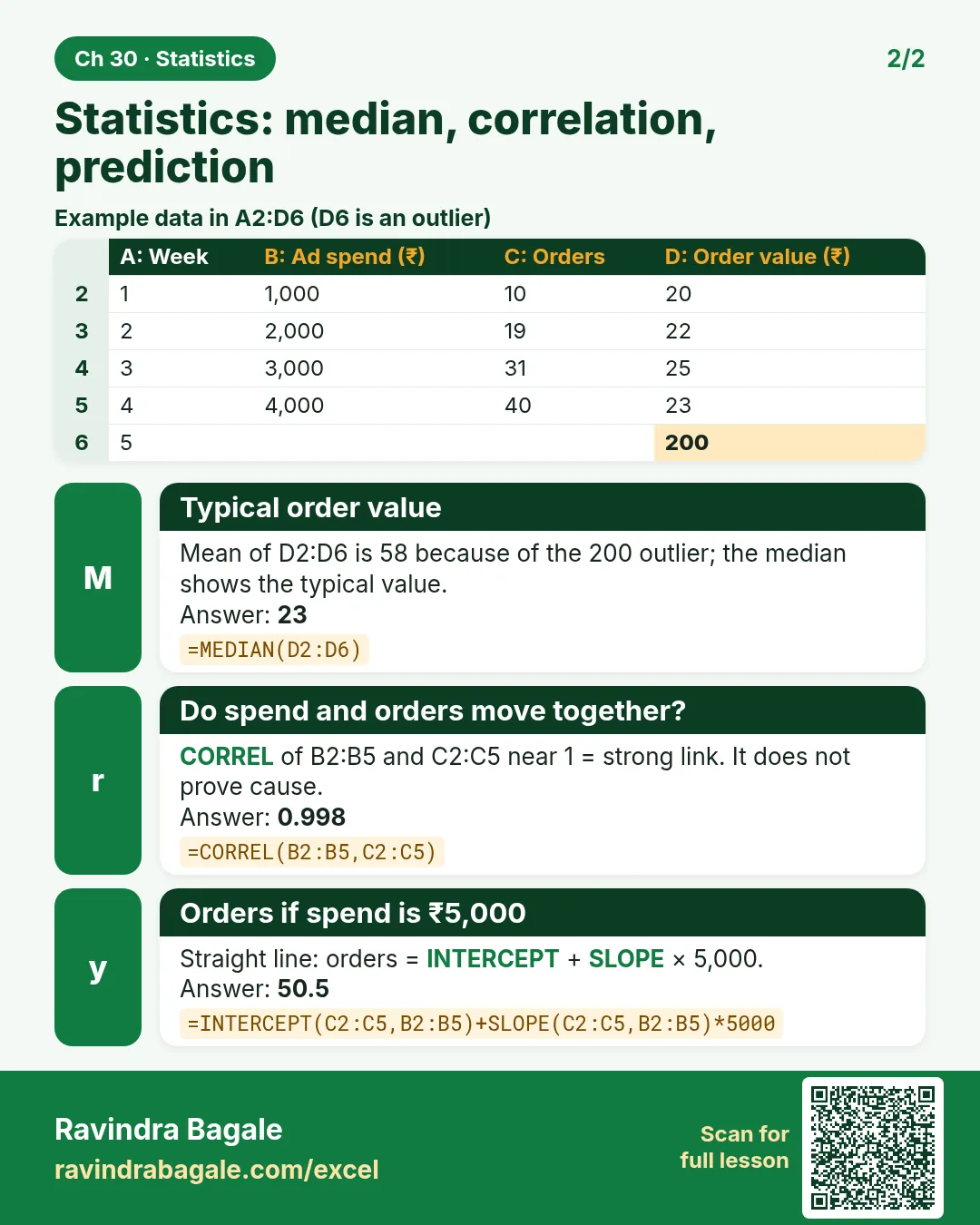
Revision card: Statistics functions. Covers Typical value; Spread (sample); Spread (all data); Move together?; Straight-line fit; Two groups differ?; Counts differ?. With a photo of Ravindra Bagale and a short tip.
Card 1 of 2: Statistics functions · Download PNG · Open card page
Revision card: Statistics: median, correlation, prediction. Example data table with Typical order value: 23; Do spend and orders move together?: 0.998; Orders if spend is ₹5,000: 50.5.
Card 2 of 2: Statistics: median, correlation, prediction · Download PNG · Open card page

31. Forecasting in Excel

Ch 31 · Forecasting · 2 cards · Open the chapter
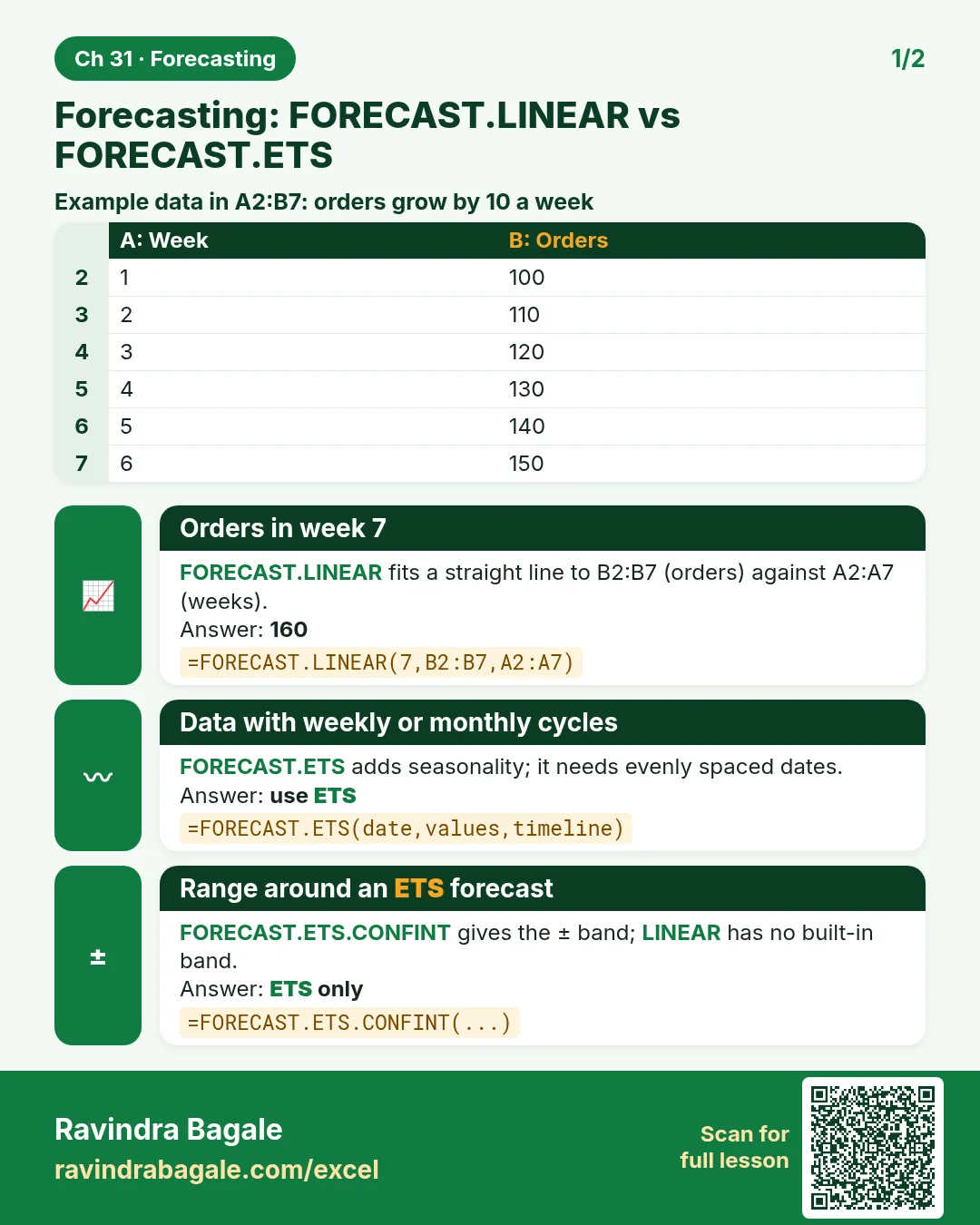
Revision card: Forecasting: FORECAST.LINEAR vs FORECAST.ETS. Example data table with Orders in week 7: 160; Data with weekly or monthly cycles: use ETS; Range around an ETS forecast: ETS only.
Card 1 of 2: Forecasting: FORECAST.LINEAR vs FORECAST.ETS · Download PNG · Open card page
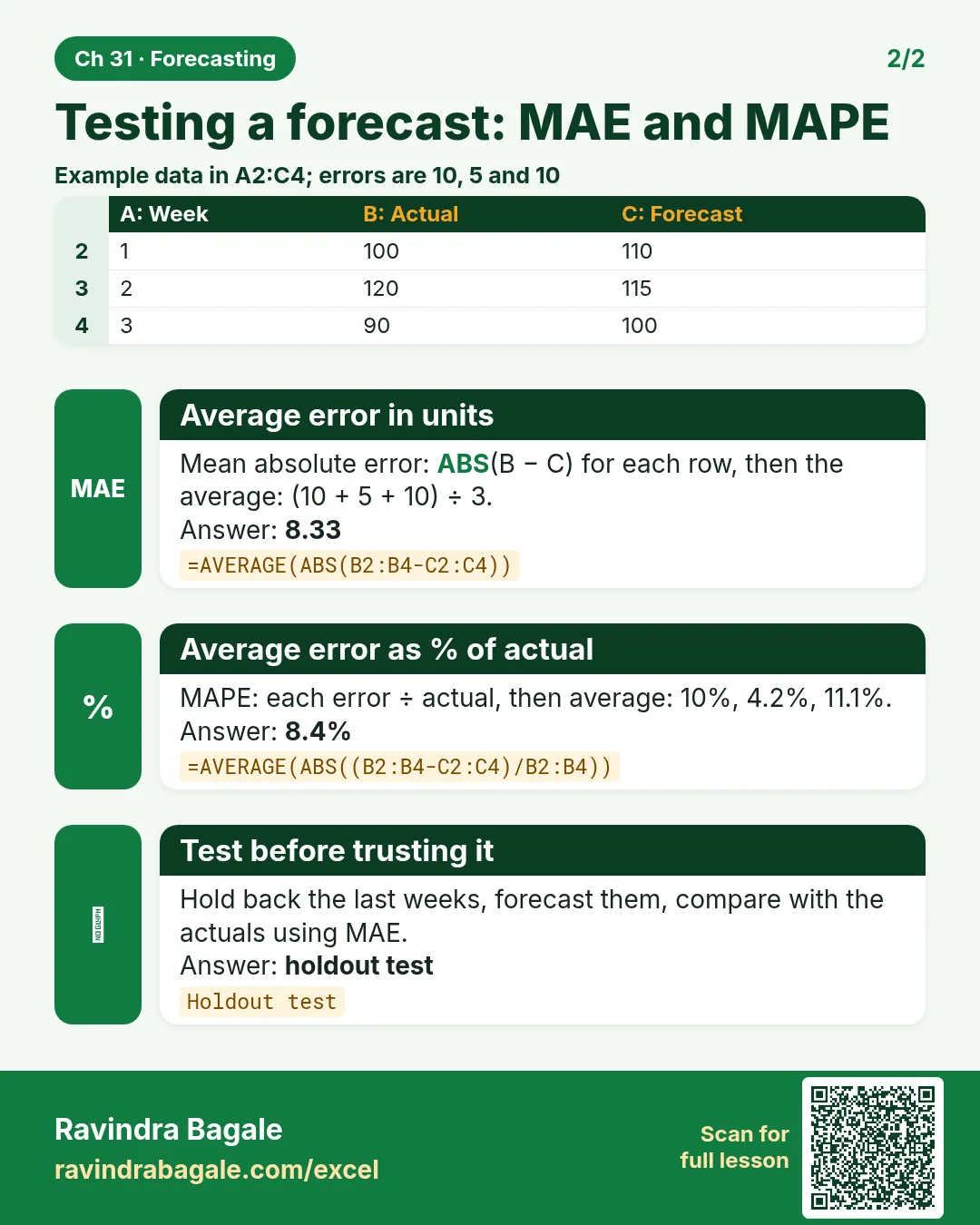
Revision card: Testing a forecast: MAE and MAPE. Example data table with Average error in units: 8.33; Average error as % of actual: 8.4%; Test before trusting it: holdout test.
Card 2 of 2: Testing a forecast: MAE and MAPE · Download PNG · Open card page

Automation, AI and Python

12. Macros and VBA

Ch 12 · Macros & VBA · 2 cards · Open the chapter
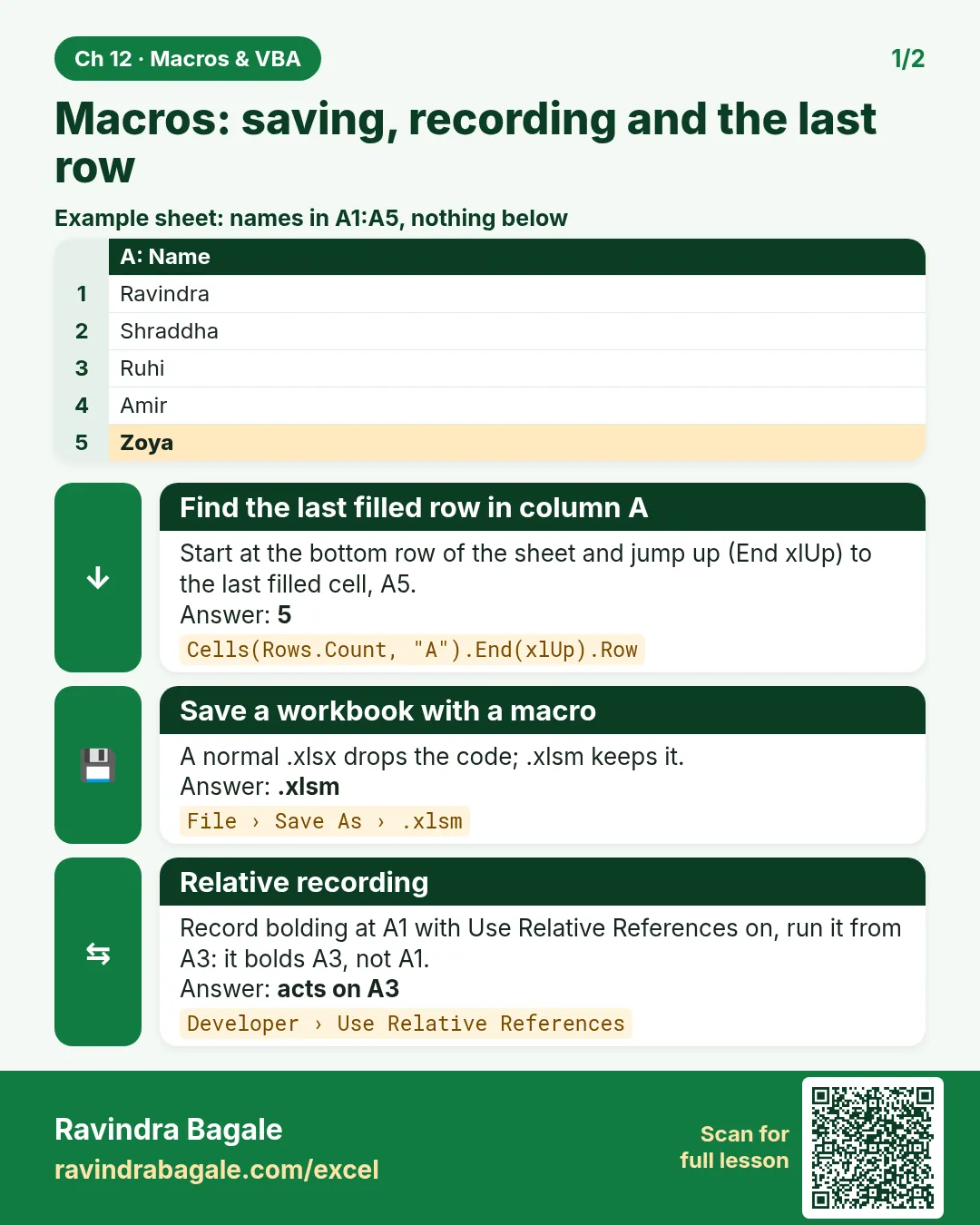
Revision card: Macros: saving, recording and the last row. Example data table with Find the last filled row in column A: 5; Save a workbook with a macro: .xlsm; Relative recording: acts on A3.
Card 1 of 2: Macros: saving, recording and the last row · Download PNG · Open card page
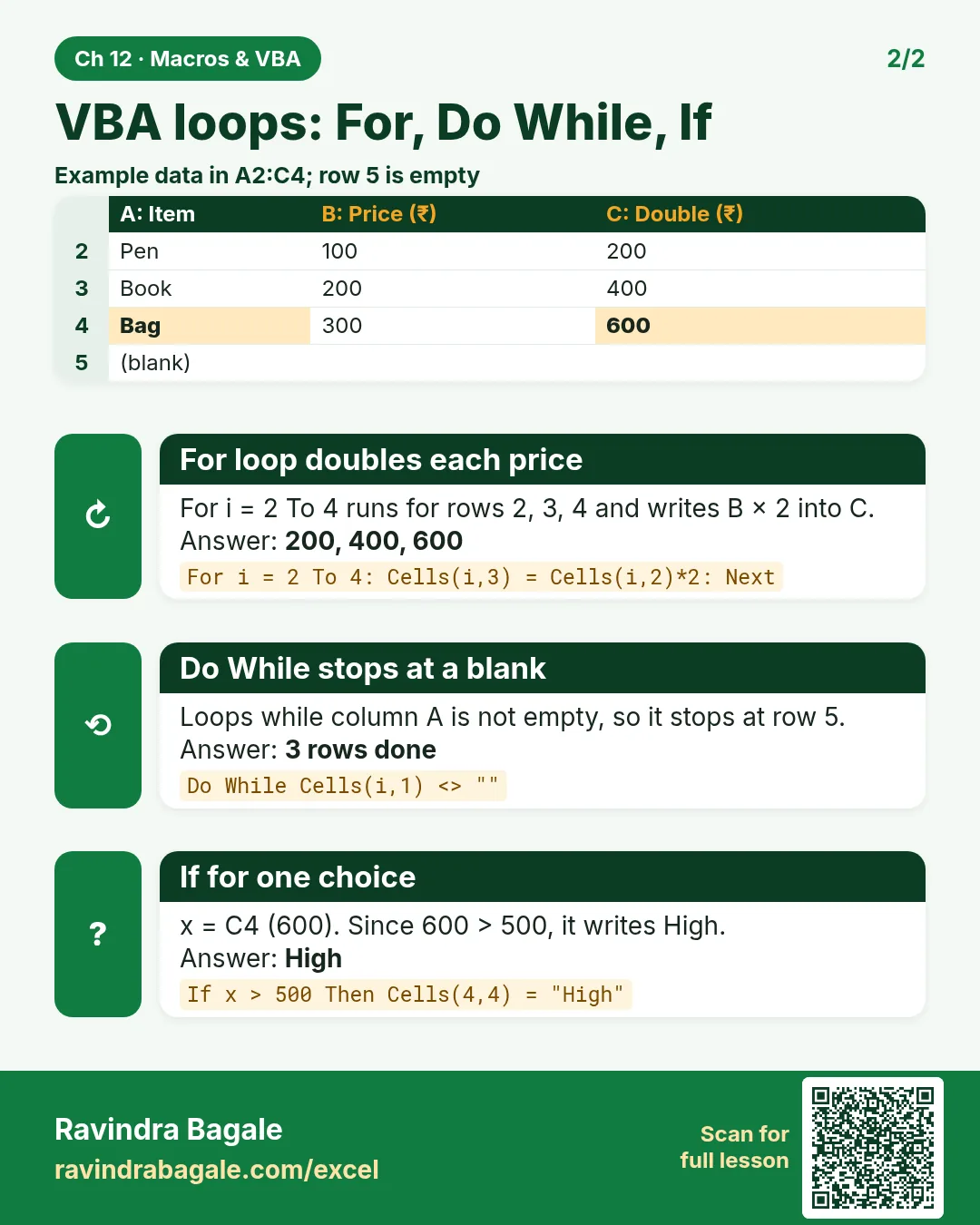
Revision card: VBA loops: For, Do While, If. Example data table with For loop doubles each price: 200, 400, 600; Do While stops at a blank: 3 rows done; If for one choice: High.
Card 2 of 2: VBA loops: For, Do While, If · Download PNG · Open card page

28. Copilot and AI in Excel

Ch 28 · AI in Excel · 2 cards · Open the chapter
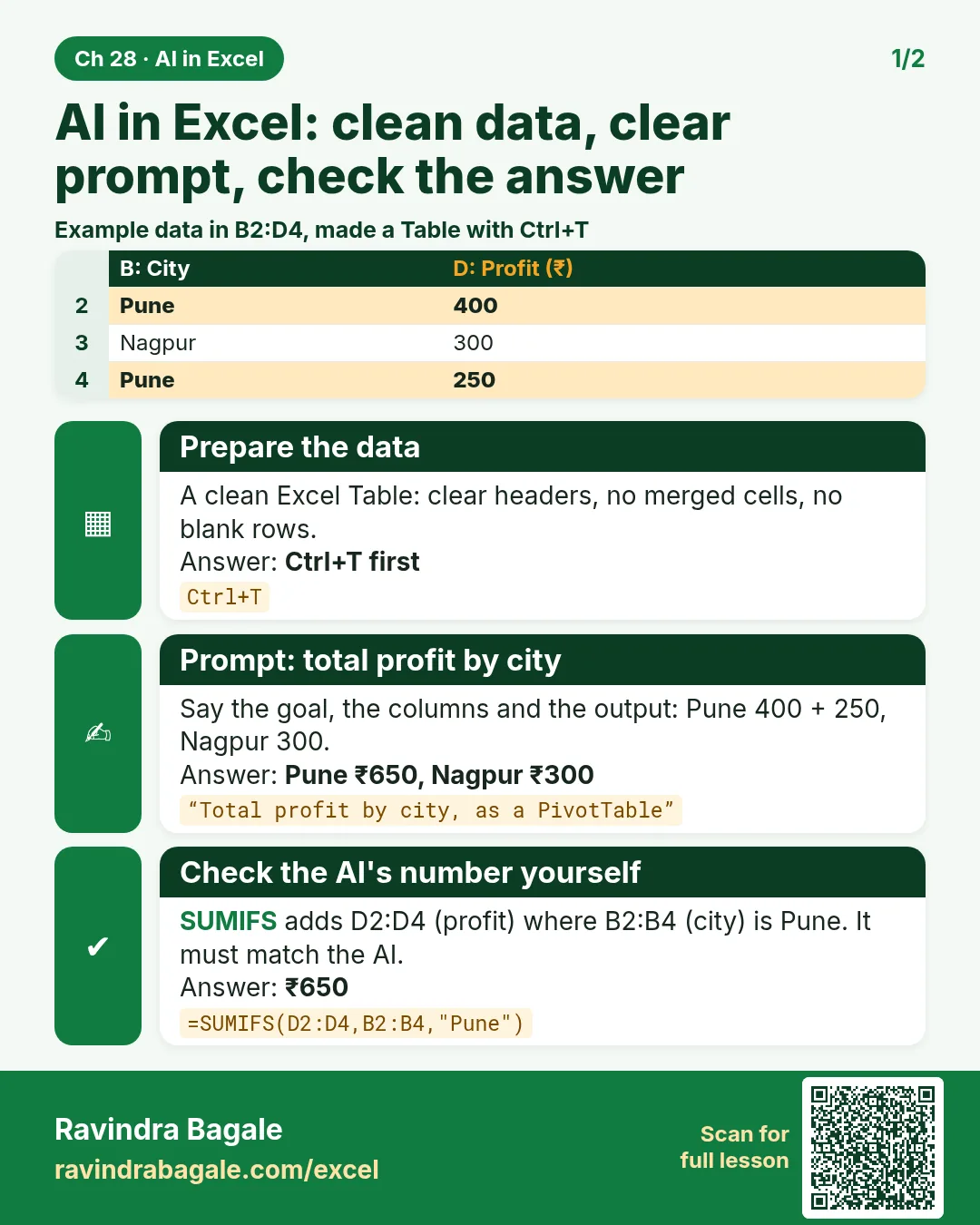
Revision card: AI in Excel: clean data, clear prompt, check the answer. Example data table with Prepare the data: Ctrl+T first; Prompt: total profit by city: Pune ₹650, Nagpur ₹300; Check the AI's number yourself: ₹650.
Card 1 of 2: AI in Excel: clean data, clear prompt, check the answer · Download PNG · Open card page
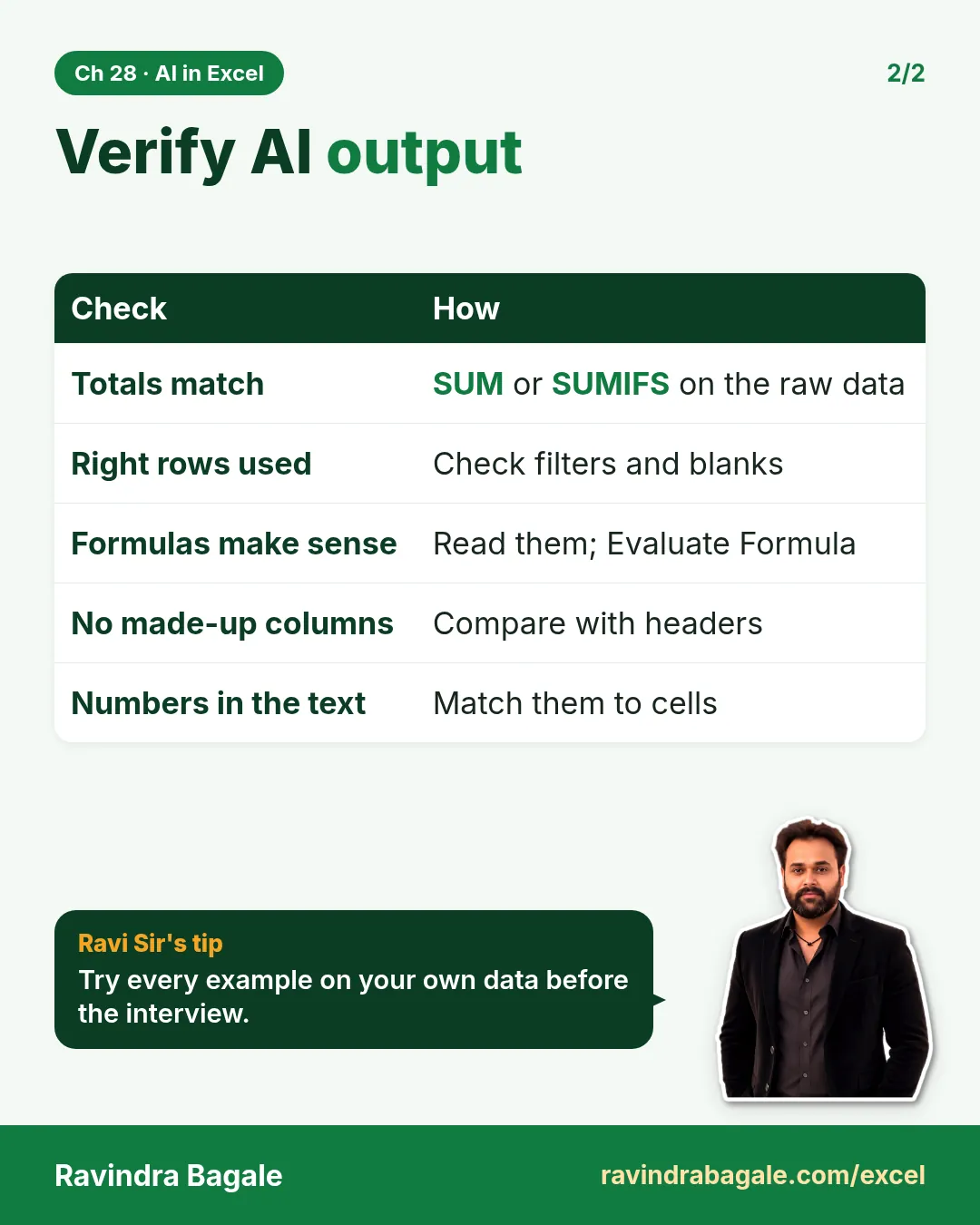
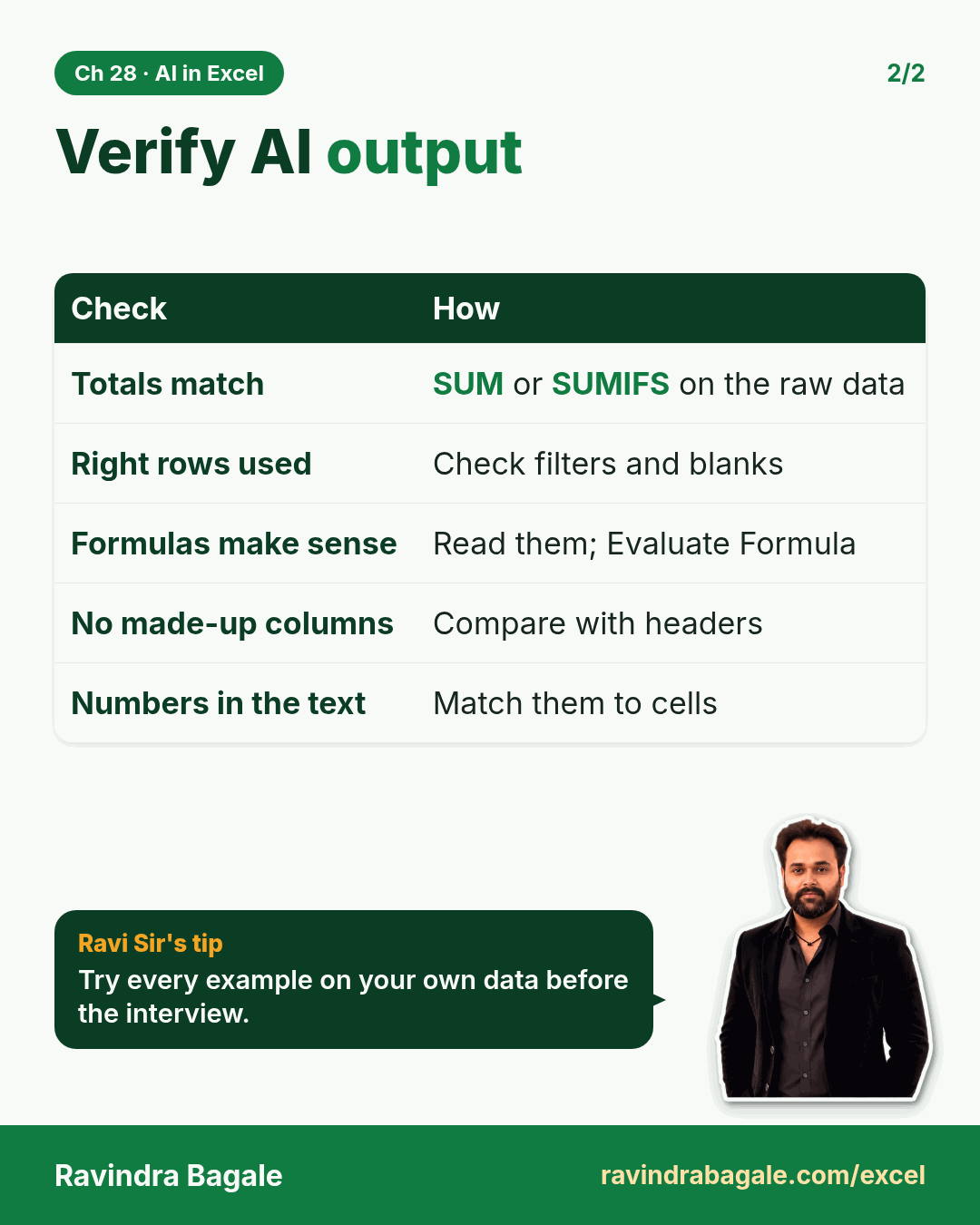
Revision card: Verify AI output. Covers Totals match; Right rows used; Formulas make sense; No made-up columns; Numbers in the text. With a photo of Ravindra Bagale and a short tip.
Card 2 of 2: Verify AI output · Download PNG · Open card page

29. Python in Excel

Ch 29 · Python in Excel · 2 cards · Open the chapter

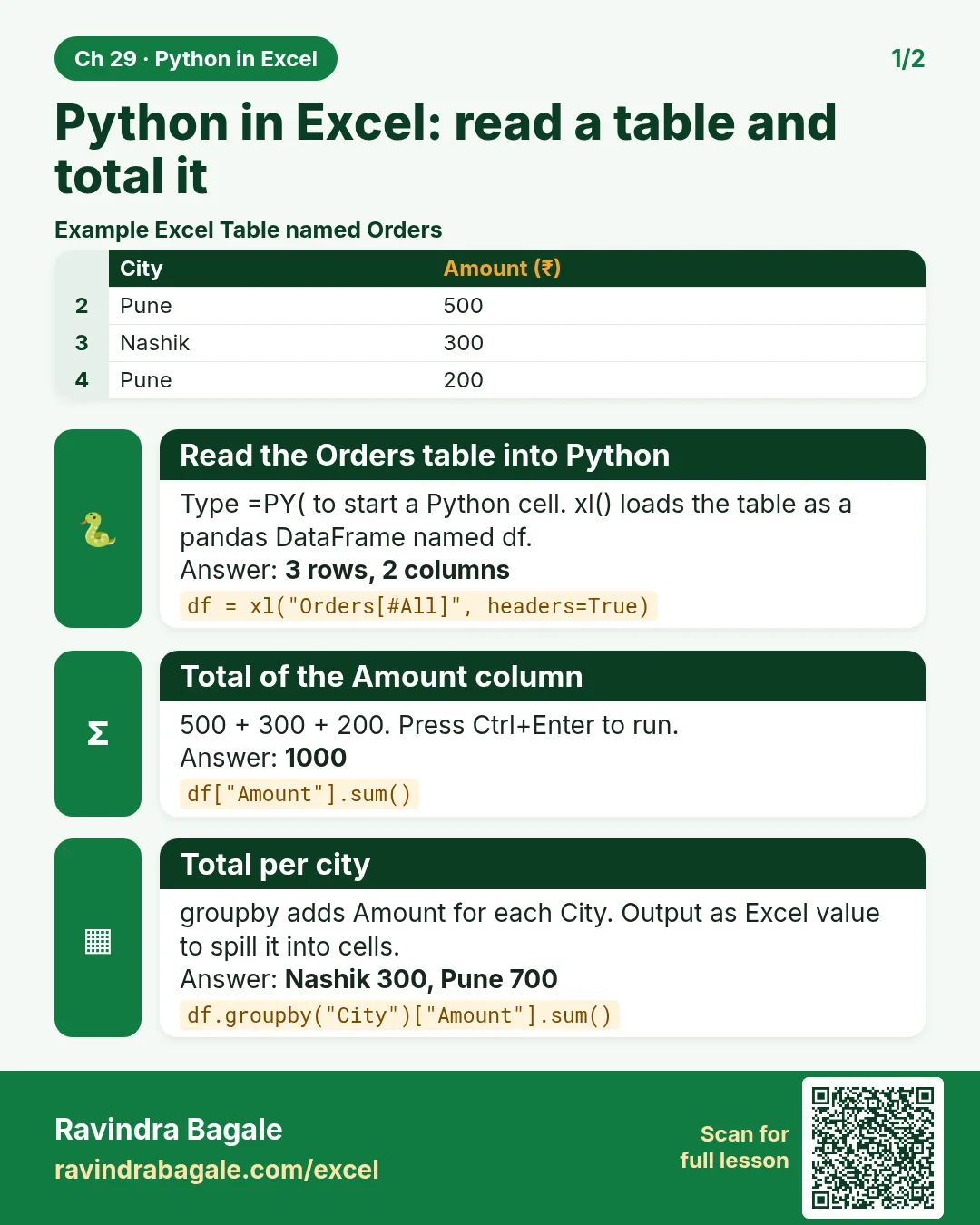
Revision card: Python in Excel: read a table and total it. Example data table with Read the Orders table into Python: 3 rows, 2 columns; Total of the Amount column: 1000; Total per city: Nashik 300, Pune 700.
Card 1 of 2: Python in Excel: read a table and total it · Download PNG · Open card page
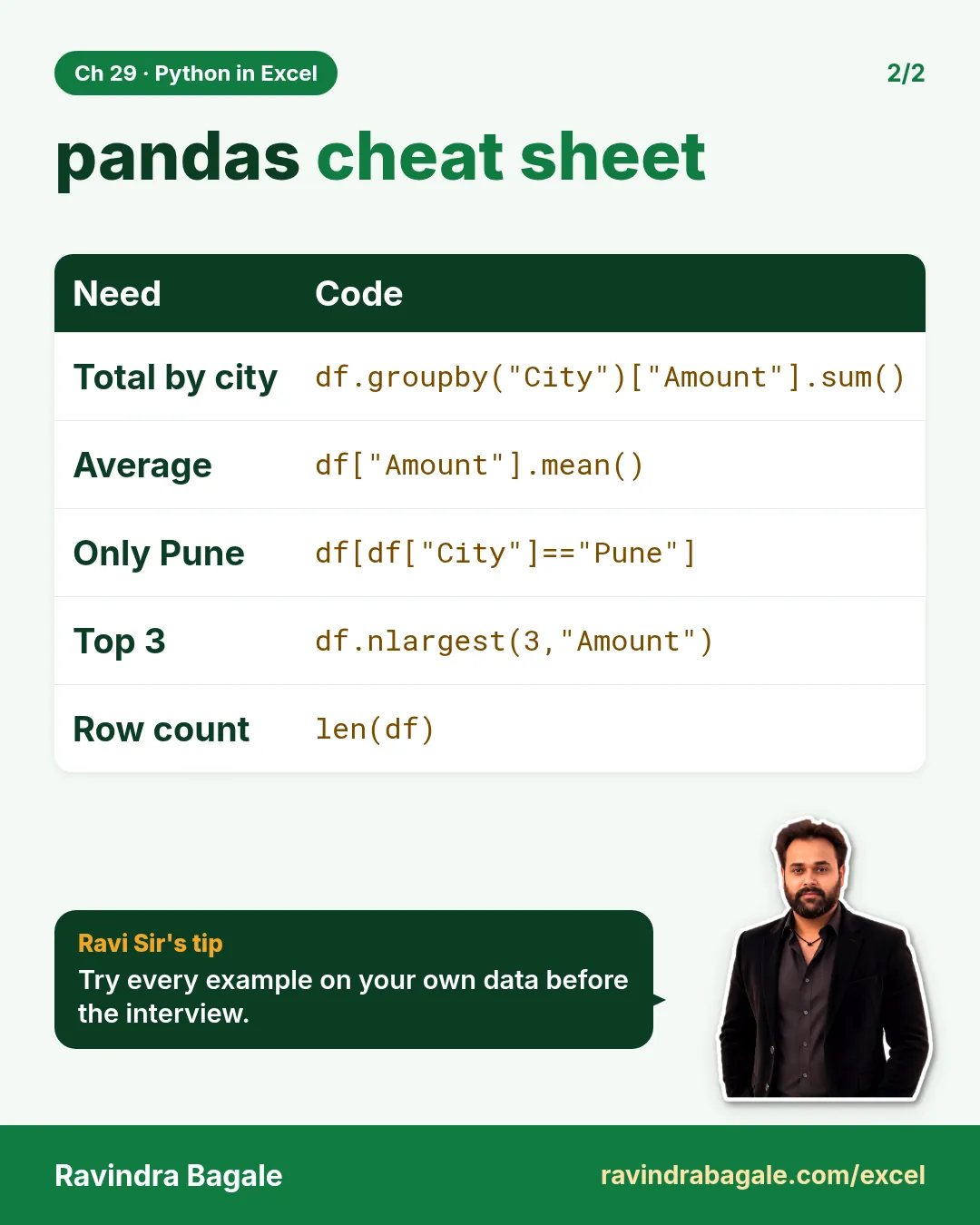
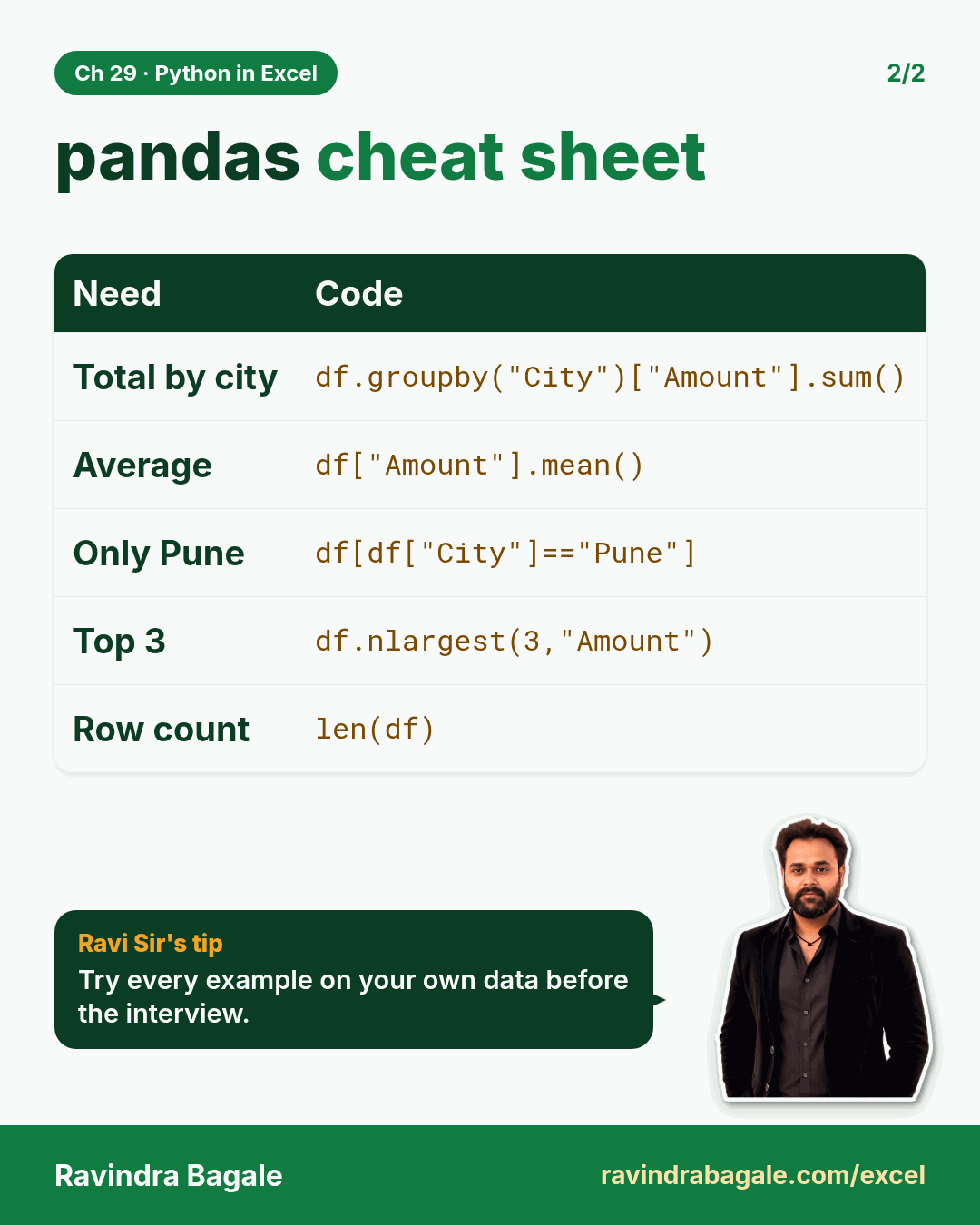
Revision card: pandas cheat sheet. Covers Total by city; Average; Only Pune; Top 3; Row count. With a photo of Ravindra Bagale and a short tip.
Card 2 of 2: pandas cheat sheet · Download PNG · Open card page

Protection, shortcuts, tricks and interviews

14. Protection, Sharing and Printing

Ch 14 · Protection & Printing · 2 cards · Open the chapter
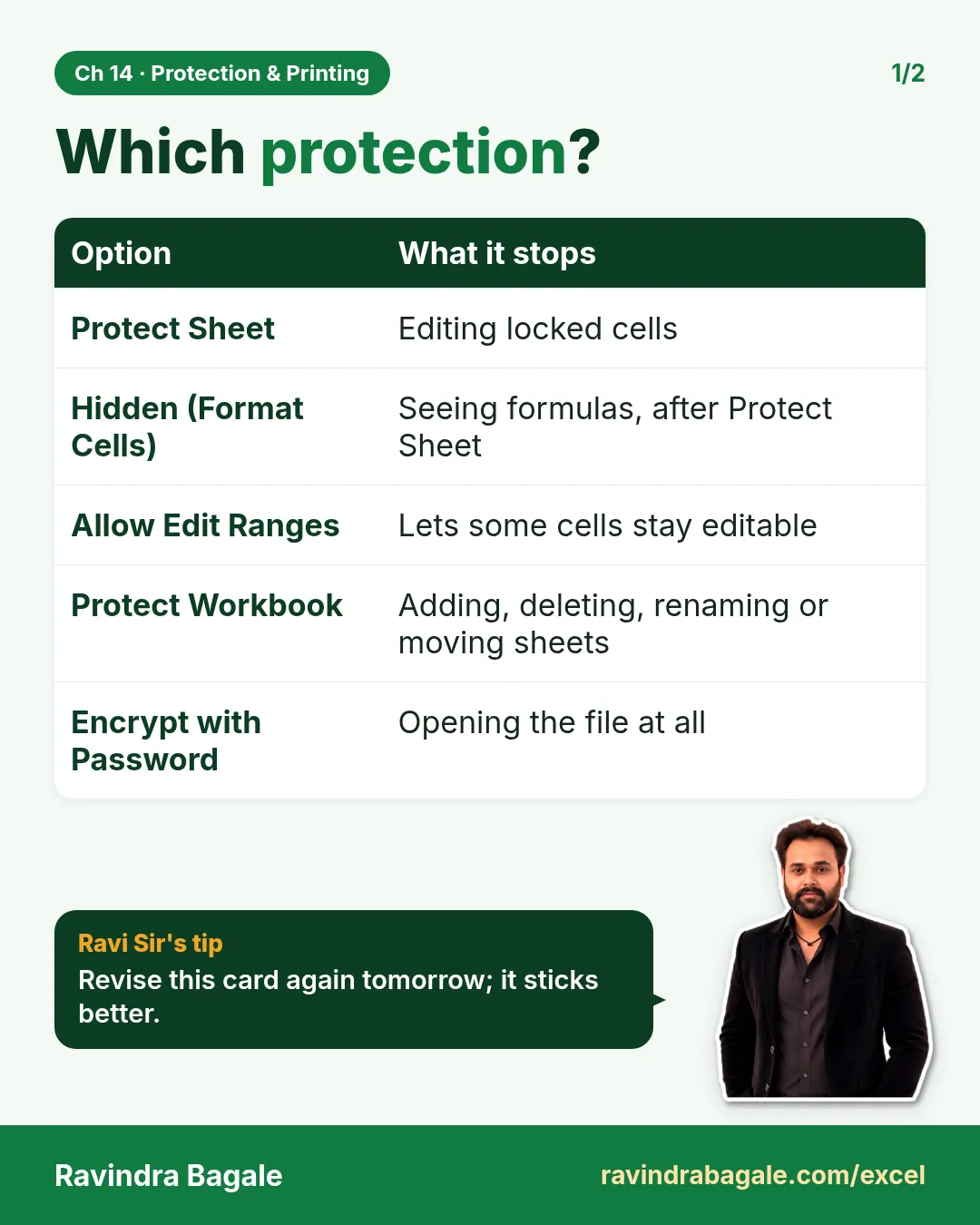
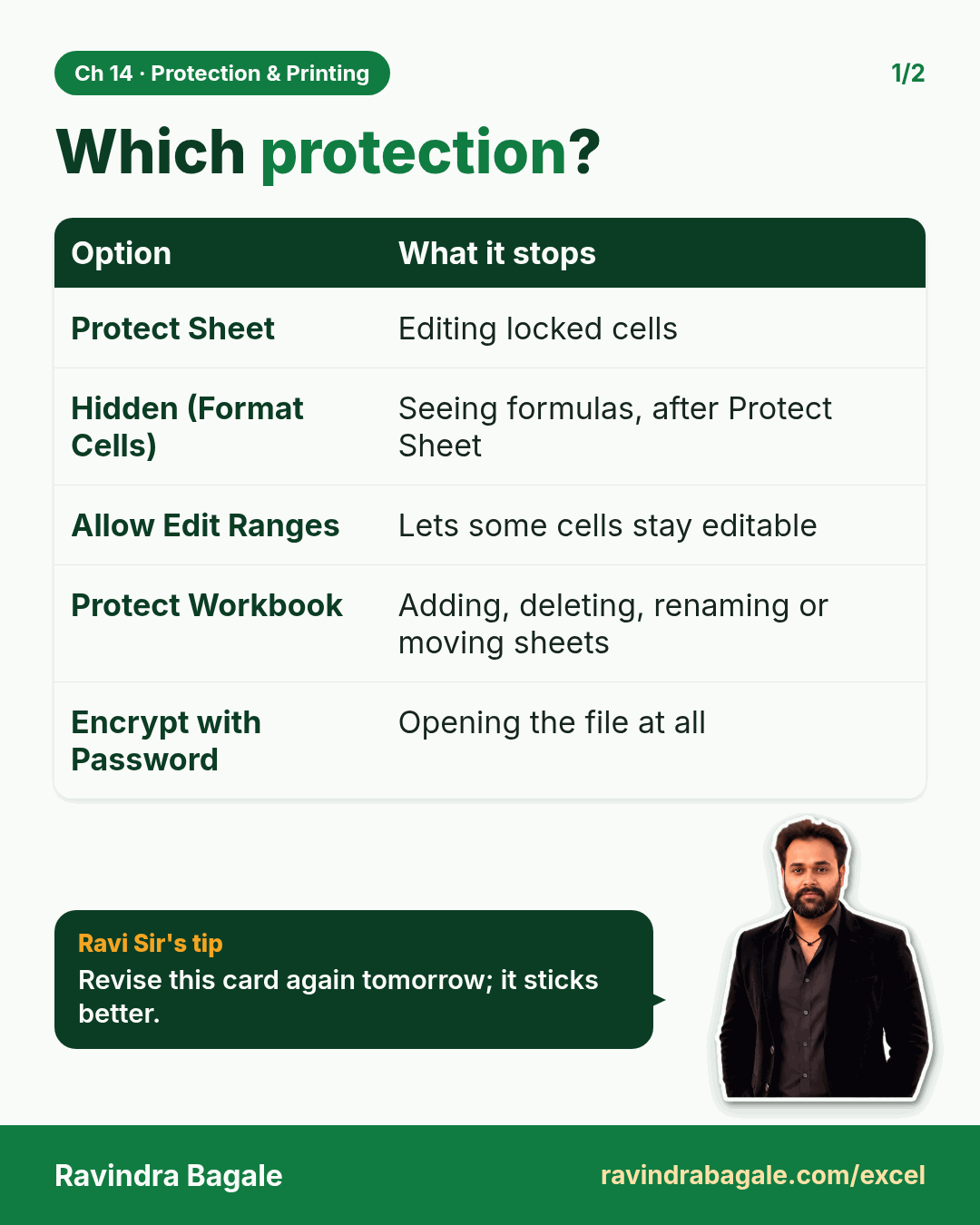
Revision card: Which protection?. Covers Protect Sheet; Hidden (Format Cells); Allow Edit Ranges; Protect Workbook; Encrypt with Password. With a photo of Ravindra Bagale and a short tip.
Card 1 of 2: Which protection? · Download PNG · Open card page
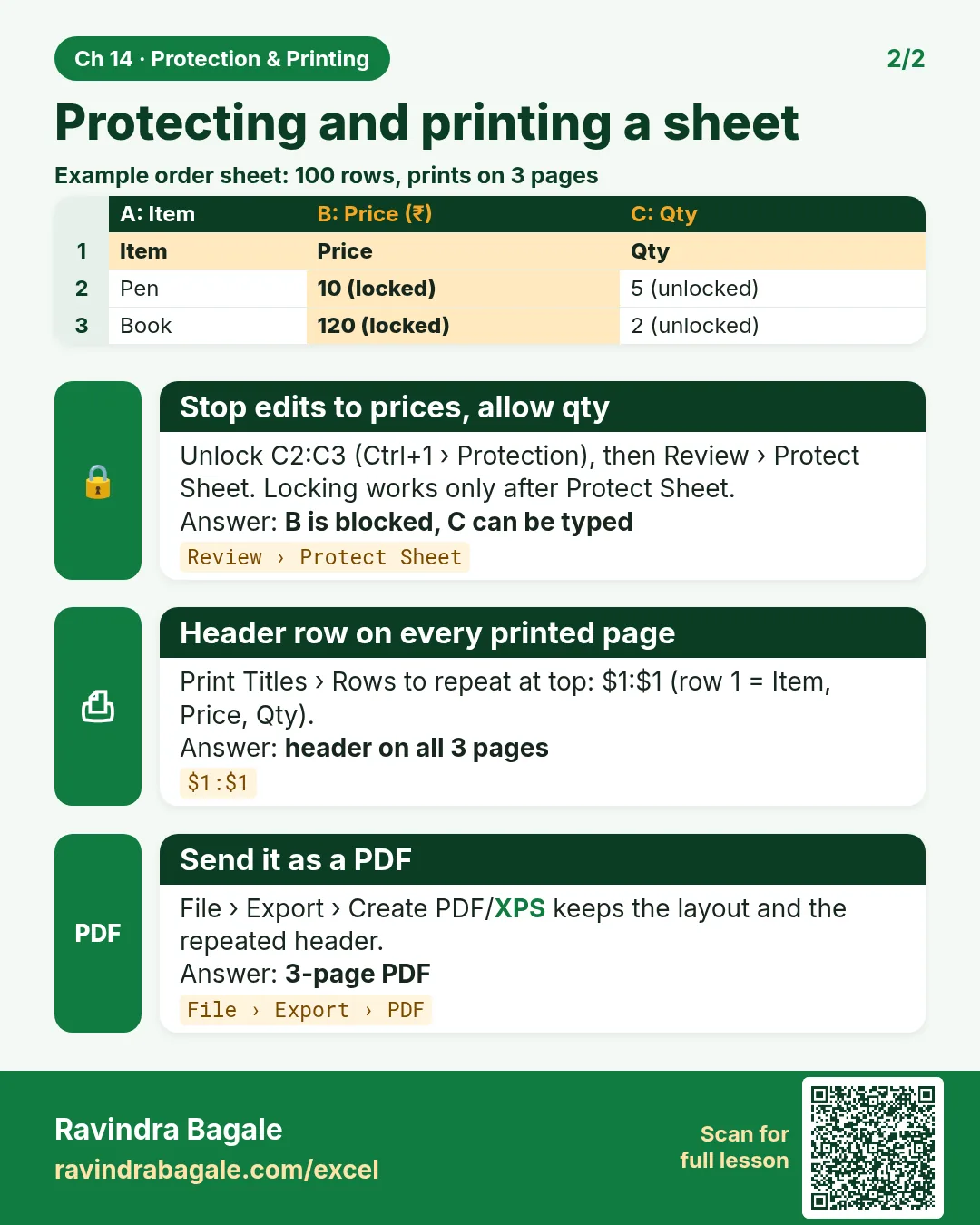
Revision card: Protecting and printing a sheet. Example data table with Stop edits to prices, allow qty: B is blocked, C can be typed; Header row on every printed page: header on all 3 pages; Send it as a PDF: 3-page PDF.
Card 2 of 2: Protecting and printing a sheet · Download PNG · Open card page

19. Keyboard Shortcuts and Function Cheat Sheet

Ch 19 · Shortcuts · 2 cards · Open the chapter
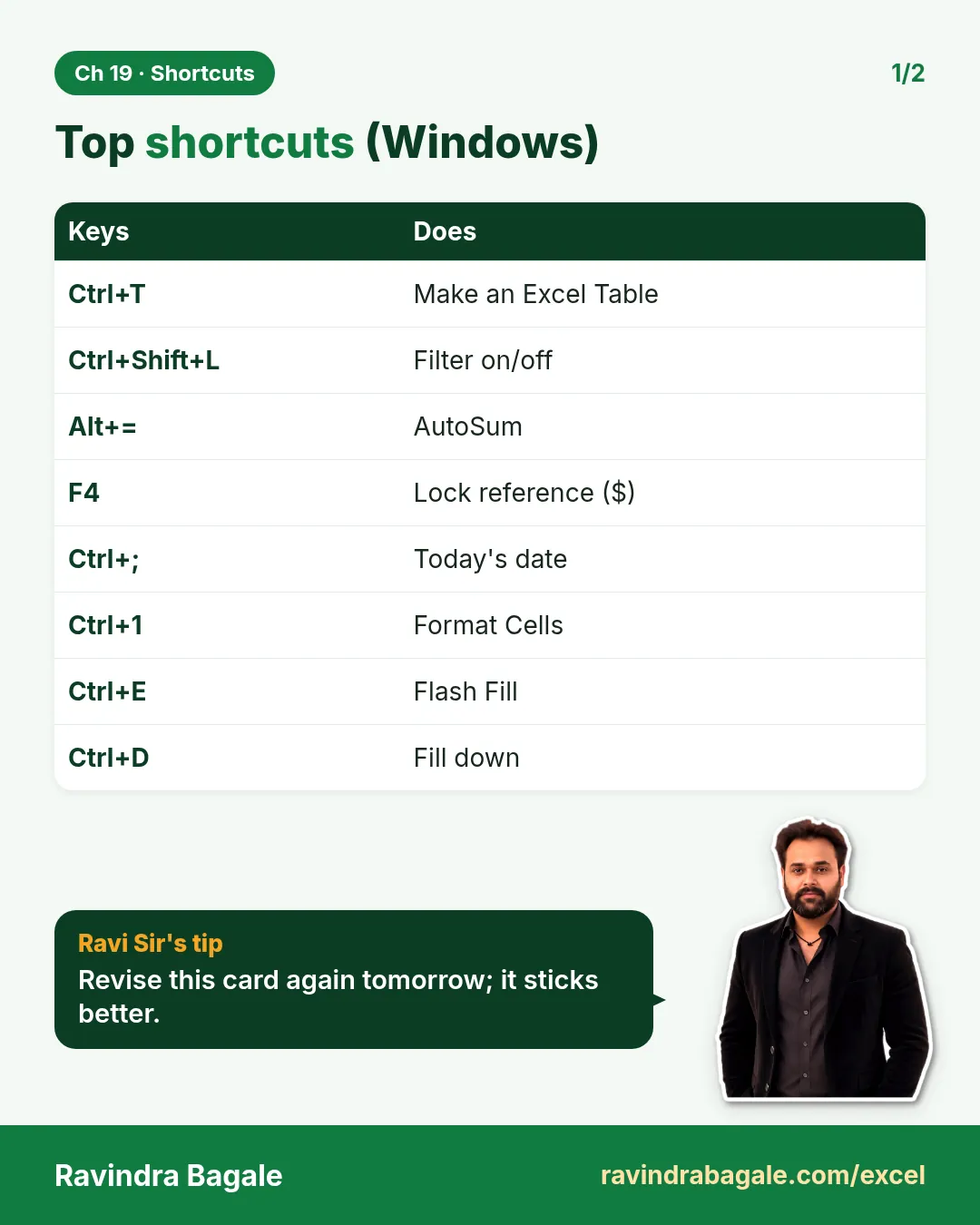
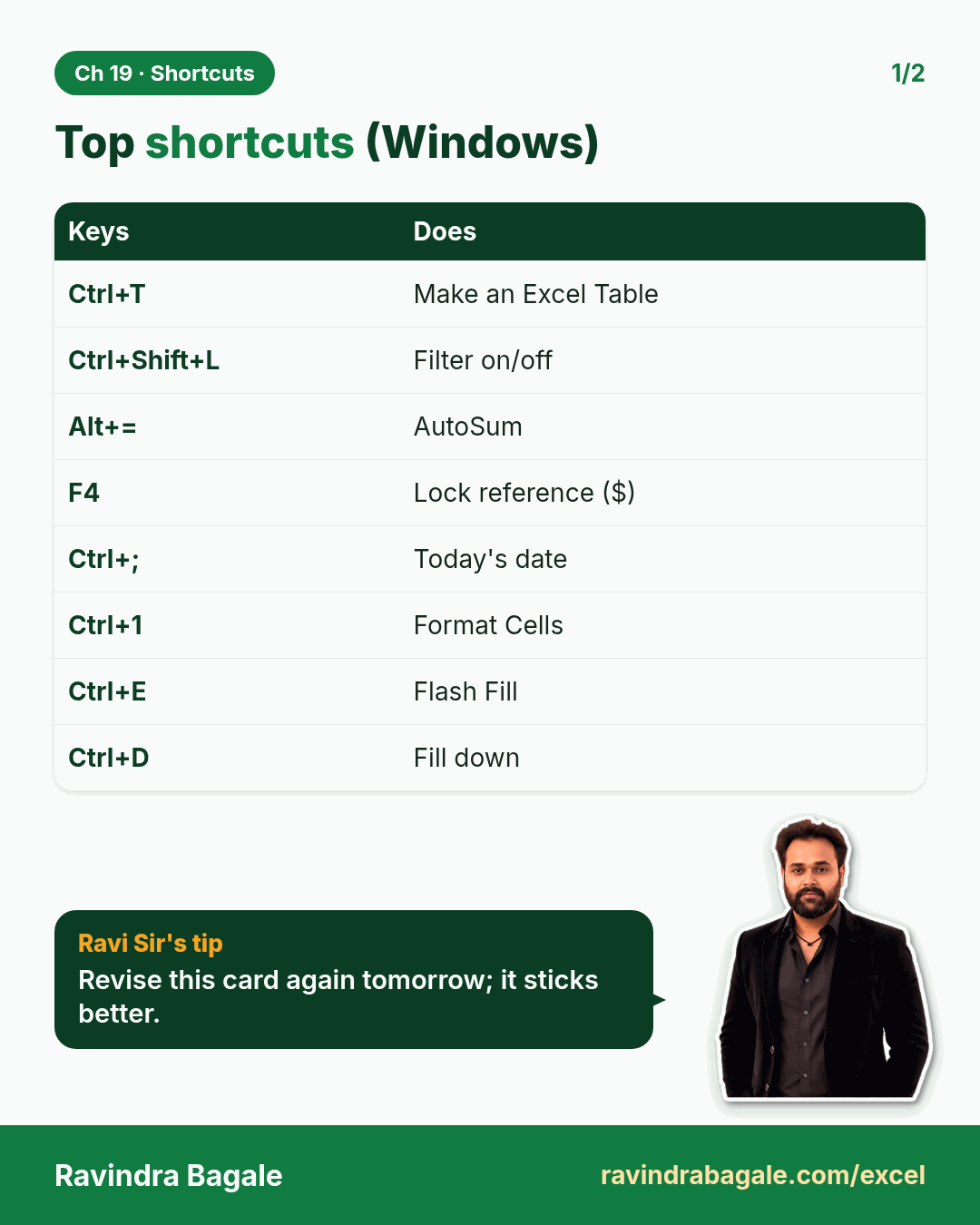
Revision card: Top shortcuts (Windows). Covers Ctrl+T; Ctrl+Shift+L; Alt+=; F4; Ctrl+;; Ctrl+1; Ctrl+E; Ctrl+D. With a photo of Ravindra Bagale and a short tip.
Card 1 of 2: Top shortcuts (Windows) · Download PNG · Open card page
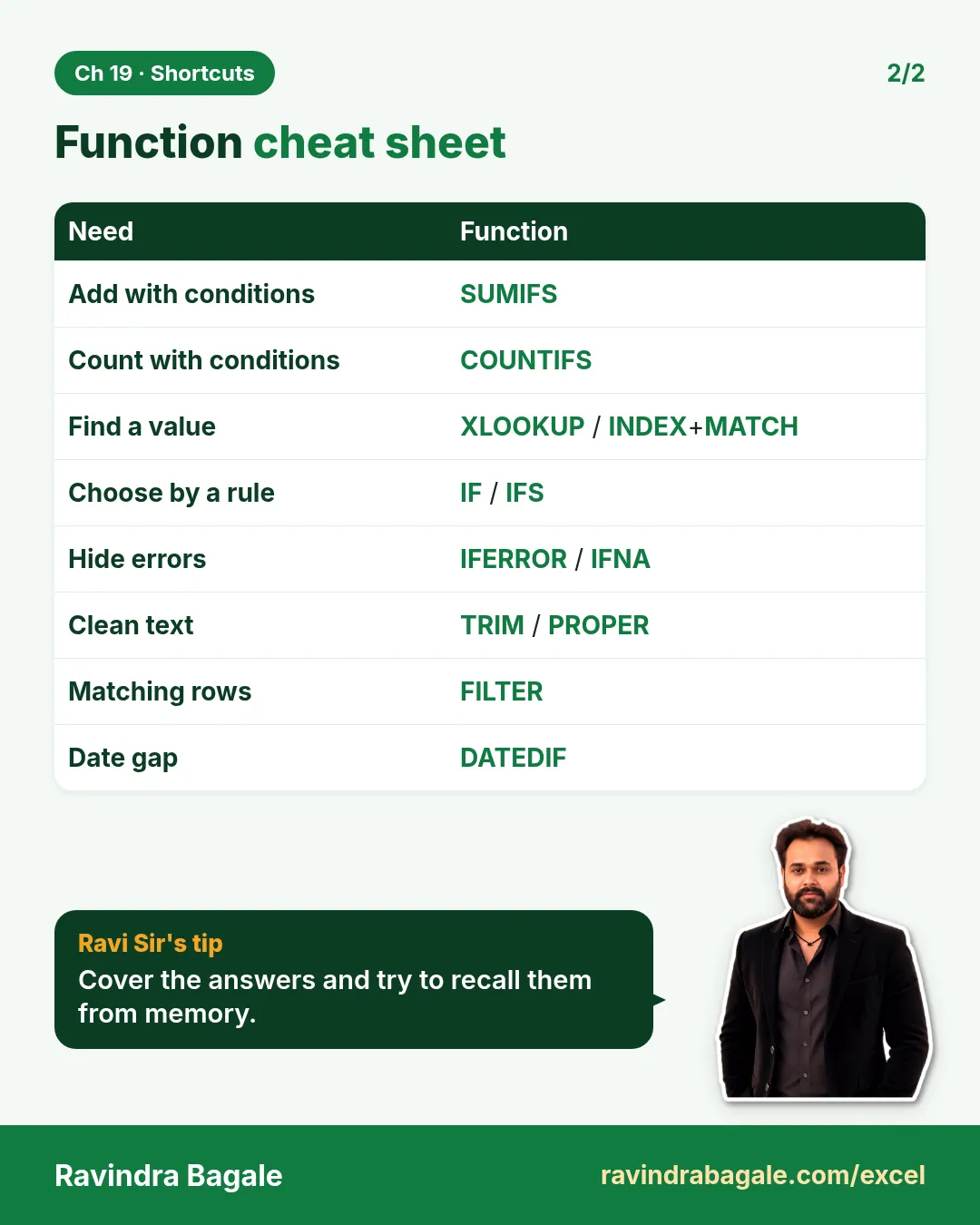
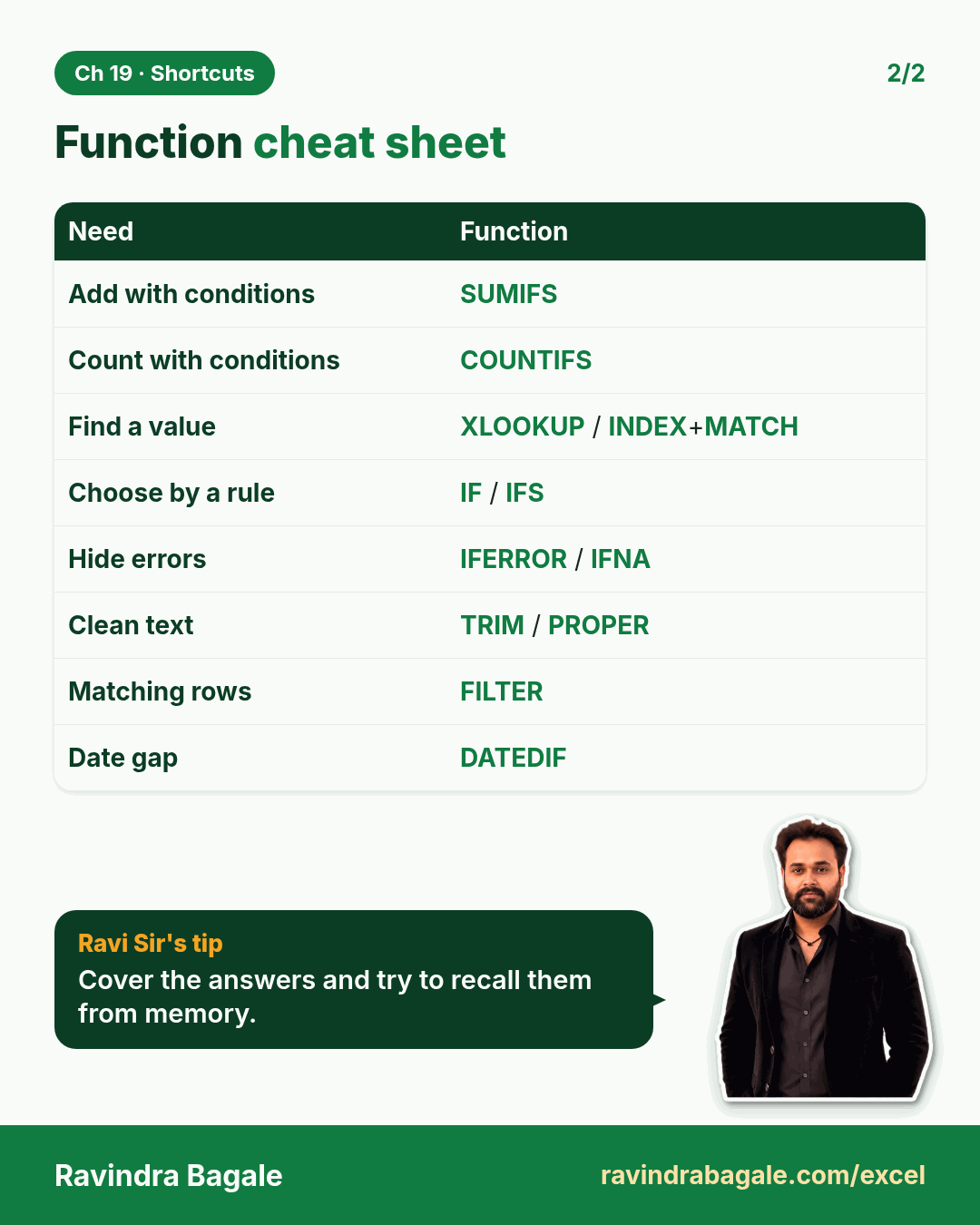
Revision card: Function cheat sheet. Covers Add with conditions; Count with conditions; Find a value; Choose by a rule; Hide errors; Clean text; Matching rows; Date gap. With a photo of Ravindra Bagale and a short tip.
Card 2 of 2: Function cheat sheet · Download PNG · Open card page

25. All Excel Keyboard Shortcuts (Windows and Mac)

Ch 25 · Shortcuts · 2 cards · Open the chapter
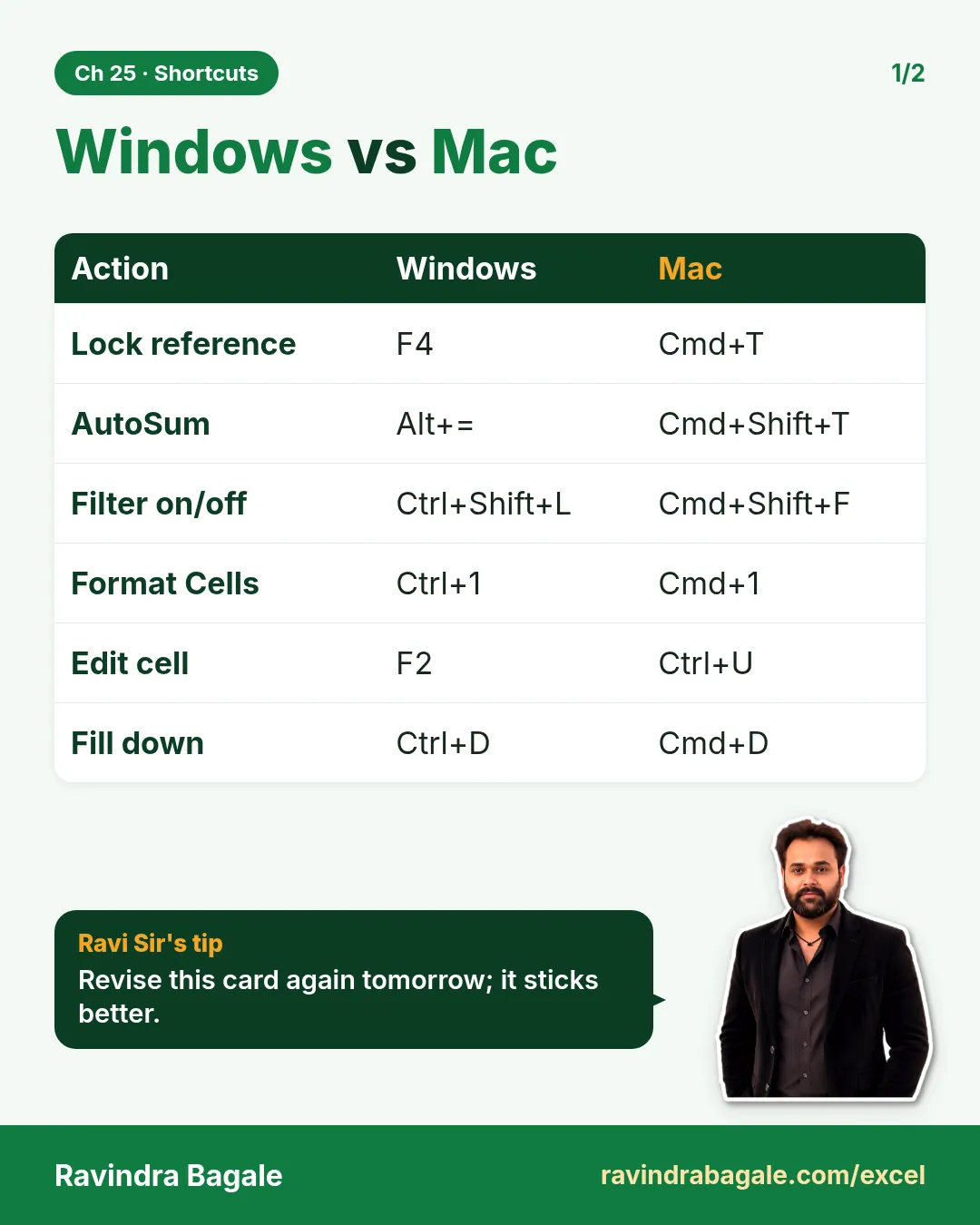
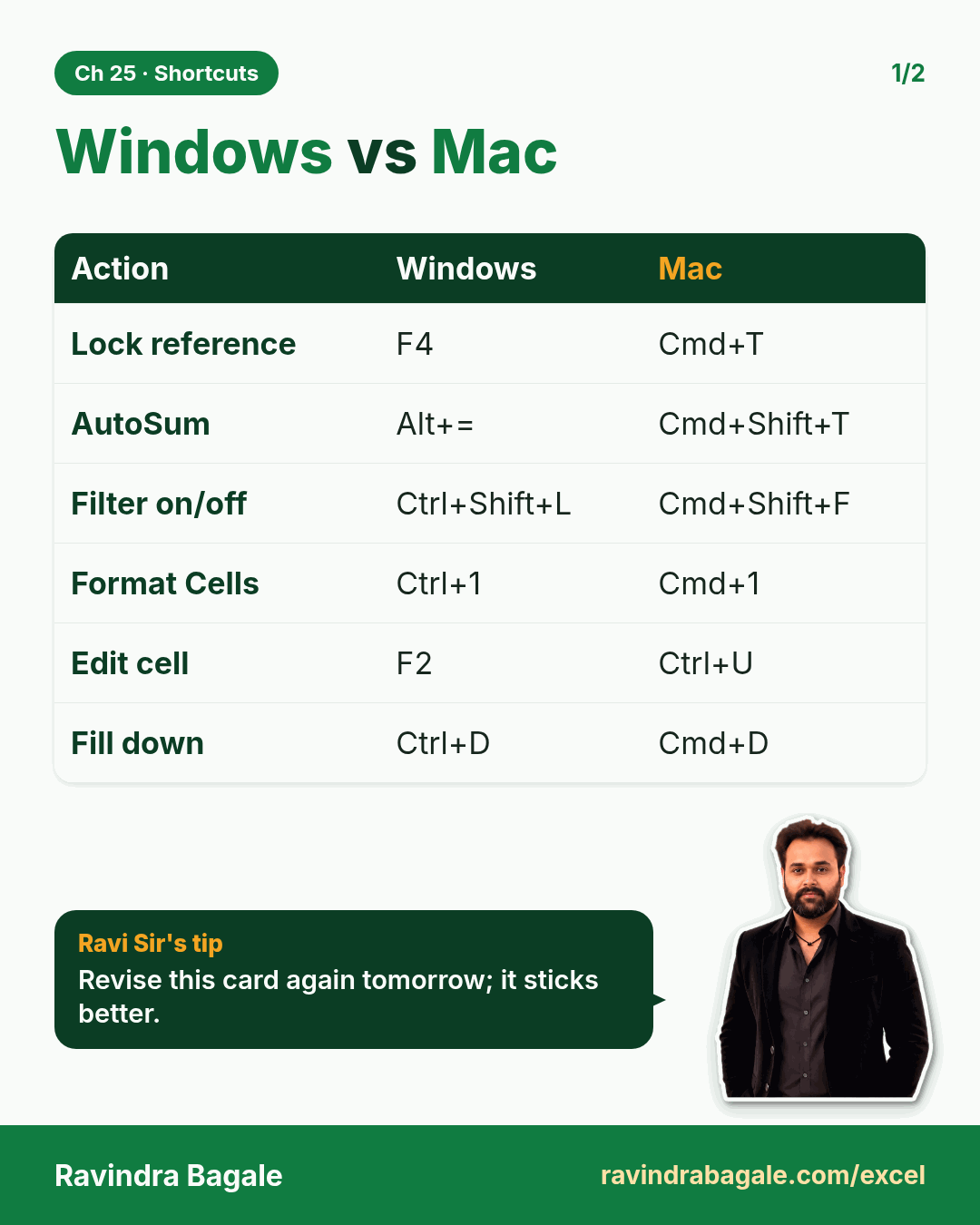
Revision card: Windows vs Mac. Covers Lock reference; AutoSum; Filter on/off; Format Cells; Edit cell; Fill down. With a photo of Ravindra Bagale and a short tip.
Card 1 of 2: Windows vs Mac · Download PNG · Open card page
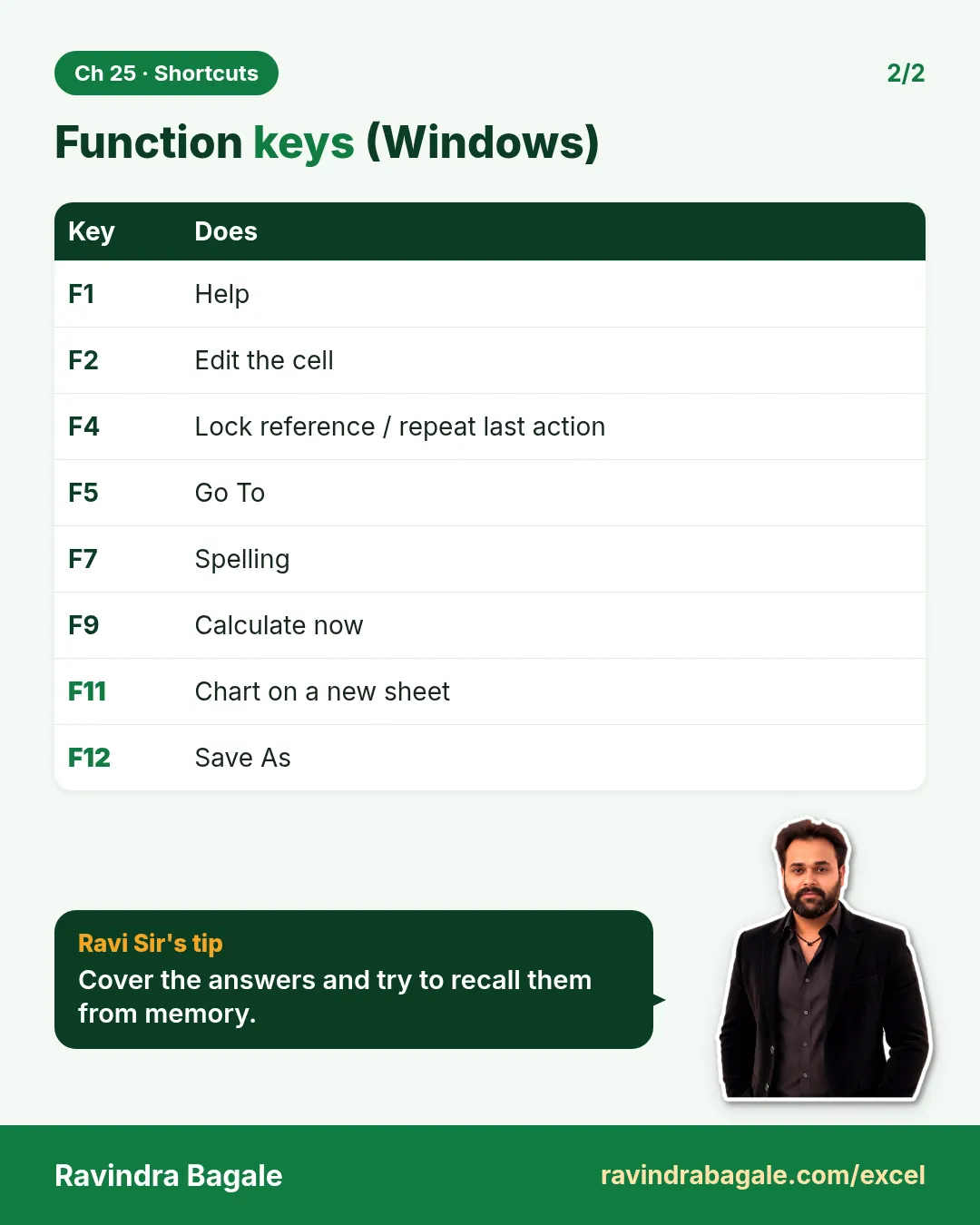
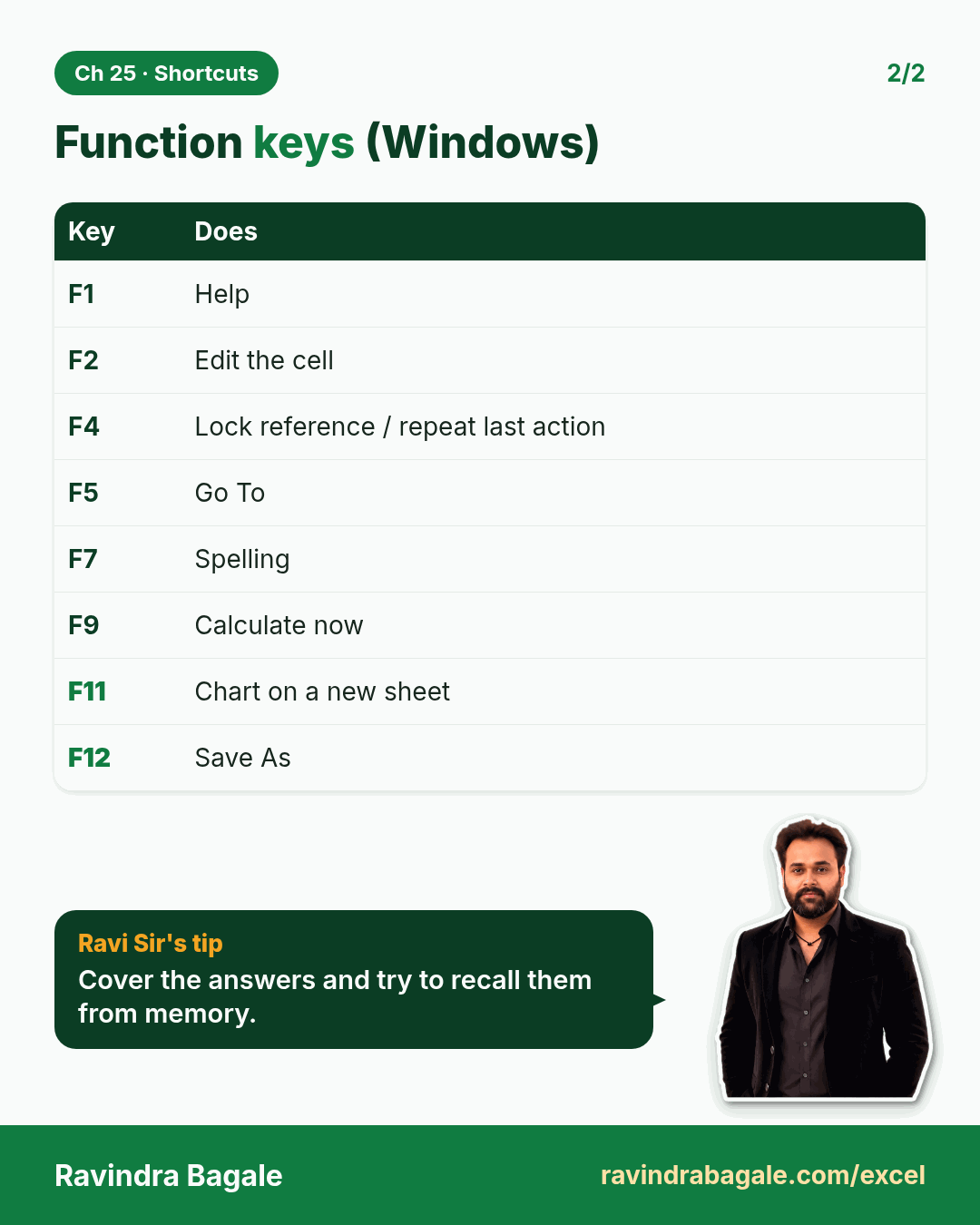
Revision card: Function keys (Windows). Covers F1; F2; F4; F5; F7; F9; F11; F12. With a photo of Ravindra Bagale and a short tip.
Card 2 of 2: Function keys (Windows) · Download PNG · Open card page

26. Excel Tricks Every Analyst Should Know

Ch 26 · Tricks · 2 cards · Open the chapter
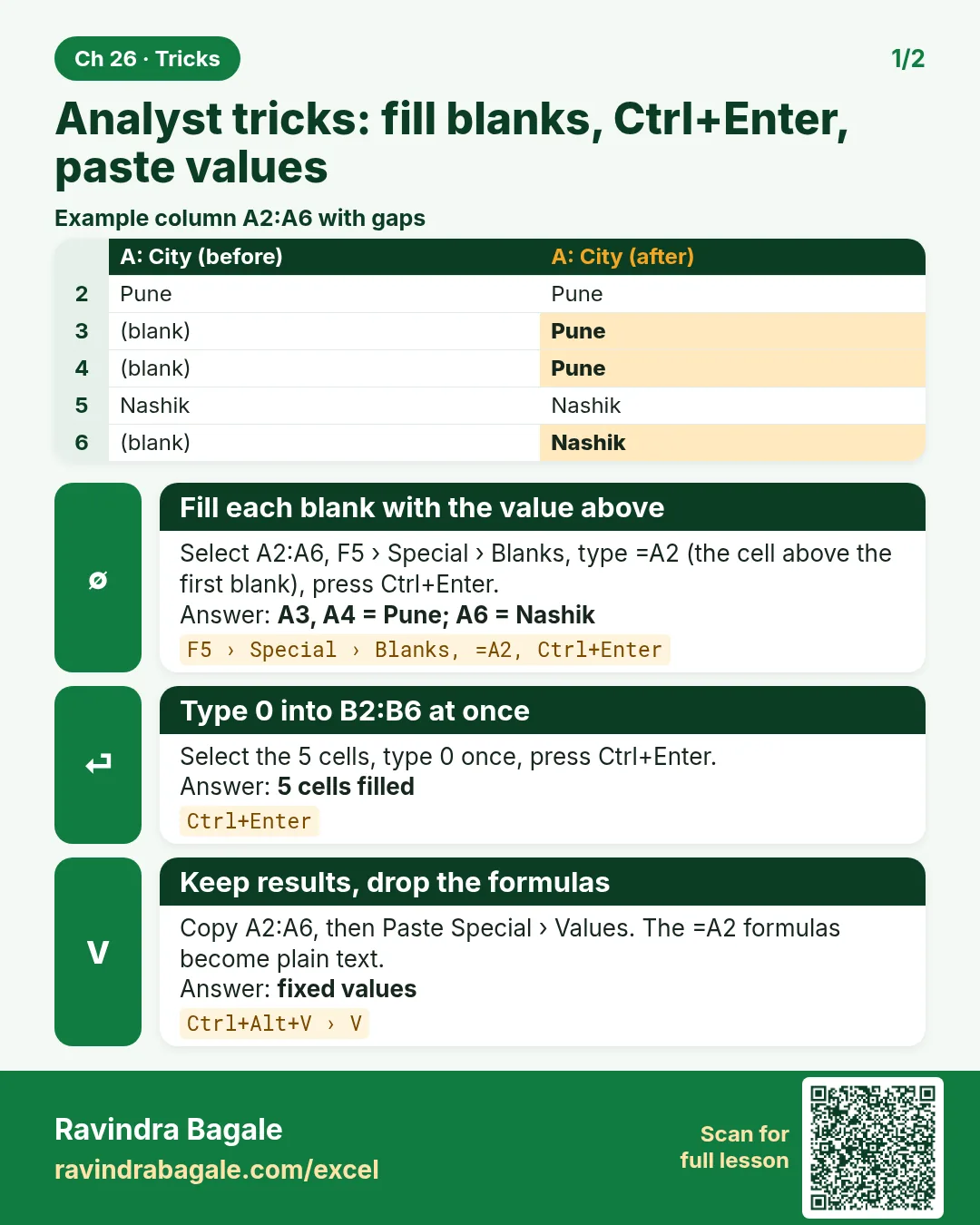
Revision card: Analyst tricks: fill blanks, Ctrl+Enter, paste values. Example data table with Fill each blank with the value above: A3, A4 = Pune; A6 = Nashik; Type 0 into B2:B6 at once: 5 cells filled; Keep results, drop the formulas: fixed values.
Card 1 of 2: Analyst tricks: fill blanks, Ctrl+Enter, paste values · Download PNG · Open card page
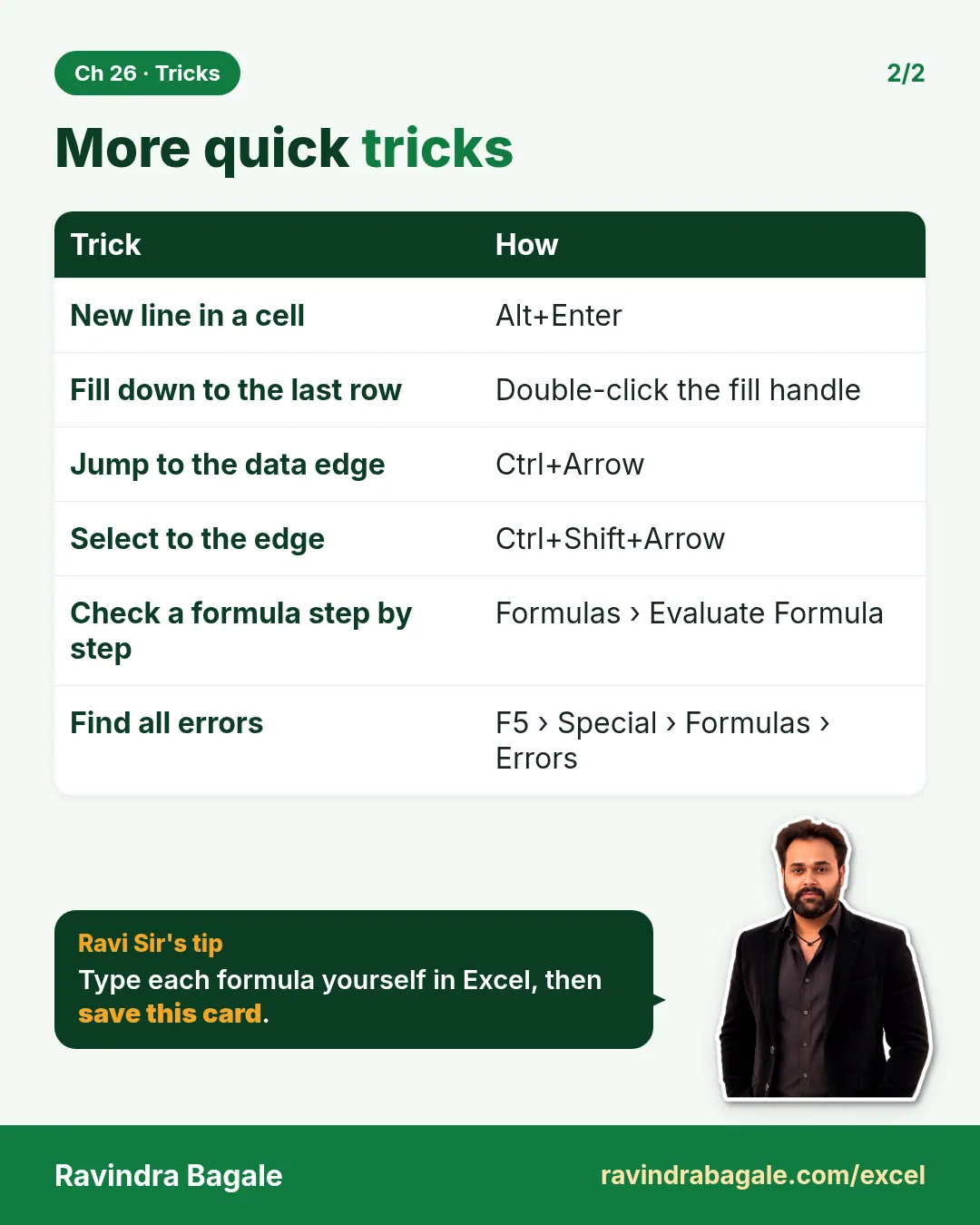
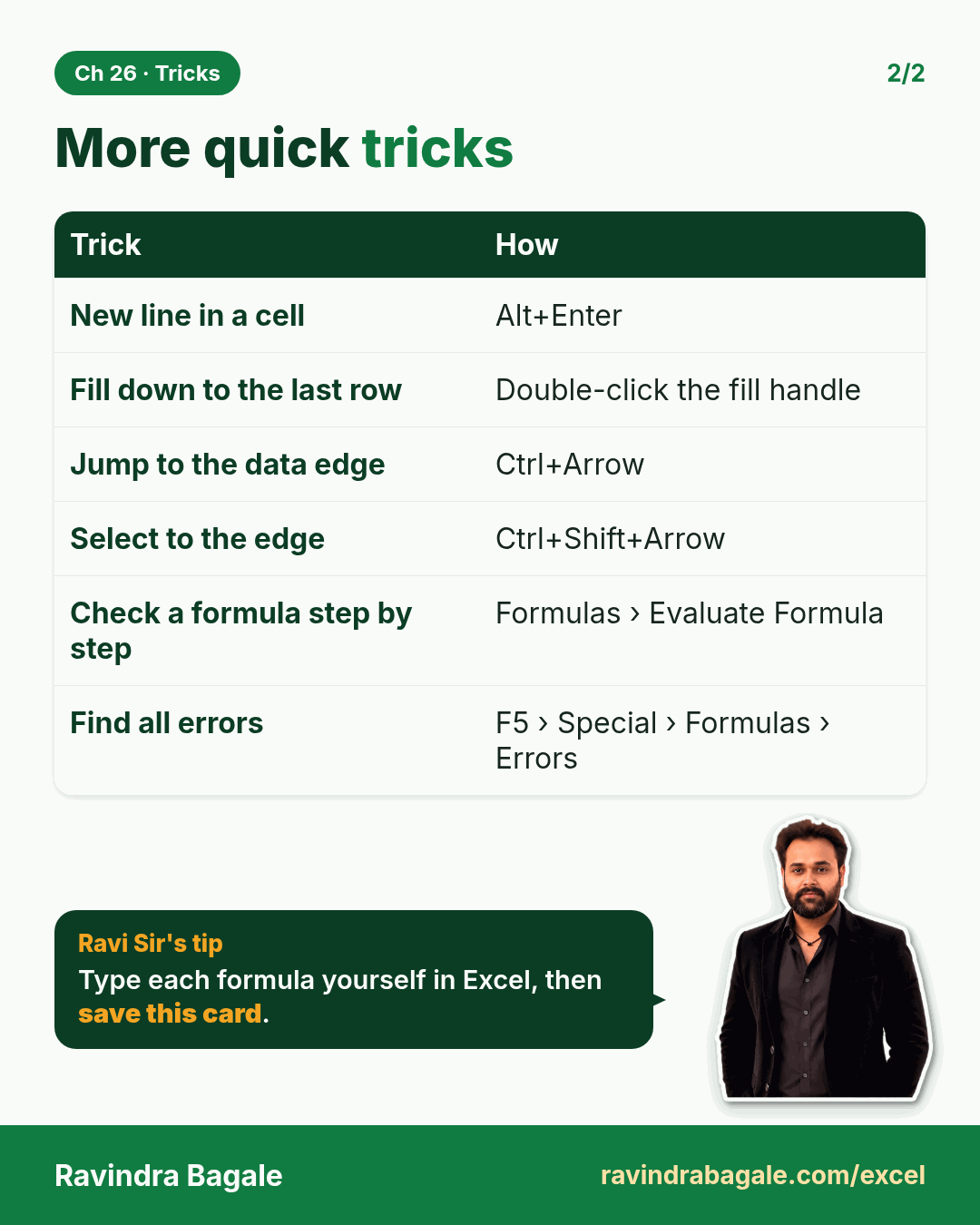
Revision card: More quick tricks. Covers New line in a cell; Fill down to the last row; Jump to the data edge; Select to the edge; Check a formula step by step; Find all errors. With a photo of Ravindra Bagale and a short tip.
Card 2 of 2: More quick tricks · Download PNG · Open card page

17. Interview Questions and Answers

Ch 17 · Interview Q&A · 2 cards · Open the chapter
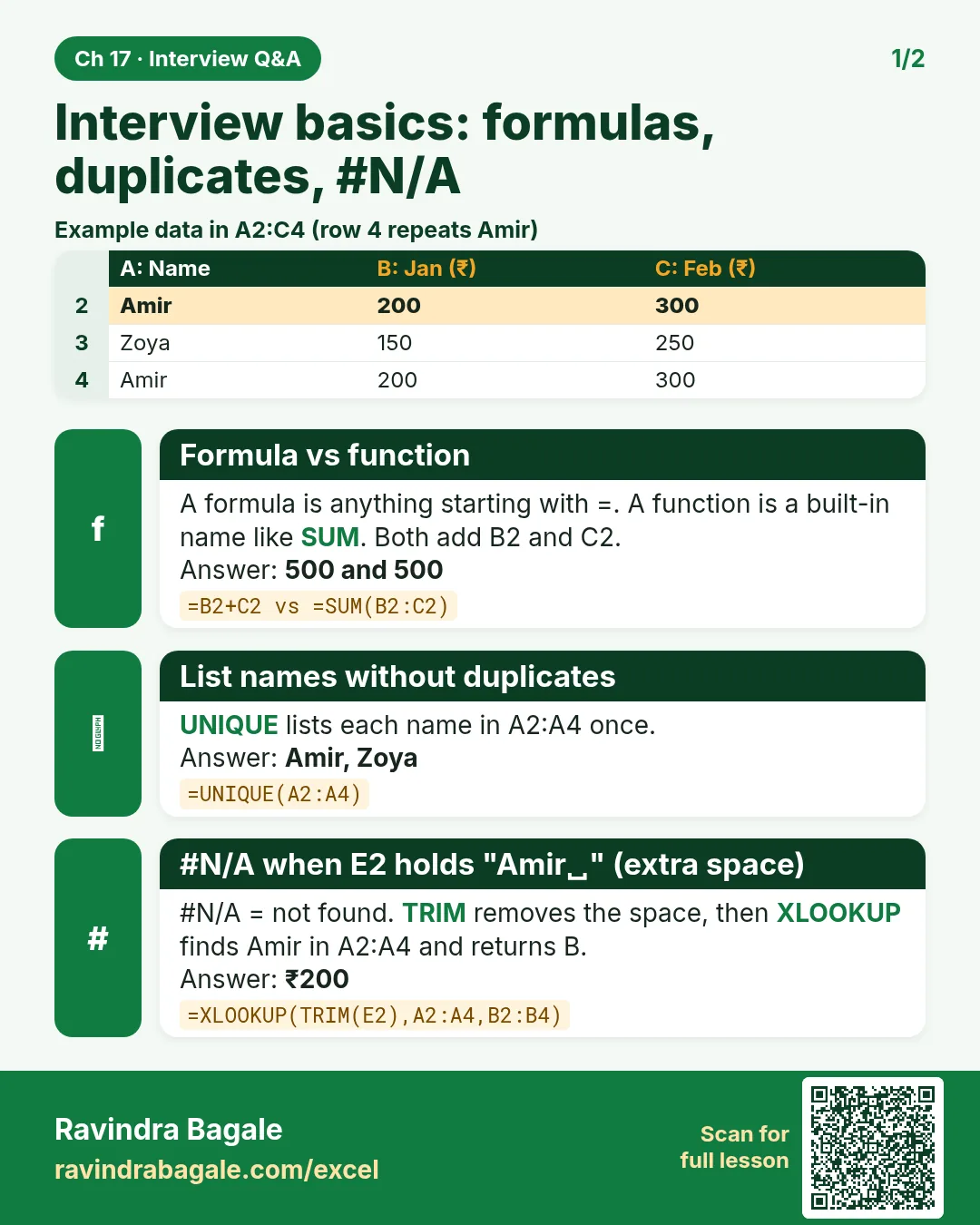
Revision card: Interview basics: formulas, duplicates, #N/A. Example data table with Formula vs function: 500 and 500; List names without duplicates: Amir, Zoya; #N/A when E2 holds "Amir␣" (extra space): ₹200.
Card 1 of 2: Interview basics: formulas, duplicates, #N/A · Download PNG · Open card page
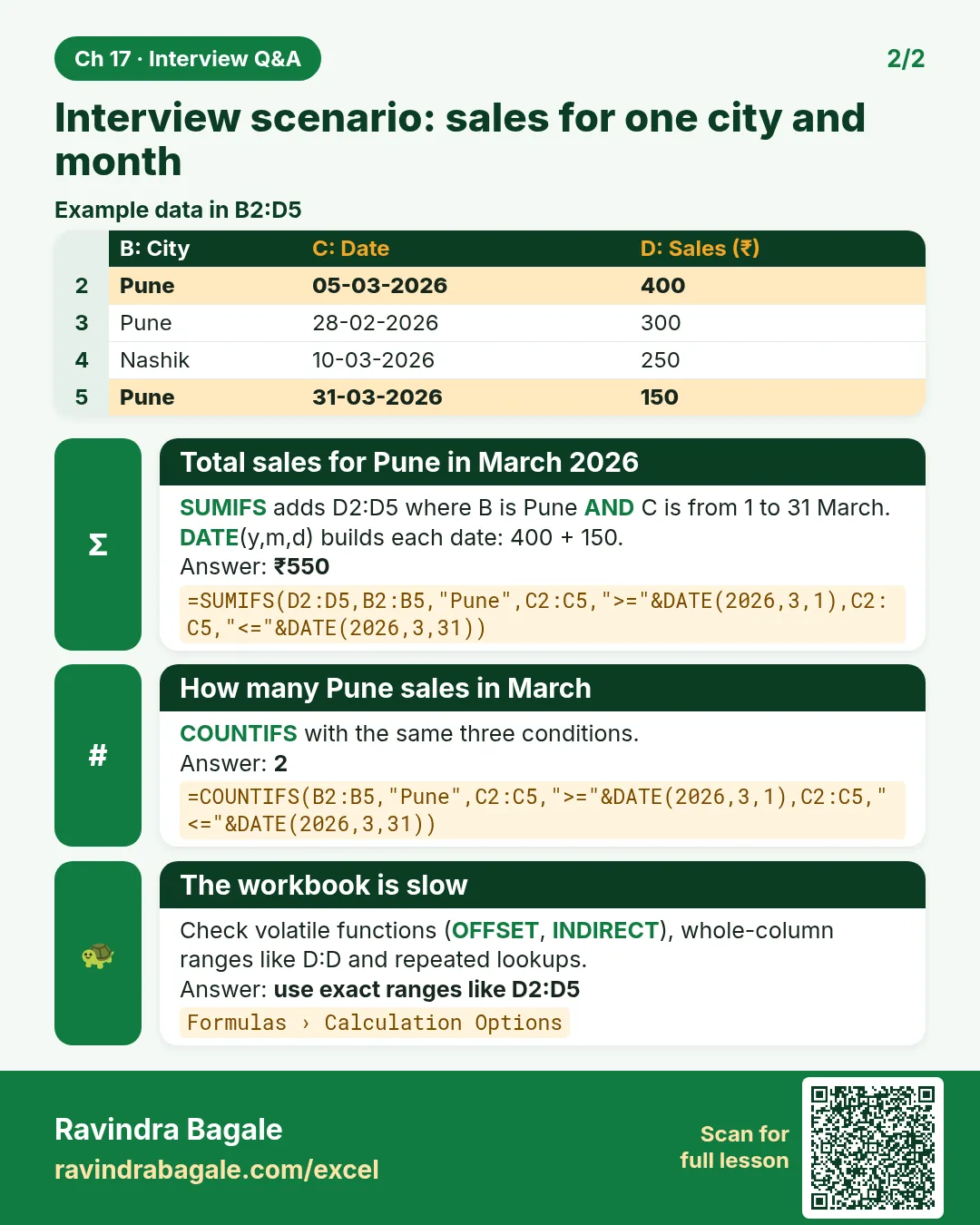
Revision card: Interview scenario: sales for one city and month. Example data table with Total sales for Pune in March 2026: ₹550; How many Pune sales in March: 2; The workbook is slow: use exact ranges like D2:D5.
Card 2 of 2: Interview scenario: sales for one city and month · Download PNG · Open card page

Excel in Daily Life

How to Make a Monthly Home Budget in Excel (Planned vs Actual, Savings and Overspending Alerts)

Excel in Daily Life · 2 cards · Open the lesson
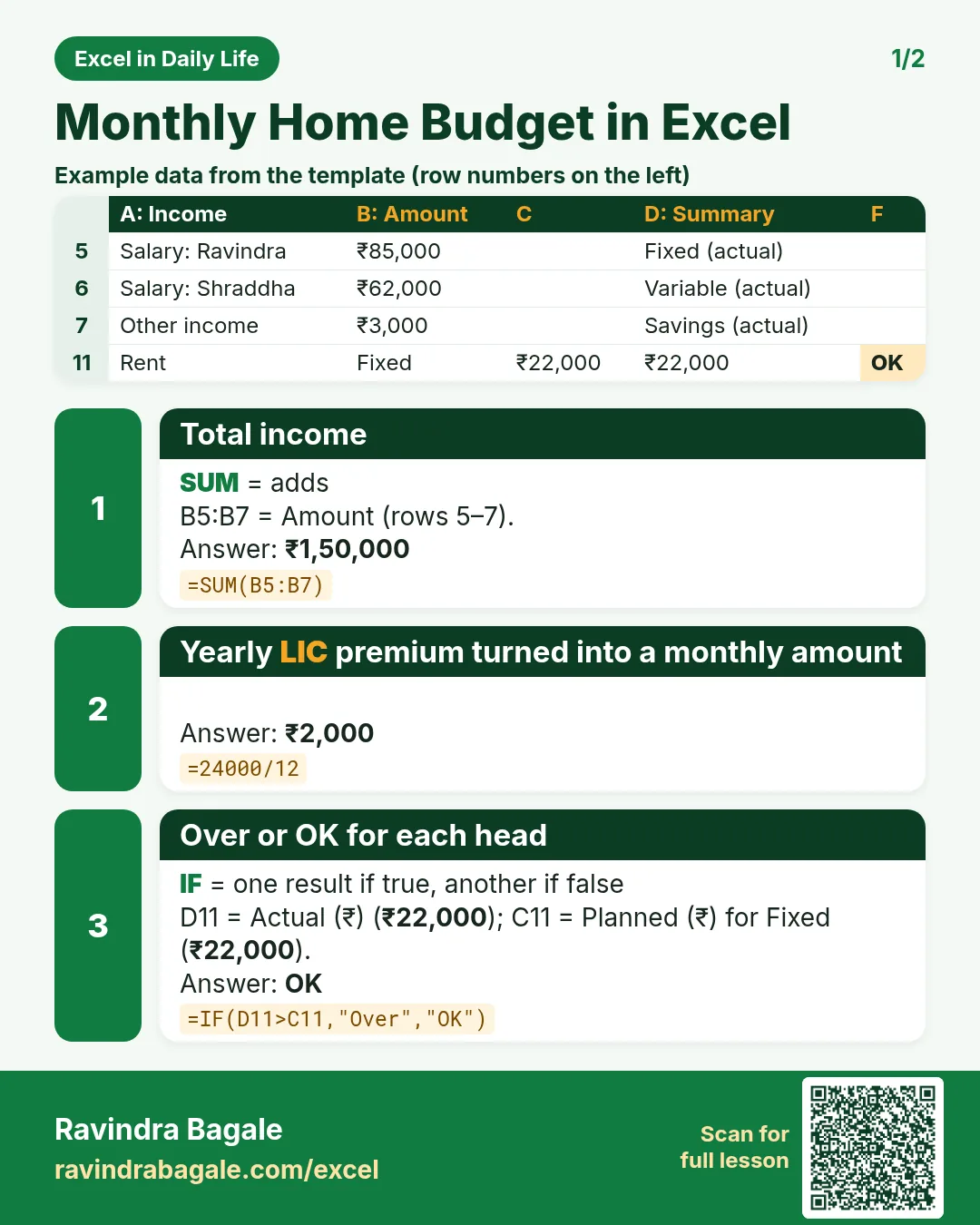
Revision card 1 for Monthly Home Budget in Excel: Total income: =SUM(B5:B7) gives ₹1,50,000; Yearly LIC premium turned into a monthly amount: =24000/12 gives ₹2,000; Over or OK for each head: =IF(D11>C11,"Over","OK") gives OK. Includes an example data table.
Card 1 of 2: Monthly Home Budget in Excel · Download PNG · Open card page
Revision card 2 for Monthly Home Budget in Excel: Whole-month difference: =C24-D24 gives −₹1,030; Total planned: =SUM(C11:C23) gives ₹96,200; How many heads went over: =COUNTIF(F11:F23,"Over")&" over" gives 3 over. Includes an example data table.
Card 2 of 2: Monthly Home Budget in Excel · Download PNG · Open card page

Daily Expense Tracker in Excel: Log Spending by Category and See Monthly Totals Automatically

Excel in Daily Life · 2 cards · Open the lesson

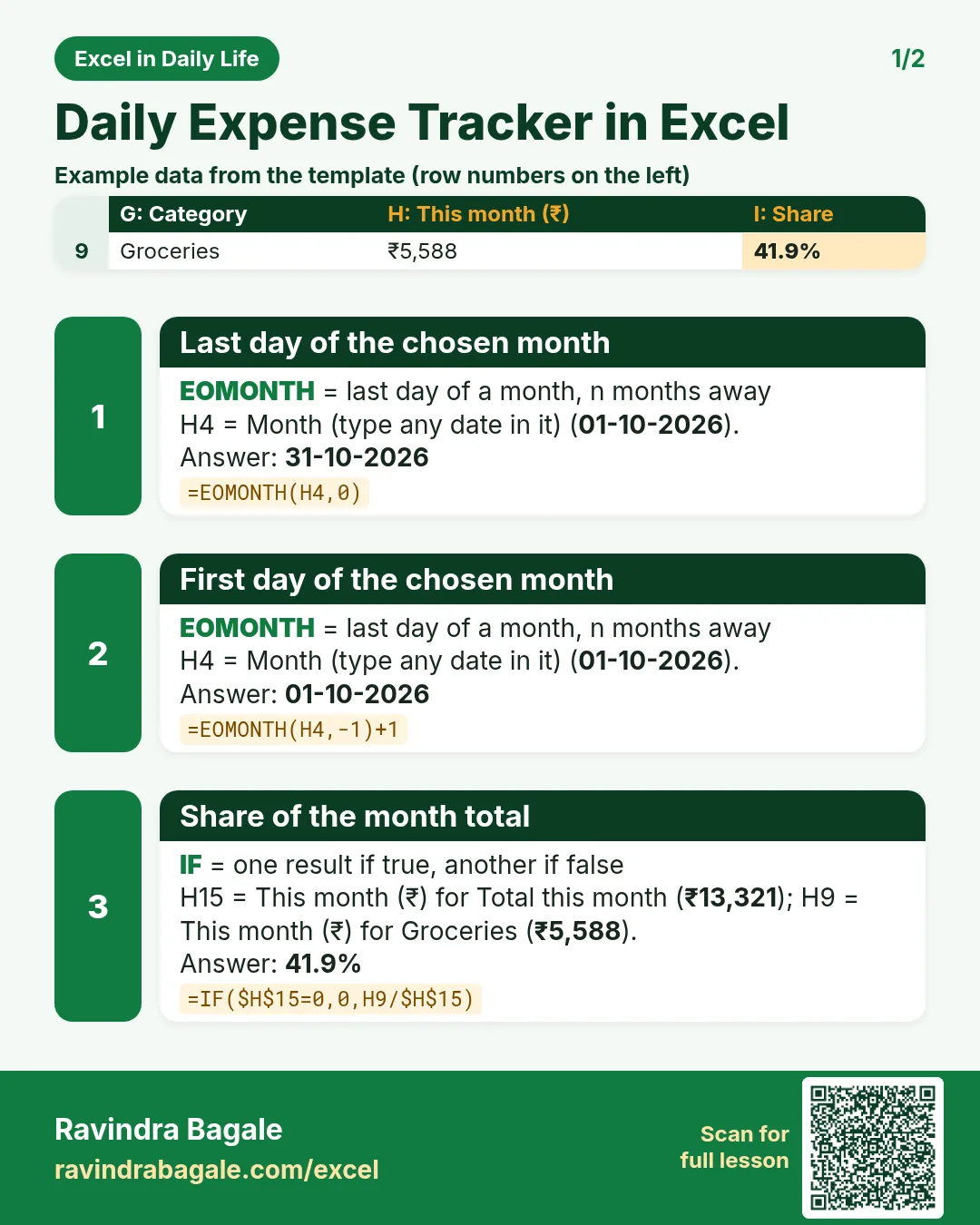
Revision card 1 for Daily Expense Tracker in Excel: Last day of the chosen month: =EOMONTH(H4,0) gives 31-10-2026; First day of the chosen month: =EOMONTH(H4,-1)+1 gives 01-10-2026; Share of the month total: =IF($H$15=0,0,H9/$H$15) gives 41.9%. Includes an example data table.
Card 1 of 2: Daily Expense Tracker in Excel · Download PNG · Open card page
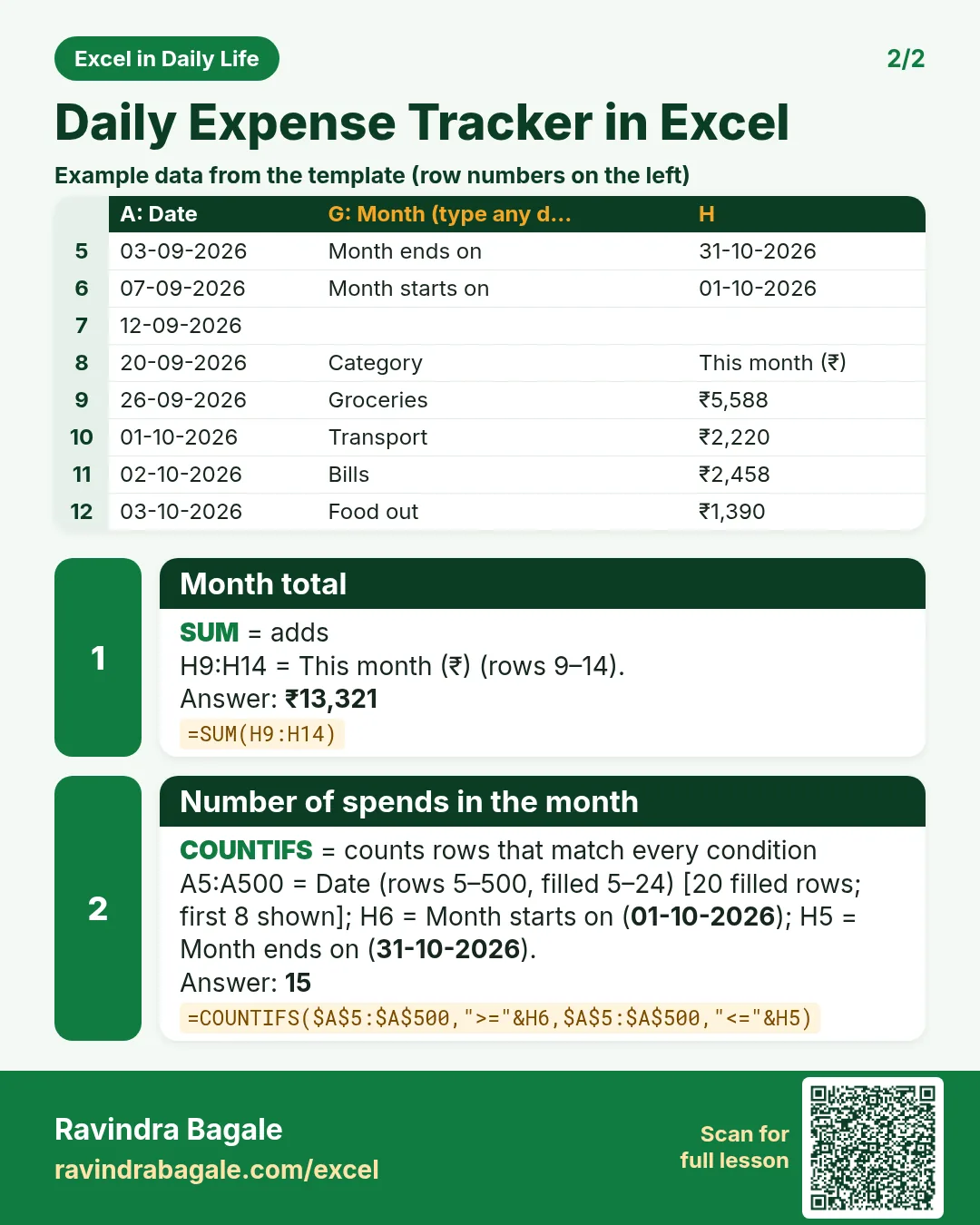
Revision card 2 for Daily Expense Tracker in Excel: Month total: =SUM(H9:H14) gives ₹13,321; Number of spends in the month: =COUNTIFS($A$5:$A$500,">="&H6,$A$5:$A$500,"<="&H5) gives 15. Includes an example data table.
Card 2 of 2: Daily Expense Tracker in Excel · Download PNG · Open card page

How to Calculate Home Loan EMI in Excel with PMT (and Make a Month-by-Month Repayment Schedule)

Excel in Daily Life · 2 cards · Open the lesson
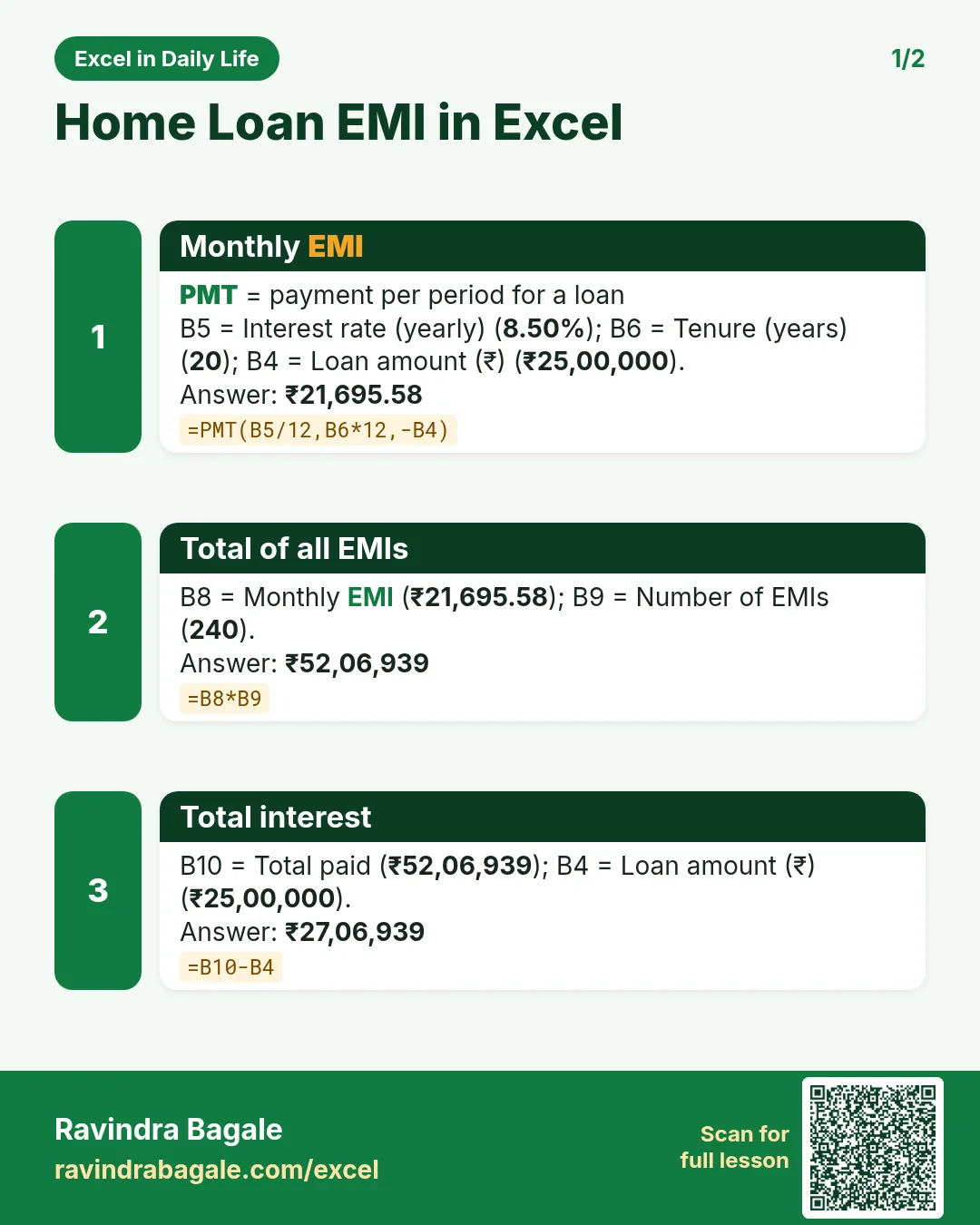
Revision card 1 for Home Loan EMI in Excel: Monthly EMI: =PMT(B5/12,B6*12,-B4) gives ₹21,695.58; Total of all EMIs: =B8*B9 gives ₹52,06,939; Total interest: =B10-B4 gives ₹27,06,939.
Card 1 of 2: Home Loan EMI in Excel · Download PNG · Open card page
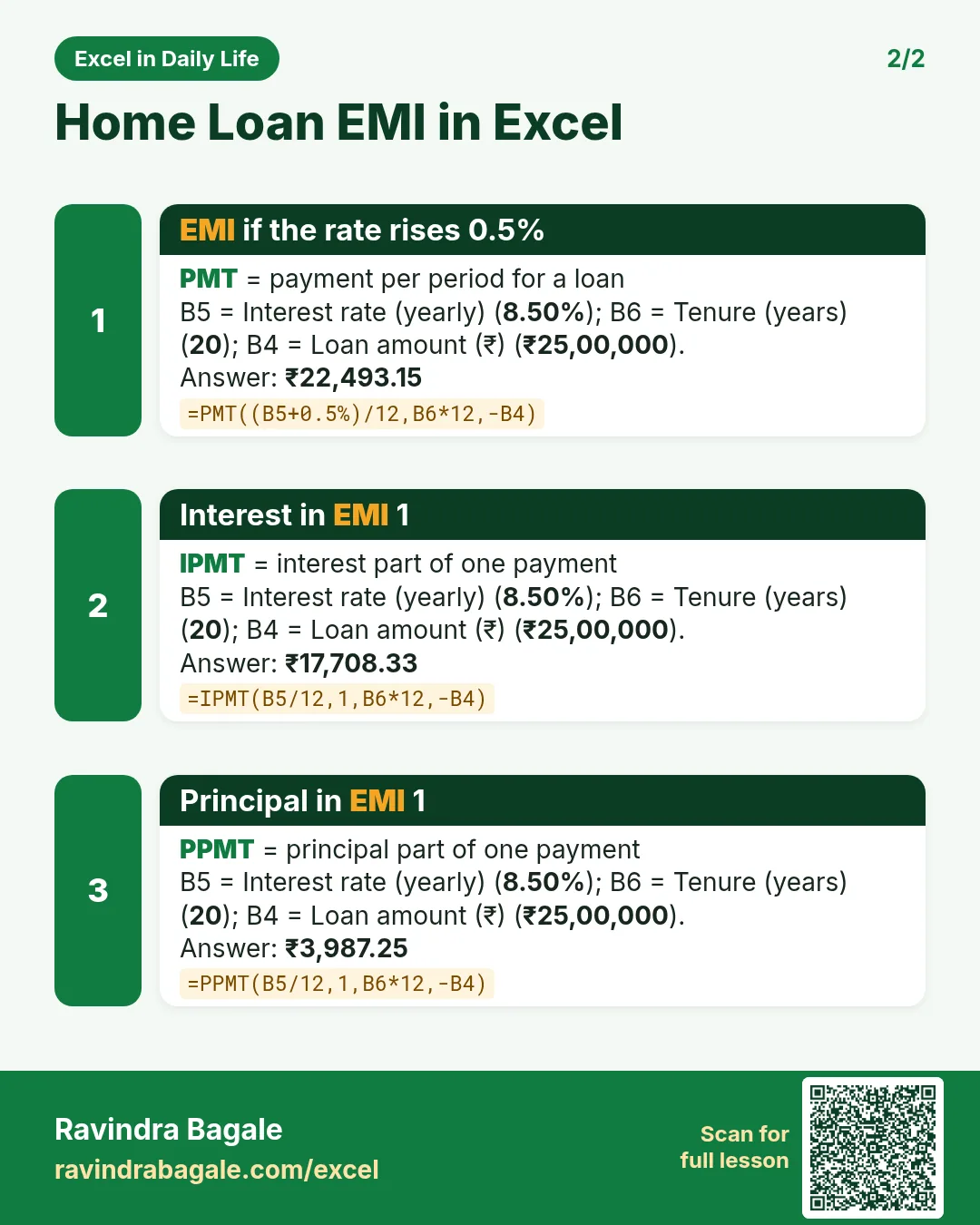
Revision card 2 for Home Loan EMI in Excel: EMI if the rate rises 0.5%: =PMT((B5+0.5%)/12,B6*12,-B4) gives ₹22,493.15; Interest in EMI 1: =IPMT(B5/12,1,B6*12,-B4) gives ₹17,708.33; Principal in EMI 1: =PPMT(B5/12,1,B6*12,-B4) gives ₹3,987.25.
Card 2 of 2: Home Loan EMI in Excel · Download PNG · Open card page

Bill Payment Reminder in Excel: Highlight Due and Overdue Bills Automatically with TODAY

Excel in Daily Life · 2 cards · Open the lesson

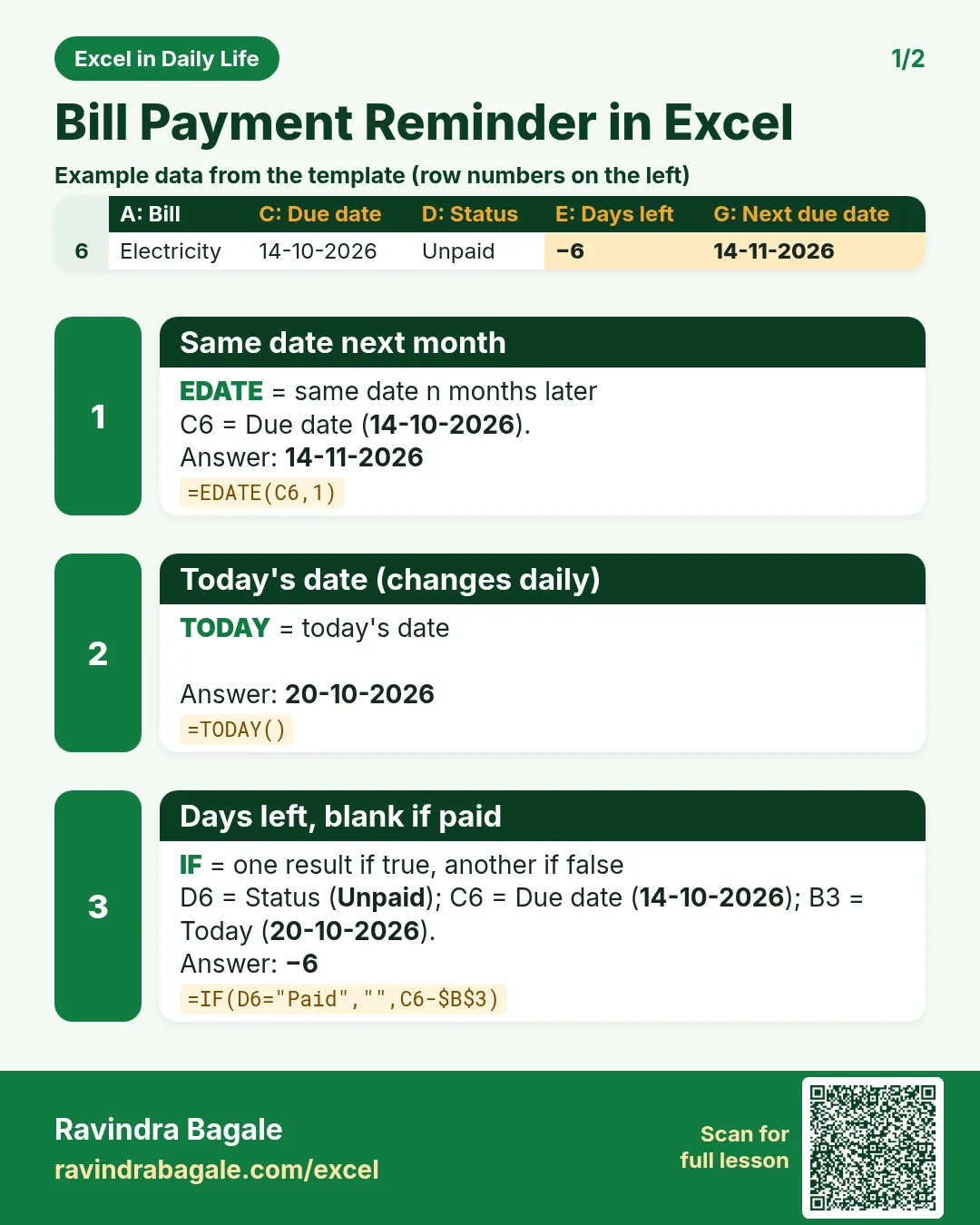
Revision card 1 for Bill Payment Reminder in Excel: Same date next month: =EDATE(C6,1) gives 14-11-2026; Today's date (changes daily): =TODAY() gives 20-10-2026; Days left, blank if paid: =IF(D6="Paid","",C6-$B$3) gives −6. Includes an example data table.
Card 1 of 2: Bill Payment Reminder in Excel · Download PNG · Open card page
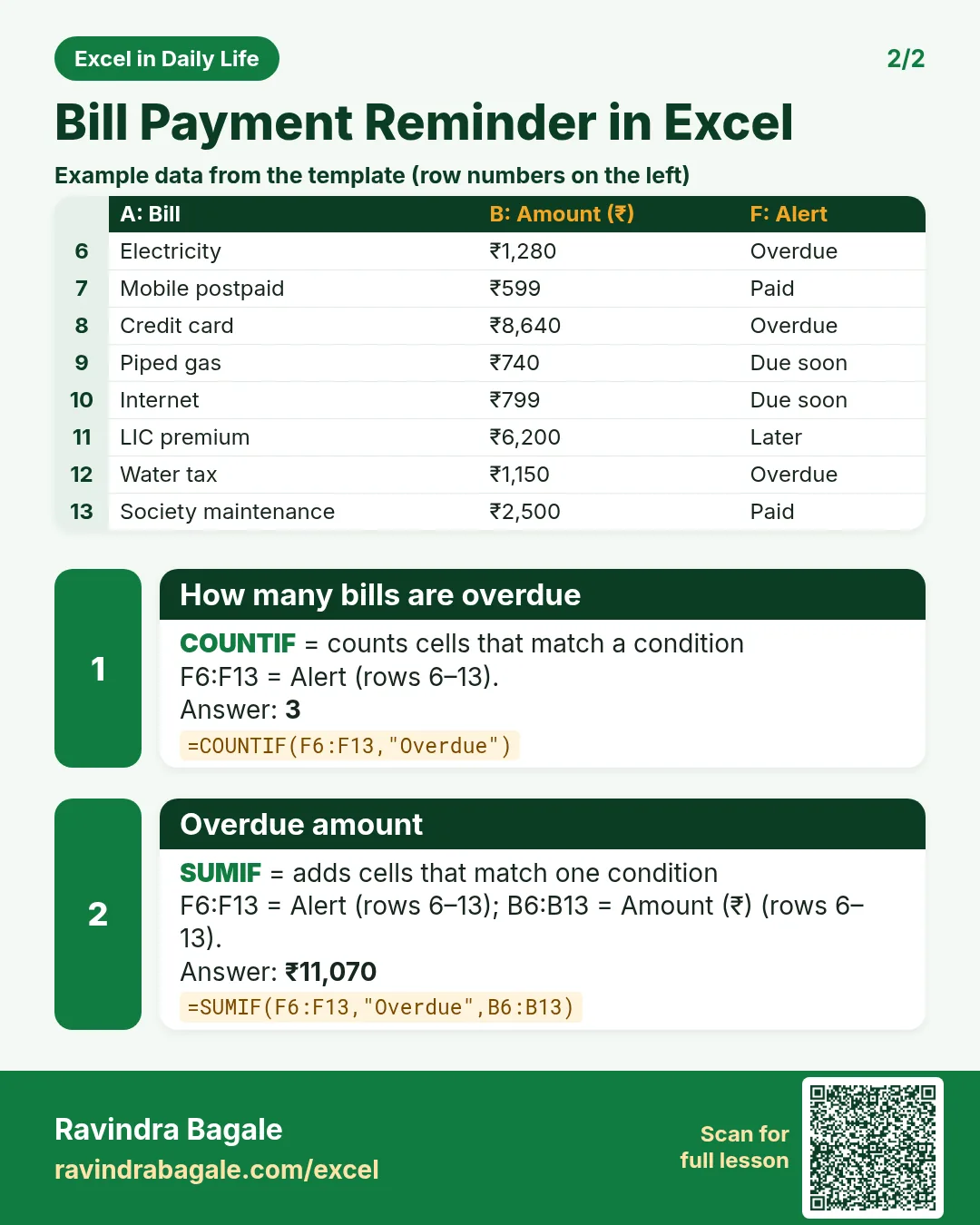
Revision card 2 for Bill Payment Reminder in Excel: How many bills are overdue: =COUNTIF(F6:F13,"Overdue") gives 3; Overdue amount: =SUMIF(F6:F13,"Overdue",B6:B13) gives ₹11,070. Includes an example data table.
Card 2 of 2: Bill Payment Reminder in Excel · Download PNG · Open card page

How to Make a Habit Tracker in Excel with Checkboxes (Monthly Grid, Totals and Streaks)

Excel in Daily Life · 2 cards · Open the lesson
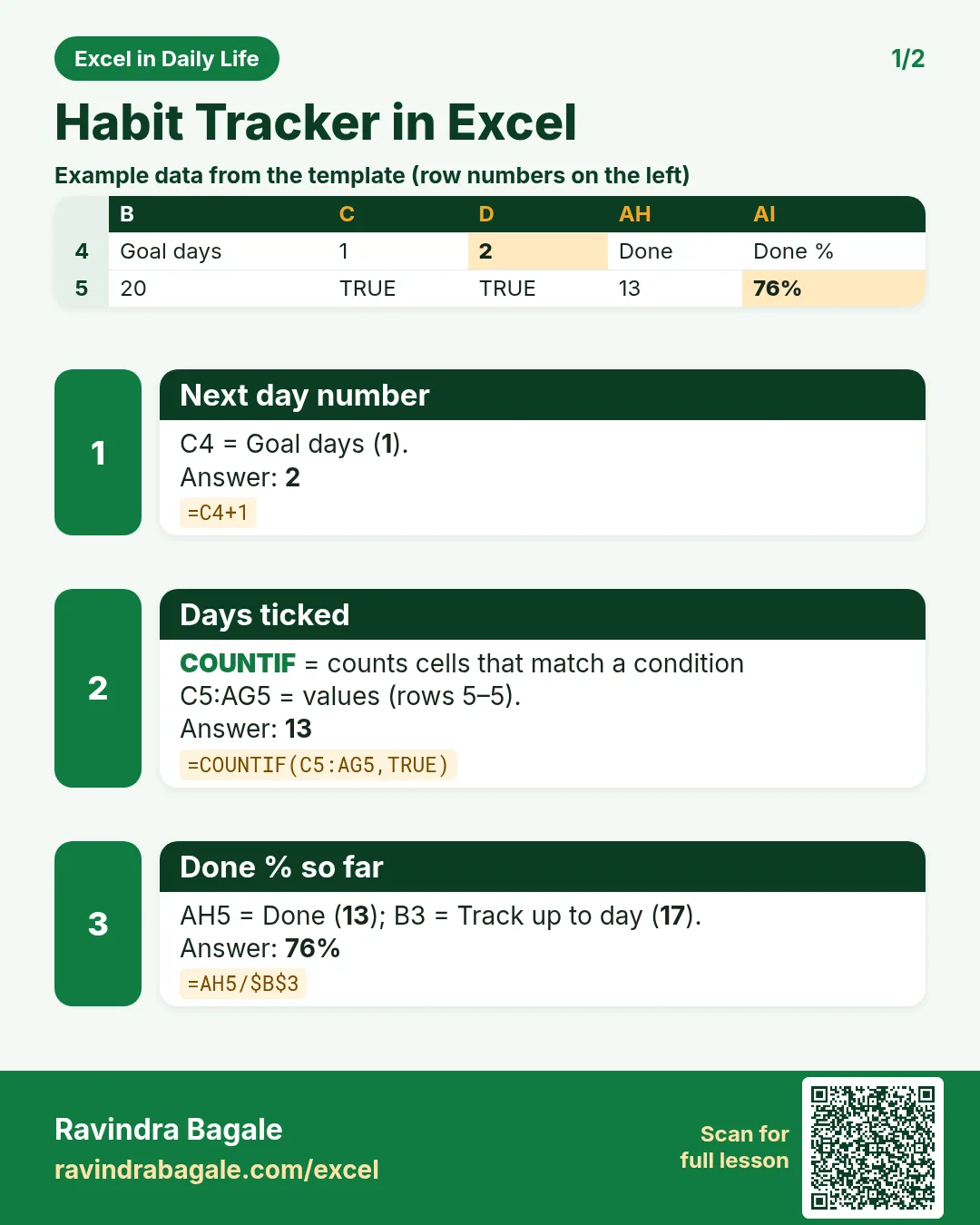
Revision card 1 for Habit Tracker in Excel: Next day number: =C4+1 gives 2; Days ticked: =COUNTIF(C5:AG5,TRUE) gives 13; Done % so far: =AH5/$B$3 gives 76%. Includes an example data table.
Card 1 of 2: Habit Tracker in Excel · Download PNG · Open card page
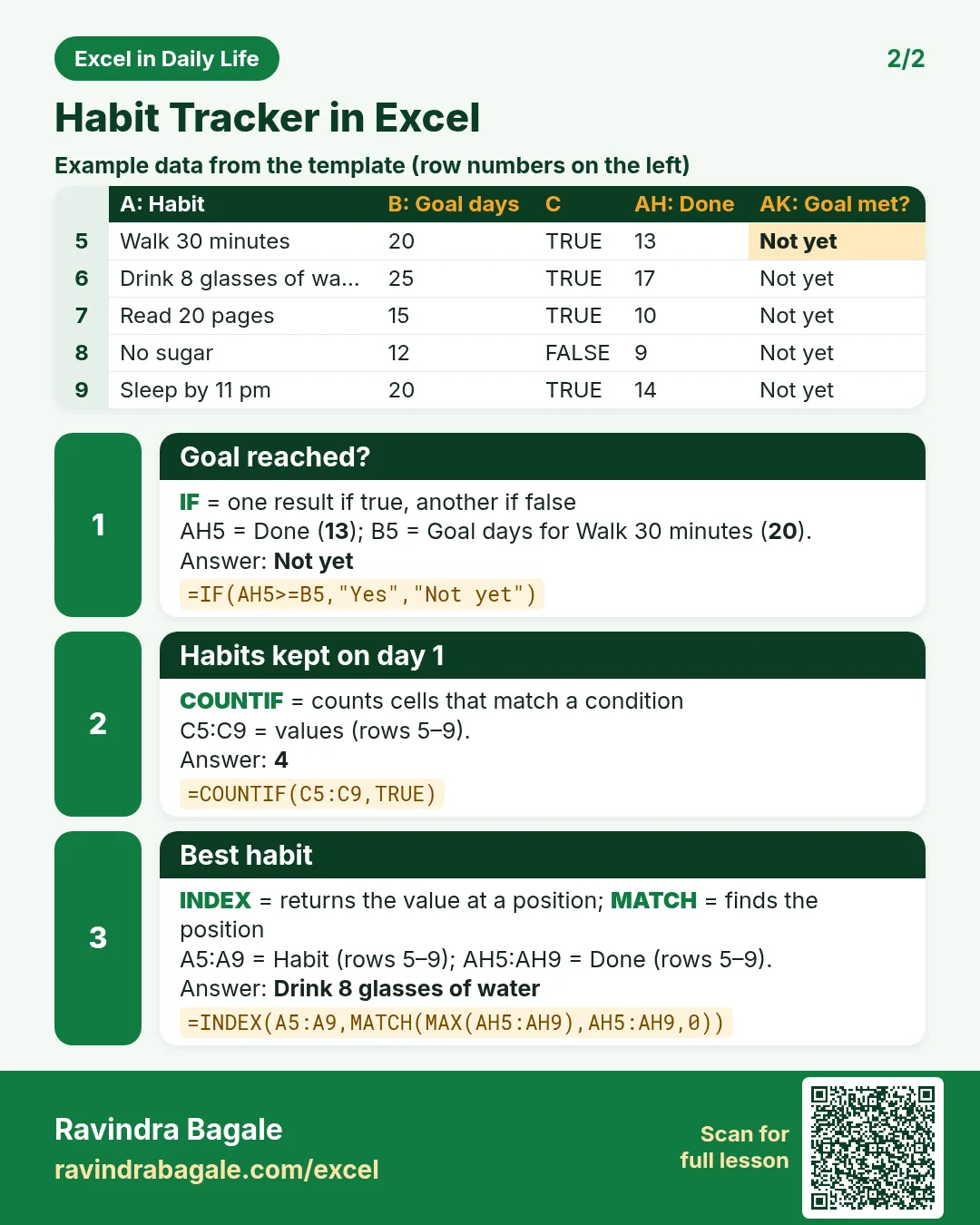
Revision card 2 for Habit Tracker in Excel: Goal reached?: =IF(AH5>=B5,"Yes","Not yet") gives Not yet; Habits kept on day 1: =COUNTIF(C5:C9,TRUE) gives 4; Best habit: =INDEX(A5:A9,MATCH(MAX(AH5:AH9),AH5:AH9,0)) gives Drink 8 glasses of water. Includes an example data table.
Card 2 of 2: Habit Tracker in Excel · Download PNG · Open card page

Grocery List in Excel with Prices: Auto Total, Category Drop-Down and Tick Items as You Shop

Excel in Daily Life · 2 cards · Open the lesson

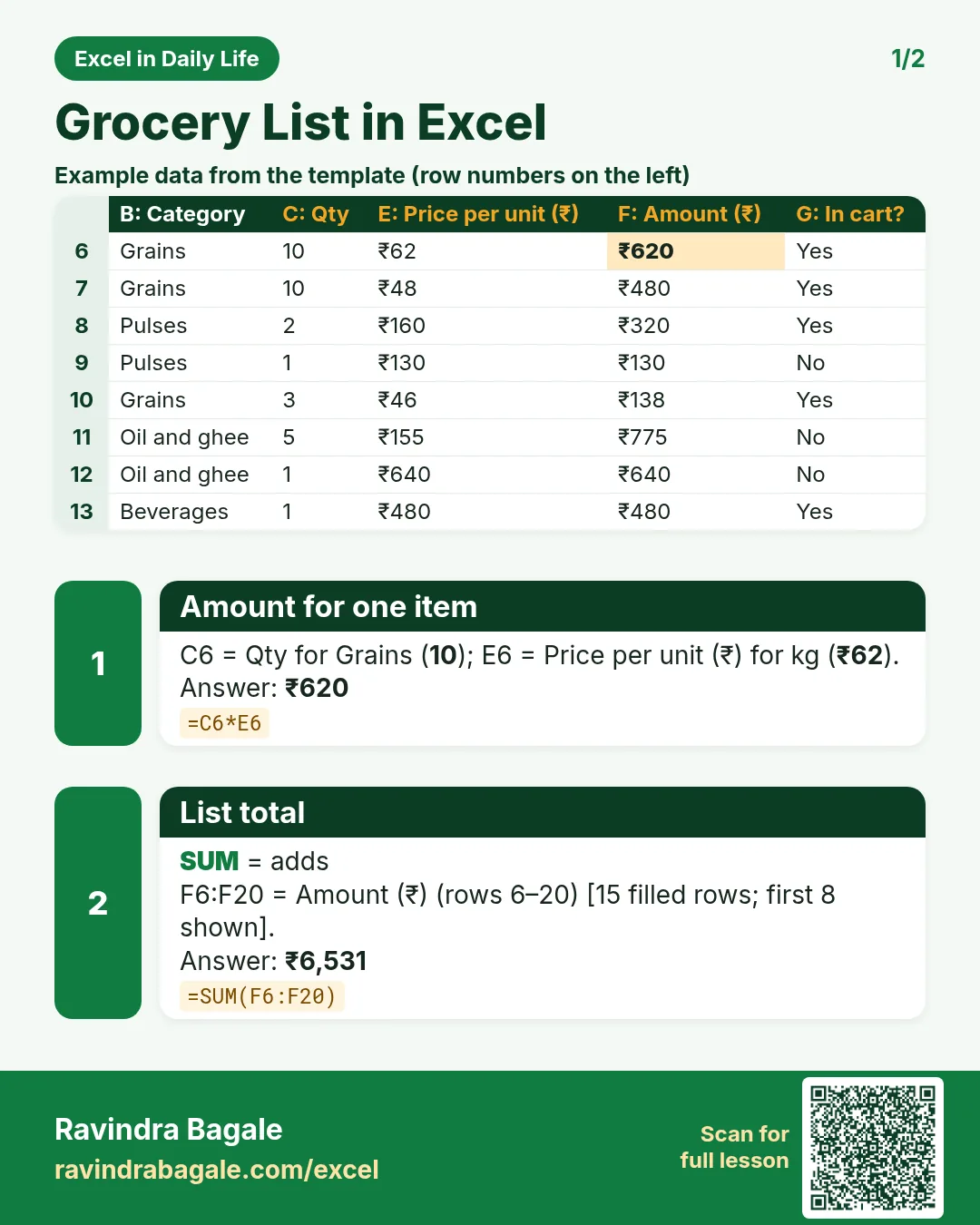
Revision card 1 for Grocery List in Excel: Amount for one item: =C6*E6 gives ₹620; List total: =SUM(F6:F20) gives ₹6,531. Includes an example data table.
Card 1 of 2: Grocery List in Excel · Download PNG · Open card page
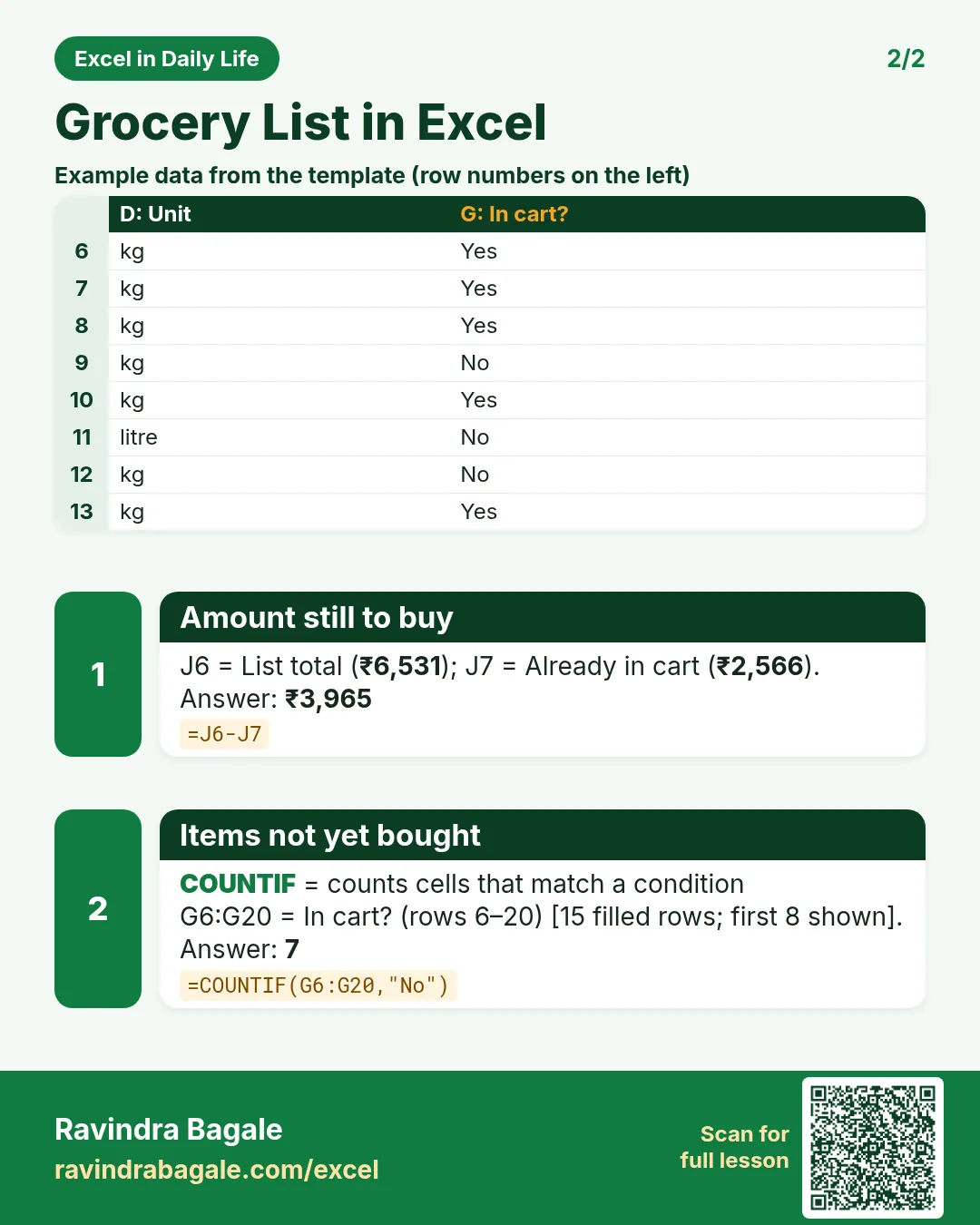
Revision card 2 for Grocery List in Excel: Amount still to buy: =J6-J7 gives ₹3,965; Items not yet bought: =COUNTIF(G6:G20,"No") gives 7. Includes an example data table.
Card 2 of 2: Grocery List in Excel · Download PNG · Open card page

Savings Goal Calculator in Excel: How Much to Save Each Month (PMT, NPER and Goal Seek)

Excel in Daily Life · 2 cards · Open the lesson
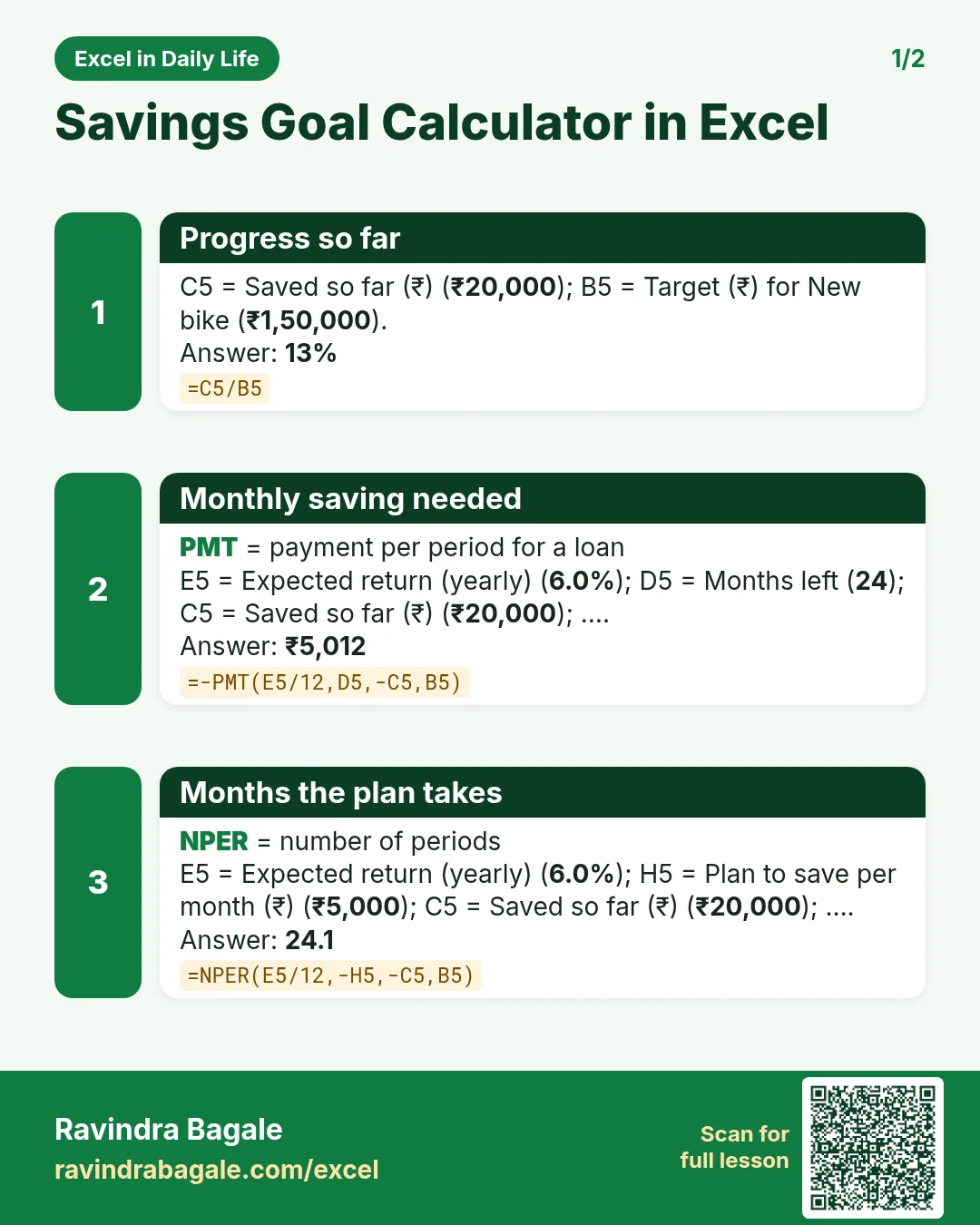
Revision card 1 for Savings Goal Calculator in Excel: Progress so far: =C5/B5 gives 13%; Monthly saving needed: =-PMT(E5/12,D5,-C5,B5) gives ₹5,012; Months the plan takes: =NPER(E5/12,-H5,-C5,B5) gives 24.1.
Card 1 of 2: Savings Goal Calculator in Excel · Download PNG · Open card page
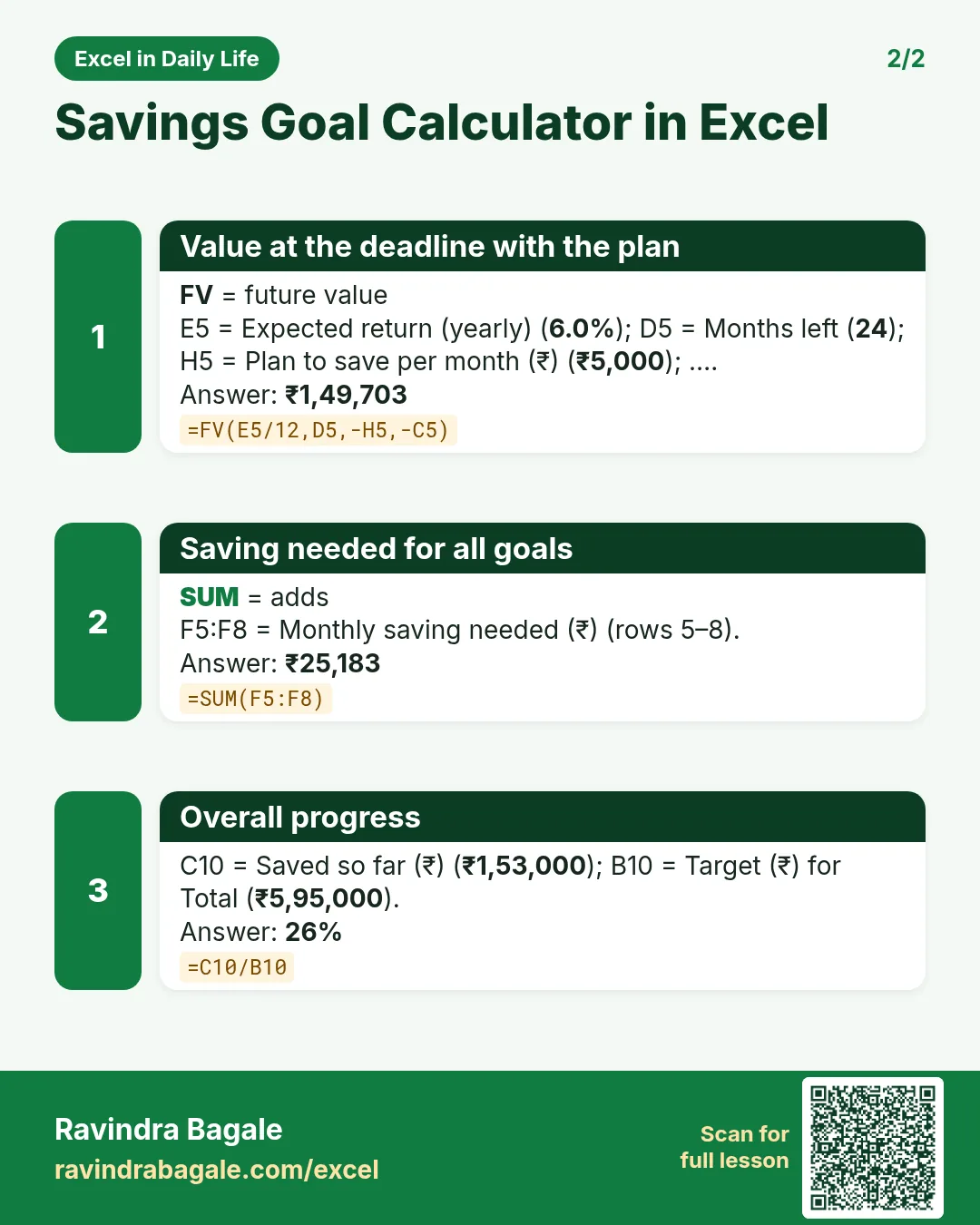
Revision card 2 for Savings Goal Calculator in Excel: Value at the deadline with the plan: =FV(E5/12,D5,-H5,-C5) gives ₹1,49,703; Saving needed for all goals: =SUM(F5:F8) gives ₹25,183; Overall progress: =C10/B10 gives 26%.
Card 2 of 2: Savings Goal Calculator in Excel · Download PNG · Open card page

Trip Budget in Excel: Plan vs Actual, Expense Log and Split Costs Among Friends (Who Owes Whom)

Excel in Daily Life · 2 cards · Open the lesson

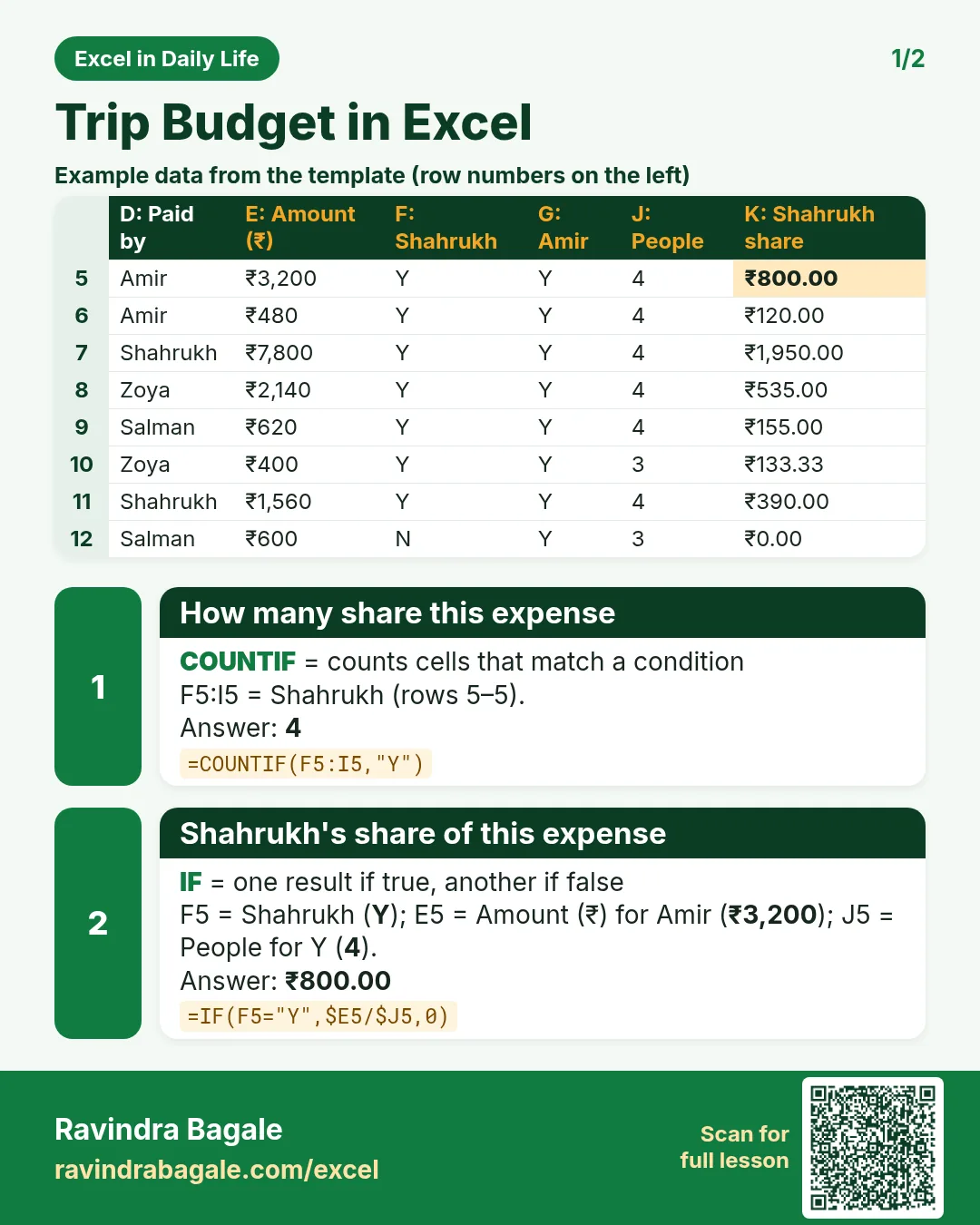
Revision card 1 for Trip Budget in Excel: How many share this expense: =COUNTIF(F5:I5,"Y") gives 4; Shahrukh's share of this expense: =IF(F5="Y",$E5/$J5,0) gives ₹800.00. Includes an example data table.
Card 1 of 2: Trip Budget in Excel · Download PNG · Open card page
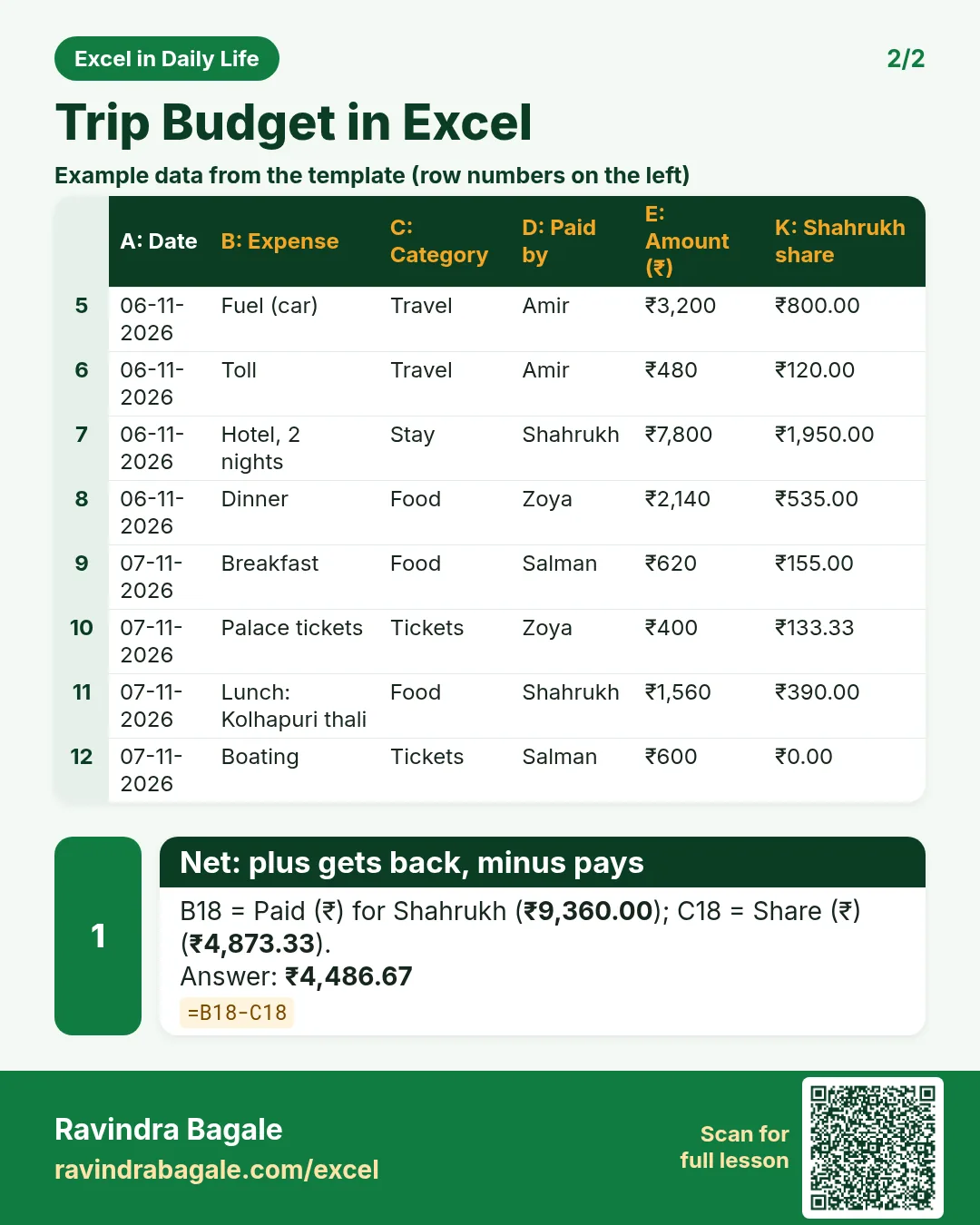
Revision card 2 for Trip Budget in Excel: Net: plus gets back, minus pays: =B18-C18 gives ₹4,486.67. Includes an example data table.
Card 2 of 2: Trip Budget in Excel · Download PNG · Open card page

Weight Loss and Fitness Tracker in Excel: BMI Formula, Progress % and a Line Chart with a Goal Line

Excel in Daily Life · 2 cards · Open the lesson
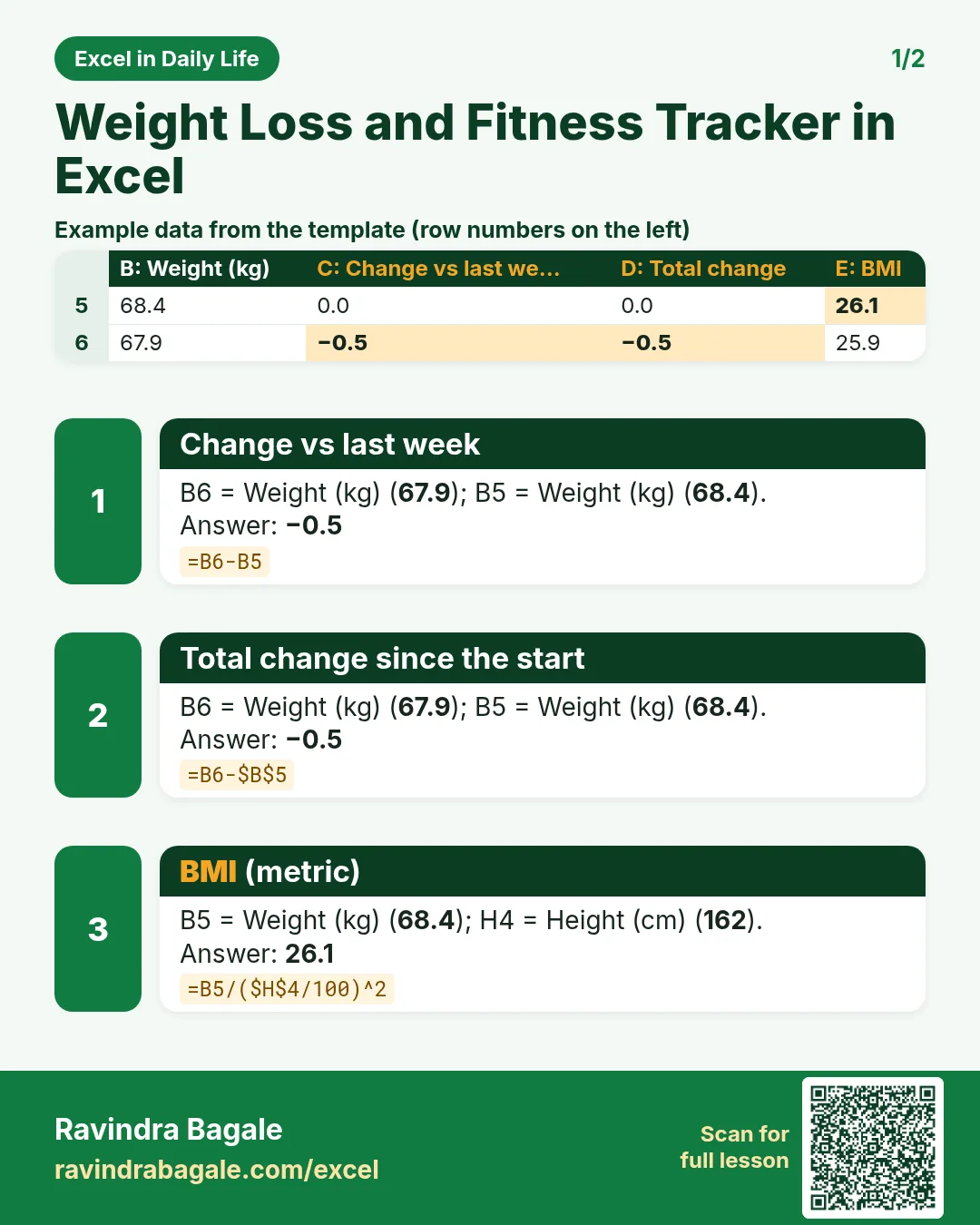
Revision card 1 for Weight Loss and Fitness Tracker in Excel: Change vs last week: =B6-B5 gives −0.5; Total change since the start: =B6-$B$5 gives −0.5; BMI (metric): =B5/($H$4/100)^2 gives 26.1. Includes an example data table.
Card 1 of 2: Weight Loss and Fitness Tracker in Excel · Download PNG · Open card page
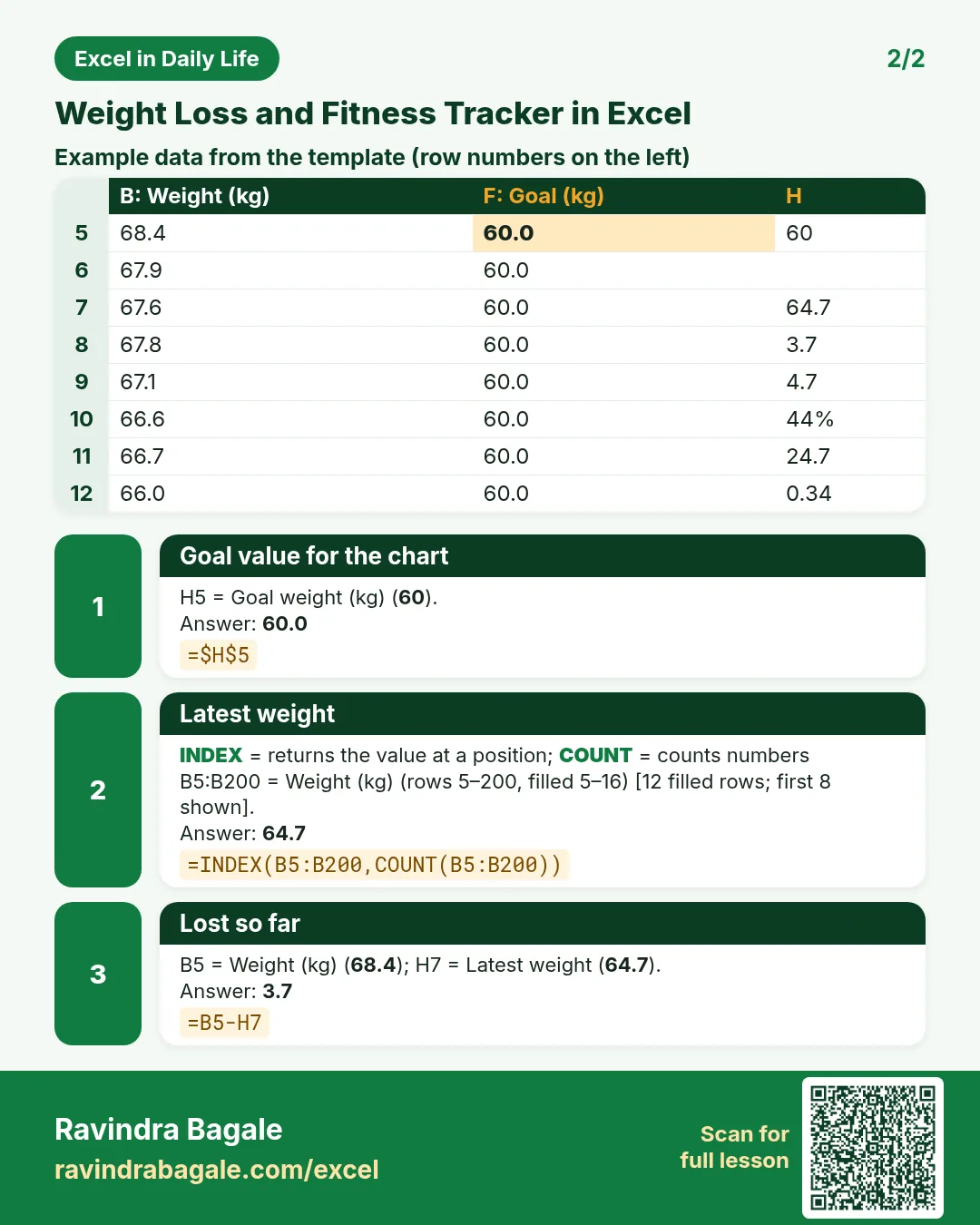
Revision card 2 for Weight Loss and Fitness Tracker in Excel: Goal value for the chart: =$H$5 gives 60.0; Latest weight: =INDEX(B5:B200,COUNT(B5:B200)) gives 64.7; Lost so far: =B5-H7 gives 3.7. Includes an example data table.
Card 2 of 2: Weight Loss and Fitness Tracker in Excel · Download PNG · Open card page

Weekly Meal Planner in Excel That Builds Your Shopping List Automatically (No Macros)

Excel in Daily Life · 2 cards · Open the lesson

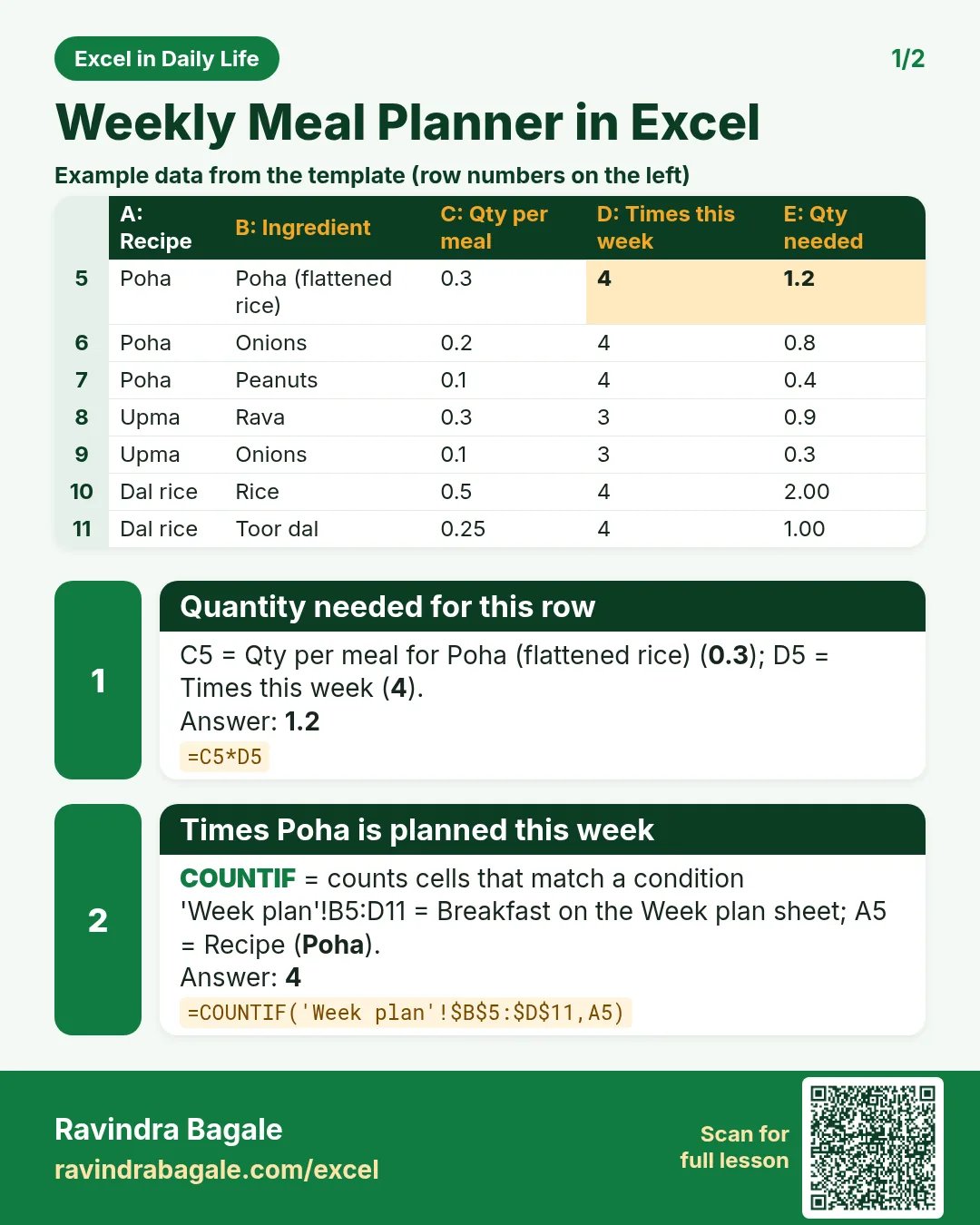
Revision card 1 for Weekly Meal Planner in Excel: Quantity needed for this row: =C5*D5 gives 1.2; Times Poha is planned this week: =COUNTIF('Week plan'!$B$5:$D$11,A5) gives 4. Includes an example data table.
Card 1 of 2: Weekly Meal Planner in Excel · Download PNG · Open card page
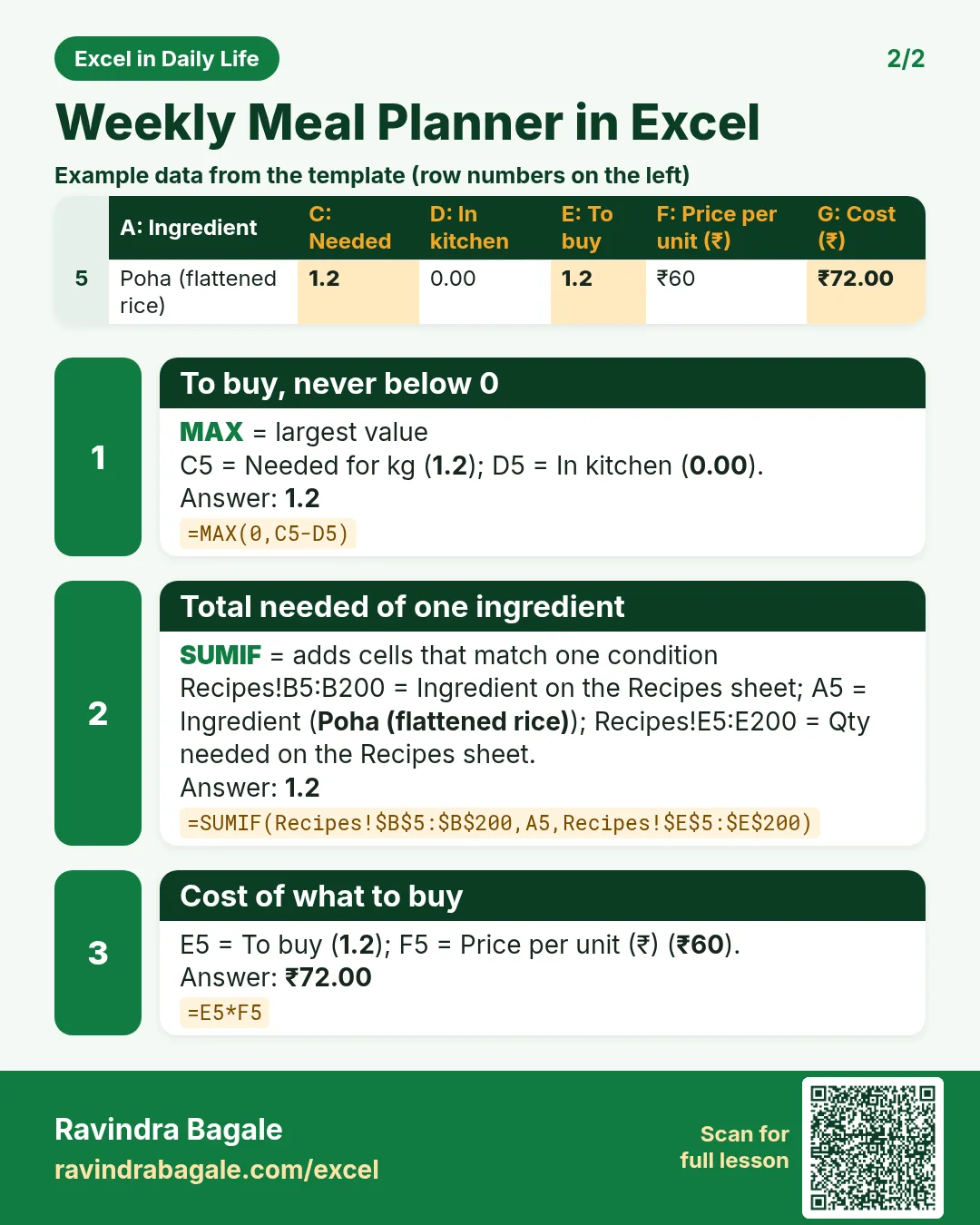
Revision card 2 for Weekly Meal Planner in Excel: To buy, never below 0: =MAX(0,C5-D5) gives 1.2; Total needed of one ingredient: =SUMIF(Recipes!$B$5:$B$200,A5,Recipes!$E$5:$E$200) gives 1.2; Cost of what to buy: =E5*F5 gives ₹72.00. Includes an example data table.
Card 2 of 2: Weekly Meal Planner in Excel · Download PNG · Open card page

SIP Calculator in Excel: Future Value of a Monthly SIP with the FV Function (and a Yearly Step-Up)

Excel in Daily Life · 2 cards · Open the lesson
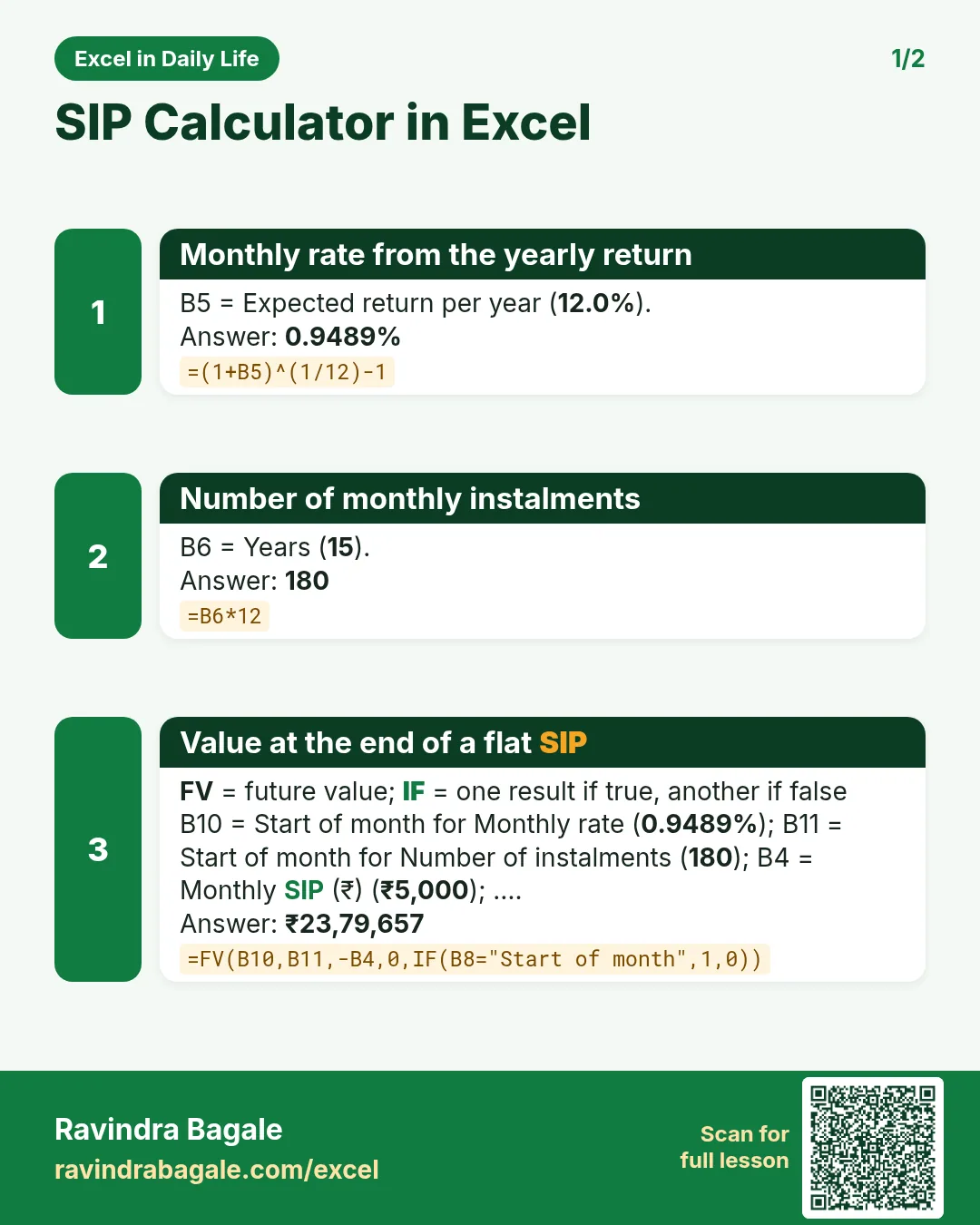
Revision card 1 for SIP Calculator in Excel: Monthly rate from the yearly return: =(1+B5)^(1/12)-1 gives 0.9489%; Number of monthly instalments: =B6*12 gives 180; Value at the end of a flat SIP: =FV(B10,B11,-B4,0,IF(B8="Start of month",1,0)) gives ₹23,79,657.
Card 1 of 2: SIP Calculator in Excel · Download PNG · Open card page
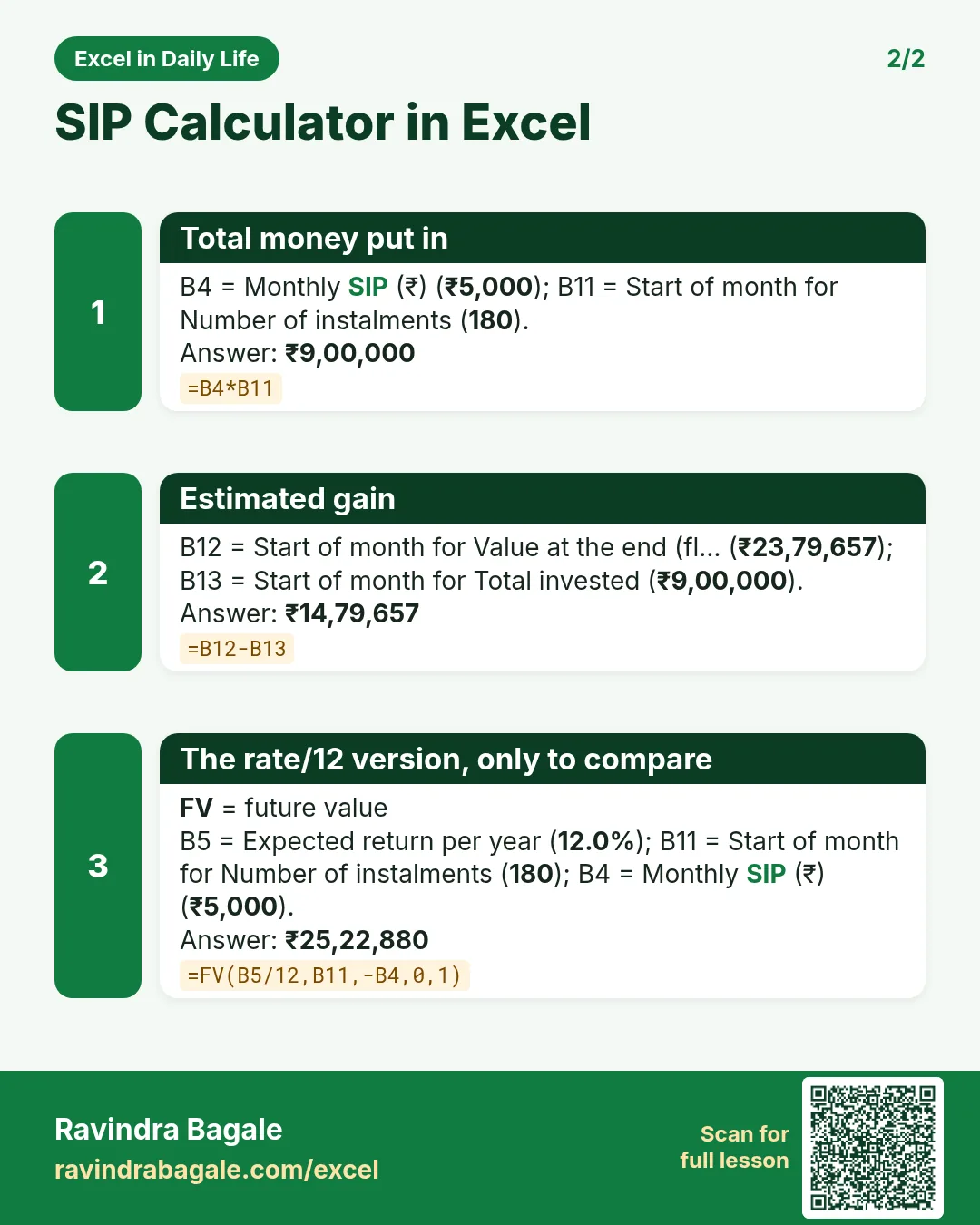
Revision card 2 for SIP Calculator in Excel: Total money put in: =B4*B11 gives ₹9,00,000; Estimated gain: =B12-B13 gives ₹14,79,657; The rate/12 version, only to compare: =FV(B5/12,B11,-B4,0,1) gives ₹25,22,880.
Card 2 of 2: SIP Calculator in Excel · Download PNG · Open card page

FD Calculator in Excel: Maturity Amount and Interest with Quarterly Compounding (Compare 3 Offers)

Excel in Daily Life · 1 card · Open the lesson

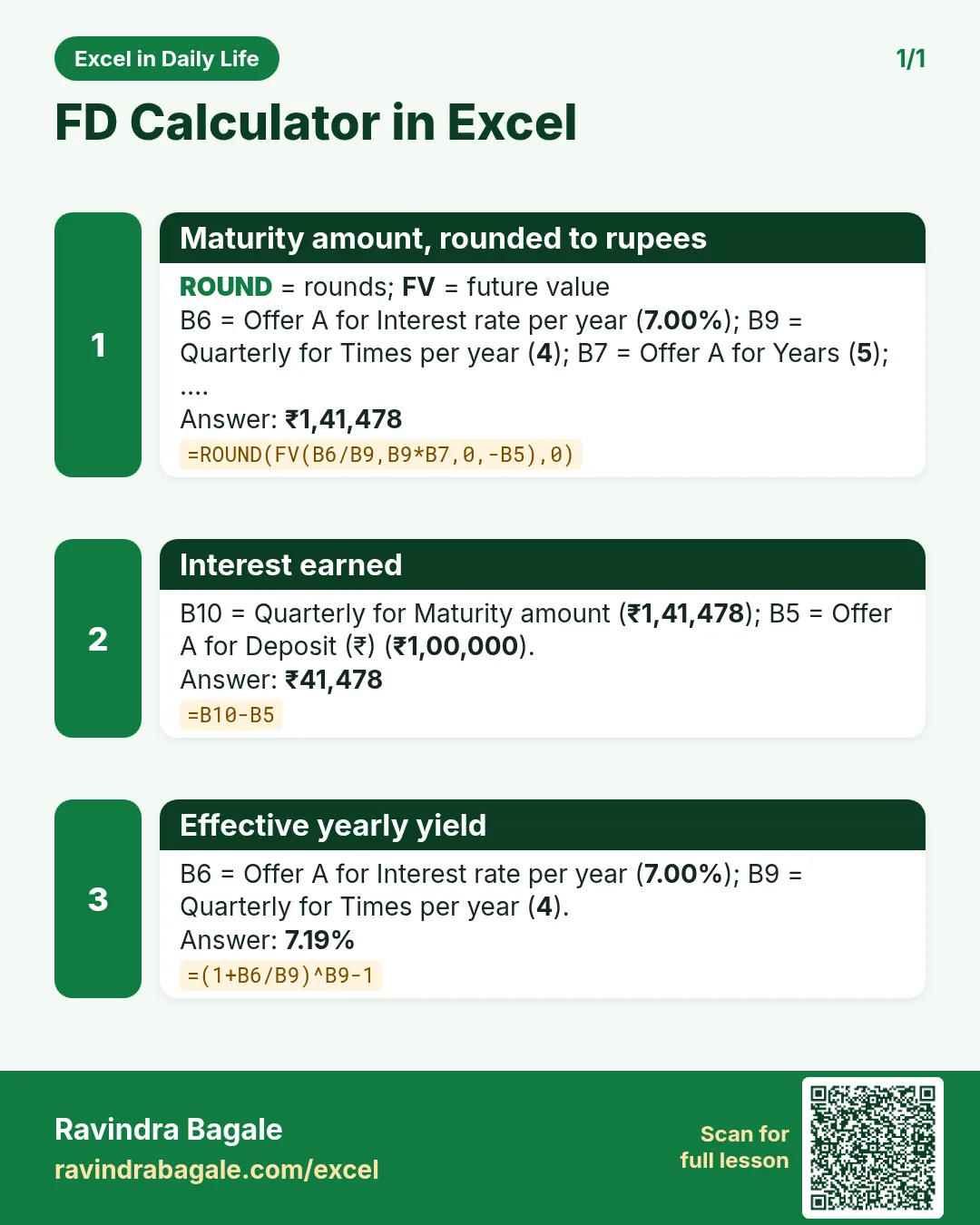
Revision card 1 for FD Calculator in Excel: Maturity amount, rounded to rupees: =ROUND(FV(B6/B9,B9*B7,0,-B5),0) gives ₹1,41,478; Interest earned: =B10-B5 gives ₹41,478; Effective yearly yield: =(1+B6/B9)^B9-1 gives 7.19%.
Card 1 of 1: FD Calculator in Excel · Download PNG · Open card page

Compare Personal Loan Offers in Excel: EMI, Total Interest, Processing Fee and the Cheapest Loan

Excel in Daily Life · 2 cards · Open the lesson

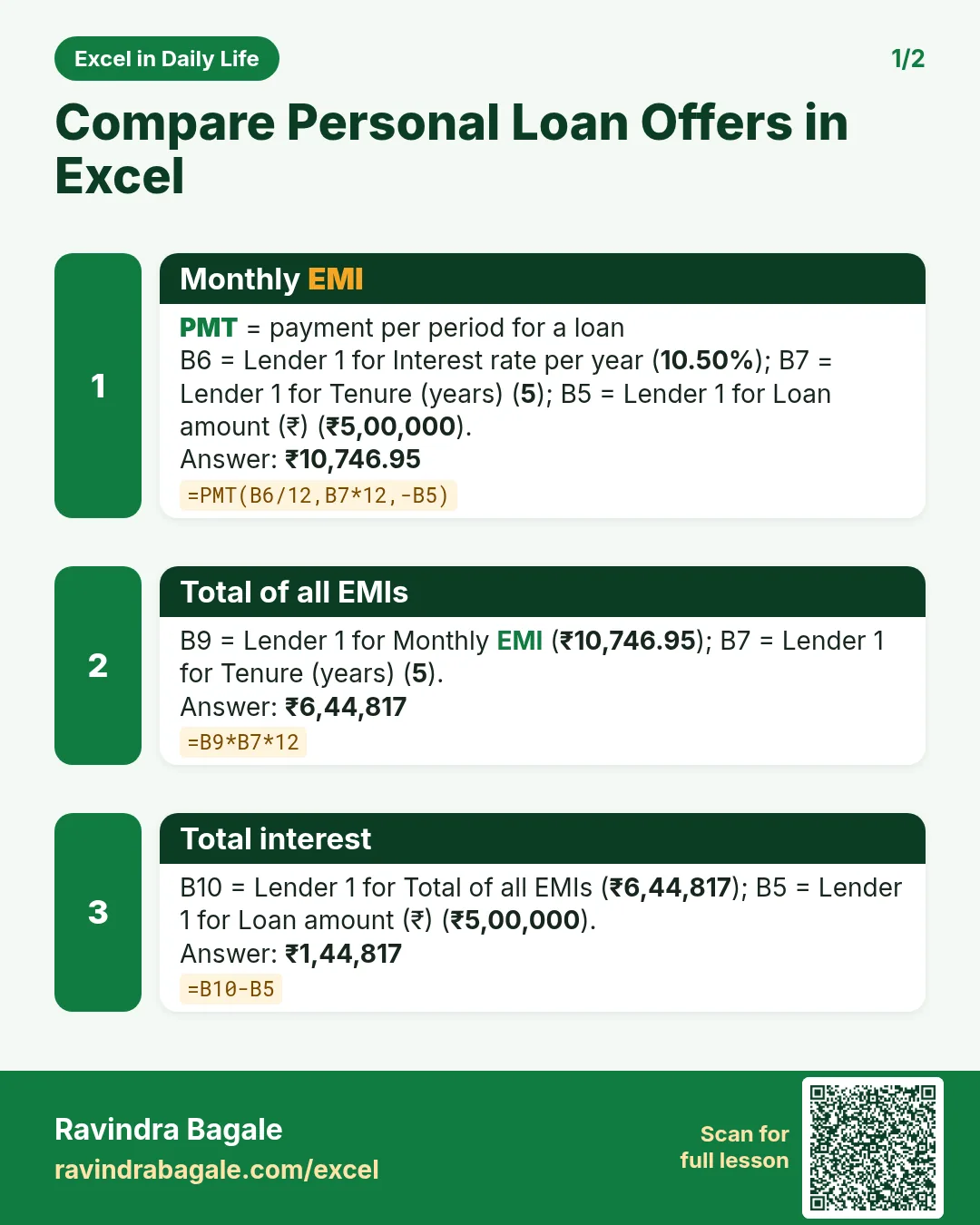
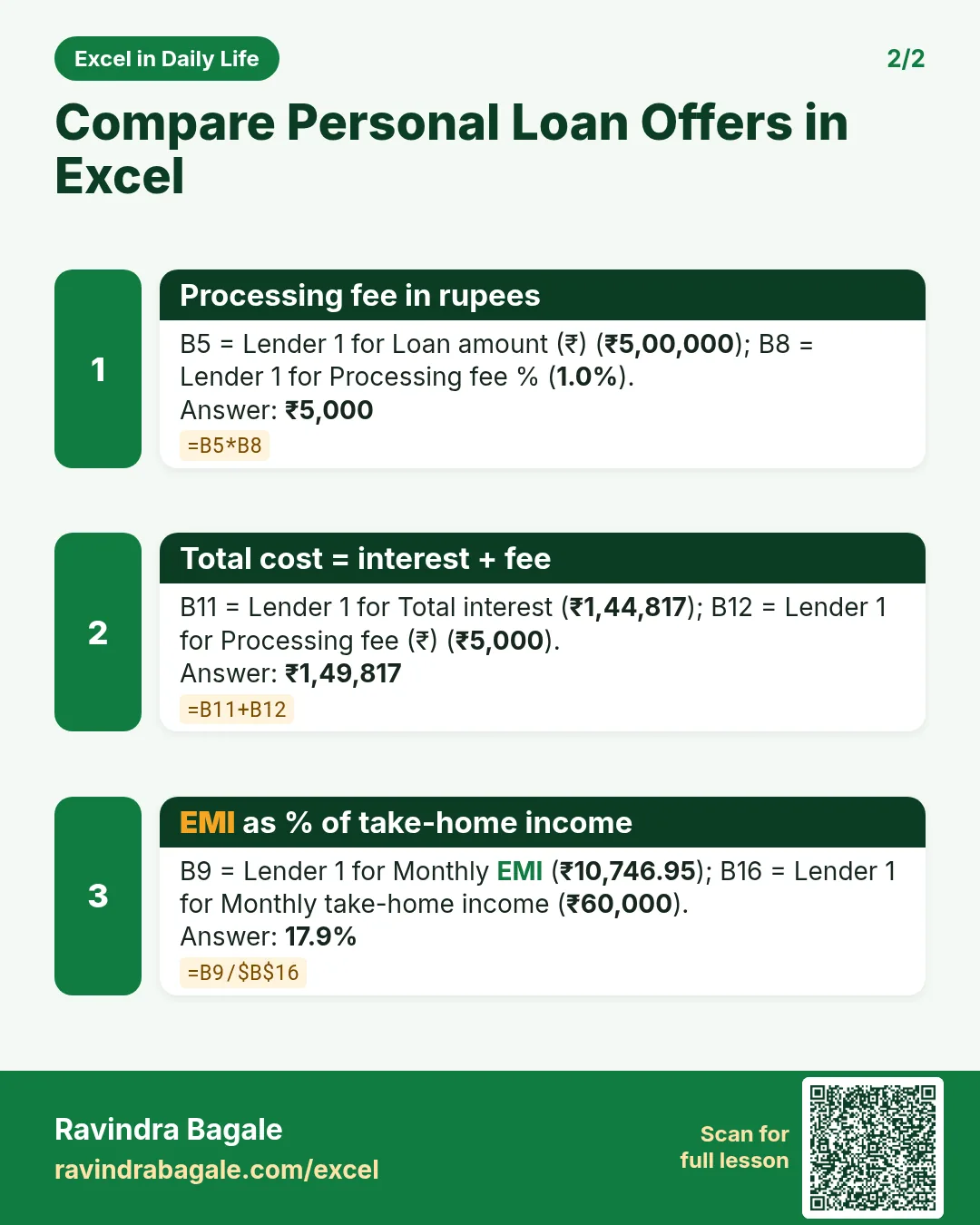
Revision card 1 for Compare Personal Loan Offers in Excel: Monthly EMI: =PMT(B6/12,B7*12,-B5) gives ₹10,746.95; Total of all EMIs: =B9*B7*12 gives ₹6,44,817; Total interest: =B10-B5 gives ₹1,44,817.
Card 1 of 2: Compare Personal Loan Offers in Excel · Download PNG · Open card page
Revision card 2 for Compare Personal Loan Offers in Excel: Processing fee in rupees: =B5*B8 gives ₹5,000; Total cost = interest + fee: =B11+B12 gives ₹1,49,817; EMI as % of take-home income: =B9/$B$16 gives 17.9%.
Card 2 of 2: Compare Personal Loan Offers in Excel · Download PNG · Open card page

Electricity Meter Reading Tracker in Excel: Units Used per Month, Bill Estimate and Usage Chart

Excel in Daily Life · 2 cards · Open the lesson
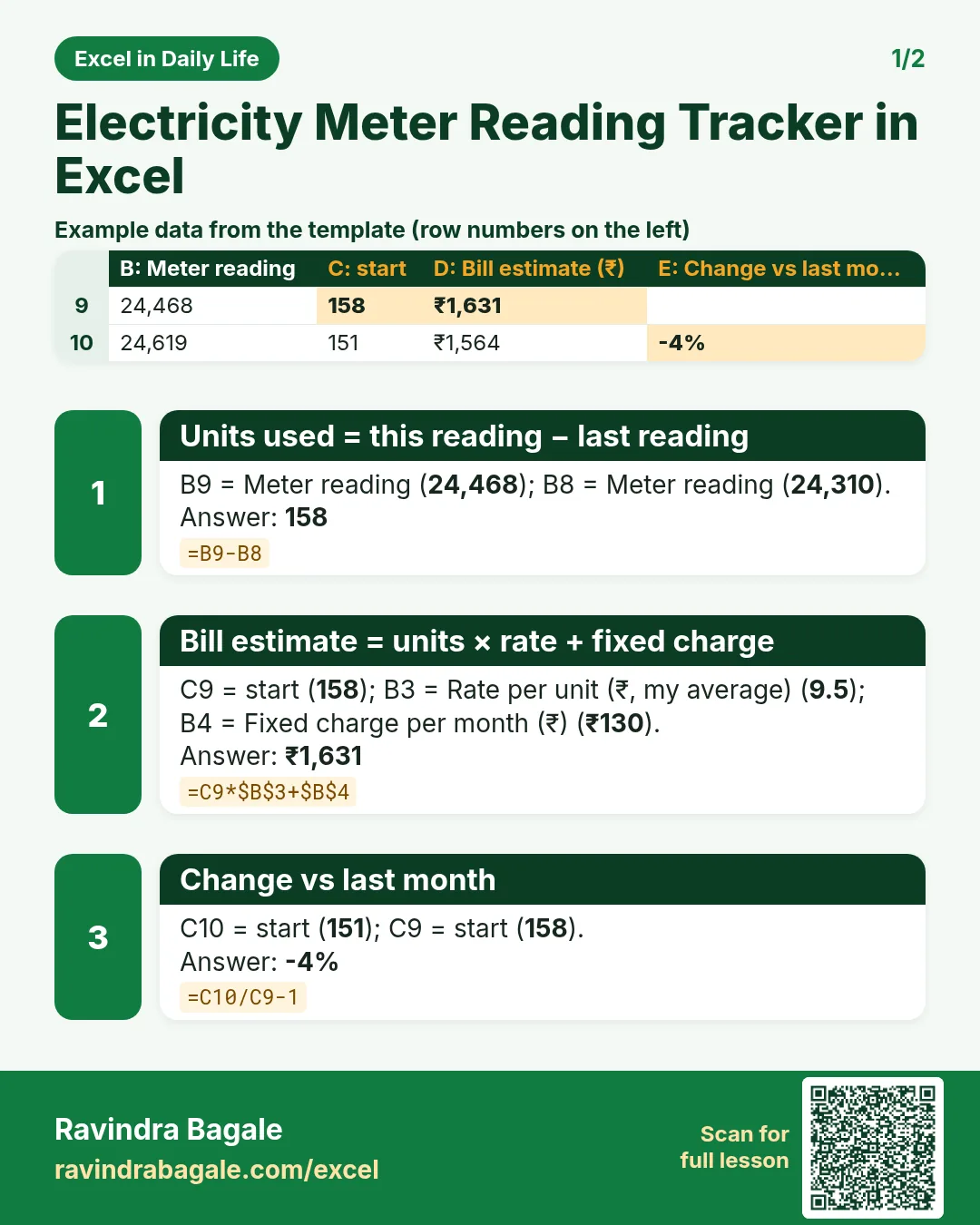
Revision card 1 for Electricity Meter Reading Tracker in Excel: Units used = this reading − last reading: =B9-B8 gives 158; Bill estimate = units × rate + fixed charge: =C9*$B$3+$B$4 gives ₹1,631; Change vs last month: =C10/C9-1 gives -4%. Includes an example data table.
Card 1 of 2: Electricity Meter Reading Tracker in Excel · Download PNG · Open card page
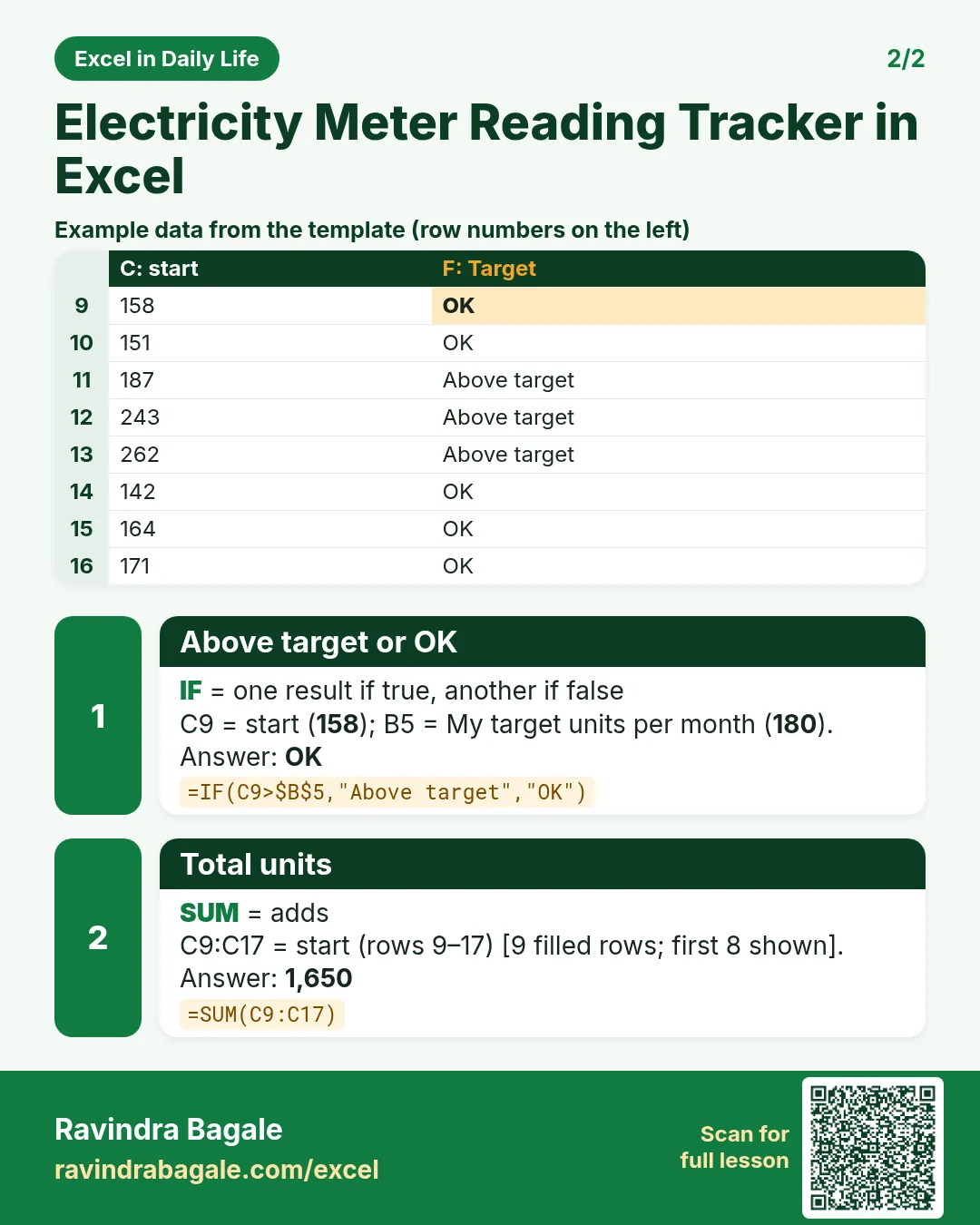
Revision card 2 for Electricity Meter Reading Tracker in Excel: Above target or OK: =IF(C9>$B$5,"Above target","OK") gives OK; Total units: =SUM(C9:C17) gives 1,650. Includes an example data table.
Card 2 of 2: Electricity Meter Reading Tracker in Excel · Download PNG · Open card page

Fuel Mileage Tracker in Excel: km per Litre and Cost per km for Your Bike or Car

Excel in Daily Life · 2 cards · Open the lesson

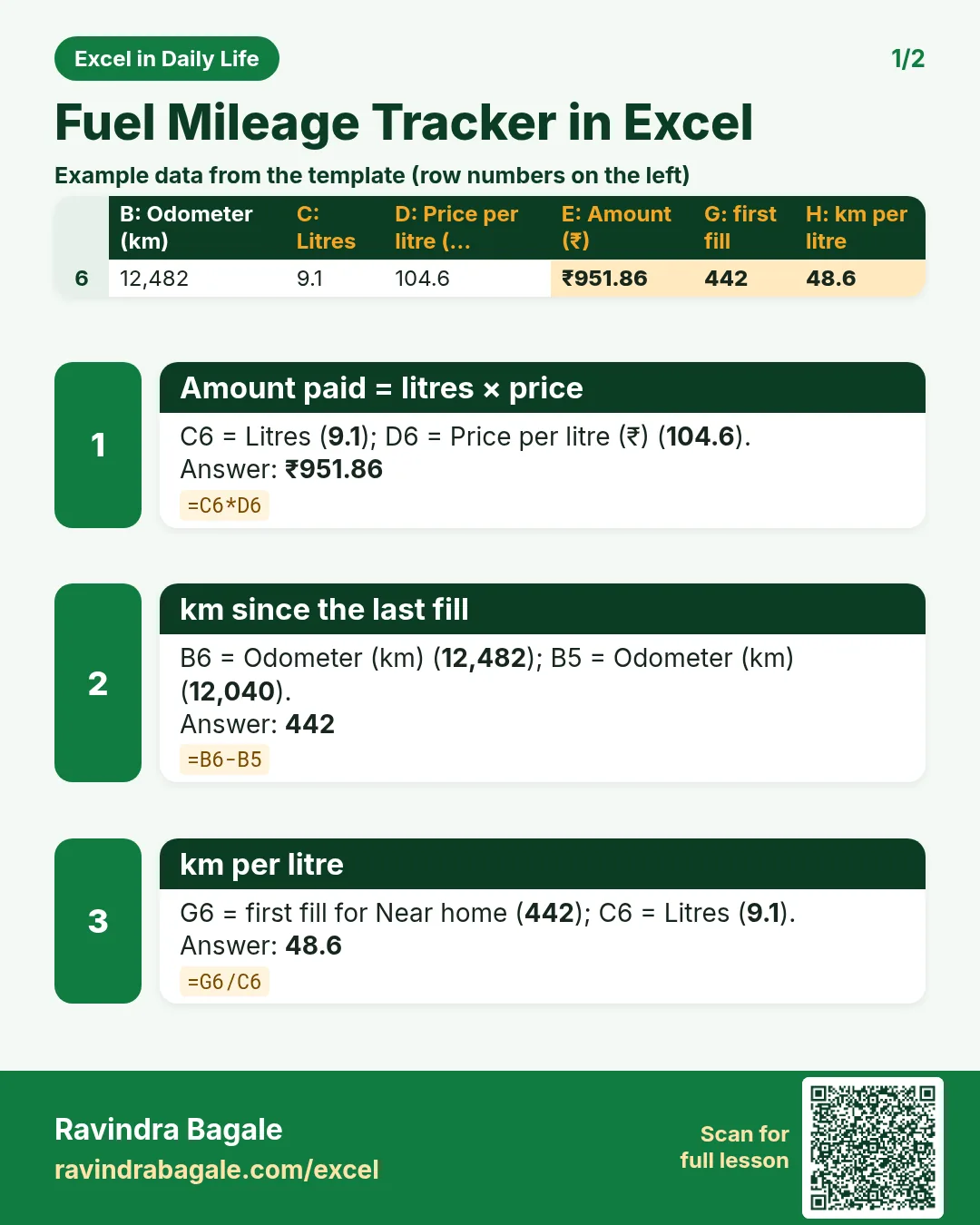
Revision card 1 for Fuel Mileage Tracker in Excel: Amount paid = litres × price: =C6*D6 gives ₹951.86; km since the last fill: =B6-B5 gives 442; km per litre: =G6/C6 gives 48.6. Includes an example data table.
Card 1 of 2: Fuel Mileage Tracker in Excel · Download PNG · Open card page
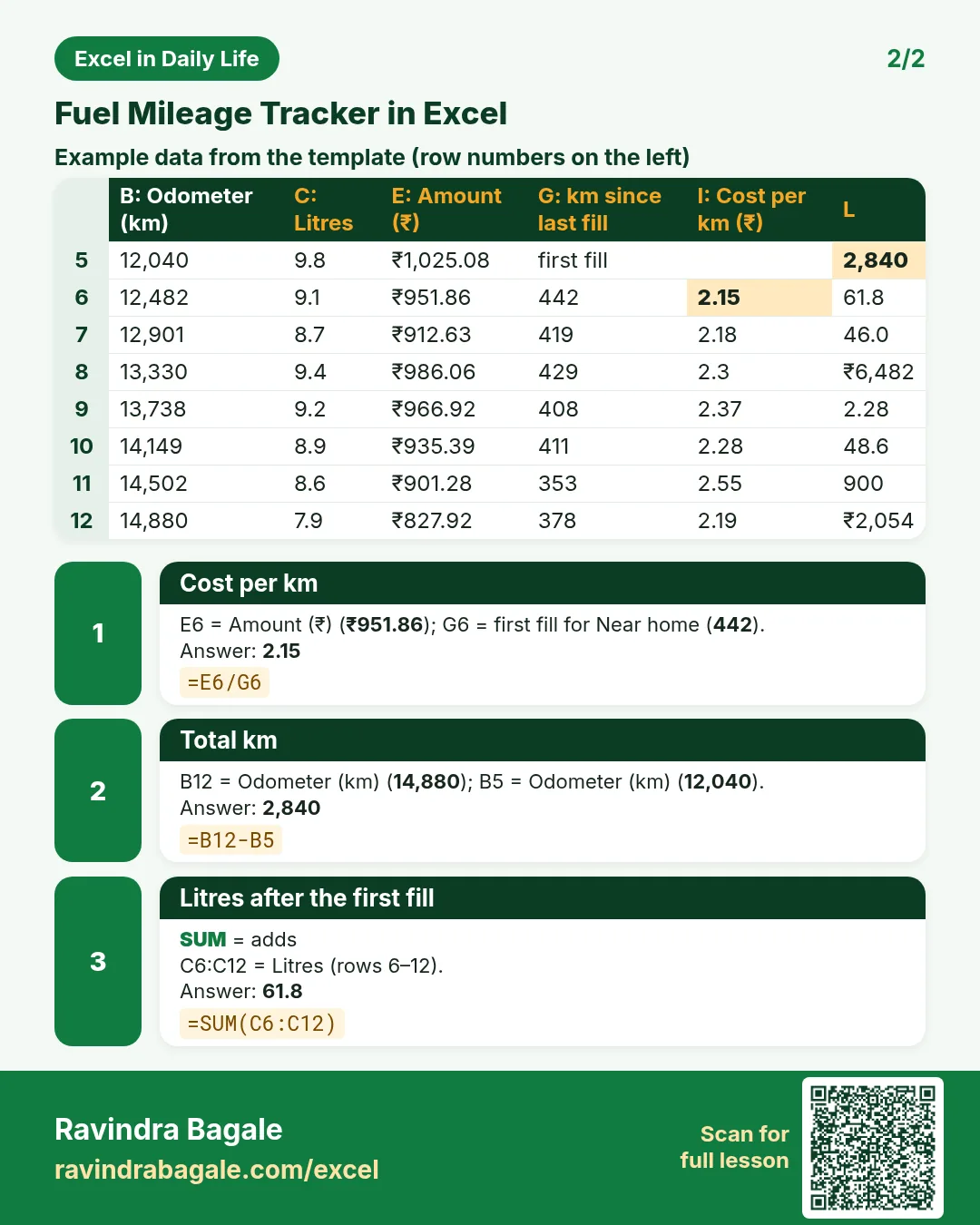
Revision card 2 for Fuel Mileage Tracker in Excel: Cost per km: =E6/G6 gives 2.15; Total km: =B12-B5 gives 2,840; Litres after the first fill: =SUM(C6:C12) gives 61.8. Includes an example data table.
Card 2 of 2: Fuel Mileage Tracker in Excel · Download PNG · Open card page

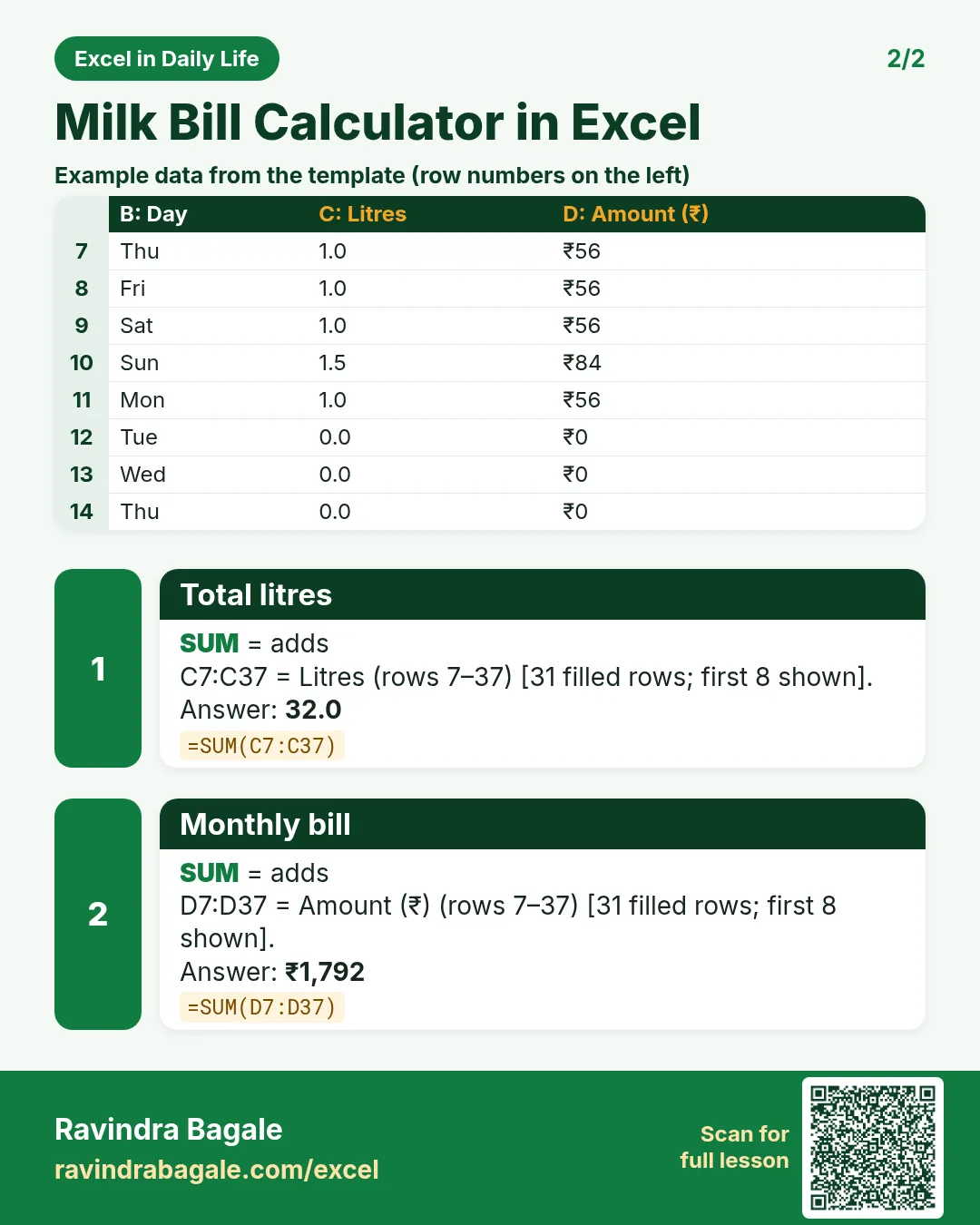
Milk Bill Calculator in Excel: Daily Litres Calendar, Monthly Bill and Missed Days

Excel in Daily Life · 2 cards · Open the lesson
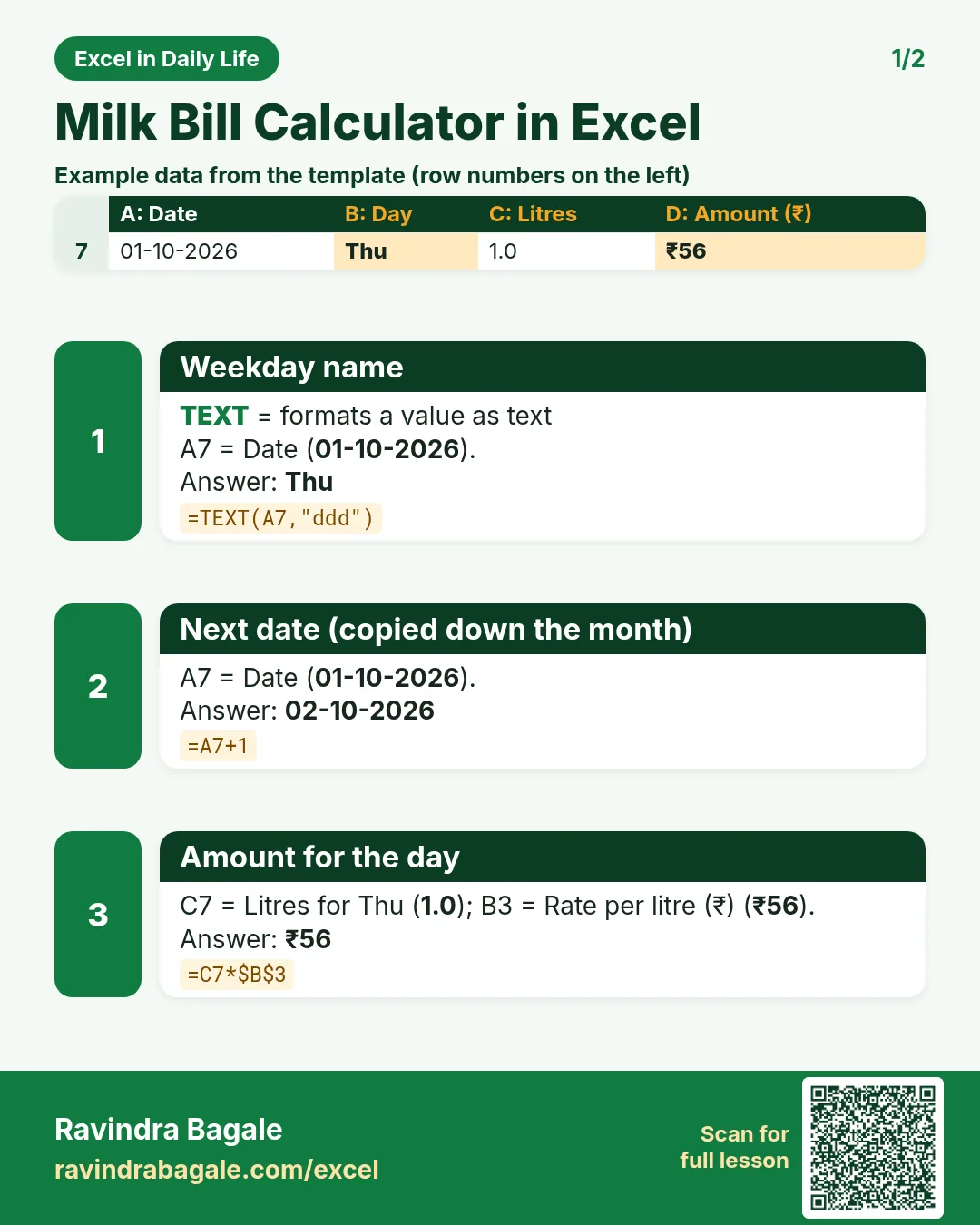
Revision card 1 for Milk Bill Calculator in Excel: Weekday name: =TEXT(A7,"ddd") gives Thu; Next date (copied down the month): =A7+1 gives 02-10-2026; Amount for the day: =C7*$B$3 gives ₹56. Includes an example data table.
Card 1 of 2: Milk Bill Calculator in Excel · Download PNG · Open card page
Revision card 2 for Milk Bill Calculator in Excel: Total litres: =SUM(C7:C37) gives 32.0; Monthly bill: =SUM(D7:D37) gives ₹1,792. Includes an example data table.
Card 2 of 2: Milk Bill Calculator in Excel · Download PNG · Open card page

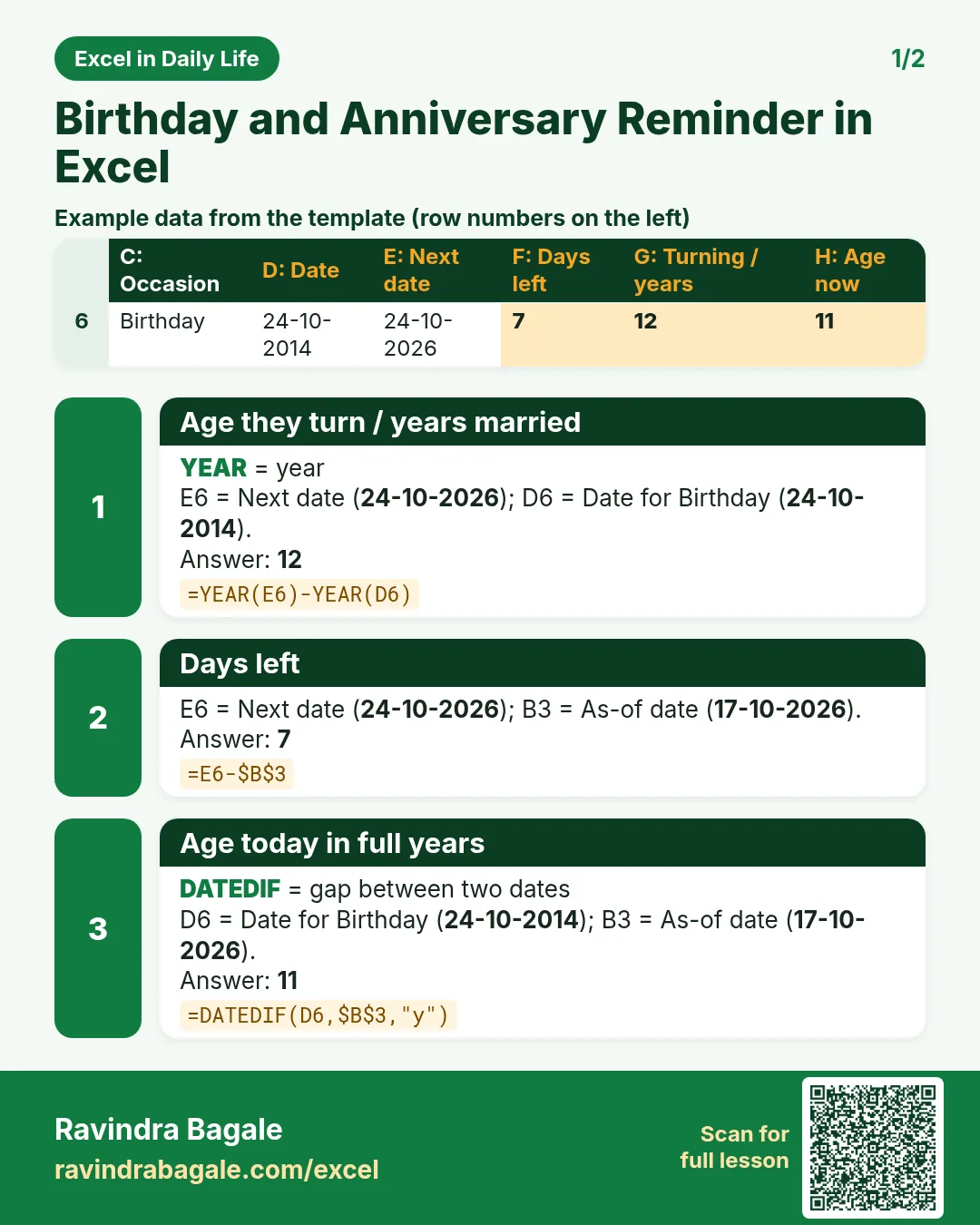
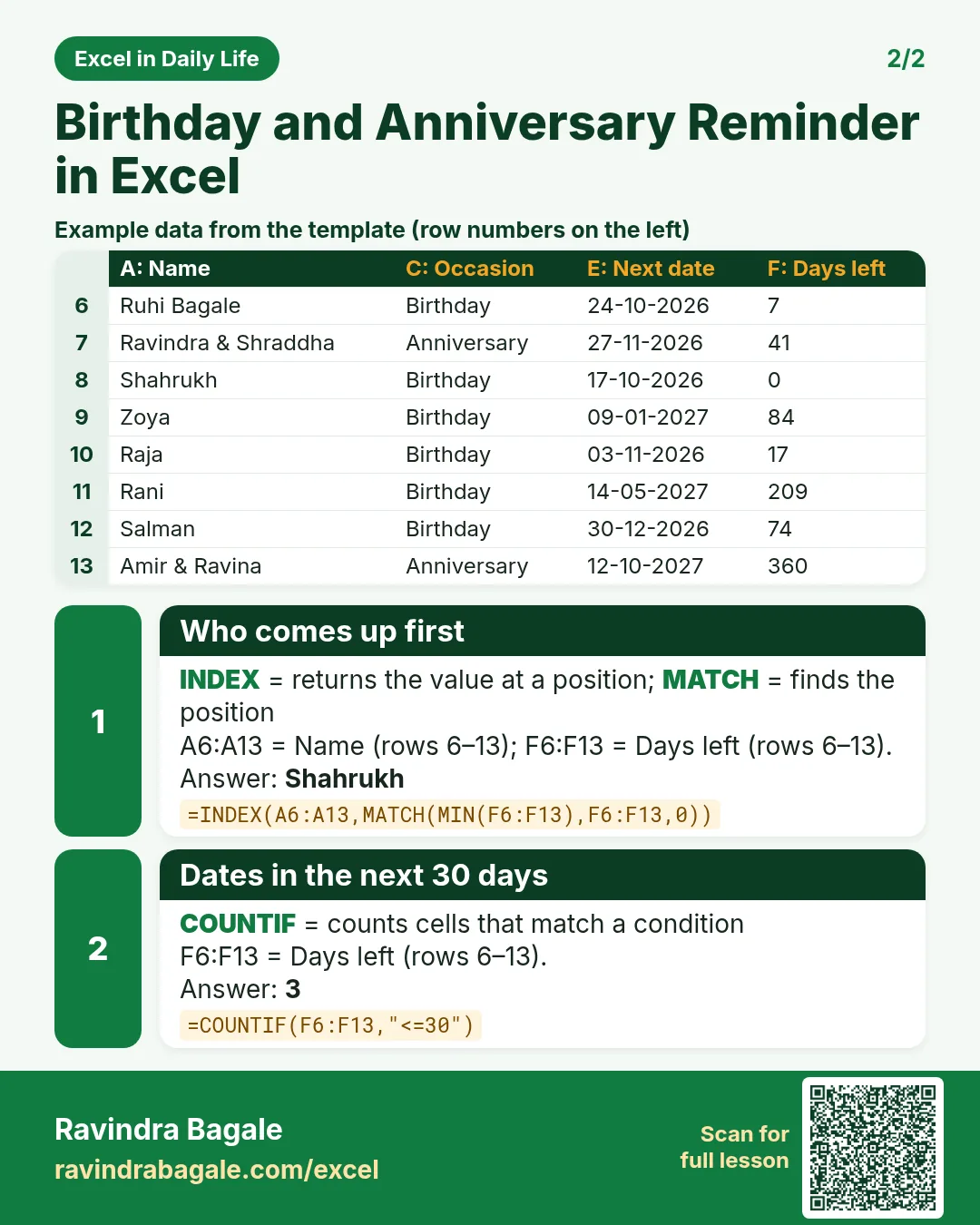
Birthday and Anniversary Reminder in Excel: Age, Next Birthday and Days Left (DATEDIF)

Excel in Daily Life · 2 cards · Open the lesson

Revision card 1 for Birthday and Anniversary Reminder in Excel: Age they turn / years married: =YEAR(E6)-YEAR(D6) gives 12; Days left: =E6-$B$3 gives 7; Age today in full years: =DATEDIF(D6,$B$3,"y") gives 11. Includes an example data table.
Card 1 of 2: Birthday and Anniversary Reminder in Excel · Download PNG · Open card page
Revision card 2 for Birthday and Anniversary Reminder in Excel: Who comes up first: =INDEX(A6:A13,MATCH(MIN(F6:F13),F6:F13,0)) gives Shahrukh; Dates in the next 30 days: =COUNTIF(F6:F13,"<=30") gives 3. Includes an example data table.
Card 2 of 2: Birthday and Anniversary Reminder in Excel · Download PNG · Open card page

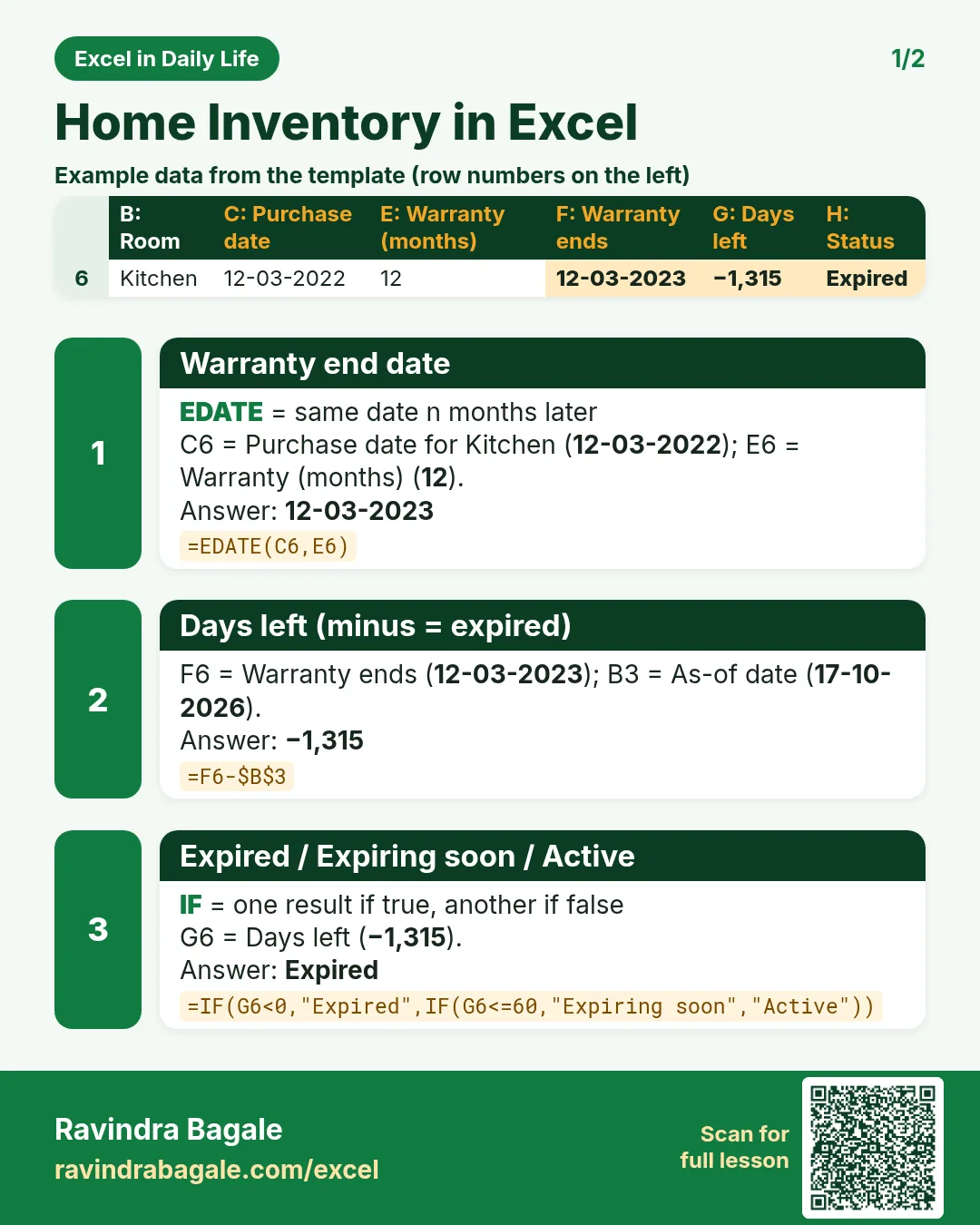
Home Inventory in Excel: Appliance List with Warranty Expiry Dates and Alerts (EDATE)

Excel in Daily Life · 2 cards · Open the lesson
Revision card 1 for Home Inventory in Excel: Warranty end date: =EDATE(C6,E6) gives 12-03-2023; Days left (minus = expired): =F6-$B$3 gives −1,315; Expired / Expiring soon / Active: =IF(G6<0,"Expired",IF(G6<=60,"Expiring soon","Active")) gives Expired. Includes an example data table.
Card 1 of 2: Home Inventory in Excel · Download PNG · Open card page
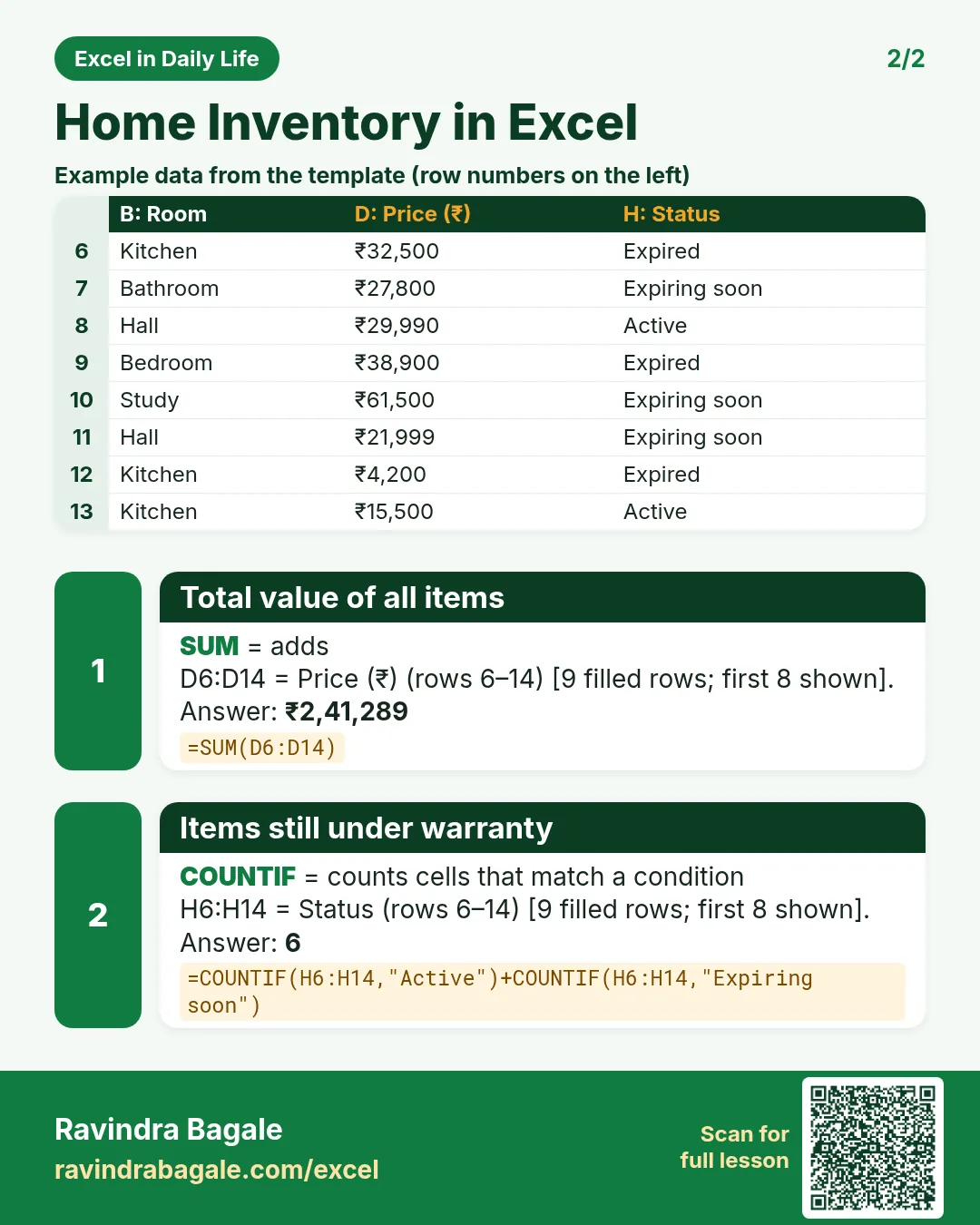
Revision card 2 for Home Inventory in Excel: Total value of all items: =SUM(D6:D14) gives ₹2,41,289; Items still under warranty: =COUNTIF(H6:H14,"Active")+COUNTIF(H6:H14,"Expiring soon") gives 6. Includes an example data table.
Card 2 of 2: Home Inventory in Excel · Download PNG · Open card page

To-Do List in Excel with Priority, Due Dates, a Done Checkbox and a Progress Bar

Excel in Daily Life · 2 cards · Open the lesson

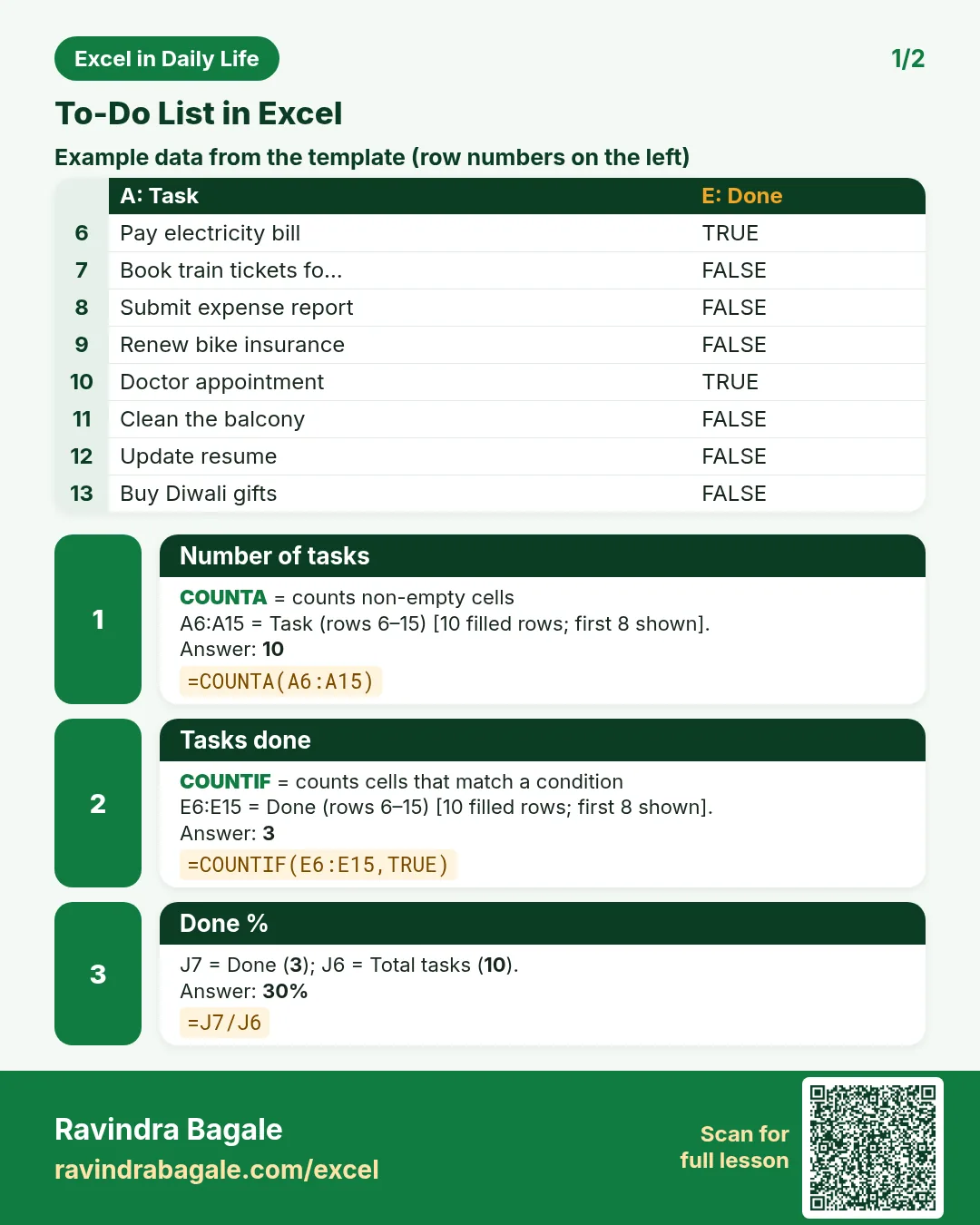
Revision card 1 for To-Do List in Excel: Number of tasks: =COUNTA(A6:A15) gives 10; Tasks done: =COUNTIF(E6:E15,TRUE) gives 3; Done %: =J7/J6 gives 30%. Includes an example data table.
Card 1 of 2: To-Do List in Excel · Download PNG · Open card page
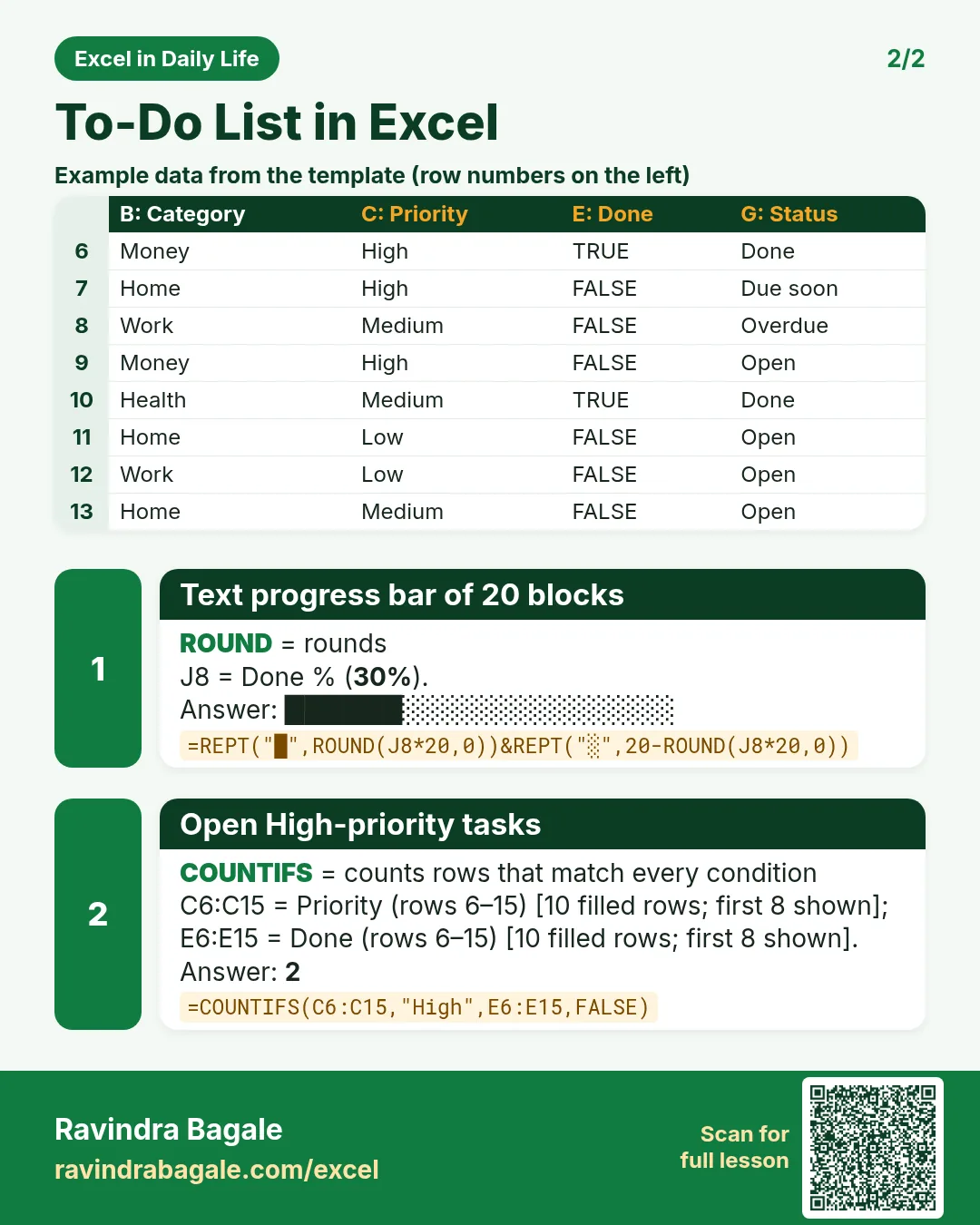
Revision card 2 for To-Do List in Excel: Text progress bar of 20 blocks: =REPT("█",ROUND(J8*20,0))&REPT("░",20-ROUND(J8*20,0)) gives ██████░░░░░░░░░░░░░░; Open High-priority tasks: =COUNTIFS(C6:C15,"High",E6:E15,FALSE) gives 2. Includes an example data table.
Card 2 of 2: To-Do List in Excel · Download PNG · Open card page

Exam Study Planner in Excel: Countdown to the Exam, Syllabus Progress and a Weekly Study Log

Excel in Daily Life · 2 cards · Open the lesson
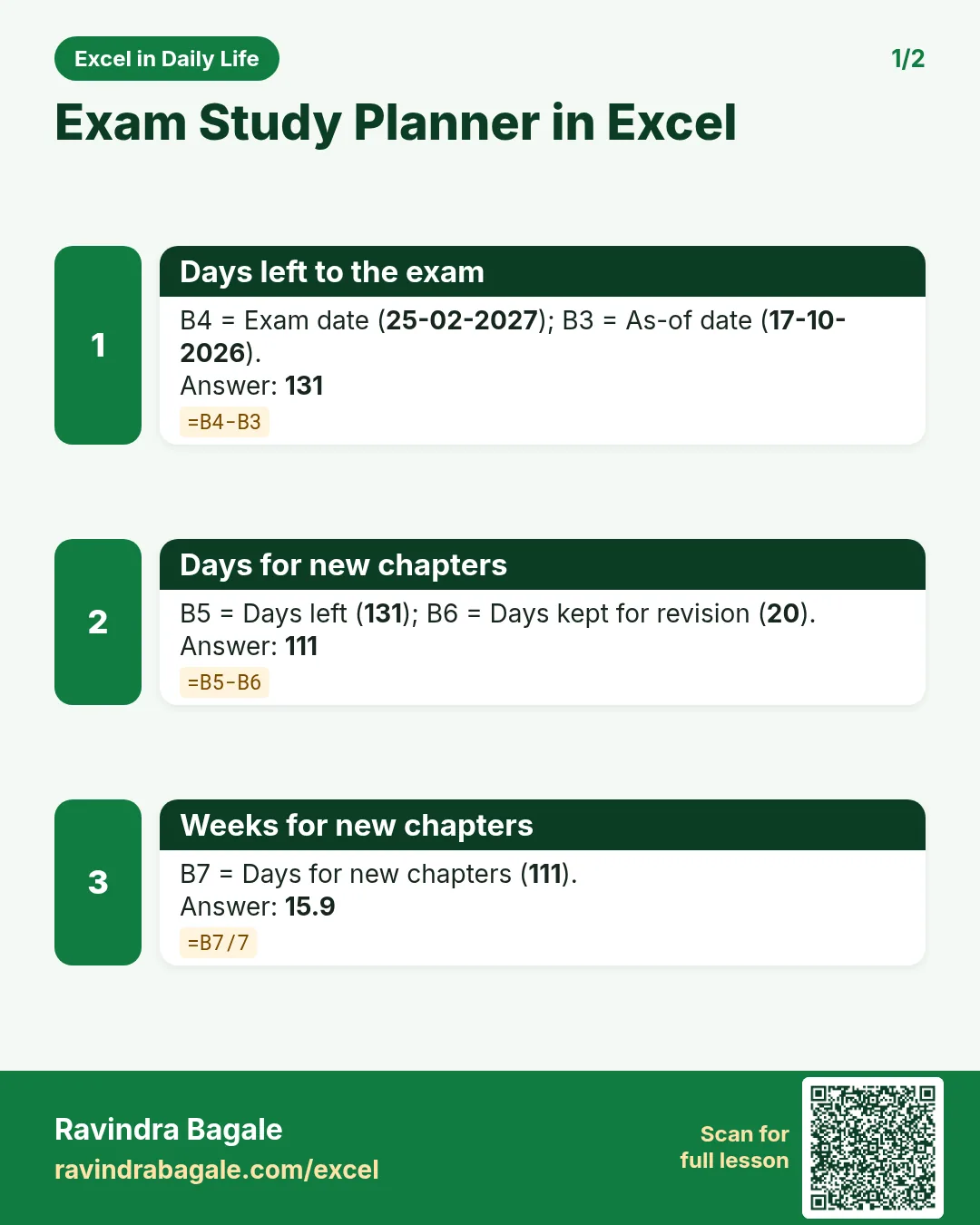
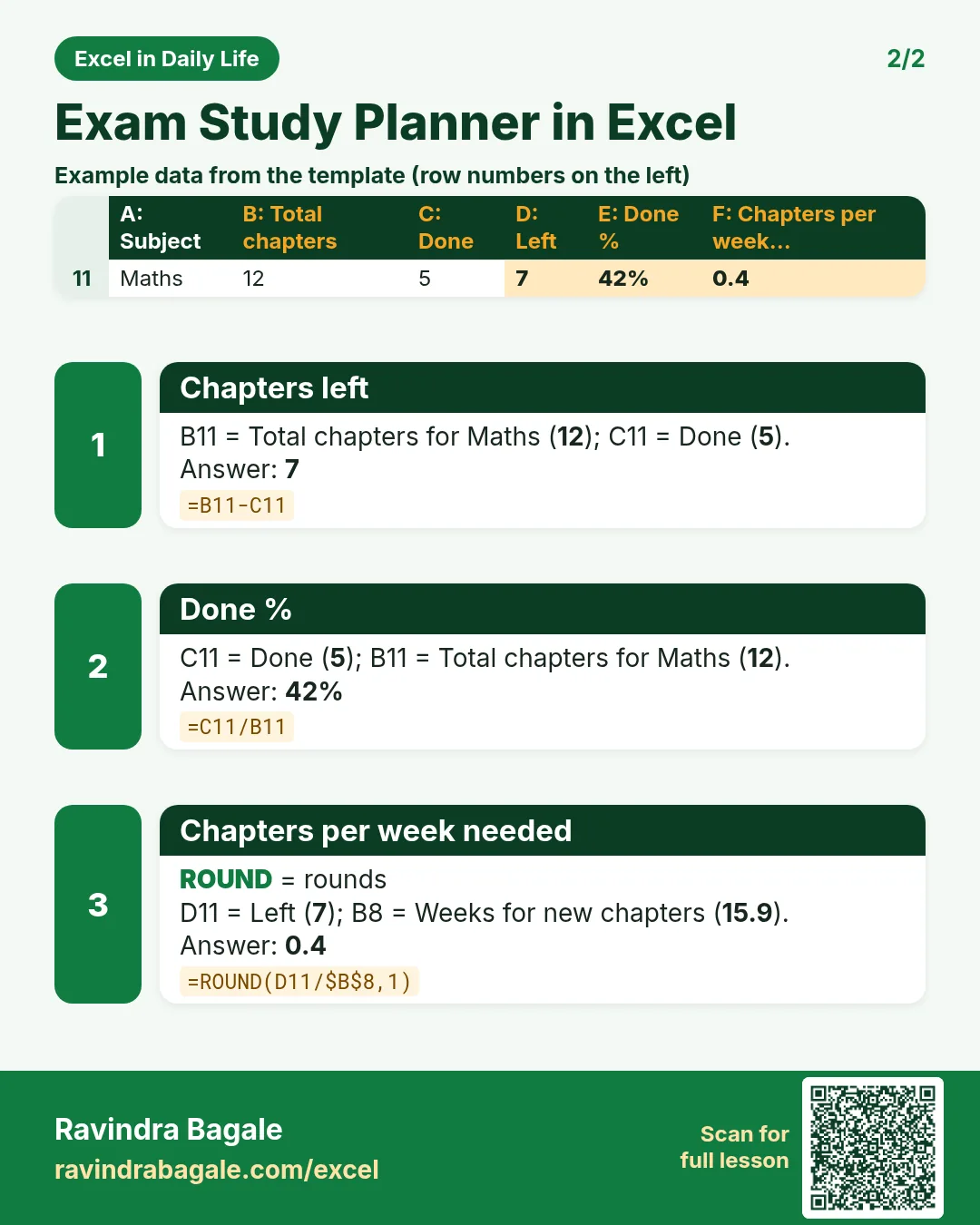
Revision card 1 for Exam Study Planner in Excel: Days left to the exam: =B4-B3 gives 131; Days for new chapters: =B5-B6 gives 111; Weeks for new chapters: =B7/7 gives 15.9.
Card 1 of 2: Exam Study Planner in Excel · Download PNG · Open card page
Revision card 2 for Exam Study Planner in Excel: Chapters left: =B11-C11 gives 7; Done %: =C11/B11 gives 42%; Chapters per week needed: =ROUND(D11/$B$8,1) gives 0.4. Includes an example data table.
Card 2 of 2: Exam Study Planner in Excel · Download PNG · Open card page

Net Worth Tracker in Excel: Assets, Liabilities and Monthly Net Worth (with a Chart)

Excel in Daily Life · 2 cards · Open the lesson

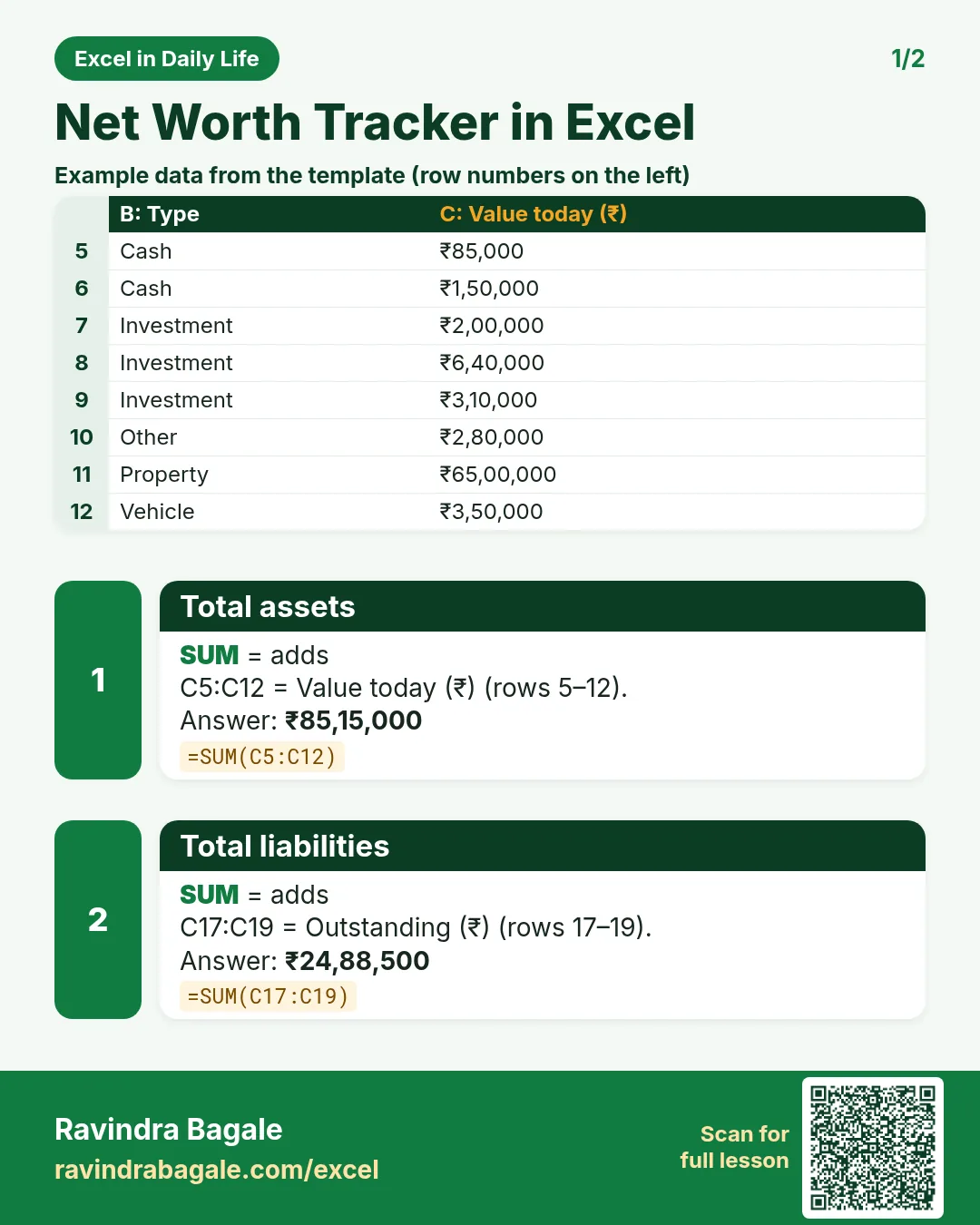
Revision card 1 for Net Worth Tracker in Excel: Total assets: =SUM(C5:C12) gives ₹85,15,000; Total liabilities: =SUM(C17:C19) gives ₹24,88,500. Includes an example data table.
Card 1 of 2: Net Worth Tracker in Excel · Download PNG · Open card page
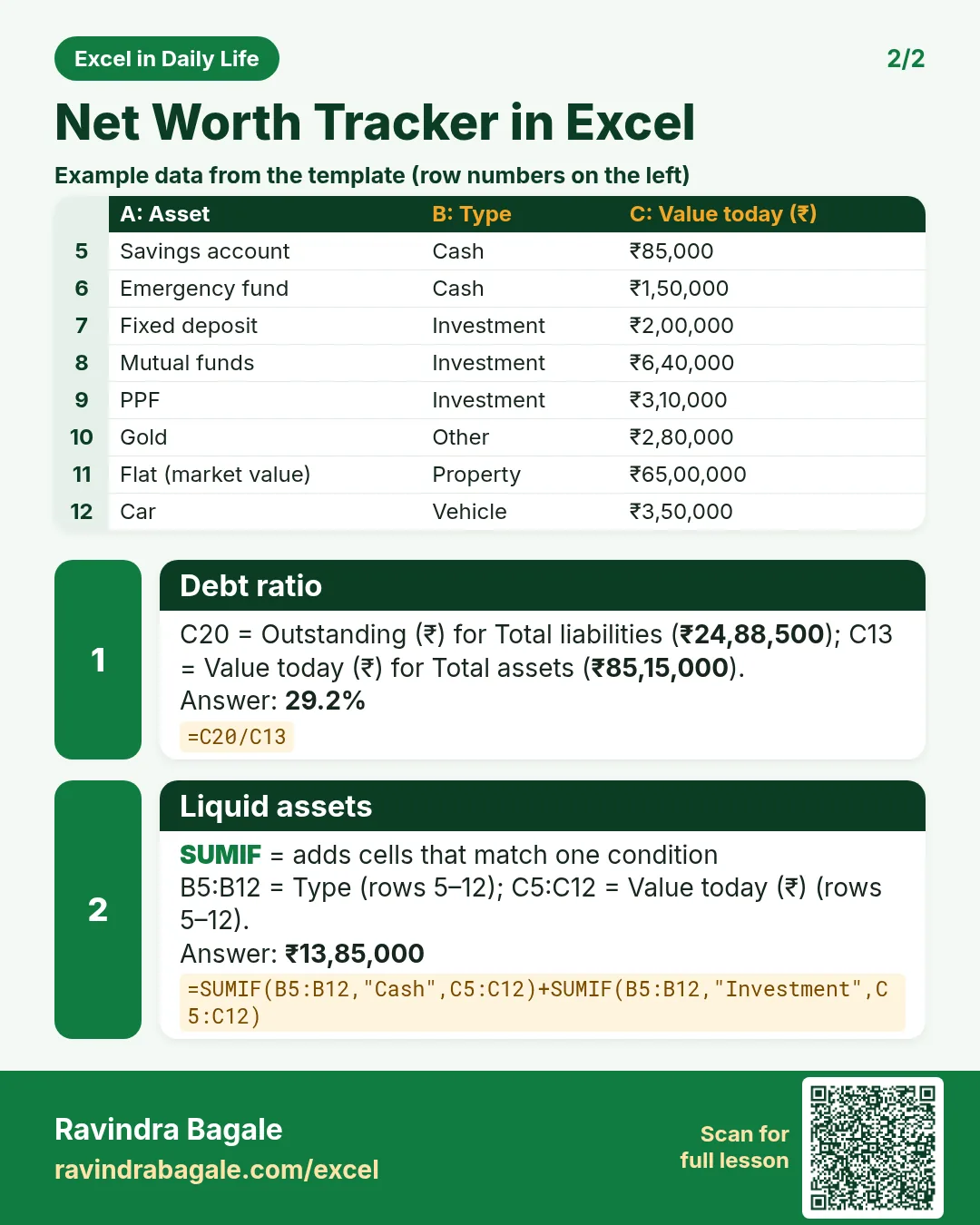
Revision card 2 for Net Worth Tracker in Excel: Debt ratio: =C20/C13 gives 29.2%; Liquid assets: =SUMIF(B5:B12,"Cash",C5:C12)+SUMIF(B5:B12,"Investment",C5:C12) gives ₹13,85,000. Includes an example data table.
Card 2 of 2: Net Worth Tracker in Excel · Download PNG · Open card page

Rent Collection Tracker in Excel: Monthly Rent Received, Pending Dues and Late Tenants

Excel in Daily Life · 2 cards · Open the lesson
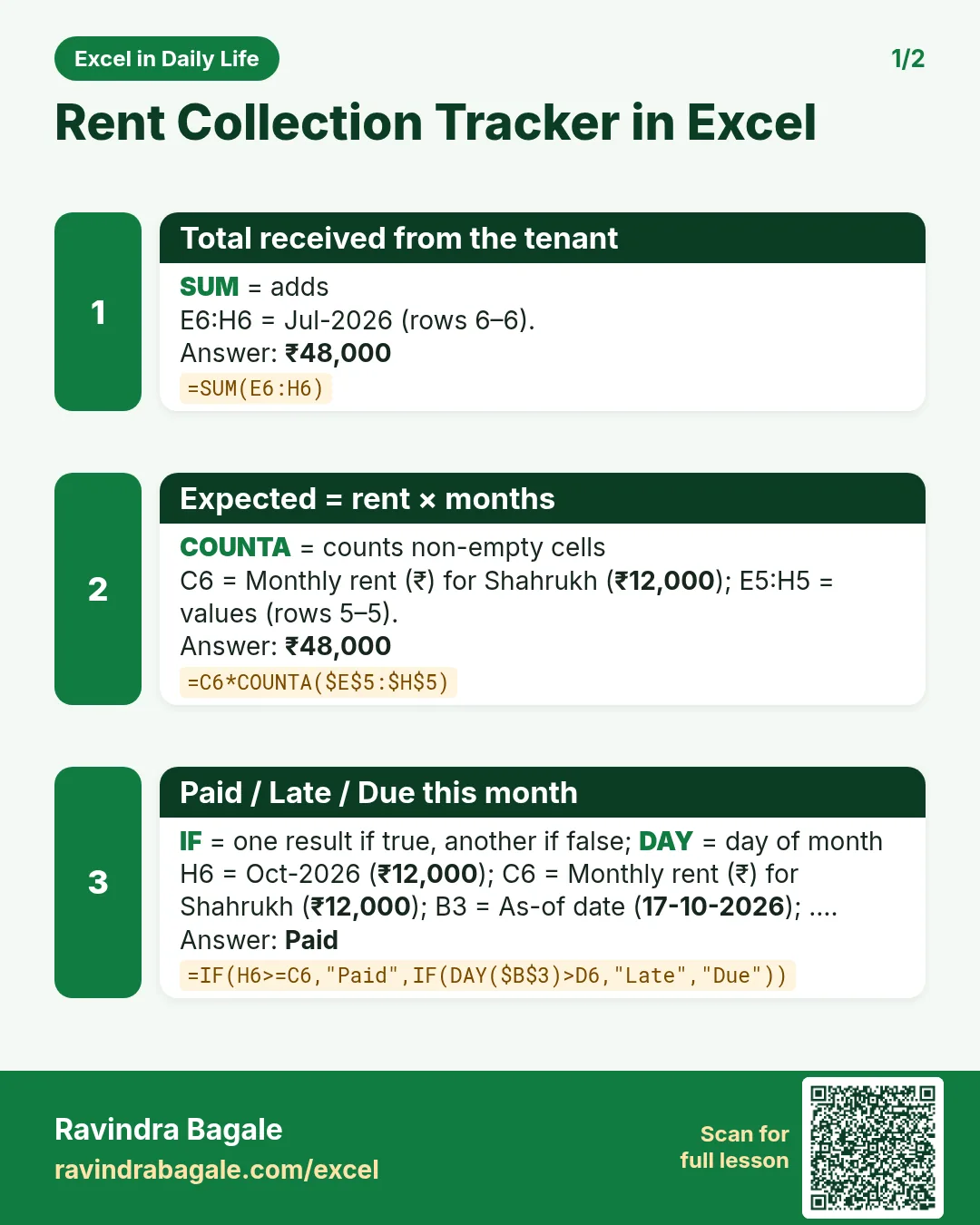
Revision card 1 for Rent Collection Tracker in Excel: Total received from the tenant: =SUM(E6:H6) gives ₹48,000; Expected = rent × months: =C6*COUNTA($E$5:$H$5) gives ₹48,000; Paid / Late / Due this month: =IF(H6>=C6,"Paid",IF(DAY($B$3)>D6,"Late","Due")) gives Paid.
Card 1 of 2: Rent Collection Tracker in Excel · Download PNG · Open card page
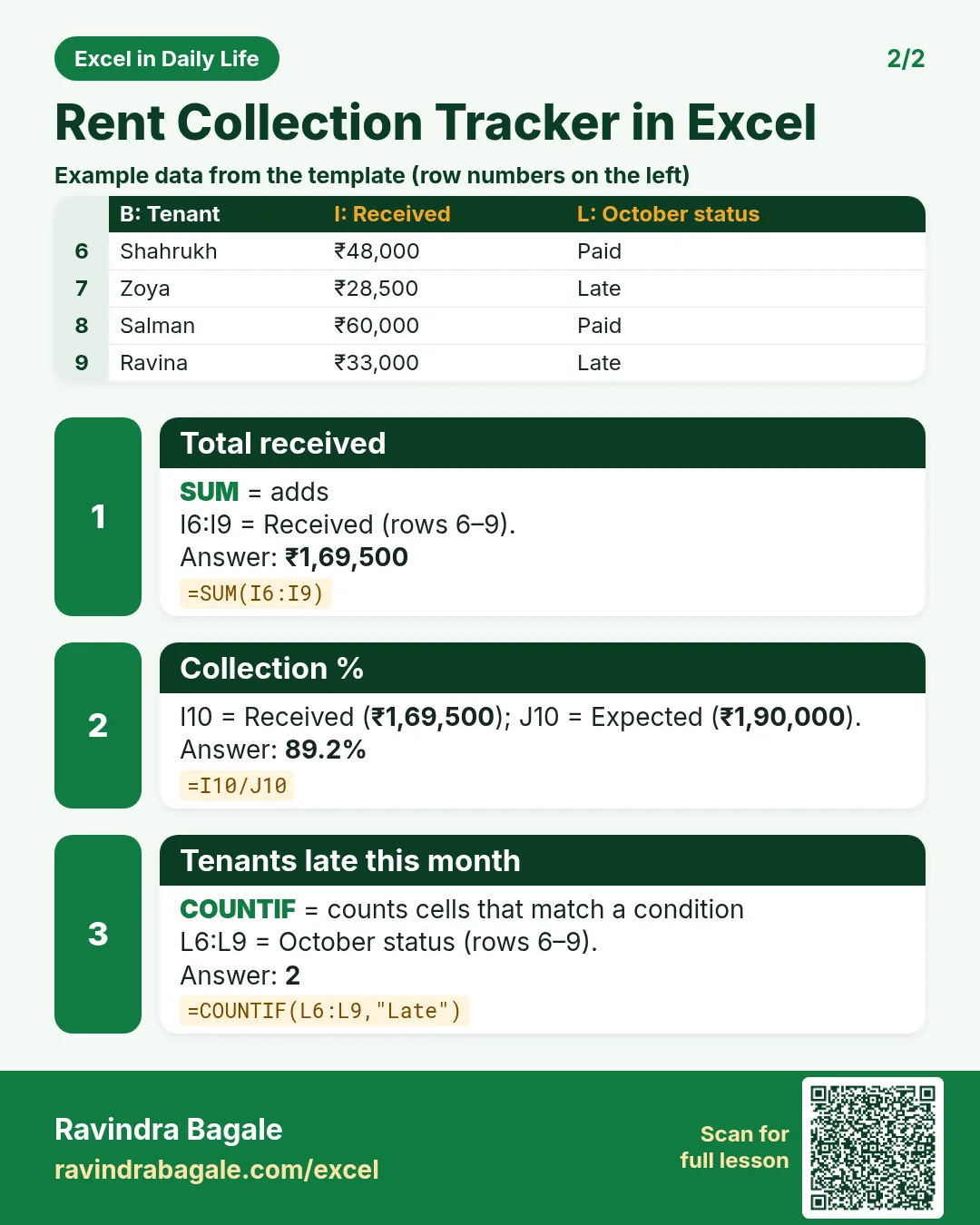
Revision card 2 for Rent Collection Tracker in Excel: Total received: =SUM(I6:I9) gives ₹1,69,500; Collection %: =I10/J10 gives 89.2%; Tenants late this month: =COUNTIF(L6:L9,"Late") gives 2. Includes an example data table.
Card 2 of 2: Rent Collection Tracker in Excel · Download PNG · Open card page

Guest List and Budget in Excel for a Function: RSVP Count, Plates to Order and Total Cost

Excel in Daily Life · 2 cards · Open the lesson

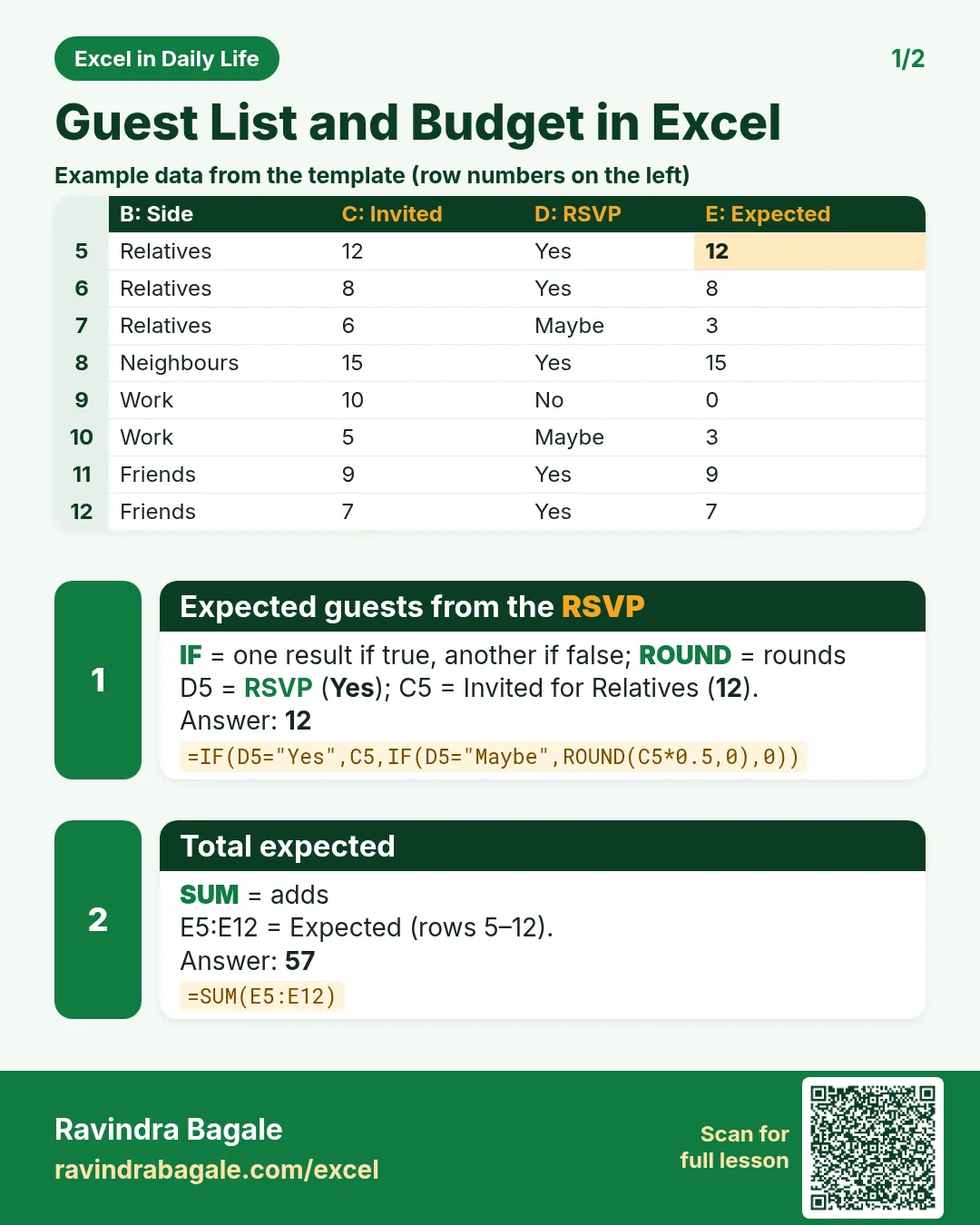
Revision card 1 for Guest List and Budget in Excel: Expected guests from the RSVP: =IF(D5="Yes",C5,IF(D5="Maybe",ROUND(C5*0.5,0),0)) gives 12; Total expected: =SUM(E5:E12) gives 57. Includes an example data table.
Card 1 of 2: Guest List and Budget in Excel · Download PNG · Open card page
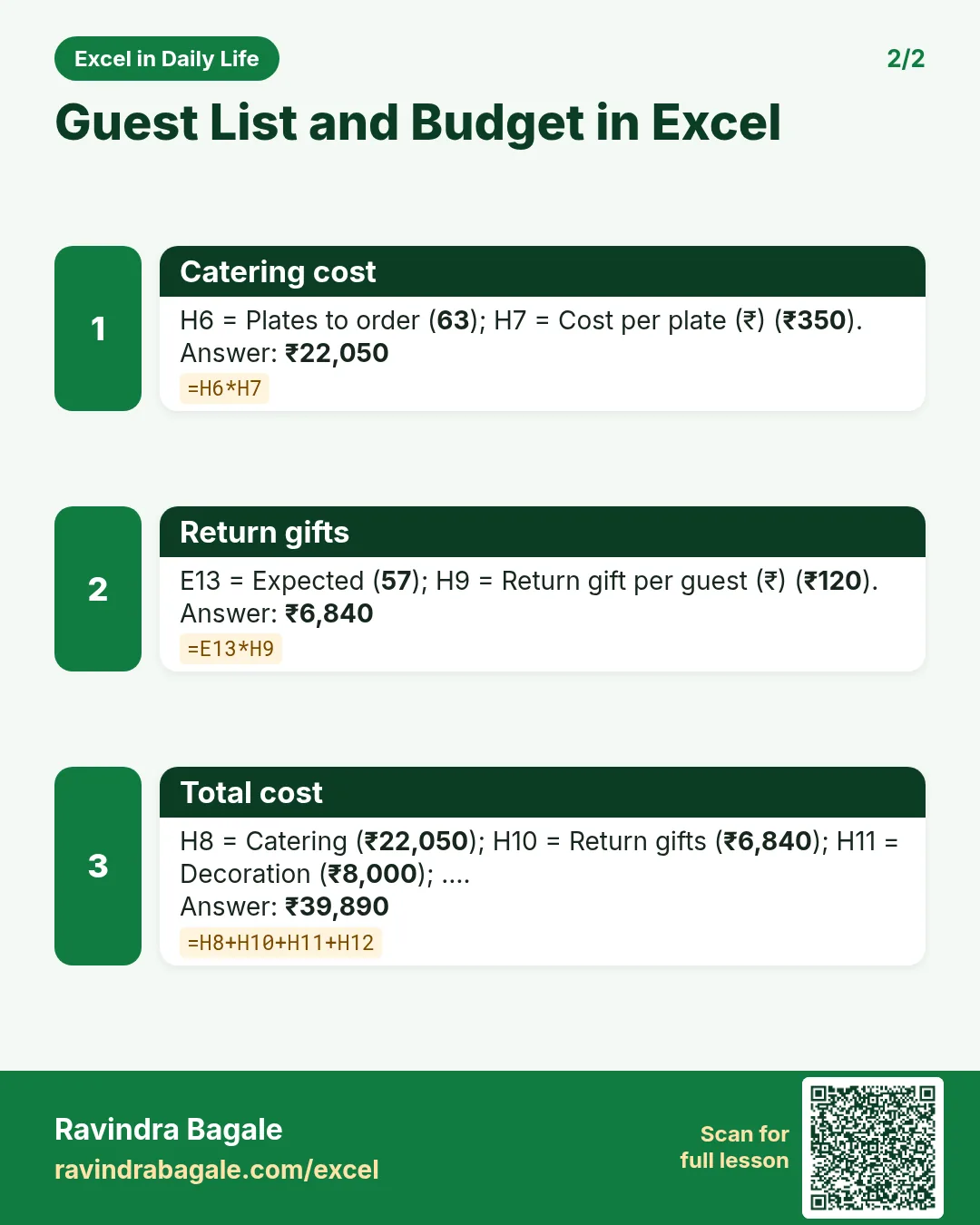
Revision card 2 for Guest List and Budget in Excel: Catering cost: =H6*H7 gives ₹22,050; Return gifts: =E13*H9 gives ₹6,840; Total cost: =H8+H10+H11+H12 gives ₹39,890.
Card 2 of 2: Guest List and Budget in Excel · Download PNG · Open card page

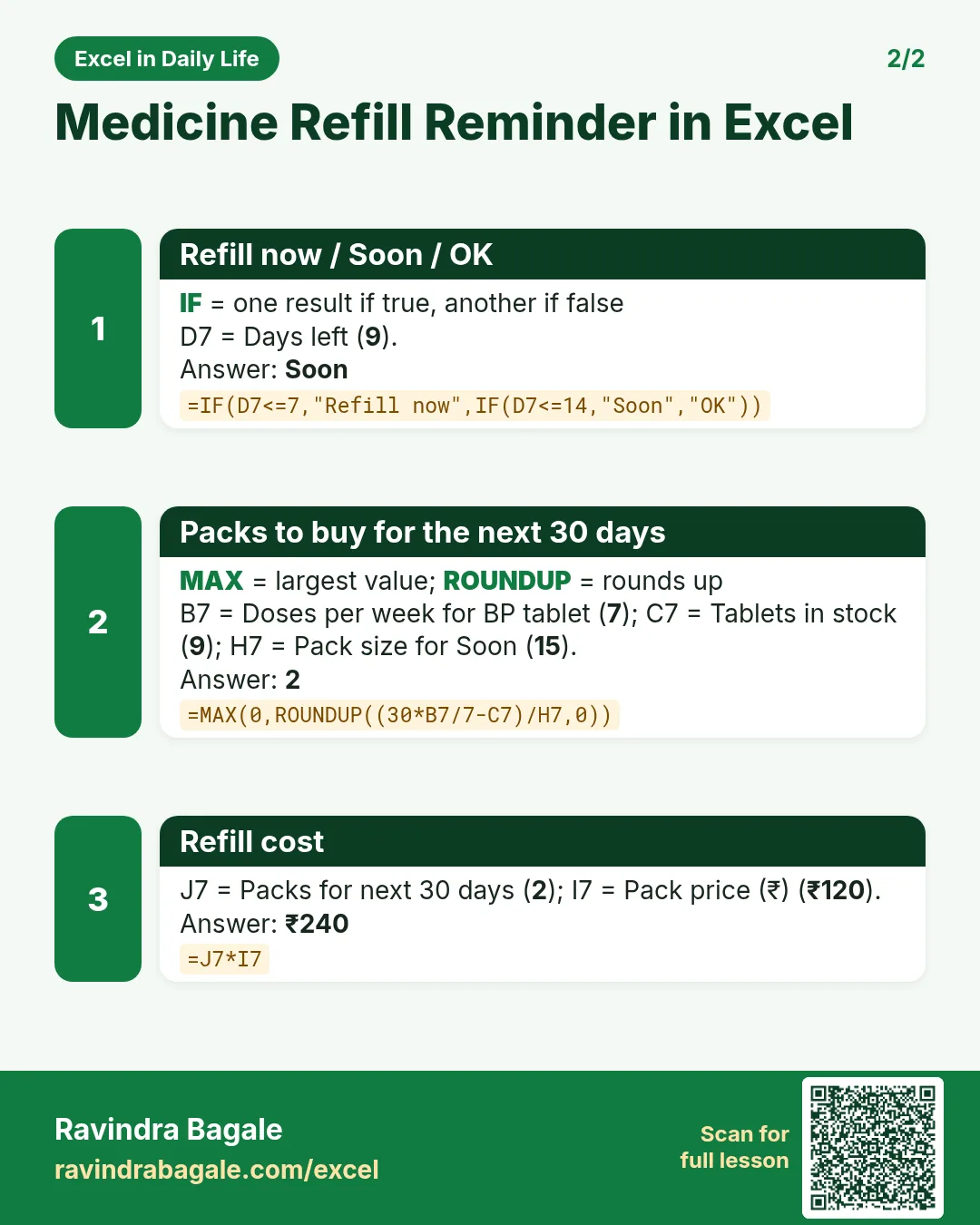
Medicine Refill Reminder in Excel: Tablets Left, Days of Stock and Refill-by Dates

Excel in Daily Life · 2 cards · Open the lesson
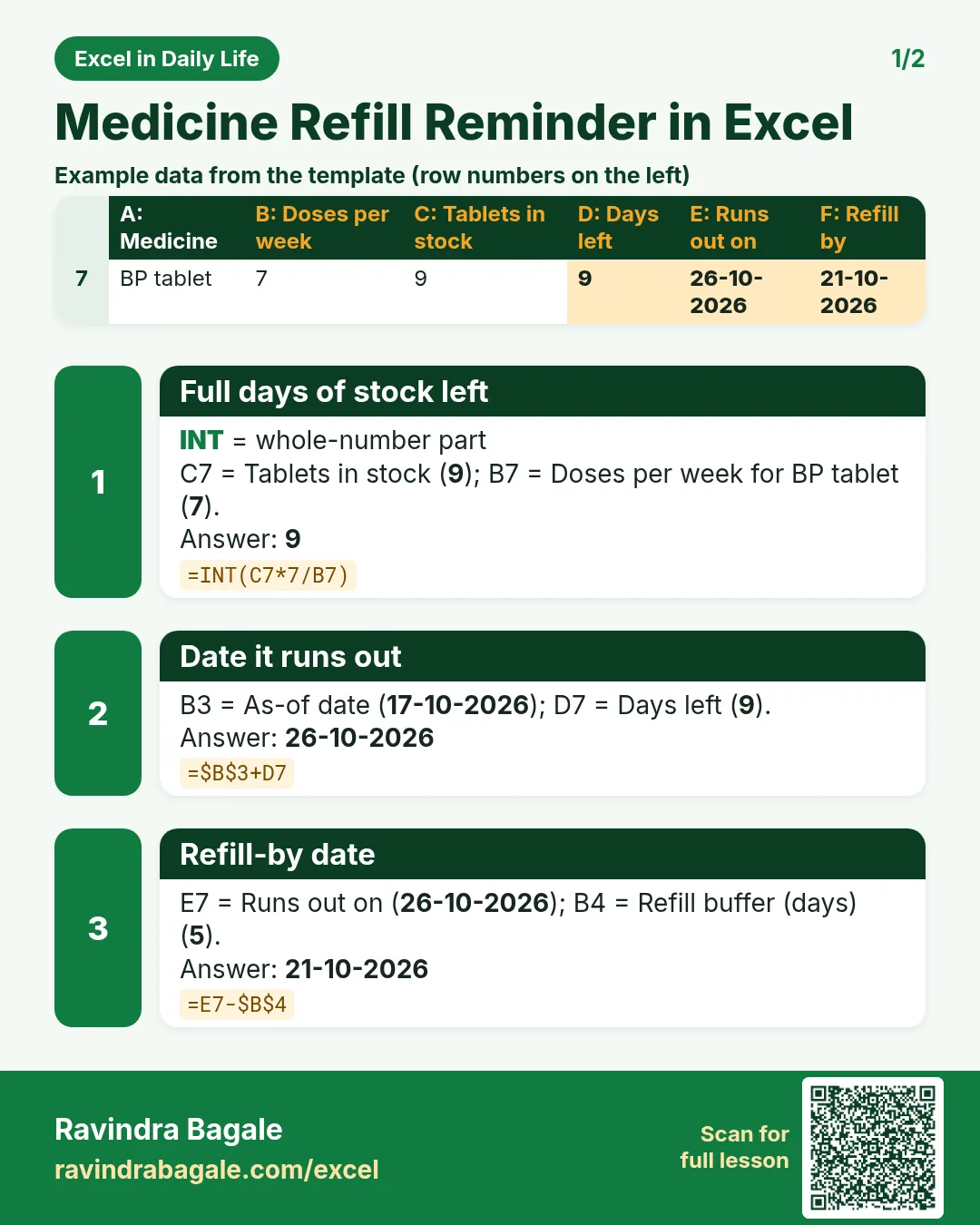
Revision card 1 for Medicine Refill Reminder in Excel: Full days of stock left: =INT(C7*7/B7) gives 9; Date it runs out: =$B$3+D7 gives 26-10-2026; Refill-by date: =E7-$B$4 gives 21-10-2026. Includes an example data table.
Card 1 of 2: Medicine Refill Reminder in Excel · Download PNG · Open card page
Revision card 2 for Medicine Refill Reminder in Excel: Refill now / Soon / OK: =IF(D7<=7,"Refill now",IF(D7<=14,"Soon","OK")) gives Soon; Packs to buy for the next 30 days: =MAX(0,ROUNDUP((30*B7/7-C7)/H7,0)) gives 2; Refill cost: =J7*I7 gives ₹240.
Card 2 of 2: Medicine Refill Reminder in Excel · Download PNG · Open card page

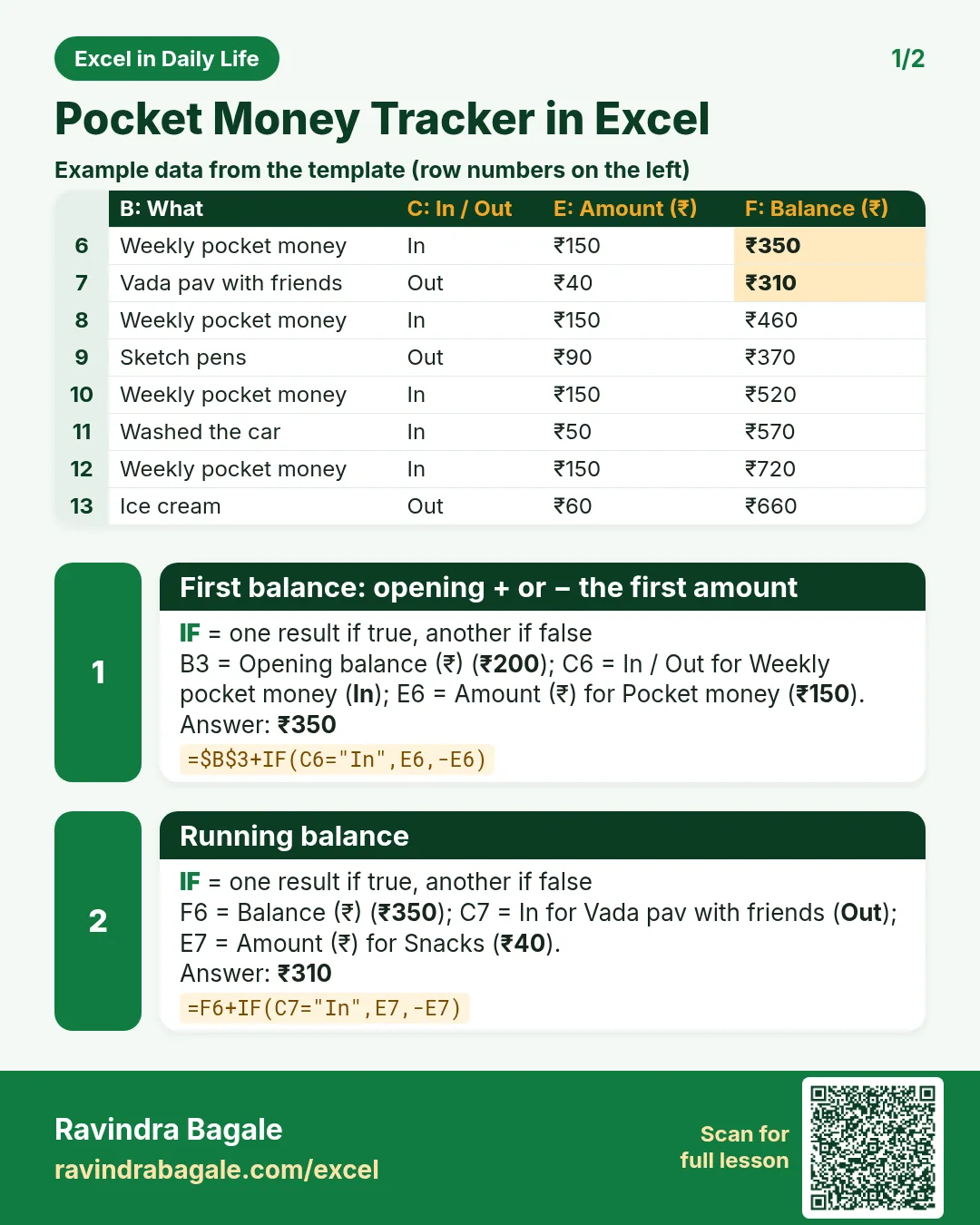
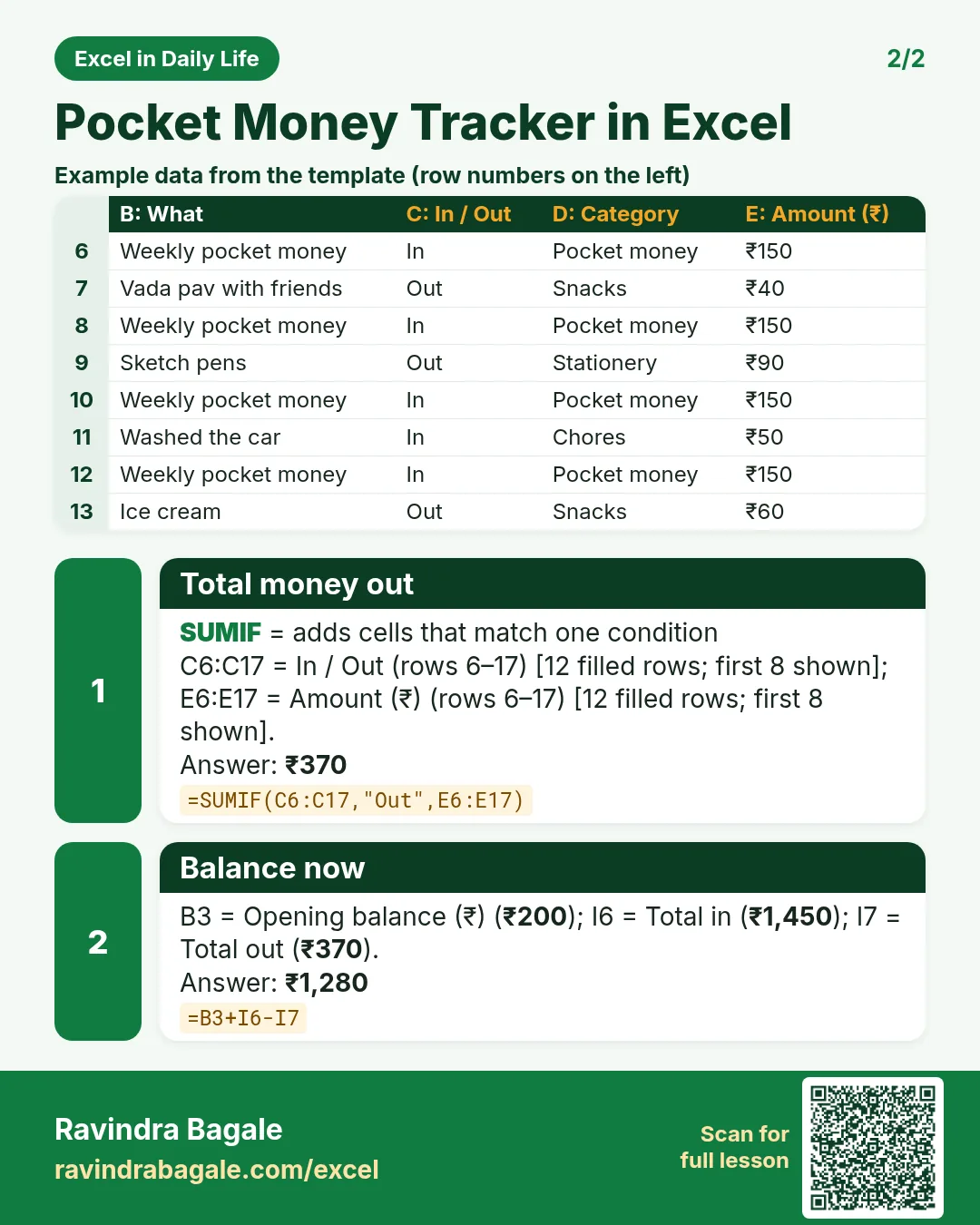
Pocket Money Tracker in Excel for Kids: Running Balance, Spending and a Savings Goal

Excel in Daily Life · 2 cards · Open the lesson

Revision card 1 for Pocket Money Tracker in Excel: First balance: opening + or − the first amount: =$B$3+IF(C6="In",E6,-E6) gives ₹350; Running balance: =F6+IF(C7="In",E7,-E7) gives ₹310. Includes an example data table.
Card 1 of 2: Pocket Money Tracker in Excel · Download PNG · Open card page
Revision card 2 for Pocket Money Tracker in Excel: Total money out: =SUMIF(C6:C17,"Out",E6:E17) gives ₹370; Balance now: =B3+I6-I7 gives ₹1,280. Includes an example data table.
Card 2 of 2: Pocket Money Tracker in Excel · Download PNG · Open card page

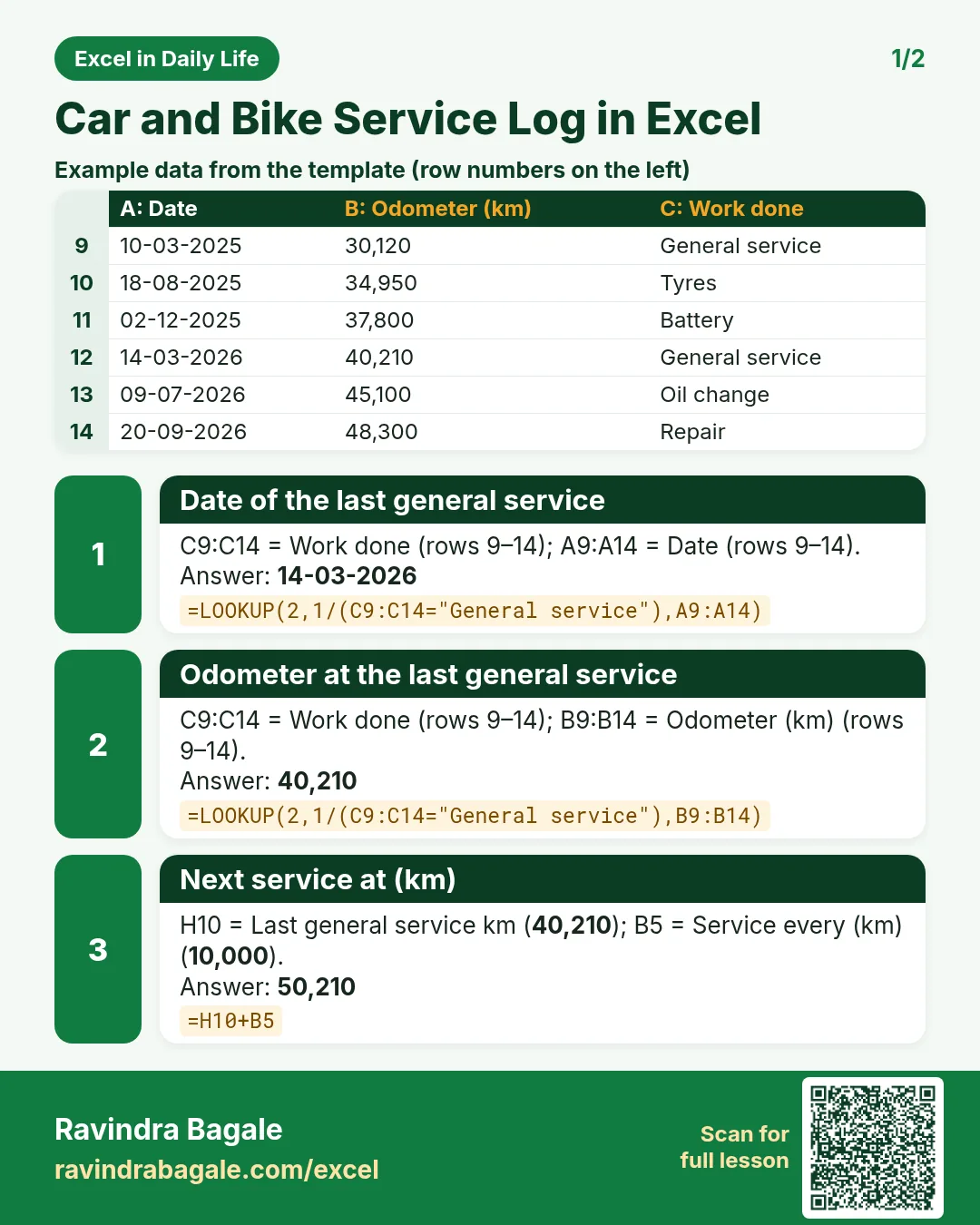
Car and Bike Service Log in Excel: Next Service Due by km or Date, and Maintenance Cost

Excel in Daily Life · 2 cards · Open the lesson
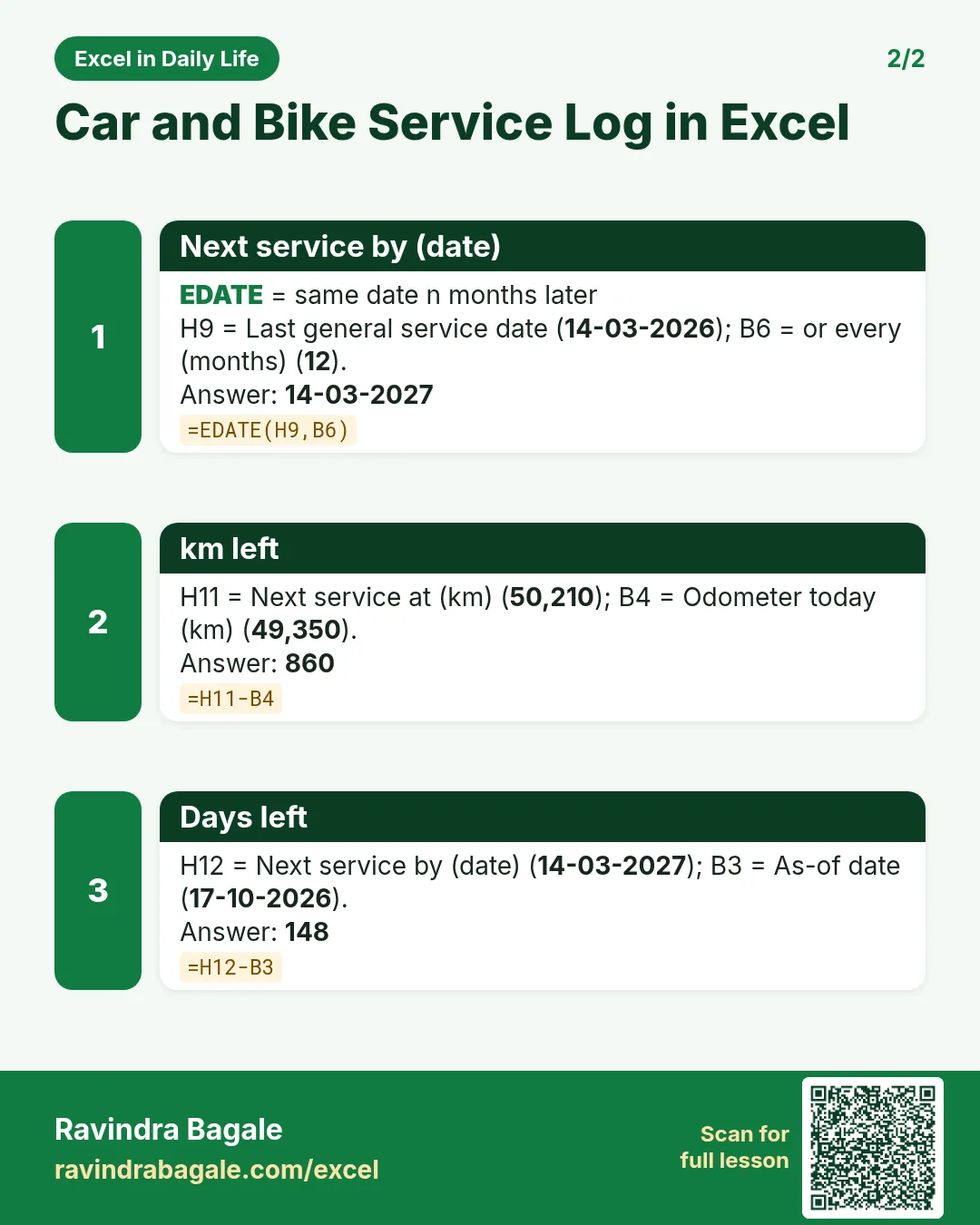
Revision card 1 for Car and Bike Service Log in Excel: Date of the last general service: =LOOKUP(2,1/(C9:C14="General service"),A9:A14) gives 14-03-2026; Odometer at the last general service: =LOOKUP(2,1/(C9:C14="General service"),B9:B14) gives 40,210; Next service at (km): =H10+B5 gives 50,210. Includes an example data table.
Card 1 of 2: Car and Bike Service Log in Excel · Download PNG · Open card page
Revision card 2 for Car and Bike Service Log in Excel: Next service by (date): =EDATE(H9,B6) gives 14-03-2027; km left: =H11-B4 gives 860; Days left: =H12-B3 gives 148.
Card 2 of 2: Car and Bike Service Log in Excel · Download PNG · Open card page

Gas Cylinder Tracker in Excel: How Many Days Each LPG Cylinder Lasts and When to Book the Next

Excel in Daily Life · 2 cards · Open the lesson

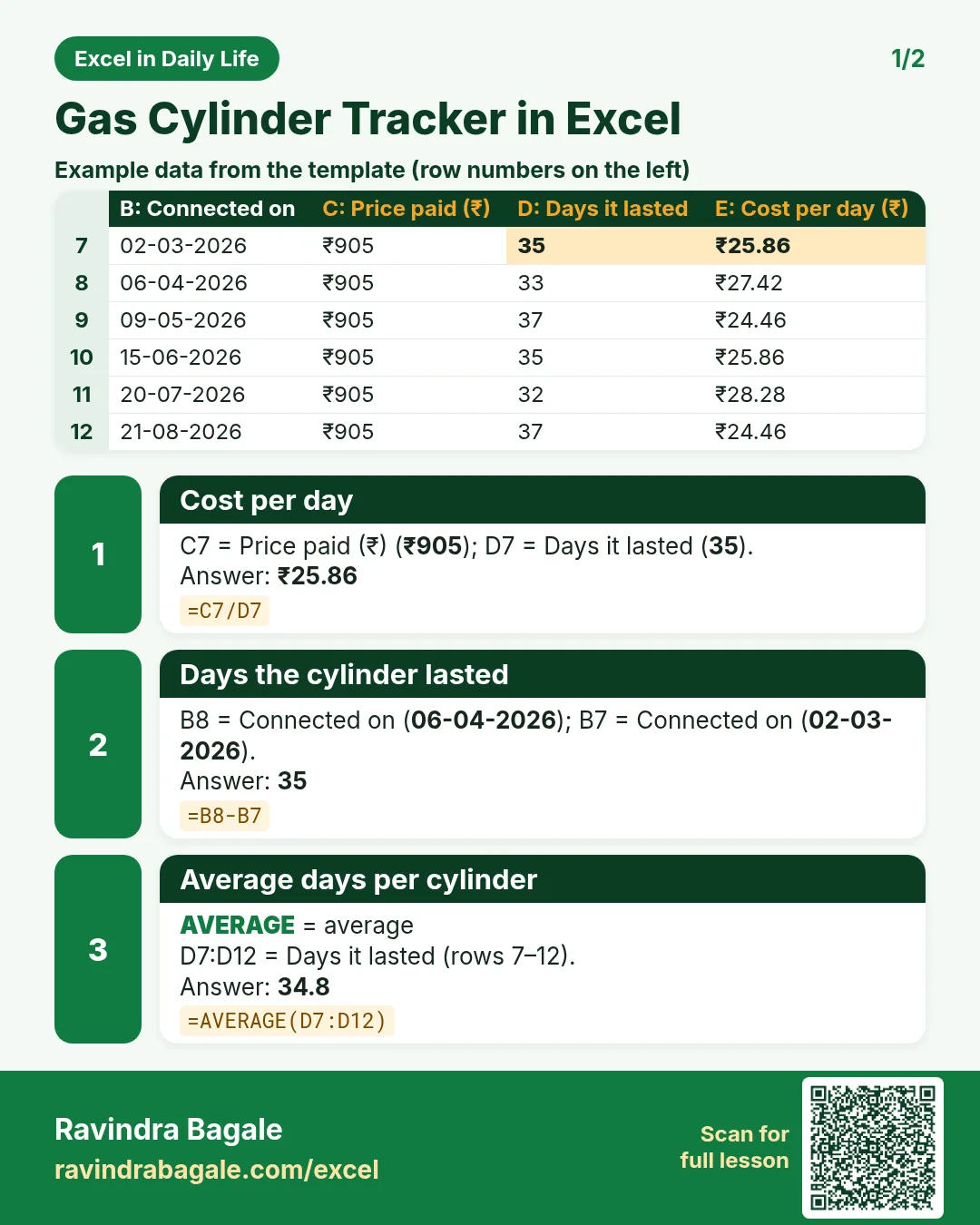
Revision card 1 for Gas Cylinder Tracker in Excel: Cost per day: =C7/D7 gives ₹25.86; Days the cylinder lasted: =B8-B7 gives 35; Average days per cylinder: =AVERAGE(D7:D12) gives 34.8. Includes an example data table.
Card 1 of 2: Gas Cylinder Tracker in Excel · Download PNG · Open card page
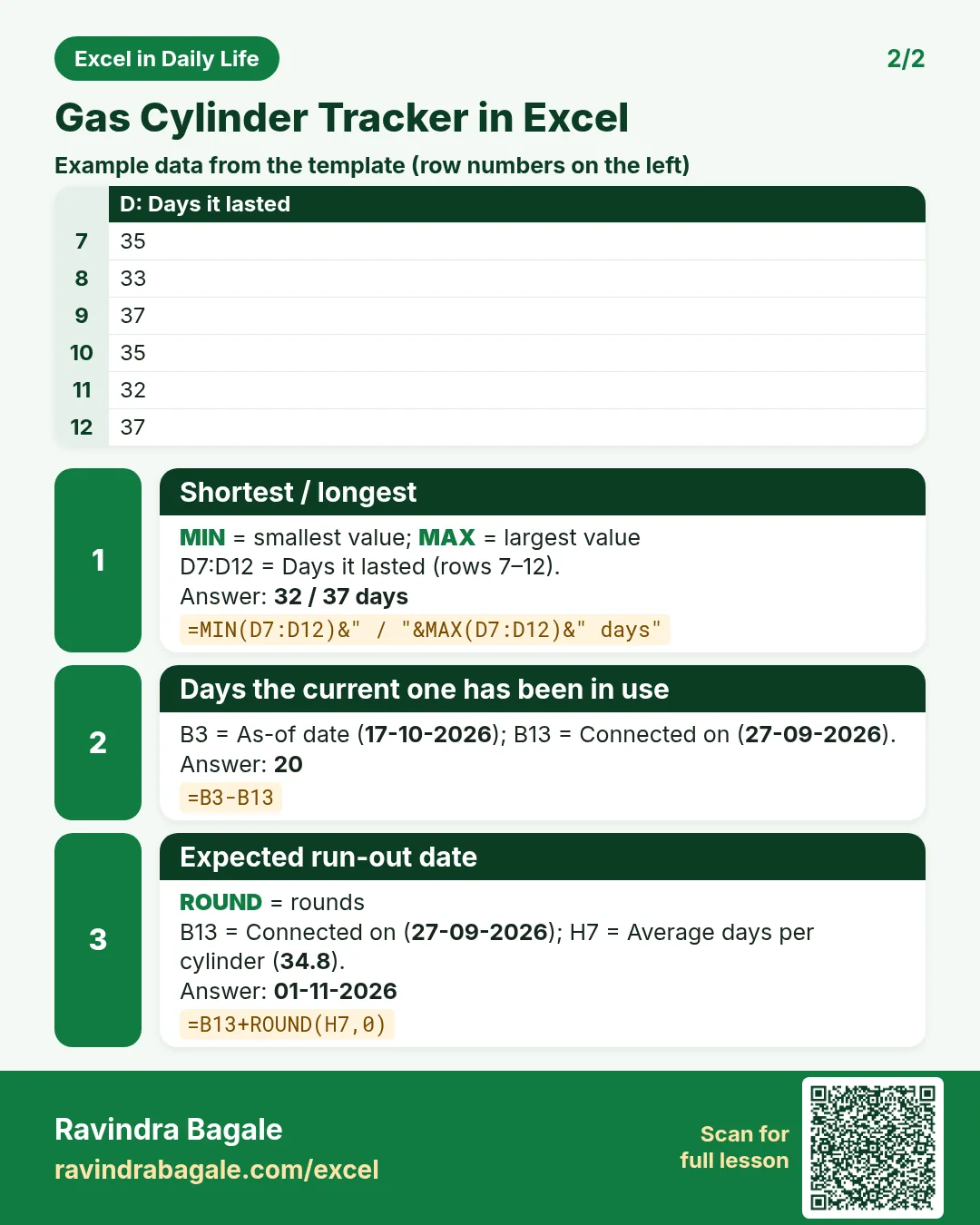
Revision card 2 for Gas Cylinder Tracker in Excel: Shortest / longest: =MIN(D7:D12)&" / "&MAX(D7:D12)&" days" gives 32 / 37 days; Days the current one has been in use: =B3-B13 gives 20; Expected run-out date: =B13+ROUND(H7,0) gives 01-11-2026. Includes an example data table.
Card 2 of 2: Gas Cylinder Tracker in Excel · Download PNG · Open card page

Sleep Tracker in Excel: Calculate Hours Slept (Even Past Midnight) and Weekly Averages

Excel in Daily Life · 2 cards · Open the lesson
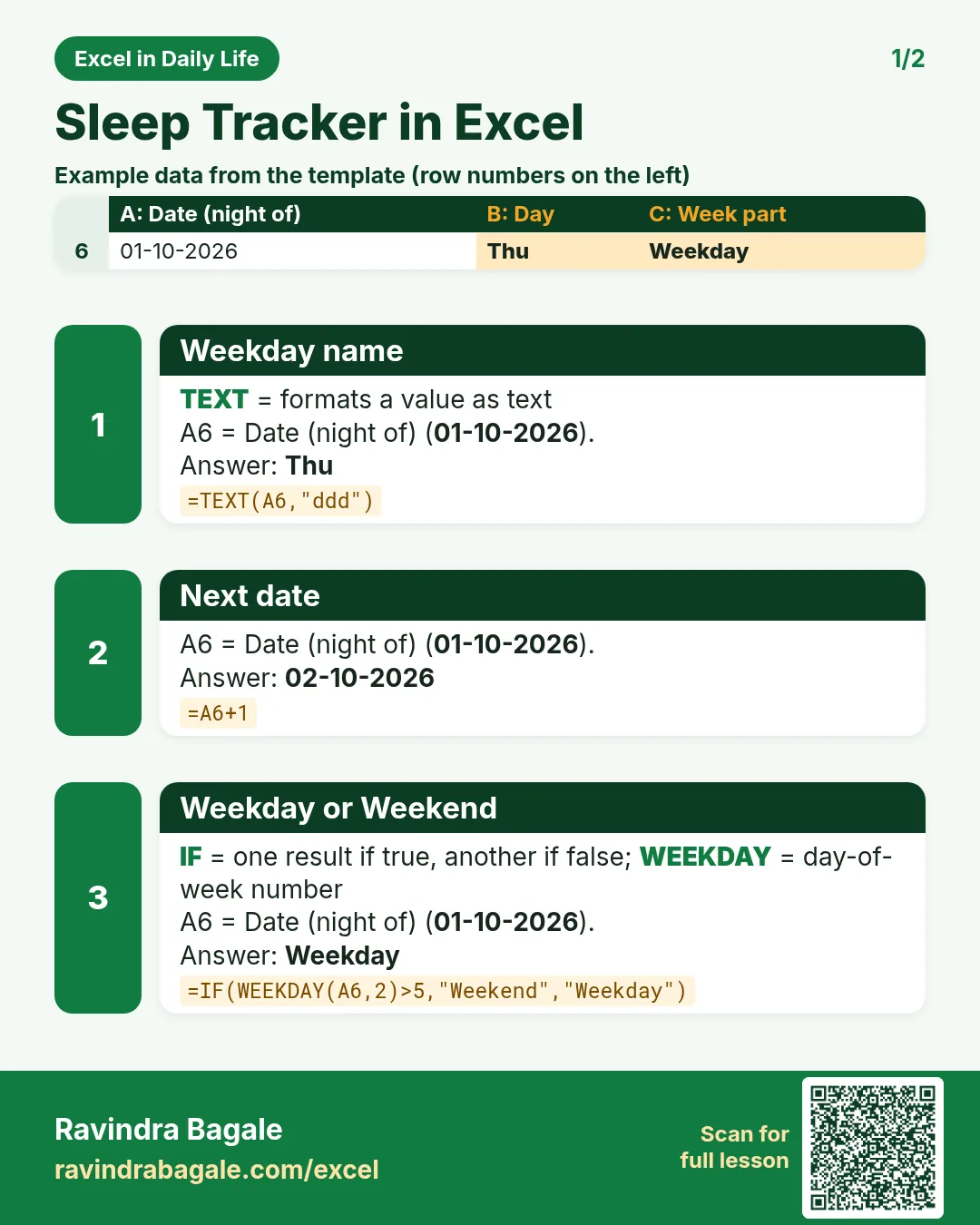
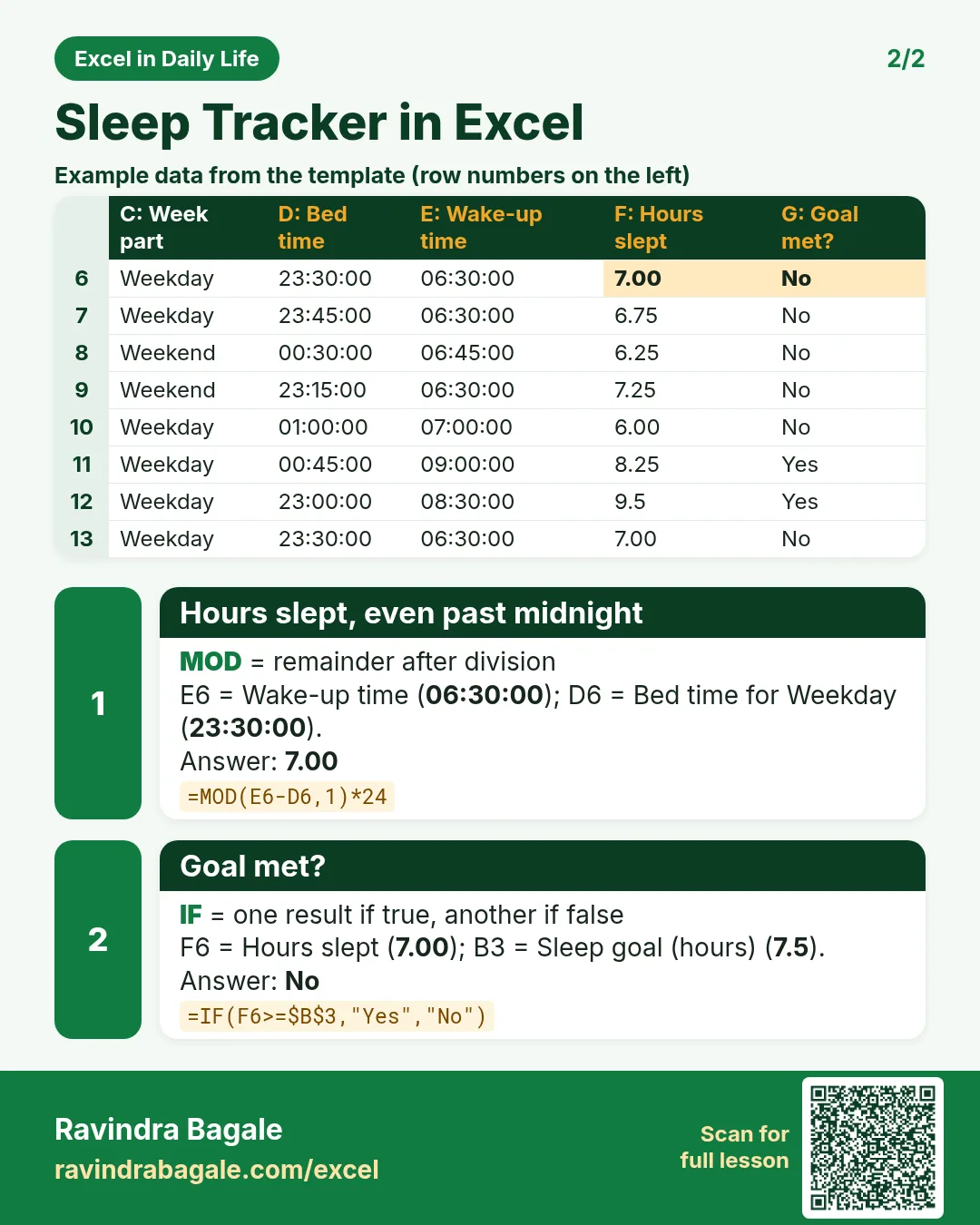
Revision card 1 for Sleep Tracker in Excel: Weekday name: =TEXT(A6,"ddd") gives Thu; Next date: =A6+1 gives 02-10-2026; Weekday or Weekend: =IF(WEEKDAY(A6,2)>5,"Weekend","Weekday") gives Weekday. Includes an example data table.
Card 1 of 2: Sleep Tracker in Excel · Download PNG · Open card page
Revision card 2 for Sleep Tracker in Excel: Hours slept, even past midnight: =MOD(E6-D6,1)*24 gives 7.00; Goal met?: =IF(F6>=$B$3,"Yes","No") gives No. Includes an example data table.
Card 2 of 2: Sleep Tracker in Excel · Download PNG · Open card page

Household Chores Roster in Excel: Rotate Chores Every Week Automatically (INDEX and MOD)

Excel in Daily Life · 2 cards · Open the lesson

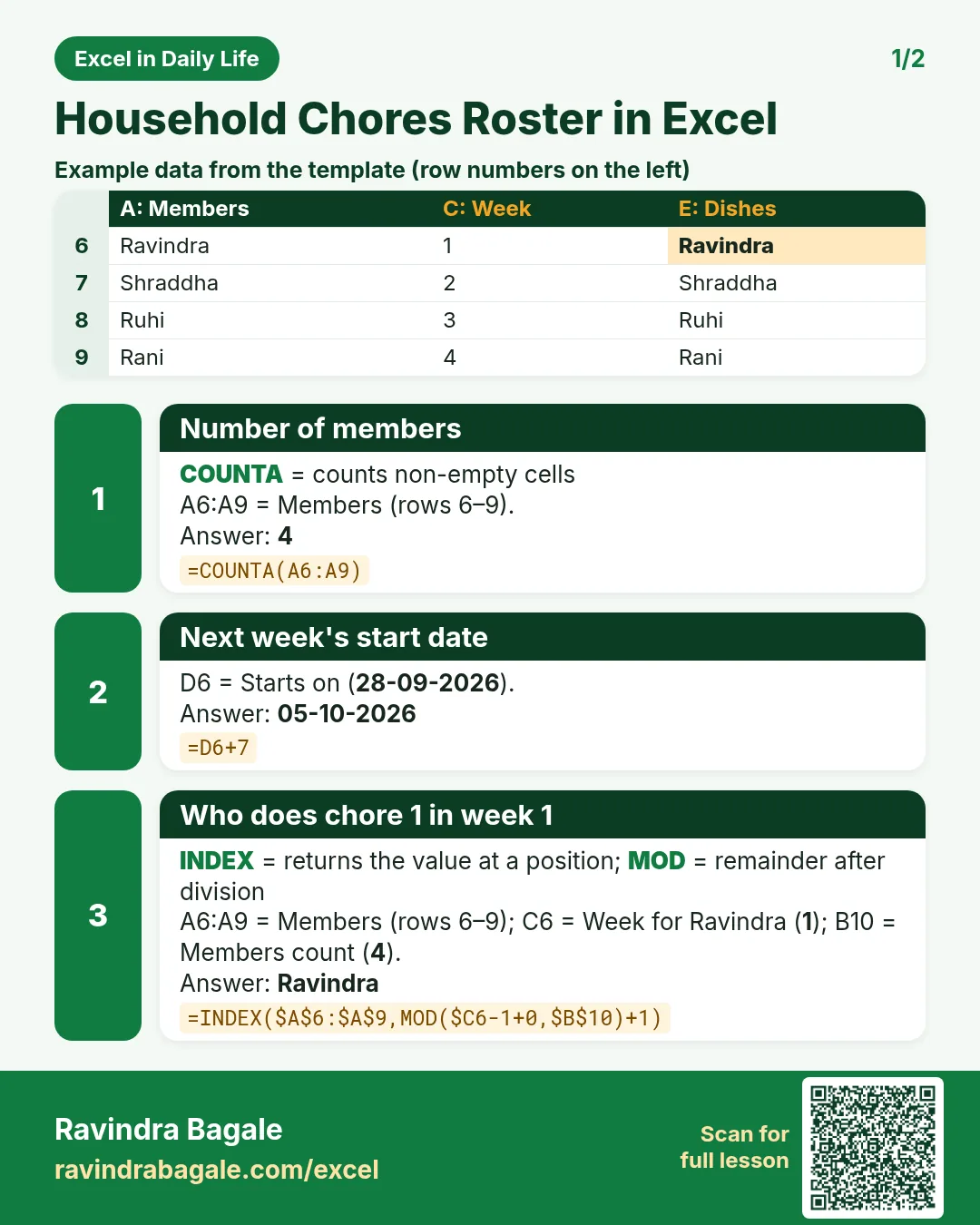
Revision card 1 for Household Chores Roster in Excel: Number of members: =COUNTA(A6:A9) gives 4; Next week's start date: =D6+7 gives 05-10-2026; Who does chore 1 in week 1: =INDEX($A$6:$A$9,MOD($C6-1+0,$B$10)+1) gives Ravindra. Includes an example data table.
Card 1 of 2: Household Chores Roster in Excel · Download PNG · Open card page
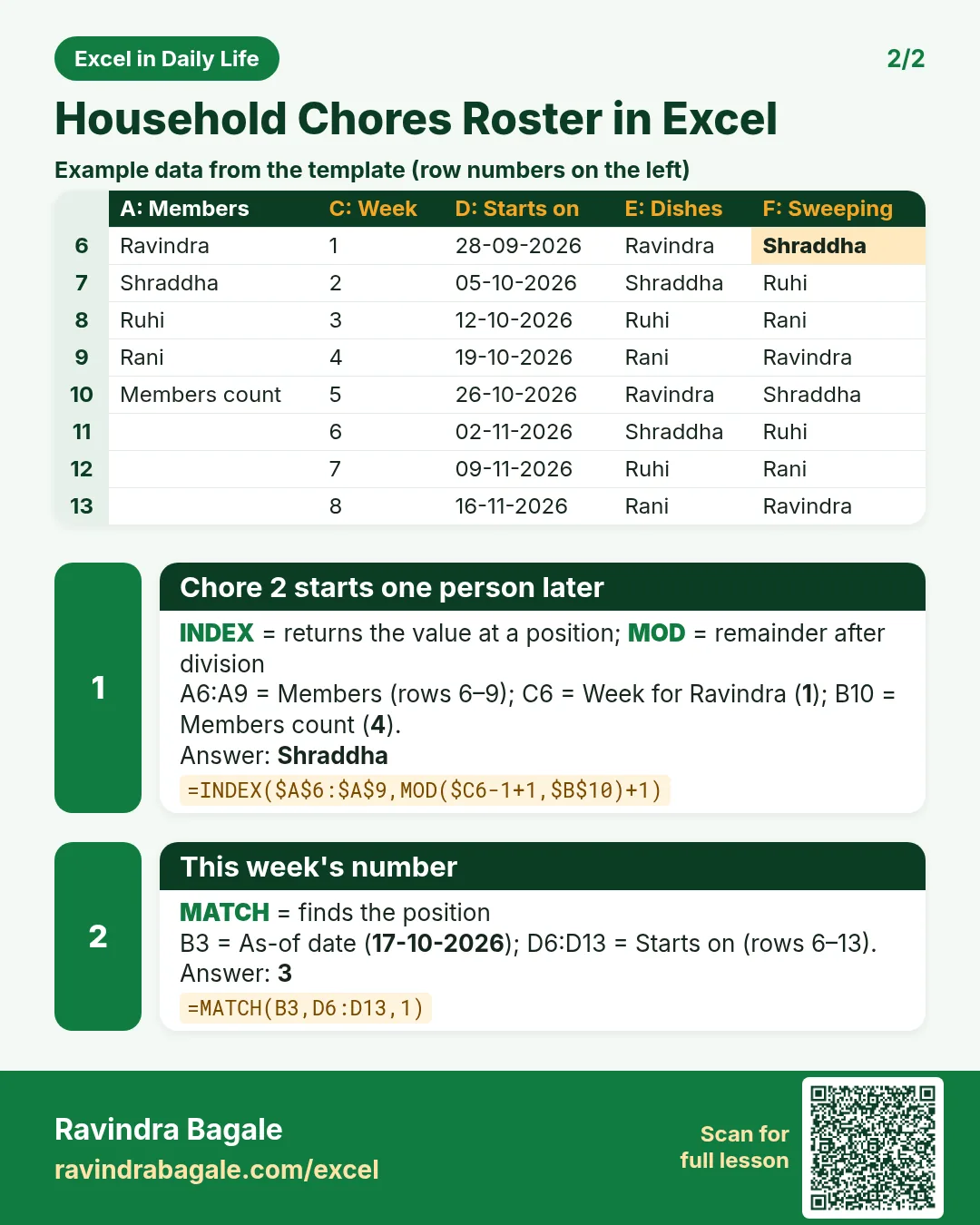
Revision card 2 for Household Chores Roster in Excel: Chore 2 starts one person later: =INDEX($A$6:$A$9,MOD($C6-1+1,$B$10)+1) gives Shraddha; This week's number: =MATCH(B3,D6:D13,1) gives 3. Includes an example data table.
Card 2 of 2: Household Chores Roster in Excel · Download PNG · Open card page

Recipe Cost Calculator in Excel: Scale a Recipe for More Guests and Find the Cost per Plate

Excel in Daily Life · 2 cards · Open the lesson
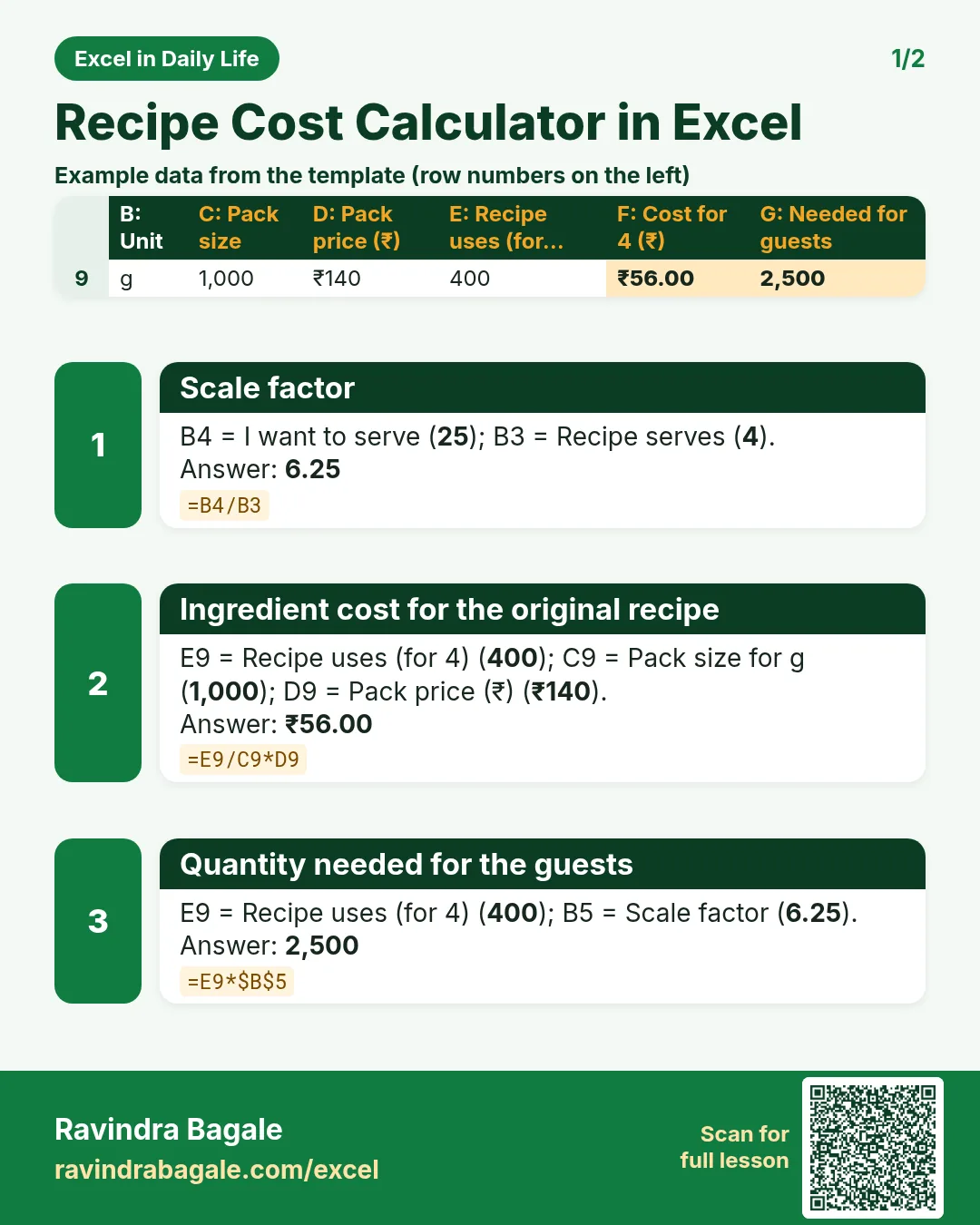
Revision card 1 for Recipe Cost Calculator in Excel: Scale factor: =B4/B3 gives 6.25; Ingredient cost for the original recipe: =E9/C9*D9 gives ₹56.00; Quantity needed for the guests: =E9*$B$5 gives 2,500. Includes an example data table.
Card 1 of 2: Recipe Cost Calculator in Excel · Download PNG · Open card page
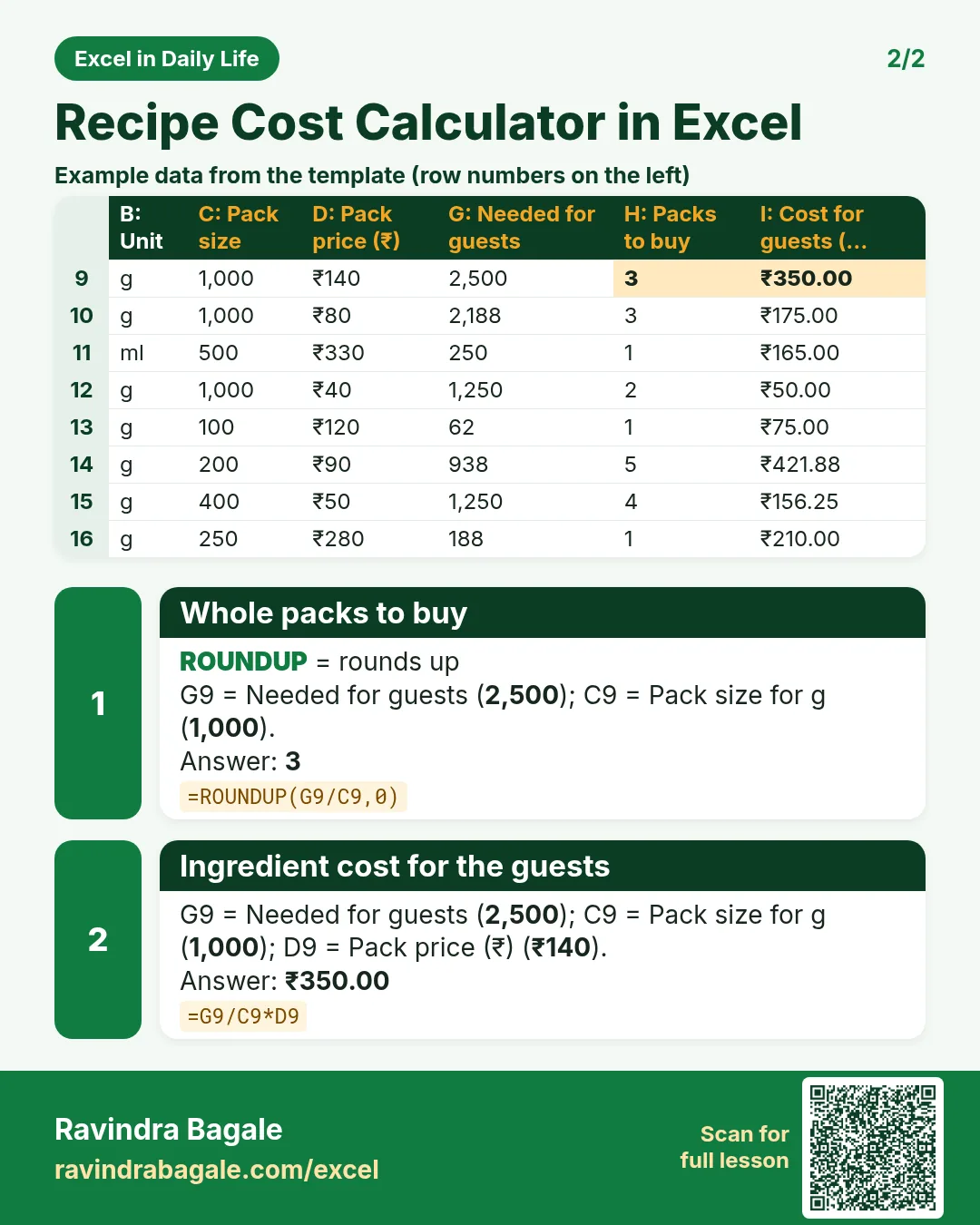
Revision card 2 for Recipe Cost Calculator in Excel: Whole packs to buy: =ROUNDUP(G9/C9,0) gives 3; Ingredient cost for the guests: =G9/C9*D9 gives ₹350.00. Includes an example data table.
Card 2 of 2: Recipe Cost Calculator in Excel · Download PNG · Open card page

Credit Card Bill Tracker in Excel: Due Dates, Pending Amount and Credit Utilisation

Excel in Daily Life · 2 cards · Open the lesson

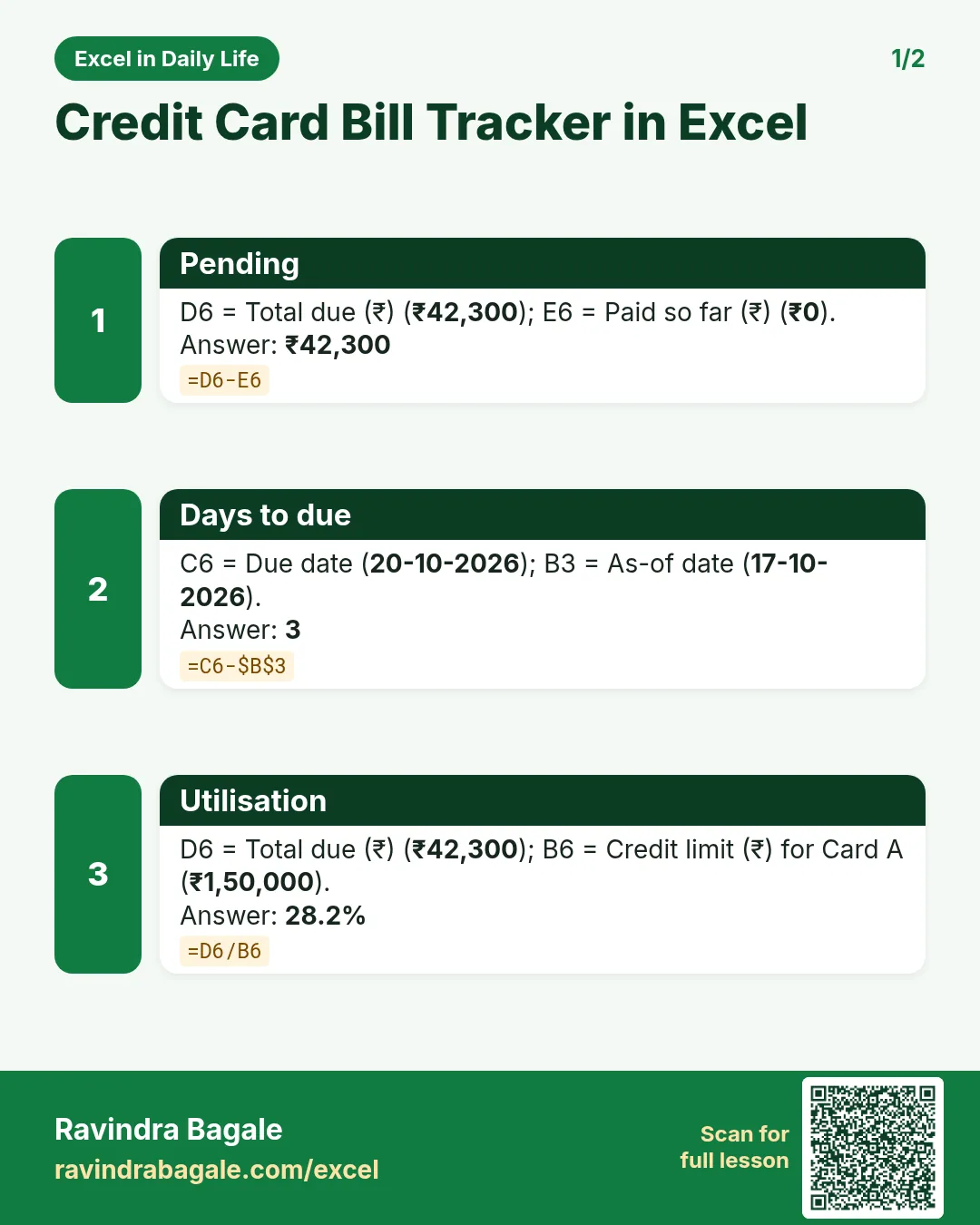
Revision card 1 for Credit Card Bill Tracker in Excel: Pending: =D6-E6 gives ₹42,300; Days to due: =C6-$B$3 gives 3; Utilisation: =D6/B6 gives 28.2%.
Card 1 of 2: Credit Card Bill Tracker in Excel · Download PNG · Open card page
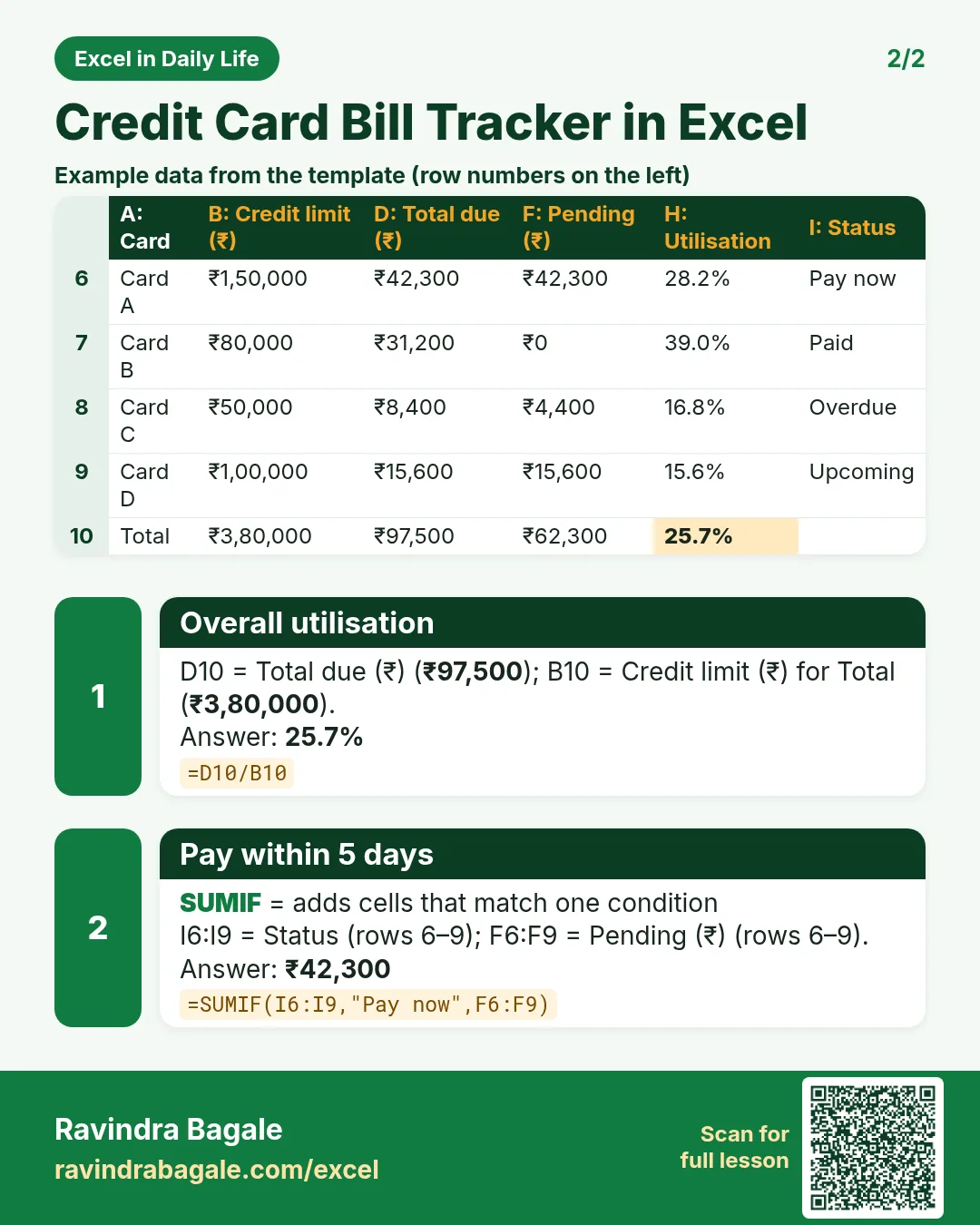
Revision card 2 for Credit Card Bill Tracker in Excel: Overall utilisation: =D10/B10 gives 25.7%; Pay within 5 days: =SUMIF(I6:I9,"Pay now",F6:F9) gives ₹42,300. Includes an example data table.
Card 2 of 2: Credit Card Bill Tracker in Excel · Download PNG · Open card page

Insurance Policy Renewal Tracker in Excel: Next Premium Due Date with EDATE and Yearly Cost

Excel in Daily Life · 2 cards · Open the lesson
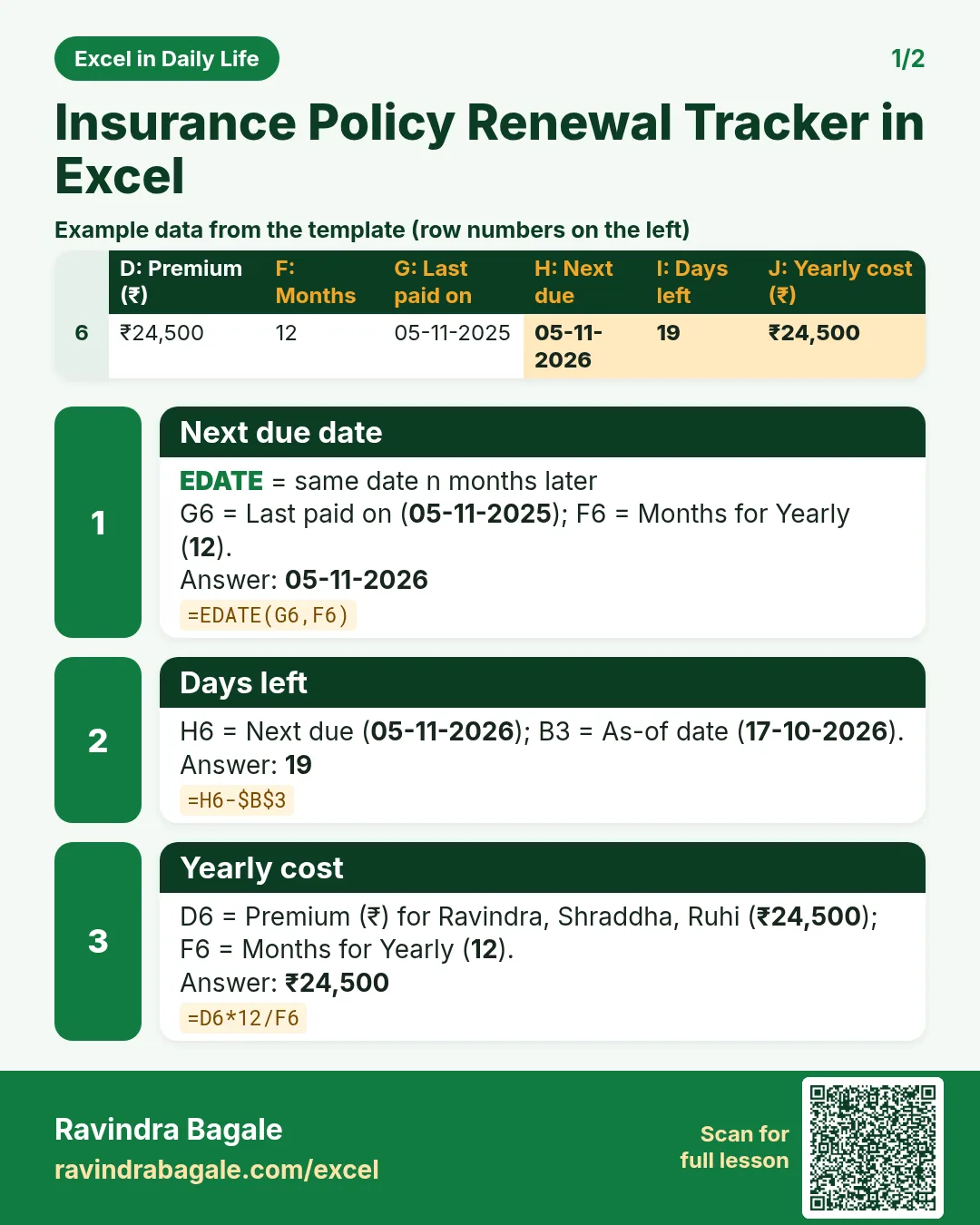
Revision card 1 for Insurance Policy Renewal Tracker in Excel: Next due date: =EDATE(G6,F6) gives 05-11-2026; Days left: =H6-$B$3 gives 19; Yearly cost: =D6*12/F6 gives ₹24,500. Includes an example data table.
Card 1 of 2: Insurance Policy Renewal Tracker in Excel · Download PNG · Open card page
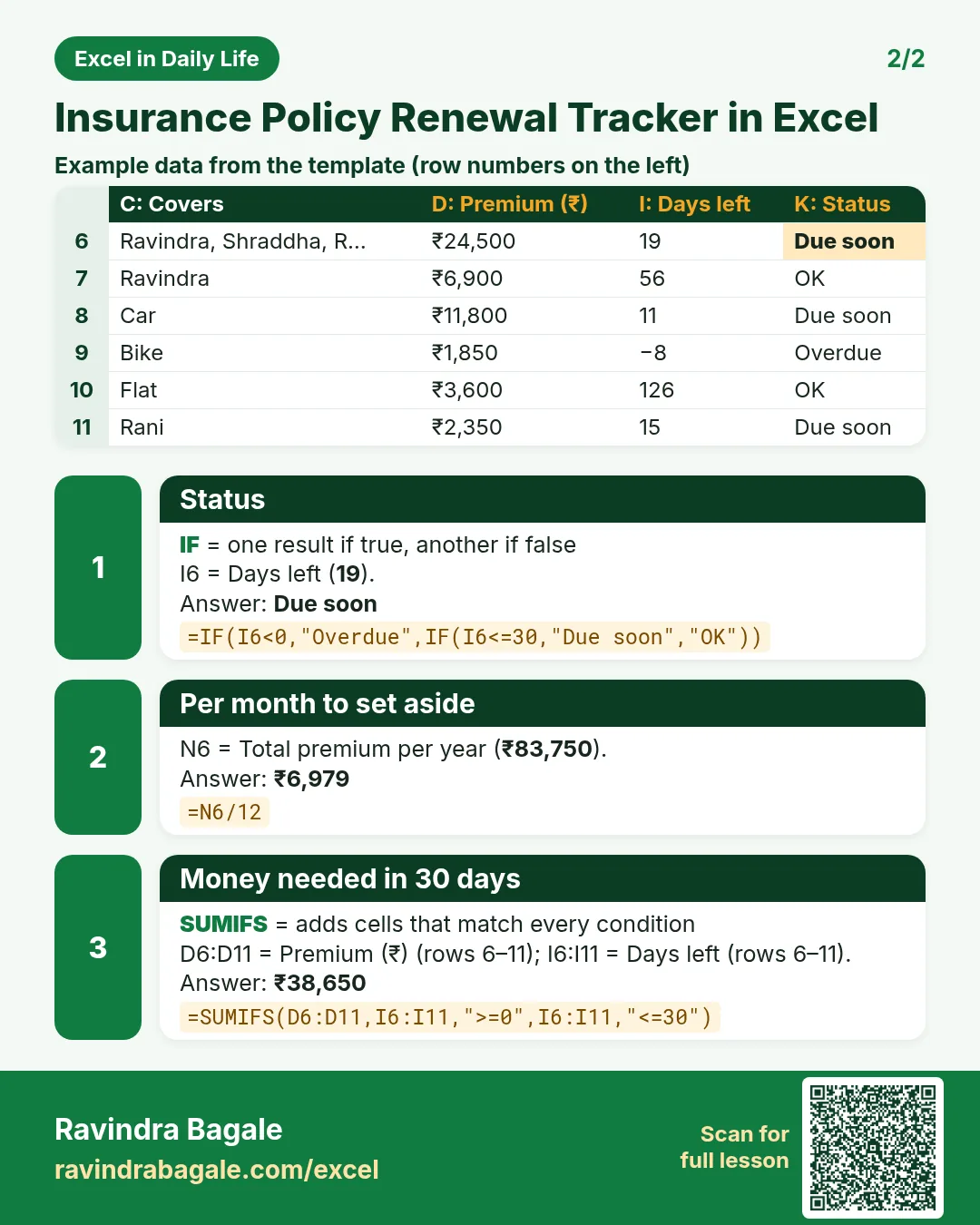
Revision card 2 for Insurance Policy Renewal Tracker in Excel: Status: =IF(I6<0,"Overdue",IF(I6<=30,"Due soon","OK")) gives Due soon; Per month to set aside: =N6/12 gives ₹6,979; Money needed in 30 days: =SUMIFS(D6:D11,I6:I11,">=0",I6:I11,"<=30") gives ₹38,650. Includes an example data table.
Card 2 of 2: Insurance Policy Renewal Tracker in Excel · Download PNG · Open card page

Walking Steps Tracker in Excel: Daily Goal, Weekly Average with AVERAGEIFS and Km Walked

Excel in Daily Life · 2 cards · Open the lesson

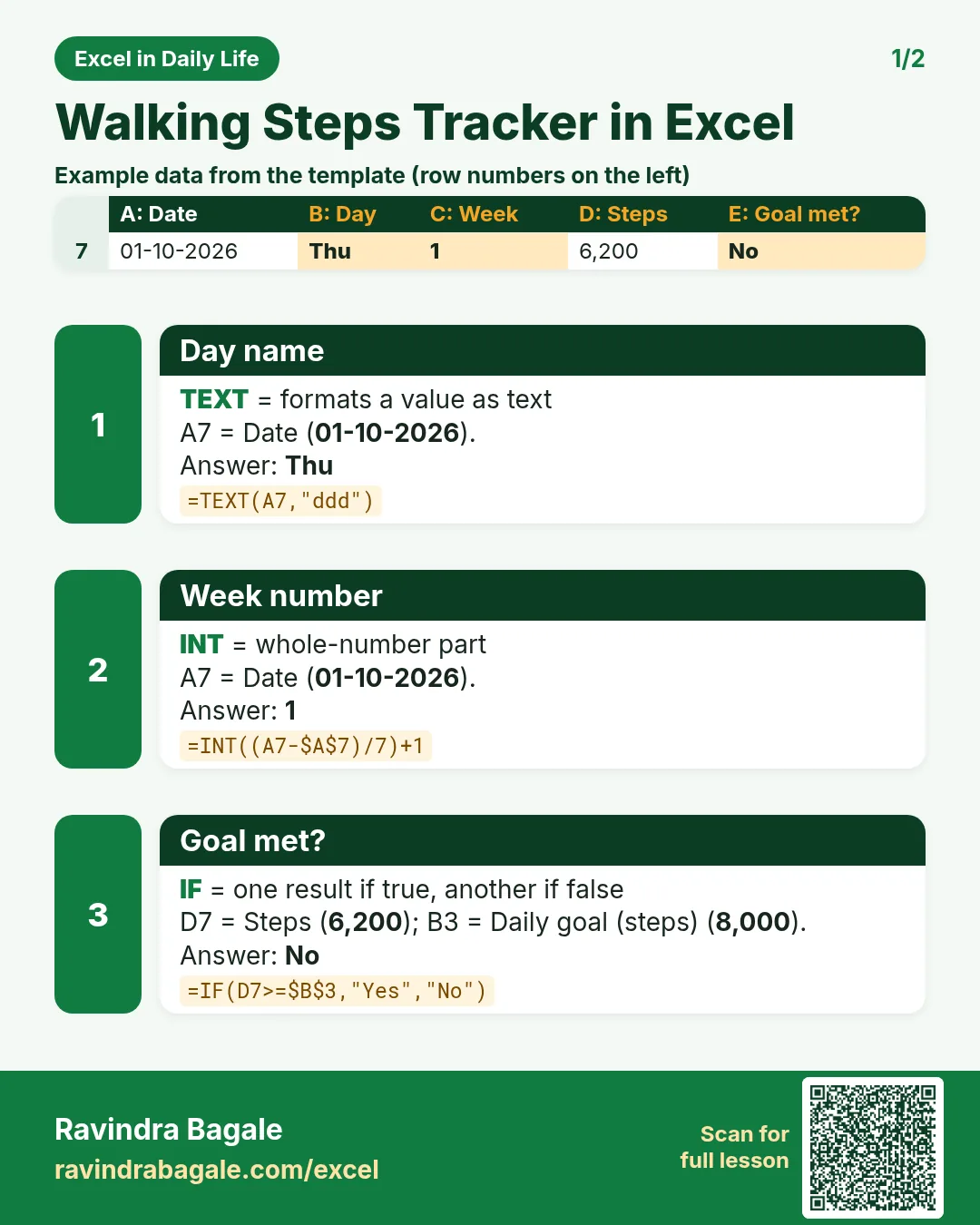
Revision card 1 for Walking Steps Tracker in Excel: Day name: =TEXT(A7,"ddd") gives Thu; Week number: =INT((A7-$A$7)/7)+1 gives 1; Goal met?: =IF(D7>=$B$3,"Yes","No") gives No. Includes an example data table.
Card 1 of 2: Walking Steps Tracker in Excel · Download PNG · Open card page
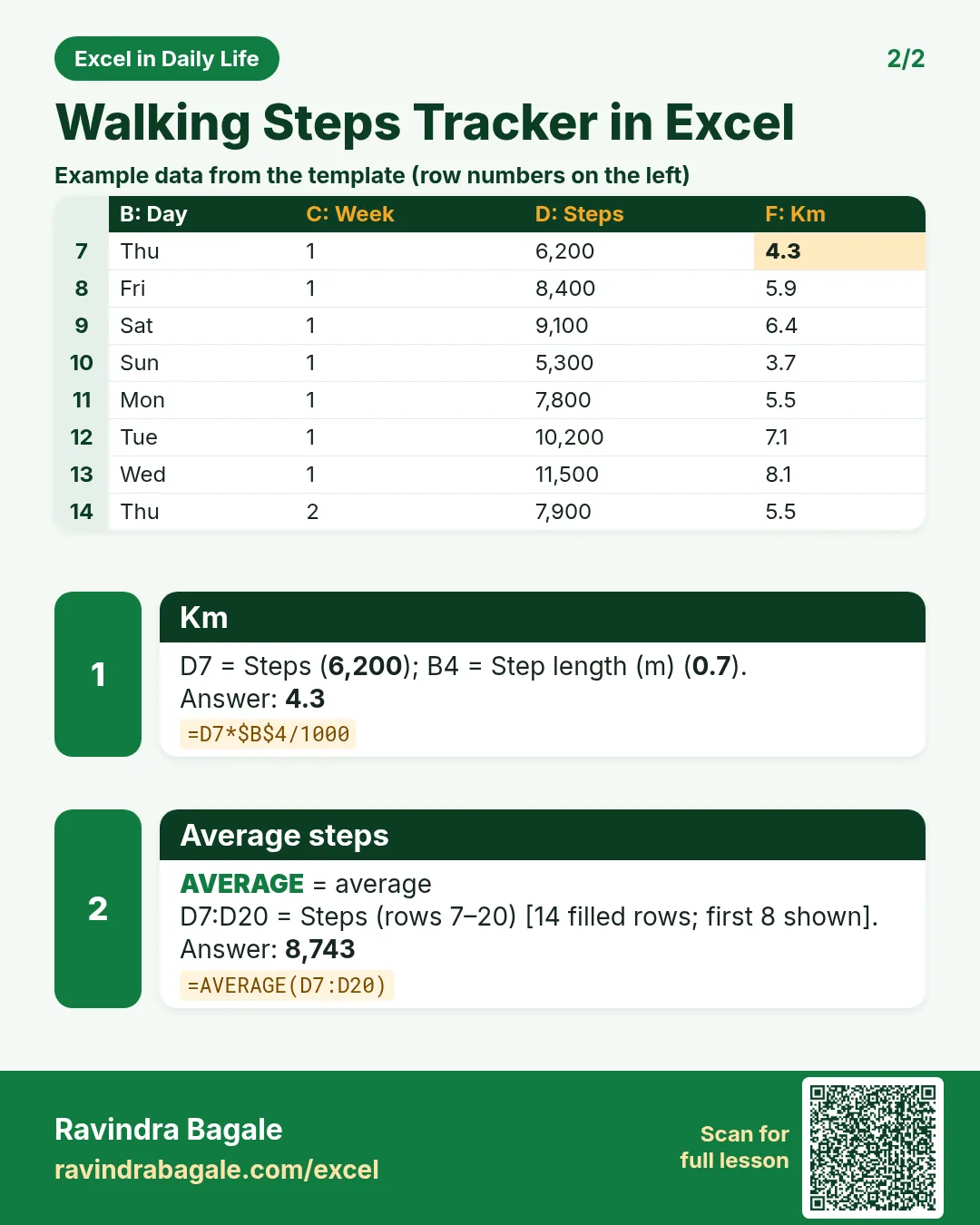
Revision card 2 for Walking Steps Tracker in Excel: Km: =D7*$B$4/1000 gives 4.3; Average steps: =AVERAGE(D7:D20) gives 8,743. Includes an example data table.
Card 2 of 2: Walking Steps Tracker in Excel · Download PNG · Open card page

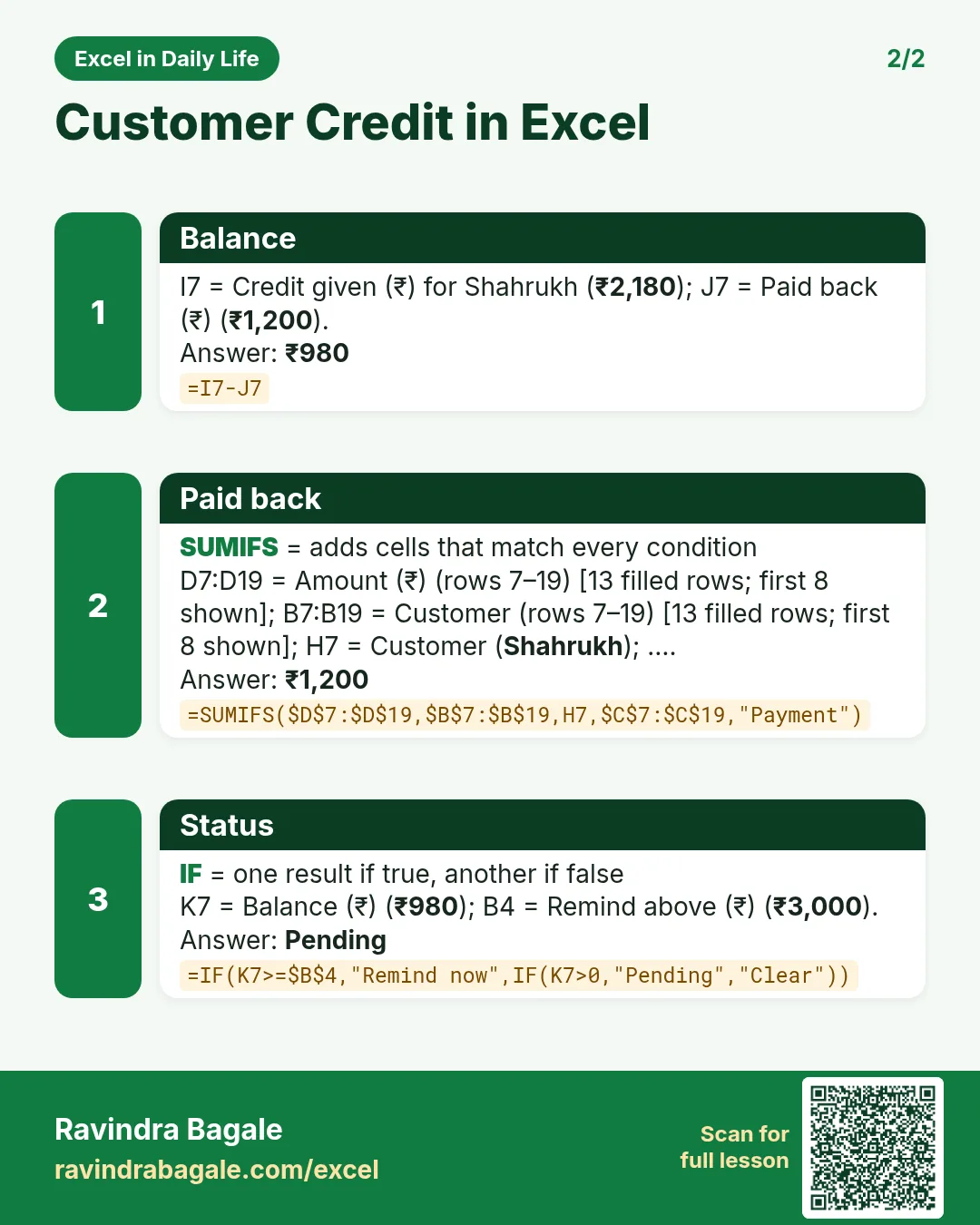
Customer Credit (Khata) Book in Excel: Udhaar Balance per Customer with SUMIFS

Excel in Daily Life · 2 cards · Open the lesson
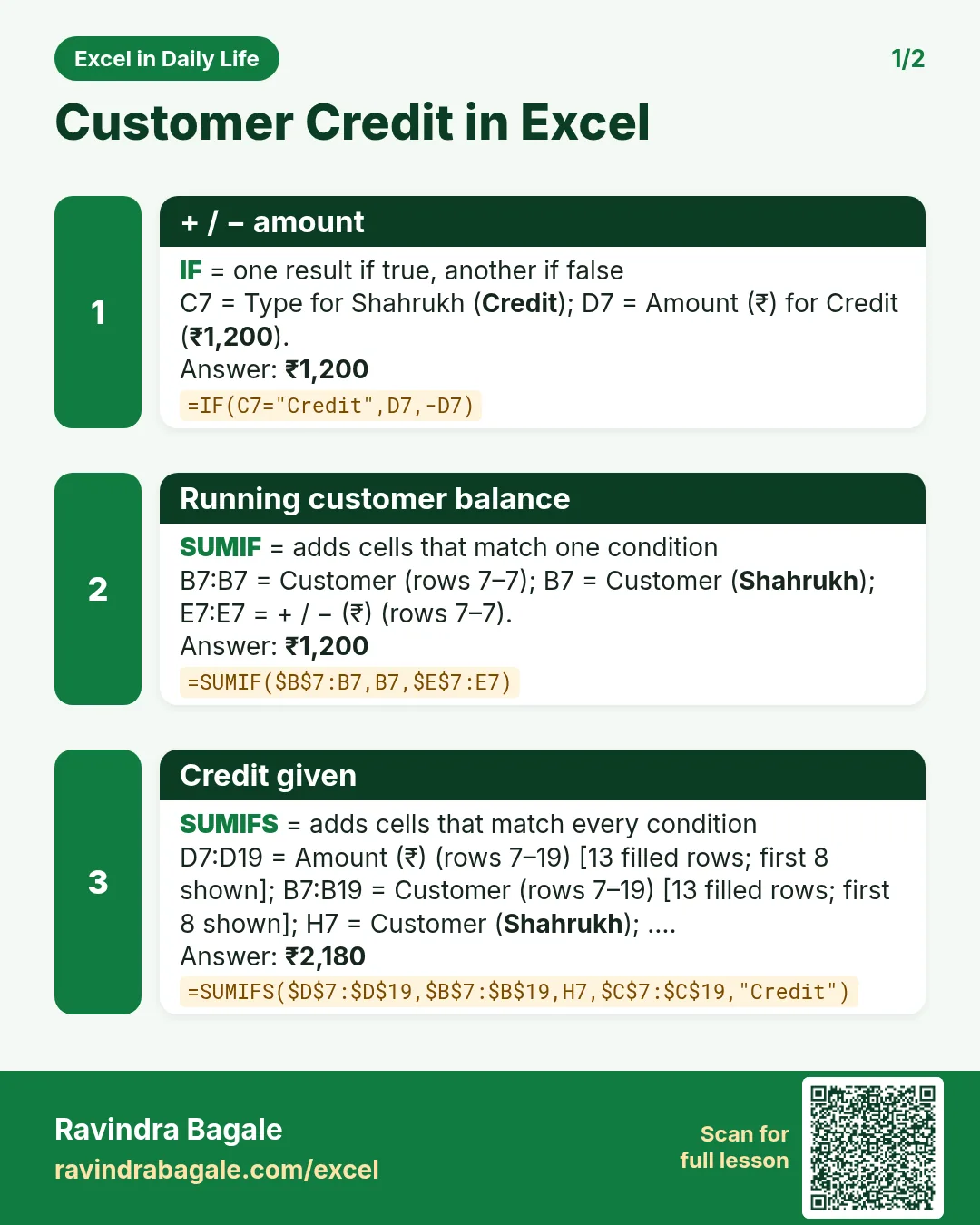
Revision card 1 for Customer Credit in Excel: + / − amount: =IF(C7="Credit",D7,-D7) gives ₹1,200; Running customer balance: =SUMIF($B$7:B7,B7,$E$7:E7) gives ₹1,200; Credit given: =SUMIFS($D$7:$D$19,$B$7:$B$19,H7,$C$7:$C$19,"Credit") gives ₹2,180.
Card 1 of 2: Customer Credit in Excel · Download PNG · Open card page
Revision card 2 for Customer Credit in Excel: Balance: =I7-J7 gives ₹980; Paid back: =SUMIFS($D$7:$D$19,$B$7:$B$19,H7,$C$7:$C$19,"Payment") gives ₹1,200; Status: =IF(K7>=$B$4,"Remind now",IF(K7>0,"Pending","Clear")) gives Pending.
Card 2 of 2: Customer Credit in Excel · Download PNG · Open card page

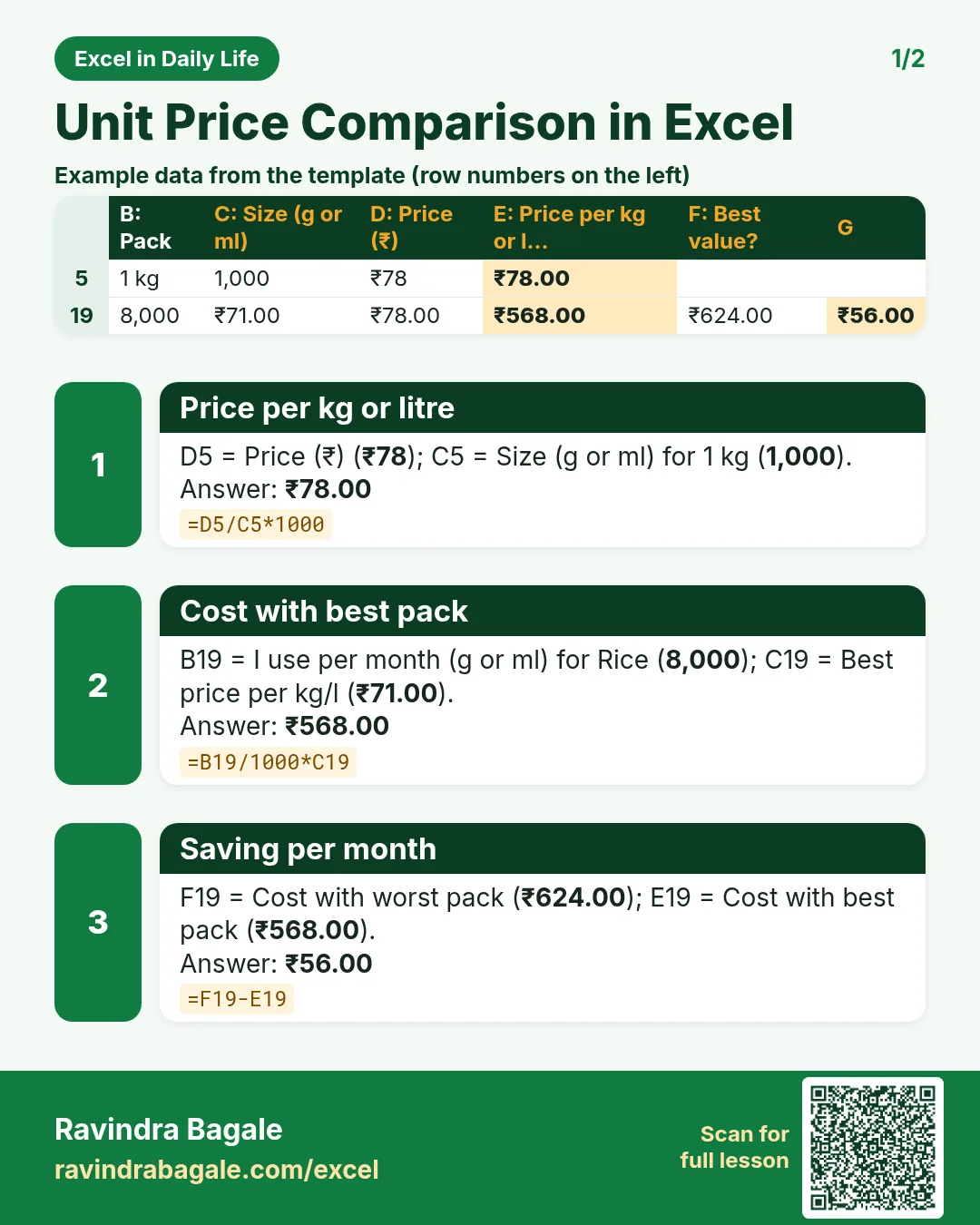
Unit Price Comparison in Excel: Which Pack Size Is Cheaper per Kg or Litre?

Excel in Daily Life · 2 cards · Open the lesson

Revision card 1 for Unit Price Comparison in Excel: Price per kg or litre: =D5/C5*1000 gives ₹78.00; Cost with best pack: =B19/1000*C19 gives ₹568.00; Saving per month: =F19-E19 gives ₹56.00. Includes an example data table.
Card 1 of 2: Unit Price Comparison in Excel · Download PNG · Open card page
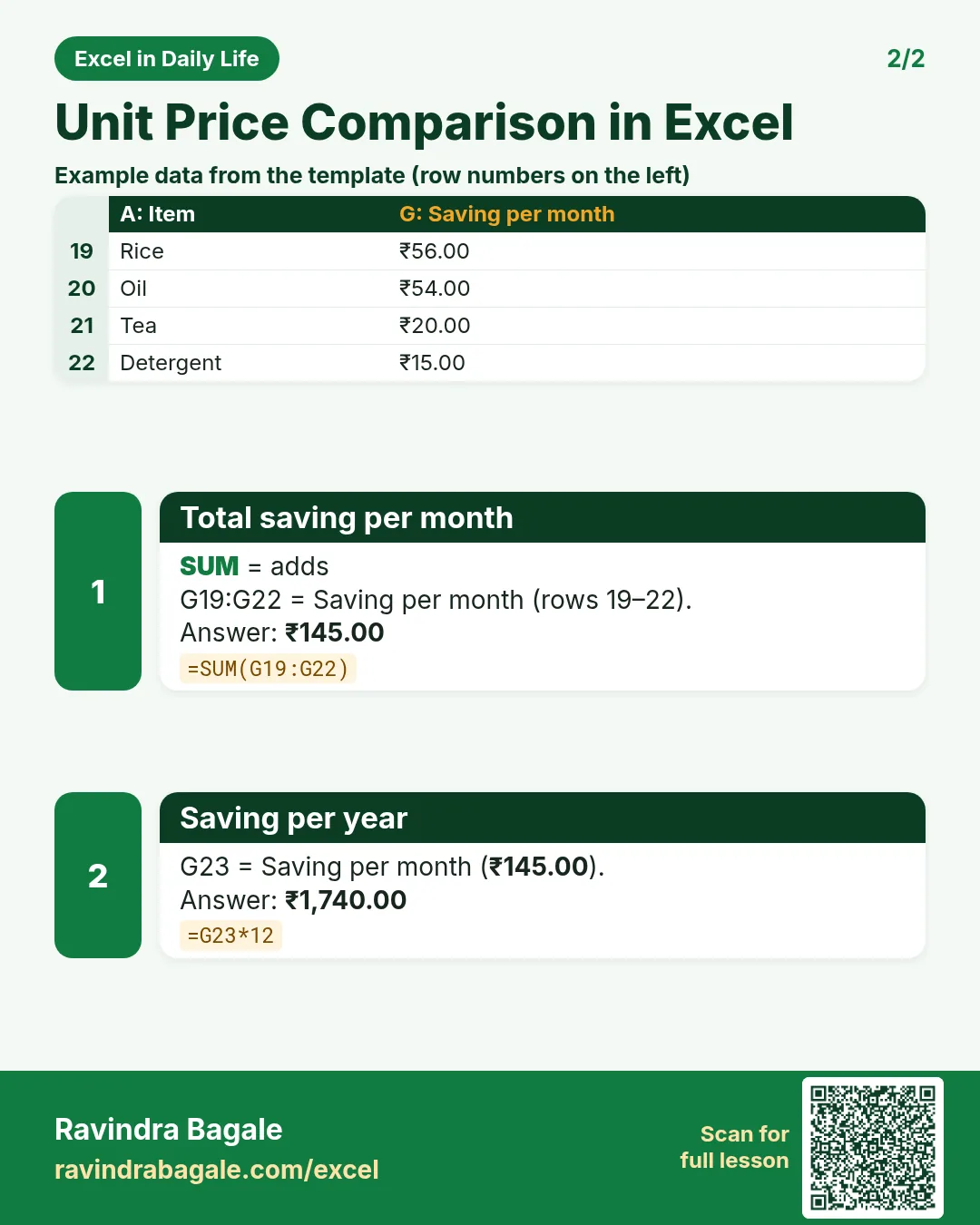
Revision card 2 for Unit Price Comparison in Excel: Total saving per month: =SUM(G19:G22) gives ₹145.00; Saving per year: =G23*12 gives ₹1,740.00. Includes an example data table.
Card 2 of 2: Unit Price Comparison in Excel · Download PNG · Open card page

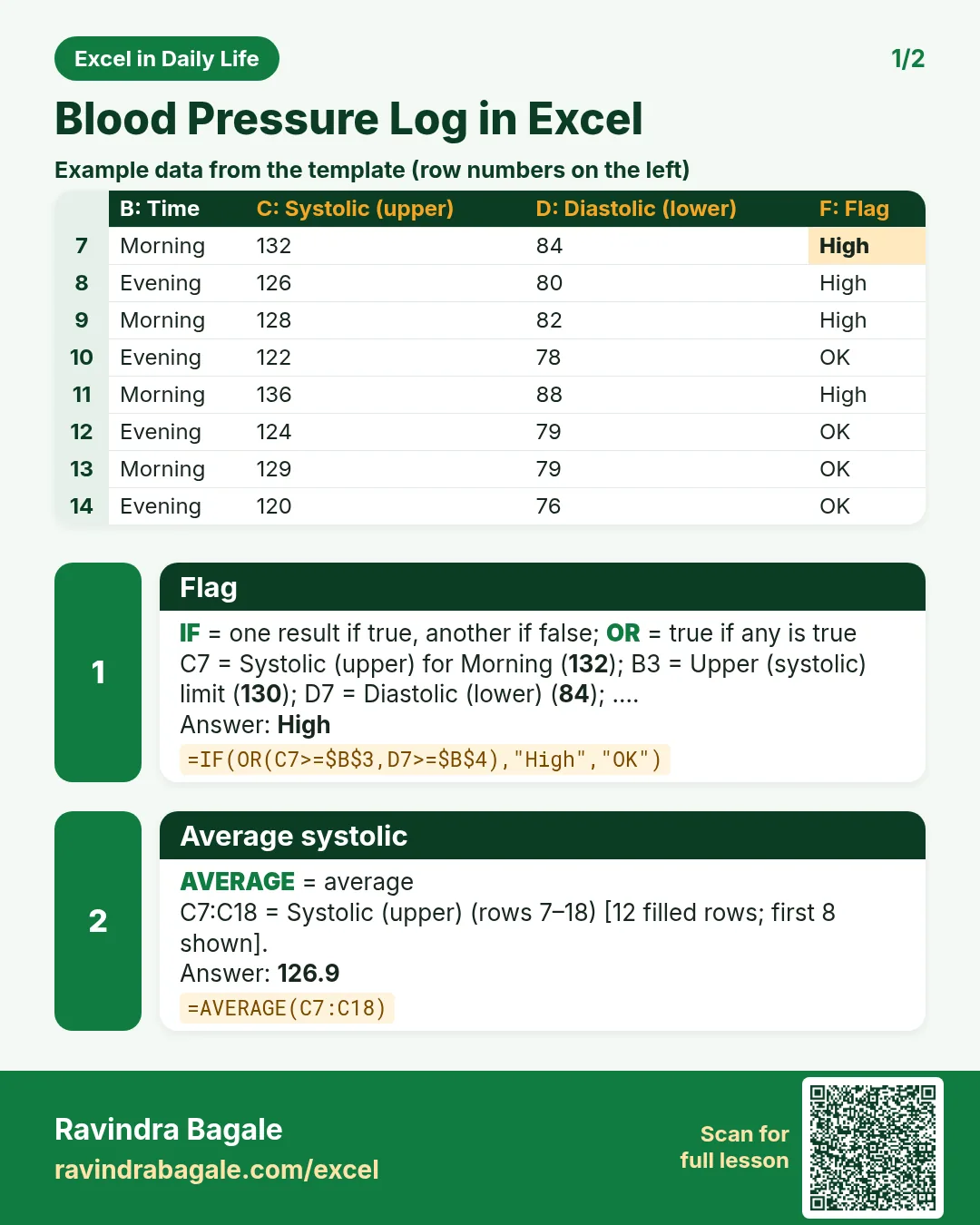
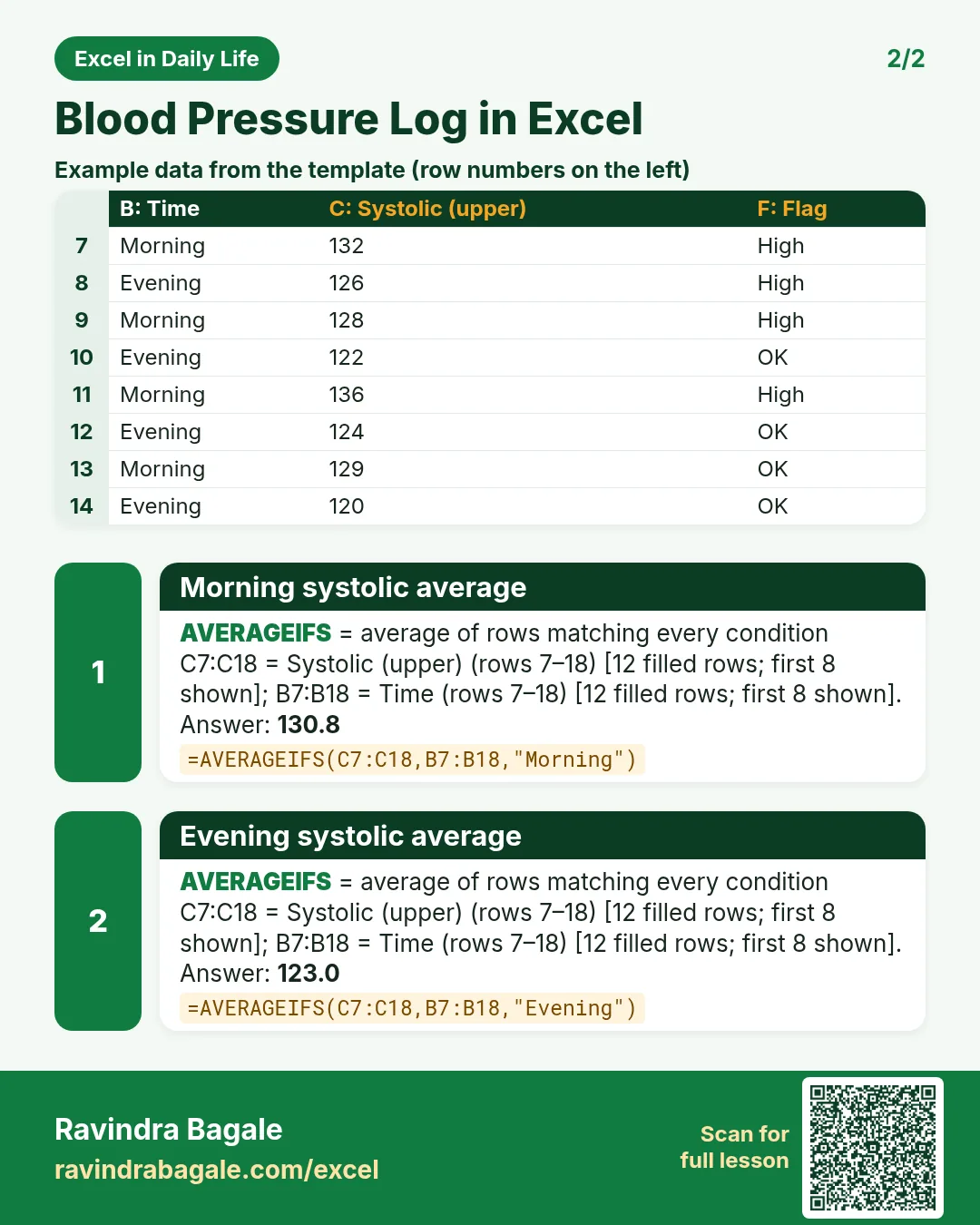
Blood Pressure Log in Excel: Morning and Evening Averages and High Readings Flagged

Excel in Daily Life · 2 cards · Open the lesson
Revision card 1 for Blood Pressure Log in Excel: Flag: =IF(OR(C7>=$B$3,D7>=$B$4),"High","OK") gives High; Average systolic: =AVERAGE(C7:C18) gives 126.9. Includes an example data table.
Card 1 of 2: Blood Pressure Log in Excel · Download PNG · Open card page
Revision card 2 for Blood Pressure Log in Excel: Morning systolic average: =AVERAGEIFS(C7:C18,B7:B18,"Morning") gives 130.8; Evening systolic average: =AVERAGEIFS(C7:C18,B7:B18,"Evening") gives 123.0. Includes an example data table.
Card 2 of 2: Blood Pressure Log in Excel · Download PNG · Open card page

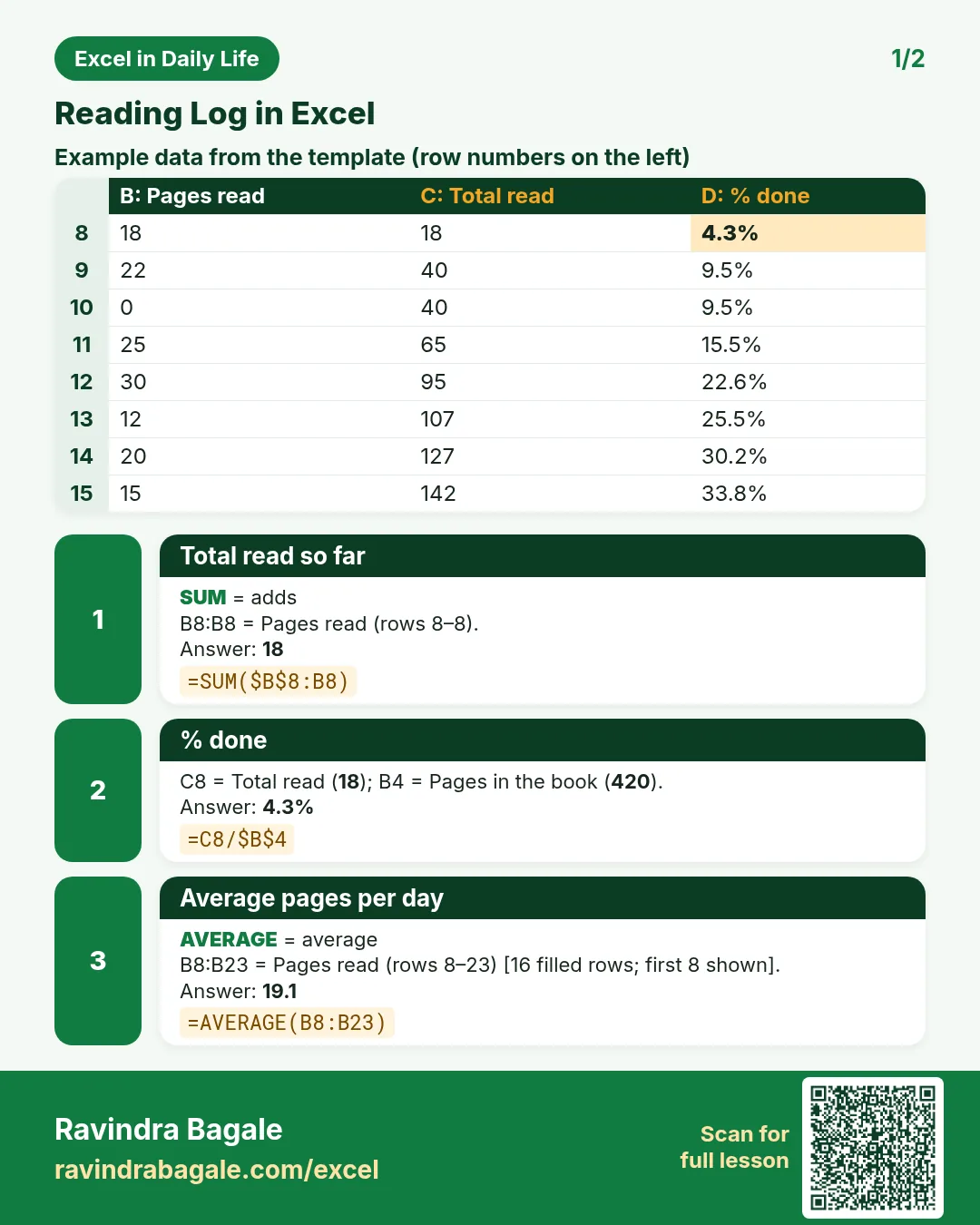
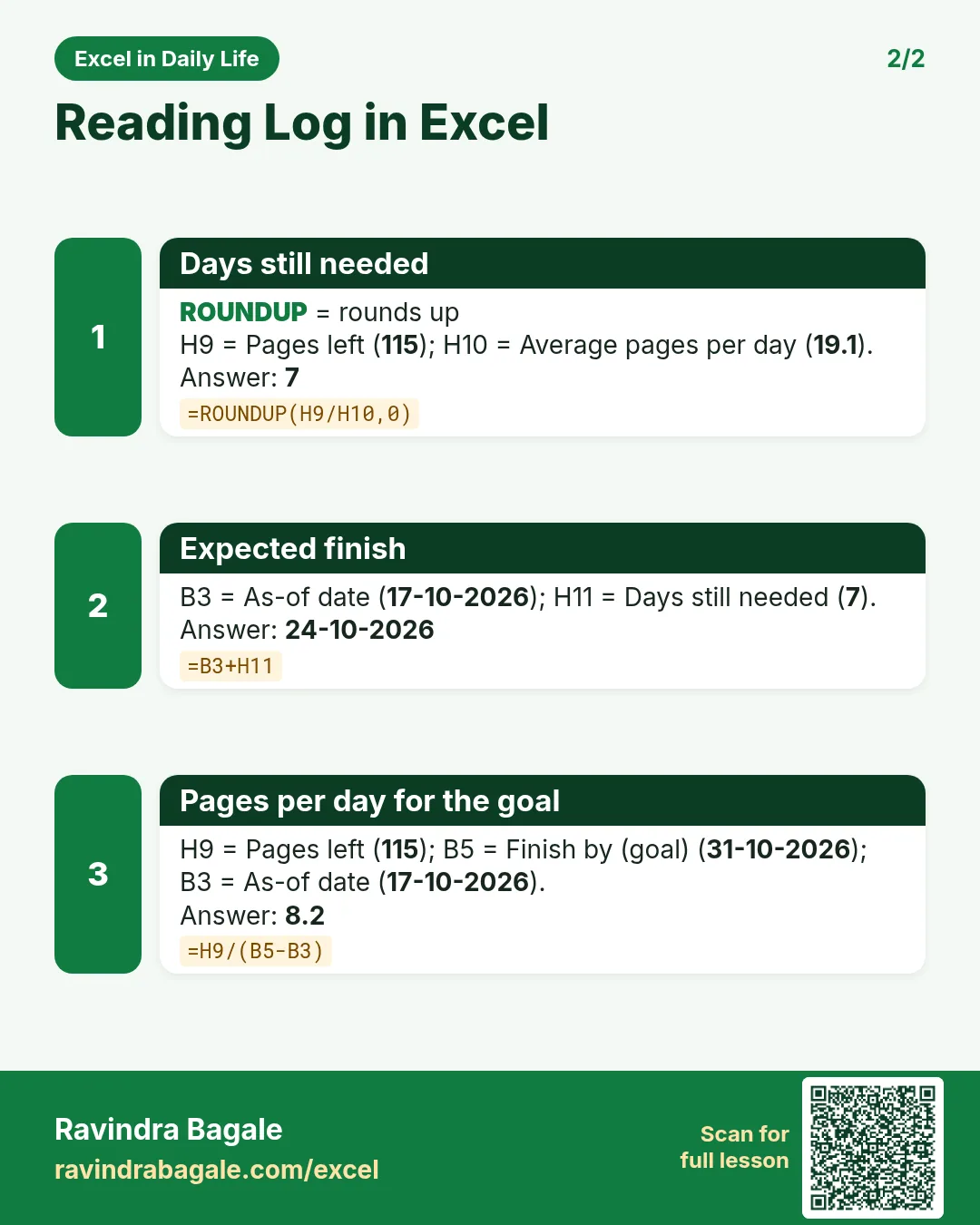
Reading Log in Excel: Pages per Day, % Done and Expected Book Finish Date

Excel in Daily Life · 2 cards · Open the lesson

Revision card 1 for Reading Log in Excel: Total read so far: =SUM($B$8:B8) gives 18; % done: =C8/$B$4 gives 4.3%; Average pages per day: =AVERAGE(B8:B23) gives 19.1. Includes an example data table.
Card 1 of 2: Reading Log in Excel · Download PNG · Open card page
Revision card 2 for Reading Log in Excel: Days still needed: =ROUNDUP(H9/H10,0) gives 7; Expected finish: =B3+H11 gives 24-10-2026; Pages per day for the goal: =H9/(B5-B3) gives 8.2.
Card 2 of 2: Reading Log in Excel · Download PNG · Open card page

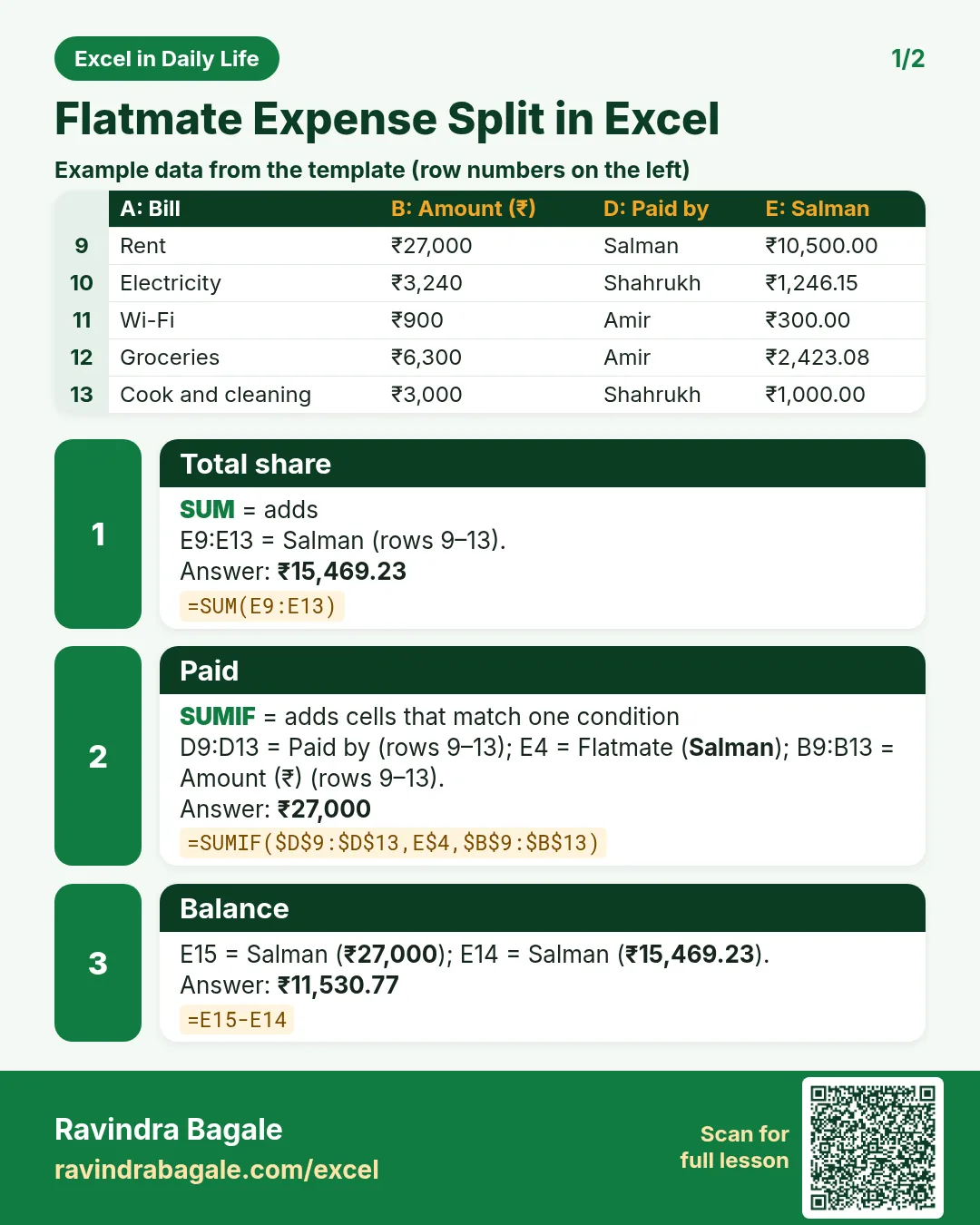
Flatmate Expense Split in Excel: Share Rent by Room Size and Bills by Days Stayed

Excel in Daily Life · 2 cards · Open the lesson
Revision card 1 for Flatmate Expense Split in Excel: Total share: =SUM(E9:E13) gives ₹15,469.23; Paid: =SUMIF($D$9:$D$13,E$4,$B$9:$B$13) gives ₹27,000; Balance: =E15-E14 gives ₹11,530.77. Includes an example data table.
Card 1 of 2: Flatmate Expense Split in Excel · Download PNG · Open card page
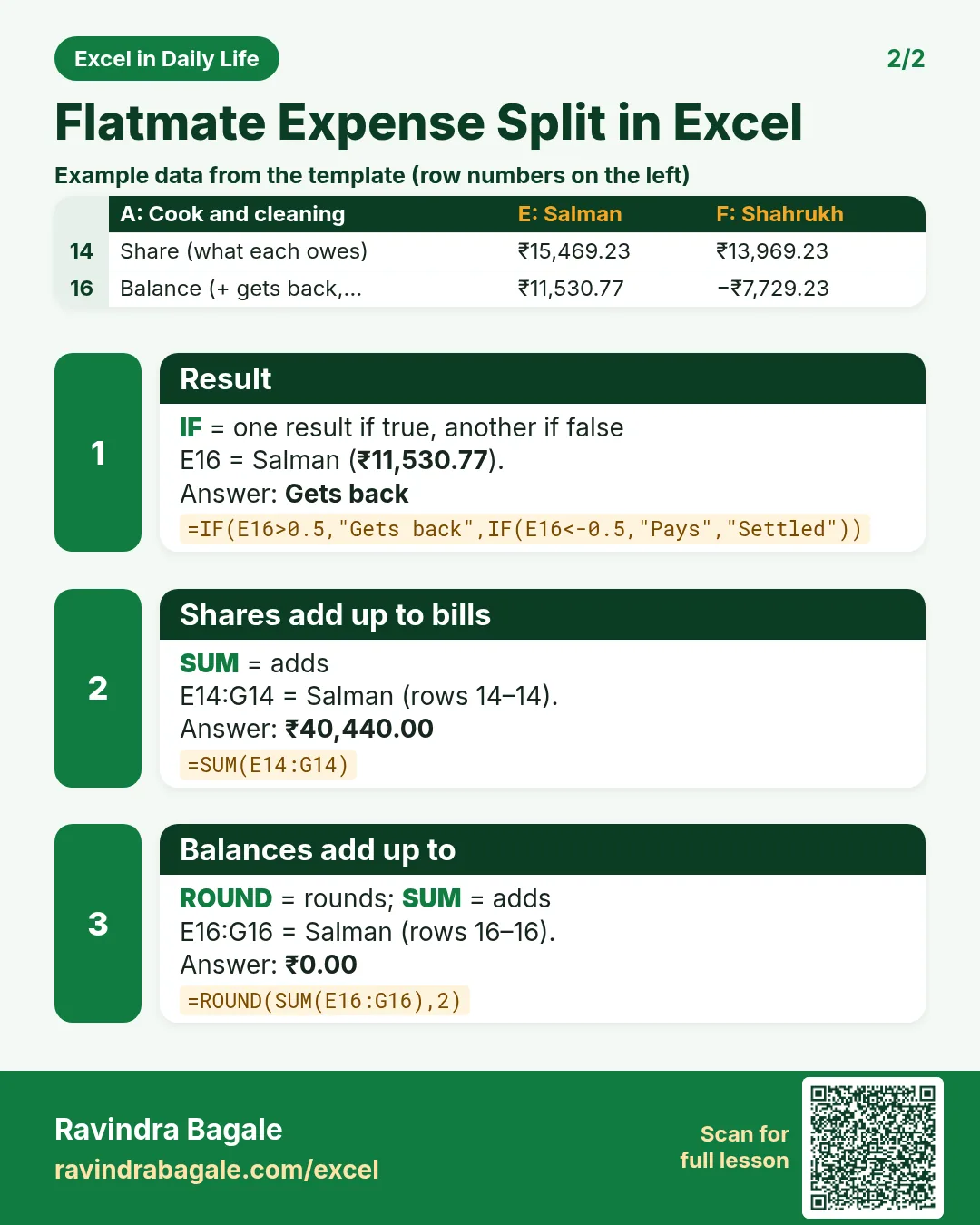
Revision card 2 for Flatmate Expense Split in Excel: Result: =IF(E16>0.5,"Gets back",IF(E16<-0.5,"Pays","Settled")) gives Gets back; Shares add up to bills: =SUM(E14:G14) gives ₹40,440.00; Balances add up to: =ROUND(SUM(E16:G16),2) gives ₹0.00. Includes an example data table.
Card 2 of 2: Flatmate Expense Split in Excel · Download PNG · Open card page

Freelance Timesheet in Excel: Hours Worked, Overtime and Invoice Total per Project

Excel in Daily Life · 2 cards · Open the lesson

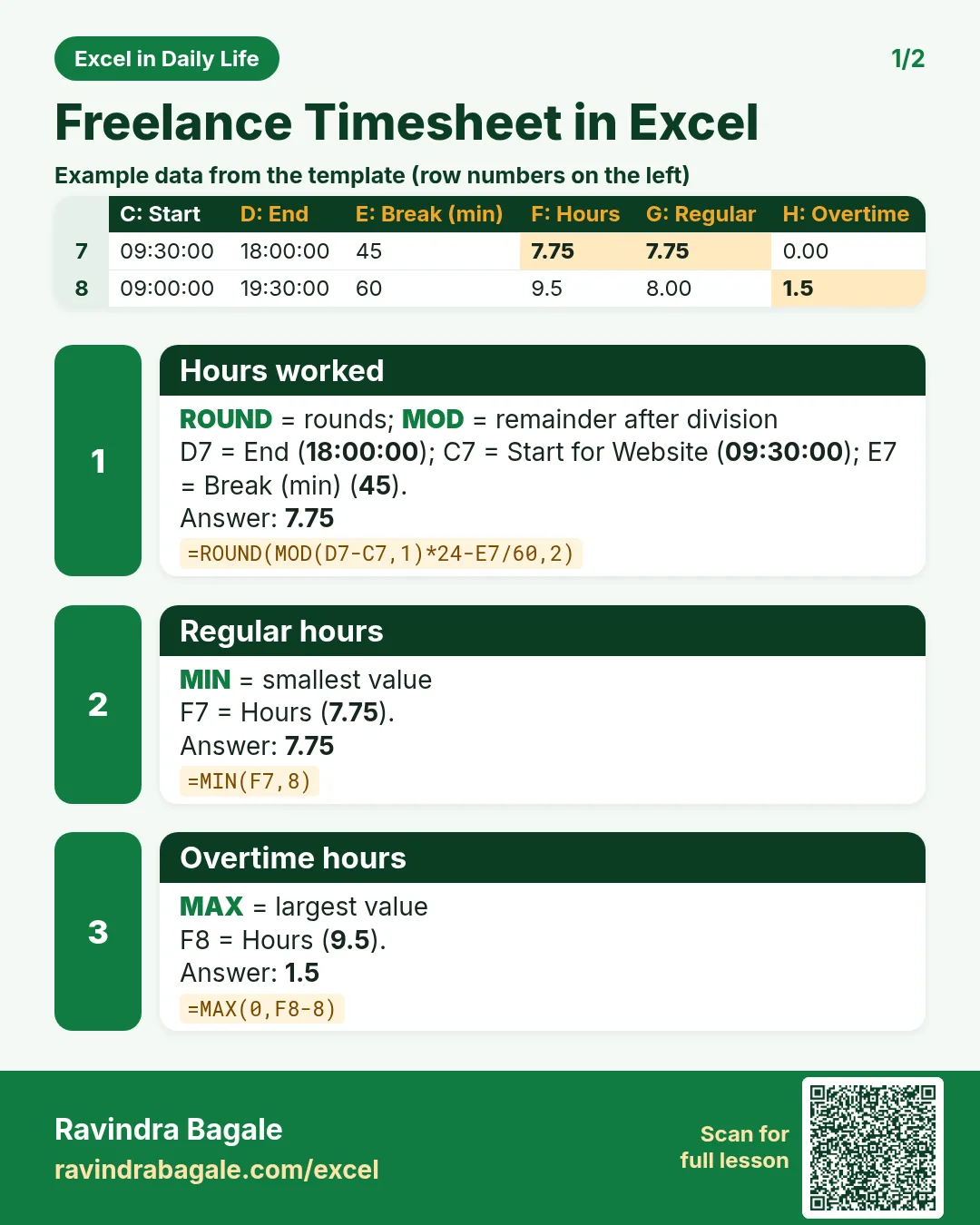
Revision card 1 for Freelance Timesheet in Excel: Hours worked: =ROUND(MOD(D7-C7,1)*24-E7/60,2) gives 7.75; Regular hours: =MIN(F7,8) gives 7.75; Overtime hours: =MAX(0,F8-8) gives 1.5. Includes an example data table.
Card 1 of 2: Freelance Timesheet in Excel · Download PNG · Open card page
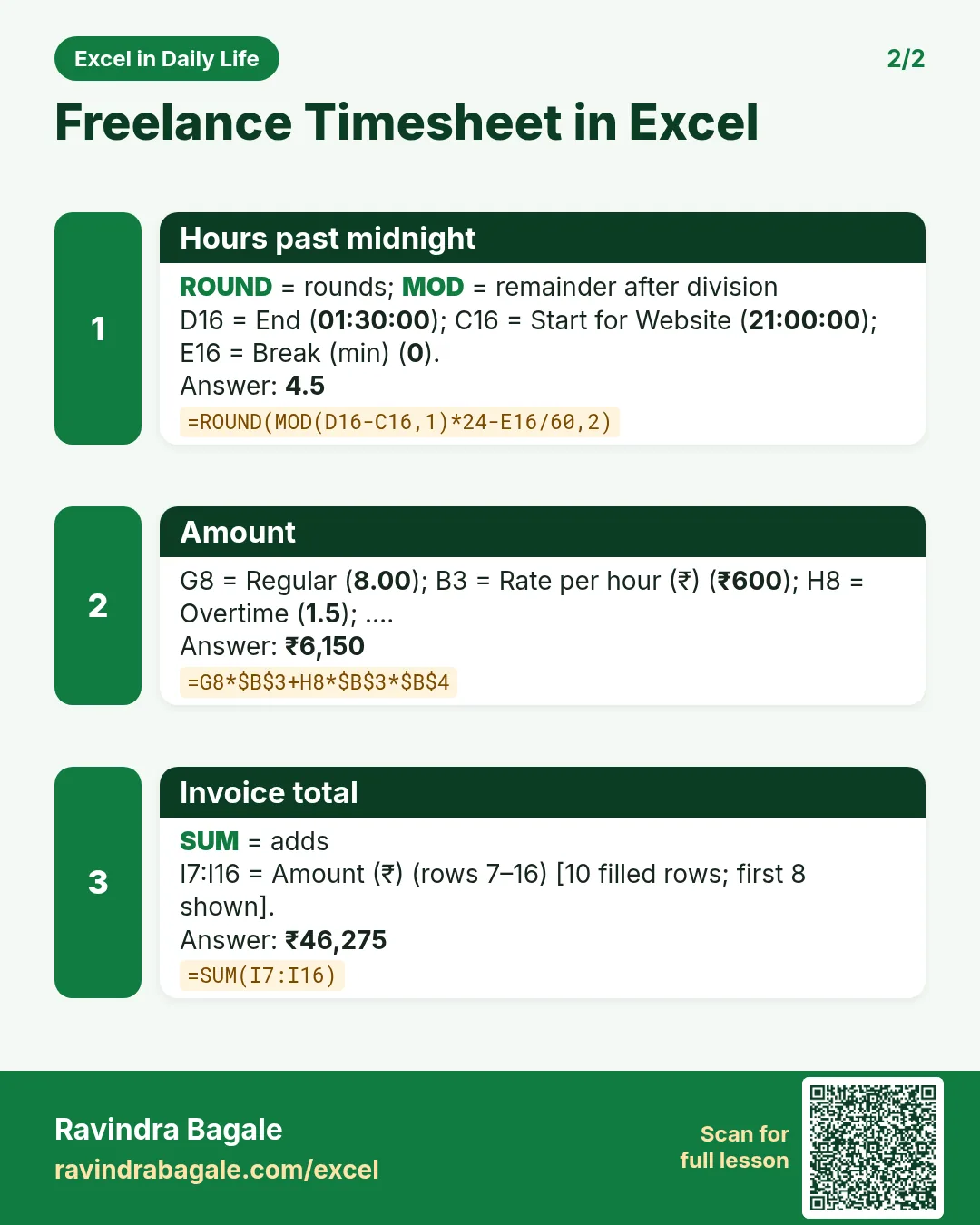
Revision card 2 for Freelance Timesheet in Excel: Hours past midnight: =ROUND(MOD(D16-C16,1)*24-E16/60,2) gives 4.5; Amount: =G8*$B$3+H8*$B$3*$B$4 gives ₹6,150; Invoice total: =SUM(I7:I16) gives ₹46,275.
Card 2 of 2: Freelance Timesheet in Excel · Download PNG · Open card page

CAGR Calculator in Excel: Compare Investment Returns with a Formula and the RRI Function

Excel in Daily Life · 2 cards · Open the lesson
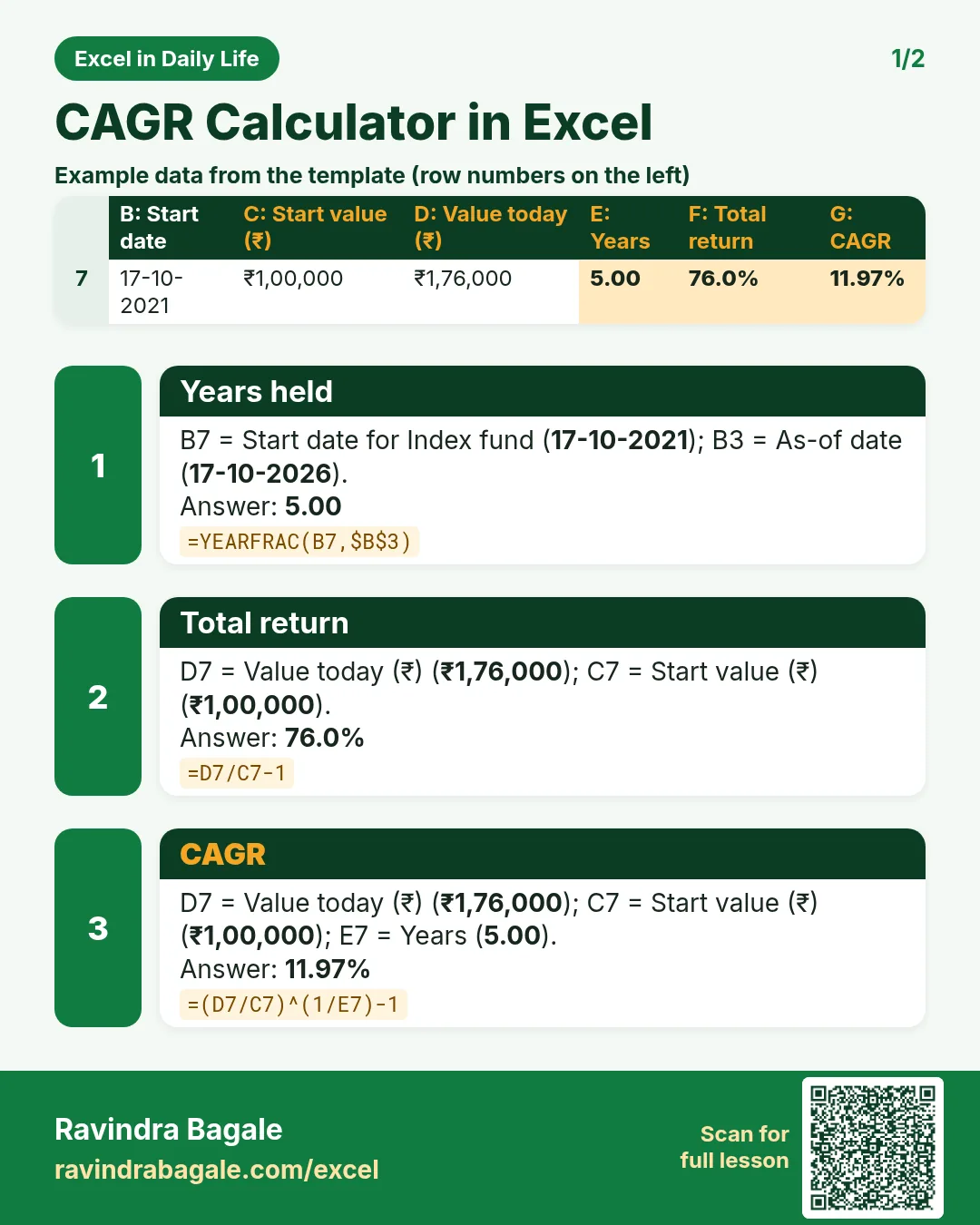
Revision card 1 for CAGR Calculator in Excel: Years held: =YEARFRAC(B7,$B$3) gives 5.00; Total return: =D7/C7-1 gives 76.0%; CAGR: =(D7/C7)^(1/E7)-1 gives 11.97%. Includes an example data table.
Card 1 of 2: CAGR Calculator in Excel · Download PNG · Open card page
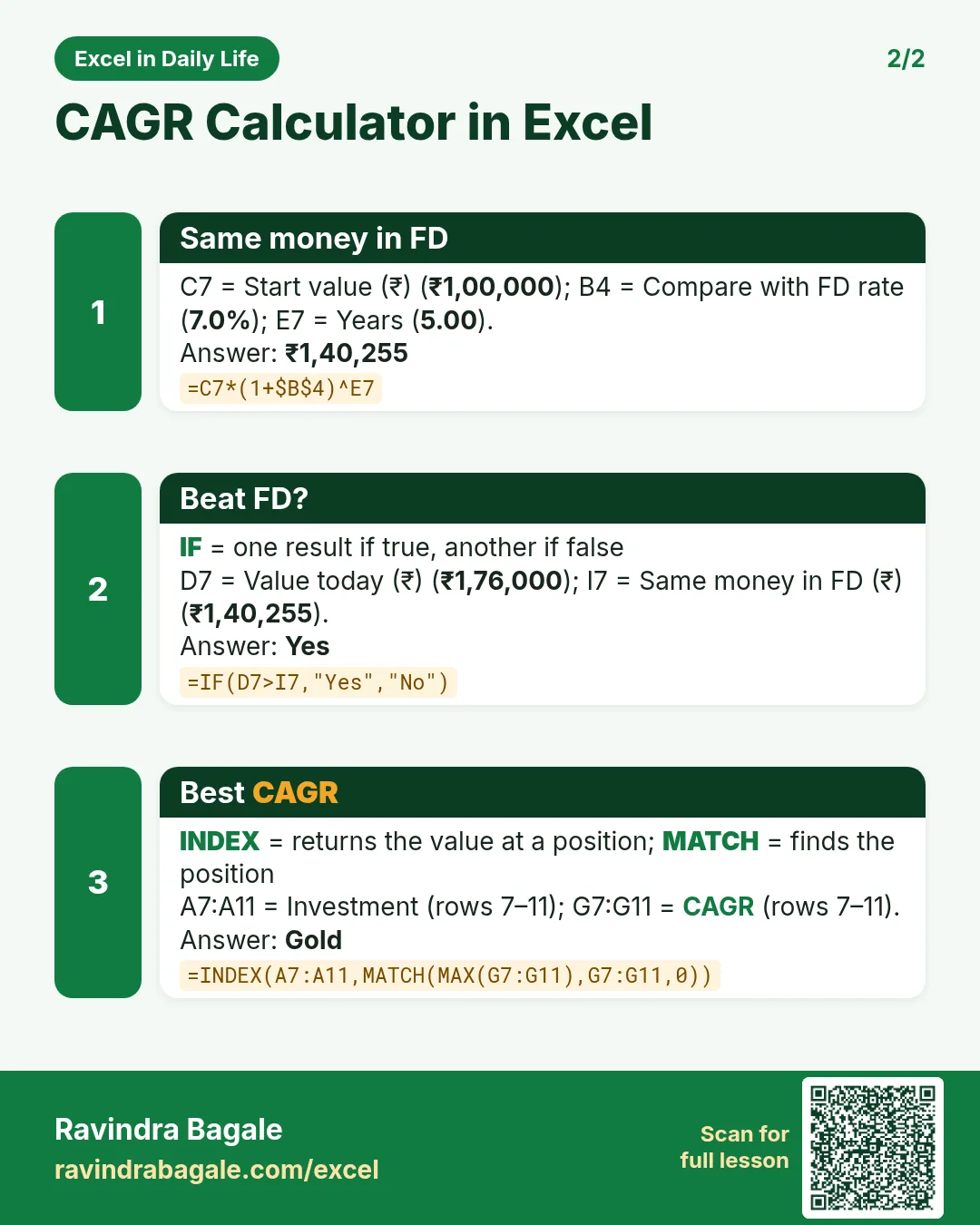
Revision card 2 for CAGR Calculator in Excel: Same money in FD: =C7*(1+$B$4)^E7 gives ₹1,40,255; Beat FD?: =IF(D7>I7,"Yes","No") gives Yes; Best CAGR: =INDEX(A7:A11,MATCH(MAX(G7:G11),G7:G11,0)) gives Gold.
Card 2 of 2: CAGR Calculator in Excel · Download PNG · Open card page

Emergency Fund Calculator in Excel: How Many Months of Expenses Are You Covered For?

Excel in Daily Life · 2 cards · Open the lesson

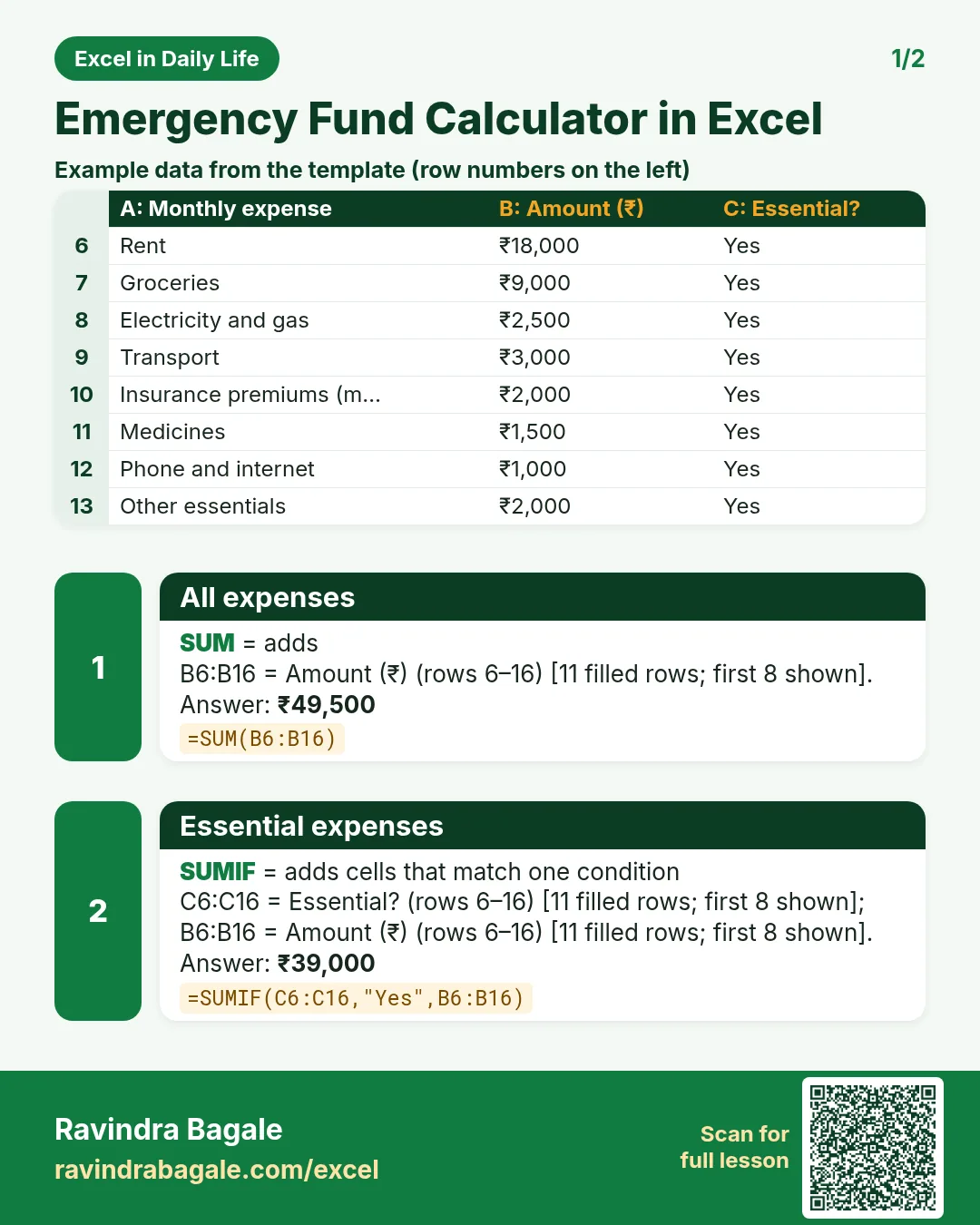
Revision card 1 for Emergency Fund Calculator in Excel: All expenses: =SUM(B6:B16) gives ₹49,500; Essential expenses: =SUMIF(C6:C16,"Yes",B6:B16) gives ₹39,000. Includes an example data table.
Card 1 of 2: Emergency Fund Calculator in Excel · Download PNG · Open card page
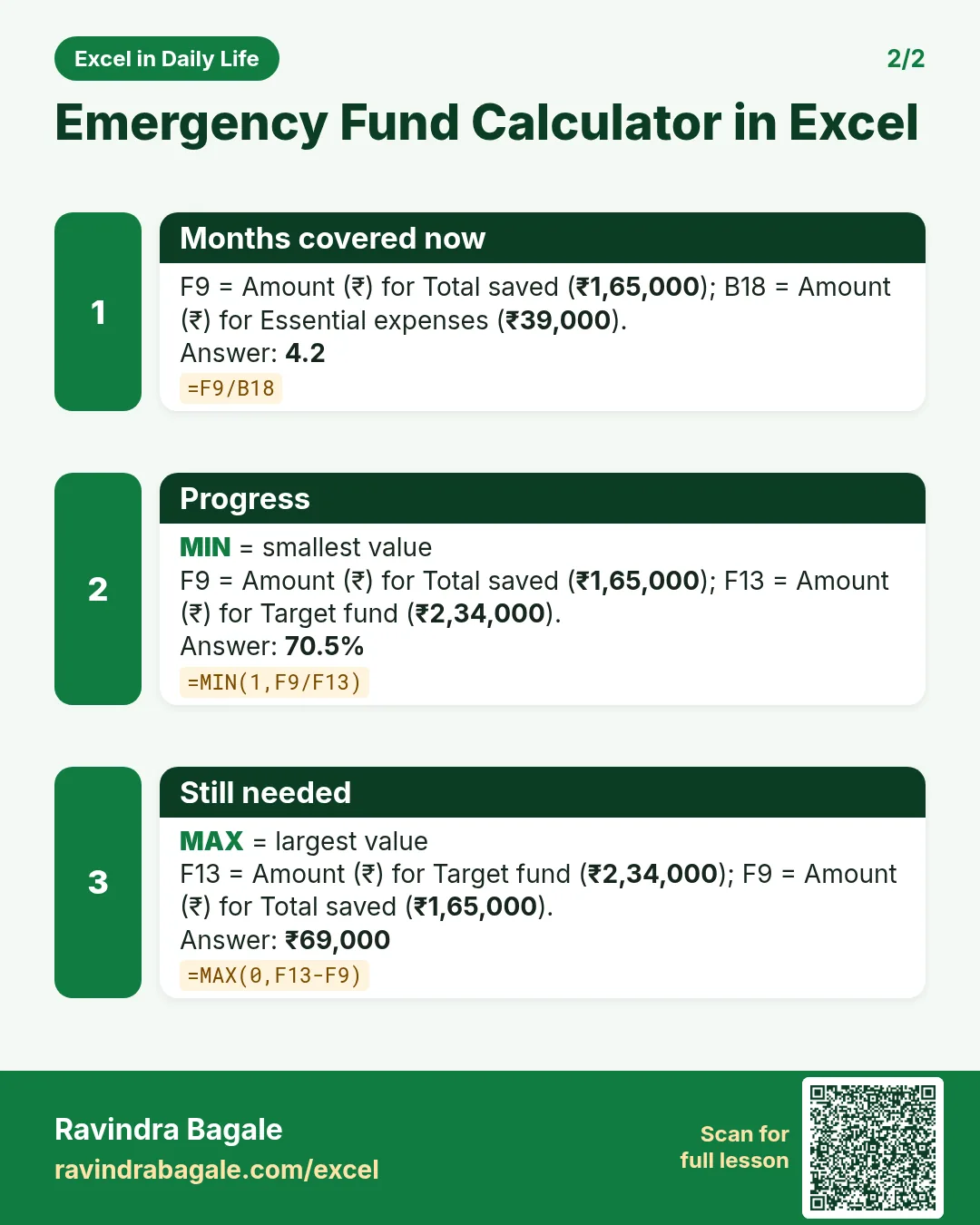
Revision card 2 for Emergency Fund Calculator in Excel: Months covered now: =F9/B18 gives 4.2; Progress: =MIN(1,F9/F13) gives 70.5%; Still needed: =MAX(0,F13-F9) gives ₹69,000.
Card 2 of 2: Emergency Fund Calculator in Excel · Download PNG · Open card page

Shopping Offer Comparison in Excel: Buy 2 Get 1 Free vs % Off vs Flat ₹ Off

Excel in Daily Life · 2 cards · Open the lesson
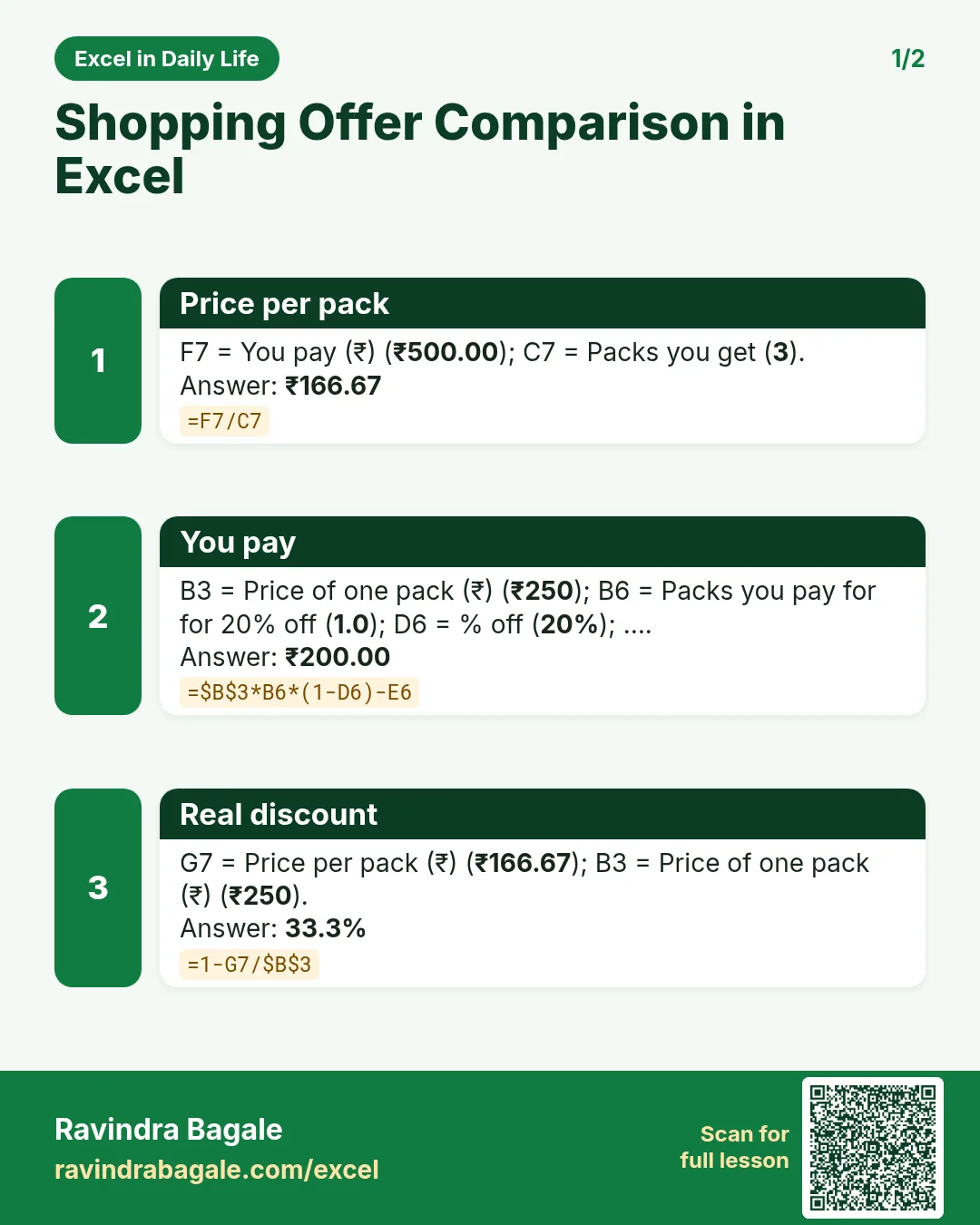
Revision card 1 for Shopping Offer Comparison in Excel: Price per pack: =F7/C7 gives ₹166.67; You pay: =$B$3*B6*(1-D6)-E6 gives ₹200.00; Real discount: =1-G7/$B$3 gives 33.3%.
Card 1 of 2: Shopping Offer Comparison in Excel · Download PNG · Open card page
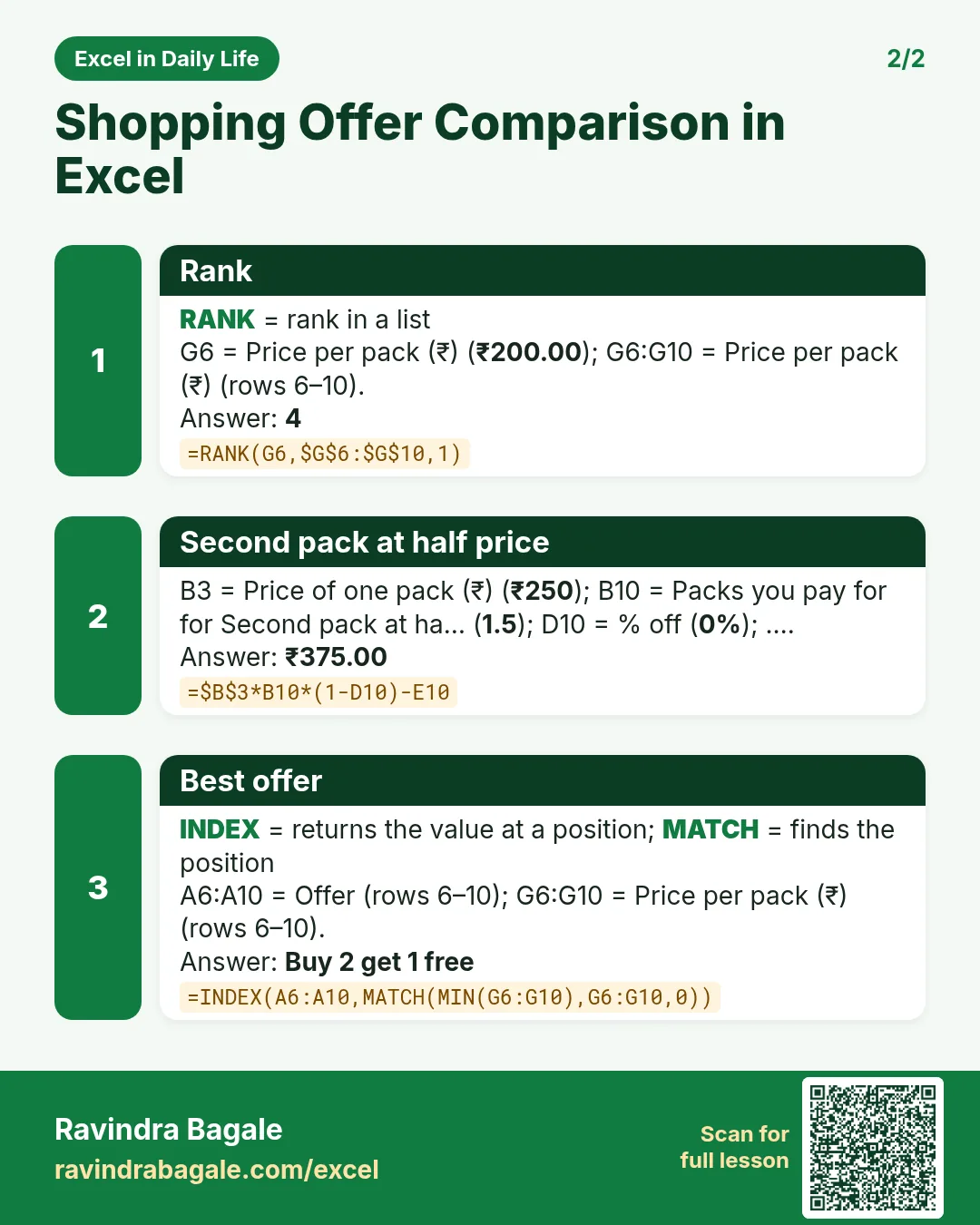
Revision card 2 for Shopping Offer Comparison in Excel: Rank: =RANK(G6,$G$6:$G$10,1) gives 4; Second pack at half price: =$B$3*B10*(1-D10)-E10 gives ₹375.00; Best offer: =INDEX(A6:A10,MATCH(MIN(G6:G10),G6:G10,0)) gives Buy 2 get 1 free.
Card 2 of 2: Shopping Offer Comparison in Excel · Download PNG · Open card page

Gym Workout Log in Excel: Sets, Reps, Volume and Personal Bests with MAXIFS

Excel in Daily Life · 2 cards · Open the lesson

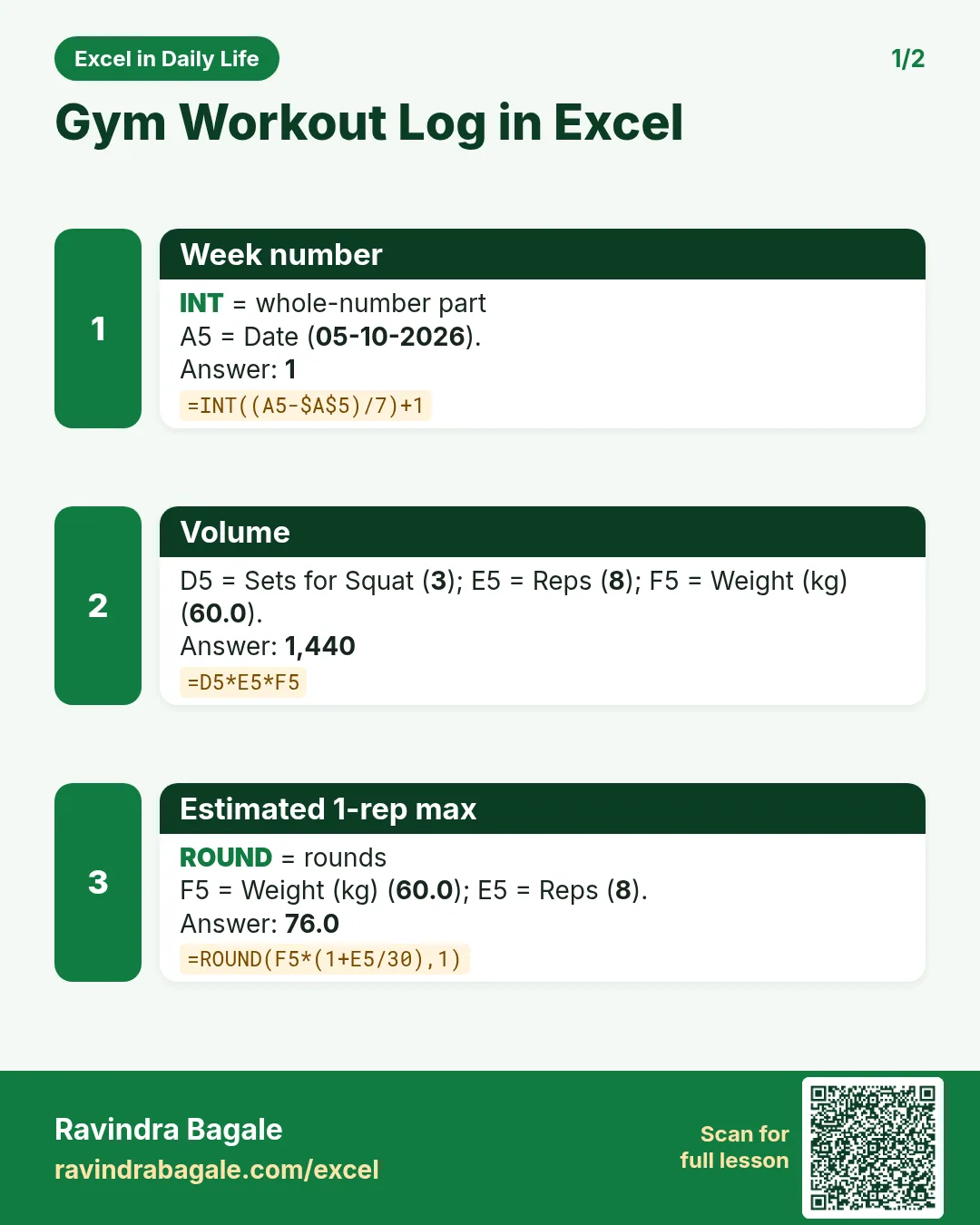
Revision card 1 for Gym Workout Log in Excel: Week number: =INT((A5-$A$5)/7)+1 gives 1; Volume: =D5*E5*F5 gives 1,440; Estimated 1-rep max: =ROUND(F5*(1+E5/30),1) gives 76.0.
Card 1 of 2: Gym Workout Log in Excel · Download PNG · Open card page
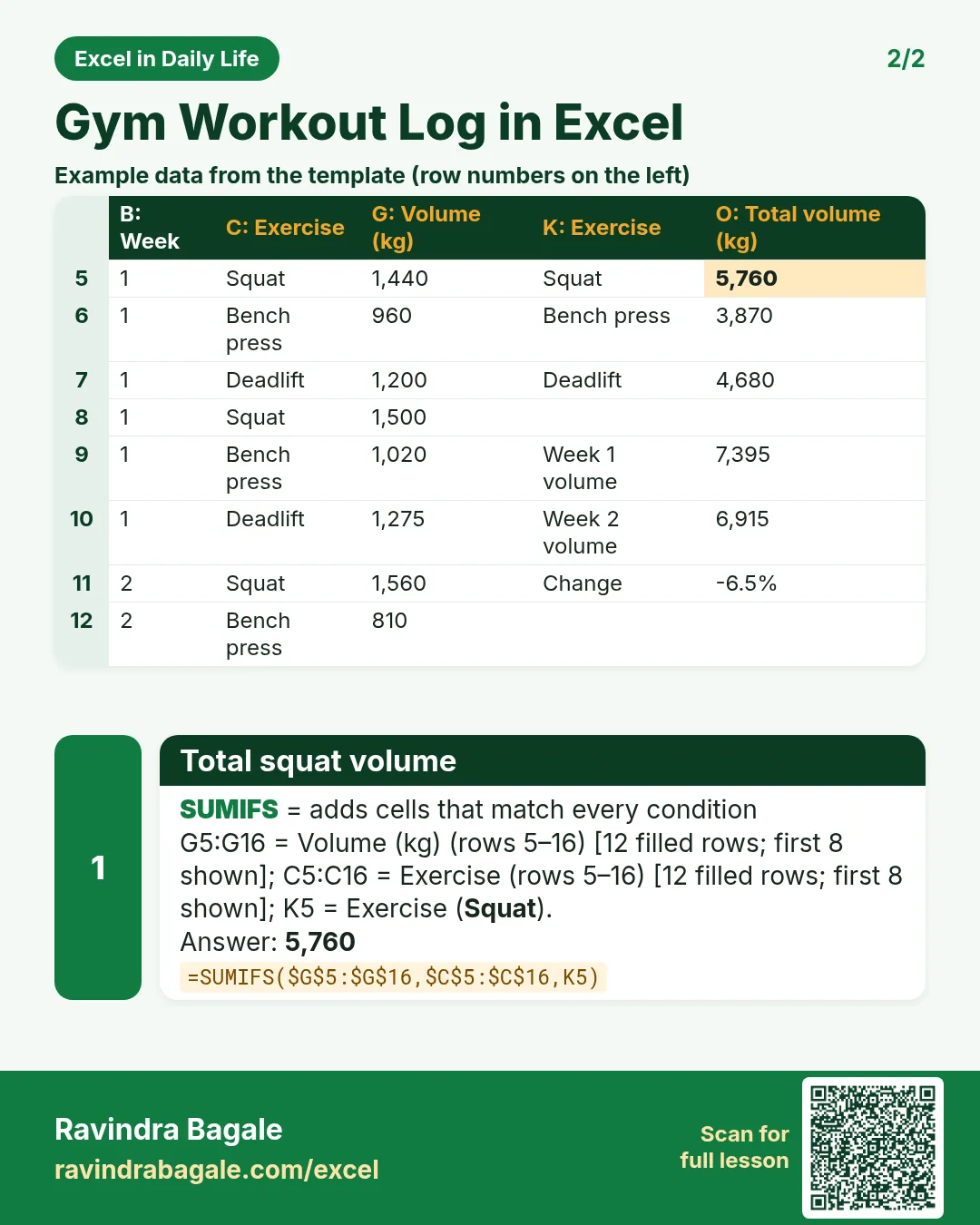
Revision card 2 for Gym Workout Log in Excel: Total squat volume: =SUMIFS($G$5:$G$16,$C$5:$C$16,K5) gives 5,760. Includes an example data table.
Card 2 of 2: Gym Workout Log in Excel · Download PNG · Open card page

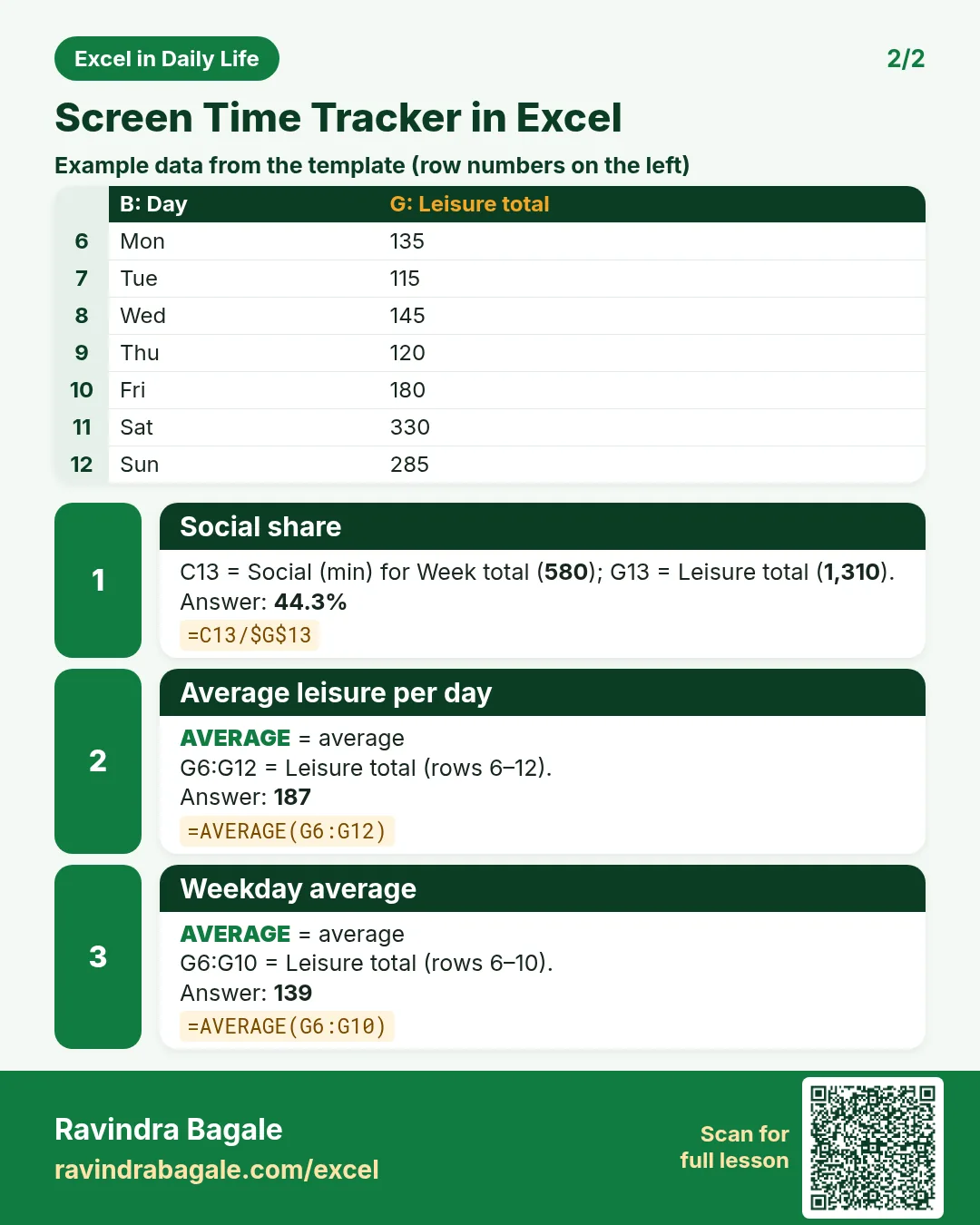
Screen Time Tracker in Excel: Daily Leisure Limit, Weekday vs Weekend and Stacked Chart

Excel in Daily Life · 2 cards · Open the lesson
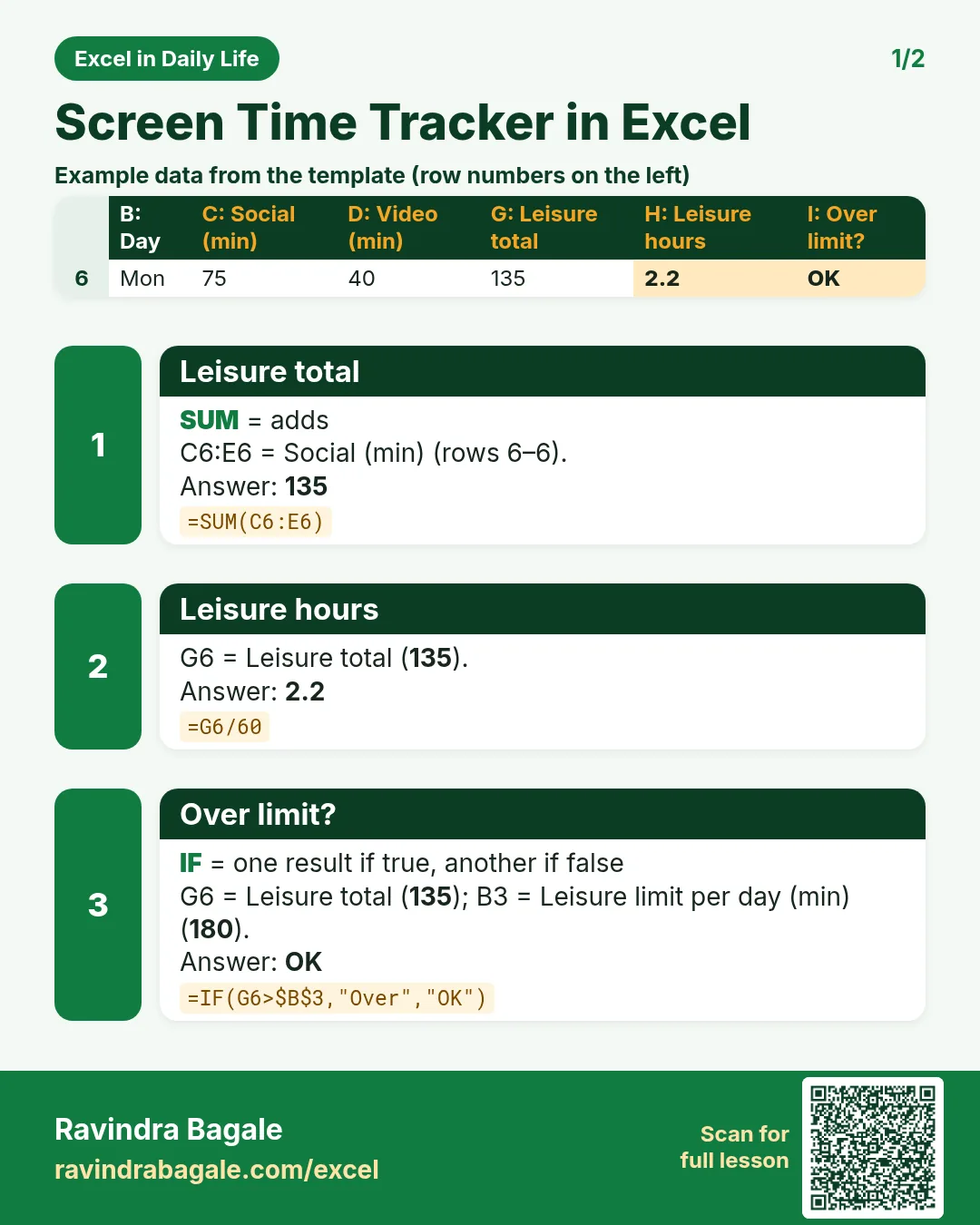
Revision card 1 for Screen Time Tracker in Excel: Leisure total: =SUM(C6:E6) gives 135; Leisure hours: =G6/60 gives 2.2; Over limit?: =IF(G6>$B$3,"Over","OK") gives OK. Includes an example data table.
Card 1 of 2: Screen Time Tracker in Excel · Download PNG · Open card page
Revision card 2 for Screen Time Tracker in Excel: Social share: =C13/$G$13 gives 44.3%; Average leisure per day: =AVERAGE(G6:G12) gives 187; Weekday average: =AVERAGE(G6:G10) gives 139. Includes an example data table.
Card 2 of 2: Screen Time Tracker in Excel · Download PNG · Open card page

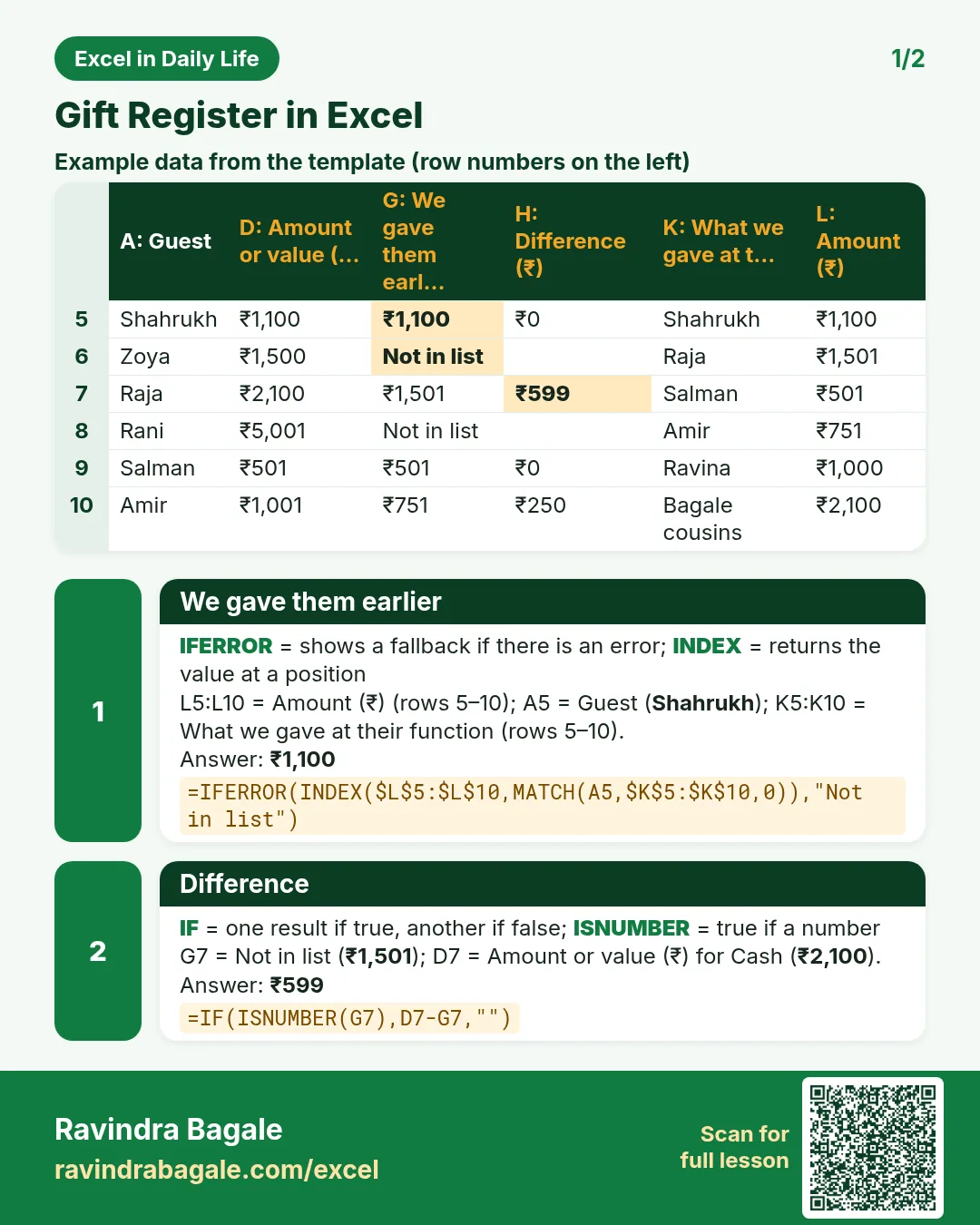
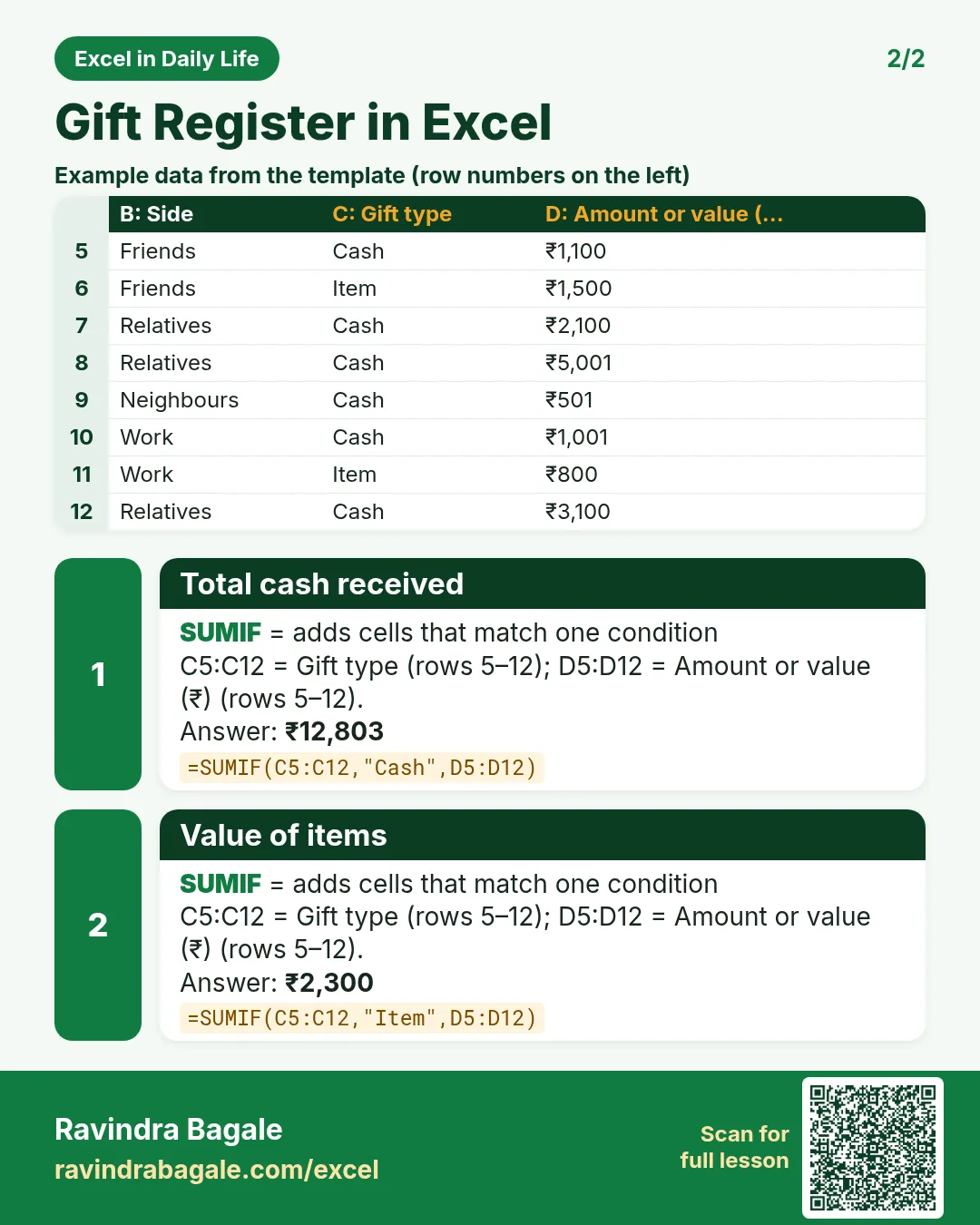
Gift Register for a Function in Excel: Cash Gifts, Items and What We Gave Them Earlier

Excel in Daily Life · 2 cards · Open the lesson

Revision card 1 for Gift Register in Excel: We gave them earlier: =IFERROR(INDEX($L$5:$L$10,MATCH(A5,$K$5:$K$10,0)),"Not in list") gives ₹1,100; Difference: =IF(ISNUMBER(G7),D7-G7,"") gives ₹599. Includes an example data table.
Card 1 of 2: Gift Register in Excel · Download PNG · Open card page
Revision card 2 for Gift Register in Excel: Total cash received: =SUMIF(C5:C12,"Cash",D5:D12) gives ₹12,803; Value of items: =SUMIF(C5:C12,"Item",D5:D12) gives ₹2,300. Includes an example data table.
Card 2 of 2: Gift Register in Excel · Download PNG · Open card page

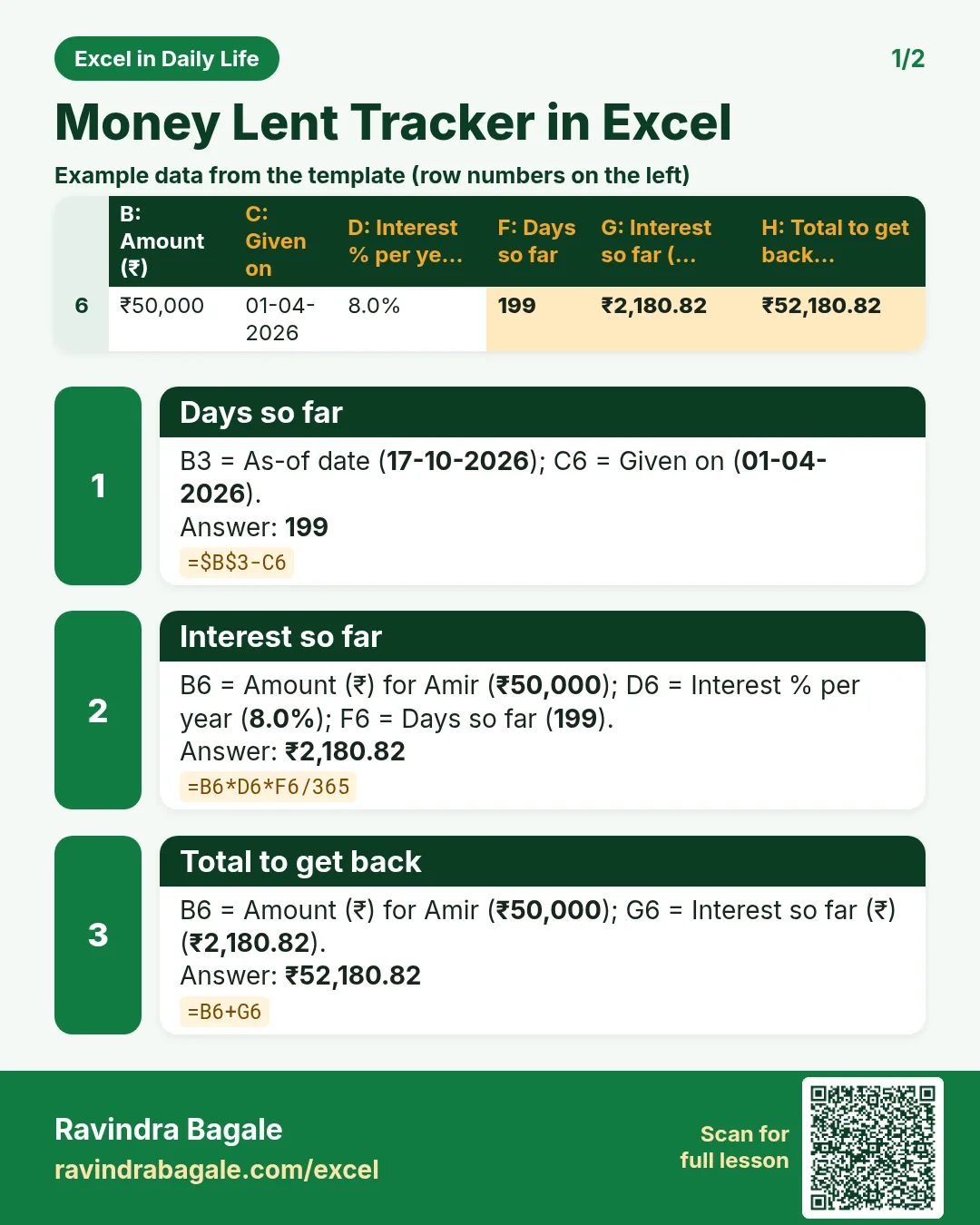
Money Lent Tracker in Excel: Simple Interest by Days, Total Due and Overdue Loans

Excel in Daily Life · 2 cards · Open the lesson
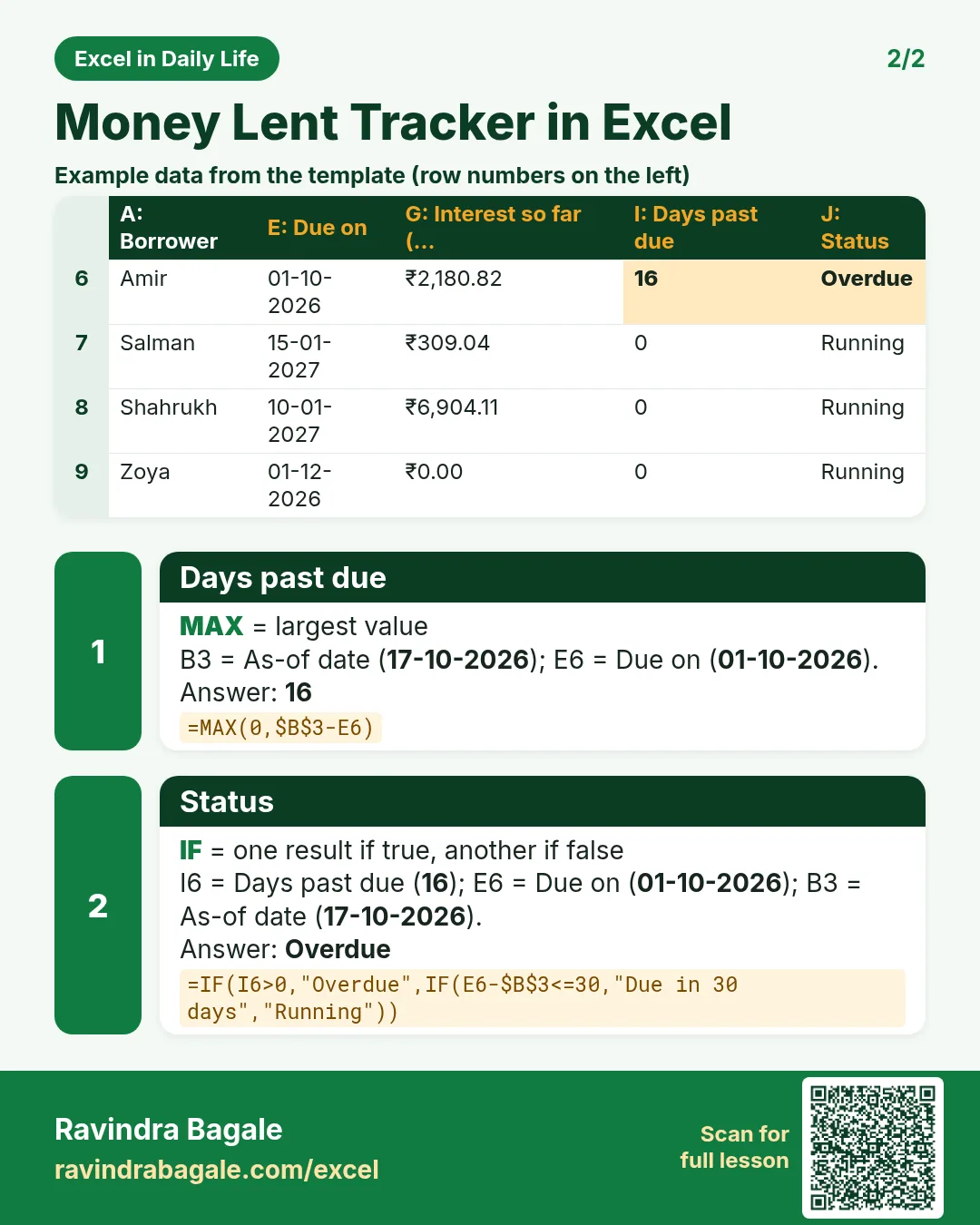
Revision card 1 for Money Lent Tracker in Excel: Days so far: =$B$3-C6 gives 199; Interest so far: =B6*D6*F6/365 gives ₹2,180.82; Total to get back: =B6+G6 gives ₹52,180.82. Includes an example data table.
Card 1 of 2: Money Lent Tracker in Excel · Download PNG · Open card page
Revision card 2 for Money Lent Tracker in Excel: Days past due: =MAX(0,$B$3-E6) gives 16; Status: =IF(I6>0,"Overdue",IF(E6-$B$3<=30,"Due in 30 days","Running")) gives Overdue. Includes an example data table.
Card 2 of 2: Money Lent Tracker in Excel · Download PNG · Open card page

Vegetable Stall Profit Tracker in Excel: Daily Profit, Margin, Waste % and Break-even Price

Excel in Daily Life · 2 cards · Open the lesson

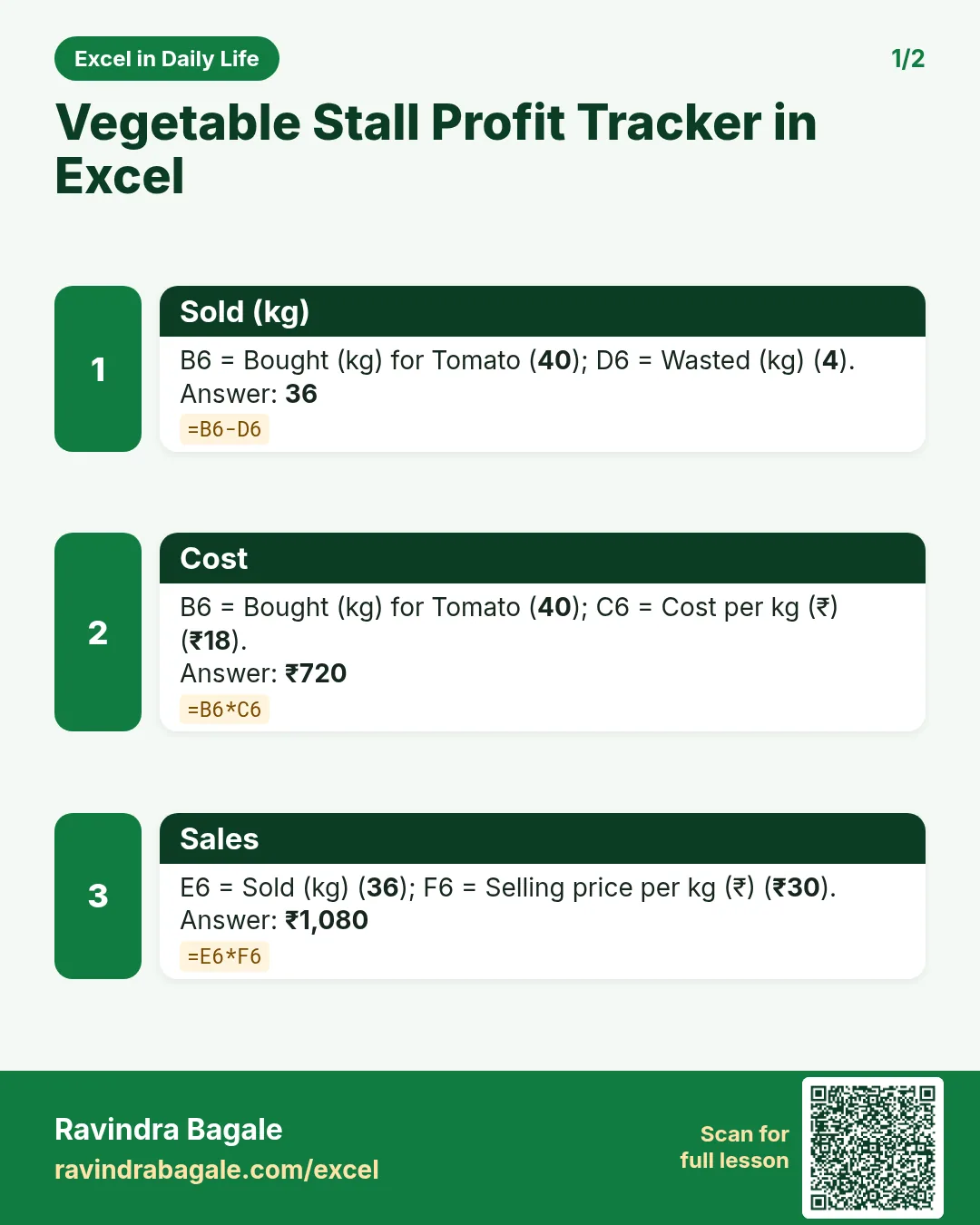
Revision card 1 for Vegetable Stall Profit Tracker in Excel: Sold (kg): =B6-D6 gives 36; Cost: =B6*C6 gives ₹720; Sales: =E6*F6 gives ₹1,080.
Card 1 of 2: Vegetable Stall Profit Tracker in Excel · Download PNG · Open card page
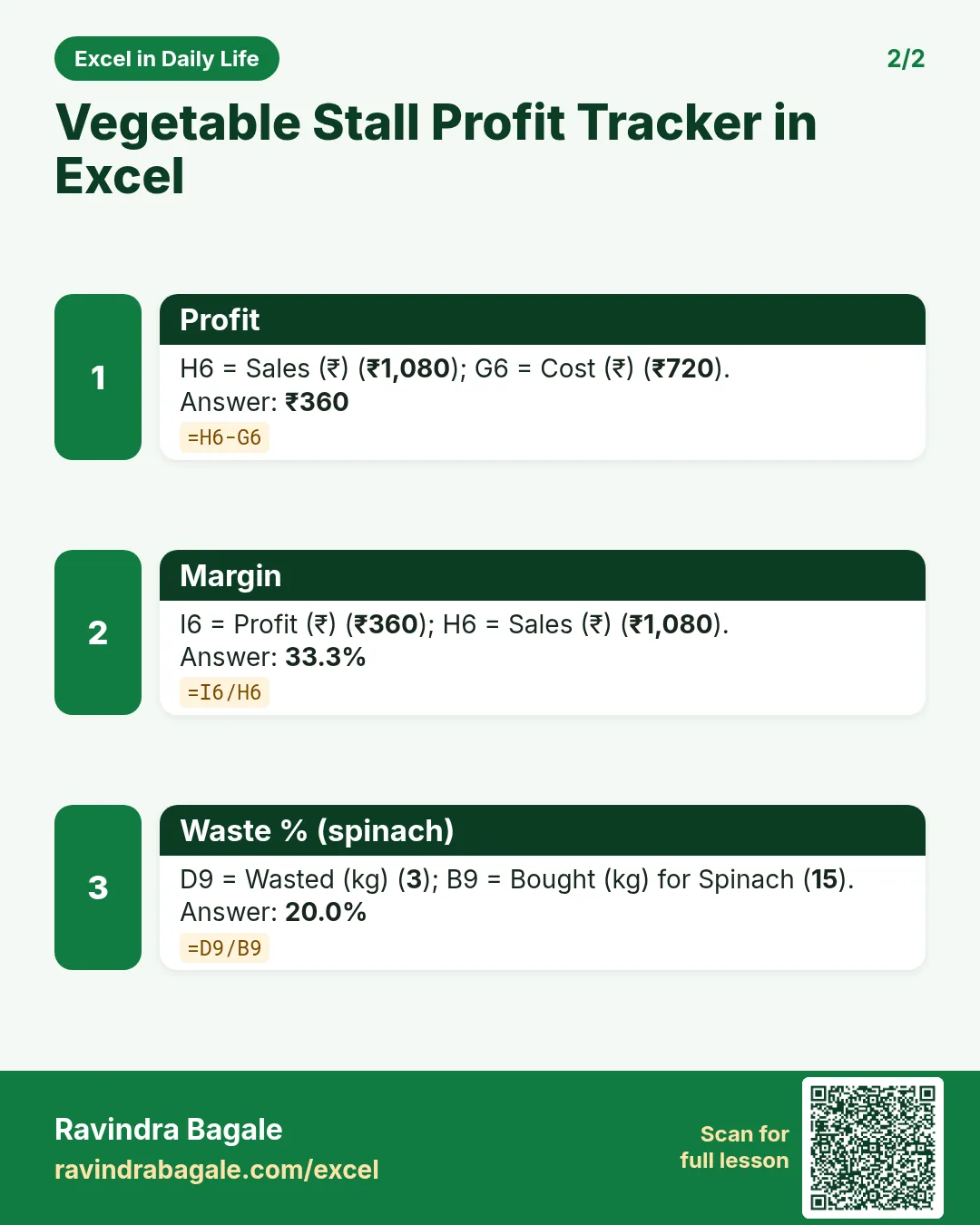
Revision card 2 for Vegetable Stall Profit Tracker in Excel: Profit: =H6-G6 gives ₹360; Margin: =I6/H6 gives 33.3%; Waste % (spinach): =D9/B9 gives 20.0%.
Card 2 of 2: Vegetable Stall Profit Tracker in Excel · Download PNG · Open card page

Cricket Batting Stats in Excel: Batting Average, Strike Rate and Player Rank

Excel in Daily Life · 2 cards · Open the lesson
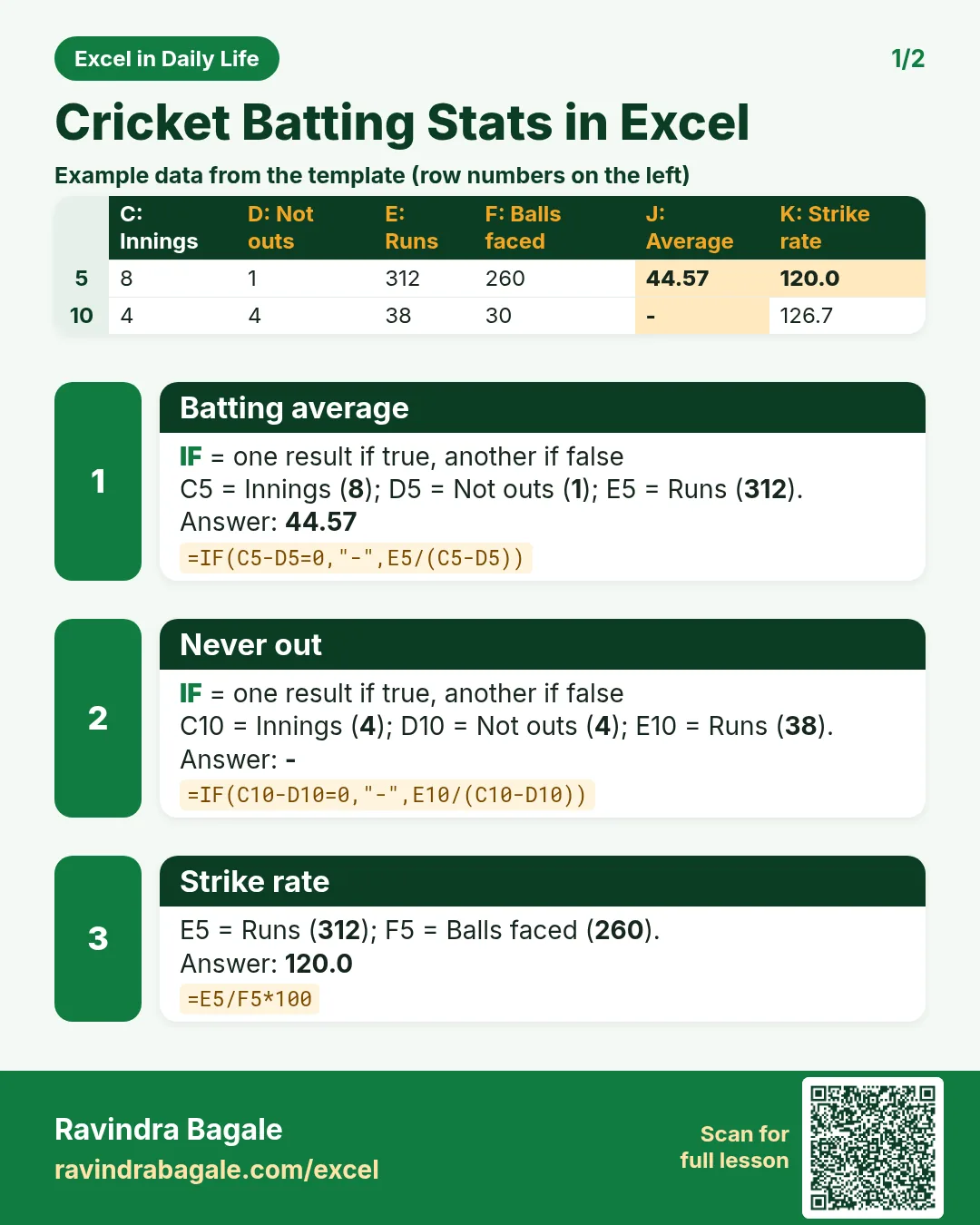
Revision card 1 for Cricket Batting Stats in Excel: Batting average: =IF(C5-D5=0,"-",E5/(C5-D5)) gives 44.57; Never out: =IF(C10-D10=0,"-",E10/(C10-D10)) gives -; Strike rate: =E5/F5*100 gives 120.0. Includes an example data table.
Card 1 of 2: Cricket Batting Stats in Excel · Download PNG · Open card page
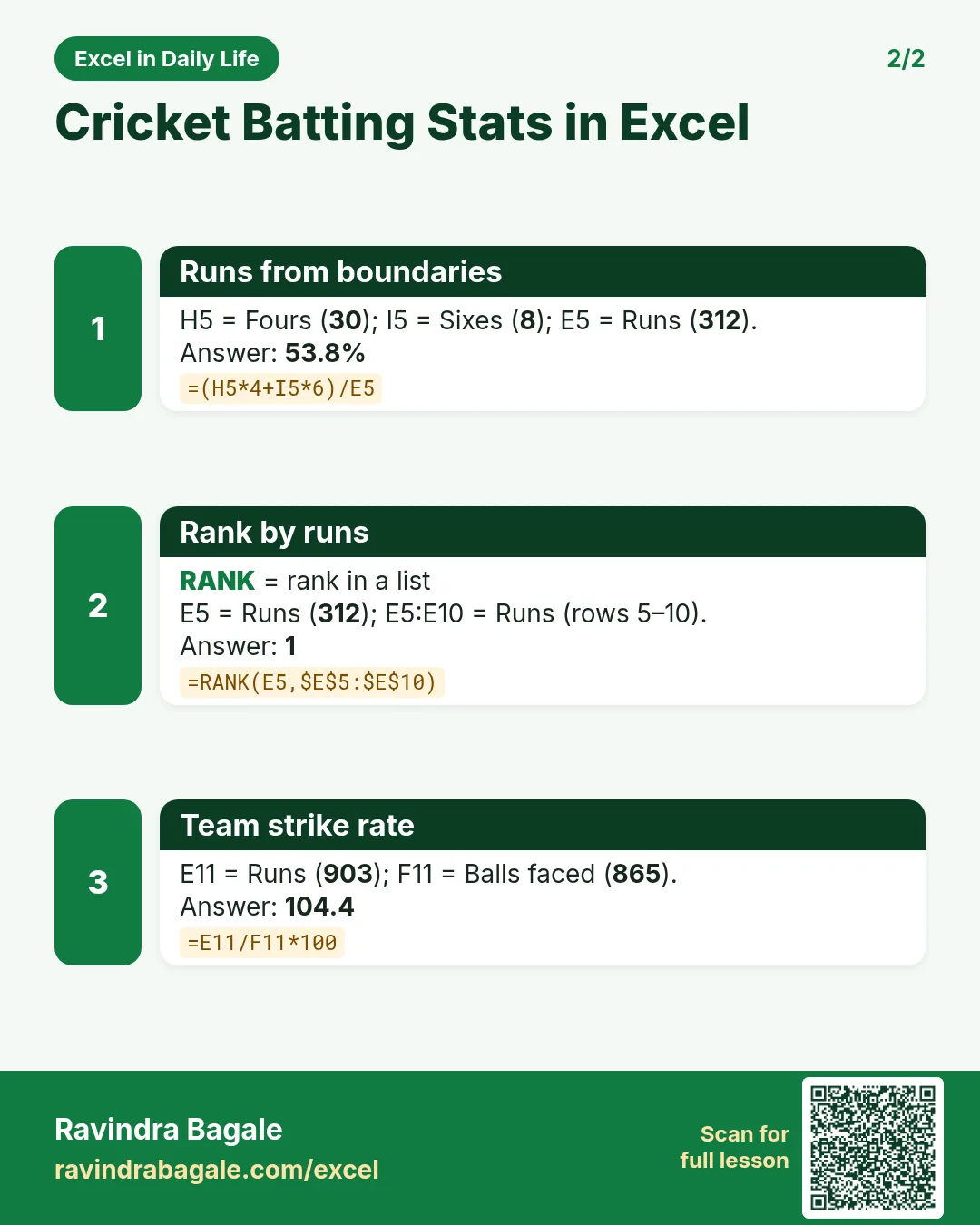
Revision card 2 for Cricket Batting Stats in Excel: Runs from boundaries: =(H5*4+I5*6)/E5 gives 53.8%; Rank by runs: =RANK(E5,$E$5:$E$10) gives 1; Team strike rate: =E11/F11*100 gives 104.4.
Card 2 of 2: Cricket Batting Stats in Excel · Download PNG · Open card page

Appliance Electricity Cost Calculator in Excel: Watts to Units (kWh) and Monthly Cost

Excel in Daily Life · 2 cards · Open the lesson

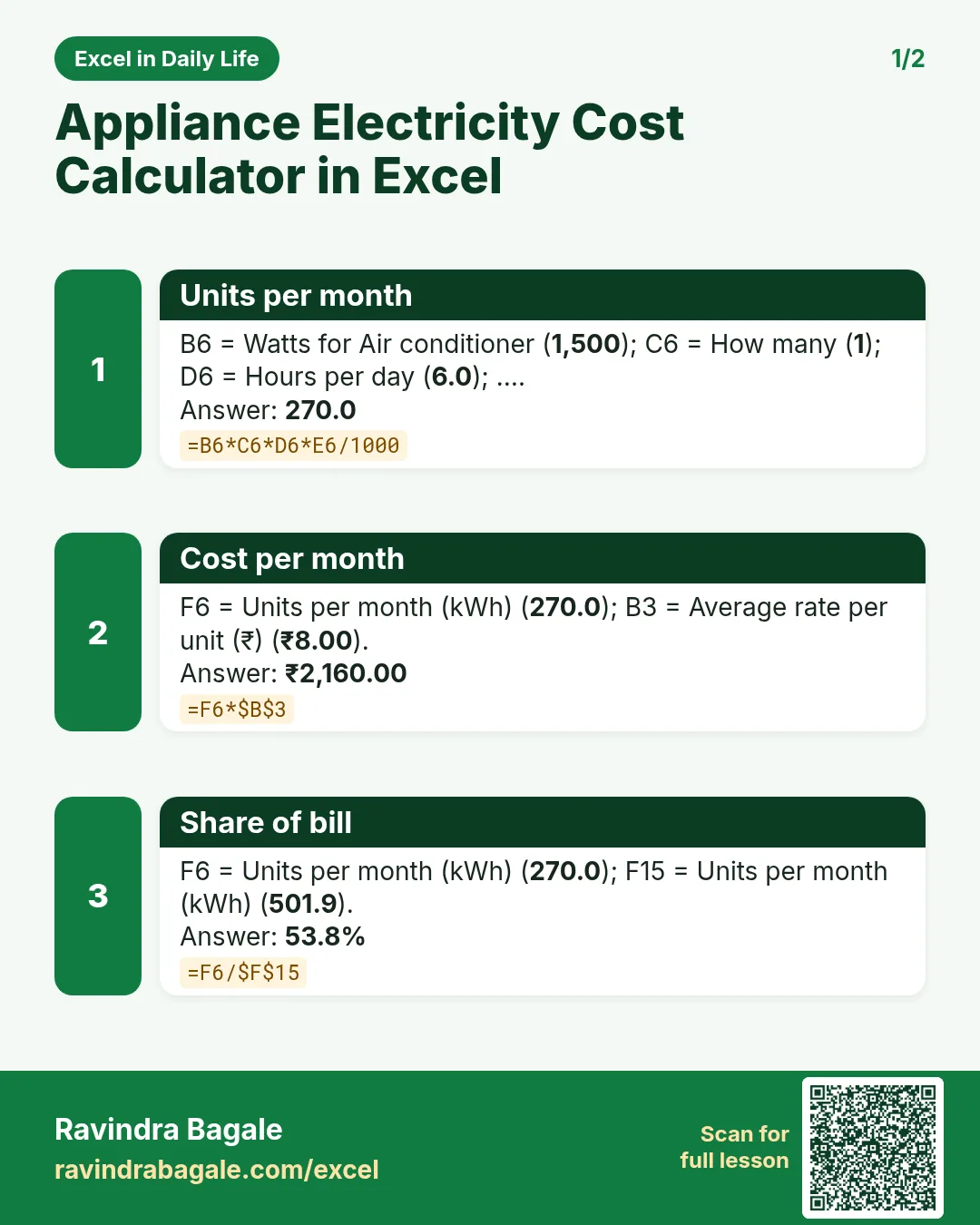
Revision card 1 for Appliance Electricity Cost Calculator in Excel: Units per month: =B6*C6*D6*E6/1000 gives 270.0; Cost per month: =F6*$B$3 gives ₹2,160.00; Share of bill: =F6/$F$15 gives 53.8%.
Card 1 of 2: Appliance Electricity Cost Calculator in Excel · Download PNG · Open card page
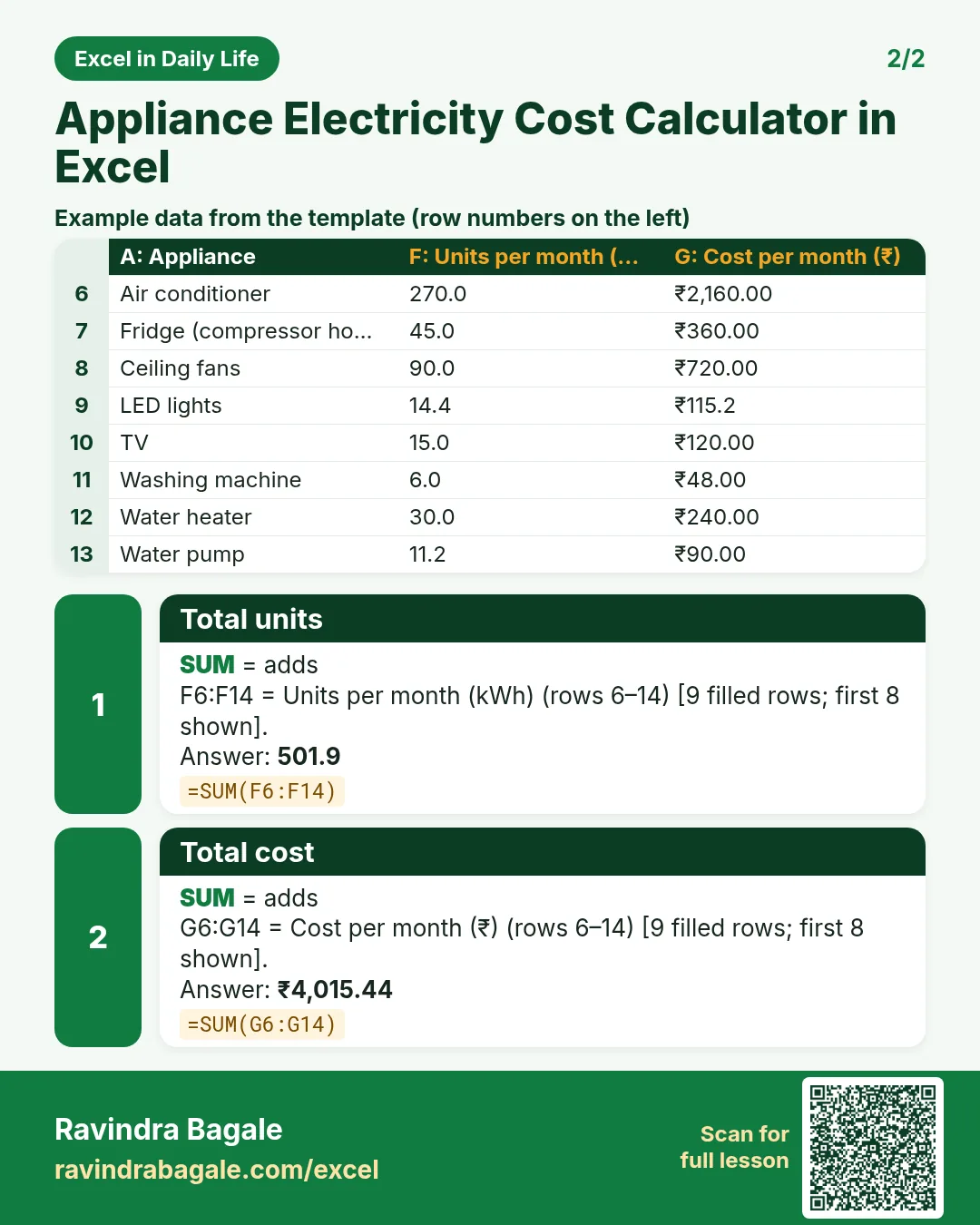
Revision card 2 for Appliance Electricity Cost Calculator in Excel: Total units: =SUM(F6:F14) gives 501.9; Total cost: =SUM(G6:G14) gives ₹4,015.44. Includes an example data table.
Card 2 of 2: Appliance Electricity Cost Calculator in Excel · Download PNG · Open card page

Own Car vs Cab Cost in Excel: Monthly Cost per Km and Break-even Distance

Excel in Daily Life · 2 cards · Open the lesson
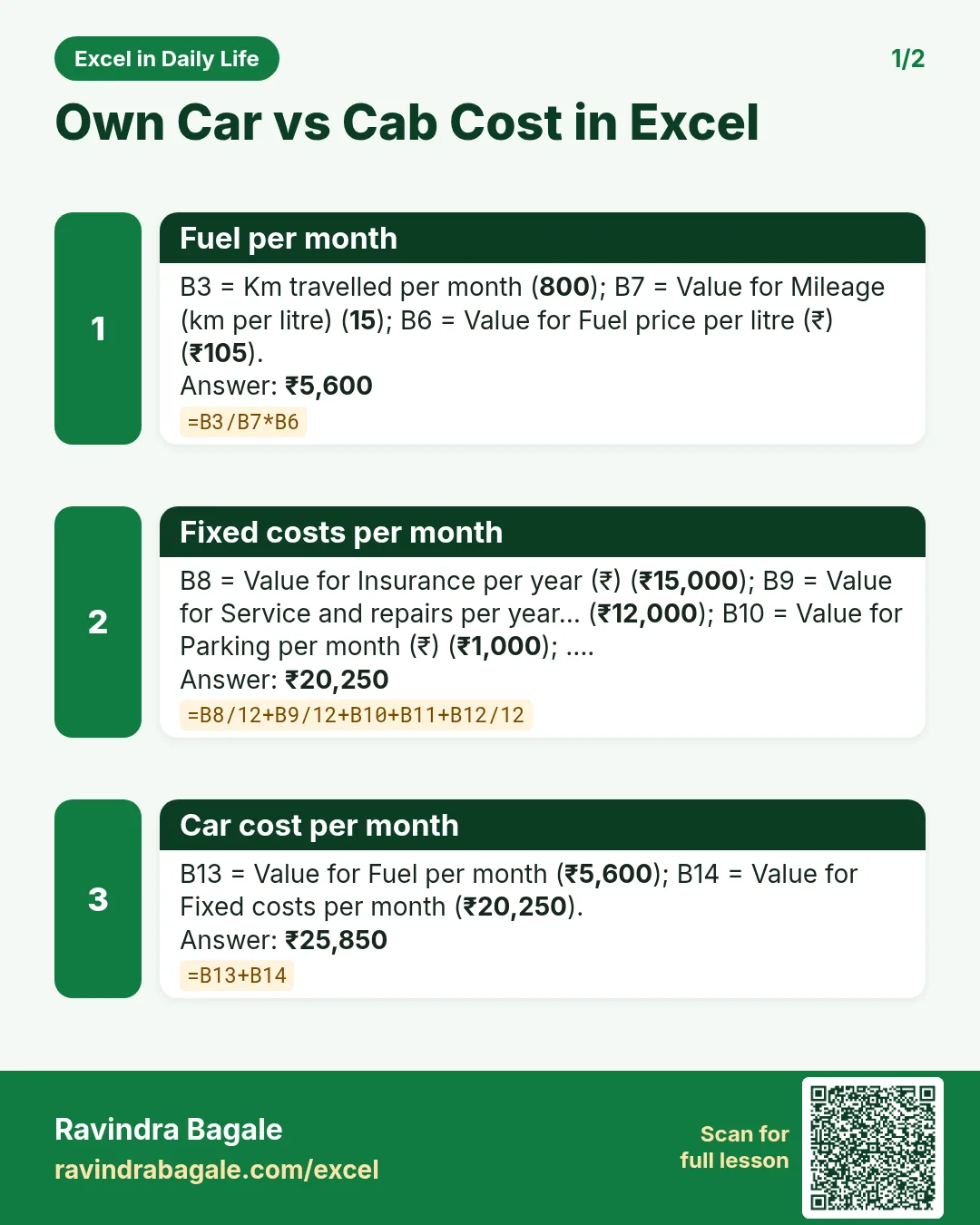
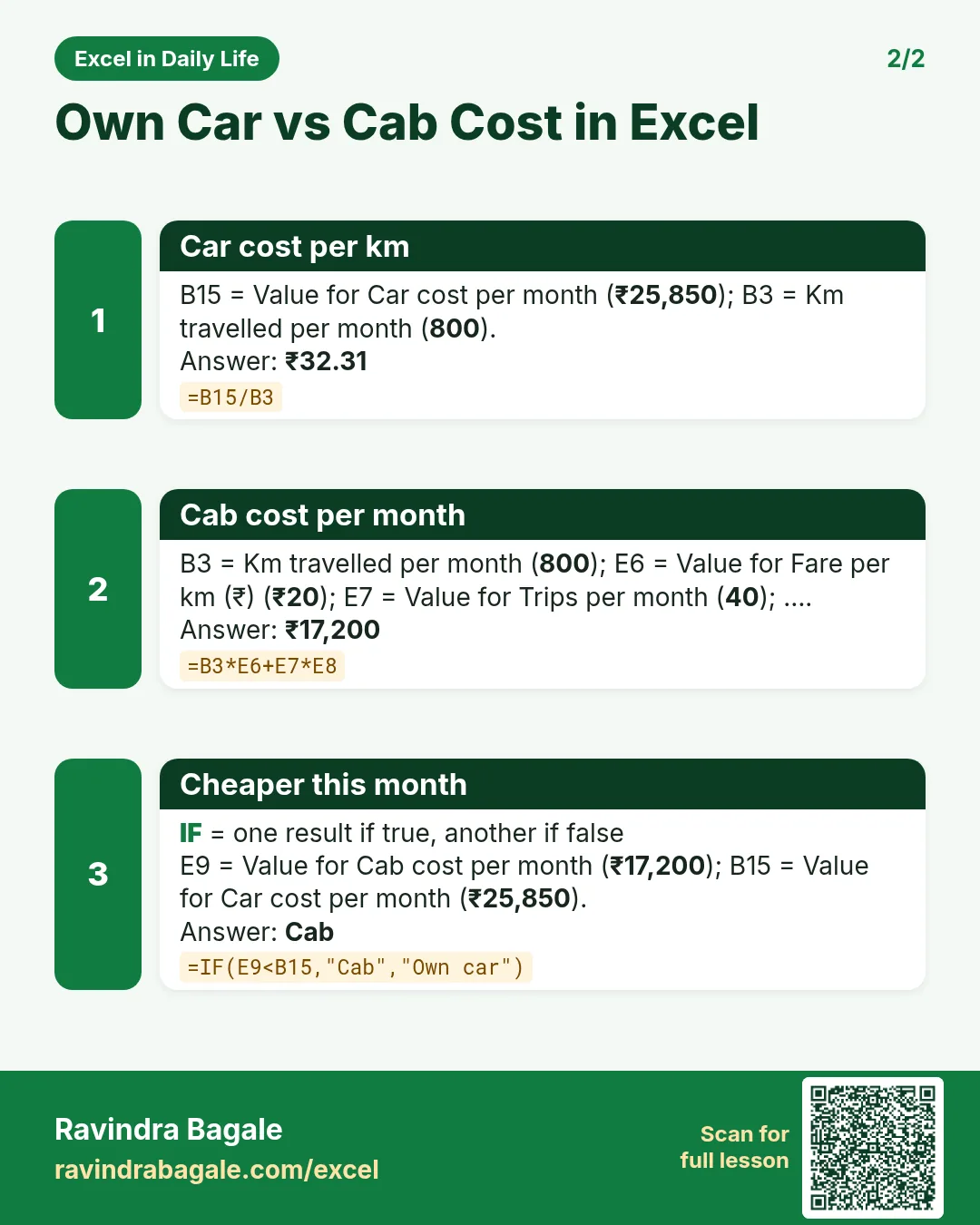
Revision card 1 for Own Car vs Cab Cost in Excel: Fuel per month: =B3/B7*B6 gives ₹5,600; Fixed costs per month: =B8/12+B9/12+B10+B11+B12/12 gives ₹20,250; Car cost per month: =B13+B14 gives ₹25,850.
Card 1 of 2: Own Car vs Cab Cost in Excel · Download PNG · Open card page
Revision card 2 for Own Car vs Cab Cost in Excel: Car cost per km: =B15/B3 gives ₹32.31; Cab cost per month: =B3*E6+E7*E8 gives ₹17,200; Cheaper this month: =IF(E9<B15,"Cab","Own car") gives Cab.
Card 2 of 2: Own Car vs Cab Cost in Excel · Download PNG · Open card page

Excel for Business

Employee Attendance Management System in Excel: Monthly Codes, Leave Balance, Late Marks and Dashboard

Excel for Business · 2 cards · Open the lesson
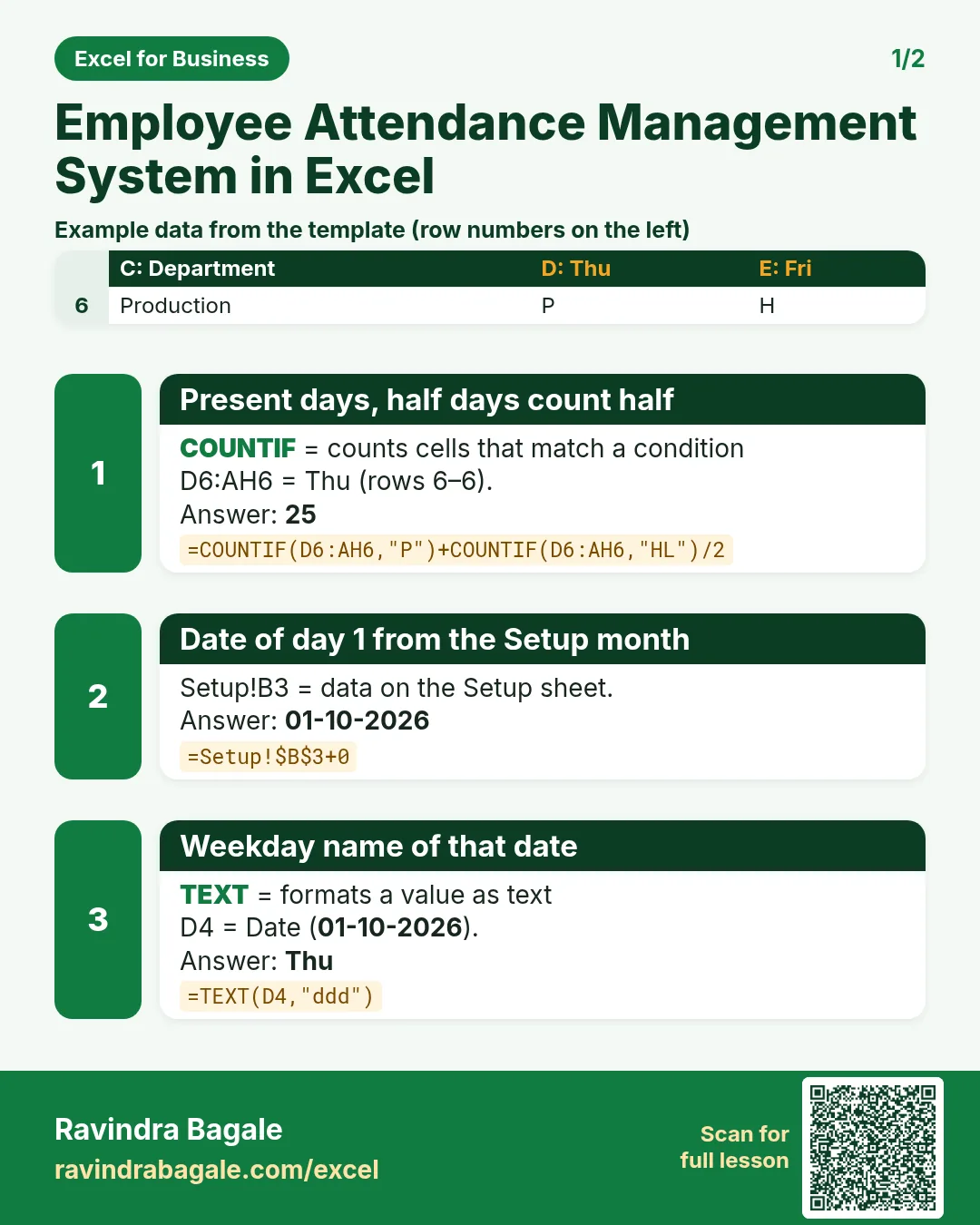
Revision card 1 for Employee Attendance Management System in Excel: Present days, half days count half: =COUNTIF(D6:AH6,"P")+COUNTIF(D6:AH6,"HL")/2 gives 25; Date of day 1 from the Setup month: =Setup!$B$3+0 gives 01-10-2026; Weekday name of that date: =TEXT(D4,"ddd") gives Thu. Includes an example data table.
Card 1 of 2: Employee Attendance Management System in Excel · Download PNG · Open card page
Revision card 2 for Employee Attendance Management System in Excel: Weekly offs plus holidays: =COUNTIF(D6:AH6,"WO")+COUNTIF(D6:AH6,"H") gives 5; Payable days before the late rule: =AI6+AL6+AM6 gives 31; Working days in the month: =DAY(EOMONTH(Setup!$B$3,0))-AM6 gives 26.
Card 2 of 2: Employee Attendance Management System in Excel · Download PNG · Open card page

Salary Slip Generator in Excel: Employee Master, Monthly Inputs and a Printable Payslip for Any Employee

Excel for Business · 2 cards · Open the lesson

Revision card 1 for Salary Slip Generator in Excel: Gross earned: =SUM(E5:I5) gives ₹40,000; Days in the salary month: =DAY(EOMONTH(B4,0)) gives 31; PF 12% of earned basic up to the ceiling: =ROUND(MIN(E5,Setup!$B$11)*Setup!$B$12,0) gives ₹2,880. Includes an example data table.
Card 1 of 2: Salary Slip Generator in Excel · Download PNG · Open card page
Revision card 2 for Salary Slip Generator in Excel: Total deductions: =SUM(K5:O5) gives ₹4,280; Net pay: =J5-P5 gives ₹35,720; Month written out: =TEXT(Setup!B4,"mmmm yyyy") gives October 2026. Includes an example data table.
Card 2 of 2: Salary Slip Generator in Excel · Download PNG · Open card page

Payroll Calculator in Excel with PF, ESI and Professional Tax: Employer Cost, Statutory Dues and Bank Transfer List

Excel for Business · 2 cards · Open the lesson
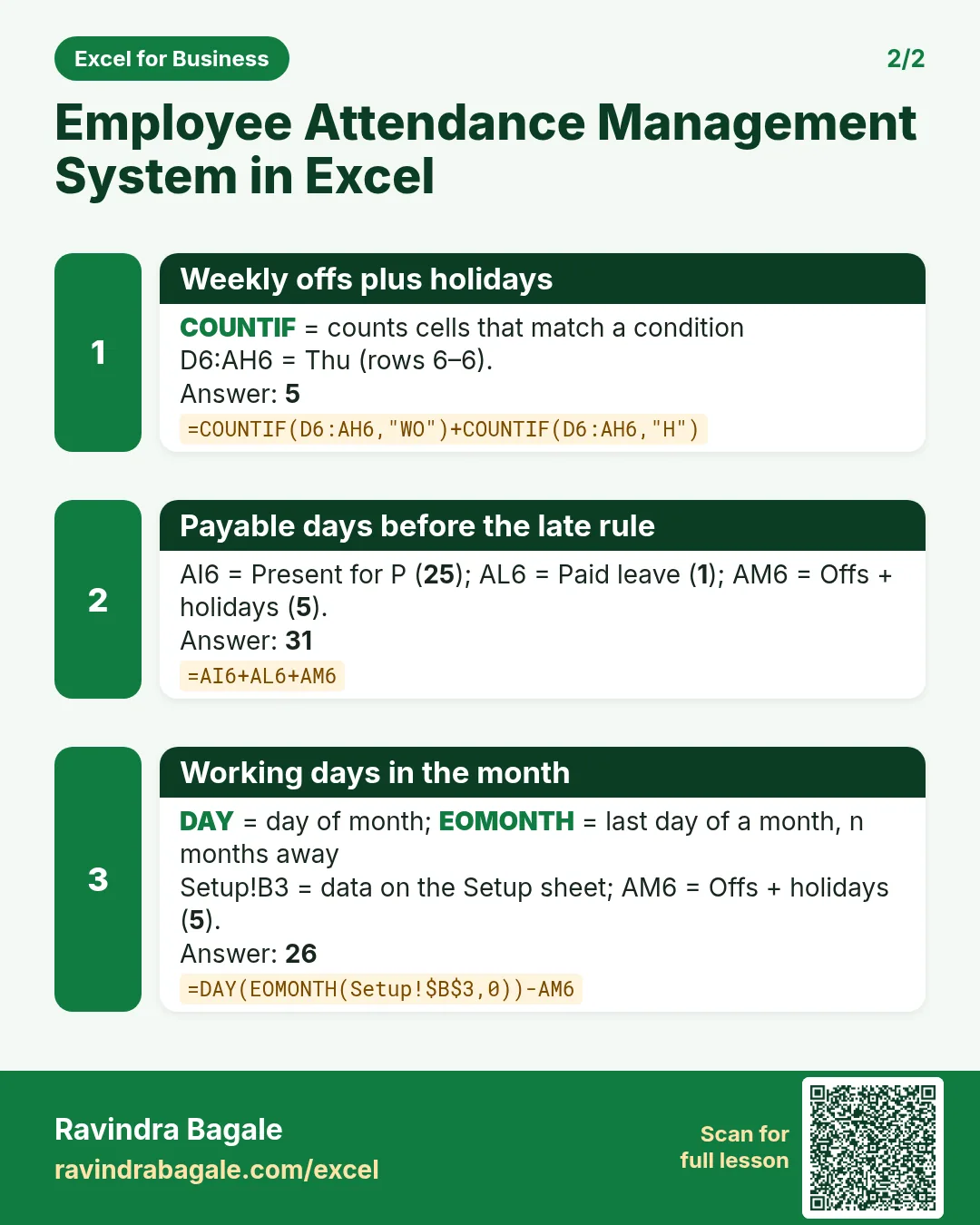
Revision card 1 for Payroll Calculator in Excel: Days in the payroll month: =DAY(EOMONTH(B4,0)) gives 31; Gross earned: =F5+G5+H5 gives ₹40,000; PF wages capped at the ceiling: =MIN(F5,Setup!$B$11) gives ₹24,000. Includes an example data table.
Card 1 of 2: Payroll Calculator in Excel · Download PNG · Open card page
Revision card 2 for Payroll Calculator in Excel: Net pay: =I5-SUM(K5:O5) gives ₹35,720; Employee PF 12%: =ROUND(J5*Setup!$B$12,0) gives ₹2,880; Employer share to EPS 8.33%: =ROUND(J5*Setup!$B$13,0) gives ₹1,999. Includes an example data table.
Card 2 of 2: Payroll Calculator in Excel · Download PNG · Open card page

Software Project Management System in Excel: Task Tracker, Sprint Burndown, Risk Register and Project Dashboard

Excel for Business · 2 cards · Open the lesson

Revision card 1 for Software Project Management System in Excel: Variance: actual − estimate: =J5-I5 gives 4; Hours planned in the sprint: =SUMIFS(Tasks!$I$5:$I$60,Tasks!$F$5:$F$60,B4) gives 178; Ideal remaining hours: =ROUND($B$5*(1-(A8-$A$8)/($A$21-$A$8)),1) gives 178.0. Includes an example data table.
Card 1 of 2: Software Project Management System in Excel · Download PNG · Open card page
Revision card 2 for Software Project Management System in Excel: Risk score: =B5*C5 gives 16; Risk rating: =IF(D5>=15,"High",IF(D5>=8,"Medium","Low")) gives High; Tasks per owner: =COUNTIF(Tasks!$D$5:$D$60,A5) gives 3. Includes an example data table.
Card 2 of 2: Software Project Management System in Excel · Download PNG · Open card page

Vendor Management System in Excel: Purchase Orders, Bills, Payments, Payable Ageing and Vendor Scorecard

Excel for Business · 2 cards · Open the lesson
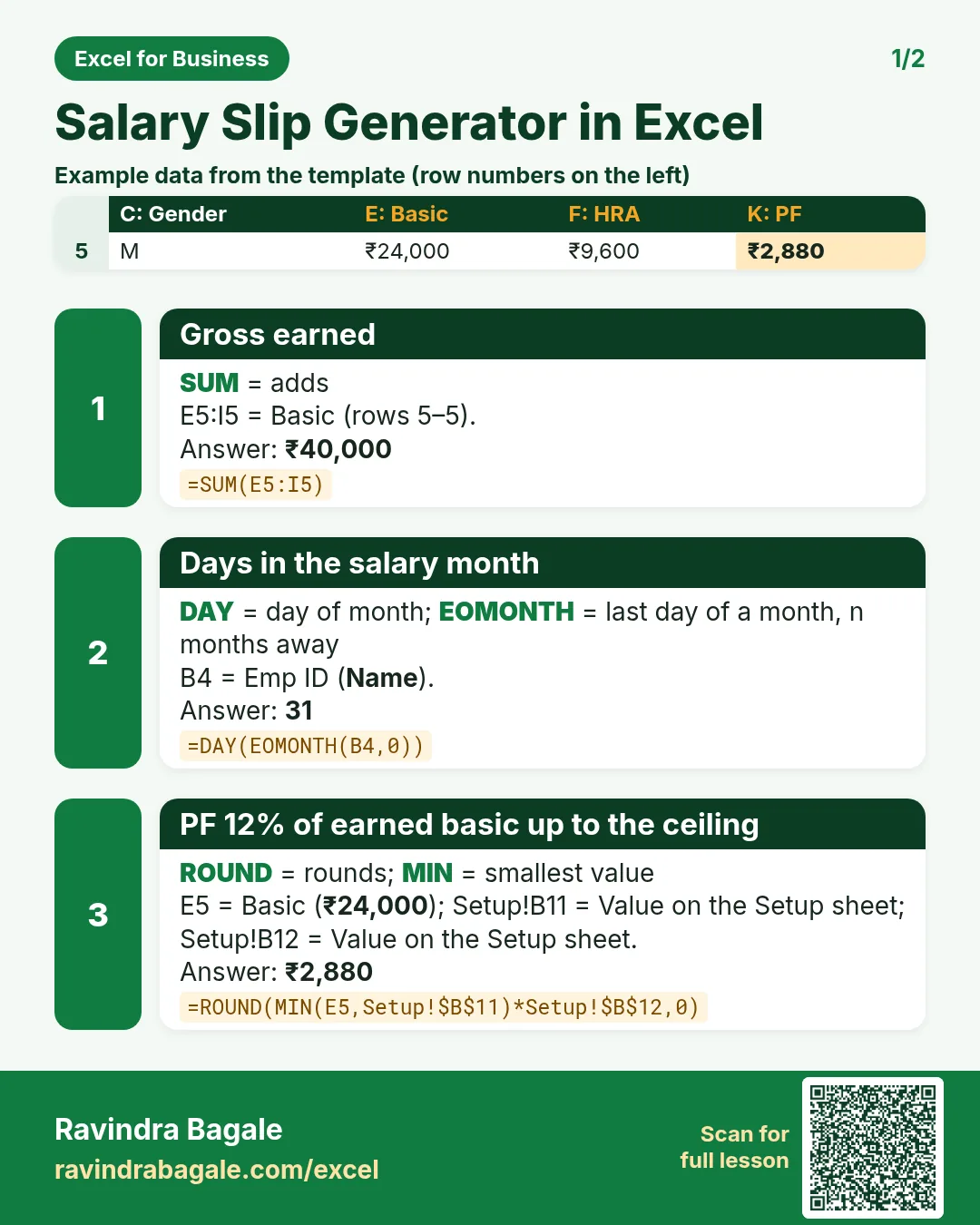
Revision card 1 for Vendor Management System in Excel: Unpaid balance: =F5-H5 gives ₹32,000; Days overdue: =IF(I5>0,MAX(0,Setup!$B$3-G5),0) gives 32; Billed by vendor: =SUMIFS(Bills!$F$5:$F$60,Bills!$C$5:$C$60,A5) gives ₹4,06,000.
Card 1 of 2: Vendor Management System in Excel · Download PNG · Open card page
Revision card 2 for Vendor Management System in Excel: Vendor score: =ROUND(50*I5+10*J5,0) gives 90; Vendor grade: =IF(K5>=80,"A",IF(K5>=60,"B","C")) gives A; Unpaid in the bucket: =SUMIFS(Bills!$I$5:$I$60,Bills!$K$5:$K$60,A13) gives ₹2,65,000. Includes an example data table.
Card 2 of 2: Vendor Management System in Excel · Download PNG · Open card page

Restaurant Management System in Excel: Menu, Orders, GST Bills, Printable Bill, Food Cost and Sales Dashboard

Excel for Business · 2 cards · Open the lesson

Revision card 1 for Restaurant Management System in Excel: Line key: bill no and line number: =A5&"-"&COUNTIF($A$5:A5,A5) gives R-1001-1; Food cost % of the dish: =E7/D7 gives 31.7%; Subtotal of the bill: =SUMIFS(Orders!$I$5:$I$200,Orders!$A$5:$A$200,A5) gives ₹320. Includes an example data table.
Card 1 of 2: Restaurant Management System in Excel · Download PNG · Open card page
Revision card 2 for Restaurant Management System in Excel: Discount amount: =ROUND(E5*F5,2) gives ₹0.00; GST on the taxable value: =ROUND(H5*Setup!$B$4,2) gives ₹16.00; Bill total, rounded: =ROUND(H5+I5,0) gives ₹336. Includes an example data table.
Card 2 of 2: Restaurant Management System in Excel · Download PNG · Open card page

Hotel Management System in Excel: Room Bookings, Daily Occupancy, ADR, RevPAR, GST Room Bill and Dashboard

Excel for Business · 2 cards · Open the lesson
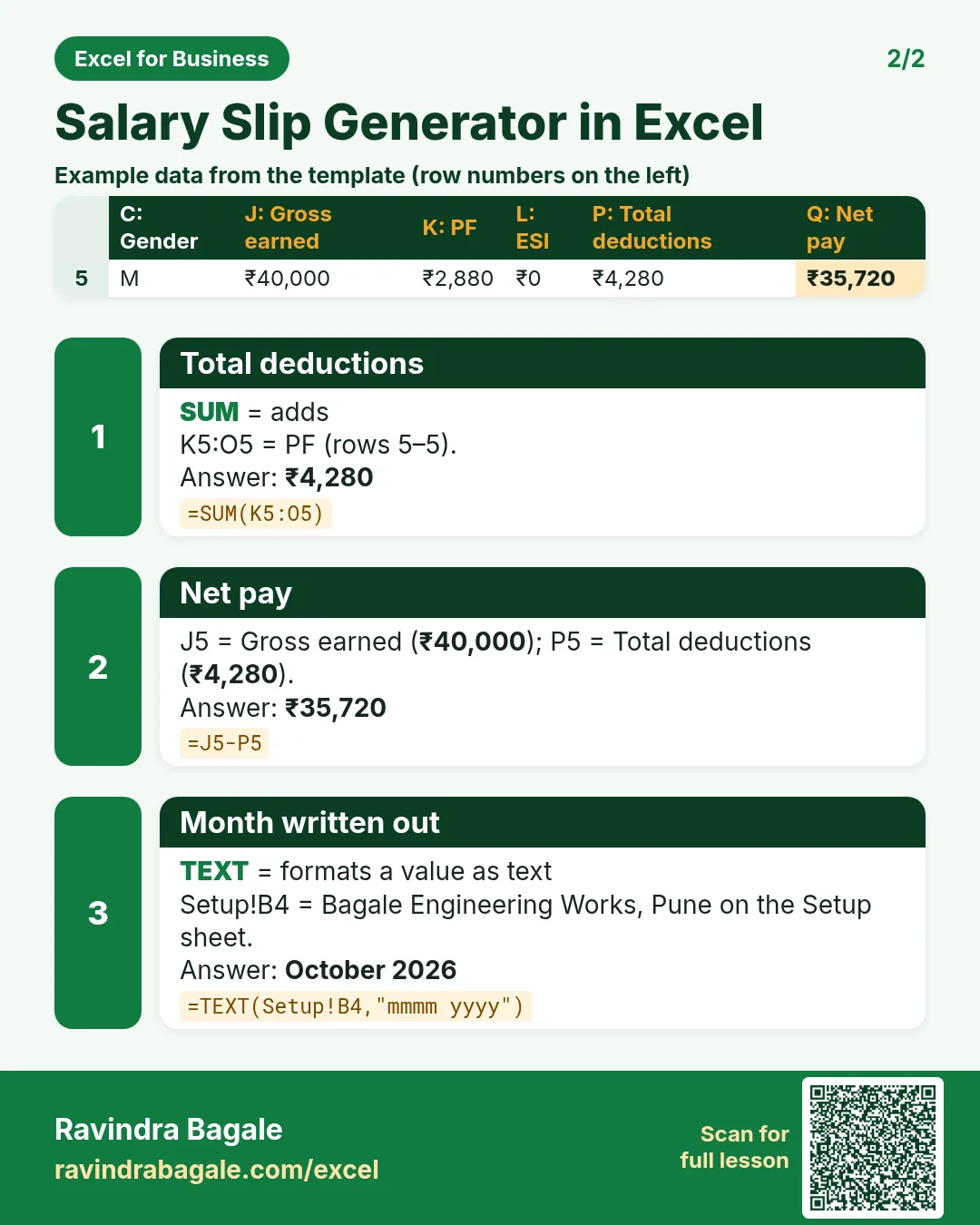
Revision card 1 for Hotel Management System in Excel: Nights: =H5-G5 gives 2; GST rate by tariff per night: =IF(F5<=Setup!$B$5,Setup!$B$6,Setup!$B$7) gives 5%; GST amount: =ROUND(J5*K5,2) gives ₹280.00.
Card 1 of 2: Hotel Management System in Excel · Download PNG · Open card page
Revision card 2 for Hotel Management System in Excel: Balance after advance: =N5-O5 gives ₹3,880.00; Total with GST and extras: =J5+L5+M5 gives ₹5,880.00; Occupancy %: =B6/$B$3 gives 37.5%.
Card 2 of 2: Hotel Management System in Excel · Download PNG · Open card page

Salon Management System in Excel: Appointments, Client History, Repeat Clients, Stylist Sales and Commission

Excel for Business · 2 cards · Open the lesson

Revision card 1 for Salon Management System in Excel: Amount only when Done: =IF(M5="Done",ROUND(H5*(1-J5),0),0) gives ₹200; Visit days: =SUMIFS(Appointments!$N$5:$N$300,Appointments!$D$5:$D$300,A5) gives 2; Spend: =SUMIFS(Appointments!$K$5:$K$300,Appointments!$D$5:$D$300,A5) gives ₹350.
Card 1 of 2: Salon Management System in Excel · Download PNG · Open card page
Revision card 2 for Salon Management System in Excel: Repeat client?: =IF(B5>=2,"Yes","No") gives Yes; Stylist sales: =SUMIFS(Appointments!$K$5:$K$300,Appointments!$G$5:$G$300,A5) gives ₹4,880; Commission: =ROUND(D5*Setup!$B$4,0) gives ₹976. Includes an example data table.
Card 2 of 2: Salon Management System in Excel · Download PNG · Open card page

Shop Billing and Inventory System in Excel: Items, Purchases, Sales, Stock Reorder, Profit and Daily Cash Book

Excel for Business · 2 cards · Open the lesson
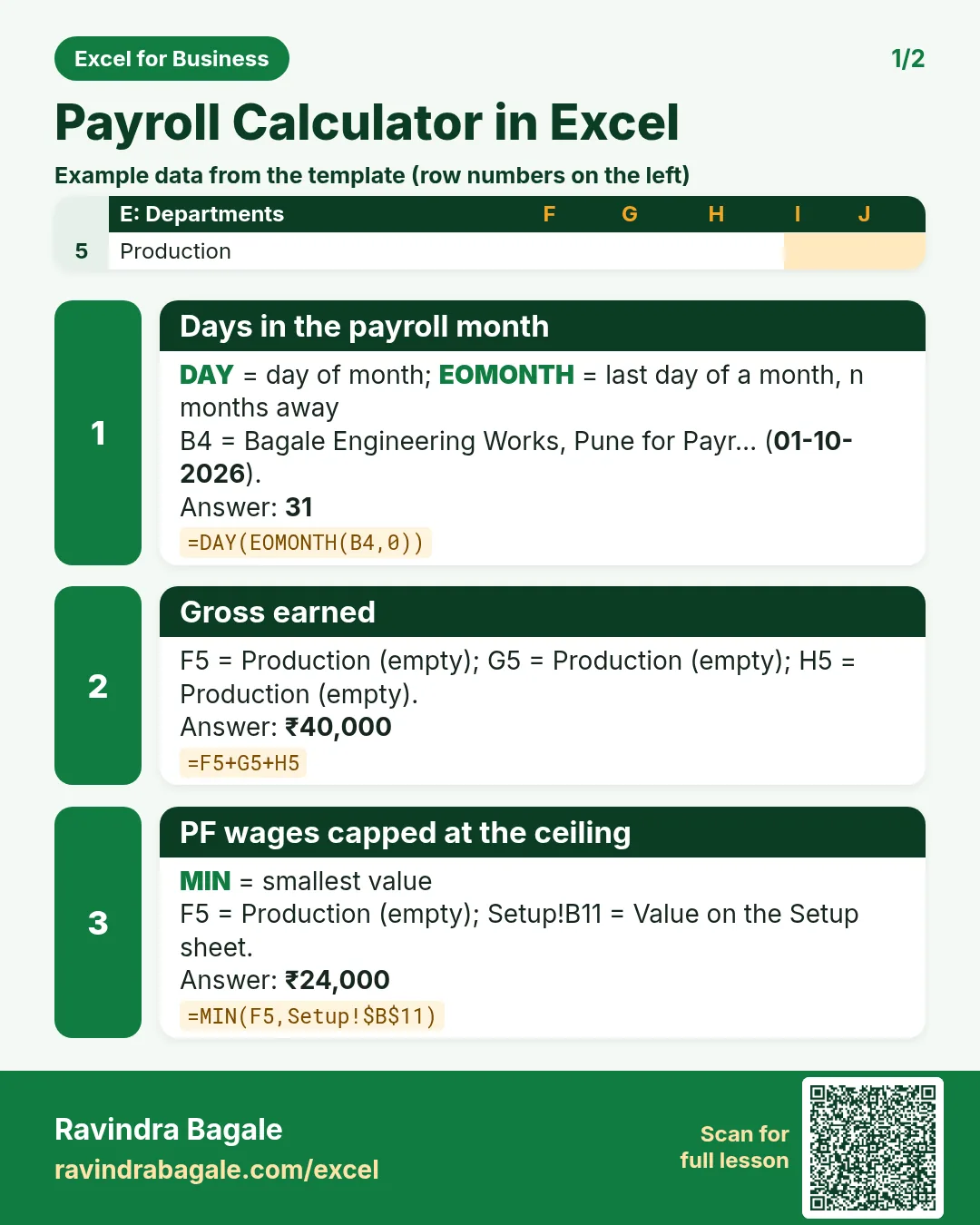
Revision card 1 for Shop Billing and Inventory System in Excel: Margin % of the item: =(E6-D6)/E6 gives 13.3%; Purchase amount: =D5*E5 gives ₹2,080; Profit of the sale: =F5-G5 gives ₹96. Includes an example data table.
Card 1 of 2: Shop Billing and Inventory System in Excel · Download PNG · Open card page
Revision card 2 for Shop Billing and Inventory System in Excel: Closing stock: =C5+D5-E5 gives 58; Purchased quantity: =SUMIFS(Purchases!$D$5:$D$300,Purchases!$B$5:$B$300,A5) gives 40; Sold quantity: =SUMIFS(Sales!$D$5:$D$500,Sales!$B$5:$B$500,A5) gives 62. Includes an example data table.
Card 2 of 2: Shop Billing and Inventory System in Excel · Download PNG · Open card page

Clinic Patient Management System in Excel: Patient Register, Visits, Fees, Follow-up Reminders and Receipts

Excel for Business · 2 cards · Open the lesson

Revision card 1 for Clinic Patient Management System in Excel: Follow-up date: =IF(J5="","",B5+J5) gives 09-10-2026; Visits per patient: =COUNTIF(Visits!$C$5:$C$300,A5) gives 2; Billed to the patient: =SUMIFS(Visits!$F$5:$F$300,Visits!$C$5:$C$300,A5) gives ₹2,000. Includes an example data table.
Card 1 of 2: Clinic Patient Management System in Excel · Download PNG · Open card page
Revision card 2 for Clinic Patient Management System in Excel: Due from the patient: =G5-H5 gives ₹500; Visits by type: =COUNTIF(Visits!$E$5:$E$300,A5) gives 7; Collected by type: =SUMIFS(Visits!$G$5:$G$300,Visits!$E$5:$E$300,A5) gives ₹3,300. Includes an example data table.
Card 2 of 2: Clinic Patient Management System in Excel · Download PNG · Open card page

Gym Membership Management System in Excel: Plans, Renewals, Check-ins, Receipts and Dashboard

Excel for Business · 2 cards · Open the lesson
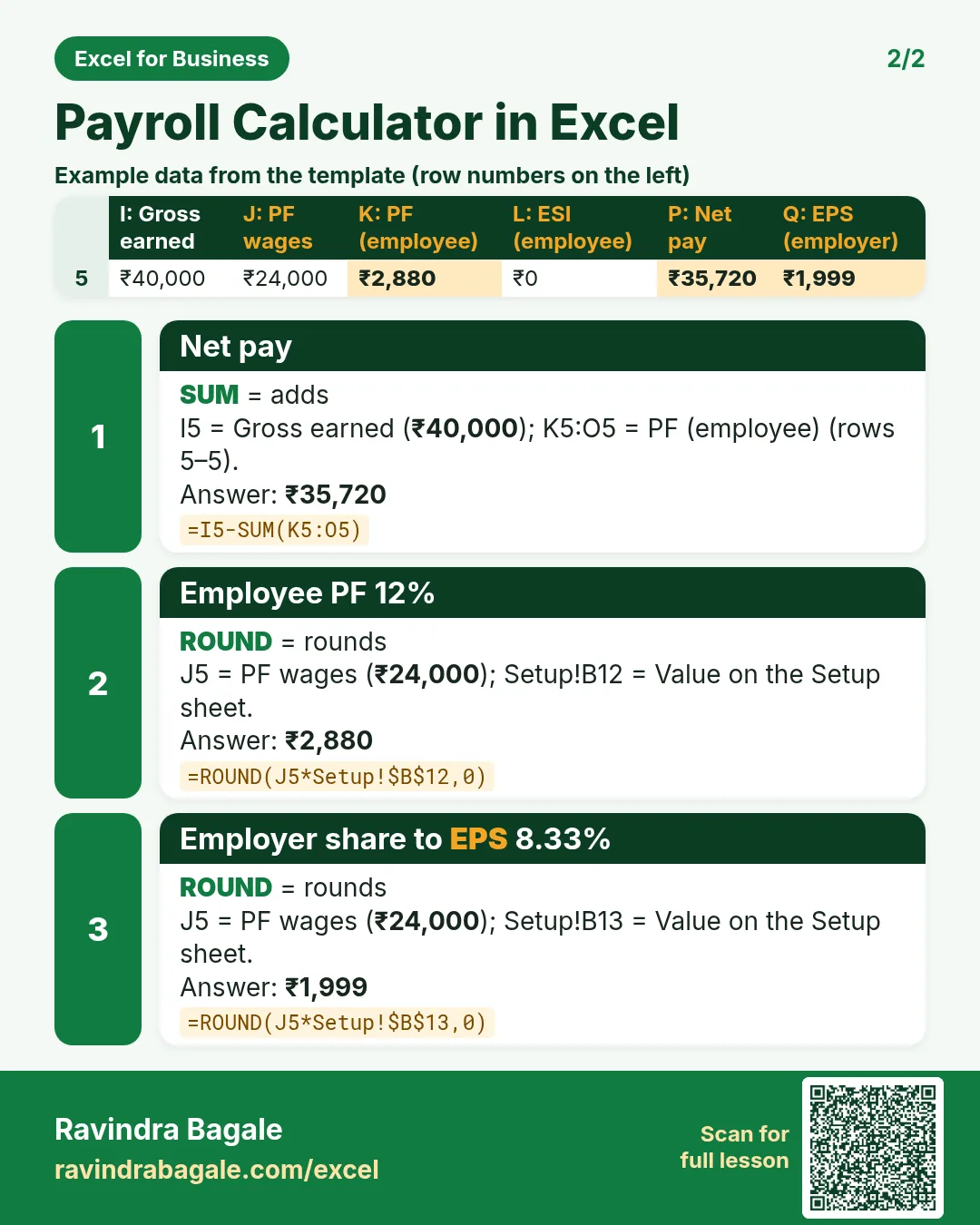
Revision card 1 for Gym Membership Management System in Excel: Fee per day of the plan: =C8/B8 gives ₹50.00; Days left on the plan: =F5-Setup!$B$3 gives 84; Minutes in the gym: =ROUND((E5-D5)*1440,0) gives 60. Includes an example data table.
Card 1 of 2: Gym Membership Management System in Excel · Download PNG · Open card page
Revision card 2 for Gym Membership Management System in Excel: Members on the plan: =COUNTIF(Members!$C$5:$C$16,A5) gives 5; Active members: =COUNTIF(Members!$L$5:$L$16,"Active") gives 7. Includes an example data table.
Card 2 of 2: Gym Membership Management System in Excel · Download PNG · Open card page

School Fee Management System in Excel: Fee Structure, Instalments, Overdue List, Receipts and Dashboard

Excel for Business · 2 cards · Open the lesson

Revision card 1 for School Fee Management System in Excel: Net fee for the year: =F5-G5 gives ₹41,000; Total fee of the grade: =B8+C8 gives ₹27,000; Instalments due by the as-of date: =COUNTIF(Setup!$B$17:$B$20,"<="&Setup!$B$3) gives 3. Includes an example data table.
Card 1 of 2: School Fee Management System in Excel · Download PNG · Open card page
Revision card 2 for School Fee Management System in Excel: Up to date, Nothing paid or Overdue: =IF(G6=0,"Up to date",IF(F6=0,"Nothing paid","Overdue")) gives Up to date; Due till date: =ROUND(D6*$B$3/4,0) gives ₹30,750; Paid so far: =SUMIFS(Receipts!$F$5:$F$800,Receipts!$C$5:$C$800,A6) gives ₹33,000. Includes an example data table.
Card 2 of 2: School Fee Management System in Excel · Download PNG · Open card page

Tuition Centre Management System in Excel: Groups, Monthly Fees, Test Marks, Progress Card and Dashboard

Excel for Business · 2 cards · Open the lesson
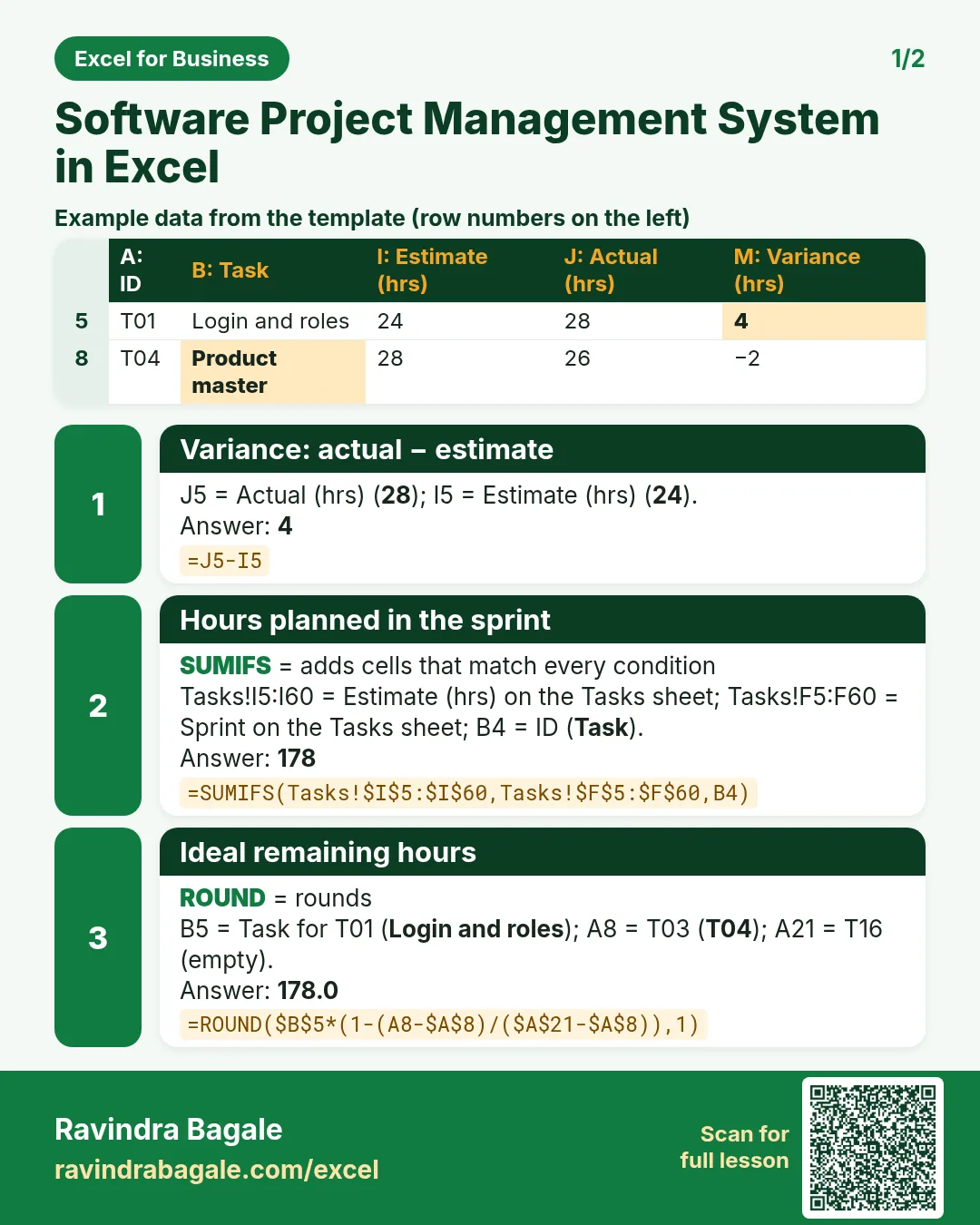
Revision card 1 for Tuition Centre Management System in Excel: Months due including the joining month: =(YEAR(Setup!$B$3)-YEAR(D5))*12+MONTH(Setup!$B$3)-MONTH(D5)+1 gives 5; Fee due after discount: =ROUND(G5*F5*(1-E5),0) gives ₹9,000; Paid so far: =SUMIFS(Fees!$D$5:$D$500,Fees!$B$5:$B$500,A5) gives ₹9,000.
Card 1 of 2: Tuition Centre Management System in Excel · Download PNG · Open card page
Revision card 2 for Tuition Centre Management System in Excel: Test %: =E5/F5 gives 88.0%; Average test %: =AVERAGEIFS(Tests!$G$5:$G$500,Tests!$C$5:$C$500,A5) gives 89.3%; Rank by average: =RANK(K5,$K$5:$K$16) gives 2. Includes an example data table.
Card 2 of 2: Tuition Centre Management System in Excel · Download PNG · Open card page

Inventory and Warehouse Management System in Excel: Stock In, Stock Out, Days of Cover, Reorder, ABC and Challan

Excel for Business · 2 cards · Open the lesson

Revision card 1 for Inventory and Warehouse Management System in Excel: Line key per challan: =B5&"-"&COUNTIF($B$5:B5,B5) gives DC-101-1; Days in the period: =B3-B4+1 gives 17; Units received: =SUMIFS('Stock in'!$E$5:$E$500,'Stock in'!$C$5:$C$500,A5) gives 60. Includes an example data table.
Card 1 of 2: Inventory and Warehouse Management System in Excel · Download PNG · Open card page
Revision card 2 for Inventory and Warehouse Management System in Excel: Closing stock: =C5+D5-E5 gives 60; Average daily use: =E5/Setup!$B$5 gives 7.1; Days of cover: =IFERROR(F5/H5,999) gives 8.5. Includes an example data table.
Card 2 of 2: Inventory and Warehouse Management System in Excel · Download PNG · Open card page

Rental Property Management System in Excel: Units, Rent Roll, Arrears, Lease Expiry, Receipts and Net Yield

Excel for Business · 2 cards · Open the lesson
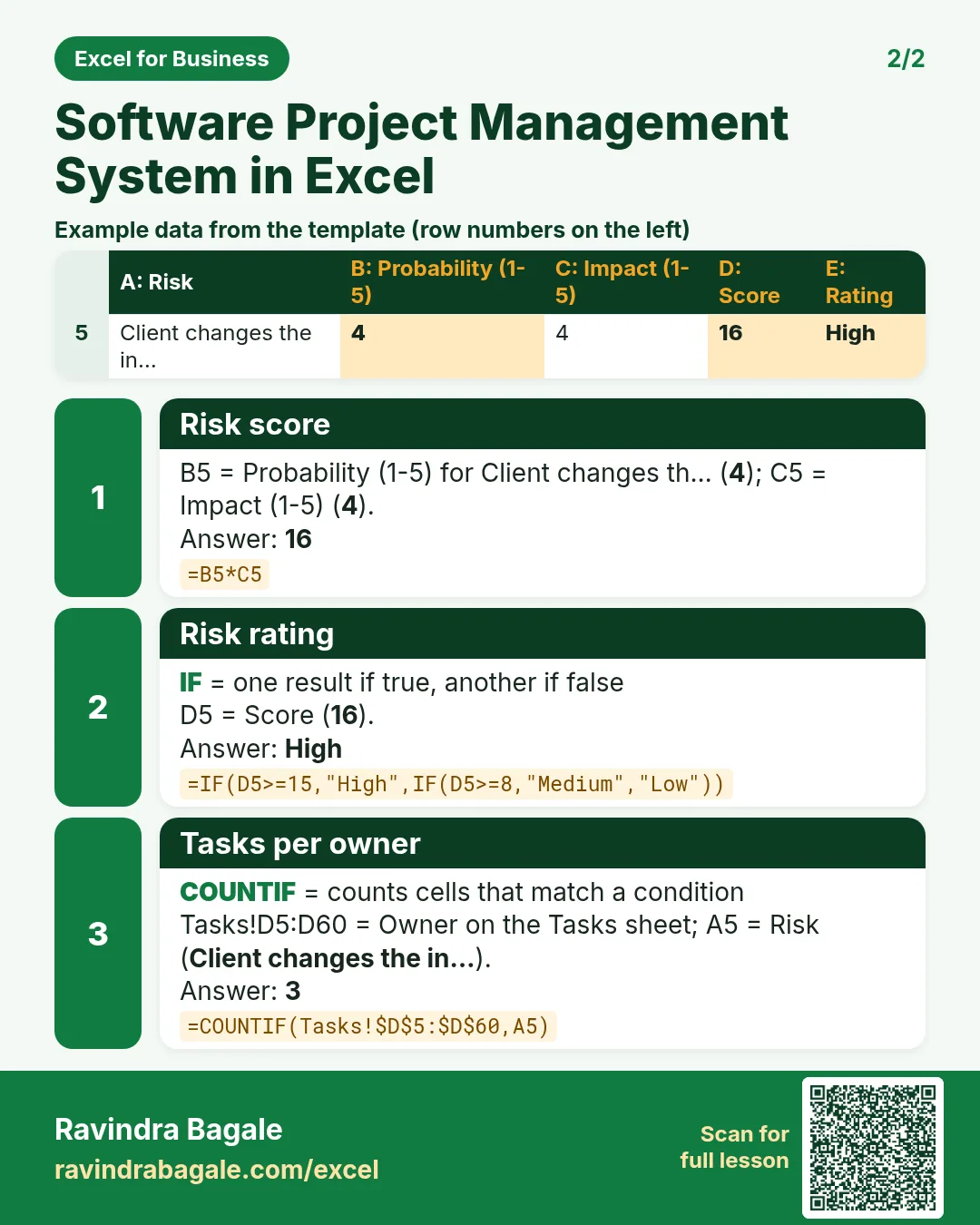
Revision card 1 for Rental Property Management System in Excel: First day of the current month: =DATE(YEAR(B3),MONTH(B3),1) gives 01-10-2026; Months tracked: =(YEAR(B5)-YEAR(B4))*12+MONTH(B5)-MONTH(B4)+1 gives 4; Rent received: =SUMIFS(Payments!$E$5:$E$500,Payments!$B$5:$B$500,A5) gives ₹72,000. Includes an example data table.
Card 1 of 2: Rental Property Management System in Excel · Download PNG · Open card page
Revision card 2 for Rental Property Management System in Excel: Days to lease end: =G5-Setup!$B$3 gives 14; Expired, Renew soon or OK: =IF(L5<0,"Expired",IF(L5<=Setup!$B$7,"Renew soon","OK")) gives Renew soon; Receipt number: ="RR-"&TEXT(ROW()-4,"000") gives RR-001. Includes an example data table.
Card 2 of 2: Rental Property Management System in Excel · Download PNG · Open card page

Event Management System in Excel: Budget vs Actual, Vendor Expenses, Task List, Quotation and Profit

Excel for Business · 2 cards · Open the lesson

Revision card 1 for Event Management System in Excel: Days to the event: =B5-B3 gives 34; Client price with margin: =ROUND(B5*(1+Setup!$B$7),0) gives ₹1,72,500; Spent from Expenses: =SUMIFS(Expenses!$D$5:$D$500,Expenses!$B$5:$B$500,A5) gives ₹1,25,000. Includes an example data table.
Card 1 of 2: Event Management System in Excel · Download PNG · Open card page
Revision card 2 for Event Management System in Excel: Remaining budget: =B5-D5 gives ₹25,000; % of estimate used: =IFERROR(D5/B5,0) gives 83.3%; Cost to plan: estimate or spent, the larger: =MAX(B5,D5) gives ₹1,50,000. Includes an example data table.
Card 2 of 2: Event Management System in Excel · Download PNG · Open card page

Transport and Fleet Management System in Excel: Trips, Km per Litre, Cost per Km, Document Expiry and Profit

Excel for Business · 2 cards · Open the lesson
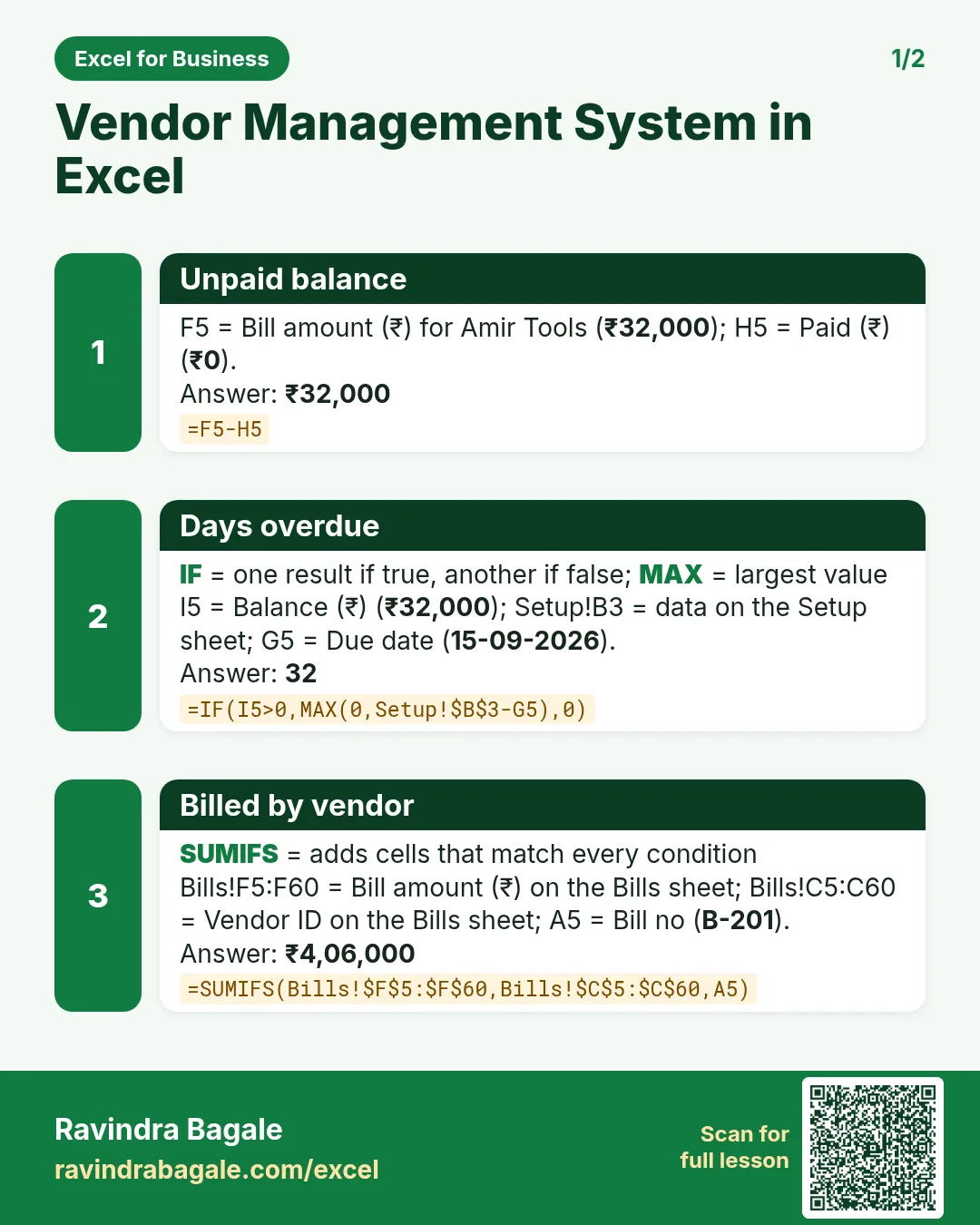
Revision card 1 for Transport and Fleet Management System in Excel: Earliest of the four expiry dates: =MIN(D5:G5) gives 05-11-2026; Days to that expiry: =H5-Setup!$B$3 gives 19; Expired, Renew soon or OK: =IF(I5<0,"Expired",IF(I5<=Setup!$B$5,"Renew soon","OK")) gives Renew soon. Includes an example data table.
Card 1 of 2: Transport and Fleet Management System in Excel · Download PNG · Open card page
Revision card 2 for Transport and Fleet Management System in Excel: Km from odometer: =F5-E5 gives 373; Km per litre: =IFERROR(G5/H5,0) gives 4.44; Trip ID: ="T-"&TEXT(ROW()-4,"000") gives T-001. Includes an example data table.
Card 2 of 2: Transport and Fleet Management System in Excel · Download PNG · Open card page

Construction Site Management System in Excel: BOQ, Progress, Materials, Labour, Budget vs Actual and RA Bill

Excel for Business · 2 cards · Open the lesson

Revision card 1 for Construction Site Management System in Excel: BOQ amount: =D5*E5 gives ₹63,000; % done: =IFERROR(G5/D5,0) gives 100.0%; Value done to date: =G5*E5 gives ₹63,000. Includes an example data table.
Card 1 of 2: Construction Site Management System in Excel · Download PNG · Open card page
Revision card 2 for Construction Site Management System in Excel: Overall progress: =L13/F13 gives 47.2%; Material amount: =D5*E5 gives ₹1,14,000; Labour amount: =C5*D5 gives ₹1,800. Includes an example data table.
Card 2 of 2: Construction Site Management System in Excel · Download PNG · Open card page

CA Office Compliance Management System in Excel: GST and TDS Due Dates, Filing Status, Fees and Staff Report

Excel for Business · 2 cards · Open the lesson
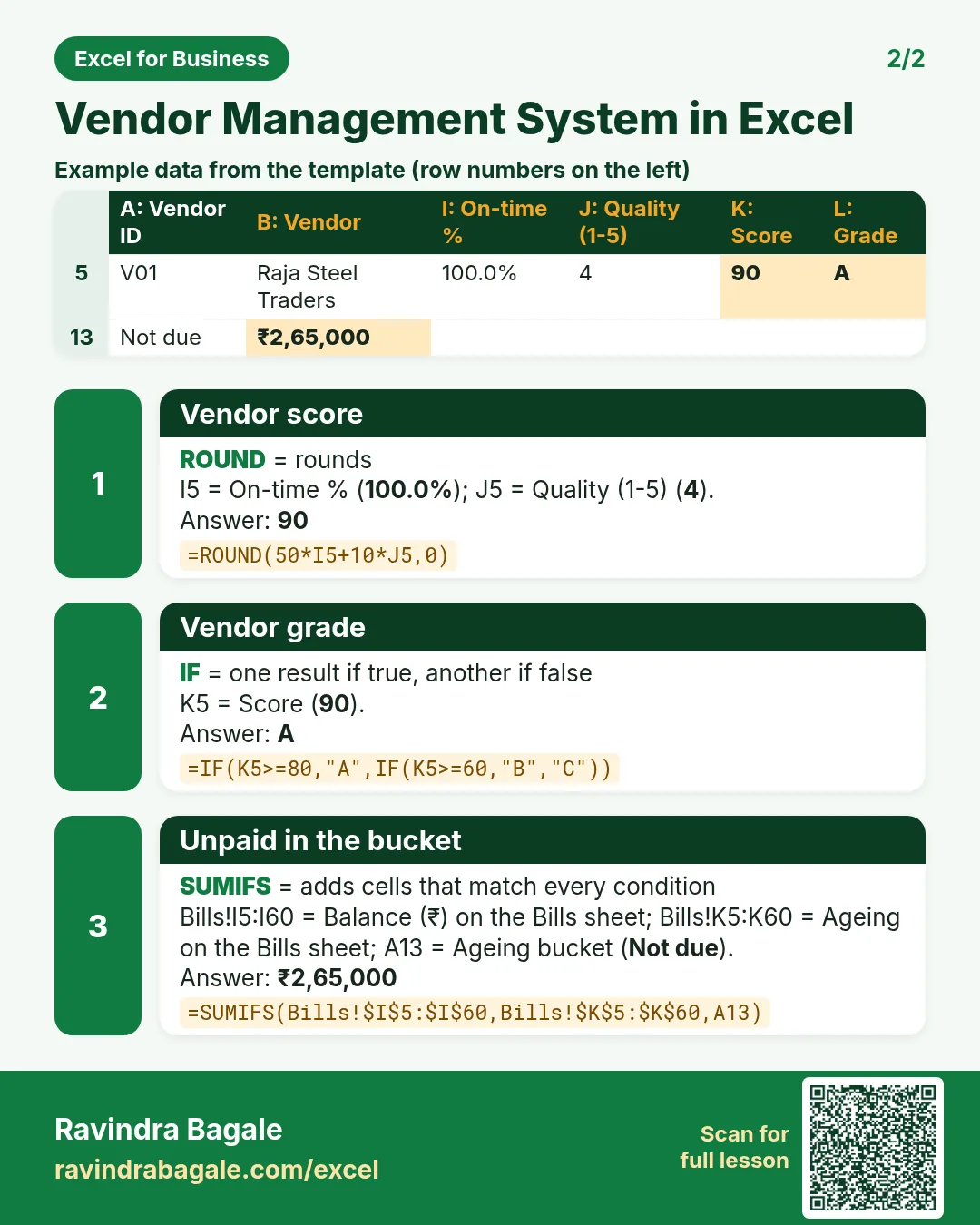
Revision card 1 for CA Office Compliance Management System in Excel: Tasks for the client: =COUNTIF(Compliance!$A$5:$A$500,A5) gives 4; Pending tasks: =COUNTIFS(Compliance!$A$5:$A$500,A5,Compliance!$E$5:$E$500,"") gives 2; Invoice number: ="BA/26-27/"&TEXT(ROW()+96,"000") gives BA/26-27/101. Includes an example data table.
Card 1 of 2: CA Office Compliance Management System in Excel · Download PNG · Open card page
Revision card 2 for CA Office Compliance Management System in Excel: GST on the fee: =ROUND(D5*Setup!$B$5,0) gives ₹1,080; Pending for the compliance: =COUNTIFS(Compliance!$C$5:$C$500,A11,Compliance!$E$5:$E$500,"") gives 1. Includes an example data table.
Card 2 of 2: CA Office Compliance Management System in Excel · Download PNG · Open card page

Beauty Parlour Management System in Excel: Packages, Sessions, Product Stock, Staff Incentive and Bills

Excel for Business · 2 cards · Open the lesson

Revision card 1 for Beauty Parlour Management System in Excel: Bill number: ="B-"&TEXT(ROW()-4,"000") gives B-001; Package sessions in the log: =COUNTIF(Sessions!$F$5:$F$1000,A5) gives 3; Sessions remaining: =D5-H5-I5 gives 1. Includes an example data table.
Card 1 of 2: Beauty Parlour Management System in Excel · Download PNG · Open card page
Revision card 2 for Beauty Parlour Management System in Excel: Expiry date: =F5+G5 gives 30-11-2026; Product used by services: =SUMIFS(Sessions!$J$5:$J$1000,Sessions!$I$5:$I$1000,A5) gives 7.00; Closing stock: =E5-G5 gives 7.00. Includes an example data table.
Card 2 of 2: Beauty Parlour Management System in Excel · Download PNG · Open card page

Bakery Management System in Excel: Recipe Costing, Daily Production, Sales, Waste and Dashboard

Excel for Business · 2 cards · Open the lesson
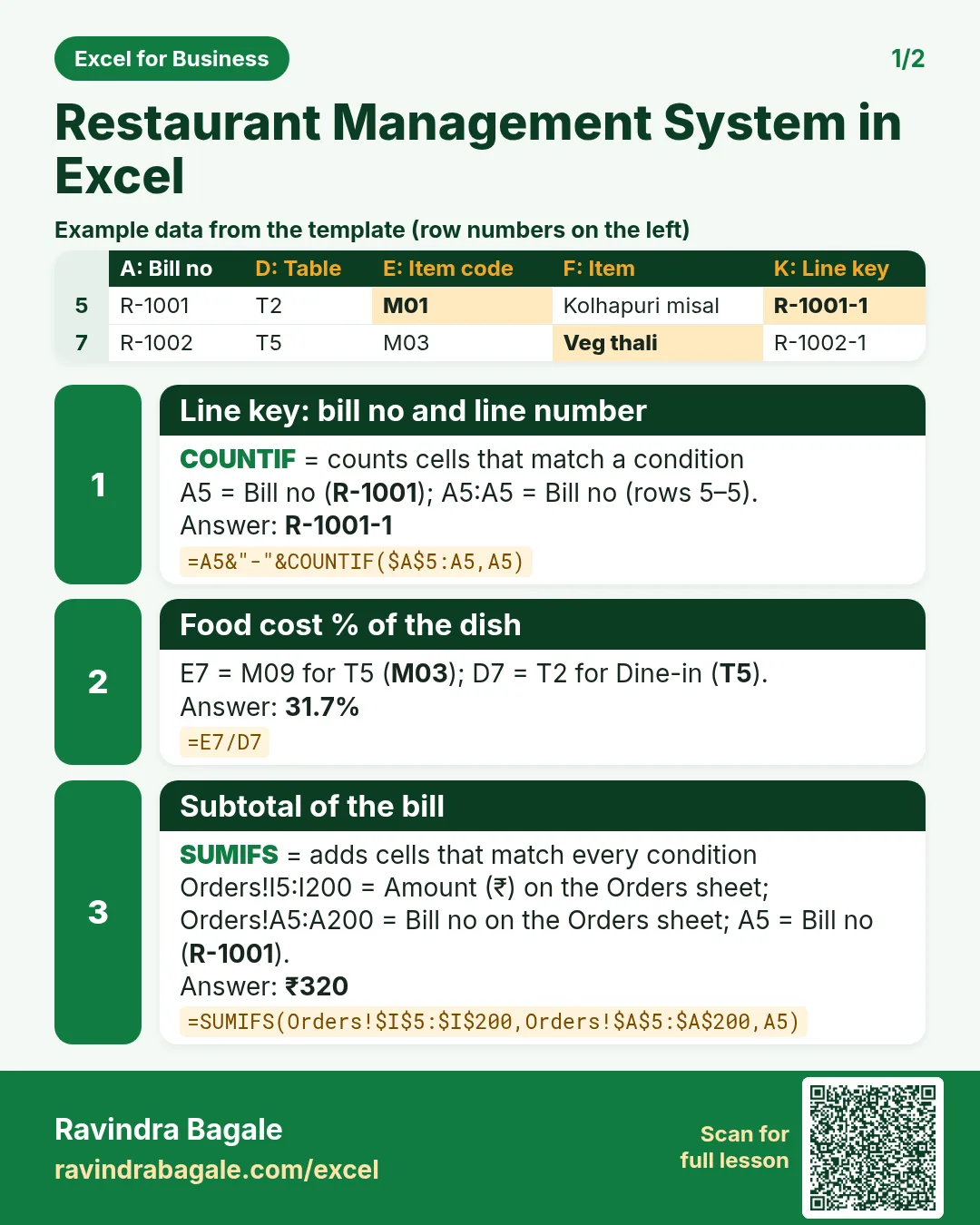
Revision card 1 for Bakery Management System in Excel: Margin per unit: =B7-J7 gives ₹24.55; Cost of one unit from the recipe: =SUMPRODUCT($C$5:$I$5,C7:I7)+Setup!$B$4 gives ₹20.45; Margin %: =K7/B7 gives 54.6%. Includes an example data table.
Card 1 of 2: Bakery Management System in Excel · Download PNG · Open card page
Revision card 2 for Bakery Management System in Excel: Waste %: =IFERROR(D5/B5,0) gives 6.0%; Pieces baked: =SUMIFS(Production!$C$5:$C$1000,Production!$B$5:$B$1000,A5) gives 1,011; Pieces sold: =SUMIFS(Sales!$C$5:$C$1000,Sales!$B$5:$B$1000,A5) gives 950. Includes an example data table.
Card 2 of 2: Bakery Management System in Excel · Download PNG · Open card page

Pharmacy Management System in Excel: Items, Sales Bills, Stock, Expiry Alerts and Dashboard

Excel for Business · 2 cards · Open the lesson

Revision card 1 for Pharmacy Management System in Excel: Bill key for the printable bill: =B5&"-"&COUNTIF($B$5:B5,B5) gives B-001-1; Amount after discount on MRP: =ROUND(E5*F5*(1-Setup!$B$4),2) gives ₹810.00; Quantity sold: =SUMIFS(Sales!$E$5:$E$2000,Sales!$C$5:$C$2000,A5) gives 30.
Card 1 of 2: Pharmacy Management System in Excel · Download PNG · Open card page
Revision card 2 for Pharmacy Management System in Excel: Closing stock: =C5-D5 gives 90; Days to expiry: =G5-Setup!$B$3 gives 318; Expired, Near expiry or OK: =IF(H5<0,"Expired",IF(H5<=Setup!$B$5,"Near expiry","OK")) gives OK. Includes an example data table.
Card 2 of 2: Pharmacy Management System in Excel · Download PNG · Open card page

Dairy Milk Collection System in Excel: Fat and SNF Rate Chart, Shift Entries, Farmer Bills and Dashboard

Excel for Business · 2 cards · Open the lesson
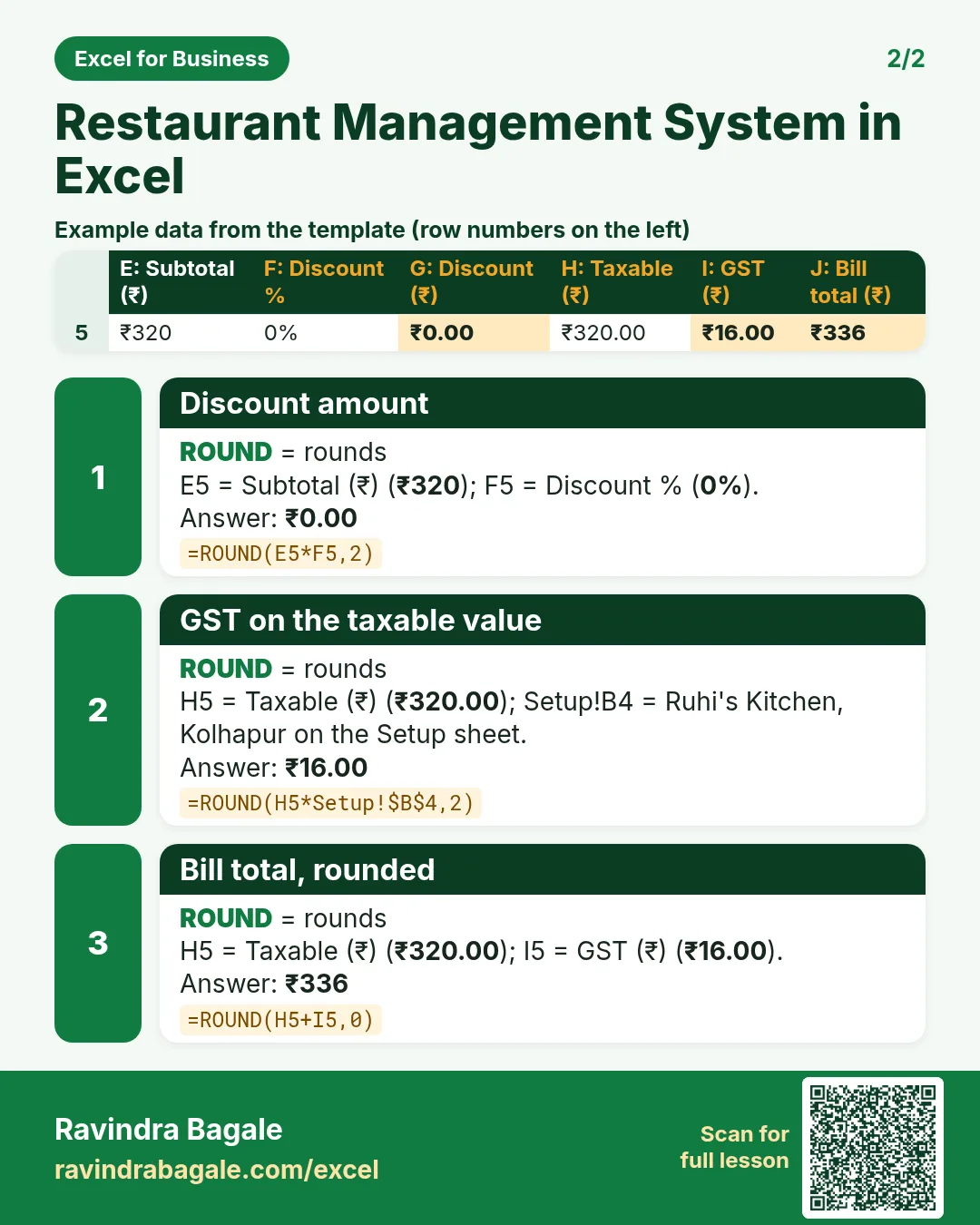
Revision card 1 for Dairy Milk Collection System in Excel: Amount for the pouring: =ROUND(E5*H5,2) gives ₹180.2; Net payable: =E5-F5 gives ₹3,215.7; Bill period as text: =TEXT(Setup!B4,"dd-mm-yyyy")&" to "&TEXT(Setup!B5,"dd-mm-yyyy") gives 01-10-2026 to 10-10-2026. Includes an example data table.
Card 1 of 2: Dairy Milk Collection System in Excel · Download PNG · Open card page
Revision card 2 for Dairy Milk Collection System in Excel: Litres on the day: =SUMIFS(Collection!$E$5:$E$3000,Collection!$A$5:$A$3000,A5) gives 79.5; Average fat for the period: =SUMPRODUCT(Bill!C5:C12,Bill!D5:D12)/Bill!C13 gives 5.06; Top farmer by litres: =INDEX(Bill!B5:B12,MATCH(MAX(Bill!C5:C12),Bill!C5:C12,0)) gives Salman Shaikh. Includes an example data table.
Card 2 of 2: Dairy Milk Collection System in Excel · Download PNG · Open card page

Cloud Kitchen Management System in Excel: Menu Costing, Orders, App Commission, Net Margin and Dashboard

Excel for Business · 2 cards · Open the lesson

Revision card 1 for Cloud Kitchen Management System in Excel: Food cost %: =C5/B5 gives 31.8%; Automatic order ID: ="Z"&TEXT(ROW()-4,"0000") gives Z0001; GST on the order: =ROUND(F5*Setup!$B$4,2) gives ₹15.00. Includes an example data table.
Card 1 of 2: Cloud Kitchen Management System in Excel · Download PNG · Open card page
Revision card 2 for Cloud Kitchen Management System in Excel: Net after commission, food and packaging: =F5-H5-I5-J5 gives ₹99.00; Orders per channel: =COUNTIF(Orders!$C$5:$C$5000,A5) gives 143; Net per channel: =SUMIFS(Orders!$K$5:$K$5000,Orders!$C$5:$C$5000,A5) gives ₹18,445.
Card 2 of 2: Cloud Kitchen Management System in Excel · Download PNG · Open card page

Boutique and Tailoring Management System in Excel: Measurements, Orders, Delivery Dates, Job Cards and Dashboard

Excel for Business · 1 card · Open the lesson

Revision card 1 for Boutique and Tailoring Management System in Excel: Automatic order number: ="O-"&TEXT(ROW()-4,"000") gives O-001; Order total: =F5*G5+H5 gives ₹1,100. Includes an example data table.
Card 1 of 1: Boutique and Tailoring Management System in Excel · Download PNG · Open card page

Hardware Store Management System in Excel: GST Invoices, Contractor Credit, Ageing, Stock and Dashboard

Excel for Business · 2 cards · Open the lesson
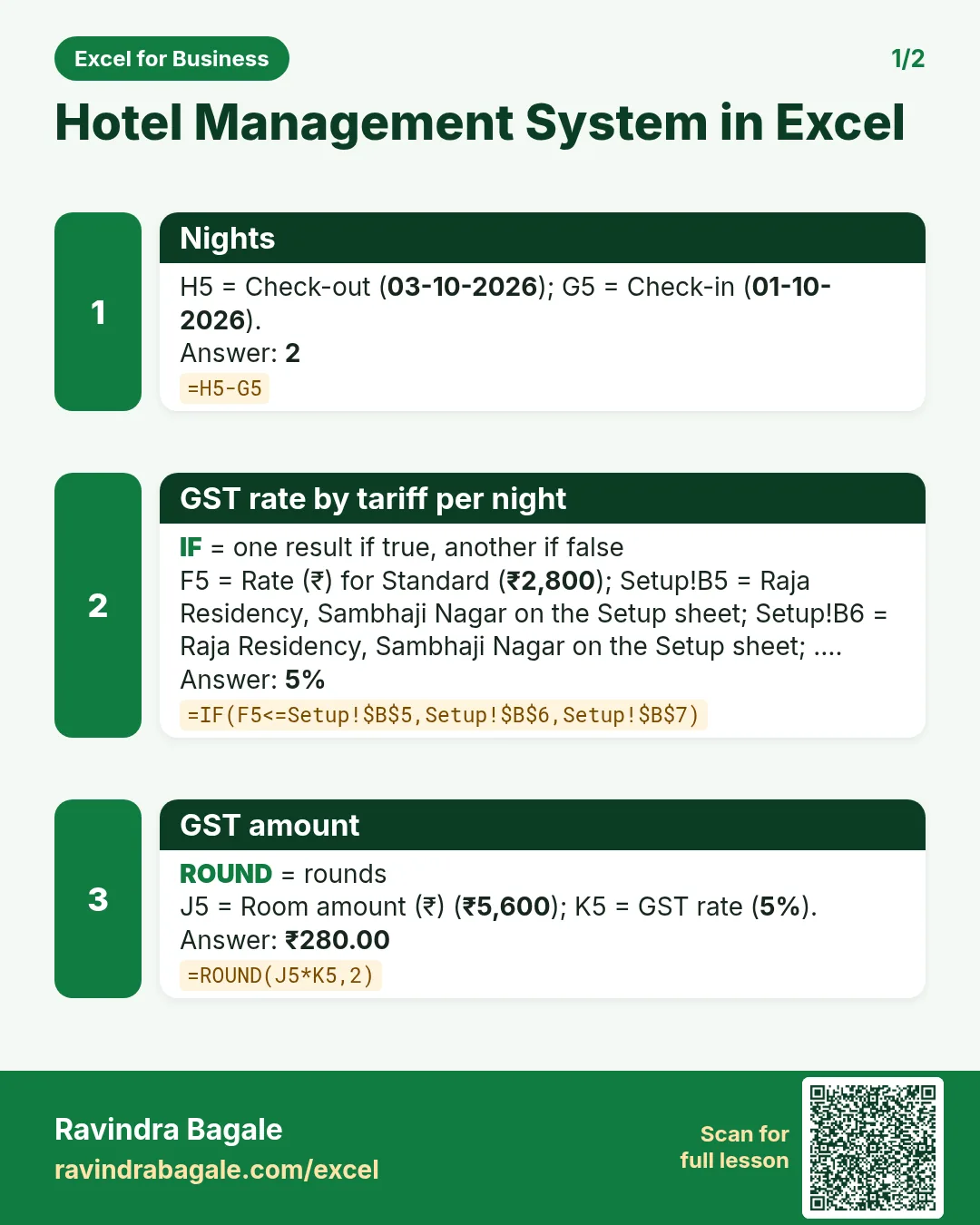
Revision card 1 for Hardware Store Management System in Excel: Taxable value: =F5*G5 gives ₹170; Line total with GST: =H5+I5 gives ₹200.6; Invoice line key: =B5&"-"&COUNTIF($B$5:B5,B5) gives AH-001-1.
Card 1 of 2: Hardware Store Management System in Excel · Download PNG · Open card page
Revision card 2 for Hardware Store Management System in Excel: Outstanding: =C5-D5 gives ₹8,130.00; Billed to the customer: =SUMIFS(Invoices!$J$5:$J$3000,Invoices!$C$5:$C$3000,A5) gives ₹98,530.00; Over 60 days: =E5-F5-G5 gives ₹0.00.
Card 2 of 2: Hardware Store Management System in Excel · Download PNG · Open card page

Mobile Repair Job Card System in Excel: Jobs, Parts Stock, Status Flags, Warranty and Dashboard

Excel for Business · 2 cards · Open the lesson

Revision card 1 for Mobile Repair Job Card System in Excel: Job total: =G5+H5 gives ₹2,740; Automatic job number: ="J-"&TEXT(ROW()-4,"000") gives J-001; Promised date: =B5+Setup!$B$5 gives 03-10-2026. Includes an example data table.
Card 1 of 2: Mobile Repair Job Card System in Excel · Download PNG · Open card page
Revision card 2 for Mobile Repair Job Card System in Excel: Days taken: =IF(O5<>"",O5-B5,"") gives 2; Warranty till: =IF(O5<>"",O5+Setup!$B$6,"") gives 02-11-2026; Parts used: =COUNTIF(Jobs!$F$5:$F$500,A5) gives 3. Includes an example data table.
Card 2 of 2: Mobile Repair Job Card System in Excel · Download PNG · Open card page

Car Service Garage Management System in Excel: Job Cards, Parts and Labour, GST Invoice, Service Reminders and Dashboard

Excel for Business · 2 cards · Open the lesson
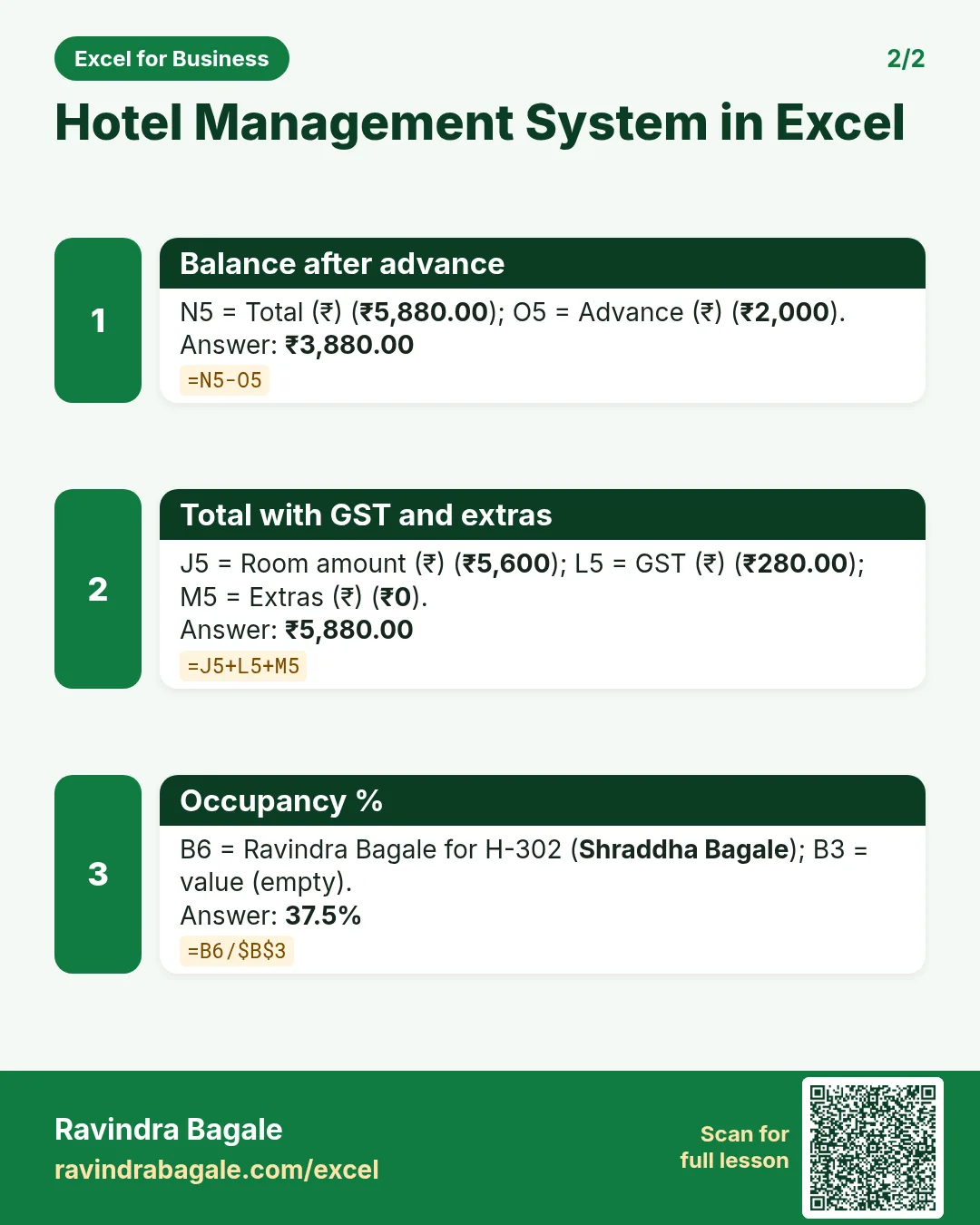
Revision card 1 for Car Service Garage Management System in Excel: Next service due date: =EDATE(E5,Setup!$B$8) gives 16-04-2027; Days left: =F5-Setup!$B$3 gives 181; Reminder flag: =IF(G5<0,"Overdue",IF(G5<=Setup!$B$9,"Call now","OK")) gives OK. Includes an example data table.
Card 1 of 2: Car Service Garage Management System in Excel · Download PNG · Open card page
Revision card 2 for Car Service Garage Management System in Excel: Line amount: =D5*E5 gives ₹2,400; GST on the line: =ROUND(F5*IF(B5="Part",Setup!$B$5,Setup!$B$6),2) gives ₹432.00; Line key for the invoice: =A5&"-"&COUNTIF($A$5:A5,A5) gives JC-001-1.
Card 2 of 2: Car Service Garage Management System in Excel · Download PNG · Open card page

Laundry Management System in Excel: Price List, Order Lines, Express Surcharge, Due Dates, Receipts and Dashboard

Excel for Business · 2 cards · Open the lesson

Revision card 1 for Laundry Management System in Excel: Item and service key: =A5&"|"&B5 gives Shirt|Wash and iron; Line amount: =D5*E5 gives ₹80; Line key for the receipt: =A5&"-"&COUNTIF($A$5:A5,A5) gives L-001-1. Includes an example data table.
Card 1 of 2: Laundry Management System in Excel · Download PNG · Open card page
Revision card 2 for Laundry Management System in Excel: Due date: =B5+IF(D5="Yes",Setup!$B$6,Setup!$B$5) gives 04-10-2026; Share of express orders: =COUNTIF(Orders!$D$5:$D$2000,"Yes")/COUNTA(Orders!$A$5:$A$2000) gives 17.1%. Includes an example data table.
Card 2 of 2: Laundry Management System in Excel · Download PNG · Open card page

Printing Press Management System in Excel: Job Estimator, Paper and Plates, Quotation, Delivery Status and Dashboard

Excel for Business · 2 cards · Open the lesson
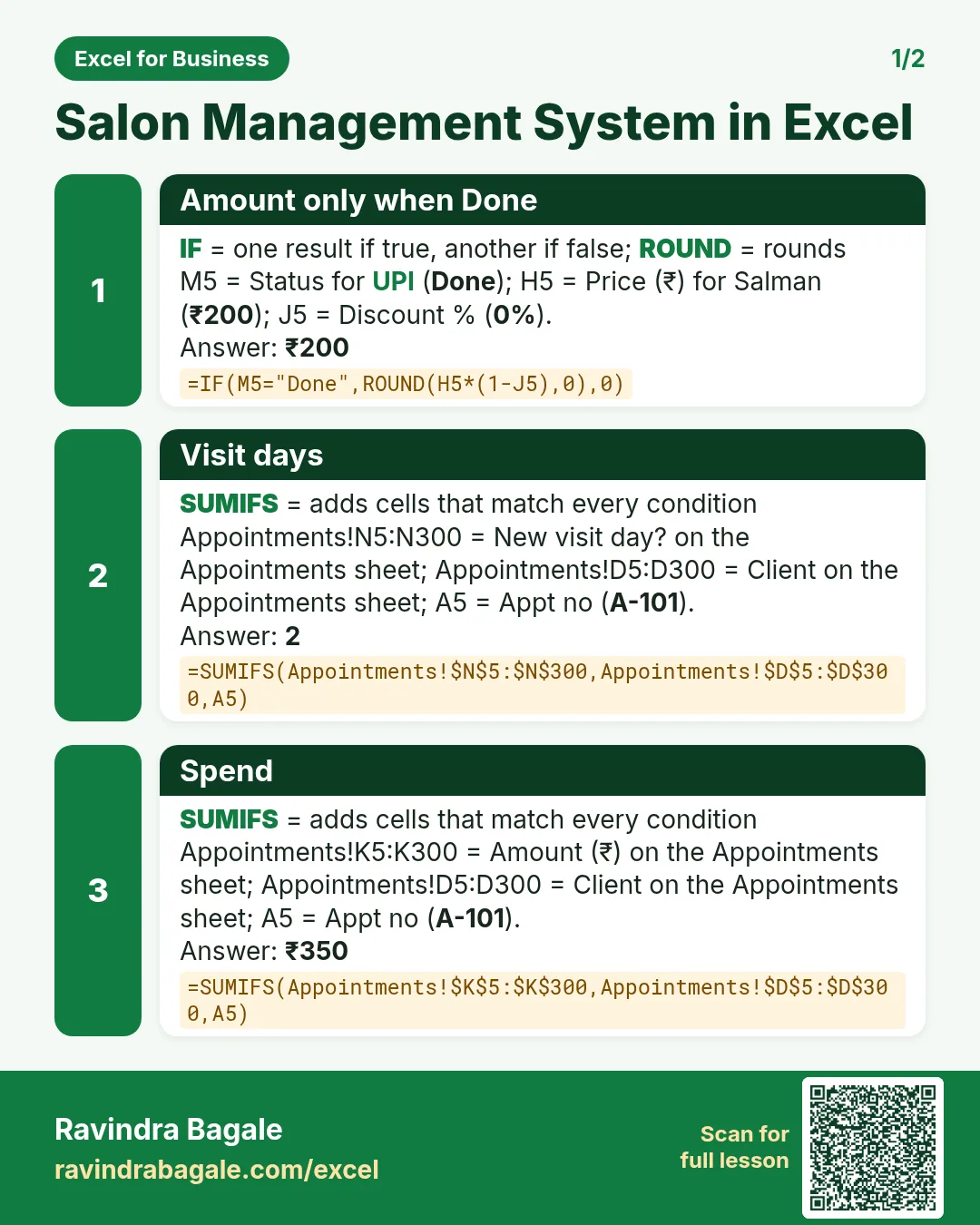
Revision card 1 for Printing Press Management System in Excel: Due date: =B5+L5 gives 03-10-2026; Automatic job number: ="P-"&TEXT(ROW()-4,"000") gives P-001; Sheets needed with wastage: =ROUNDUP(ROUNDUP(E5/F5,0)*(1+Setup!$B$6),0) gives 1,313. Includes an example data table.
Card 1 of 2: Printing Press Management System in Excel · Download PNG · Open card page
Revision card 2 for Printing Press Management System in Excel: Plate cost: =G5*H5*Setup!$B$4 gives ₹2,800; Printing cost: =ROUNDUP(MAX(1000,N5)/1000,0)*G5*H5*Setup!$B$5 gives ₹4,800; Total cost: =O5+P5+Q5+R5 gives ₹10,488.6.
Card 2 of 2: Printing Press Management System in Excel · Download PNG · Open card page

Hostel and PG Management System in Excel: Rooms, Residents, Rent, Late Fee, Occupancy and Dashboard

Excel for Business · 1 card · Open the lesson

Revision card 1 for Hostel and PG Management System in Excel: Paid, Part paid or Unpaid: =IF(H5<=0,"Paid",IF(D5>0,"Part paid","Unpaid")) gives Paid; Rent due date: =B4+B5-1 gives 05-10-2026; Receipt number: ="RC-"&TEXT(ROW()-4,"000") gives RC-001. Includes an example data table.
Card 1 of 1: Hostel and PG Management System in Excel · Download PNG · Open card page

Co-working Space Management System in Excel: Plans, Members, Meeting Room Bookings, Monthly Billing and Dashboard

Excel for Business · 2 cards · Open the lesson

Revision card 1 for Co-working Space Management System in Excel: Hours booked: =ROUND((E5-D5)*24,2) gives 2.0; Extra hours: =MAX(0,D5-E5) gives 0.0; GST: =ROUND(H5*Setup!$B$6,2) gives ₹5,760.00. Includes an example data table.
Card 1 of 2: Co-working Space Management System in Excel · Download PNG · Open card page
Revision card 2 for Co-working Space Management System in Excel: Invoice total: =H5+I5 gives ₹37,760.00; Seats sold: =SUMIFS(Members!$D$5:$D$200,Members!$C$5:$C$200,A5) gives 3; Occupancy %: =C5/B5 gives 15.0%.
Card 2 of 2: Co-working Space Management System in Excel · Download PNG · Open card page

Housing Society Maintenance System in Excel: Quarterly Bills, Sinking Fund, Interest on Arrears, Receipts, Expenses and Dashboard

Excel for Business · 2 cards · Open the lesson
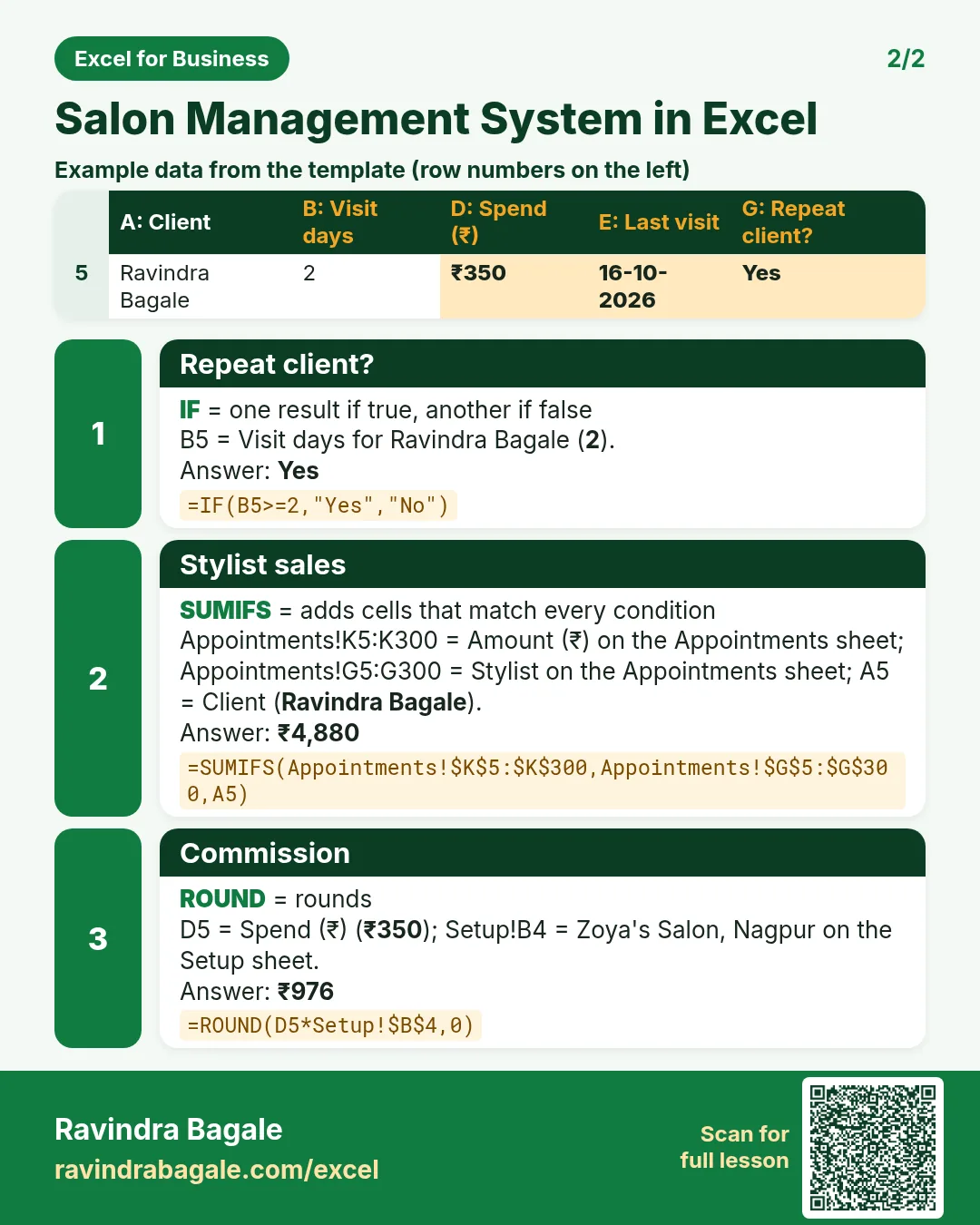
Revision card 1 for Housing Society Maintenance System in Excel: Maintenance for the quarter: =ROUND(Flats!C5*Setup!$B$5*3,0) gives ₹6,825; Sinking fund for the quarter: =ROUND(Flats!C5*Setup!$B$6*3,0) gives ₹488; Parking for the quarter: =IF(Flats!D5="Yes",Setup!$B$7*3,0) gives ₹900.
Card 1 of 2: Housing Society Maintenance System in Excel · Download PNG · Open card page
Revision card 2 for Housing Society Maintenance System in Excel: Total due: =G5+H5 gives ₹8,213; Receipt number: ="SR-"&TEXT(ROW()-4,"000") gives SR-001; Clear, Due or Overdue: =IF(E5<=0,"Clear",IF(Setup!$B$3>Setup!$B$9,"Overdue","Due")) gives Clear. Includes an example data table.
Card 2 of 2: Housing Society Maintenance System in Excel · Download PNG · Open card page

Travel Agency Management System in Excel: Tour Packages, Bookings, Payments, Balance Due and Dashboard

Excel for Business · 2 cards · Open the lesson

Revision card 1 for Travel Agency Management System in Excel: Margin per adult: =D9-C9 gives ₹4,500; Booking ID: ="TR-"&TEXT(ROW()-4,"000") gives TR-001; GST: =ROUND(H5*Setup!$B$4,0) gives ₹3,063. Includes an example data table.
Card 1 of 2: Travel Agency Management System in Excel · Download PNG · Open card page
Revision card 2 for Travel Agency Management System in Excel: Margin per package: =D5-E5 gives ₹38,250; Paid so far: =SUMIFS(Payments!$C$5:$C$2000,Payments!$B$5:$B$2000,A5) gives ₹64,313; Days to travel: =G5-Setup!$B$3 gives 5.
Card 2 of 2: Travel Agency Management System in Excel · Download PNG · Open card page

Courier Management System in Excel: Zone Rate Chart, Weight Slabs, Fuel Surcharge, Delivery Status and Dashboard

Excel for Business · 2 cards · Open the lesson
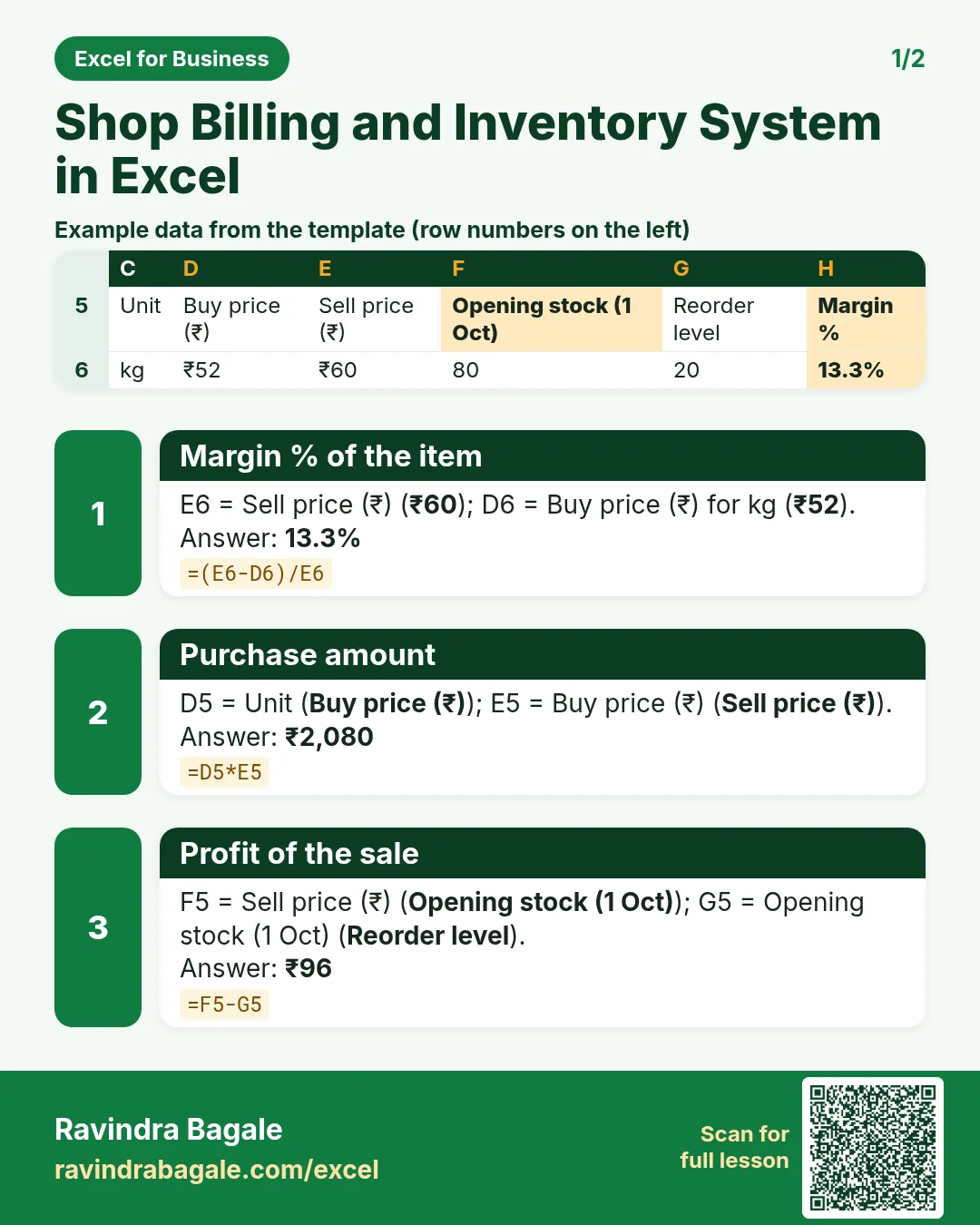
Revision card 1 for Courier Management System in Excel: AWB number: ="AE"&TEXT(ROW()-4,"00000") gives AE00001; Chargeable weight: =ROUNDUP(E5/Setup!$B$6,0)*Setup!$B$6 gives 0.5; Fuel surcharge: =ROUND(G5*Setup!$B$4,2) gives ₹4.00. Includes an example data table.
Card 1 of 2: Courier Management System in Excel · Download PNG · Open card page
Revision card 2 for Courier Management System in Excel: GST: =ROUND((G5+H5)*Setup!$B$5,2) gives ₹7.92; Shipments per account: =COUNTIF(Shipments!$C$5:$C$5000,A5) gives 7; Account total: =SUMIFS(Shipments!$J$5:$J$5000,Shipments!$C$5:$C$5000,A5) gives ₹960.52. Includes an example data table.
Card 2 of 2: Courier Management System in Excel · Download PNG · Open card page

Catering Management System in Excel: Packages, Events, Payments, Kitchen Quantities, Margin and Dashboard

Excel for Business · 2 cards · Open the lesson

Revision card 1 for Catering Management System in Excel: Event amount: =G5*H5+I5 gives ₹42,000; Event ID: ="EV-"&TEXT(ROW()-4,"000") gives EV-001; GST: =ROUND(J5*Setup!$B$4,0) gives ₹2,100. Includes an example data table.
Card 1 of 2: Catering Management System in Excel · Download PNG · Open card page
Revision card 2 for Catering Management System in Excel: Balance: =L5-M5 gives ₹2,100; Paid so far: =SUMIFS(Payments!$C$5:$C$2000,Payments!$B$5:$B$2000,A5) gives ₹42,000; Margin: =J5-O5-P5 gives ₹13,600.
Card 2 of 2: Catering Management System in Excel · Download PNG · Open card page

Photography Studio Management System in Excel: Packages, Bookings, Date Clash Check, Delivery Tracking and Dashboard

Excel for Business · 2 cards · Open the lesson
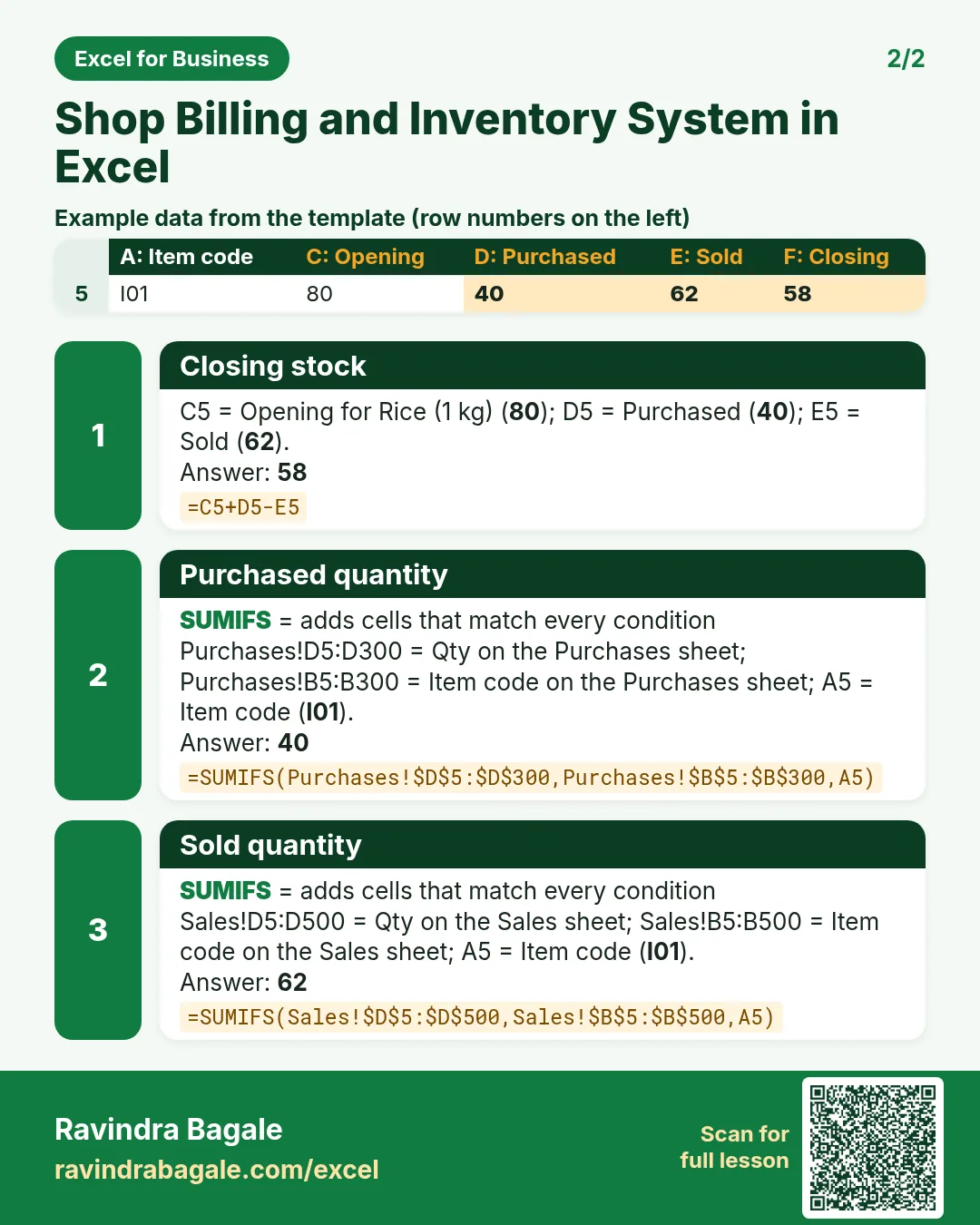
Revision card 1 for Photography Studio Management System in Excel: Total: =J5+K5 gives ₹97,940; Booking ID: ="PS-"&TEXT(ROW()-4,"000") gives PS-001; GST: =ROUND(J5*Setup!$B$4,0) gives ₹14,940. Includes an example data table.
Card 1 of 2: Photography Studio Management System in Excel · Download PNG · Open card page
Revision card 2 for Photography Studio Management System in Excel: Balance: =L5-M5 gives ₹9,940; Paid so far: =SUMIFS(Payments!$C$5:$C$2000,Payments!$B$5:$B$2000,A5) gives ₹88,000; Bookings per photographer: =COUNTIF(Bookings!$F$5:$F$500,A5) gives 3. Includes an example data table.
Card 2 of 2: Photography Studio Management System in Excel · Download PNG · Open card page

Interior Design Costing System in Excel: Rate Card, Room Estimate, Budget vs Actual, Payment Schedule and Quotation

Excel for Business · 2 cards · Open the lesson

Revision card 1 for Interior Design Costing System in Excel: Rate per unit: =C10+D10 gives ₹1,800; Line amount: =E5+F5 gives ₹1,53,000; Estimate per room: =SUMIFS(Estimate!$G$5:$G$500,Estimate!$A$5:$A$500,A5) gives ₹1,61,480.
Card 1 of 2: Interior Design Costing System in Excel · Download PNG · Open card page
Revision card 2 for Interior Design Costing System in Excel: Budget used %: =IFERROR(C5/B5,0) gives 91.7%; Budget flag: =IF(C5>B5,"Over budget",IF(C5>0.9*B5,"Near limit","OK")) gives Near limit; Milestone amount: =ROUND(Summary!$B$17*B5,0) gives ₹61,297. Includes an example data table.
Card 2 of 2: Interior Design Costing System in Excel · Download PNG · Open card page

Manufacturing Production Planning System in Excel: Machine Hours, Planned Finish Date, Progress, Rejects and Machine Load

Excel for Business · 2 cards · Open the lesson
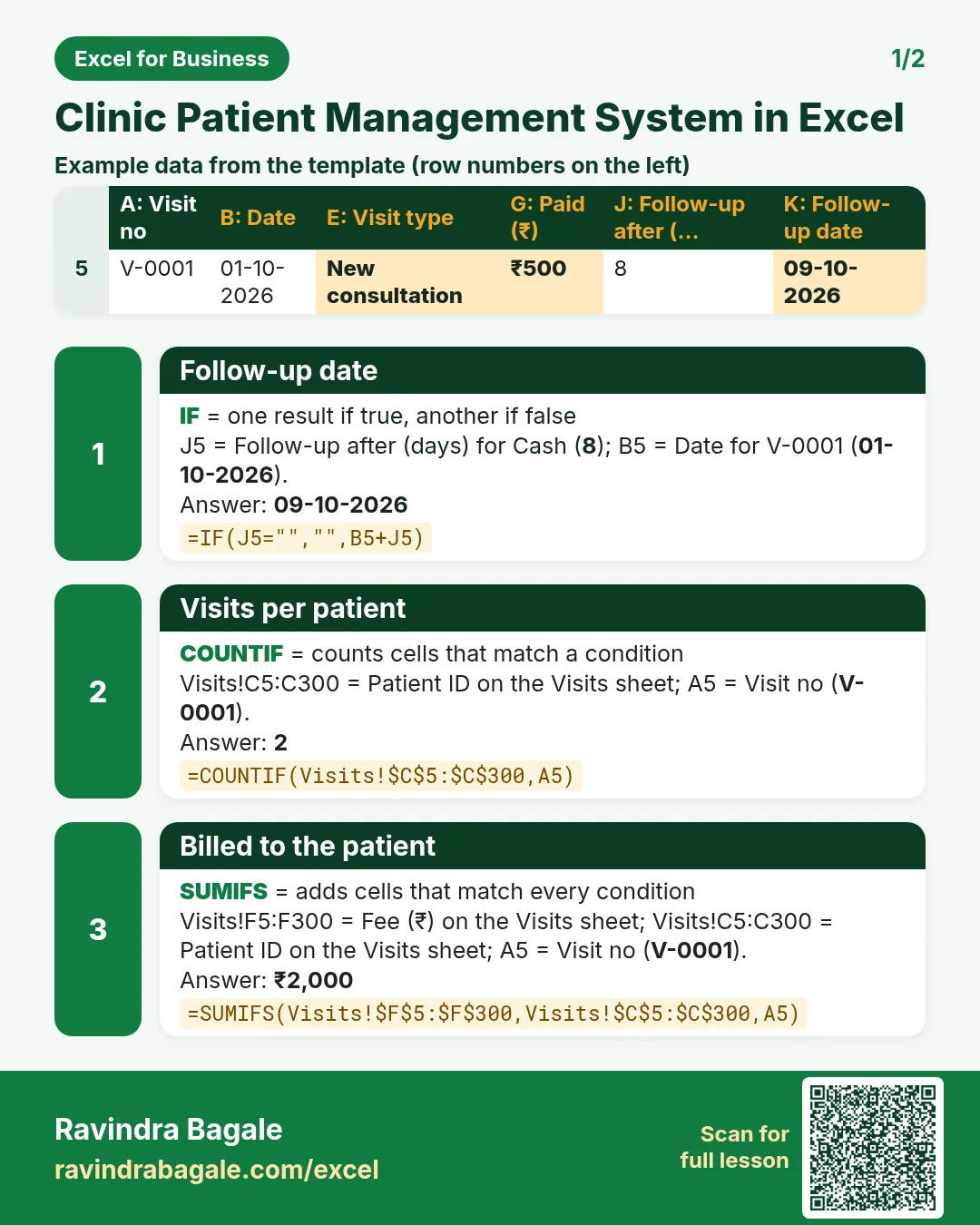
Revision card 1 for Manufacturing Production Planning System in Excel: Planned finish date: =WORKDAY.INTL(F5,I5-1,11) gives 06-10-2026; Machine hours per day: =B10*$B$4*$B$5 gives 13.6; Order number: ="SO-"&(100+ROW()-4) gives SO-101. Includes an example data table.
Card 1 of 2: Manufacturing Production Planning System in Excel · Download PNG · Open card page
Revision card 2 for Manufacturing Production Planning System in Excel: Plan check: =IF(J5<=E5,"On time","Late") gives On time; Progress: =MIN(1,N5/D5) gives 100%; Order status: =IF(N5>=D5,"Completed",IF(N5>0,"In progress","Not started")) gives Completed.
Card 2 of 2: Manufacturing Production Planning System in Excel · Download PNG · Open card page

Farm Management System in Excel: Plot-wise Expenses, Crop Sales, Profit per Acre, Cost per Quintal and Dashboard

Excel for Business · 2 cards · Open the lesson

Revision card 1 for Farm Management System in Excel: Gross sale: =ROUND(D5*E5,0) gives ₹37,800; Market charges: =ROUND(F5*Setup!$B$5,0) gives ₹2,268; Transport: =D5*Setup!$B$6 gives ₹720. Includes an example data table.
Card 1 of 2: Farm Management System in Excel · Download PNG · Open card page
Revision card 2 for Farm Management System in Excel: Yield per acre: =F5/C5 gives 8.8; Net sale: =F5-G5-H5 gives ₹34,812; Cost per plot: =SUMIFS(Expenses!$E$5:$E$3000,Expenses!$B$5:$B$3000,A5) gives ₹56,700.
Card 2 of 2: Farm Management System in Excel · Download PNG · Open card page

Poultry Farm Management System in Excel: Flocks, Daily Deaths and Feed, Bird Sales, Mortality %, FCR and Profit

Excel for Business · 2 cards · Open the lesson
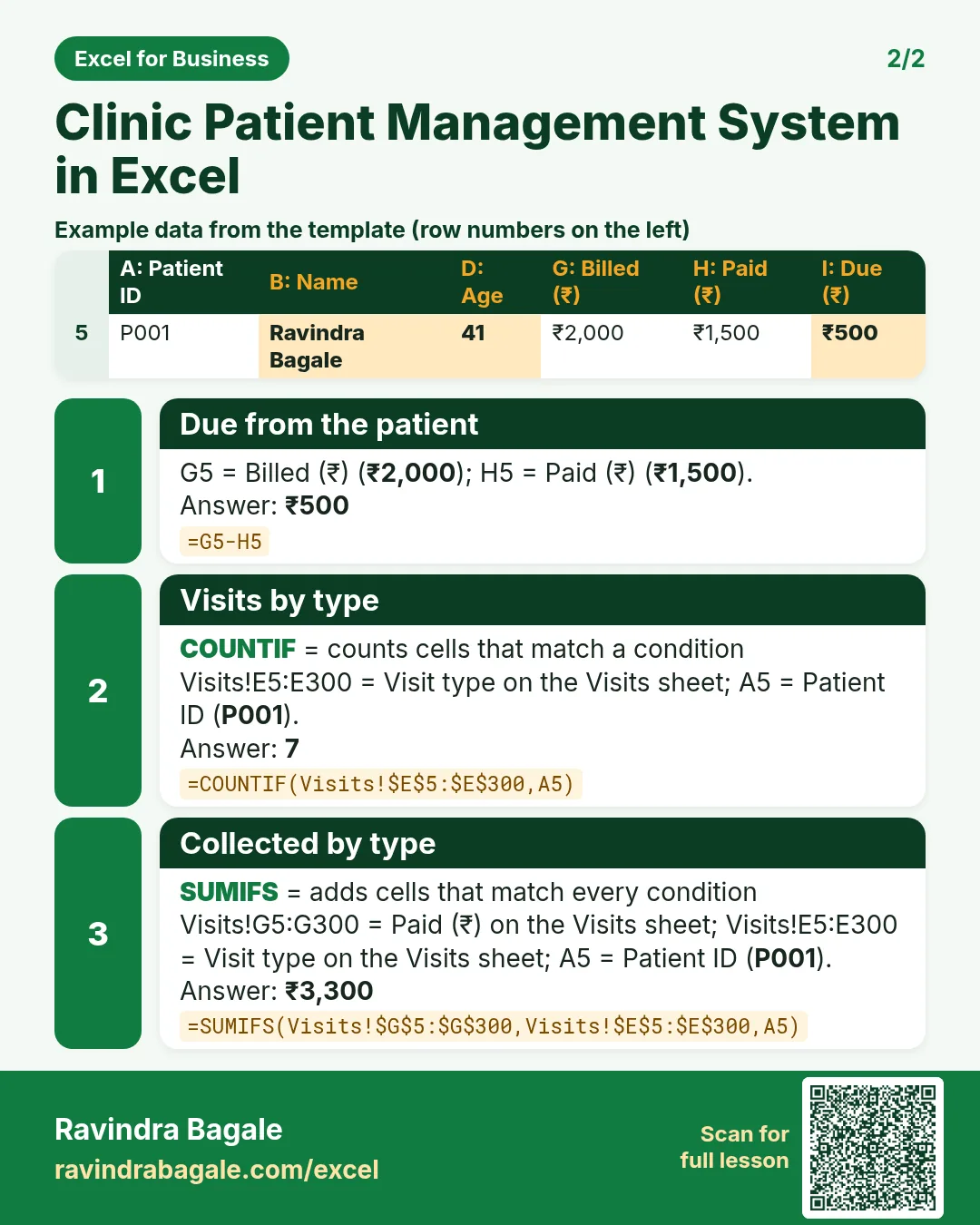
Revision card 1 for Poultry Farm Management System in Excel: Sale amount: =D5*E5 gives ₹4,05,720; Average weight per bird: =ROUND(D5/C5,2) gives 2.3; Deaths per flock: =SUMIFS('Daily log'!$D$5:$D$3000,'Daily log'!$B$5:$B$3000,A5) gives 75. Includes an example data table.
Card 1 of 2: Poultry Farm Management System in Excel · Download PNG · Open card page
Revision card 2 for Poultry Farm Management System in Excel: Mortality %: =C5/B5 gives 1.5%; Birds in shed: =B5-C5-E5 gives 105; Feed per flock: =SUMIFS('Daily log'!$E$5:$E$3000,'Daily log'!$B$5:$B$3000,A5) gives 19,698.
Card 2 of 2: Poultry Farm Management System in Excel · Download PNG · Open card page

Petrol Pump Shift Management System in Excel: Meter Readings, Litres Sold, Cash and UPI Collection, Shortage and Tank Dip

Excel for Business · 2 cards · Open the lesson

Revision card 1 for Petrol Pump Shift Management System in Excel: Litres sold: =F5-E5-G5 gives 612.0; Amount: =ROUND(H5*J5,2) gives ₹63,770.4; Collected: =SUM(D5:F5) gives ₹1,47,100.
Card 1 of 2: Petrol Pump Shift Management System in Excel · Download PNG · Open card page
Revision card 2 for Petrol Pump Shift Management System in Excel: Short or excess: =ROUND(G5-H5,2) gives −₹20.9; Shortage check: =IF(I5<-Setup!$B$4,"Short","OK") gives OK; Book stock: =B5+C5-D5 gives 9,112.
Card 2 of 2: Petrol Pump Shift Management System in Excel · Download PNG · Open card page

Library Management System in Excel: Books, Members, Issue and Return, Due Dates, Late Fines and Availability

Excel for Business · 2 cards · Open the lesson
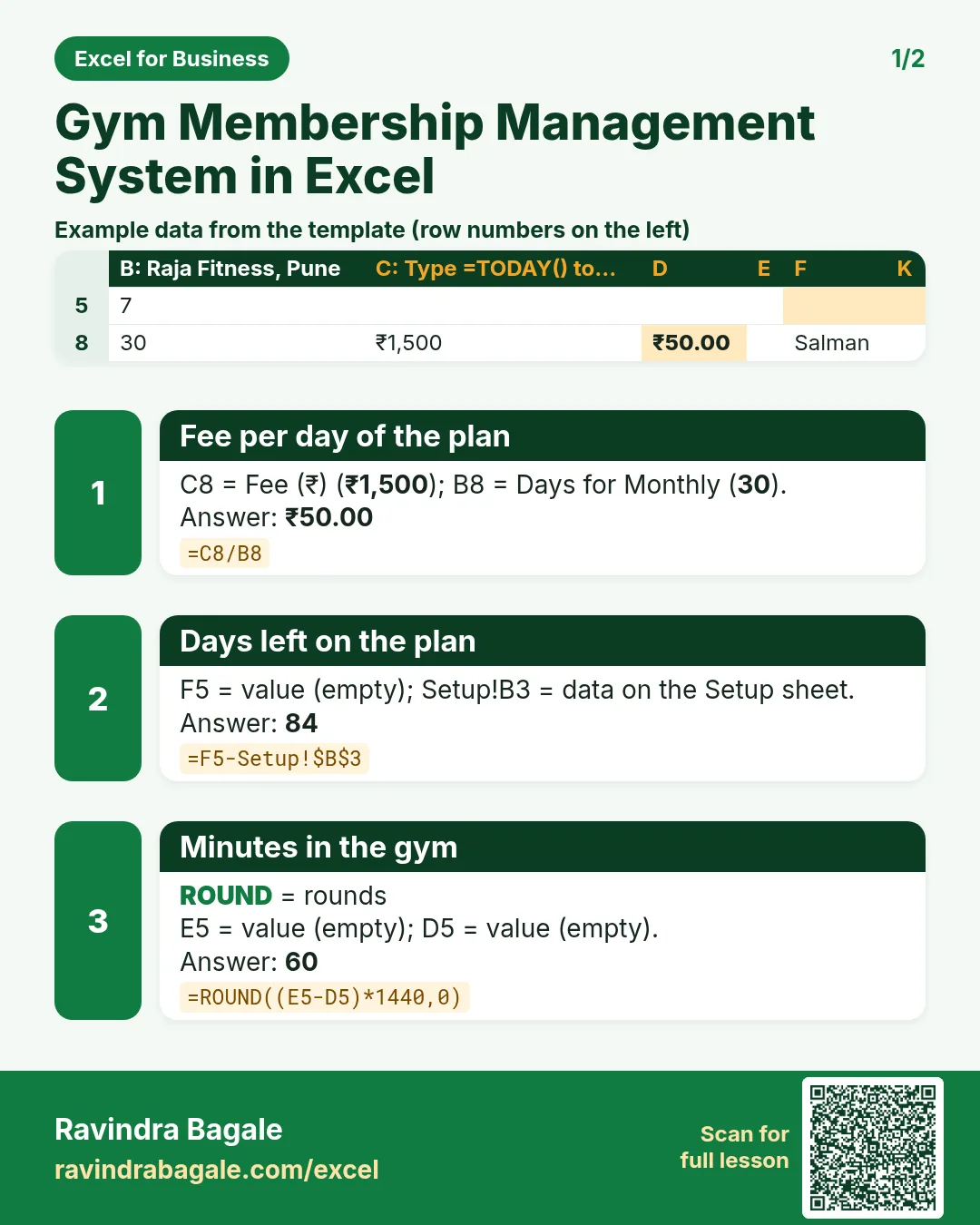
Revision card 1 for Library Management System in Excel: Issue number: ="IS-"&TEXT(ROW()-4,"000") gives IS-001; Due date: =B5+Setup!$B$4 gives 15-09-2026; Status: =IF(G5<>"","Returned",IF(Setup!$B$3>F5,"Overdue","Issued")) gives Returned. Includes an example data table.
Card 1 of 2: Library Management System in Excel · Download PNG · Open card page
Revision card 2 for Library Management System in Excel: Copies available: =D5-E5 gives 2; Times issued: =COUNTIFS(Issues!$D$5:$D$3000,A5) gives 2; Can take more: =MAX(0,Setup!$B$6-D5) gives 2. Includes an example data table.
Card 2 of 2: Library Management System in Excel · Download PNG · Open card page

Day-care Management System in Excel: Children, Daily Attendance, Late Pickup Charges, Monthly Fees and Fee Bill

Excel for Business · 2 cards · Open the lesson

Revision card 1 for Day-care Management System in Excel: Fee due date: =B4+B7-1 gives 07-10-2026; Days present: =COUNTIFS(Attendance!$B$5:$B$5000,A5) gives 14; Late pickup total: =SUMIFS(Attendance!$G$5:$G$5000,Attendance!$B$5:$B$5000,A5) gives ₹400. Includes an example data table.
Card 1 of 2: Day-care Management System in Excel · Download PNG · Open card page
Revision card 2 for Day-care Management System in Excel: Balance: =E5-F5 gives ₹400; Total due: =C5+D5 gives ₹9,400; Paid: =SUMIFS(Payments!$D$5:$D$2000,Payments!$C$5:$C$2000,A5) gives ₹9,000. Includes an example data table.
Card 2 of 2: Day-care Management System in Excel · Download PNG · Open card page

NGO Donor and Fund Management System in Excel: Donors, Donations, 80G Checks, Fund-wise Spending, Balance and Receipt

Excel for Business · 2 cards · Open the lesson
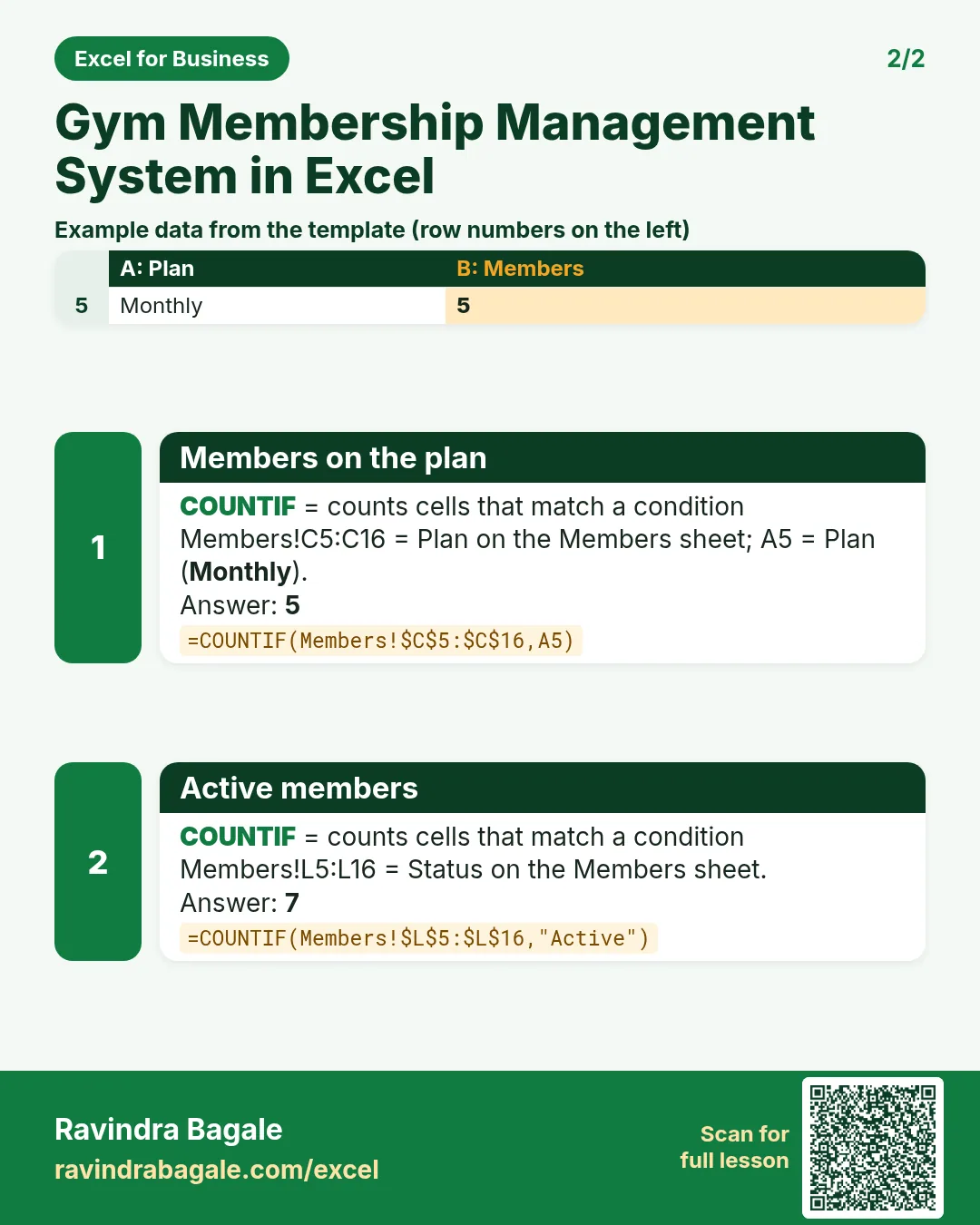
Revision card 1 for NGO Donor and Fund Management System in Excel: Number of donations: =COUNTIFS(Donations!$C$5:$C$3000,A5) gives 2; Total given: =SUMIFS(Donations!$F$5:$F$3000,Donations!$C$5:$C$3000,A5) gives ₹35,000; Receipt number: ="ZF-"&TEXT(ROW()-4,"000") gives ZF-001. Includes an example data table.
Card 1 of 2: NGO Donor and Fund Management System in Excel · Download PNG · Open card page
Revision card 2 for NGO Donor and Fund Management System in Excel: Balance in fund: =C5-D5 gives ₹23,000; Received per fund: =SUMIFS(Donations!$F$5:$F$3000,Donations!$E$5:$E$3000,A5) gives ₹2,71,000; Spent per fund: =SUMIFS(Spending!$D$5:$D$3000,Spending!$B$5:$B$3000,A5) gives ₹2,48,000. Includes an example data table.
Card 2 of 2: NGO Donor and Fund Management System in Excel · Download PNG · Open card page

Sales CRM System in Excel: Leads, Stages, Weighted Pipeline, Follow-up Reminders, Win Rate by Source and Dashboard

Excel for Business · 2 cards · Open the lesson

Revision card 1 for Sales CRM System in Excel: Weighted value: =F5*H5 gives ₹4,80,000; Lead ID: ="LD-"&TEXT(ROW()-4,"000") gives LD-001; Days open: =IF(K5="",Setup!$B$3,K5)-B5 gives 23. Includes an example data table.
Card 1 of 2: Sales CRM System in Excel · Download PNG · Open card page
Revision card 2 for Sales CRM System in Excel: Win rate by source: =IFERROR(C20/(C20+D20),0) gives 0%; Leads per stage: =COUNTIFS(Leads!$G$5:$G$1000,A5) gives 2; Weighted per stage: =SUMIFS(Leads!$I$5:$I$1000,Leads!$G$5:$G$1000,A5) gives ₹1,76,000. Includes an example data table.
Card 2 of 2: Sales CRM System in Excel · Download PNG · Open card page

Complaint Ticket Management System in Excel: Priorities, Due-by Time, Hours Taken, Met or Breached and Agent Report

Excel for Business · 2 cards · Open the lesson
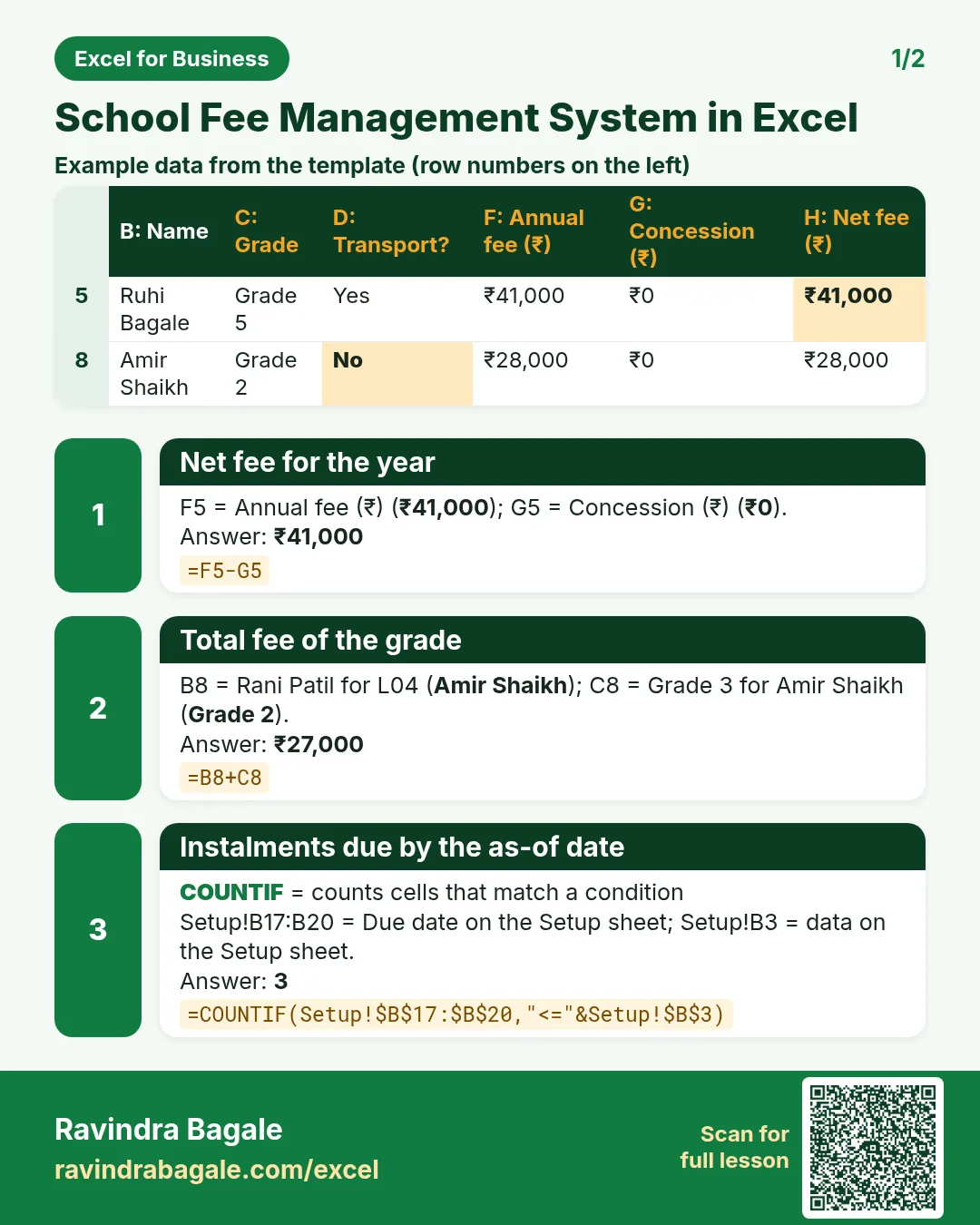
Revision card 1 for Complaint Ticket Management System in Excel: Hours taken: =IF(H5="","",ROUND((H5-B5)*24,1)) gives 8.0; Ticket number: ="TK-"&TEXT(ROW()-4,"000") gives TK-001; Tickets per agent: =COUNTIFS(Tickets!$F$5:$F$3000,A5) gives 6. Includes an example data table.
Card 1 of 2: Complaint Ticket Management System in Excel · Download PNG · Open card page
Revision card 2 for Complaint Ticket Management System in Excel: Met %: =IFERROR(F5/E5,0) gives 75%; Tickets per category: =COUNTIFS(Tickets!$D$5:$D$3000,A11) gives 5; Average hours to resolve: =AVERAGE(Tickets!$I$5:$I$3000) gives 32.2. Includes an example data table.
Card 2 of 2: Complaint Ticket Management System in Excel · Download PNG · Open card page

IT Asset Management System in Excel: Asset Register, Assigned To, Warranty Alerts, Book Value, Repairs and Report

Excel for Business · 1 card · Open the lesson

Revision card 1 for IT Asset Management System in Excel: Asset tag: ="IT-"&TEXT(ROW()-4,"000") gives IT-001; Warranty end date: =EDATE(D5,12*I5) gives 10-04-2027; Age in years: =ROUND((Setup!$B$3-D5)/365,2) gives 2.52. Includes an example data table.
Card 1 of 1: IT Asset Management System in Excel · Download PNG · Open card page

Expense Reimbursement System in Excel: Claims, Km Rates, Category Limits, Bill Check, Approval and Payment Status

Excel for Business · 2 cards · Open the lesson

Revision card 1 for Expense Reimbursement System in Excel: Claim number: ="EX-"&TEXT(ROW()-4,"000") gives EX-001; Travel amount by km: =G5*IF(E5="Car travel",Setup!$B$4,Setup!$B$5) gives ₹1,620; Payable: =IF(AND(L5="Approved",K5="OK"),J5,0) gives ₹1,620.
Card 1 of 2: Expense Reimbursement System in Excel · Download PNG · Open card page
Revision card 2 for Expense Reimbursement System in Excel: Claimed per employee: =SUMIFS(Claims!$H$5:$H$3000,Claims!$C$5:$C$3000,A5) gives ₹4,630; Allowed per category: =SUMIFS(Claims!$J$5:$J$3000,Claims!$E$5:$E$3000,A14) gives ₹3,780; Cut by limits: =SUM(Claims!$H$5:$H$3000)-SUM(Claims!$J$5:$J$3000) gives ₹4,450. Includes an example data table.
Card 2 of 2: Expense Reimbursement System in Excel · Download PNG · Open card page

Small Business Accounts Receivable System in Excel: Invoices, Part Payments, Due Dates, Ageing Buckets, Credit Limits and Statement

Excel for Business · 2 cards · Open the lesson
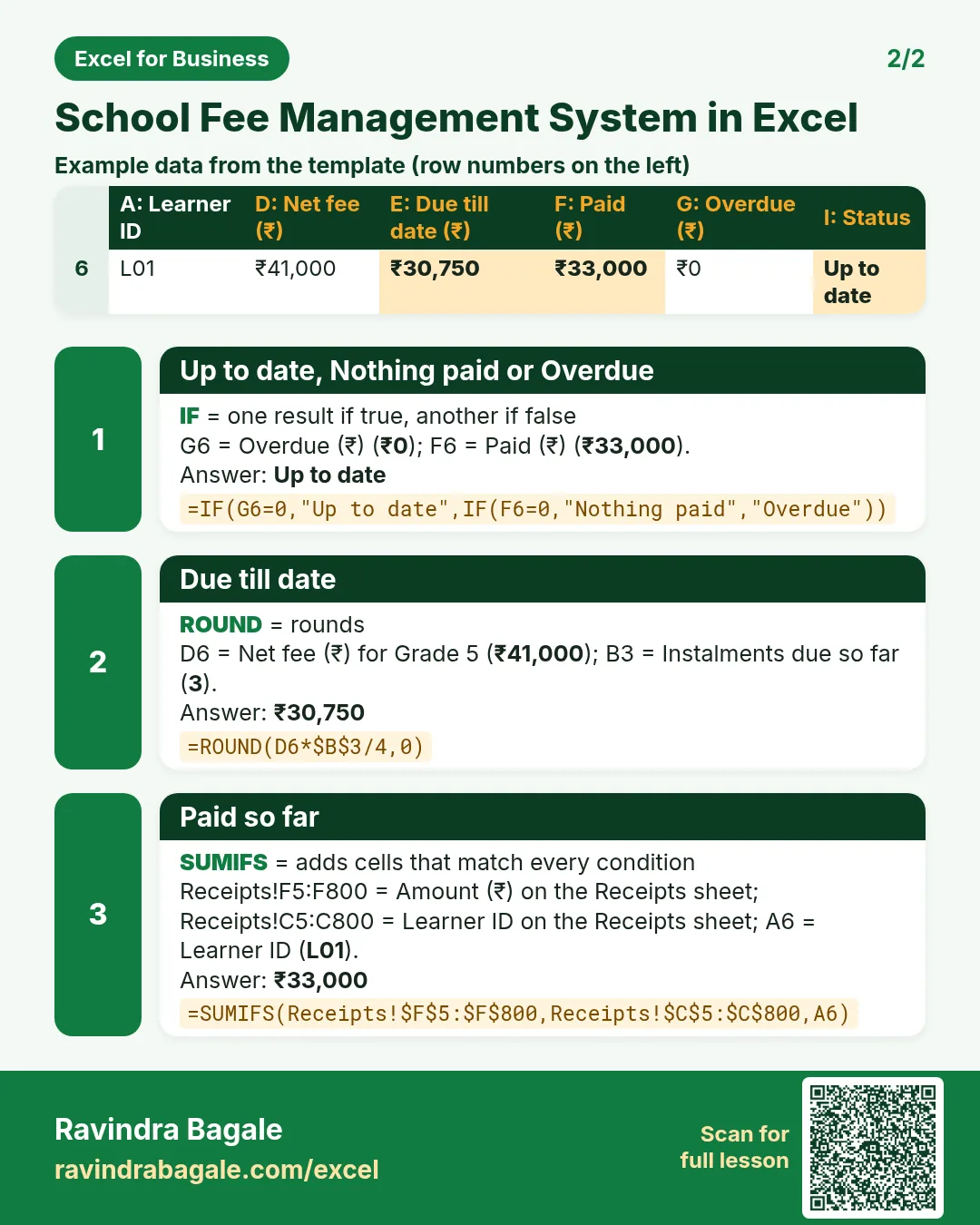
Revision card 1 for Small Business Accounts Receivable System in Excel: Outstanding per customer: =SUMIFS(Invoices!$J$5:$J$3000,Invoices!$C$5:$C$3000,A5) gives ₹65,580; Credit limit check: =IF(E5>D5,"Over limit","OK") gives OK; GST: =ROUND(E5*Setup!$B$4,0) gives ₹2,700. Includes an example data table.
Card 1 of 2: Small Business Accounts Receivable System in Excel · Download PNG · Open card page
Revision card 2 for Small Business Accounts Receivable System in Excel: Balance: =G5-I5 gives ₹12,700; Received: =SUMIFS(Receipts!$D$5:$D$5000,Receipts!$C$5:$C$5000,A5) gives ₹5,000; Days overdue: =IF(J5<=0,0,MAX(0,Setup!$B$3-H5)) gives 114. Includes an example data table.
Card 2 of 2: Small Business Accounts Receivable System in Excel · Download PNG · Open card page