To-Do List in Excel with Priority, Due Dates, a Done Checkbox and a Progress Bar
Ravina in Solapur keeps her to-do list on scraps of paper and in three different phone apps. Before Diwali that is not enough: tickets to book, gifts to buy, insurance to renew, a report due at work. One Excel sheet puts it all in one place. Tick a task and it greys out with a line through it, overdue tasks turn red, and a bar at the top shows how much is done.
What you'll learn on this page
- A task list with category and priority drop-downs
- A Done column: in-cell checkboxes or TRUE/FALSE
- Days left and an Overdue / Due soon / Open status
- Strikethrough for done tasks with conditional formatting
- Done % and a text progress bar with REPT
- Counting open High-priority tasks with COUNTIFS
Download the template: to-do-list-priority-progress-template.xlsx: example data with real formulas. Yellow cells are inputs you can type over; green cells hold formulas; blue rows are headers and totals. Replace the example data with your own and everything recalculates.
Made-up data: every name, amount, shop and date on this page is made up for practice. Cities are used only to make the examples feel real.
1. The example
Ravina's list as of 17-10-2026 (made-up tasks), 10 tasks:
| Task | Priority | Due | Done | Status |
|---|---|---|---|---|
| Pay electricity bill | High | 15-10-2026 | ✔ | Done |
| File society complaint | Medium | 14-10-2026 | Overdue | |
| Submit expense report | Medium | 16-10-2026 | Overdue | |
| Book train tickets for Diwali | High | 18-10-2026 | Due soon | |
| Renew bike insurance | High | 25-10-2026 | Open |
Three of ten are done, so the bar shows 30%: ██████░░░░░░░░░░░░░░. Two High-priority tasks are still open, two are overdue and one is due within 2 days.
Short intro to checkboxes. In Microsoft 365 and Excel for the web, select E6:E40 > Insert > Checkbox. Each cell gets a tick box; a ticked box is TRUE and an empty one is FALSE, so formulas can count them. In older Excel, just type TRUE or FALSE (the template has a TRUE/FALSE drop-down). Every formula on this page works the same either way.
Figure 1. Each task has a due date and a Done value (TRUE/FALSE); IF gives the status; COUNTIF and REPT turn 3 done out of 10 into 30% and a 20-block bar.
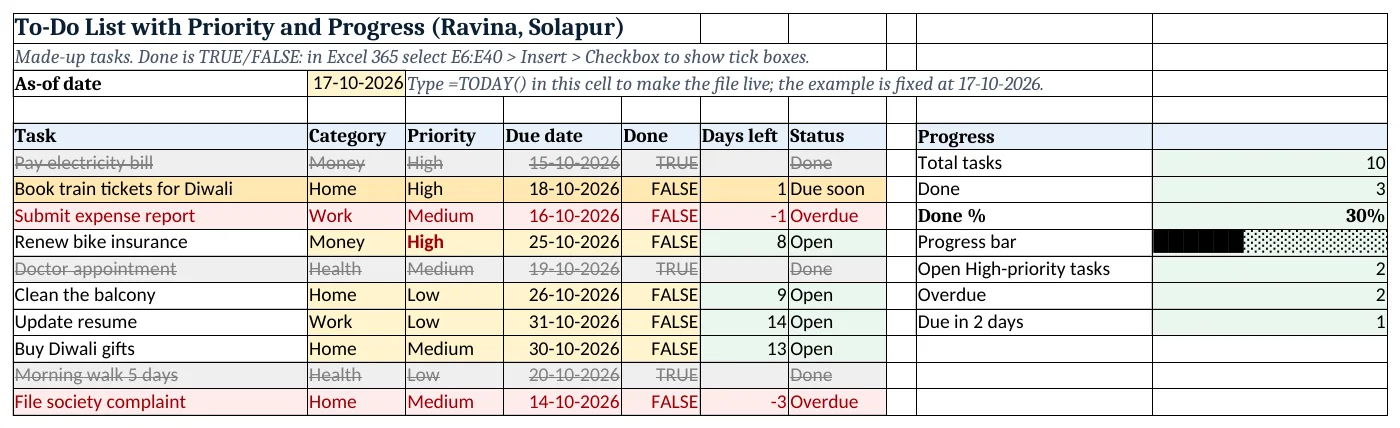
Figure 2. The template sheet, recalculated with its example data. Download it above and replace the yellow cells with your own numbers.
2. Build it step by step
Step 1. As-of date and columns
- In B3 type
=TODAY()(the template has 17-10-2026 typed so the example matches). - In A5:G5 type Task, Category, Priority, Due date, Done, Days left, Status.
- Select B6:B200 > Data > Data Validation > List:
Home,Work,Money,Health; C6:C200:High,Medium,Low(drop-down lists).
Step 2. The Done column
- Excel 365: select E6:E40 > Insert > Checkbox.
- Older Excel: select E6:E200 > Data Validation > List:
TRUE,FALSE. - Mark done tasks: 3 of the 10 are TRUE.
Step 3. Days left and status
- In F6 type
=IF(E6,"",D6-$B$3). A done task shows nothing. - In G6 type
=IF(E6,"Done",IF(D6<$B$3,"Overdue",IF(D6-$B$3<=2,"Due soon","Open")))(nested IF). - Copy F6:G6 down.
Step 4. Progress
- In J6 type
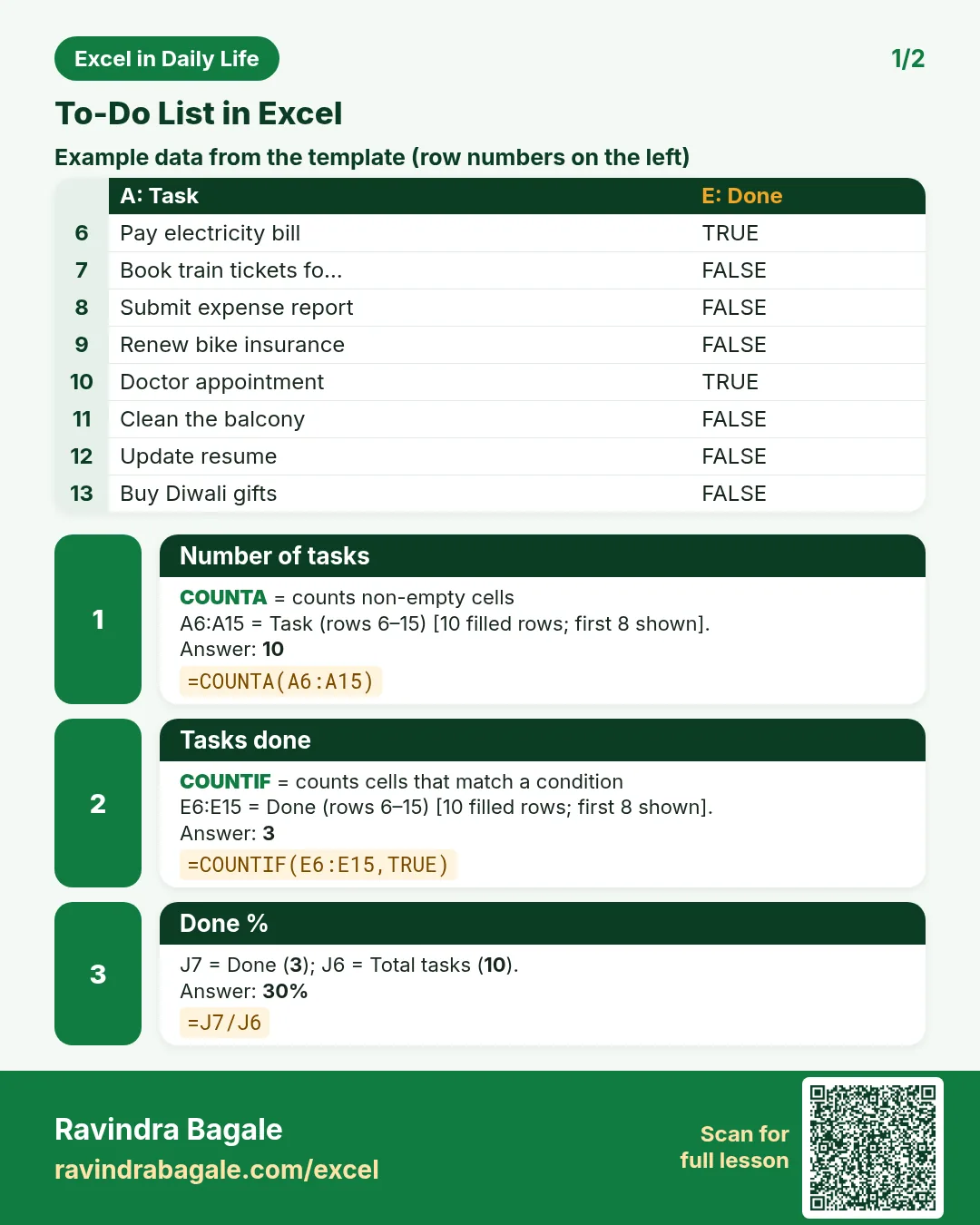
=COUNTA(A6:A15): 10 tasks. In J7=COUNTIF(E6:E15,TRUE): 3 done. - In J8 type
=J7/J6and format as %: 30%. - In J9 type
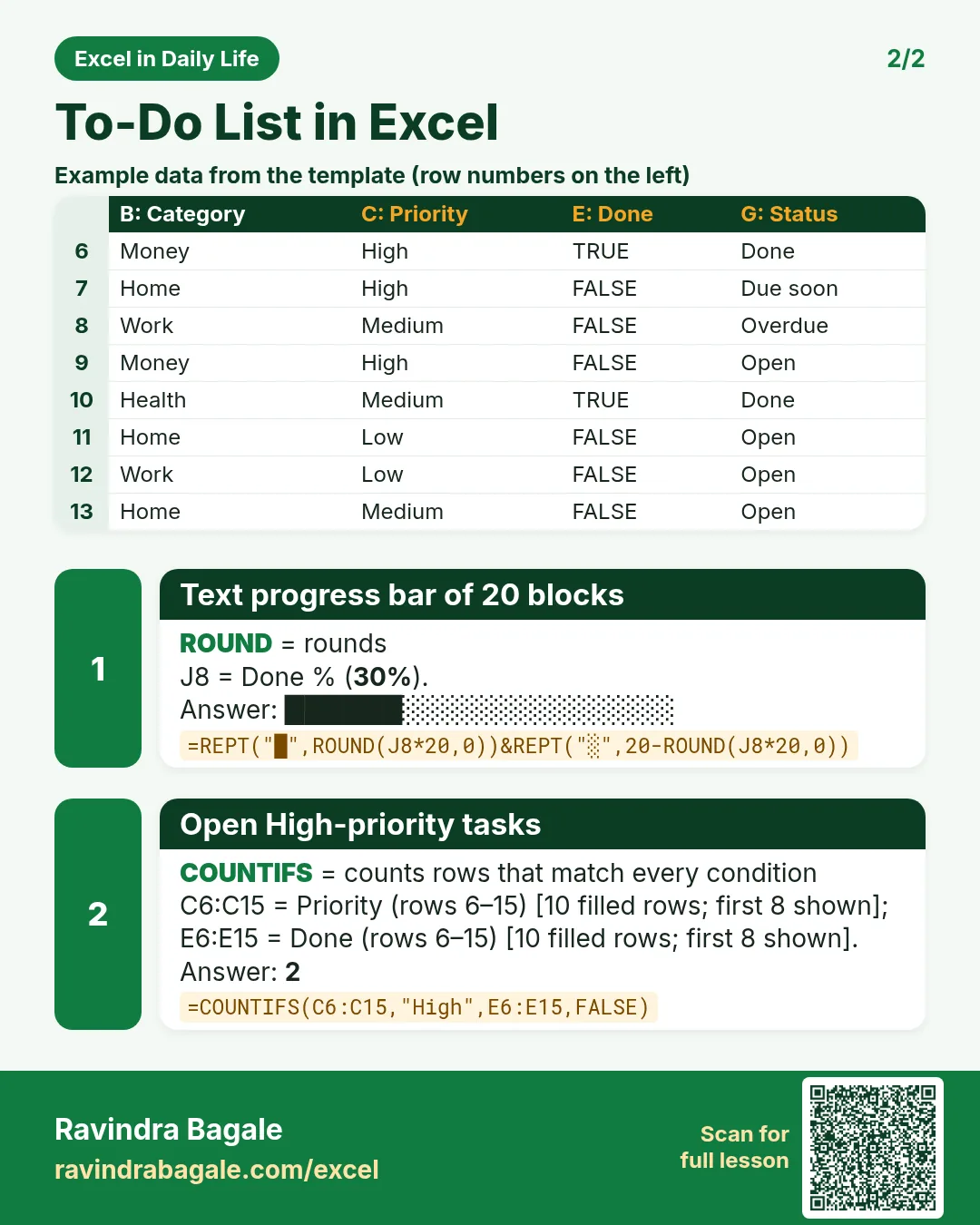
=REPT("█",ROUND(J8*20,0))&REPT("░",20-ROUND(J8*20,0)). REPT repeats a character: 6 full blocks and 14 empty ones make a 20-block bar.
Step 5. Counts that matter
- In J10 type
=COUNTIFS(C6:C15,"High",E6:E15,FALSE): 2 open High-priority tasks (COUNTIFS). - In J11 type
=COUNTIF(G6:G15,"Overdue"): 2. In J12=COUNTIF(G6:G15,"Due soon"): 1.
Step 6. Colours and strikethrough
- Select A6:G200 > Conditional Formatting > New Rule > Use a formula:
=$E6=TRUE, grey fill, grey strikethrough font, Stop If True. - Add
=AND($D6<>"",$D6<$B$3)red, then=AND($D6<>"",$D6-$B$3<=2)amber (formula rules). - Select C6:C200 > Highlight Cells Rules > Equal To
High, bold dark red text.
Ravindra Bagale's Tip
Keep only three High-priority tasks at a time. If everything is High, nothing is.
Ravindra Bagale's Tip – मराठी
एका वेळी फक्त तीनच High-priority tasks ठेवा. सगळंच High असेल तर काहीच High नसतं.
Ravindra Bagale's Tip – हिंदी
एक समय में बस तीन High-priority tasks रखो. सब कुछ High है तो कुछ भी High नहीं.
3. Formulas used
| Cell | Formula | What it does |
|---|---|---|
| F6 | =IF(E6,"",D6-$B$3) |
Days left (empty when done) |
| G6 | =IF(E6,"Done",IF(D6<$B$3,"Overdue",IF(D6-$B$3<=2,"Due soon","Open"))) |
Done / Overdue / Due soon / Open |
| J6 | =COUNTA(A6:A15) |
Number of tasks |
| J7 | =COUNTIF(E6:E15,TRUE) |
Tasks done |
| J8 | =J7/J6 |
Done % |
| J9 | =REPT("█",ROUND(J8*20,0))&REPT("░",20-ROUND(J8*20,0)) |
Text progress bar of 20 blocks |
| J10 | =COUNTIFS(C6:C15,"High",E6:E15,FALSE) |
Open High-priority tasks |
| J11 | =COUNTIF(G6:G15,"Overdue") |
Overdue tasks |
Every formula above is written in the template, so you can click a cell and see it in the formula bar. All values on this page were recalculated in the file.
4. Common mistakes
- Typing "Yes" in the Done column. COUNTIF(…,TRUE) and
IF(E6,…)need TRUE/FALSE. Use checkboxes or the TRUE/FALSE drop-down. - Quotes around TRUE.
=E6="TRUE"compares with the text TRUE, so it is FALSE for a ticked box. Write TRUE without quotes:=E6=TRUE. - Rule order. The Done rule must be first with Stop If True; otherwise a done task that was overdue still shows red.
- Progress bar that never fills. If J6 counts empty rows (for example COUNTA on a range with formulas), the % is too low. Count only the task names.
- Deleting finished tasks. Keep them ticked. The done % and the history are the motivating part.
Ravindra Bagale's Tip
Plan tomorrow tonight: spend two minutes at night ticking today and adding tomorrow's tasks with due dates.
Ravindra Bagale's Tip – मराठी
उद्याचं plan आज रात्रीच: रात्री दोन मिनिटं आजचे tasks tick करा आणि उद्याचे due date सकट टाका.
Ravindra Bagale's Tip – हिंदी
कल का plan आज रात: रात को दो मिनट में आज के tasks tick करो और कल के due date के साथ डालो.
5. More real examples
Example 1: Weekly home chores. List the chores with Category = Home and a due date each week; filter Status = Open on Saturday morning.
Example 2: Work project checklist. Add an Owner column (Raja, Rani, Amir) and count open tasks per person with COUNTIFS.
Example 3: Festival preparation. A Diwali or wedding list with a progress bar on top keeps everyone at home on the same page.
Quick revision cards
Quick revision
Each card shows formulas from this page, each with an example and its answer from the template. Scan the QR code on a card to open this lesson. All names and numbers are made up for practice.
झटपट उजळणी
प्रत्येक card वर या page मधले formulas, त्यांचं example आणि template मधलं उत्तर आहे. Card वरचा QR code scan केला की हा lesson उघडतो. सगळी नावं आणि आकडे सरावासाठी काल्पनिक आहेत.
झटपट दोहराई
हर card पर इस page के formulas, उनका example और template का उत्तर है. Card का QR code scan करें तो यह lesson खुलेगा. सभी नाम और आंकड़े अभ्यास के लिए काल्पनिक हैं.


More cards: Ravi Sir's Cards.
6. Frequently asked questions
How do I add a checkbox in Excel?
In Microsoft 365 or Excel for the web: select the cells > Insert > Checkbox. A ticked box is TRUE. In older Excel, use TRUE/FALSE or a form control checkbox.
How do I strike through completed tasks automatically?
Use a conditional formatting formula =$E6=TRUE and choose a strikethrough font.
How do I make a progress bar in Excel?
Done % in one cell, then =REPT("█",ROUND(J8*20,0))&REPT("░",20-ROUND(J8*20,0)), or data bars on the % cell.
How do I count completed checkboxes?
=COUNTIF(E6:E15,TRUE) counts the ticked boxes.
How do I highlight overdue tasks?
A formula rule =AND($D6<>"",$D6<$B$3) with a red fill, placed after the Done rule.
7. Quick quiz
Ten questions on this page. Sign in to save your score.