Excel Table vs Range: Ctrl+T, Sort, Filter, Table Name and Structured References like =MAX(marks[Total])
Everything so far in this course was written on a range: cells you point to with addresses like F2:F11. Excel has a second way to hold data, the Excel Table. One shortcut, Ctrl+T, gives you banded rows, sort and filter buttons, a name for the data, and formulas that use column names instead of addresses and grow by themselves when new rows arrive. In this chapter you turn the marks sheet into a table and use all of it.
What you'll learn in this chapter
- Range vs Excel Table
- Ctrl+T and "My table has headers"
- Sort A to Z, largest to smallest, and by colour
- Filters, and number filters on several columns
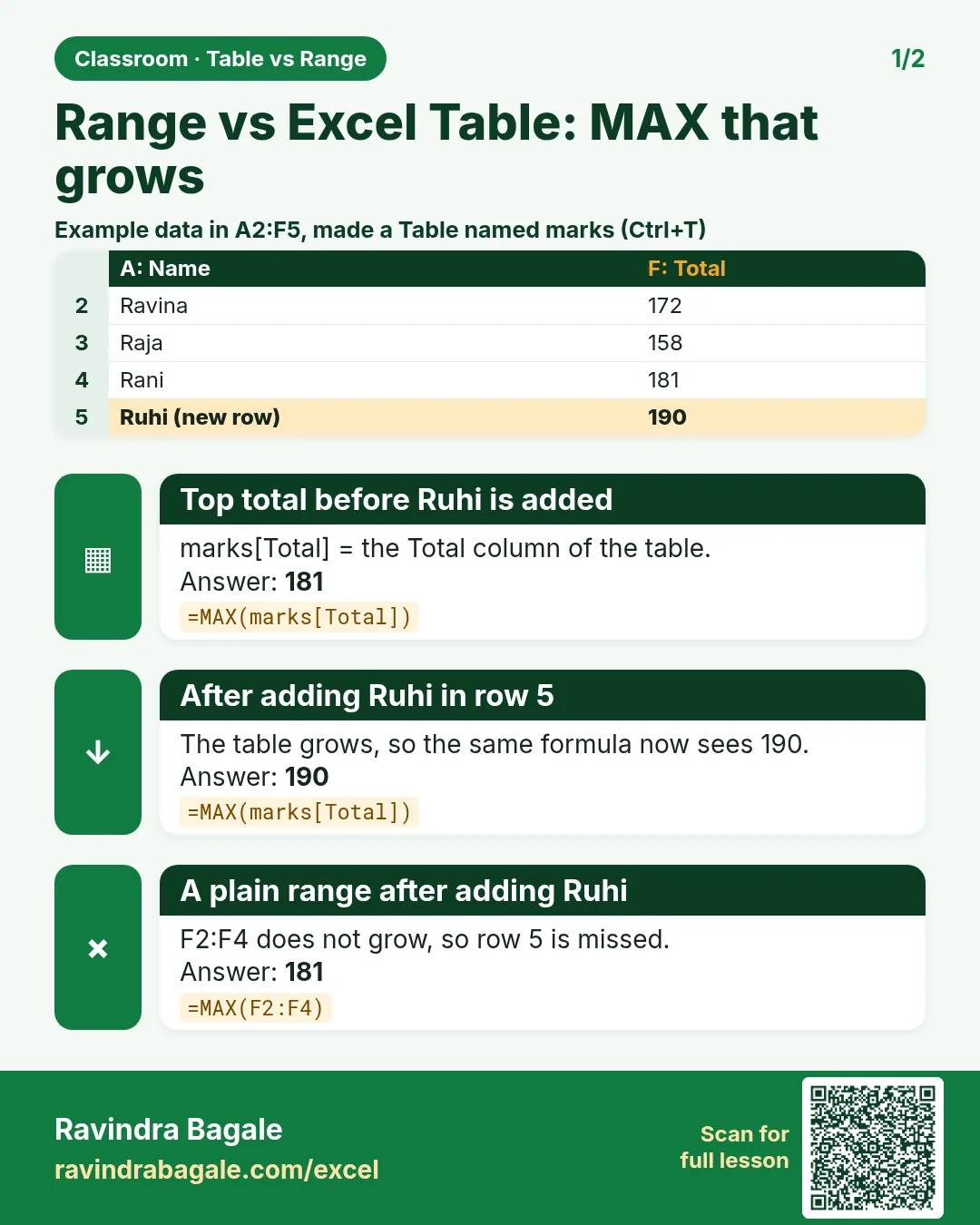
- Naming a table, and structured references like =MAX(marks[Total])
- Calculated columns and automatic growth
- Convert to Range, and removing the table colours
Practice file: excel-table-structured-references-practice.xlsx: the marks as a table named marks, with calculated columns and a question block that uses structured references.
Made-up data: all names and marks are made up for practice.
1. Range vs Excel Table
| Range | Excel Table | |
|---|---|---|
| How you refer to data | Addresses: F2:F11 |
Names: marks[Total] |
| New rows | Formulas must be changed | Included automatically |
| Formatting | Whatever you apply | Banded rows, header style |
| Sort and filter | Turn on yourself | Buttons on every header |
| Formulas in a column | Drag them down | Fill down by themselves |
The data is the same marks sheet as the Conditional Formatting chapter, with an ID column: A ID, B Name, C Science, D Maths, E English, F Total, G Result, H Percentage, in A1:H11.
2. Ctrl+T: create the table
- If the range has old colours or borders, remove them first: select it and use Home > Editing > Clear > Clear Formats. (This clears formatting only; the values stay.)
- Click any cell inside the data.
- Press Ctrl+T (or Insert > Table).
- Check the range (A1:H11) and keep My table has headers ticked.
- Click OK.
The data gets banded rows (alternate shading, which makes it easy to follow one row across), a styled header, and a filter button on every header. A new Table Design tab appears whenever a cell of the table is selected.
Classroom line
Everything we have learned until now was the way of writing formulas on a range.
Class मधलं वाक्य
"Ata paryant apan jevdha shiklo te sagla range varti formula lihinyachi paddhat hoti."
आतापर्यंत आपण जेवढं शिकलो ते सगळं range वरती formula लिहिण्याची पद्धत होती.
Classroom line
Everything we have learned until now was the way of writing formulas on a range.
Figure 1. The same marks as a range (plain cells, addresses) and as an Excel Table after Ctrl+T (banded rows, filter buttons, a name).
3. Sort and filter
Sort: click the button on a header.
- Name > Sort A to Z puts the names in alphabetical order.
- Total > Sort Largest to Smallest puts Ruhi Bagale (270) at the top.
- Sort by Color moves rows with a chosen fill or font colour to the top, for example rows coloured by a whole-row rule.
Sorting a table always keeps each row together, so a name never ends up next to someone else's marks.
Filter: click a header button, untick (Select All) and tick the values you want, then OK. Hidden rows are only hidden, not deleted.
Number filters on several columns: who scored above 50 in all three subjects?
- Science button > Number Filters > Greater Than, type 50, OK.
- Do the same on Maths.
- And on English.
Each filter works on the rows left by the one before, so the result is the rows above 50 in all three: Ravindra Bagale, Shraddha Bagale, Ruhi Bagale, Amir, Zoya and Rani, 6 rows. The practice file proves it with =COUNTIFS(marks[Science],">50",marks[Maths],">50",marks[English],">50") → 6.
To remove one filter: header button > Clear Filter From "Science". To remove all: Data > Clear.
Figure 2. Number filters Greater Than 50 on Science, Maths and English, one after the other, leave 6 rows: Ravindra Bagale, Shraddha Bagale, Ruhi Bagale, Amir, Zoya and Rani.
4. Name the table
Excel names a new table Table1, Table2 and so on. Give it a meaningful name before you write formulas:
- Click a cell in the table.
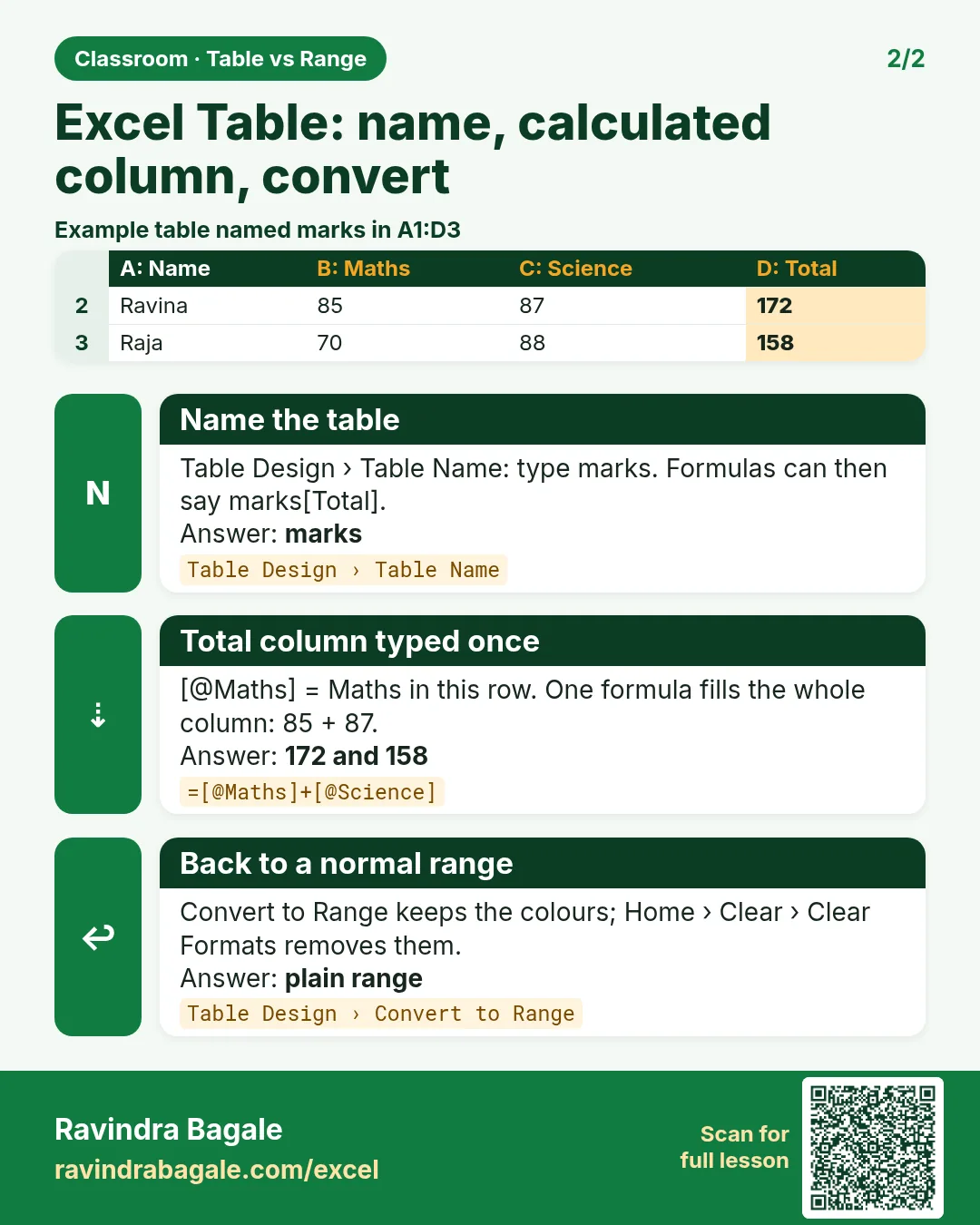
- Table Design > Table Name (on the left).
- Type marks and press Enter.
A table name must start with a letter or an underscore and cannot contain spaces (use marks_2026, not "marks 2026").
Classroom line
We have to give this table a name.
Class मधलं वाक्य
या table ला एक नाव द्यायचं आहे.
Classroom line – हिंदी
"Is table ko ek naam dena hai."
5. Structured references
In a cell outside the table, type =MAX( and select the Total values F2:F11 with the mouse. Instead of F2:F11, Excel writes:
=MAX(marks[Total])
→ 270. The pattern is TableName[ColumnName]. You can also type it: after marks[ Excel shows a list of the columns to pick from.
If you click the header cell Total instead of the values, Excel writes marks[[#Headers],[Total]], which is only the header text, so MAX returns 0. Select the values, not the header.
| Question | Formula | Answer |
|---|---|---|
| Highest total | =MAX(marks[Total]) |
270 |
| Average percentage | =AVERAGE(marks[Percentage]) |
63.73 |
| Number of Fail | =COUNTIF(marks[Result],"Fail") |
3 |
| Sum of totals | =SUM(marks[Total]) |
1,912 |
| Rows in the table | =ROWS(marks[Name]) |
10 |
Classroom line
You use the column name directly; there is no need to write a range. You are spared the trouble of selecting the range.
Class मधलं वाक्य
"Directly column cha naav vapraychay, range lihinyachi garaj nahiye. Range select karaycha tras vachun jato."
Directly column चं नाव वापरायचं आहे, range लिहिण्याची गरज नाही. Range select करायचा त्रास वाचतो.
Classroom line
You use the column name directly; there is no need to write a range. You are spared the trouble of selecting the range.
Figure 3. =MAX(marks[Total]): marks is the table name, Total the column name. Excel reads it as the Total values F2:F11 and returns 270.
6. Calculated columns and automatic growth
Inside a table, type a formula once at the top of a column and press Enter: Excel fills the whole column. In F2, clicking the cells writes:
=[@Science]+[@Maths]+[@English]
[@Science] means "Science in this row". Every row uses the same formula, so nobody has to drag it down, and nobody can forget a row.
Now type a new row directly under the last row of the table. The table grows by one row, Total, Result and Percentage fill in by themselves, and =MAX(marks[Total]) includes the new row. With a range, you would have to change F2:F11 to F2:F12 in every formula.
Ravindra Bagale's Tip
Whenever data keeps growing (orders, attendance, expenses), keep it in a named Excel Table from day one. Every formula, chart and PivotTable built on marks[Total] stays correct when next month's rows are added, and you never hunt for a range that stopped one row too early.
Ravindra Bagale's Tip – मराठी
जो data वाढत राहतो (orders, attendance, expenses), तो पहिल्या दिवसापासून नाव दिलेल्या Excel Table मध्ये ठेवा. marks[Total] वर बनवलेले सगळे formulas, charts आणि PivotTables पुढच्या महिन्याच्या rows add झाल्यावरही बरोबर राहतात.
Ravindra Bagale's Tip – हिंदी
जो data बढ़ता रहता है (orders, attendance, expenses), उसे पहले दिन से नाम दी हुई Excel Table में रखो. marks[Total] पर बने सारे formulas, charts और PivotTables अगले महीने की rows जुड़ने के बाद भी सही रहते हैं.
7. Convert to Range, and removing the colours
To turn the table back into a normal range: Table Design > Convert to Range > Yes. The filter buttons disappear and formulas switch back to cell addresses, but the colours stay, because they are now ordinary formatting.
To remove the colours:
- Before converting: Table Design > Table Styles, open the list and choose Clear (or the first, plain style).
- Or after converting: select the range and use Home > Editing > Clear > Clear Formats.
(Conditional Formatting > Clear Rules does not remove table colours; it only removes conditional formatting rules.)
8. The whole chapter on one page
| Task | How |
|---|---|
| Create a table | Click inside the data, Ctrl+T, My table has headers, OK |
| Name it | Table Design > Table Name > marks > Enter |
| Refer to a column | marks[Total] |
| Refer to this row | [@Science] |
| Several filters | Number Filters on each column, one after the other |
| Back to a range | Table Design > Convert to Range |
| Remove colours | Table Styles > Clear, or Home > Clear > Clear Formats |
- A table is a range with a name, styles, filters and self-extending formulas.
- Name the table before writing formulas.
- TableName[Column] replaces cell addresses; [@Column] means this row.
- Filters on several columns combine as AND.
- Converting to a range keeps the colours; clear them separately.
9. Try at home
Try at home
Task 1
- Write
=MIN(marks[Total]). What is the lowest total? (100, Raja.)
Task 2
- Filter Result = Pass and Maths greater than 80. How many rows? (3: Ravindra Bagale, Shraddha Bagale and Ruhi Bagale.)
Task 3
- Add a new row under the table: ID 111, any name, marks 60, 60, 60. Does =MAX(marks[Total]) change? (No, 180 is below 270; but =ROWS(marks[Name]) becomes 11.)
Recap
In short
- Ctrl+T turns a range into an Excel Table.
- Tables have banded rows, filters and sort buttons.
- Name the table; write marks[Total] instead of F2:F11.
- Calculated columns fill down and the table grows by itself.
- Convert to Range keeps colours; Clear Formats removes them.
Quick revision cards
Quick revision
Revise this chapter in two minutes. Save the cards on your phone or download them as PNG files. All names and numbers are made up for practice.
झटपट उजळणी
हा chapter दोन मिनिटांत revise करा. Cards phone वर save करा किंवा PNG म्हणून download करा. सगळी नावं आणि आकडे सरावासाठी काल्पनिक आहेत.
झटपट दोहराई
यह chapter दो मिनट में revise करें. Cards phone पर save करें या PNG के रूप में download करें. सभी नाम और आंकड़े अभ्यास के लिए काल्पनिक हैं.


More cards for every chapter: Ravi Sir's Cards.