Excel INDEX and MATCH Function Explained (with XMATCH): Lookup Without XLOOKUP
XLOOKUP is in Excel 2021, Excel 2024, Microsoft 365 and Excel for the web. Many offices still run older versions, and interviewers love to ask "how would you do this without XLOOKUP?" The answer is INDEX and MATCH: two simple functions that, together, do everything VLOOKUP does and more, in every version of Excel. We finish with XMATCH, MATCH's newer sibling, which can search from the bottom.
What you'll learn in this chapter
- MATCH: find the position of a value
- Position inside a range vs sheet row number
- INDEX: get the value at a position
- INDEX + MATCH together
- Lookup to the left
- A two-way lookup: row and column
- XMATCH and the last match
- A Not found message with IFNA
Practice file: excel-index-match-xmatch-practice.xlsx: every formula on the INDEX MATCH sheet with its formula shown in column M, and a Your turn sheet.
1. The table
The same eleven students as the XLOOKUP chapter: roll (A), name (B), maths (C), science (D), english (E), total (F), result (G), percentage (H), data in rows 5 to 15. Two different students are called Salman: roll 104 (Pass) and roll 111 (Fail).
2. MATCH: where is it?
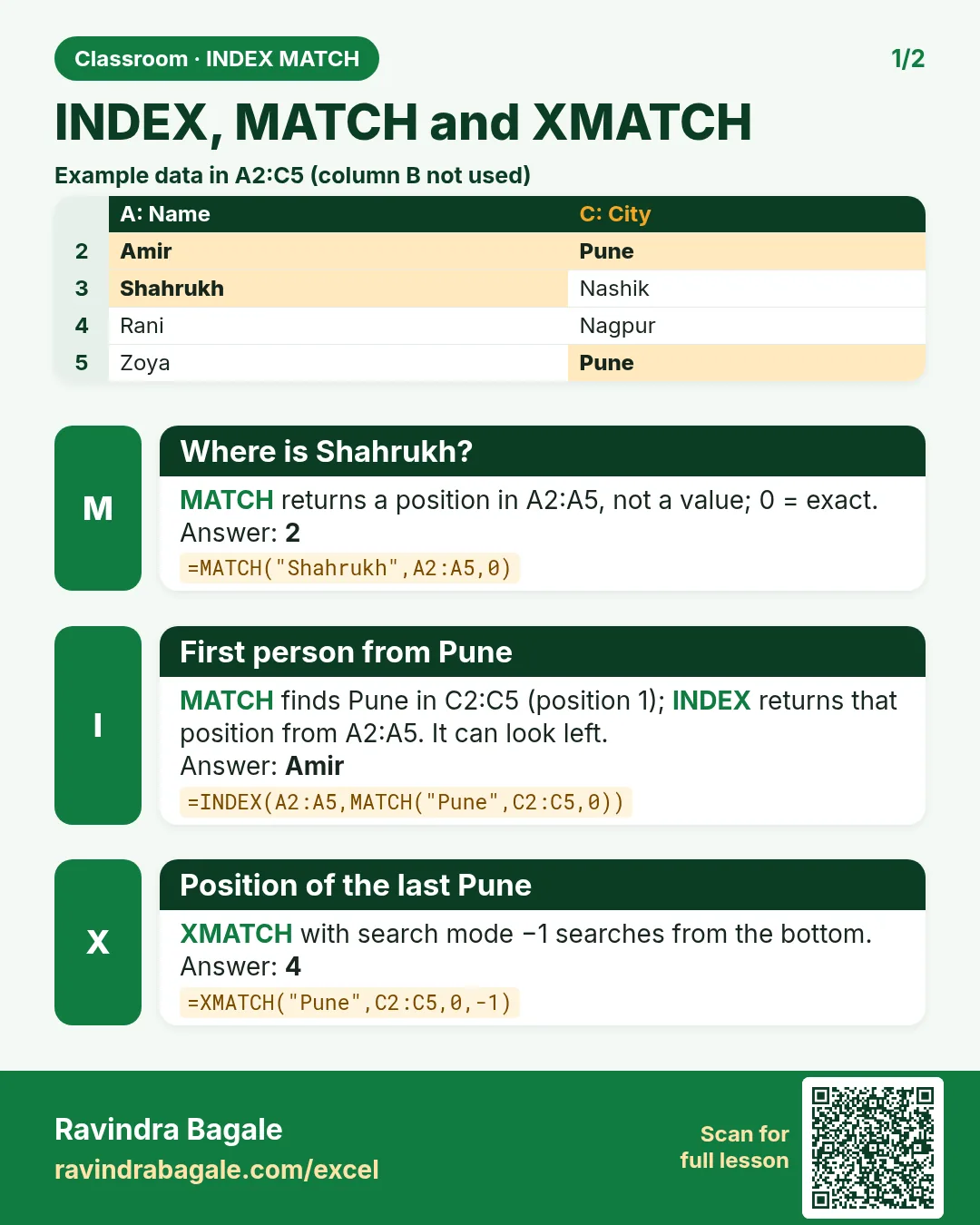
MATCH does not return a value. It returns a position: "the value is the n-th item in this range".
=MATCH(lookup_value, lookup_array, match_type)
=MATCH("Zoya",$B$5:$B$15,0)
→ 6. Zoya is the 6th name in B5:B15. Her sheet row is 10, but MATCH counts inside the range you give it, starting from 1. If the range started at B4 (the header), the answer would be 7.
match_type 0 = exact match. Always type the 0. If you leave it out, MATCH uses 1 (approximate, for sorted data) and can give a wrong position without any error.
Figure 1. MATCH counts inside the range: Zoya is item 6 of B5:B15, even though she sits in sheet row 10.
3. INDEX: what is at that position?
INDEX works the other way round: give it a range and a position, and it returns the value there.
=INDEX($B$5:$B$15,6)
→ Zoya. For a single column you only need the row position. For a block you can add a column position too: =INDEX($C$5:$E$15,6,2) → 90, Zoya's science mark (row 6, column 2 of C:E).
4. INDEX + MATCH together
MATCH finds where, INDEX fetches what. Put MATCH inside INDEX as the position:
=INDEX($G$5:$G$15,MATCH(J7,$B$5:$B$15,0))
With Zoya in J7:
MATCH(J7,$B$5:$B$15,0)→ 6.INDEX($G$5:$G$15,6)→ Pass.
Change the first range to $H$5:$H$15 for the percentage: 80.33. Change the name and both parts update. Give J7 a drop-down list (Data › Data Validation › List, Source =$B$5:$B$15) and you have a search box that works in any version.
Figure 2. MATCH finds the position of Zoya in the name column (6); INDEX returns item 6 of the result column: Pass.
5. Lookup to the left
VLOOKUP can't return a column to the left of the search column. INDEX+MATCH doesn't care, because the two ranges are separate:
=INDEX($A$5:$A$15,MATCH(J9,$B$5:$B$15,0))
Zoya → 106, her roll number from column A.
Classroom line
One alternative to XLOOKUP is the INDEX and MATCH functions.
Class मधलं वाक्य
"XLOOKUP cha ek alternative aahe INDEX ani MATCH function."
XLOOKUP चा एक alternative आहे: INDEX आणि MATCH function.
Classroom line
One alternative to XLOOKUP is the INDEX and MATCH functions.
Ravindra Bagale's Tip
The two ranges in INDEX+MATCH must start on the same row and have the same size: $A$5:$A$15 with $B$5:$B$15, never $A$4:$A$15 with $B$5:$B$15. If one starts a row higher, every answer comes from the row above, with no error to warn you.
Ravindra Bagale's Tip – मराठी
INDEX+MATCH मधल्या दोन्ही ranges एकाच row पासून सुरू व्हायला हव्यात आणि त्यांचा size सारखा हवा: $A$5:$A$15 सोबत $B$5:$B$15, कधीही $A$4:$A$15 सोबत $B$5:$B$15 नाही. एक range एक row वरून सुरू झाली तर प्रत्येक उत्तर वरच्या row मधून येतं, आणि सावध करायला कोणतीही error येत नाही.
Ravindra Bagale's Tip – हिंदी
INDEX+MATCH की दोनों ranges एक ही row से शुरू होनी चाहिए और उनका size बराबर होना चाहिए: $A$5:$A$15 के साथ $B$5:$B$15, कभी $A$4:$A$15 के साथ $B$5:$B$15 नहीं. एक range एक row ऊपर से शुरू हुई तो हर जवाब ऊपर वाली row से आता है, और सावधान करने के लिए कोई error नहीं आती.
6. A two-way lookup: row and column
Use one MATCH for the row (which student) and another for the column (which subject):
=INDEX($C$5:$E$15,MATCH("Zoya",$B$5:$B$15,0),MATCH(J10,$C$4:$E$4,0))
With science in J10: the row MATCH gives 6, the column MATCH finds "science" in the headers C4:E4 at position 2, and INDEX returns 90. Type english and you get 84. One formula answers "any student, any subject".
Figure 3. Two-way lookup: MATCH on the names gives row 6, MATCH on the headers gives column 2, and INDEX returns the crossing cell: 90.
7. Duplicates and XMATCH
=MATCH("Salman",$B$5:$B$15,0) → 4, the first Salman. MATCH always finds the first.
XMATCH (Excel 2021, Excel 2024, Microsoft 365 and Excel for the web) is the newer version:
- Exact match is the default, so
=XMATCH("Salman",$B$5:$B$15)→ 4 without typing 0. - Its fourth argument is a search mode: -1 searches from the last item to the first.
=XMATCH("Salman",$B$5:$B$15,0,-1)
→ 11, the second Salman. Inside INDEX:
=INDEX($G$5:$G$15,XMATCH(J14,$B$5:$B$15,0,-1))
→ Fail, the result of the last Salman (roll 111).
Figure 4. MATCH finds the first Salman at position 4. XMATCH with search mode -1 starts from the bottom and finds position 11.
A lookup always returns one answer. To list every Salman with his result, use FILTER (next chapter).
8. Not found
=MATCH("Shradha",$B$5:$B$15,0) → #N/A, because the misspelt name is not in the list, and INDEX passes the error on. Wrap the whole formula in IFNA:
=IFNA(INDEX($G$5:$G$15,MATCH(J16,$B$5:$B$15,0)),"Not found")
Classroom line
If your Excel doesn't have XLOOKUP, remember these functions; they can be asked in interviews.
Class मधलं वाक्य
"Ata XLOOKUP jyanchyakade nahiye tyanni he functions lakshat theva, interview madhe vicharu shaktat."
आता ज्यांच्याकडे XLOOKUP नाहीये त्यांनी हे functions लक्षात ठेवा, interview मध्ये विचारू शकतात.
Classroom line
If your Excel doesn't have XLOOKUP, remember these functions; they can be asked in interviews.
9. Formatting changes the look, not the value
Zoya's percentage shows 80.33 because of the number format, but INDEX returns the stored value, 80.3333… If you need the value itself rounded (for a report or for an exact search), use =ROUND(F5/300*100,2) in the percentage column. Formatting with Ctrl+1 only changes how a number looks.
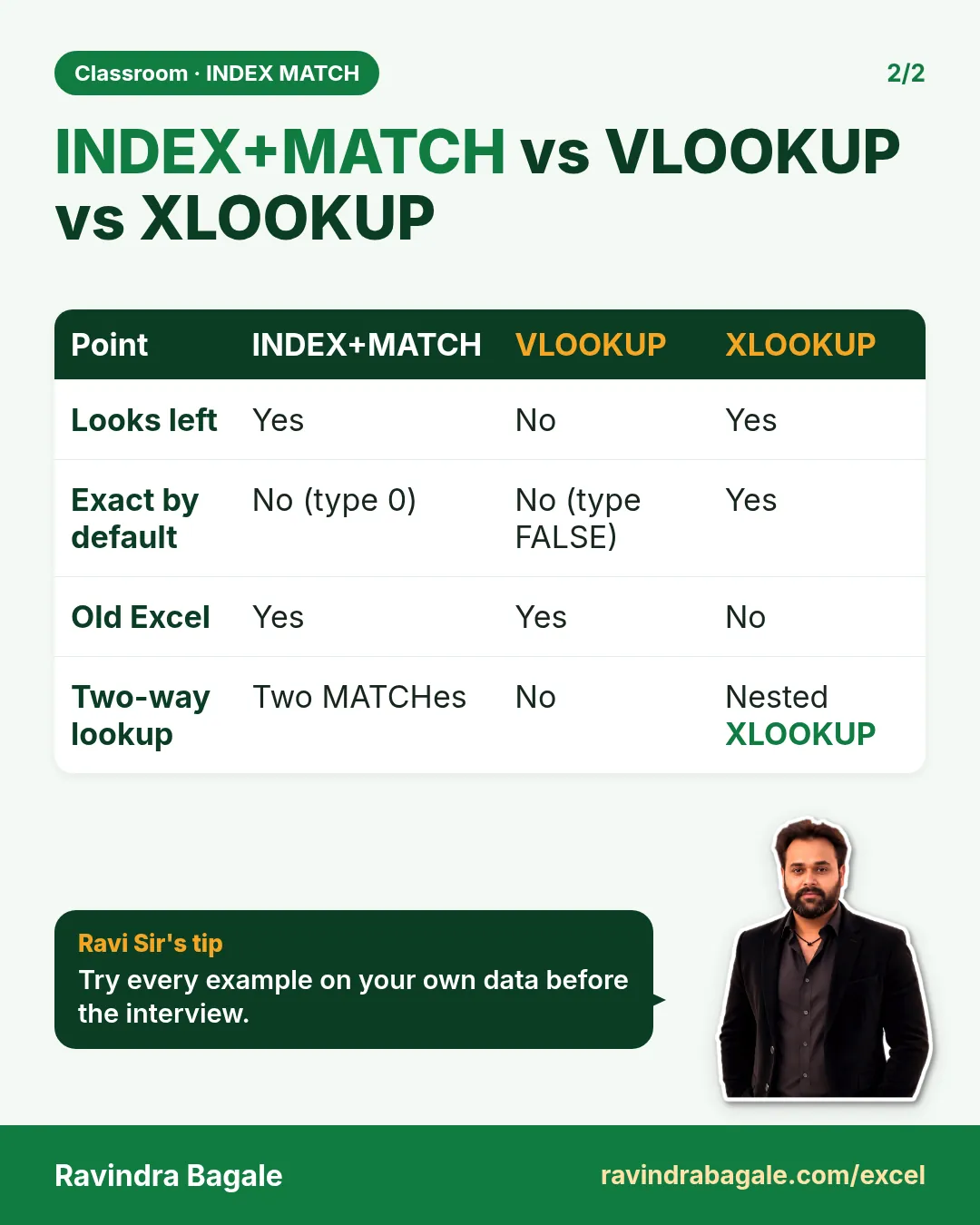
10. INDEX+MATCH vs VLOOKUP vs XLOOKUP
| VLOOKUP | INDEX+MATCH | XLOOKUP | |
|---|---|---|---|
| Excel versions | all | all | 2021, 2024, Microsoft 365, web |
| Return a column on the left | no | yes | yes |
| Column number to count | yes | no | no |
| Inserting a column breaks it | can (number shifts) | no | no |
| Last match | no | with XMATCH -1 | search_mode -1 |
| Not found message | IFNA | IFNA | built in |
Ravindra Bagale's Tip
In an interview, explain INDEX+MATCH in one sentence: "MATCH finds the position of the value, and INDEX returns the value at that position from the column I want." Then write it on the board. Interviewers care more about that clear sentence than about the formula itself.
Ravindra Bagale's Tip – मराठी
Interview मध्ये INDEX+MATCH एका वाक्यात समजावा: "MATCH value ची position शोधतो, आणि INDEX मला हव्या असलेल्या column मधून त्या position वरची value देतो." मग board वर लिहा. Interviewers ना formula पेक्षा हे स्पष्ट वाक्य जास्त महत्त्वाचं वाटतं.
Ravindra Bagale's Tip – हिंदी
Interview में INDEX+MATCH एक वाक्य में समझाओ: "MATCH value की position ढूँढता है, और INDEX मेरे चाहे column से उस position की value देता है." फिर board पर लिखो. Interviewers को formula से ज़्यादा यह साफ़ वाक्य मायने रखता है.
11. The whole chapter on one page
=MATCH(value, range, 0)returns a position inside the range.=INDEX(range, position)returns the value at that position.=INDEX(return column, MATCH(value, search column, 0))= a lookup in every Excel version.- Return columns can be on the left.
- Two MATCHes inside INDEX = a two-way lookup.
- XMATCH: exact by default; search mode -1 finds the last match.
- Both ranges must start on the same row and be the same size.
- IFNA shows "Not found" instead of #N/A.
12. Try at home
Try at home
Task 1
- Find Rani's position with MATCH (10), then her total with INDEX+MATCH (246).
Task 2
- Return Shahrukh's roll number with INDEX+MATCH (105).
Task 3
- Two-way lookup: Raja's maths mark (60). Then change the subject cell to english (38).
Task 4
- Show the percentage of the last Salman with INDEX and XMATCH (42.00).
Recap
In short
- MATCH = where (a position). INDEX = what (a value).
- INDEX+MATCH works in every version of Excel.
- It looks left as easily as right.
- Two MATCHes = row and column lookup.
- XMATCH -1 finds the last match.
- Always use 0 for an exact MATCH.
Quick revision cards
Quick revision
Revise this chapter in two minutes. Save the cards on your phone or download them as PNG files. All names and numbers are made up for practice.
झटपट उजळणी
हा chapter दोन मिनिटांत revise करा. Cards phone वर save करा किंवा PNG म्हणून download करा. सगळी नावं आणि आकडे सरावासाठी काल्पनिक आहेत.
झटपट दोहराई
यह chapter दो मिनट में revise करें. Cards phone पर save करें या PNG के रूप में download करें. सभी नाम और आंकड़े अभ्यास के लिए काल्पनिक हैं.

More cards for every chapter: Ravi Sir's Cards.
Loading practice tasks...
- VLOOKUP name (Easy): Name for ID "P103" with VLOOKUP.
- XLOOKUP value (Easy): The Price for ID "P103".
- Position (Easy): Position of "Emma Schmidt" in B2:B9.
- INDEX and MATCH (Medium): ID for name "Emma Schmidt" using INDEX and MATCH.
- Not found message (Medium): Units sold for ID "Z999", or "Not found".
- IFNA with VLOOKUP (Medium): VLOOKUP of "Z999" in A2:E9 column 4, or "Missing".
- XMATCH (Medium): Position of ID "P103" in A2:A9.
- Slab rate (Hard): Rate for E2 from the slab table G2:H6.
- Slab amount (Hard): E3 times its slab rate.
- Two-way lookup (Hard): Value in A2:E9 at the row of "Emma Schmidt" and column "Units sold".
- Lookup the top (Hard): Name with the largest Units sold.