Car and Bike Service Log in Excel: Next Service Due by km or Date, and Maintenance Cost
Amir in Nagpur services his car "roughly every year", which in practice meant whenever he remembered. The owner's manual says every 10,000 km or 12 months, whichever comes first. A service log in Excel remembers for him. Type each visit to the garage once, and the sheet shows when the next service is due, by km and by date, and how much the car costs to maintain.
What you'll learn on this page
- A service log with a Work done drop-down
- The last general service with LOOKUP(2,1/…)
- Next service by km and by date with EDATE
- km left and days left
- A Book service alert with OR
- Spend this year with SUMIFS and cost per km
Download the template: vehicle-service-log-template.xlsx: example data with real formulas. Yellow cells are inputs you can type over; green cells hold formulas; blue rows are headers and totals. Replace the example data with your own and everything recalculates.
Made-up data: every name, amount, shop and date on this page is made up for practice. Cities are used only to make the examples feel real.
1. The example
Amir's log (made-up), as of 17-10-2026 with 49,350 km on the odometer:
| Value | |
|---|---|
| Last general service | 14-03-2026 at 40,210 km |
| Next service at | 50,210 km |
| Next service by | 14-03-2027 |
| km left | 860 |
| Days left | 148 |
| Status | Book service |
The date is five months away, but the km are nearly used up, so the km rule decides: book the service now. Since March 2025 he has spent ₹38,750 on the car (₹12,150 in 2026), about ₹2.02 per km.
Figure 1. The log finds the last general service (14-03-2026, 40,210 km); + 10,000 km and EDATE + 12 months give the next service; OR on km left (860) and days left (148) says Book service.
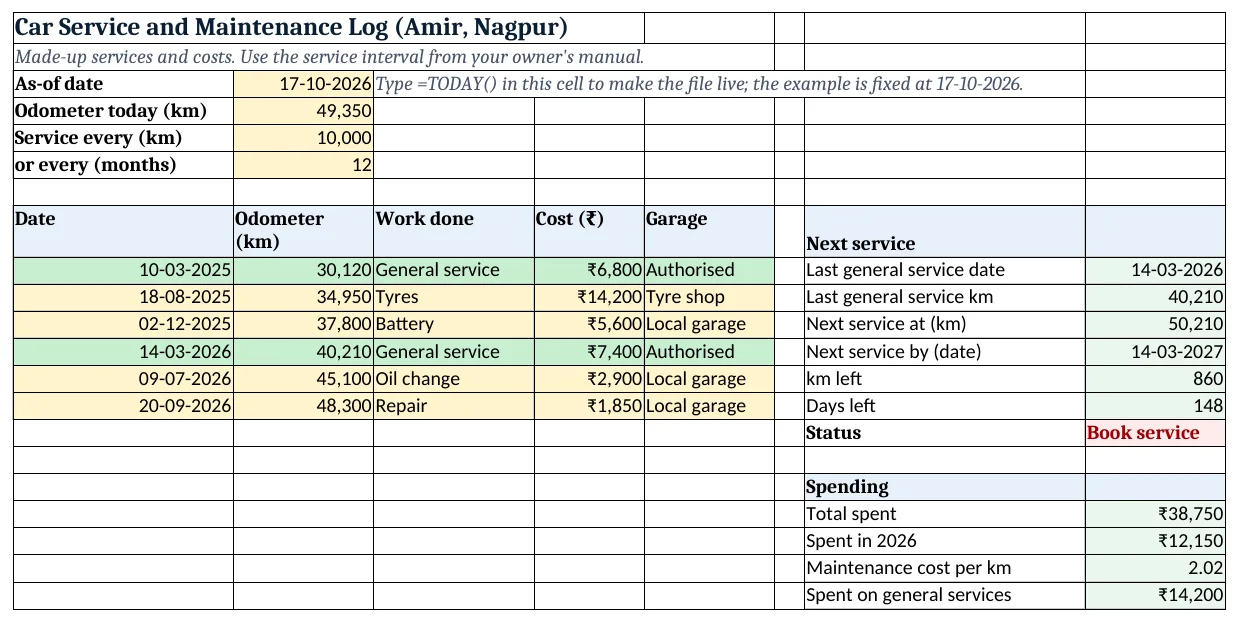
Figure 2. The template sheet, recalculated with its example data. Download it above and replace the yellow cells with your own numbers.
2. Build it step by step
Step 1. Settings
- In B3 type
=TODAY()(the template has 17-10-2026 typed). Type today's odometer in B4, the service interval in km in B5 and in months in B6 (from the owner's manual).
Step 2. The log
- In A8:E8 type Date, Odometer, Work done, Cost, Garage. Add every visit, oldest first.
- Select C9:C200 > Data Validation > List:
General service,Oil change,Tyres,Battery,Repair,Insurance,Other(drop-down lists).
Step 3. Last general service
- In H9 type
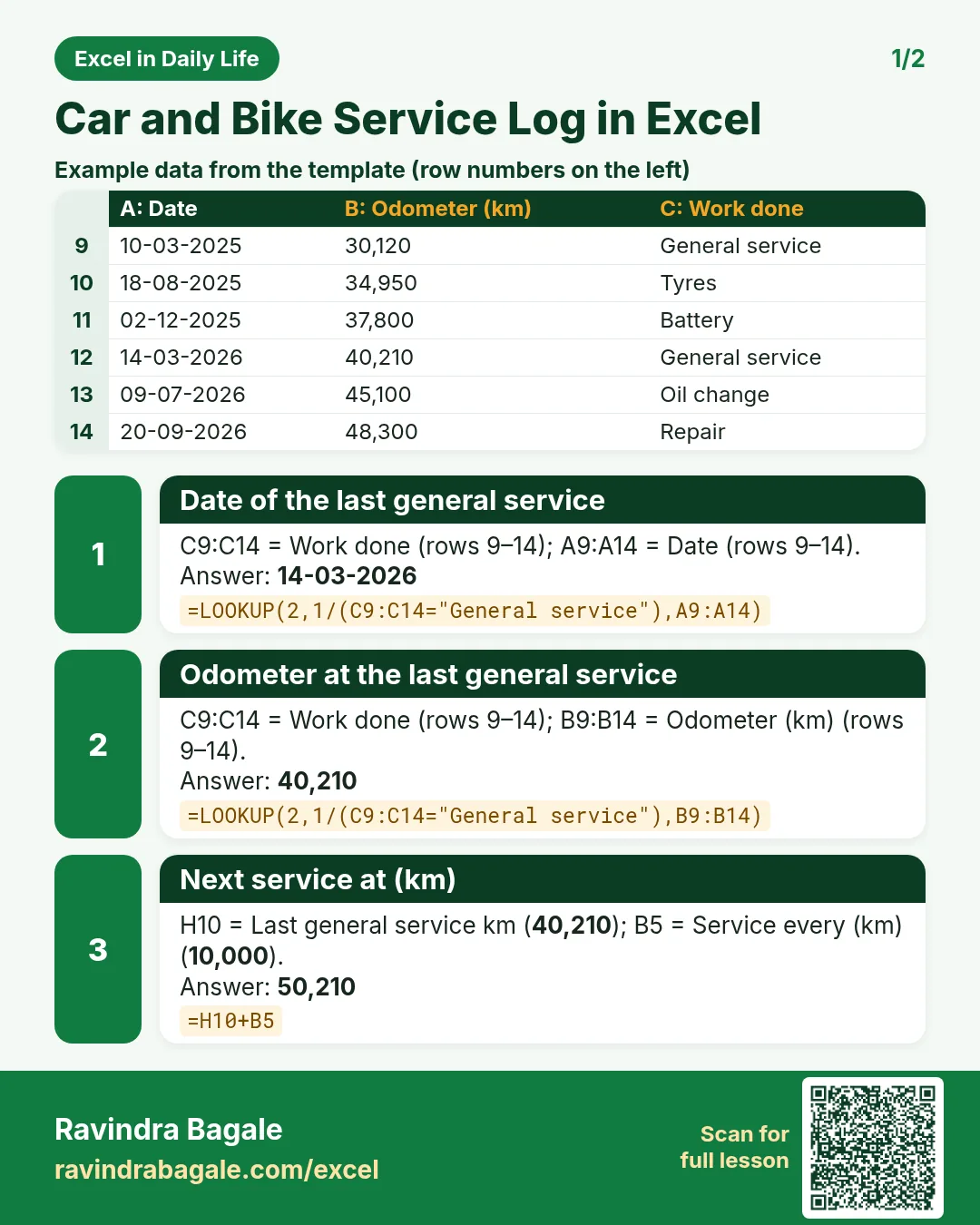
=LOOKUP(2,1/(C9:C14="General service"),A9:A14): 14-03-2026. - How it works:
1/(C9:C14="General service")gives 1 for matching rows and an error for others. LOOKUP looks for 2, never finds it, and returns the last 1, which is the latest general service. - In H10 use the same with B9:B14: 40,210 km.
Step 4. Next service
- In H11 type
=H10+B5: 50,210 km. - In H12 type
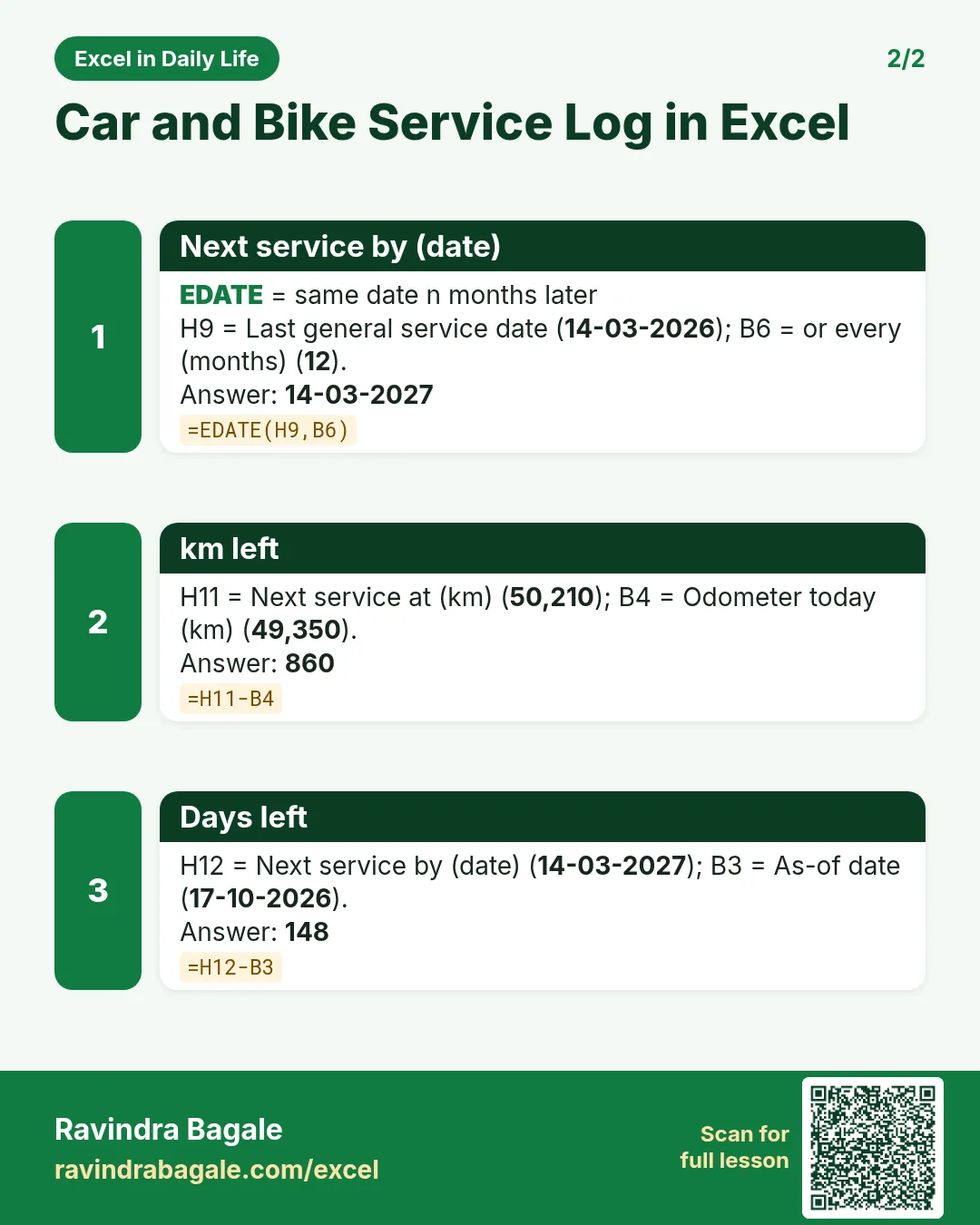
=EDATE(H9,B6): 14-03-2027 (EDATE). - In H13 type
=H11-B4: 860 km left. In H14=H12-B3: 148 days left. - In H15 type
=IF(OR(H13<=1000,H14<=30),"Book service","OK"): whichever comes first (AND, OR).
Step 5. Spending
- In H18 type
=SUM(D9:D14): ₹38,750. - In H19 type
=SUMIFS(D9:D14,A9:A14,">="&DATE(2026,1,1),A9:A14,"<="&DATE(2026,12,31)): ₹12,150 (SUMIFS). - In H20 type
=H18/(B4-B9): ₹2.02 per km. In H21=SUMIF(C9:C14,"General service",D9:D14): ₹14,200.
Step 6. Colours
- Select H15 > Highlight Cells Rules > Equal To
Book service, red. - Select A9:E200 > New Rule > Use a formula:
=$C9="General service", green, so the main services stand out (formula rules).
Ravindra Bagale's Tip
Update the odometer cell every time you fill fuel. It takes five seconds and keeps the alert honest.
Ravindra Bagale's Tip – मराठी
प्रत्येक वेळी fuel भरताना odometer cell अपडेट करा. पाच सेकंद लागतात आणि alert बरोबर राहतो.
Ravindra Bagale's Tip – हिंदी
हर बार fuel भरवाते समय odometer cell अपडेट करो. पांच सेकंड लगते हैं और alert सही रहता है.
3. Formulas used
| Cell | Formula | What it does |
|---|---|---|
| H9 | =LOOKUP(2,1/(C9:C14="General service"),A9:A14) |
Date of the last general service |
| H10 | =LOOKUP(2,1/(C9:C14="General service"),B9:B14) |
Odometer at the last general service |
| H11 | =H10+B5 |
Next service at (km) |
| H12 | =EDATE(H9,B6) |
Next service by (date) |
| H13 | =H11-B4 |
km left |
| H14 | =H12-B3 |
Days left |
| H15 | =IF(OR(H13<=1000,H14<=30),"Book service","OK") |
Book service or OK |
| H19 | =SUMIFS(D9:D14,A9:A14,">="&DATE(2026,1,1),A9:A14,"<="&DATE(2026,12,31)) |
Spent in 2026 |
| H20 | =H18/(B4-B9) |
Maintenance cost per km |
Every formula above is written in the template, so you can click a cell and see it in the formula bar. All values on this page were recalculated in the file.
4. Common mistakes
- Checking only the date. Here the date is months away but only 860 km are left. Use OR so either limit triggers the alert.
- Counting an oil change as a general service. The next-service formula looks only for "General service". Pick the right item from the drop-down.
- Logging out of order. LOOKUP(2,1/…) returns the last matching row, so keep the log oldest to newest.
- Not updating the odometer. km left uses B4. Update it when you open the file, or every fuel fill.
- Leaving out small bills. Wiper blades and puncture repairs add up; they belong in cost per km.
Ravindra Bagale's Tip
Book the service when the alert turns red, not when the car starts making noise. Planned services are cheaper than repairs.
Ravindra Bagale's Tip – मराठी
Alert लाल झाला की service book करा, गाडी आवाज करायला लागल्यावर नाही. Planned service दुरुस्तीपेक्षा स्वस्त पडते.
Ravindra Bagale's Tip – हिंदी
Alert लाल होते ही service book करो, गाड़ी आवाज़ करने लगे तब नहीं. Planned service मरम्मत से सस्ती पड़ती है.
5. More real examples
Example 1: Two-wheeler. Bikes often have shorter intervals (for example every 3,000 to 5,000 km). Change B5 and B6 to what your manual says.
Example 2: Insurance and PUC dates. Add rows with Work done = Insurance and use EDATE(date,12) for the renewal date.
Example 3: Selling the car. A complete log with dates, km and bills is useful proof of maintenance when you sell.
Quick revision cards
Quick revision
Each card shows formulas from this page, each with an example and its answer from the template. Scan the QR code on a card to open this lesson. All names and numbers are made up for practice.
झटपट उजळणी
प्रत्येक card वर या page मधले formulas, त्यांचं example आणि template मधलं उत्तर आहे. Card वरचा QR code scan केला की हा lesson उघडतो. सगळी नावं आणि आकडे सरावासाठी काल्पनिक आहेत.
झटपट दोहराई
हर card पर इस page के formulas, उनका example और template का उत्तर है. Card का QR code scan करें तो यह lesson खुलेगा. सभी नाम और आंकड़े अभ्यास के लिए काल्पनिक हैं.


More cards: Ravi Sir's Cards.
6. Frequently asked questions
How do I calculate the next service date in Excel?
=EDATE(last service date, interval in months), for example =EDATE(H9,12).
How do I get the next service km?
Last service odometer + interval: =H10+B5.
How do I find the last row that matches a condition?
=LOOKUP(2,1/(range="General service"),dates) returns the last matching date.
How do I show "whichever comes first"?
=IF(OR(km left<=1000,days left<=30),"Book service","OK").
How do I calculate maintenance cost per km?
Total spent ÷ km driven since the first entry: =H18/(B4-B9).
7. Quick quiz
Ten questions on this page. Sign in to save your score.
Loading practice tasks...
- Total nights (Easy): Add up Nights in D2:D11. (sheet "Data")
- Average rate per night (Easy): Average of E2:E11, rounded to 2 decimals. (sheet "Data")
- Rows in Standard (Easy): How many rows have Room type "Standard"? (sheet "Data")
- Largest nights (Easy): The largest value in D2:D11. (sheet "Data")
- Days taken (Easy): C2 minus B2. (sheet "Dates")
- Start year (Easy): Year of B3. (sheet "Dates")
- Due month (Easy): Month number of C3. (sheet "Dates")
- Earliest start (Easy): Earliest date in B2:B9 (as a date number). (sheet "Dates")
- Nights for Standard (Medium): Total of D2:D11 where B is "Standard". (sheet "Data")
- Standard in Leeds (Medium): Total of D2:D11 where B is "Standard" and C is "Leeds". (sheet "Data")
- Working days (Medium): Working days from B2 to C2. (sheet "Dates")
- Weekday of due (Medium): Weekday number of C4 (Sunday = 1). (sheet "Dates")