Co-working Space Management System in Excel: Plans, Members, Meeting Room Bookings, Monthly Billing and Dashboard
Zoya Cowork in Nagpur rents hot desks, dedicated desks and private cabins, plus a meeting room. Every month Zoya added up meeting hours from a register to see who had used more than their free hours, and invoices went out late. This page builds an 8-sheet Excel system: plans are typed once, each member's fee and free hours follow from the plan and seats, every booking is one row, and Billing works out the month's invoice for each member.
What you'll learn on this page
- Set plans with fee per seat, free meeting hours and seats available
- Work out each member's monthly fee and free hours
- Log meeting room bookings and turn start and end times into hours
- Add a member's hours for one month with SUMIFS and EOMONTH
- Charge only the extra hours and add GST
- Show seat occupancy by plan
- Print a monthly invoice and track revenue on a dashboard
Download the template: co-working-space-management-system-template.xlsx: a 8-sheet system with example data and real formulas (Read me, Setup, Members, Bookings, Billing, Occupancy, Invoice, Dashboard). Yellow cells are inputs you can type over; green cells hold formulas; blue rows are headers and totals. Replace the example data with your own and every report and the dashboard recalculate.
Made-up data: every name, amount, business and date on this page is made up for practice. Cities are used only to make the examples feel real.
1. The business story
Zoya Cowork, Nagpur, October 2026 (made-up data). Hot desk ₹6,000 a seat, Dedicated desk ₹9,000, Private cabin ₹8,000 a seat; meeting room ₹500 an hour beyond the free hours; GST 18% (an input; confirm with your accountant).
| Question | Where the system answers it |
|---|---|
| Who used more meeting hours than included? | Billing: Ruhi Patil, 6.5 hours against 2 free, ₹2,250 extra |
| How full is the space? | Occupancy: 19 of 51 seats, 37.3% |
| What does Amir Sayyed and Co pay? | Invoice: 6 cabin seats ₹48,000 + GST ₹8,640 = ₹56,640 |
| What is the month's billing? | ₹1,82,015 with GST from 8 members |
Hot desks are only 3 of 20 sold, so that is where the space has room to grow.
Figure 1. Setup holds the plans; Members and Bookings are the entry sheets; Billing, Occupancy, Invoice and Dashboard read from them.
2. Build it sheet by sheet
Step 1. Setup: plans and rates
- B3 as-of date, B4 billing month (01-10-2026), B5 meeting room rate (₹500 an hour), B6 GST.
- Plans in A9:D11: Plan, Fee per seat per month, Free meeting hours per seat, Seats available.
Step 2. Members and Bookings
- Members: Member ID, Member, Plan, Seats, Start date. F5 fee
=D5*XLOOKUP(C5,Setup!$A$9:$A$11,Setup!$B$9:$B$11,0)and G5 free hours the same way from column C. - Bookings: Date, Member ID, Member, Start, End, Hours. C5 fills the name; F5 hours
=ROUND((E5-D5)*24,2)(time calculations). - Pick member IDs and plans from drop-downs.
Step 3. Billing: one invoice line per member
- D5 hours used this month:
=SUMIFS(Bookings!$F$5:$F$3000,Bookings!$B$5:$B$3000,A5,Bookings!$A$5:$A$3000,">="&Setup!$B$4,Bookings!$A$5:$A$3000,"<="&EOMONTH(Setup!$B$4,0))(SUMIFS). - F5 extra hours
=MAX(0,D5-E5)and G5 charge=F5*Setup!$B$5. - H5 taxable
=C5+G5, I5 GST=ROUND(H5*Setup!$B$6,2), J5 total. Extra hours are coloured amber.
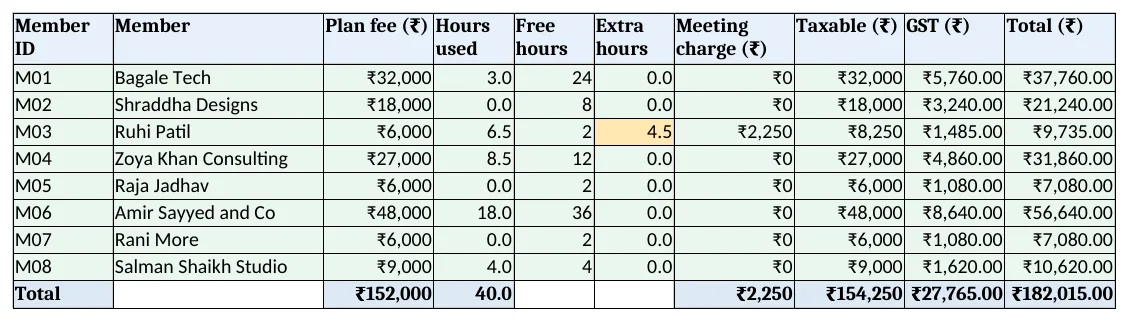
Figure 2. Billing: plan fee, hours used, free hours, extra hours, GST and total for each member
Step 4. Occupancy and Invoice
- Occupancy C5 seats sold
=SUMIFS(Members!$D$5:$D$200,Members!$C$5:$C$200,A5), D5=C5/B5with a data bar (data bars). - Invoice: type a member ID in B4; rows 6 to 14 look up fee, hours, extra charge, GST and total from Billing; B15 prints the month in words. Set the print area.
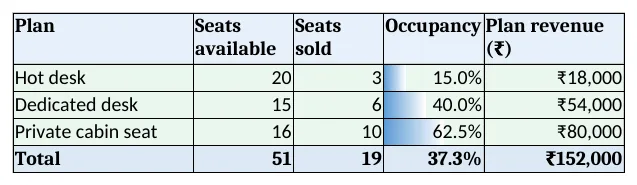
Figure 3. Occupancy: seats available, sold, occupancy % and revenue by plan
Step 5. Dashboard
- KPI cards: members, seats sold, occupancy, plan fees, meeting charges and invoiced with GST.
- Charts: seats available and sold by plan, and meeting hours by member.
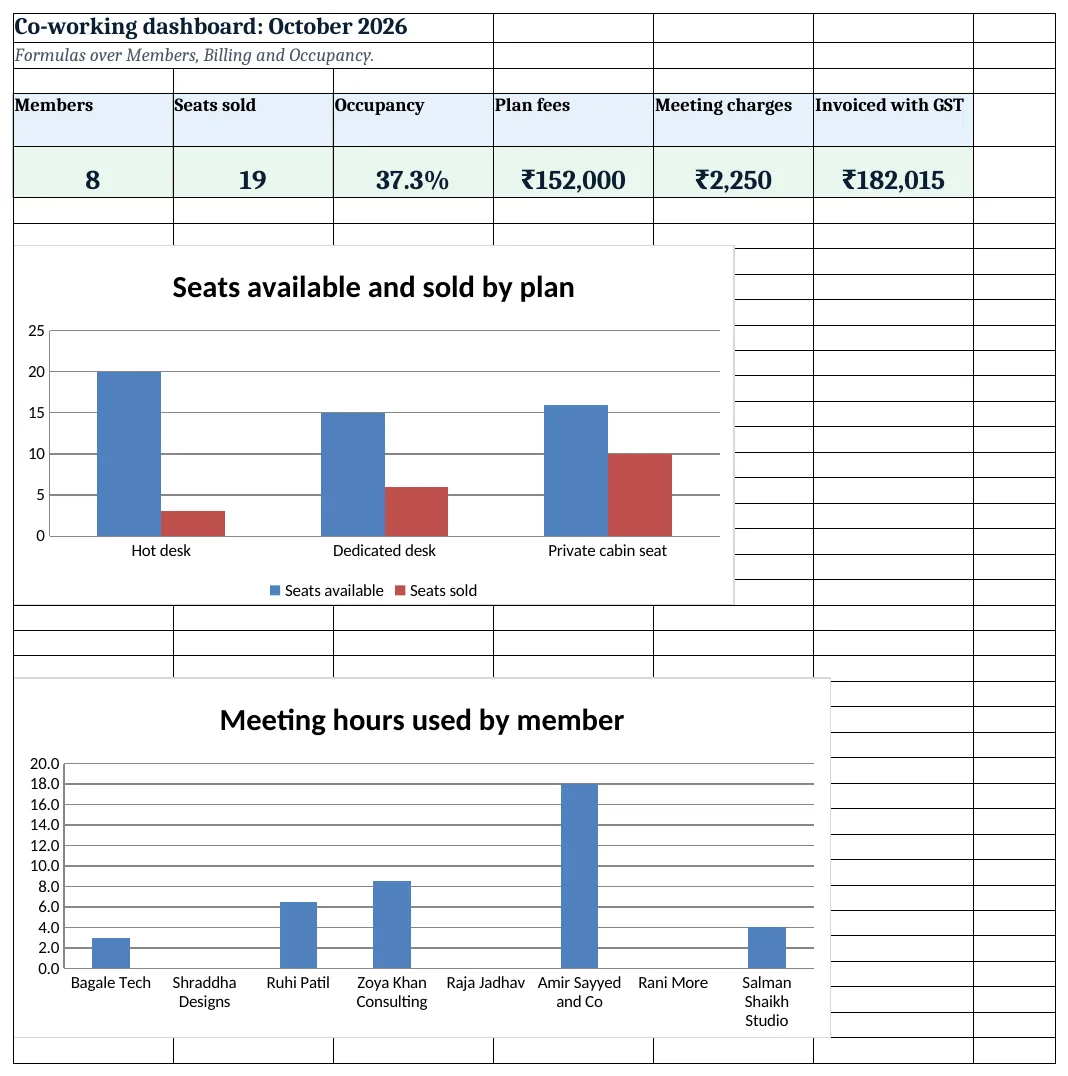
Figure 4. Co-working dashboard: members, seats, occupancy and billing
Ravindra Bagale's Tip
Show members their used and free hours each month. Most will book within their limit once they can see it.
Ravindra Bagale's Tip – मराठी
प्रत्येक महिन्याला सदस्यांना वापरलेले आणि मोफत तास दाखवा. दिसले की बहुतेक जण मर्यादेत booking करतात.
Ravindra Bagale's Tip – हिंदी
हर महीने सदस्यों को इस्तेमाल और मुफ्त घंटे दिखाएं. दिखने पर ज़्यादातर सीमा में booking करते हैं.
3. Formulas used
| Cell | Formula | What it does |
|---|---|---|
| Members!F5 | =D5*XLOOKUP(C5,Setup!$A$9:$A$11,Setup!$B$9:$B$11,0) |
Monthly fee |
| Members!G5 | =D5*XLOOKUP(C5,Setup!$A$9:$A$11,Setup!$C$9:$C$11,0) |
Free meeting hours |
| Bookings!C5 | =XLOOKUP(B5,Members!$A$5:$A$200,Members!$B$5:$B$200,"Check ID") |
Member name from the ID |
| Bookings!F5 | =ROUND((E5-D5)*24,2) |
Hours booked |
| Billing!D5 | =SUMIFS(Bookings!$F$5:$F$3000,Bookings!$B$5:$B$3000,A5,Bookings!$A$5:$A$3000,">="&Setup!$B$4,Bookings!$A$5:$A$3000,"<="&EOMONTH(Setup!$B$4,0)) |
Hours used in the month |
| Billing!F5 | =MAX(0,D5-E5) |
Extra hours |
| Billing!G5 | =F5*Setup!$B$5 |
Meeting charge |
| Billing!I5 | =ROUND(H5*Setup!$B$6,2) |
GST |
| Billing!J5 | =H5+I5 |
Invoice total |
| Occupancy!C5 | =SUMIFS(Members!$D$5:$D$200,Members!$C$5:$C$200,A5) |
Seats sold |
| Occupancy!D5 | =C5/B5 |
Occupancy % |
| Invoice!B6 | =XLOOKUP($B$4,Billing!$A$5:$A$200,Billing!$B$5:$B$200,"Not found") |
Member on the invoice |
| Dashboard!F5 | =Billing!J13 |
Invoiced with GST |
Every formula above is written in the template, so you can click a cell and see it in the formula bar. All values on this page were recalculated in LibreOffice with zero errors.
4. Common mistakes
- Free hours per member, not per seat. A 6-seat cabin gets 6 times the hours. Multiply by seats, as in Members G5.
- Counting next month's bookings. Future bookings sit on the same sheet. The EOMONTH condition keeps only the billing month.
- Hours from times typed as text. "10.30" is text. Type 10:30 so (end − start) × 24 works.
- Charging all hours. Bill only MAX(0, used − free); members notice when included hours are billed.
- GST rounded per line and again on the total. Round GST once per invoice line, then add the lines.
Ravindra Bagale's Tip
Raise invoices on the 1st from the Billing sheet. Late invoices are paid late.
Ravindra Bagale's Tip – मराठी
Billing sheet मधून 1 तारखेला invoice पाठवा. उशिरा गेलेले invoice उशिरा भरले जाते.
Ravindra Bagale's Tip – हिंदी
Billing sheet से 1 तारीख को invoice भेजें. देर से गया invoice देर से भरा जाता है.
5. More real examples
Example 1: Day passes. Add a Day pass plan with seats 1 and a Day passes sheet; count passes per month with COUNTIFS.
Example 2: Virtual office. A plan with 0 seats and a fixed fee for the address and mail handling.
Example 3: Event hall hire. Use Bookings for a hall with its own hourly rate column and no free hours.
Quick revision cards
Quick revision
Each card shows formulas from this page, each with an example and its answer from the template. Scan the QR code on a card to open this lesson. All names and numbers are made up for practice.
झटपट उजळणी
प्रत्येक card वर या page मधले formulas, त्यांचं example आणि template मधलं उत्तर आहे. Card वरचा QR code scan केला की हा lesson उघडतो. सगळी नावं आणि आकडे सरावासाठी काल्पनिक आहेत.
झटपट दोहराई
हर card पर इस page के formulas, उनका example और template का उत्तर है. Card का QR code scan करें तो यह lesson खुलेगा. सभी नाम और आंकड़े अभ्यास के लिए काल्पनिक हैं.
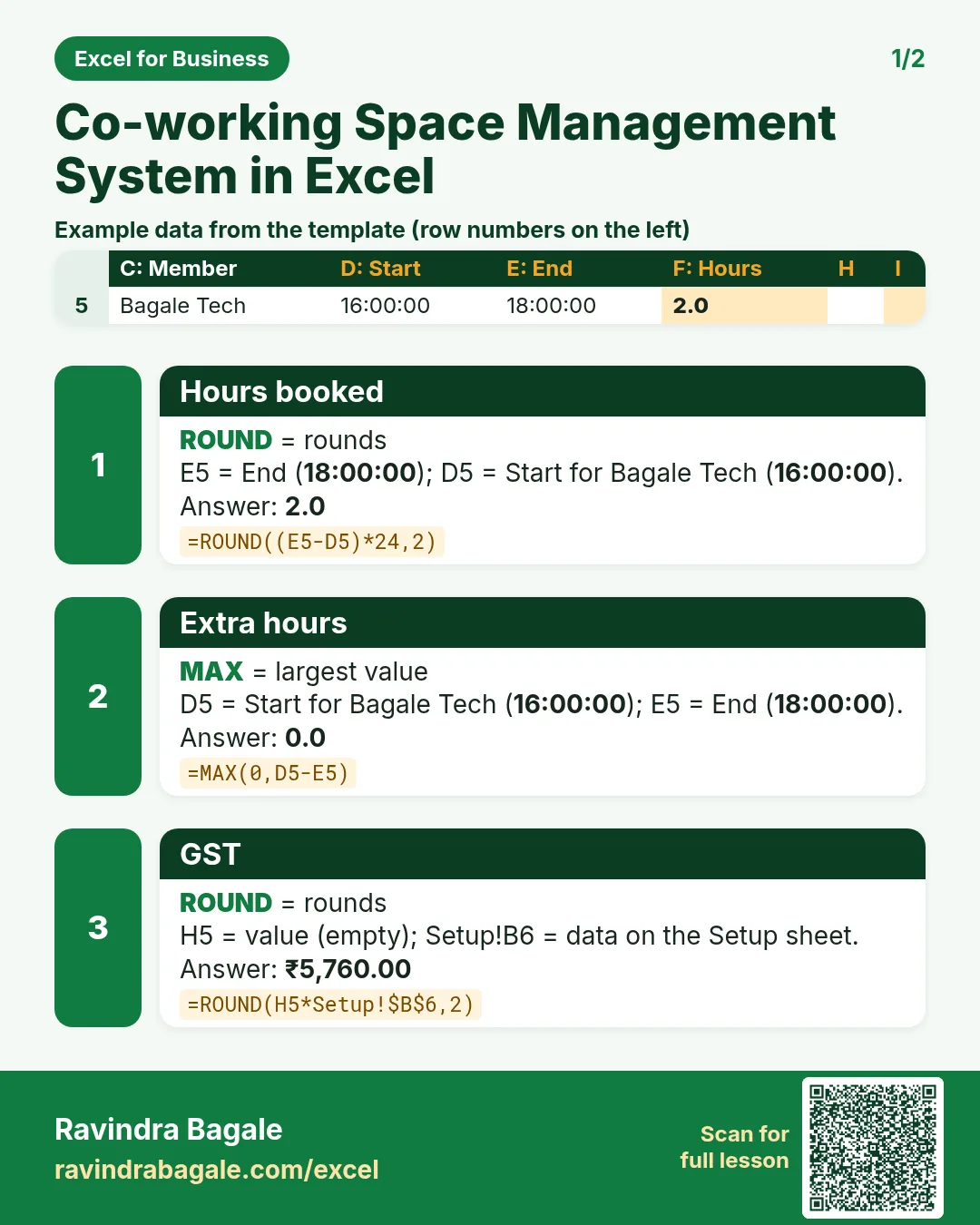

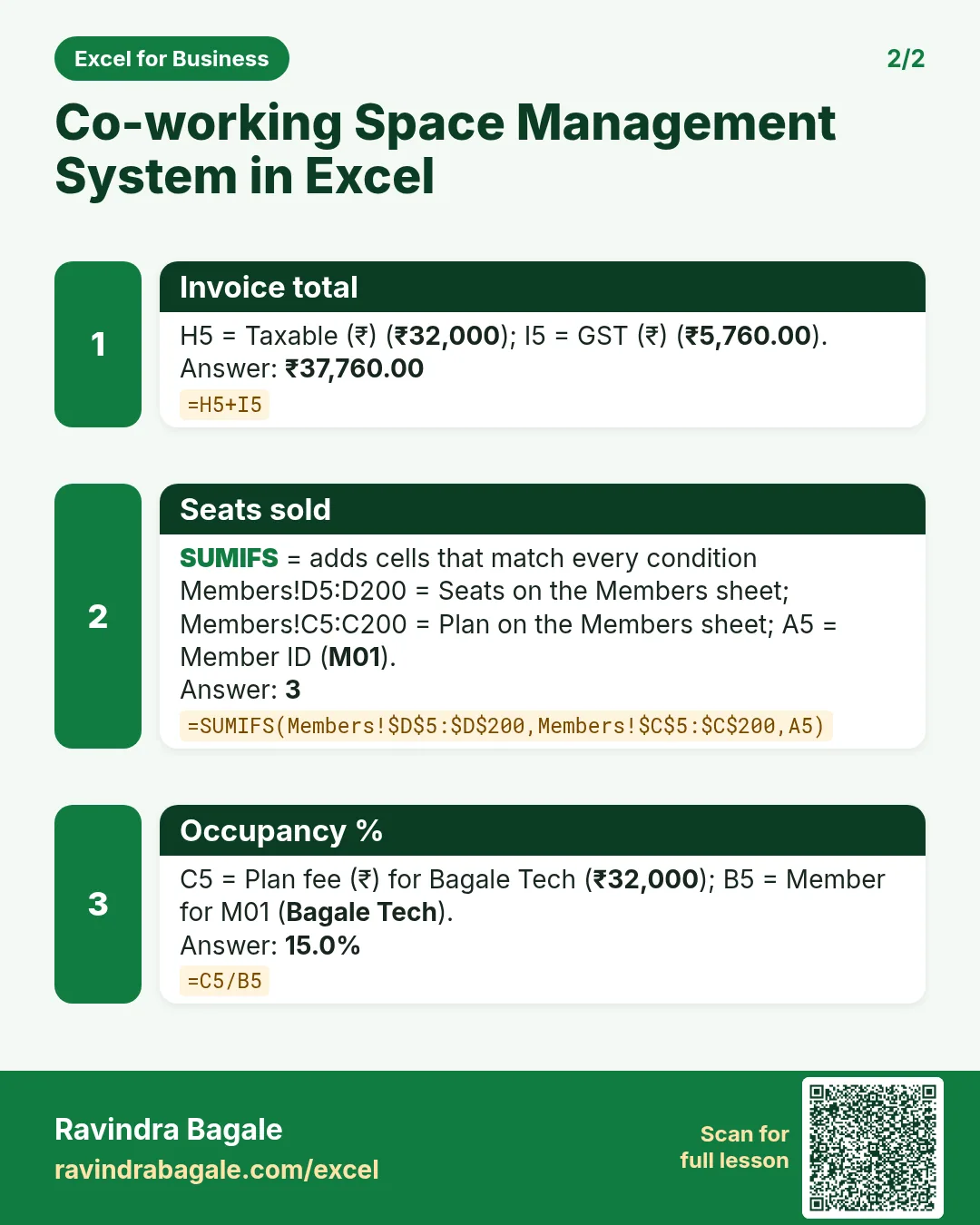

More cards: Ravi Sir's Cards.
6. Frequently asked questions
How do I add hours for one month in Excel?
SUMIFS with two date conditions: ">="&first day and "<="&EOMONTH(first day,0).
How do I turn start and end times into hours?
=(end-start)*24, rounded to 2 decimals.
How do I charge only the extra hours?
=MAX(0,used-free)*rate. MAX stops a negative charge when hours are under the limit.
What GST applies to co-working space?
Renting commercial space is generally taxed at 18%. The template keeps the rate as an input; confirm with your accountant.
How do I see which plan is under-sold?
Occupancy: seats sold ÷ seats available per plan. Here hot desks are at 15%.
7. Quick quiz
Ten questions on this page. Sign in to save your score.
Loading practice tasks...
- Total units sold (Easy): Add up Units sold in D2:D11. (sheet "Data")
- Average price (Easy): Average of E2:E11, rounded to 2 decimals. (sheet "Data")
- Rows in Snacks (Easy): How many rows have Category "Snacks"? (sheet "Data")
- Largest units sold (Easy): The largest value in D2:D11. (sheet "Data")
- Days taken (Easy): C2 minus B2. (sheet "Dates")
- Start year (Easy): Year of B3. (sheet "Dates")
- Due month (Easy): Month number of C3. (sheet "Dates")
- Earliest start (Easy): Earliest date in B2:B9 (as a date number). (sheet "Dates")
- Units sold for Snacks (Medium): Total of D2:D11 where B is "Snacks". (sheet "Data")
- Snacks in Bengaluru (Medium): Total of D2:D11 where B is "Snacks" and C is "Bengaluru". (sheet "Data")
- Working days (Medium): Working days from B2 to C2. (sheet "Dates")
- Weekday of due (Medium): Weekday number of C4 (Sunday = 1). (sheet "Dates")