Electricity Meter Reading Tracker in Excel: Units Used per Month, Bill Estimate and Usage Chart
Zoya in Pune opened her June electricity bill and got a shock. Was it the AC? Guests? A meter problem? She had no way to know, because she never looked at the meter. Reading the meter once a month and typing one number into Excel answers all of it: how many units you used, what the bill should roughly be, and which months jumped.
What you'll learn on this page
- Units used from two meter readings
- A bill estimate from your own rate and fixed charge
- Change vs last month in %
- A target and an Above target flag
- Highest month with INDEX and MATCH
- A column chart with data bars
Download the template: electricity-meter-reading-tracker-template.xlsx: example data with real formulas. Yellow cells are inputs you can type over; green cells hold formulas; blue rows are headers and totals. Replace the example data with your own and everything recalculates.
Made-up data: every name, amount, shop and date on this page is made up for practice. Cities are used only to make the examples feel real.
1. The example
Zoya reads her meter on the 5th of every month (made-up readings). Her own average rate is ₹9.50 a unit plus a ₹130 fixed charge, and her target is 180 units a month.
| Reading on | Units used | Bill estimate | Target |
|---|---|---|---|
| 05-04-2026 | 187 | ₹1,907 | Above target |
| 05-05-2026 | 243 | ₹2,439 | Above target |
| 05-06-2026 | 262 | ₹2,619 | Above target |
| 05-07-2026 | 142 | ₹1,479 | OK (away) |
| 05-10-2026 | 172 | ₹1,764 | OK |
Over 9 months she used 1,650 units, an average of 183.3 a month. Three months crossed the target, all in the hot season. The two AC months (readings of 5 May and 5 June) alone used 505 units. The total estimate is ₹16,845.
The rate here is made up. Real bills have slabs, fixed charges and taxes, so type the average rate from your own bill and use the estimate as a guide.
Figure 1. One reading a month: units = this reading − last reading; units × rate + fixed charge gives the estimate; the target flag and INDEX MATCH show the problem months (highest: 262 units, reading of 05-06-2026).
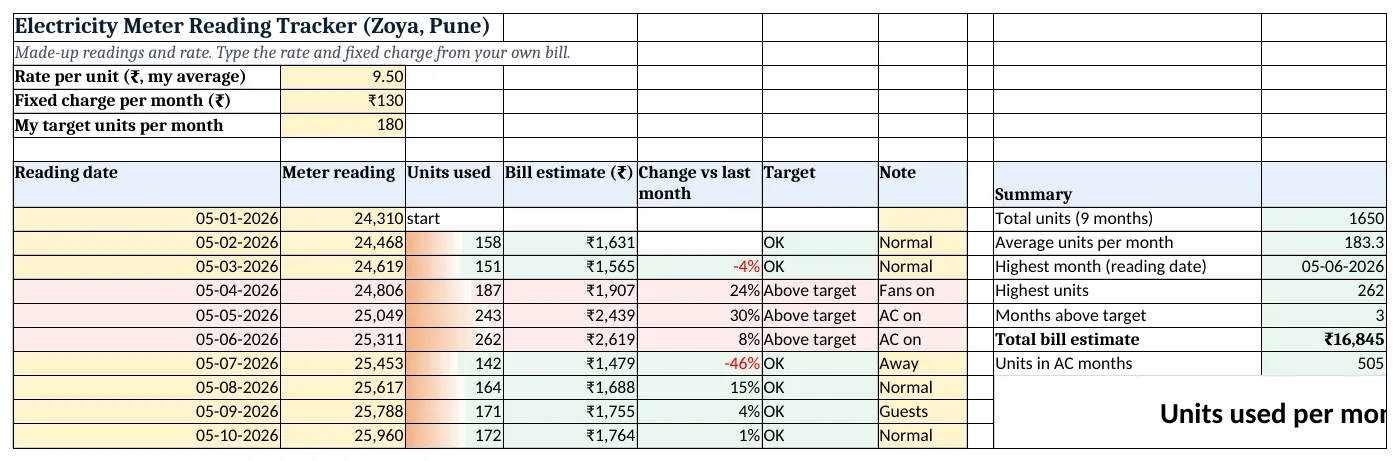
Figure 2. The template sheet, recalculated with its example data. Download it above and replace the yellow cells with your own numbers.
2. Build it step by step
Step 1. Type your rate and target
- In B3 type your average rate per unit (bill amount ÷ units on a recent bill), in B4 the fixed charge and in B5 your target units.
Step 2. Type the readings
- In A7:G7 type Reading date, Meter reading, Units used, Bill estimate, Change vs last month, Target, Note.
- From A8 down type the date and the reading. The first row is only the starting reading.
- Select G8:G200 > Data > Data Validation > List:
Normal,Fans on,AC on,Guests,Away(drop-down lists).
Step 3. Units and bill
- In C9 type
=B9-B8: 158 units. - In D9 type
=C9*$B$3+$B$4: ₹1,631. The $ signs keep the rate and fixed charge fixed when you copy down. - Copy C9:D9 down to row 17.
Step 4. Change and target
- In E10 type
=C10/C9-1and format it as %: −4%. Copy down. - In F9 type
=IF(C9>$B$5,"Above target","OK")and copy down (IF).
Step 5. Summary
- In J8 type
=SUM(C9:C17): 1,650 units. In J9=AVERAGE(C9:C17): 183.3. - In J10 type
=INDEX(A9:A17,MATCH(MAX(C9:C17),C9:C17,0)): 05-06-2026, the highest month. J11=MAX(C9:C17): 262. - In J12 type
=COUNTIF(F9:F17,"Above target"): 3. In J13=SUM(D9:D17): ₹16,845. - In J14 type
=SUMIF(G9:G17,"AC on",C9:C17): 505 units in AC months (SUMIF).
Step 6. Colours and chart
- Select A9:G200 > Conditional Formatting > New Rule > Use a formula:
=$F9="Above target", light red (formula rules). - Select C9:C200 > Data Bars.
- Select A9:A17 and C9:C17 > Insert > Column (column charts).
Ravindra Bagale's Tip
Take a phone photo of the meter on the reading day. If the bill ever looks wrong, you have proof of the reading.
Ravindra Bagale's Tip – मराठी
Reading च्या दिवशी meter चा phone ने photo काढून ठेवा. Bill कधी चुकीचं वाटलं तर reading चा पुरावा हातात राहतो.
Ravindra Bagale's Tip – हिंदी
Reading वाले दिन meter की phone से photo ले लो. Bill कभी गलत लगे तो reading का सबूत हाथ में रहेगा.
3. Formulas used
| Cell | Formula | What it does |
|---|---|---|
| C9 | =B9-B8 |
Units used = this reading − last reading |
| D9 | =C9*$B$3+$B$4 |
Bill estimate = units × rate + fixed charge |
| E10 | =C10/C9-1 |
Change vs last month |
| F9 | =IF(C9>$B$5,"Above target","OK") |
Above target or OK |
| J8 | =SUM(C9:C17) |
Total units |
| J9 | =AVERAGE(C9:C17) |
Average units per month |
| J10 | =INDEX(A9:A17,MATCH(MAX(C9:C17),C9:C17,0)) |
Date of the highest month |
| J12 | =COUNTIF(F9:F17,"Above target") |
Months above target |
| J13 | =SUM(D9:D17) |
Total bill estimate |
| J14 | =SUMIF(G9:G17,"AC on",C9:C17) |
Units in months marked AC on |
Every formula above is written in the template, so you can click a cell and see it in the formula bar. All values on this page were recalculated in the file.
4. Common mistakes
- Reading on different dates each month. A 35-day gap looks like a jump. Read on the same date every month, or divide units by days for a fair daily figure.
- Typing units instead of the reading. Type the number on the meter; the sheet works out units used. Typing units breaks the B9−B8 formula.
- Forgetting $ on the rate. Without
$B$3the formula moves down to empty cells when copied and the estimate becomes just the fixed charge. - Treating the estimate as the bill. Real tariffs have slabs and taxes. Update B3 from a recent bill so the estimate stays close.
- Percent change on the first month. There is no earlier month, so leave E9 empty instead of dividing by a blank cell.
Ravindra Bagale's Tip
Use the Note column honestly. "AC on" or "Guests" next to a jump explains it in one look, months later.
Ravindra Bagale's Tip – मराठी
Note column नीट भरा. उडी मारलेल्या महिन्यापुढे "AC on" किंवा "Guests" लिहिलं की महिन्यांनंतरही एका नजरेत कळतं.
Ravindra Bagale's Tip – हिंदी
Note column ठीक से भरो. उछाल वाले महीने के आगे "AC on" या "Guests" लिखा हो तो महीनों बाद भी एक नज़र में समझ आता है.
5. More real examples
Example 1: Two meters. Ground floor and first floor? Make two reading columns and two units columns, and SUM them for the house total.
Example 2: Daily units. Add a column =C9/(A9-A8) for units per day. It removes the effect of 28- and 31-day months.
Example 3: Solar or new appliance check. Mark the month the new AC or solar panel came in with a note, then compare the average before and after with AVERAGEIF.
Quick revision cards
Quick revision
Each card shows formulas from this page, each with an example and its answer from the template. Scan the QR code on a card to open this lesson. All names and numbers are made up for practice.
झटपट उजळणी
प्रत्येक card वर या page मधले formulas, त्यांचं example आणि template मधलं उत्तर आहे. Card वरचा QR code scan केला की हा lesson उघडतो. सगळी नावं आणि आकडे सरावासाठी काल्पनिक आहेत.
झटपट दोहराई
हर card पर इस page के formulas, उनका example और template का उत्तर है. Card का QR code scan करें तो यह lesson खुलेगा. सभी नाम और आंकड़े अभ्यास के लिए काल्पनिक हैं.
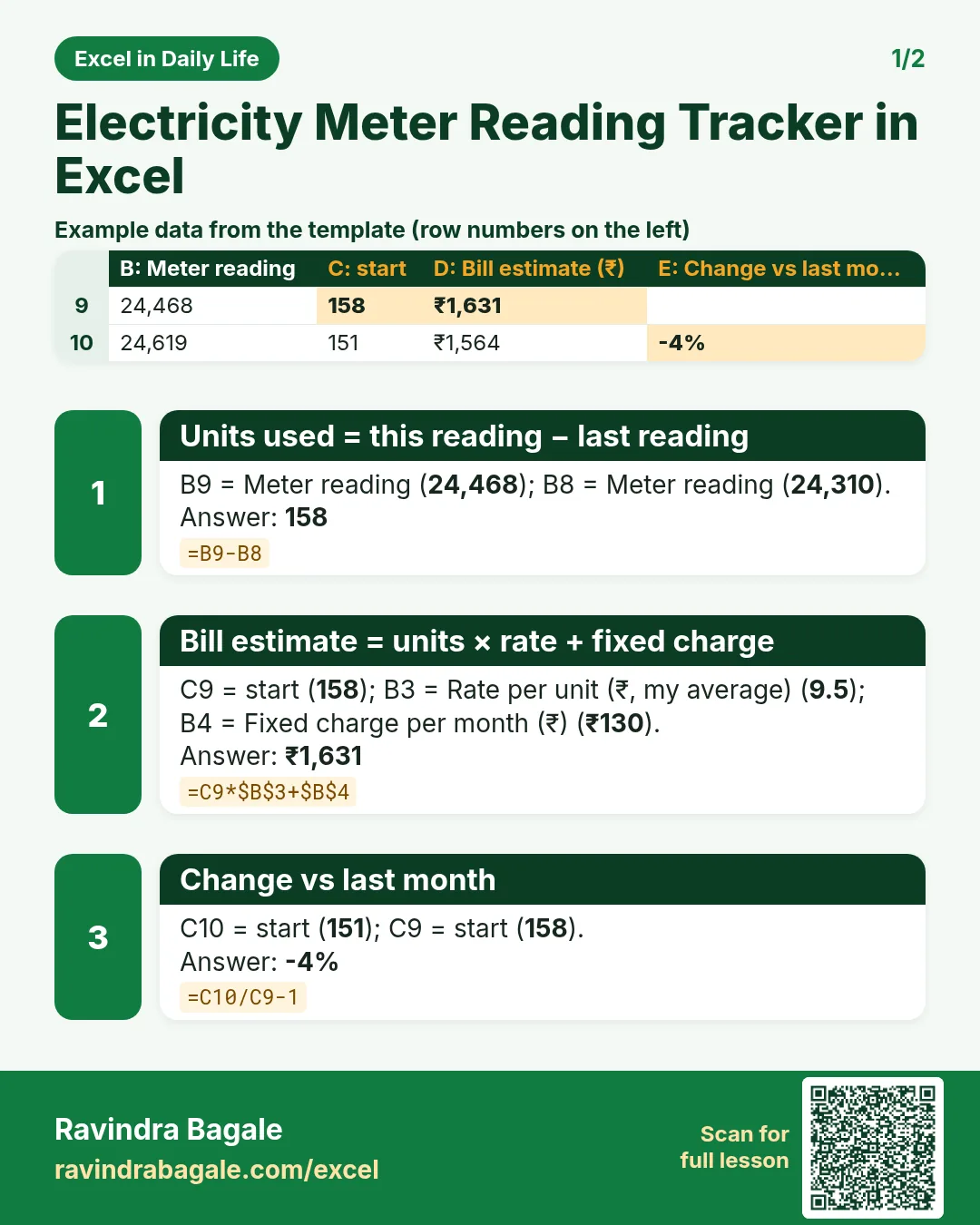

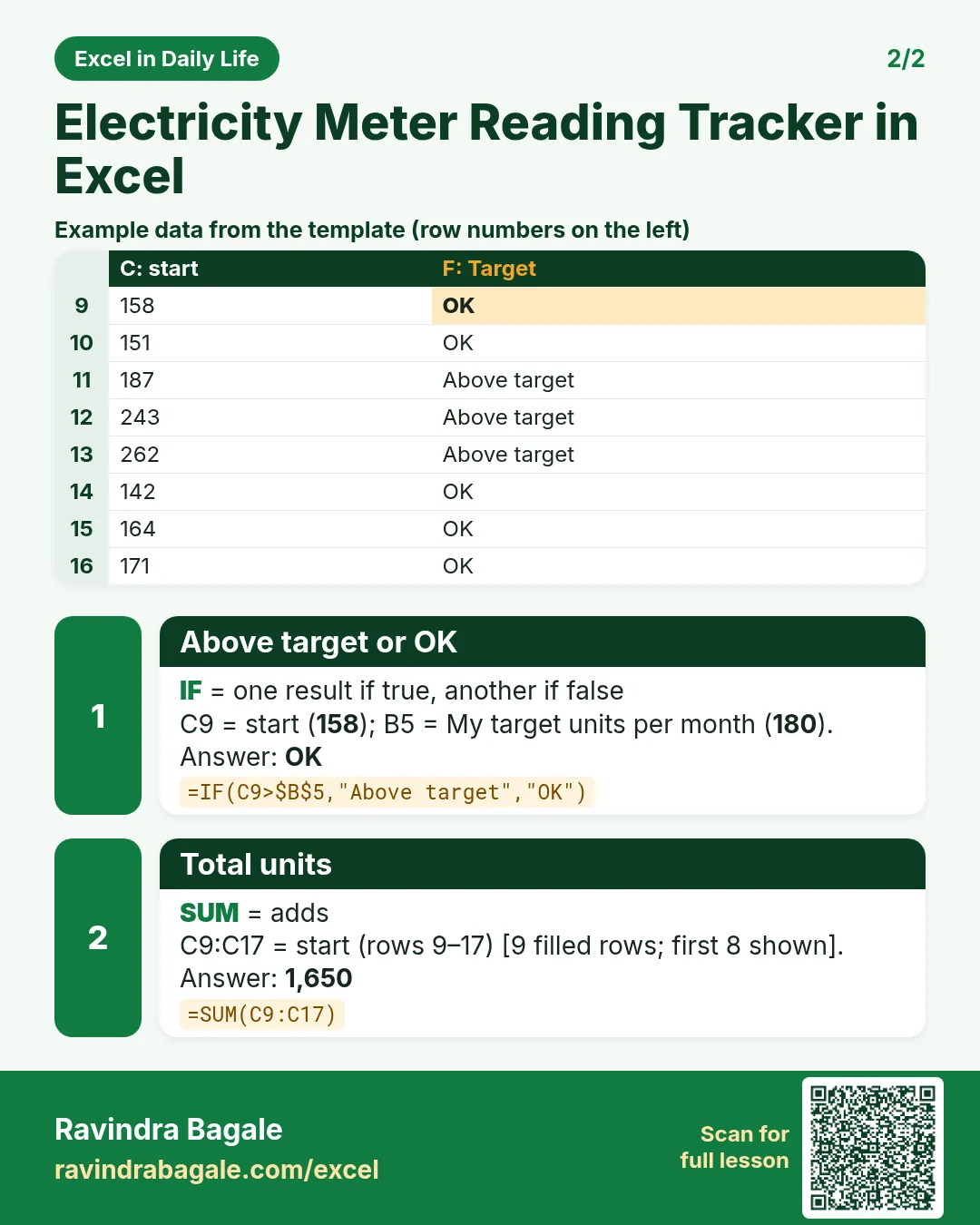

More cards: Ravi Sir's Cards.
6. Frequently asked questions
How do I calculate electricity units from meter readings?
Units used = current reading − previous reading. In Excel =B9-B8, copied down.
How do I estimate the electricity bill in Excel?
Multiply units by your average rate per unit and add the fixed charge: =C9*$B$3+$B$4. Take the average rate from a recent bill.
How do I find the month with the highest usage?
=INDEX(A9:A17,MATCH(MAX(C9:C17),C9:C17,0)) returns the reading date of the highest month.
Does this include slab rates?
No. It uses one average rate to keep things simple. Your bill shows the exact slab charges.
Can I show the trend on a chart?
Yes: a column chart of dates and units, plus data bars in the units column.
7. Quick quiz
Ten questions on this page. Sign in to save your score.