Relative vs Absolute vs Mixed Cell Reference in Excel (F4 Key) with GST Example
You write one formula, drag it down, and the first row is right but the rest show 0, #VALUE! or a number with nine zeros. Nothing is wrong with Excel. The formula is doing exactly what references do when they are copied. This chapter explains the three kinds of cell reference (relative, absolute and mixed) with one example everyone understands: adding GST to a price list. By the end you will write a single formula that fills a whole grid of prices and tax rates.
What you'll learn in this chapter
- What a relative reference does when you drag a formula
- Why a "rate in one cell" breaks when you drag without $
- The three errors you will see: 0, #VALUE! and wrong large numbers
- Absolute reference:
$C$1and the F4 key - A rate typed as 18 instead of 18%
- Mixed reference:
$B5andC$4 - One formula for a whole price × rate grid
Practice file: excel-cell-references-gst-practice.xlsx has a sheet for each section (Relative, GST, Rate without % sign, Mixed grid) and a Your turn sheet.
1. Relative reference: the default
Every reference you type, such as A5, is relative. Excel does not remember "cell A5"; it remembers "the cell two columns to my left, in my row".
Try it:
- Put 10, 20, 30 … 80 in A5:A12 and 20, 40, 60 … 160 in B5:B12.
- In C5 type
=A5+B5and press Enter: 30. - Drag the fill handle down to C12.
- Click C6: the formula is now
=A6+B6. C7 has=A7+B7, and so on. C12 shows 240.
When you drag down, the row number goes up by one in every row. When you drag right, the column letter moves by one. That is exactly what you want for "add the two cells in my row".
Classroom line
When we hold a cell and drag it down, the row number keeps increasing automatically.
Class मधलं वाक्य
"Jevha aapan ekhadya cell la dharun khali drag karu, row number automatically increment karat jato."
जेव्हा आपण एखाद्या cell ला धरून खाली drag करू, row number आपोआप increment होत जातो.
Classroom line
When we hold a cell and drag it down, the row number keeps increasing automatically.
Figure 1. A relative reference moves with the cell. C5 adds A5 and B5; dragged down, C6 adds A6 and B6.
2. The problem: one rate for every row
Now a price list. Column A has products, column B their prices, and the GST rate sits in one cell, C1 (we use 18% as an example; the rate is in its own cell precisely because rates can change).
| Product | Price |
|---|---|
| Laptop | 1,00,000 |
| Camera | 60,000 |
| Tablet | 30,000 |
| Mobile | 25,000 |
| Smartwatch | 20,000 |
| Earphones | 10,000 |
| Speaker | 8,000 |
In C5 you type =B5*C1 and get 18,000 for the laptop. Correct. Now drag it down:
| Cell | Formula after dragging | Result | Why |
|---|---|---|---|
| C5 | =B5*C1 |
18,000 | correct |
| C6 | =B6*C2 |
0 | C2 is empty, and an empty cell counts as 0 |
| C7 | =B7*C3 |
0 | C3 is empty too |
| C8 | =B8*C4 |
#VALUE! | C4 holds the header text "GST" |
| C9 | =B9*C5 |
36,00,00,000 | multiplies by the laptop's GST, not by 18% |
The price part (B5, B6, B7 …) should move. The rate part (C1) should not, but it moved too: C1 became C2, C3, C4 …
Classroom line
A #VALUE! error means the data type has gone wrong.
Class मधलं वाक्य
Value error म्हणजे data type चुकला आहे.
Classroom line – हिंदी
"Value error ka matlab hota hai data type wrong ho gaya hai."
#VALUE! appears because the formula tried to multiply a number by the text "GST". The large wrong numbers are worse: they look like real answers. Always click two or three cells after dragging and read their formulas.
Figure 2. Without $, the rate cell slides down with the formula: 0, 0, #VALUE! and then huge wrong numbers.
3. Absolute reference: lock it with $
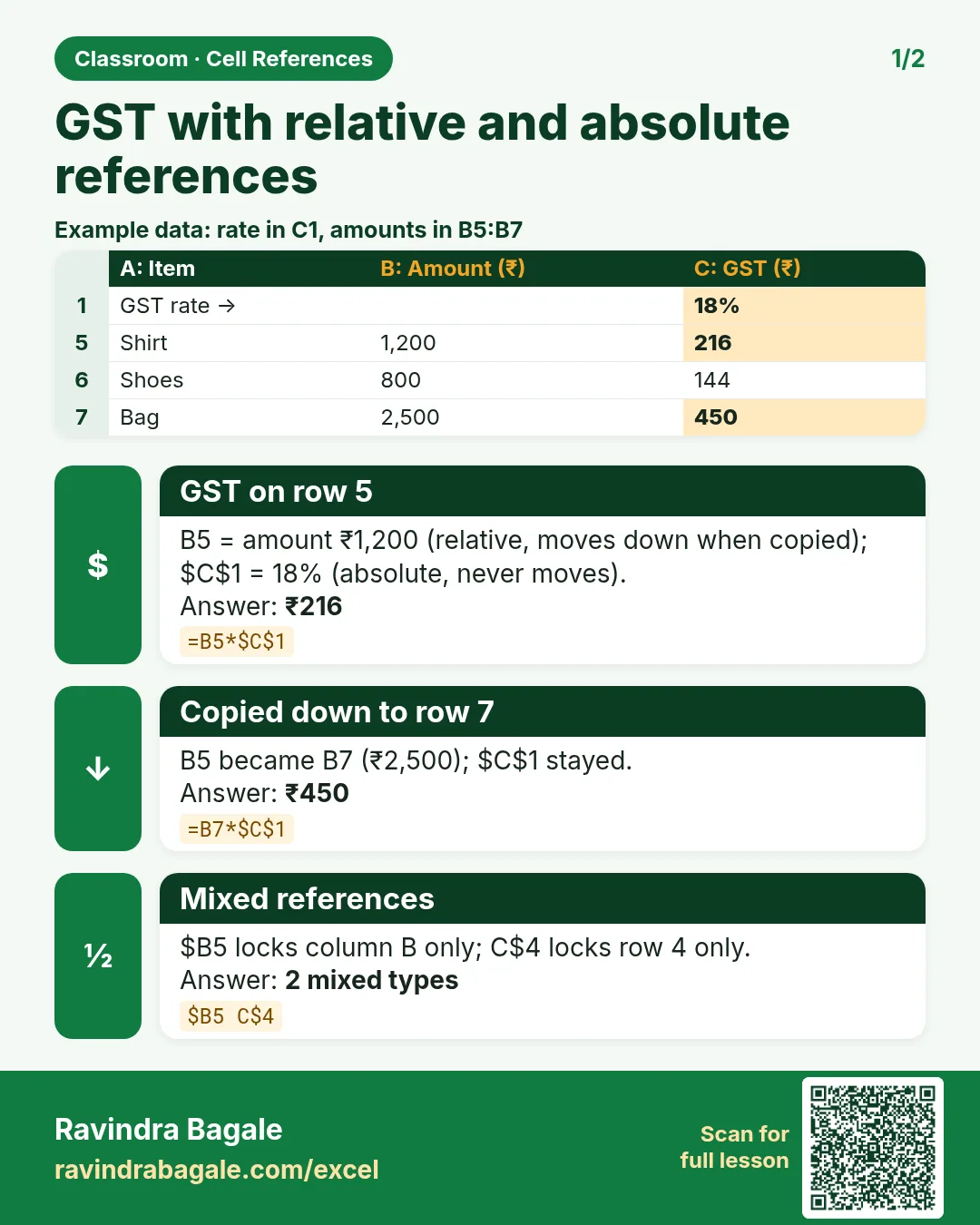
A $ in front of the column letter locks the column; a $ in front of the row number locks the row. $C$1 locks both, so it stays C1 wherever you copy the formula. This is an absolute reference.
How:
- In C5 type
=B5*$C$1and press Enter: 18,000. - In D5 type
=B5+C5for the total: 1,18,000. - Select C5:D5 and drag down to row 11.
- Click C9: it shows
=B9*$C$1. B moved, C1 stayed.
Results: GST 18,000; 10,800; 5,400; 4,500; 3,600; 1,800; 1,440. Totals 1,18,000; 70,800; 35,400; 29,500; 23,600; 11,800; 9,440.
Now change C1 to 12%: the laptop's GST becomes 12,000 and its total 1,12,000. Change it to 28%: 28,000 and 1,28,000. One cell controls the whole sheet.
Classroom line
When one number has to be used in every row, we use an absolute reference.
Class मधलं वाक्य
"Jyaweli ekach number saglya madhye vaparaychay, tya veli aapan absolute reference vaparnar."
ज्यावेळी एकच number सगळ्यांमध्ये वापरायचाय, त्यावेळी आपण absolute reference वापरणार.
Classroom line
When one number has to be used in every row, we use an absolute reference.
Figure 3. With $C$1 every row multiplies its own price by the same rate cell. Change C1 and every GST and total updates.
4. The F4 key
Typing $ by hand works, but F4 is faster. Click inside the reference in the formula (or just after it) and press F4. Each press changes it:
C1→$C$1(absolute)- →
C$1(row locked) - →
$C1(column locked) - →
C1(relative again)
On many laptops the F keys control volume and brightness, so press Fn+F4. On a Mac, use Cmd+T. A reference has at most one $ before the letter and one before the number; if you ever see $$, Excel will refuse the formula, so remove the extra sign.
Ravindra Bagale's Tip
After you drag any formula, click the last cell and read its formula in the Formula Bar. If the fixed cell has drifted (C1 became C11), you forgot the $. Checking the last cell takes two seconds and catches the mistake before anyone sees your report.
Ravindra Bagale's Tip – मराठी
कोणताही formula drag केल्यानंतर शेवटच्या cell वर click करा आणि Formula Bar मध्ये त्याचा formula वाचा. Fixed cell हललेला दिसला (C1 चा C11 झाला) तर $ विसरलात. शेवटची cell पाहायला दोन seconds लागतात आणि report कोणी बघण्याआधीच चूक पकडली जाते.
Ravindra Bagale's Tip – हिंदी
कोई भी formula drag करने के बाद आखिरी cell पर click करो और Formula Bar में उसका formula पढ़ो. Fixed cell खिसका हुआ दिखे (C1 का C11 हो गया) तो $ भूल गए. आखिरी cell देखने में दो seconds लगते हैं और report कोई देखे उससे पहले ही गलती पकड़ में आ जाती है.
5. A rate typed as 18, not 18%
When you type 18%, Excel stores 0.18, so =B5*$C$1 already gives 18,000. You do not need to divide by 100.
Classroom line
There is no need to divide 18 by 100.
Class मधलं वाक्य
18 ला 100 ने divide करायची गरज नाही.
Classroom line – हिंदी
"18 divided by 100 karne ki zarurat nahi hai."
If the rate cell holds plain 18 (no % sign), divide in the formula instead:
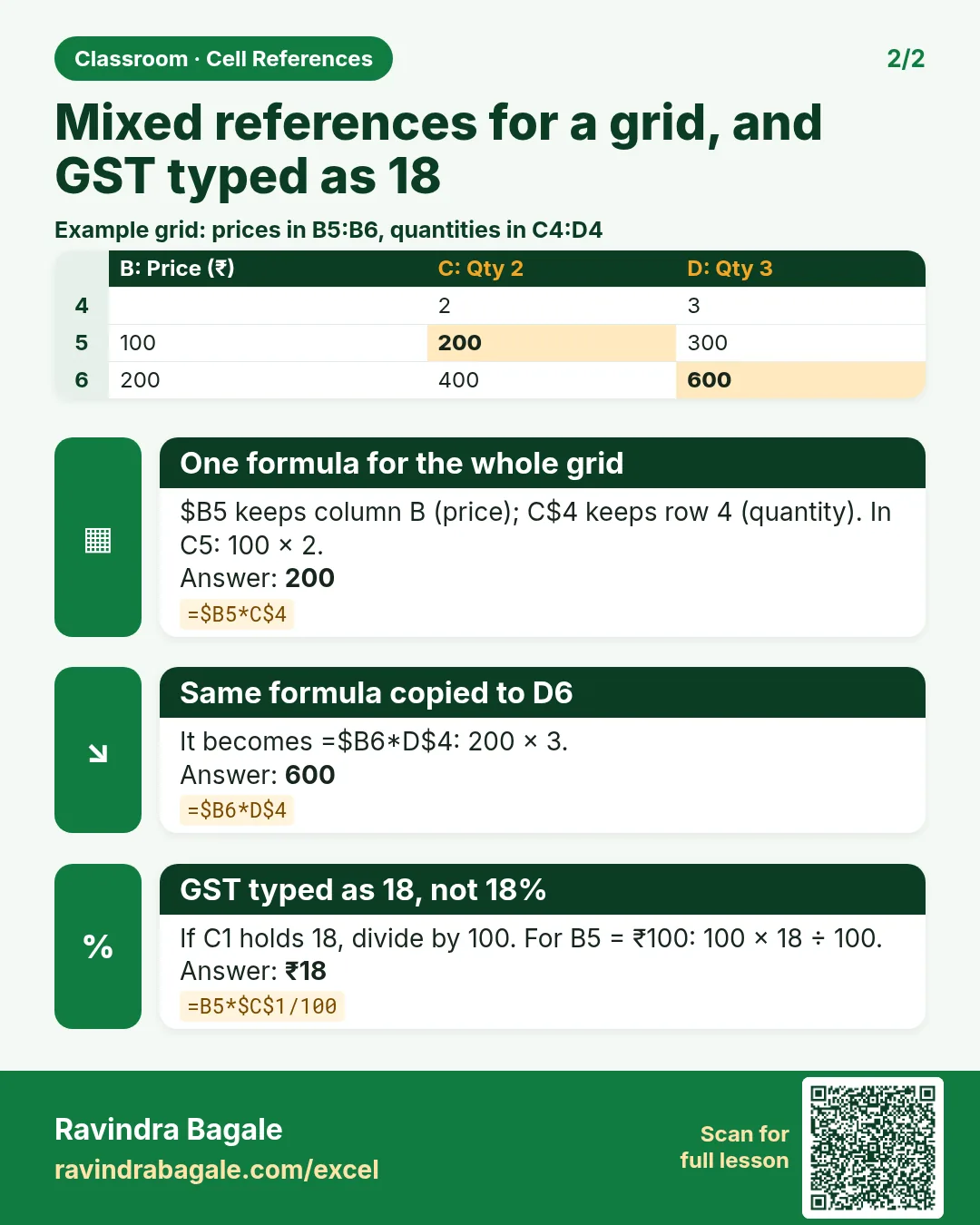
=B5*$C$1/100
The laptop gives 18,000 again. Without the $ (=B5*C1/100 dragged down) you get the same 0, #VALUE! and wrong numbers as before, because the problem is the moving reference, not the % sign. Choose one style for the sheet and label the cell ("GST rate, %") so the next person knows which one you used.
6. Mixed reference: one formula for a whole grid
Task: show the tax at five example rates (5%, 10%, 12%, 18%, 28%) for all seven products. Rates go across row 4 (C4:G4), prices down column B (B5:B11). We want one formula in C5 that can be copied to the whole grid C5:G11.
Classroom line
My aim now: I write one formula, and it should work for every cell.
Class मधलं वाक्य
आता माझं aim काय आहे: मी एक formula लिहीन आणि तो सगळ्यांसाठी apply झाला पाहिजे.
Classroom line – हिंदी
"Abhi mera aim kya hai, mai ek formula likhunga sab ke liye apply hona chahiye."
Think about what must move and what must stay:
- The price is always in column B, but its row changes as you go down. Lock the column only:
$B5. - The rate is always in row 4, but its column changes as you go right. Lock the row only:
C$4.
=$B5*C$4
Type it in C5 (laptop at 5% = 5,000), drag right to G5, then drag C5:G5 down to row 11. G11 now holds =$B11*G$4: the speaker at 28% = 2,240. This is a mixed reference: half locked, half free.
Classroom line
Don't give a dollar to what will change; give a dollar to what won't change.
Class मधलं वाक्य
"Je change honar aahe tyala dollar deu naka, je change honar nahi tyala dollar dya."
जे change होणार आहे त्याला dollar देऊ नका, जे change होणार नाही त्याला dollar द्या.
Classroom line
Don't give a dollar to what will change; give a dollar to what won't change.
Figure 4. One formula, =$B5*C$4, fills the whole grid. $B keeps every row on the price column; $4 keeps every column on the rate row.
7. Why the other two versions fail
| Formula in C5 | Copy right | Copy down |
|---|---|---|
=$B$5*C4 |
works (D5 = 10,000) | wrong: C6 becomes =$B$5*C5 = 50,00,00,000 |
=B5*$C$4 |
wrong: D5 becomes =C5*$C$4 = 250 |
works (C6 = 3,000) |
=$B5*C$4 |
works | works |
Locking everything in one direction is the most common mistake. Ask two questions for every reference: "when I copy down, should the row move?" and "when I copy right, should the column move?" Put a $ in front of each part that must not move.
Figure 5. Three versions of the same formula. Only the mixed one gives correct answers in both directions.
Ravindra Bagale's Tip
Not sure which $ you need? Write the formula for the first cell, copy it one cell right and one cell down, and read both formulas. If the price or the rate has slipped in either one, add the $ to that part. Two test copies are faster than fixing a whole grid.
Ravindra Bagale's Tip – मराठी
कोणता $ लागेल हे कळत नसेल तर पहिल्या cell चा formula लिहा, तो एक cell उजवीकडे आणि एक cell खाली copy करा, आणि दोन्ही formulas वाचा. कुठेही price किंवा rate सरकला असेल तर त्या भागाला $ लावा. पूर्ण grid दुरुस्त करण्यापेक्षा दोन test copies जास्त जलद.
Ravindra Bagale's Tip – हिंदी
कौन सा $ लगेगा समझ न आए तो पहली cell का formula लिखो, उसे एक cell दाईं ओर और एक cell नीचे copy करो, और दोनों formulas पढ़ो. कहीं भी price या rate खिसक गया हो तो उस हिस्से पर $ लगाओ. पूरी grid ठीक करने से दो test copies ज़्यादा जल्दी हैं.
8. The whole chapter on one page
- Relative (
A5): moves when copied. The default. - Absolute (
$C$1): never moves. Use it for one value every row needs: a rate, a target, maximum marks. - Mixed (
$B5orC$4): one part locked, one part free. Use it for grids. - F4 (Fn+F4 on many laptops, Cmd+T on a Mac) cycles through the four types.
- 0, #VALUE! or huge numbers after dragging = a reference that should have been locked.
- 18% in a cell is already 0.18. Plain 18 needs
/100in the formula. - Test a formula by copying it one cell right and one cell down.
9. Try at home
Try at home
Task 1: GST
- Make the price list from section 2 with the rate in C1.
- Write
=B5*$C$1and=B5+C5, drag down, and change C1 to 5%, 12% and 28%.
Task 2: break it on purpose
- In a new column write
=B5*C1(no $) and drag down. Find the 0, the #VALUE! and the first huge number.
Task 3: grid
- On the Your turn sheet fill C5:G11 with one formula.
- Check: Tablet at 12% = 3,600; Mobile at 18% = 4,500; Camera at 28% = 16,800.
Task 4: discount table
- Discounts 5%, 10%, 15% across row 4, the same prices down column B. Write one formula for the price after discount. Hint:
=$B5*(1-C$4).
Recap
In short
- Relative references move; that is why dragging works.
- A value every row needs must be locked with $.
$C$1= absolute,$B5andC$4= mixed.- F4 (Fn+F4, Cmd+T on a Mac) adds the $ signs for you.
- One mixed formula can fill a whole grid.
- After dragging, read the formula in the last cell.
Quick revision cards
Quick revision
Revise this chapter in two minutes. Save the cards on your phone or download them as PNG files. All names and numbers are made up for practice.
झटपट उजळणी
हा chapter दोन मिनिटांत revise करा. Cards phone वर save करा किंवा PNG म्हणून download करा. सगळी नावं आणि आकडे सरावासाठी काल्पनिक आहेत.
झटपट दोहराई
यह chapter दो मिनट में revise करें. Cards phone पर save करें या PNG के रूप में download करें. सभी नाम और आंकड़े अभ्यास के लिए काल्पनिक हैं.


More cards for every chapter: Ravi Sir's Cards.
Loading practice tasks...
- Total invoices (Easy): Add up Invoices in D2:D11.
- Average amount (Easy): Average of E2:E11, rounded to 2 decimals.
- Rows in Admin (Easy): How many rows have Department "Admin"?
- Largest invoices (Easy): The largest value in D2:D11.
- Invoices for Admin (Medium): Total of D2:D11 where B is "Admin".
- Admin in Berlin (Medium): Total of D2:D11 where B is "Admin" and C is "Berlin".
- Best in Admin (Medium): Largest E2:E11 value where B is "Admin".
- Value of row 2 (Medium): D2 times E2.
- Look up Neha Gupta (Medium): The Invoices for "Neha Gupta" (use a lookup on column A).
- Total value (Hard): Sum of D times E for all rows.
- Share of Admin (Hard): Share of D2:D11 that is "Admin", rounded to 3 decimals.
- Rank of row 2 (Hard): Rank of D2 among D2:D11 (largest = 1).
- Above average? (Hard): "Above" if E2 is above the average of E2:E11, else "Below".