How to Build a Sales Dashboard in Excel with PivotTables, Pivot Charts, Slicers and Timeline (Step by Step)
In the last chapter you built your first PivotTables. Now you put several of them on one screen and make it clickable. By the end you have a sales dashboard: 4 KPI cards, 4 charts, 2 slicers and a timeline. Click Pune and every number changes; click FEB and you see February only. No formula is edited.
What you'll learn in this chapter
- Turn data into an Excel Table named SalesData
- Make 4 KPI numbers with PivotTables (revenue, profit, orders, margin)
- Make 4 Pivot Charts and move them to a Dashboard sheet
- Add City and Category slicers
- Connect one slicer to all pivots with Report Connections
- Add a Timeline for months
- Lay out and polish the dashboard
Download: sales-dashboard-practice.xlsx (the 24 orders, the pivot plan and the answers to check) and sales-dashboard-finished.xlsx (the finished dashboard).
Example data only
All 24 orders, amounts and dates are made up for practice. The screenshots are drawn to look like Excel for Microsoft 365 on Windows; button places can differ a little in other versions.
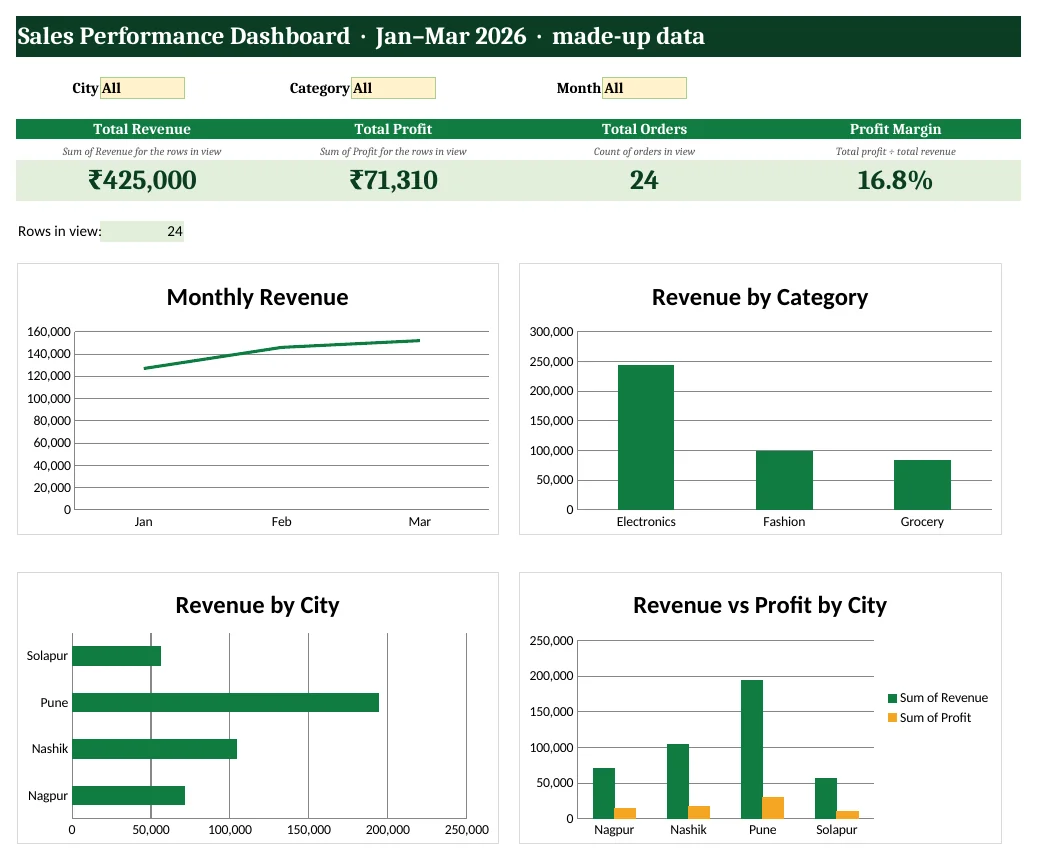
Figure 1. The finished dashboard (the downloadable finished file, opened in LibreOffice Calc). Revenue ₹4,25,000, Profit ₹71,310, 24 orders, margin 16.8%.
In short
A dashboard = PivotTables (the numbers) + Pivot Charts (the pictures) + slicers and a timeline (the buttons). Report Connections makes one click change everything.
थोडक्यात
Dashboard = PivotTables (आकडे) + Pivot Charts (चित्रं) + slicers आणि timeline (buttons). Report Connections मुळे एका click ने सगळं बदलतं.
संक्षेप में
Dashboard = PivotTables (आंकड़े) + Pivot Charts (चित्र) + slicers और timeline (buttons). Report Connections से एक click में सब बदलता है.
1. Prepare the data as an Excel Table
Why
A dashboard is only as good as its data. PivotTables read a table. If the data is an Excel Table, new rows are picked up when you refresh.
What
Our data is 24 orders from January to March 2026 in 4 cities (Pune, Nashik, Nagpur, Solapur). One row = one order. The columns are Order_ID, Order_Date, City, Category, Revenue and Profit. Total revenue is ₹4,25,000 and total profit is ₹71,310.
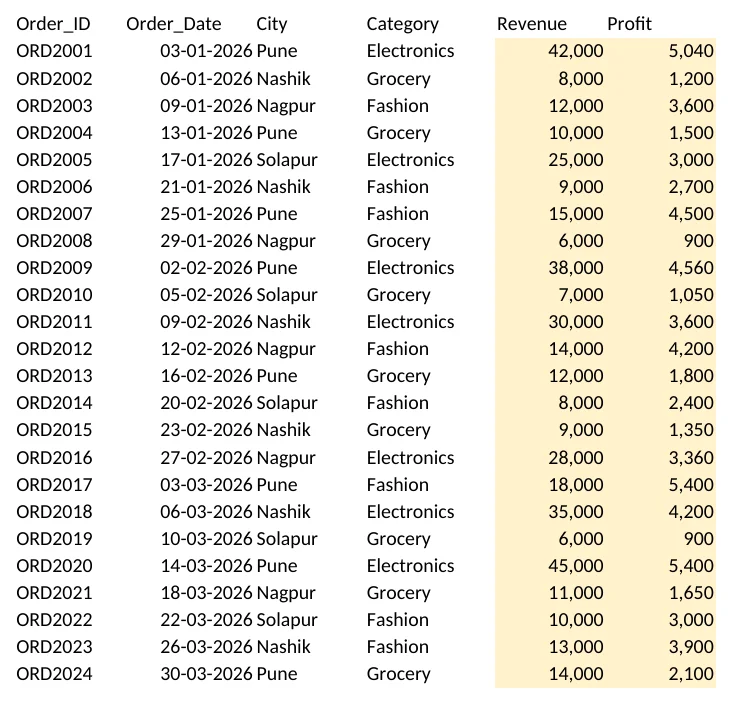
Figure 2. The SalesData sheet in the practice file. Yellow cells are inputs.
| Column | What it holds | Example |
|---|---|---|
| Order_ID | A unique order number | ORD2001 |
| Order_Date | A real Excel date | 03-01-2026 |
| City | Pune, Nashik, Nagpur or Solapur | Pune |
| Category | Electronics, Fashion or Grocery | Electronics |
| Revenue | Order value in ₹ | 42,000 |
| Profit | Profit on the order in ₹ | 5,040 |
How
Open the practice file and go to the SalesData sheet. Click any one cell inside the data, for example C5.
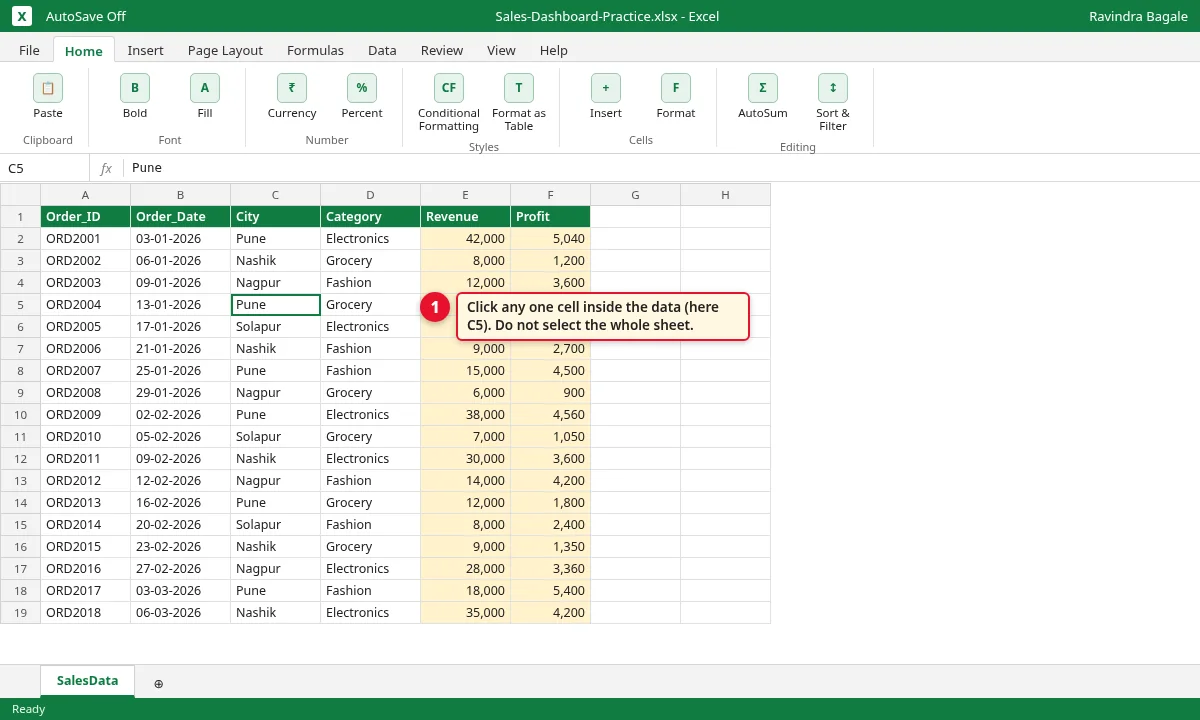
Step 1.1: Excel SalesData sheet with 24 orders, cell C5 selected
Press Ctrl+T. The Create Table box shows
=$A$1:$F$25. Keep My table has headers ticked and click OK.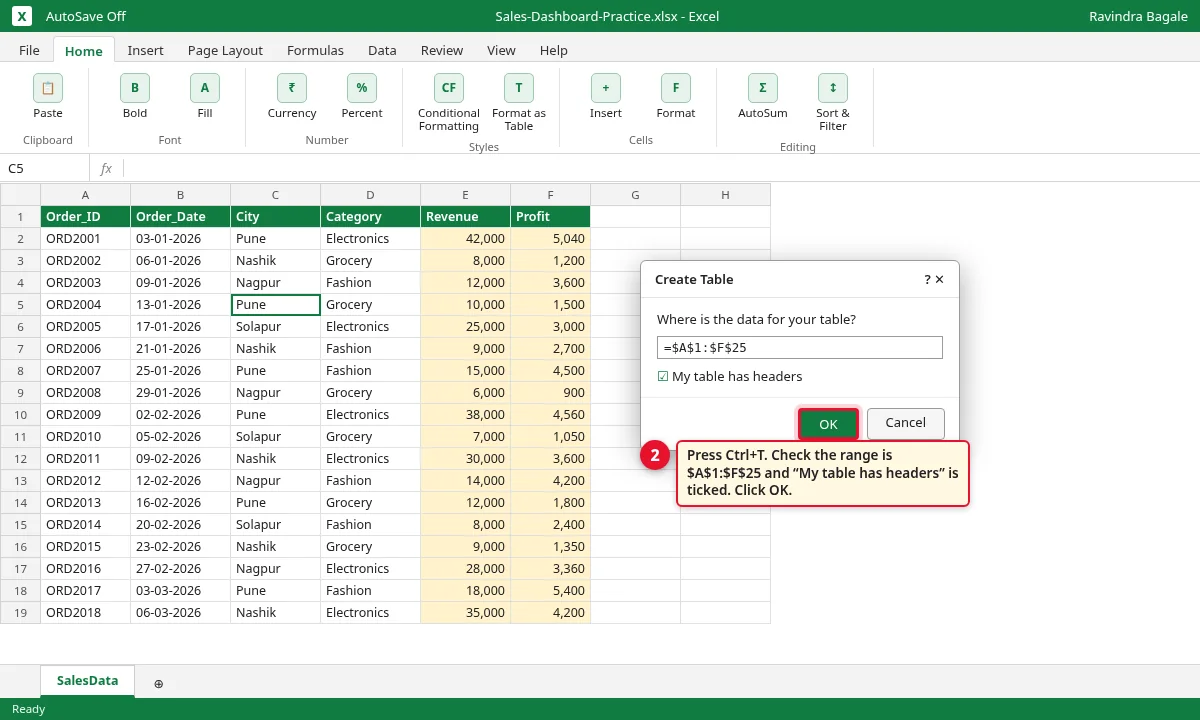
Step 1.2: Create Table dialog with range $A$1:$F$25 and My table has headers ticked
Go to the Table Design tab. In the Table Name box type SalesData and press Enter.
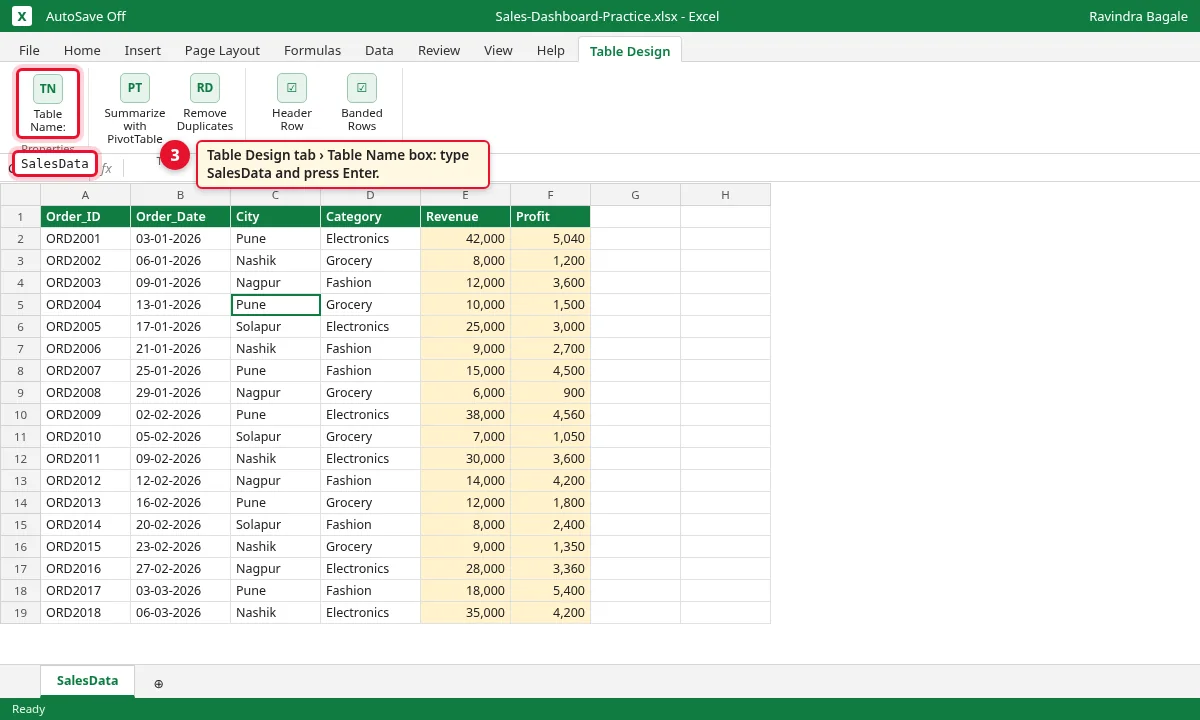
Step 1.3: Table Design tab with Table Name SalesData
2. Make the 4 KPI numbers with PivotTables
Why
KPI means Key Performance Indicator: one big number a manager reads first. Revenue, profit, orders and margin tell how the business is doing in 5 seconds.
What
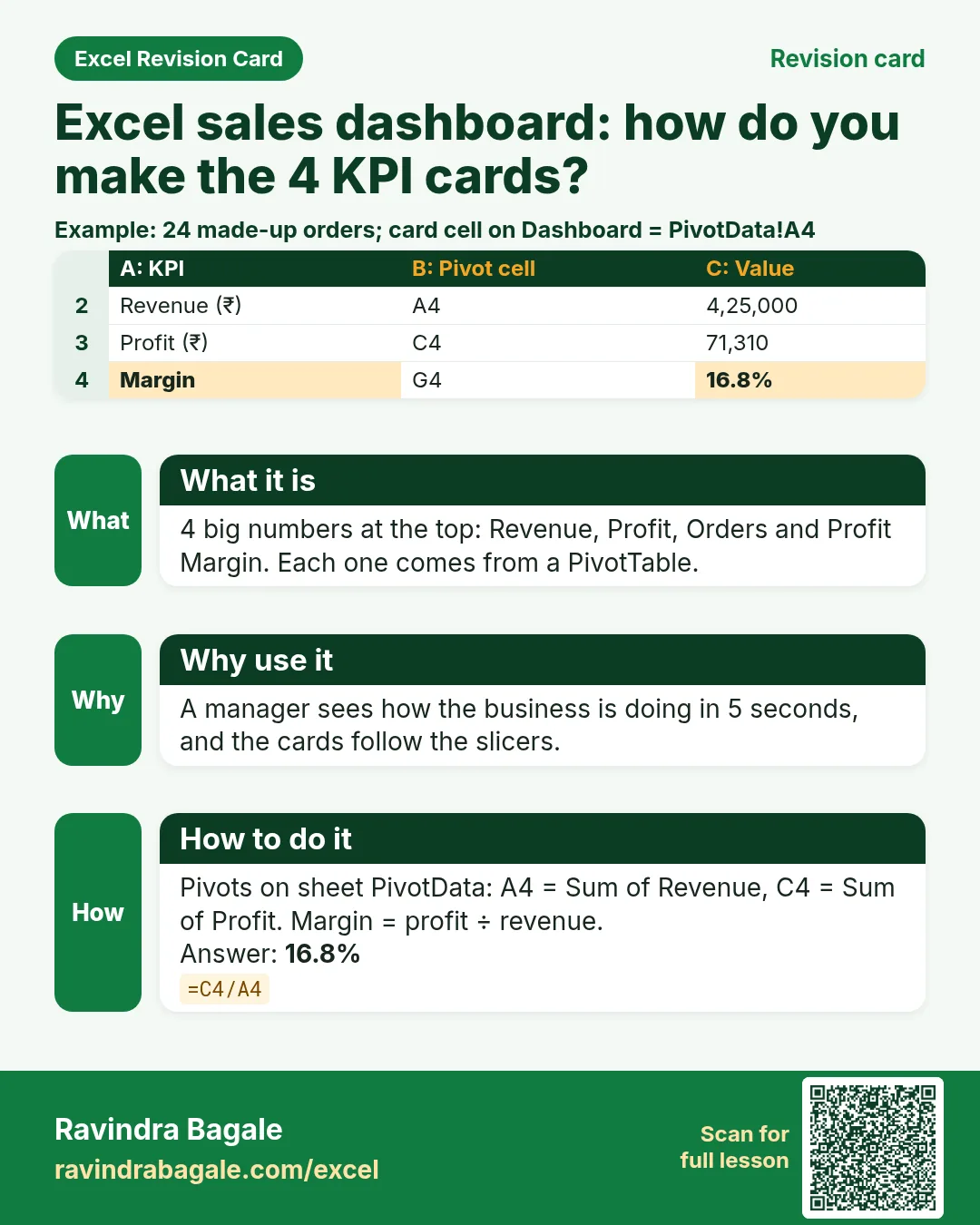
Three small PivotTables with nothing in Rows and one field in Values: Sum of Revenue = 4,25,000, Sum of Profit = 71,310, Count of Order_ID = 24. The fourth KPI, Profit Margin, is profit ÷ revenue = 16.8%. Margin is not a column, so we use a formula.
| KPI | Pivot (sheet PivotData) | Value |
|---|---|---|
| Total Revenue | A3: Sum of Revenue | ₹4,25,000 |
| Total Profit | C3: Sum of Profit | ₹71,310 |
| Total Orders | E3: Count of Order_ID | 24 |
| Profit Margin | G4: =C4/A4 | 16.8% |
How
Click inside the SalesData table. Go to Insert › PivotTable.
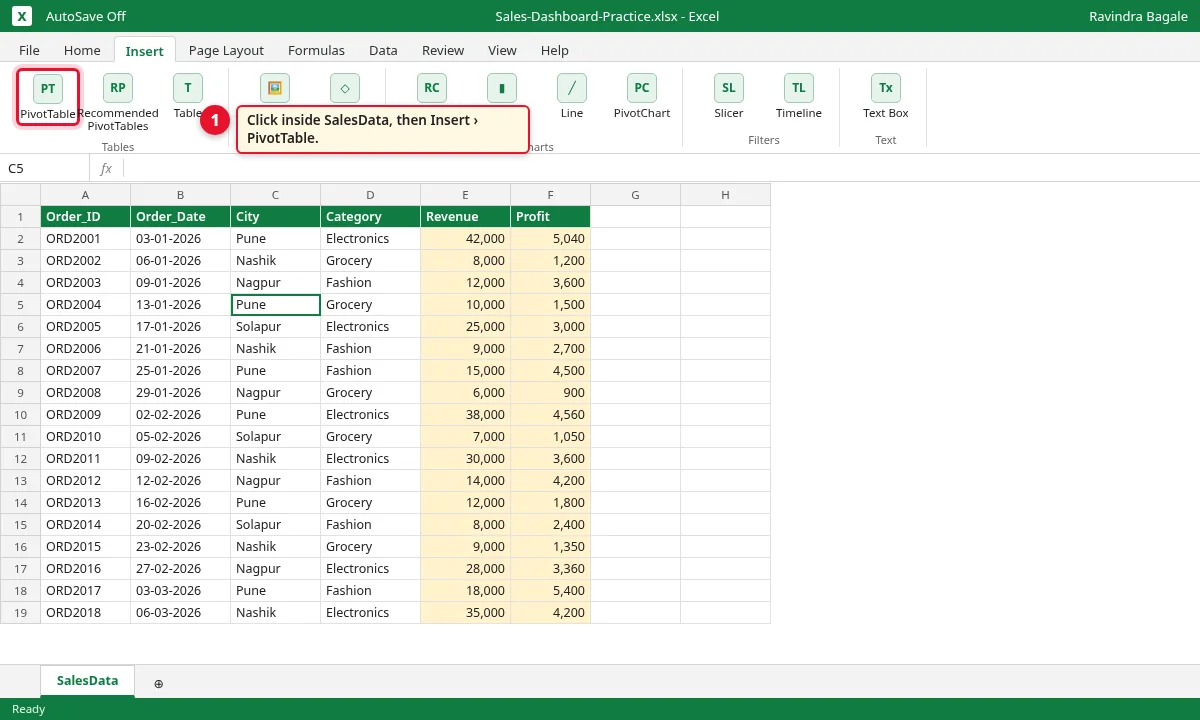
Step 2.1: Insert tab with PivotTable button highlighted
The box says Table/Range: SalesData. Choose New Worksheet and click OK.
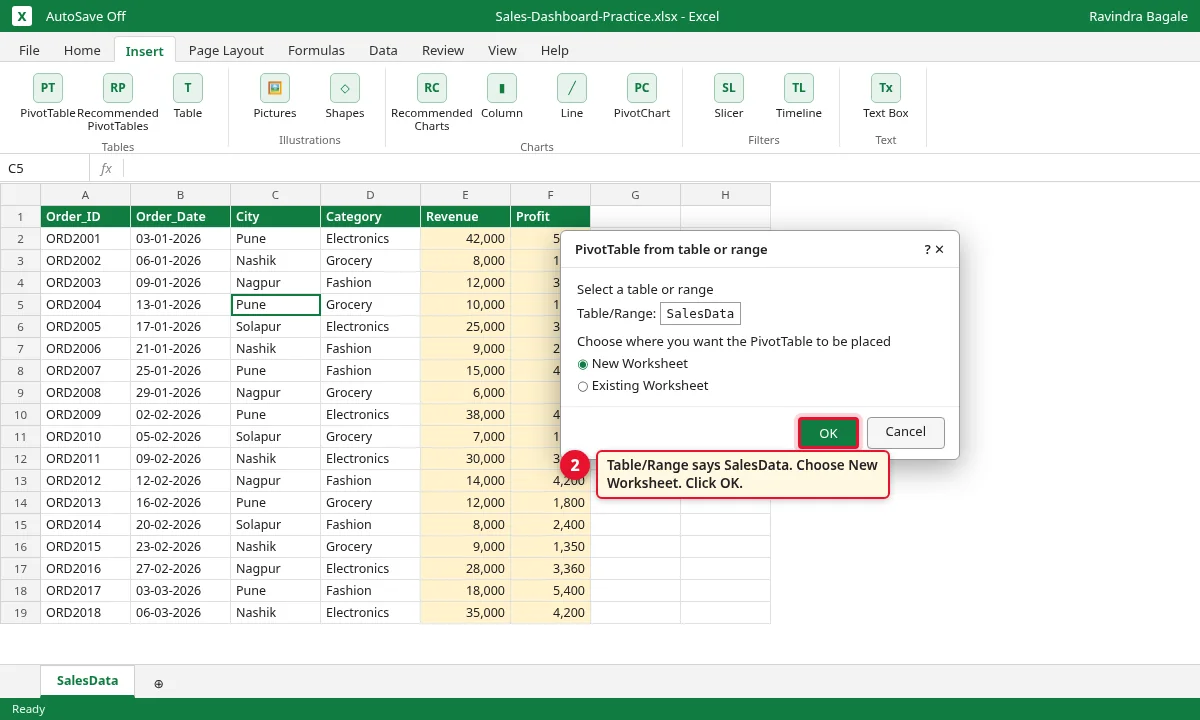
Step 2.2: PivotTable from table or range dialog, New Worksheet selected
In the PivotTable Fields pane, drag Revenue into Values. Cell A4 shows 4,25,000.

Step 2.3: PivotTable Fields pane with Revenue in Values, pivot shows Sum of Revenue 4,25,000
Double-click the sheet tab and rename it PivotData. Copy the pivot to C3 and E3. In the copy at C3, swap Revenue for Profit (71,310). In the copy at E3, put Order_ID in Values (Count = 24).
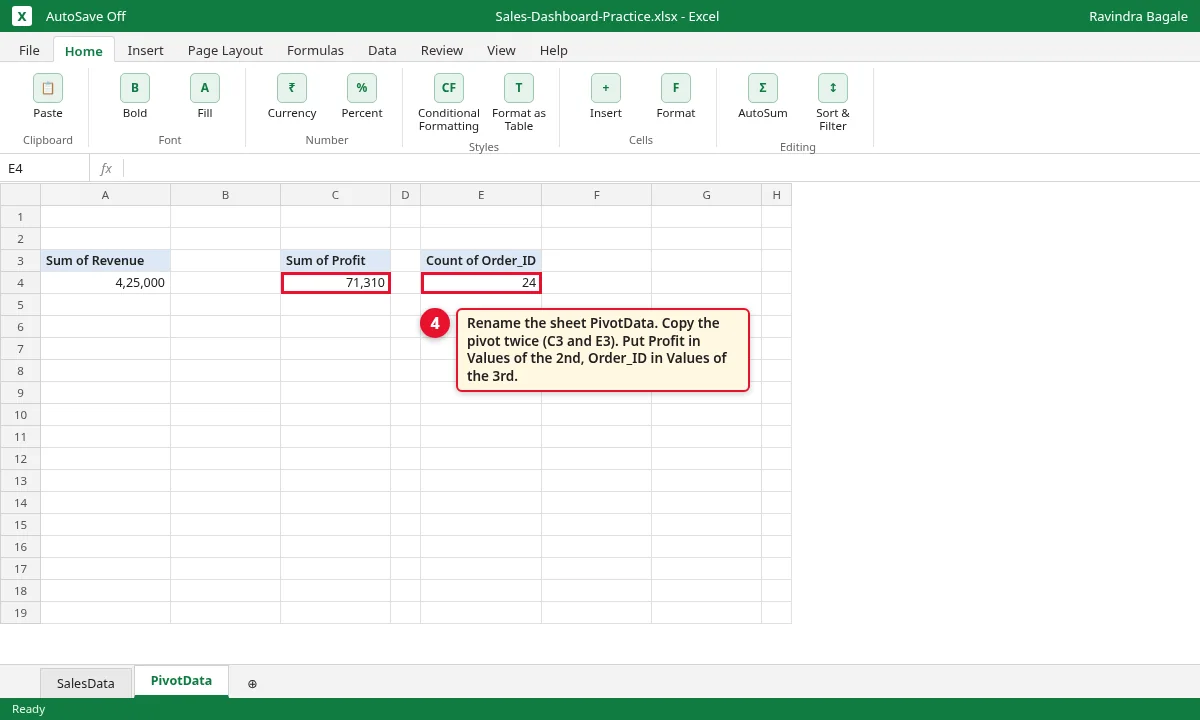
Step 2.4: PivotData sheet with three KPI pivots: revenue, profit and count of orders
In G4 type
=C4/A4(profit ÷ revenue). Click Home › %. It shows 16.8%.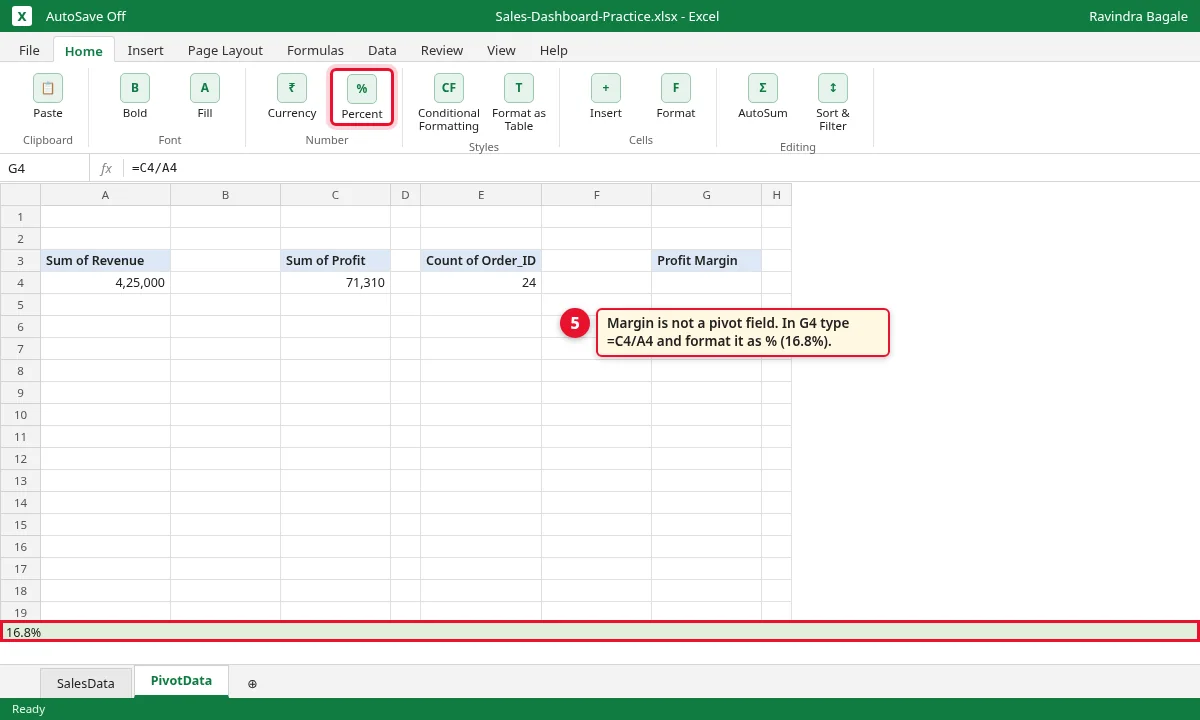
Step 2.5: Profit Margin formula =C4/A4 in G4 showing 16.8%
3. Make the 4 Pivot Charts
Why
Numbers say how much. Charts show where and when: which month grew, which city leads.
What
Each chart needs its own PivotTable on the PivotData sheet: (1) months › line chart, (2) category › column chart, (3) city › bar chart, (4) city with revenue and profit › clustered column chart.
How
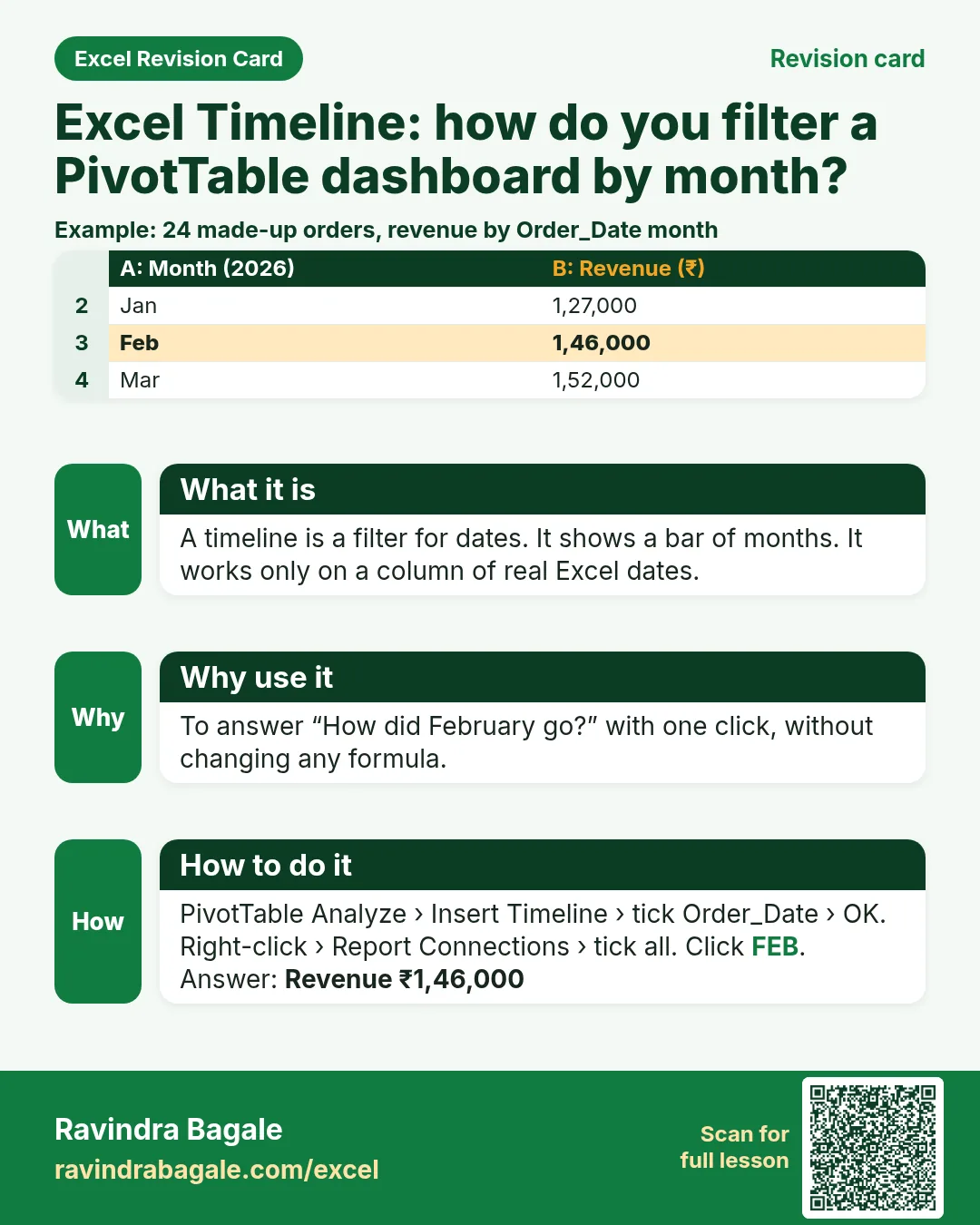
Make a new pivot at A7 (Insert › PivotTable › Existing Worksheet). Drag Order_Date into Rows: Excel adds Months by itself. Drag Revenue into Values: Jan 1,27,000, Feb 1,46,000, Mar 1,52,000.
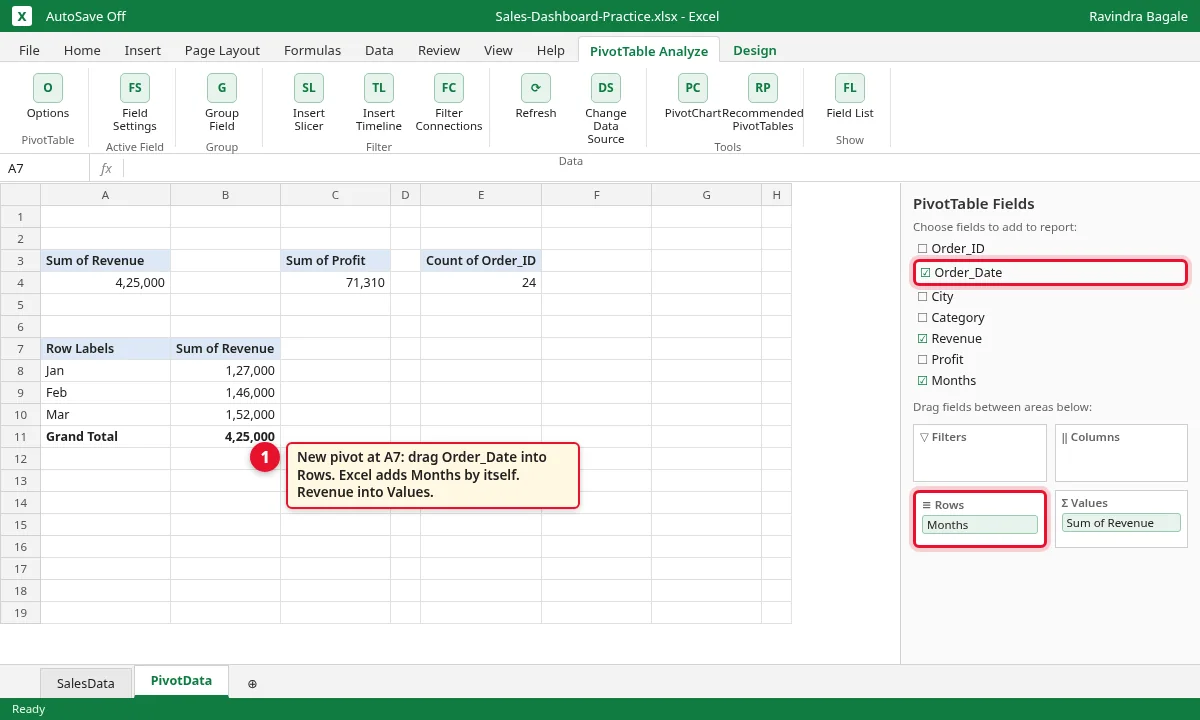
Step 3.1: Month pivot at A7 with Order_Date in Rows, grouped by Months
Click inside the month pivot. Go to PivotTable Analyze › PivotChart.
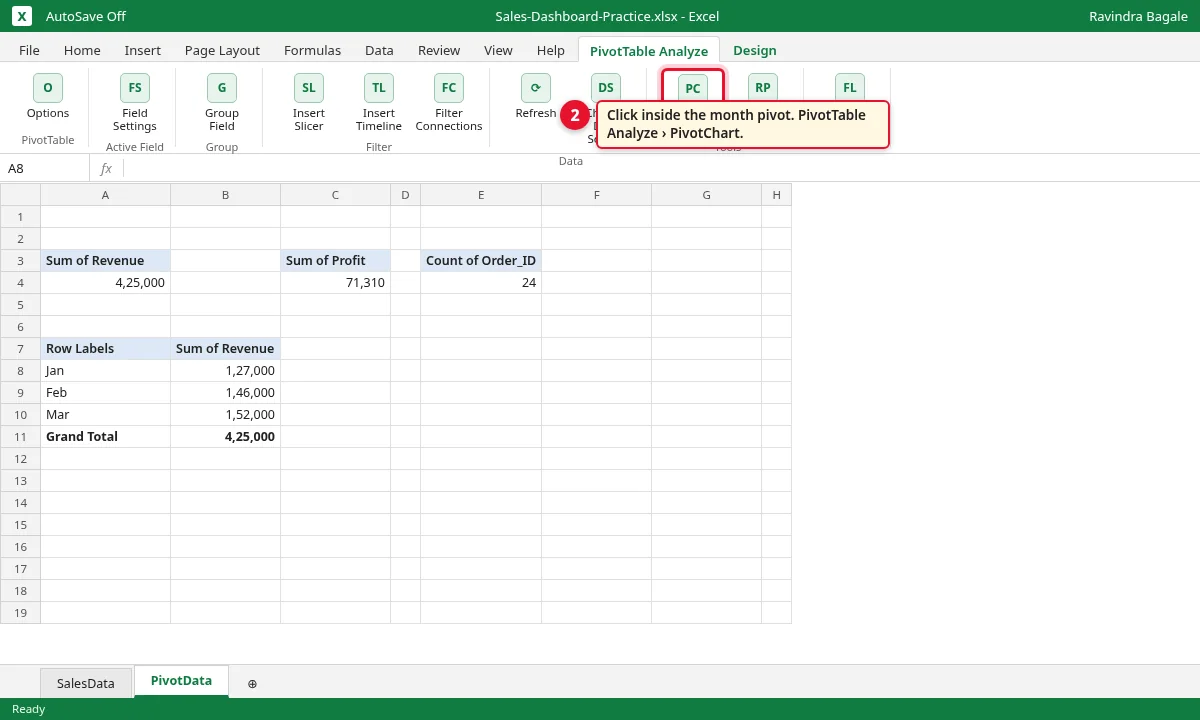
Step 3.2: PivotTable Analyze tab with PivotChart button highlighted
In Insert Chart, pick Line and click OK. This is the Monthly Revenue chart.
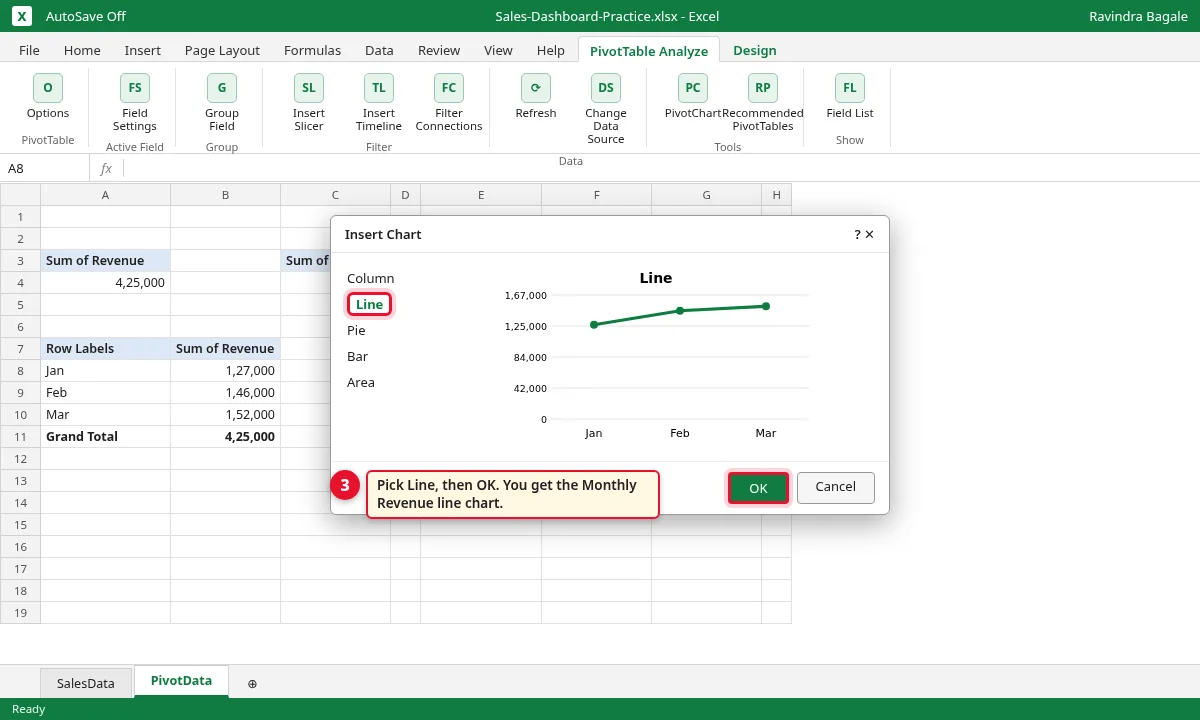
Step 3.3: Insert Chart dialog with Line selected
Make a pivot at A13: Category in Rows, Revenue in Values. Insert a Clustered Column PivotChart. Electronics is highest: 2,43,000.
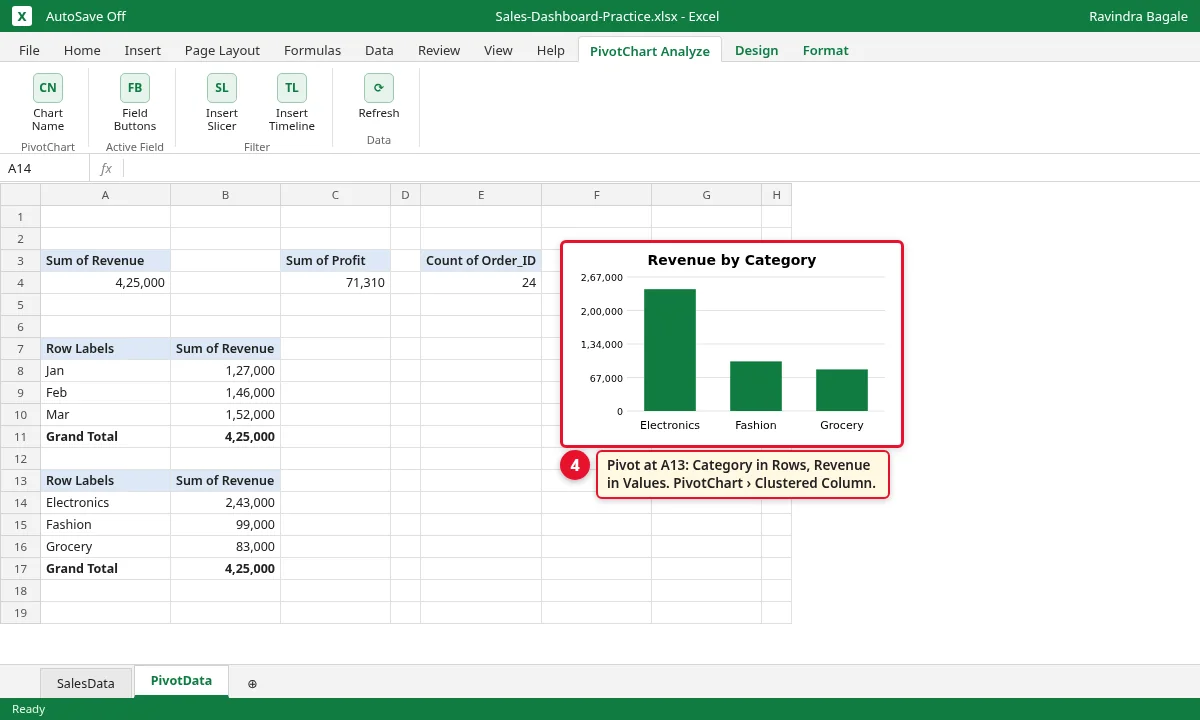
Step 3.4: Category pivot with a clustered column Pivot Chart
Make a pivot at E7: City in Rows, Revenue in Values › Bar chart. Make one more at E14: City in Rows, Revenue and Profit in Values › Clustered Column chart. Pune leads with 1,94,000.
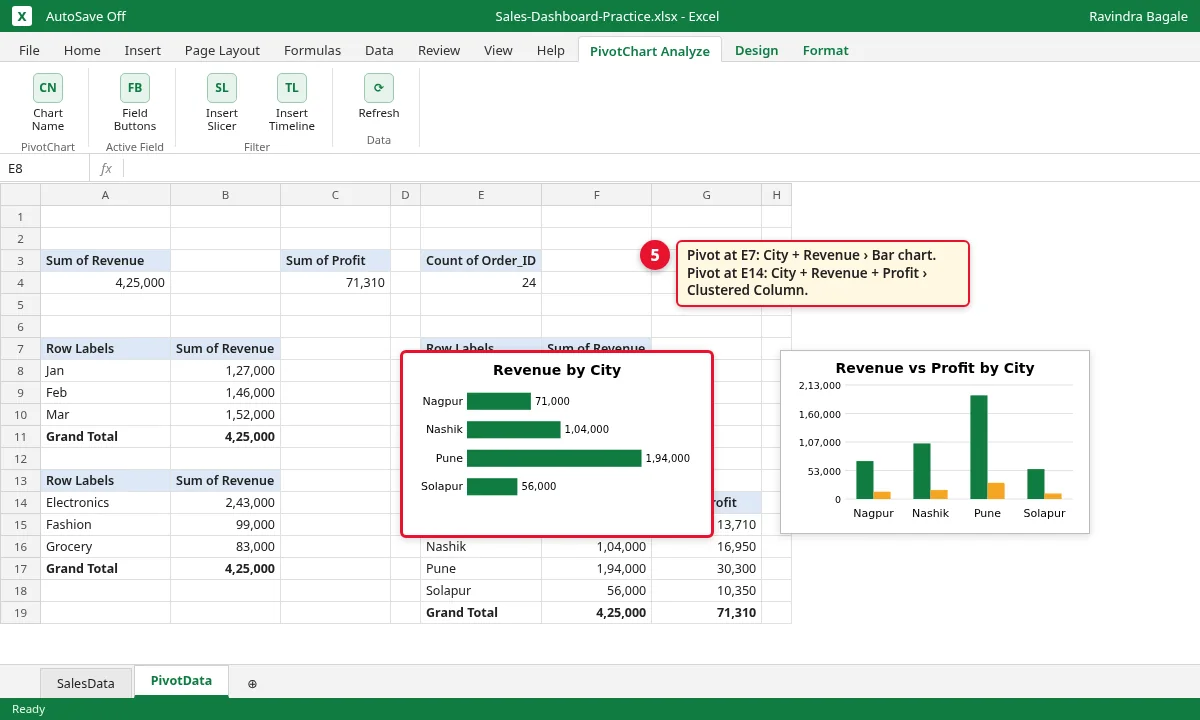
Step 3.5: City pivots with a bar chart and a revenue vs profit column chart
Add a new sheet named Dashboard. Click each chart, press Ctrl+X, go to Dashboard and press Ctrl+V. Put the 4 charts in one row.
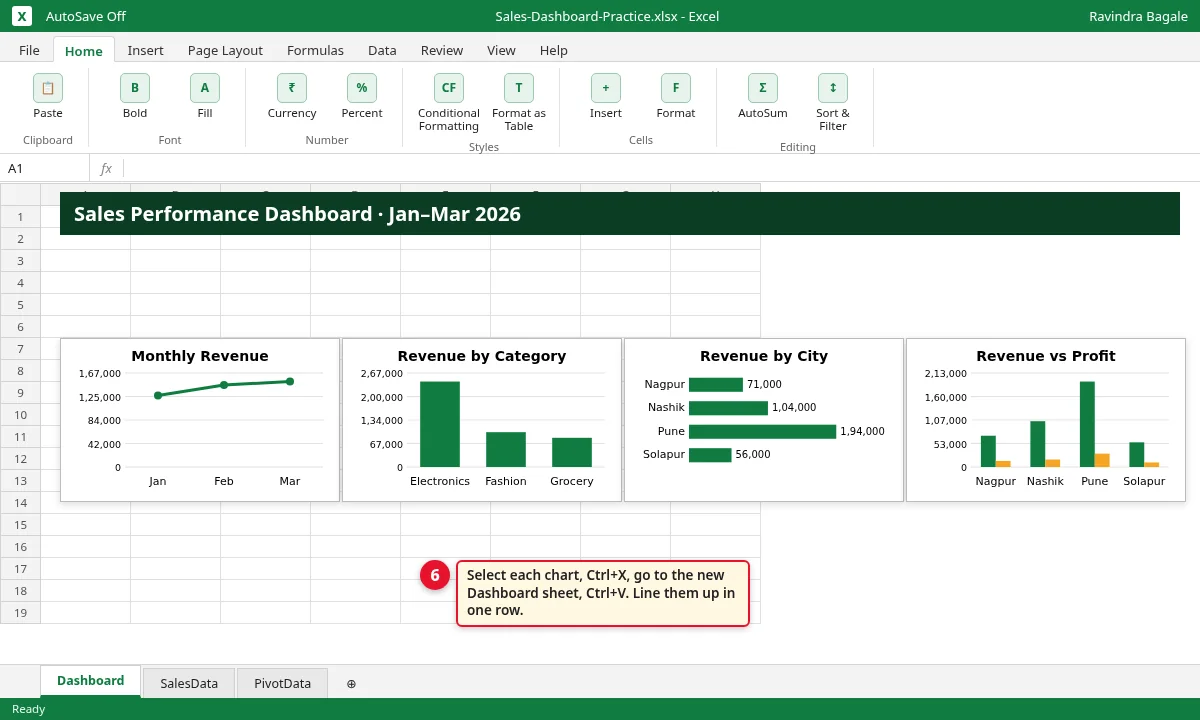
Step 3.6: Dashboard sheet with the four charts in one row
4. Add Slicers for City and Category
Why
A slicer is a box of buttons that filters a pivot with one click. Anyone can use it, even without knowing Excel.
What
We add two slicers: City (Nagpur, Nashik, Pune, Solapur) and Category (Electronics, Fashion, Grocery). A green button is selected; click a button to show only that item.
How
On the PivotData sheet, click inside any pivot (for example A4). Go to PivotTable Analyze › Insert Slicer.
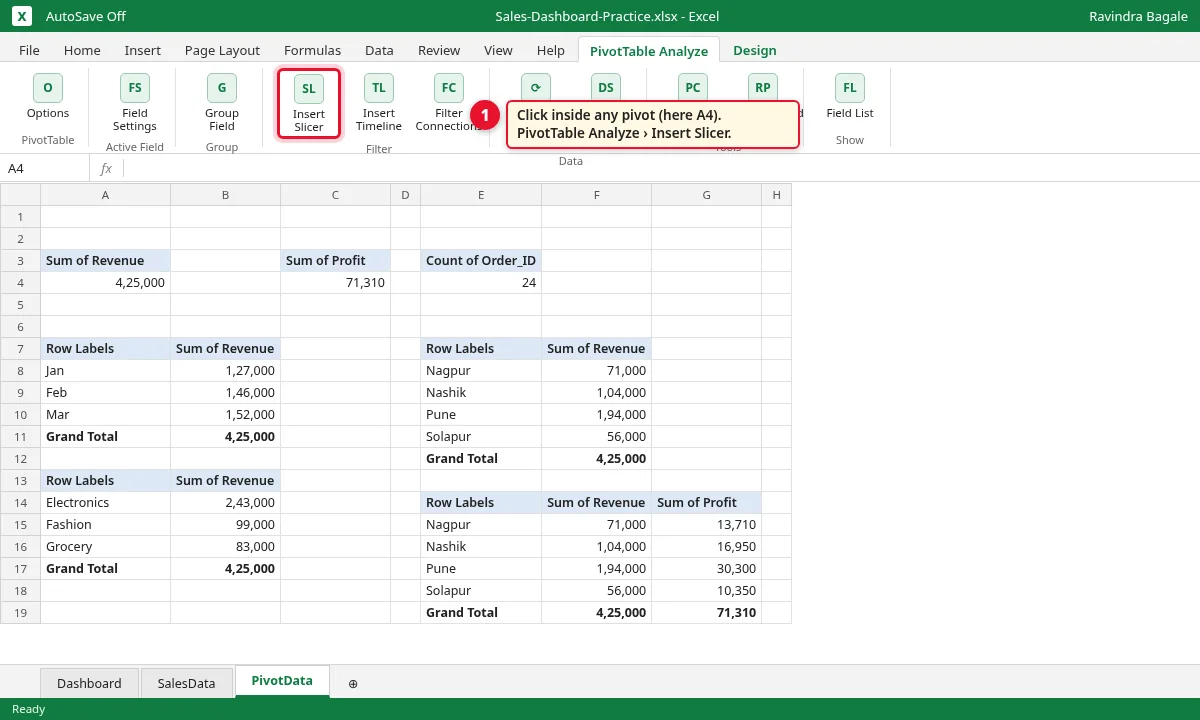
Step 4.1: PivotTable Analyze tab with Insert Slicer highlighted
Tick City and Category. Click OK. Two slicer boxes appear.
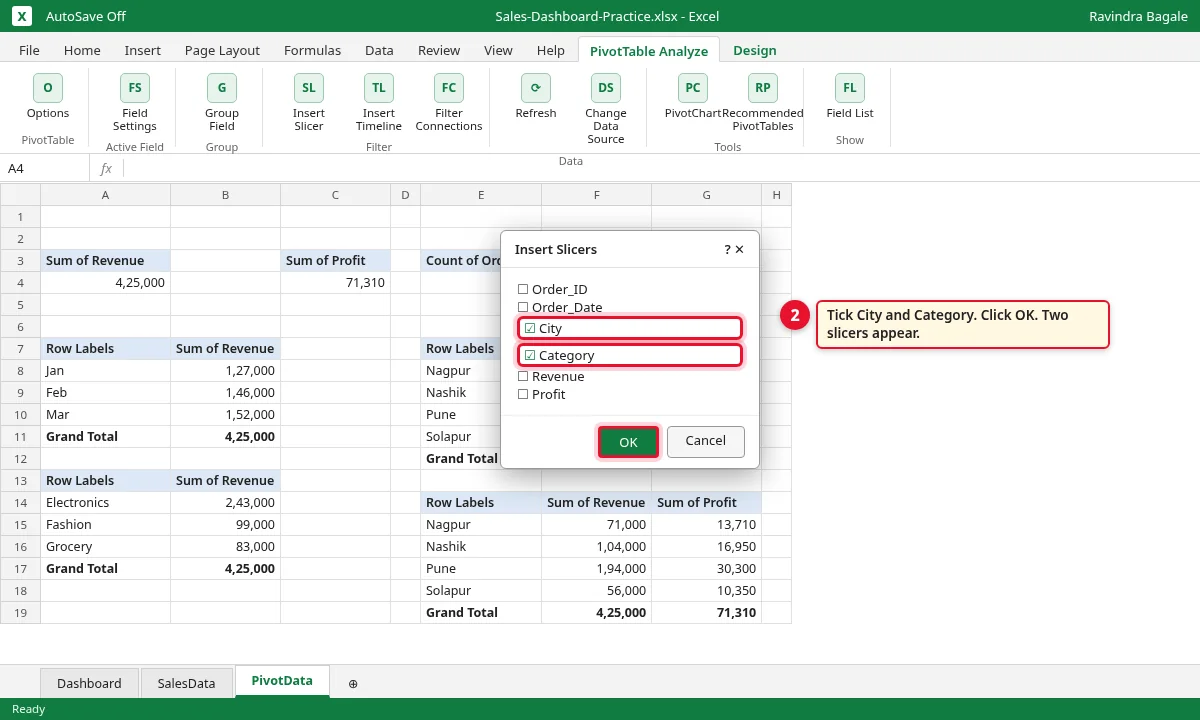
Step 4.2: Insert Slicers dialog with City and Category ticked
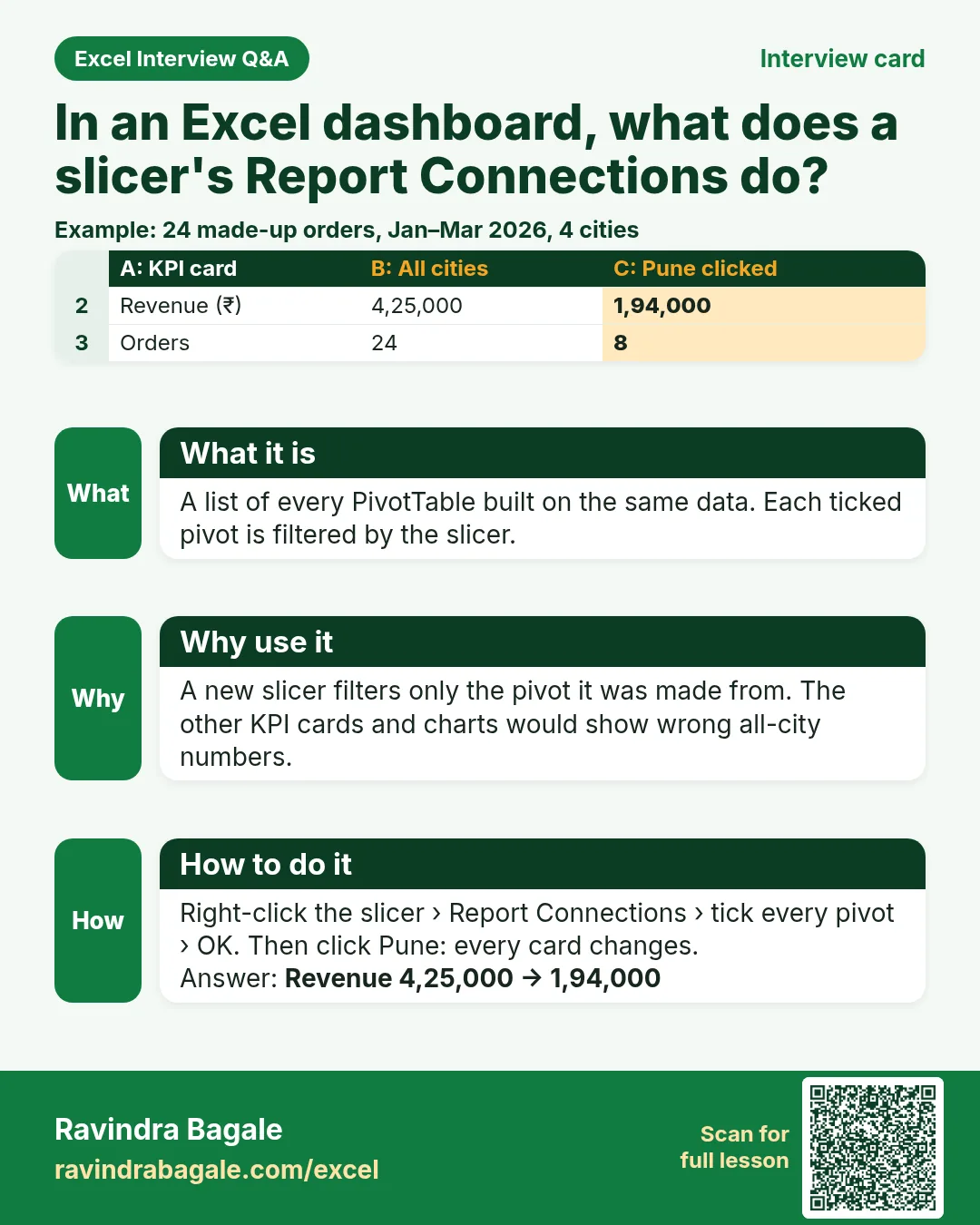
Click Pune. The pivot at A4 changes to 1,94,000. But the other pivots do not change yet: a new slicer controls only the pivot it was made from.
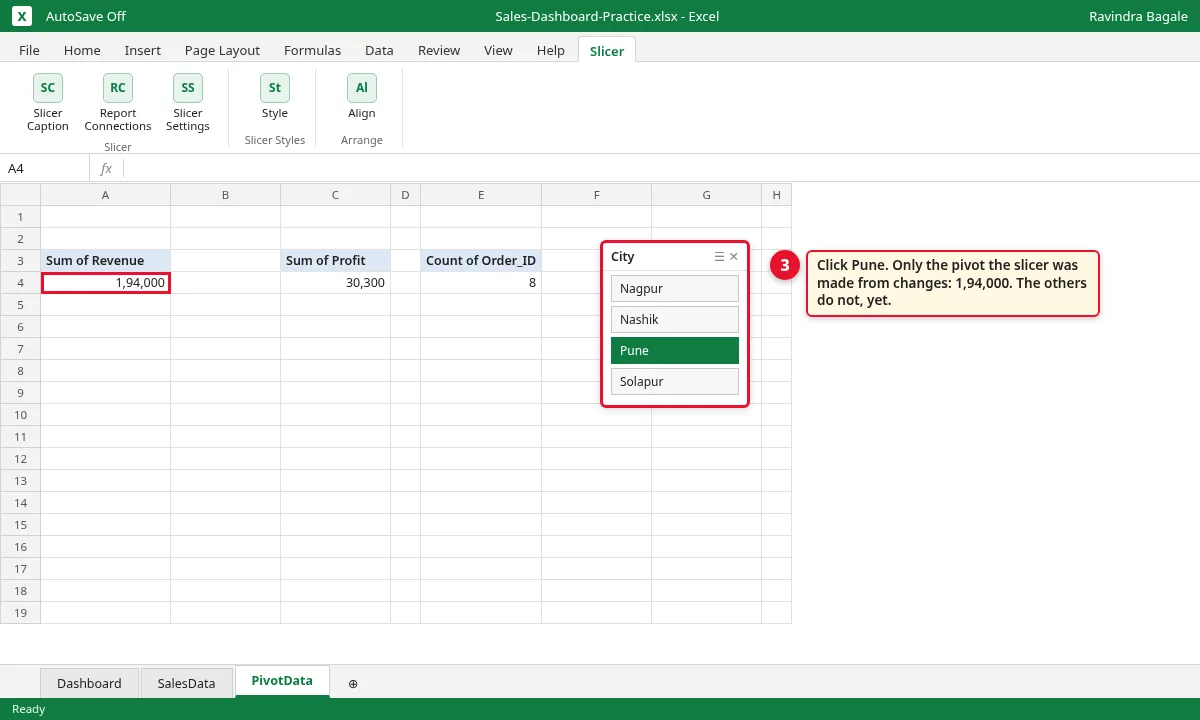
Step 4.3: City slicer with Pune selected; only one pivot changed
5. Connect one slicer to all pivots (Report Connections)
Why
This is the most important step. Without it, a click on Pune changes one number and the rest of the dashboard shows the wrong (all-city) figures.
What
Report Connections is a list of every pivot that uses the same data. Tick a pivot and the slicer filters it too. All 7 pivots come from the SalesData table, so all 7 can be ticked.
How
Cut both slicers (Ctrl+X) and paste them on the Dashboard sheet, on the left. Right-click the City slicer and choose Report Connections.
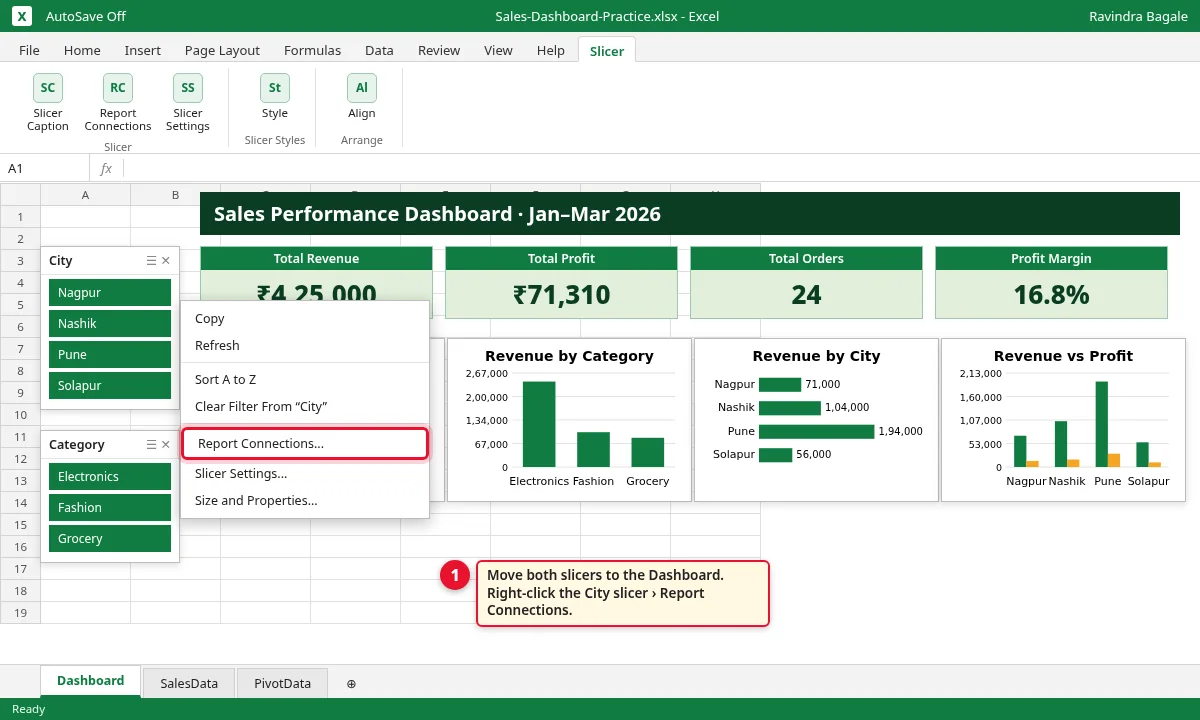
Step 5.1: Right-click menu on the City slicer with Report Connections highlighted
Tick all 7 pivots and click OK. Do the same for the Category slicer.
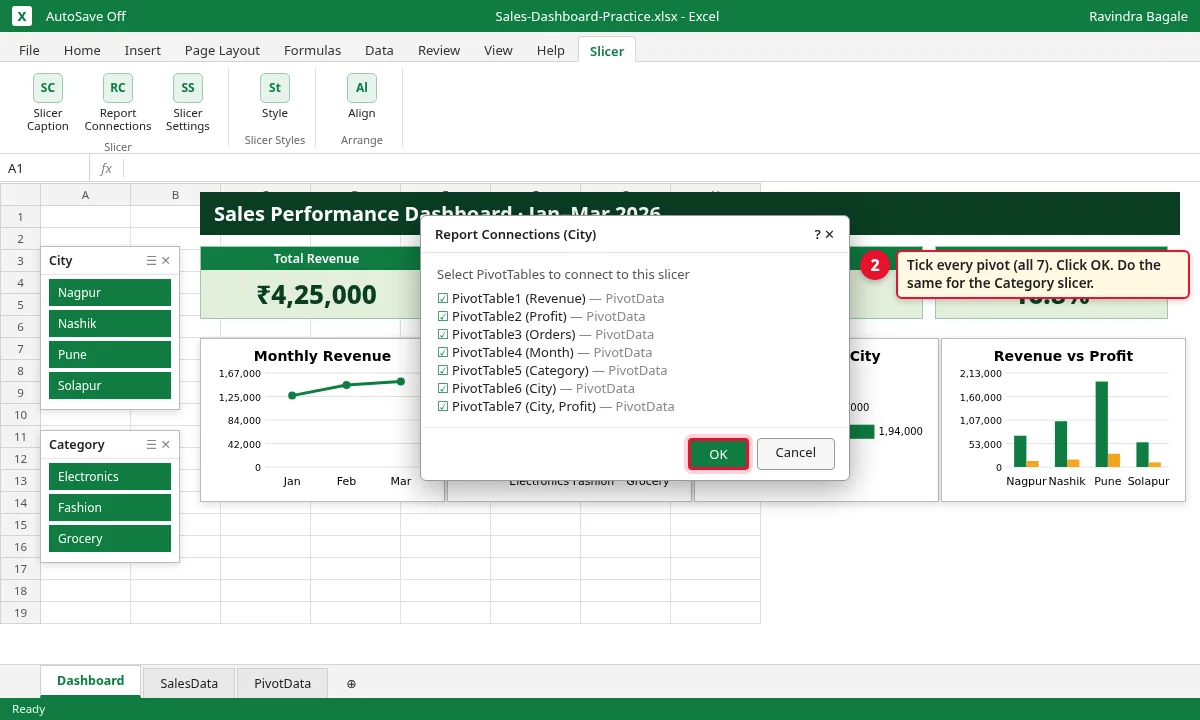
Step 5.2: Report Connections dialog with all seven PivotTables ticked
Click Pune again. Now all 4 cards and all 4 charts change together: Revenue ₹1,94,000, Profit ₹30,300, Orders 8, Margin 15.6%.
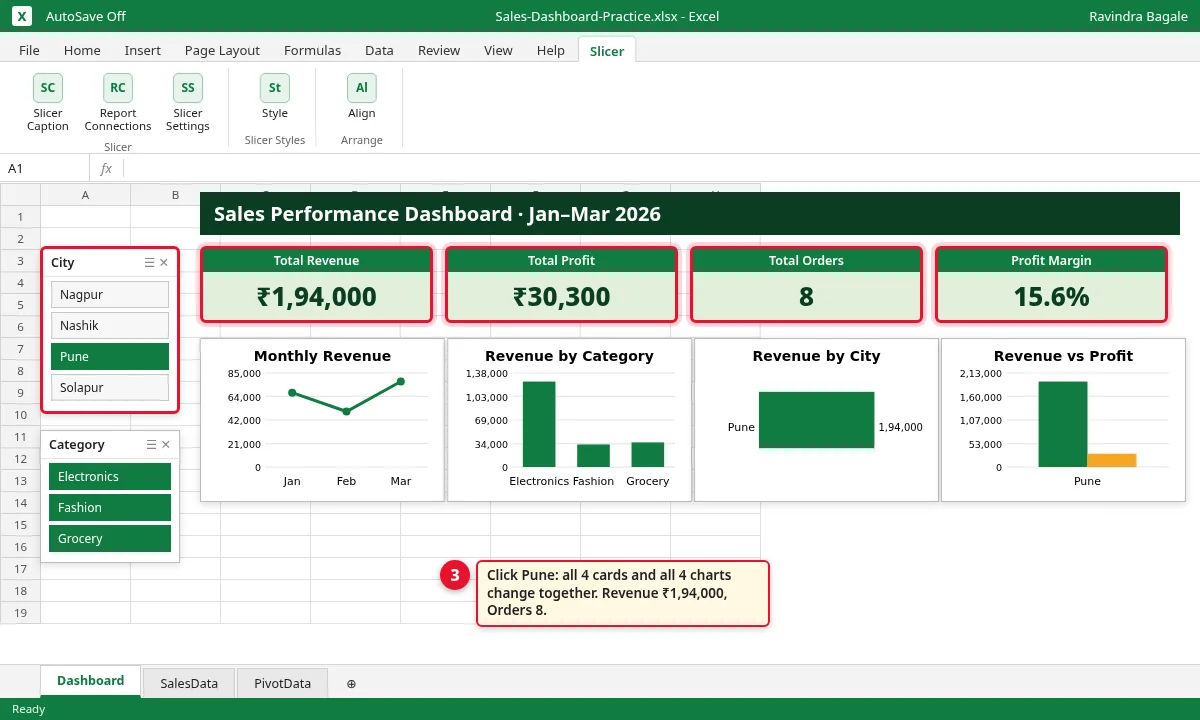
Step 5.3: Dashboard after clicking Pune: every card and chart shows Pune only
Ravindra Bagale's Tip
Before you share the dashboard, note the all-city numbers (Revenue ₹4,25,000). Click Pune and check that every card and chart changes. If one does not, that pivot is missing in Report Connections.
Ravindra Bagale's Tip – मराठी
Dashboard share करण्याआधी सगळ्या cities चे आकडे लिहून ठेवा (Revenue ₹4,25,000). Pune वर click करून प्रत्येक card आणि chart बदलतो का ते पाहा. एखादा बदलला नाही, तर ती pivot Report Connections मध्ये tick नाही.
Ravindra Bagale's Tip – हिंदी
Dashboard share करने से पहले सभी cities के आंकड़े लिख लें (Revenue ₹4,25,000). Pune पर click करके देखें कि हर card और chart बदलता है. कोई न बदले, तो वह pivot Report Connections में tick नहीं है.
6. Add a Timeline for dates
Why
Managers ask: how did February go? A timeline answers with one click on a month, without changing any formula.
What
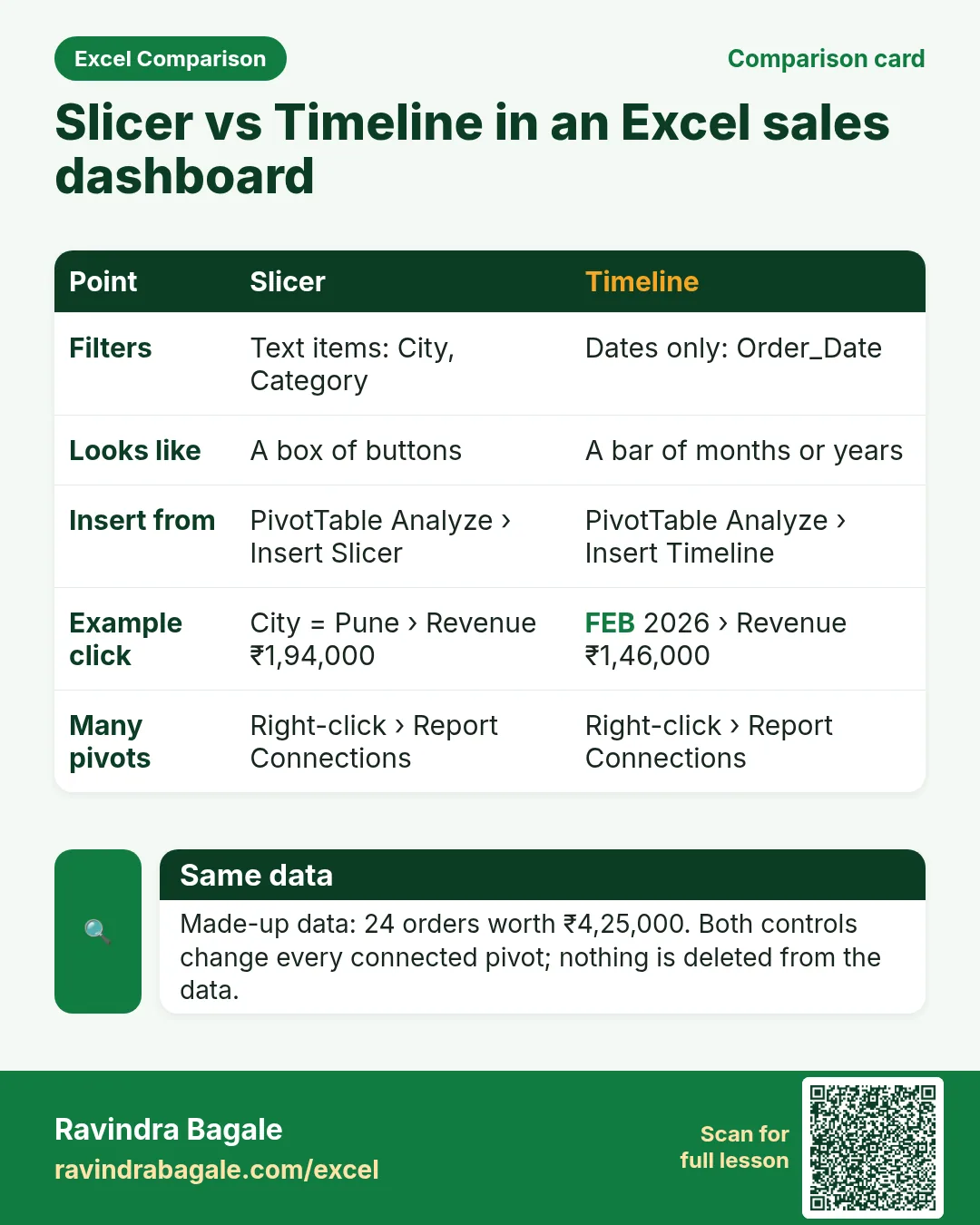
A timeline is a slicer for dates. It shows a bar of months; you click or drag to pick a period. It works only on a column with real Excel dates, like Order_Date.
How
Click inside any pivot. Go to PivotTable Analyze › Insert Timeline.
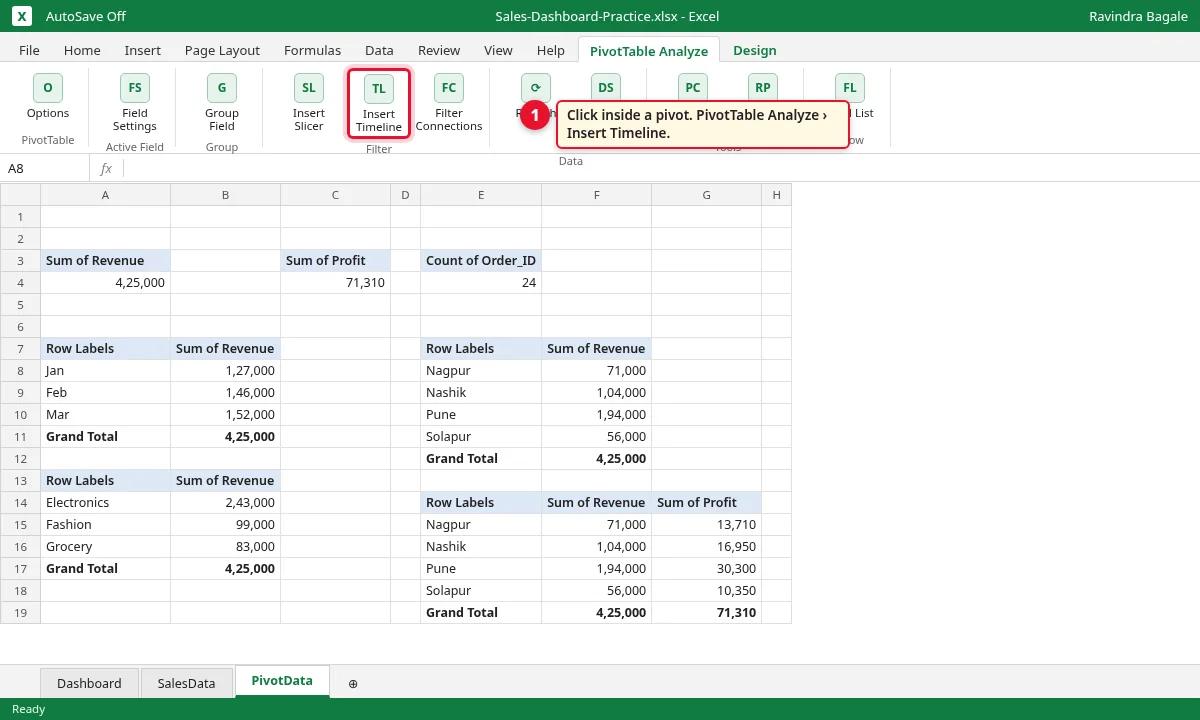
Step 6.1: PivotTable Analyze tab with Insert Timeline highlighted
Only date columns are listed. Tick Order_Date and click OK.
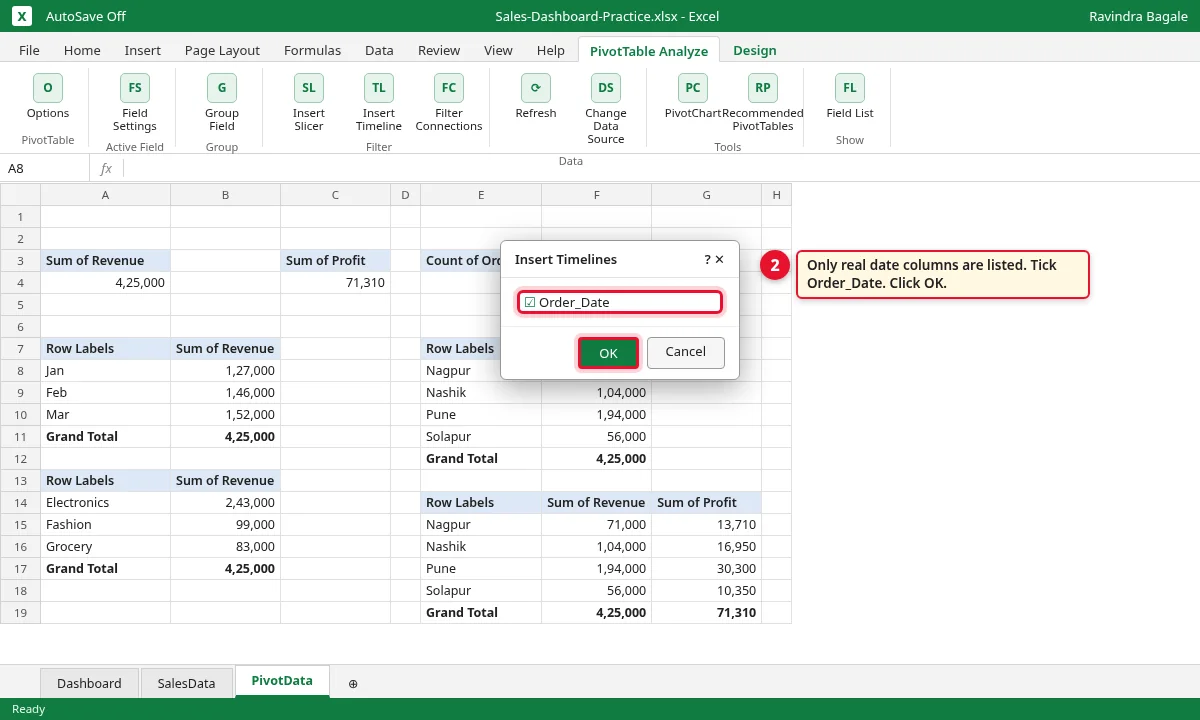
Step 6.2: Insert Timelines dialog with Order_Date ticked
Move the timeline to the top of the Dashboard. Right-click it › Report Connections › tick all 7 pivots › OK. Click FEB: Revenue ₹1,46,000, Orders 8.
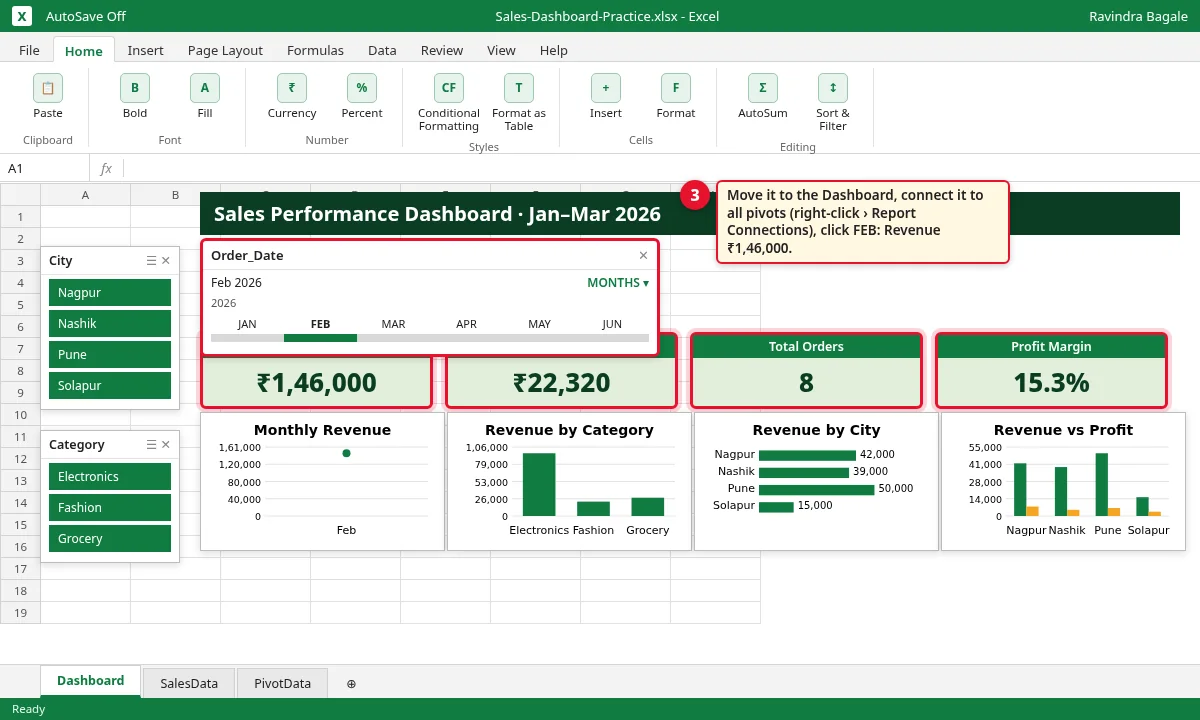
Step 6.3: Dashboard with the timeline set to February 2026
7. Lay out the dashboard
Why
People read a screen from top-left. A fixed layout puts the most important numbers where the eye lands first.
What
Title at the top. Timeline below the title. Slicers on the left. 4 KPI cards in one row. 4 charts under the cards. The KPI cards are cells linked to the pivots on PivotData.
How
On Dashboard, type Total Revenue in B4. In B5 type
=PivotData!A4(type the address; do not click the pivot, or Excel writes a long GETPIVOTDATA formula). Make the font big. Repeat for Profit (=PivotData!C4), Orders (=PivotData!E4) and Margin (=PivotData!G4).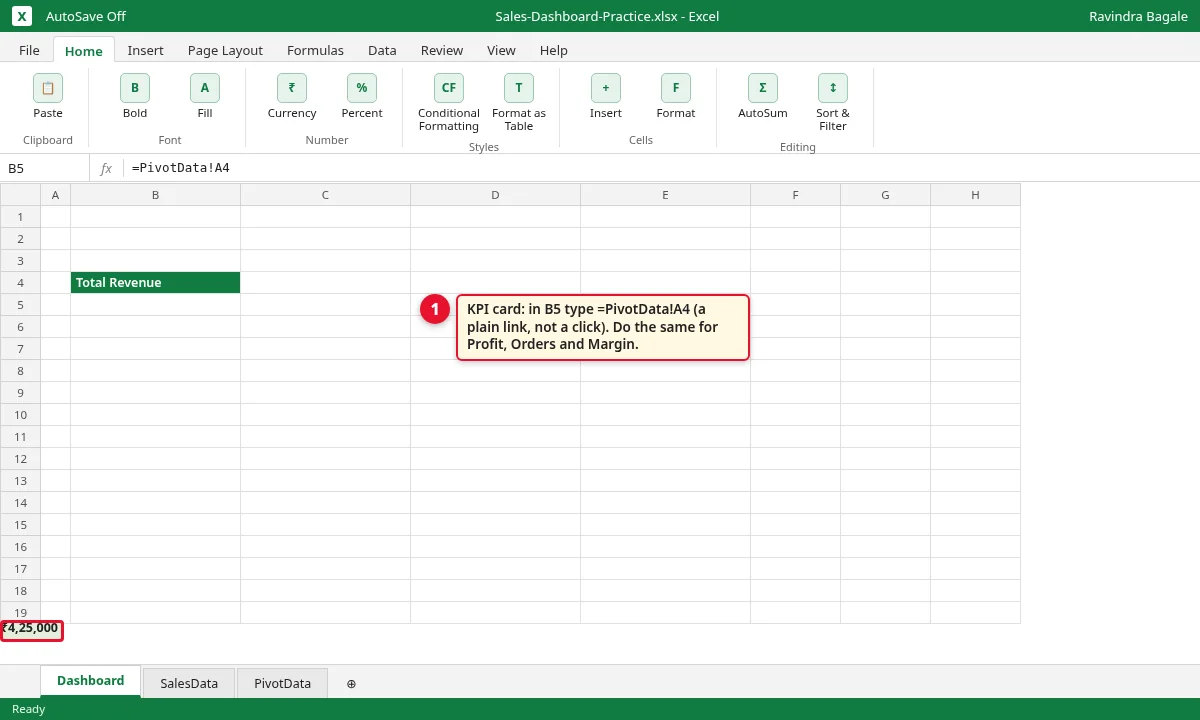
Step 7.1: KPI card cell B5 with formula =PivotData!A4
Arrange: title on top, timeline under it, slicers on the left, the 4 cards in one row, the 4 charts below.
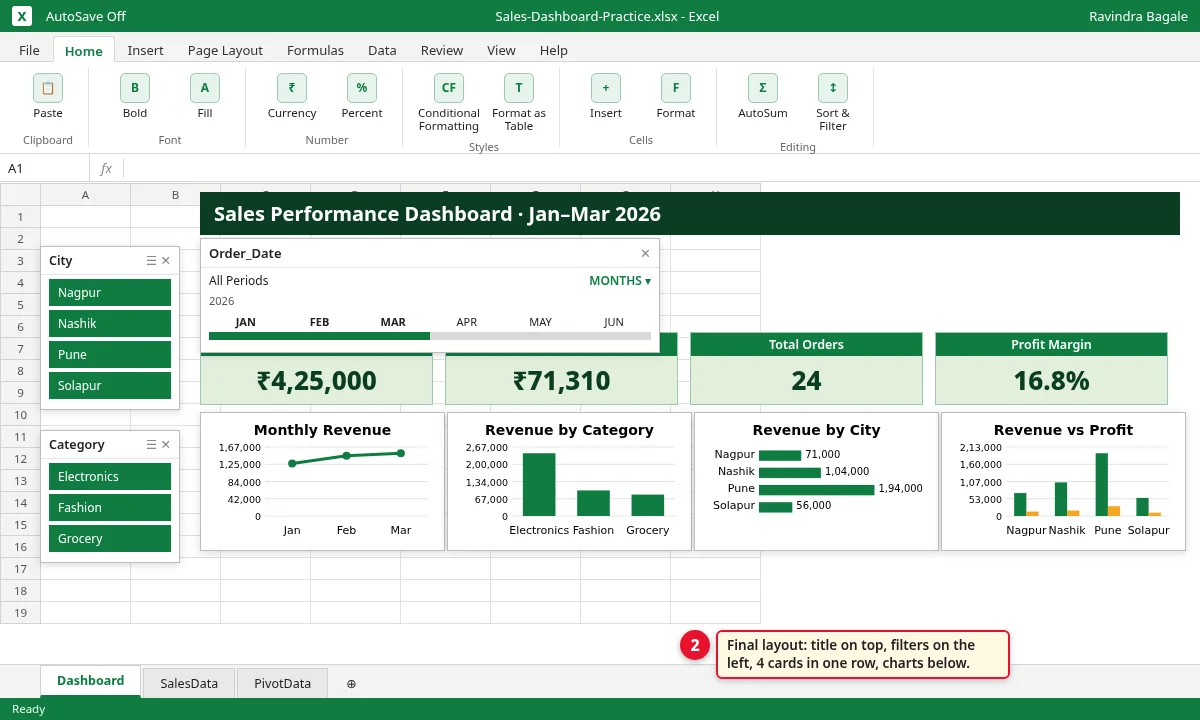
Step 7.2: Final dashboard layout with title, timeline, slicers, KPI cards and charts

Figure 3. The Pivot plan sheet in the practice file: every pivot, its fields and its chart.
8. Make it look professional
Why
A clean dashboard is trusted. Grid lines, grey buttons and uneven charts make it look like a rough sheet.
What
Four finishing touches: hide gridlines, hide the grey field buttons on charts, align the charts, and refresh when data changes. Use 2–3 colours and ₹ format with no decimals.
How
Go to View and untick Gridlines.
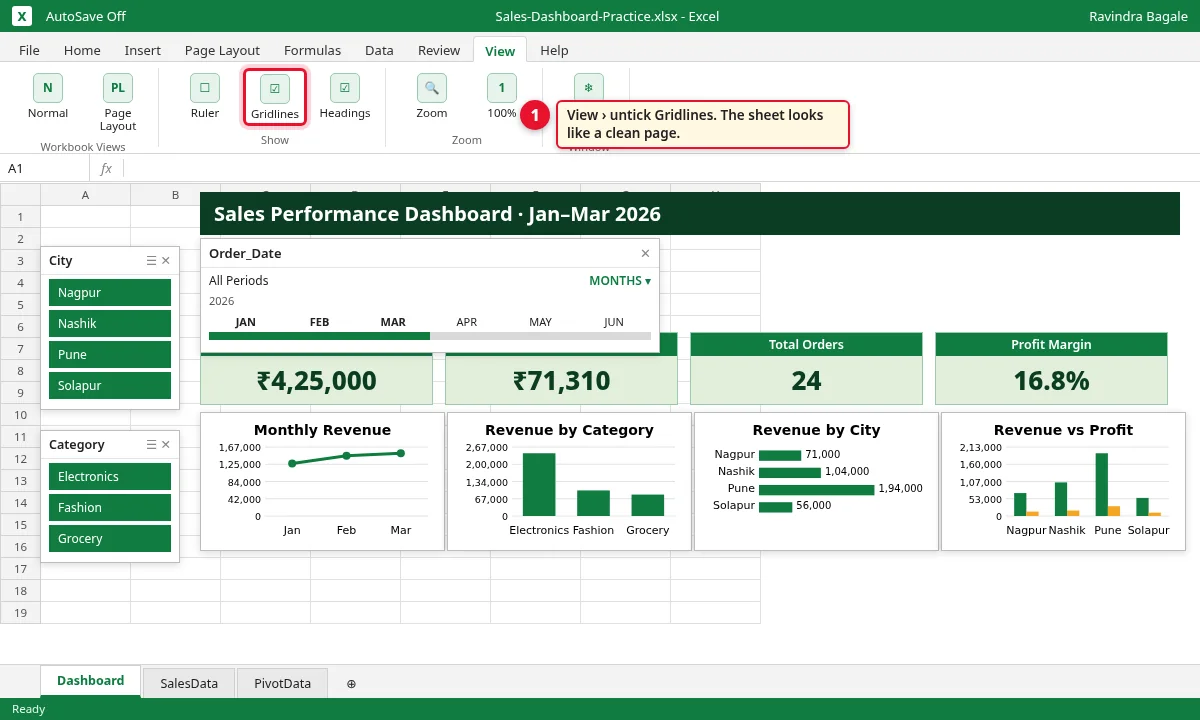
Step 8.1: View tab with Gridlines highlighted
Click a chart. Go to PivotChart Analyze › Field Buttons › Hide All. Repeat for each chart.
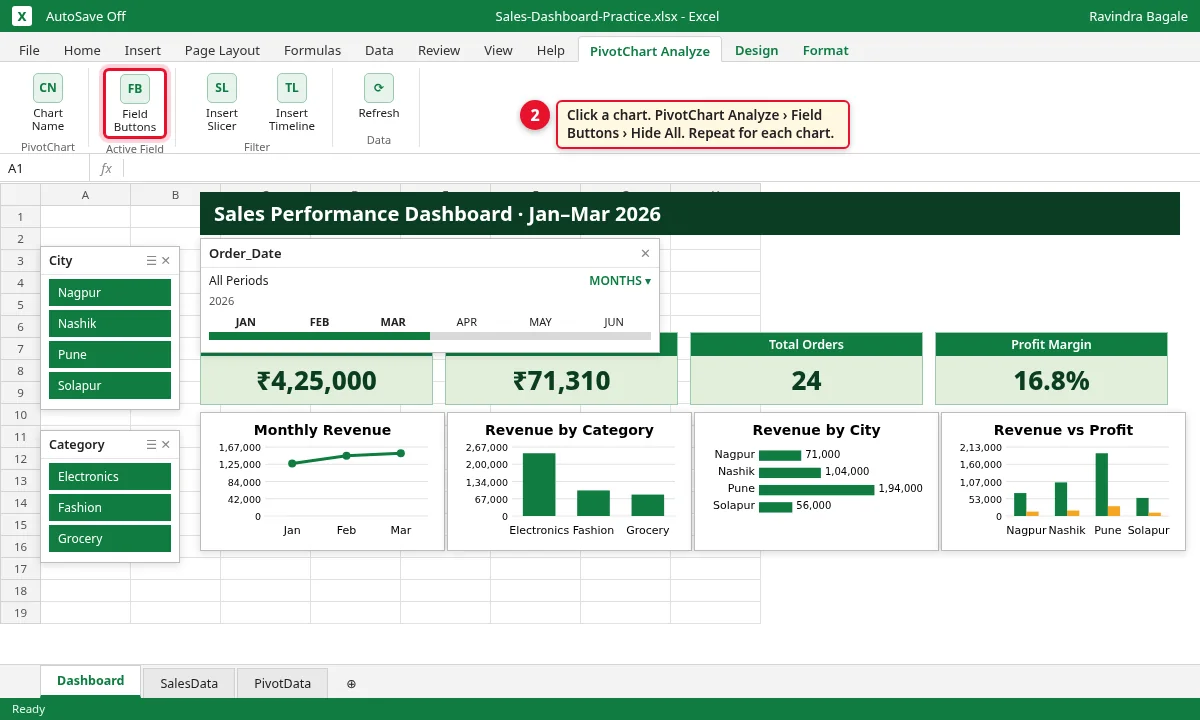
Step 8.2: PivotChart Analyze tab with Field Buttons highlighted
Hold Ctrl and click the 4 charts. Go to Shape Format › Align › Align Top, then Distribute Horizontally.
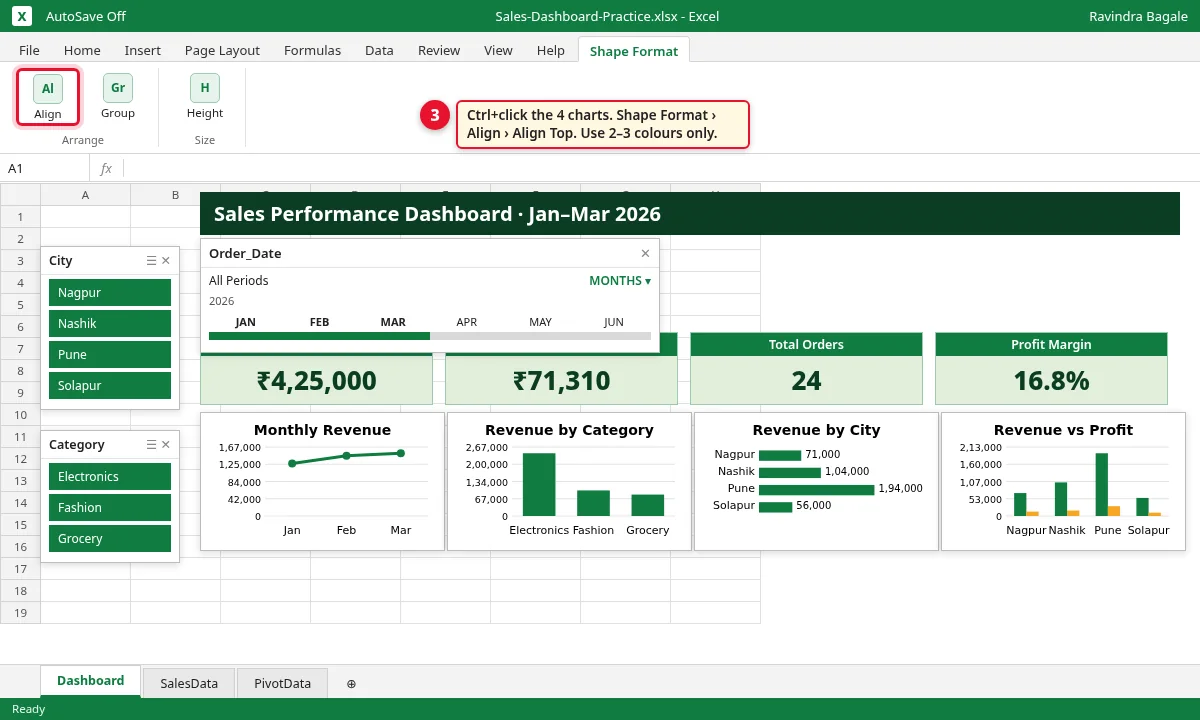
Step 8.3: Shape Format tab with Align highlighted
When new orders are added under SalesData, go to Data › Refresh All. Every pivot, card and chart updates.
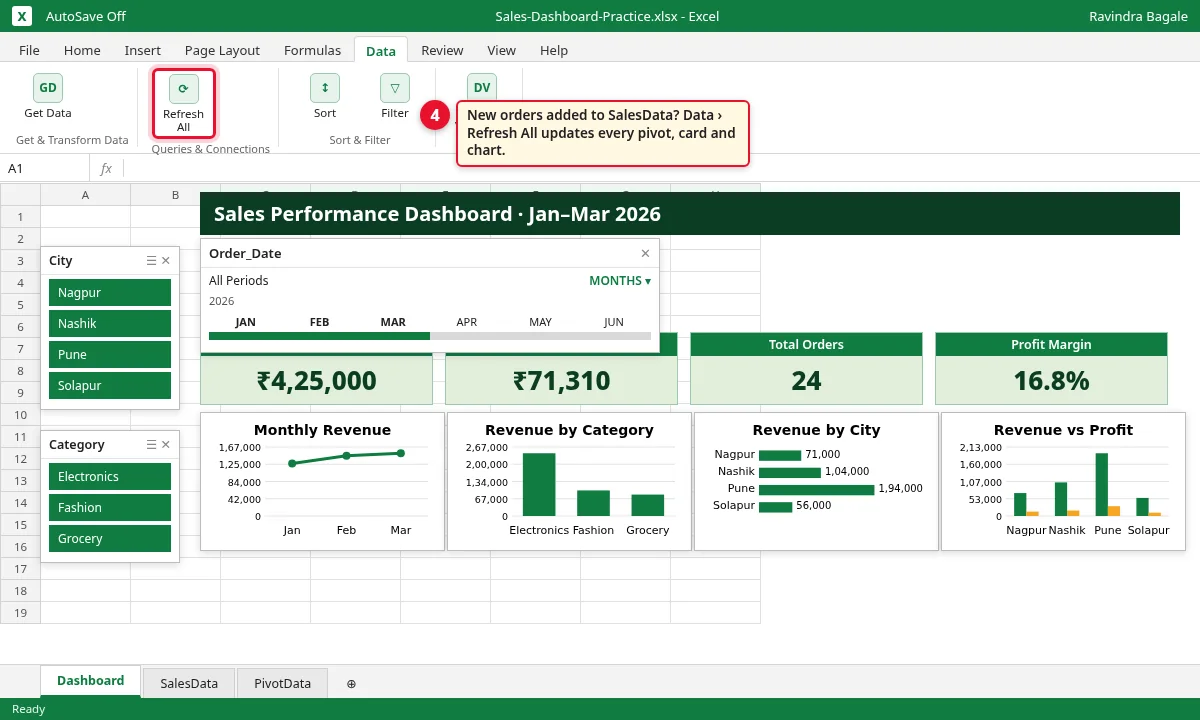
Step 8.4: Data tab with Refresh All highlighted
9. Fields and formulas used
Why
When a number looks wrong, this table tells you where it comes from.
What
| Where | Rows | Values or formula | Shown as |
|---|---|---|---|
| PivotData A3 | (empty) | Sum of Revenue | Total Revenue card |
| PivotData C3 | (empty) | Sum of Profit | Total Profit card |
| PivotData E3 | (empty) | Count of Order_ID | Total Orders card |
| PivotData G4 | - | =C4/A4 | Profit Margin card |
| PivotData A7 | Order_Date (Months) | Sum of Revenue | Line chart |
| PivotData A13 | Category | Sum of Revenue | Clustered Column chart |
| PivotData E7 | City | Sum of Revenue | Bar chart |
| PivotData E14 | City | Sum of Revenue, Sum of Profit | Clustered Column chart |
| Dashboard B5 | - | =PivotData!A4 | KPI card (also C4, E4, G4) |
How
- Click a card on the Dashboard and read the formula bar: it points to a PivotData cell.
- Go to that cell on PivotData and click inside the pivot to see its fields.
- Compare with the Check answers sheet of the practice file (SUMIFS and COUNTIFS give the same totals).
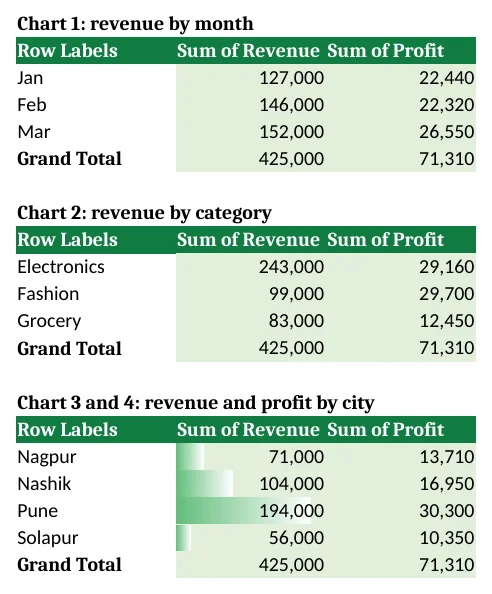
Figure 4. The finished file builds the same summaries with SUMIFS formulas, so it opens in any Excel and in LibreOffice. Its yellow City, Category and Month drop-downs do the job of the slicers and timeline.
10. Check your numbers
Why
A dashboard that shows a wrong number is worse than no dashboard. Test it with known answers.
What
| Click | Revenue | Profit | Orders | Margin |
|---|---|---|---|---|
| Nothing (all) | ₹4,25,000 | ₹71,310 | 24 | 16.8% |
| City = Pune | ₹1,94,000 | ₹30,300 | 8 | 15.6% |
| Timeline = FEB | ₹1,46,000 | ₹22,320 | 8 | 15.3% |
| Pune + FEB | ₹50,000 | ₹6,360 | 2 | 12.7% |
| Category = Fashion | ₹99,000 | ₹29,700 | 8 | 30.0% |
How
- Click each item in the table above.
- Compare your 4 cards with the row.
- Clear the filters (the funnel icon with a red cross on each slicer and the timeline) before you save.
11. Common mistakes
| Mistake | What goes wrong | Fix |
|---|---|---|
| Slicer not connected to all pivots | One card changes, the others still show all cities. | Right-click the slicer › Report Connections › tick every pivot. |
| Pivots built from different ranges | They are missing from Report Connections. | Build every pivot from the same table, SalesData. |
| Dates typed as text | Insert Timeline shows no field; months do not group. | Turn Order_Date into real dates. |
| Forgetting Refresh | New orders are not in the dashboard. | Data › Refresh All. |
| Averaging margins | Wrong margin. | Margin = total profit ÷ total revenue (=C4/A4). |
| Clicking the pivot to link a card | Excel writes a long GETPIVOTDATA formula you may not expect. | Type =PivotData!A4, or keep the GETPIVOTDATA formula if you understand it. |
| Saving with a filter on | The next person thinks Pune is the whole business. | Clear all slicers and the timeline before saving. |
12. More real business examples
The same 8 steps work for any business that keeps one row per sale, visit or bill:
| Business | Data columns | KPI cards | Slicers | Timeline |
|---|---|---|---|---|
| Clinic (OPD) dashboard | Visit_Date, Doctor, Department, Fee, Patient_Type (New/Old) | Total fees, visits, new-patient %, average fee | Doctor, Department | Visit_Date |
| Coaching class fee dashboard | Receipt_Date, Batch, Course, Fee_Paid, Fee_Due | Fees collected, fees due, students paid, collection % | Batch, Course | Receipt_Date |
| Restaurant dashboard | Bill_Date, Outlet (Pune/Nashik), Item_Group, Bill_Amount, Covers | Sales, bills, covers, average bill | Outlet, Item_Group | Bill_Date |
13. FAQ
Do I need Microsoft 365 for slicers and a timeline?
No. Slicers on PivotTables work in Excel 2010 and newer, and the Timeline in Excel 2013 and newer, on Windows and Mac. Excel for the web can use slicers and timelines that already exist in a file.
Why does my slicer change only one pivot?
A new slicer is connected only to the pivot it was made from. Right-click the slicer › Report Connections and tick every pivot.
Why is my pivot not in the Report Connections list?
The list shows only pivots built on the same data source. Build every dashboard pivot from the same table (SalesData).
Why can't I insert a timeline?
A timeline needs a column of real Excel dates. If Order_Date is text (for example typed with a dot or an extra space), convert it to dates first.
How do I add new orders?
Type them in the first empty row under the SalesData table. The table grows by itself. Then click Data › Refresh All.
Is this real company data?
No. All 24 orders are made up for practice.
14. Try at home
Try at home
Task 1
- Click Fashion in the Category slicer. What margin does the card show? (30.0%.)
Task 2
- Click Nashik and set the timeline to MAR. What is the revenue? (₹48,000, 2 orders.)
Task 3
- Clear the filters and set the timeline to JAN. How many orders? (8, revenue ₹1,27,000.)
Task 4
- Add a new order under SalesData: ORD2025, 31-03-2026, Solapur, Grocery, 5,000, 750. Click Refresh All. What is the new total revenue? (₹4,30,000.)
Recap
In short
- Make the data an Excel Table (Ctrl+T) named SalesData.
- 3 KPI pivots + 1 margin formula: ₹4,25,000, ₹71,310, 24 orders, 16.8%.
- 4 more pivots feed 4 Pivot Charts; move the charts to the Dashboard.
- Slicers filter text fields; a Timeline filters dates.
- Report Connections links one slicer or timeline to all 7 pivots.
- Hide gridlines and field buttons, align charts, and Refresh All after new data.
Quick revision cards
Quick revision
Revise this chapter in two minutes: 1 interview card, 1 comparison card and 2 revision cards. Save them on your phone or download them as PNG files. All numbers are made up for practice.
झटपट उजळणी
हा chapter दोन मिनिटांत revise करा: 1 interview card, 1 comparison card आणि 2 revision cards. Cards phone वर save करा किंवा PNG म्हणून download करा. सगळे आकडे सरावासाठी काल्पनिक आहेत.
झटपट दोहराई
यह chapter दो मिनट में revise करें: 1 interview card, 1 comparison card और 2 revision cards. Cards phone पर save करें या PNG के रूप में download करें. सभी आंकड़े अभ्यास के लिए काल्पनिक हैं.