Change Sum to Average in an Excel PivotTable and Create a Pivot Chart (Clustered Column) for a Dashboard
A pivot that adds profit is a good start, but the question is often "what is the average profit per order in each city?". And a dashboard rarely shows a pivot at all: it shows a chart built on it. In this chapter you change Sum to Average, tidy the pivot so it is easy to read, and turn it into a Pivot Chart that changes when the pivot changes.
What you'll learn in this chapter
- Value Field Settings: Sum, Count, Average, Max, Min
- Number format and All Borders on a pivot
- Insert a Pivot Chart (Clustered Column)
- A chart that follows the report filter
- Where pivots, Pivot Charts and KPI cards fit in a dashboard
- A quick reminder about hidden rows before you summarize
Practice file: excel-pivot-average-pivotchart-practice.xlsx: Orders (the table named Orders) and Pivot answers (Average of Profit by city, and delivered profit by city with a column chart).
Made-up data: the 24 orders are made up for practice. They imitate a quick-commerce app such as Blinkit or Amazon Now in Pune, Nashik, Solapur, Kolhapur, Nagpur and Sambhaji Nagar.
1. From Sum to Average
Build the city-wise profit pivot from the first PivotTable chapter: City in Rows, Profit in Values (Sum of Profit). Then:
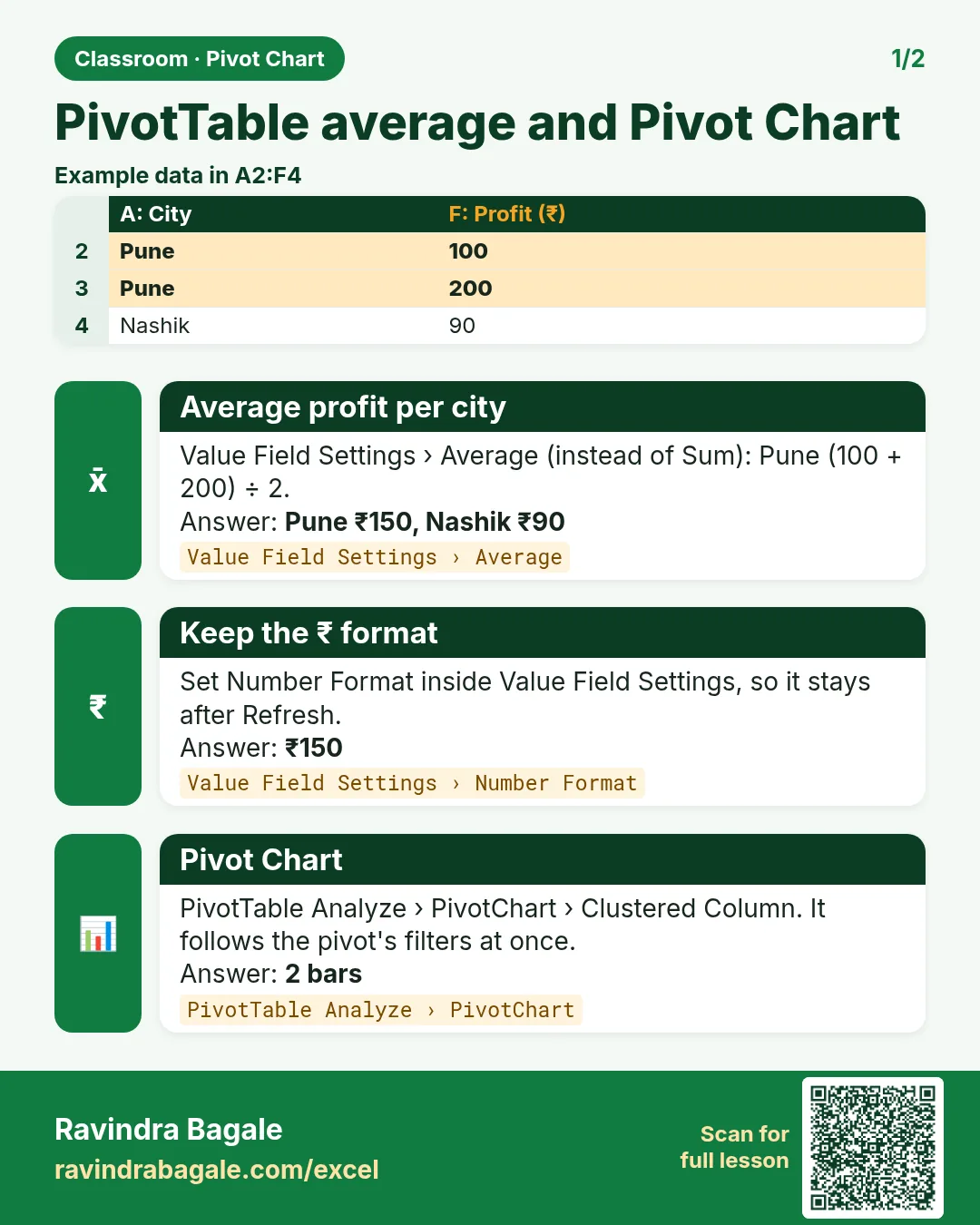
- In the Values area, click Sum of Profit and choose Value Field Settings (or right-click a number in the pivot > Value Field Settings).
- On Summarize value field by, choose Average.
- Click OK.
The heading becomes Average of Profit:
| Row Labels | Average of Profit |
|---|---|
| Kolhapur | 16.00 |
| Nagpur | 38.50 |
| Nashik | 9.00 |
| Pune | 1.00 |
| Sambhaji Nagar | 20.33 |
| Solapur | 2.00 |
| Grand Total | 13.63 |
Each city's average is its profit divided by its number of orders: Nagpur 154 ÷ 4 = 38.50, Sambhaji Nagar 61 ÷ 3 = 20.33. The Grand Total is not the average of the six cities: it is 327 ÷ 24 = 13.63, the average of all 24 orders. The same box offers Count, Max, Min and Product.
Classroom line
If you don't want the sum but the average, select Average and click OK.
Class मधलं वाक्य
"Sum nako ahe, average pahije, tar average select kara, ok mhana."
Sum नको आहे, average पाहिजे, तर average select करा, OK म्हणा.
Classroom line
If you don't want the sum but the average, select Average and click OK.
Figure 1. Value Field Settings > Summarize value field by: Average. Sum of Profit becomes Average of Profit: Nagpur 154 ÷ 4 = 38.50; Grand Total 327 ÷ 24 = 13.63.
2. Make the pivot readable
- Number format: in Value Field Settings, click Number Format (bottom left), choose Number with 2 decimal places, OK. Unlike formatting the cells directly, this format stays when the pivot refreshes or changes shape.
- Borders: select the pivot, then Home > Borders > All Borders.
- Style: the Design tab of the pivot has ready-made PivotTable Styles if you prefer colour bands.
- Heading: click the header cell "Average of Profit" and type a shorter one, such as Avg profit per order.
3. Insert a Pivot Chart
Switch the value back to Sum (Value Field Settings > Sum) for this part. Then:
- Click any cell of the pivot.
- PivotTable Analyze > PivotChart.
- Choose Column > Clustered Column, click OK.
A column chart appears with one bar per city, in the same A to Z order as the pivot. It has field buttons (City, Sum of Profit) on it; you can hide them from PivotChart Analyze > Field Buttons for a cleaner look.
The chart follows the pivot. Drag Status into Filters and choose Delivered: the bars change at once to 60, 54, 20, 14, 65 and 14, and the tallest bar moves from Nagpur to Sambhaji Nagar. Nothing on the chart had to be edited.
Figure 2. A Clustered Column Pivot Chart on the city-wise profit pivot. All orders: Nagpur tallest at 154. With the report filter Status = Delivered: Sambhaji Nagar tallest at 65.
Ravindra Bagale's Tip
Before you share a Pivot Chart, check its first bar against the pivot cell beside it, and the pivot's Grand Total against a formula on the table. One check takes ten seconds and catches a wrong filter before your boss does.
Ravindra Bagale's Tip – मराठी
Pivot Chart share करण्याआधी पहिला bar शेजारच्या pivot cell शी जुळवा, आणि pivot चा Grand Total table वरच्या formula शी. एक check दहा seconds घेतो आणि चुकीचा filter boss च्या आधी पकडतो.
Ravindra Bagale's Tip – हिंदी
Pivot Chart share करने से पहले पहला bar बगल वाले pivot cell से मिलाओ, और pivot का Grand Total table पर formula से. एक check दस seconds लेता है और गलत filter boss से पहले पकड़ लेता है.
4. Where this fits in a dashboard
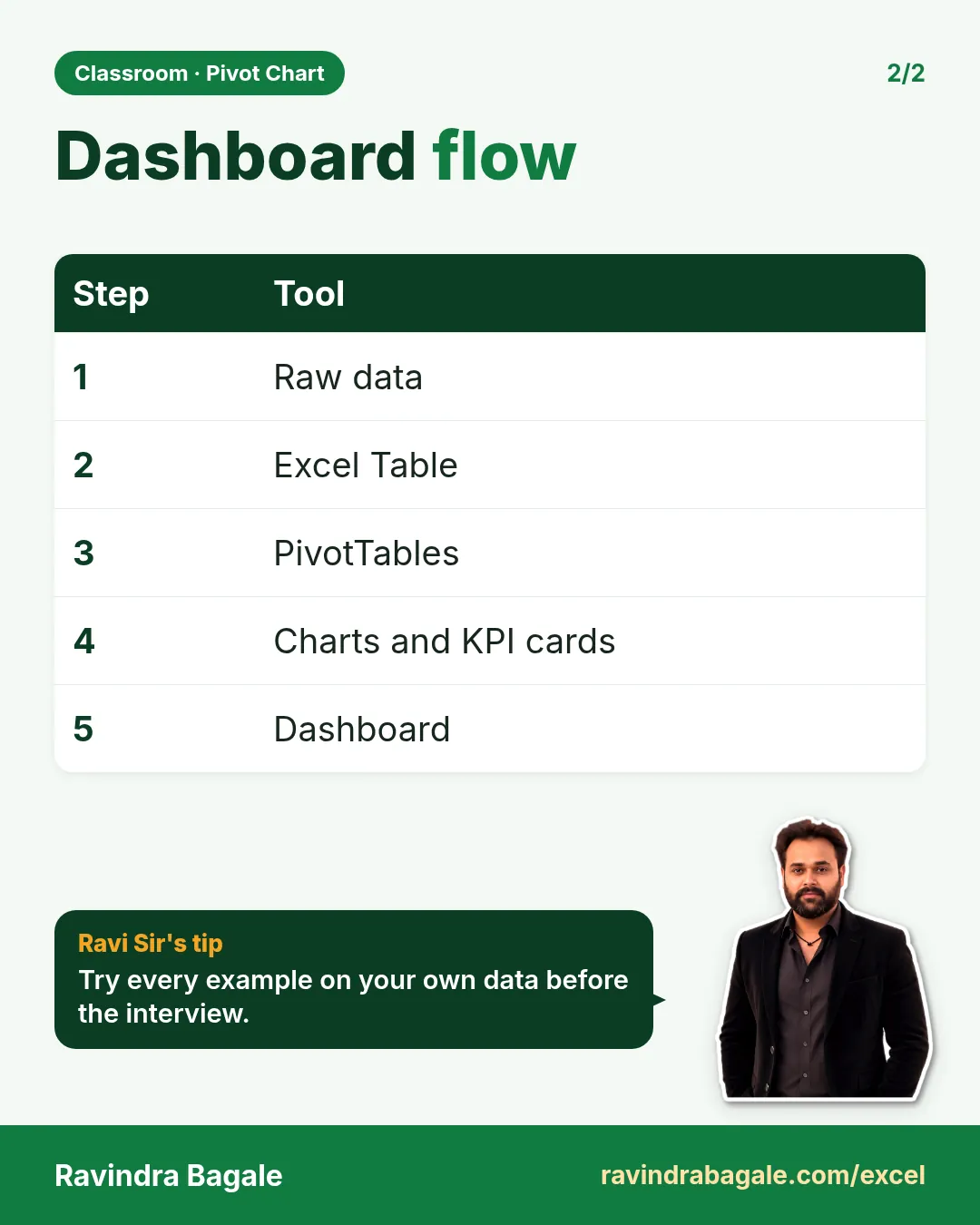
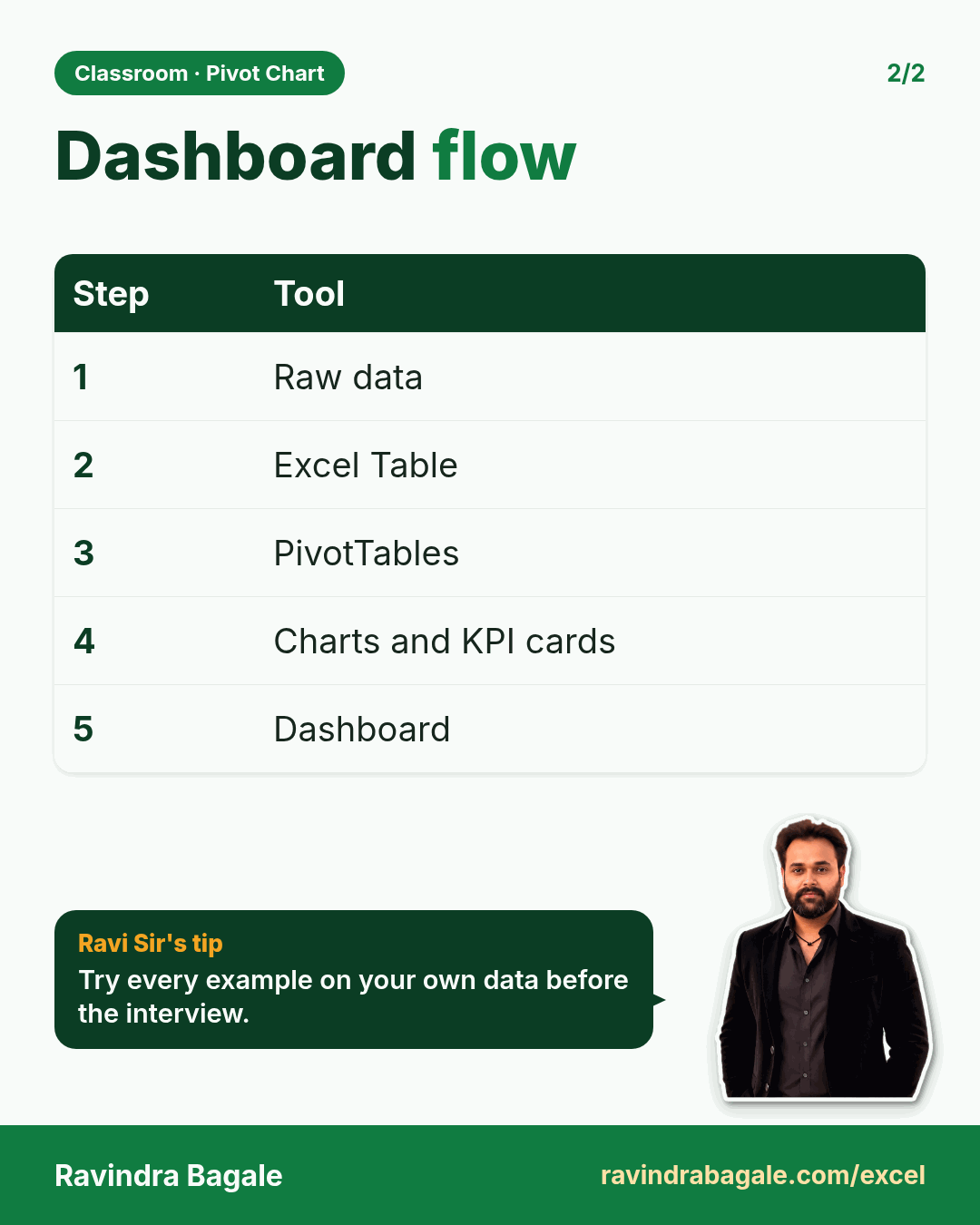
A dashboard is one screen that answers the main questions at a glance. It is built in this order:
- Raw data as it arrives.
- An Excel Table (Ctrl+T, a name).
- PivotTables, one per question: profit by city, orders by payment mode, orders by status.
- Pivot Charts on those pivots (column, bar, line, pie), plus KPI cards: single big numbers such as Total Orders 24 or Total Profit 327.
- The dashboard sheet that puts the charts and cards together.
The pivots do the work, but they usually sit on a separate sheet. The dashboard shows the charts and cards, because a reader sees a tall bar faster than a number in a table.
Classroom line
We don't show the pivot table on the dashboard. On the dashboard we show the chart.
Class मधलं वाक्य
"Apan dashboard varti pivot table nahi dakhavat. Dashboard varti apan chart dakhavto."
आपण dashboard वरती pivot table नाही दाखवत. Dashboard वरती आपण chart दाखवतो.
Classroom line
We don't show the pivot table on the dashboard. On the dashboard we show the chart.
Figure 3. A dashboard sheet: KPI cards on top (Total Orders 24, Total Profit 327, Delivered 18), Pivot Charts below. The pivots that feed them sit on another sheet.
5. Before you summarize: hidden rows
A pivot uses every row of its source, hidden or not. Formulas next to the data can also surprise you: a COUNT or SUM includes rows someone hid by hand. Two quick checks from the SUBTOTAL vs SUM chapter:
- Look at the row numbers: a jump (4, then 6) with a double line means row 5 is hidden. Select rows 4 to 6, right-click, Unhide, or drag the double line down to open the row again.
- Compare
=COUNT(B2:B16)with=SUBTOTAL(102,B2:B16). If COUNT says 15 and SUBTOTAL 102 says 14, one row with a number is hidden.
6. The whole chapter on one page
| Task | How |
|---|---|
| Sum to Average | Values > Sum of Profit > Value Field Settings > Average |
| Number format that sticks | Value Field Settings > Number Format |
| Borders | Select the pivot > Home > Borders > All Borders |
| Pivot Chart | PivotTable Analyze > PivotChart > Clustered Column |
| Chart for delivered orders | Status in Filters > Delivered |
- Value Field Settings changes Sum to Average, Count, Max or Min.
- The Grand Total average is over all orders, not over the city averages.
- Format numbers through Value Field Settings so they survive a refresh.
- A Pivot Chart follows every change of its pivot, including filters.
- Dashboards show charts and KPI cards; the pivots work behind them.
7. Try at home
Try at home
Task 1
- Set the report filter to Delivered and the value to Average. What is the average delivered profit in Sambhaji Nagar? (32.50.)
Task 2
- Change the value to Max. Which city has the single most profitable order, and how much? (Nagpur, 100.)
Task 3
- Make a Clustered Column Pivot Chart of Count of Order_ID by Payment_Mode. How tall are the two bars? (COD 9, Online 15.)
Recap
In short
- Value Field Settings switches Sum to Average (or Count, Max, Min).
- Number Format inside Value Field Settings keeps the format.
- PivotTable Analyze > PivotChart > Clustered Column draws the pivot.
- The chart follows the pivot's filters at once.
- Raw data → Table → Pivots → Charts and KPI cards → Dashboard.
Quick revision cards
Quick revision
Revise this chapter in two minutes. Save the cards on your phone or download them as PNG files. All names and numbers are made up for practice.
झटपट उजळणी
हा chapter दोन मिनिटांत revise करा. Cards phone वर save करा किंवा PNG म्हणून download करा. सगळी नावं आणि आकडे सरावासाठी काल्पनिक आहेत.
झटपट दोहराई
यह chapter दो मिनट में revise करें. Cards phone पर save करें या PNG के रूप में download करें. सभी नाम और आंकड़े अभ्यास के लिए काल्पनिक हैं.

More cards for every chapter: Ravi Sir's Cards.