SUBTOTAL vs SUM in Excel: Ignore Hidden and Filtered Rows (Function Codes 9 vs 109) and the Table Total Row
You filter an orders table down to one city, but the total under it still shows the profit of every city. Or a report says 150 when you can count only 14 rows of 10. In both cases SUM is adding rows you cannot see. SUBTOTAL adds only what is visible, and it is a favourite interview question: "What is the difference between SUM and SUBTOTAL?" In this chapter you answer it with real numbers.
What you'll learn in this chapter
- SUBTOTAL syntax and its function codes
- Codes 1-11 vs 101-111: manually hidden rows
- Filtered rows: ignored by every SUBTOTAL code
- The Table Total Row, which uses SUBTOTAL
- The hidden-row interview question, and how to unhide rows
Practice file: excel-subtotal-vs-sum-practice.xlsx: Orders (a table with row 8 hidden and SUM/SUBTOTAL answers), Hidden row trick, and Codes.
Made-up data: the 24 orders are made up for practice. They imitate a quick-commerce app such as Blinkit or Amazon Now in Pune, Nashik, Solapur, Kolhapur, Nagpur and Sambhaji Nagar.
1. The data
The orders sit in a table named Orders, A1:M25, one row per order: Order_ID, Order_Date, City, Area, Product_Name, Quantity, Cost_Price, Selling_Price, Payment_Mode, Status, Delivery_Time_mins, Delivery_Status and Profit (column M). It is the same made-up data as the COUNTA, UNIQUE and COUNTIF chapter.
- 24 orders in total.
- The profit of all 24 orders adds up to 327.
- Pune has 6 orders with a total profit of 6.
2. SUBTOTAL: the syntax
=SUBTOTAL(function_num, ref1, [ref2], ...)
- function_num is a code that picks the calculation: 9 or 109 means SUM, 3 or 103 means COUNTA, and so on.
- ref1 is the range or table column, for example
Orders[Profit].
| Function | Code (includes manually hidden rows) | Code (ignores manually hidden rows) |
|---|---|---|
| AVERAGE | 1 | 101 |
| COUNT | 2 | 102 |
| COUNTA | 3 | 103 |
| MAX | 4 | 104 |
| MIN | 5 | 105 |
| PRODUCT | 6 | 106 |
| STDEV.S | 7 | 107 |
| STDEV.P | 8 | 108 |
| SUM | 9 | 109 |
| VAR.S | 10 | 110 |
| VAR.P | 11 | 111 |
With nothing hidden, =SUM(Orders[Profit]), =SUBTOTAL(9,Orders[Profit]) and =SUBTOTAL(109,Orders[Profit]) all give 327. The difference shows up only when rows disappear.
3. Rows hidden by a filter
- Click the City filter button, keep only Pune, click OK.
- Six rows stay visible.
| Formula | Result | Why |
|---|---|---|
=SUM(Orders[Profit]) |
327 | SUM adds every row, visible or not |
=SUBTOTAL(9,Orders[Profit]) |
6 | SUBTOTAL skips rows hidden by a filter |
=SUBTOTAL(109,Orders[Profit]) |
6 | same |
Both sets of codes ignore rows hidden by a filter. Put these formulas above or beside the table, not in rows that the filter can hide.
4. Rows you hide yourself
Clear the filter (Data > Clear). Now hide one row by hand:
- Right-click the row number 8 (ORD1007, Sambhaji Nagar, profit 80).
- Click Hide.
| Formula | Result | Why |
|---|---|---|
=SUM(Orders[Profit]) |
327 | counts the hidden row |
=SUBTOTAL(9,Orders[Profit]) |
327 | codes 1-11 include manually hidden rows |
=SUBTOTAL(109,Orders[Profit]) |
247 | codes 101-111 ignore them: 327 − 80 |
=SUBTOTAL(103,Orders[Order_ID]) |
23 | visible orders only |
=SUBTOTAL(104,Orders[Profit]) |
100 | highest visible profit |
So the rule is:
- Filtered rows: every SUBTOTAL code ignores them.
- Manually hidden rows: only the 101-111 codes ignore them.
- SUM never ignores anything.
Figure 1. Same profit column, three answers. Filter City = Pune: SUM 327, SUBTOTAL 9 and 109 both 6. Row 8 hidden by hand: SUM 327, SUBTOTAL 9 327, SUBTOTAL 109 247.
Classroom line
This is a favourite question of interviewers: what is the difference between SUBTOTAL and SUM?
Class मधलं वाक्य
"He interview ghenaryancha favorite question ahe. Subtotal ani sum madhe kay farak ahe."
हा interview घेणाऱ्यांचा favourite question आहे: Subtotal आणि Sum मध्ये काय फरक आहे.
Classroom line
This is a favourite question of interviewers: what is the difference between SUBTOTAL and SUM?
5. The Table Total Row
An Excel Table can add a total row for you, and it uses SUBTOTAL:
- Click any cell in the table.
- Table Design > Total Row (tick the box).
- A Total row appears under the last row. Excel usually puts a sum under the last numeric column, here Profit: 327.
- Click the total cell under Order_ID, open its drop-down and choose Count: 24.
Click the cell and look at the formula bar: =SUBTOTAL(109,[Profit]) and =SUBTOTAL(103,[Order_ID]). Because the total row uses SUBTOTAL, it follows every filter:
| Filter | Count of Order_ID | Sum of Profit |
|---|---|---|
| none | 24 | 327 |
| City = Pune | 6 | 6 |
| + Payment_Mode = Online | 5 | 18 |
| + Status = Delivered | 4 | 26 |
This is quick analysis straight from the filter buttons, with no formula typed.
Figure 2. The Total Row follows the filters: 24 orders and 327 profit; City = Pune gives 6 and 6; adding Online gives 5 and 18; adding Delivered gives 4 orders and 26 profit.
Ravindra Bagale's Tip
When you share a filtered report, use SUBTOTAL (or the Table Total Row) for every total on it. A SUM under a filtered list is the most common reason a report "doesn't add up" when someone checks it with a calculator.
Ravindra Bagale's Tip – मराठी
Filtered report share करताना त्यावरचा प्रत्येक total SUBTOTAL ने (किंवा Table च्या Total Row ने) काढा. Filtered list खाली SUM ठेवला तर calculator ने तपासणाऱ्याला report "जुळत नाही" असं दिसतं.
Ravindra Bagale's Tip – हिंदी
Filtered report share करते समय उस पर हर total SUBTOTAL से (या Table की Total Row से) निकालो. Filtered list के नीचे SUM रखा तो calculator से check करने वाले को report "match नहीं होता" दिखता है.
6. The hidden-row interview question
The question: "15 rows each show a total of 10. Why does the sum say 150, when I can see only 14 rows?"
- 15 × 10 = 150, so SUM is counting one row you cannot see.
- Look at the row numbers on the left. Where a row is hidden, the numbers jump (6, then 8) and you see a double line between them.
- Select the rows around it (6 to 8), right-click a row number, click Unhide.
- Or use
=SUBTOTAL(109,B2:B16): it gives 140, the total of the 14 visible rows.
Classroom line
Wherever a row is hidden, you see two lines.
Class मधलं वाक्य
"Jithe row hide asato na, tithe don line distat."
जिथे row hide असतो ना, तिथे दोन lines दिसतात.
Classroom line
Wherever a row is hidden, you see two lines.
7. The whole chapter on one page
| SUM | SUBTOTAL 9 | SUBTOTAL 109 | |
|---|---|---|---|
| Rows hidden by a filter | counted | ignored | ignored |
| Rows hidden by hand | counted | counted | ignored |
- =SUBTOTAL(code, range). 9 and 109 are SUM, 3 and 103 COUNTA, 1 and 101 AVERAGE.
- 101-111 ignore hand-hidden rows; 1-11 include them; both ignore filtered rows.
- The Table Total Row uses SUBTOTAL, so it follows filters.
- A double line between row numbers means a hidden row; select around it > Unhide.
8. Try at home
Try at home
Task 1
- Filter Status = Delivered. What does the Total Row show for Profit? (227.)
Task 2
- In the practice file, unhide row 8. What does
=SUBTOTAL(109,Orders[Profit])show now? (327.)
Task 3
- Filter City = Nagpur and Kolhapur together. How many orders, and what profit? (8 orders, 218.)
Recap
In short
- SUM adds every row, visible or not.
- SUBTOTAL ignores rows hidden by a filter, with any code.
- 101-111 also ignore rows you hide by hand.
- The Table Total Row is SUBTOTAL, so it follows filters.
- Double line between row numbers = hidden row.
Quick revision cards
Quick revision
Revise this chapter in two minutes. Save the cards on your phone or download them as PNG files. All names and numbers are made up for practice.
झटपट उजळणी
हा chapter दोन मिनिटांत revise करा. Cards phone वर save करा किंवा PNG म्हणून download करा. सगळी नावं आणि आकडे सरावासाठी काल्पनिक आहेत.
झटपट दोहराई
यह chapter दो मिनट में revise करें. Cards phone पर save करें या PNG के रूप में download करें. सभी नाम और आंकड़े अभ्यास के लिए काल्पनिक हैं.
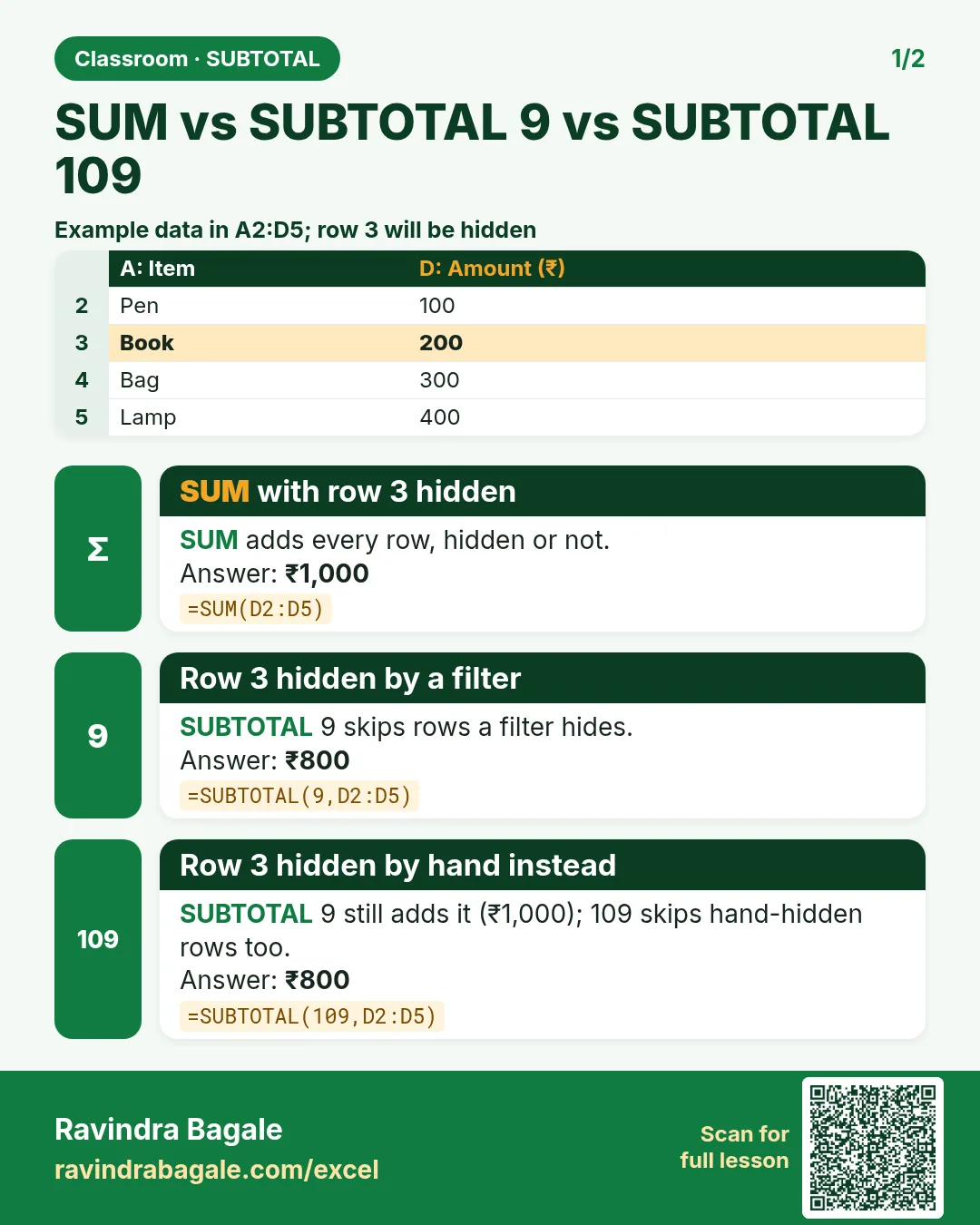

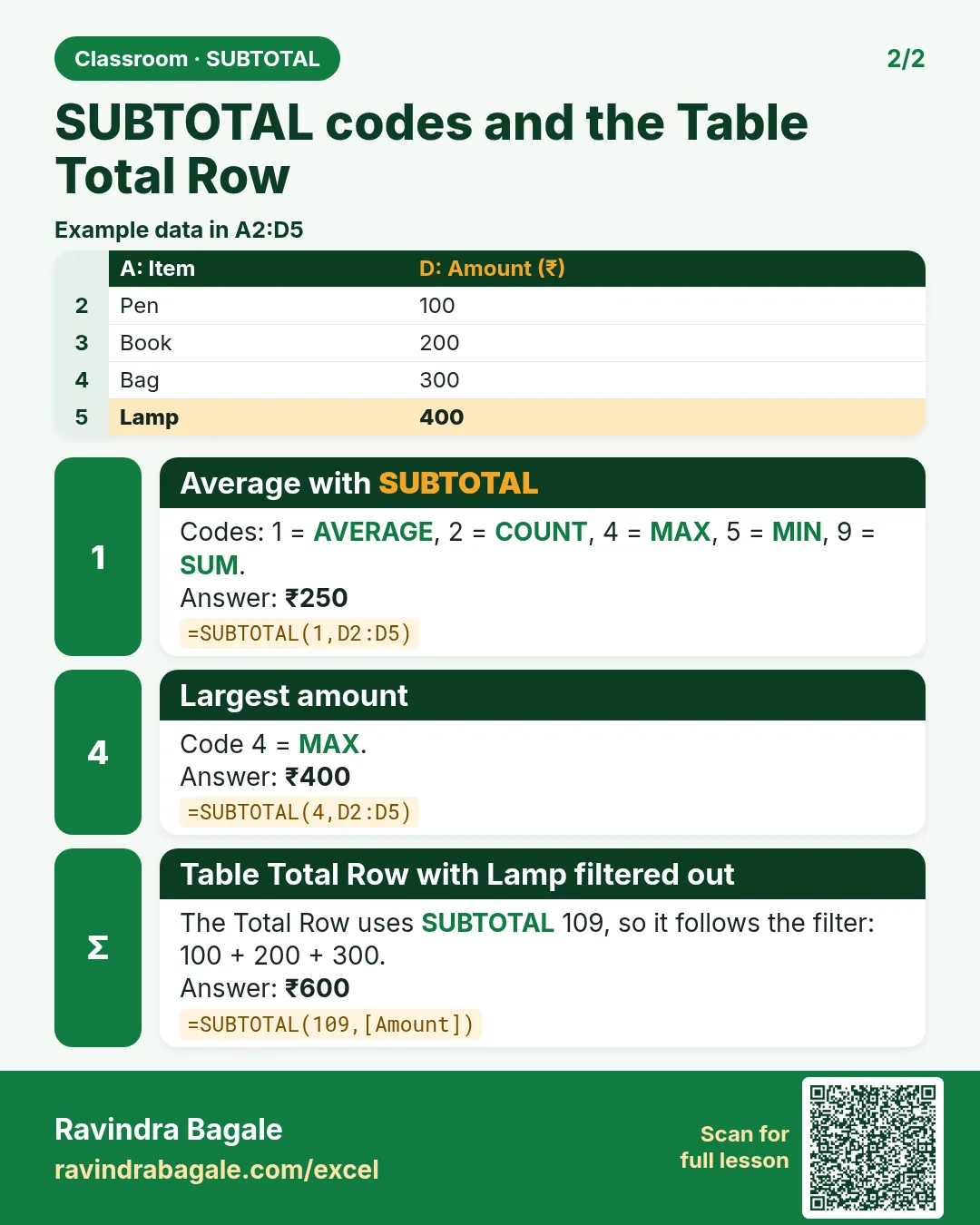

More cards for every chapter: Ravi Sir's Cards.
Loading practice tasks...
- Distinct groups (Easy): How many different values in B2:B11?
- List groups (Easy): Unique list of B2:B11.
- Filter names (Easy): Names in A2:A11 where B is "Admin".
- Sum of filtered (Medium): Sum of D2:D11 where B is "IT", using FILTER.
- Count filtered (Medium): Rows where D is above the average of D2:D11.
- Sorted values (Medium): D2:D11 sorted largest first.
- Top value via SORT (Medium): The largest E2:E11 value using SORT and INDEX.
- Second largest (Hard): Second largest D2:D11 using SORT and INDEX.
- Numbers 1 to 5 (Hard): A spill of numbers 1 to 5.
- Two-condition filter (Hard): Sum of D2:D11 where B is "Admin" or "IT".
- Names joined (Hard): Names where B is "Admin", joined with ", ".