Power Query in Excel for Beginners: Import a CSV, Remove Top Rows, Remove Duplicates, Column Quality and Date Locale
Data rarely arrives clean. An export from a store system comes with a title line on top, a blank row, the same order twice, an order with no ID, an empty column and dates in American month-day order. You could fix all of that by hand, and do it again next month. Power Query records every cleaning step once and replays it on the next file. In this chapter you import a made-up messy CSV and clean its rows; the next chapter finishes the columns and loads the result.
What you'll learn in this chapter
- Data > Get Data: where data can come from
- From Text/CSV, and Transform Data to open the Power Query Editor
- Applied Steps: the recorded list of everything you do
- Remove Top Rows and Use First Row as Headers
- Filter out blank and NA IDs, then Remove Duplicates
- Column Quality, IDs as Text, and dates with Using Locale
Practice files: quick-commerce-orders-raw.csv (the messy export) and power-query-clean-orders-step1-answer.xlsx (what your data should look like at the end of this chapter, with the list of applied steps).
Made-up data: the orders, product IDs, store IDs and amounts are made up for practice. They imitate an export from a quick-commerce app such as Blinkit or Amazon Now in Pune, Nashik, Solapur, Kolhapur, Nagpur and Sambhaji Nagar.
About the figures: they are simplified diagrams of the Power Query Editor, drawn for this chapter, not screenshots. Menus can look slightly different in your version of Excel.
1. The messy file
Open the CSV in Notepad first, to see it as it really is:
- Line 1 is a title, "Quick commerce orders export (made-up data)".
- Line 2 says when it was exported.
- Line 3 holds the column names: order_id, order_date, city, product_id, sales, price, revenue, stock, store_id, an unnamed empty column, promo_code and order_date_2.
- Line 4 is blank (only commas).
- Then 32 order lines, with these problems:
- ORD3005, ORD3012 and ORD3021 appear twice;
- one line has no order_id and one has NA;
- ORD3099 has NA as its product_id;
- order_date is month-day-year: 09-13-2026 is 13 September.
2. Get Data and the Power Query Editor
Data > Get Data lists every source Power Query can read:
- From File: Workbook, Text/CSV, XML, JSON, PDF, Folder.
- From Database: SQL Server, Access and others.
- From Azure and From Online Services (such as SharePoint lists).
- From Other Sources: web pages, ODBC and more.
For this file:
- Data > Get Data > From File > From Text/CSV.
- Pick quick-commerce-orders-raw.csv and click Import.
- A preview opens. Click Transform Data (not Load).
The Power Query Editor opens in its own window: the data in the middle, the ribbon on top, and on the right the Query Settings pane with Applied Steps. Every change you make is added to that list. Click a step to see the data as it was at that point; click the × next to a step to delete it.
If Power Query already took the title line as the column names, delete its automatic steps Promoted Headers and Changed Type with the × and start from Source.
Figure 1. Data > Get Data > From File > From Text/CSV > Import > Transform Data opens the Power Query Editor. On the right, Applied Steps records each change.
3. Remove the title lines and set the headers
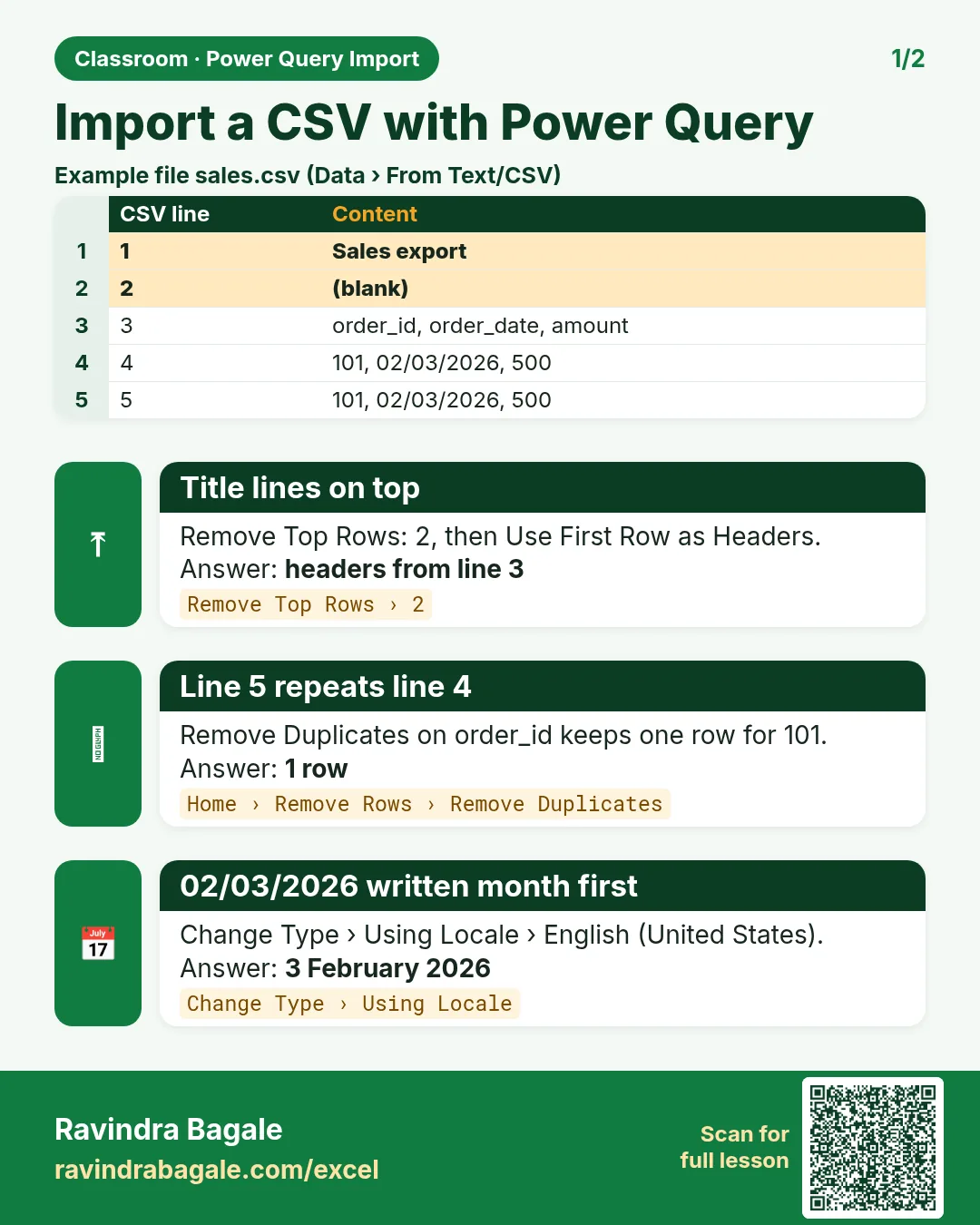
- Home > Remove Rows > Remove Top Rows, type 2, OK. The title and export lines are gone; the column names are now the first row.
- Home > Use First Row as Headers. The names move up into the column headers.
- Home > Remove Rows > Remove Top Rows, type 1, OK. The blank row is gone.
Applied Steps now shows three new steps. The unnamed empty column is called Column10 by Power Query, because it is the tenth column and its header was empty.
4. Remove bad IDs and duplicates
Filter out orders without an ID:
- Click the filter arrow on order_id.
- Untick (blank) and NA, click OK. 30 rows remain.
A filter removes the whole row, not just the NA cell. That is right here, because an order without an ID cannot be counted or matched. For other columns, think first.
Classroom line
Look, don't blindly remove a row just because you see NA. The whole row gets deleted.
Class मधलं वाक्य
"Bagha, blindly NA disla mhanje NA kadhun takaycha nahi. Akkha row delete hoto."
बघा, blindly NA दिसलं म्हणजे NA काढून टाकायचं नाही. अख्खा row delete होतो.
Classroom line
Look, don't blindly remove a row just because you see NA. The whole row gets deleted.
Remove duplicate orders:
- Select the order_id column.
- Home > Remove Rows > Remove Duplicates. The second copies of ORD3005, ORD3012 and ORD3021 go: 27 rows.
Remove Duplicates on one selected column keeps the first row for each order_id. Only use it on a column that must be unique, like an order ID.
product_id: filter out NA the same way (ORD3099 has no product): 26 rows. Do not remove duplicates in product_id. Many orders buy the same product, so P101 appearing many times is correct.
Figure 2. Applied Steps after this chapter, with the rows left after each step: 32 order rows once the top lines are removed, 30 with an order_id, 27 without duplicates, 26 with a product_id.
5. Column Quality: find the empty columns
View > Column Quality adds three bars under each header:
- Valid: cells with a proper value.
- Error: cells that could not be converted.
- Empty: blank cells.
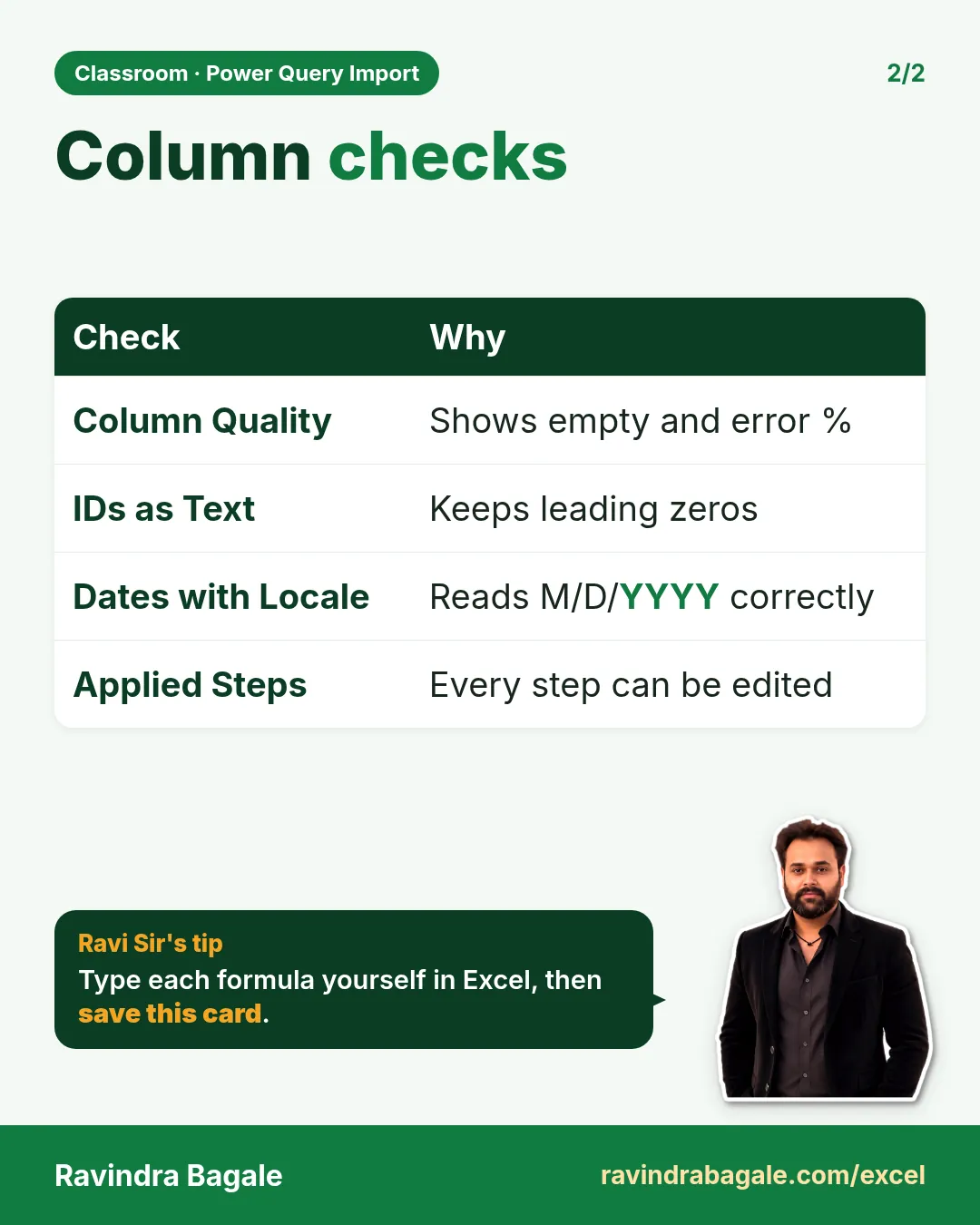
Column10 shows 100% Empty: it has no data at all. Right-click its header > Remove. store_id shows 100% Valid. Column Quality looks only at the first 1,000 rows unless you switch the status bar option to Column profiling based on entire data set.
6. IDs are text, not numbers
order_id, product_id and store_id are labels, not quantities. Adding two order IDs means nothing, so keep them as Text (the ABC icon in the header). If Power Query ever guesses a number type (123) for an ID column, click the icon and choose Text. A leading zero in an ID such as S01 survives only as text.
7. Dates in the wrong order: Using Locale
order_date holds text like 09-13-2026. Click its type icon and choose Date. If your Windows region is India (day-month-year), two things go wrong:
- 09-13-2026 becomes Error: there is no 13th month.
- 09-05-2026 becomes 9 May 2026 without any warning, but it really is 5 September.
The second problem is worse because nothing looks broken. Undo the step (× in Applied Steps) and tell Power Query how the text was written:
- Click the type icon of order_date > Using Locale...
- Data Type: Date. Locale: English (United States).
- Click OK.
Now 09-13-2026 is 13 September and 09-05-2026 is 5 September. Excel shows them in your own date format later.
Figure 3. The same text with two locales. English (India) reads 09-05-2026 as 9 May and 09-13-2026 as an Error. English (United States) reads them as 5 September and 13 September.
Ravindra Bagale's Tip
After every date conversion, look for one date whose day is above 12. If it comes out right, the whole column was read in the right order; if it shows Error, the locale is wrong. Dates like 09-05 can never tell you, because both readings are valid.
Ravindra Bagale's Tip – मराठी
प्रत्येक date conversion नंतर अशी एक date बघा जिचा day 12 पेक्षा मोठा आहे. ती बरोबर आली तर पूर्ण column योग्य order मध्ये वाचला गेला; Error दिसला तर locale चुकीचा आहे. 09-05 सारख्या dates काहीच सांगत नाहीत, कारण दोन्ही अर्थ valid आहेत.
Ravindra Bagale's Tip – हिंदी
हर date conversion के बाद ऐसी एक date देखो जिसका day 12 से बड़ा हो. वो सही आए तो पूरा column सही order में पढ़ा गया; Error दिखे तो locale गलत है. 09-05 जैसी dates कुछ नहीं बतातीं, क्योंकि दोनों मतलब valid हैं.
8. Power Query's language
Every step in Applied Steps is written for you in Power Query's own formula language, M. Click View > Advanced Editor to see the whole recipe as text. You do not need to write M to use Power Query; the buttons write it. (DAX, which you may hear about, is a different language, used for calculations in Power Pivot and Power BI.)
9. The whole chapter on one page
| Problem in the file | Step |
|---|---|
| Title lines on top | Remove Top Rows 2 |
| Names in the first row | Use First Row as Headers |
| Blank row under the names | Remove Top Rows 1 |
| Blank or NA order_id | Filter, untick (blank) and NA |
| Same order twice | Select order_id > Remove Duplicates |
| NA product_id | Filter, untick NA |
| Empty column | Column Quality shows 100% Empty > Remove |
| IDs | Keep as Text |
| Month-day-year text | Data type > Using Locale > Date, English (United States) |
- Get Data > From Text/CSV > Transform Data opens the Power Query Editor.
- Applied Steps records every change; × deletes a step.
- Remove Duplicates only on a column that must be unique.
- Column Quality shows Valid, Error and Empty for each column.
- Using Locale reads dates in the order they were written.
10. Try at home
Try at home
Task 1
- In Applied Steps, click the step before Removed Duplicates. How many rows does the status bar show? (30.)
Task 2
- Convert order_date with a plain Date type on a computer set to India. How many cells show Error? (2: ORD3025 and ORD3026, both 09-13-2026.)
Recap
In short
- Power Query records cleaning steps and replays them.
- Remove Top Rows and Use First Row as Headers fix the top of the file.
- Filter blank and NA IDs, then Remove Duplicates on order_id.
- Column Quality finds empty and error cells; IDs stay Text.
- Using Locale with English (United States) reads month-day-year dates.
Quick revision cards
Quick revision
Revise this chapter in two minutes. Save the cards on your phone or download them as PNG files. All names and numbers are made up for practice.
झटपट उजळणी
हा chapter दोन मिनिटांत revise करा. Cards phone वर save करा किंवा PNG म्हणून download करा. सगळी नावं आणि आकडे सरावासाठी काल्पनिक आहेत.
झटपट दोहराई
यह chapter दो मिनट में revise करें. Cards phone पर save करें या PNG के रूप में download करें. सभी नाम और आंकड़े अभ्यास के लिए काल्पनिक हैं.

More cards for every chapter: Ravi Sir's Cards.