Excel Structured References Explained: [@Column] This Row, Calculated Columns and Table Name Inside vs Outside the Table
The Table vs Range chapter turned the marks sheet into a table named marks and used column-wise references like =MAX(marks[Total]). This chapter goes one step further: row-wise formulas with the @ sign, the difference between a formula written inside the table and one written outside it, a range of columns in one reference, and the special items #Data, #All and #Headers.
What you'll learn in this chapter
- Row-wise vs column-wise: when you need @ and when you don't
- Calculated columns: one formula for the whole column
- Inside the table: [@Science]; outside the table: marks[@Science]
- A range of columns: [@[Science]:[English]]
-
Data, #All and #Headers
- What happens when you copy a structured reference
Practice file: excel-structured-references-this-row-practice.xlsx: the table marks with calculated columns, the same row formula written outside the table, and a block of column-wise questions.
Made-up data: all names and marks are made up for practice.
1. The data
The table is named marks and sits in A1:H11: A ID, B Name, C Science, D Maths, E English, F Total, G Result, H Percentage. If you have not made it yet, follow the Table vs Range chapter: Ctrl+T, then Table Design > Table Name > marks.
| Name | Science | Maths | English | Total |
|---|---|---|---|---|
| Ravindra Bagale | 88 | 92 | 79 | 259 |
| Shraddha Bagale | 76 | 85 | 90 | 251 |
| Ruhi Bagale | 91 | 95 | 84 | 270 |
| Shahrukh | 45 | 30 | 52 | 127 |
| ... 6 more rows |
2. Row-wise vs column-wise
There are two kinds of questions:
- Row-wise: one answer per row. "What is Ruhi Bagale's total?" uses Science, Maths and English of the same row.
- Column-wise: one answer for the whole column. "What is the sum of all totals?" uses every row of Total.
The @ sign means "this row". Row-wise formulas need @; column-wise formulas don't.
| Question | Formula | Answer |
|---|---|---|
| Total of this row | =SUM([@Science],[@Maths],[@English]) |
259 in row 2 |
| Sum of all totals | =SUM(marks[Total]) |
1,912 |
| Average Maths mark | =AVERAGE(marks[Maths]) |
64 |
| Highest Science mark | =MAX(marks[Science]) |
91 |
| Number of Pass | =COUNTIF(marks[Result],"Pass") |
7 |
Classroom line
For a row-wise calculation you need the @; for a column-wise calculation you don't.
Class मधलं वाक्य
"Row wise calculation kartana @ dyawa lagel, column wise calculation kartana @ dyaychi garaj nahi."
Row wise calculation करताना @ द्यावा लागेल, column wise calculation करताना @ द्यायची गरज नाही.
Classroom line
For a row-wise calculation you need the @; for a column-wise calculation you don't.
Figure 1. Row-wise: [@Science] takes one cell from the current row, so each row gets its own total. Column-wise: marks[Total] takes the whole Total column, so the answer is one number, 1,912.
3. Calculated column: type the formula once
- Click F2, the first Total cell inside the table.
- Type
=SUM(and click C2, then type a comma, click D2, a comma, click E2, and close the bracket. - Excel writes
=SUM([@Science],[@Maths],[@English])for you. - Press Enter.
Excel fills the formula into every row of the Total column at once. This is a calculated column: one formula, the same in every row, with no dragging. Rows added later get it too.
Classroom line
Write the formula only once in a column, and it applies to the rest of the column by itself.
Class मधलं वाक्य
एका column मध्ये formula फक्त एकदाच लिहा, तो आपोआप खालच्या सगळ्या rows ना लागू होतो.
Classroom line – हिंदी
"Aap ek column mein sirf ek baar formula likho, apne aap niche ke column ke liye wo apply ho jayega."
If you ever want just one cell to be different, Excel shows a small AutoCorrect Options button after you type; Undo Calculated Column keeps the formula in that one cell only. Most of the time, though, the same formula in every row is exactly what you want.
4. Inside vs outside the table
Inside the table, Excel already knows which table you mean, so the table name is left out: [@Science].
Outside the table, for example in column J next to the table, the formula must say which table:
=SUM(marks[@Science],marks[@Maths],marks[@English])
In J2 this gives 259, the same as F2. The @ still means "the row this formula is in", so J3 gives 251, J4 gives 270, and so on. A row formula outside the table only makes sense in a row that the table also covers (rows 2 to 11 here).
| Where you type | Row-wise | Column-wise |
|---|---|---|
| Inside the table | [@Science] |
marks[Science] (or [Science]) |
| Outside the table | marks[@Science] |
marks[Science] |
Figure 2. Inside the table (F2) the formula is =SUM([@Science],[@Maths],[@English]). Outside the table (J2) the same row-wise formula needs the table name: =SUM(marks[@Science],marks[@Maths],marks[@English]). Both give 259.
Ravindra Bagale's Tip
Don't type structured references from memory. Type = and the function name, then click the cells with the mouse. Excel writes [@Science] or marks[@Science] for you, with the right brackets, depending on where you are typing.
Ravindra Bagale's Tip – मराठी
Structured references पाठ करून type करू नका. = आणि function चं नाव type करा, मग mouse ने cells वर click करा. तुम्ही कुठे type करताय त्यानुसार Excel स्वतः [@Science] किंवा marks[@Science] बरोबर brackets सकट लिहितो.
Ravindra Bagale's Tip – हिंदी
Structured references याद करके type मत करो. = और function का नाम type करो, फिर mouse से cells पर click करो. आप कहाँ type कर रहे हो उसके हिसाब से Excel खुद [@Science] या marks[@Science] सही brackets के साथ लिख देता है.
5. A range of columns in one reference
Science, Maths and English sit next to each other, so you can take all three at once:
- Row-wise:
=SUM(marks[@[Science]:[English]])→ 259 in row 2. - Column-wise:
=SUM(marks[[Science]:[English]])→ 1,912, every mark in all three columns.
Inside the table the row-wise version is =SUM([@[Science]:[English]]). The extra square brackets are needed whenever a reference has a colon, a space or a special item in it. The practice file uses the same idea for Result: =IF(MIN(marks[@[Science]:[English]])>=35,"Pass","Fail").
6. #Data, #All and #Headers
A table has named parts:
| Reference | Means | Example | Answer |
|---|---|---|---|
marks[#Data] |
the data rows, no header | =ROWS(marks[#Data]) |
10 |
marks[#All] |
header + data (+ total row if shown) | =ROWS(marks[#All]) |
11 |
marks[[#Headers],[Total]] |
the header cell of Total | =marks[[#Headers],[Total]] |
Total |
marks[Total] |
the data of one column | =SUM(marks[Total]) |
1,912 |
The header reference is what Excel writes when you click a header cell by mistake, as the Table vs Range chapter warned. Now you know what it means.
Figure 3. The parts of the marks table: #Headers is row 1, #Data is rows 2 to 11, #All is both, marks[Total] is F2:F11 and marks[@Total] is one cell of the current row.
7. Copying structured references
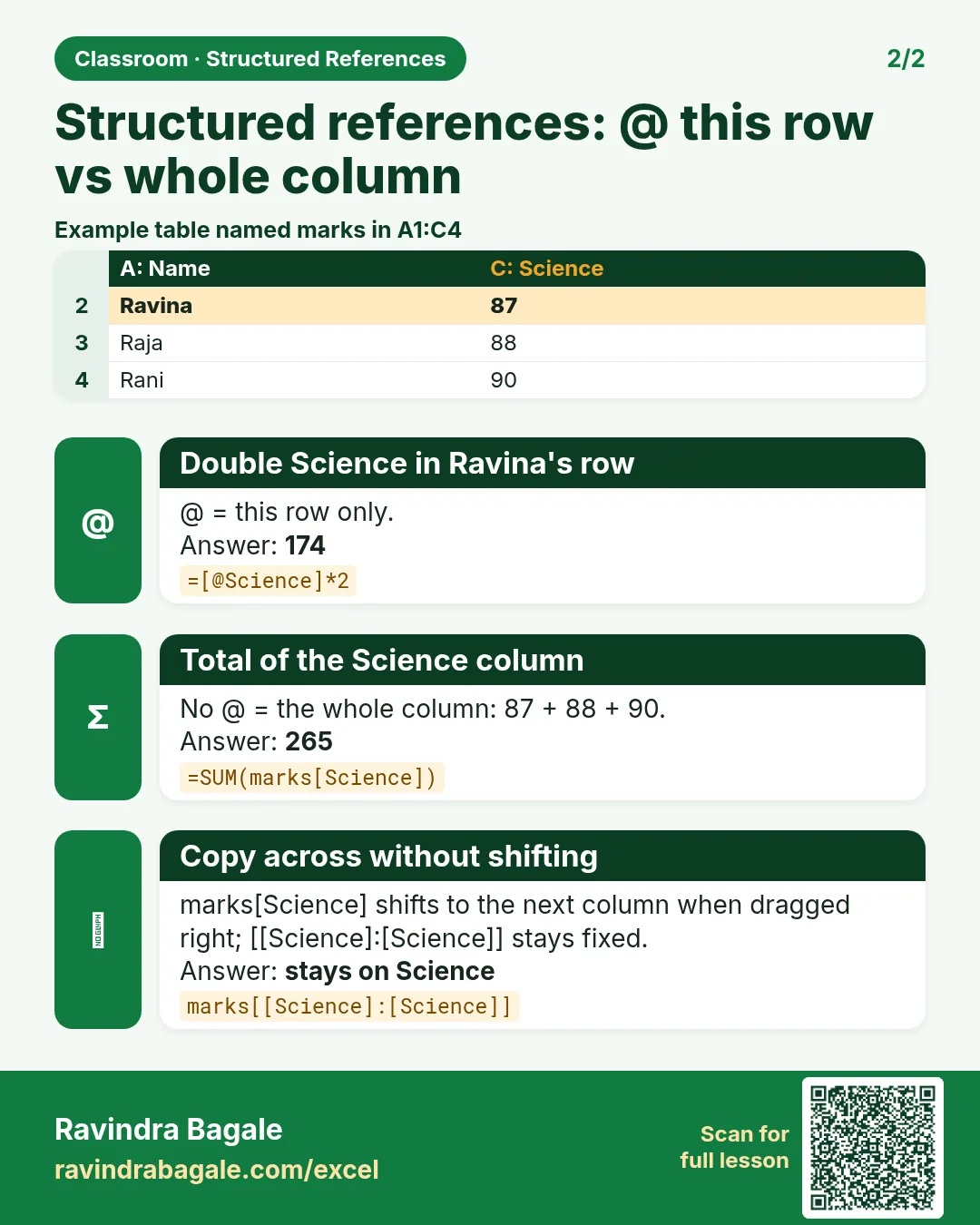
- Copy and paste (Ctrl+C, Ctrl+V) a formula like
=SUM(marks[Science])to another cell: it staysmarks[Science]. - Drag it sideways with the fill handle: it moves to the next column,
marks[Maths], thenmarks[English], just like a relative reference. - To stop the column from moving while dragging, write it as a one-column range:
marks[[Science]:[Science]].
Dragging down does not change a column reference at all, because the column is the same in every row.
8. The whole chapter on one page
| You want | Write |
|---|---|
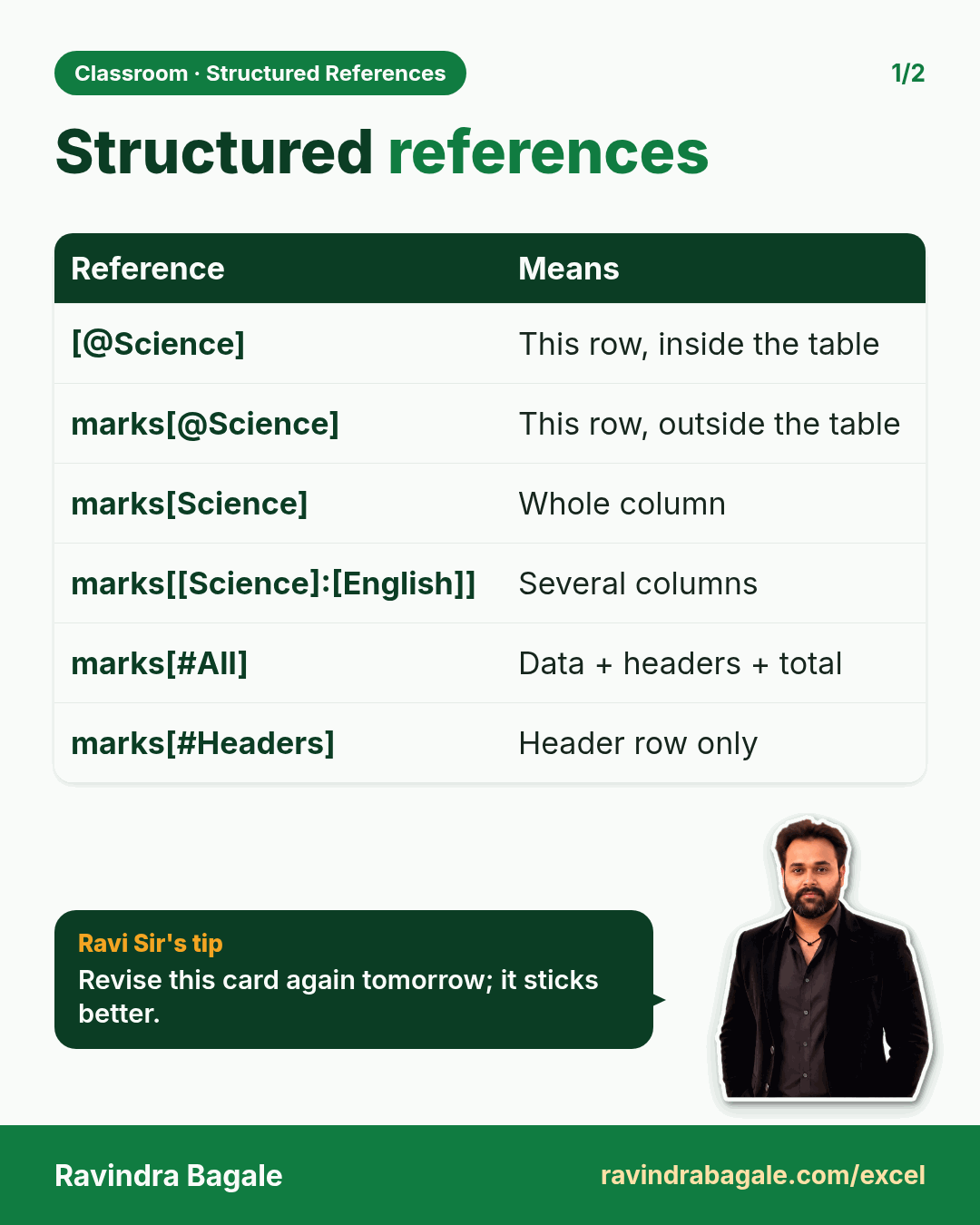
| This row, inside the table | [@Science] |
| This row, outside the table | marks[@Science] |
| Whole column | marks[Science] |
| Several columns, this row | marks[@[Science]:[English]] |
| Rows of data | marks[#Data] |
| Header + data | marks[#All] |
- @ means "this row": use it for row-wise formulas.
- No @ for column-wise formulas: SUM, AVERAGE, MAX, COUNTIF of a whole column.
- Type a formula once in a table column and it becomes a calculated column.
- Outside the table, add the table name before the brackets.
- Fill sideways moves column names; Ctrl+C/Ctrl+V does not.
9. Try at home
Try at home
Task 1
- In L2, outside the table, write the percentage of this row with a structured reference. (
=marks[@Total]/300*100→ 86.33 for Ravindra Bagale.)
Task 2
- What does
=MIN(marks[Total])return? (100.)
Task 3
- Write
=SUM(marks[Science])in N12 and drag it one cell to the right. What does the new formula say, and what is its answer? (=SUM(marks[Maths]), 640.)
Recap
In short
- @ = this row; no @ = the whole column.
- One formula in a table column fills the whole column.
- Inside the table: [@Science]. Outside: marks[@Science].
- [[Science]:[English]] takes several columns at once.
-
Data, #All and #Headers name the parts of a table.
Quick revision cards
Quick revision
Revise this chapter in two minutes. Save the cards on your phone or download them as PNG files. All names and numbers are made up for practice.
झटपट उजळणी
हा chapter दोन मिनिटांत revise करा. Cards phone वर save करा किंवा PNG म्हणून download करा. सगळी नावं आणि आकडे सरावासाठी काल्पनिक आहेत.
झटपट दोहराई
यह chapter दो मिनट में revise करें. Cards phone पर save करें या PNG के रूप में download करें. सभी नाम और आंकड़े अभ्यास के लिए काल्पनिक हैं.
![Revision card: Structured references. Covers [@Science]; marks[@Science]; marks[Science]; marks[[Science]:[English]]; marks[#All]; marks[#Headers]. With a photo of Ravindra Bagale and a short tip.](/excel/excel-structured-references-this-row-calculated-columns/cards/revision-card-1.webp)

More cards for every chapter: Ravi Sir's Cards.
Loading practice tasks...
- Total deals won (Easy): Add up Deals won in D2:D11.
- Average avg deal value (Easy): Average of E2:E11, rounded to 2 decimals.
- Rows in North (Easy): How many rows have Region "North"?
- Largest deals won (Easy): The largest value in D2:D11.
- Deals won for North (Medium): Total of D2:D11 where B is "North".
- North in Leeds (Medium): Total of D2:D11 where B is "North" and C is "Leeds".
- Best in North (Medium): Largest E2:E11 value where B is "North".
- Value of row 2 (Medium): D2 times E2.
- Look up Hannah Lee (Medium): The Deals won for "Hannah Lee" (use a lookup on column A).
- Total value (Hard): Sum of D times E for all rows.
- Share of North (Hard): Share of D2:D11 that is "North", rounded to 3 decimals.
- Rank of row 2 (Hard): Rank of D2 among D2:D11 (largest = 1).
- Above average? (Hard): "Above" if E2 is above the average of E2:E11, else "Below".