Excel Custom Number Format: Add kg, gram, ₹ and Rs to Numbers, Thousands Separator and Red Negative Numbers
A grocery list with "2 kg", "1.5 kg" and "1 kg" looks fine, until you ask Excel for the total and it says 0. Typing a unit next to a number turns the whole cell into text, and text cannot be added. The fix is to type only the number and let a custom number format show the unit. In this chapter you add kg, gram, ₹ and Rs to numbers without breaking any formula, put commas in big numbers, and colour losses red.
What you'll learn in this chapter
- Why "2 kg" typed in a cell makes SUM return 0
- Format Cells > Custom: 0 "kg" and 0.00 "kg"
- 0 "gram", and why the number stays a number
- ₹ and "Rs" with two decimals
-
,##0: the thousands separator, and lakh-style commas
- Red negative numbers and the four sections of a format
Practice file: excel-custom-number-format-practice.xlsx: Units (text vs formatted numbers, and a TEXT column that shows what each code displays), Rupees and Profit sheets.
Made-up data: the items, quantities, amounts and city profits are made up for practice. The profits imitate a quick-commerce app such as Blinkit or Amazon Now.
1. The problem: "2 kg" is text
| Item | Typed as text | Number with 0.00 "kg" |
|---|---|---|
| Tomato | 2 kg | 2.00 kg |
| Potato | 1.5 kg | 1.50 kg |
| Dal | 1 kg | 1.00 kg |
| Apple | 1 kg | 1.00 kg |
| Total | 0 | 5.50 kg |
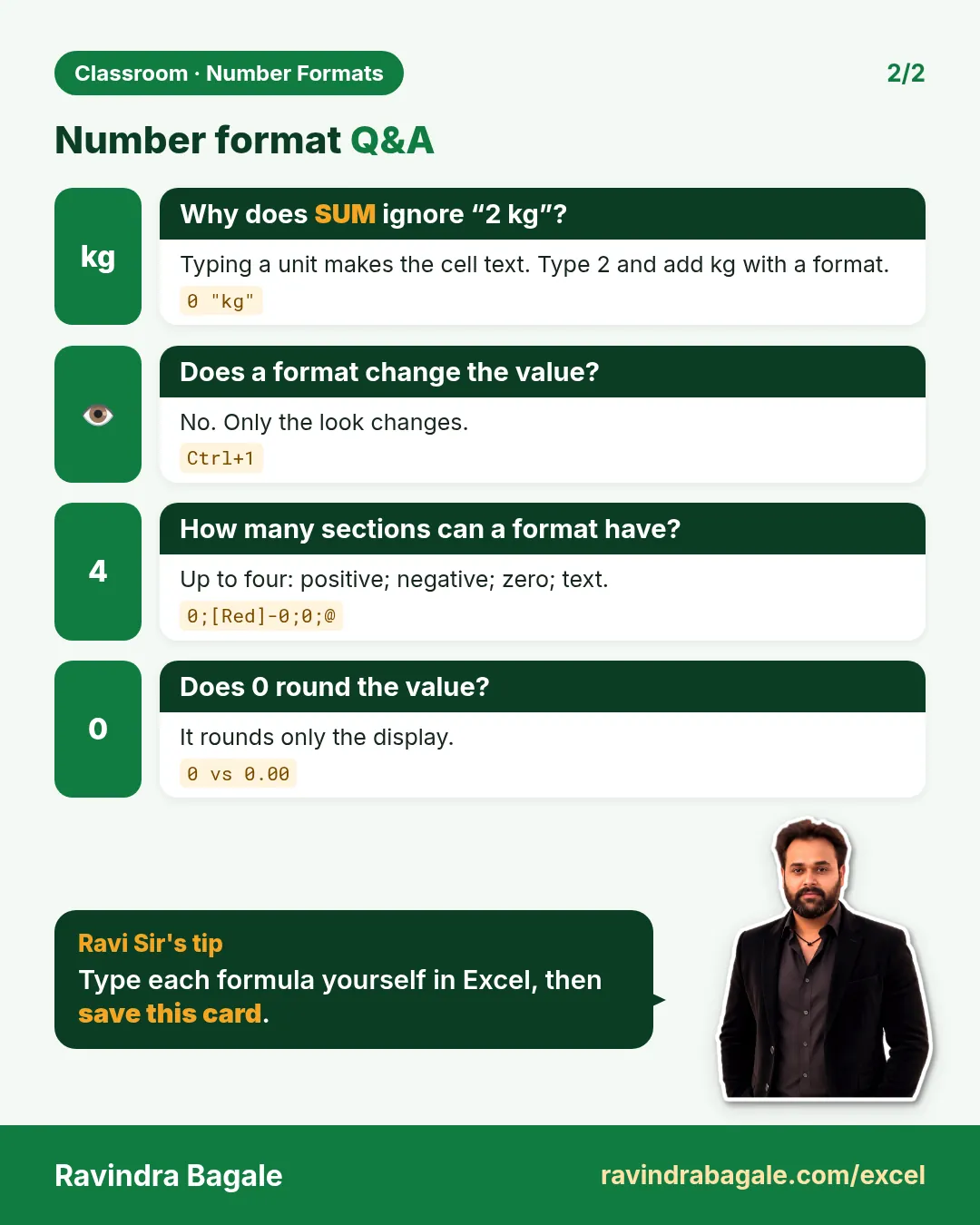
In column B the cells were typed as "2 kg". As soon as a cell contains letters, Excel stores it as text. Text sits on the left of the cell; numbers sit on the right. SUM, AVERAGE and MAX skip text, so =SUM(B2:B5) returns 0.
Column C holds the plain numbers 2, 1.5, 1 and 1. Only the look has "kg" added, so =SUM(C2:C5) returns 5.5, shown as 5.50 kg.
Classroom line
Sometimes we get data just like this: raw data.
Class मधलं वाक्य
कधी कधी data आपल्याला असाच मिळतो, raw data.
Classroom line – हिंदी
"Kabhi kabhi data hume aise hi milta hai, raw data."
2. Custom format: 0 "kg" and 0.00 "kg"
- Type the numbers only: 2, 1.5, 1, 1.
- Select them and press Ctrl+1 (Format Cells).
- On the Number tab choose Custom.
- In Type write
0 "kg"and click OK.
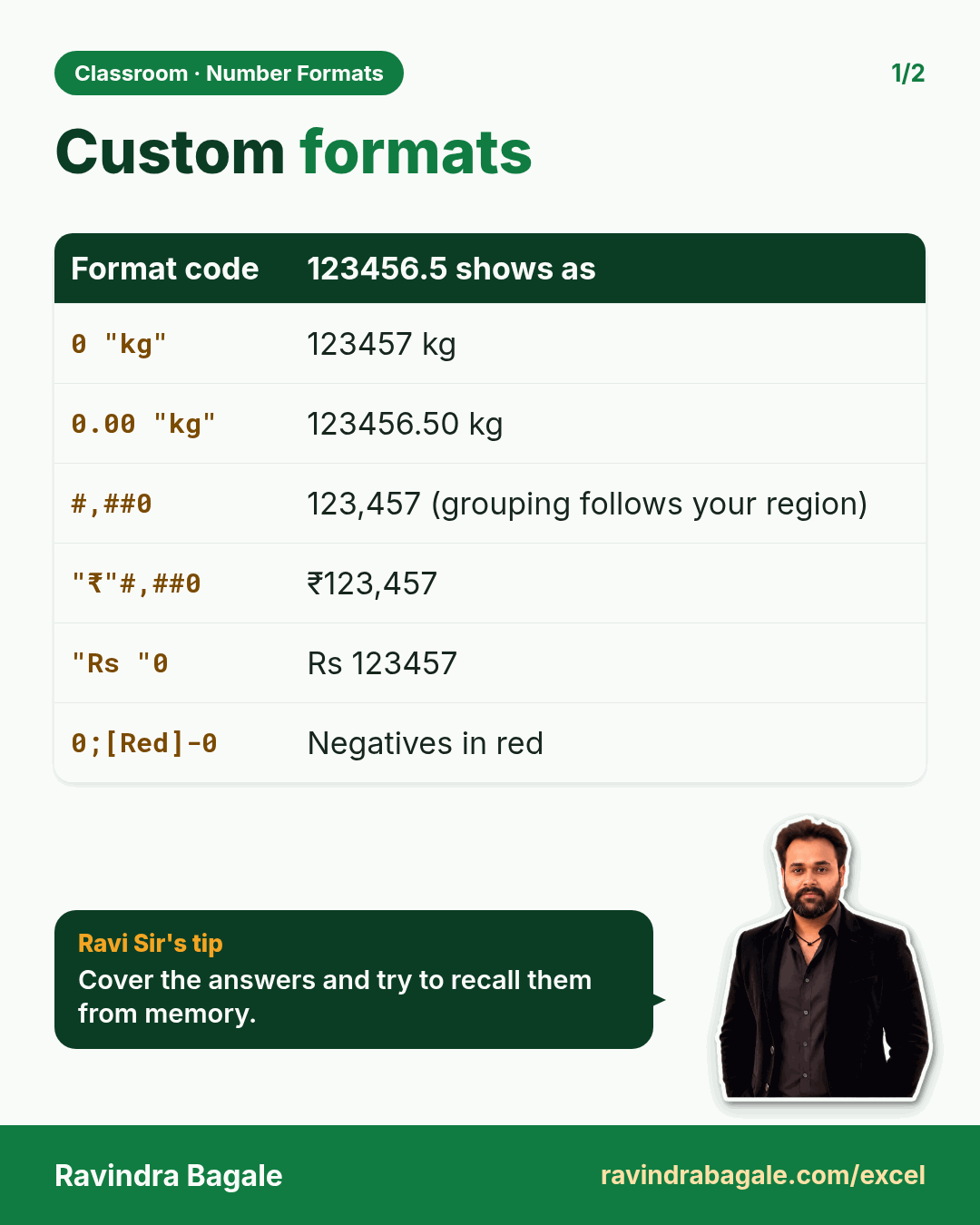
1.5 now shows as 2 kg. The value is still 1.5 (look in the formula bar), but 0 means "no decimals", so the display is rounded. Use 0.00 "kg" to show 1.50 kg. Text inside double quotes is shown exactly as written, and the space inside the quotes puts a gap between number and unit.
The same way, 0 "gram" on 2, 3, 4, 5 and 8 shows "2 gram" and so on, and =SUM gives 22 gram.
Figure 1. Left: "2 kg" typed as text sits on the left and SUM returns 0. Right: the number 2 with the format 0.00 "kg" sits on the right and SUM returns 5.50 kg.
Ravindra Bagale's Tip
Look at the alignment before you write a formula. Numbers line up on the right, text on the left. If a column of "numbers" hugs the left edge, SUM will ignore it, and it is better to find that out before your total goes into a report.
Ravindra Bagale's Tip – मराठी
Formula लिहिण्याआधी alignment बघा. Numbers उजवीकडे असतात, text डावीकडे. "Numbers" चा column डाव्या कडेला चिकटलेला दिसला, तर SUM त्याला ignore करेल. ते report मध्ये total जाण्याआधीच लक्षात आलेलं बरं.
Ravindra Bagale's Tip – हिंदी
Formula लिखने से पहले alignment देखो. Numbers दाईं तरफ़ होते हैं, text बाईं तरफ़. अगर "numbers" का column बाएँ किनारे से चिपका दिखे, तो SUM उसे ignore करेगा. Report में total जाने से पहले ही यह पकड़ लेना अच्छा है.
3. Rupees: ₹ and "Rs"
With the ₹ symbol:
- Select the amounts and press Ctrl+1.
- Choose Currency, pick ₹ in the Symbol list and keep 2 decimal places.
- OK. 1000 shows as ₹1,000.00 (the exact spacing depends on the symbol you pick).
Or type the code yourself in Custom: "₹" #,##0.00.
With "Rs": Custom "Rs" #,##0.00 shows 1000 as Rs 1,000.00. Put the text first and the number code after it. A code like "INR "0 (two spaces inside the quotes) shows INR 1000: whatever is in the quotes is shown as it is.
4. Thousands separator: #,##0
#,##0 adds a comma every three digits and shows no decimals: 9100 shows as 9,100. On the Rupees sheet the amounts 1,000 to 1,600 add up to 9,100, and they are still numbers.
- In a format code, 0 always shows a digit, even a leading zero.
- # shows a digit only when there is one.
- , between them turns on the separator.
Typing 1,000 directly into a cell is also fine: Excel understands it as the number 1000 with the separator format.
Lakh-style commas (12,34,567). #,##0 groups in threes: 1234567 becomes 1,234,567. If Windows is set to an Indian region, Excel may already group as 12,34,567. If not, this custom code does it for any number up to 99,99,99,999:
[>=10000000]##\,##\,##\,##0;[>=100000]##\,##\,##0;##,##0
It shows 1234567 as 12,34,567, 12345678 as 1,23,45,678 and 98765 as 98,765. The square brackets are conditions: Excel uses the first part for one crore and above, the second for one lakh and above, the third for the rest.
Figure 2. One value, different looks: 1.5 with 0 "kg" shows 2 kg, with 0.00 "kg" 1.50 kg; 1000 with "Rs" #,##0.00 shows Rs 1,000.00; 1234567 with the lakh code shows 12,34,567.
5. Red negative numbers
A format code can have up to four sections, separated by semicolons:
positive ; negative ; zero ; text
#,##0;[Red]-#,##0: positives normal, negatives red with a minus sign.[Green]#,##0;[Red]-#,##0: profits green, losses red.[Green]#,##0;[Red]-#,##0;"-": and a zero shows as a dash.
On the Profit sheet, Nashik (−300) and Nagpur (−75) turn red, Solapur's 0 shows as "-", and the total of 2,125 shows in green. The values do not change; only the colour does. Colour names you can use in brackets include [Red], [Green], [Blue], [Black] and [Magenta].
If you leave out the minus sign in the negative section (#,##0;[Red]#,##0), losses show red but without a minus. That looks tidy but is easy to misread when printed in black and white, so keep the minus.
Figure 3. The four sections of a number format: positive; negative; zero; text. With [Green]#,##0;[Red]-#,##0;"-" profits are green, losses red and zero a dash.
6. The whole chapter on one page
| You want | Custom code | 1.5 / 1000 / −300 shows |
|---|---|---|
| kg, no decimals | 0 "kg" |
2 kg |
| kg, 2 decimals | 0.00 "kg" |
1.50 kg |
| Rs with commas | "Rs" #,##0.00 |
Rs 1,000.00 |
| ₹ with commas | "₹" #,##0.00 |
₹ 1,000.00 |
| Thousands separator | #,##0 |
1,000 |
| Red negatives | #,##0;[Red]-#,##0 |
−300 in red |
- Never type units into number cells; type the number and format it.
- Ctrl+1 > Number > Custom, then write the code.
- Text in quotes is shown as written; 0 and # are digits.
-
,##0 adds commas; the lakh code groups as 12,34,567.
- Sections: positive; negative; zero; text. [Red] colours a section.
7. Try at home
Try at home
Task 1
- Format the grams 2, 3, 4, 5 and 8 as
0 "g". What does the SUM show? (22 g.)
Task 2
- Show 1600 as
Rs 1,600.00. Which code? ("Rs" #,##0.00.)
Task 3
- On the Profit sheet, change Solapur's 0 to −50. How many cities are red now, and what is the total? (3 cities, total 2,075.)
Recap
In short
- A unit typed in a cell makes it text; SUM ignores text.
- Custom formats add units only to the look.
- 0 rounds the display; 0.00 shows two decimals.
-
,##0 adds the thousands separator.
- Up to four sections; [Red] colours the negatives.
Quick revision cards
Quick revision
Revise this chapter in two minutes. Save the cards on your phone or download them as PNG files. All names and numbers are made up for practice.
झटपट उजळणी
हा chapter दोन मिनिटांत revise करा. Cards phone वर save करा किंवा PNG म्हणून download करा. सगळी नावं आणि आकडे सरावासाठी काल्पनिक आहेत.
झटपट दोहराई
यह chapter दो मिनट में revise करें. Cards phone पर save करें या PNG के रूप में download करें. सभी नाम और आंकड़े अभ्यास के लिए काल्पनिक हैं.
![Revision card: Custom formats. Covers 0 "kg"; 0.00 "kg"; #,##0; "₹"#,##0; "Rs "0; 0;[Red]-0. With a photo of Ravindra Bagale and a short tip.](/excel/excel-custom-number-format-kg-rupees-thousands-separator-red-negative/cards/revision-card-1.webp)
More cards for every chapter: Ravi Sir's Cards.