Fuel Mileage Tracker in Excel: km per Litre and Cost per km for Your Bike or Car
Raja in Sambhaji Nagar is sure his bike "used to give better mileage". Is that true, or does it just feel true? A fuel log answers it with numbers. Each time you fill the tank, write the odometer reading and the litres. Excel works out the km per litre, the cost per km and which fill-ups were poor.
What you'll learn on this page
- The full-tank method for mileage
- km since last fill from odometer readings
- km per litre and cost per km
- Average mileage done the right way
- Red and green alerts against the average
- A monthly fuel bill estimate
Download the template: fuel-mileage-tracker-template.xlsx: example data with real formulas. Yellow cells are inputs you can type over; green cells hold formulas; blue rows are headers and totals. Replace the example data with your own and everything recalculates.
Made-up data: every name, amount, shop and date on this page is made up for practice. Cities are used only to make the examples feel real.
1. The example
Raja fills his bike's tank full each time (made-up readings and prices). Eight fills from 2 August to 16 October 2026:
| Fill | km since last | Litres | km per litre | Cost per km |
|---|---|---|---|---|
| 13 Aug | 442 | 9.1 | 48.6 | ₹2.15 |
| 7 Sep | 429 | 9.4 | 45.6 | ₹2.30 |
| 9 Oct (highway trip) | 353 | 8.6 | 41.0 | ₹2.55 |
| 16 Oct | 378 | 7.9 | 47.9 | ₹2.19 |
From the first to the last reading he rode 2,840 km on 61.8 litres, so his average is 46.0 km per litre and ₹2.28 per km. At 900 km a month that is about ₹2,054 of fuel. The 9 October fill (41.0) is the one to look at: tyre pressure, a heavy load or fast highway riding.
How the full-tank method works. When the tank is full, the litres you put in now are exactly the fuel you burned since the last full tank. So km per litre = km since the last fill ÷ litres filled now.
Figure 1. Full-tank method: odometer readings give the km since the last fill, km ÷ litres gives mileage, amount ÷ km gives cost per km; total km ÷ total litres gives the true average, 46.0 km per litre.
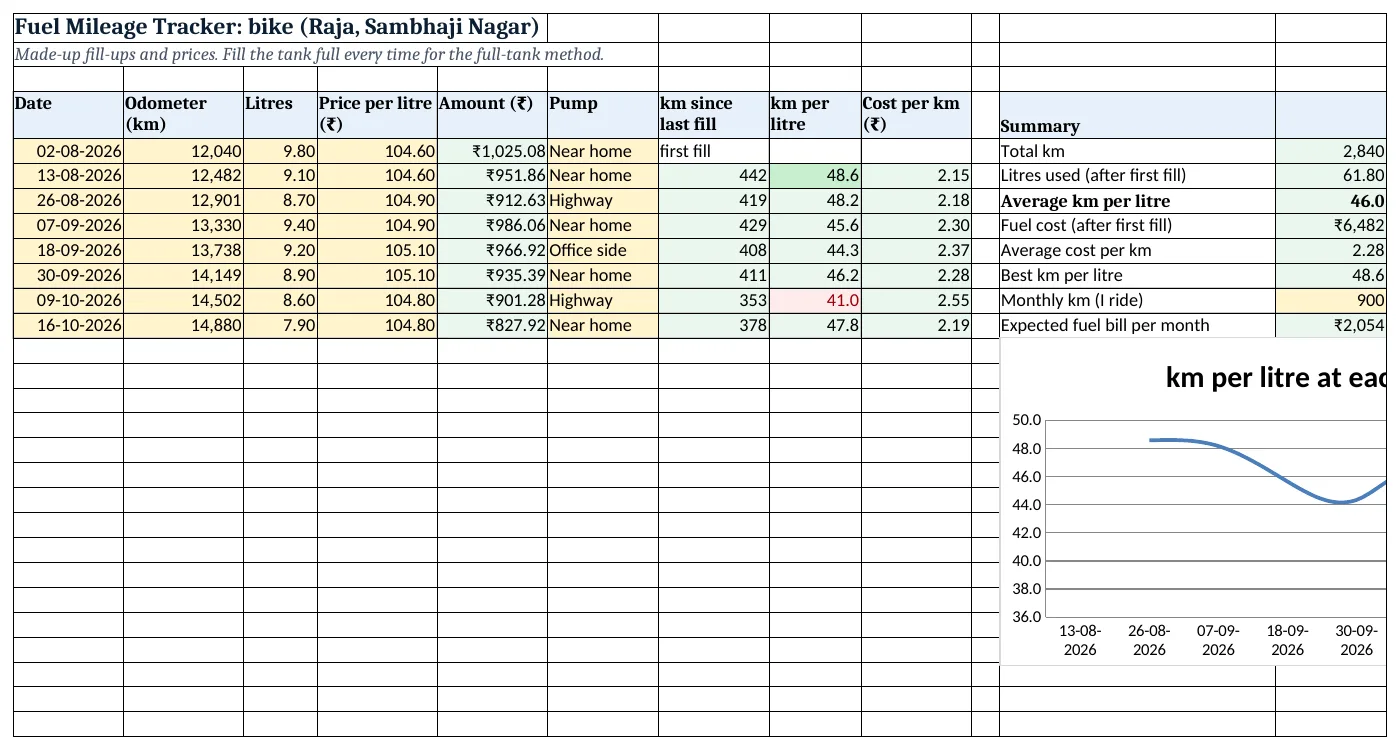
Figure 2. The template sheet, recalculated with its example data. Download it above and replace the yellow cells with your own numbers.
2. Build it step by step
Step 1. Set up the log
- In A4:I4 type Date, Odometer, Litres, Price per litre, Amount, Pump, km since last fill, km per litre, Cost per km.
- Type every fill from A5 down (yellow). The first row is only the starting odometer.
- Select F5:F200 > Data > Data Validation > List:
Near home,Highway,Office side(drop-down lists).
Step 2. Amount and distance
- In E5 type
=C5*D5and copy down: litres × price. - In G6 type
=B6-B5: 442 km since the last fill.
Step 3. Mileage and cost per km
- In H6 type
=G6/C6: 48.6 km per litre. - In I6 type
=E6/G6: ₹2.15 per km. - Copy G6:I6 down to the last fill.
Step 4. Summary the right way
- In L5 type
=B12-B5: 2,840 km. - In L6 type
=SUM(C6:C12): 61.8 litres. Leave out the first fill; that fuel was burned before the log started. - In L7 type
=L5/L6: 46.0 km per litre. - In L8 type
=SUM(E6:E12)and in L9=L8/L5: ₹2.28 per km. - In L10 type
=MAX(H6:H12): 48.6, the best fill.
Step 5. Monthly fuel estimate
- Type the km you ride in a month in L11 (900).
- In L12 type
=L11*L9: about ₹2,054.
Step 6. Alerts and chart
- Select H6:H200 > Conditional Formatting > New Rule > Use a formula:
=AND(H6<>"",H6<$L$7*0.95), red. This marks fills more than 5% below the average (formula rules). - Add a second rule
=AND(H6<>"",H6>=$L$7*1.05)with green. - Select H6:H12 > Insert > Line (line charts).
Ravindra Bagale's Tip
Fill from the same pump and to the same auto cut-off whenever you can. A consistent full tank makes the numbers far more reliable.
Ravindra Bagale's Tip – मराठी
शक्य असेल तेव्हा एकाच pump वर आणि auto cut-off पर्यंत fill करा. Tank दर वेळी सारखा full झाला की आकडे जास्त भरवशाचे येतात.
Ravindra Bagale's Tip – हिंदी
जहां तक हो सके एक ही pump पर और auto cut-off तक fill कराओ. हर बार एक जैसा full tank हो तो आंकड़े ज़्यादा भरोसेमंद आते हैं.
3. Formulas used
| Cell | Formula | What it does |
|---|---|---|
| E6 | =C6*D6 |
Amount paid = litres × price |
| G6 | =B6-B5 |
km since the last fill |
| H6 | =G6/C6 |
km per litre |
| I6 | =E6/G6 |
Cost per km |
| L5 | =B12-B5 |
Total km |
| L6 | =SUM(C6:C12) |
Litres after the first fill |
| L7 | =L5/L6 |
Average km per litre |
| L9 | =L8/L5 |
Average cost per km |
| L10 | =MAX(H6:H12) |
Best km per litre |
| L12 | =L11*L9 |
Fuel bill for your monthly km |
Every formula above is written in the template, so you can click a cell and see it in the formula bar. All values on this page were recalculated in the file.
4. Common mistakes
- Not filling the tank full. With a half fill, the litres do not match the km. Fill full every time, or skip mileage for that row.
- Averaging the km per litre column.
=AVERAGE(H6:H12)gives every fill equal weight. Total km ÷ total litres is the true average. - Counting the first fill's litres. The first fill's fuel was used before the log started. Start the litres SUM from the second fill.
- Skipping a fill-up. A missed entry adds two tanks of km to one tank of litres and shows impossible mileage.
- Typing trip km instead of the odometer. Always type the full odometer reading. The sheet works out the distance.
Ravindra Bagale's Tip
When a fill turns red, check the tyre pressure first. It is free to fix and often explains a sudden drop.
Ravindra Bagale's Tip – मराठी
एखादी row लाल झाली की आधी tyre pressure check करा. ते फुकट होतं आणि अचानक घसरलेल्या mileage चं कारण बहुतेक तेच असतं.
Ravindra Bagale's Tip – हिंदी
कोई row लाल हो जाए तो पहले tyre pressure जांचो. वो मुफ़्त में होता है और अचानक गिरे mileage की वजह अक्सर वही होती है.
5. More real examples
Example 1: Car with CNG and petrol. Add a Fuel drop-down (Petrol, CNG) and use AVERAGEIF or SUMIFS to get mileage for each fuel.
Example 2: Two vehicles at home. Make one sheet per vehicle and a summary sheet that pulls each L7 and L9.
Example 3: City vs highway. Use the Pump column, or add a Trip type column, then compare average km per litre with SUMIFS on km and litres.
Quick revision cards
Quick revision
Each card shows formulas from this page, each with an example and its answer from the template. Scan the QR code on a card to open this lesson. All names and numbers are made up for practice.
झटपट उजळणी
प्रत्येक card वर या page मधले formulas, त्यांचं example आणि template मधलं उत्तर आहे. Card वरचा QR code scan केला की हा lesson उघडतो. सगळी नावं आणि आकडे सरावासाठी काल्पनिक आहेत.
झटपट दोहराई
हर card पर इस page के formulas, उनका example और template का उत्तर है. Card का QR code scan करें तो यह lesson खुलेगा. सभी नाम और आंकड़े अभ्यास के लिए काल्पनिक हैं.
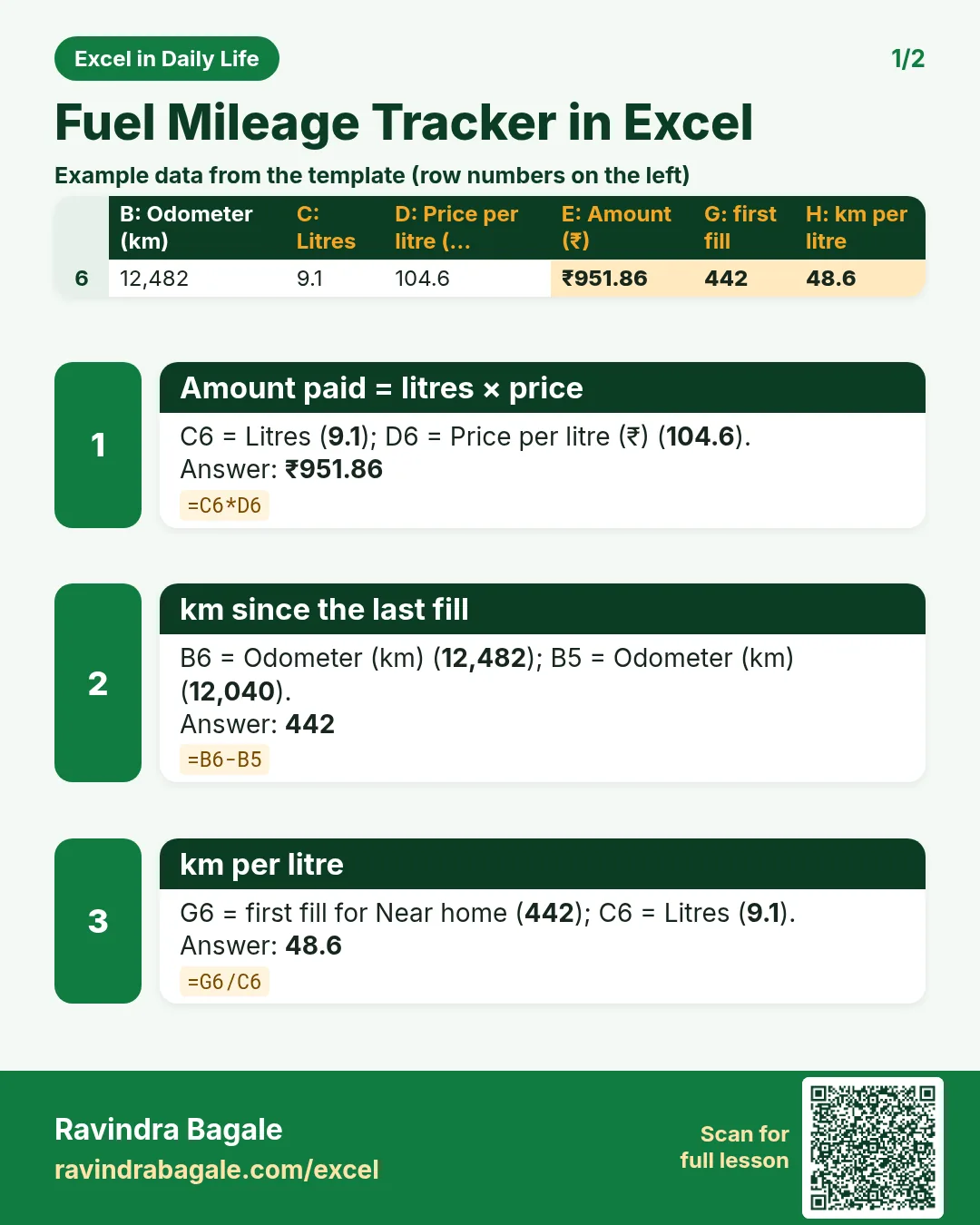

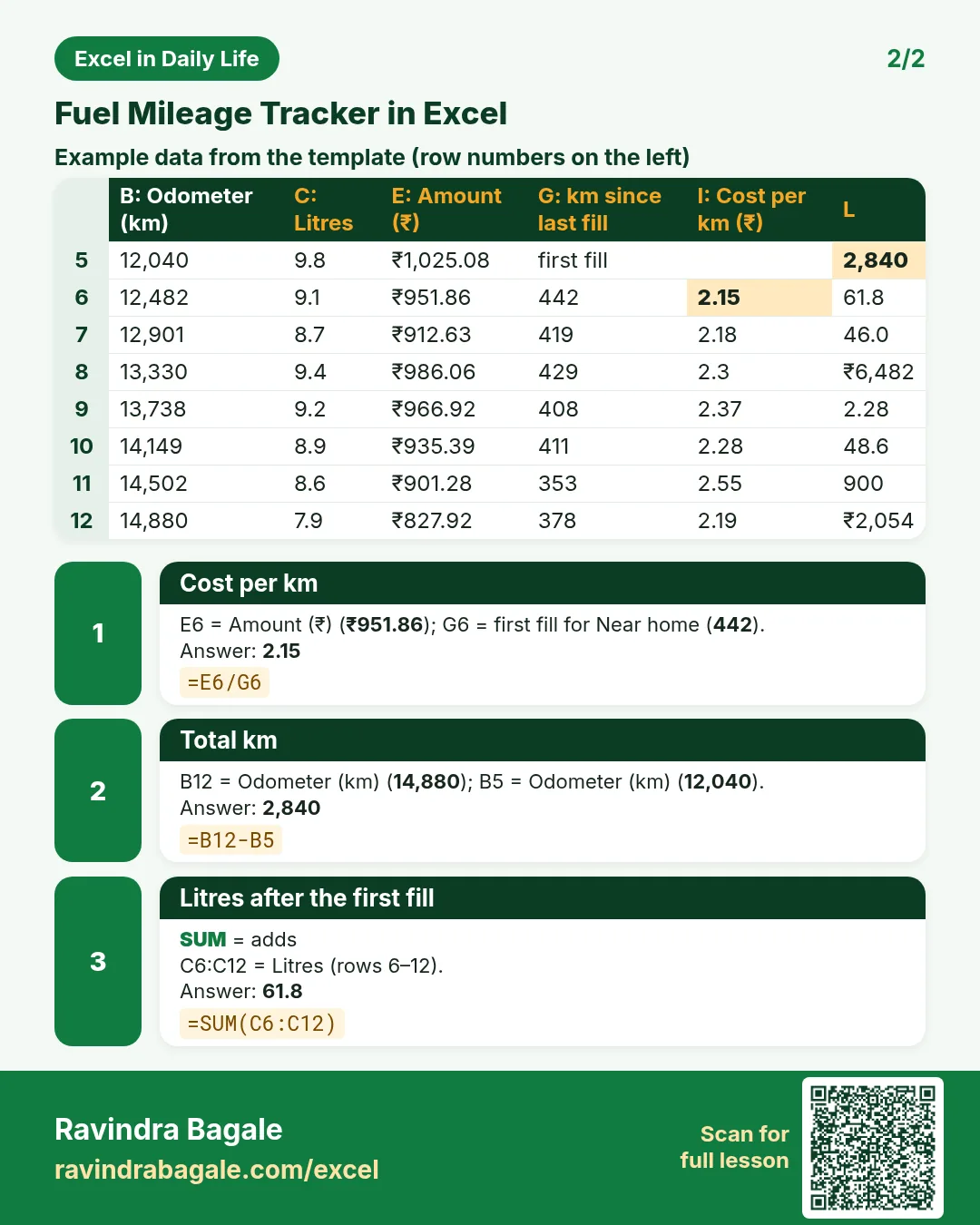

More cards: Ravi Sir's Cards.
6. Frequently asked questions
How do I calculate mileage in Excel?
Fill the tank full, note the odometer, and use km per litre = (this odometer − last odometer) ÷ litres filled now.
How do I calculate cost per km?
Amount paid ÷ km since the last fill. For the overall figure use total fuel cost ÷ total km.
Why is my average different from AVERAGE of the mileage column?
AVERAGE treats short and long fills the same. Total km ÷ total litres weights each fill by its fuel.
Can I use it for a car?
Yes. Nothing in the formulas is bike-specific.
How do I spot a drop in mileage?
The red rule marks any fill more than 5% below your average, and the line chart shows the dip.
7. Quick quiz
Ten questions on this page. Sign in to save your score.
Loading practice tasks...
- Total billable hours (Easy): Add up Billable hours in D2:D11.
- Average rate per hour (Easy): Average of E2:E11, rounded to 2 decimals.
- Rows in Cloud (Easy): How many rows have Practice "Cloud"?
- Largest billable hours (Easy): The largest value in D2:D11.
- Billable hours for Cloud (Medium): Total of D2:D11 where B is "Cloud".
- Cloud in Seattle (Medium): Total of D2:D11 where B is "Cloud" and C is "Seattle".
- Best in Cloud (Medium): Largest E2:E11 value where B is "Cloud".
- Value of row 2 (Medium): D2 times E2.
- Look up Rohan Iyer (Medium): The Billable hours for "Rohan Iyer" (use a lookup on column A).
- Total value (Hard): Sum of D times E for all rows.
- Share of Cloud (Hard): Share of D2:D11 that is "Cloud", rounded to 3 decimals.
- Rank of row 2 (Hard): Rank of D2 among D2:D11 (largest = 1).
- Above average? (Hard): "Above" if E2 is above the average of E2:E11, else "Below".