How to Create an Employee Attendance Sheet in Excel with Tick and Cross Icons (Present Days with COUNTIF)
Every shop, office and warehouse keeps attendance, and at the end of the month somebody has to turn it into salary. In this chapter you build the attendance half: one row per person, one column per day of August 2026, a 1 or a 0 in every cell, shown as a green tick or a red cross, and totals that count present, absent and paid days by themselves. The salary chapter then uses these paid days to work out the month's pay.
What you'll learn in this chapter
- A date row from 1 to 31 August with AutoFill
- Rotating headers and fixing ######## in narrow columns
- P/A or 1/0, and why 1/0 is easier to count
- An icon set that shows a tick for 1 and a cross for 0
- Sundays as week-off (WO)
- Present, absent, week-off and paid days with COUNTIF
- Why COUNTA does not work here, and a check column
Practice file: excel-attendance-sheet-practice.xlsx: the finished August 2026 sheet with the icon set, the totals in AH to AM and a small summary below the table.
Made-up data: a made-up team of ten at a quick-commerce dark store (think Blinkit or Amazon Now) in Pune. Every name and every attendance entry is made up.
1. The layout
- A1: a title, Attendance: August 2026.
- Row 2: headers. A2 Emp_ID, B2 Name, then the dates in C2:AG2 (31 columns, one per day).
- Rows 3 to 12: one person per row, E101 to E110.
- After the dates: AH Present, AI Absent, AJ Week-off, AK Paid days, AL Check (31), AM Attendance %.
Classroom line
What does an attendance system actually mean?
Class मधलं वाक्य
Attendance system म्हणजे नक्की काय?
Classroom line – हिंदी
"Attendance system matlab kya hai?"
2. The date row
- In C2 type 01-08-2026 (or 1 Aug 2026 in whatever date format your Excel uses; see the date formats chapter).
- Drag the fill handle of C2 to the right until AG2. Excel fills one day per column, up to 31-08-2026.
- If a column shows ########, the date does not fit. The value is fine; the column is too narrow.
To make 31 columns fit on one screen:
- Select C2:AG2.
- Home > Alignment > Orientation > Angle Counterclockwise. The dates now stand at an angle.
- Select columns C:AG and double-click any boundary between two column letters. Excel narrows them to fit.
Do the same for the AH:AM headers, so "Present" and "Paid days" do not make the columns wide. You can also format the dates as DD-MMM (01-Aug) with Ctrl+1 > Number > Custom.
Figure 1. The attendance layout: Emp_ID and Name in A and B, one column per day from C (1 Aug) to AG (31 Aug), then Present, Absent, Week-off, Paid days, Check and Attendance %.
3. P and A, or 1 and 0?
The simplest sheet has P for present and A for absent, counted with =COUNTIF(C3:AG3,"P"). That works.
This sheet uses 1 for present and 0 for absent instead, for two reasons:
- Numbers can be added:
=SUM(C3:AG3)is also the present days. - An icon set can turn 1 and 0 into a tick and a cross, so the sheet is still easy to read.
To fill many cells with 1 at once, select them, type 1 and press Ctrl+Enter: every selected cell gets 1. If a drag ever turns into 1, 2, 3, 4, click the Auto Fill Options button that appears and choose Copy Cells.
Classroom line
Writing P and A is very simple... let's do it in a slightly more modern way.
Class मधलं वाक्य
"P, A lihina khup simple ahe... thodasa aapan modern type madhe karu ya."
P, A लिहिणं खूप simple आहे... थोडंसं आपण modern type मध्ये करूया.
Classroom line
Writing P and A is very simple... let's do it in a slightly more modern way.
4. Sundays are week-off
In August 2026 the Sundays are the 2nd, 9th, 16th, 23rd and 30th. A Sunday is not an absence, so do not type 0 there. Type WO (week-off) in those five columns. That leaves 26 working days.
Why it matters: if Sundays were 0, everyone would show 5 extra absent days, the Attendance % would be wrong, and in the salary chapter people would lose pay for days nobody was meant to work.
5. Ticks and crosses with an icon set
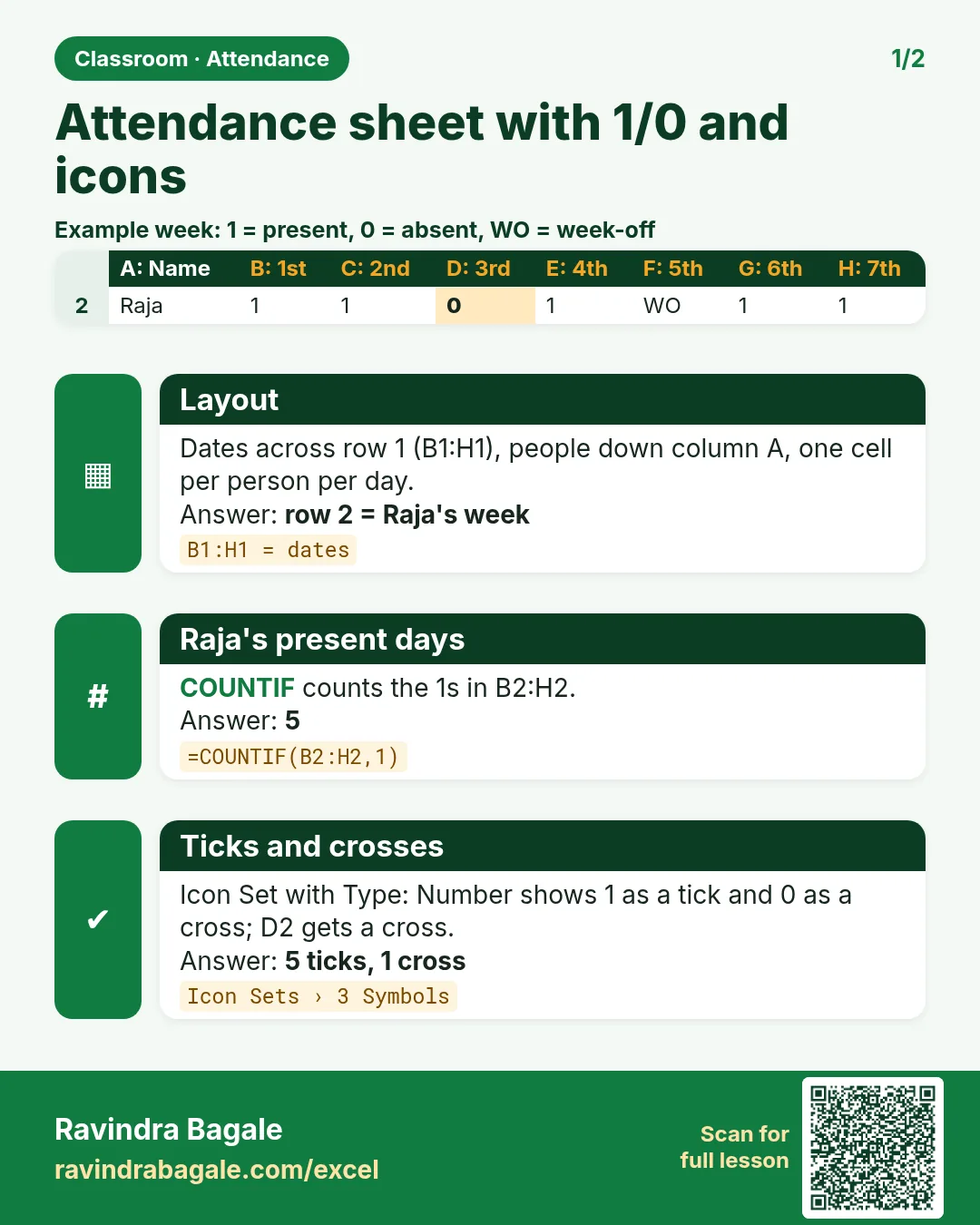
- Select the attendance grid, C3:AG12.
- Home > Conditional Formatting > New Rule.
- Keep Format all cells based on their values.
- Format Style: Icon Sets. In Icon Style choose the set with a tick, an exclamation mark and a cross (3 Symbols, uncircled).
- Set the rules for each icon:
- Green tick: when value is >= 1, Type Number.
- Yellow exclamation: when value is >= 0.5, Type Number.
- Red cross: everything else (below 0.5).
- Tick Show Icon Only, so the 1 and 0 are hidden and only the icon shows.
- Click OK.
Type 1 and a green tick appears; type 0 and a red cross appears. The exclamation is never used, because the cells only hold 1 or 0. WO is text, so it gets no icon and stays readable.
Set Type to Number for every icon. If you leave it on Percent, Excel splits the range as in the icon set section of the Conditional Formatting chapter, and the icons will not follow your 1s and 0s.
Figure 2. The icon set rule: green tick when the value is at least 1, red cross below 0.5, Type Number, Show Icon Only. 1 shows a tick, 0 a cross, WO no icon.
6. Present, absent and paid days
In row 3, then dragged down to row 12:
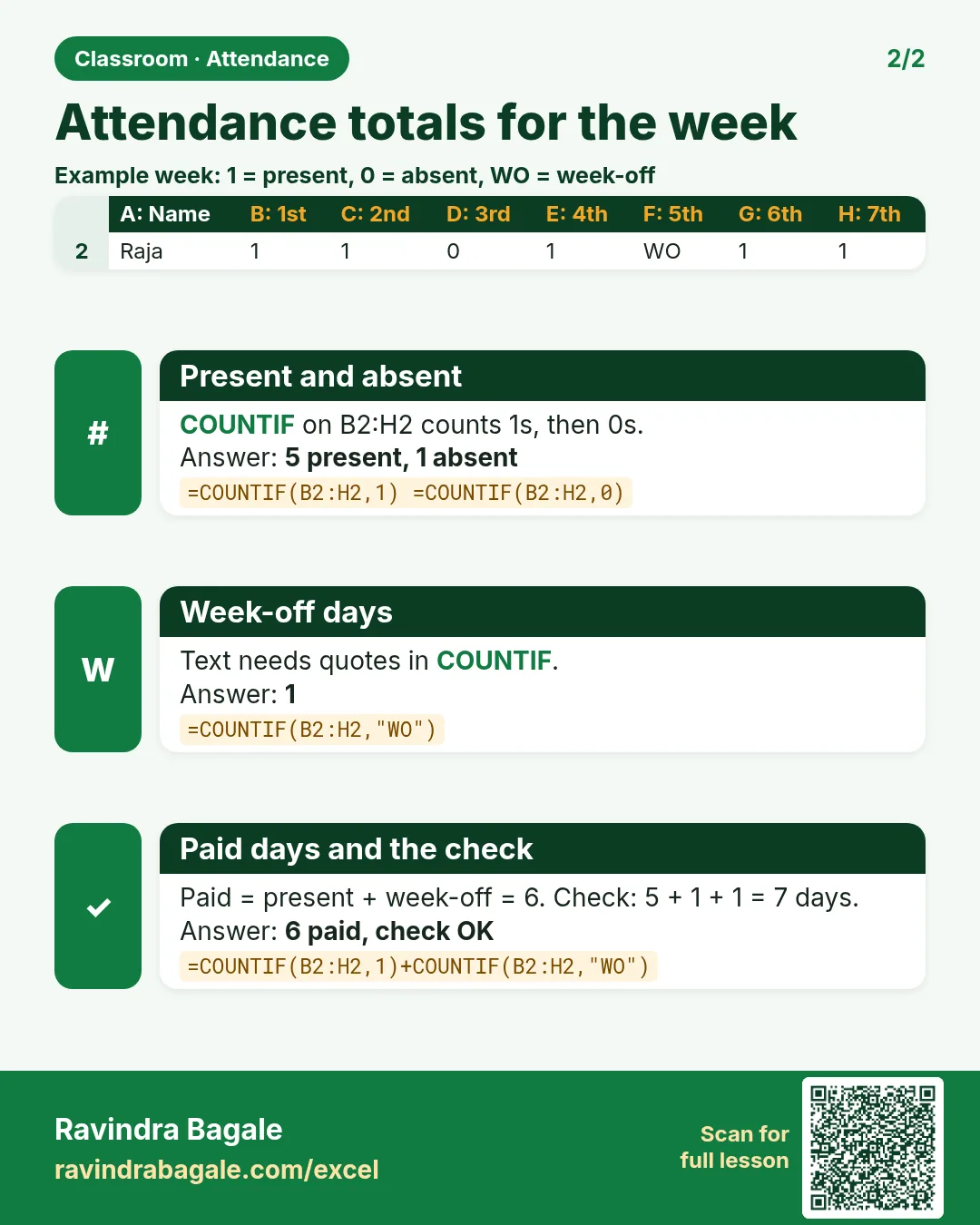
- Present, AH3:
=COUNTIF(C3:AG3,1) - Absent, AI3:
=COUNTIF(C3:AG3,0) - Week-off, AJ3:
=COUNTIF(C3:AG3,"WO") - Paid days, AK3:
=AH3+AJ3. Week-offs are paid, absent days are not. - Check (31), AL3:
=AH3+AI3+AJ3. Must be 31 in every row. If not, a cell is empty or has a typo such as "W0" with a zero. - Attendance %, AM3:
=AH3/(AH3+AI3)*100, present days out of working days.
| Name | Present | Absent | Week-off | Paid days | Attendance % |
|---|---|---|---|---|---|
| Ravindra Bagale | 26 | 0 | 5 | 31 | 100.00 |
| Shraddha Bagale | 25 | 1 | 5 | 30 | 96.15 |
| Ruhi Bagale | 24 | 2 | 5 | 29 | 92.31 |
| Shahrukh | 23 | 3 | 5 | 28 | 88.46 |
| Amir | 25 | 1 | 5 | 30 | 96.15 |
| Salman | 22 | 4 | 5 | 27 | 84.62 |
| Zoya | 26 | 0 | 5 | 31 | 100.00 |
| Ravina | 24 | 2 | 5 | 29 | 92.31 |
| Raja | 21 | 5 | 5 | 26 | 80.77 |
| Rani | 25 | 1 | 5 | 30 | 96.15 |
The team was present on 241 days in total; =SUM(C3:AG12) gives the same 241, because each present day is a 1. Raja has the most absent days (5), and 2 people have full attendance.
Why not COUNTA? COUNTA counts every filled cell, and a 0 or a WO is a filled cell. =COUNTA(C3:AG3) returns 31 for every person, whatever their attendance.
Why not COUNTIF(...,">=1")? It works while every cell holds 1 or 0, but it also counts a 2 or a 3 that crept in from a wrong drag. COUNTIF(C3:AG3,1) together with the check column catches such cells instead of hiding them. (When a criterion has an operator such as >=, it must be in quotes: ">=1".)
Classroom line
The COUNTA function won't work, because we have written 1 and 0. We'll have to use COUNTIF.
Class मधलं वाक्य
"Count A function vaprun chalnar nahi karan aapan 1 ani 0 lihin laglo. Count if vaprava lagel."
COUNTA function वापरून चालणार नाही कारण आपण 1 आणि 0 लिहिले आहेत. COUNTIF वापरावं लागेल.
Classroom line
The COUNTA function won't work, because we have written 1 and 0. We'll have to use COUNTIF.
Figure 3. Raja's row: 21 ones, 5 zeros and 5 WO. COUNTIF(...,1) = 21 present, COUNTIF(...,0) = 5 absent, paid days = 21 + 5 = 26. COUNTA would say 31.
7. When the icons spill into the totals
If you select too much (for example C3:AM12) before adding the icon set, the totals in AH to AM also get icons, and a total of 26 shows only a tick. To fix it:
- Select the total columns AH3:AM12.
- Home > Conditional Formatting > Clear Rules > Clear Rules from Selected Cells.
Or open Manage Rules, select the icon set rule and change Applies to to =$C$3:$AG$12.
Ravindra Bagale's Tip
Keep a check column on every attendance or salary sheet, like Check (31) here. It costs one formula per row and catches the empty cell, the letter O typed instead of a zero, and the 2 from a wrong drag, before they reach anybody's pay.
Ravindra Bagale's Tip – मराठी
प्रत्येक attendance किंवा salary sheet वर इथल्या Check (31) सारखा एक check column ठेवा. त्याला प्रत्येक row ला एकच formula लागतो, आणि रिकामा cell, zero ऐवजी type केलेलं O अक्षर, किंवा चुकीच्या drag मधून आलेला 2, हे कोणाच्याही पगारापर्यंत पोहोचण्याआधीच पकडले जातात.
Ravindra Bagale's Tip – हिंदी
हर attendance या salary sheet पर यहाँ के Check (31) जैसा एक check column रखो. उसमें हर row पर एक ही formula लगता है, और खाली cell, zero की जगह type किया O अक्षर, या गलत drag से आया 2, ये किसी की salary तक पहुँचने से पहले ही पकड़े जाते हैं.
8. The whole chapter on one page
| Column | Formula (row 3) | Raja's row |
|---|---|---|
| Present | =COUNTIF(C3:AG3,1) |
21 |
| Absent | =COUNTIF(C3:AG3,0) |
5 |
| Week-off | =COUNTIF(C3:AG3,"WO") |
5 |
| Paid days | =AH3+AJ3 |
26 |
| Check | =AH3+AI3+AJ3 |
31 |
| Attendance % | =AH3/(AH3+AI3)*100 |
80.77 |
- One column per day, dates rotated so they fit.
- 1 and 0 can be counted and added; an icon set makes them readable.
- Icon set Type must be Number: tick from 1, cross below 0.5.
- Sundays are WO, not 0.
- COUNTIF counts present and absent; COUNTA counts everything.
9. Try at home
Try at home
Task 1
- Mark Zoya absent on 10 August (type 0 in that column). What are her present days and Attendance % now? (25 and 96.15.)
Task 2
- Below the table, count how many people have Attendance % below 90 with COUNTIF. (3: Shahrukh 88.46, Salman 84.62 and Raja 80.77.)
Task 3
- Add a 0.5 for a half day and check which icon it gets. (The yellow exclamation mark. The Check column then shows 30, because 0.5 is neither 1, 0 nor WO: a sign that half days need their own rule.)
Recap
In short
- Dates across, people down, one cell per person per day.
- 1 = present, 0 = absent, WO = Sunday.
- An icon set with Type Number shows ticks and crosses.
- COUNTIF(range,1) and COUNTIF(range,0) count the days.
- Paid days = present + week-off; a check column must give 31.
Quick revision cards
Quick revision
Revise this chapter in two minutes. Save the cards on your phone or download them as PNG files. All names and numbers are made up for practice.
झटपट उजळणी
हा chapter दोन मिनिटांत revise करा. Cards phone वर save करा किंवा PNG म्हणून download करा. सगळी नावं आणि आकडे सरावासाठी काल्पनिक आहेत.
झटपट दोहराई
यह chapter दो मिनट में revise करें. Cards phone पर save करें या PNG के रूप में download करें. सभी नाम और आंकड़े अभ्यास के लिए काल्पनिक हैं.


More cards for every chapter: Ravi Sir's Cards.