Flatmate Expense Split in Excel: Share Rent by Room Size and Bills by Days Stayed
Salman, Shahrukh and Amir share a flat in Pune. Salman has the biggest room, and Amir was away for 12 days in October. Splitting every bill three ways is not fair, but working out fair shares on a calculator every month leads to arguments. In this sheet each bill has a "Split by" choice, and one formula does the fair split for every bill.
What you'll learn on this page
- Room sizes and days stayed for each flatmate
- A Split by drop-down: Room size, Days stayed or Equal
- One nested IF formula that splits any bill
- Who paid what with SUMIF
- Balance: who gets money back and who pays
- Checks that shares and balances add up
Download the template: flatmate-expense-split-template.xlsx: example data with real formulas. Yellow cells are inputs you can type over; green cells hold formulas; blue rows are headers and totals. Replace the example data with your own and everything recalculates.
Made-up data: every name, amount, shop and date on this page is made up for practice. Cities are used only to make the examples feel real.
1. The example
October bills (made-up values). Rooms: Salman 140 sq ft, Shahrukh 120, Amir 100. Days stayed: 30, 30, 18.
| Bill | Amount | Split by | Paid by | Salman | Shahrukh | Amir |
|---|---|---|---|---|---|---|
| Rent | ₹27,000 | Room size | Salman | ₹10,500 | ₹9,000 | ₹7,500 |
| Electricity | ₹3,240 | Days stayed | Shahrukh | ₹1,246.15 | ₹1,246.15 | ₹747.69 |
| Wi-Fi | ₹900 | Equal | Amir | ₹300 | ₹300 | ₹300 |
| Groceries | ₹6,300 | Days stayed | Amir | ₹2,423.08 | ₹2,423.08 | ₹1,453.85 |
| Cook and cleaning | ₹3,000 | Equal | Shahrukh | ₹1,000 | ₹1,000 | ₹1,000 |
| Share | ₹40,440 | ₹15,469.23 | ₹13,969.23 | ₹11,001.54 | ||
| Paid | ₹27,000 | ₹6,240 | ₹7,200 | |||
| Balance | +₹11,530.77 | −₹7,729.23 | −₹3,801.54 |
Salman paid the rent, so he gets ₹11,530.77 back: Shahrukh pays him ₹7,729.23 and Amir ₹3,801.54.
Figure 1. Each bill has a Split by rule; one nested IF divides it by room size, days stayed or equally; SUMIF adds what each flatmate paid; balance = paid − share.
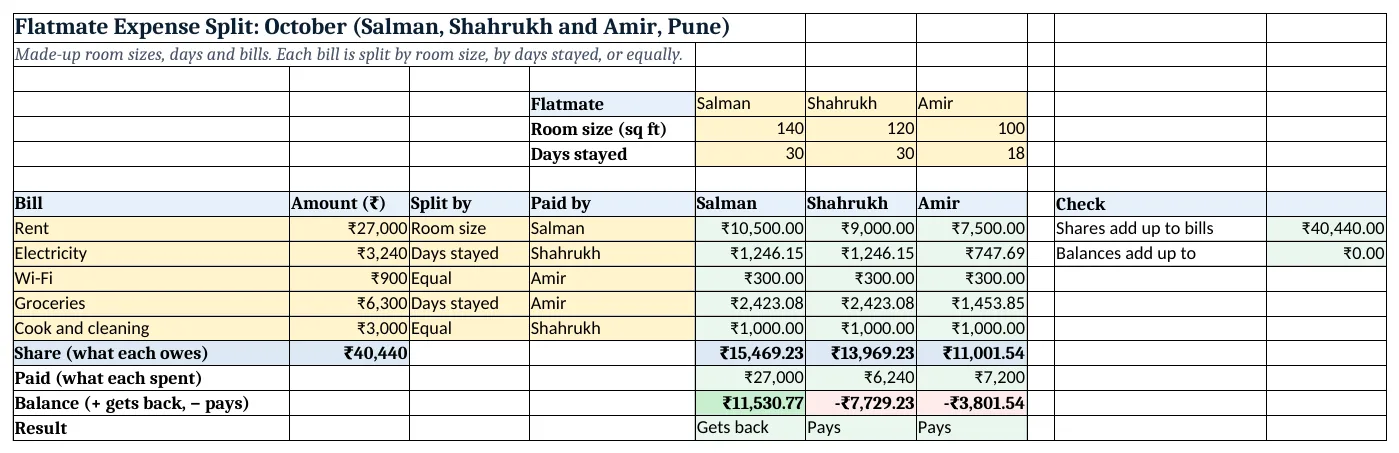
Figure 2. The template sheet, recalculated with its example data. Download it above and replace the yellow cells with your own numbers.
2. Build it step by step
Step 1. Flatmates
- In E4:G4 type the names, in E5:G5 the room sizes and in E6:G6 the days stayed this month (yellow).
Step 2. Bills
- In A8:G8 type Bill, Amount, Split by, Paid by and the three names.
- Select C9:C30 > Data Validation > List:
Room size,Days stayed,Equal. For D9:D30 use the source=$E$4:$G$4so the names come from the sheet (drop-down lists).
Step 3. One formula for every share
- In E9 type
=IF($C9="Room size",$B9*E$5/SUM($E$5:$G$5),IF($C9="Days stayed",$B9*E$6/SUM($E$6:$G$6),$B9/COUNTA($E$4:$G$4))). - Copy it across to G9 and down to row 13. $C9 and $B9 keep the column fixed; E$5 and E$6 keep the row fixed (mixed references, nested IF).
- Rent: ₹27,000 × 140 ÷ 360 = ₹10,500 for Salman.
Step 4. Share, paid, balance
- In E14 type
=SUM(E9:E13)for Salman's share. - In E15 type
=SUMIF($D$9:$D$13,E$4,$B$9:$B$13): what Salman paid (SUMIF). - In E16 type
=E15-E14and in E17=IF(E16>0.5,"Gets back",IF(E16<-0.5,"Pays","Settled")). Copy E14:E17 to G.
Step 5. Checks
- In J9 type
=SUM(E14:G14): it must equal the total bills (₹40,440). - In J10 type
=ROUND(SUM(E16:G16),2): it must be 0.
Step 6. Colours
- Select E16:G16 > Highlight Cells Rules > Greater Than 0.5 green and Less Than −0.5 red (highlight rules).
Ravindra Bagale's Tip
Agree on the split rule for each bill before the month starts, not after the bills arrive.
Ravindra Bagale's Tip – मराठी
प्रत्येक bill चा split चा नियम महिना सुरू व्हायच्या आधीच ठरवा, bills आल्यावर नाही.
Ravindra Bagale's Tip – हिंदी
हर bill का split का नियम महीना शुरू होने से पहले तय करो, bills आने के बाद नहीं.
3. Formulas used
| Cell | Formula | What it does |
|---|---|---|
| E9 | =IF($C9="Room size",$B9*E$5/SUM($E$5:$G$5),IF($C9="Days stayed",$B9*E$6/SUM($E$6:$G$6),$B9/COUNTA($E$4:$G$4))) |
Rent share (Room size) |
| E10 | =IF($C10="Room size",$B10*E$5/SUM($E$5:$G$5),IF($C10="Days stayed",$B10*E$6/SUM($E$6:$G$6),$B10/COUNTA($E$4:$G$4))) |
Electricity share (Days stayed) |
| E11 | =IF($C11="Room size",$B11*E$5/SUM($E$5:$G$5),IF($C11="Days stayed",$B11*E$6/SUM($E$6:$G$6),$B11/COUNTA($E$4:$G$4))) |
Wi-Fi share (Equal) |
| E14 | =SUM(E9:E13) |
Total share |
| E15 | =SUMIF($D$9:$D$13,E$4,$B$9:$B$13) |
Paid |
| E16 | =E15-E14 |
Balance |
| E17 | =IF(E16>0.5,"Gets back",IF(E16<-0.5,"Pays","Settled")) |
Result |
| J9 | =SUM(E14:G14) |
Shares add up to bills |
| J10 | =ROUND(SUM(E16:G16),2) |
Balances add up to |
Every formula above is written in the template, so you can click a cell and see it in the formula bar. All values on this page were recalculated in the file.
4. Common mistakes
- Missing dollar signs in the share formula. Copy across without $C9 and the formula looks at column D instead of the Split by column.
- Splitting everything equally. A bigger room or more days at home means more use. Choose the fair rule per bill and agree on it once.
- Typing names differently in Paid by. "Salman" and "salman " do not match in SUMIF. The drop-down from E4:G4 prevents this.
- Ignoring the check cells. If J9 does not equal the total, a bill row is missing from the share formula.
- Rounding each share by hand. Leave the paise in the sheet; round only when you transfer the money.
Ravindra Bagale's Tip
Settle once a month using the Balance row. Many small transfers are easy to forget.
Ravindra Bagale's Tip – मराठी
महिन्यातून एकदा Balance row बघून हिशोब पूर्ण करा. छोटे छोटे transfers विसरायला होतात.
Ravindra Bagale's Tip – हिंदी
महीने में एक बार Balance row देखकर हिसाब पूरा करो. छोटे-छोटे transfers भूल जाते हैं.
5. More real examples
Example 1: Two flatmates and a guest. A guest staying 5 days can be added as a fourth column with 5 days stayed and 0 room size.
Example 2: Hostel room with a shared kitchen. Kitchen gas and groceries by days stayed, room rent equal.
Example 3: Office tea and snacks pool. Split by days in office each month, with each person's purchases in Paid by.
Quick revision cards
Quick revision
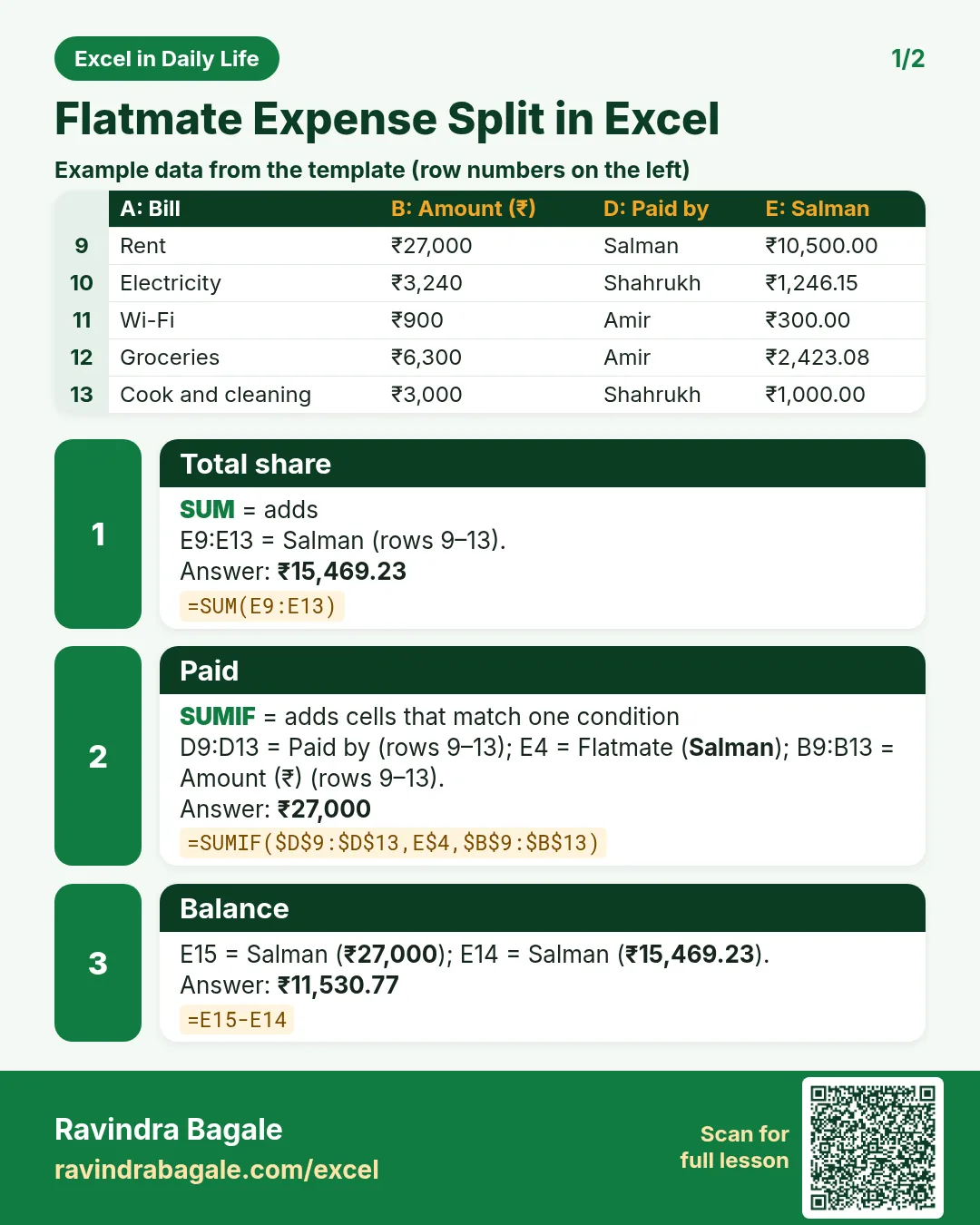
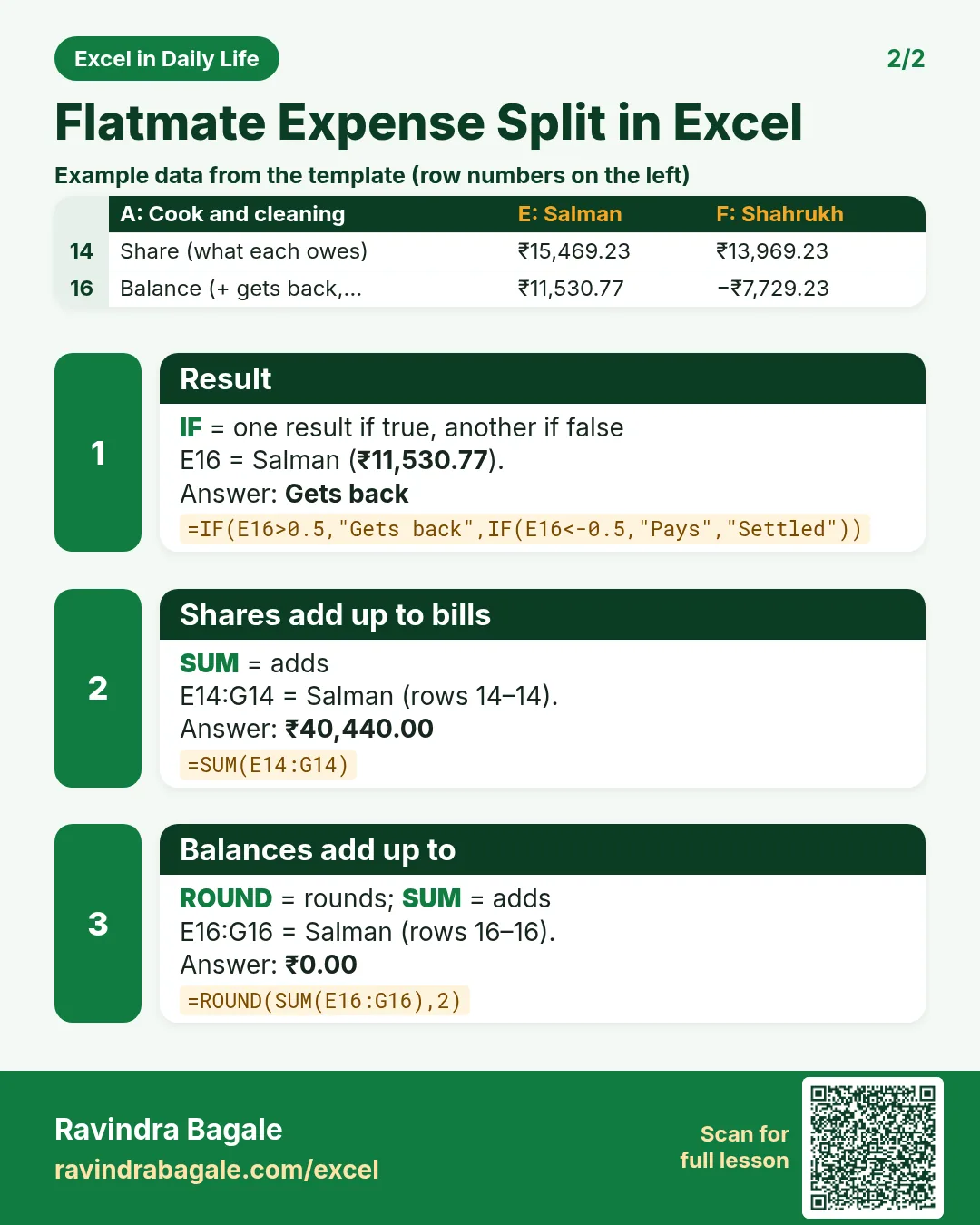
Each card shows formulas from this page, each with an example and its answer from the template. Scan the QR code on a card to open this lesson. All names and numbers are made up for practice.
झटपट उजळणी
प्रत्येक card वर या page मधले formulas, त्यांचं example आणि template मधलं उत्तर आहे. Card वरचा QR code scan केला की हा lesson उघडतो. सगळी नावं आणि आकडे सरावासाठी काल्पनिक आहेत.
झटपट दोहराई
हर card पर इस page के formulas, उनका example और template का उत्तर है. Card का QR code scan करें तो यह lesson खुलेगा. सभी नाम और आंकड़े अभ्यास के लिए काल्पनिक हैं.


More cards: Ravi Sir's Cards.
6. Frequently asked questions
How do I split rent by room size in Excel?
Each share = rent × that room's size ÷ total size: =$B9*E$5/SUM($E$5:$G$5).
How do I split bills by days stayed?
Each share = bill × days stayed ÷ total days of all flatmates.
Can one formula handle different split rules?
Yes. A nested IF checks the Split by column and uses room size, days or an equal split.
How do I know who owes whom?
Balance = paid − share. Positive gets money back, negative pays. Balances always add up to zero.
What if someone moves out mid-month?
Type their actual days stayed. Bills split by days follow automatically.
7. Quick quiz
Ten questions on this page. Sign in to save your score.
Loading practice tasks...
- Clean name (Easy): Trim A2. (sheet "Text")
- Proper case (Easy): A2 trimmed and in proper case. (sheet "Text")
- Code prefix (Easy): First 3 characters of B2. (sheet "Text")
- Code number (Easy): Last 4 characters of B3. (sheet "Text")
- Days taken (Easy): C2 minus B2. (sheet "Dates")
- Start year (Easy): Year of B3. (sheet "Dates")
- Due month (Easy): Month number of C3. (sheet "Dates")
- Earliest start (Easy): Earliest date in B2:B9 (as a date number). (sheet "Dates")
- City part (Medium): Characters 5 to 7 of B4. (sheet "Text")
- Name length (Medium): Length of A3. (sheet "Text")
- Working days (Medium): Working days from B2 to C2. (sheet "Dates")
- Weekday of due (Medium): Weekday number of C4 (Sunday = 1). (sheet "Dates")