2.4 Drop-down Lists
In short: A drop-down list is data validation with Allow: List.
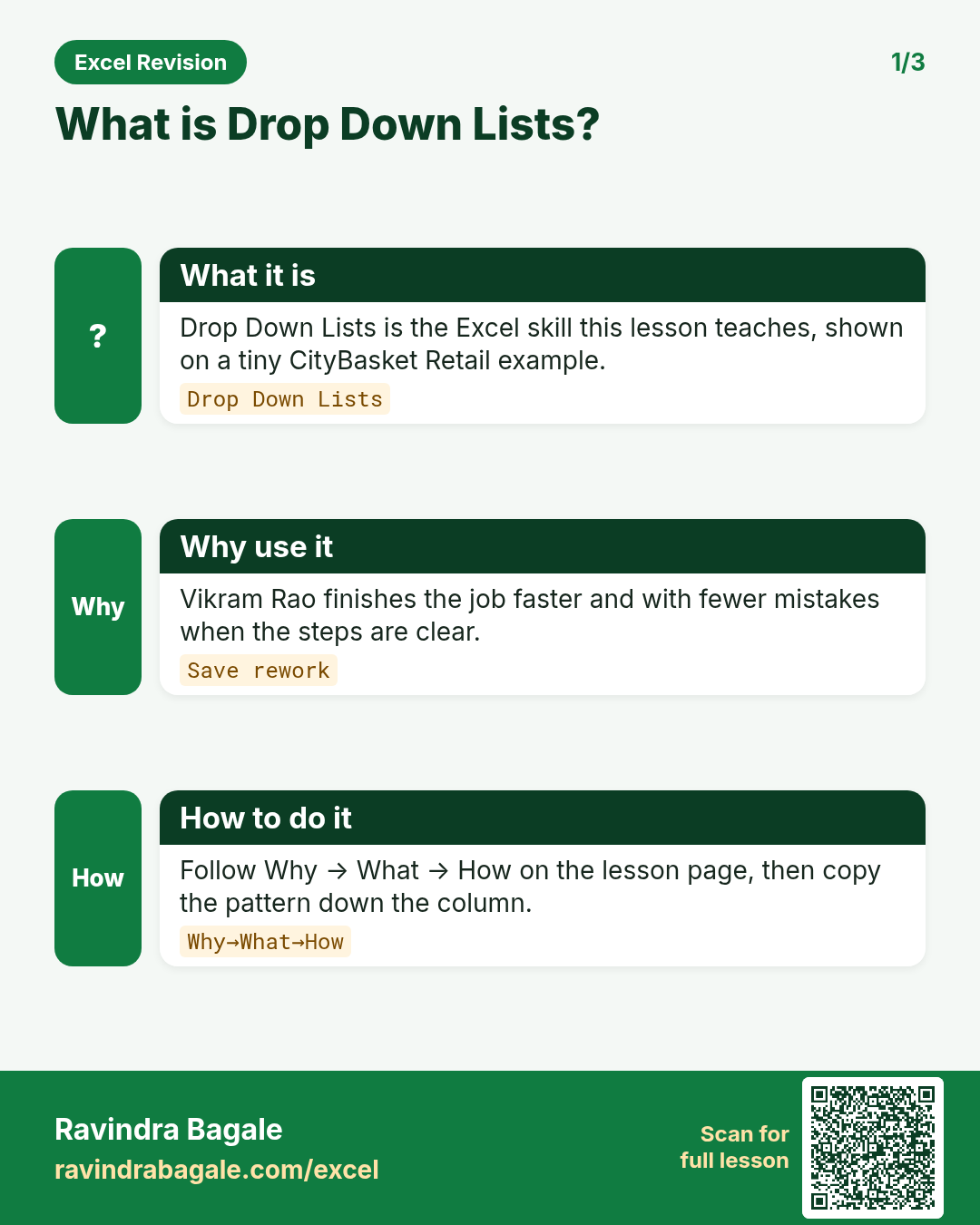
A drop-down list is data validation with Allow: List. It gives clean, consistent values (no "pune", "Pune ", "PUNE").
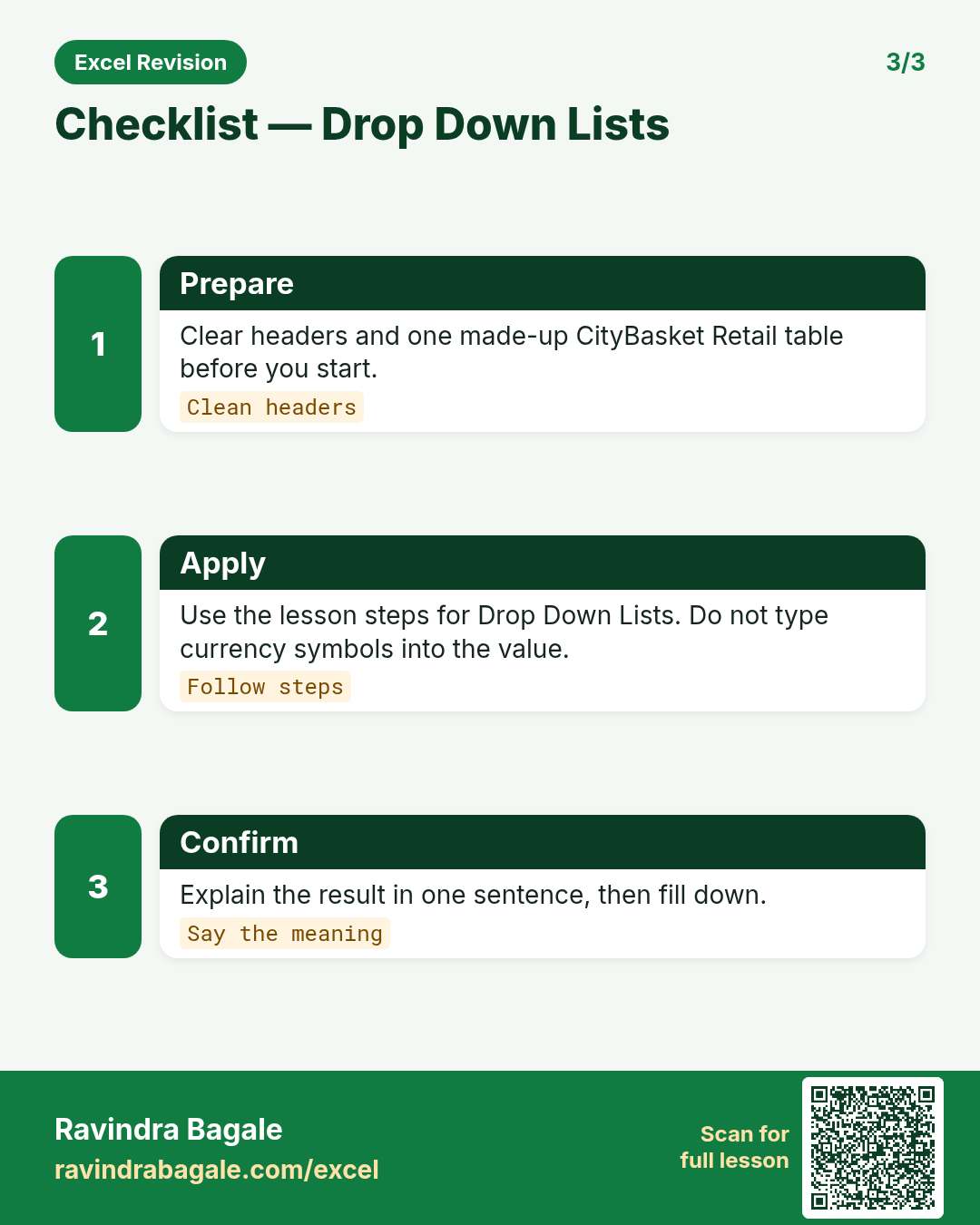
Steps in Excel
- Put the list items on a sheet named
Lists, e.g. cities in A2:A7. - Convert them to a Table (Ctrl + T), name the Table
tblCity(Table Design › Properties › Table Name), then create a name: Formulas › Defined Names › Define Name › NameCityList› Refers to=tblCity[City]. A name that points to a Table column grows automatically when you add items. - Select the City column in
Orders› Data › Data Tools › Data Validation › Allow: List › Source:=CityList› keep In-cell dropdown ticked › OK. - For a short fixed list type items directly:
Delivered,Cancelled,Returned. - In Microsoft 365, a spill range can feed the list: Source
=$H$2#(see Module 9).
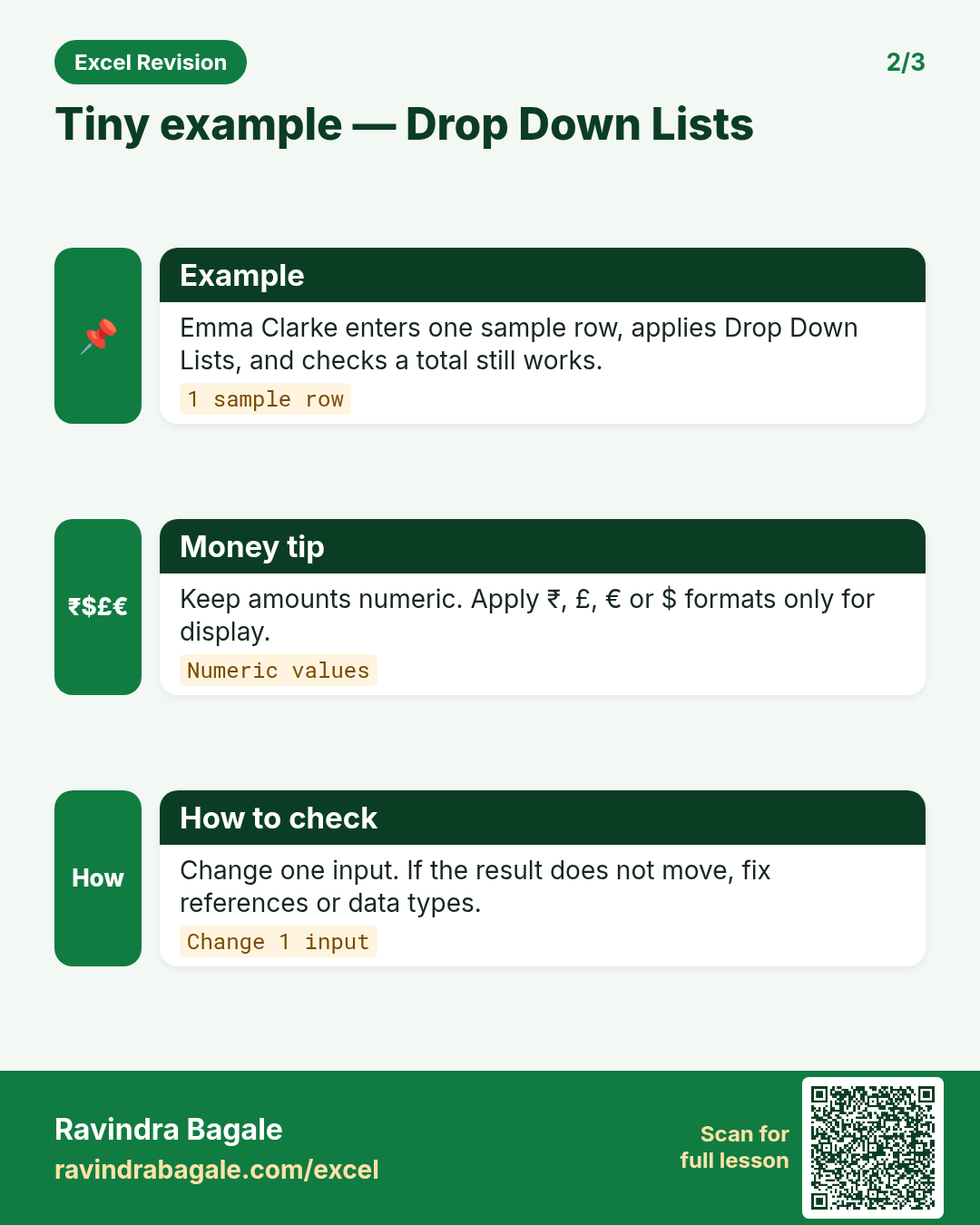
Worked example. Payment Mode drop-down with source UPI,Card,Cash on Delivery,Wallet. Now Zoya cannot type "upi" or "U.P.I" – every row matches exactly, and a PivotTable later shows four clean payment modes.
Ravindra Bagale's Tip
Many students type the list items directly in the source box, and when a new city comes they have to change the validation on every sheet. Keep the list in a Table on a separate sheet and refer to a named range or the Table column – update it once and everything updates. And careful: if a space is left by mistake in the source, that item gets the space too.
Ravindra Bagale's Tip – मराठी
बरेच students list चे items थेट source मध्ये type करतात आणि नवीन city आली की प्रत्येक sheet वर validation बदलावं लागतं. List वेगळ्या sheet वर Table मध्ये ठेवा आणि named range किंवा Table column ला refer करा – एकदा update केलं की सगळं update होतं. आणि लक्ष द्या: source मध्ये चुकून space राहिली तर त्या item मध्येही space येते.
Ravindra Bagale's Tip – हिंदी
बहुत से students list के items सीधे source में type कर देते हैं, और नई city आने पर हर sheet पर validation बदलना पड़ता है. List को अलग sheet पर Table में रखो और named range या Table column को refer करो – एक बार update किया तो सब update हो जाता है. और ध्यान रखना: source में गलती से space रह गई तो उस item में भी space आ जाती है.
Practice task
Create drop-downs for City, Platform (FreshGo, MarketRush) and Status. Add a new city "Satara" to the list Table and check that the drop-down shows it without editing the validation.
Loading practice tasks...
- Total qty (Easy): Add up Qty in F2:F11. (sheet "Data")
- Average price (Easy): Average of Price (₹) in E2:E11, rounded to 0 decimals. (sheet "Data")
- Grocery count (Easy): How many rows have Category "Grocery"? (sheet "Data")
- Max price (Easy): Largest Price (₹) in E2:E11. (sheet "Data")
- Active count (Easy): How many rows have Status "Active"? (sheet "Data")
- Grocery qty (Medium): Total of Qty where Category is "Grocery". (sheet "Data")
- Beverage prices (Medium): Total of Price (₹) where Category is "Beverage". (sheet "Data")
- Active stationery qty (Medium): Qty where Category is "Stationery" and Status is "Active". (sheet "Data")
- Price of P05 (Medium): Price (₹) for SKU "P05". (sheet "Data")
- Share grocery qty (Hard): Grocery qty / all qty, 3 decimals. (sheet "Data")
- High price count (Hard): How many products have Price (₹) > 100? (sheet "Data")
Quick revision cards
Three standalone cards. Each one explains the idea with its own example. Scan the QR to open this lesson.