2.9 Named Lists for Drop-downs
Example first. Ravina keeps a delivery log where the City column must only take one of five cities. Instead of typing the cities into every Data Validation box, she keeps them on a Lists sheet, gives them a name, CityList, and points the drop-down at that name. When Sambhaji Nagar is added to the list, every drop-down shows it.
Named list for a drop-down — in 30 seconds
What: A named list is a range (or Table column) on a helper sheet that has a name, like CityList. A Data Validation drop-down can use that name as its Source.
Why: One list feeds every drop-down in the workbook. Fix a spelling once and every drop-down is fixed. With a Table behind the name, the list grows by itself.
Tiny example: Source =CityList shows Pune, Nashik, Nagpur, Kolhapur, Solapur. Add Sambhaji Nagar under the Table on the Lists sheet and the drop-down shows six cities.
Named list for a drop-down — 30 सेकंदात
काय: Named list म्हणजे helper sheet वरचा range (किंवा Table column) ज्याला नाव आहे, जसं CityList. Data Validation drop-down Source म्हणून हे नाव वापरू शकतो.
का: एकच list workbook मधल्या सगळ्या drop-downs ला पुरवते. Spelling एकदा सुधारलं की सगळे drop-downs सुधारतात. नावामागे Table असेल तर list आपोआप वाढते.
छोटं उदाहरण: Source =CityList मध्ये Pune, Nashik, Nagpur, Kolhapur, Solapur दिसतात. Lists sheet वरच्या Table खाली Sambhaji Nagar add करा, drop-down मध्ये सहा cities दिसतात.
Named list for a drop-down — 30 सेकंड में
क्या: Named list यानी helper sheet पर रखा range (या Table column) जिसका नाम है, जैसे CityList. Data Validation drop-down Source के रूप में यह नाम इस्तेमाल कर सकता है.
क्यों: एक ही list workbook के सारे drop-downs को चलाती है. Spelling एक बार ठीक करो तो सारे drop-downs ठीक. नाम के पीछे Table हो तो list अपने-आप बढ़ती है.
छोटा उदाहरण: Source =CityList में Pune, Nashik, Nagpur, Kolhapur, Solapur दिखते हैं. Lists sheet की Table के नीचे Sambhaji Nagar जोड़ें, drop-down में छह cities दिखते हैं.
First look at the data (before → after):
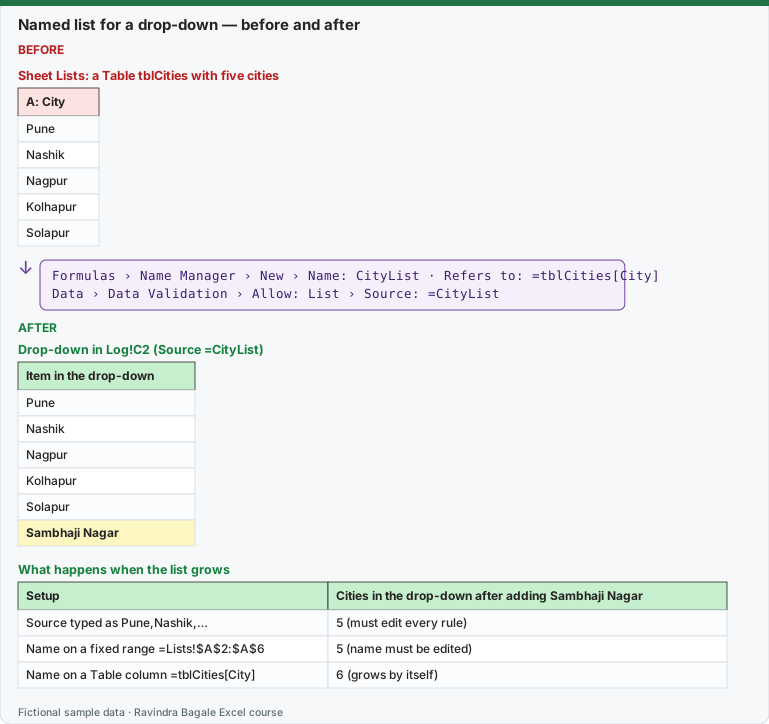
Expected result — Drop-down in Log!C2 (Source =CityList)
| Item in the drop-down |
|---|
| Pune |
| Nashik |
| Nagpur |
| Kolhapur |
| Solapur |
| Sambhaji Nagar |
Expected result — What happens when the list grows
| Setup | Cities in the drop-down after adding Sambhaji Nagar |
|---|---|
| Source typed as Pune,Nashik,… | 5 (must edit every rule) |
| Name on a fixed range =Lists!$A$2:$A$6 | 5 (name must be edited) |
| Name on a Table column =tblCities[City] | 6 (grows by itself) |
Before table and formula as text
Before — Sheet Lists: a Table tblCities with five cities
| A: City |
|---|
| Pune |
| Nashik |
| Nagpur |
| Kolhapur |
| Solapur |
Formula / click path
Formulas › Name Manager › New › Name: CityList · Refers to: =tblCities[City]
Data › Data Validation › Allow: List › Source: =CityList
Do it step by step:
- On a sheet named
Lists, typeCityin A1 and the five cities in A2:A6. - Click inside the list, press Ctrl + T and name the Table
tblCities. - Click Formulas › Name Manager › New. Type
CityListin Name and=tblCities[City]in Refers to. Click OK, then Close. - Go to the Log sheet and select C2:C100.
- Click Data › Data Validation, choose Allow: List and type
=CityListin Source. Click OK. - Type Sambhaji Nagar in Lists!A7 and open the drop-down in C2 again. It shows six cities.
स्टेप बाय स्टेप करून बघा:
Listsनावाच्या sheet वर A1 मध्येCityआणि A2:A6 मध्ये पाच cities type करा.- List मध्ये click करा, Ctrl + T दाबा आणि Table ला
tblCitiesनाव द्या. - Formulas › Name Manager › New वर click करा. Name मध्ये
CityListआणि Refers to मध्ये=tblCities[City]type करा. OK, मग Close करा. - Log sheet वर जा आणि C2:C100 select करा.
- Data › Data Validation वर click करा, Allow: List निवडा आणि Source मध्ये
=CityListtype करा. OK करा. - Lists!A7 मध्ये Sambhaji Nagar type करा आणि C2 चा drop-down परत उघडा. सहा cities दिसतात.
स्टेप बाय स्टेप करके देखें:
Listsनाम की sheet पर A1 मेंCityऔर A2:A6 में पाँच cities type करें.- List में click करें, Ctrl + T दबाएँ और Table को
tblCitiesनाम दें. - Formulas › Name Manager › New पर click करें. Name में
CityListऔर Refers to में=tblCities[City]type करें. OK, फिर Close करें. - Log sheet पर जाएँ और C2:C100 select करें.
- Data › Data Validation पर click करें, Allow: List चुनें और Source में
=CityListtype करें. OK करें. - Lists!A7 में Sambhaji Nagar type करें और C2 का drop-down फिर खोलें. छह cities दिखते हैं.
Why not type =tblCities[City] straight into Data Validation? The Source box does not accept a structured reference. Give the column a name first (as above) and use the name. This is the cleanest way to get a list that grows.
Three ways to feed a drop-down
| Source | Grows by itself? | Use when |
|---|---|---|
Typed list: Pune,Nashik,Nagpur |
No | Two or three fixed choices like Yes,No |
Name on a fixed range: =Lists!$A$2:$A$6 |
No (edit the name in Name Manager) | The list almost never changes |
Name on a Table column: =tblCities[City] |
Yes | Most real work: cities, stores, products, staff |
Name Manager in one minute. Formulas › Name Manager lists every name with what it refers to. Use Edit to fix a name and Delete to remove one you no longer use. A name that shows #REF! points at deleted cells; fix it before you share the file.
Related lessons: 1.8 Named Ranges explains names in formulas, and 2.4 Drop-down Lists explains the basic drop-down.
Practice task (try it before you open the answer):
- Build the
Listssheet and thetblCitiesTable. - Create the name
CityListin Name Manager. - Add a drop-down in Log!C2:C20 with Source
=CityList. - Add Sambhaji Nagar and then Kolhapur again by mistake. What does the drop-down show?
Answer
After Sambhaji Nagar the drop-down shows 6 cities. After the duplicate Kolhapur it shows 7 items, with Kolhapur twice: a drop-down shows the list exactly as it is. Remove duplicates in the list with Data › Remove Duplicates.
Ravindra Bagale's Tip
Keep all your lists on one sheet named Lists, one Table per list, and hide that sheet only after everything works. Hidden lists are the first place a new colleague forgets to look.
Ravindra Bagale's Tip – मराठी
सगळ्या lists एकाच Lists नावाच्या sheet वर ठेवा, प्रत्येक list साठी एक Table, आणि सगळं चालल्यावरच ती sheet hide करा. नवीन सहकारी लपलेल्या lists कडे बघायलाच विसरतो.
Ravindra Bagale's Tip – हिंदी
सारी lists एक ही Lists नाम की sheet पर रखें, हर list के लिए एक Table, और सब चलने के बाद ही वह sheet hide करें. नया साथी छिपी lists को देखना सबसे पहले भूलता है.
Thodkyaat sangaycha tar (quick recap)
AutoFill aani Series ne pattern bhara, Flash Fill one-time split/combine sathi, data validation aani drop-downs ne chukiche values thamba, dependent drop-down sathi INDIRECT kiwa FILTER, aani conditional formatting ne mahatvache aakde lagech dakhva – formula rules madhe $ lakshat theva. Aata pudhe jaauya – formulas chya jagat!
Loading practice tasks...
- VLOOKUP name (Easy): Name for ID "C103" with VLOOKUP.
- XLOOKUP value (Easy): The Price per seat for ID "C103".
- Position (Easy): Position of "Aarav Shah" in B2:B9.
- INDEX and MATCH (Medium): ID for name "Aarav Shah" using INDEX and MATCH.
- Not found message (Medium): Seats for ID "Z999", or "Not found".
- IFNA with VLOOKUP (Medium): VLOOKUP of "Z999" in A2:E9 column 4, or "Missing".
- XMATCH (Medium): Position of ID "C103" in A2:A9.
- Slab rate (Hard): Rate for E2 from the slab table G2:H6.
- Slab amount (Hard): E3 times its slab rate.
- Two-way lookup (Hard): Value in A2:E9 at the row of "Aarav Shah" and column "Seats".
- Lookup the top (Hard): Name with the largest Seats.