Power Query: Fix DataFormat.Error with NA, US Dates (M/D/YYYY) with Locale, Decimal Sales and Duplicate Rows vs Keys
The first Power Query chapter and the cleaning chapter cleaned a small orders file. This chapter takes a bigger, messier export of 2025 sales and deals with the problems those files did not have: an order with two product lines, columns that are almost empty, dates written month first, sales with decimals and the error Power Query shows when a number column contains NA. At the end the clean table is ready for the monthly pivot chapter.
What you'll learn in this chapter
- Where Get Data can read from, including databases
- Why to delete the automatic Changed Type step
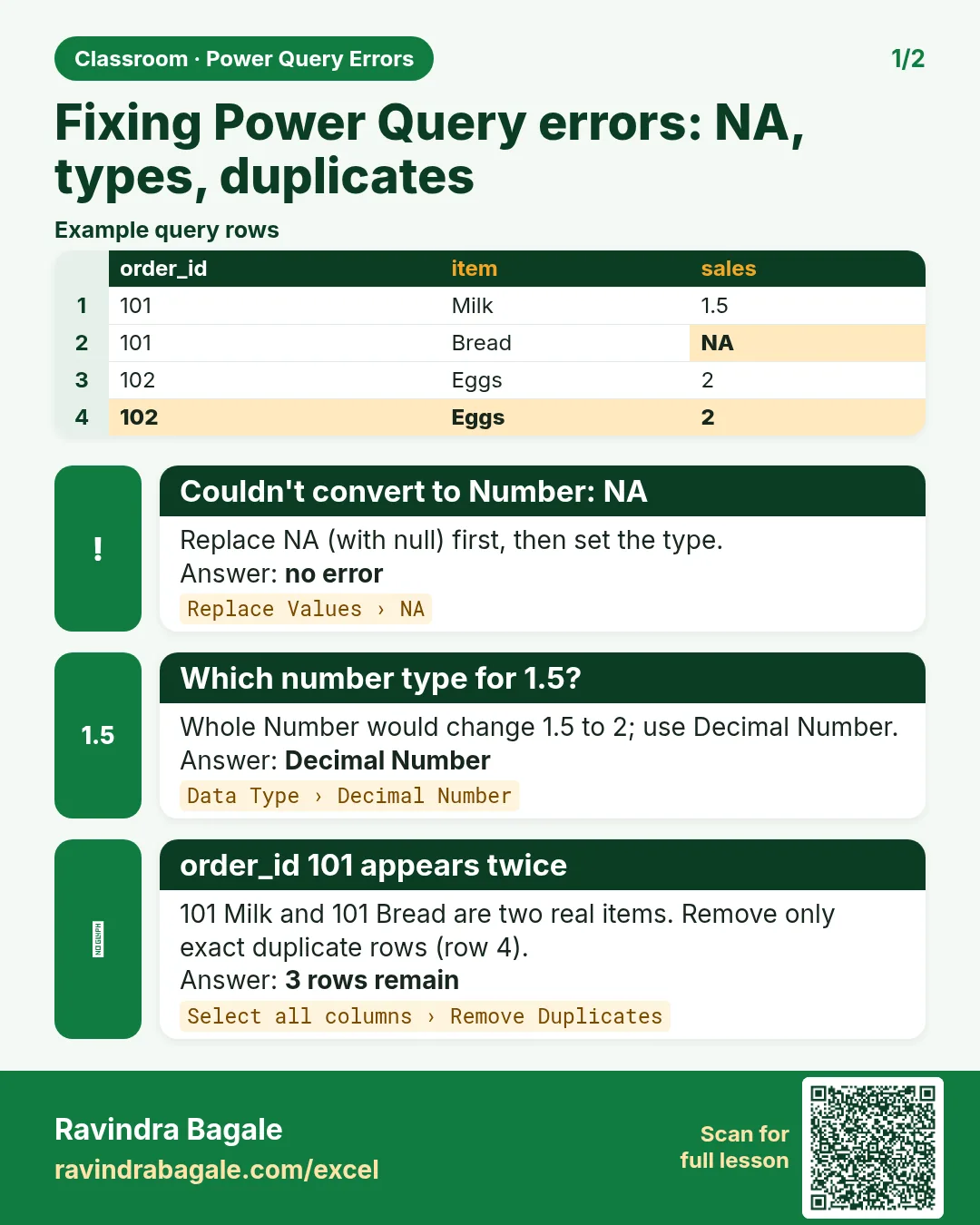
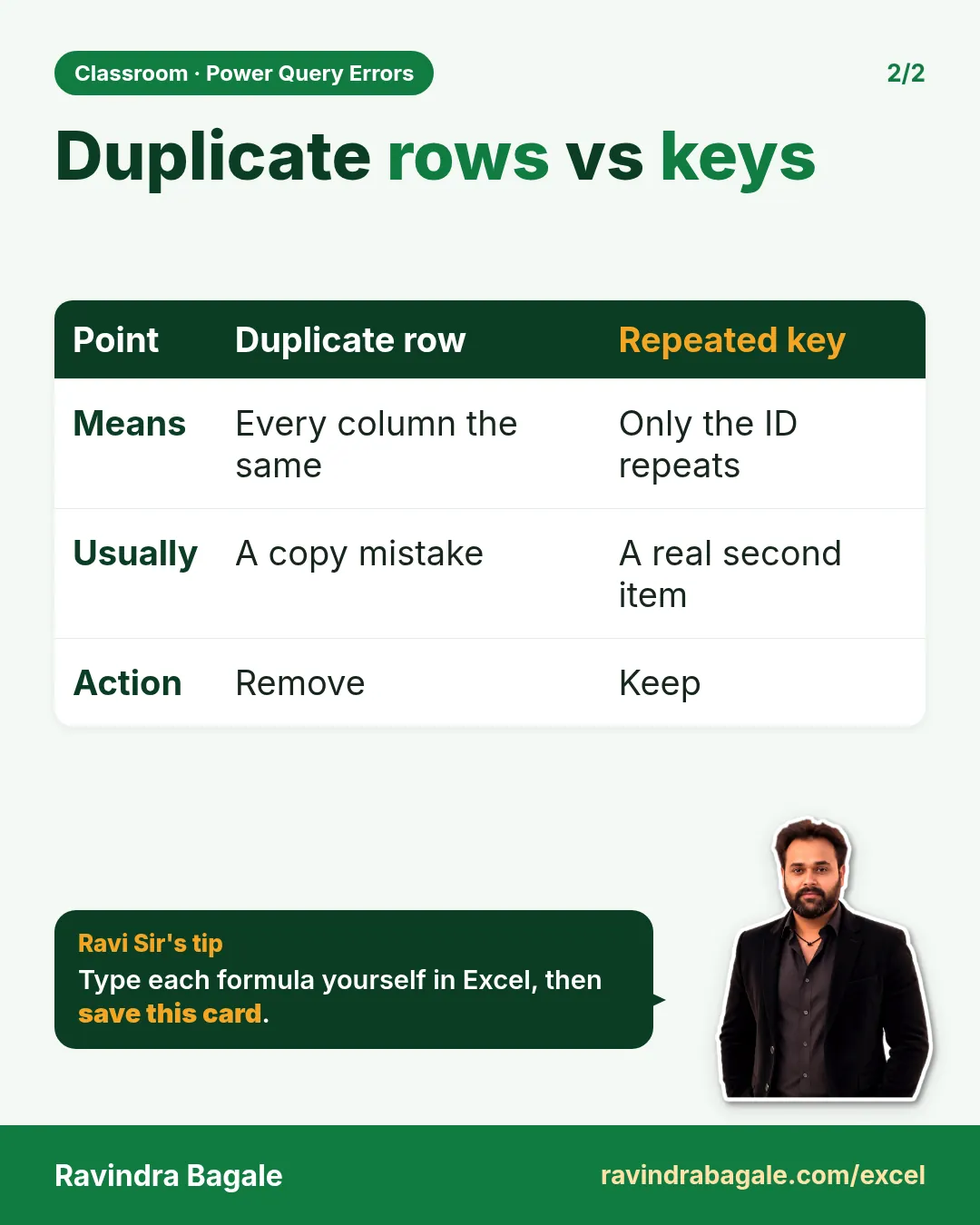
- Remove exact duplicate rows, not every repeated order_id
- Find near-empty and one-value columns and remove them
- Read M/D/YYYY dates with Using Locale
- Extract "1.5 sales" as a Decimal Number
- Fix "We couldn't convert to Number. Details: NA"
Practice files: quick-commerce-sales-2025-raw.csv (the messy export) and power-query-sales-2025-clean-answer.xlsx (the clean table, the list of applied steps with row counts, and check formulas).
Made-up data: every order, product, price and store is made up for practice. The file imitates a quick-commerce export such as Blinkit or Amazon Now in Pune, Nashik, Solapur, Kolhapur, Nagpur and Sambhaji Nagar.
1. Where Get Data can read from
Data > Get Data lists the sources:
- From File: Workbook, Text/CSV, XML, JSON, PDF, Folder.
- From Database: SQL Server, Access, Oracle, MySQL and others.
- From Azure and From Online Services.
- From Other Sources: web pages, ODBC and more.
A database connection asks for more than a file: the server address, the database name, and a username and password (your company's IT team gives you these). After that, the editor works the same way for every source.
When is data used straight in Excel, without Power Query? Only when it is already clean. This export is not.
2. The messy file
Open the CSV with Data > Get Data > From File > From Text/CSV, choose quick-commerce-sales-2025-raw.csv, click Transform Data. The preview shows:
- Two junk lines on top (a title and "Exported on 1 July 2025"), then the header line, then a blank line.
- 52 data lines, with a blank order_id, an order_id of NA and one line that appears twice (ORD5020).
- ORD5012 on two lines with different products: one order, two items.
- Dates like 1/13/2025: month first.
- sales like "1.5 sales": a number stuck to a word.
- NA in price and revenue for two orders.
- An unnamed column that is almost empty, three promo columns and two copies of the delivery date.
Figure 1. The 2025 sales export and its problems: junk lines on top, a blank line, blank and NA ids, an exact duplicate line, an order with two products, month-first dates, "1.5 sales", NA prices and columns that carry nothing.
3. The first steps, and the Changed Type step
Do the top of the file as in the first Power Query chapter:
- Home > Remove Rows > Remove Top Rows, 2.
- Home > Use First Row as Headers.
- Home > Remove Rows > Remove Top Rows, 1 (the blank line).
After Use First Row as Headers, Power Query adds a Changed Type step on its own, guessing a type for every column. On a messy file the guess is wrong: dates become errors, "1.5 sales" stays text. Click the × next to Changed Type in Applied Steps to delete it, and set the types yourself after cleaning.
Classroom line
Suppose we feel we did a step wrong; then we can delete that step again.
Class मधलं वाक्य
"Samja aaplyala vatla ekhada step aapn chukicha kela ahe, tar tya stepla aapn parat delete karu shakto."
समजा आपल्याला वाटलं एखादा step आपण चुकीचा केला आहे, तर त्या step ला आपण परत delete करू शकतो.
Classroom line
Suppose we feel we did a step wrong; then we can delete that step again.
- Filter order_id: untick (blank) and NA. If NA is not in the list, click Load more at the bottom of the filter list. 50 rows remain.
4. Duplicate rows vs a repeated key
ORD5020 appears twice with every value the same: a true duplicate, the export wrote it twice. ORD5012 also appears twice, but with two different products: one order, two items. Both lines are real sales.
Right: remove only rows where every column is the same.
- Click any column header, then press Ctrl+A to select all columns.
- Home > Remove Rows > Remove Duplicates. 49 rows remain: only the copy of ORD5020 goes.
Wrong for this file: Remove Duplicates on order_id alone gives 48 rows. It deletes the copy of ORD5020 but also ORD5012's second product line, with its ₹80 of revenue.
Remove Duplicates on a key column is right only when the file has one row per key, like the orders file of the first Power Query chapter. In a file of order lines, check first.
Figure 2. Remove Duplicates on all columns removes only the exact copy of ORD5020 (49 rows). Remove Duplicates on order_id alone also deletes ORD5012's second product line (48 rows), losing a real sale.
5. Columns that carry nothing
Turn on View > Column Quality and View > Column Distribution:
- Column10 (no name in the file): 98% Empty, one stray cell. Remove.
- promo_bin_1: 92% Empty, values on only 4 orders. Too little to use: remove.
- promo_type_2: one value, PR14, in every row (Column Distribution shows 1 distinct). It tells nothing: remove.
- promo_discount_2: NA in every row: remove.
- delivery_date_format2: the same dates as delivery_date_format1, written as DD/MM/YYYY: remove.
To remove several at once, Ctrl+click their headers, then right-click > Remove Columns (or Home > Remove Columns). Then double-click delivery_date_format1 and rename it delivery_date. Names with underscores are fine; spaces are a readability choice, not a rule.
6. Dates written month first
Change order_date to Date the normal way on an Indian computer and 28 of the 49 dates show Error: 1/13/2025 has no 13th month. The others are worse: 1/8/2025 quietly becomes 1 August when it is really 8 January.
Classroom line
Don't be scared, don't panic.
Class मधलं वाक्य
"Ghabraycha nahi, panic vhaycha nahi."
घाबरायचं नाही, panic व्हायचं नाही.
Classroom line
Don't be scared, don't panic.
- Delete that Changed Type step (×).
- Click the type icon of order_date > Using Locale...
- Data Type: Date. Locale: English (United States). OK.
Every date is now right: 1/13/2025 is 13 January, 1/8/2025 is 8 January. The first Power Query chapter explains locales in more detail.
7. sales with decimals
Onion, rice and tomatoes are sold by weight, so sales has values like "1.5 sales" and "4.25 sales".
Classroom line
James Bond 007 is fine; that is text. But James Bond won't work in a number column.
Class मधलं वाक्य
"James Bond 007 chaltey. Text aahe te. Pan number chya column madhe James Bond nahi chalnar."
James Bond 007 चालतं. Text आहे ते. पण number च्या column मध्ये James Bond नाही चालणार.
Classroom line
James Bond 007 is fine; that is text. But James Bond won't work in a number column.
- Select sales, Transform > Extract > Text Before Delimiter, delimiter: one space, OK.
- Type icon > Decimal Number (not Whole Number as in the cleaning chapter, or 1.5 would become 2).
- stock also has decimals (12.5, 6.75: loose items out of a box): Decimal Number.
8. "We couldn't convert to Number. Details: NA"
Set price to Currency. Two cells turn into Error. Click next to one of them and the details read: DataFormat.Error: We couldn't convert to Number. Details: NA. The text "NA" cannot become a number.
Classroom line
An error is nothing; give it what it wants and it goes quiet.
Class मधलं वाक्य
"Error kay naste, je pahije te dila ki gup baste te."
Error काय नसतं, जे पाहिजे ते दिलं की गप बसतं ते.
Classroom line
An error is nothing; give it what it wants and it goes quiet.
The two orders are ORD5015 and ORD5033, and both have NA in price and in revenue: the export has no money value for them at all.
- Delete the Changed Type step that made the errors (×).
- Filter price: untick NA. 47 rows remain.
- Now set price and revenue to Currency. No errors.
Removing the rows is right here because the orders have no revenue to add. When only the price is missing and the revenue is known, keep the order with Replace Values NA → 0, as in the cleaning chapter. The rule is the same both times: remove the NA before changing the type.
Figure 3. Currency on a price column with NA gives Error cells: DataFormat.Error, We couldn't convert to Number, Details: NA. Delete the step, filter out NA (47 rows), then set Currency.
Ravindra Bagale's Tip
Set data types last, after the cleaning steps. A type change is where hidden text like NA, "sales" or a stray space shows up as Error, so do it when the column is already clean, and read the error details before deleting anything.
Ravindra Bagale's Tip – मराठी
Data types शेवटी set करा, cleaning steps नंतर. Type बदलताना NA, "sales" किंवा एखादी लपलेली space Error म्हणून दिसते, म्हणून column clean झाल्यावर ते करा, आणि काही delete करण्याआधी error details वाचा.
Ravindra Bagale's Tip – हिंदी
Data types आखिर में set करो, cleaning steps के बाद. Type बदलते समय NA, "sales" या कोई छुपी space Error बनकर दिखती है, इसलिए column clean होने के बाद करो, और कुछ delete करने से पहले error details पढ़ो.
9. Close & Load
Home > Close & Load. Excel adds a sheet with an Excel Table of 47 rows and 10 columns: order_id, order_date, city, product_id, sales, price, revenue, stock, store_id, delivery_date. Total revenue is ₹5,641.50. These Power Query types (Decimal Number, Currency, Date, Text) are the same in Excel and in Power BI, so the steps carry over.
10. More examples
Example 1: count real orders. 47 rows but 46 different order_ids, because ORD5012 has two lines. Count rows for "lines sold" and distinct order_ids for "orders".
Example 2: revenue of one city. On the loaded table, =SUMIFS(Sales2025[revenue],Sales2025[city],"Solapur") → ₹825.50 (after you name the table Sales2025 in Table Design).
Example 3: a date with a day of 12 or less. 3/1/2025 (ORD5014) is 1 March. With the Indian locale it would read 3 January without any error: the reason to check one date per column after every date conversion.
11. The whole chapter on one page
| Problem | Step |
|---|---|
| Wrong automatic types | Delete Changed Type (×), set types at the end |
| Blank / NA order_id | Filter (use Load more if NA is missing) |
| Line written twice | Select all columns > Remove Duplicates |
| Order with two products | Keep: do not remove duplicates on order_id |
| Near-empty, one-value, all-NA, repeated columns | Column Quality / Distribution > Remove |
| 1/13/2025 | Using Locale > Date > English (United States) |
| "1.5 sales" | Extract > Text Before Delimiter > Decimal Number |
| NA in price and revenue | Filter NA, then Currency |
- Delete the automatic Changed Type step on messy files.
- Remove duplicate rows on all columns unless the key must be unique.
- Column Quality and Distribution show columns worth removing.
- Using Locale reads month-first dates correctly.
- Clear NA before any number type change.
12. Try at home
Try at home
Task 1
- Do Remove Duplicates on order_id only and load. How many rows, and how much revenue? (48 rows before the price filter, 46 after it; ₹5,561.50, the ₹80 line of ORD5012 is lost.)
Task 2
- On the loaded table, how many units were sold in total? (103, with =SUM on sales.)
Recap
In short
- Get Data reads files, databases and online sources; clean data before you use it.
- Delete the automatic Changed Type step and set types last.
- Remove exact duplicate rows; a repeated order_id can be a real second item.
- Remove near-empty, one-value, all-NA and repeated columns.
- Using Locale for M/D/YYYY dates, Decimal Number for "1.5 sales", and clear NA before Currency.
Quick revision cards
Quick revision
Revise this chapter in two minutes. Save the cards on your phone or download them as PNG files. All names and numbers are made up for practice.
झटपट उजळणी
हा chapter दोन मिनिटांत revise करा. Cards phone वर save करा किंवा PNG म्हणून download करा. सगळी नावं आणि आकडे सरावासाठी काल्पनिक आहेत.
झटपट दोहराई
यह chapter दो मिनट में revise करें. Cards phone पर save करें या PNG के रूप में download करें. सभी नाम और आंकड़े अभ्यास के लिए काल्पनिक हैं.

More cards for every chapter: Ravi Sir's Cards.