Rent Collection Tracker in Excel: Monthly Rent Received, Pending Dues and Late Tenants
Raja owns four flats in Kolhapur. Rent arrives by UPI on different days, sometimes in parts, and by the third month he was not sure who still owed what. A rent tracker in Excel keeps one row per tenant and one column per month. It tells him what came in, what is pending and who is late this month.
What you'll learn on this page
- One row per tenant, one column per month
- Received and expected with SUM and COUNTA
- Pending dues per tenant
- Paid / Late / Due from the due day and today
- Collection % and the tenant with the biggest pending
- Amber cells for part payments
Download the template: rent-collection-tracker-template.xlsx: example data with real formulas. Yellow cells are inputs you can type over; green cells hold formulas; blue rows are headers and totals. Replace the example data with your own and everything recalculates.
Made-up data: every name, amount, shop and date on this page is made up for practice. Cities are used only to make the examples feel real.
1. The example
Four flats, July to October 2026 (made-up), as of 17-10-2026:
| Tenant | Rent | Received | Expected | Pending | October |
|---|---|---|---|---|---|
| Shahrukh | ₹12,000 | ₹48,000 | ₹48,000 | ₹0 | Paid |
| Zoya | ₹9,500 | ₹28,500 | ₹38,000 | ₹9,500 | Late |
| Salman | ₹15,000 | ₹60,000 | ₹60,000 | ₹0 | Paid |
| Ravina | ₹11,000 | ₹33,000 | ₹44,000 | ₹11,000 | Late |
Raja received ₹1,69,500 of ₹1,90,000: a collection of 89.2%. ₹20,500 is pending. Ravina paid half in September and half in October, so her two part payments add up to one full month pending; the amber cells show this at a glance.
Figure 1. One row per tenant: monthly payments add up to Received, rent × months gives Expected, the difference is Pending; DAY(today) vs due day marks October Paid, Late or Due.

Figure 2. The template sheet, recalculated with its example data. Download it above and replace the yellow cells with your own numbers.
2. Build it step by step
Step 1. Tenants and months
- In A5:L5 type Flat, Tenant, Monthly rent, Due day, Jul-2026 … Oct-2026, Received, Expected, Pending, October status.
- Type each tenant's rent and due day (yellow). Select D6:D9 > Data Validation > List:
1,5,7,10,15(drop-down lists). - Type what each tenant actually paid under each month. Type 0 if nothing came.
Step 2. Received, expected, pending
- In I6 type
=SUM(E6:H6): ₹48,000. - In J6 type
=C6*COUNTA($E$5:$H$5): rent × number of months = ₹48,000 (COUNTA). - In K6 type
=J6-I6: pending. Copy I6:K6 down.
Step 3. This month's status
- In B3 type
=TODAY()(the template has 17-10-2026 typed). - In L6 type
=IF(H6>=C6,"Paid",IF(DAY($B$3)>D6,"Late","Due")). - DAY($B$3) is today's day of the month (17). Zoya's due day is 5, so unpaid on the 17th means Late (nested IF).
Step 4. Totals and summary
- In C10 type
=SUM(C6:C9)and copy right to K10. - In O6 type
=I10/J10: 89.2%. In O7=K10: ₹20,500. - In O8 type
=COUNTIF(L6:L9,"Late"): 2. In O10 type=INDEX(B6:B9,MATCH(MAX(K6:K9),K6:K9,0)): Ravina.
Step 5. Colours
- Select E6:H9 > Conditional Formatting > New Rule > Use a formula:
=E6<$C6, amber. Part and missed payments light up (formula rules). - Select L6:L9 > Highlight Cells Rules > Equal To
Late, red;Paid, green.
Ravindra Bagale's Tip
Type the payment the day it arrives, with the UPI reference in a note. Two minutes now saves an awkward phone call later.
Ravindra Bagale's Tip – मराठी
पैसे आले त्याच दिवशी UPI reference सकट नोंद करा. आत्ताची दोन मिनिटं नंतरचा अवघडलेला phone call वाचवतात.
Ravindra Bagale's Tip – हिंदी
पैसे आए उसी दिन UPI reference के साथ लिख लो. अभी के दो मिनट बाद की अजीब phone call बचाते हैं.
3. Formulas used
| Cell | Formula | What it does |
|---|---|---|
| I6 | =SUM(E6:H6) |
Total received from the tenant |
| J6 | =C6*COUNTA($E$5:$H$5) |
Expected = rent × months |
| K6 | =J6-I6 |
Pending dues |
| L6 | =IF(H6>=C6,"Paid",IF(DAY($B$3)>D6,"Late","Due")) |
Paid / Late / Due this month |
| I10 | =SUM(I6:I9) |
Total received |
| O6 | =I10/J10 |
Collection % |
| O8 | =COUNTIF(L6:L9,"Late") |
Tenants late this month |
| O10 | =INDEX(B6:B9,MATCH(MAX(K6:K9),K6:K9,0)) |
Tenant with the biggest pending |
Every formula above is written in the template, so you can click a cell and see it in the formula bar. All values on this page were recalculated in the file.
4. Common mistakes
- Leaving unpaid months blank. Type 0. A blank is easy to miss when you scan the sheet.
- Expected typed by hand. Use
=C6*COUNTA($E$5:$H$5)so expected grows when you add a month (widen the range). - Due day typed as a date. Column D is just the day number (5, 7, 10). DAY(B3) compares day with day.
- Mixing deposit with rent. Keep the security deposit in a separate column or sheet; it is not rent.
- Forgetting part payments. Type the actual amount, not "paid". The amber rule and Pending do the rest.
Ravindra Bagale's Tip
Send a polite reminder the day a status turns Late, not after two months. Small pending amounts are easier to settle.
Ravindra Bagale's Tip – मराठी
Status Late झाल्या दिवशीच नम्र reminder पाठवा, दोन महिन्यांनी नाही. छोटी रक्कम लवकर मिटते.
Ravindra Bagale's Tip – हिंदी
Status Late होते ही उसी दिन नम्र reminder भेजो, दो महीने बाद नहीं. छोटी रकम जल्दी निपटती है.
5. More real examples
Example 1: One flat, one tenant. Even with a single tenant, one row per year with 12 month columns gives a clean record for the year-end.
Example 2: Shop or office rent. Add a Maintenance column and include it in Expected: =(C6+maintenance)*COUNTA(…).
Example 3: Rent receipt list. Add a column with the UPI reference for each payment so you can issue receipts.
Quick revision cards
Quick revision
Each card shows formulas from this page, each with an example and its answer from the template. Scan the QR code on a card to open this lesson. All names and numbers are made up for practice.
झटपट उजळणी
प्रत्येक card वर या page मधले formulas, त्यांचं example आणि template मधलं उत्तर आहे. Card वरचा QR code scan केला की हा lesson उघडतो. सगळी नावं आणि आकडे सरावासाठी काल्पनिक आहेत.
झटपट दोहराई
हर card पर इस page के formulas, उनका example और template का उत्तर है. Card का QR code scan करें तो यह lesson खुलेगा. सभी नाम और आंकड़े अभ्यास के लिए काल्पनिक हैं.
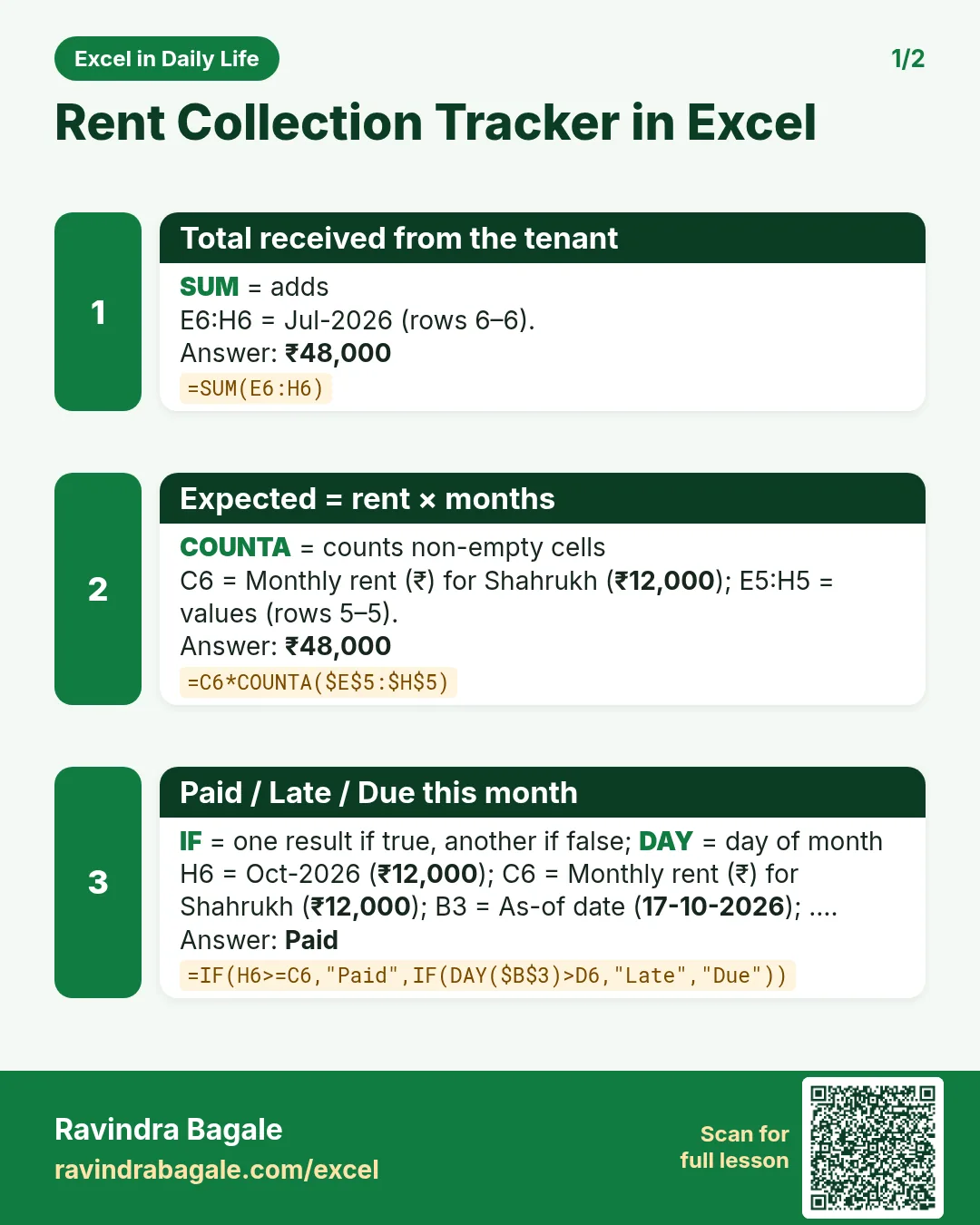

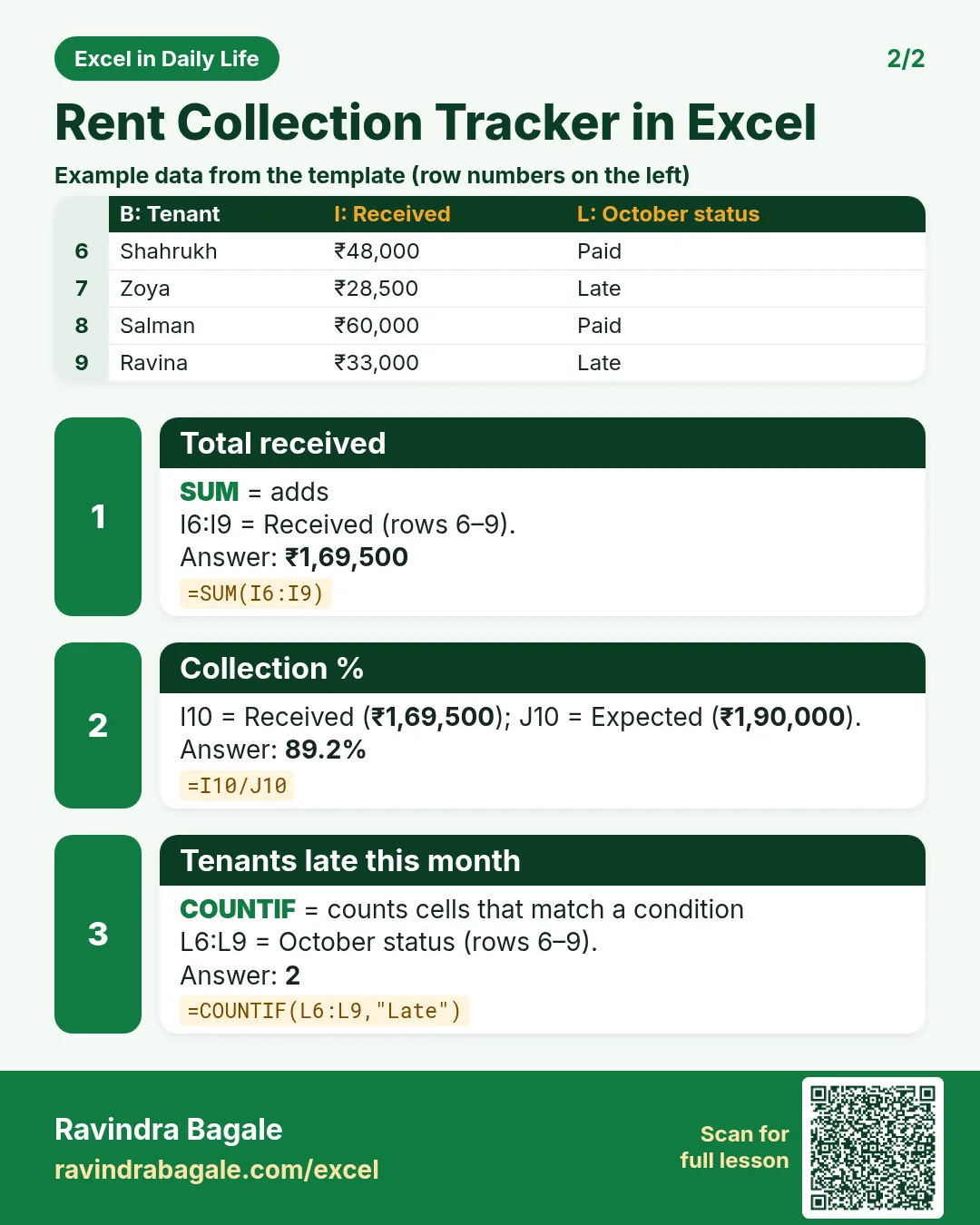

More cards: Ravi Sir's Cards.
6. Frequently asked questions
How do I track rent payments in Excel?
One row per tenant, one column per month with the amount paid, then SUM for received, rent × months for expected, and expected − received for pending.
How do I show who is late this month?
=IF(H6>=C6,"Paid",IF(DAY(TODAY())>D6,"Late","Due")) compares today's day with the due day.
How do I calculate collection %?
Total received ÷ total expected: =I10/J10.
How do I handle part payments?
Type the actual amount. Pending shows the shortfall and the amber rule marks the month.
Can I add more months?
Insert a column before Received, type the month and widen $E$5:$H$5 in the Expected formula.
7. Quick quiz
Ten questions on this page. Sign in to save your score.
Loading practice tasks...
- Total area sq ft (Easy): Add up Area sq ft in D2:D11. (sheet "Data")
- Average price per sq ft (Easy): Average of E2:E11, rounded to 2 decimals. (sheet "Data")
- Rows in Tower 1 (Easy): How many rows have Tower "Tower 1"? (sheet "Data")
- Largest area sq ft (Easy): The largest value in D2:D11. (sheet "Data")
- Days taken (Easy): C2 minus B2. (sheet "Dates")
- Start year (Easy): Year of B3. (sheet "Dates")
- Due month (Easy): Month number of C3. (sheet "Dates")
- Earliest start (Easy): Earliest date in B2:B9 (as a date number). (sheet "Dates")
- Area sq ft for Tower 1 (Medium): Total of D2:D11 where B is "Tower 1". (sheet "Data")
- Tower 1 in Bengaluru (Medium): Total of D2:D11 where B is "Tower 1" and C is "Bengaluru". (sheet "Data")
- Working days (Medium): Working days from B2 to C2. (sheet "Dates")
- Weekday of due (Medium): Weekday number of C4 (Sunday = 1). (sheet "Dates")