Credit Card Bill Tracker in Excel: Due Dates, Pending Amount and Credit Utilisation
Amir in Nagpur has four credit cards. Every month the statements arrive on different dates with different due dates, and last month he missed one by two days and paid a late charge. One small Excel sheet fixes this: every card on one row, the days left to each due date, and a status that turns red the moment a bill is overdue.
What you'll learn on this page
- One row per card with limit, due date and total due
- Pending = total due − paid
- Days to due with a simple date subtraction
- An IF status: Paid, Overdue, Pay now, Upcoming
- Credit utilisation per card and overall
- Colours that flag overdue bills and high utilisation
Download the template: credit-card-bill-tracker-template.xlsx: example data with real formulas. Yellow cells are inputs you can type over; green cells hold formulas; blue rows are headers and totals. Replace the example data with your own and everything recalculates.
Made-up data: every name, amount, shop and date on this page is made up for practice. Cities are used only to make the examples feel real.
1. The example
Amir's cards on 17 October 2026 (made-up values):
| Card | Limit | Due date | Total due | Paid | Pending | Days to due | Utilisation | Status |
|---|---|---|---|---|---|---|---|---|
| Card A | ₹1,50,000 | 20-10-2026 | ₹42,300 | ₹0 | ₹42,300 | 3 | 28.2% | Pay now |
| Card B | ₹80,000 | 25-10-2026 | ₹31,200 | ₹31,200 | ₹0 | 8 | 39.0% | Paid |
| Card C | ₹50,000 | 15-10-2026 | ₹8,400 | ₹4,000 | ₹4,400 | −2 | 16.8% | Overdue |
| Card D | ₹1,00,000 | 02-11-2026 | ₹15,600 | ₹0 | ₹15,600 | 16 | 15.6% | Upcoming |
Total still to pay: ₹62,300. ₹42,300 of it is due within 5 days. Card C is already 2 days late. Overall utilisation is ₹97,500 ÷ ₹3,80,000 = 25.7%, but Card B alone is at 39.0%.
Figure 1. Each card: pending = total due − paid; days to due = due date − today; utilisation = total due ÷ limit; a nested IF gives Paid, Overdue, Pay now or Upcoming.
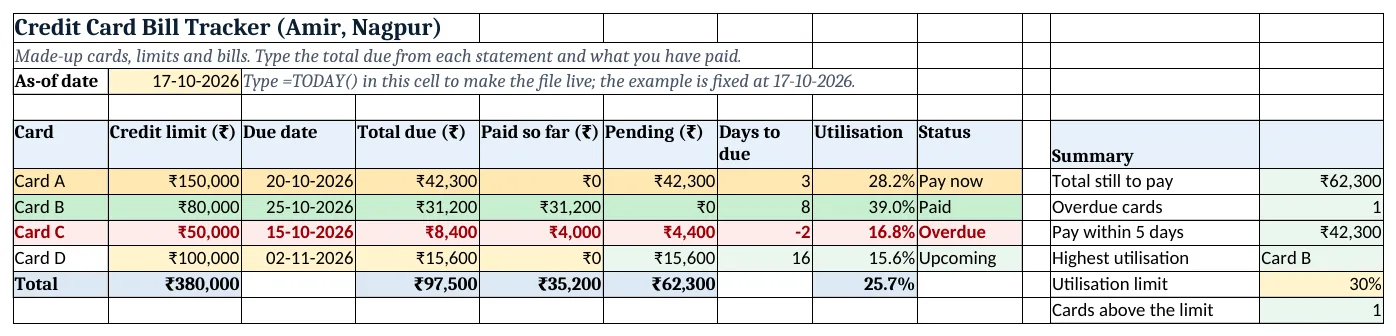
Figure 2. The template sheet, recalculated with its example data. Download it above and replace the yellow cells with your own numbers.
2. Build it step by step
Step 1. Type the cards
- In A5:I5 type the headers Card, Credit limit, Due date, Total due, Paid so far, Pending, Days to due, Utilisation, Status.
- Type each card in rows 6 to 9. Limit, due date, total due and paid are yellow inputs.
- In B3 type the as-of date (
=TODAY()in your own copy).
Step 2. Pending and days left
- In F6 type
=D6-E6: ₹42,300 still to pay. - In G6 type
=C6-$B$3: 3 days. Dates are numbers, so subtracting them gives days (date functions). - Copy F6:G6 down to row 9.
Step 3. Utilisation
- In H6 type
=D6/B6and format as %: 28.2% of Card A's limit is used. - In H10 type
=D10/B10for all cards together: 25.7%.
Step 4. Status
- In I6 type
=IF(F6=0,"Paid",IF(G6<0,"Overdue",IF(G6<=5,"Pay now","Upcoming")))(nested IF). - The order matters: a paid card is Paid even if its date has passed.
Step 5. Totals and summary
- In B10, D10, E10 and F10 use
=SUM(...)of rows 6 to 9. - In L8 type
=SUMIF(I6:I9,"Pay now",F6:F9): ₹42,300 needed this week (SUMIF). - In L9 type
=INDEX(A6:A9,MATCH(MAX(H6:H9),H6:H9,0)): Card B has the highest utilisation (INDEX and MATCH). - In L11 type
=COUNTIF(H6:H9,">"&L10)to count cards above the limit in L10 (30%).
Step 6. Colours
- Select A6:I9 > Conditional Formatting > New Rule > Use a formula:
=$I6="Overdue"red,=$I6="Pay now"amber,=$I6="Paid"green (formula rules). - Select H6:H9 > Highlight Cells Rules > Greater Than
=$L$10with red text.
Ravindra Bagale's Tip
Set your phone reminder for the day this sheet says Pay now, not the due date. Bank transfers can take a day.
Ravindra Bagale's Tip – मराठी
Due date ला नाही, sheet "Pay now" दाखवेल त्या दिवशी reminder लावा. Transfer ला कधी कधी एक दिवस लागतो.
Ravindra Bagale's Tip – हिंदी
Due date पर नहीं, जिस दिन sheet "Pay now" दिखाए उस दिन reminder लगाओ. Transfer में कभी-कभी एक दिन लगता है.
3. Formulas used
| Cell | Formula | What it does |
|---|---|---|
| F6 | =D6-E6 |
Pending |
| G6 | =C6-$B$3 |
Days to due |
| H6 | =D6/B6 |
Utilisation |
| I6 | =IF(F6=0,"Paid",IF(G6<0,"Overdue",IF(G6<=5,"Pay now","Upcoming"))) |
Status |
| H10 | =D10/B10 |
Overall utilisation |
| L8 | =SUMIF(I6:I9,"Pay now",F6:F9) |
Pay within 5 days |
| L9 | =INDEX(A6:A9,MATCH(MAX(H6:H9),H6:H9,0)) |
Highest utilisation card |
| L11 | =COUNTIF(H6:H9,">"&L10) |
Cards above the limit |
Every formula above is written in the template, so you can click a cell and see it in the formula bar. All values on this page were recalculated in the file.
4. Common mistakes
- Typing the minimum due instead of the total due. Paying only the minimum leaves the rest to attract interest. Track the total due and aim to clear it.
- Using the statement date as the due date. The due date comes a few weeks after the statement date. Copy the due date printed on the statement.
- Forgetting to update Paid. Status only turns green when column E matches the total due. Type every payment.
- Checking only overall utilisation. Overall 25.7% looks fine, but one card at 39.0% can still be high. Look at both.
- Typing the due date as text. If G shows #VALUE!, the date is text. Retype it as a real date such as 20-10-2026.
Ravindra Bagale's Tip
If one card is above 30%, move the next big purchase to a card with more room, or pay part of the bill early.
Ravindra Bagale's Tip – मराठी
एखादं card 30% च्या वर गेलं तर पुढची मोठी खरेदी दुसऱ्या card वर करा, किंवा bill चा थोडा भाग आधीच भरून टाका.
Ravindra Bagale's Tip – हिंदी
कोई card 30% से ऊपर हो तो अगली बड़ी खरीदारी दूसरे card पर करो, या bill का थोड़ा हिस्सा पहले ही भर दो.
5. More real examples
Example 1: One card only. Keep one row and add a row per month instead. The status column becomes a payment history.
Example 2: Shared cards in a home. Add an Owner column (Ravindra, Shraddha) and use SUMIF to see each person's pending amount.
Example 3: Auto-debit cards. Type the auto-debit date in a new column and add a rule that turns the row amber if the bank balance cell is lower than the pending amount.
Quick revision cards
Quick revision
Each card shows formulas from this page, each with an example and its answer from the template. Scan the QR code on a card to open this lesson. All names and numbers are made up for practice.
झटपट उजळणी
प्रत्येक card वर या page मधले formulas, त्यांचं example आणि template मधलं उत्तर आहे. Card वरचा QR code scan केला की हा lesson उघडतो. सगळी नावं आणि आकडे सरावासाठी काल्पनिक आहेत.
झटपट दोहराई
हर card पर इस page के formulas, उनका example और template का उत्तर है. Card का QR code scan करें तो यह lesson खुलेगा. सभी नाम और आंकड़े अभ्यास के लिए काल्पनिक हैं.
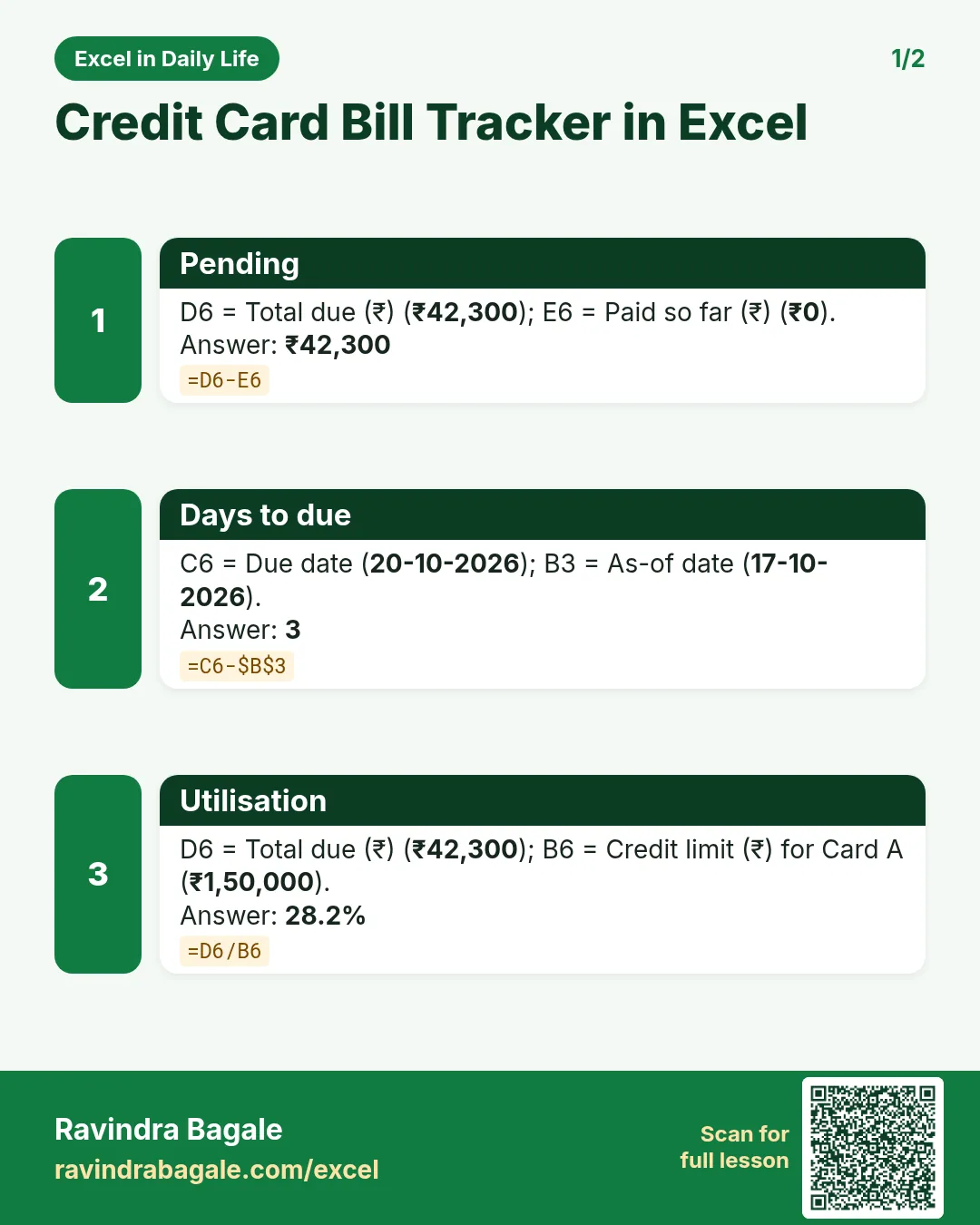

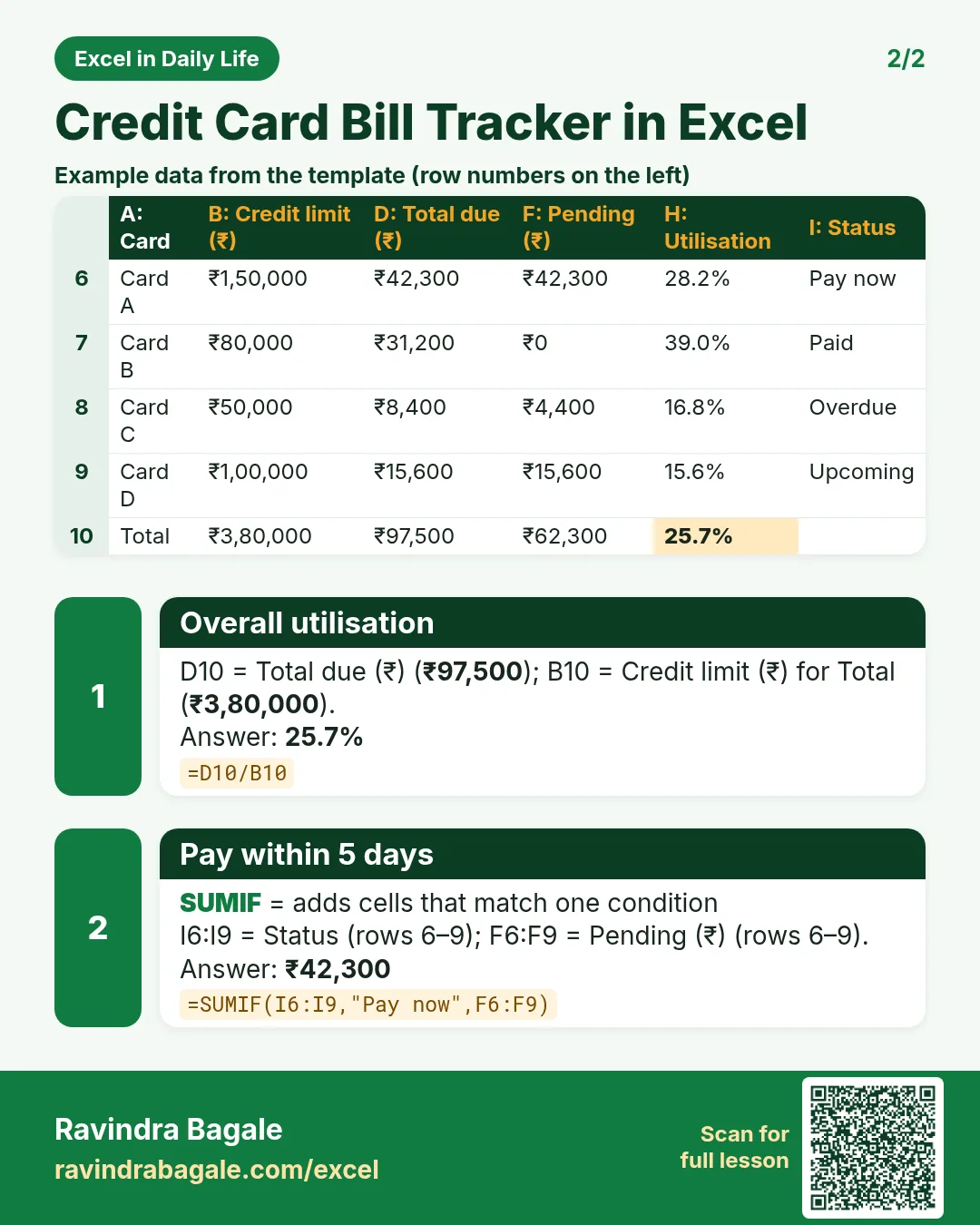

More cards: Ravi Sir's Cards.
6. Frequently asked questions
How do I calculate days left to a credit card due date in Excel?
Subtract today from the due date: =C6-$B$3, where B3 holds =TODAY(). A negative number means the date has passed.
What is credit utilisation?
The share of your credit limit you are using: total due ÷ credit limit. ₹42,300 ÷ ₹1,50,000 = 28.2%.
What utilisation is good for my credit score?
Lenders and finance writers commonly suggest keeping it at or below about 30%, and lower is better. CIBIL itself only says to keep utilisation low.
How do I show Overdue automatically?
Use a nested IF on pending and days left: =IF(F6=0,"Paid",IF(G6<0,"Overdue",...)).
Can I track several months?
Yes. Keep one sheet per month, or add a Month column and use SUMIFS by month.
7. Quick quiz
Ten questions on this page. Sign in to save your score.
Loading practice tasks...
- Total stock units (Easy): Add up Stock units in D2:D11. (sheet "Data")
- Average unit cost (Easy): Average of E2:E11, rounded to 2 decimals. (sheet "Data")
- Rows in Antibiotic (Easy): How many rows have Category "Antibiotic"? (sheet "Data")
- Largest stock units (Easy): The largest value in D2:D11. (sheet "Data")
- Days taken (Easy): C2 minus B2. (sheet "Dates")
- Start year (Easy): Year of B3. (sheet "Dates")
- Due month (Easy): Month number of C3. (sheet "Dates")
- Earliest start (Easy): Earliest date in B2:B9 (as a date number). (sheet "Dates")
- Stock units for Antibiotic (Medium): Total of D2:D11 where B is "Antibiotic". (sheet "Data")
- Antibiotic in Madrid (Medium): Total of D2:D11 where B is "Antibiotic" and C is "Madrid". (sheet "Data")
- Working days (Medium): Working days from B2 to C2. (sheet "Dates")
- Weekday of due (Medium): Weekday number of C4 (Sunday = 1). (sheet "Dates")