Bakery Management System in Excel: Recipe Costing, Daily Production, Sales, Waste and Dashboard
Shraddha Bakery in Pune bakes bread, pav, cakes, cookies and muffins every morning. Shraddha knew what she sold, but not what each loaf cost after the butter price went up, or how many pieces went to waste. This page builds an 8-sheet Excel system: ingredient prices sit in one place, every recipe works out its own cost, bakes and sales are one row each, and the Report shows waste and profit per product.
What you'll learn on this page
- Keep ingredient prices and an overhead per unit on Setup
- Work out the cost of one unit from a recipe grid with SUMPRODUCT
- Log daily bakes and sales and value them with XLOOKUP
- Find waste and waste % per product with SUMIFS
- Flag products whose waste crosses a limit
- Print a costing card for any product
- Build KPI cards and charts for sales, profit and waste
Download the template: bakery-management-system-template.xlsx: a 8-sheet system with example data and real formulas (Read me, Setup, Recipes, Production, Sales, Report, Costing card, Dashboard). Yellow cells are inputs you can type over; green cells hold formulas; blue rows are headers and totals. Replace the example data with your own and every report and the dashboard recalculate.
Made-up data: every name, amount, business and date on this page is made up for practice. Cities are used only to make the examples feel real.
1. The business story
Shraddha Bakery, Pune, 1 to 17 October 2026 (made-up data). Seven ingredients, five products, two channels (Counter and Order).
| Question | Where the system answers it |
|---|---|
| What does one cake cost to make? | Recipes, Cost per unit: ₹113.75 against a price of ₹350 |
| Which product earns the most? | Report: Cake 500 g, ₹28,490 profit |
| How much is going to waste? | Report: 187 of 3,540 pieces, 5.3% |
| Is any product above the waste limit? | Report, Waste alert: none above 8% |
Sales are ₹1,89,110 and profit ₹97,102 for the period. For scaling one recipe to more servings, see the recipe cost calculator; this page runs the whole bakery.
Figure 1. Setup holds prices; Recipes turns them into a cost per unit; Production and Sales are the daily entry sheets.
2. Build it sheet by sheet
Step 1. Setup: prices, overhead and the waste limit
- In B3 type the as-of date, in B4 the overhead per unit for gas and packing (₹3) and in B5 the waste alert level (8%).
- Type the ingredients in A8:C14 with Ingredient, Unit, Price per unit. When butter goes up, change C10 once and every recipe cost updates.
Step 2. Recipes: cost of one unit
- Row 4 repeats the ingredient names (
=Setup!A8and across) and row 5 their prices, so the grid always matches Setup. - From row 7, one product per row: name, selling price in B, then the quantity of each ingredient for ONE unit in C:I.
- In J7 work out the cost:
=SUMPRODUCT($C$5:$I$5,C7:I7)+Setup!$B$4. SUMPRODUCT multiplies each quantity by its price and adds them up. - In K7 the margin
=B7-J7and in L7 the margin %=K7/B7. Pav earns 50%, muffins only 41%.
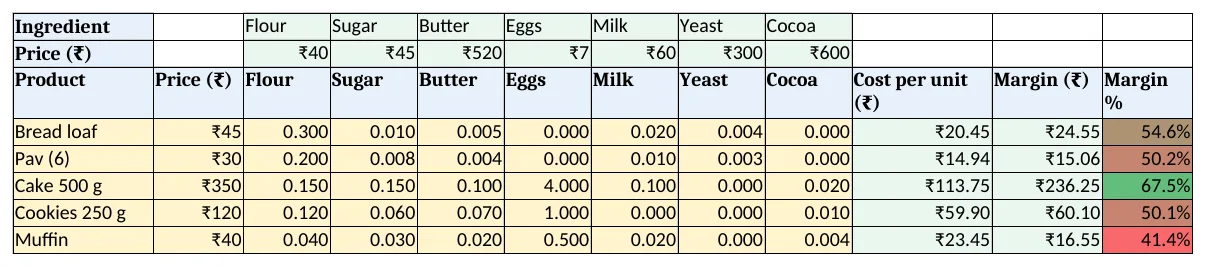
Figure 2. Recipes: quantity of each ingredient per unit and the cost worked out with SUMPRODUCT
Step 3. Production and Sales: one row per entry
- Production headers: Date, Product, Qty baked, Cost. In D5:
=C5*XLOOKUP(B5,Recipes!$A$7:$A$11,Recipes!$J$7:$J$11,0). - Sales headers: Date, Product, Qty sold, Channel, Amount. In E5:
=C5*XLOOKUP(B5,Recipes!$A$7:$A$11,Recipes!$B$7:$B$11,0). - Pick the product and channel from drop-downs so spellings match the Recipes list.
Step 4. Report: waste and profit per product
- B5 baked
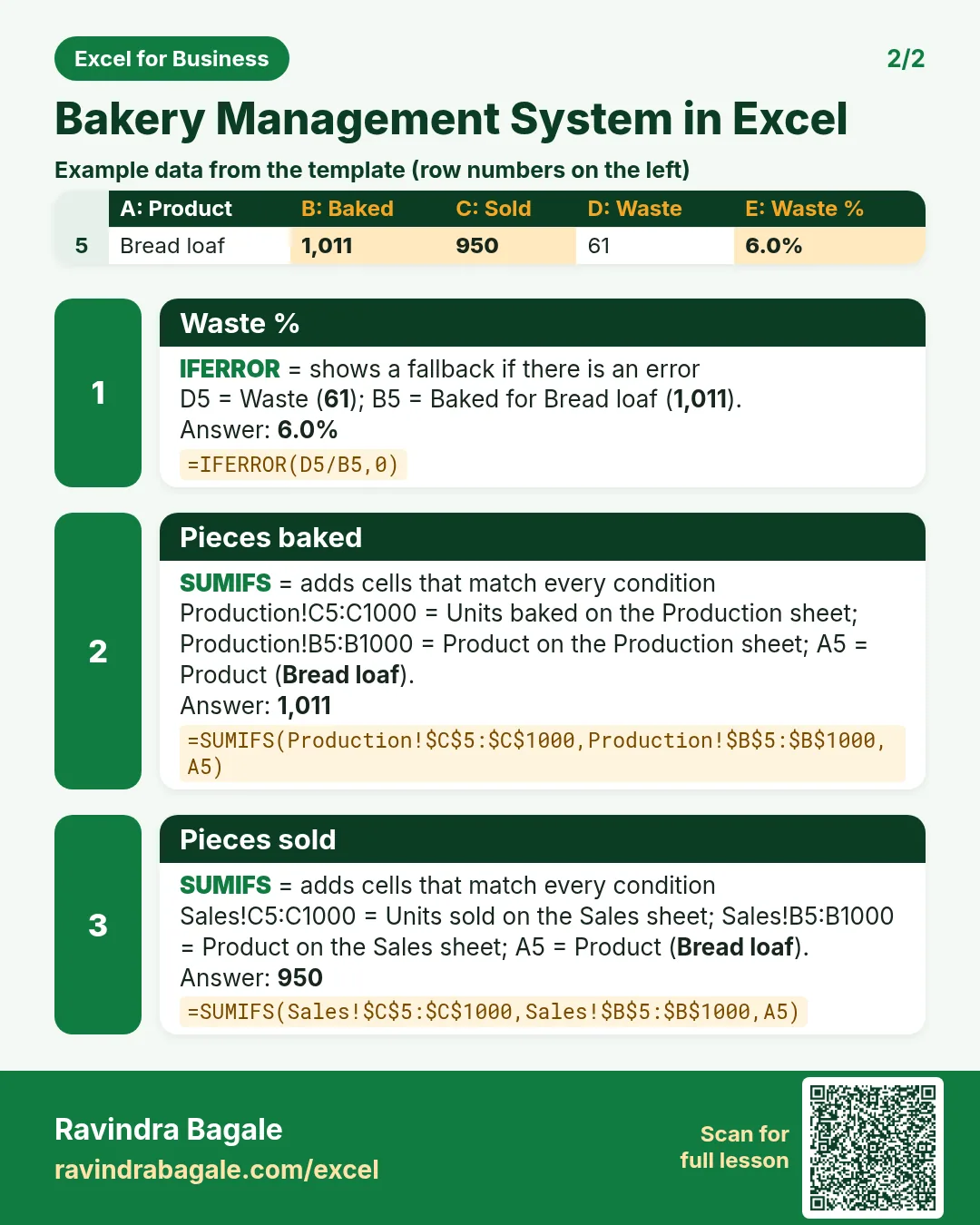
=SUMIFS(Production!$C$5:$C$1000,Production!$B$5:$B$1000,A5)and C5 sold the same way from Sales (SUMIFS). - D5 waste
=B5-C5and E5 waste %=IFERROR(D5/B5,0). - F5 sales, G5 cost and H5 profit
=F5-G5. I5 flags the product:=IF(E5>Setup!$B$5,"Check","OK"). - Rows 12 to 19 show the last 7 days of sales and rows 21 to 23 sales by channel.
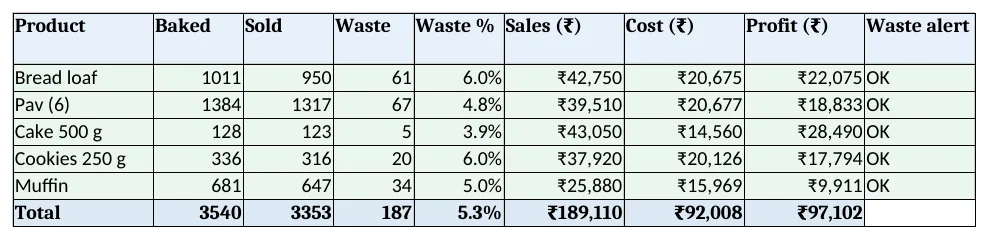
Figure 3. Report: baked, sold, waste % and profit per product
Step 5. Costing card: print one product
- Type a product in B4 of Costing card. B7 brings its quantity:
=XLOOKUP($B$4,Recipes!$A$7:$A$11,Recipes!C$7:C$11,0)and D7 the cost=B7*C7. - For Cake 500 g the card shows butter ₹52 and eggs ₹28 as the big items, and ₹113.75 in all. Set the print area to A1:D16.
Step 6. Dashboard: one look each morning
- KPI cards: Sales
=Report!F10, Profit=Report!H10, Margin %, Waste %, Best seller=INDEX(Report!A5:A9,MATCH(MAX(Report!F5:F9),Report!F5:F9,0))and products to check. - Chart 1: sales by product. Chart 2: sales over the last 7 days.
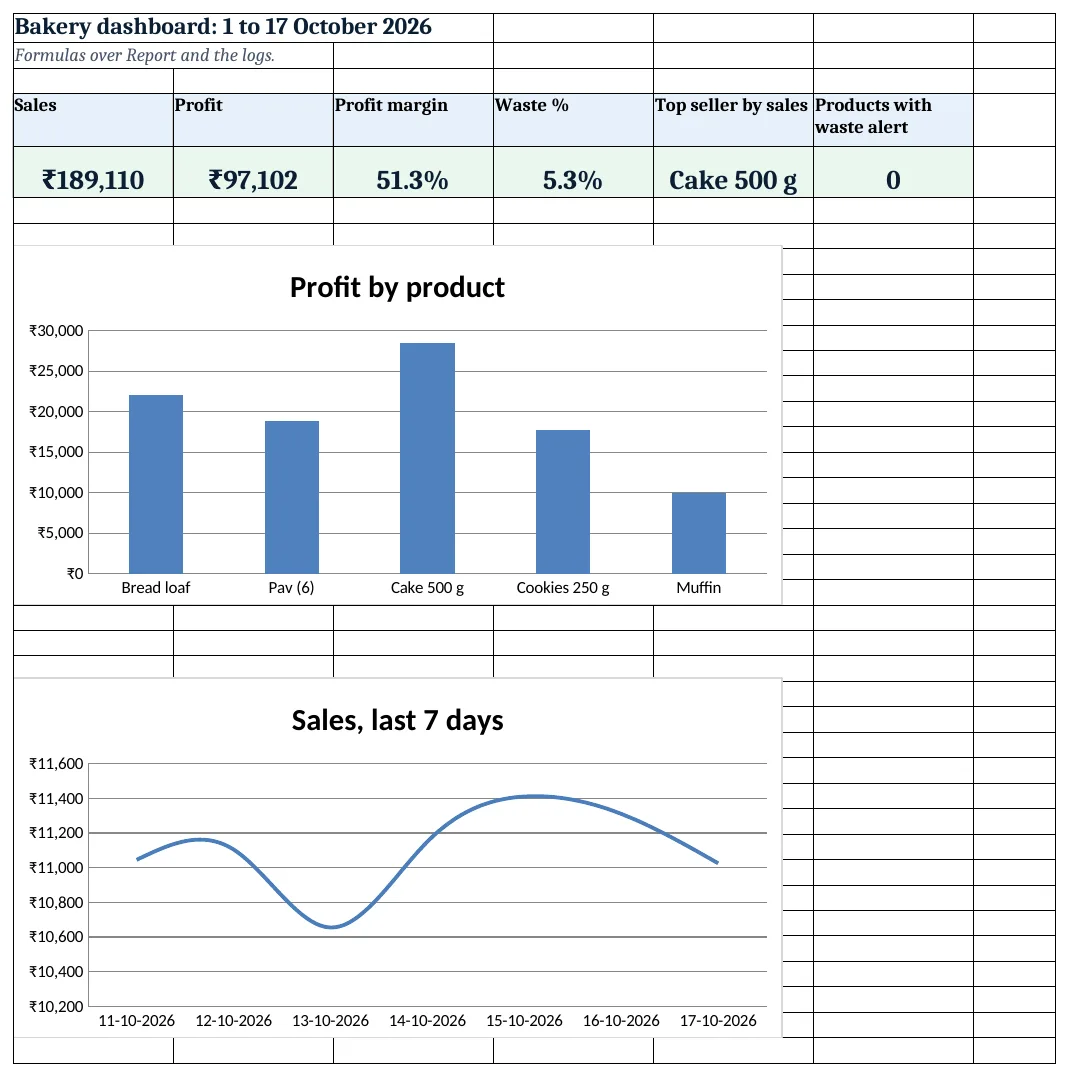
Figure 4. Bakery dashboard: sales, profit, waste and the best seller
Ravindra Bagale's Tip
Recheck the Recipes sheet every time a big ingredient price changes. A ₹50 rise in butter adds ₹5 to every cake.
Ravindra Bagale's Tip – मराठी
मोठ्या ingredient चा भाव बदलला की Recipes sheet पुन्हा पहा. बटर ₹50 ने वाढले तर प्रत्येक cake मागे ₹5 वाढतात.
Ravindra Bagale's Tip – हिंदी
बड़े ingredient का भाव बदले तो Recipes sheet फिर देखें. मक्खन ₹50 बढ़ा तो हर cake पर ₹5 बढ़ जाते हैं.
3. Formulas used
| Cell | Formula | What it does |
|---|---|---|
| Recipes!J7 | =SUMPRODUCT($C$5:$I$5,C7:I7)+Setup!$B$4 |
Cost of one unit from the recipe |
| Recipes!K7 | =B7-J7 |
Margin per unit |
| Recipes!L7 | =K7/B7 |
Margin % |
| Production!D5 | =C5*XLOOKUP(B5,Recipes!$A$7:$A$11,Recipes!$J$7:$J$11,0) |
Cost of the bake |
| Sales!E5 | =C5*XLOOKUP(B5,Recipes!$A$7:$A$11,Recipes!$B$7:$B$11,0) |
Sale amount |
| Report!B5 | =SUMIFS(Production!$C$5:$C$1000,Production!$B$5:$B$1000,A5) |
Pieces baked |
| Report!C5 | =SUMIFS(Sales!$C$5:$C$1000,Sales!$B$5:$B$1000,A5) |
Pieces sold |
| Report!E5 | =IFERROR(D5/B5,0) |
Waste % |
| Report!H5 | =F5-G5 |
Profit per product |
| Report!I5 | =IF(E5>Setup!$B$5,"Check","OK") |
Waste alert |
| Costing card!B7 | =XLOOKUP($B$4,Recipes!$A$7:$A$11,Recipes!C$7:C$11,0) |
Quantity for the chosen product |
| Dashboard!C5 | =Report!H10/Report!F10 |
Margin % on sales |
| Dashboard!E5 | =INDEX(Report!A5:A9,MATCH(MAX(Report!F5:F9),Report!F5:F9,0)) |
Best-selling product |
Every formula above is written in the template, so you can click a cell and see it in the formula bar. All values on this page were recalculated in LibreOffice with zero errors.
4. Common mistakes
- Typing recipe quantities for a whole tray. Recipes work per ONE unit. A tray of 12 needs the tray quantity divided by 12, or the cost is 12 times too high.
- Hard-coding prices inside the recipe. Keep prices on Setup. A price typed into a formula never updates when the market moves.
- Forgetting the overhead. Gas, electricity and boxes are real costs. Leave B4 at 0 and every margin looks better than it is.
- Logging returns as negative sales. Leftover pieces are waste, which the Report already counts as baked − sold. A negative sale counts them twice.
- Different spellings of a product. "Pav" and "Pav (6)" are two products to SUMIFS. Pick names from the drop-down.
Ravindra Bagale's Tip
Watch waste per product, not just the total. A 6% waste on bread costs more than 4% on cake if you bake ten times more bread.
Ravindra Bagale's Tip – मराठी
फक्त एकूण नाही, प्रत्येक product चा waste पहा. bread दहापट जास्त भाजत असाल तर 6% waste ही cake च्या 4% पेक्षा महाग पडते.
Ravindra Bagale's Tip – हिंदी
सिर्फ कुल नहीं, हर product का waste देखें. bread दस गुना ज़्यादा बनती हो तो 6% waste cake के 4% से महंगा पड़ता है.
5. More real examples
Example 1: Sweet shop. Price per kg instead of per piece: quantities in Recipes per kg, sales in kg with one decimal.
Example 2: Home baker taking orders. Use only the Order channel, add a Delivery date column and filter Sales by date for the day's list.
Example 3: Biscuit unit. Add a Lot no column to Production and track rejects per lot, as in the manufacturing rejects project.
Quick revision cards
Quick revision
Each card shows formulas from this page, each with an example and its answer from the template. Scan the QR code on a card to open this lesson. All names and numbers are made up for practice.
झटपट उजळणी
प्रत्येक card वर या page मधले formulas, त्यांचं example आणि template मधलं उत्तर आहे. Card वरचा QR code scan केला की हा lesson उघडतो. सगळी नावं आणि आकडे सरावासाठी काल्पनिक आहेत.
झटपट दोहराई
हर card पर इस page के formulas, उनका example और template का उत्तर है. Card का QR code scan करें तो यह lesson खुलेगा. सभी नाम और आंकड़े अभ्यास के लिए काल्पनिक हैं.
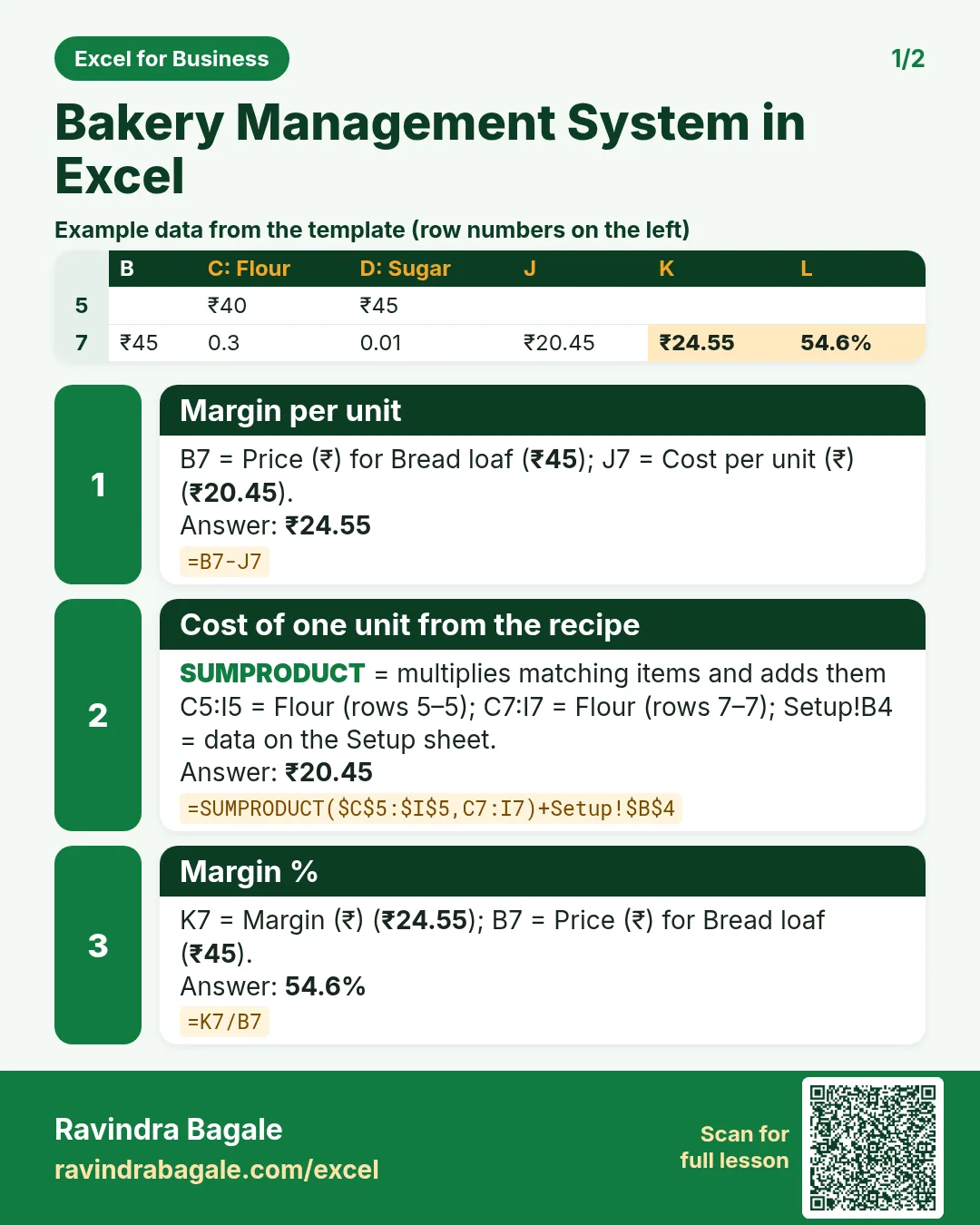


More cards: Ravi Sir's Cards.
6. Frequently asked questions
How do I calculate the cost of a recipe in Excel?
Put ingredient prices in one row and the quantity per unit in the row of each product, then =SUMPRODUCT(prices,quantities) plus any overhead.
How do I find bakery waste percentage?
Waste = baked − sold for the period, and waste % = waste ÷ baked. Here that is 187 ÷ 3,540 = 5.3%.
Should prices include GST?
The template uses prices as charged at the counter. GST on bakery items depends on the item and your registration; confirm with your accountant before adding a tax column.
Can I change an ingredient price mid-month?
Yes, but past costs will also change because Recipes uses today's price. Note the date of the change, or copy the old cost into a separate column first.
How do I see sales per channel?
SUMIFS on the Channel column, as in Report rows 21 to 23.
7. Quick quiz
Ten questions on this page. Sign in to save your score.
Loading practice tasks...
- Total units made (Easy): Add up Units made in D2:D11.
- Average rejects (Easy): Average of E2:E11, rounded to 2 decimals.
- Rows in Line A (Easy): How many rows have Line "Line A"?
- Largest units made (Easy): The largest value in D2:D11.
- Units made for Line A (Medium): Total of D2:D11 where B is "Line A".
- Line A in Delhi (Medium): Total of D2:D11 where B is "Line A" and C is "Delhi".
- Best in Line A (Medium): Largest E2:E11 value where B is "Line A".
- Value of row 2 (Medium): D2 times E2.
- Look up Mateo Garcia (Medium): The Units made for "Mateo Garcia" (use a lookup on column A).
- Total value (Hard): Sum of D times E for all rows.
- Share of Line A (Hard): Share of D2:D11 that is "Line A", rounded to 3 decimals.
- Rank of row 2 (Hard): Rank of D2 among D2:D11 (largest = 1).
- Above average? (Hard): "Above" if E2 is above the average of E2:E11, else "Below".