Employee Attendance Management System in Excel: Monthly Codes, Leave Balance, Late Marks and Dashboard
Bagale Engineering Works in Pune has 8 people on the shop floor and in the office. Every month Shraddha, who handles accounts, used to count ticks on a paper register, argue about late arrivals and then guess how many days to pay. This page turns that register into a 7-sheet Excel system: one code per person per day, a late log that applies the company's grace rule, leave balances that update themselves, a department report and a one-screen dashboard. Its "final payable days" column feeds straight into the salary and payroll systems on the next pages.
What you'll learn on this page
- Plan a multi-sheet system: Setup, entry sheets, calculations, report and dashboard
- Build a 31-day attendance grid with dates and weekday names from one start date
- Count present, absent, half days, leave and offs with COUNTIF
- Work out minutes late from clock-in times and apply a grace rule
- Pull leave taken into a balance sheet with XLOOKUP
- Summarise by department with SUMIFS, COUNTIF and AVERAGEIFS
- Show KPI cards and charts on a dashboard
Download the template: employee-attendance-management-system-template.xlsx: a 7-sheet system with example data and real formulas (Read me, Setup, Attendance, Late log, Leave, Report, Dashboard). Yellow cells are inputs you can type over; green cells hold formulas; blue rows are headers and totals. Replace the example data with your own and every report and the dashboard recalculate.
Made-up data: every name, amount, business and date on this page is made up for practice. Cities are used only to make the examples feel real.
1. The business story
Bagale Engineering Works, October 2026 (made-up data). Eight employees in four departments: Production, Accounts, Sales and Stores. Sundays are weekly offs and 2 October is a holiday, so each person has 26 working days in the month.
What the owner wants to know on the last day of the month:
| Question | Where the system answers it |
|---|---|
| How many days do I pay each person? | Attendance, Final payable days (31 for full attendance, 27 for Shahrukh) |
| Who was absent most? | Attendance, Absent and the red cells in the grid |
| Who keeps coming late? | Late log: 9 late marks, Shahrukh 4 and Salman 3 |
| Whose leave balance is running out? | Leave: Ruhi Bagale and Salman are Low |
| Which department has the weakest attendance? | Report: Stores at 82.7% |
The average attendance comes out at 91.8%, with 2 employees below 90%. If you only need a simple tick-and-cross sheet, start with the attendance sheet with icons; the brief in 21.4 HR attendance and payroll shows the one-sheet version. This page builds the full system.
Figure 1. Setup holds the month, shift time and employees; the Attendance grid and Late log are the daily entry sheets; Leave, Report and Dashboard only read from them.
2. Build it sheet by sheet
Step 1. Setup sheet: the month, the shift and the lists
- Rename the first sheet Setup. In B3 type the first day of the month (01-10-2026), in B4 the shift start (09:30) and in B5 the grace minutes (10).
- In A7:E7 type the headers Emp ID, Name, Department, Designation, Leave balance at month start and fill 8 employees in rows 8 to 15.
- Type the departments in H8:H11 and the attendance codes in J8:J13 (P, A, HL, L, WO, H) with their meanings in column K.
- Select C8:C40 > Data > Data Validation > List and point it at
=$H$8:$H$11(drop-down lists). Every other sheet reads names and codes from here, so a new employee is added in one place.
Step 2. Attendance sheet: a 31-day grid
- Add a sheet Attendance. In D4 type
=Setup!$B$3+0, in E4=Setup!$B$3+1, and so on to AH4 (+30). Format the row asddso it shows the day number. - In D5 type
=TEXT(D4,"ddd")and copy it across: Thu, Fri, Sat... Change Setup B3 next month and both rows update. - In A6 type
=Setup!A8and in B6=XLOOKUP(A6,Setup!$A$8:$A$15,Setup!$B$8:$B$15); do the same for the department in C6 (XLOOKUP). Copy down to row 13. - Select D6:AH23 > Data Validation > List >
=Setup!$J$8:$J$13. Now only the six codes can be typed. - Add conditional formatting on the grid: cell value equal to
"A"red,"L"amber,"WO"and"H"grey (highlight rules). Type the codes for the month.
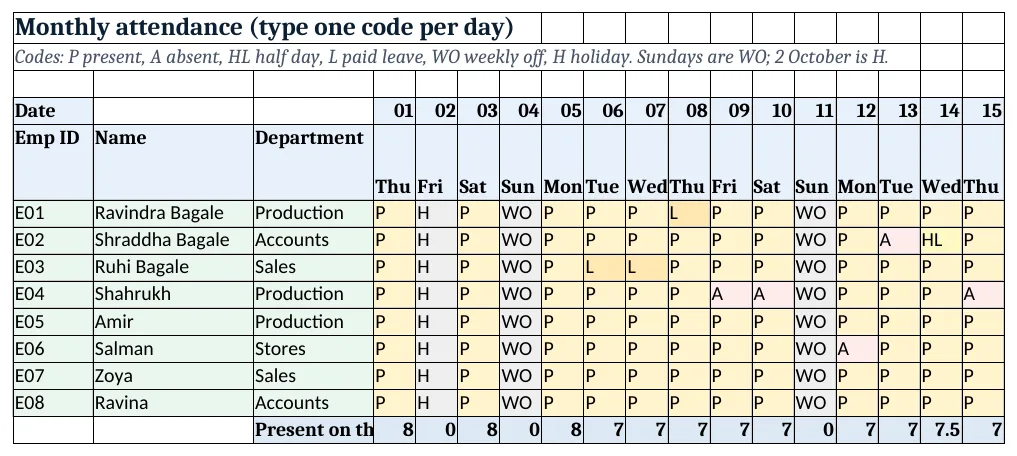
Figure 2. The Attendance grid: one code per employee per day, with absences in red, leave in amber and offs in grey
Step 3. Attendance sheet: count the codes
- In AI6 (Present) type
=COUNTIF(D6:AH6,"P")+COUNTIF(D6:AH6,"HL")/2: a half day counts as half present. Ravindra Bagale: 25. - In AK6 (Absent) type
=COUNTIF(D6:AH6,"A")+AJ6/2, where AJ6 counts the half days. - In AM6 count offs and holidays:
=COUNTIF(D6:AH6,"WO")+COUNTIF(D6:AH6,"H"): 5. - In AN6 (Payable days) type
=AI6+AL6+AM6: present + paid leave + offs. - In AO6 (Working days) type
=DAY(EOMONTH(Setup!$B$3,0))-AM6: 31 − 5 = 26, and in AP6=AI6/AO6for the attendance %: 96.2%. - In row 14 count who was present each day:
=COUNTIF(D6:D13,"P")+COUNTIF(D6:D13,"HL")/2and copy across.
Step 4. Late log: minutes late and the grace rule
- Add a sheet Late log with Date, Emp ID, Name, In time, Minutes late, Late? in row 4.
- In E5 type
=MAX(0,ROUND((D5-Setup!$B$4)*1440,0)). Times are fractions of a day, so ×1440 turns them into minutes (time calculations). 09:52 − 09:30 = 22 minutes. - In F5 type
=IF(E5>Setup!$B$5,"Late","On time"). 09:35 is within the 10 grace minutes, so it is On time. - Back on Attendance, in AQ6 count late marks:
=COUNTIFS('Late log'!$B$5:$B$60,A6,'Late log'!$F$5:$F$60,"Late"), in AR6 the example rule every 3 late marks cut half a day:=INT(AQ6/3)*0.5, and in AS6 the final payable days=AN6-AR6. Shahrukh: 27.5 − 0.5 = 27.
Step 5. Leave and Report sheets
- On a sheet Leave, bring the opening balance with
=XLOOKUP(A5,Setup!$A$8:$A$15,Setup!$E$8:$E$15)and leave taken with=XLOOKUP(A5,Attendance!$A$6:$A$13,Attendance!$AL$6:$AL$13). - Closing balance E5
=C5-D5and status F5=IF(E5<=1,"Low","OK"); highlight Low in amber. - On a sheet Report, list the departments in A5:A8 and type in B5
=COUNTIF(Attendance!$C$6:$C$13,A5), in C5=SUMIFS(Attendance!$AI$6:$AI$13,Attendance!$C$6:$C$13,A5)(SUMIFS) and in F5=AVERAGEIFS(Attendance!$AP$6:$AP$13,Attendance!$C$6:$C$13,A5)(AVERAGEIFS).
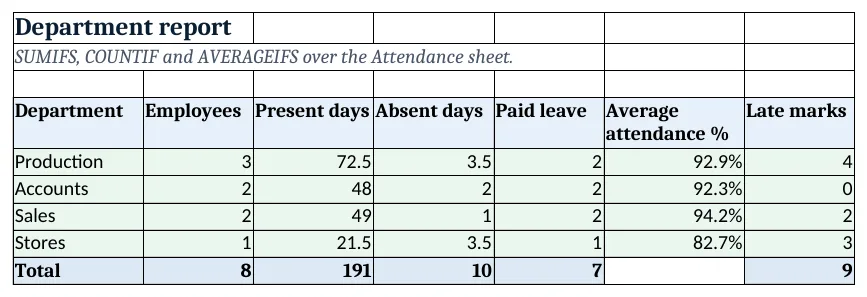
Figure 3. The department report: SUMIFS, COUNTIF and AVERAGEIFS over the Attendance sheet
Step 6. Dashboard sheet: KPI cards and charts
- Add a sheet Dashboard. Each KPI card is a blue label cell with a big formula cell under it (KPI cards).
- Average attendance B5:
=AVERAGE(Attendance!$AP$6:$AP$13)(91.8%). Below 90% D5:=COUNTIF(Attendance!$AP$6:$AP$13,"<0.9")(2). Low leave F5:=COUNTIF(Leave!F5:F12,"Low"). - Insert a column chart of names (Attendance B6:B13) against attendance % (AP6:AP13), and a second chart of absent days by department from the Report sheet.
- Keep the dashboard free of typing: it only reads. That is the rule from structuring a workbook.
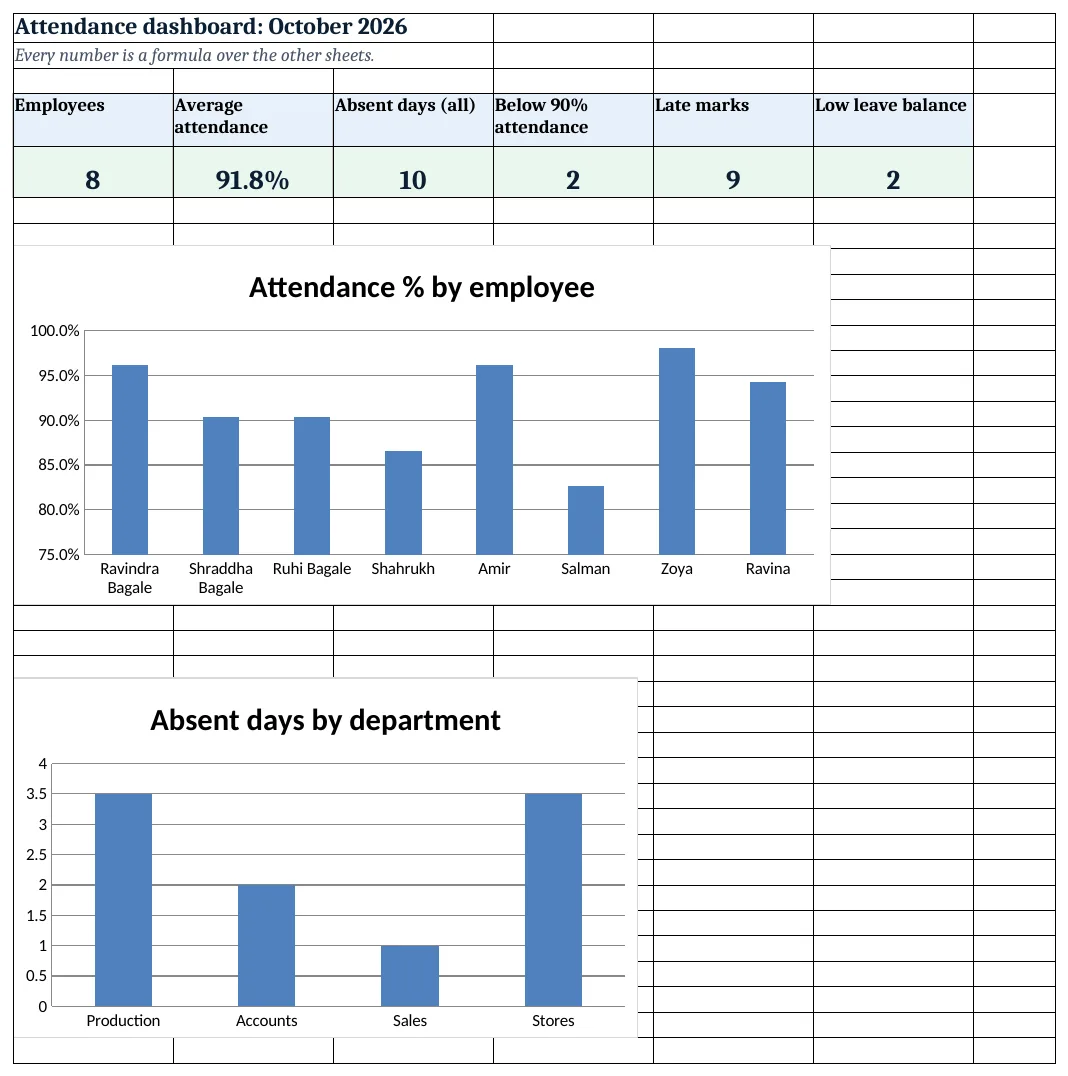
Figure 4. The attendance dashboard: six KPI cards and two charts, all formulas
Ravindra Bagale's Tip
Agree the codes and the late rule with your people before the month starts, and stick the code list on the notice board. Arguments drop when everyone reads the same sheet.
Ravindra Bagale's Tip – मराठी
महिना सुरू होण्याआधी codes आणि late rule सगळ्यांशी ठरवा, आणि code list notice board वर लावा. सगळे एकच sheet वाचतात तेव्हा वाद कमी होतात.
Ravindra Bagale's Tip – हिंदी
महीना शुरू होने से पहले codes और late rule सबसे तय करो, और code list notice board पर लगा दो. सब एक ही sheet पढ़ते हैं तो बहस कम होती है.
3. Formulas used
| Cell | Formula | What it does |
|---|---|---|
| Attendance!D4 | =Setup!$B$3+0 |
Date of day 1 from the Setup month |
| Attendance!D5 | =TEXT(D4,"ddd") |
Weekday name of that date |
| Attendance!B6 | =XLOOKUP(A6,Setup!$A$8:$A$15,Setup!$B$8:$B$15) |
Employee name from the ID |
| Attendance!AI6 | =COUNTIF(D6:AH6,"P")+COUNTIF(D6:AH6,"HL")/2 |
Present days, half days count half |
| Attendance!AK6 | =COUNTIF(D6:AH6,"A")+AJ6/2 |
Absent days, half days count half |
| Attendance!AM6 | =COUNTIF(D6:AH6,"WO")+COUNTIF(D6:AH6,"H") |
Weekly offs plus holidays |
| Attendance!AN6 | =AI6+AL6+AM6 |
Payable days before the late rule |
| Attendance!AO6 | =DAY(EOMONTH(Setup!$B$3,0))-AM6 |
Working days in the month |
| Attendance!AP6 | =AI6/AO6 |
Attendance % |
| Attendance!AQ6 | =COUNTIFS('Late log'!$B$5:$B$60,A6,'Late log'!$F$5:$F$60,"Late") |
Late marks from the Late log |
| Attendance!AR6 | =INT(AQ6/3)*0.5 |
Example rule: half day cut per 3 late marks |
| Attendance!AS6 | =AN6-AR6 |
Final payable days for payroll |
| Attendance!D14 | =COUNTIF(D6:D13,"P")+COUNTIF(D6:D13,"HL")/2 |
Headcount present on that day |
| Late log!E5 | =MAX(0,ROUND((D5-Setup!$B$4)*1440,0)) |
Minutes late after shift start |
| Late log!F5 | =IF(E5>Setup!$B$5,"Late","On time") |
Late only beyond the grace minutes |
| Leave!D5 | =XLOOKUP(A5,Attendance!$A$6:$A$13,Attendance!$AL$6:$AL$13) |
Leave taken this month |
| Leave!F5 | =IF(E5<=1,"Low","OK") |
Flag a low balance |
| Report!C5 | =SUMIFS(Attendance!$AI$6:$AI$13,Attendance!$C$6:$C$13,A5) |
Present days of the department |
| Report!F5 | =AVERAGEIFS(Attendance!$AP$6:$AP$13,Attendance!$C$6:$C$13,A5) |
Average attendance % of the department |
| Dashboard!B5 | =AVERAGE(Attendance!$AP$6:$AP$13) |
Average attendance of all employees |
| Dashboard!D5 | =COUNTIF(Attendance!$AP$6:$AP$13,"<0.9") |
Employees below 90% |
Every formula above is written in the template, so you can click a cell and see it in the formula bar. All values on this page were recalculated in LibreOffice with zero errors.
4. Common mistakes
- Typing "p" or "Present" instead of the code. COUNTIF looks for exactly P. The drop-down on the grid stops other text; if you paste data in, check row 14 headcounts look sensible.
- Counting weekly offs as working days. Attendance % should divide by working days (26 here), not 31, or everyone looks worse than they are.
- Forgetting half days. A half day is half present and half absent. Count HL in both columns, divided by 2, so the days still add up to 31.
- Hard-coding the month. Typing dates by hand in row 4 breaks next month. Build them from Setup B3 so one change rolls the whole sheet.
- Mixing payroll rules into the grid. Keep rules like the late cut in their own columns. Then the grid stays a plain record that everyone agrees on.
Ravindra Bagale's Tip
Lock the Setup and formula columns with Review > Protect Sheet, and leave only the yellow cells open. One accidental overwrite in AN6 can change someone's salary.
Ravindra Bagale's Tip – मराठी
Review > Protect Sheet ने Setup आणि formula columns lock करा, फक्त पिवळे cells उघडे ठेवा. AN6 मध्ये एक चुकीचा overwrite कोणाचा तरी पगार बदलू शकतो.
Ravindra Bagale's Tip – हिंदी
Review > Protect Sheet से Setup और formula columns lock करो, सिर्फ पीले cells खुले रखो. AN6 में एक गलत overwrite किसी की salary बदल सकता है.
5. More real examples
Example 1: Shift-based factory. Add a Shift column in Setup (A, B, C) and a shift start per shift; the Late log looks up the right start time with XLOOKUP instead of one fixed 09:30.
Example 2: Office with flexible hours. Replace the late rule with hours worked: log in and out times, and count a day as HL when hours are below 4.5.
Example 3: Retail shop with 2 branches. Add a Branch column next to Department and a second report block with SUMIFS by branch; the dashboard gets a branch drop-down.
Quick revision cards
Quick revision
Each card shows formulas from this page, each with an example and its answer from the template. Scan the QR code on a card to open this lesson. All names and numbers are made up for practice.
झटपट उजळणी
प्रत्येक card वर या page मधले formulas, त्यांचं example आणि template मधलं उत्तर आहे. Card वरचा QR code scan केला की हा lesson उघडतो. सगळी नावं आणि आकडे सरावासाठी काल्पनिक आहेत.
झटपट दोहराई
हर card पर इस page के formulas, उनका example और template का उत्तर है. Card का QR code scan करें तो यह lesson खुलेगा. सभी नाम और आंकड़े अभ्यास के लिए काल्पनिक हैं.
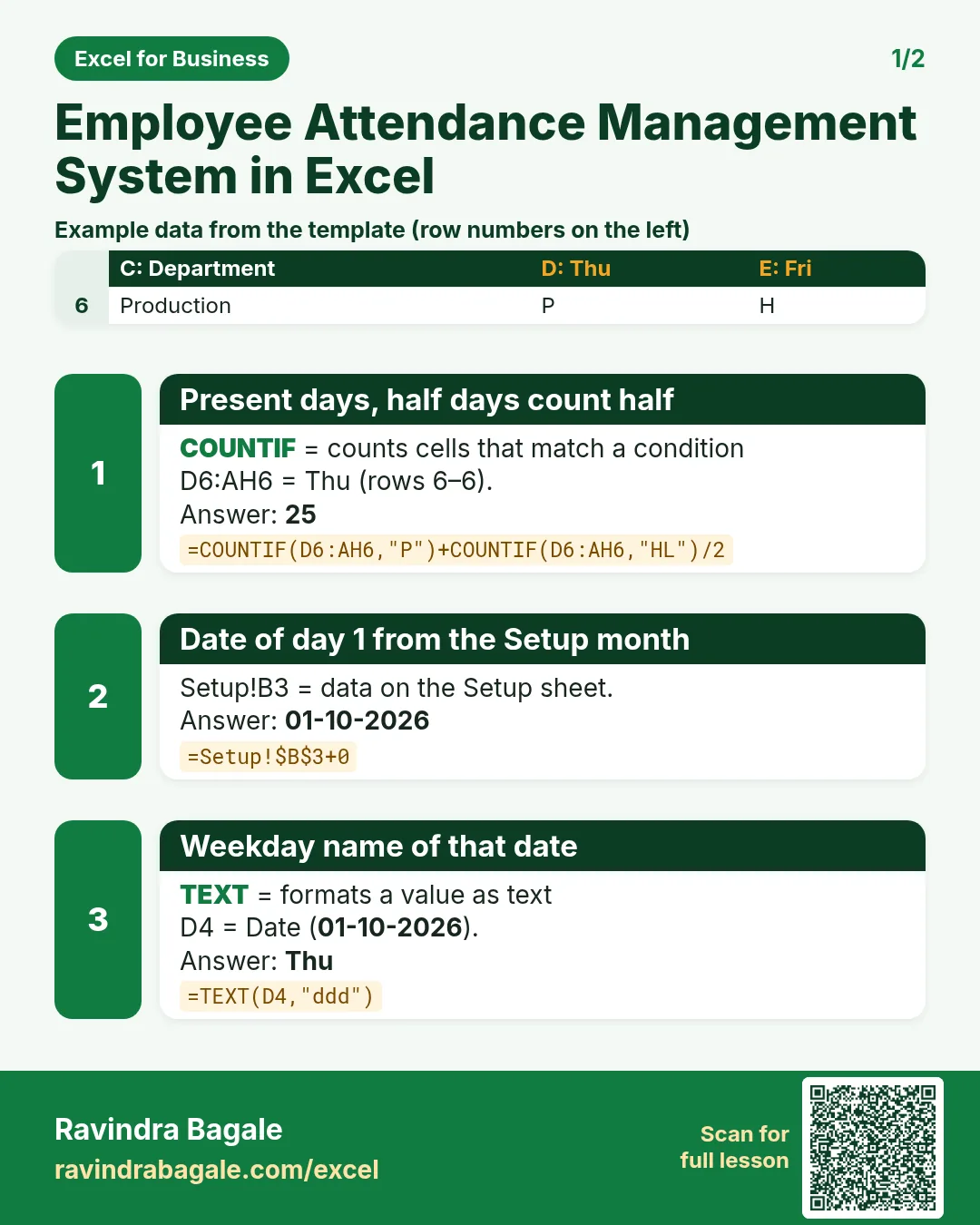

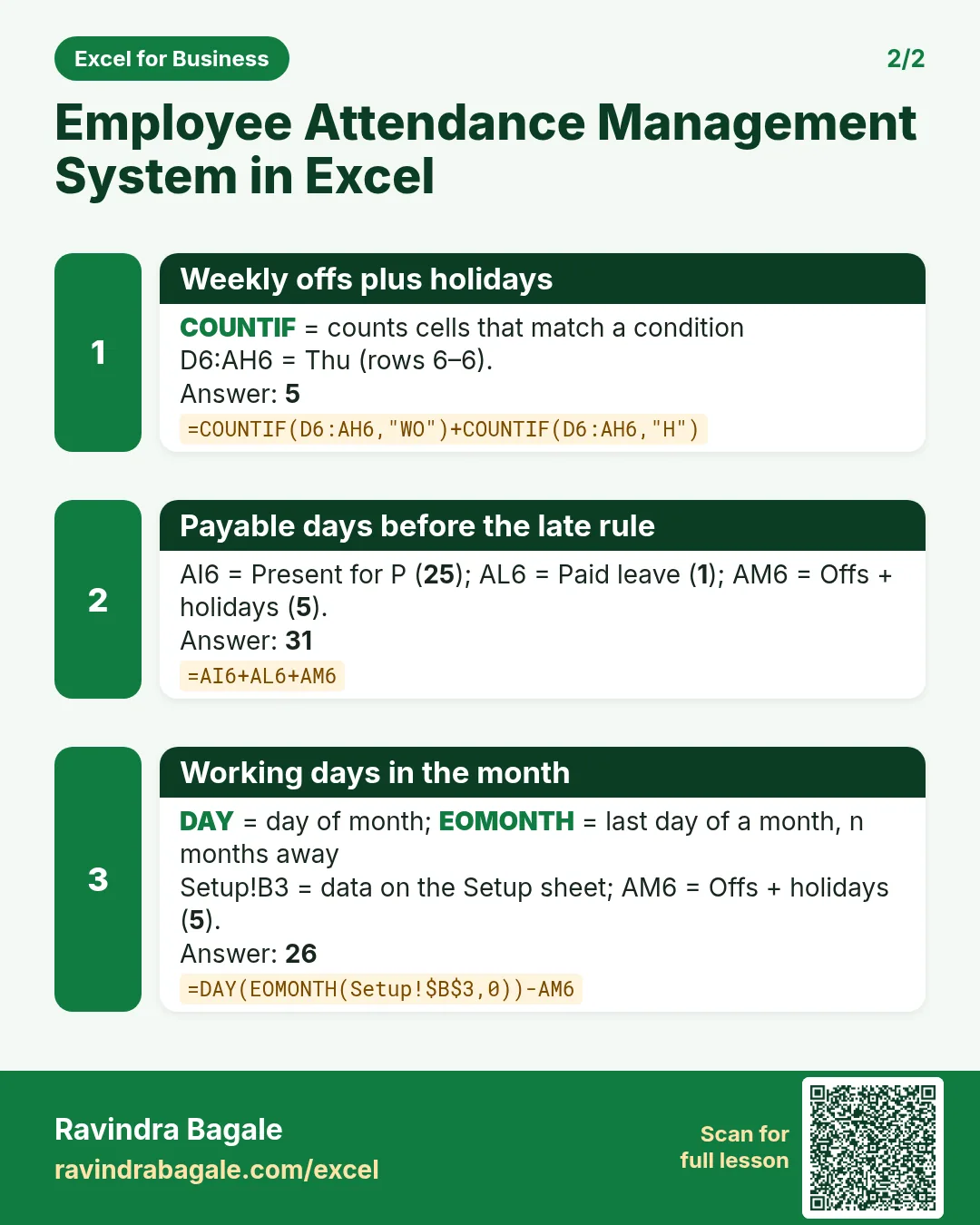

More cards: Ravi Sir's Cards.
6. Frequently asked questions
How do I calculate attendance percentage in Excel?
Divide present days by working days: =AI6/AO6, where working days are the days in the month minus weekly offs and holidays. Format as %. Ravindra Bagale: 25 ÷ 26 = 96.2%.
How do I count half days in an attendance sheet?
Give them their own code (HL) and add half of them to both present and absent: =COUNTIF(D6:AH6,"P")+COUNTIF(D6:AH6,"HL")/2.
How can Excel calculate late coming minutes?
Subtract the shift start from the in-time and multiply by 1440 (minutes in a day): =MAX(0,ROUND((D5-Setup!$B$4)*1440,0)). Compare with the grace minutes to mark Late.
Can this sheet calculate salary too?
It gives the final payable days. The salary slip generator and payroll calculator on the next pages take those days and work out pay.
How do I use it next month?
Change Setup B3 to the next month's first day, clear the codes and the Late log, and update the leave balances in Setup column E. Formulas and formatting stay.
7. Quick quiz
Ten questions on this page. Sign in to save your score.
Loading practice tasks...
- Total leave days (Easy): Add up Leave days in D2:D11. (sheet "Data")
- Average salary (Easy): Average of E2:E11, rounded to 2 decimals. (sheet "Data")
- Rows in Sales (Easy): How many rows have Department "Sales"? (sheet "Data")
- Largest leave days (Easy): The largest value in D2:D11. (sheet "Data")
- Days taken (Easy): C2 minus B2. (sheet "Dates")
- Start year (Easy): Year of B3. (sheet "Dates")
- Due month (Easy): Month number of C3. (sheet "Dates")
- Earliest start (Easy): Earliest date in B2:B9 (as a date number). (sheet "Dates")
- Leave days for Sales (Medium): Total of D2:D11 where B is "Sales". (sheet "Data")
- Sales in Austin (Medium): Total of D2:D11 where B is "Sales" and C is "Austin". (sheet "Data")
- Working days (Medium): Working days from B2 to C2. (sheet "Dates")
- Weekday of due (Medium): Weekday number of C4 (Sunday = 1). (sheet "Dates")