Car Service Garage Management System in Excel: Job Cards, Parts and Labour, GST Invoice, Service Reminders and Dashboard
Bagale Auto Care in Nashik services cars with three mechanics. Ravindra wrote job cards by hand and never knew which customers were due for their next service. This page builds an 8-sheet Excel system: every part and hour of labour is one line, job cards add themselves up, the invoice prints from a job number, and the Vehicles sheet works out each car's next due date and who to call.
What you'll learn on this page
- Keep a vehicle register with owner and type
- Enter parts and labour as job lines with GST
- Total each job card with SUMIFS by line type
- Work out the next service km
- Find the last service with MAXIFS and the next due date with EDATE
- Flag Overdue and Call now vehicles
- Print an invoice and report work per mechanic
Download the template: car-service-garage-management-system-template.xlsx: a 8-sheet system with example data and real formulas (Read me, Setup, Vehicles, Job lines, Job cards, Invoice, Report, Dashboard). Yellow cells are inputs you can type over; green cells hold formulas; blue rows are headers and totals. Replace the example data with your own and every report and the dashboard recalculate.
Made-up data: every name, amount, business and date on this page is made up for practice. Cities are used only to make the examples feel real.
1. The business story
Bagale Auto Care, Nashik, October 2026 (made-up data). Labour ₹600 an hour; GST on parts and labour are inputs (18% here; confirm the rate for each part and service). Service every 10,000 km or 6 months; reminder window 30 days.
| Question | Where the system answers it |
|---|---|
| Who should we call? | Vehicles: Rani More due in 8 days; Salman Pathan overdue by 27 days |
| What did JC-003 cost? | Invoice: ₹5,700 + ₹1,026 GST = ₹6,726, next service at 98,400 km |
| How busy are the mechanics? | Report: 13 labour hours, Salman 5.5 |
| What share is labour? | Dashboard: 30.4% of parts and labour |
Six job cards this month total ₹30,290.60 with GST. For a personal service log, see the car and bike service log; for fleets, the transport fleet system.
Figure 1. Setup and Vehicles are masters; Job lines and Job cards are the entry sheets; Invoice, Report and Dashboard read from them.
2. Build it sheet by sheet
Step 1. Setup and Vehicles
- Setup B4 labour rate (₹600), B5 and B6 GST on parts and labour, B7 service interval in km (10,000), B8 in months (6), B9 reminder window (30 days).
- Vehicles: Reg no, Owner, Type, Service before Oct. The reg no is the key used everywhere.
Step 2. Job cards and Job lines
- Job cards: A5
="JC-"&TEXT(ROW()-4,"000"), date, reg no, D5 owner with XLOOKUP, km in, mechanic. - Job lines: Job no, Type (Part or Labour), Description, Qty or hours, Rate. E7 shows a labour rate pulled from Setup.
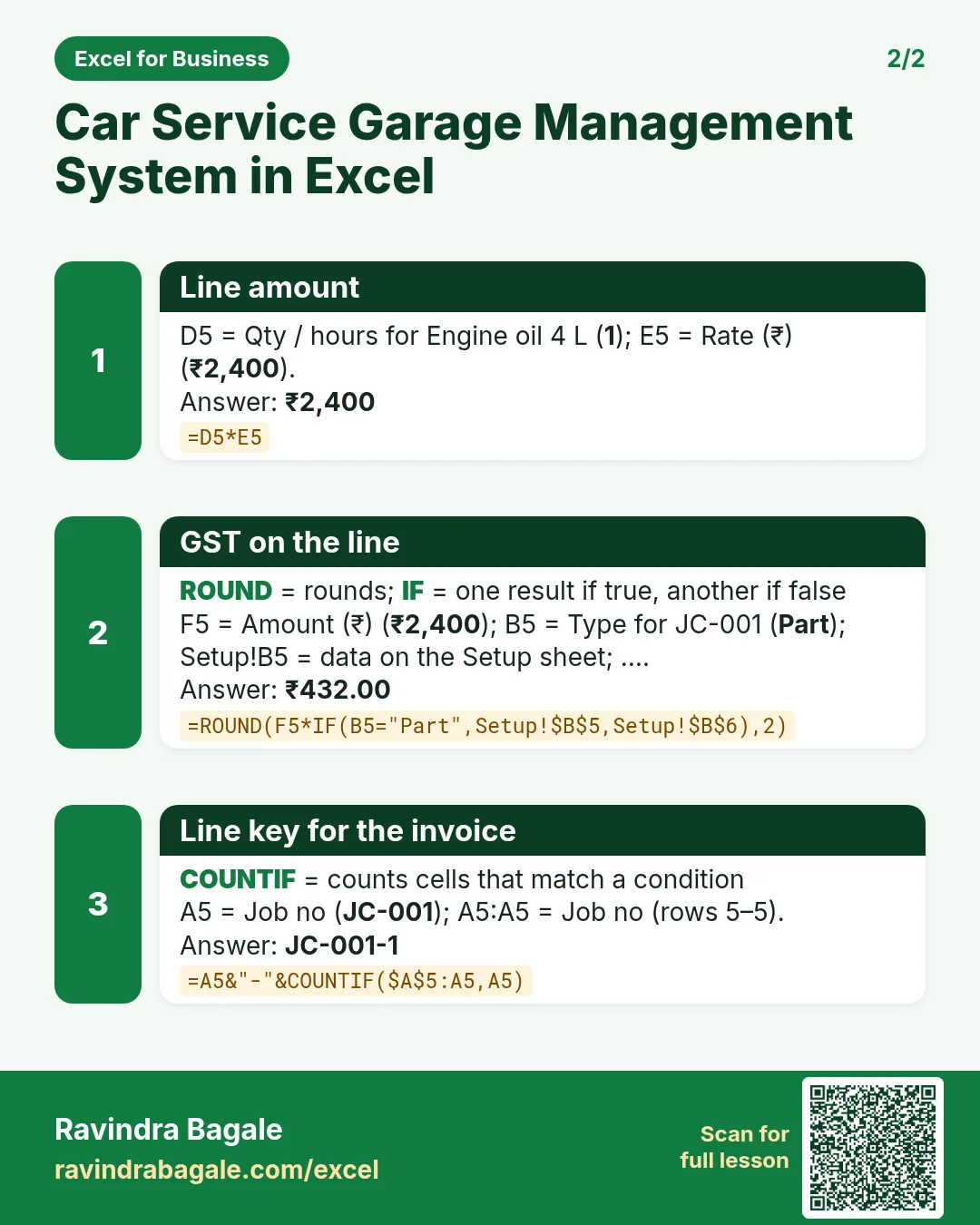
- F5 amount
=D5*E5, G5 GST=ROUND(F5*IF(B5="Part",Setup!$B$5,Setup!$B$6),2), H5 key=A5&"-"&COUNTIF($A$5:A5,A5).
Step 3. Job card totals
- G5 parts
=SUMIFS('Job lines'!$F$5:$F$2000,'Job lines'!$A$5:$A$2000,A5,'Job lines'!$B$5:$B$2000,"Part")and H5 labour the same with "Labour" (SUMIFS). - I5 labour hours, J5 GST, K5 total
=G5+H5+J5, L5 next service km=E5+Setup!$B$7.
Step 4. Vehicles: reminders
- E5 last service:
=MAX(D5,MAXIFS('Job cards'!$B$5:$B$500,'Job cards'!$C$5:$C$500,A5))(MAXIFS). - F5 next due
=EDATE(E5,Setup!$B$8)(dates), G5 days left=F5-Setup!$B$3. - H5:
=IF(G5<0,"Overdue",IF(G5<=Setup!$B$9,"Call now","OK")). Colour it with conditional formatting.
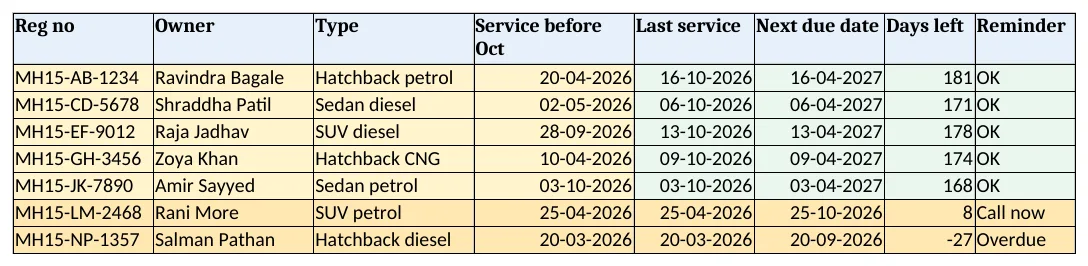
Figure 2. Vehicles: last service, next due date, days left and reminder
Step 5. Invoice: print one job
- Type a job no in B4; D4 finds the reg no and B8 the first line:
=XLOOKUP($B$4&"-"&A8,'Job lines'!$H$5:$H$2000,'Job lines'!$C$5:$C$2000,""). - JC-003 lists engine oil, oil filter, air filter and 2.5 hours of service. Set the print area to A1:F19.
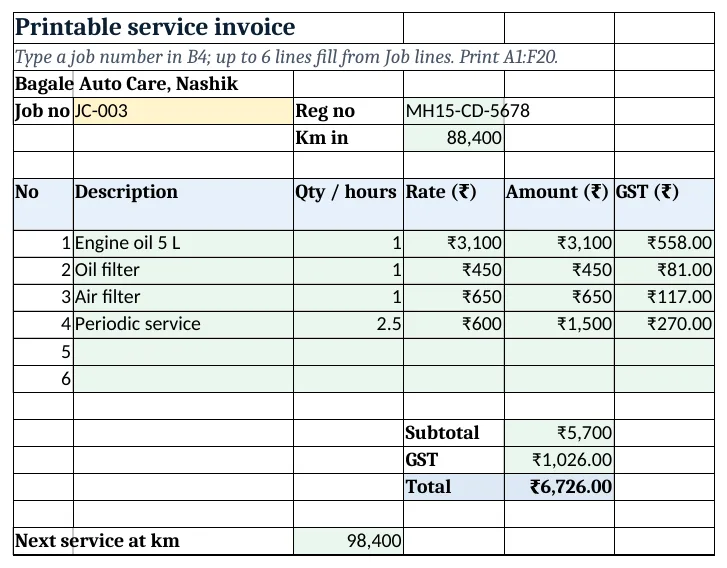
Figure 3. Invoice: job lines with amount and GST for one job card
Step 6. Report and Dashboard
- Report per mechanic: jobs, labour hours, labour, parts and total with GST.
- KPI cards: jobs, billing, labour share
=Report!D8/(Report!D8+Report!E8), average bill, vehicles to call and labour hours. Charts: billing by mechanic and parts vs labour.
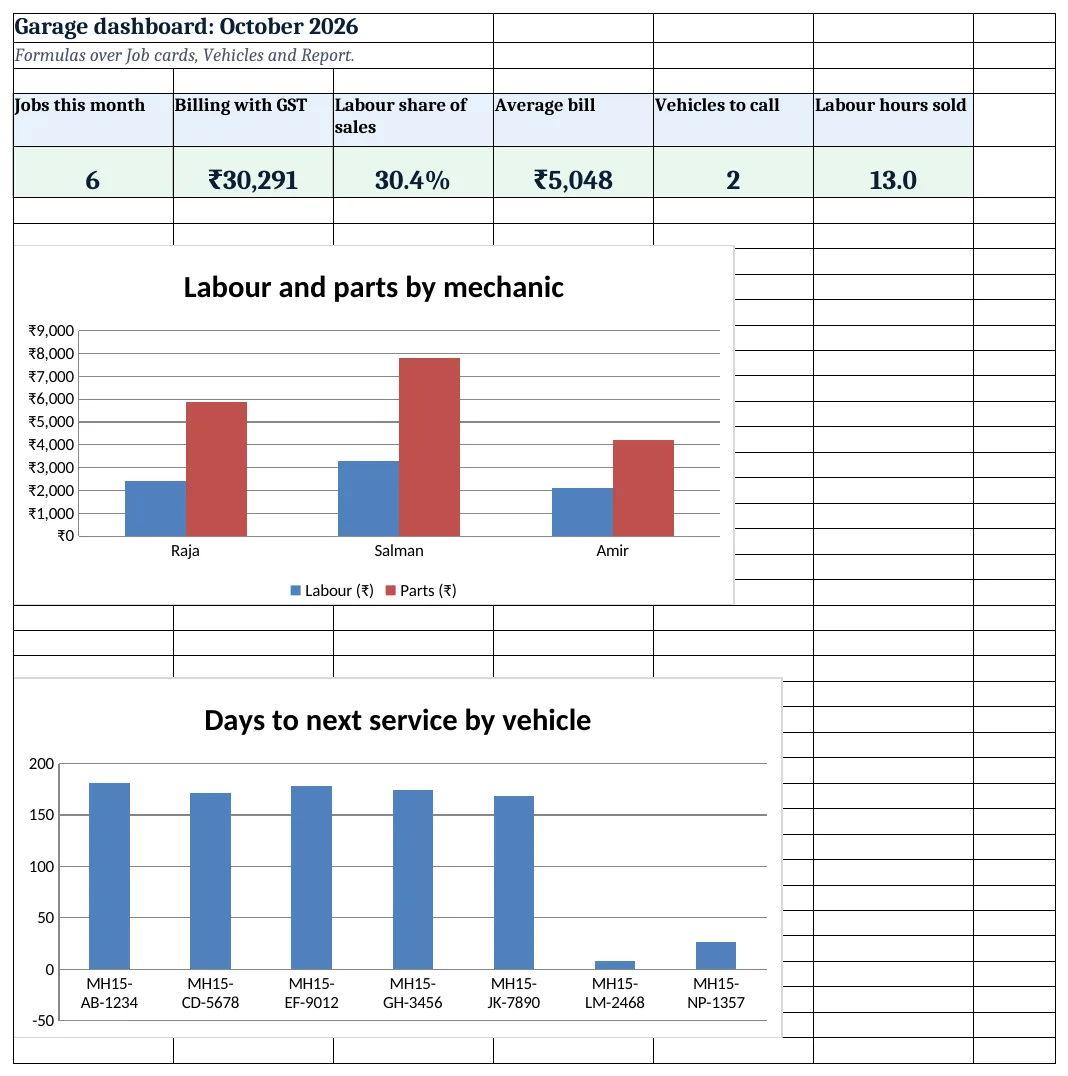
Figure 4. Garage dashboard: jobs, billing, labour share and vehicles to call
Ravindra Bagale's Tip
Call the Call now list on Monday and offer a slot that week. A reminder before the due date fills the workshop on quiet days.
Ravindra Bagale's Tip – मराठी
सोमवारी Call now यादीला फोन करा आणि त्याच आठवड्यातला slot द्या. due date आधीची आठवण कमी कामाच्या दिवशी workshop भरते.
Ravindra Bagale's Tip – हिंदी
सोमवार को Call now सूची को फोन करें और उसी हफ्ते का slot दें. due date से पहले की याद कम काम वाले दिन workshop भरती है.
3. Formulas used
| Cell | Formula | What it does |
|---|---|---|
| Vehicles!E5 | =MAX(D5,MAXIFS('Job cards'!$B$5:$B$500,'Job cards'!$C$5:$C$500,A5)) |
Last service date |
| Vehicles!F5 | =EDATE(E5,Setup!$B$8) |
Next service due date |
| Vehicles!G5 | =F5-Setup!$B$3 |
Days left |
| Vehicles!H5 | =IF(G5<0,"Overdue",IF(G5<=Setup!$B$9,"Call now","OK")) |
Reminder flag |
| Job lines!F5 | =D5*E5 |
Line amount |
| Job lines!G5 | =ROUND(F5*IF(B5="Part",Setup!$B$5,Setup!$B$6),2) |
GST on the line |
| Job lines!H5 | =A5&"-"&COUNTIF($A$5:A5,A5) |
Line key for the invoice |
| Job cards!D5 | =XLOOKUP(C5,Vehicles!$A$5:$A$100,Vehicles!$B$5:$B$100,"Check reg no") |
Owner from the reg no |
| Job cards!G5 | =SUMIFS('Job lines'!$F$5:$F$2000,'Job lines'!$A$5:$A$2000,A5,'Job lines'!$B$5:$B$2000,"Part") |
Parts on the job |
| Job cards!K5 | =G5+H5+J5 |
Job total with GST |
| Job cards!L5 | =E5+Setup!$B$7 |
Next service km |
| Invoice!B8 | =XLOOKUP($B$4&"-"&A8,'Job lines'!$H$5:$H$2000,'Job lines'!$C$5:$C$2000,"") |
First line on the invoice |
| Report!C5 | =SUMIFS('Job cards'!$I$5:$I$500,'Job cards'!$F$5:$F$500,A5) |
Labour hours per mechanic |
| Dashboard!C5 | =Report!D8/(Report!D8+Report!E8) |
Labour share |
Every formula above is written in the template, so you can click a cell and see it in the formula bar. All values on this page were recalculated in LibreOffice with zero errors.
4. Common mistakes
- Totals typed on the job card. Let SUMIFS add the job lines; a typed total does not change when a line is added.
- Last service from the register only. MAXIFS on Job cards picks up services done this month; MAX with the old date covers cars not yet seen.
- Adding 180 days for 6 months. EDATE adds calendar months, so 25 April becomes 25 October.
- Same reg no typed two ways. "MH15 AB 1234" and "MH15-AB-1234" do not match. Use one format, ideally from a drop-down.
- Ignoring the km reminder. Next service km is on the job card; ask the km at every visit and service whichever comes first.
Ravindra Bagale's Tip
Write the next service km on a sticker for the car as well. Customers remember km better than dates.
Ravindra Bagale's Tip – मराठी
next service km car वरच्या sticker वरही लिहा. ग्राहकांना तारखेपेक्षा km जास्त लक्षात राहतात.
Ravindra Bagale's Tip – हिंदी
next service km car के sticker पर भी लिखें. ग्राहकों को तारीख से ज़्यादा km याद रहते हैं.
5. More real examples
Example 1: Two-wheeler workshop. Use a 3,000 km or 3-month interval and lower labour rates.
Example 2: Tyre and battery shop. Track battery warranty months with EDATE from the sale date.
Example 3: Fleet maintenance. Add a Company column on Vehicles and a company-wise report, as in the fleet system.
Quick revision cards
Quick revision
Each card shows formulas from this page, each with an example and its answer from the template. Scan the QR code on a card to open this lesson. All names and numbers are made up for practice.
झटपट उजळणी
प्रत्येक card वर या page मधले formulas, त्यांचं example आणि template मधलं उत्तर आहे. Card वरचा QR code scan केला की हा lesson उघडतो. सगळी नावं आणि आकडे सरावासाठी काल्पनिक आहेत.
झटपट दोहराई
हर card पर इस page के formulas, उनका example और template का उत्तर है. Card का QR code scan करें तो यह lesson खुलेगा. सभी नाम और आंकड़े अभ्यास के लिए काल्पनिक हैं.
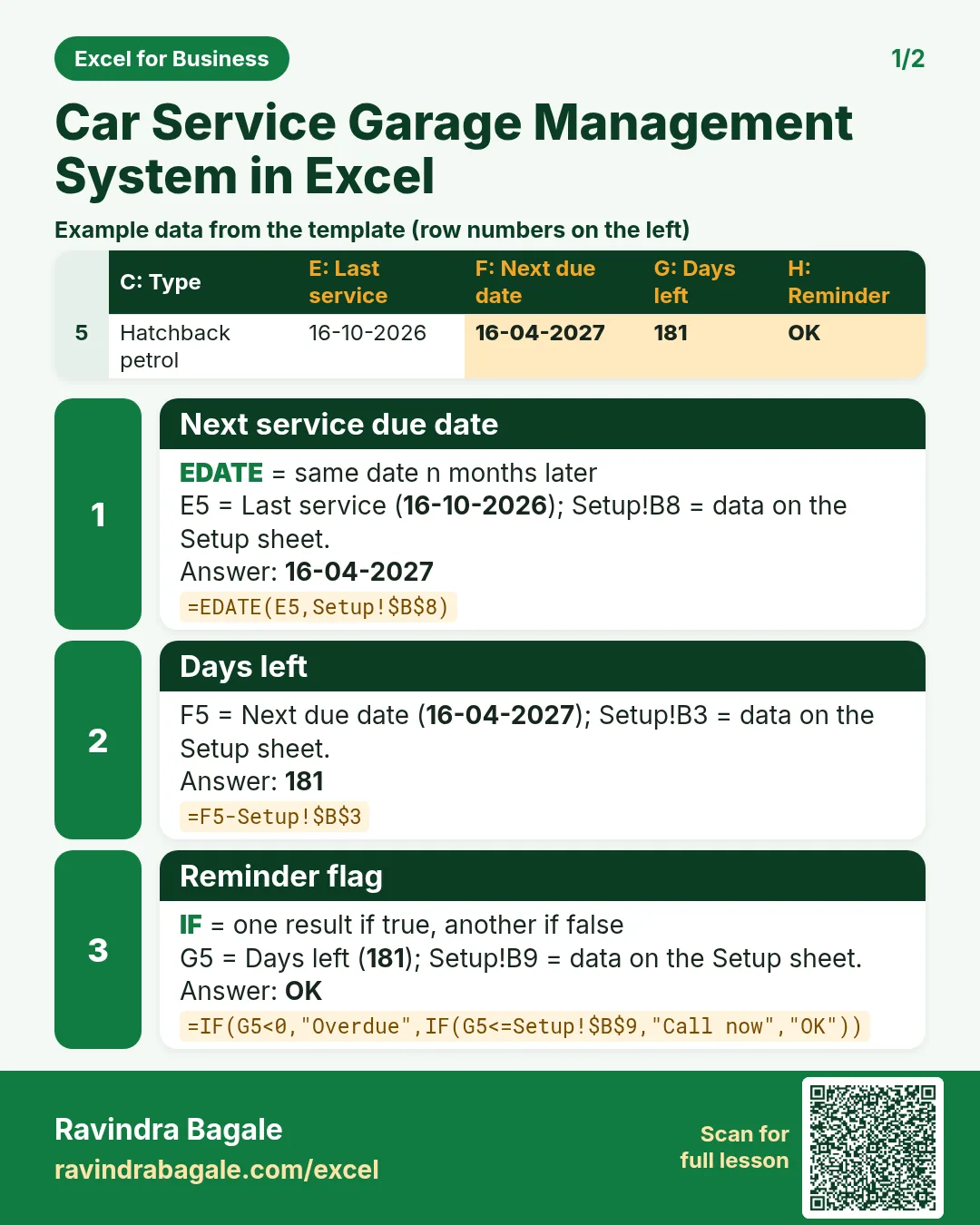


More cards: Ravi Sir's Cards.
6. Frequently asked questions
How do I find the next service date in Excel?
Take the last service date and add the interval with EDATE: =EDATE(E5,6).
How do I find a car's last service from many job cards?
MAXIFS on the job date where the reg no matches.
How do I split parts and labour on a job card?
SUMIFS on the job lines with the job no and the line type as conditions.
What GST applies to car service?
Rates differ by part and service. The template keeps them as inputs; confirm the current rates with your accountant.
How do I list cars to call?
Days left = next due − today; show "Call now" when it is between 0 and the window and "Overdue" below 0.
7. Quick quiz
Ten questions on this page. Sign in to save your score.
Loading practice tasks...
- Monthly rate (Easy): Yearly rate B3 divided by 12. (sheet "Plan")
- Months (Easy): B4 times 12. (sheet "Plan")
- Monthly EMI (Easy): EMI on amount B2 at B3 for B4 years, as a positive number, rounded to 2 decimals. (sheet "Plan")
- Days taken (Easy): C2 minus B2. (sheet "Dates")
- Start year (Easy): Year of B3. (sheet "Dates")
- Due month (Easy): Month number of C3. (sheet "Dates")
- Earliest start (Easy): Earliest date in B2:B9 (as a date number). (sheet "Dates")
- Total repaid (Medium): Total paid over the loan, rounded to 0 decimals. (sheet "Plan")
- Total interest (Medium): Total paid minus B2, rounded to 0 decimals. (sheet "Plan")
- Processing fee (Medium): B2 times B6. (sheet "Plan")
- Working days (Medium): Working days from B2 to C2. (sheet "Dates")
- Weekday of due (Medium): Weekday number of C4 (Sunday = 1). (sheet "Dates")