Birthday and Anniversary Reminder in Excel: Age, Next Birthday and Days Left (DATEDIF)
Ravindra Bagale once remembered a friend's birthday two days late, and only because the friend posted the party photos. A reminder sheet in Excel stops that. Type each person's date once. Every time you open the file it shows the next date, the days left, how old they are turning, and a coloured alert for this week.
What you'll learn on this page
- Next birthday this year or next year with DATE
- Days left from the as-of date
- Age now with DATEDIF
- Turning age or years married
- This week and This month alerts
- Who comes up first with INDEX and MATCH
Download the template: birthday-anniversary-reminder-template.xlsx: example data with real formulas. Yellow cells are inputs you can type over; green cells hold formulas; blue rows are headers and totals. Replace the example data with your own and everything recalculates.
Made-up data: every name, amount, shop and date on this page is made up for practice. Cities are used only to make the examples feel real.
1. The example
As of 17-10-2026 (made-up dates):
| Name | Occasion | Next date | Days left | Turning | Alert |
|---|---|---|---|---|---|
| Shahrukh | Birthday | 17-10-2026 | 0 | 36 | Today! |
| Ruhi Bagale | Birthday | 24-10-2026 | 7 | 12 | This week |
| Raja | Birthday | 03-11-2026 | 17 | 38 | This month |
| Ravindra & Shraddha | Anniversary | 27-11-2026 | 41 | 15 years | |
| Amir & Ravina | Anniversary | 12-10-2027 | 360 | 8 years |
Amir and Ravina's anniversary (12 October) has already passed this year, so the next one is in 2027. Three dates fall in the next 30 days. Ruhi is 11 today (DATEDIF) and turns 12 next week.
B3 holds the as-of date. In the template it is typed, so the numbers on this page match. Type =TODAY() in B3 to make the sheet live.
Figure 1. From one typed date: DATE builds this year's date and rolls to next year if it has passed; days left, turning age and DATEDIF age follow; the alert colours today and this week.
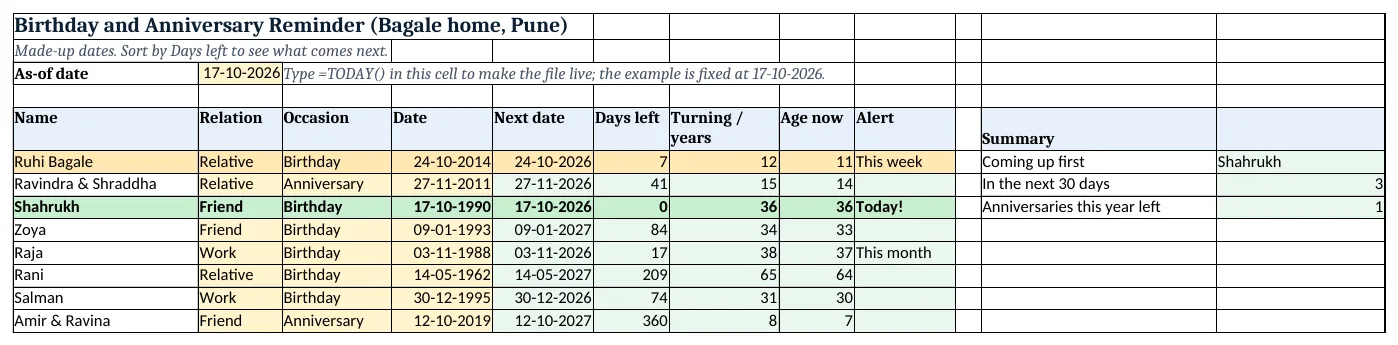
Figure 2. The template sheet, recalculated with its example data. Download it above and replace the yellow cells with your own numbers.
2. Build it step by step
Step 1. As-of date and list
- In B3 type
=TODAY()(the template has 17-10-2026 typed, so the example matches) (TODAY). - In A5:I5 type Name, Relation, Occasion, Date, Next date, Days left, Turning / years, Age now, Alert.
- Type each person with the original date and year in D6 down.
- Select B6:B200 > Data > Data Validation > List:
Relative,Friend,Work, and C6:C200:Birthday,Anniversary(drop-down lists).
Step 2. Next date
- In E6 type
=DATE(YEAR($B$3)+(DATE(YEAR($B$3),MONTH(D6),DAY(D6))<$B$3),MONTH(D6),DAY(D6)). - Read it from the inside: DATE(YEAR($B$3),MONTH(D6),DAY(D6)) is the date this year. If it is before today, the comparison is TRUE, which counts as 1, so the year becomes next year.
- Copy E6 down.
Step 3. Days left, turning and age
- In F6 type
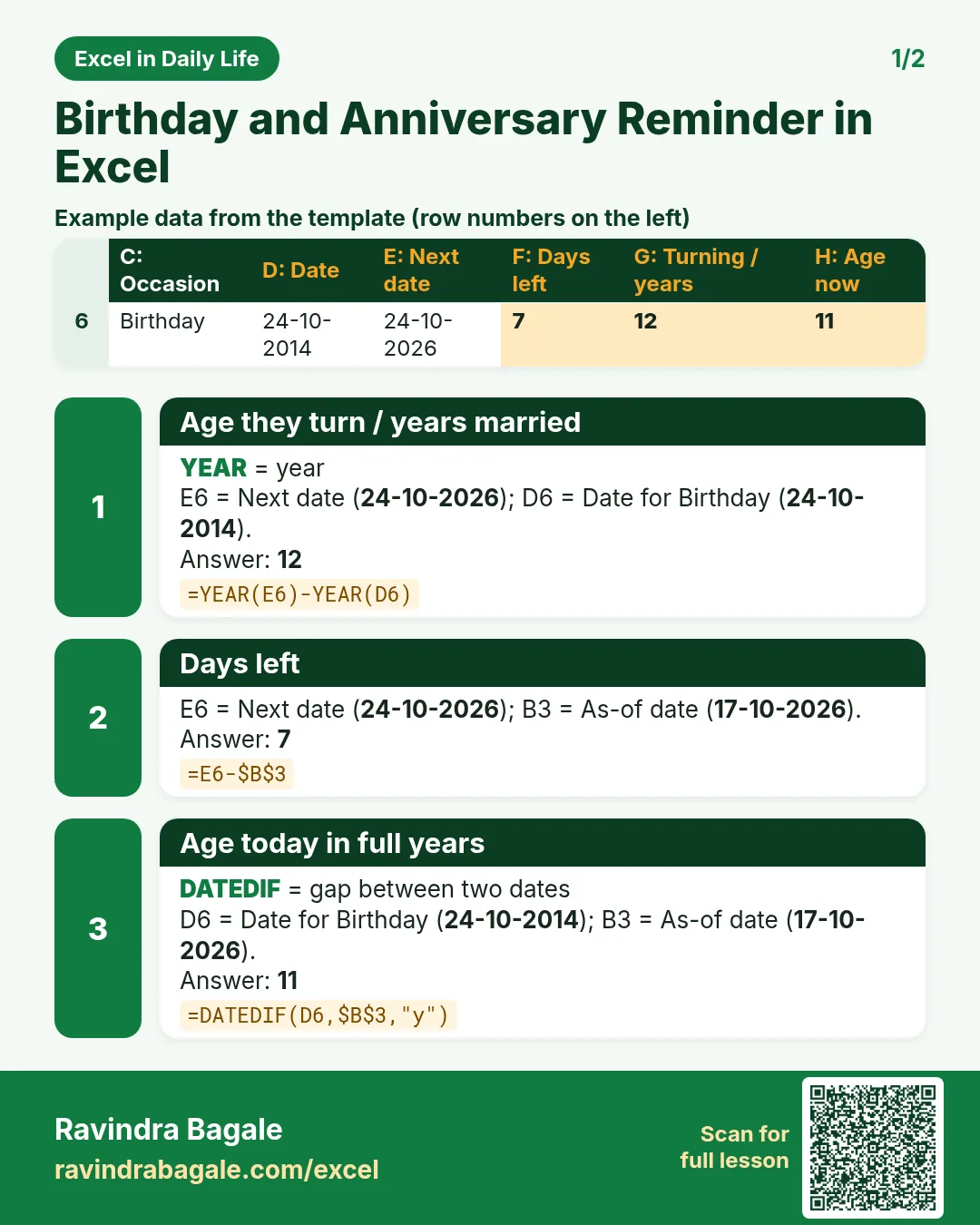
=E6-$B$3: days left. - In G6 type
=YEAR(E6)-YEAR(D6): the age they turn, or the years of marriage. - In H6 type
=DATEDIF(D6,$B$3,"y"): full years completed today (DATEDIF).
Step 4. Alert
- In I6 type
=IF(F6=0,"Today!",IF(F6<=7,"This week",IF(F6<=30,"This month","")))and copy down (nested IF).
Step 5. Summary
- In L6 type
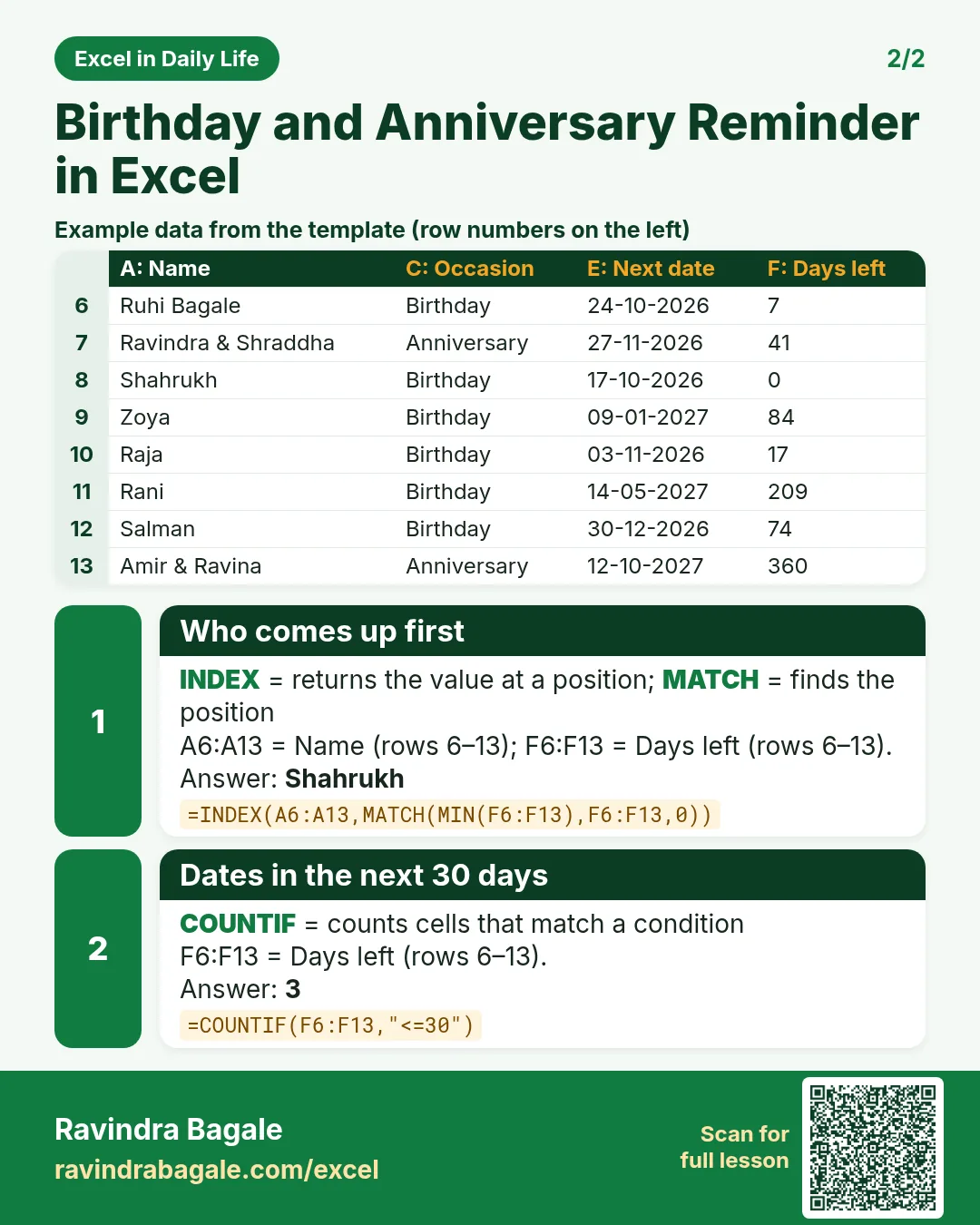
=INDEX(A6:A13,MATCH(MIN(F6:F13),F6:F13,0)): Shahrukh comes up first. - In L7 type
=COUNTIF(F6:F13,"<=30"): 3 in the next 30 days. - In L8 type
=COUNTIFS(C6:C13,"Anniversary",E6:E13,"<="&DATE(YEAR(B3),12,31)): 1 anniversary left this year.
Step 6. Colours and sorting
- Select A6:I200 > Conditional Formatting > New Rule > Use a formula:
=AND($D6<>"",$F6=0)green and bold; then=AND($D6<>"",$F6<=7)amber (formula rules). - To see the order, select the list and Data > Sort by Days left, smallest to largest.
Ravindra Bagale's Tip
Sort by Days left once a week, say on Monday morning. The top three rows are your week.
Ravindra Bagale's Tip – मराठी
आठवड्यातून एकदा, सोमवारी सकाळी, Days left ने sort करा. वरच्या तीन rows म्हणजे तुमचा आठवडा.
Ravindra Bagale's Tip – हिंदी
हफ्ते में एक बार, सोमवार सुबह, Days left से sort करो. ऊपर की तीन rows आपका हफ्ता हैं.
3. Formulas used
| Cell | Formula | What it does |
|---|---|---|
| E6 | =DATE(YEAR($B$3)+(DATE(YEAR($B$3),MONTH(D6),DAY(D6))<$B$3),MONTH(D6),DAY(D6)) |
Next date: this year, or next year if already passed |
| F6 | =E6-$B$3 |
Days left |
| G6 | =YEAR(E6)-YEAR(D6) |
Age they turn / years married |
| H6 | =DATEDIF(D6,$B$3,"y") |
Age today in full years |
| I6 | =IF(F6=0,"Today!",IF(F6<=7,"This week",IF(F6<=30,"This month",""))) |
Today! / This week / This month |
| L6 | =INDEX(A6:A13,MATCH(MIN(F6:F13),F6:F13,0)) |
Who comes up first |
| L7 | =COUNTIF(F6:F13,"<=30") |
Dates in the next 30 days |
| L8 | =COUNTIFS(C6:C13,"Anniversary",E6:E13,"<="&DATE(YEAR(B3),12,31)) |
Anniversaries left this year |
Every formula above is written in the template, so you can click a cell and see it in the formula bar. All values on this page were recalculated in the file.
4. Common mistakes
- Using the birth date directly for days left.
=D6-$B$3gives a big minus number. You need the next occurrence (column E) first. - Forgetting the year roll-over. Without the
(…<$B$3)part, a birthday that has passed shows a minus number of days instead of next year's date. - Typing dates as text. If 24-10-2014 sits on the left of the cell, Excel sees text and DATE gives #VALUE!. Retype it as a real date.
- 29 February dates. DATE turns 29 February into 1 March in non-leap years. Type 28 February or 1 March instead.
- Typing years into Turning by hand. Let
=YEAR(E6)-YEAR(D6)do it, so it is correct every year.
Ravindra Bagale's Tip
Add a column for gift ideas next to each name. When the alert turns amber, you already know what to buy.
Ravindra Bagale's Tip – मराठी
प्रत्येक नावापुढे gift ideas साठी एक column ठेवा. Alert पिवळा झाला की काय घ्यायचं ते आधीच ठरलेलं असतं.
Ravindra Bagale's Tip – हिंदी
हर नाम के आगे gift ideas का एक column रखो. Alert पीला हो जाए तो क्या खरीदना है, पहले से तय होगा.
5. More real examples
Example 1: Work team list. Use Relation = Work and filter on it to see only the team's birthdays this month.
Example 2: Insurance and document renewals. The same next-date formula works for any yearly date: vehicle insurance, a yearly health check-up or a passport reminder.
Example 3: Month-wise list. Add =TEXT(D6,"mmm") and filter by month for a printable list for the fridge.
Quick revision cards
Quick revision
Each card shows formulas from this page, each with an example and its answer from the template. Scan the QR code on a card to open this lesson. All names and numbers are made up for practice.
झटपट उजळणी
प्रत्येक card वर या page मधले formulas, त्यांचं example आणि template मधलं उत्तर आहे. Card वरचा QR code scan केला की हा lesson उघडतो. सगळी नावं आणि आकडे सरावासाठी काल्पनिक आहेत.
झटपट दोहराई
हर card पर इस page के formulas, उनका example और template का उत्तर है. Card का QR code scan करें तो यह lesson खुलेगा. सभी नाम और आंकड़े अभ्यास के लिए काल्पनिक हैं.


More cards: Ravi Sir's Cards.
6. Frequently asked questions
How do I calculate the next birthday in Excel?
=DATE(YEAR(TODAY())+(DATE(YEAR(TODAY()),MONTH(D6),DAY(D6))<TODAY()),MONTH(D6),DAY(D6)) gives this year's date, or next year's if it has passed.
How do I calculate days until a birthday?
Next birthday − TODAY(). In the template =E6-$B$3.
How do I calculate age in Excel?
=DATEDIF(D6,TODAY(),"y") gives full years completed.
Why is DATEDIF not in the function list?
It is an old function Excel keeps for compatibility, so it does not appear in the suggestions. Type it in full; it still works.
Can Excel send me a birthday reminder?
Excel itself does not send alerts. Open the file each week, or copy the dates into your phone calendar as yearly events.
7. Quick quiz
Ten questions on this page. Sign in to save your score.
Loading practice tasks...
- Monthly rate (Easy): Yearly rate B3 divided by 12. (sheet "Plan")
- Months (Easy): B4 times 12. (sheet "Plan")
- Monthly EMI (Easy): EMI on amount B2 at B3 for B4 years, as a positive number, rounded to 2 decimals. (sheet "Plan")
- Clean name (Easy): Trim A2. (sheet "Text")
- Proper case (Easy): A2 trimmed and in proper case. (sheet "Text")
- Code prefix (Easy): First 3 characters of B2. (sheet "Text")
- Code number (Easy): Last 4 characters of B3. (sheet "Text")
- Total repaid (Medium): Total paid over the loan, rounded to 0 decimals. (sheet "Plan")
- Total interest (Medium): Total paid minus B2, rounded to 0 decimals. (sheet "Plan")
- Processing fee (Medium): B2 times B6. (sheet "Plan")
- City part (Medium): Characters 5 to 7 of B4. (sheet "Text")
- Name length (Medium): Length of A3. (sheet "Text")