Salary Slip Generator in Excel: Employee Master, Monthly Inputs and a Printable Payslip for Any Employee
At Bagale Engineering Works the attendance system now gives the final payable days for everyone. Next, every employee needs a salary slip. Writing 8 slips by hand each month invites mistakes. Here you build a salary slip generator: an employee master typed once, a small monthly input sheet, a salary register that calculates everything, and one printable slip where you pick an Emp ID and the whole slip fills itself. Print, save as PDF, pick the next ID.
What you'll learn on this page
- Separate fixed data (employee master) from monthly inputs
- Pro-rate salary for unpaid days with ROUND
- Apply PF, ESI and Maharashtra professional tax from rates kept in Setup
- Build a printable slip driven by one drop-down and XLOOKUP
- Add a check cell so the slip always matches the register
- Set the print area for a one-page slip
Download the template: salary-slip-generator-system-template.xlsx: a 8-sheet system with example data and real formulas (Read me, Setup, Employees, Monthly, Salary register, Salary slip, Report, Dashboard). Yellow cells are inputs you can type over; green cells hold formulas; blue rows are headers and totals. Replace the example data with your own and every report and the dashboard recalculate.
Made-up data: every name, amount, business and date on this page is made up for practice. Cities are used only to make the examples feel real.
1. The business story
October 2026 has 31 days. Unpaid days come from the attendance system (31 minus final payable days). Shahrukh, machine operator, monthly gross ₹15,000:
| Item | Monthly (full month) | Earned for 27 paid days |
|---|---|---|
| Basic | ₹9,500 | ₹8,274 |
| HRA | ₹3,800 | ₹3,310 |
| Conveyance | ₹1,200 | ₹1,045 |
| Special allowance | ₹500 | ₹435 |
| Gross earned | ₹15,000 | ₹13,064 |
| PF 12% of earned basic | ₹993 | |
| ESI 0.75% (gross ≤ ₹21,000) | ₹98 | |
| Professional tax (men above ₹10,000) | ₹200 | |
| Advance recovery | ₹1,000 | |
| Net pay | ₹10,773 |
The rates are real (checked 17 October 2026): PF 12% with the wage ceiling raised to ₹25,000 from 17 September 2026 by the EPFO, ESI 0.75% employee share for wages up to ₹21,000 (esic.gov.in), and the Maharashtra PT slabs from the MAHAGST schedule. TDS is typed from the employee's declaration, not calculated. For the salary components themselves see salary calculation: basic, HRA, DA, PF; the brief 21.11 salary slip creation is the one-sheet version (it was written with the older ₹15,000 PF ceiling).
Figure 1. The employee master and monthly inputs feed the salary register; the printable slip looks up one row of the register by Emp ID.
2. Build it sheet by sheet
Step 1. Setup: company, month and statutory rates
- On Setup type the company in B3 and the salary month (first day) in B4. In B5 type
=DAY(EOMONTH(B4,0))for days in the month: 31. - From row 10, keep the rates in yellow cells with their source next to them: PF ceiling ₹25,000 (B11), PF 12% (B12), EPS 8.33% (B13), ESI ceiling ₹21,000 (B14), ESI 0.75% (B15), ESI employer 3.25% (B16).
- Type the Maharashtra PT slabs as notes below. When a rate changes, you change one cell, not 8 formulas.
Step 2. Employees and Monthly sheets
- On Employees type Emp ID, Name, Gender, Designation, Department, Basic, HRA, Conveyance, Special allowance and the bank account (masked). In J5 type
=SUM(F5:I5)for the monthly gross. - On Monthly bring the IDs with
=Employees!A5, then type the unpaid days (LOP), incentive, advance recovery and TDS. These are the only cells you touch each month.
Step 3. Salary register: earned pay
- On Salary register, in D5 (paid days) type
=Setup!$B$5-XLOOKUP(A5,Monthly!$A$5:$A$12,Monthly!$C$5:$C$12): 31 − 4 = 27 for Shahrukh. - In E5 (earned basic) type
=ROUND(XLOOKUP($A5,Employees!$A$5:$A$12,Employees!$F$5:$F$12)*$D5/Setup!$B$5,0)(ROUND). Copy it to F5:H5 changing the column: HRA, conveyance, special. - In J5 total the gross earned:
=SUM(E5:I5).
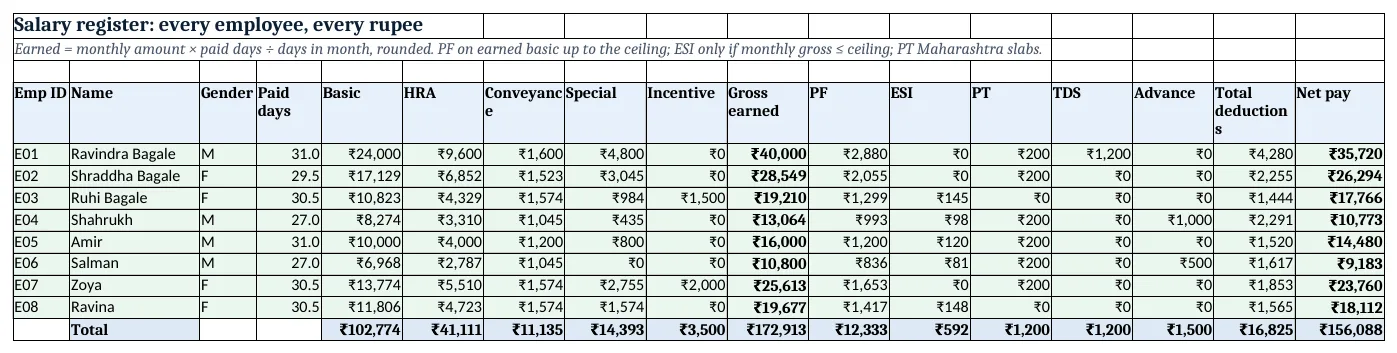
Figure 2. The salary register: pro-rata earnings, PF, ESI, PT, TDS, advance and net pay for every employee
Step 4. Salary register: deductions and net pay
- PF in K5:
=ROUND(MIN(E5,Setup!$B$11)*Setup!$B$12,0): 12% of earned basic, capped at the ₹25,000 ceiling. - ESI in L5:
=IF(XLOOKUP($A5,Employees!$A$5:$A$12,Employees!$J$5:$J$12)<=Setup!$B$14,ROUNDUP(J5*Setup!$B$15,0),0). Coverage depends on the monthly gross; the share is on the earned gross, rounded up. - PT in M5:
=IF(C5="F",IF(J5<=25000,0,IF(MONTH(Setup!$B$4)=2,300,200)),IF(J5<=7500,0,IF(J5<=10000,175,IF(MONTH(Setup!$B$4)=2,300,200))))(nested IF). - TDS and advance come from Monthly with XLOOKUP. P5
=SUM(K5:O5)and net pay Q5=J5-P5.
Step 5. The printable slip
- On Salary slip, put a yellow cell B4 with a drop-down of Emp IDs (
=Employees!$A$5:$A$12). - Fill name, designation and department with
=XLOOKUP($B$4,Employees!$A$5:$A$12,Employees!$B$5:$B$12)and so on. - For each earning and deduction, look up the register row: basic in B11 is
=XLOOKUP($B$4,'Salary register'!$A$5:$A$12,'Salary register'!$E$5:$E$12). - Net pay B18
=B16-E16and a check cell B19=B18-XLOOKUP(...Q...)that must show 0 (red if not). - Select A1:F24 > Page Layout > Print Area > Set Print Area (print area). Pick E04, print; pick the next ID, print.
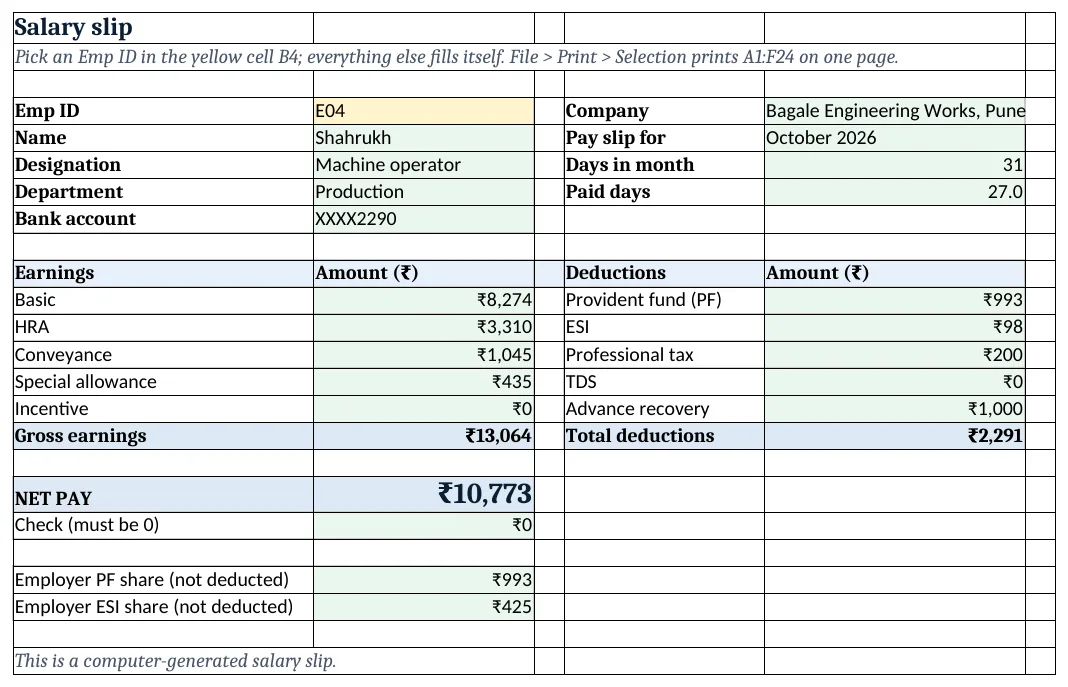
Figure 3. The printable salary slip for Shahrukh: pick an Emp ID in B4 and everything fills from the register
Step 6. Report and dashboard
- On Report, by department:
=COUNTIF(Employees!$E$5:$E$12,A5)employees and=SUMIFS('Salary register'!$Q$5:$Q$12,Employees!$E$5:$E$12,A5)net pay. This works because both ranges have the employees in the same order. - On Dashboard, KPI cards read the register total row: gross earned (₹1,72,913), deductions (₹16,825), net pay to bank (₹1,56,088) and the highest net pay. Add two column charts.
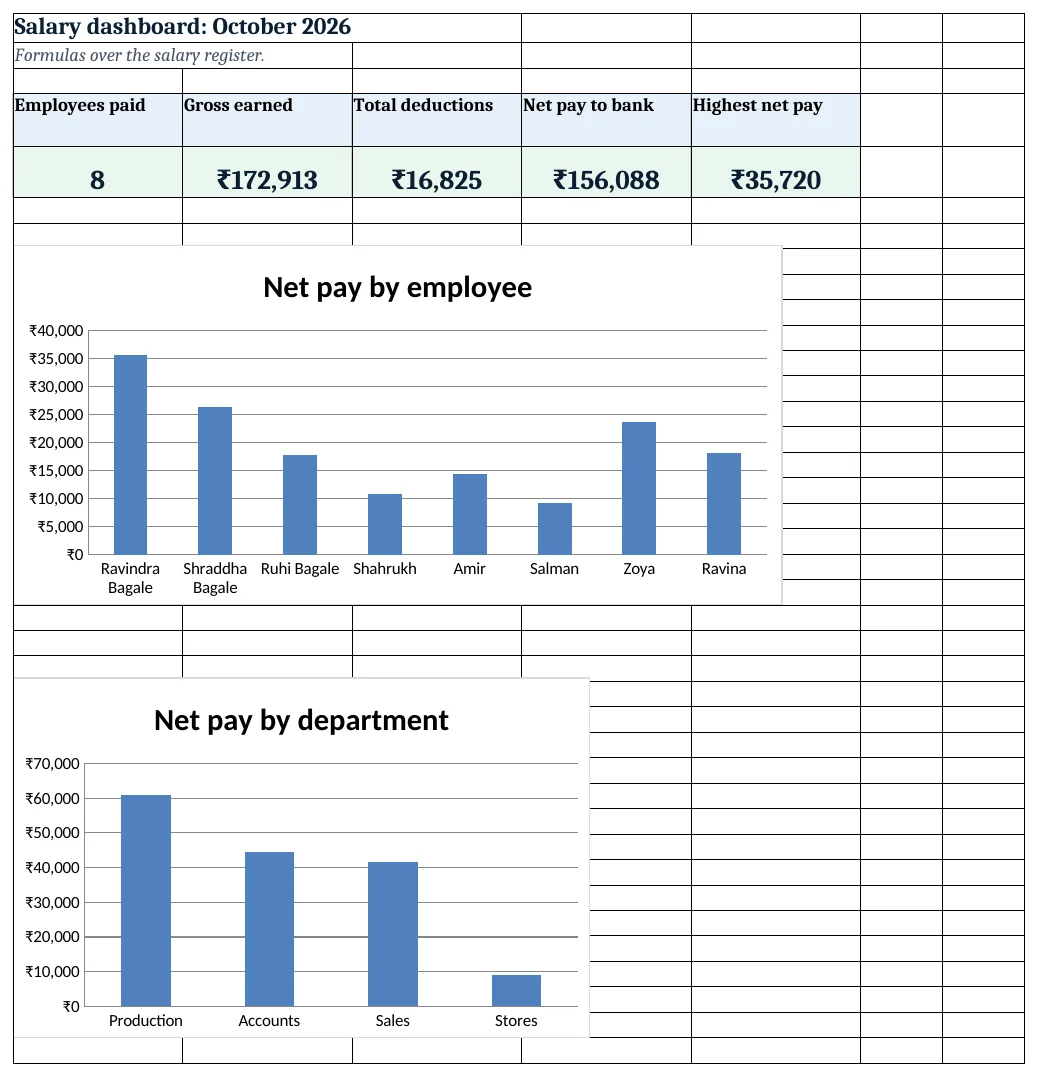
Figure 4. The salary dashboard with KPI cards and net pay charts
Ravindra Bagale's Tip
Pick each Emp ID and check the red check cell before printing. A slip that does not match the register is worse than no slip.
Ravindra Bagale's Tip – मराठी
Print करण्याआधी प्रत्येक Emp ID निवडून check cell लाल नाही ना ते पाहा. Register शी न जुळणारी slip नसलेलीच बरी.
Ravindra Bagale's Tip – हिंदी
Print करने से पहले हर Emp ID चुनकर check cell लाल तो नहीं, देख लो. Register से न मिलने वाली slip से बेहतर है slip ही न हो.
3. Formulas used
| Cell | Formula | What it does |
|---|---|---|
| Setup!B5 | =DAY(EOMONTH(B4,0)) |
Days in the salary month |
| Salary register!D5 | =Setup!$B$5-XLOOKUP(A5,Monthly!$A$5:$A$12,Monthly!$C$5:$C$12) |
Paid days = days − unpaid days |
| Salary register!E5 | =ROUND(XLOOKUP($A5,Employees!$A$5:$A$12,Employees!$F$5:$F$12)*$D5/Setup!$B$5,0) |
Earned basic, pro-rata and rounded |
| Salary register!J5 | =SUM(E5:I5) |
Gross earned |
| Salary register!K5 | =ROUND(MIN(E5,Setup!$B$11)*Setup!$B$12,0) |
PF 12% of earned basic up to the ceiling |
| Salary register!L5 | =IF(XLOOKUP($A5,Employees!$A$5:$A$12,Employees!$J$5:$J$12)<=Setup!$B$14,ROUNDUP(J5*Setup!$B$15,0),0) |
ESI 0.75% if monthly gross ≤ ₹21,000 |
| Salary register!M5 | =IF(C5="F",IF(J5<=25000,0,IF(MONTH(Setup!$B$4)=2,300,200)),IF(J5<=7500,0,IF(J5<=10000,175,IF(MONTH(Setup!$B$4)=2,300,200)))) |
Maharashtra professional tax slab |
| Salary register!P5 | =SUM(K5:O5) |
Total deductions |
| Salary register!Q5 | =J5-P5 |
Net pay |
| Salary slip!B5 | =XLOOKUP($B$4,Employees!$A$5:$A$12,Employees!$B$5:$B$12) |
Name for the picked Emp ID |
| Salary slip!E5 | =TEXT(Setup!B4,"mmmm yyyy") |
Month written out |
| Salary slip!B11 | =XLOOKUP($B$4,'Salary register'!$A$5:$A$12,'Salary register'!$E$5:$E$12) |
Earned basic from the register |
| Salary slip!B18 | =B16-E16 |
Net pay on the slip |
| Salary slip!B19 | =B18-XLOOKUP($B$4,'Salary register'!$A$5:$A$12,'Salary register'!$Q$5:$Q$12) |
Check against the register (must be 0) |
| Salary slip!B22 | =IF(XLOOKUP($B$4,Employees!$A$5:$A$12,Employees!$J$5:$J$12)<=Setup!$B$14,ROUNDUP(B16*Setup!$B$16,0),0) |
Employer ESI share, shown for information |
| Report!E5 | =SUMIFS('Salary register'!$Q$5:$Q$12,Employees!$E$5:$E$12,A5) |
Net pay of the department |
| Dashboard!E5 | =MAX('Salary register'!$Q$5:$Q$12) |
Highest net pay |
Every formula above is written in the template, so you can click a cell and see it in the formula bar. All values on this page were recalculated in LibreOffice with zero errors.
4. Common mistakes
- Using the old ₹15,000 PF ceiling. From 17 September 2026 the EPF wage ceiling is ₹25,000 (EPFO). Keep the ceiling in a Setup cell so a change is one edit, and check the EPFO site at the start of each year.
- Rounding only the total. Round each earned component, as payroll software does, or the slip and the bank transfer can differ by a rupee.
- Deciding ESI on the earned gross. Coverage depends on the wage rate (monthly gross ≤ ₹21,000); the contribution is a share of what is actually paid that month.
- Charging women PT from ₹10,000. In Maharashtra women pay no PT up to ₹25,000 a month (since 1 April 2023). The formula checks the Gender column.
- Typing numbers on the slip. Every number on the slip must be a lookup. If you type over one, the check cell turns red.
Ravindra Bagale's Tip
Keep one file per year and one Monthly sheet per month (copy the sheet and rename it Oct-2026, Nov-2026). Then old slips can always be printed again.
Ravindra Bagale's Tip – मराठी
वर्षाला एक file आणि महिन्याला एक Monthly sheet ठेवा (sheet copy करून Oct-2026, Nov-2026 नाव द्या). मग जुन्या slips कधीही परत print करता येतात.
Ravindra Bagale's Tip – हिंदी
साल की एक file और हर महीने की एक Monthly sheet रखो (sheet copy करके Oct-2026, Nov-2026 नाम दो). फिर पुरानी slips कभी भी दोबारा print हो सकती हैं.
5. More real examples
Example 1: Shop with daily-wage helpers. Use a daily rate column instead of monthly salary: earned = daily rate × days worked. PF and ESI still use the same Setup rates.
Example 2: Office paying a quarterly bonus. Add a Bonus column in Monthly and in the register; it adds to gross earned in the bonus month only.
Example 3: Saving slips as PDF. Pick each Emp ID and use File > Export > PDF with Selection; name each file with the ID and month.
Quick revision cards
Quick revision
Each card shows formulas from this page, each with an example and its answer from the template. Scan the QR code on a card to open this lesson. All names and numbers are made up for practice.
झटपट उजळणी
प्रत्येक card वर या page मधले formulas, त्यांचं example आणि template मधलं उत्तर आहे. Card वरचा QR code scan केला की हा lesson उघडतो. सगळी नावं आणि आकडे सरावासाठी काल्पनिक आहेत.
झटपट दोहराई
हर card पर इस page के formulas, उनका example और template का उत्तर है. Card का QR code scan करें तो यह lesson खुलेगा. सभी नाम और आंकड़े अभ्यास के लिए काल्पनिक हैं.
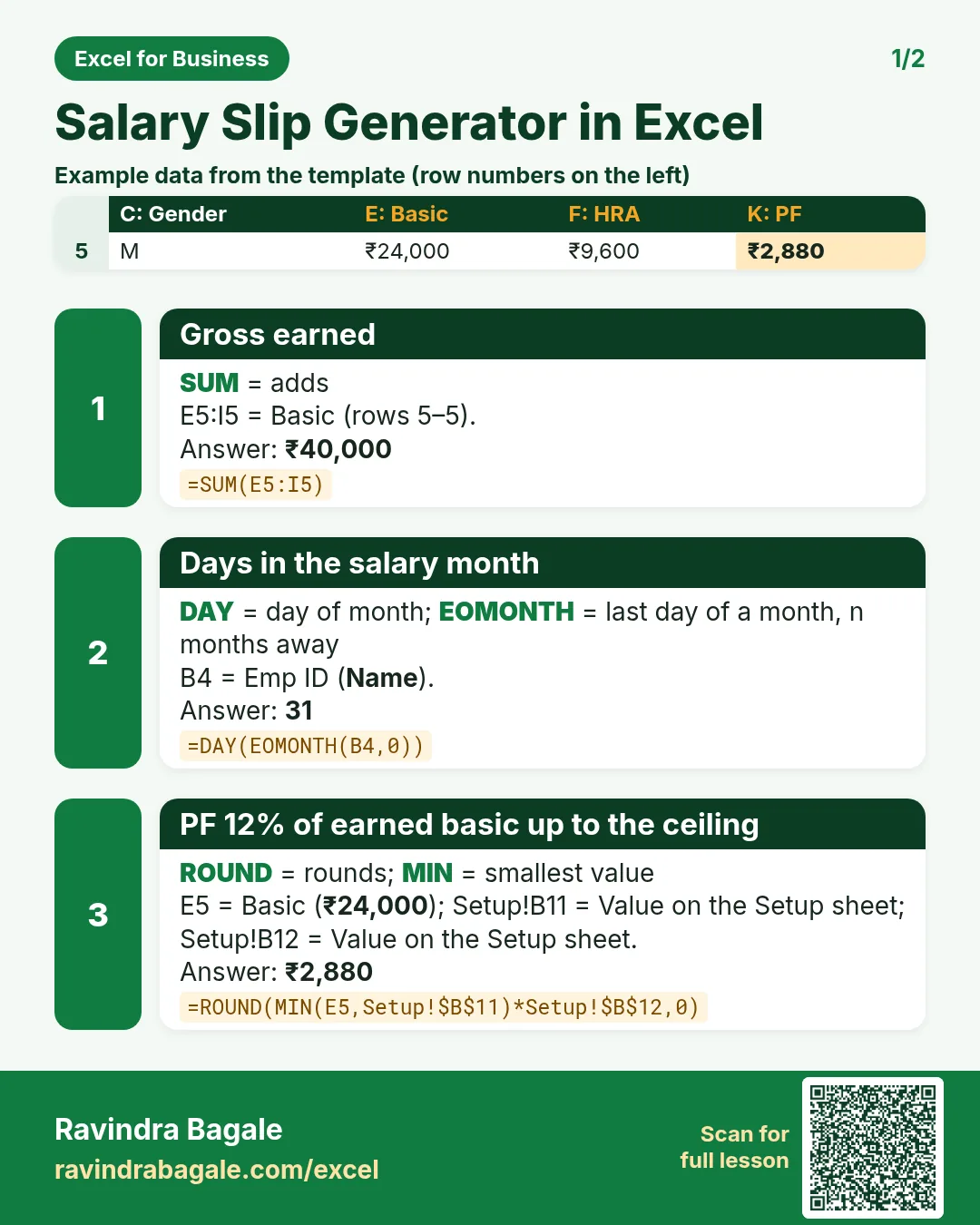

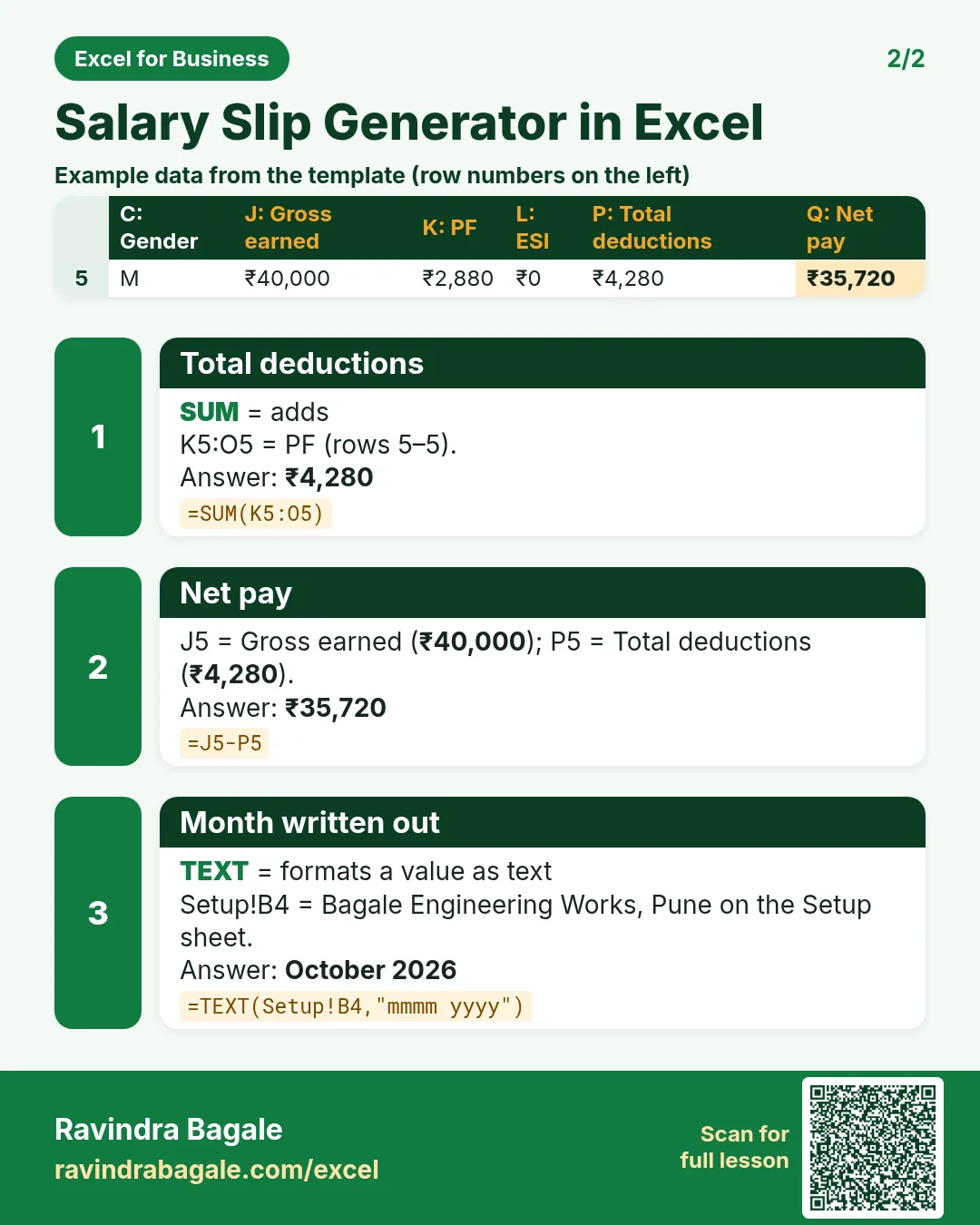

More cards: Ravi Sir's Cards.
6. Frequently asked questions
How do I make a salary slip in Excel?
Keep employee details in a master sheet, calculate everyone in a salary register, and build one slip sheet where a drop-down Emp ID drives XLOOKUPs into the register. Set the print area to the slip.
How is salary calculated for unpaid days?
Earned amount = monthly amount × paid days ÷ days in the month, rounded: =ROUND(Basic*D5/Setup!$B$5,0).
What is the PF ceiling in 2026?
The EPFO raised the statutory wage ceiling from ₹15,000 to ₹25,000 a month from 17 September 2026. PF is 12% of basic wages up to the ceiling unless the employer contributes on higher wages.
Is ESI deducted from every employee?
No. ESI applies to employees whose wages are up to ₹21,000 a month (₹25,000 for persons with disability). The employee share is 0.75% and the employer share 3.25% (esic.gov.in).
Does this template calculate TDS?
No. TDS depends on the tax regime and declarations. Type the monthly TDS your accountant works out; the slip shows it as a deduction.
7. Quick quiz
Ten questions on this page. Sign in to save your score.