Clean Data in Excel Power Query: Extract Text Before Delimiter, Replace NA with 0, Data Types, Remove Columns and Close & Load
The previous chapter fixed the rows of the messy orders export: title lines, blank and NA IDs, duplicates and dates. Now the columns: a number stuck to a word ("3 sales"), prices that say NA, money columns that are still text, columns nobody needs and names that are hard to read. At the end, one click loads the clean table into Excel, and the same steps clean next month's file.
What you'll learn in this chapter
- Remove a column that repeats another one
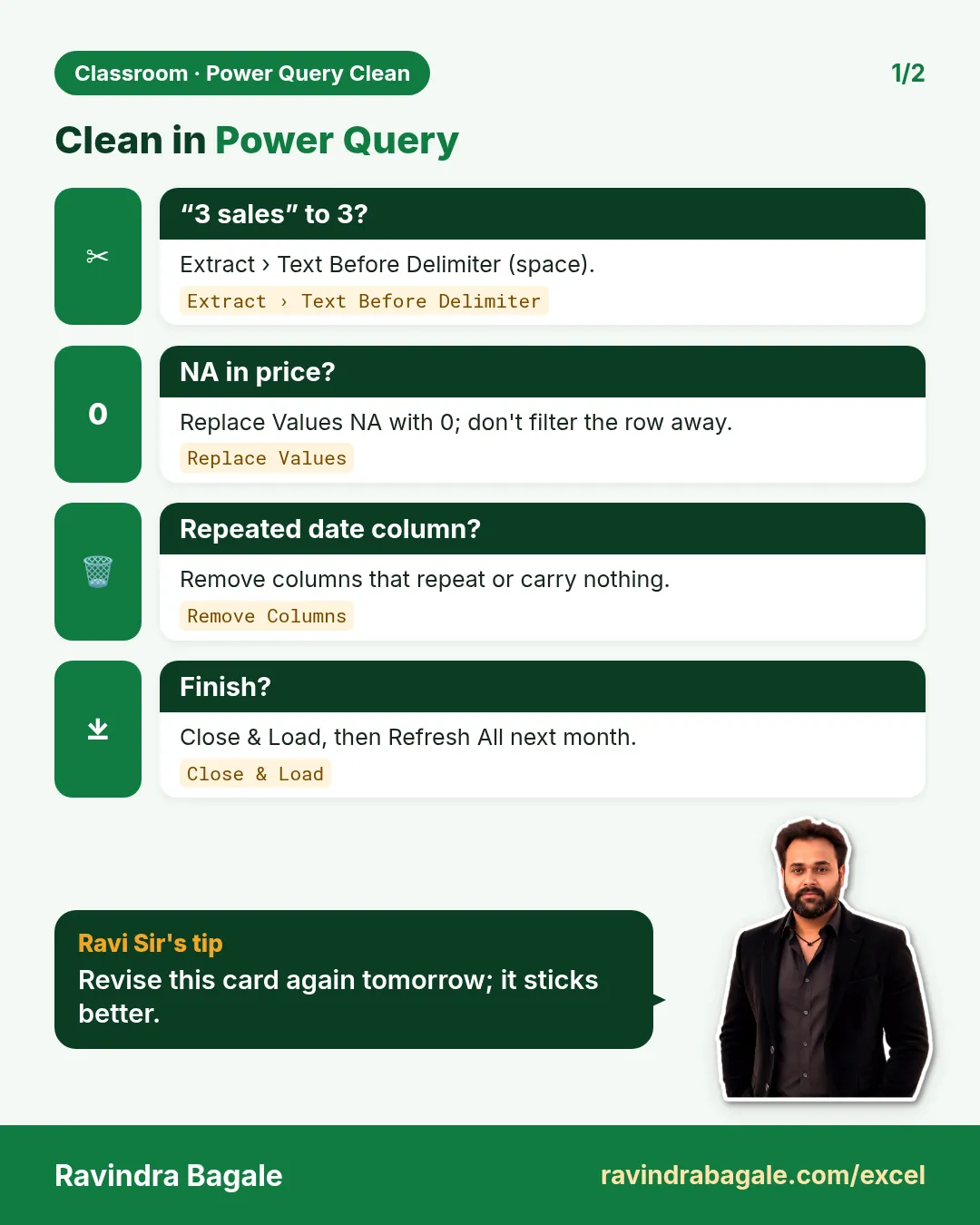
- Extract > Text Before Delimiter: "3 sales" becomes 3
- Replace Values: NA to 0, instead of filtering rows away
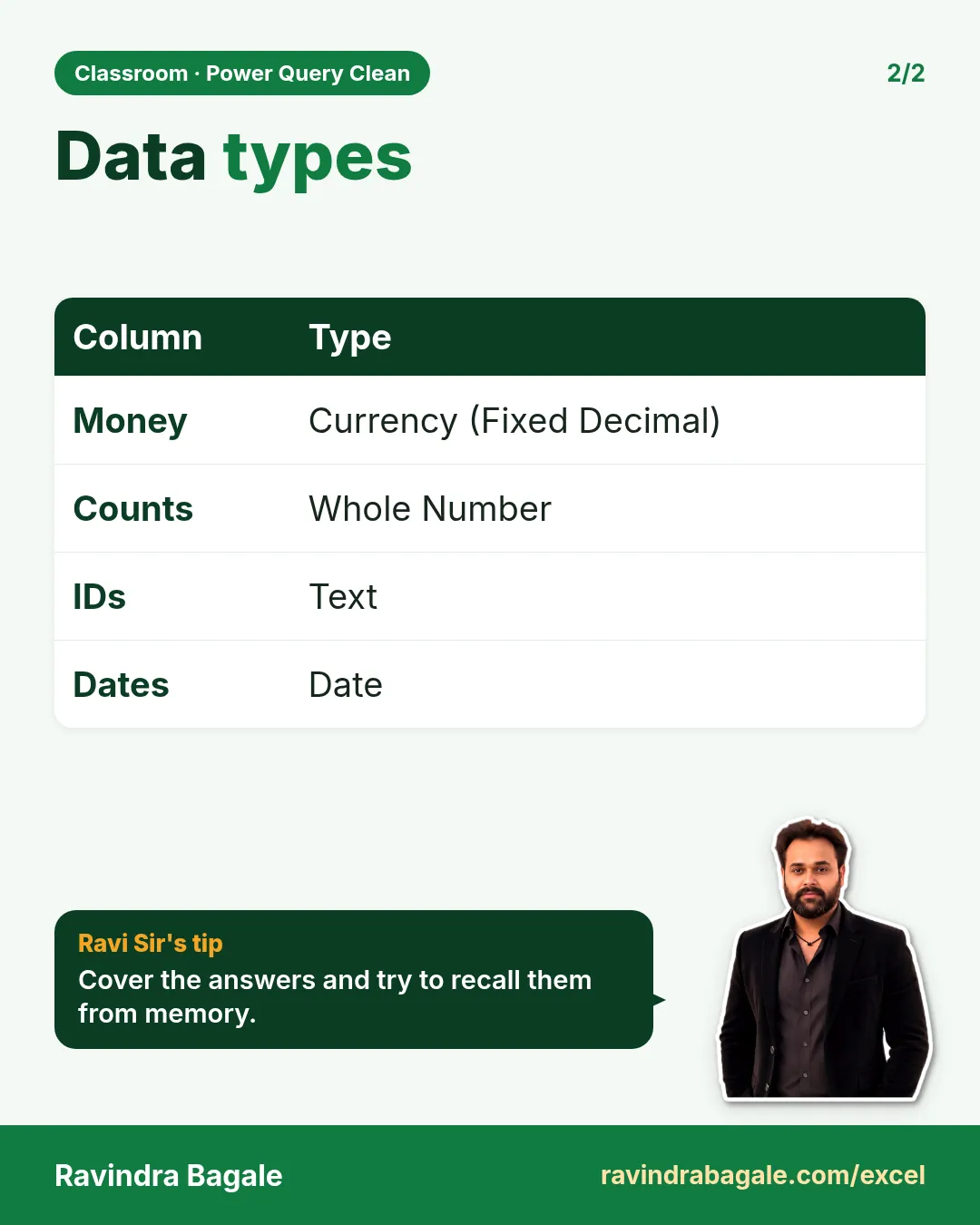
- Data types: Whole Number, Currency, Date
- Remove columns that carry no information, and rename the rest
- Close & Load, Refresh, and how much data Excel can hold
Practice files: quick-commerce-orders-raw.csv (the messy export) and power-query-clean-orders-final-answer.xlsx (the final clean table, every applied step of both chapters, and check formulas).
Made-up data: the orders, product IDs, store IDs and amounts are made up for practice. They imitate an export from a quick-commerce app such as Blinkit or Amazon Now in Pune, Nashik, Solapur, Kolhapur, Nagpur and Sambhaji Nagar.
About the figures: they are simplified diagrams of the Power Query Editor, drawn for this chapter, not screenshots.
1. Where we are
After the previous chapter the query has 26 orders and these columns: order_id, order_date (a real date), city, product_id, sales, price, revenue, stock, store_id, promo_code and order_date_2. To reopen it: Data > Queries & Connections, double-click the query.
2. Remove the repeated date column
order_date_2 holds the same dates as order_date, only written as day/month/year text. Two columns with the same information confuse anyone who uses the table later.
- Right-click the order_date_2 header.
- Click Remove.
3. Extract the number from "3 sales"
The sales column says "1 sales", "3 sales" and so on: text, so it cannot be added.
- Select the sales column.
- Transform > Extract > Text Before Delimiter.
- Delimiter: type one space. Click OK. "3 sales" becomes "3".
- Click the type icon in the header > Whole Number.
The column now holds real numbers that add up to 76 units. (Transform changes the column itself; the same command on the Add Column tab would create a new column and keep the old one.)
Classroom line
What does extract mean? From that column, keep what you need and take out what you don't.
Class मधलं वाक्य
"Extract mhanje kay? Tya column madhla, je pahije te thevaycha, nako te kadhaycha."
Extract म्हणजे काय? त्या column मधलं, जे पाहिजे ते ठेवायचं, नको ते काढायचं.
Classroom line
What does extract mean? From that column, keep what you need and take out what you don't.
Figure 1. Transform > Extract > Text Before Delimiter with a space: "1 sales" becomes 1, "3 sales" becomes 3. Then the type changes from Text (ABC) to Whole Number (123).
This is the same idea as TEXTBEFORE in the split quantity and unit chapter, done once in Power Query instead of in a formula column.
4. NA in price: replace, don't filter
Two orders, ORD3009 and ORD3020, have NA as their price. Their sales, revenue, city and date are all fine.
If you filter NA out of price, Power Query removes the whole row: two real orders and their revenue of 270 and 135 disappear from every total. Replace the value instead:
- Select the price column.
- Transform > Replace Values.
- Value To Find: NA. Replace With: 0. Click OK.
The two orders stay, with price 0. Their revenue column still holds the real amounts. (If 0 could be mistaken for a free item in your report, replace NA with null instead; it shows as an empty cell in Excel.)
Figure 2. Filtering NA out of price deletes the whole rows of ORD3009 and ORD3020 (revenue 270 and 135 lost). Replace Values NA → 0 keeps both orders; only the price cell changes.
5. Data types for the money and the counts
Click the type icon in each header:
| Column | Type | Why |
|---|---|---|
| order_date | Date (already set, with locale) | real dates sort and group by month |
| sales | Whole Number | units are counted in whole numbers |
| price | Currency | money |
| revenue | Currency | money |
| stock | Whole Number | items on the shelf |
| order_id, product_id, store_id, city | Text | labels, never added |
In Power Query, Currency is the type called Fixed decimal number (the $ icon). It keeps exactly four decimal places, so money adds up without rounding surprises. Excel shows it with your own currency format after loading.
Classroom line
Anything that is about money, keep its data type as currency.
Class मधलं वाक्य
"Jya gosti paishyashi related ahet, tyancha data type currency thevaycha."
ज्या गोष्टी पैशाशी related आहेत, त्यांचा data type currency ठेवायचा.
Classroom line
Anything that is about money, keep its data type as currency.
6. Remove columns that carry no information
Before loading, ask of every column: will anyone use it?
- promo_code: 24 of the 26 orders say NA; only ORD3005 and ORD3018 have FEST10. Too little to analyse here: Remove.
- A column with the same value in every row tells nothing either, and a 100% empty column (like Column10 in the previous chapter) never does.
- A second copy of the same data in another format (like order_date_2) goes too.
To remove many at once, select the columns you keep and use Home > Remove Columns > Remove Other Columns.
7. Rename the columns
Double-click a header and type the new name:
| Old | New |
|---|---|
| order_id | Order ID |
| order_date | Order Date |
| city | City |
| product_id | Product ID |
| sales | Units Sold |
| price | Price |
| revenue | Revenue |
| stock | Stock |
| store_id | Store ID |
Readable names make the table and every pivot built on it easier to understand. Some people prefer names without spaces (Order_ID) because they are quicker to type in formulas; either works, as long as you are consistent.
Figure 3. The full Applied Steps list of both chapters, from Source to Renamed Columns, and the final 9 columns that will be loaded.
Ravindra Bagale's Tip
Never edit the cleaned table by hand after loading. The next refresh will overwrite your edit. If something is wrong, fix it as a step in Power Query, so it is fixed for every future file too.
Ravindra Bagale's Tip – मराठी
Load केल्यानंतर cleaned table हाताने कधीच edit करू नका. पुढच्या refresh ला तुमचा बदल overwrite होईल. काही चुकलं असेल तर Power Query मध्ये step म्हणून fix करा, म्हणजे पुढच्या प्रत्येक file साठीही fix होईल.
Ravindra Bagale's Tip – हिंदी
Load करने के बाद cleaned table को हाथ से कभी edit मत करो. अगले refresh पर आपका बदलाव overwrite हो जाएगा. कुछ गलत हो तो Power Query में step बनाकर fix करो, ताकि आगे की हर file के लिए भी fix हो जाए.
8. Close & Load
- Home > Close & Load.
- Power Query closes and Excel adds a new sheet with an Excel Table of 26 rows and 9 columns.
Check it with formulas on the table, as in the answer file: 26 rows, total revenue ₹3,779, 76 units sold, 2 prices of 0, 5 orders in Pune.
Next month: save the new export over the old CSV (same name, same folder) and click Data > Refresh All. Every step runs again on the new file. A query can also combine many files of the same layout with Get Data > From File > From Folder.
How much data? One worksheet holds at most 1,048,576 rows. Power Query itself is not limited to that: it can read bigger files and load them to the Data Model instead of a sheet (Close & Load To... > Only Create Connection and tick Add this data to the Data Model), where PivotTables can summarize them.
9. The whole chapter on one page
| Problem | Step |
|---|---|
| Same dates twice | Remove order_date_2 |
| "3 sales" | Extract > Text Before Delimiter (space) > Whole Number |
| NA price | Replace Values NA → 0 (not a filter) |
| Money as text | Currency type |
| Mostly NA / single value / empty columns | Remove |
| Hard-to-read names | Double-click header > rename |
| Done | Home > Close & Load |
| New file | Data > Refresh All |
- Extract keeps the part of the text you need.
- Filtering removes whole rows; Replace Values changes only the cell.
- Money is Currency, counts are Whole Number, IDs are Text.
- Remove columns that carry no information.
- Close & Load creates an Excel Table; Refresh replays every step.
10. Try at home
Try at home
Task 1
- Instead of Replace Values, filter NA out of price and load. How many rows and how much revenue do you get? (24 rows; ₹3,374.)
Task 2
- In the loaded table, what is the total revenue of the orders from Pune? (₹450, with =SUMIFS on the table.)
Recap
In short
- Remove columns that repeat others or carry nothing.
- Extract Text Before Delimiter turns "3 sales" into 3.
- Replace NA with 0 instead of filtering the row away.
- Currency for money, Whole Number for counts, Text for IDs.
- Close & Load, then Refresh All for next month's file.
Quick revision cards
Quick revision
Revise this chapter in two minutes. Save the cards on your phone or download them as PNG files. All names and numbers are made up for practice.
झटपट उजळणी
हा chapter दोन मिनिटांत revise करा. Cards phone वर save करा किंवा PNG म्हणून download करा. सगळी नावं आणि आकडे सरावासाठी काल्पनिक आहेत.
झटपट दोहराई
यह chapter दो मिनट में revise करें. Cards phone पर save करें या PNG के रूप में download करें. सभी नाम और आंकड़े अभ्यास के लिए काल्पनिक हैं.
More cards for every chapter: Ravi Sir's Cards.