Excel Date Formats Explained: DD-MM vs MM-DD, Locale, Format Cells (Ctrl+1) and Custom Lists
You type 1-8-26 and expect 1 August. On some computers Excel reads it as 8 January, and then a whole column of dates goes wrong. In this chapter we see why that happens, how to check which date style your Excel uses, and how Format Cells (Ctrl+1) changes the look of a date without touching its value. At the end we teach Excel our own list, so a single drag fills names in the order we want.
What you'll learn in this chapter
- Type a date so Excel recognises it
- Drag dates with a mouse or a touchpad
- DD-MM (India, UK) vs MM-DD (US) and the regional setting
- How Excel really stores a date
- Format Cells (Ctrl+1): number, currency, accounting, date
- Change the date look with Locale and Type
- Make mixed date looks consistent
- AutoFill takes the step you give it
- Create and use your own Custom List
Practice file: excel-dates-format-cells-practice.xlsx has every example from this chapter, plus "Your turn" areas.
1. Typing a date Excel understands
Why: a real date can be sorted, filtered and used in calculations (days between two dates, month-wise totals). A date that Excel did not recognise is only text, and none of that works.
How: with Indian date settings, type any of these in a cell and press Enter:
1-8-26(with dashes)1/8/26(with slashes)01-08-2026
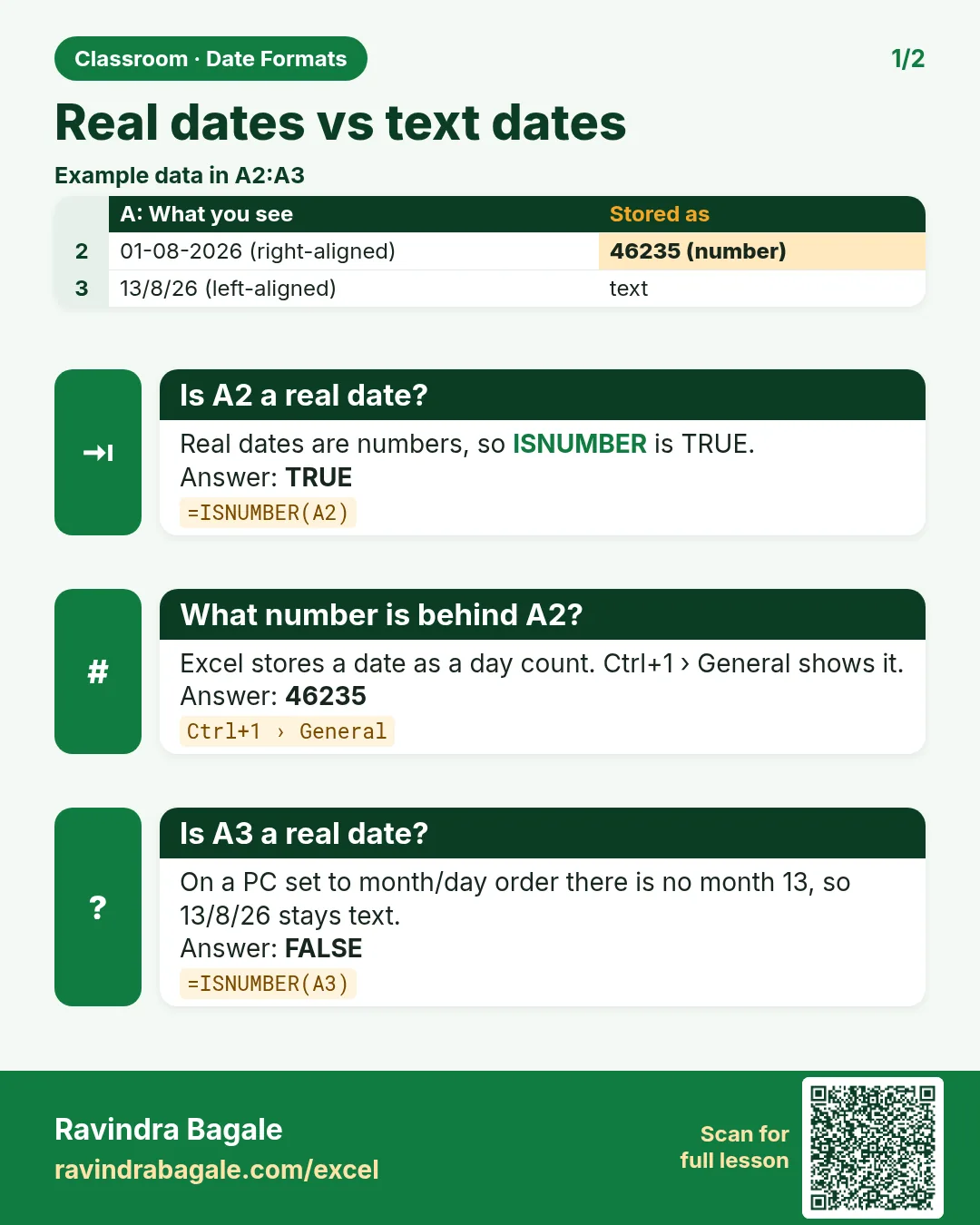
Excel shows 01-08-2026 for all three. Two quick checks tell you it is a real date:
- The value sits on the right side of the cell. Numbers and dates align right; text aligns left.
- Drag the fill handle down: you get 02-08-2026, 03-08-2026 … one day per cell.
Use the same year everywhere in a sheet. Typing 26 gives 2026; mixing 20 and 26 by mistake gives dates six years apart.
2. Dragging dates with a touchpad
Why: the fill handle is a tiny square, and many laptops have no mouse attached.
How (two-finger method):
- Click the cell with the date.
- Move the pointer onto the fill handle (bottom-right corner) until it becomes a thin black +.
- Press and hold the touchpad click with one finger.
- With a second finger, slide down the touchpad. The selection grows as you slide.
- Lift both fingers. The dates are filled.
Classroom line
With a mouse it's easy, it gets done. But for those who don't have a mouse, I'm explaining it for them.
Class मधलं वाक्य
"Mouse asel, soppa ahe, houn jail. Pan janchya kade mouse nahiye, tyanchyasathi sangto me."
Mouse असेल, सोपं आहे, होऊन जाईल. पण ज्यांच्याकडे mouse नाहीये, त्यांच्यासाठी सांगतो मी.
Classroom line
With a mouse it's easy, it gets done. But for those who don't have a mouse, I'm explaining it for them.
3. DD-MM vs MM-DD: why 1-8-26 can mean two dates
What: India and the UK write the day first (DD-MM-YYYY). The United States writes the month first (MM-DD-YYYY). Excel follows the regional format (locale) of your computer when it reads what you type.
| You type | India / UK setting | US setting |
|---|---|---|
1-8-26 |
1 August 2026 | 8 January 2026 |
5-3-26 |
5 March 2026 | 3 May 2026 |
13-8-26 |
13 August 2026 | not a date: there is no 13th month, so it stays as text (left-aligned) |
Figure 1. The same typed text, read under two regional settings. With the US setting, 13-8-26 is not a date at all and stays left-aligned as text.
How to spot a US setting quickly:
- Type
13-8-26. If it stays on the left side of the cell, Excel did not accept 13 as a month, so it reads dates month-first. - Type
1-8-26and drag it down. If you see1-9-26,1-10-26… the middle number is growing. To an Indian eye that looks like the month changing, but under a US setting the middle number is the day.
How to check or change the setting (Windows):
- Open Settings › Time & language › Language & region (on Windows 10: Time & Language › Region).
- Under Regional format, choose English (India) for DD-MM-YYYY. English (United States) gives month-first dates.
- Close Excel and open it again so it picks up the new setting.
Ravindra Bagale's Tip
Before you type a single date in a new laptop or office PC, type 13-8-26 once. Right-aligned 13-08-2026 means day-first; left-aligned text means the computer is set to month-first. This 5-second test saves you from a whole column of wrong dates.
Ravindra Bagale's Tip – मराठी
नवीन laptop किंवा office PC वर एकही date type करण्याआधी एकदा 13-8-26 type करा. उजवीकडे 13-08-2026 दिसलं तर day-first आहे; डावीकडे text राहिलं तर computer month-first वर set आहे. ही 5 seconds ची test चुकीच्या dates ने भरलेल्या पूर्ण column पासून वाचवते.
Ravindra Bagale's Tip – हिंदी
नए laptop या office PC पर एक भी date type करने से पहले एक बार 13-8-26 type करो. दाईं तरफ 13-08-2026 दिखा तो day-first है; बाईं तरफ text रहा तो computer month-first पर set है. ये 5 seconds की test गलत dates से भरे पूरे column से बचाती है.
4. How Excel really stores a date
What: inside Excel, a date is a number: the count of days starting from 1 January 1900. 1 August 2026 is stored as 46235. The DD-MM-YYYY you see is only a format on top of that number.
Try it:
- Type
1-8-26in a cell. - Press Ctrl+1, choose General, and click OK. The cell shows
46235. - Press Ctrl+Z. The date look comes back.
Because a date is a number, =B2-A2 gives the days between two dates, and dragging a date adds 1 each time.
5. Format Cells (Ctrl+1)
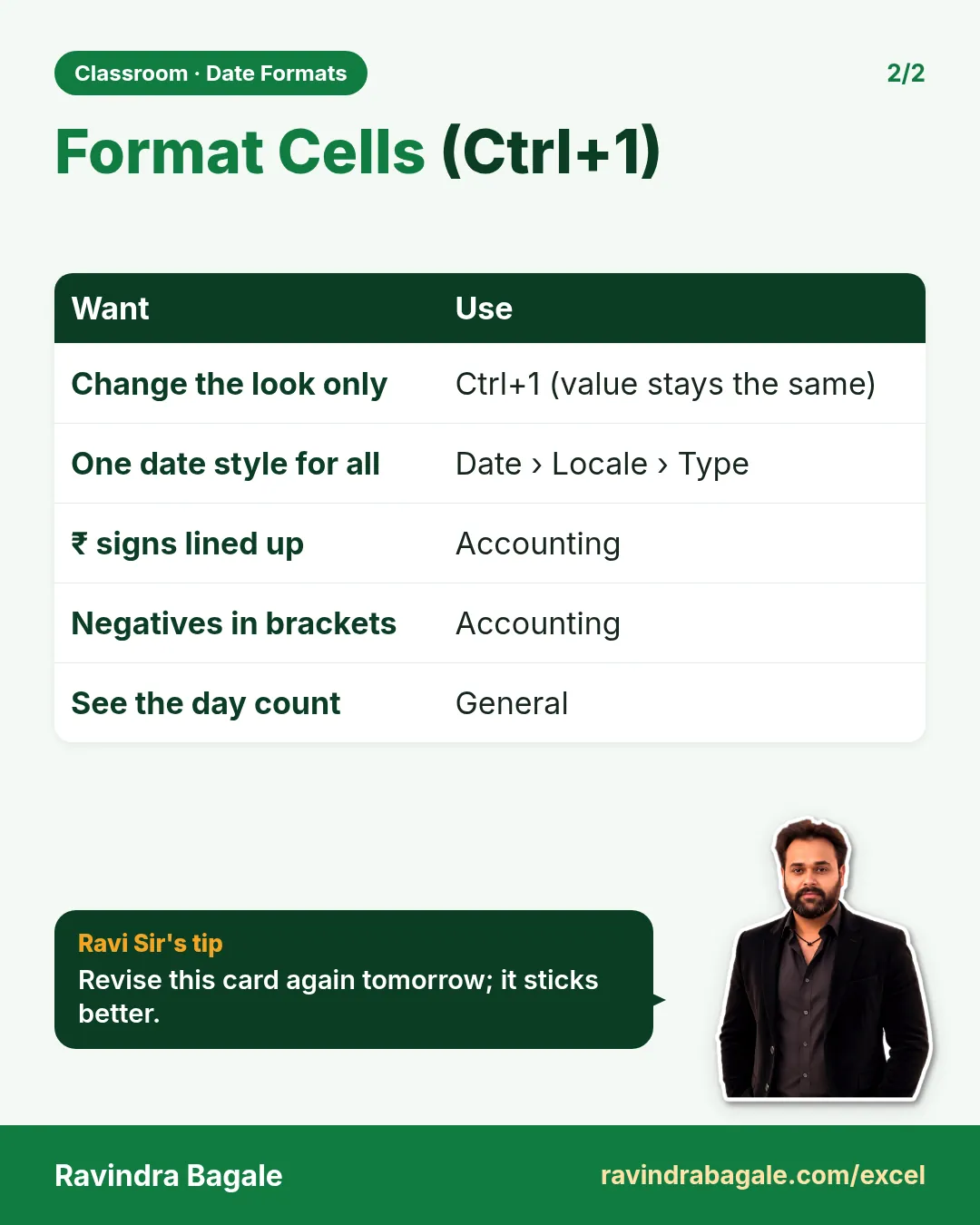
Why: the same value can be shown in many ways: 1234.5, 1,234.50, ₹ 1,234.50 or 01-08-2026. Format Cells changes the look, never the value.
How:
- Select the cell or the whole column (click the column letter).
- Press Ctrl+1 (on a Mac, Cmd+1), or right-click › Format Cells.
- Stay on the Number tab. On the left is the Category list.
| Category | Example value | Looks like |
|---|---|---|
| General | 1234.5 | 1234.5 |
| Number (2 decimals, 1000 separator) | 1234.5 | 1,234.50 |
| Currency (₹) | −250 | -₹ 250.00 |
| Accounting (₹) | −250 | ₹ (250.00) |
| Percentage | 0.7 | 70% |
| Date | 46235 | 01-08-2026 |
| Text | 0012 | 0012 (the zeros stay) |
Currency vs Accounting: both show the ₹ sign. Accounting lines up the ₹ signs and the decimal points in a column, and shows negative amounts in brackets, like (250.00). That is why accountants like it for ledgers.
Figure 2. Format Cells (Ctrl+1): pick a Category on the left. For Date, choose the Locale (location) and then a Type. The Sample box shows the result before you click OK.
6. Change how a date looks: Locale and Type
How:
- Select the date column.
- Press Ctrl+1 › Date.
- In Locale (location), choose English (India).
- In Type, pick a style. Excel previews each style with a sample date, 14 March 2012, so
14-03-2012means day-month-year. - Watch the Sample box, then click OK.
The same date, 1 August 2026, in different types:
| Format | Looks like |
|---|---|
| dd-mm-yyyy | 01-08-2026 |
| d-m-yy | 1-8-26 |
| dd.mm.yy | 01.08.26 |
| dd mmmm yyyy | 01 August 2026 |
| d-mmm-yy | 1-Aug-26 |
| dddd, dd mmmm yyyy | Saturday, 01 August 2026 |
Figure 3. One value, 46235, shown six ways. The cell's look changes; the Formula Bar and the value stay the same.
Ravindra Bagale's Tip
If none of the ready-made types fits, pick Custom in the Category list and type your own code: dd-mmm-yyyy gives 01-Aug-2026, and dddd gives the weekday name. d = day, m = month, yyyy = year; more letters mean a longer form (mmm = Aug, mmmm = August).
Ravindra Bagale's Tip – मराठी
तयार types पैकी काहीच जमत नसेल तर Category list मध्ये Custom निवडा आणि स्वतःचा code type करा: dd-mmm-yyyy ने 01-Aug-2026 मिळतं, आणि dddd ने वाराचं नाव. d = day, m = month, yyyy = year; जास्त अक्षरं म्हणजे मोठं रूप (mmm = Aug, mmmm = August).
Ravindra Bagale's Tip – हिंदी
तैयार types में से कुछ भी fit न हो तो Category list में Custom चुनो और अपना code type करो: dd-mmm-yyyy से 01-Aug-2026 मिलता है, और dddd से दिन का नाम. d = day, m = month, yyyy = year; ज़्यादा अक्षर मतलब लंबा रूप (mmm = Aug, mmmm = August).
7. Mixed date looks are a cleaning job
Why: when dates come from different people or systems, one column may show 1-8-26, 02 August 2026 and 03.08.26 together. That is hard to read and easy to misread. Making one consistent look is part of data cleaning, the second of the five steps of data analytics.
How:
- Select the whole date column.
- Ctrl+1 › Date › Locale English (India) › Type 14-03-2012.
- Click OK. Every real date now shows as DD-MM-YYYY.
Format Cells works only on real dates (right-aligned). A date that is stored as text (left-aligned) does not change, because for Excel it is just letters. Those need to be converted first; the lesson Text Dates and Mixed Date Formats shows how.
Figure 4. Before: real dates in six different looks. After: one selection, Ctrl+1, one Type, and the whole column reads DD-MM-YYYY.
8. AutoFill takes the step you give it
AutoFill does not know what you "meant"; it reads the step from the cells you select.
- Type
99and91, select both and drag down. - You get 83, 75, 67 … The step is 91 − 99 = −8, so the series goes down by 8.
If you get an odd series, look at the two seed cells first. A typing slip there is copied into every filled cell.
9. Custom Lists: teach Excel your own series
Why: Excel already knows some lists: type Monday or Jan and drag, and the rest follows. A Custom List lets you add your own: staff names, branch cities, product groups or anything you type again and again in the same order.
How to create one from cells (Windows):
- Type the list in one column, one item per cell, for example the ten names Ravindra, Shraddha, Ruhi, Shahrukh, Amir, Salman, Zoya, Ravina, Raja, Rani in A5:A14.
- Click File › Options › Advanced.
- Scroll right to the bottom, to the General section, and click Edit Custom Lists….
- Click inside Import list from cells and select A5:A14 on the sheet. The box shows
$A$5:$A$14. - Click Import. The names appear in the List entries box.
- Click OK, then OK again.
On a Mac, the same dialog is under Excel › Preferences › Custom Lists.
Figure 5. File › Options › Advanced › Edit Custom Lists… › Import list from cells › Import › OK.
Use it:
- In any empty cell, type
Salman. - Drag the fill handle down ten cells.
- You get Salman, Zoya, Ravina, Raja, Rani, and then the list wraps around: Ravindra, Shraddha, Ruhi, Shahrukh, Amir.
You can start from any name in the list, and the list keeps the order you typed.
Figure 6. Once the list exists, one typed name (yellow) fills the rest (green), and the list starts again from the top when it reaches the end.
Classroom line
This works like this only for me; it won't work for you until you create the list.
Class मधलं वाक्य
"He asha fakta malach hota, tumhala nahi honar."
हे असं फक्त मलाच होतं, तुम्हाला नाही होणार.
Classroom line
This works like this only for me; it won't work for you until you create the list.
Where is the list saved? In Excel on that computer, not inside the workbook. Open the same file on another laptop and the drag gives Salman, Salman, Salman until you create the list there too. Excel for the web is free to use but has fewer features, and Custom Lists is one of the missing ones.
Ravindra Bagale's Tip
A Custom List also controls sorting. In Data › Sort, set Order to Custom List… and pick your list: rows are sorted in your order (for example Mon to Sun, or your branch order) instead of A to Z.
Ravindra Bagale's Tip – मराठी
Custom List sorting सुद्धा ठरवते. Data › Sort मध्ये Order ला Custom List… निवडा आणि तुमची list घ्या: rows A to Z ऐवजी तुमच्या क्रमाने sort होतात (उदा. Mon ते Sun, किंवा तुमच्या branches चा क्रम).
Ravindra Bagale's Tip – हिंदी
Custom List sorting भी तय करती है. Data › Sort में Order को Custom List… चुनो और अपनी list लो: rows A to Z की जगह आपके क्रम में sort होती हैं (जैसे Mon से Sun, या आपकी branches का क्रम).
10. The whole chapter on one page
- A real date is right-aligned and drags one day per cell. Text stays left-aligned.
- Day-first (India, UK) vs month-first (US) comes from the computer's regional format. Test with
13-8-26. - Change it in Settings › Time & language › Language & region › Regional format, then restart Excel.
- A date is stored as a number: 1 August 2026 = 46235.
- Ctrl+1 opens Format Cells: General, Number, Currency, Accounting (brackets for negatives), Percentage, Date, Text.
- Date › Locale English (India) › Type 14-03-2012 gives DD-MM-YYYY.
- One consistent date look is part of data cleaning; Format Cells works only on real dates.
- AutoFill copies the step of the seed cells (99, 91 → −8).
- File › Options › Advanced › Edit Custom Lists… › Import makes your own fill list; it lives on that computer.
11. Try at home
Try at home
Task 1: test your computer
- Type
13-8-26in a new sheet. Is it right-aligned (day-first) or left-aligned (month-first)? - Type
1-8-26and drag down 40 cells. Which number changes, and where does August turn into September?
Task 2: one date, many looks
- Type
15-8-26in A1:A6 (type it once and copy it down). - Give each cell a different Type with Ctrl+1: 15-08-2026, 15.08.26, 15 August 2026, 15-Aug-26, the weekday name, and General.
- Which cell shows 46249, and why?
Task 3: your own Custom List
- Type the cities Pune, Mumbai, Nashik, Nagpur, Solapur, Kolhapur in one column.
- Import them as a Custom List.
- Type
Nagpursomewhere and drag 12 cells. Check that the list wraps around.
Task 4: practice file
- Open excel-dates-format-cells-practice.xlsx.
- Do the "Your turn" areas on the Standardise, CustomList and AutoFillStep sheets.
Recap
In short
- Right-aligned = real date; left-aligned = text.
- DD-MM vs MM-DD depends on the regional format; test with 13-8-26.
- Inside Excel a date is a day count: 01-08-2026 = 46235.
- Ctrl+1 changes the look, never the value.
- Accounting lines up ₹ signs and puts negatives in brackets.
- Date › Locale › Type gives one consistent date look.
- AutoFill repeats the step of your seed cells.
- Custom Lists fill your own series and wrap around; they are saved on that computer.
Quick revision cards
Quick revision
Revise this chapter in two minutes. Save the cards on your phone or download them as PNG files. All names and numbers are made up for practice.
झटपट उजळणी
हा chapter दोन मिनिटांत revise करा. Cards phone वर save करा किंवा PNG म्हणून download करा. सगळी नावं आणि आकडे सरावासाठी काल्पनिक आहेत.
झटपट दोहराई
यह chapter दो मिनट में revise करें. Cards phone पर save करें या PNG के रूप में download करें. सभी नाम और आंकड़े अभ्यास के लिए काल्पनिक हैं.

More cards for every chapter: Ravi Sir's Cards.