29. Python in Excel
Friends, Python in Excel puts pandas, statistics and Python charts inside a normal Excel cell. No installation, no copying data back and forth. In this module we write our first =PY cell, read Tables with xl(), group and pivot with pandas, draw charts, learn the calculation order and the limits, and finish with a weekly report you can reuse.
मित्रांनो, Python in Excel मुळे pandas, statistics आणि Python charts एका साध्या Excel cell मध्ये येतात. Installation नाही, data इकडे तिकडे copy करणं नाही. या module मध्ये आपण पहिली =PY cell लिहितो, xl() ने Tables वाचतो, pandas ने group आणि pivot करतो, charts काढतो, calculation order आणि limits शिकतो, आणि शेवटी दर आठवड्याला वापरता येणारा report बनवतो.
दोस्तों, Python in Excel से pandas, statistics और Python charts एक सादी Excel cell में आ जाते हैं. Installation नहीं, data इधर उधर copy करना नहीं. इस module में हम पहली =PY cell लिखते हैं, xl() से Tables पढ़ते हैं, pandas से group और pivot करते हैं, charts बनाते हैं, calculation order और limits सीखते हैं, और आख़िर में हर हफ़्ते इस्तेमाल होने वाला report बनाते हैं.
What you will learn in this module
- Know who can use Python in Excel, on which platforms, and what standard vs premium compute means
- Start Python cells with Insert Python, =PY or Ctrl+Alt+Shift+P and commit with Ctrl+Enter
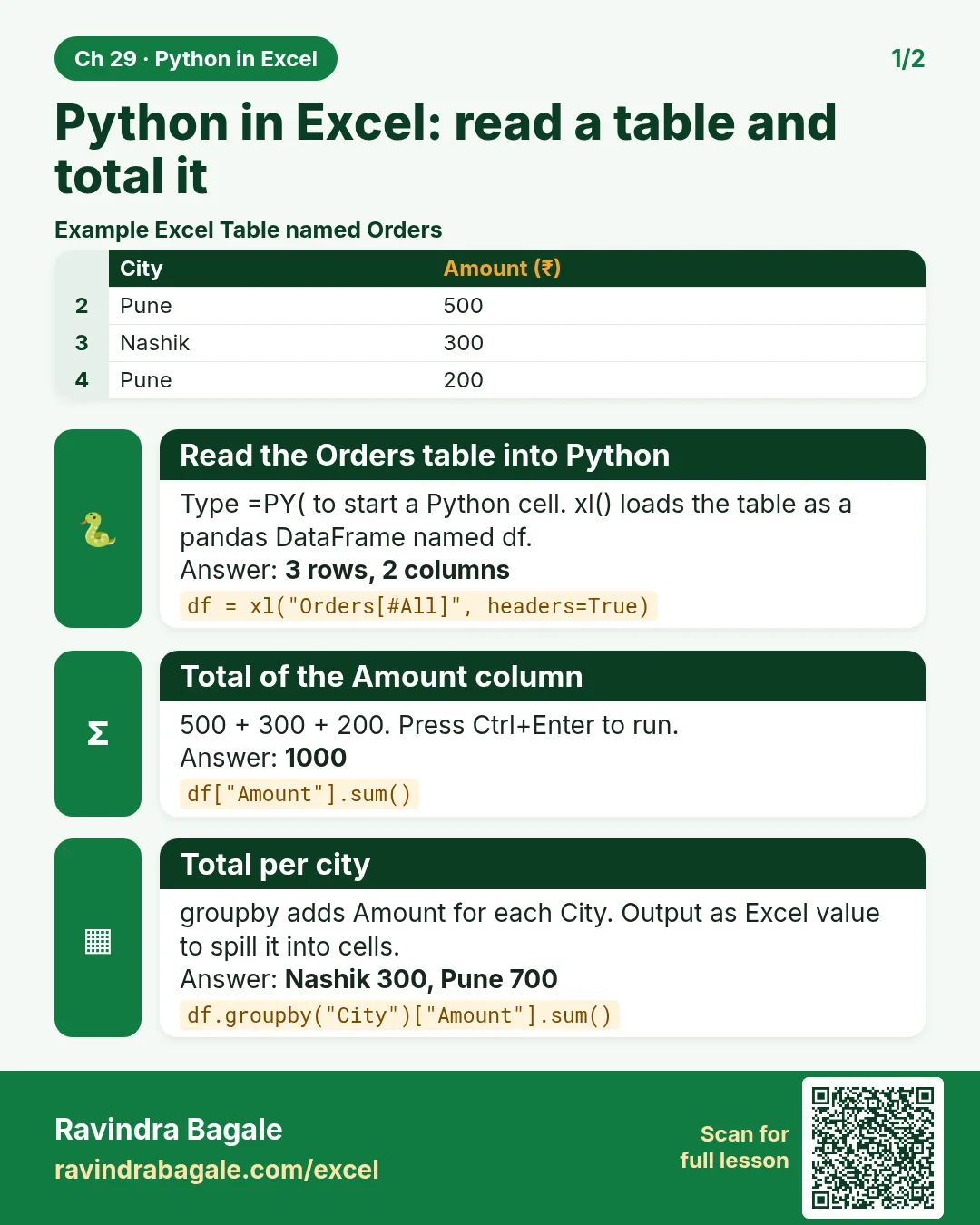
- Read cells and Tables with xl() and work with DataFrames
- Choose between Python object and Excel value output
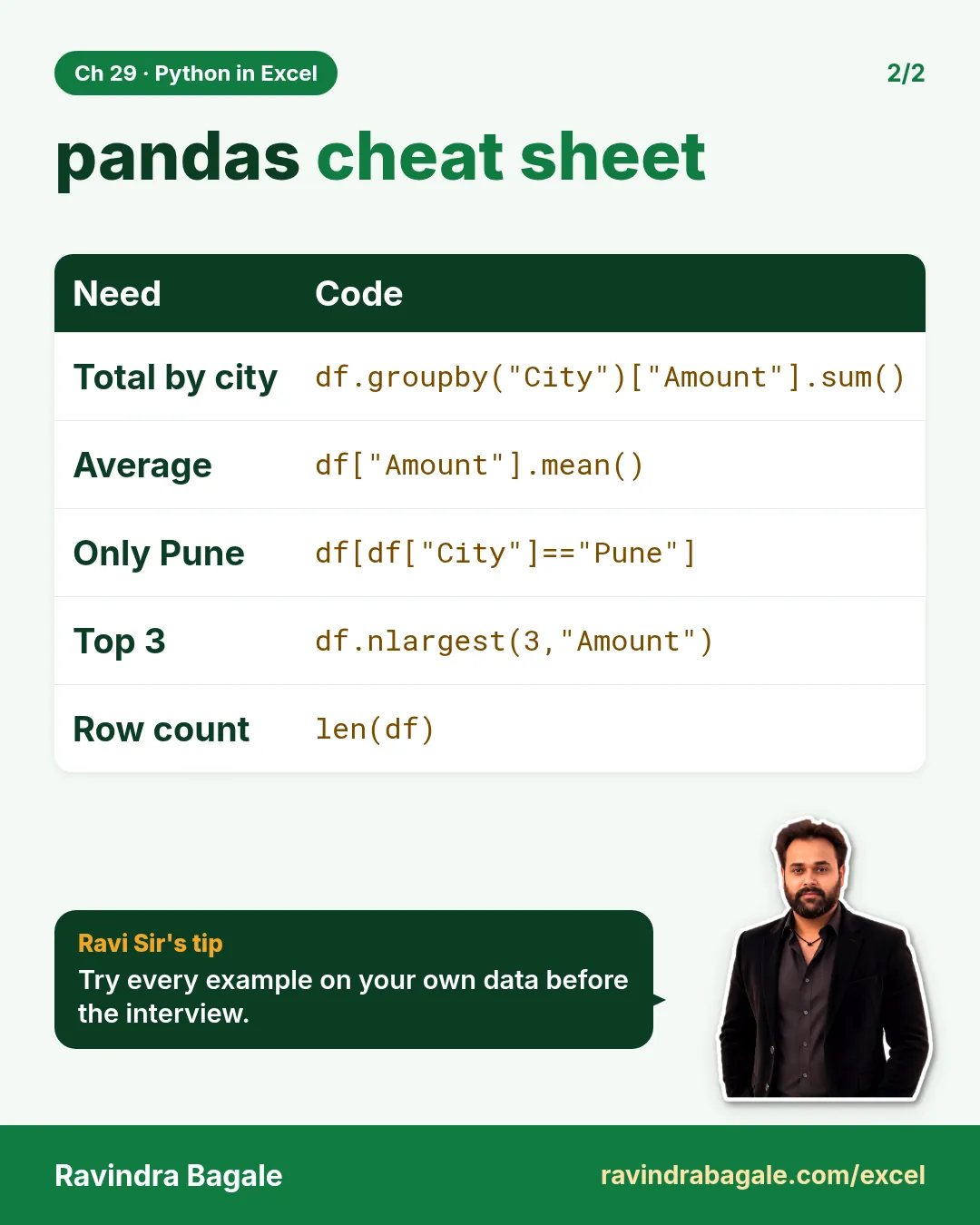
- Group, aggregate and pivot with pandas; draw Matplotlib and seaborn charts
- Follow row-major calculation order, understand cloud execution, errors and limits, and build a reusable weekly report
Live story: From Jupyter to one Excel cell
Suppose Amir used to export the Blinkit sheet to CSV every Monday, run pandas in Jupyter, and paste the city totals back into Excel. Copy-paste mistakes crept in twice a month. With Python in Excel the same groupby lives in a cell of the team workbook, refreshes when the Table changes, and sits next to a SUMIFS check. The Monday report now takes ten minutes and nobody has to install Python.
All numbers in this story are fictional practice data.
Live story: Jupyter पासून एका Excel cell पर्यंत
समजा Amir दर सोमवारी Blinkit sheet CSV मध्ये export करायचा, Jupyter मध्ये pandas चालवायचा, आणि city totals परत Excel मध्ये paste करायचा. महिन्यातून दोनदा copy-paste च्या चुका व्हायच्या. Python in Excel मुळे तोच groupby team workbook च्या एका cell मध्ये राहतो, Table बदलली की refresh होतो, आणि शेजारी SUMIFS ची तपासणी असते. सोमवारचा report आता दहा मिनिटांत होतो आणि कोणालाही Python install करावा लागत नाही.
या story मधले सगळे आकडे काल्पनिक practice data आहेत.
Live story: Jupyter से एक Excel cell तक
मान लीजिए Amir हर सोमवार Blinkit sheet को CSV में export करता था, Jupyter में pandas चलाता था, और city totals वापस Excel में paste करता था. महीने में दो बार copy-paste की ग़लतियाँ हो जाती थीं. Python in Excel से वही groupby team workbook की एक cell में रहता है, Table बदलने पर refresh होता है, और बगल में SUMIFS की जाँच होती है. सोमवार का report अब दस मिनट में बनता है और किसी को Python install नहीं करना पड़ता.
इस story के सारे आँकड़े काल्पनिक practice data हैं.
Fictional practice data
Every name, number and company detail in this module is made up for class. It is not the data of Blinkit, Amazon or any real firm.
Concepts in this chapter
- 29.1What Python in Excel Is: Availability and Licensing
- 29.2Your First =PY Cell: Insert Python, Ctrl+Alt+Shift+P and Ctrl+Enter
- 29.3xl() References and DataFrames: Reading a Whole Table into Python
- 29.4Python Object or Excel Value: Choosing the Output Type
- 29.5pandas groupby in Excel: Totals, Several Measures and a Pivot Table
- 29.6Charts with Matplotlib and seaborn in Python in Excel
- 29.7Calculation Order, Cloud Execution, Errors and Limits
- 29.8Mini Project: A Weekly City Report with Python in Excel
Review and practice
The chapter recap is at the end of the last concept page.
Quick revision cards
Quick revision
Revise this chapter in two minutes. Save the cards on your phone or download them as PNG files. All names and numbers are made up for practice.
झटपट उजळणी
हा chapter दोन मिनिटांत revise करा. Cards phone वर save करा किंवा PNG म्हणून download करा. सगळी नावं आणि आकडे सरावासाठी काल्पनिक आहेत.
झटपट दोहराई
यह chapter दो मिनट में revise करें. Cards phone पर save करें या PNG के रूप में download करें. सभी नाम और आंकड़े अभ्यास के लिए काल्पनिक हैं.

More cards for every chapter: Ravi Sir's Cards.