29.2 Your First =PY Cell: Insert Python, Ctrl+Alt+Shift+P and Ctrl+Enter
Example first. Ruhi selects cell K2 on the Orders sheet, presses Ctrl+Alt+Shift+P, clicks G2, types +, clicks G3 and presses Ctrl+Enter. K2 shows 334: the amounts of the first two orders (64 + 270). She has written her first Python formula without typing a single bracket of Excel syntax. This lesson covers the three ways to start a Python cell, how to reference cells, and the keys that matter.
Your first Python cell — in 30 seconds
What: A Python cell is a cell whose formula is Python code. You start one with Formulas › Insert Python, by typing =PY and choosing PY, or with Ctrl+Alt+Shift+P. You commit the code with Ctrl+Enter.
Why: Knowing the start and commit keys removes the most common beginner problem: pressing Enter and getting a new line instead of a result.
Tiny example: In K2: start Python, type xl("G2") + xl("G3"), press Ctrl+Enter. Result: 334.
Your first Python cell — 30 सेकंदात
काय: Python cell म्हणजे जिचा formula Python code आहे अशी cell. ती Formulas › Insert Python ने, =PY type करून PY निवडून, किंवा Ctrl+Alt+Shift+P ने सुरू होते. Code Ctrl+Enter ने commit होतो.
का: Start आणि commit च्या keys माहीत असल्या की नव्या लोकांची सर्वात सामान्य अडचण जाते: Enter दाबल्यावर result ऐवजी नवीन line येणं.
छोटं उदाहरण: K2 मध्ये: Python सुरू करा, xl("G2") + xl("G3") type करा, Ctrl+Enter दाबा. Result: 334.
Your first Python cell — 30 सेकंड में
क्या: Python cell वह cell है जिसका formula Python code है. इसे Formulas › Insert Python से, =PY type करके PY चुनकर, या Ctrl+Alt+Shift+P से शुरू करते हैं. Code Ctrl+Enter से commit होता है.
क्यों: Start और commit की keys पता हों तो नए लोगों की सबसे आम दिक़्क़त ख़त्म हो जाती है: Enter दबाने पर result की जगह नई line आना.
छोटा उदाहरण: K2 में: Python शुरू करें, xl("G2") + xl("G3") type करें, Ctrl+Enter दबाएँ. Result: 334.
First look at the data (before → after):
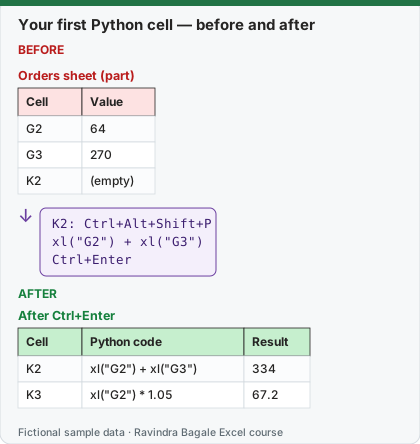
Expected result — After Ctrl+Enter
| Cell | Python code | Result |
|---|---|---|
| K2 | xl("G2") + xl("G3") | 334 |
| K3 | xl("G2") * 1.05 | 67.2 |
Before table and formula as text
Before — Orders sheet (part)
| Cell | Value |
|---|---|
| G2 | 64 |
| G3 | 270 |
| K2 | (empty) |
Formula / click path
K2: Ctrl+Alt+Shift+P
xl("G2") + xl("G3")
Ctrl+Enter
Do it step by step:
- Select K2 on the Orders sheet.
- Press Ctrl+Alt+Shift+P (or select Formulas › Insert Python, or type
=PYand press Tab). A PY icon appears. - Click G2 with the mouse. Excel types
xl("G2")for you. - Type
+and click G3. The cell now readsxl("G2") + xl("G3"). - Press Ctrl+Enter to commit. K2 shows 334.
- In K3 repeat with
xl("G2") * 1.05and commit: 67.2 (64 plus 5%).
स्टेप बाय स्टेप करून बघा:
- Orders sheet वर K2 निवडा.
- Ctrl+Alt+Shift+P दाबा (किंवा Formulas › Insert Python निवडा, किंवा
=PYtype करून Tab दाबा). PY icon दिसतो. - Mouse ने G2 वर click करा. Excel तुमच्यासाठी
xl("G2")type करतो. +type करा आणि G3 वर click करा. Cell आताxl("G2") + xl("G3")दाखवते.- Commit करायला Ctrl+Enter दाबा. K2 मध्ये 334 येतं.
- K3 मध्ये
xl("G2") * 1.05ने तेच करा आणि commit करा: 67.2 (64 अधिक 5%).
स्टेप बाय स्टेप करके देखें:
- Orders sheet पर K2 चुनें.
- Ctrl+Alt+Shift+P दबाएँ (या Formulas › Insert Python चुनें, या
=PYtype करके Tab दबाएँ). PY icon दिखता है. - Mouse से G2 पर click करें. Excel आपके लिए
xl("G2")type करता है. +type करें और G3 पर click करें. Cell अबxl("G2") + xl("G3")दिखाती है.- Commit करने के लिए Ctrl+Enter दबाएँ. K2 में 334 आता है.
- K3 में
xl("G2") * 1.05से यही करें और commit करें: 67.2 (64 और 5%).
Version note
Shortcuts verified on Microsoft's "Python in Excel keyboard shortcuts" page (Excel for Microsoft 365, Windows). Ctrl+Alt+Shift+P is listed there as "Like =PY, enables Python formulas in the current cell". On a Mac the menu path is the same; check the page for Mac keys.
The keys that matter (from Microsoft's shortcut list)
| Keys | What they do |
|---|---|
| =PY then Tab (or =PY( ) | Turn the cell into a Python cell |
| Ctrl+Alt+Shift+P | Same as =PY: Python in the current cell |
| Ctrl+Enter | Commit the Python code (Enter adds a new line) |
| F2 | Switch between Enter mode (pick cells with arrow keys) and Edit mode (type code) |
| Ctrl+Shift+U | Expand or collapse the formula bar to see more lines |
| Ctrl+Alt+Shift+F2 | Open the Python in Excel code editor pane (bigger editor, colours, IntelliSense) |
| Ctrl+Alt+Shift+M | Switch the result between Python object and Excel value (lesson 29.4) |
| Ctrl+Shift+F5 | Open the card of a cell that shows a card icon |
| Ctrl+Alt+Shift+F9 | Reset the Python runtime (helps with #BUSY! or #CONNECT!) |
Python is not an Excel formula, so the rules differ
| Excel formula | Python cell |
|---|---|
=G2+G3 |
xl("G2") + xl("G3") |
=G2*105% |
xl("G2") * 1.05 (no % sign in Python) |
=ROUND(G2*1.05,1) |
round(xl("G2") * 1.05, 1) |
=IF(H2>15,"Late","OK") |
"Late" if xl("H2") > 15 else "OK" |
| Text in double quotes | Text in single or double quotes |
| Case does not matter in function names | Case matters: Round is an error, round works |
Many lines in one cell. Expand the formula bar (Ctrl+Shift+U) and press Enter for each new line. The value of the last line is what the cell shows. For example:
amount = xl("G2")
fee = amount * 0.05
amount + fee
returns 67.2. Lines that only assign a variable (fee = ...) show nothing by themselves.
When something is wrong the cell shows #PYTHON!. Select the error symbol and Show Error Message, or open the Diagnostics pane (right-click the cell › Diagnostics for this cell). The most common beginner causes: a missing bracket or quote, Round with a capital R, or a variable used before it was defined (lesson 29.7).
Microsoft sources (checked 7 October 2026): Get started with Python in Excel; Python in Excel keyboard shortcuts.
Practice task (try it before you open the answer):
- In K4 write a Python cell that returns the Mins of the first order (H2) plus 5.
- In K5 return "Late" if H8 is more than 15, else "OK".
- Say both results.
Answer
xl("H2") + 5returns 14 (H2 is 9)."Late" if xl("H8") > 15 else "OK"returns Late, because H8 (order BLK-1007) is 18.- K4 = 14, K5 = Late. Remember to commit each one with Ctrl+Enter.
Ravindra Bagale's Tip
Learn one shortcut today: Ctrl+Enter to commit. Nine out of ten "my Python cell does nothing" questions in class are an Enter that should have been Ctrl+Enter.
Ravindra Bagale's Tip – मराठी
आज एकच shortcut शिका: commit साठी Ctrl+Enter. Class मधले "माझी Python cell काहीच करत नाही" असे दहापैकी नऊ प्रश्न, Ctrl+Enter ऐवजी दाबलेला Enter असतात.
Ravindra Bagale's Tip – हिंदी
आज एक ही shortcut सीखें: commit के लिए Ctrl+Enter. Class में "मेरी Python cell कुछ नहीं करती" वाले दस में से नौ सवाल, Ctrl+Enter की जगह दबाया गया Enter होते हैं.