29.8 Mini Project: A Weekly City Report with Python in Excel
Example first. Every Monday Shraddha Bagale sends a city report for the previous week: orders, Amount, average delivery time, late orders and each city's share. Last week (9 to 15 November 2026, fictional) there were 16 orders worth ₹5,960. She builds the report once with four Python cells. Next Monday she pastes the new week into the Table, and every number and the chart refresh by themselves. Then she checks two numbers with SUMIFS before sending.
Weekly city report in Python — in 30 seconds
What: A small, repeatable Python in Excel report: load the Table, add a Late flag, group by City with several measures, add a share column, split by Platform and draw a chart, then check against Excel formulas.
Why: It joins every lesson of this module into one workflow you can reuse each week, and the final Excel check proves the Python numbers before anyone sees them.
Tiny example: Late means Mins more than 15: df["Late"] = df["Mins"] > 15. In the week there are 5 late orders out of 16.
Weekly city report in Python — 30 सेकंदात
काय: एक छोटा, पुन्हा वापरता येणारा Python in Excel report: Table load करा, Late flag जोडा, अनेक measures सह City प्रमाणे group करा, share column जोडा, Platform प्रमाणे विभागा आणि chart काढा, मग Excel formulas शी तपासा.
का: या module चे सगळे lessons एका workflow मध्ये जोडले जातात जो दर आठवड्याला वापरता येतो, आणि शेवटची Excel तपासणी कोणी पाहण्याआधी Python चे आकडे सिद्ध करते.
छोटं उदाहरण: Late म्हणजे Mins 15 पेक्षा जास्त: df["Late"] = df["Mins"] > 15. आठवड्यात 16 पैकी 5 orders late आहेत.
Weekly city report in Python — 30 सेकंड में
क्या: एक छोटा, दोबारा इस्तेमाल होने वाला Python in Excel report: Table load करें, Late flag जोड़ें, कई measures के साथ City के हिसाब से group करें, share column जोड़ें, Platform के हिसाब से बाँटें और chart बनाएँ, फिर Excel formulas से जाँचें.
क्यों: इस module के सारे lessons एक workflow में जुड़ जाते हैं जो हर हफ़्ते इस्तेमाल हो सकता है, और आख़िरी Excel जाँच किसी के देखने से पहले Python के आँकड़े साबित करती है.
छोटा उदाहरण: Late यानी Mins 15 से ज़्यादा: df["Late"] = df["Mins"] > 15. हफ़्ते में 16 में से 5 orders late हैं.
First look at the data (before → after):
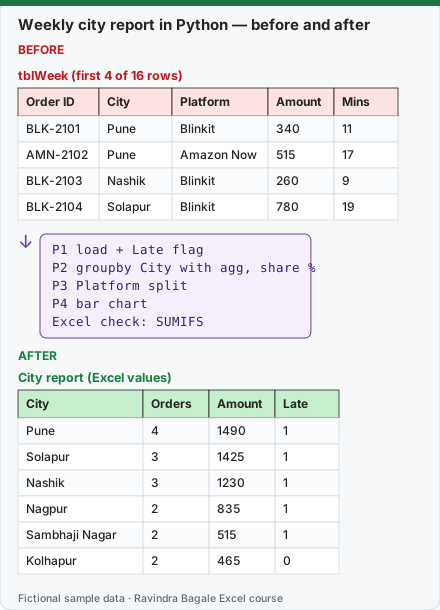
Expected result — City report (Excel values)
| City | Orders | Amount | Late |
|---|---|---|---|
| Pune | 4 | 1490 | 1 |
| Solapur | 3 | 1425 | 1 |
| Nashik | 3 | 1230 | 1 |
| Nagpur | 2 | 835 | 1 |
| Sambhaji Nagar | 2 | 515 | 1 |
| Kolhapur | 2 | 465 | 0 |
Before table and formula as text
Before — tblWeek (first 4 of 16 rows)
| Order ID | City | Platform | Amount | Mins |
|---|---|---|---|---|
| BLK-2101 | Pune | Blinkit | 340 | 11 |
| AMN-2102 | Pune | Amazon Now | 515 | 17 |
| BLK-2103 | Nashik | Blinkit | 260 | 9 |
| BLK-2104 | Solapur | Blinkit | 780 | 19 |
Formula / click path
P1 load + Late flag
P2 groupby City with agg, share %
P3 Platform split
P4 bar chart
Excel check: SUMIFS
Do it step by step:
- Put the 16 rows in an Excel Table named tblWeek with the headers Order ID, City, Platform, Amount, Mins.
- In H1 create the first Python cell (P1 below): load the Table, add the Late column and return the late count. Expected 5.
- In H3 create P2: the city report with Orders, Amount, AvgMins, LateOrders and Share %. Switch it to Excel Value.
- In N3 create P3: the Platform split. Switch it to Excel Value.
- In H12 create P4: the bar chart, then right-click › Display Plot over Cells and place it under the report.
- Check with Excel:
=SUMIFS(tblWeek[Amount],tblWeek[City],"Pune")must equal the Pune Amount in the report (1490).
स्टेप बाय स्टेप करून बघा:
- 16 rows tblWeek नावाच्या Excel Table मध्ये ठेवा, headers Order ID, City, Platform, Amount, Mins.
- H1 मध्ये पहिली Python cell बनवा (खाली P1): Table load करा, Late column जोडा आणि late count परत द्या. अपेक्षित 5.
- H3 मध्ये P2 बनवा: Orders, Amount, AvgMins, LateOrders आणि Share % सह city report. तो Excel Value करा.
- N3 मध्ये P3 बनवा: Platform split. तो Excel Value करा.
- H12 मध्ये P4 बनवा: bar chart, मग right-click › Display Plot over Cells करून report खाली ठेवा.
- Excel ने तपासा:
=SUMIFS(tblWeek[Amount],tblWeek[City],"Pune")report मधल्या Pune Amount (1490) एवढा हवा.
स्टेप बाय स्टेप करके देखें:
- 16 rows को tblWeek नाम की Excel Table में रखें, headers Order ID, City, Platform, Amount, Mins.
- H1 में पहली Python cell बनाएँ (नीचे P1): Table load करें, Late column जोड़ें और late count लौटाएँ. अपेक्षित 5.
- H3 में P2 बनाएँ: Orders, Amount, AvgMins, LateOrders और Share % वाला city report. उसे Excel Value करें.
- N3 में P3 बनाएँ: Platform split. उसे Excel Value करें.
- H12 में P4 बनाएँ: bar chart, फिर right-click › Display Plot over Cells करके report के नीचे रखें.
- Excel से जाँचें:
=SUMIFS(tblWeek[Amount],tblWeek[City],"Pune")report के Pune Amount (1490) के बराबर होना चाहिए.
The data: tblWeek (16 fictional orders, 9 to 15 November 2026)
| Order ID | City | Platform | Amount | Mins |
|---|---|---|---|---|
| BLK-2101 | Pune | Blinkit | 340 | 11 |
| AMN-2102 | Pune | Amazon Now | 515 | 17 |
| BLK-2103 | Nashik | Blinkit | 260 | 9 |
| BLK-2104 | Solapur | Blinkit | 780 | 19 |
| AMN-2105 | Kolhapur | Amazon Now | 190 | 12 |
| BLK-2106 | Nagpur | Blinkit | 455 | 14 |
| AMN-2107 | Sambhaji Nagar | Amazon Now | 310 | 16 |
| BLK-2108 | Pune | Blinkit | 225 | 8 |
| AMN-2109 | Nashik | Amazon Now | 640 | 13 |
| BLK-2110 | Solapur | Blinkit | 150 | 10 |
| BLK-2111 | Nagpur | Blinkit | 380 | 18 |
| AMN-2112 | Kolhapur | Amazon Now | 275 | 11 |
| BLK-2113 | Pune | Blinkit | 410 | 15 |
| AMN-2114 | Sambhaji Nagar | Amazon Now | 205 | 9 |
| BLK-2115 | Nashik | Blinkit | 330 | 21 |
| AMN-2116 | Solapur | Amazon Now | 495 | 12 |
P1 (H1): load and flag late orders
df = xl("tblWeek[#All]", headers=True)
df["Late"] = df["Mins"] > 15
df["Late"].sum()
Result: 5 (late orders: AMN-2102, BLK-2104, AMN-2107, BLK-2111, BLK-2115). Booleans add up as 1 for TRUE and 0 for FALSE, which is why .sum() counts them.
P2 (H3): the city report
report = (df.groupby("City")
            .agg(Orders=("Order ID", "count"),
                 Amount=("Amount", "sum"),
                 AvgMins=("Mins", "mean"),
                 LateOrders=("Late", "sum"))
            .sort_values("Amount", ascending=False))
report["Share %"] = (report["Amount"] / report["Amount"].sum() * 100).round(1)
report["AvgMins"] = report["AvgMins"].round(1)
report
| City | Orders | Amount | AvgMins | LateOrders | Share % |
|---|---|---|---|---|---|
| Pune | 4 | 1490 | 12.8 | 1 | 25.0 |
| Solapur | 3 | 1425 | 13.7 | 1 | 23.9 |
| Nashik | 3 | 1230 | 14.3 | 1 | 20.6 |
| Nagpur | 2 | 835 | 16.0 | 1 | 14.0 |
| Sambhaji Nagar | 2 | 515 | 12.5 | 1 | 8.6 |
| Kolhapur | 2 | 465 | 11.5 | 0 | 7.8 |
Total Amount ₹5,960; the shares add up to 99.9%. pandas .round(1) rounds an exact half to the even digit (0.25 becomes 0.2), while Excel's ROUND rounds a half away from zero (0.25 becomes 0.3). On the rare value that ends exactly in 5, the last digit can differ by 0.1; none of this week's numbers is affected. Mention it in the report notes if your manager compares the two.
P3 (N3): Blinkit vs Amazon Now
df.groupby("Platform")["Amount"].agg(["count", "sum", "mean"]).round(1)
| Platform | count | sum | mean |
|---|---|---|---|
| Amazon Now | 7 | 2630 | 375.7 |
| Blinkit | 9 | 3330 | 370.0 |
P4 (H12): the chart
report["Amount"].plot(kind="bar", color="#217346")
plt.ylabel("Amount (Rs)")
plt.title("Week 9-15 Nov: Amount by City")
Because report is already sorted by Amount, the bars go from Pune (₹1,490) down to Kolhapur (₹465).
Expected output computed by running this exact code locally with pandas on the same fictional data (Python in Excel runs it in the Microsoft Cloud; numbers are the same, the look of the card may differ).
Check before sending (Excel formulas next to the Python report)
| Check | Excel formula | Must equal |
|---|---|---|
| Total Amount | =SUM(tblWeek[Amount]) |
5960 |
| Pune Amount | =SUMIFS(tblWeek[Amount],tblWeek[City],"Pune") |
1490 |
| Late orders | =COUNTIFS(tblWeek[Mins],">15") |
5 |
| Solapur average Mins | =ROUND(AVERAGEIFS(tblWeek[Mins],tblWeek[City],"Solapur"),1) |
13.7 |
| Blinkit orders | =COUNTIFS(tblWeek[Platform],"Blinkit") |
9 |
Next Monday. Replace the rows of tblWeek with the new week (keep the headers). The Table grows or shrinks, xl("tblWeek[#All]", headers=True) reads the new size, and P1 to P4 recalculate in row-major order. Your only manual work: the five checks above and a two-line comment on what changed.
Microsoft sources (checked 7 October 2026): Get started with Python in Excel; Python in Excel DataFrames; Create plots and charts with Python in Excel.
Practice task (try it before you open the answer):
- Add an "Avg order" column to the report: Amount divided by Orders, rounded to 0 decimals.
- Which city has the highest average order?
- Check it with an Excel formula.
Answer
- Add
report["Avg order"] = (report["Amount"] / report["Orders"]).round(0)before the last linereport. - Solapur with ₹475 (Amount ÷ Orders).
=AVERAGEIFS(tblWeek[Amount],tblWeek[City],"Solapur")gives the same average order for Solapur.
Ravindra Bagale's Tip
Build the report once, check it twice, then reuse it every week. The value of Python in Excel is not one clever cell; it is the same correct report every Monday.
Ravindra Bagale's Tip – मराठी
Report एकदा बनवा, दोनदा तपासा, मग दर आठवड्याला वापरा. Python in Excel चं मूल्य एका हुशार cell मध्ये नाही; दर सोमवारी तोच बरोबर report मिळणं यात आहे.
Ravindra Bagale's Tip – हिंदी
Report एक बार बनाएँ, दो बार जाँचें, फिर हर हफ़्ते इस्तेमाल करें. Python in Excel की कीमत एक चतुर cell में नहीं; हर सोमवार वही सही report मिलने में है.