29.5 pandas groupby in Excel: Totals, Several Measures and a Pivot Table
Example first. Rani needs a city summary with three numbers per city: orders, Amount and average Mins, sorted by Amount. In Excel that is three formulas per row or a PivotTable. In a Python cell it is one groupby with agg. The result matches GROUPBY and PIVOTBY from lessons 9.10 and 9.11 to the rupee, which is a good way to trust both.
pandas groupby — in 30 seconds
What: groupby splits the rows of a DataFrame into groups (for example by City), calculates something for each group (sum, count, mean) and combines the answers into a new table. pivot_table adds a second dimension as columns.
Why: It is the Python version of a PivotTable or GROUPBY: one readable statement gives several measures at once, sorted the way you want, and it refreshes when the Table changes.
Tiny example: df.groupby("City")["Amount"].sum() returns Kolhapur 232, Nagpur 240, Nashik 360, Pune 544, Sambhaji Nagar 195, Solapur 1299.
pandas groupby — 30 सेकंदात
काय: groupby DataFrame च्या rows groups मध्ये विभागतो (उदा. City प्रमाणे), प्रत्येक group साठी काहीतरी काढतो (sum, count, mean) आणि उत्तरं नवीन table मध्ये एकत्र करतो. pivot_table दुसरी dimension columns म्हणून जोडतो.
का: हे PivotTable किंवा GROUPBY चं Python रूप आहे: एका वाचता येणाऱ्या statement मध्ये अनेक measures एकदम, हव्या त्या क्रमाने मिळतात, आणि Table बदलली की refresh होतात.
छोटं उदाहरण: df.groupby("City")["Amount"].sum() देतो Kolhapur 232, Nagpur 240, Nashik 360, Pune 544, Sambhaji Nagar 195, Solapur 1299.
pandas groupby — 30 सेकंड में
क्या: groupby DataFrame की rows को groups में बाँटता है (जैसे City के हिसाब से), हर group के लिए कुछ निकालता है (sum, count, mean) और जवाबों को नई table में जोड़ता है. pivot_table दूसरी dimension को columns के रूप में जोड़ता है.
क्यों: यह PivotTable या GROUPBY का Python रूप है: एक पढ़ने लायक statement में कई measures एक साथ, चाहे जिस क्रम में मिलते हैं, और Table बदलने पर refresh होते हैं.
छोटा उदाहरण: df.groupby("City")["Amount"].sum() देता है Kolhapur 232, Nagpur 240, Nashik 360, Pune 544, Sambhaji Nagar 195, Solapur 1299.
First look at the data (before → after):
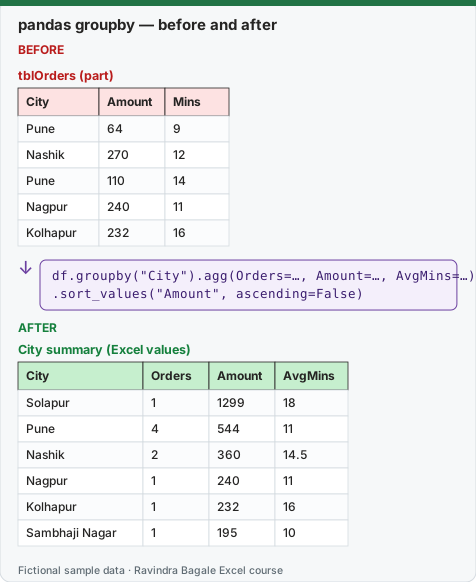
Expected result — City summary (Excel values)
| City | Orders | Amount | AvgMins |
|---|---|---|---|
| Solapur | 1 | 1299 | 18 |
| Pune | 4 | 544 | 11 |
| Nashik | 2 | 360 | 14.5 |
| Nagpur | 1 | 240 | 11 |
| Kolhapur | 1 | 232 | 16 |
| Sambhaji Nagar | 1 | 195 | 10 |
Before table and formula as text
Before — tblOrders (part)
| City | Amount | Mins |
|---|---|---|
| Pune | 64 | 9 |
| Nashik | 270 | 12 |
| Pune | 110 | 14 |
| Nagpur | 240 | 11 |
| Kolhapur | 232 | 16 |
Formula / click path
df.groupby("City").agg(Orders=…, Amount=…, AvgMins=…)
.sort_values("Amount", ascending=False)
Do it step by step:
- Make sure df is loaded in an earlier cell (lesson 29.3).
- In a new Python cell type the one-line groupby
df.groupby("City")["Amount"].sum()and commit. Switch to Excel values to see 6 rows. - In the next cell type the summary code from the box below (groupby with agg and sort_values) and commit.
- Switch it to Excel values with Ctrl+Alt+Shift+M. Check the spill area is empty first.
- Check one row with Excel:
=SUMIFS(tblOrders[Amount],tblOrders[City],"Pune")must be 544. - Try the pivot_table code to get City in rows and Platform in columns with totals.
स्टेप बाय स्टेप करून बघा:
- df आधीच्या cell मध्ये load झाला आहे ना ते बघा (lesson 29.3).
- नवीन Python cell मध्ये एका line चा groupby
df.groupby("City")["Amount"].sum()type करून commit करा. 6 rows बघायला Excel values करा. - पुढच्या cell मध्ये खालच्या box मधला summary code (agg आणि sort_values सह groupby) type करून commit करा.
- Ctrl+Alt+Shift+M ने Excel values करा. आधी spill area रिकामा आहे ना ते बघा.
- एक row Excel ने तपासा:
=SUMIFS(tblOrders[Amount],tblOrders[City],"Pune")544 यायला हवा. - City rows मध्ये आणि Platform columns मध्ये totals सह मिळवायला pivot_table code वापरून बघा.
स्टेप बाय स्टेप करके देखें:
- देखें कि df पिछली cell में load हो चुका है (lesson 29.3).
- नई Python cell में एक line का groupby
df.groupby("City")["Amount"].sum()type करके commit करें. 6 rows देखने के लिए Excel values करें. - अगली cell में नीचे के box वाला summary code (agg और sort_values वाला groupby) type करके commit करें.
- Ctrl+Alt+Shift+M से Excel values करें. पहले देखें कि spill area खाली है.
- एक row Excel से जाँचें:
=SUMIFS(tblOrders[Amount],tblOrders[City],"Pune")544 आना चाहिए. - City को rows में और Platform को columns में totals के साथ पाने के लिए pivot_table code आज़माएँ.
1. One measure
df.groupby("City")["Amount"].sum()
| City | Amount |
|---|---|
| Kolhapur | 232 |
| Nagpur | 240 |
| Nashik | 360 |
| Pune | 544 |
| Sambhaji Nagar | 195 |
| Solapur | 1299 |
The groups come out sorted A to Z, because groupby sorts the group keys by default.
2. Several measures, named and sorted
summary = (df.groupby("City")
             .agg(Orders=("Order ID", "count"),
                  Amount=("Amount", "sum"),
                  AvgMins=("Mins", "mean"))
             .sort_values("Amount", ascending=False))
summary
| City | Orders | Amount | AvgMins |
|---|---|---|---|
| Solapur | 1 | 1299 | 18 |
| Pune | 4 | 544 | 11 |
| Nashik | 2 | 360 | 14.5 |
| Nagpur | 1 | 240 | 11 |
| Kolhapur | 1 | 232 | 16 |
| Sambhaji Nagar | 1 | 195 | 10 |
Read Orders=("Order ID", "count") as "make a column called Orders by counting the Order ID column". The same pattern works for "sum", "mean", "min", "max" and "nunique".
3. Filter first, then group (Delivered only)
df[df["Status"] == "Delivered"].groupby("City")["Amount"].sum()
| City | Delivered Amount |
|---|---|
| Kolhapur | 232 |
| Nashik | 360 |
| Pune | 324 |
| Solapur | 1299 |
Nagpur and Sambhaji Nagar disappear because they have no Delivered rows to group. Total 2215, the same as =SUMIFS(tblOrders[Amount],tblOrders[Status],"Delivered").
4. A pivot table with totals
pd.pivot_table(df, values="Amount", index="City", columns="Platform",
               aggfunc="sum", fill_value=0, margins=True, margins_name="Total")
| City | Amazon Now | Blinkit | Total |
|---|---|---|---|
| Kolhapur | 232 | 0 | 232 |
| Nagpur | 0 | 240 | 240 |
| Nashik | 0 | 360 | 360 |
| Pune | 110 | 434 | 544 |
| Sambhaji Nagar | 195 | 0 | 195 |
| Solapur | 0 | 1299 | 1299 |
| Total | 537 | 2333 | 2870 |
Expected output computed by running this exact code locally with pandas on the same fictional data (Python in Excel runs it in the Microsoft Cloud; numbers are the same, the look of the card may differ).
The same numbers three ways
| Question | Python | Excel 365 function | Classic formula |
|---|---|---|---|
| Amount by City | df.groupby("City")["Amount"].sum() |
=GROUPBY(tblOrders[City],tblOrders[Amount],SUM) |
=SUMIFS(…) per city |
| City × Platform | pd.pivot_table(…) |
=PIVOTBY(tblOrders[City],tblOrders[Platform],tblOrders[Amount],SUM) |
PivotTable |
Column totals: Amazon Now ₹537, Blinkit ₹2,333, grand total ₹2,870, exactly as in lesson 9.11.
Microsoft sources (checked 7 October 2026): Python in Excel DataFrames; Get started with Python in Excel.
Practice task (try it before you open the answer):
- Group by Category and return the total Qty.
- Group by Platform and return the number of orders and the average Amount, rounded to 1 decimal.
- Give both results.
Answer
df.groupby("Category")["Qty"].sum()→ Bakery 5, Dairy 6, Fruits 6, Home 1, Snacks 3, Staples 3.df.groupby("Platform").agg(Orders=("Order ID", "count"), AvgAmount=("Amount", "mean")).round(1)→ Amazon Now: 3 orders, average 179.0, Blinkit: 7 orders, average 333.3.- Check with
=SUMIFS(tblOrders[Qty],tblOrders[Category],"Fruits")= 6 and=AVERAGEIFS(tblOrders[Amount],tblOrders[Platform],"Blinkit").
Ravindra Bagale's Tip
Name every aggregated column in agg (Orders=, Amount=, AvgMins=). Next month nobody has to guess what "Amount_mean" or "size" meant.
Ravindra Bagale's Tip – मराठी
agg मधल्या प्रत्येक column ला नाव द्या (Orders=, Amount=, AvgMins=). पुढच्या महिन्यात "Amount_mean" किंवा "size" म्हणजे काय याचा अंदाज कुणालाच लावावा लागत नाही.
Ravindra Bagale's Tip – हिंदी
agg में हर column को नाम दें (Orders=, Amount=, AvgMins=). अगले महीने किसी को अंदाज़ा नहीं लगाना पड़ता कि "Amount_mean" या "size" का मतलब क्या था.