29.7 Calculation Order, Cloud Execution, Errors and Limits
Example first. Salman puts df["Amount"].sum() in A1 and the load line df = xl("tblOrders[#All]", headers=True) in A5. A1 shows #PYTHON!: "name df is not defined". Nothing is wrong with his code. Python cells calculate in row-major order, across row 1 from A to XFD, then row 2, and so on, so A1 runs before A5 has created df. Move the load line to the top and everything works.
Python calculation order — in 30 seconds
What: Python cells calculate in row-major order: across each row from column A to XFD, then the next row down, and sheet by sheet in tab order. A variable must be defined in a cell that comes earlier in that order.
Why: Most confusing Python in Excel errors are order errors. Knowing the rule tells you where to put imports, the data load and helper variables, and why moving a cell can break or fix a workbook.
Tiny example: rate = 0.05 in C1 and df["Amount"].sum() * rate in A2 works (row 1 finishes first): 143.5. The same code in B1 fails, because B1 runs before C1.
Python calculation order — 30 सेकंदात
काय: Python cells row-major क्रमाने calculate होतात: प्रत्येक row मध्ये column A पासून XFD पर्यंत, मग खालची row, आणि tab च्या क्रमाने sheet नंतर sheet. Variable त्या क्रमात आधी येणाऱ्या cell मध्ये define झालेला हवा.
का: Python in Excel मधल्या बहुतेक गोंधळात टाकणाऱ्या errors क्रमाच्या असतात. हा नियम माहीत असला की imports, data load आणि helper variables कुठे ठेवायचे ते कळतं, आणि cell हलवल्याने workbook का मोडतो किंवा का सुधारतो ते कळतं.
छोटं उदाहरण: C1 मध्ये rate = 0.05 आणि A2 मध्ये df["Amount"].sum() * rate चालतं (row 1 आधी संपते): 143.5. तोच code B1 मध्ये fail होतो, कारण B1, C1 च्या आधी चालते.
Python calculation order — 30 सेकंड में
क्या: Python cells row-major क्रम में calculate होती हैं: हर row में column A से XFD तक, फिर नीचे की row, और tab के क्रम में sheet के बाद sheet. Variable उस क्रम में पहले आने वाली cell में define होना चाहिए.
क्यों: Python in Excel की ज़्यादातर उलझाने वाली errors क्रम की होती हैं. यह नियम पता हो तो imports, data load और helper variables कहाँ रखने हैं यह समझ आता है, और cell हिलाने से workbook क्यों टूटता या ठीक होता है यह भी.
छोटा उदाहरण: C1 में rate = 0.05 और A2 में df["Amount"].sum() * rate चलता है (row 1 पहले ख़त्म होती है): 143.5. वही code B1 में fail होता है, क्योंकि B1, C1 से पहले चलती है.
First look at the data (before → after):
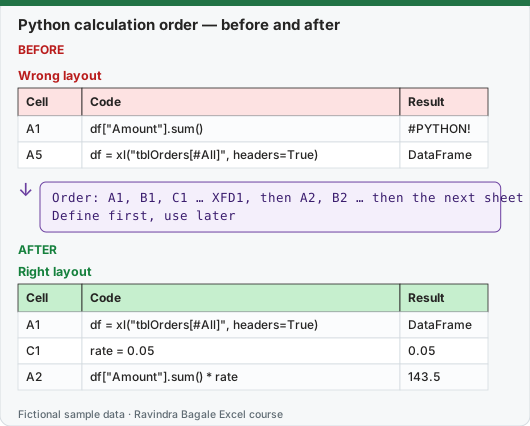
Expected result — Right layout
| Cell | Code | Result |
|---|---|---|
| A1 | df = xl("tblOrders[#All]", headers=True) | DataFrame |
| C1 | rate = 0.05 | 0.05 |
| A2 | df["Amount"].sum() * rate | 143.5 |
Before table and formula as text
Before — Wrong layout
| Cell | Code | Result |
|---|---|---|
| A1 | df["Amount"].sum() | #PYTHON! |
| A5 | df = xl("tblOrders[#All]", headers=True) | DataFrame |
Formula / click path
Order: A1, B1, C1 … XFD1, then A2, B2 … then the next sheet
Define first, use later
Do it step by step:
- Reserve the first sheet (or row 1 of the sheet) for imports and settings, as Microsoft suggests.
- Put the data load
df = xl("tblOrders[#All]", headers=True)in the first Python cell that needs it, at the top left. - Put helper values such as
rate = 0.05to the right in the same row, or in a row below. - Put calculations in later rows. A2 can use anything from row 1.
- If you see #PYTHON!, open Diagnostics for this cell from the right-click menu and look for "is not defined".
- If cells show #BUSY! for more than 60 seconds or #CONNECT!, select Formulas › Reset runtime (or Ctrl+Alt+Shift+F9).
स्टेप बाय स्टेप करून बघा:
- Microsoft सुचवतं तसं पहिली sheet (किंवा sheet ची row 1) imports आणि settings साठी राखून ठेवा.
- Data load
df = xl("tblOrders[#All]", headers=True)त्याची गरज असलेल्या पहिल्या Python cell मध्ये, वर डावीकडे ठेवा. rate = 0.05सारख्या helper values त्याच row मध्ये उजवीकडे, किंवा खालच्या row मध्ये ठेवा.- Calculations नंतरच्या rows मध्ये ठेवा. A2 row 1 मधलं काहीही वापरू शकते.
-
PYTHON! दिसला तर right-click menu मधून Diagnostics for this cell उघडा आणि "is not defined" शोधा.
- Cells 60 सेकंदांपेक्षा जास्त #BUSY! किंवा #CONNECT! दाखवत असतील तर Formulas › Reset runtime निवडा (किंवा Ctrl+Alt+Shift+F9).
स्टेप बाय स्टेप करके देखें:
- Microsoft के सुझाव के अनुसार पहली sheet (या sheet की row 1) imports और settings के लिए रखें.
- Data load
df = xl("tblOrders[#All]", headers=True)उसकी ज़रूरत वाली पहली Python cell में, ऊपर बाईं ओर रखें. rate = 0.05जैसी helper values उसी row में दाईं ओर, या नीचे की row में रखें.- Calculations बाद की rows में रखें. A2 row 1 का कुछ भी इस्तेमाल कर सकती है.
-
PYTHON! दिखे तो right-click menu से Diagnostics for this cell खोलें और "is not defined" ढूँढें.
- Cells 60 सेकंड से ज़्यादा #BUSY! या #CONNECT! दिखाएँ तो Formulas › Reset runtime चुनें (या Ctrl+Alt+Shift+F9).
Row-major order in one picture (as a table)
| Order | Cell | Can use variables from |
|---|---|---|
| 1 | A1 | nothing yet (only the built-in imports) |
| 2 | B1 | A1 |
| 3 | C1 | A1, B1 |
| … | XFD1 | all of row 1 to its left |
| next | A2 | all of row 1 |
| next | B2 | row 1 and A2 |
| then | Sheet2!A1 | everything on Sheet1 (if Sheet1 is the first tab) |
Inside one cell, lines run top to bottom as in normal Python. Across cells, Microsoft says each Python statement has an implicit dependency on the one just before it in this order. Across sheets, the order follows the tab order of the worksheets, so moving a tab can change results.
Where the code runs and what it cannot do (Microsoft's data security page)
| Fact | What it means for you |
|---|---|
| Runs in a hypervisor-isolated container in the Microsoft Cloud, within your organisation's compliance boundary | You need internet; nothing runs on your laptop |
| No network access, no access to your computer, devices, account or user token | pd.read_csv("https://…") or a local file path will not work |
Data comes only through xl() (cells, Tables, names) or a Power Query connection |
Import outside data with **Data › Get Data** (Power Query) first, then read the query with xl() |
| Results come back as values or images only; Python cannot write formulas, macros or VBA | A Python cell cannot change other cells; it only fills its own cell or spill |
| Data is not persisted in the cloud; each workbook gets its own container | No data is kept between sessions or shared with other workbooks |
| Protected View does not run Python formulas | A Python workbook from email shows old values until you enable editing |
| GDPR and EU Data Boundary compliant; data not shared with Anaconda or third parties | Facts to give your IT team |
Errors you will meet
| Error | Usual cause | Fix |
|---|---|---|
| #PYTHON! | Syntax error, wrong capital letter, variable not defined yet | Read Diagnostics for this cell; check calculation order |
| #BUSY! | Code still running in the cloud | Wait; after 60 s use Formulas › Reset runtime (Ctrl+Alt+Shift+F9) |
| #CONNECT! | Lost connection to the Microsoft Cloud | Reset runtime |
| #CALC! | Reference to a volatile cell (RAND), or more than 100 MB of data in one calculation | Remove volatile references; use less data |
| #TIMEOUT! | Code ran longer than the allowed time | Simplify; File › Options › Advanced › When calculating this workbook › Python Formula Timeout |
| #SPILL! | Excel-value output has no room | Clear the spill area |
| #BLOCKED! | Python not allowed (connected experiences off, unsupported licence, admin policy) | Ask IT; check licence type |
| #UNKNOWN! | This Excel version does not support Python | Update Excel or use a supported plan |
Recalculation. When a value that a Python cell depends on changes, all Python formulas recalculate in order. With the add-on licence you can switch Formulas › Calculation Options to Partial or Manual while developing, then press F9 when ready; stale cells show strikethrough until recalculated.
Library versions stay with the workbook. Microsoft updates the Python environment from time to time, but an existing workbook keeps calculating with the environment it was created on until you choose to upgrade, so your numbers do not change silently.
Microsoft sources (checked 7 October 2026): Get started with Python in Excel; Data security and Python in Excel; Troubleshoot Python in Excel errors.
Practice task (try it before you open the answer):
- A workbook has
rate = 0.05in B3 anddf["Amount"].sum() * ratein A3. Does A3 work? - Where would you move the rate so it works without moving A3?
- What is the result on the Orders table?
Answer
- No. In row-major order A3 runs before B3, so rate is not defined yet and A3 shows #PYTHON!.
- Anywhere earlier: any cell in rows 1 or 2 (for example C2), or the first sheet.
- 2870 × 0.05 = 143.5.
Ravindra Bagale's Tip
Use the same layout in every Python workbook: imports on the first sheet, data loads in row 1, helpers to the right, results below. Anyone who opens the file can follow the order.
Ravindra Bagale's Tip – मराठी
प्रत्येक Python workbook मध्ये तोच layout वापरा: पहिल्या sheet वर imports, row 1 मध्ये data loads, उजवीकडे helpers, खाली results. File उघडणाऱ्या कोणालाही क्रम समजतो.
Ravindra Bagale's Tip – हिंदी
हर Python workbook में एक ही layout इस्तेमाल करें: पहली sheet पर imports, row 1 में data loads, दाईं ओर helpers, नीचे results. File खोलने वाला कोई भी क्रम समझ सकता है.