Weekly Meal Planner in Excel That Builds Your Shopping List Automatically (No Macros)
Every Sunday evening Shraddha Bagale in Pune decides the week's breakfast, lunch and dinner: poha, dal rice, pithla bhakri. Then she writes the shopping list by hand and still forgets the peanuts. This planner does the second part for her. She picks the meals from drop-downs, and Excel works out how much of each ingredient the week needs, takes away what is already in the kitchen and prints only what to buy.
What you'll learn on this page
- A recipe table: ingredients per family meal
- Meal drop-downs from a recipe list
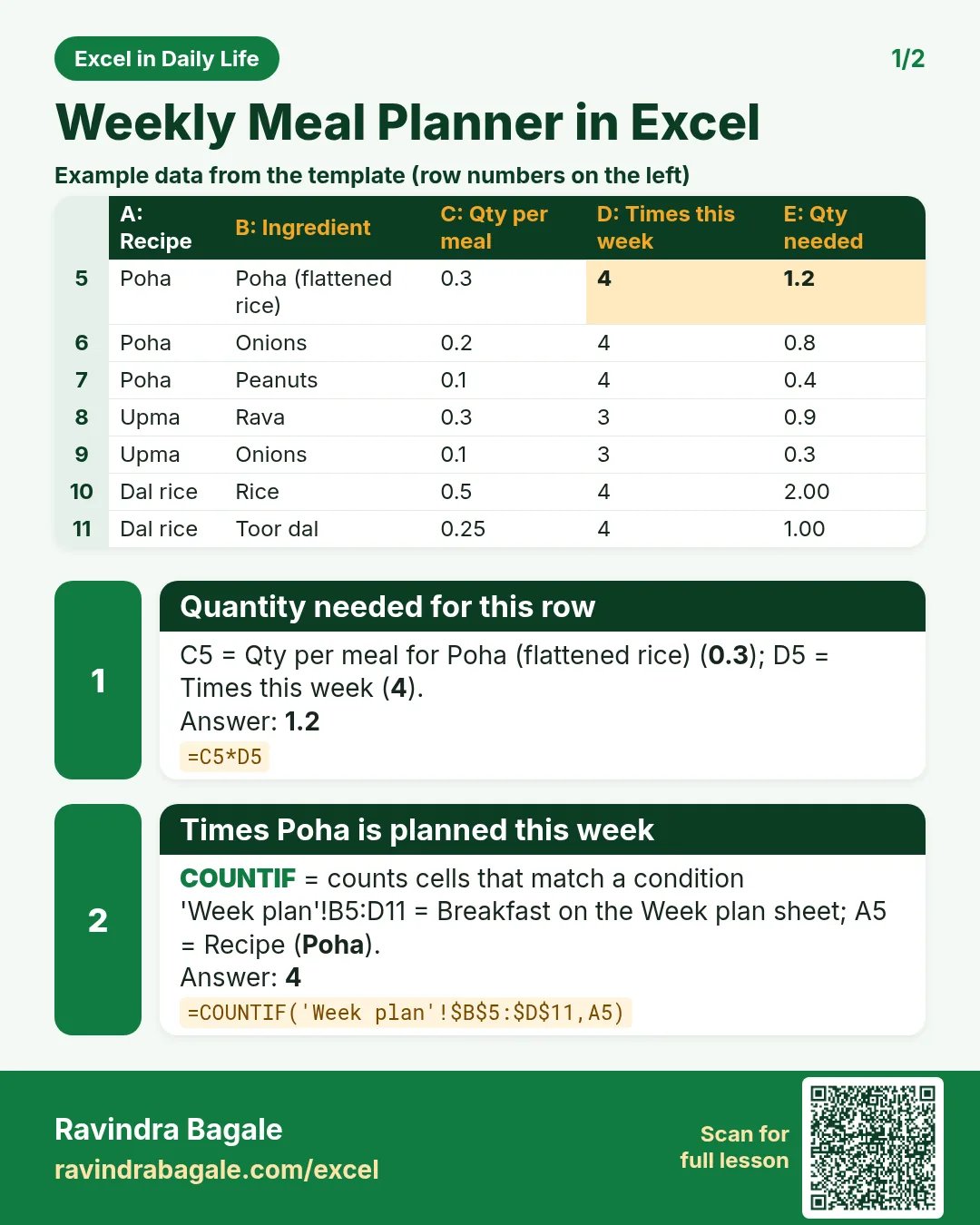
- COUNTIF: how many times each recipe is planned
- SUMIF: total quantity of each ingredient
- MAX(0, need − in kitchen) for what to buy, and the cost
- A print list of only the items to buy, with INDEX and MATCH
Download the template: weekly-meal-planner-shopping-list-template.xlsx: example data with real formulas. Yellow cells are inputs you can type over; green cells hold formulas; blue rows are headers and totals. Replace the example data with your own and everything recalculates.
Made-up data: every name, amount, shop and date on this page is made up for practice. Cities are used only to make the examples feel real.
1. The example
Shraddha's week (made-up) has 21 meals from 7 recipes: Poha 4 times, Upma 3, Dal rice 4, Chapati bhaji 4, Paneer bhurji 2, Pithla bhakri 2, Masale bhat 2.
Onions are in four recipes:
| Recipe | Onions per meal | Times | Onions |
|---|---|---|---|
| Poha | 0.2 kg | 4 | 0.8 kg |
| Upma | 0.1 kg | 3 | 0.3 kg |
| Chapati bhaji | 0.1 kg | 4 | 0.4 kg |
| Pithla bhakri | 0.15 kg | 2 | 0.3 kg |
| Needed | 1.8 kg |
The kitchen already has 0.5 kg, so to buy = 1.8 − 0.5 = 1.3 kg, costing 1.3 × ₹32 = ₹41.60. Besan needs 0.5 kg and 0.5 kg is in the kitchen, so it drops off the list. The final list has 11 items costing ₹921.
Figure 1. Meals picked in the week plan are counted per recipe (COUNTIF), turned into ingredient quantities, added per ingredient (SUMIF) and reduced by what is in the kitchen: onions 1.8 − 0.5 = 1.3 kg to buy.
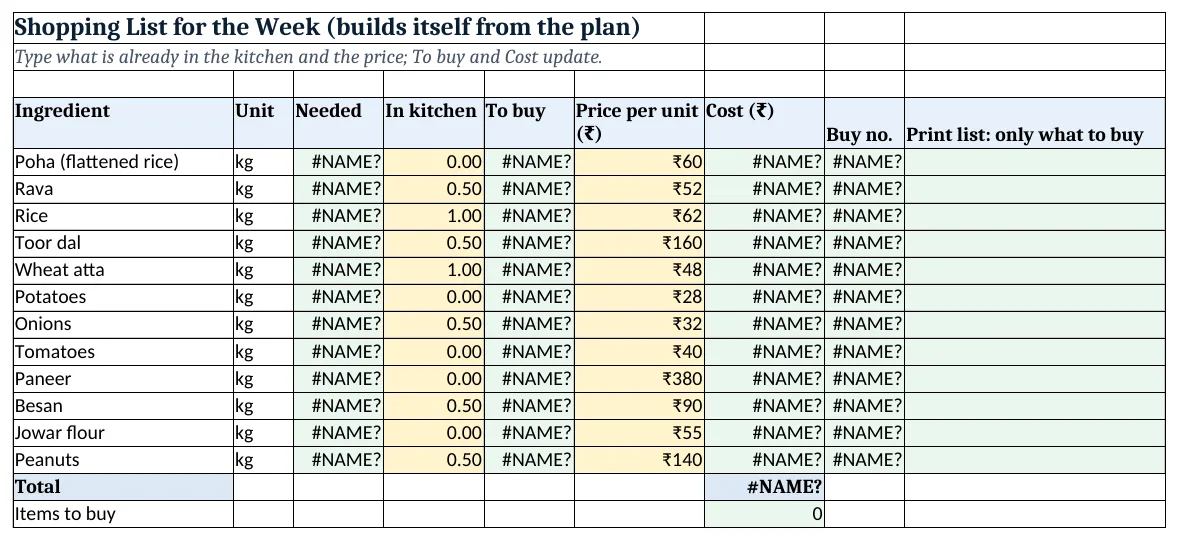
Figure 2. The template sheet, recalculated with its example data. Download it above and replace the yellow cells with your own numbers.
2. Build it step by step
Step 1. Recipes sheet
- In A4:E4 type Recipe, Ingredient, Qty per meal, Times this week, Qty needed.
- One row per ingredient of each recipe from row 5 (Poha has three rows: poha, onions, peanuts).
- In G5:G11 type the seven recipe names once: this is the list for the drop-downs.
Step 2. Week plan with drop-downs
- On the Week plan sheet type Day, Breakfast, Lunch, Dinner in A4:D4 and Mon to Sun in A5:A11.
- Select B5:D11 > Data > Data Validation > List, Source
=Recipes!$G$5:$G$11(named lists for drop-downs). - Pick a meal in every cell. G4
=COUNTA(B5:D11)shows 21.
Step 3. Times this week and quantity
- Back on Recipes, in D5 type
=COUNTIF('Week plan'!$B$5:$D$11,A5): Poha 4. - In E5 type
=C5*D5: 0.3 × 4 = 1.2 kg poha. - Copy D5:E5 down to the last recipe row.
Step 4. Shopping list: needed
- On the Shopping list sheet type the 12 ingredients in A5:A16 with unit, what is in the kitchen (D) and price (F).
- In C5 type
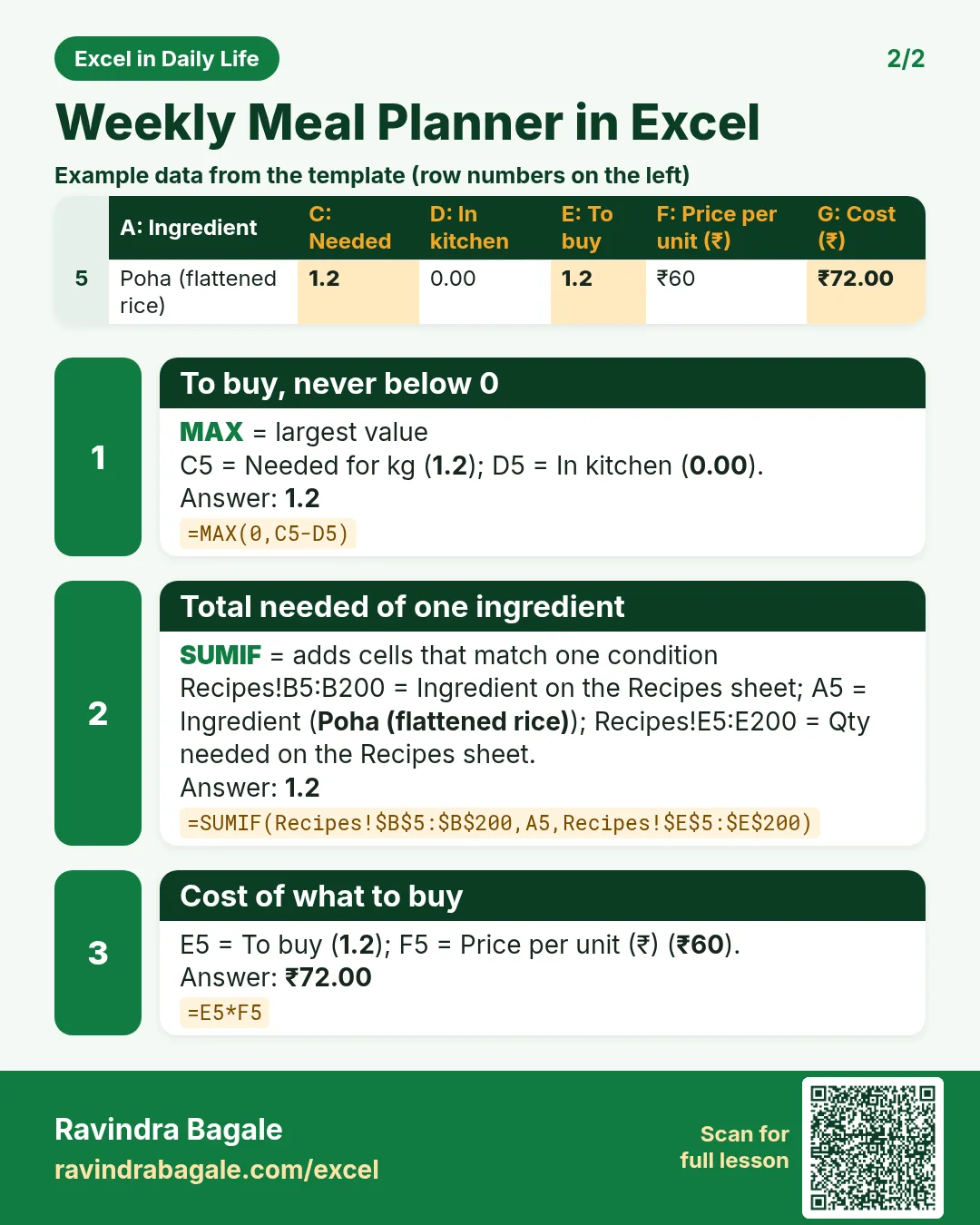
=SUMIF(Recipes!$B$5:$B$200,A5,Recipes!$E$5:$E$200): the total of that ingredient across all recipes (SUMIF).
Step 5. To buy and cost
- In E5 type
=MAX(0,C5-D5): never a minus number. - In G5 type
=E5*F5. - Copy C5:G5 down to row 16. G17
=SUM(G5:G16): ₹921; G18=COUNTIF(E5:E16,">0"): 11 items.
Step 6. Print list of only what to buy
- In H5 type
=IF(E5>0,COUNTIF(E$5:E5,">0"),"")and copy down: 1, 2, 3… for each item to buy. - In I5 type
=IFERROR(INDEX($A$5:$A$16,MATCH(ROWS(I$5:I5),$H$5:$H$16,0)),"")and copy down. The list closes up with no gaps. - In Microsoft 365 a single
=FILTER(A5:A16,E5:E16>0)does the same (FILTER). - A formula rule
=$E5=0greys out items you already have.
Ravindra Bagale's Tip
Plan with what is in the fridge first. Fill the In kitchen column before picking meals; you will choose recipes that use up the vegetables already at home.
Ravindra Bagale's Tip – मराठी
आधी fridge मध्ये काय आहे ते बघून plan करा. Meals निवडण्याआधी In kitchen column भरा; घरात असलेल्या भाज्या संपवणाऱ्या recipes आपोआप निवडल्या जातात.
Ravindra Bagale's Tip – हिंदी
पहले fridge में क्या है वो देखकर plan करो. Meals चुनने से पहले In kitchen column भरो; घर में पड़ी सब्ज़ियाँ खत्म करने वाली recipes अपने आप चुनी जाती हैं.
3. Formulas used
| Cell | Formula | What it does |
|---|---|---|
| Recipes!D5 | =COUNTIF('Week plan'!$B$5:$D$11,A5) |
Times Poha is planned this week |
| Recipes!E5 | =C5*D5 |
Quantity needed for this row |
| Week plan!G4 | =COUNTA(B5:D11) |
Meals planned |
| Shopping list!C5 | =SUMIF(Recipes!$B$5:$B$200,A5,Recipes!$E$5:$E$200) |
Total needed of one ingredient |
| Shopping list!E5 | =MAX(0,C5-D5) |
To buy, never below 0 |
| Shopping list!G5 | =E5*F5 |
Cost of what to buy |
| Shopping list!G17 | =SUM(G5:G16) |
Shopping total |
| Shopping list!G18 | =COUNTIF(E5:E16,">0") |
Number of items to buy |
| Shopping list!H5 | =IF(E5>0,COUNTIF(E$5:E5,">0"),"") |
Running number of items to buy |
| Shopping list!I5 | =IFERROR(INDEX($A$5:$A$16,MATCH(ROWS(I$5:I5),$H$5:$H$16,0)),"") |
Print list without gaps |
Every formula above is written in the template, so you can click a cell and see it in the formula bar. All values on this page were recalculated in the file.
4. Common mistakes
- Ingredient spelled differently in two sheets. "Onion" on Recipes and "Onions" on the Shopping list gives 0 needed. Copy the names, do not retype them.
- Recipe names in the plan typed by hand. COUNTIF needs exactly the same name; the drop-down guarantees it.
- A negative to-buy amount. C5−D5 goes below 0 when the kitchen has more than enough. MAX(0, …) fixes it.
- Recipe list range too short. A new recipe added below G11 is missing from the drop-down. Extend the Source range.
- Mixing units. If a recipe uses grams and the list uses kg, the totals are wrong by 1,000. Use one unit per ingredient.
Ravindra Bagale's Tip
Keep the recipe quantities honest after the first week. If the onions ran out on Friday, increase Qty per meal; the list improves every week.
Ravindra Bagale's Tip – मराठी
पहिल्या आठवड्यानंतर recipe quantities खऱ्या करा. शुक्रवारीच कांदे संपले तर Qty per meal वाढवा; दर आठवड्याला list सुधारत जाते.
Ravindra Bagale's Tip – हिंदी
पहले हफ्ते के बाद recipe quantities सही करो. शुक्रवार को ही प्याज़ खत्म हो गए तो Qty per meal बढ़ाओ; हर हफ्ते list बेहतर होती जाती है.
5. More real examples
Example 1: Tiffin planner. Only lunch for two children; the list covers the school week.
Example 2: Fasting days. Add recipes like sabudana khichdi; the list adds sabudana and peanuts on those days.
Example 3: Guests on Sunday. Add a recipe "Puran poli for 8" with bigger quantities, or a Servings column that multiplies Qty per meal.
Quick revision cards
Quick revision
Each card shows formulas from this page, each with an example and its answer from the template. Scan the QR code on a card to open this lesson. All names and numbers are made up for practice.
झटपट उजळणी
प्रत्येक card वर या page मधले formulas, त्यांचं example आणि template मधलं उत्तर आहे. Card वरचा QR code scan केला की हा lesson उघडतो. सगळी नावं आणि आकडे सरावासाठी काल्पनिक आहेत.
झटपट दोहराई
हर card पर इस page के formulas, उनका example और template का उत्तर है. Card का QR code scan करें तो यह lesson खुलेगा. सभी नाम और आंकड़े अभ्यास के लिए काल्पनिक हैं.


More cards: Ravi Sir's Cards.
6. Frequently asked questions
How do I make a meal planner in Excel?
A recipe table, a week grid with drop-downs picking from the recipe list, and formulas that count each recipe and add up the ingredients.
How does the shopping list update automatically?
COUNTIF counts how often each recipe is planned, SUMIF adds the quantities per ingredient, and MAX(0, need − in kitchen) gives what to buy.
Do I need macros?
No. Everything here is normal formulas, so the file is a plain .xlsx and works on the Excel mobile app.
How do I list only the items to buy?
In Microsoft 365 use FILTER. In any version, number the items to buy and pull them up with INDEX and MATCH, as in columns H and I.
Can I plan for more people?
Change Qty per meal on the Recipes sheet, or add a servings column and multiply.
7. Quick quiz
Ten questions on this page. Sign in to save your score.