Home Inventory in Excel: Appliance List with Warranty Expiry Dates and Alerts (EDATE)
Salman's washing machine in Nashik started leaking. Was it still under warranty? He searched every drawer for the bill and then the warranty card. A home inventory sheet would have answered in two seconds: bought on 2 November 2024, 24 months of warranty, ends on 2 November 2026, 16 days left. Call the service centre today.
What you'll learn on this page
- An inventory list with room and price
- Warranty end date with EDATE
- Days left and an Active / Expiring soon / Expired status
- Value still under warranty with SUMIFS
- Missing bills flagged in red
- Grey and amber rows with conditional formatting
Download the template: home-inventory-warranty-tracker-template.xlsx: example data with real formulas. Yellow cells are inputs you can type over; green cells hold formulas; blue rows are headers and totals. Replace the example data with your own and everything recalculates.
Made-up data: every name, amount, shop and date on this page is made up for practice. Cities are used only to make the examples feel real.
1. The example
Salman's home list as of 17-10-2026 (made-up items, prices and dates), 9 items worth ₹2,41,289:
| Item | Bought | Warranty | Ends | Days left | Status |
|---|---|---|---|---|---|
| Washing machine | 02-11-2024 | 24 months | 02-11-2026 | 16 | Expiring soon |
| Mobile phone | 10-11-2025 | 12 months | 10-11-2026 | 24 | Expiring soon |
| Laptop | 01-12-2025 | 12 months | 01-12-2026 | 45 | Expiring soon |
| Split AC | 18-04-2025 | 12 months | 18-04-2026 | −182 | Expired |
| Geyser | 30-10-2023 | 60 months | 30-10-2028 | 744 | Active |
Six items are still under warranty, worth ₹1,65,689. Three expire within 60 days, so any problem with them should be reported now. Two bills are missing (the AC and the mixer grinder), and those rows turn red.
Figure 1. Purchase date + warranty months → EDATE end date → days left → status; SUMIFS gives the ₹1,65,689 still under warranty and three items expire within 60 days.
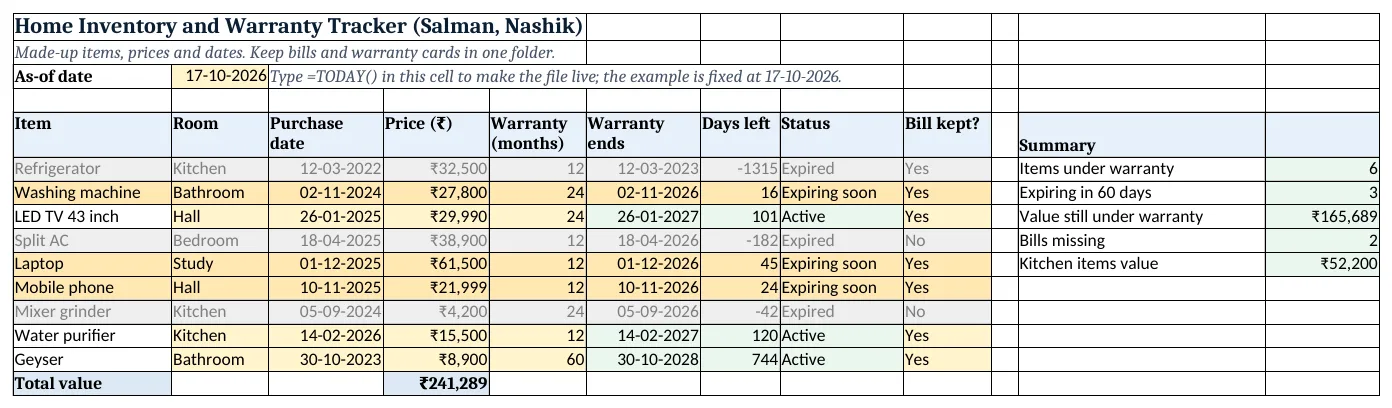
Figure 2. The template sheet, recalculated with its example data. Download it above and replace the yellow cells with your own numbers.
2. Build it step by step
Step 1. As-of date and list
- In B3 type
=TODAY()(the template has 17-10-2026 typed so the example matches). - In A5:I5 type Item, Room, Purchase date, Price, Warranty (months), Warranty ends, Days left, Status, Bill kept?.
- Select B6:B300 > Data > Data Validation > List:
Kitchen,Hall,Bedroom,Bathroom,Study; E6:E300:6,12,24,36,60; I6:I300:Yes,No(drop-down lists).
Step 2. Warranty end with EDATE
- In F6 type
=EDATE(C6,E6): 12-03-2023 for the fridge bought on 12-03-2022 with 12 months. - EDATE adds whole months to a date and keeps the same day (EDATE). Format F as a date.
Step 3. Days left and status
- In G6 type
=F6-$B$3. A minus number means the warranty is over. - In H6 type
=IF(G6<0,"Expired",IF(G6<=60,"Expiring soon","Active"))(nested IF). - Copy F6:H6 down.
Step 4. Totals and summary
- In D15 type
=SUM(D6:D14): ₹2,41,289. - In L6 type
=COUNTIF(H6:H14,"Active")+COUNTIF(H6:H14,"Expiring soon"): 6 under warranty. - In L7 type
=COUNTIF(H6:H14,"Expiring soon"): 3. - In L8 type
=SUMIFS(D6:D14,G6:G14,">=0"): ₹1,65,689 (SUMIFS). - In L9 type
=COUNTIF(I6:I14,"No"): 2 bills missing. In L10=SUMIFS(D6:D14,B6:B14,"Kitchen"): ₹52,200.
Step 5. Colours
- Select A6:I300 > Conditional Formatting > New Rule > Use a formula:
=$H6="Expired", grey fill and grey text, Stop If True. - Add
=$H6="Expiring soon"with amber (formula rules). - Select I6:I300 > Highlight Cells Rules > Equal To
No, light red.
Ravindra Bagale's Tip
Do it once: take a photo of every bill and warranty card, save them in one folder, and type the folder link in the sheet.
Ravindra Bagale's Tip – मराठी
एकदाच करून टाका: प्रत्येक bill आणि warranty card चा photo काढा, एका folder मध्ये ठेवा, आणि त्या folder ची link sheet मध्ये टाका.
Ravindra Bagale's Tip – हिंदी
एक बार कर डालो: हर bill और warranty card की photo लो, एक folder में रखो, और उस folder की link sheet में डालो.
3. Formulas used
| Cell | Formula | What it does |
|---|---|---|
| F6 | =EDATE(C6,E6) |
Warranty end date |
| G6 | =F6-$B$3 |
Days left (minus = expired) |
| H6 | =IF(G6<0,"Expired",IF(G6<=60,"Expiring soon","Active")) |
Expired / Expiring soon / Active |
| D15 | =SUM(D6:D14) |
Total value of all items |
| L6 | =COUNTIF(H6:H14,"Active")+COUNTIF(H6:H14,"Expiring soon") |
Items still under warranty |
| L7 | =COUNTIF(H6:H14,"Expiring soon") |
Items expiring within 60 days |
| L8 | =SUMIFS(D6:D14,G6:G14,">=0") |
Value still under warranty |
| L9 | =COUNTIF(I6:I14,"No") |
Bills missing |
| L10 | =SUMIFS(D6:D14,B6:B14,"Kitchen") |
Value of kitchen items |
Every formula above is written in the template, so you can click a cell and see it in the formula bar. All values on this page were recalculated in the file.
4. Common mistakes
- Adding days instead of months.
=C6+365drifts by a day in leap years.=EDATE(C6,12)lands on the same date every time. - Warranty typed as years. E is in months. Two years is 24, not 2.
- F column shows a number like 46328. EDATE returns a date serial number. Format the cells as Date.
- Rule order. Put the Expired rule first and tick Stop If True, so an expired item is never painted amber.
- Only listing big items. Small items like the mixer and the water purifier also have warranties and bills. List everything with a bill.
Ravindra Bagale's Tip
Check the amber rows each month. Any small noise or problem in an item that is Expiring soon should be reported before the date.
Ravindra Bagale's Tip – मराठी
दर महिन्याला पिवळ्या rows बघा. Expiring soon वाल्या वस्तूत छोटासा आवाज किंवा problem असेल तर तारखेच्या आधीच complaint करा.
Ravindra Bagale's Tip – हिंदी
हर महीने पीली rows देखो. Expiring soon वाली चीज़ में कोई छोटी आवाज़ या problem हो तो तारीख से पहले ही complaint करो.
5. More real examples
Example 1: Extended warranty. Bought an extra 2 years? Add an Extended (months) column and use =EDATE(C6,E6+J6).
Example 2: Service dates. For the water purifier or AC, add Last service and =EDATE(last service,6) for the next service date.
Example 3: Insurance list. The Price column and the Room totals are a ready list of what you own, useful if you ever need home insurance.
Quick revision cards
Quick revision
Each card shows formulas from this page, each with an example and its answer from the template. Scan the QR code on a card to open this lesson. All names and numbers are made up for practice.
झटपट उजळणी
प्रत्येक card वर या page मधले formulas, त्यांचं example आणि template मधलं उत्तर आहे. Card वरचा QR code scan केला की हा lesson उघडतो. सगळी नावं आणि आकडे सरावासाठी काल्पनिक आहेत.
झटपट दोहराई
हर card पर इस page के formulas, उनका example और template का उत्तर है. Card का QR code scan करें तो यह lesson खुलेगा. सभी नाम और आंकड़े अभ्यास के लिए काल्पनिक हैं.
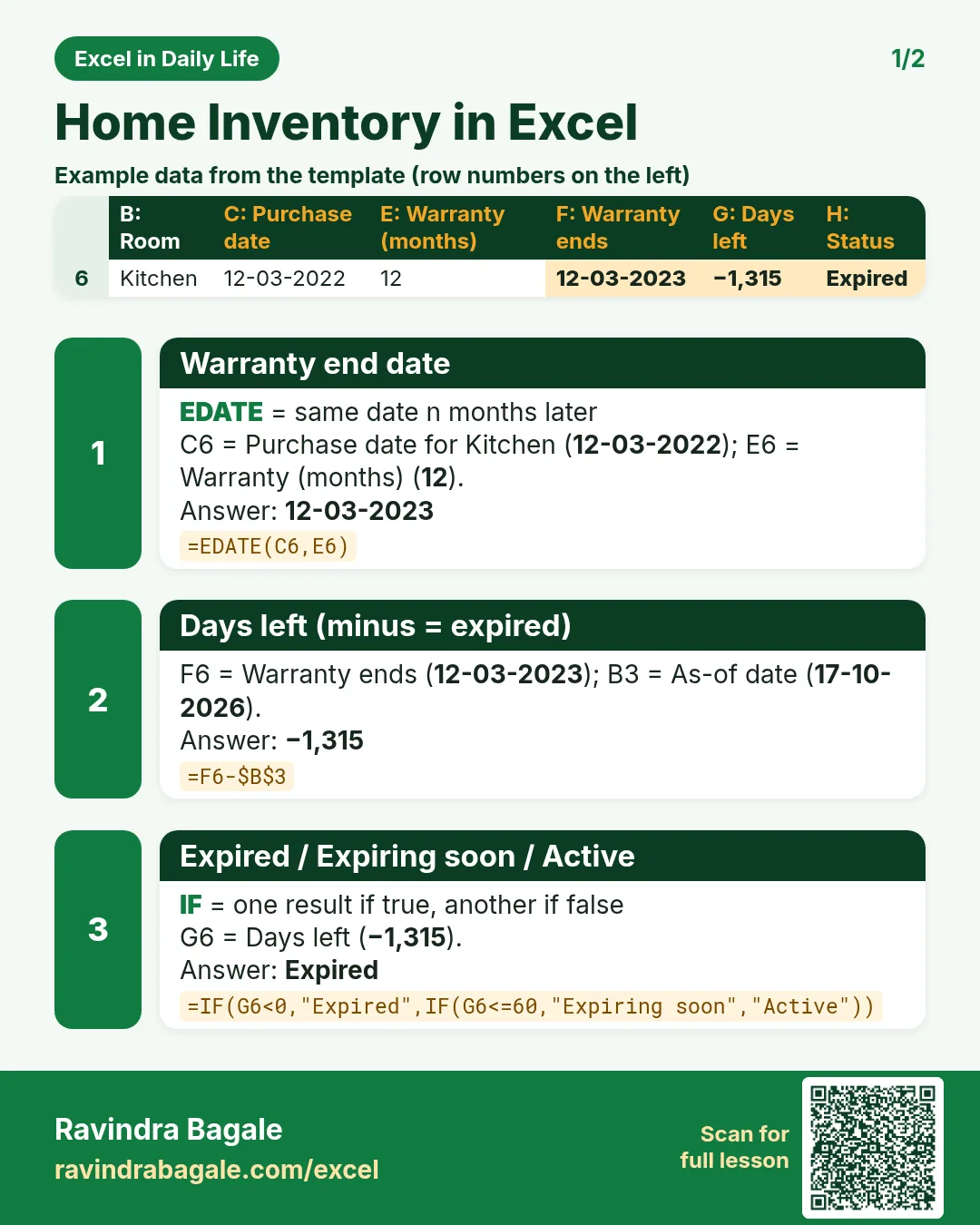

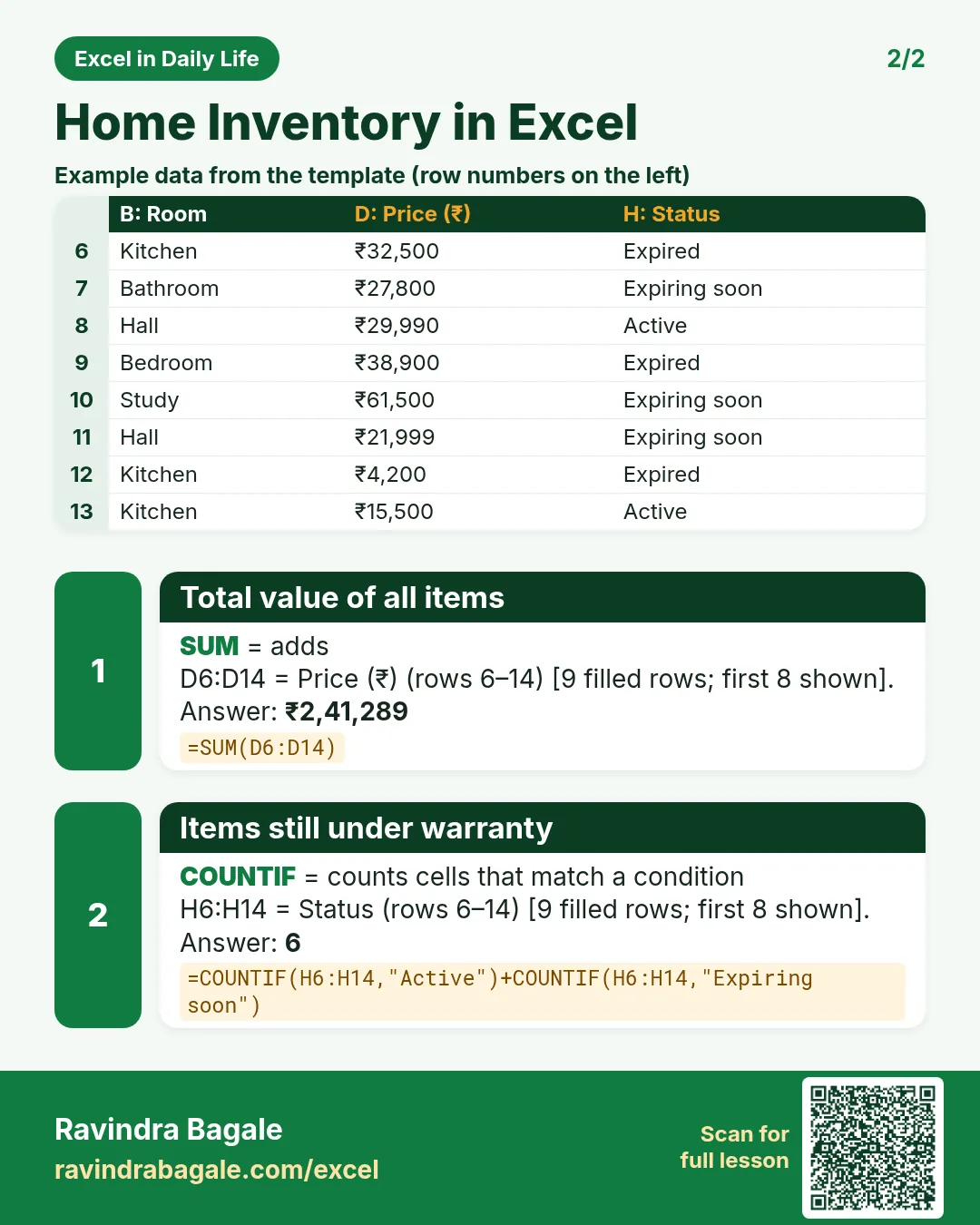

More cards: Ravi Sir's Cards.
6. Frequently asked questions
How do I calculate a warranty expiry date in Excel?
=EDATE(purchase date, warranty months). 12-03-2022 with 12 months gives 12-03-2023.
How do I show days left until the warranty ends?
Warranty end − TODAY(). A minus number means it has ended.
How do I highlight items whose warranty is ending soon?
Make a Status column with IF, then a formula rule =$H6="Expiring soon" with an amber fill.
Why use EDATE and not +365?
EDATE adds calendar months, so the end date matches the warranty card even across leap years and short months.
Can I keep photos of bills in Excel?
You can add a link to each bill photo with Insert > Link in a new column, pointing to the file on your phone or computer.
7. Quick quiz
Ten questions on this page. Sign in to save your score.
Loading practice tasks...
- Total times (Easy): Add up Times in D2:D11. (sheet "Data")
- Average amount (Easy): Average of E2:E11, rounded to 2 decimals. (sheet "Data")
- Rows in Food (Easy): How many rows have Category "Food"? (sheet "Data")
- Largest times (Easy): The largest value in D2:D11. (sheet "Data")
- Days taken (Easy): C2 minus B2. (sheet "Dates")
- Start year (Easy): Year of B3. (sheet "Dates")
- Due month (Easy): Month number of C3. (sheet "Dates")
- Earliest start (Easy): Earliest date in B2:B9 (as a date number). (sheet "Dates")
- Times for Food (Medium): Total of D2:D11 where B is "Food". (sheet "Data")
- Food in Delhi (Medium): Total of D2:D11 where B is "Food" and C is "Delhi". (sheet "Data")
- Working days (Medium): Working days from B2 to C2. (sheet "Dates")
- Weekday of due (Medium): Weekday number of C4 (Sunday = 1). (sheet "Dates")