24. Power Pivot and the Data Model
Friends, when one sheet is not enough and XLOOKUP helper columns keep growing, it is time for the Data Model. In this module you load several tables into Excel's built-in model, link them, add a Calendar, write your first DAX measures and build PivotTables and CUBE formulas from it. It is also the bridge to Power BI.
मित्रांनो, एक sheet पुरत नाही आणि XLOOKUP helper columns वाढतच जातात, तेव्हा Data Model ची वेळ येते. या module मध्ये तुम्ही अनेक tables Excel च्या built-in model मध्ये load कराल, त्या जोडाल, Calendar जोडाल, पहिले DAX measures लिहाल आणि त्यातून PivotTables आणि CUBE formulas बनवाल. हाच Power BI कडे जाणारा पूल आहे.
दोस्तों, जब एक sheet काफ़ी न हो और XLOOKUP helper columns बढ़ते ही जाएँ, तब Data Model का समय है. इस module में आप कई tables Excel के built-in model में load करेंगे, उन्हें जोड़ेंगे, Calendar जोड़ेंगे, पहले DAX measures लिखेंगे और उससे PivotTables और CUBE formulas बनाएँगे. यही Power BI तक जाने का पुल है.
What you will learn in this module
- Turn on Power Pivot and load Tables into the Data Model
- Create relationships in Diagram View and design a star schema
- Add and mark a Calendar (date) table
- Combine monthly files from a folder straight into the model
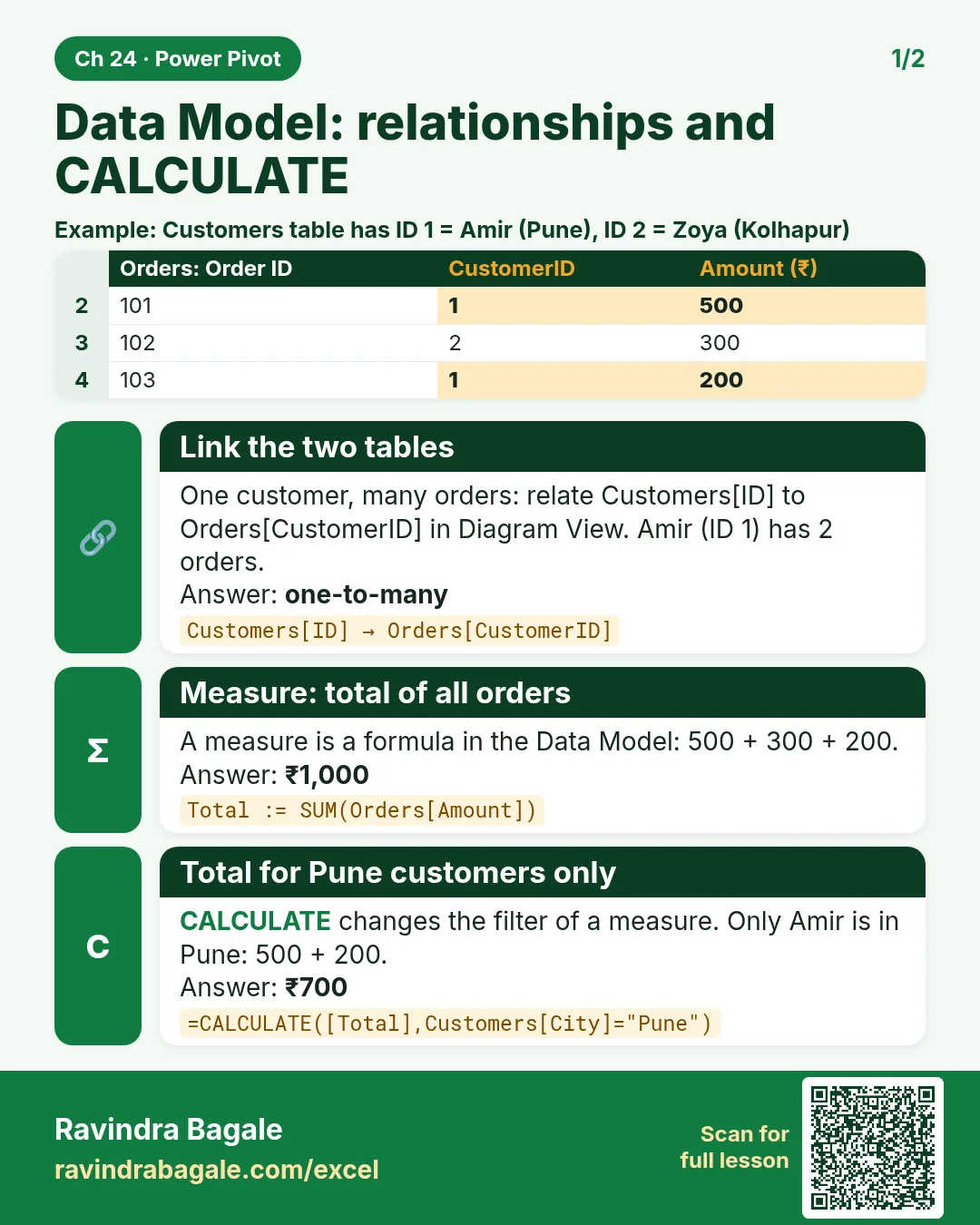
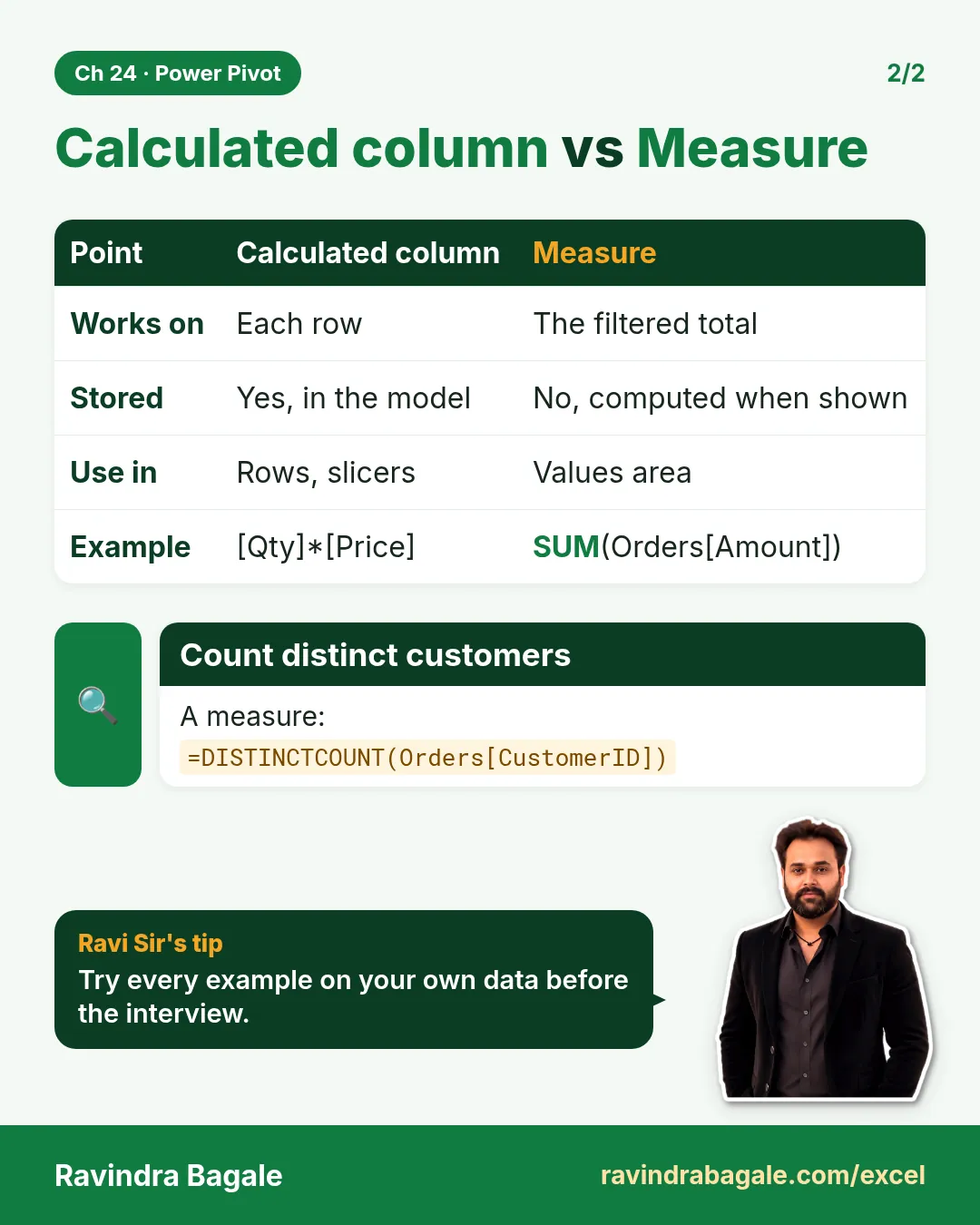
- Write DAX measures with SUM, COUNTROWS, DISTINCTCOUNT, CALCULATE, DIVIDE and DATEADD
- Build PivotTables and CUBEVALUE formulas from the model, and know when to move to Power BI
Live story: No more helper columns
Suppose Shraddha Bagale has orders, stores and products in three Tables, and every report starts with three XLOOKUP columns pasted down 12 rows, then 12,000 rows, then 1,20,000. The file slows down. With the Data Model, the Tables are linked once, measures do the maths, and one PivotTable answers "sales by city by month" in seconds.
All numbers in this story are fictional practice data.
Live story: आता helper columns नकोत
समजा Shraddha Bagale कडे orders, stores आणि products तीन Tables मध्ये आहेत, आणि प्रत्येक report तीन XLOOKUP columns 12 rows, मग 12,000 rows, मग 1,20,000 rows खाली paste करून सुरू होतो. File हळू होते. Data Model मध्ये Tables एकदाच जोडल्या जातात, measures गणित करतात, आणि एक PivotTable "city प्रमाणे, month प्रमाणे sales" काही सेकंदात सांगतो.
या story मधले सगळे आकडे काल्पनिक practice data आहेत.
Live story: अब helper columns नहीं
मान लीजिए Shraddha Bagale के पास orders, stores और products तीन Tables में हैं, और हर report तीन XLOOKUP columns 12 rows, फिर 12,000 rows, फिर 1,20,000 rows नीचे paste करके शुरू होती है. File धीमी हो जाती है. Data Model में Tables एक बार जुड़ती हैं, measures हिसाब करते हैं, और एक PivotTable "city के हिसाब से, month के हिसाब से sales" कुछ सेकंड में बता देती है.
इस story के सारे आँकड़े काल्पनिक practice data हैं.
Fictional practice data
Every name, number and company detail in this module is made up for class. It is not the data of Blinkit, Amazon or any real firm.
Concepts in this chapter
- 24.1Turn On Power Pivot and Meet the Data Model
- 24.2Load Tables into the Data Model
- 24.3Diagram View and Relationships
- 24.4Fact and Dimension Tables: the Star Schema
- 24.5A Date Table (Calendar)
- 24.6Relationships Across Multiple Files (Power Query from a Folder)
- 24.7DAX Measures: SUM, COUNTROWS, DISTINCTCOUNT and CALCULATE
- 24.8A Simple Time-Intelligence Measure
- 24.9PivotTables from the Data Model, and CUBE Functions
- 24.10When to Move to Power BI
Review and practice
The chapter recap is at the end of the last concept page.
Quick revision cards
Quick revision
Revise this chapter in two minutes. Save the cards on your phone or download them as PNG files. All names and numbers are made up for practice.
झटपट उजळणी
हा chapter दोन मिनिटांत revise करा. Cards phone वर save करा किंवा PNG म्हणून download करा. सगळी नावं आणि आकडे सरावासाठी काल्पनिक आहेत.
झटपट दोहराई
यह chapter दो मिनट में revise करें. Cards phone पर save करें या PNG के रूप में download करें. सभी नाम और आंकड़े अभ्यास के लिए काल्पनिक हैं.

More cards for every chapter: Ravi Sir's Cards.