24. Power Pivot and the Data Model
24.3 Diagram View and Relationships
Example first. Build a PivotTable from the model with City (from Stores) in Rows and Sum of Amount (from Orders) in Values before any relationship exists. Every city shows ₹2,315, the grand total, and Excel says Relationships between tables may be needed. Drag StoreID from Orders to StoreID in Stores, and each city shows its own sales.
Relationship in Diagram View — in 30 seconds
What: A relationship links a column in one table to the matching column in another, like Orders[StoreID] to Stores[StoreID]. Stores has each StoreID once (the "one" side); Orders has it many times (the "many" side).
Why: Without the link, the model cannot know which orders belong to which city, so every row shows the grand total. With it, filters flow from Stores to Orders.
Tiny example: After the relationship: Pune ₹940, Nashik ₹670, Nagpur ₹355, Solapur ₹350.
Relationship in Diagram View — 30 सेकंदात
काय: Relationship एका table मधला column दुसऱ्या table मधल्या जुळणाऱ्या column शी जोडतो, जसं Orders[StoreID] ते Stores[StoreID]. Stores मध्ये प्रत्येक StoreID एकदाच आहे ("one" बाजू); Orders मध्ये तो अनेक वेळा आहे ("many" बाजू).
का: Link नसेल तर कोणत्या orders कोणत्या city च्या ते model ला कळत नाही, म्हणून प्रत्येक row grand total दाखवते. Link असला की filters Stores कडून Orders कडे जातात.
छोटं उदाहरण: Relationship नंतर: Pune ₹940, Nashik ₹670, Nagpur ₹355, Solapur ₹350.
Relationship in Diagram View — 30 सेकंड में
क्या: Relationship एक table के column को दूसरी table के मिलते-जुलते column से जोड़ता है, जैसे Orders[StoreID] से Stores[StoreID]. Stores में हर StoreID एक बार है ("one" side); Orders में कई बार ("many" side).
क्यों: Link न हो तो model को पता नहीं चलता कि कौन सी orders किस city की हैं, इसलिए हर row grand total दिखाती है. Link होने पर filters Stores से Orders की ओर जाते हैं.
छोटा उदाहरण: Relationship के बाद: Pune ₹940, Nashik ₹670, Nagpur ₹355, Solapur ₹350.
First look at the data (before → after):
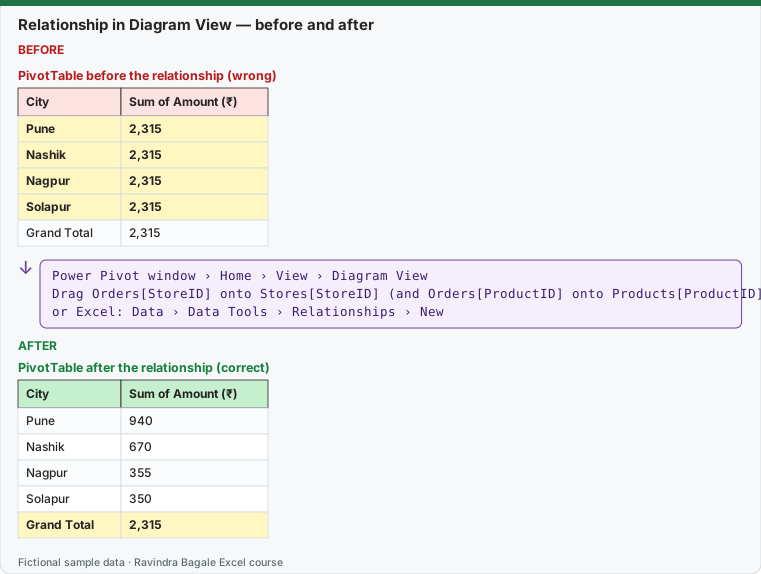
Expected result — PivotTable after the relationship (correct)
| City | Sum of Amount (₹) |
|---|---|
| Pune | 940 |
| Nashik | 670 |
| Nagpur | 355 |
| Solapur | 350 |
| Grand Total | 2,315 |
Before table and formula as text
Before — PivotTable before the relationship (wrong)
| City | Sum of Amount (₹) |
|---|---|
| Pune | 2,315 |
| Nashik | 2,315 |
| Nagpur | 2,315 |
| Solapur | 2,315 |
| Grand Total | 2,315 |
Formula / click path
Power Pivot window › Home › View › Diagram View
Drag Orders[StoreID] onto Stores[StoreID]   (and Orders[ProductID] onto Products[ProductID])
or Excel: Data › Data Tools › Relationships › New
Do it step by step:
- Open Power Pivot › Data Model › Manage.
- Click Home › View › Diagram View. You see three boxes, one per table.
- Drag StoreID in the Orders box and drop it on StoreID in the Stores box. A line appears.
- Drag ProductID in Orders onto ProductID in Products.
- Double-click a line to check it: Orders (many) → Stores (one).
- Go back to the PivotTable and click PivotTable Analyze › Refresh. Each city now shows its own total.
स्टेप बाय स्टेप करून बघा:
- Power Pivot › Data Model › Manage उघडा.
- Home › View › Diagram View वर click करा. प्रत्येक table साठी एक box असे तीन boxes दिसतात.
- Orders box मधला StoreID ओढून Stores box मधल्या StoreID वर सोडा. एक line येते.
- Orders मधला ProductID Products मधल्या ProductID वर ओढा.
- Line वर double-click करून check करा: Orders (many) → Stores (one).
- PivotTable वर परत या आणि PivotTable Analyze › Refresh करा. आता प्रत्येक city स्वतःचा total दाखवते.
स्टेप बाय स्टेप करके देखें:
- Power Pivot › Data Model › Manage खोलें.
- Home › View › Diagram View पर click करें. हर table के लिए एक box, यानी तीन boxes दिखते हैं.
- Orders box का StoreID खींचकर Stores box के StoreID पर छोड़ें. एक line आ जाती है.
- Orders का ProductID Products के ProductID पर खींचें.
- Line पर double-click करके check करें: Orders (many) → Stores (one).
- PivotTable पर लौटें और PivotTable Analyze › Refresh करें. अब हर city अपना total दिखाती है.
Rules for a good relationship
| Rule | Why |
|---|---|
| The "one" side column has no duplicates and no blanks | Stores[StoreID] must be unique, or Excel refuses the relationship |
| Both columns have the same data type | Text "101" and number 101 do not match |
| Exactly the same spelling and spaces | "BLK-PUN-01 " with a trailing space is a different key; clean it with Trim in Power Query first |
| Filters flow from the one side to the many side | Slicing by City (Stores) filters Orders |
| One active relationship between two tables | A second one is shown dotted (inactive) |
Key words: the unique column in Stores is the primary key; the matching column in Orders is the foreign key. One store has many orders, so this is a one-to-many relationship.
Practice task (try it before you open the answer):
- Build the wrong PivotTable first (no relationships) and note the message.
- Create both relationships in Diagram View.
- Put Category (from Products) in Rows instead of City and refresh.
Answer
By Category: Dairy ₹480, Fruits ₹810, Staples ₹585, Snacks ₹440; grand total ₹2,315.
Ravindra Bagale's Tip
When every row of a model PivotTable shows the same number, do not touch the formulas. Check the relationships first; a missing one is the cause almost every time.
Ravindra Bagale's Tip – मराठी
Model PivotTable च्या प्रत्येक row मध्ये एकच आकडा दिसला तर formulas ला हात लावू नका. आधी relationships बघा; जवळजवळ प्रत्येक वेळी एक relationship missing असतो.
Ravindra Bagale's Tip – हिंदी
Model PivotTable की हर row में एक ही आँकड़ा दिखे तो formulas को हाथ न लगाएँ. पहले relationships देखें; लगभग हर बार कोई relationship missing होता है.