24. Power Pivot and the Data Model
24.10 When to Move to Power BI
Example first. Ravindra Bagale's Data Model now has four tables, five measures and two monthly files. The managers want to open the report on their phones, see it refresh every morning, and have each city lead see only their own city. Those three wishes are the signal: the model is ready to move to Power BI, and it can be imported in one step.
Excel Data Model or Power BI — in 30 seconds
What: Power BI Desktop uses the same engine as the Excel Data Model: the same tables, relationships, Power Query steps and DAX measures. It adds interactive visuals, publishing to the web service, scheduled refresh and row-level security.
Why: Moving at the right time saves work: your Power Query steps and DAX measures come across instead of being rebuilt.
Tiny example: Power BI Desktop › File › Import › Power Query, Power Pivot, Power View › pick the workbook. Queries, tables, relationships and measures come across.
Excel Data Model or Power BI — 30 सेकंदात
काय: Power BI Desktop Excel Data Model सारखंच engine वापरतं: त्याच tables, relationships, Power Query steps आणि DAX measures. त्यात interactive visuals, web service वर publish, scheduled refresh आणि row-level security जोडलेलं आहे.
का: योग्य वेळी move केलं तर काम वाचतं: तुमचे Power Query steps आणि DAX measures पुन्हा न बनवता तसेच येतात.
छोटं उदाहरण: Power BI Desktop › File › Import › Power Query, Power Pivot, Power View › workbook निवडा. Queries, tables, relationships आणि measures तसेच येतात.
Excel Data Model or Power BI — 30 सेकंड में
क्या: Power BI Desktop वही engine इस्तेमाल करता है जो Excel Data Model: वही tables, relationships, Power Query steps और DAX measures. इसमें interactive visuals, web service पर publish, scheduled refresh और row-level security जुड़े हैं.
क्यों: सही समय पर move करने से काम बचता है: आपके Power Query steps और DAX measures दोबारा बनाए बिना आ जाते हैं.
छोटा उदाहरण: Power BI Desktop › File › Import › Power Query, Power Pivot, Power View › workbook चुनें. Queries, tables, relationships और measures वैसे ही आ जाते हैं.
First look at the data (before → after):
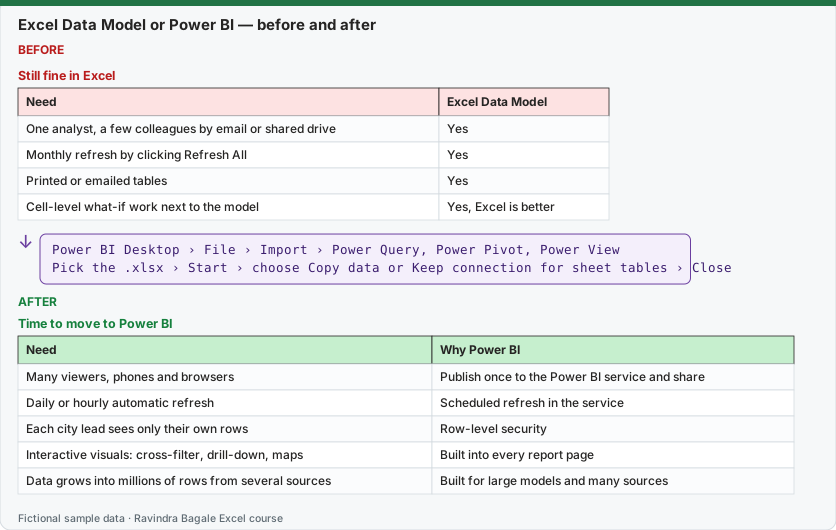
Expected result — Time to move to Power BI
| Need | Why Power BI |
|---|---|
| Many viewers, phones and browsers | Publish once to the Power BI service and share |
| Daily or hourly automatic refresh | Scheduled refresh in the service |
| Each city lead sees only their own rows | Row-level security |
| Interactive visuals: cross-filter, drill-down, maps | Built into every report page |
| Data grows into millions of rows from several sources | Built for large models and many sources |
Before table and formula as text
Before — Still fine in Excel
| Need | Excel Data Model |
|---|---|
| One analyst, a few colleagues by email or shared drive | Yes |
| Monthly refresh by clicking Refresh All | Yes |
| Printed or emailed tables | Yes |
| Cell-level what-if work next to the model | Yes, Excel is better |
Formula / click path
Power BI Desktop › File › Import › Power Query, Power Pivot, Power View
Pick the .xlsx › Start › choose Copy data or Keep connection for sheet tables › Close
Do it step by step:
- Clean up the Excel model first: clear table names, measure names and a marked Calendar table.
- Open Power BI Desktop.
- Click File › Import › Power Query, Power Pivot, Power View.
- Choose the workbook and click Start.
- For tables that live on Excel sheets, choose Copy data (or keep the connection), then click Close.
- Check the Model view: the same relationships appear. Check that each measure gives the same total as in Excel.
- Build the visuals and publish; continue with the Power BI course.
स्टेप बाय स्टेप करून बघा:
- आधी Excel model नीट करा: स्पष्ट table names, measure names आणि marked Calendar table.
- Power BI Desktop उघडा.
- File › Import › Power Query, Power Pivot, Power View वर click करा.
- Workbook निवडा आणि Start करा.
- Excel sheets वर असलेल्या tables साठी Copy data निवडा (किंवा connection ठेवा), मग Close करा.
- Model view बघा: तेच relationships दिसतात. प्रत्येक measure Excel सारखाच total देतो का ते check करा.
- Visuals बनवा आणि publish करा; पुढे Power BI course सुरू ठेवा.
स्टेप बाय स्टेप करके देखें:
- पहले Excel model साफ़ करें: साफ़ table names, measure names और marked Calendar table.
- Power BI Desktop खोलें.
- File › Import › Power Query, Power Pivot, Power View पर click करें.
- Workbook चुनें और Start करें.
- Excel sheets पर मौजूद tables के लिए Copy data चुनें (या connection रखें), फिर Close करें.
- Model view देखें: वही relationships दिखते हैं. हर measure Excel जैसा ही total देता है या नहीं, check करें.
- Visuals बनाएँ और publish करें; आगे Power BI course जारी रखें.
A quick decision list
- Is the report for you and a few people, refreshed by hand? Stay in Excel.
- Do people need it on phones or in a browser, refreshed automatically? Move to Power BI.
- Must each person see only their own rows? Move to Power BI and use Row-Level Security (RLS).
- Do you need what-if inputs, cell formulas and printing beside the numbers? Keep that part in Excel; you can still connect Excel to a published Power BI model later.
Continue learning: the Power BI course starts from Power Query and goes through Data Modelling and DAX, so everything in this module carries over.
Practice task (try it before you open the answer):
- Write down three needs of your own report.
- Mark each "Excel" or "Power BI" using the tables above.
- If you have Power BI Desktop, import this module's workbook and compare Total Sales.
Answer
After import, Total Sales in Power BI must show ₹2,315, Customers 6 and Pune Sales ₹940, exactly as in Excel. If a number differs, check that all relationships came across in Model view.
Ravindra Bagale's Tip
Build the model in Excel the "Power BI way" from day one: Tables, a star schema, a Calendar and measures instead of cell formulas. Then the move is an import, not a rebuild.
Ravindra Bagale's Tip – मराठी
पहिल्या दिवसापासून Excel मध्ये model "Power BI पद्धतीने" बनवा: Tables, star schema, Calendar आणि cell formulas ऐवजी measures. मग move म्हणजे फक्त import, पुन्हा बांधकाम नाही.
Ravindra Bagale's Tip – हिंदी
पहले दिन से Excel में model "Power BI तरीके से" बनाएँ: Tables, star schema, Calendar और cell formulas की जगह measures. फिर move सिर्फ़ import है, दोबारा बनाना नहीं.