24. Power Pivot and the Data Model
24.6 Relationships Across Multiple Files (Power Query from a Folder)
Example first. Every month the Pune team saves a new orders file in one folder: Orders_Oct.xlsx (6 rows) and Orders_Nov.xlsx (6 rows). Instead of copy-pasting, Get Data › From Folder combines all files into one Orders query (12 rows), loads it straight into the Data Model and keeps the same relationships. Next month, drop Orders_Dec.xlsx in the folder and click Refresh.
Combine files from a folder into the model — in 30 seconds
What: Power Query reads every file in a folder, stacks them into one table, and loads that table into the Data Model with "Only Create Connection". The dimension tables can come from other files too.
Why: Data spread over many files becomes one fact table in the model, and new months arrive with one Refresh instead of manual copy-paste.
Tiny example: Folder with 2 files → one query of 12 rows → Oct ₹1,005 + Nov ₹1,310 = ₹2,315 in the model.
Combine files from a folder into the model — 30 सेकंदात
काय: Power Query folder मधली प्रत्येक file वाचतो, त्यांना एका table मध्ये रचतो, आणि ती table "Only Create Connection" ने Data Model मध्ये load करतो. Dimension tables पण दुसऱ्या files मधून येऊ शकतात.
का: अनेक files मध्ये विखुरलेला data model मध्ये एक fact table बनतो, आणि नवीन महिने हाताने copy-paste न करता एका Refresh ने येतात.
छोटं उदाहरण: 2 files चा folder → 12 rows ची एक query → model मध्ये Oct ₹1,005 + Nov ₹1,310 = ₹2,315.
Combine files from a folder into the model — 30 सेकंड में
क्या: Power Query folder की हर file पढ़ता है, उन्हें एक table में जोड़ता है, और उस table को "Only Create Connection" से Data Model में load करता है. Dimension tables भी दूसरी files से आ सकती हैं.
क्यों: कई files में बिखरा data model में एक fact table बन जाता है, और नए महीने हाथ से copy-paste के बिना एक Refresh से आ जाते हैं.
छोटा उदाहरण: 2 files वाला folder → 12 rows की एक query → model में Oct ₹1,005 + Nov ₹1,310 = ₹2,315.
First look at the data (before → after):
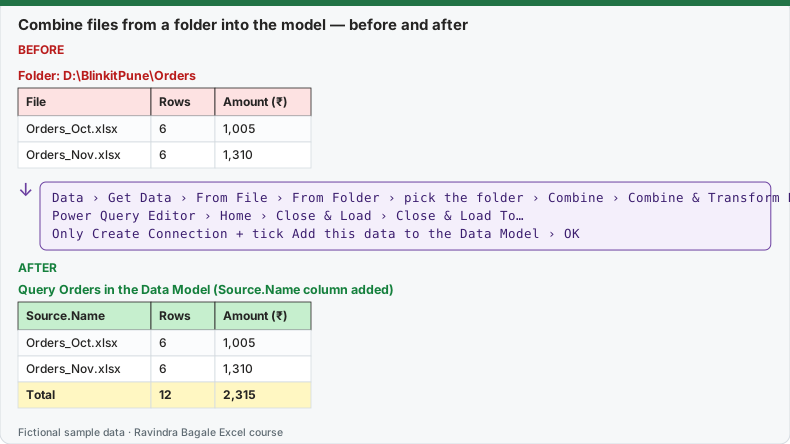
Expected result — Query Orders in the Data Model (Source.Name column added)
| Source.Name | Rows | Amount (₹) |
|---|---|---|
| Orders_Oct.xlsx | 6 | 1,005 |
| Orders_Nov.xlsx | 6 | 1,310 |
| Total | 12 | 2,315 |
Before table and formula as text
Before — Folder: D:\BlinkitPune\Orders
| File | Rows | Amount (₹) |
|---|---|---|
| Orders_Oct.xlsx | 6 | 1,005 |
| Orders_Nov.xlsx | 6 | 1,310 |
Formula / click path
Data › Get Data › From File › From Folder › pick the folder › Combine › Combine & Transform Data
Power Query Editor › Home › Close & Load › Close & Load To…
Only Create Connection + tick Add this data to the Data Model › OK
Do it step by step:
- Put all monthly files with the same columns in one folder.
- Click Data › Get Data › From File › From Folder, choose the folder and click Open.
- Click Combine › Combine & Transform Data, pick the sheet or Table in the sample file and click OK.
- In the Power Query Editor, check the data types (Date as Date, Qty and Amount as Whole Number).
- Click Home › Close & Load › Close & Load To…, choose Only Create Connection, tick Add this data to the Data Model, and click OK.
- In Diagram View relate the new Orders query to Stores, Products and Calendar as before.
- Next month, copy the new file into the folder and click Data › Refresh All.
स्टेप बाय स्टेप करून बघा:
- सारखे columns असलेल्या सगळ्या monthly files एका folder मध्ये ठेवा.
- Data › Get Data › From File › From Folder वर click करा, folder निवडा आणि Open करा.
- Combine › Combine & Transform Data वर click करा, sample file मधली sheet किंवा Table निवडा आणि OK करा.
- Power Query Editor मध्ये data types check करा (Date ला Date, Qty आणि Amount ला Whole Number).
- Home › Close & Load › Close & Load To… वर click करा, Only Create Connection निवडा, Add this data to the Data Model tick करा, आणि OK करा.
- Diagram View मध्ये नवीन Orders query आधीसारखी Stores, Products आणि Calendar शी जोडा.
- पुढच्या महिन्यात नवीन file folder मध्ये copy करा आणि Data › Refresh All करा.
स्टेप बाय स्टेप करके देखें:
- एक जैसे columns वाली सारी monthly files एक folder में रखें.
- Data › Get Data › From File › From Folder पर click करें, folder चुनें और Open करें.
- Combine › Combine & Transform Data पर click करें, sample file की sheet या Table चुनें और OK करें.
- Power Query Editor में data types check करें (Date को Date, Qty और Amount को Whole Number).
- Home › Close & Load › Close & Load To… पर click करें, Only Create Connection चुनें, Add this data to the Data Model tick करें, और OK करें.
- Diagram View में नई Orders query को पहले की तरह Stores, Products और Calendar से जोड़ें.
- अगले महीने नई file folder में copy करें और Data › Refresh All करें.
Things that break a folder query
| Problem | What happens | Fix |
|---|---|---|
| One file has an extra or renamed column | That column comes in blank or the refresh fails | Keep one template for every month |
A temporary file such as ~$Orders_Nov.xlsx is in the folder (the file is open) |
Refresh error | Close the file, or filter out names starting with ~$ in the query |
| Someone saves a .txt notes file or a photo in the folder | Combine fails | Filter the Extension column to .xlsx |
| Folder path changes | Refresh cannot find it | Edit the Source step in the query |
The same idea in Power BI is taught in Get Data from a Folder.
Practice task (try it before you open the answer):
- Split the Orders table into two files by month and save them in one folder.
- Combine them with From Folder and load to the Data Model only.
- Relate the query and build a PivotTable of Source.Name by Sum of Amount.
Answer
Orders_Oct.xlsx ₹1,005 (6 rows), Orders_Nov.xlsx ₹1,310 (6 rows), total ₹2,315.
Ravindra Bagale's Tip
Keep the "Source.Name" column. When a number looks wrong, it tells you at once which monthly file the row came from.
Ravindra Bagale's Tip – मराठी
"Source.Name" column ठेवा. एखादा आकडा चुकीचा वाटला की ती row कोणत्या monthly file मधून आली ते लगेच कळतं.
Ravindra Bagale's Tip – हिंदी
"Source.Name" column रखें. कोई आँकड़ा गलत लगे तो वह row किस monthly file से आई, तुरंत पता चल जाता है.