24. Power Pivot and the Data Model
24.1 Turn On Power Pivot and Meet the Data Model
Example first. Shraddha Bagale has three Tables: Orders (12 rows), Stores and Products. Today she adds City and Category to Orders with two XLOOKUP helper columns before every PivotTable. With the Data Model she loads the three Tables once, links them, and builds a PivotTable by City from Stores and Amount from Orders. No helper columns. Total sales stay ₹2,315.
Power Pivot and the Data Model — in 30 seconds
What: The Data Model is a small database inside the workbook: several Tables plus the relationships between them. Power Pivot is the add-in window where you see and manage that model.
Why: It replaces helper lookup columns, handles far more rows than a sheet (a sheet stops at 1,048,576 rows) and lets you write DAX measures, the same language Power BI uses.
Tiny example: One PivotTable shows Pune ₹940 using City from Stores and Amount from Orders. Before, that needed =XLOOKUP([@StoreID],tblStores[StoreID],tblStores[City]) in every row.
Power Pivot and the Data Model — 30 सेकंदात
काय: Data Model म्हणजे workbook मधला छोटा database: अनेक Tables आणि त्यांच्यातले relationships. Power Pivot म्हणजे add-in window जिथे तुम्ही हे model बघता आणि सांभाळता.
का: तो helper lookup columns ची जागा घेतो, sheet पेक्षा खूप जास्त rows सांभाळतो (sheet 1,048,576 rows वर थांबते) आणि DAX measures लिहू देतो, तीच भाषा जी Power BI वापरतं.
छोटं उदाहरण: एकच PivotTable Stores मधला City आणि Orders मधला Amount वापरून Pune ₹940 दाखवतो. आधी त्यासाठी प्रत्येक row मध्ये =XLOOKUP([@StoreID],tblStores[StoreID],tblStores[City]) लागायचा.
Power Pivot and the Data Model — 30 सेकंड में
क्या: Data Model यानी workbook के अंदर एक छोटा database: कई Tables और उनके बीच के relationships. Power Pivot वह add-in window है जहाँ आप यह model देखते और सँभालते हैं.
क्यों: यह helper lookup columns की जगह लेता है, sheet से कहीं ज़्यादा rows सँभालता है (sheet 1,048,576 rows पर रुकती है) और DAX measures लिखने देता है, वही भाषा जो Power BI इस्तेमाल करता है.
छोटा उदाहरण: एक ही PivotTable Stores का City और Orders का Amount इस्तेमाल करके Pune ₹940 दिखाता है. पहले इसके लिए हर row में =XLOOKUP([@StoreID],tblStores[StoreID],tblStores[City]) लगता था.
First look at the data (before → after):
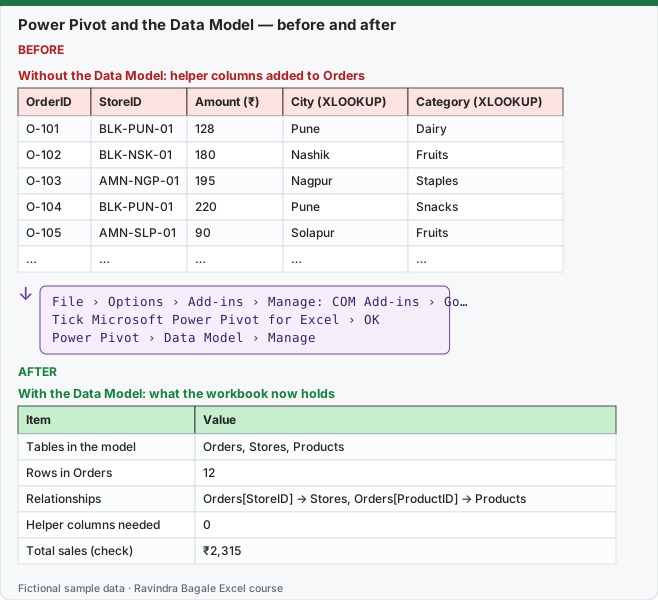
Expected result — With the Data Model: what the workbook now holds
| Item | Value |
|---|---|
| Tables in the model | Orders, Stores, Products |
| Rows in Orders | 12 |
| Relationships | Orders[StoreID] → Stores, Orders[ProductID] → Products |
| Helper columns needed | 0 |
| Total sales (check) | ₹2,315 |
Before table and formula as text
Before — Without the Data Model: helper columns added to Orders
| OrderID | StoreID | Amount (₹) | City (XLOOKUP) | Category (XLOOKUP) |
|---|---|---|---|---|
| O-101 | BLK-PUN-01 | 128 | Pune | Dairy |
| O-102 | BLK-NSK-01 | 180 | Nashik | Fruits |
| O-103 | AMN-NGP-01 | 195 | Nagpur | Staples |
| O-104 | BLK-PUN-01 | 220 | Pune | Snacks |
| O-105 | AMN-SLP-01 | 90 | Solapur | Fruits |
| … | … | … | … | … |
Formula / click path
File › Options › Add-ins › Manage: COM Add-ins › Go…
Tick Microsoft Power Pivot for Excel › OK
Power Pivot › Data Model › Manage
Do it step by step:
- Click File › Options › Add-ins.
- At the bottom choose Manage: COM Add-ins and click Go….
- Tick Microsoft Power Pivot for Excel and click OK. A Power Pivot tab appears on the ribbon.
- Click Power Pivot › Data Model › Manage. The Power Pivot window opens (empty for now).
- Close it. In the next lesson you load the Tables into it.
- If Power Pivot is not in the list, your Excel edition may not include it; the Data Model still works from Insert › PivotTable › Add this data to the Data Model.
स्टेप बाय स्टेप करून बघा:
- File › Options › Add-ins वर click करा.
- खाली Manage: COM Add-ins निवडा आणि Go… वर click करा.
- Microsoft Power Pivot for Excel tick करा आणि OK करा. Ribbon वर Power Pivot tab येतो.
- Power Pivot › Data Model › Manage वर click करा. Power Pivot window उघडते (सध्या रिकामी).
- ती बंद करा. पुढच्या lesson मध्ये तुम्ही त्यात Tables load कराल.
- List मध्ये Power Pivot नसेल तर तुमच्या Excel edition मध्ये ते नसेल; तरी Insert › PivotTable › Add this data to the Data Model ने Data Model चालतं.
स्टेप बाय स्टेप करके देखें:
- File › Options › Add-ins पर click करें.
- नीचे Manage: COM Add-ins चुनें और Go… पर click करें.
- Microsoft Power Pivot for Excel tick करें और OK करें. Ribbon पर Power Pivot tab आ जाता है.
- Power Pivot › Data Model › Manage पर click करें. Power Pivot window खुलती है (अभी खाली).
- उसे बंद करें. अगले lesson में आप इसमें Tables load करेंगे.
- List में Power Pivot न हो तो आपके Excel edition में शायद यह नहीं है; फिर भी Insert › PivotTable › Add this data to the Data Model से Data Model चलता है.
The three practice Tables used in this module (type them on three sheets and press Ctrl + T on each; name them Orders, Stores and Products):
| OrderID | Date | StoreID | ProductID | CustomerID | Qty | Amount (₹) |
|---|---|---|---|---|---|---|
| O-101 | 03-10-2026 | BLK-PUN-01 | P01 | C01 | 4 | 128 |
| O-102 | 05-10-2026 | BLK-NSK-01 | P02 | C02 | 2 | 180 |
| O-103 | 11-10-2026 | AMN-NGP-01 | P03 | C03 | 3 | 195 |
| O-104 | 18-10-2026 | BLK-PUN-01 | P04 | C04 | 2 | 220 |
| O-105 | 22-10-2026 | AMN-SLP-01 | P02 | C05 | 1 | 90 |
| O-106 | 29-10-2026 | BLK-PUN-01 | P01 | C01 | 6 | 192 |
| O-107 | 02-11-2026 | BLK-PUN-01 | P02 | C02 | 3 | 270 |
| O-108 | 06-11-2026 | BLK-NSK-01 | P04 | C06 | 2 | 220 |
| O-109 | 09-11-2026 | AMN-NGP-01 | P01 | C03 | 5 | 160 |
| O-110 | 14-11-2026 | AMN-SLP-01 | P03 | C05 | 4 | 260 |
| O-111 | 20-11-2026 | BLK-PUN-01 | P03 | C04 | 2 | 130 |
| O-112 | 27-11-2026 | BLK-NSK-01 | P02 | C06 | 3 | 270 |
| StoreID | City | Platform |
|---|---|---|
| BLK-PUN-01 | Pune | Blinkit |
| BLK-NSK-01 | Nashik | Blinkit |
| AMN-NGP-01 | Nagpur | Amazon Now |
| AMN-SLP-01 | Solapur | Amazon Now |
| ProductID | Product | Category | Price (₹) |
|---|---|---|---|
| P01 | Cow Milk 500 ml | Dairy | 32 |
| P02 | Grapes 500 g | Fruits | 90 |
| P03 | Poha 1 kg | Staples | 65 |
| P04 | Bhakarwadi 250 g | Snacks | 110 |
All rows are fictional practice data. Amount = Qty × Price from the Products table.
Practice task (try it before you open the answer):
- Turn on Power Pivot.
- Type the three Tables and name them Orders, Stores and Products.
- Check the total of the Amount column.
Answer
Total Amount = ₹2,315 from 12 orders. If you get a different number, compare each Amount with Qty × Price.
Ravindra Bagale's Tip
Name your Tables before they go into the Data Model. Renaming later is possible, but every measure you already wrote shows the old name until you fix it.
Ravindra Bagale's Tip – मराठी
Data Model मध्ये जाण्याआधी Tables ना नावं द्या. नंतरही rename करता येतं, पण आधी लिहिलेले measures सुधारेपर्यंत जुनं नाव दाखवतात.
Ravindra Bagale's Tip – हिंदी
Data Model में जाने से पहले Tables को नाम दें. बाद में rename हो सकता है, पर पहले से लिखे measures ठीक करने तक पुराना नाम दिखाते हैं.