Household Chores Roster in Excel: Rotate Chores Every Week Automatically (INDEX and MOD)
In the Bagale home in Pune the dishes always seemed to land on the same person, and every Sunday started with "it was my turn last week!" Ravindra fixed it with a roster in Excel. Type the four names and five chores once; the sheet rotates them every week, shows who does what this week, and proves with points that it is fair.
What you'll learn on this page
- A members list and a chores row with points
- Week start dates that fill themselves
- Rotation with INDEX and MOD
- This week's duties with MATCH
- Points per person with SUMPRODUCT
- This week highlighted and names in colour
Download the template: household-chores-rotation-roster-template.xlsx: example data with real formulas. Yellow cells are inputs you can type over; green cells hold formulas; blue rows are headers and totals. Replace the example data with your own and everything recalculates.
Made-up data: every name, amount, shop and date on this page is made up for practice. Cities are used only to make the examples feel real.
1. The example
Four people (Ravindra, Shraddha, Ruhi, Rani), five chores, eight weeks from 28-09-2026. As of 17-10-2026 it is week 3:
| Chore | Points | Week 3 |
|---|---|---|
| Dishes | 3 | Ruhi |
| Sweeping | 2 | Rani |
| Laundry | 3 | Ravindra |
| Groceries | 2 | Shraddha |
| Plants | 1 | Ruhi |
Over the eight weeks everyone gets exactly 22 points, because each chore visits each person twice. With five chores and four people, one person gets two chores each week, and that extra job also rotates.
Figure 1. Names and chores go in; INDEX(names, MOD(week − 1 + offset, count) + 1) rotates them; MATCH finds week 3 for 17-10-2026; SUMPRODUCT shows 22 points each.
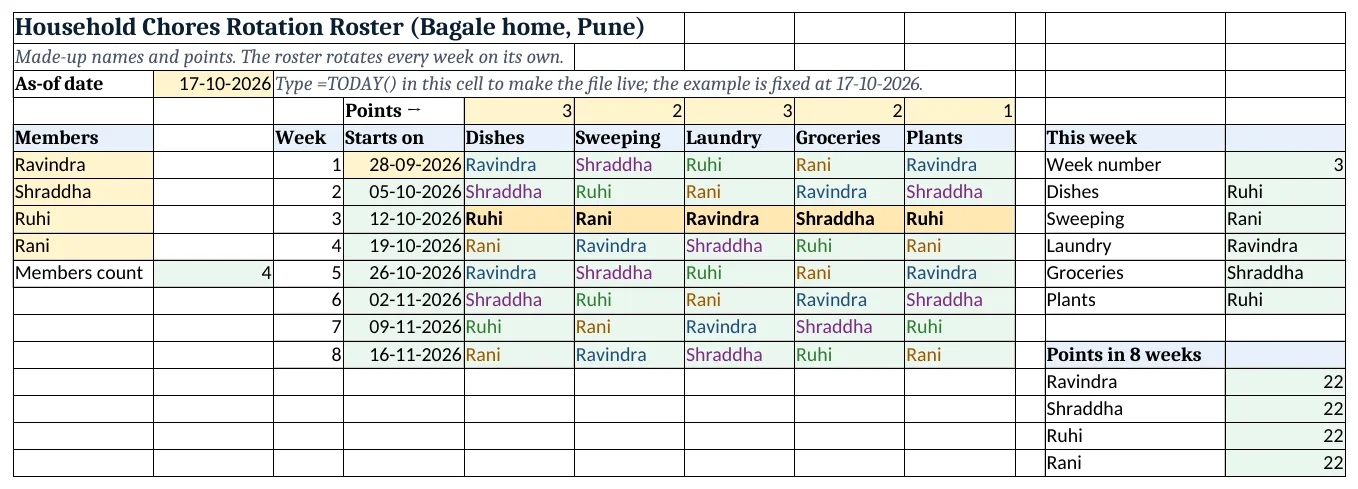
Figure 2. The template sheet, recalculated with its example data. Download it above and replace the yellow cells with your own numbers.
2. Build it step by step
Step 1. Members and chores
- In A6:A9 type the names (yellow). In B10 type
=COUNTA(A6:A9): 4 (COUNTA). - In E5:I5 type the chores and in E4:I4 the points for each (heavier chores, more points). Select E4:I4 > Data Validation > List:
1,2,3,4,5(drop-down lists).
Step 2. Weeks
- In C6:C13 type 1 to 8.
- In D6 type the first Monday, 28-09-2026, and in D7
=D6+7, copied down.
Step 3. Rotation formula
- In E6 type
=INDEX($A$6:$A$9,MOD($C6-1+0,$B$10)+1): Ravindra. - For the next chore change the +0 to +1 (F6), +2 (G6) and so on, so each chore starts with a different person.
- MOD(…,4) counts 0, 1, 2, 3, 0, 1 … and +1 turns it into a position 1 to 4 for INDEX (INDEX MATCH). Copy E6:I6 down to row 13.
Step 4. This week
- In B3 type
=TODAY()(the template has 17-10-2026 typed). - In L6 type
=MATCH(B3,D6:D13,1): 3. MATCH with 1 finds the last start date on or before today. - In L7 type
=INDEX(E6:E13,$L$6): Ruhi does the dishes. Repeat for each chore.
Step 5. Fairness check
- In L14 type
=SUMPRODUCT(($E$6:$I$13=K14)*$E$4:$I$4)and copy down for each name: 22 each (SUMPRODUCT).
Step 6. Colours
- Select E6:I13 > New Rule > Use a formula:
=$C6=$L$6, amber and bold: this week's row. - Add one rule per person, for example
=E6=$A$6with a blue font (formula rules).
Ravindra Bagale's Tip
Put the printed roster on the fridge and the file on everyone's phone. When it is written down, nobody argues with the sheet.
Ravindra Bagale's Tip – मराठी
Roster print करून fridge वर लावा आणि file सगळ्यांच्या phone मध्ये ठेवा. लिहिलेलं असलं की sheet शी कोणी वाद घालत नाही.
Ravindra Bagale's Tip – हिंदी
Roster print करके fridge पर लगाओ और file सबके phone में रखो. लिखा हुआ हो तो sheet से कोई बहस नहीं करता.
3. Formulas used
| Cell | Formula | What it does |
|---|---|---|
| B10 | =COUNTA(A6:A9) |
Number of members |
| D7 | =D6+7 |
Next week's start date |
| E6 | =INDEX($A$6:$A$9,MOD($C6-1+0,$B$10)+1) |
Who does chore 1 in week 1 |
| F6 | =INDEX($A$6:$A$9,MOD($C6-1+1,$B$10)+1) |
Chore 2 starts one person later |
| L6 | =MATCH(B3,D6:D13,1) |
This week's number |
| L7 | =INDEX(E6:E13,$L$6) |
Who does Dishes this week |
| L14 | =SUMPRODUCT(($E$6:$I$13=K14)*$E$4:$I$4) |
Points for one person over 8 weeks |
Every formula above is written in the template, so you can click a cell and see it in the formula bar. All values on this page were recalculated in the file.
4. Common mistakes
- Same offset in every chore column. If every column uses +0, one person gets all five chores in a week. Give each chore its own offset.
- Hard-coding 4 in MOD. Use $B$10. When Raja moves in and you add a fifth name, the rotation adjusts.
- MATCH without 1. MATCH(…,0) needs an exact date; with 1 it finds the current week from any day in it.
- Mixed references wrong.
$C6keeps the week column fixed when copying right;$A$6:$A$9keeps the names fixed. - Ignoring heavy chores. Use points, not just counts, so dishes and laundry count more than watering plants.
Ravindra Bagale's Tip
Let the children choose their swap once a month. A fair system with a little choice works better than a strict one.
Ravindra Bagale's Tip – मराठी
महिन्यातून एकदा मुलांना आपापसात chore बदलू द्या. थोडी मुभा असलेली fair पद्धत कडक पद्धतीपेक्षा जास्त चालते.
Ravindra Bagale's Tip – हिंदी
महीने में एक बार बच्चों को आपस में chore बदलने दो. थोड़ी छूट वाला fair तरीका सख्त तरीके से बेहतर चलता है.
5. More real examples
Example 1: Office pantry duty. Members = team names (Amir, Zoya, Salman), chores = pantry, plants, printer paper. Same formulas.
Example 2: Hostel or shared flat. Five flatmates and five chores: everyone gets exactly one chore a week.
Example 3: Kids and pocket money. Pay per point: =L14*₹10 gives each child's earnings for the eight weeks.
Quick revision cards
Quick revision
Each card shows formulas from this page, each with an example and its answer from the template. Scan the QR code on a card to open this lesson. All names and numbers are made up for practice.
झटपट उजळणी
प्रत्येक card वर या page मधले formulas, त्यांचं example आणि template मधलं उत्तर आहे. Card वरचा QR code scan केला की हा lesson उघडतो. सगळी नावं आणि आकडे सरावासाठी काल्पनिक आहेत.
झटपट दोहराई
हर card पर इस page के formulas, उनका example और template का उत्तर है. Card का QR code scan करें तो यह lesson खुलेगा. सभी नाम और आंकड़े अभ्यास के लिए काल्पनिक हैं.
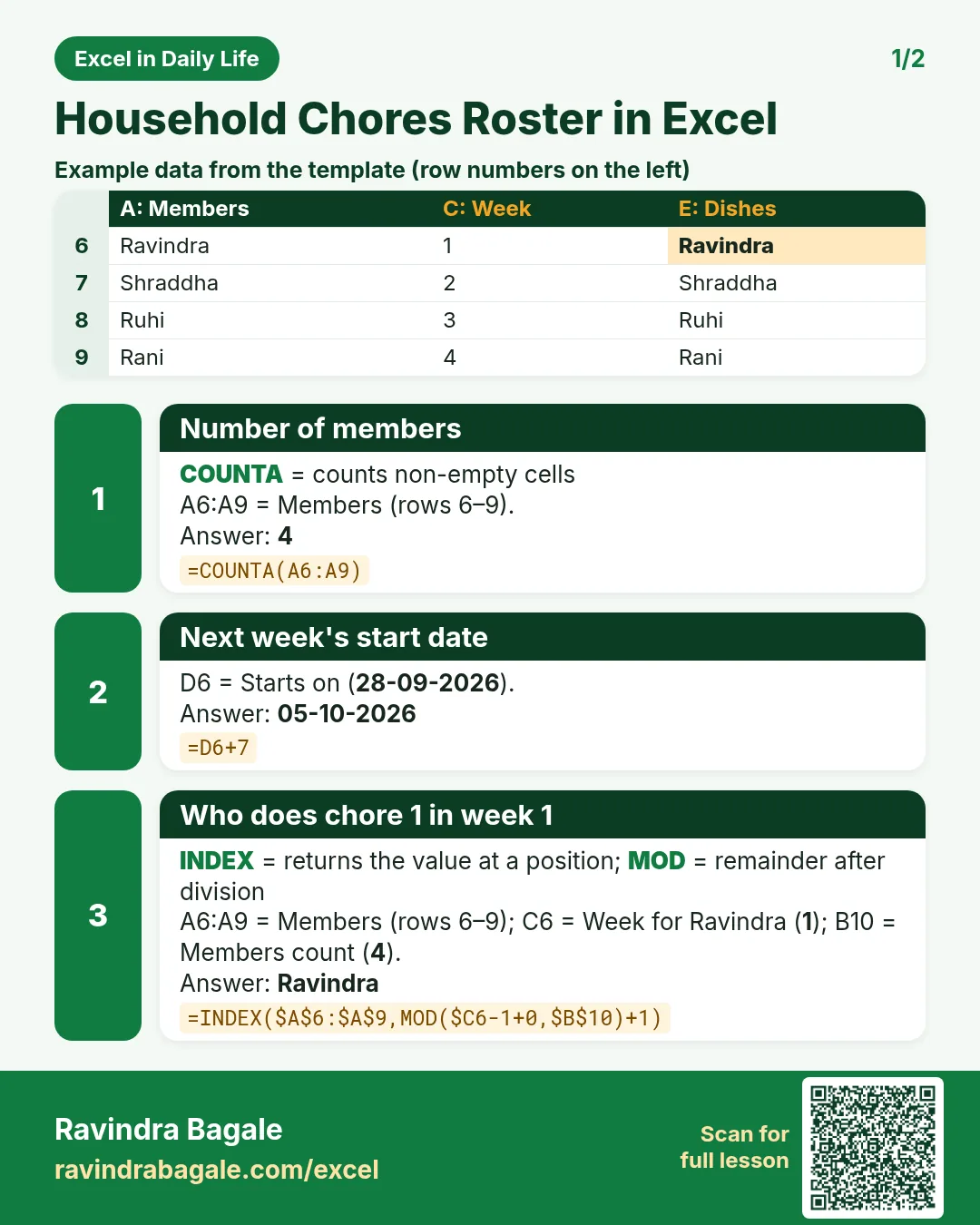

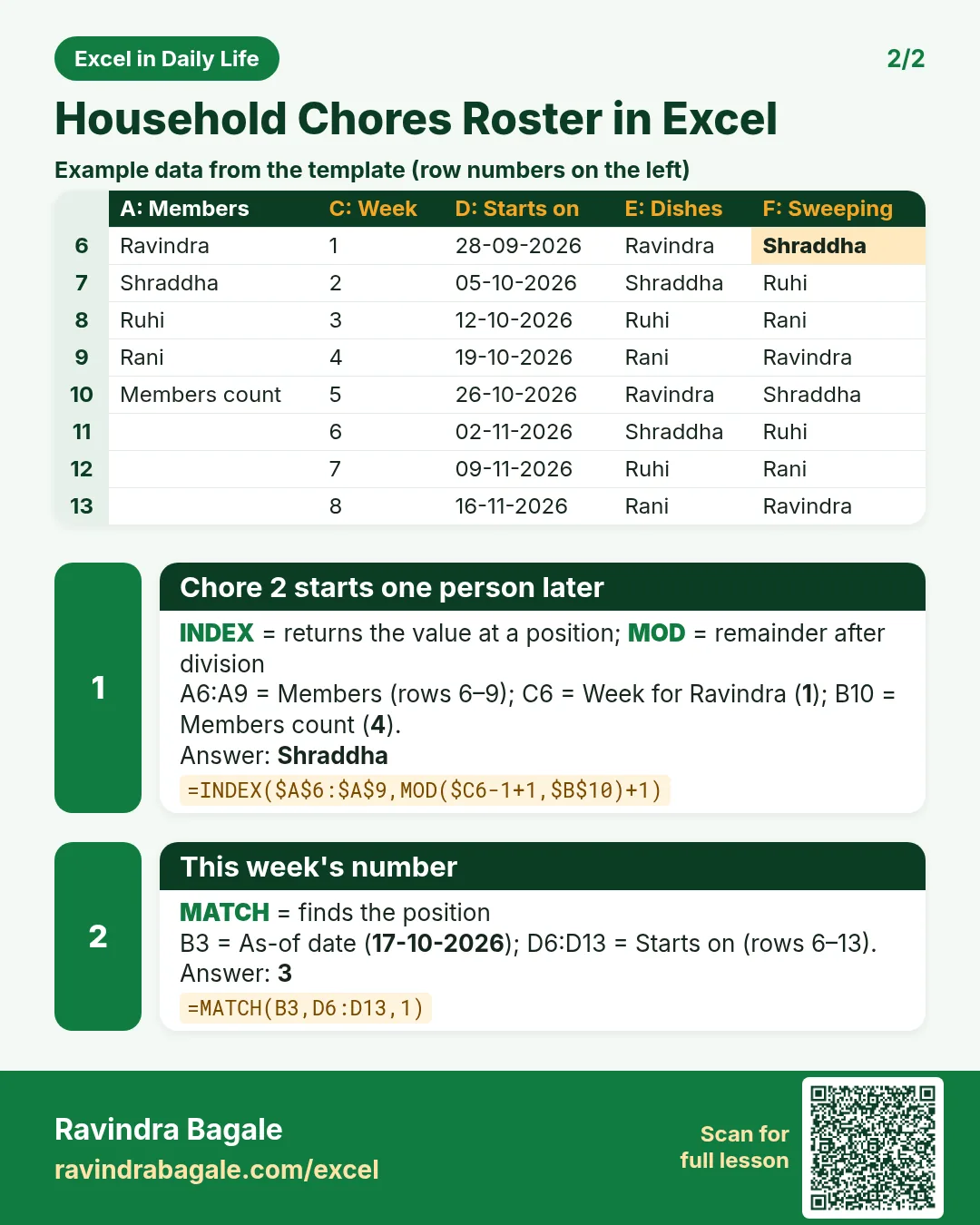

More cards: Ravi Sir's Cards.
6. Frequently asked questions
How do I rotate names in Excel?
=INDEX(names,MOD(week-1+offset,COUNTA(names))+1). MOD loops through the positions.
How do I show this week's duties?
Find the week with =MATCH(TODAY(),start dates,1) and pull each chore with INDEX.
How do I make the roster fair?
Give each chore points and total them per person with SUMPRODUCT; equal totals mean a fair rotation.
What if the number of people changes?
Add the name to the list; COUNTA updates and MOD rotates over the new count.
Can I print it for the fridge?
Yes. Select A4:I13 > Page Layout > Print Area > Set Print Area.
7. Quick quiz
Ten questions on this page. Sign in to save your score.
Loading practice tasks...
- VLOOKUP name (Easy): Name for ID "S103" with VLOOKUP.
- XLOOKUP value (Easy): The Cost for ID "S103".
- Position (Easy): Position of "Mateo Garcia" in B2:B9.
- INDEX and MATCH (Medium): ID for name "Mateo Garcia" using INDEX and MATCH.
- Not found message (Medium): Parcels for ID "Z999", or "Not found".
- IFNA with VLOOKUP (Medium): VLOOKUP of "Z999" in A2:E9 column 4, or "Missing".
- XMATCH (Medium): Position of ID "S103" in A2:A9.
- Slab rate (Hard): Rate for E2 from the slab table G2:H6.
- Slab amount (Hard): E3 times its slab rate.
- Two-way lookup (Hard): Value in A2:E9 at the row of "Mateo Garcia" and column "Parcels".
- Lookup the top (Hard): Name with the largest Parcels.