Interior Design Costing System in Excel: Rate Card, Room Estimate, Budget vs Actual, Payment Schedule and Quotation
Ruhi Interiors in Nagpur designs and executes flats: modular kitchens, wardrobes, ceilings and paint. Ruhi's quotes were a single number, so when a room went over budget nobody saw it until the end. This page builds an 8-sheet Excel system: a rate card splits material and labour, every room is estimated line by line, site bills are booked against rooms, and the Summary shows estimate against actual with the client's payment schedule.
What you'll learn on this page
- Keep a rate card with material and labour rates per unit
- Estimate room by room with XLOOKUP
- Add contingency, design fee and GST to reach the grand total
- Book site expenses against rooms
- Compare estimate with actual by room and flag Near limit and Over budget
- Split the grand total into milestone payments
- Print a quotation with room totals
Download the template: interior-design-costing-system-template.xlsx: a 8-sheet system with example data and real formulas (Read me, Setup, Estimate, Site expenses, Summary, Payments, Quotation, Dashboard). Yellow cells are inputs you can type over; green cells hold formulas; blue rows are headers and totals. Replace the example data with your own and every report and the dashboard recalculate.
Made-up data: every name, amount, business and date on this page is made up for practice. Cities are used only to make the examples feel real.
1. The business story
Ruhi Interiors, Nagpur, Bagale flat 2 BHK, as of 17 October 2026 (made-up data). Contingency 5%, design fee 8%, GST 18% (inputs; confirm GST on your contract with your accountant).
| Question | Where the system answers it |
|---|---|
| What is the final quote? | Summary: ₹4,58,080 of work + contingency, design fee and GST = ₹6,12,966 |
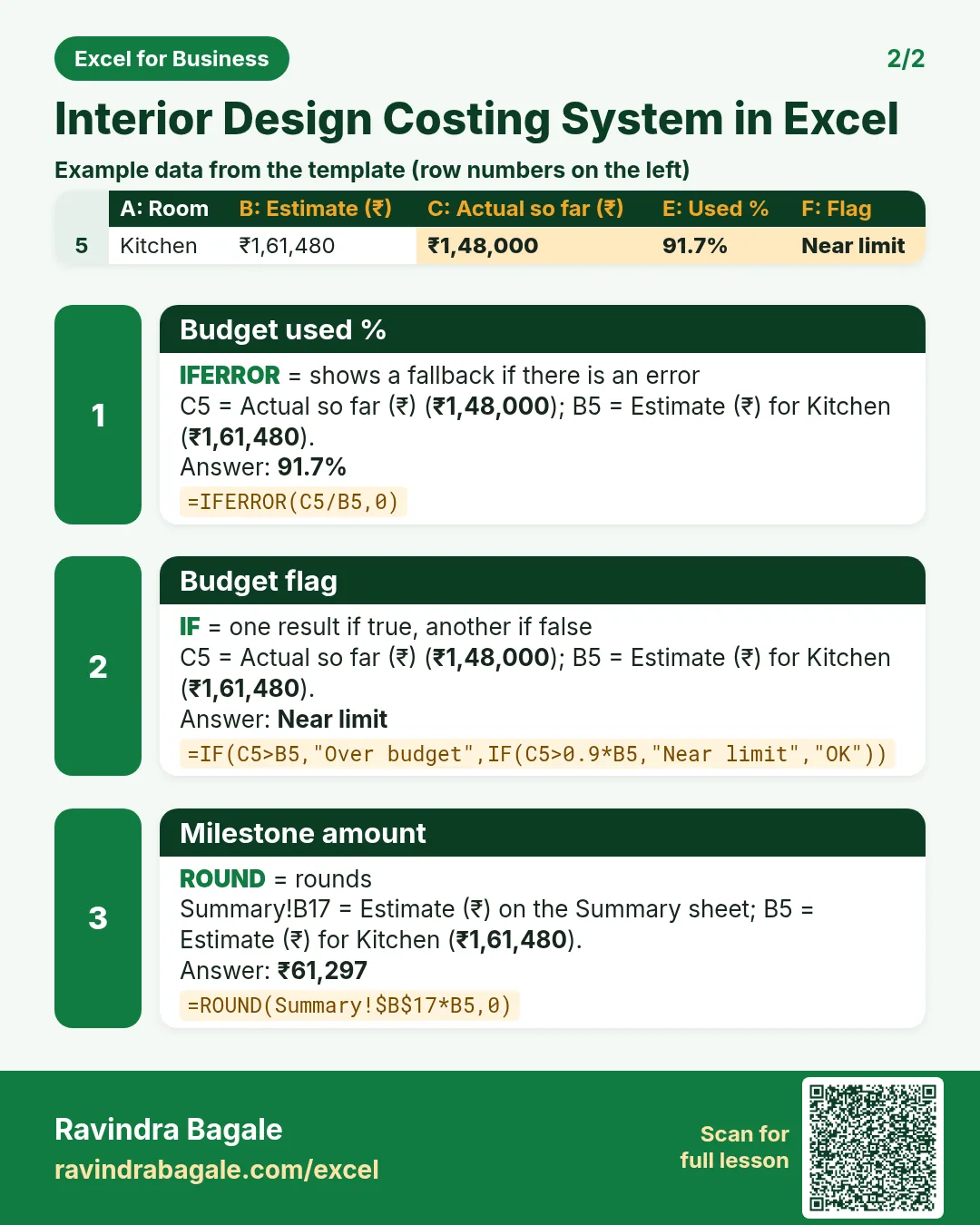
| Which room is close to its budget? | Kitchen: ₹1,48,000 spent of ₹1,61,480, 91.7%, Near limit |
| How much is spent overall? | ₹3,24,600, 70.9% of the work estimate |
| What is the client late on? | Installation payment of ₹2,45,186, due 10 October |
₹3,06,483 has come in from the client against ₹6,12,966.
Figure 1. Setup holds the rate card; Estimate and Site expenses are the entry sheets; Summary, Payments and Quotation read from them.
2. Build it sheet by sheet
Step 1. Setup: rate card
- B4 contingency (5%), B5 design fee (8%), B6 GST, B7 the project name.
- Rate card in A10:D17: Item, Unit, Material rate, Labour rate; E10 rate
=C10+D10. Rooms in G10:G13.
Step 2. Estimate: room by room
- One row per item per room: Room, Item, Qty. Pick both from drop-downs.
- D5 unit with XLOOKUP, E5 material
=C5*XLOOKUP(B5,Setup!$A$10:$A$17,Setup!$C$10:$C$17,0), F5 labour the same from column D, G5 amount=E5+F5. - 85 sq ft of modular kitchen at ₹1,800 comes to ₹1,53,000.
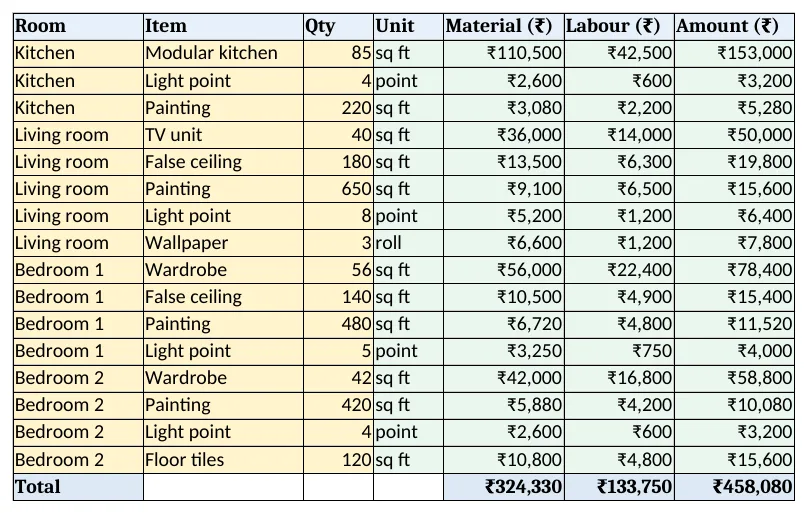
Figure 2. Estimate: material, labour and amount for each item in each room
Step 3. Site expenses and Summary
- Site expenses: Date, Room, Description, Amount, every bill against a room.
- Summary B5 estimate
=SUMIFS(Estimate!$G$5:$G$500,Estimate!$A$5:$A$500,A5)and C5 actual from Site expenses (SUMIFS). - E5 used % and F5:
=IF(C5>B5,"Over budget",IF(C5>0.9*B5,"Near limit","OK"))(budget vs actual). - Rows 12 to 17: work estimate, contingency, design fee on work + contingency, taxable, GST and grand total.
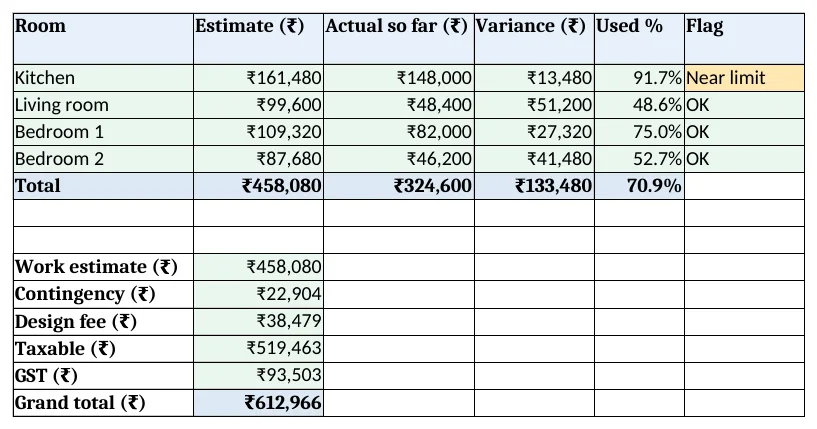
Figure 3. Summary: estimate vs actual by room, flags and the quotation totals
Step 4. Payments and Quotation
- Payments: milestones Booking 10%, Material order 40%, Installation 40%, Handover 10%. C5
=ROUND(Summary!$B$17*B5,0). - F5 status
=IF(E5<>"","Received",IF(D5<Setup!$B$3,"Overdue","Upcoming")). - Quotation lists room totals and the final amount. Set the print area.
Step 5. Dashboard
- KPI cards: grand total, work estimate, spent so far, budget used, received from the client and rooms over budget.
- Charts: estimate and actual by room, and estimate by item.
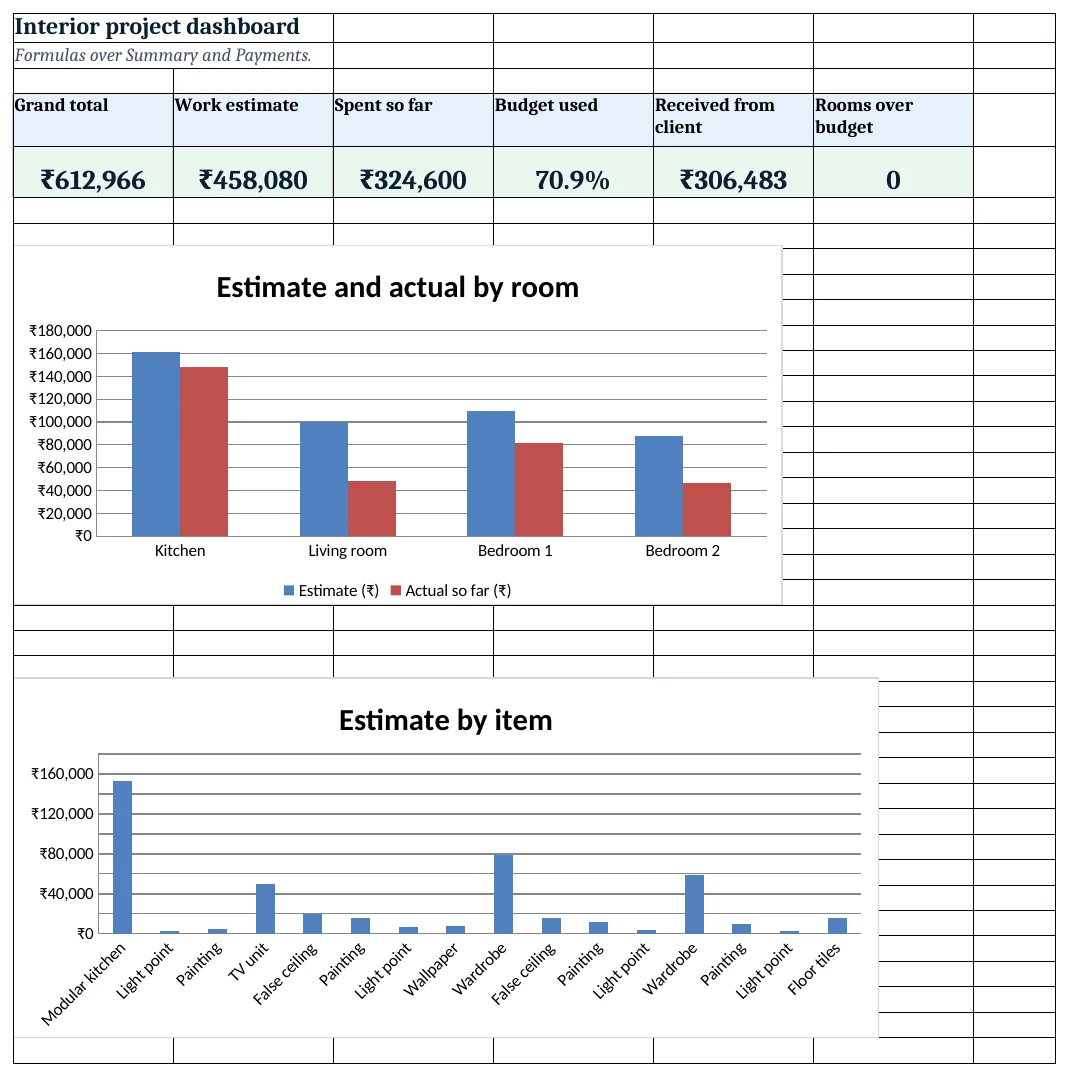
Figure 4. Interior project dashboard: grand total, estimate, spent, budget used, received and rooms over budget
Ravindra Bagale's Tip
Show the client the room-wise estimate, not just the grand total. Clients cut or upgrade items instead of bargaining on the total.
Ravindra Bagale's Tip – मराठी
ग्राहकाला फक्त एकूण रक्कम नाही, room-wise estimate दाखवा. ग्राहक एकूण रकमेवर घासाघीस न करता वस्तू कमी-जास्त करतात.
Ravindra Bagale's Tip – हिंदी
ग्राहक को सिर्फ कुल नहीं, room-wise estimate दिखाएं. ग्राहक कुल पर मोलभाव के बजाय चीज़ें घटाते-बढ़ाते हैं.
3. Formulas used
| Cell | Formula | What it does |
|---|---|---|
| Setup!E10 | =C10+D10 |
Rate per unit |
| Estimate!D5 | =XLOOKUP(B5,Setup!$A$10:$A$17,Setup!$B$10:$B$17,"Check item") |
Unit of the item |
| Estimate!E5 | =C5*XLOOKUP(B5,Setup!$A$10:$A$17,Setup!$C$10:$C$17,0) |
Material amount |
| Estimate!F5 | =C5*XLOOKUP(B5,Setup!$A$10:$A$17,Setup!$D$10:$D$17,0) |
Labour amount |
| Estimate!G5 | =E5+F5 |
Line amount |
| Summary!B5 | =SUMIFS(Estimate!$G$5:$G$500,Estimate!$A$5:$A$500,A5) |
Estimate per room |
| Summary!C5 | =SUMIFS('Site expenses'!$D$5:$D$2000,'Site expenses'!$B$5:$B$2000,A5) |
Actual per room |
| Summary!E5 | =IFERROR(C5/B5,0) |
Budget used % |
| Summary!F5 | =IF(C5>B5,"Over budget",IF(C5>0.9*B5,"Near limit","OK")) |
Budget flag |
| Payments!C5 | =ROUND(Summary!$B$17*B5,0) |
Milestone amount |
| Payments!F5 | =IF(E5<>"","Received",IF(D5<Setup!$B$3,"Overdue","Upcoming")) |
Milestone status |
| Quotation!A7 | =Summary!A5 |
Room on the quotation |
| Dashboard!D5 | =Summary!E9 |
Budget used overall |
Every formula above is written in the template, so you can click a cell and see it in the formula bar. All values on this page were recalculated in LibreOffice with zero errors.
4. Common mistakes
- One lump sum per room. Line items show the client what they pay for and show you where costs run over.
- Design fee on GST. Work out the fee on work + contingency, then GST on the taxable total.
- Site bills without a room. An expense not booked to a room never reaches budget vs actual.
- Milestones that do not add to 100%. Check the Total row on Payments shows 100%.
- Using old rates. Update the rate card when plywood or labour rates change, before the next quote.
Ravindra Bagale's Tip
Look at Near limit rooms every week. At 90% there is still time to choose a cheaper finish.
Ravindra Bagale's Tip – मराठी
Near limit rooms दर आठवड्याला पहा. 90% वर स्वस्त finish निवडायला अजून वेळ असतो.
Ravindra Bagale's Tip – हिंदी
Near limit rooms हर हफ्ते देखें. 90% पर सस्ता finish चुनने का समय रहता है.
5. More real examples
Example 1: Office fit-out. Rooms become zones (reception, cabins, pantry) and add workstations as an item.
Example 2: Kitchen-only studio. One room with cabinets, countertop, hardware and appliances as items.
Example 3: Renovation contractor. Add demolition and civil items, and track site progress like the construction site system.
Quick revision cards
Quick revision
Each card shows formulas from this page, each with an example and its answer from the template. Scan the QR code on a card to open this lesson. All names and numbers are made up for practice.
झटपट उजळणी
प्रत्येक card वर या page मधले formulas, त्यांचं example आणि template मधलं उत्तर आहे. Card वरचा QR code scan केला की हा lesson उघडतो. सगळी नावं आणि आकडे सरावासाठी काल्पनिक आहेत.
झटपट दोहराई
हर card पर इस page के formulas, उनका example और template का उत्तर है. Card का QR code scan करें तो यह lesson खुलेगा. सभी नाम और आंकड़े अभ्यास के लिए काल्पनिक हैं.
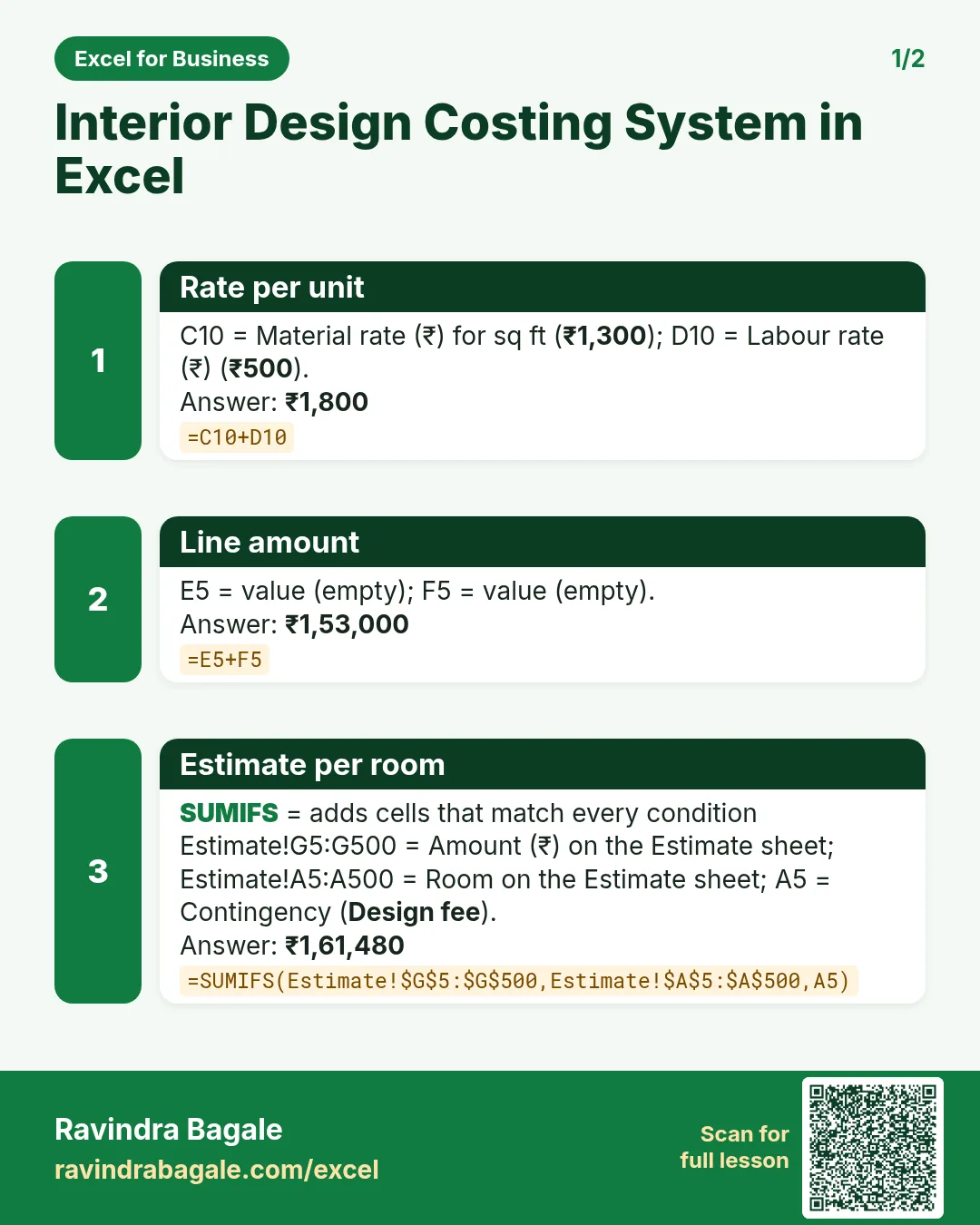


More cards: Ravi Sir's Cards.
6. Frequently asked questions
How do I make an interior estimate in Excel?
A rate card and one line per item per room: qty × material rate and qty × labour rate, looked up with XLOOKUP.
How do I compare estimate and actual by room?
SUMIFS the estimate lines and the site expenses by room, then actual ÷ estimate.
How do I add design fee and GST?
Fee on work + contingency, then GST on work + contingency + fee, as in Summary rows 12 to 17.
What GST applies to interior work?
It depends on whether it is a works contract or supply plus service. Keep the rate as an input and confirm with your accountant.
How do I make a payment schedule?
Grand total × milestone % per row, with due date, received date and a status.
7. Quick quiz
Ten questions on this page. Sign in to save your score.
Loading practice tasks...
- VLOOKUP name (Easy): Name for ID "E103" with VLOOKUP.
- XLOOKUP value (Easy): The Amount for ID "E103".
- Position (Easy): Position of "Aarav Shah" in B2:B9.
- INDEX and MATCH (Medium): ID for name "Aarav Shah" using INDEX and MATCH.
- Not found message (Medium): Times for ID "Z999", or "Not found".
- IFNA with VLOOKUP (Medium): VLOOKUP of "Z999" in A2:E9 column 4, or "Missing".
- XMATCH (Medium): Position of ID "E103" in A2:A9.
- Slab rate (Hard): Rate for E2 from the slab table G2:H6.
- Slab amount (Hard): E3 times its slab rate.
- Two-way lookup (Hard): Value in A2:E9 at the row of "Aarav Shah" and column "Times".
- Lookup the top (Hard): Name with the largest Times.