How to Group Dates by Month in an Excel PivotTable and Make a Monthly Revenue Pivot Chart
"How much did we sell each month?" is the first question about any sales file. The previous chapter cleaned the 2025 sales export with Power Query; here it goes into a PivotTable, where a column of daily dates becomes one row per month without a single formula. Then a Pivot Chart shows the months side by side.
What you'll learn in this chapter
- From Close & Load to a PivotTable on the loaded table
- Count of order_id: rows, not orders
- Automatic date grouping: Months, Quarters, Years
- Group and Ungroup by hand, and removing the days level
- Revenue by month in a clustered column Pivot Chart
- Change Colors and hiding the field buttons
Practice file: excel-pivot-group-dates-by-month-practice.xlsx: Sales (the clean 2025 sales, a table named Sales2025) and Month answers (revenue and rows per month and quarter with SUMIFS and COUNTIFS, the distinct order count and a column chart).
Made-up data: every order, product and price is made up for practice. The file imitates a quick-commerce app such as Blinkit or Amazon Now in Pune, Nashik, Solapur, Kolhapur, Nagpur and Sambhaji Nagar.
1. Start from clean data
Classroom line
When do we use data directly in Excel? Only when it is clean.
Class मधलं वाक्य
"Ekada data aapan directly Excel madhe kadhi wapartoo? Clean asel tarch."
एखादा data आपण directly Excel मध्ये कधी वापरतो? Clean असेल तरच.
Classroom line
When do we use data directly in Excel? Only when it is clean.
After Home > Close & Load in the previous chapter, Excel has a sheet with the clean table: 47 rows, real dates in order_date and Currency in revenue. Power Query names the table after the query; click inside it and rename it Sales2025 in Table Design > Table Name.
- Click inside the table.
- Table Design > Summarize with PivotTable (or Insert > PivotTable), New Worksheet, OK.
2. Count of order_id counts rows
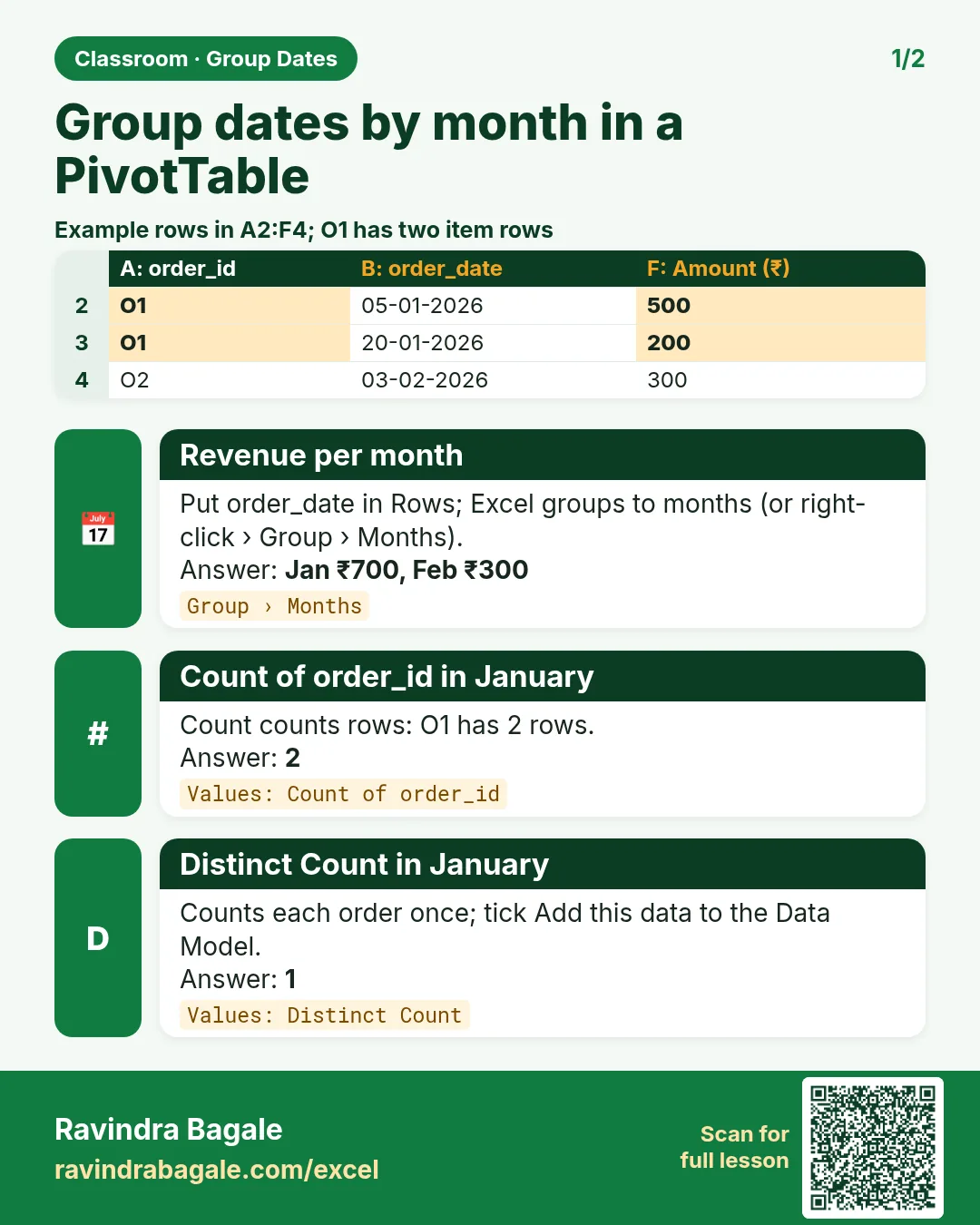
Drag order_id into Values: Count of order_id = 47. That is the number of lines, not of orders: ORD5012 has two product lines, so there are 46 different orders.
For the number of different orders:
- Start the pivot with Add this data to the Data Model ticked in the Create PivotTable box.
- In Values, click Count of order_id > Value Field Settings > Distinct Count. Result: 46.
Use Count for "lines sold" and Distinct Count for "orders".
3. Dates into Rows: Excel groups them
Remove order_id from Values. Drag order_date into Rows and revenue into Values.
Excel does not list 47 single dates. It groups them by itself: the rows show Jan, Feb, Mar, Apr, May, Jun, and the field list gets a new field, Months (order_date). For data over more than one year it also adds Quarters and Years.
| Row Labels | Sum of revenue |
|---|---|
| Jan | 1,063.00 |
| Feb | 797.00 |
| Mar | 1,336.00 |
| Apr | 674.50 |
| May | 1,154.00 |
| Jun | 617.00 |
| Grand Total | 5,641.50 |
March is the best month and June the weakest. The revenue values are already Currency from Power Query; set the pivot's format with Value Field Settings > Number Format as in the average chapter.
Figure 1. order_date in Rows: Excel groups the 47 dates into six months. Sum of revenue Jan 1,063, Feb 797, Mar 1,336, Apr 674.50, May 1,154, Jun 617; Grand Total 5,641.50.
4. Group by hand, and remove the days
If you see single dates instead of months (automatic grouping can be turned off), group them yourself:
- Right-click any date in the pivot > Group...
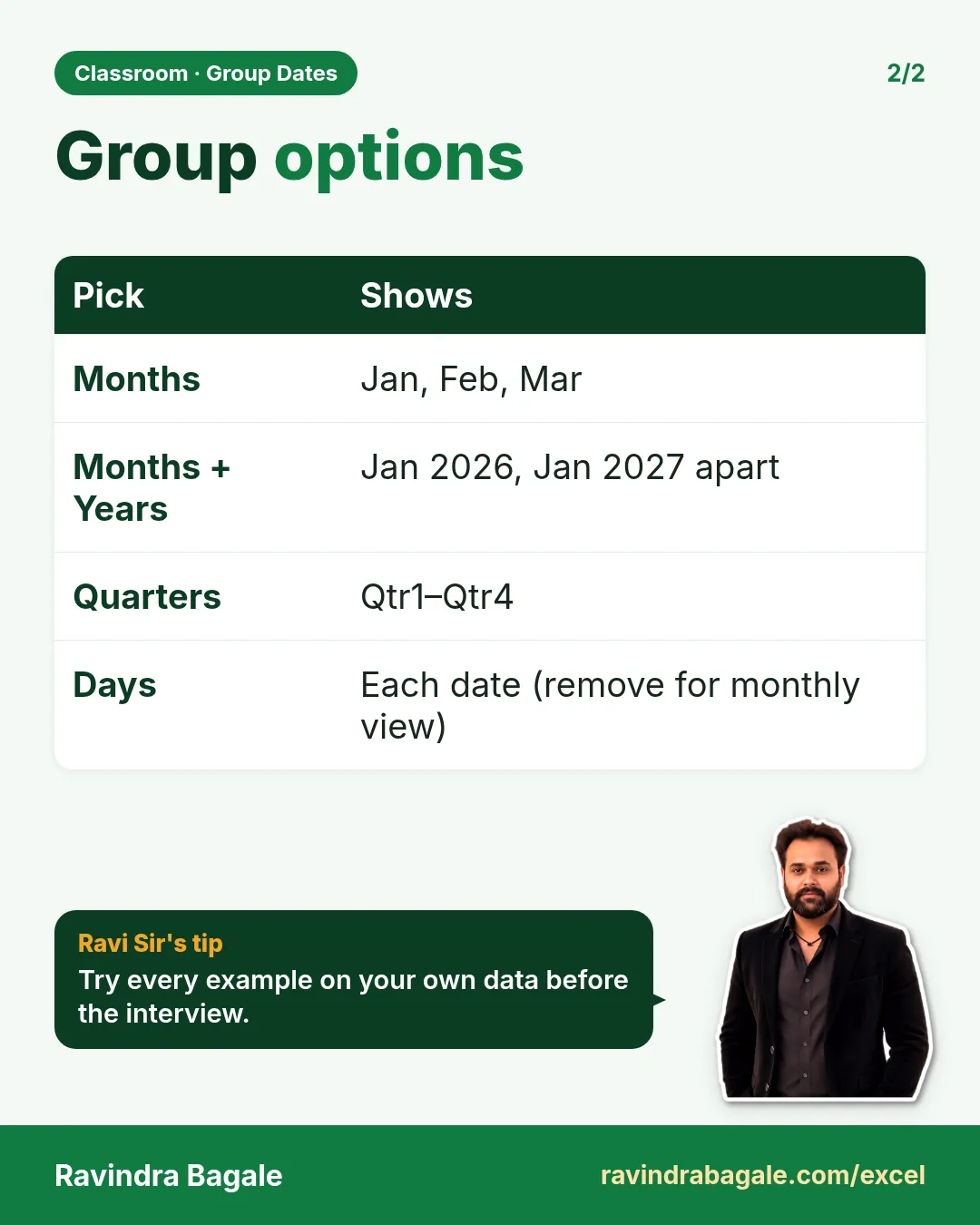
- In By, click Months. Click Quarters and Years too if you want them; click Days to unselect it.
- OK.
When Days stays selected along with Months, every month gets a + with its days inside, and the field list keeps order_date as the day level. For a monthly report drag order_date (the days) out of the Rows box and keep Months.
Right-click > Ungroup turns the months back into dates. Automatic grouping can be switched off in File > Options > Data > Disable automatic grouping of Date/Time columns in PivotTables.
Figure 2. Right-click a date > Group: in the Grouping box choose Months (and Quarters or Years), unselect Days, OK. Remove the order_date day field from Rows so only months stay.
5. The Pivot Chart
- Click any cell of the pivot.
- PivotTable Analyze > PivotChart.
- Column > Clustered Column, OK.
Six bars, one per month, in calendar order: Excel sorts grouped months by date, not alphabetically. If the chart shows a bar per day, the day field is still in Rows: remove it as in step 4 and the chart follows.
- Colours: click the chart, Design > Change Colors, pick a palette.
- Field buttons: the grey buttons on the chart (Sum of revenue, Months) are handy while building but untidy on a dashboard. PivotChart Analyze > Field Buttons > Hide All.
- Click the chart title and type Revenue by month 2025.
Figure 3. Clustered column Pivot Chart of revenue by month: Mar tallest (1,336), Jun lowest (617).
Ravindra Bagale's Tip
Before you trust a monthly chart, compare its Grand Total with =SUM on the table's revenue column. If the two match (here ₹5,641.50), no rows were lost on the way from the CSV to the chart.
Ravindra Bagale's Tip – मराठी
Monthly chart वर विश्वास ठेवण्याआधी त्याचा Grand Total table च्या revenue column वरच्या =SUM शी जुळवा. दोन्ही जुळले (इथे ₹5,641.50) तर CSV पासून chart पर्यंत एकही row हरवला नाही.
Ravindra Bagale's Tip – हिंदी
Monthly chart पर भरोसा करने से पहले उसका Grand Total table के revenue column पर =SUM से मिलाओ. दोनों मिल जाएँ (यहाँ ₹5,641.50) तो CSV से chart तक एक भी row नहीं खोई.
6. More examples
Example 1: quarters. In the Grouping box choose Quarters only. Qtr1 (Jan–Mar) ₹3,196, Qtr2 (Apr–Jun) ₹2,445.50: the first half of the period sold more.
Example 2: lines per month. Put order_id in Values instead of revenue: Jan 7, Feb 7, Mar 9, Apr 8, May 8, Jun 8 lines. March has the most lines and the most revenue.
Example 3: one city by month. Drag city into Filters and choose Solapur. The months and the chart now show Solapur only, ₹825.50 in total.
7. The whole chapter on one page
| Task | How |
|---|---|
| Pivot from the clean table | Table Design > Summarize with PivotTable |
| Lines vs orders | Count vs Distinct Count (Data Model) |
| Months | order_date in Rows (automatic), or right-click > Group > Months |
| Monthly only | Remove the order_date day field from Rows |
| Chart | PivotTable Analyze > PivotChart > Clustered Column |
| Looks | Design > Change Colors; Field Buttons > Hide All |
- Make pivots only from clean data.
- Count counts rows; Distinct Count counts different values.
- Dates in Rows group into months, quarters and years.
- Remove the day level for a monthly report and chart.
- Check the Grand Total against the table.
8. Try at home
Try at home
Task 1
- Group the dates by Months and Quarters. What is the revenue of Qtr2? (₹2,445.50.)
Task 2
- Sort the months Largest to Smallest by Sum of revenue. Which month is on top, and which is last? (Mar ₹1,336; Jun ₹617.)
Recap
In short
- Close & Load gives a clean table; build the pivot from it.
- Count of order_id is 47 lines; Distinct Count gives 46 orders.
- Excel groups dates in Rows into months; Group lets you choose.
- Remove the days for a monthly view.
- A clustered column Pivot Chart, new colours and hidden field buttons finish the report.
Quick revision cards
Quick revision
Revise this chapter in two minutes. Save the cards on your phone or download them as PNG files. All names and numbers are made up for practice.
झटपट उजळणी
हा chapter दोन मिनिटांत revise करा. Cards phone वर save करा किंवा PNG म्हणून download करा. सगळी नावं आणि आकडे सरावासाठी काल्पनिक आहेत.
झटपट दोहराई
यह chapter दो मिनट में revise करें. Cards phone पर save करें या PNG के रूप में download करें. सभी नाम और आंकड़े अभ्यास के लिए काल्पनिक हैं.

More cards for every chapter: Ravi Sir's Cards.