How to Make a Habit Tracker in Excel with Checkboxes (Monthly Grid, Totals and Streaks)
Ruhi Bagale started October with five habits: walk, water, reading, no sugar and sleeping by 11. By the second week she had no idea which ones she was keeping up. A monthly grid with a checkbox for every day shows it at once. Excel counts the ticks, works out a done % and shows how many days in a row each habit has been kept: the streak.
What you'll learn on this page
- Insert > Checkbox and what TRUE and FALSE mean (a short intro)
- A 31-day grid with day numbers
- COUNTIF(range,TRUE) for done days
- Done % up to today's day
- The current streak with LOOKUP
- Green ticks, data bars and a "Goal met?" column
Download the template: habit-tracker-checkbox-template.xlsx: example data with real formulas. Yellow cells are inputs you can type over; green cells hold formulas; blue rows are headers and totals. Replace the example data with your own and everything recalculates.
Made-up data: every name, amount, shop and date on this page is made up for practice. Cities are used only to make the examples feel real.
1. The example
New feature in one line: in Excel for Microsoft 365, Insert > Checkbox turns the selected cells into tick boxes. A ticked box is the value TRUE; an empty box is FALSE. Formulas read them like any other value. In older Excel, type TRUE or FALSE instead.
Ruhi's tracker (made-up), filled up to day 17:
| Habit | Goal days | Done | Done % | Streak now |
|---|---|---|---|---|
| Walk 30 minutes | 20 | 13 | 76% | 0 |
| Drink 8 glasses of water | 25 | 17 | 100% | 17 |
| Read 20 pages | 15 | 10 | 59% | 2 |
| No sugar | 12 | 9 | 53% | 0 |
| Sleep by 11 pm | 20 | 14 | 82% | 2 |
Done % = Done / 17, for example 13 / 17 = 76%. Altogether 63 of 85 ticks (5 habits × 17 days) = 74%. Water is the best habit. Walking missed day 17, so its streak is back to 0.
Figure 1. A ticked box is TRUE, an empty box is FALSE. COUNTIF counts TRUE for done days; LOOKUP finds the last FALSE for the streak (water: 17 days, walking: 0).

Figure 2. The template sheet, recalculated with its example data. Download it above and replace the yellow cells with your own numbers.
2. Build it step by step
Step 1. Days across the top
- In A3 type Track up to day and in B3 the day you have filled up to (17).
- In C4 type 1 and in D4
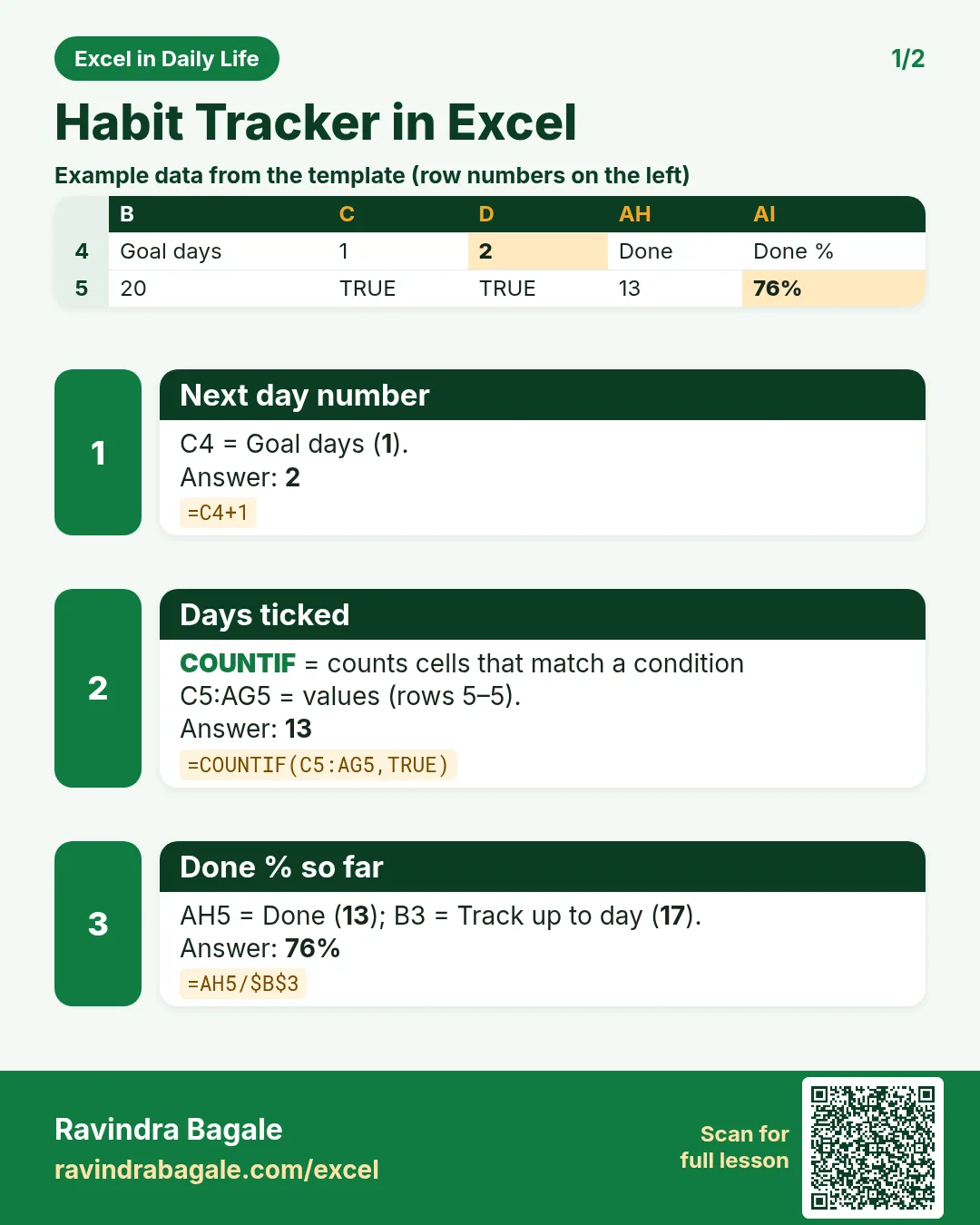
=C4+1; copy right to AG4 (31).
Step 2. Habits and goals
- In A5:A9 type the habits and in B5:B9 the goal days for the month.
Step 3. Checkboxes
- Select C5:AG9, type FALSE and press Ctrl+Enter to fill them all.
- With the cells still selected: Insert > Checkbox. Every cell becomes an empty box.
- Click a box (or press Space) to tick it: the cell becomes TRUE.
Step 4. Done and done %
- In AH5 type
=COUNTIF(C5:AG5,TRUE)(COUNTIF): 13. - In AI5 type
=AH5/$B$3and format as %: 76%. - In AK5 type
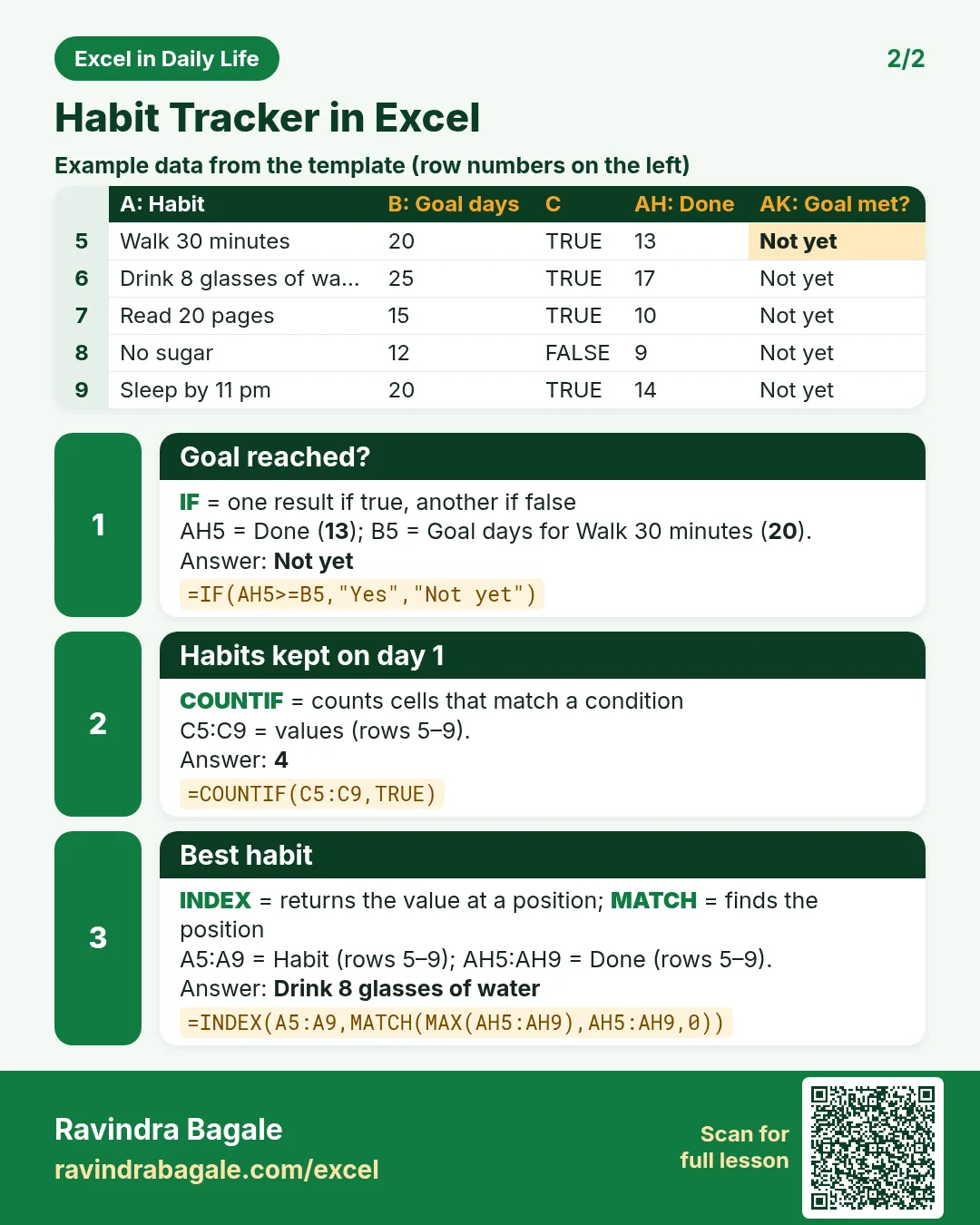
=IF(AH5>=B5,"Yes","Not yet"). - Copy AH5:AK5 down to row 9.
Step 5. Current streak
- In AJ5 type
=$B$3-IFERROR(LOOKUP(2,1/(C5:INDEX(C5:AG5,$B$3)=FALSE),C$4:INDEX(C$4:AG$4,$B$3)),0). - It finds the last unticked day up to day 17 and subtracts it from 17. Water has no unticked day, so its streak is 17.
Step 6. Daily totals and summary
- In C10 type
=COUNTIF(C5:C9,TRUE)and copy right: how many habits you kept that day. - In B12 type
=INDEX(A5:A9,MATCH(MAX(AH5:AH9),AH5:AH9,0)): the best habit. - In B13 type
=SUM(AH5:AH9)/(ROWS(AH5:AH9)*B3): 74%.
Step 7. Colours
- Select C5:AG9 > Conditional Formatting > Highlight Cells Rules > Equal To
TRUE, green fill. - Select AI5:AI9 > Data Bars (data bars).
Ravindra Bagale's Tip
Start with three habits, not ten. A grid that is 80% green keeps you going; a grid that is half empty makes you quit.
Ravindra Bagale's Tip – मराठी
दहा नाही, तीन habits नी सुरुवात करा. 80% हिरवी grid हुरूप देते; अर्धी रिकामी grid बघून सोडून द्यावंसं वाटतं.
Ravindra Bagale's Tip – हिंदी
दस नहीं, तीन habits से शुरुआत करो. 80% हरी grid हौसला देती है; आधी खाली grid देखकर छोड़ने का मन करता है.
3. Formulas used
| Cell | Formula | What it does |
|---|---|---|
| D4 | =C4+1 |
Next day number |
| AH5 | =COUNTIF(C5:AG5,TRUE) |
Days ticked |
| AI5 | =AH5/$B$3 |
Done % so far |
| AJ5 | =$B$3-IFERROR(LOOKUP(2,1/(C5:INDEX(C5:AG5,$B$3)=FALSE),C$4:INDEX(C$4:AG$4,$B$3)),0) |
Current streak |
| AK5 | =IF(AH5>=B5,"Yes","Not yet") |
Goal reached? |
| C10 | =COUNTIF(C5:C9,TRUE) |
Habits kept on day 1 |
| B12 | =INDEX(A5:A9,MATCH(MAX(AH5:AH9),AH5:AH9,0)) |
Best habit |
| B13 | =SUM(AH5:AH9)/(ROWS(AH5:AH9)*B3) |
Overall done % |
Every formula above is written in the template, so you can click a cell and see it in the formula bar. All values on this page were recalculated in the file.
4. Common mistakes
- Typing "Yes" or a tick symbol. COUNTIF(range,TRUE) counts only TRUE. Use the checkbox or the word TRUE, not ✓.
- Dividing by 31 on day 17. Done % should use the days so far (B3), otherwise every habit looks bad mid-month.
- Expecting checkboxes in old Excel. Insert > Checkbox needs Microsoft 365 or Excel for the web. In older versions type TRUE/FALSE; all formulas still work.
- Forgetting to update B3. The streak and % use B3. Change it to today's day as you fill the grid.
- Mixing up form checkboxes. The old Developer tab check box floats over cells and needs a linked cell; the new in-cell checkbox is the cell itself. The chart checkbox chapter uses a checkbox for a different job.
Ravindra Bagale's Tip
Tick the box at the same time every night, for example after dinner. The tracker itself becomes a habit.
Ravindra Bagale's Tip – मराठी
रोज रात्री एकाच वेळी box tick करा, जेवण झाल्यावर म्हणा. Tracker भरणं हीच एक सवय होऊन जाते.
Ravindra Bagale's Tip – हिंदी
हर रात एक ही समय box tick करो, जैसे खाने के बाद. Tracker भरना खुद एक आदत बन जाता है.
5. More real examples
Example 1: Study planner. Habits become subjects: maths 1 hour, science revision, one mock test. Goal days per subject.
Example 2: Medicine tracker. Morning, afternoon and night doses as three rows; a missed dose shows at once.
Example 3: Gym routine. Rows for each workout day type; Done % shows if you kept 4 days a week.
Quick revision cards
Quick revision
Each card shows formulas from this page, each with an example and its answer from the template. Scan the QR code on a card to open this lesson. All names and numbers are made up for practice.
झटपट उजळणी
प्रत्येक card वर या page मधले formulas, त्यांचं example आणि template मधलं उत्तर आहे. Card वरचा QR code scan केला की हा lesson उघडतो. सगळी नावं आणि आकडे सरावासाठी काल्पनिक आहेत.
झटपट दोहराई
हर card पर इस page के formulas, उनका example और template का उत्तर है. Card का QR code scan करें तो यह lesson खुलेगा. सभी नाम और आंकड़े अभ्यास के लिए काल्पनिक हैं.


More cards: Ravi Sir's Cards.
6. Frequently asked questions
How do I insert a checkbox in an Excel cell?
Select the cells, then Insert > Checkbox (Microsoft 365 and Excel for the web). The cell holds TRUE when ticked and FALSE when empty.
How do I count ticked checkboxes?
=COUNTIF(C5:AG5,TRUE).
How do I calculate a streak in Excel?
Find the last FALSE up to today with LOOKUP(2,1/(range=FALSE),days) and subtract it from today's day; IFERROR returns the full count when there is no FALSE.
How do I start a new month?
Right-click the tab > Move or Copy > Create a copy, rename it, select the grid and type FALSE with Ctrl+Enter.
Will the checkboxes work in Google Sheets?
Google Sheets has its own Insert > Checkbox that also stores TRUE/FALSE, so the formulas carry over.
7. Quick quiz
Ten questions on this page. Sign in to save your score.