Software Project Management System in Excel: Task Tracker, Sprint Burndown, Risk Register and Project Dashboard
Ravindra Bagale runs a small software team that is building a billing app for a distributor in Nashik. Five people, three two-week sprints, a 520-hour budget. The client asks every Friday: how far along are we, what is late, and what will it cost? This 7-sheet system answers that from one task log: overdue flags and days left, cost to date from hourly rates, a burndown for the current sprint, a scored risk register and a dashboard you can show on a call.
What you'll learn on this page
- Keep people, rates, statuses and sprints as lists in Setup
- Flag overdue tasks against an as-of date
- Compute remaining hours, variance and cost to date
- Draw a sprint burndown with an ideal line
- Score risks as probability × impact
- Report hours, tasks and cost per person with COUNTIFS and SUMIFS
Download the template: software-project-management-system-template.xlsx: a 7-sheet system with example data and real formulas (Read me, Setup, Tasks, Burndown, Risks, Report, Dashboard). Yellow cells are inputs you can type over; green cells hold formulas; blue rows are headers and totals. Replace the example data with your own and every report and the dashboard recalculate.
Made-up data: every name, amount, business and date on this page is made up for practice. Cities are used only to make the examples feel real.
1. The business story
Billing app for a Nashik distributor, as of 17 October 2026 (made-up project).
| Question | Answer from the sheet |
|---|---|
| How much work is done? | 154 of 380 estimated hours, 40.5% |
| How much budget is used? | 215 of 520 hours, 41.3% |
| What has it cost so far? | ₹1,73,700 from actual hours × rate |
| What is late? | 1 task: T10 Print layout, blocked and past its due date |
| What is open and high priority? | 4 tasks |
| What is planned for sprint S2? | 178 hours |
For time and billing of a single freelancer see the freelance timesheet; the industry view of utilisation is in 27.19 IT services utilisation and billing.
Figure 1. Setup feeds the drop-downs; the Tasks log is the only daily entry; Burndown, Risks, Report and Dashboard read it.
2. Build it sheet by sheet
Step 1. Setup: as-of date, team and lists
- On Setup, type the as-of date in B3 (17-10-2026; use
=TODAY()to make it live) and the hours budget in B5 (520). - In A8:C12 list team members, roles and cost per hour. In E8:E11 the statuses, in F8:F10 the priorities, and in H8:J10 the sprints with start and end dates.
Step 2. Tasks: the log and its formulas
- On Tasks, row 4 headers: ID, Task, Module, Owner, Priority, Sprint, Start, Due, Estimate, Actual, Status. Add drop-downs for Owner, Priority, Sprint and Status from Setup (drop-down lists).
- Remaining L5:
=IF(K5="Done",0,MAX(0,I5-J5)). Variance M5:=J5-I5(positive means over estimate). - Overdue N5:
=IF(AND(K5<>"Done",H5<Setup!$B$3),"Overdue","")(AND). Days left O5:=IF(K5="Done","",H5-Setup!$B$3). - Cost P5:
=J5*XLOOKUP(D5,Setup!$A$8:$A$12,Setup!$C$8:$C$12): actual hours × the owner's rate. Highlight the row red when N is Overdue (formula rules).
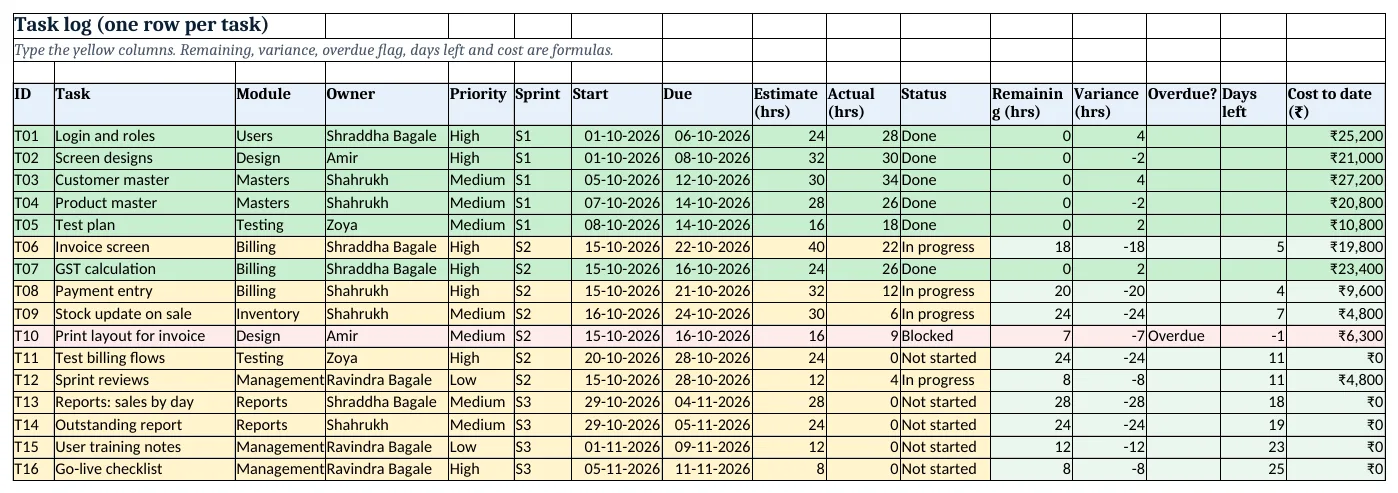
Figure 2. The task log: yellow inputs on the left, remaining hours, variance, overdue flag, days left and cost on the right
Step 3. Burndown for the current sprint
- On Burndown, type the sprint in B4 (S2). Hours planned B5:
=SUMIFS(Tasks!$I$5:$I$60,Tasks!$F$5:$F$60,B4): 178. - First date A8:
=XLOOKUP(B4,Setup!$H$8:$H$10,Setup!$I$8:$I$10)and A9=A8+1down to A21. - Ideal remaining B8:
=ROUND($B$5*(1-(A8-$A$8)/($A$21-$A$8)),1). Type actual remaining in column C each evening. - Insert a line chart of B and C against A (line charts). When the actual line sits above the ideal line, the sprint is behind.
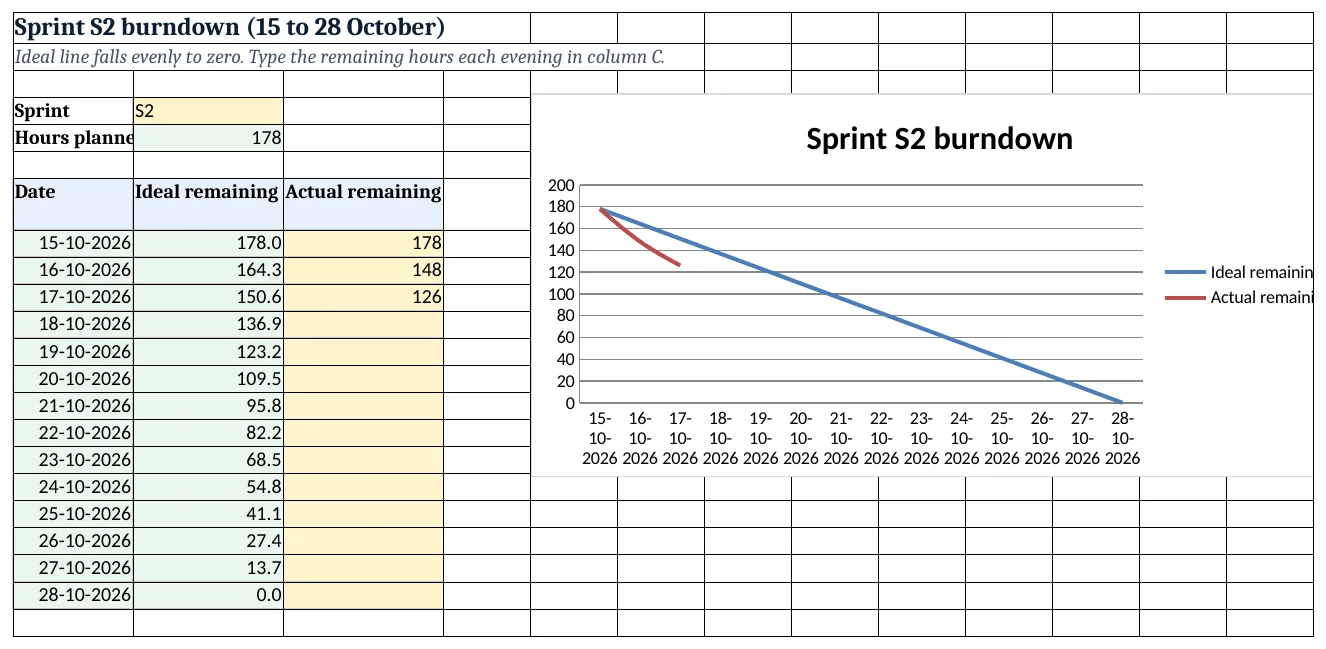
Figure 3. Sprint S2 burndown: the ideal line falls to zero; actual remaining is typed each evening
Step 4. Risk register
- On Risks, type risk, probability (1-5), impact (1-5), owner and action. Score D5:
=B5*C5. - Rating E5:
=IF(D5>=15,"High",IF(D5>=8,"Medium","Low")); colour High red. Client changes the invoice format late scores 16: High.
Step 5. Report and Dashboard
- On Report, per owner: tasks
=COUNTIF(Tasks!$D$5:$D$60,A5), done=COUNTIFS(Tasks!$D$5:$D$60,A5,Tasks!$K$5:$K$60,"Done"), estimate and actual with SUMIFS, overdue with COUNTIFS and cost=SUMIFS(Tasks!$P$5:$P$60,Tasks!$D$5:$D$60,A5)(COUNTIFS). - Status block from row 13: tasks and hours per status.
- On Dashboard: work done B5
=SUMIFS(Tasks!$I$5:$I$60,Tasks!$K$5:$K$60,"Done")/SUM(Tasks!$I$5:$I$60), overdue C5, budget used D5=SUM(Tasks!$J$5:$J$60)/Setup!B5, cost E5, open high-priority F5 and high risks G5.
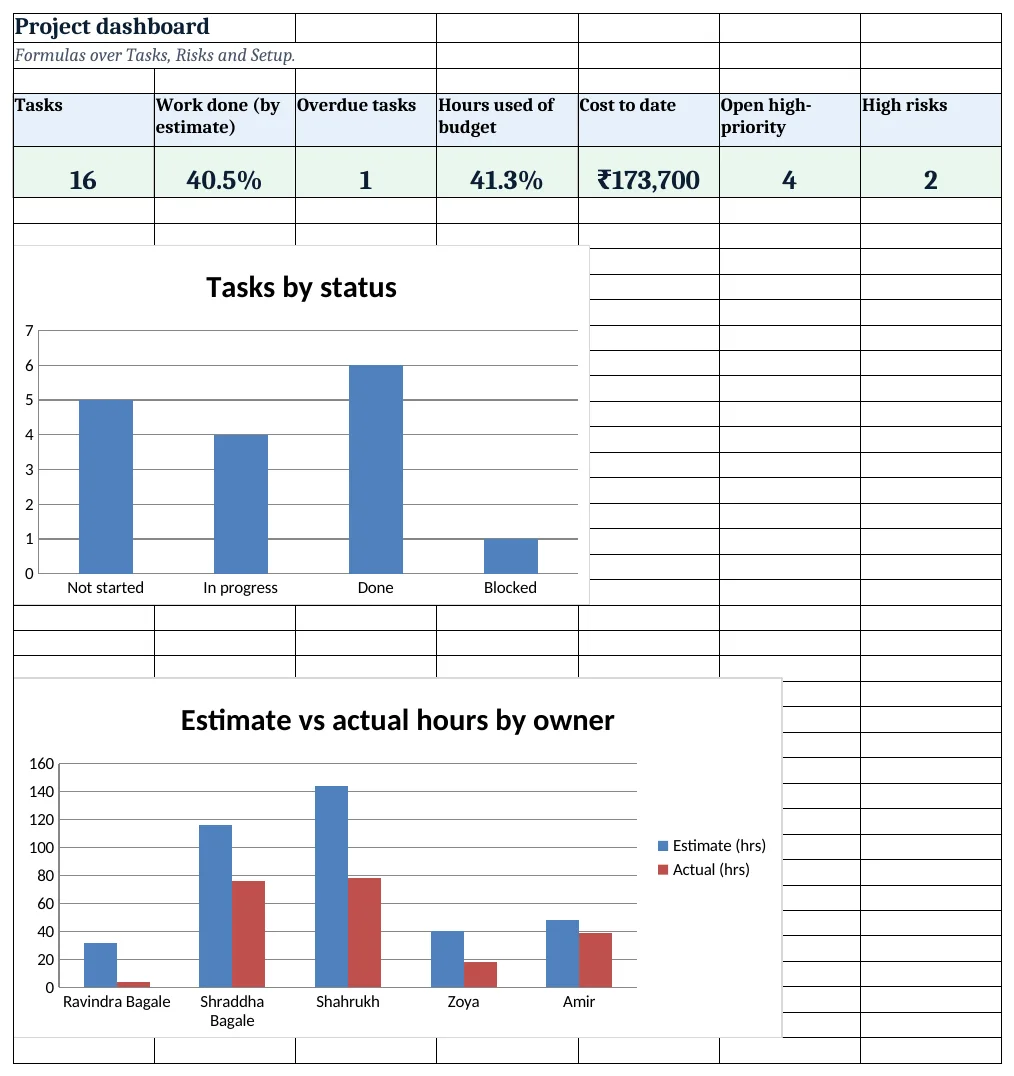
Figure 4. The project dashboard with seven KPI cards and charts
Ravindra Bagale's Tip
Update the Tasks sheet in the daily stand-up, on screen, with the team. Five minutes a day keeps the sheet honest.
Ravindra Bagale's Tip – मराठी
रोजच्या stand-up मध्ये team सोबत screen वर Tasks sheet update करा. दिवसाची पाच मिनिटे sheet खरी ठेवतात.
Ravindra Bagale's Tip – हिंदी
रोज़ के stand-up में team के साथ screen पर Tasks sheet update करो. दिन के पाँच मिनट sheet को सच्चा रखते हैं.
3. Formulas used
| Cell | Formula | What it does |
|---|---|---|
| Tasks!L5 | =IF(K5="Done",0,MAX(0,I5-J5)) |
Remaining hours (0 when done) |
| Tasks!M5 | =J5-I5 |
Variance: actual − estimate |
| Tasks!N5 | =IF(AND(K5<>"Done",H5<Setup!$B$3),"Overdue","") |
Overdue flag against the as-of date |
| Tasks!O5 | =IF(K5="Done","",H5-Setup!$B$3) |
Days left to the due date |
| Tasks!P5 | =J5*XLOOKUP(D5,Setup!$A$8:$A$12,Setup!$C$8:$C$12) |
Cost to date at the owner's rate |
| Burndown!B5 | =SUMIFS(Tasks!$I$5:$I$60,Tasks!$F$5:$F$60,B4) |
Hours planned in the sprint |
| Burndown!A8 | =XLOOKUP(B4,Setup!$H$8:$H$10,Setup!$I$8:$I$10) |
Sprint start date from Setup |
| Burndown!B8 | =ROUND($B$5*(1-(A8-$A$8)/($A$21-$A$8)),1) |
Ideal remaining hours |
| Risks!D5 | =B5*C5 |
Risk score |
| Risks!E5 | =IF(D5>=15,"High",IF(D5>=8,"Medium","Low")) |
Risk rating |
| Report!B5 | =COUNTIF(Tasks!$D$5:$D$60,A5) |
Tasks per owner |
| Report!C5 | =COUNTIFS(Tasks!$D$5:$D$60,A5,Tasks!$K$5:$K$60,"Done") |
Done tasks per owner |
| Report!G5 | =SUMIFS(Tasks!$P$5:$P$60,Tasks!$D$5:$D$60,A5) |
Cost per owner |
| Report!B13 | =COUNTIF(Tasks!$K$5:$K$60,A13) |
Tasks per status |
| Dashboard!B5 | =SUMIFS(Tasks!$I$5:$I$60,Tasks!$K$5:$K$60,"Done")/SUM(Tasks!$I$5:$I$60) |
Work done, weighted by estimate |
| Dashboard!D5 | =SUM(Tasks!$J$5:$J$60)/Setup!B5 |
Hours used of budget |
| Dashboard!F5 | =COUNTIFS(Tasks!$E$5:$E$60,"High",Tasks!$K$5:$K$60,"<>Done") |
Open high-priority tasks |
Every formula above is written in the template, so you can click a cell and see it in the formula bar. All values on this page were recalculated in LibreOffice with zero errors.
4. Common mistakes
- Counting progress by number of tasks. Six of 16 tasks done sounds like 38%, but tasks differ in size. Weight by estimated hours: 154 ÷ 380 = 40.5%.
- Using TODAY() while preparing a report. Keep a fixed as-of date when you send a report, so numbers do not change when the client opens it a day later.
- Overwriting the estimate when a task runs over. Keep the original estimate and let Variance show the overrun; that is how estimates improve next time.
- A burndown with no actual line. The ideal line alone says nothing. Type remaining hours every evening, even if they did not move.
- Risks without owners. A risk with no owner and no action is just a worry. The register asks for both.
Ravindra Bagale's Tip
Send the client a PDF of the Dashboard every Friday with the as-of date in the title. It builds trust faster than long emails.
Ravindra Bagale's Tip – मराठी
दर शुक्रवारी as-of date सह Dashboard ची PDF client ला पाठवा. लांब emails पेक्षा हे लवकर विश्वास निर्माण करते.
Ravindra Bagale's Tip – हिंदी
हर शुक्रवार as-of date के साथ Dashboard की PDF client को भेजो. लंबे emails से ज़्यादा जल्दी भरोसा बनता है.
5. More real examples
Example 1: Website project for a Kolhapur shop. Same sheets, modules such as Home page, Catalogue, Checkout; one sprint a week.
Example 2: Fixed-price contract. Add a contract value in Setup and a KPI margin so far = contract value × work done − cost to date.
Example 3: Support desk. Tasks become tickets with an Opened date; days open = as-of date − opened, and Overdue compares with the agreed response days.
Quick revision cards
Quick revision
Each card shows formulas from this page, each with an example and its answer from the template. Scan the QR code on a card to open this lesson. All names and numbers are made up for practice.
झटपट उजळणी
प्रत्येक card वर या page मधले formulas, त्यांचं example आणि template मधलं उत्तर आहे. Card वरचा QR code scan केला की हा lesson उघडतो. सगळी नावं आणि आकडे सरावासाठी काल्पनिक आहेत.
झटपट दोहराई
हर card पर इस page के formulas, उनका example और template का उत्तर है. Card का QR code scan करें तो यह lesson खुलेगा. सभी नाम और आंकड़े अभ्यास के लिए काल्पनिक हैं.
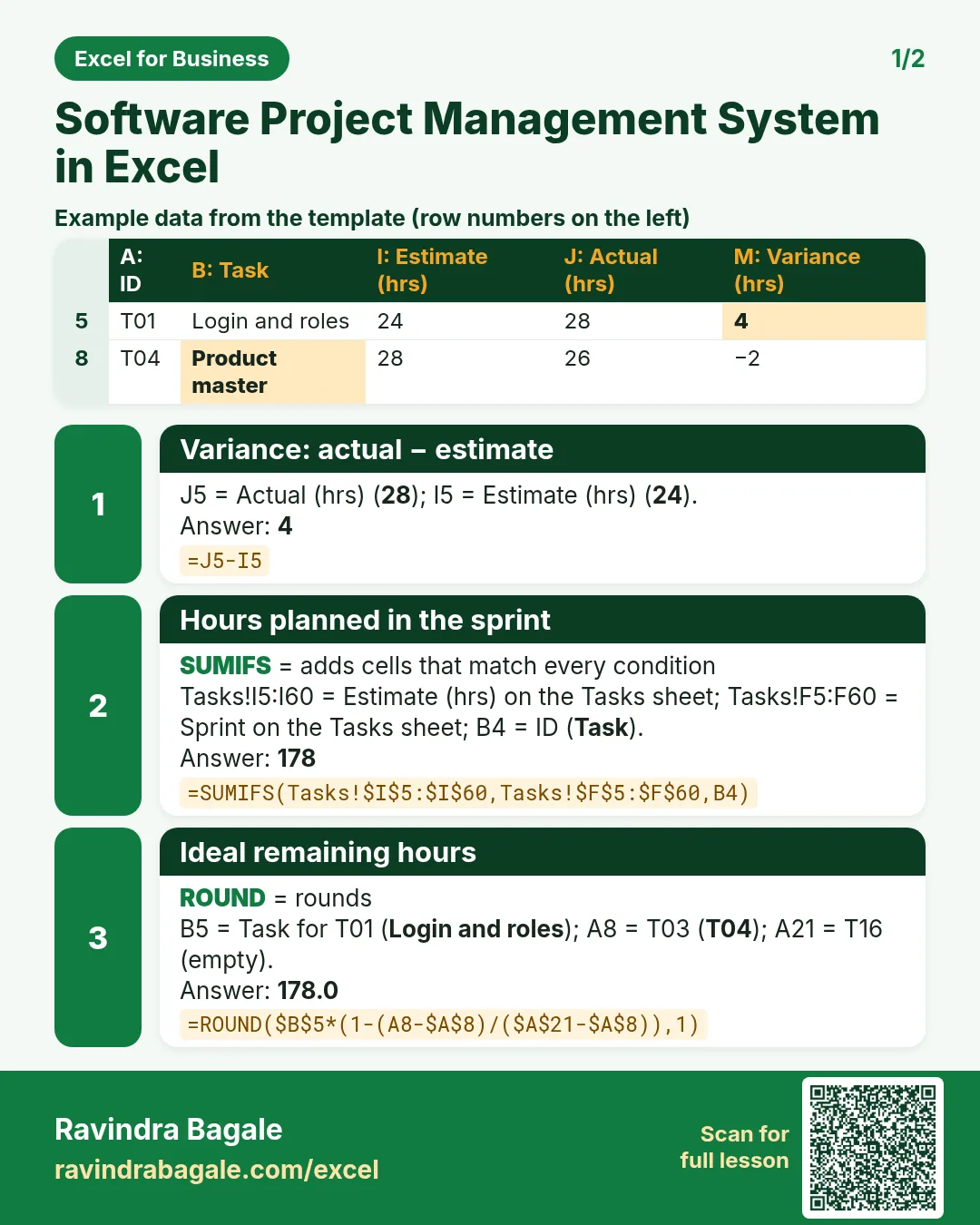

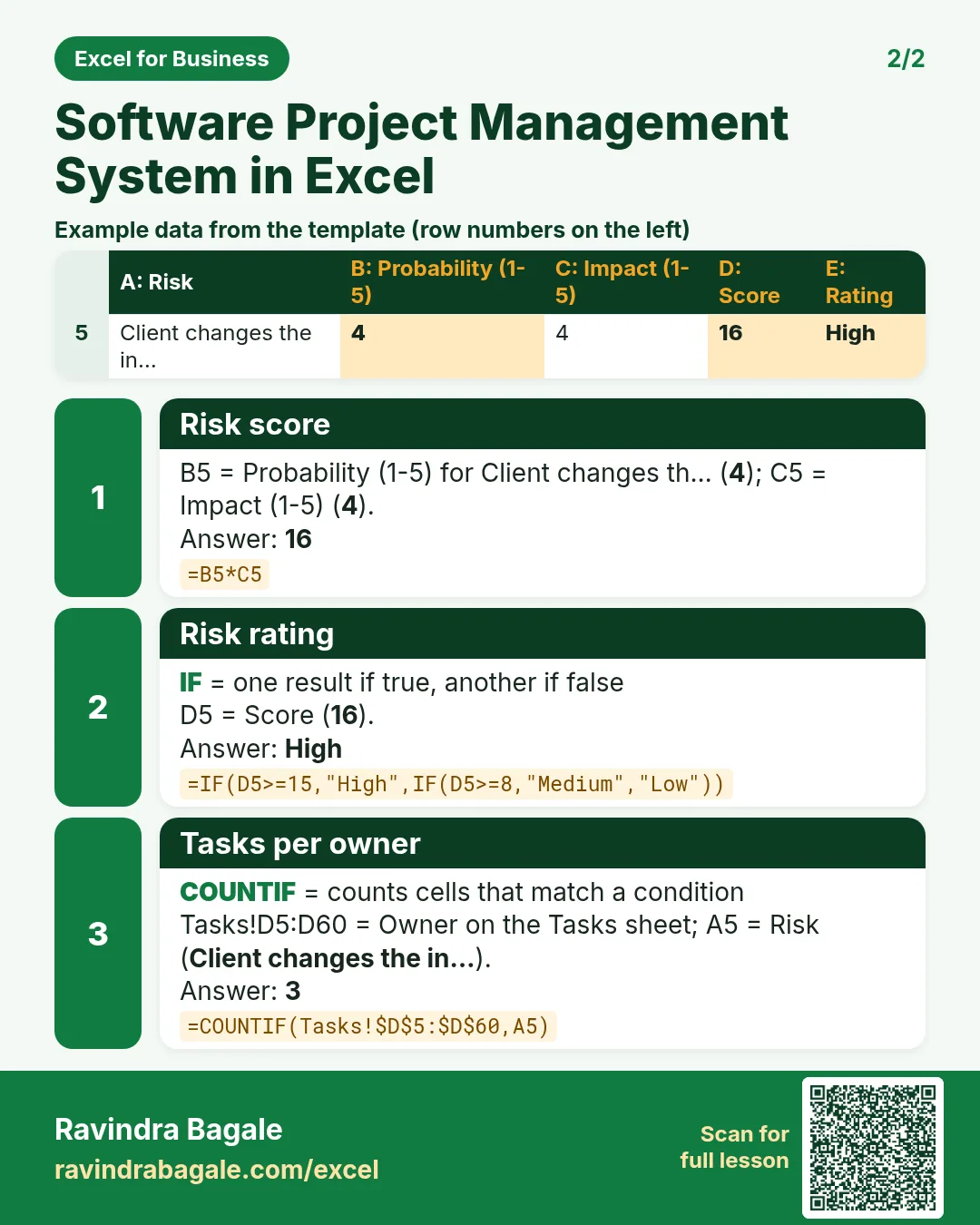

More cards: Ravi Sir's Cards.
6. Frequently asked questions
Can Excel be used for project management?
Yes, for small teams. A task log with owners, dates and hours, plus formulas for overdue flags, cost and a burndown, covers what most small projects need.
How do I make a burndown chart in Excel?
List the sprint dates, compute the ideal remaining hours that fall evenly to zero, type the actual remaining each day and plot both as a line chart.
How do I flag overdue tasks?
Use =IF(AND(status<>"Done",due<as-of date),"Overdue","") and a conditional formatting rule on that column.
How is project cost calculated?
Actual hours × each person's cost per hour, looked up from Setup with XLOOKUP, then totalled with SUMIFS by owner.
What is a risk score?
Probability × impact on 1-5 scales. 15 and above is High, 8 to 14 Medium, below 8 Low in this template.
7. Quick quiz
Ten questions on this page. Sign in to save your score.