IT Asset Management System in Excel: Asset Register, Assigned To, Warranty Alerts, Book Value, Repairs and Report
Bagale Tech in Pune has fourteen laptops, desktops, phones and a printer across four departments. When a laptop broke, nobody knew if it was under warranty, and a spare laptop sat unused in a cupboard for months. This page builds a 7-sheet Excel register: every item gets a tag, the warranty end date and alert come from the purchase date, book value falls with age, and repairs are added per item.
What you'll learn on this page
- Set categories with useful life, departments and status
- Keep an asset register with tag, assigned to and status
- Find the warranty end date with EDATE and flag Ending soon
- Work out age and a straight-line book value
- Add repair costs per asset
- Report by department and category
- Print an asset card and show the register on a dashboard
Download the template: it-asset-management-system-template.xlsx: a 7-sheet system with example data and real formulas (Read me, Setup, Assets, Repairs, Report, Asset card, Dashboard). Yellow cells are inputs you can type over; green cells hold formulas; blue rows are headers and totals. Replace the example data with your own and every report and the dashboard recalculate.
Made-up data: every name, amount, business and date on this page is made up for practice. Cities are used only to make the examples feel real.
1. The business story
Bagale Tech, Pune, as of 17 October 2026 (made-up data). Laptop life 3 years, desktop 5, phone 2; warranty alert 60 days.
| Question | Where the system answers it |
|---|---|
| Whose warranty runs out soon? | IT-003 and IT-004, sales laptops, on 20 November 2026 |
| What is the kit worth today? | Cost ₹6,24,000; book value about ₹1,58,000 |
| What is past its useful life? | IT-012, the office router, book value ₹0 |
| What has repair cost? | ₹14,900 this year; IT-004 alone ₹6,100 |
One laptop is in stock, ready for the next joiner.
Figure 1. Setup holds categories and lists; Assets and Repairs are the entry sheets; Report, Asset card and Dashboard read from them.
2. Build it sheet by sheet
Step 1. Setup
- B4 warranty alert days (60). Categories with useful life in A7:B11, departments in D7:D10, status in F7:F10.
Step 2. Assets: warranty
- A5 tag
="IT-"&TEXT(ROW()-4,"000"). Type category, description, purchase date, cost, assigned to, department, status and warranty years. - J5 warranty ends
=EDATE(D5,12*I5)(EDATE). - K5:
=IF(J5<Setup!$B$3,"Expired",IF(J5-Setup!$B$3<=Setup!$B$4,"Ending soon","Active")), amber when ending soon.
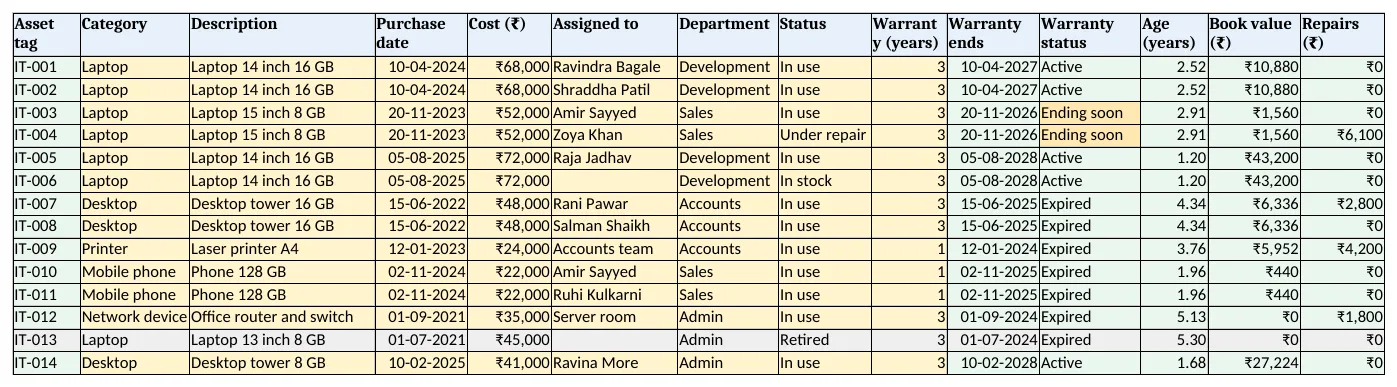
Figure 2. Assets: tag, assigned to, status, warranty end and alert, age, book value and repairs
Step 3. Assets: book value and repairs
- L5 age
=ROUND((Setup!$B$3-D5)/365,2). - M5 book value
=ROUND(E5*MAX(0,1-L5/XLOOKUP(B5,Setup!$A$7:$A$11,Setup!$B$7:$B$11,1)),0): straight line, never below zero. - N5 repairs
=SUMIFS(Repairs!$E$5:$E$2000,Repairs!$B$5:$B$2000,A5)from the repair log (SUMIFS).
Step 4. Report
- By department: items, cost, book value and repairs, leaving out Retired with
"<>Retired". - By category: items, in stock, warranty ending soon and past useful life with COUNTIFS.
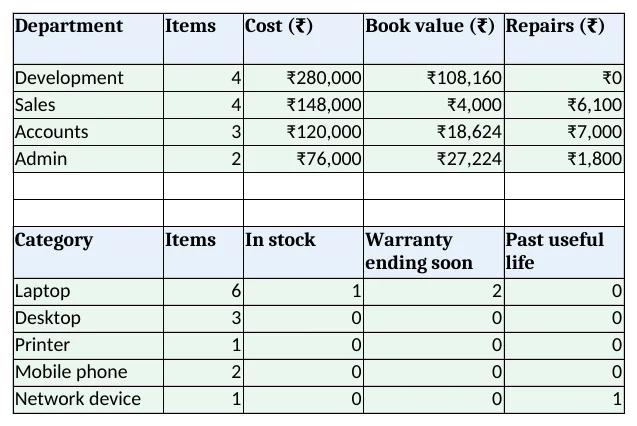
Figure 3. Report: items, cost, book value and repairs by department; warranty and life by category
Step 5. Asset card and Dashboard
- Asset card: type a tag in B4; print it for the handover form. Set the print area.
- KPI cards: items, cost, book value, repairs, warranty ending soon and past useful life. Charts: cost and book value by department, items by category.
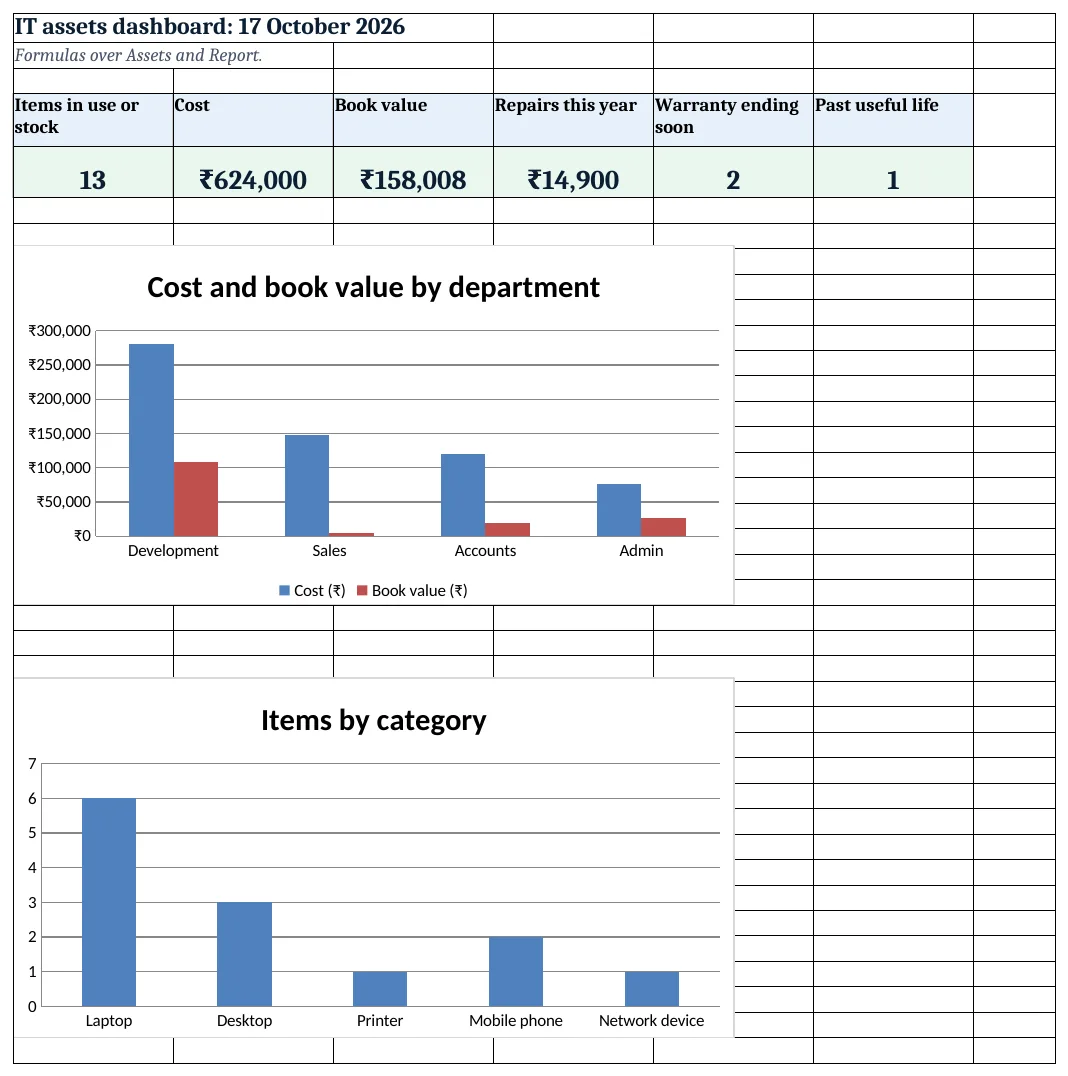
Figure 4. IT assets dashboard: items, cost, book value, repairs, warranty ending soon and past useful life
Ravindra Bagale's Tip
Check Ending soon items before the warranty ends. A free repair is easier to claim than one you pay for.
Ravindra Bagale's Tip – मराठी
warranty संपण्याआधी Ending soon वस्तू तपासा. मोफत दुरुस्ती मिळवणे सोपे असते.
Ravindra Bagale's Tip – हिंदी
warranty खत्म होने से पहले Ending soon चीज़ें जांचें. मुफ्त मरम्मत लेना आसान है.
3. Formulas used
| Cell | Formula | What it does |
|---|---|---|
| Assets!A5 | ="IT-"&TEXT(ROW()-4,"000") |
Asset tag |
| Assets!J5 | =EDATE(D5,12*I5) |
Warranty end date |
| Assets!K5 | =IF(J5<Setup!$B$3,"Expired",IF(J5-Setup!$B$3<=Setup!$B$4,"Ending soon","Active")) |
Warranty status |
| Assets!L5 | =ROUND((Setup!$B$3-D5)/365,2) |
Age in years |
| Assets!M5 | =ROUND(E5*MAX(0,1-L5/XLOOKUP(B5,Setup!$A$7:$A$11,Setup!$B$7:$B$11,1)),0) |
Book value |
| Assets!N5 | =SUMIFS(Repairs!$E$5:$E$2000,Repairs!$B$5:$B$2000,A5) |
Repair cost |
| Repairs!C5 | =XLOOKUP(B5,Assets!$A$5:$A$2000,Assets!$C$5:$C$2000,"Check tag") |
Description from the tag |
| Report!B5 | =COUNTIFS(Assets!$G$5:$G$2000,A5,Assets!$H$5:$H$2000,"<>Retired") |
Items per department |
| Report!D5 | =SUMIFS(Assets!$M$5:$M$2000,Assets!$G$5:$G$2000,A5,Assets!$H$5:$H$2000,"<>Retired") |
Book value per department |
| Report!D12 | =COUNTIFS(Assets!$B$5:$B$2000,A12,Assets!$K$5:$K$2000,"Ending soon",Assets!$H$5:$H$2000,"<>Retired") |
Warranty ending soon per category |
| Report!E12 | =COUNTIFS(Assets!$B$5:$B$2000,A12,Assets!$M$5:$M$2000,0,Assets!$H$5:$H$2000,"<>Retired") |
Past useful life |
| Asset card!B13 | =XLOOKUP($B$4,Assets!$A$5:$A$2000,Assets!$M$5:$M$2000,"Not found") |
Book value on the card |
| Dashboard!C5 | =SUM(Report!D5:D8) |
Total book value |
Every formula above is written in the template, so you can click a cell and see it in the formula bar. All values on this page were recalculated in LibreOffice with zero errors.
4. Common mistakes
- No tag on the item. Stick the tag on the item. A register you cannot match to the desk is no use.
- Deleting retired items. Mark them Retired. The report leaves them out but the history stays.
- Adding warranty years by hand. EDATE(purchase, 12 × years) handles month ends and leap years.
- Using book value for tax. This is a planning estimate. Tax depreciation follows its own rules; ask your accountant.
- Assigned to not updated. Change it the day the item moves, with a signed asset card.
Ravindra Bagale's Tip
Give spare items to new joiners first. The In stock count tells you before you buy more.
Ravindra Bagale's Tip – मराठी
नवीन कर्मचाऱ्यांना आधी spare वस्तू द्या. In stock संख्या नवीन घेण्याआधी सांगते.
Ravindra Bagale's Tip – हिंदी
नए कर्मचारियों को पहले spare चीज़ें दें. In stock गिनती नया खरीदने से पहले बताती है.
5. More real examples
Example 1: Office furniture. Chairs, desks and cupboards with a longer life and no warranty column.
Example 2: Tools and machines. Workshop equipment with service due dates, beside the manufacturing planning system.
Example 3: Software licences. Seats, renewal date and cost per user instead of book value.
Quick revision cards
Quick revision
Each card shows formulas from this page, each with an example and its answer from the template. Scan the QR code on a card to open this lesson. All names and numbers are made up for practice.
झटपट उजळणी
प्रत्येक card वर या page मधले formulas, त्यांचं example आणि template मधलं उत्तर आहे. Card वरचा QR code scan केला की हा lesson उघडतो. सगळी नावं आणि आकडे सरावासाठी काल्पनिक आहेत.
झटपट दोहराई
हर card पर इस page के formulas, उनका example और template का उत्तर है. Card का QR code scan करें तो यह lesson खुलेगा. सभी नाम और आंकड़े अभ्यास के लिए काल्पनिक हैं.
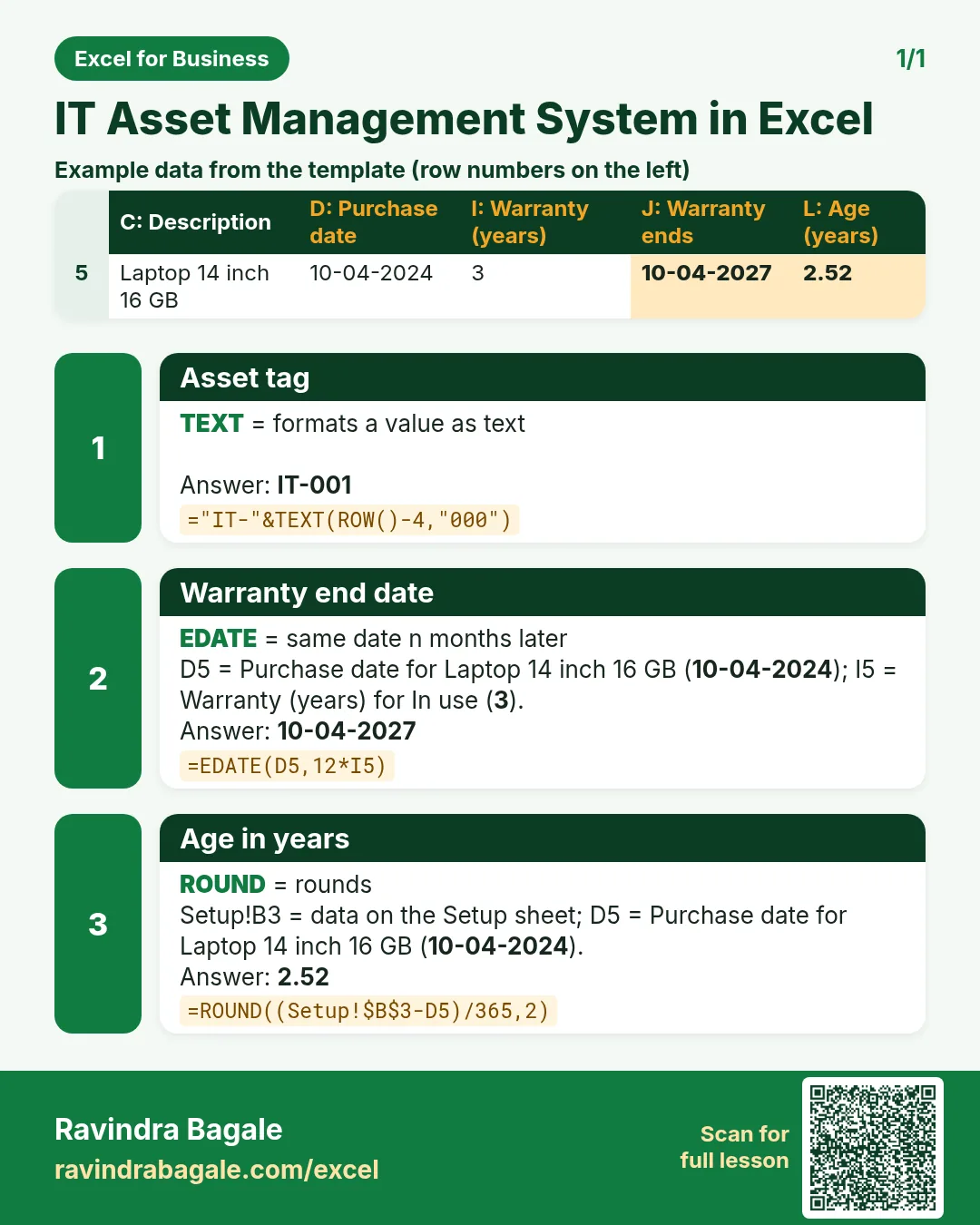

More cards: Ravi Sir's Cards.
6. Frequently asked questions
How do I calculate a warranty end date in Excel?
=EDATE(purchase_date, 12*warranty_years).
How do I flag warranties ending soon?
Warranty end − today ≤ alert days shows Ending soon; before today is Expired.
How do I work out book value?
Cost × (1 − age ÷ useful life), not below zero, as in Assets M5.
How do I add repair costs per asset?
SUMIFS the repair log by asset tag.
How do I leave retired items out of totals?
Add the condition status "<>Retired" to COUNTIFS and SUMIFS.
7. Quick quiz
Ten questions on this page. Sign in to save your score.
Loading practice tasks...
- Monthly rate (Easy): Yearly rate B3 divided by 12. (sheet "Plan")
- Months (Easy): B4 times 12. (sheet "Plan")
- Monthly EMI (Easy): EMI on amount B2 at B3 for B4 years, as a positive number, rounded to 2 decimals. (sheet "Plan")
- Days taken (Easy): C2 minus B2. (sheet "Dates")
- Start year (Easy): Year of B3. (sheet "Dates")
- Due month (Easy): Month number of C3. (sheet "Dates")
- Earliest start (Easy): Earliest date in B2:B9 (as a date number). (sheet "Dates")
- Total repaid (Medium): Total paid over the loan, rounded to 0 decimals. (sheet "Plan")
- Total interest (Medium): Total paid minus B2, rounded to 0 decimals. (sheet "Plan")
- Processing fee (Medium): B2 times B6. (sheet "Plan")
- Working days (Medium): Working days from B2 to C2. (sheet "Dates")
- Weekday of due (Medium): Weekday number of C4 (Sunday = 1). (sheet "Dates")