Payroll Calculator in Excel with PF, ESI and Professional Tax: Employer Cost, Statutory Dues and Bank Transfer List
The salary slip tells each employee what they get. The owner of Bagale Engineering Works in Pune needs the other side too: how much PF and ESI to deposit, what the company really spends on each person, and one clean list for the bank. This 9-sheet payroll calculator takes paid days from the attendance system, works out every deduction and employer contribution from rates kept in one Setup block, and produces a statutory dues summary, a bank transfer list and a department-wise employer cost report.
What you'll learn on this page
- Keep statutory rates with their sources in one Setup block
- Pro-rate earnings from paid days
- Split the employer 12% PF into EPS (8.33%) and EPF (3.67%)
- Apply ESI only below the wage ceiling, rounding up
- Total what must be deposited for PF, ESI and PT
- Report employer cost (CTC for the month) by department with SUMIFS
Download the template: payroll-calculator-pf-esi-pt-system-template.xlsx: a 9-sheet system with example data and real formulas (Read me, Setup, Employees, Inputs, Payroll, Statutory dues, Bank transfer, Report, Dashboard). Yellow cells are inputs you can type over; green cells hold formulas; blue rows are headers and totals. Replace the example data with your own and every report and the dashboard recalculate.
Made-up data: every name, amount, business and date on this page is made up for practice. Cities are used only to make the examples feel real.
1. The business story
Bagale Engineering Works, October 2026 (made-up employees, real rates checked 17 October 2026).
| Rate | Value | Source |
|---|---|---|
| PF wage ceiling | ₹25,000 a month from 17 September 2026 (was ₹15,000) | Ministry of Labour notification S.O. 5109(E) and PIB release, 16-17 Sep 2026 |
| PF employee / employer | 12% / 12% (employer = 8.33% EPS + 3.67% EPF) | EPFO |
| ESI ceiling | ₹21,000 gross a month | esic.gov.in |
| ESI employee / employer | 0.75% (rounded up) / 3.25% | esic.gov.in |
| Professional tax, Maharashtra | Men above ₹10,000: ₹200 (₹300 in February); women nil up to ₹25,000 | MAHAGST schedule from 1 April 2023 |
For October the sheet shows: gross earned ₹1,72,913, net pay to the bank ₹1,56,088, employer cost ₹1,87,807, PF to deposit ₹24,666 (employee ₹12,333 + EPS ₹8,560 + EPF ₹3,773), ESI ₹3,153 for the 5 employees under ₹21,000, and PT ₹1,200 from 6 people. The pay components themselves are explained in salary calculation: basic, HRA, DA, PF; paid days come from the attendance system and slips from the salary slip generator.
Figure 1. Rates and the employee master sit in Setup and Employees; Inputs holds the month; Payroll calculates; the dues, bank list, report and dashboard read from Payroll.
2. Build it sheet by sheet
Step 1. Setup: month and rates with sources
- On Setup, type the month (first day) in B4 and in B5
=DAY(EOMONTH(B4,0))for the days: 31. - From row 10 type each rate in a yellow cell with its source in column C: PF ceiling ₹25,000 in B11, PF 12% in B12, EPS 8.33% in B13, ESI ceiling ₹21,000 in B14, ESI 0.75% in B15 and ESI employer 3.25% in B16.
- Type the departments in E5:E8 for the drop-down on Employees (drop-down lists).
Step 2. Employees and Inputs
- On Employees, the master: Emp ID, name, gender, designation, department, basic, HRA, conveyance, special allowance; J5
=SUM(F5:I5)for the monthly gross. - On Inputs, A5
=Employees!A5, B5=XLOOKUP(A5,Employees!$A$5:$A$12,Employees!$B$5:$B$12), then type paid days (from attendance), incentive, advance recovery and TDS.
Step 3. Payroll: earned pay
- On Payroll, D5 brings the monthly gross with XLOOKUP and E5 the paid days:
=XLOOKUP(A5,Inputs!$A$5:$A$12,Inputs!$C$5:$C$12)(XLOOKUP). - Earned basic F5:
=ROUND(XLOOKUP($A5,Employees!$A$5:$A$12,Employees!$F$5:$F$12)*E5/Setup!$B$5,0)(ROUND). G5 adds the other components the same way. - Gross earned I5
=F5+G5+H5. Shraddha Bagale with 29.5 paid days: ₹28,549.
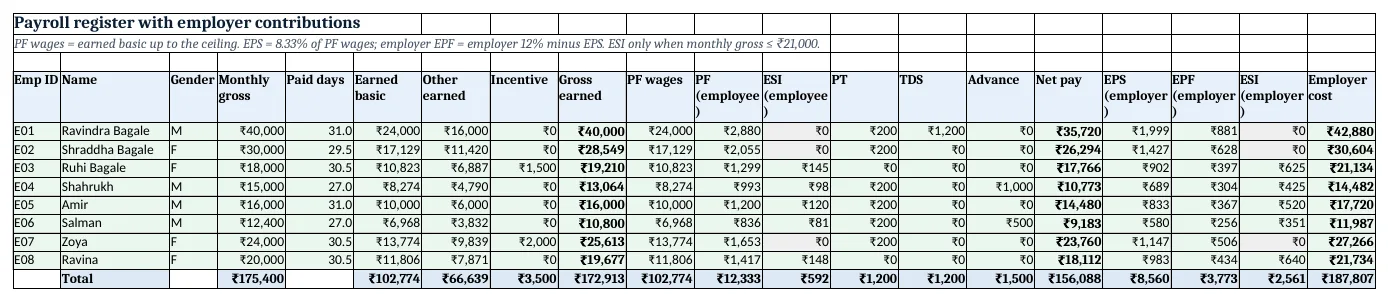
Figure 2. The payroll register: earned pay, employee deductions, net pay and the employer EPS, EPF and ESI shares
Step 4. Payroll: deductions and employer share
- PF wages J5
=MIN(F5,Setup!$B$11)and PF K5=ROUND(J5*Setup!$B$12,0): Ravindra Bagale ₹24,000 × 12% = ₹2,880. - ESI L5
=IF(D5<=Setup!$B$14,ROUNDUP(I5*Setup!$B$15,0),0): zero for anyone whose monthly gross is above ₹21,000. - PT M5 uses the nested IF with gender and February (nested IF); net pay P5
=I5-SUM(K5:O5). - Employer side: EPS Q5
=ROUND(J5*Setup!$B$13,0), EPF R5=K5-Q5, ESI employer S5 and employer cost T5=I5+Q5+R5+S5. Ravindra Bagale: ₹42,880.
Step 5. Statutory dues and bank transfer
- On Statutory dues, read the Payroll total row: C5
=Payroll!K13(PF employee), C6=Payroll!Q13(EPS), C7=Payroll!R13(EPF), C8=Payroll!L13, C9=Payroll!S13, C10=Payroll!M13. - Count people with COUNTIF: B8
=COUNTIF(Payroll!$D$5:$D$12,"<="&Setup!$B$14)gives 5 covered by ESI (COUNTIF). - Total PF C12
=SUM(C5:C7)= ₹24,666 and total ESI C13=C8+C9= ₹3,153. - On Bank transfer, list ID, name, masked account (
=XLOOKUP(A5,Employees!$A$5:$A$12,Employees!$K$5:$K$12)) and net pay=Payroll!P5, with a check cell against the Payroll total.
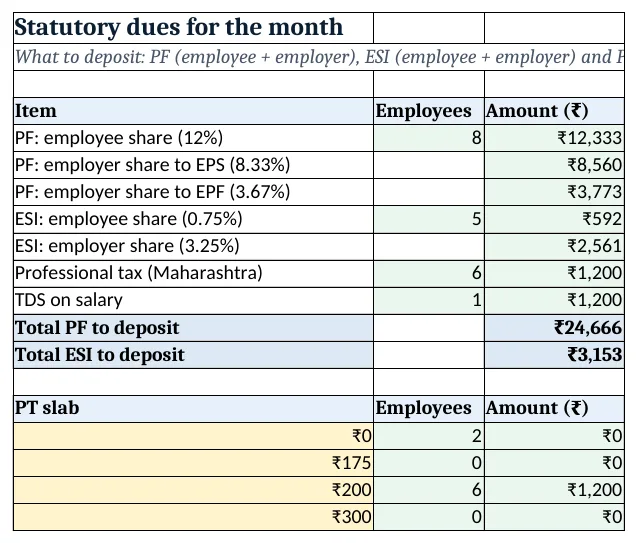
Figure 3. Statutory dues: PF, ESI and PT to deposit for the month, all read from the Payroll total row
Step 6. Report and Dashboard
- On Report, by department: gross
=SUMIFS(Payroll!$I$5:$I$12,Employees!$E$5:$E$12,A5)(SUMIFS), employer contributions, total cost and share of the company total=E5/Payroll!$T$13. Production: ₹75,082, 40%. - On Dashboard, KPI cards: gross A5
=Payroll!I13, net B5=Payroll!P13, employer cost C5=Payroll!T13, PF to deposit D5, ESI to deposit E5, ESI-covered employees F5 (KPI cards).
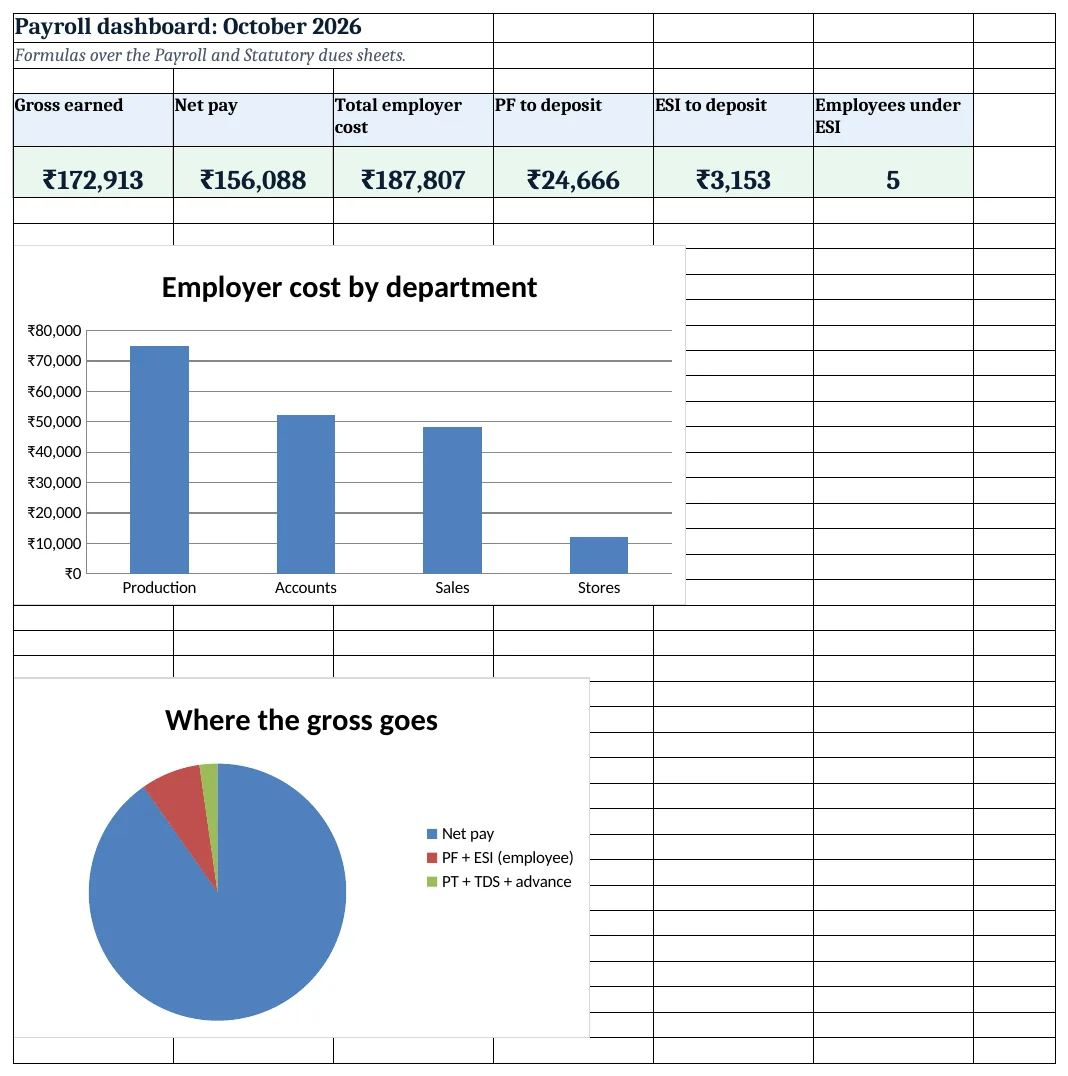
Figure 4. The payroll dashboard: gross, net, employer cost and dues as KPI cards, with charts
Ravindra Bagale's Tip
Deposit PF and ESI from the Statutory dues sheet, not from memory. Print it each month and file it with the challans.
Ravindra Bagale's Tip – मराठी
PF आणि ESI भरताना Statutory dues sheet वरून भरा, आठवणीवरून नाही. दर महिन्याला ती print करून challans सोबत ठेवा.
Ravindra Bagale's Tip – हिंदी
PF और ESI जमा करते समय Statutory dues sheet से भरो, याद से नहीं. हर महीने उसे print करके challans के साथ रखो.
3. Formulas used
| Cell | Formula | What it does |
|---|---|---|
| Setup!B5 | =DAY(EOMONTH(B4,0)) |
Days in the payroll month |
| Payroll!D5 | =XLOOKUP($A5,Employees!$A$5:$A$12,Employees!$J$5:$J$12) |
Monthly gross from the master |
| Payroll!E5 | =XLOOKUP(A5,Inputs!$A$5:$A$12,Inputs!$C$5:$C$12) |
Paid days from Inputs |
| Payroll!F5 | =ROUND(XLOOKUP($A5,Employees!$A$5:$A$12,Employees!$F$5:$F$12)*E5/Setup!$B$5,0) |
Earned basic, pro-rata |
| Payroll!I5 | =F5+G5+H5 |
Gross earned |
| Payroll!J5 | =MIN(F5,Setup!$B$11) |
PF wages capped at the ceiling |
| Payroll!K5 | =ROUND(J5*Setup!$B$12,0) |
Employee PF 12% |
| Payroll!L5 | =IF(D5<=Setup!$B$14,ROUNDUP(I5*Setup!$B$15,0),0) |
Employee ESI if covered |
| Payroll!M5 | =IF(C5="F",IF(I5<=25000,0,IF(MONTH(Setup!$B$4)=2,300,200)),IF(I5<=7500,0,IF(I5<=10000,175,IF(MONTH(Setup!$B$4)=2,300,200)))) |
Maharashtra PT slab |
| Payroll!P5 | =I5-SUM(K5:O5) |
Net pay |
| Payroll!Q5 | =ROUND(J5*Setup!$B$13,0) |
Employer share to EPS 8.33% |
| Payroll!R5 | =K5-Q5 |
Employer share to EPF (12% − EPS) |
| Payroll!S5 | =IF(D5<=Setup!$B$14,ROUNDUP(I5*Setup!$B$16,0),0) |
Employer ESI 3.25% |
| Payroll!T5 | =I5+Q5+R5+S5 |
Employer cost for the month |
| Statutory dues!B8 | =COUNTIF(Payroll!$D$5:$D$12,"<="&Setup!$B$14) |
Employees covered by ESI |
| Statutory dues!C12 | =SUM(C5:C7) |
Total PF to deposit |
| Statutory dues!C13 | =C8+C9 |
Total ESI to deposit |
| Report!C5 | =SUMIFS(Payroll!$I$5:$I$12,Employees!$E$5:$E$12,A5) |
Gross of the department |
| Report!F5 | =E5/Payroll!$T$13 |
Share of total employer cost |
| Dashboard!C5 | =Payroll!T13 |
Employer cost KPI |
Every formula above is written in the template, so you can click a cell and see it in the formula bar. All values on this page were recalculated in LibreOffice with zero errors.
4. Common mistakes
- Applying 12% employer PF entirely to EPF. The employer 12% is split: 8.33% of PF wages goes to EPS (pension) and only the rest to EPF. The dues sheet shows both lines.
- Keeping the old ₹15,000 ceiling in a formula. The ceiling moved to ₹25,000 from 17 September 2026. Because it sits in Setup B11, every formula updated with one edit.
- Charging ESI on employees above ₹21,000. Coverage depends on the monthly gross. Ravindra Bagale and Shraddha Bagale earn above the ceiling, so their ESI is 0.
- Rounding ESI normally. ESI contributions are rounded up to the next rupee, so the formula uses ROUNDUP, not ROUND.
- Forgetting that TDS is not a rate. TDS depends on regime and declarations. It is typed on Inputs; the sheet only carries it to net pay and the dues list.
Ravindra Bagale's Tip
Check the EPFO, ESIC and MAHAGST websites once a quarter and update the yellow rate cells with the new source line. Rules change; your formulas need not.
Ravindra Bagale's Tip – मराठी
दर तिमाहीला EPFO, ESIC आणि MAHAGST websites पाहा आणि पिवळ्या rate cells मध्ये नवीन source सह बदल करा. नियम बदलतात; formulas बदलायची गरज नाही.
Ravindra Bagale's Tip – हिंदी
हर तिमाही EPFO, ESIC और MAHAGST websites देखो और पीले rate cells में नए source के साथ बदलाव करो. नियम बदलते हैं; formulas बदलने की ज़रूरत नहीं.
5. More real examples
Example 1: Factory paying overtime. Add an OT hours input and an OT pay column (hours × hourly rate × 2 as per your rules). OT is part of gross earned for ESI but not of basic for PF.
Example 2: Firm with 25 employees. Extend every range from row 12 to row 29 (or convert the ranges to Tables). Nothing else changes.
Example 3: Employer paying PF on full basic. Some employers contribute on basic above the ceiling. Set B11 to a very large number for those employees with a per-employee PF on full basic? column and an IF.
Quick revision cards
Quick revision
Each card shows formulas from this page, each with an example and its answer from the template. Scan the QR code on a card to open this lesson. All names and numbers are made up for practice.
झटपट उजळणी
प्रत्येक card वर या page मधले formulas, त्यांचं example आणि template मधलं उत्तर आहे. Card वरचा QR code scan केला की हा lesson उघडतो. सगळी नावं आणि आकडे सरावासाठी काल्पनिक आहेत.
झटपट दोहराई
हर card पर इस page के formulas, उनका example और template का उत्तर है. Card का QR code scan करें तो यह lesson खुलेगा. सभी नाम और आंकड़े अभ्यास के लिए काल्पनिक हैं.
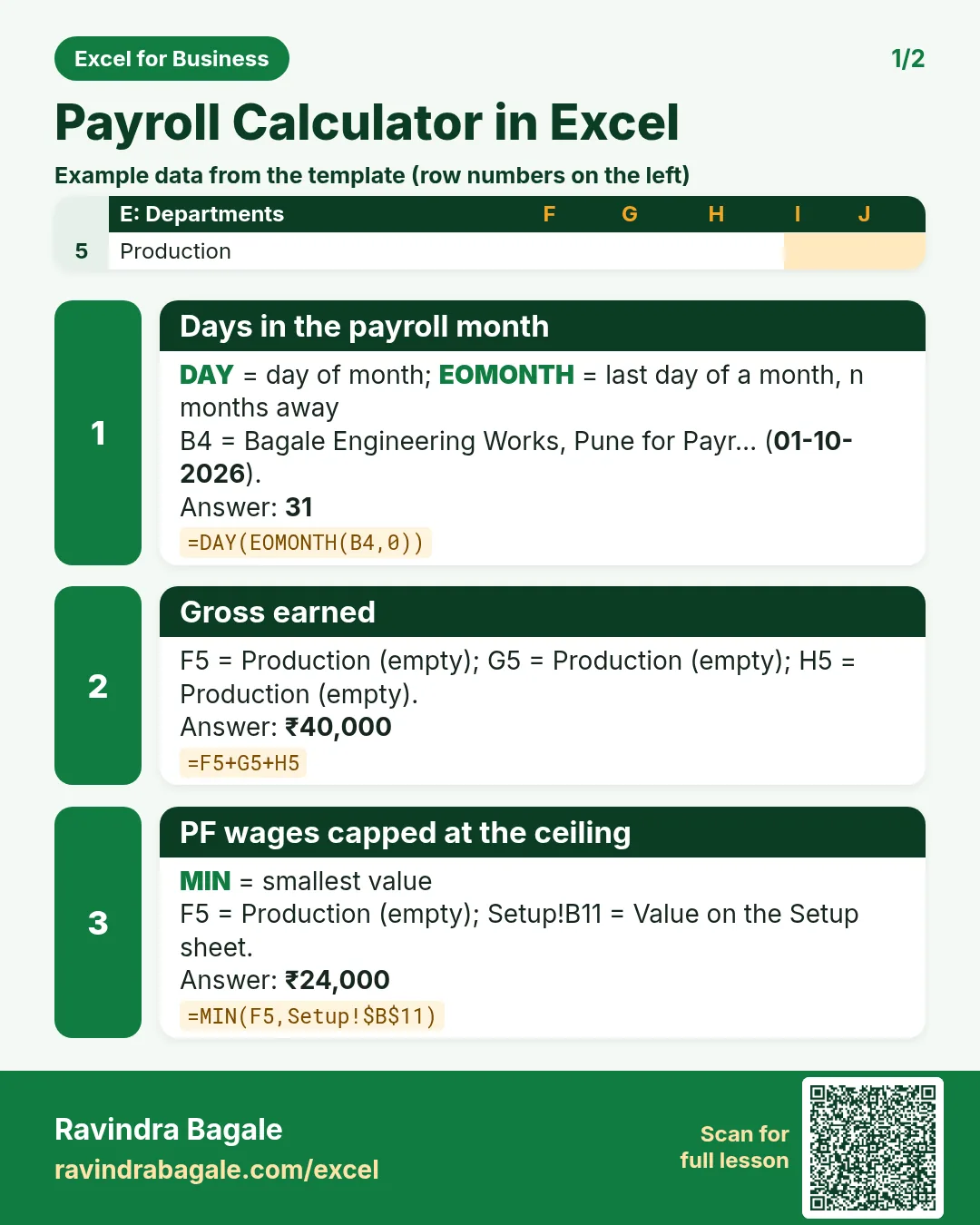

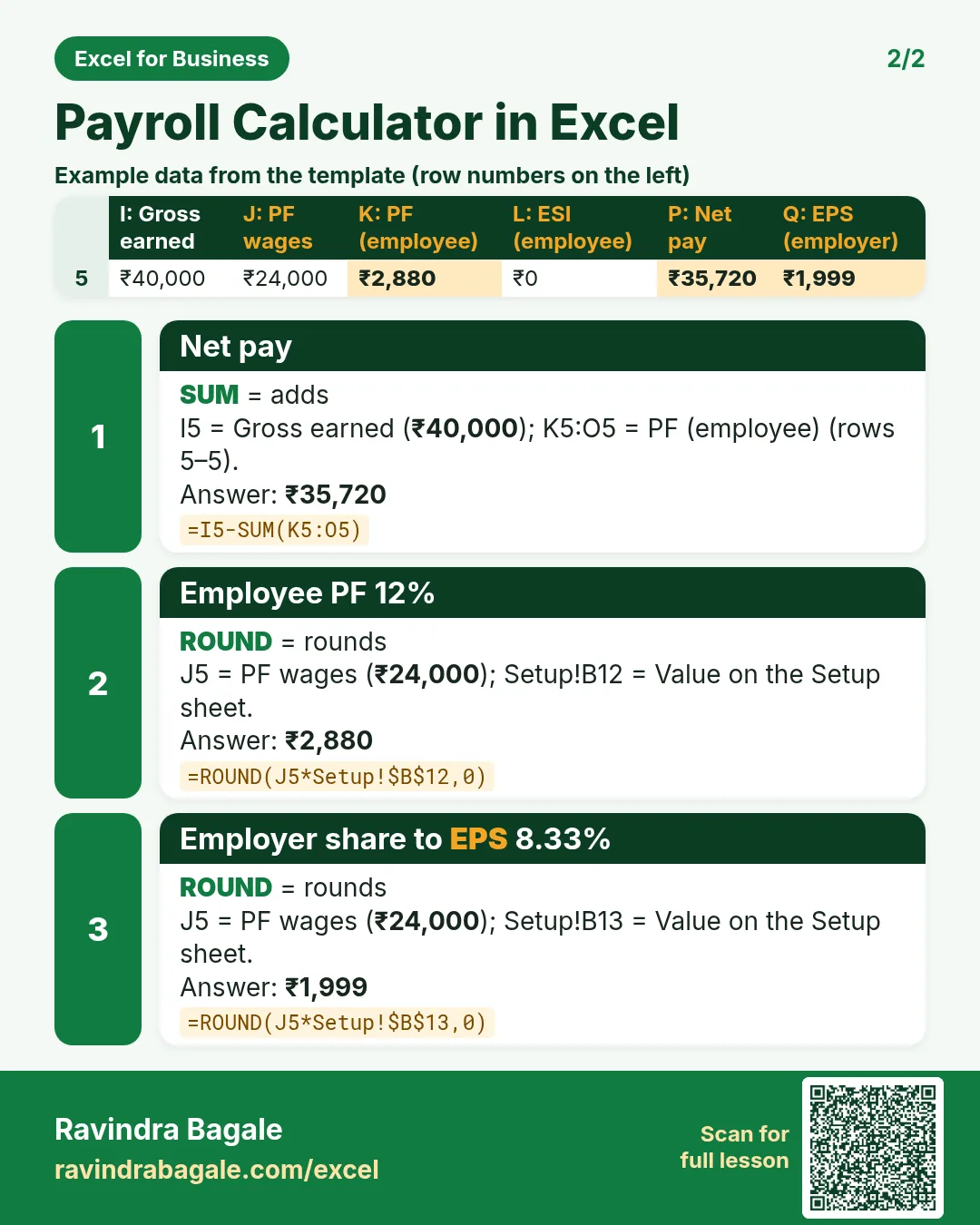

More cards: Ravi Sir's Cards.
6. Frequently asked questions
How do I calculate employer PF contribution in Excel?
PF wages = MIN(earned basic, ceiling). EPS = ROUND(PF wages × 8.33%, 0); employer EPF = employee PF − EPS. Together they make the employer 12%.
What is the PF wage ceiling now?
₹25,000 a month from 17 September 2026 (S.O. 5109(E), Ministry of Labour and Employment, and PIB release of 16 September 2026). It was ₹15,000 from September 2014.
Who is covered by ESI?
Employees whose wages are up to ₹21,000 a month (₹25,000 for persons with disability). Employee 0.75%, employer 3.25% (esic.gov.in).
What is employer cost or monthly CTC?
Gross earned + employer EPS + employer EPF + employer ESI. In this sheet it is column T: ₹1,87,807 for October.
Does this file calculate gratuity, bonus or EDLI?
No. It covers the monthly PF, ESI, PT and TDS lines. Add columns for EDLI admin charges, bonus or gratuity provisions if your accountant needs them.
7. Quick quiz
Ten questions on this page. Sign in to save your score.
Loading practice tasks...
- Total tenure months (Easy): Add up Tenure months in D2:D11. (sheet "Data")
- Average loan amount (Easy): Average of E2:E11, rounded to 2 decimals. (sheet "Data")
- Rows in Home (Easy): How many rows have Loan type "Home"? (sheet "Data")
- Largest tenure months (Easy): The largest value in D2:D11. (sheet "Data")
- Days taken (Easy): C2 minus B2. (sheet "Dates")
- Start year (Easy): Year of B3. (sheet "Dates")
- Due month (Easy): Month number of C3. (sheet "Dates")
- Earliest start (Easy): Earliest date in B2:B9 (as a date number). (sheet "Dates")
- Tenure months for Home (Medium): Total of D2:D11 where B is "Home". (sheet "Data")
- Home in Pune (Medium): Total of D2:D11 where B is "Home" and C is "Pune". (sheet "Data")
- Working days (Medium): Working days from B2 to C2. (sheet "Dates")
- Weekday of due (Medium): Weekday number of C4 (Sunday = 1). (sheet "Dates")